figmaboy
Health Warn
- License — License: MIT
- Description — Repository has a description
- Active repo — Last push 0 days ago
- Low visibility — Only 5 GitHub stars
Code Fail
- process.env — Environment variable access in playwright.config.ts
- process.env — Environment variable access in scripts/check-version.mjs
- spawnSync — Synchronous process spawning in scripts/prepare-sidecar.mjs
- process.env — Environment variable access in scripts/prepare-sidecar.mjs
- exec() — Shell command execution in scripts/smoke-sidecar.mjs
- process.env — Environment variable access in scripts/smoke-sidecar.mjs
Permissions Pass
- Permissions — No dangerous permissions requested
No AI report is available for this listing yet.
A local-first desktop interface design tool with a native MCP server for Codex.
Figmaboy
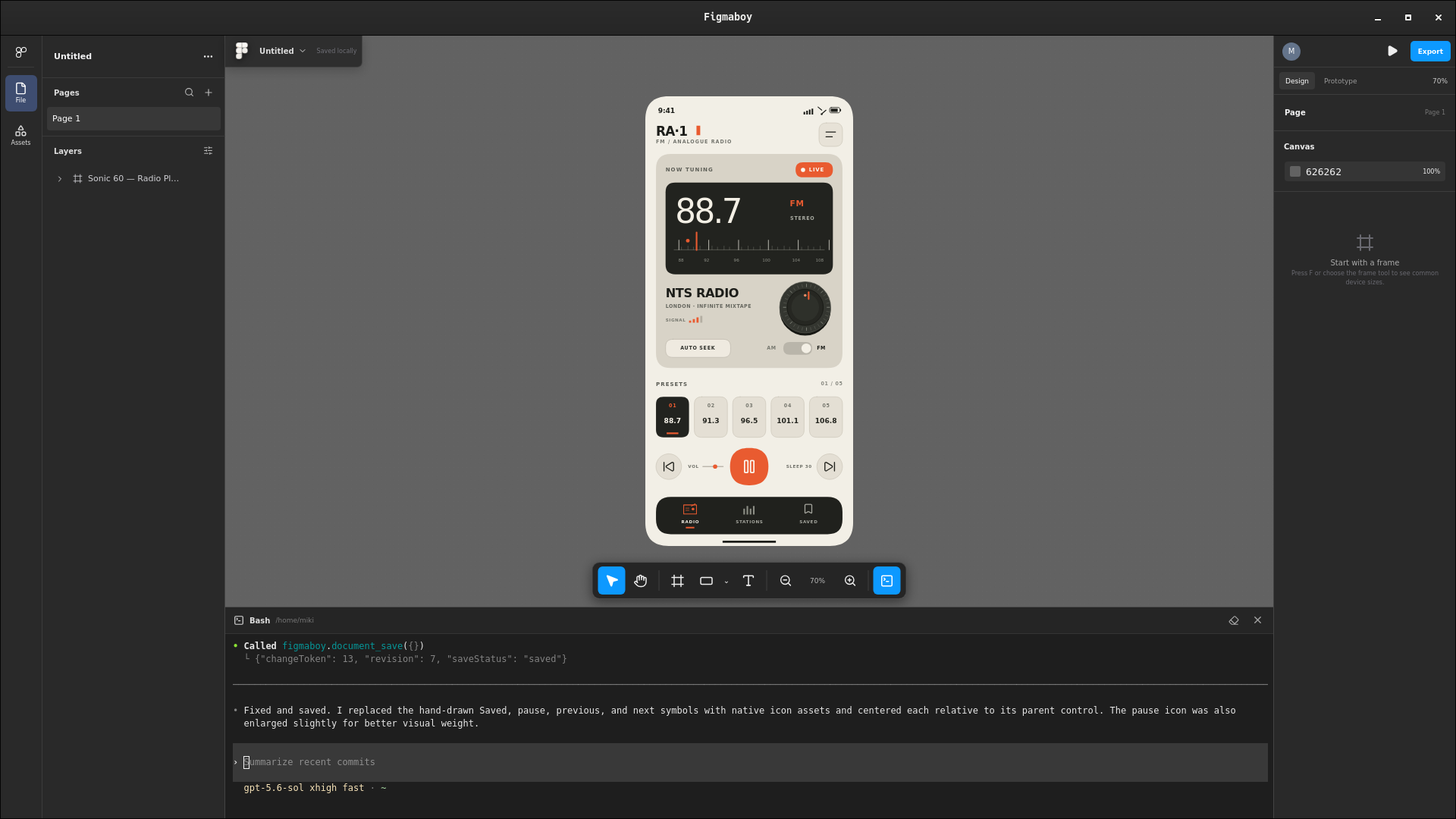
A local-first Figma clone with Codex CLI built directly into the desktop app.
Design interfaces by hand with a familiar canvas, layers, frames, and inspector—or open the embedded terminal and ask Codex to inspect and edit the live document for you. Codex's changes appear immediately as native, editable layers with undo/redo and local autosave.
Website · Documentation · Download Figmaboy


Download
Choose the recommended installer on the Figmaboy download page, or browse the raw assets on GitHub Releases:
- Linux: AppImage, Debian package, and RPM package
- macOS: DMG builds for Apple Silicon and Intel
- Windows: NSIS and MSI installers
- MCP: standalone
figmaboy-mcpbinaries for every release target
Release assets include SHA256SUMS for verification. The Linux packages install both figmaboy and figmaboy-mcp; AppImage users can download the matching standalone MCP binary from the same release.
macOS builds are currently ad-hoc signed rather than notarized, so the first launch may require approval in System Settings → Privacy & Security. Windows builds are not code-signed yet and may show a SmartScreen warning.
Codex design MCP
Figmaboy includes a companion figmaboy-mcp stdio server. It can use saved designs as read-only Codex context while the desktop app is closed, or edit the design currently open in the app with live undo/redo and autosave.
Use saved designs as Codex context
Right-click a design card in the Figmaboy workspace and choose Copy design ID, or use the copy button beside the file name in the editor. IDs are stable and unambiguous, so they are the best way to reference an important design:
Build the interface from the Figmaboy design
file_…, pageHome.
Names work too when they are unique:
Use the Figmaboy design named
Marketing siteas the visual and layout reference.
The MCP exposes two offline tools:
designs_listsearches saved designs and returns their IDs, names, projects, timestamps, and page counts.design_context_getaccepts eitherfileIdorfileName, plus an optionalpageIdorpageName. It returns the latest autosaved page revision, complete native document, ordered layer tree, asset metadata, and a visual preview.
If multiple active designs have the same name, the MCP returns their project names and IDs so Codex can retry with an exact ID. Offline context is always read-only; open the design in Figmaboy before asking Codex to change it.
Runtime architecture
The desktop app and MCP server are separate processes with two data paths:
Codex (or another MCP client)
        │ JSON-RPC over stdio
        ▼
figmaboy-mcp
        ├── read-only SQLite ───────────────► saved pages, layers, previews
        │                                     (app open or closed)
        │
        └── authenticated 127.0.0.1 bridge ─► currently open editor
                                              (live inspect and edit)
- Figmaboy autosaves native page documents and per-page previews to its local SQLite workspace.
figmaboy-mcpopens that database in SQLite read-only mode fordesigns_listanddesign_context_get. WAL mode keeps reads safe while the app is saving.- Figmaboy starts an editor bridge on a random loopback-only port when the desktop app opens.
- The app writes
editor-bridge.json, containing the port, a random authentication token, and its process ID, to the local application-data directory. On Unix the file is restricted to the current user with mode0600. - The MCP client launches
figmaboy-mcpas a normal stdio server. The desktop app does not launch it. - Live tools connect through the bridge; the editor performs mutations and rendering and returns the result through the same path.
The MCP process never writes to the SQLite database. This keeps validation, undo/redo, live rendering, revision checks, and autosave inside the desktop app.
The default discovery file is located at:
| Platform | Path |
|---|---|
| Linux | ${XDG_DATA_HOME:-$HOME/.local/share}/com.miki.figmaboy/editor-bridge.json |
| macOS | ~/Library/Application Support/com.miki.figmaboy/editor-bridge.json |
| Windows | %LOCALAPPDATA%\com.miki.figmaboy\editor-bridge.json |
Set FIGMABOY_BRIDGE_FILE for the MCP process only when a non-default discovery path is required.
Set FIGMABOY_DB_PATH to override the saved workspace database path, primarily for portable installations and tests.
Install and register with Codex
The desktop package must install both the GUI and the companion figmaboy-mcp executable. The current NixOS package exposes both on PATH. Register its absolute path so Codex does not depend on the environment from which it was launched:
MCP_BIN="$(command -v figmaboy-mcp)"
test -n "$MCP_BIN"
codex mcp add figmaboy -- "$MCP_BIN"
codex mcp list
If figmaboy is already registered to a binary inside an old repository checkout, replace that entry first:
codex mcp remove figmaboy
codex mcp add figmaboy -- "$(command -v figmaboy-mcp)"
On macOS or a non-Nix Linux package, use the absolute installed path in the same command:
codex mcp add figmaboy -- /absolute/path/to/figmaboy-mcp
On Windows, run the equivalent command in PowerShell with the installed .exe path:
codex mcp add figmaboy -- "C:\absolute\path\to\figmaboy-mcp.exe"
After registration, begin a new Codex session. Saved-context tools work whether Figmaboy is open or closed. Live editor and mutation tools require an open design and report a clear error when the app is unavailable.
Tauri's externalBin setting ensures that release artifacts contain the MCP executable, but it does not register the server with Codex and does not automatically expose the executable on PATH. Each platform installer must provide a stable executable path for the registration command. The NixOS package already does this.
Tools and authoring contract
The server exposes offline tools to find saved designs and load a page as structured-plus-visual Codex context. Its live tools inspect editor state and nodes, retrieve exact coordinate geometry, atomically create/update/delete/reparent/reorder layers, place generated image assets, center layers horizontally/vertically, set border radii, control selection and viewport focus, undo/redo/save, and capture a complete frame as PNG evidence.
Codex builds designs entirely from native frames, groups, shapes, text, images, and icons. Every visible element remains addressable through MCP and editable in the layer panel. The design_capabilities tool returns the current node/style contract plus the expected semantic grouping model; Codex should call it before authoring a design.
Native styling currently includes solid, linear-gradient, and radial-gradient fills; independent corner radii; stroke width, dash, cap, and join controls; blend modes; layered drop shadows and blur; and expanded typography (arbitrary font families, weight, italic, case, decoration, vertical alignment, resizing, paragraph spacing/indentation, and truncation). Designs should use one top-level frame per screen, section-level frames/groups, and named component groups instead of a flat root layer list.
Right-click any frame and choose Copy as image to place a high-resolution rasterization of the frame and all of its descendants on the system clipboard. The renderer targets a 3840 px long edge where possible, renders at no less than 2× for ordinary frame sizes, and preserves aspect ratio within the 4096 px safety limit. On Linux it offers both PNG pixels and a cached PNG file URI, so the result can be pasted into image-aware applications or directly into a folder.
The machine-readable TypeScript contract lives at mcp/types.ts and is returned by the types_get MCP tool. Codex should use nodes_center for Figma-style center alignment, nodes_set_border_radius for rounded surfaces, and frame_screenshot to visually review every completed frame.
Generated artwork
Codex can create hero art, backgrounds, product imagery, textures, illustrations, logos, or transparent cutouts with its image-generation capability and then call image_place with the final local PNG, JPEG, or WebP path. Figma Boy validates and persists the file in its asset database and creates a normal editable image layer. For a background, pass the containing frame as parentId, use placement: "fill-parent", fit: "cover", and index: 0; for a logo or cutout, use a transparent PNG with natural placement and an explicit position/size. Finish by calling frame_screenshot and reviewing the composition.
Development server
Build and register an MCP binary directly from this checkout:
nix-shell --run 'cargo build --locked --release --manifest-path src-tauri/mcp/Cargo.toml'
codex mcp add figmaboy -- "$(pwd)/src-tauri/target/release/figmaboy-mcp"
Remove an existing figmaboy entry first when switching between an installed package and a repository build.
Bundled sidecar
Tauri builds include figmaboy-mcp as an external binary. The development and release hooks compile it for the selected target and stage it with Tauri's required target-triple filename automatically. To prepare and validate the current host binary directly:
nix-shell --run 'bun run sidecar:prepare'
nix-shell --run 'bun run sidecar:smoke'
Generated sidecar binaries live under src-tauri/binaries/ and are not committed. bun run tauri dev prepares a debug sidecar; production Tauri builds prepare a release sidecar.
Development
Run nix-shell, then bun run tauri dev.
Recommended IDE setup
VS Code + Svelte + Tauri + rust-analyzer.
Reviews (0)
Sign in to leave a review.
Leave a reviewNo results found