browser-hands
Health Pass
- License — License: MIT
- Description — Repository has a description
- Active repo — Last push 0 days ago
- Community trust — 30 GitHub stars
Code Fail
- exec() — Shell command execution in extension/errors.js
- exec() — Shell command execution in extension/frames.js
Permissions Pass
- Permissions — No dangerous permissions requested
No AI report is available for this listing yet.
Give your AI agent hands in your own browser: Chrome extension + local MCP server. Logged-in, parallel, low CPU.
Browser Hands
A fast, local Chrome MCP server for AI agents. Your browser, your logins, near-zero overhead.


Browser Hands is a Chrome extension plus a small local MCP (Model Context Protocol) server. It lets any MCP-capable agent (Claude Code, Codex, Cursor and others) drive the Chrome you already use: click, type, read pages, take screenshots, run JavaScript and record GIFs, without a cloud VM or a headless browser.
In one sentence: if you want Claude Code, Cursor, Codex or another MCP client to control your existing Chrome (your tabs, your cookies, your logged-in accounts) instead of a fresh headless browser, this is what Browser Hands does. It is free and open source (MIT).
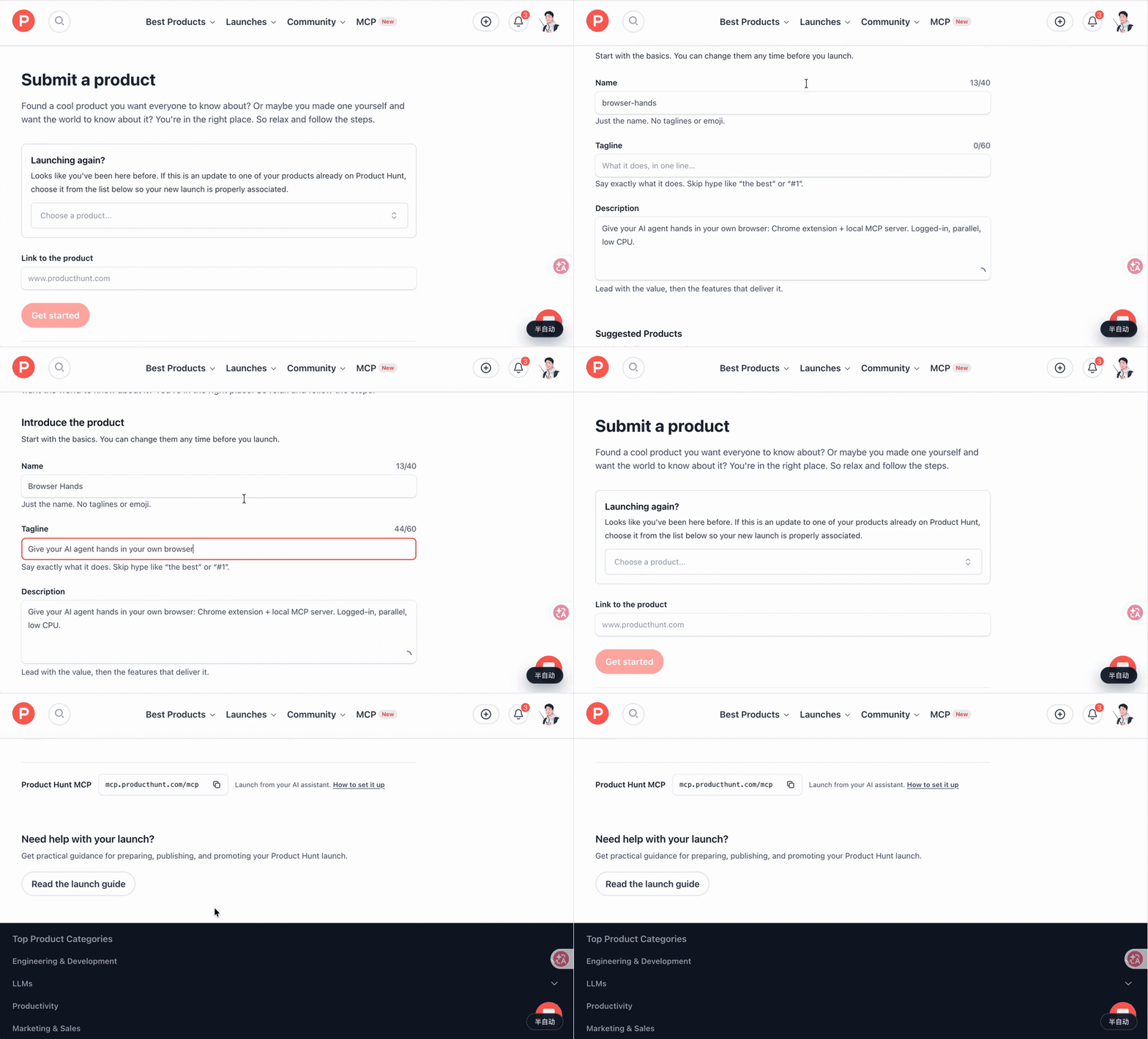
An agent filling in a Product Hunt launch form in my own logged-in Chrome (sped up, idle waits removed). MP4
Demo 1: Bulk work in one shot. An agent learns one form, then injects a script to submit it across many sites, stopping before every final submit.
Demo 2: Parallel agents, multiple profiles. Several agents work at once in their own tab groups, across two Chrome profiles (work and personal), with no cross-talk.
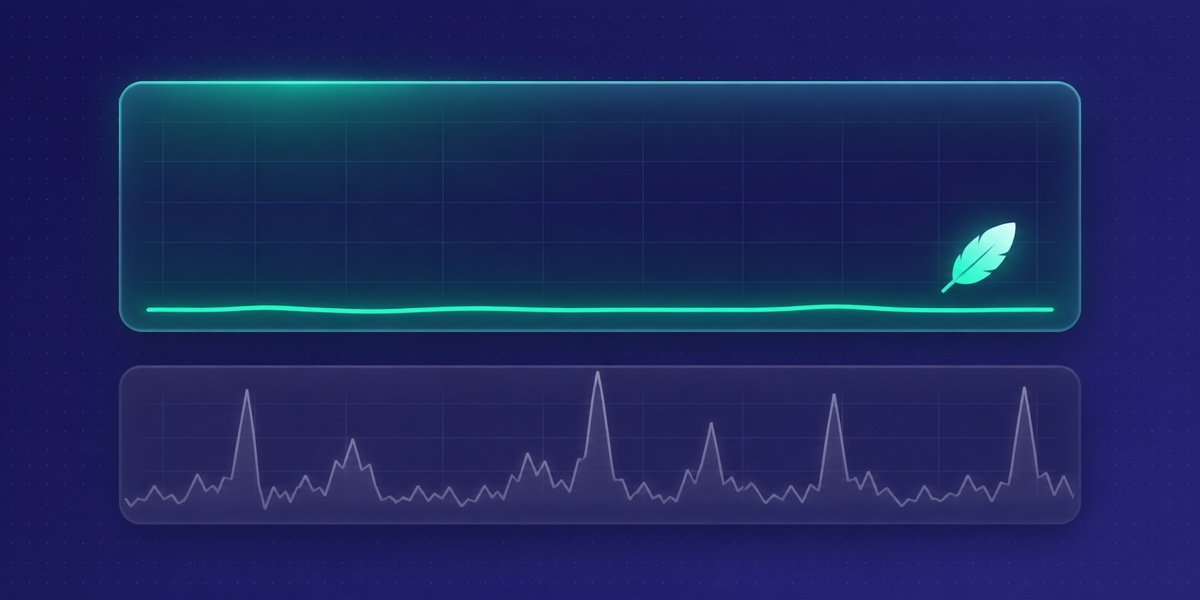
Demo 3: Screenshots that don't melt your laptop. Continuous screenshots next to Activity Monitor. Chrome scales the image itself; no in-page canvas re-encoding.
Why Browser Hands
Most browser automation for agents means a cloud VM, a heavy headless browser, or an extension that eats your CPU and takes over your session.
- Local only. No cloud, no accounts, no sidebar chat, no per-site permission popups. Your agent talks to your Chrome through a local process.
- Familiar tool interface. 16 of the 26 tools use the same names and arguments as the browser tools agents already know from Claude in Chrome, so existing prompts mostly carry over. The other 10 are Browser Hands additions.
- Small footprint. Screenshots are scaled by Chrome itself through the DevTools Protocol. No in-page canvas work, no animated overlays.
Features
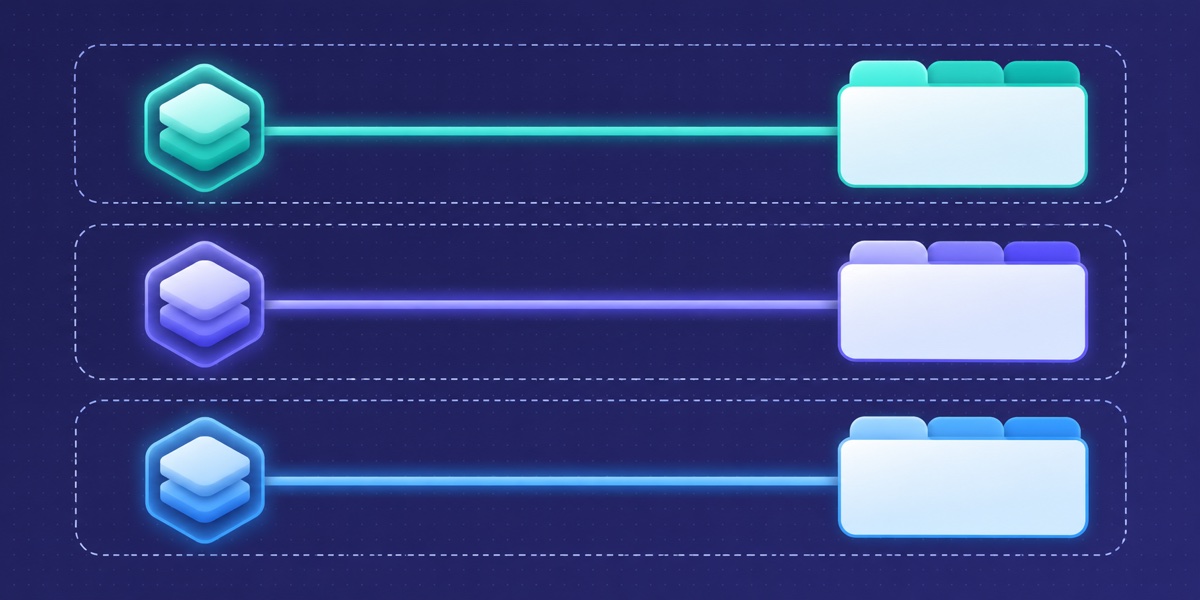
- Parallel agents without cross-talk. Each agent session gets its own Chrome tab group and can only see and act on tabs inside it.
- Multiple profiles. Install the extension in several Chrome profiles. The agent sees each profile's name and signed-in email and can switch between them.
quick_taskexecutor. Hand over a route (each step plus what you expect to see) and a fast small model clicks through it, about 0.2–0.5 s per decision, handing control back when unsure.stopBeforehard-blocks named buttons such as "Submit" or "Pay". Needs a Typesafe or OpenRouter API key; every other tool works without one.- Token-efficient by default. Agents read the accessibility tree and page text first and fall back to screenshots only when needed. For repetitive work they are steered toward one injected script that returns compact JSON.
- Human in the loop. Agents are told to stop before final submit, payment, send and delete, and to pause for you on real CAPTCHAs.
- GIF recording. Record a session as a GIF for sharing, debugging or review.
Quick start
Requirements: macOS, Node.js 18+, Google Chrome.
Install (the MCP server is a single ~450 KB JS file):
curl -fsSL https://github.com/214140846/browser-hands/releases/latest/download/install.sh | shFiles go to
~/.thundermcp. Run with--dry-runto see what it would do, or--uninstallto remove it.Load the extension: open
chrome://extensions, turn on Developer mode, click "Load unpacked" and pick~/.thundermcp/extension.Connect your agent. If the
claudeCLI is installed, the installer registers Browser Hands with Claude Code for you. For other agents, add this to their MCP config (use the full path to your home directory; most clients do not expand~):{ "mcpServers": { "thundermcp": { "command": "node", "args": ["/Users/you/.thundermcp/thundermcp.mjs", "mcp"] } } }
Build from source: bun install && bun run build && sh install.sh (uses the local dist/thundermcp.mjs and extension/).
Connect Claude Code
The installer runs claude mcp add for you when the claude CLI is on your PATH. To do it by hand:
claude mcp add thundermcp -s user -- node ~/.thundermcp/thundermcp.mjs mcp
Then ask Claude Code something like "Open my GitHub notifications in Chrome and summarize them."
Connect Cursor
Add the server to ~/.cursor/mcp.json (or .cursor/mcp.json in a project), then enable it in Cursor's MCP settings:
{ "mcpServers": { "thundermcp": { "command": "node", "args": ["/Users/you/.thundermcp/thundermcp.mjs", "mcp"] } } }
Connect Codex
Add the server to ~/.codex/config.toml:
[mcp_servers.thundermcp]
command = "node"
args = ["/Users/you/.thundermcp/thundermcp.mjs", "mcp"]
Any other MCP client that can start a stdio server works the same way: command node, arguments <path>/thundermcp.mjs mcp.
What you can do with it
- Work in sites you are already logged into. Gmail, GitHub, Notion, Jira, admin panels, internal tools: the agent uses the session that is already in your Chrome profile. You do not give it a password, and it does not need an API integration for each site.
- Test your web app in a real browser. Let your coding agent open
localhost, click through the change it just made, read console errors (read_console_messages) and network requests (read_network_requests), and take screenshots to check the UI. - Fill in forms and repeat web chores.
find,form_input,computer(click, type, keys, scroll) andfile_uploadcover multi-step forms. For many similar items the agent can run one script withjavascript_tool, or hand a known route toquick_task. - Read and inspect pages.
read_pagereturns the accessibility tree with element references,get_page_textreturns the main text,findlocates elements by description, andjavascript_toolcan query the DOM directly. - See the screen.
computerwithscreenshotorzoomgives the agent an image of the tab when text is not enough. - Run several tabs or agents at once. Each agent session gets its own tab group, so parallel agents do not touch each other's tabs.
How it compares
Browser Hands is one of several ways to give an agent a browser. Other common options are Playwright MCP and Chrome DevTools MCP. Their default setup starts or attaches to a browser for automation. Both projects also document ways to connect to an existing Chrome, so check their current docs if that is what you need.
What Browser Hands gives you:
| Browser Hands | |
|---|---|
| Browser the agent drives | Your everyday Chrome, through an extension |
| Your logins and cookies | Already there, from your normal profile |
Remote debugging port (9222) |
Not needed |
| Parallel agents | Each session gets its own tab group and cannot act on other tabs |
| Several Chrome profiles | list_connected_browsers / select_browser |
| Tool names | 16 tools match Claude in Chrome's names and arguments |
Pick a Playwright-style setup when you want a clean, scripted, reproducible browser (for example in CI). Pick Browser Hands when the agent should work in the browser you actually use, with your accounts, and several agents may run at once.
How it works
graph TD
    A[AI agent<br/>Claude Code, Cursor, ...] <-->|MCP over stdio| B(Browser Hands server<br/>Node.js)
    B <-->|Native messaging| C{Chrome extension}
    C <-->|DevTools Protocol + DOM| D[Tab group: agent 1]
    C <-->|DevTools Protocol + DOM| E[Tab group: agent 2]
Tools
26 tools in total.
Same names and arguments as Claude in Chrome (16):tabs_context_mcp, tabs_create_mcp, tabs_close_mcp, read_page, get_page_text, find, computer, form_input, navigate, resize_window, javascript_tool, read_console_messages, read_network_requests, file_upload, upload_image, gif_creator
Browser Hands additions (10):
| Tool | What it does |
|---|---|
browser_batch |
Run several simple actions in one call. |
quick_find / quick_check |
Ask the fast model to locate an element or check a statement about the page. |
quick_task, quick_task_status, quick_task_result, quick_task_stop |
Run a known route with the fast executor in the background. |
list_connected_browsers, select_browser, switch_browser |
See every connected Chrome profile (name and email) and choose which one to drive. |
Benchmarks
Measured on a MacBook with a pre-release build, using a real e-commerce exchange flow (find order, pick item, choose new variant, review page, stop before submit).
CPU
| Scenario | Result |
|---|---|
| Another browser-agent extension, heavy news page (read + scroll + screenshot) | Chrome uses +108% CPU vs. idle (about one extra core) |
| Browser Hands extension process, two agents on two profiles | 1.4% average |
| Browser Hands, full exchange flow | Chrome 4.9% average |
Cost and speed (same flow, same tools)
| Agent model | Time | Cost |
|---|---|---|
| Claude Opus | 112 s | $0.79 |
| Claude Haiku | 87–100 s | $0.03–0.05 (about 4–5% of Opus) |
Text-first reads and script batching are what let a small model finish the whole flow.
Parallel reliability
3 agents ran the full flow at the same time in one Chrome: all finished in 116–135 s, with 0 actions on the wrong tab.
Troubleshooting
The agent says no browser is connected.
- Open the Browser Hands popup in Chrome's toolbar. If it says host not connected, the native messaging host is not registered. Run
node ~/.thundermcp/thundermcp.mjs setupagain, then restart Chrome. - Check that the extension is loaded and enabled at
chrome://extensions. - Ask the agent to call
list_connected_browsers. It lists every Chrome profile that has the extension and is online.
The agent does not show the Browser Hands tools.
- Run
claude mcp list(Claude Code) or open your client's MCP settings, and check thatthundermcpis listed and running. - Use the full path to
thundermcp.mjsin the config. Most clients do not expand~. - Check that
node --versionprints 18 or later.
Chrome shows a bar that says the extension started debugging this browser. This is normal. Chrome shows it while an extension uses the DevTools Protocol, which Browser Hands uses for clicks, typing and screenshots.
Two Chrome profiles are open and the agent uses the wrong one. Ask it to call list_connected_browsers and then select_browser with the profile you want.
FAQ
Can Claude Code control my Chrome browser?
Yes. Install Browser Hands, load the extension and register the MCP server (see Quick start). Claude Code can then open tabs, read pages, click, type, fill forms and take screenshots in your Chrome.
Can AI agents use my logged-in browser sessions?
Yes. The agent works inside your normal Chrome profile, so every site you are logged into is available to it. Browser Hands does not read or export your passwords. It acts in the page the same way you would.
Does it open a new browser window or a headless browser?
No headless browser. The agent works in the Chrome you already run. It opens its own tabs in a tab group, so your other tabs stay as they are.
Does it work with Cursor, Codex or other agents?
Yes, with any client that supports MCP stdio servers. See Connect Cursor and Connect Codex.
Do I need Playwright or Puppeteer?
No. The agent drives Chrome through the Browser Hands extension, not through Playwright or Puppeteer, and you do not write automation scripts. (The project's own end-to-end tests use Playwright, but you do not need it to use Browser Hands.)
Can the agent see my screen?
It can take a screenshot of a tab it controls (computer → screenshot). It cannot see other apps or your desktop.
Can several agents use the same Chrome at the same time?
Yes. Each agent session gets its own tab group and can only act on tabs inside it. In our test, 3 agents ran the same flow at once with 0 actions on the wrong tab (see Benchmarks).
Is it safe to let an agent control my Chrome?
Treat it like giving a person your unlocked laptop: the agent can do what you can do in the pages it opens. Browser Hands limits the risk in these ways:
- Everything runs locally. No account and no Browser Hands cloud.
- Each agent only sees the tabs in its own tab group.
- Agents are told to stop and ask before final submit, payment, send and delete, and to hand CAPTCHAs to you.
quick_taskcan hard-block named buttons withstopBefore.- The popup lists active sessions and has a Stop all button.
- The code is open source, so you can read what it does.
These are instructions and limits, not a guarantee. Watch the agent on sites where a mistake is costly.
Will my Claude in Chrome prompts work? Mostly. The 16 shared tools take the same names and arguments; behaviour and output text are Browser Hands's own.
Does anything go to the cloud? No. Agent, local MCP server, your Chrome. Only the quick_* tools call the small-model API you configure.
Will it click "Pay" or "Submit" on its own? Agents are instructed to stop before final submit, payment, send and delete, and stopBefore lets you hard-block named buttons in quick_task.
CAPTCHAs? It does not solve them. It pauses and asks you to.
Is it free and open source? Yes. MIT license. The quick_* tools need your own Typesafe or OpenRouter API key. Every other tool is free to use.
Linux / Windows? macOS is tested. The installer also runs on Linux, but that path is experimental and untested. Windows is not supported.
Other browsers? Google Chrome 116 or later is the target. The installer also accepts --browser chromium and --browser chrome-for-testing. Edge, Brave, Arc, Firefox and Safari are not tested.
Contributing
PRs are welcome. See CONTRIBUTING.md for how to run the unit and end-to-end tests.
License
MIT. See LICENSE. Third-party components and their licenses are listed in NOTICE.
Browser Hands is an independent open-source project. It is not affiliated with, endorsed by, or sponsored by Anthropic. Its tool interface is designed to match Claude in Chrome's browser tools for developer convenience only; it was written independently, and no Claude in Chrome source code was copied.
Reviews (0)
Sign in to leave a review.
Leave a reviewNo results found