FontManager
Health Warn
- License — License: GPL-3.0
- Description — Repository has a description
- Active repo — Last push 0 days ago
- Low visibility — Only 7 GitHub stars
Code Fail
- os.homedir — User home directory access in mcp/index.mjs
- process.env — Environment variable access in mcp/index.mjs
- network request — Outbound network request in mcp/index.mjs
Permissions Pass
- Permissions — No dangerous permissions requested
No AI report is available for this listing yet.
Windows 字体管理器:实时预览 / 一键启停 / 分组·快照·收藏 / 在线字体 / 插件·本地 API·MCP —— 由 TheHolyOneZ 的 ZFontManager 0.8.0 迭代而来
English | 简体中文
FontManager
Your whole font library, one toggle away — and it never leaves your machine.
Preview, organize, activate and install fonts from one clean, fast app.
Thousands of families stay tidy on a single machine — with plugins, a local API
and MCP when you want your tools to join in.





⬇ Download latest ·
📝 Changelog ·
🐛 Issues ·
🔌 Plugins ·
🎨 UI Spec (HTML) ·
🧩 Icons ·
🤖 MCP
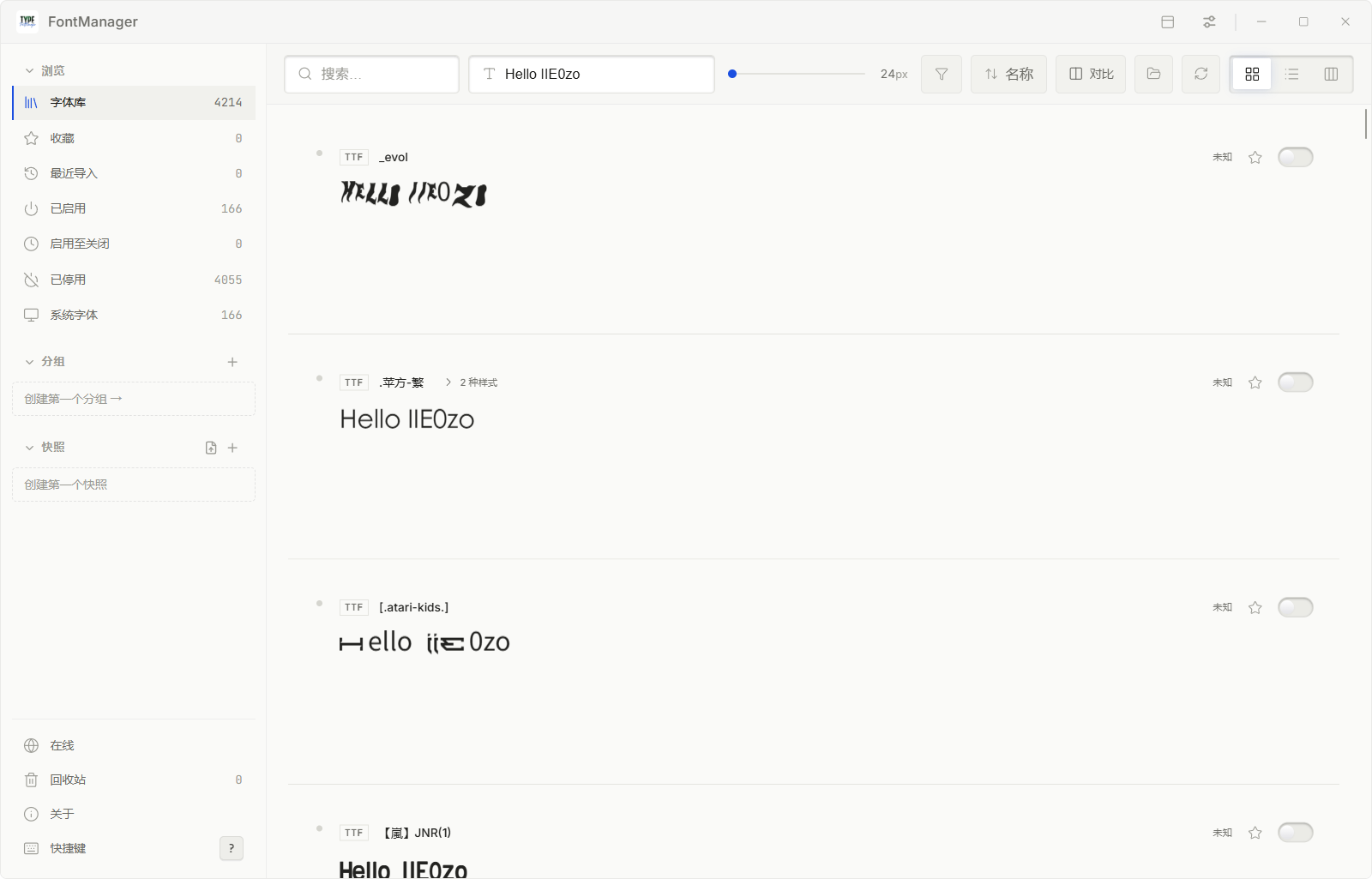
The library: every family rendered live, one toggle away from any app's font menu.
📖 Table of contents
- Why FontManager?
- Feature guide (step by step)
- Plugins, local API & MCP
- Keyboard shortcuts
- Translations
- Getting FontManager
- Platform notes
- Privacy
- Building from source
- Credits
- License
💡 Why FontManager?
FontManager started from ZFontManager 0.8.0 and has since grown into a project
of its own: its own code, its own release track, its own plugin platform. Beyond that
starting point it has no shared roadmap, maintenance, or upstream.
What FontManager adds:
- Automation, first-class. An opt-in local HTTP API, an out-of-process plugin system
with per-plugin permission tokens, and an MCP server — so agents and scripts can query
fonts, toggle families and manage snapshots without touching the interface. - A Windows-first release track — NSIS and MSI installers, up to 3 library
folders with one-click switching (each badged with its own folder icon), and
interface refinements across all nine languages.
Everything that made the original good is still here: live previews everywhere,
one-click activation, and the iron rule that your font files stay on your machine.
[!NOTE]
Where this project spends its effort. The app itself aims for enough, comfortable,
fast — no feature bloat: startup, scrolling, search and activation get polished first.
The plugin ecosystem, local API and MCP are where new features, new experiences and
deeper extensibility live, so the core can stay small and stable while the edges grow.
[!WARNING]
System fonts are protected. Fonts your operating system needs to draw its own
interface can't be deactivated or trashed from FontManager, so you can explore
fearlessly. Their cards show a small OS lock badge instead of a toggle, with
the reason on hover.
🎯 Feature guide (step by step)
Every feature below is written as "follow the clicks". After this section you
know what every button in the app does.
1. First launch: get fonts into the library
- Drag a font folder or a ZIP straight onto the app window
(or: Settings → Library folders → "Add folder…" and pick a folder) - The scan runs, and every card is then previewed in the font's own letterforms
- Want a second library? Settings → Library folders → "Add folder…"; click a row to
change its directory, and the "switch" button at the end of a row makes it the
active one (see section 17)
A ZIP mixing several families? It is rejected as a whole with a reason —
by design, so your library never fills with junk in one drop.
2. Know the main window
Find your way first: the window has five regions
| Region | Where | What you can do there |
|---|---|---|
| Title bar | the thin strip on top | drag the window · minimize / maximize / close · Settings · send it to the QuickBar (Alt+`) |
| Sidebar | the left column | switch views: Library / Favorites / Recent imports / Activated / Activate-until-quit / Deactivated / System fonts / Collections / Snapshots; at the bottom: Online · Trash · About · Shortcuts |
| Toolbar | above the content | search · preview text · size slider · filter · sort · compare · rescan · three view switches |
| Content | the middle | cards / list / specimen views; click a card to select, right-click for the full menu, drag into a collection |
| Detail panel | slides in from the right when a card is clicked | multi-size specimen · metadata · license · notes & tags · export · drag its left edge to resize |
Sidebar (top to bottom):
| Item | What it shows |
|---|---|
| Browse → Library | all families (the number = family count) |
| Browse → Favorites | families you starred |
| Browse → Recent imports | what arrived last |
| Activated | toggles currently on |
| Activate-until-quit | temporary ones (restore themselves on exit) |
| Deactivated | toggles currently off |
| System fonts | Windows' own fonts (locked) |
| Collections | groups you build (+ to create) |
| Snapshots | saved activation sets (see §8) |
| Online / Trash / About / Shortcuts | downloads · removed fonts · about · key list |
Toolbar: search · preview-text box (type anything, the whole library previews
it) · size slider (8–96px, eight steps) · filter · sort · compare · refresh ·
three view buttons (cards / list / specimen).
A font card: format badge (TTF / OTF / VAR = variable) · family name · live
preview line · license badge (free-commercial / personal / unknown…) ·
★ favorite · toggle (activate/deactivate).
3. Activate / deactivate in three steps
- Find the family (search or scroll)
- Click the toggle on the card — it writes to the system immediately
- Open any app's font menu — it's already there; switching off hides it
from every app (the file stays safe in the library)
- Just need it temporarily? Right-click → activate until quit: everything
restores itself when you exit - Bulk: Ctrl/Shift-select cards → right-click → "Activate N" / "Deactivate N";
an interrupted bulk run offers to resume on next start - System fonts wear an OS lock badge — they render Windows itself, so nobody can
disable or delete them
4. Three views: cards / list / specimen
The three icons at the toolbar's right edge:
Cards (default): one card per family, live previews
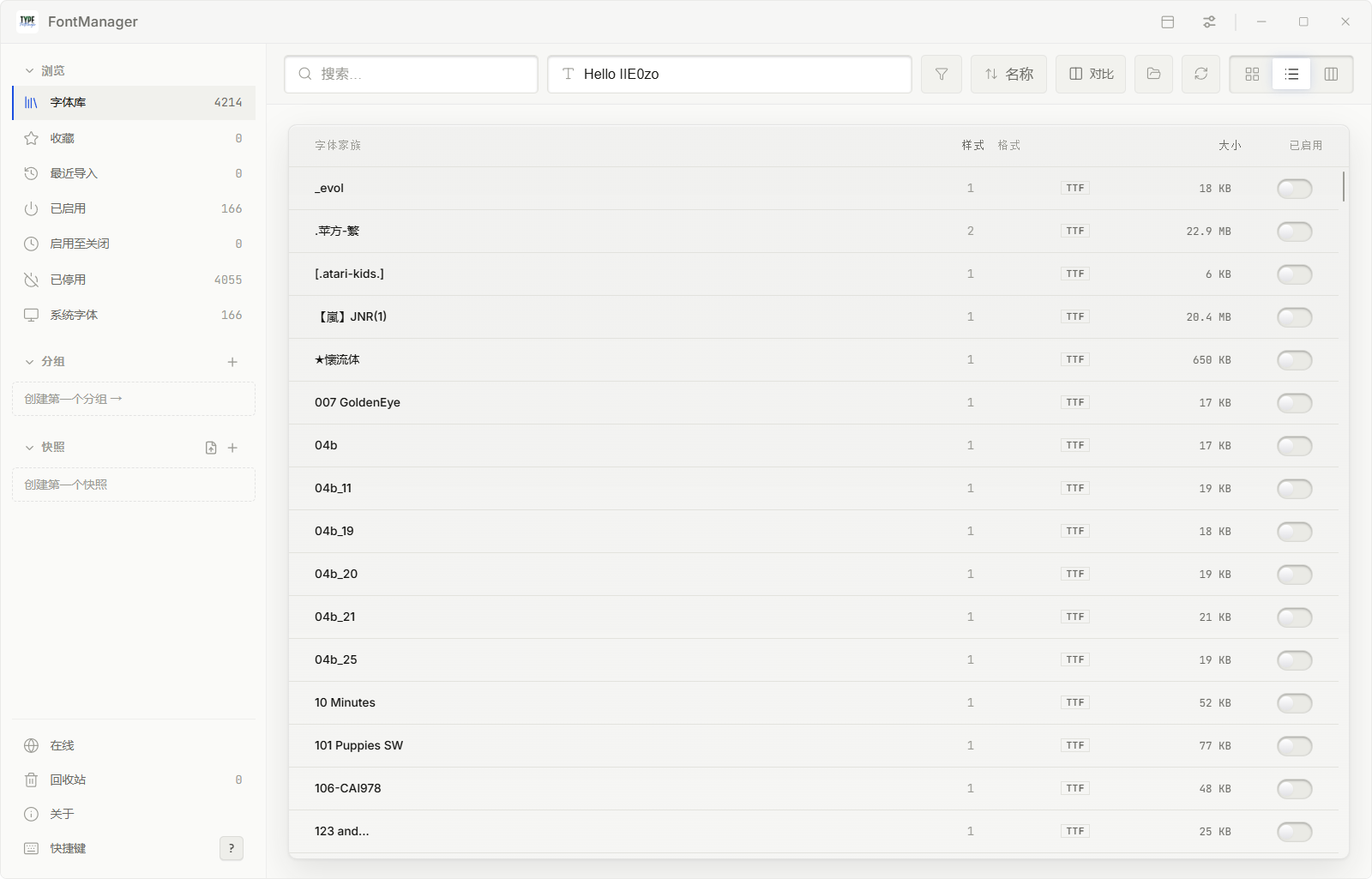
List: a compact table — family / styles / format / size / toggle — best for
sweeping a big library
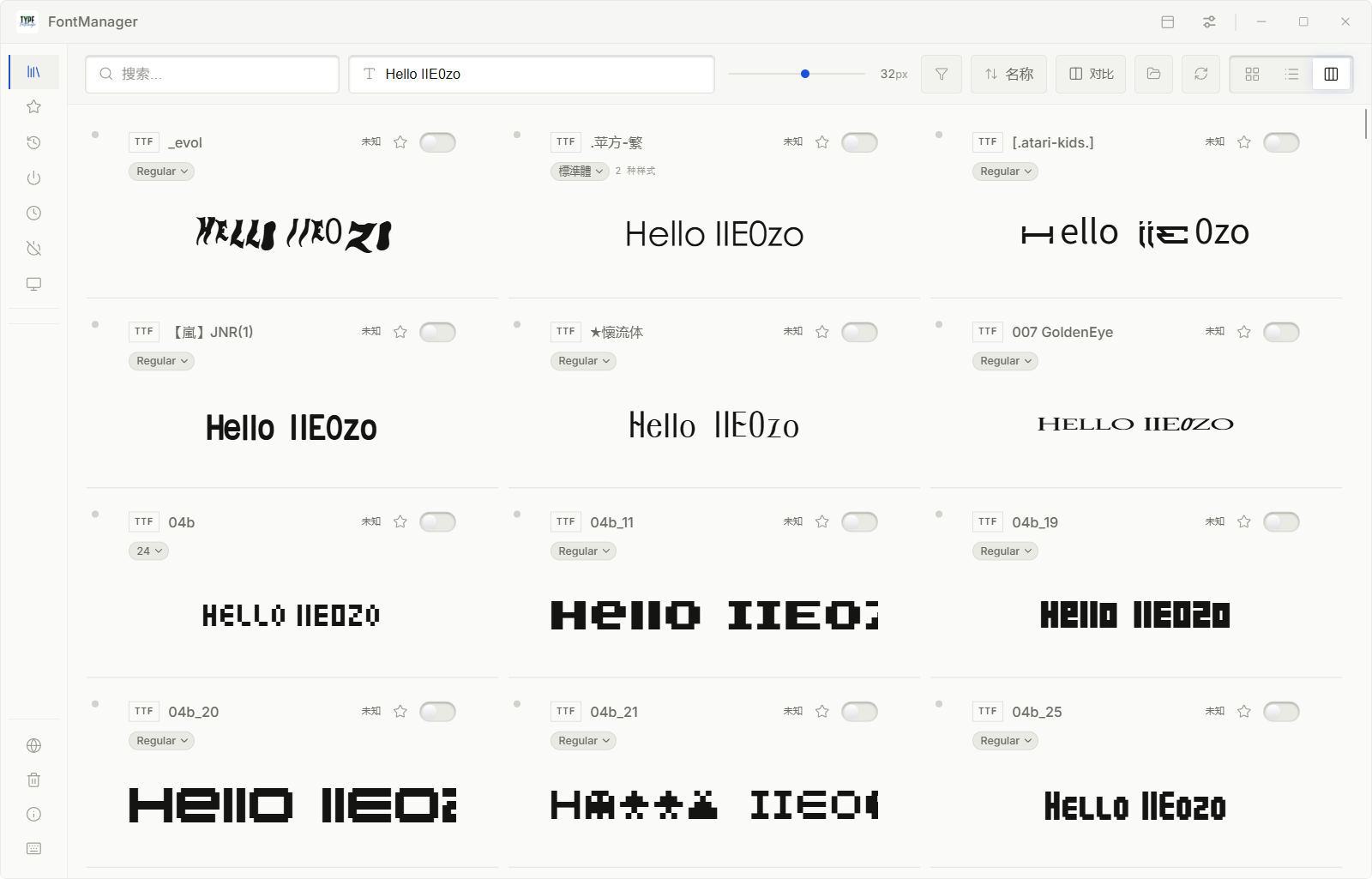
- Specimen: a multi-column specimen wall — every cell keeps the full card
header (format / name / license / ★ / toggle) and spreads the sample text large
underneath; pick a face per cell (remembered); its own size control — best for
judging a typeface's character
5. The detail panel: everything about one family
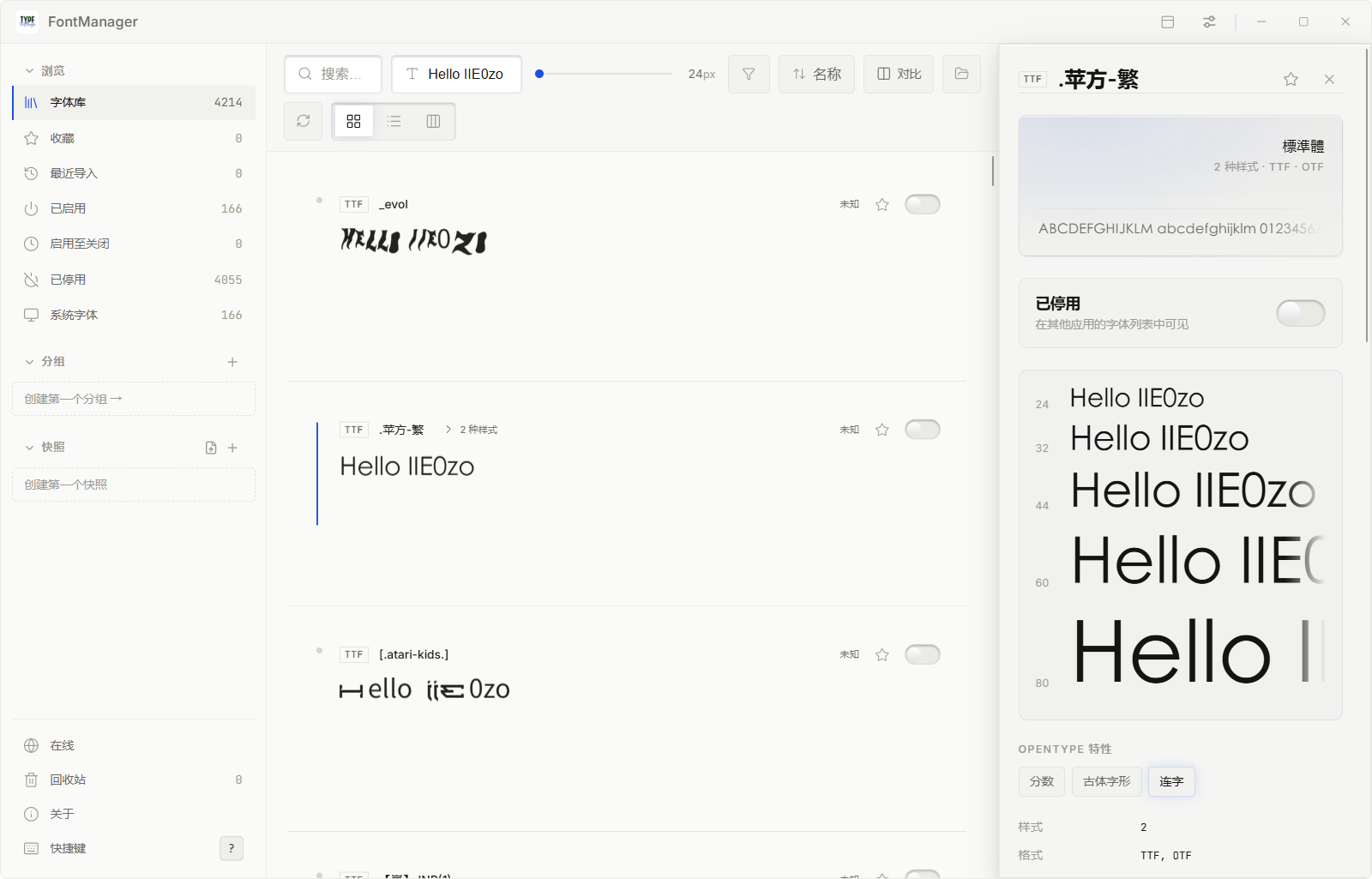
Click any card and the right panel opens:
- Live multi-size specimen (large "Aa" down to small text, all real glyph
rendering); variable fonts get axis sliders (weight and friends) - Metadata: style count · format · class · script · the true charset numbers
(N characters · M hanzi — "does it have Chinese?" becomes a fact, not a guess) - The full copyright text with its automatic verdict; name conflicts
(several files claiming one identity) warn in red here - Header: toggle · ★ · export all — zips the family's whole folder, license
files and readme included, so a colleague receives the terms along with the
fonts (a font sitting at the library root exports just its own files); drag the
panel's left edge to resize, double-click to reset
6. Favorites & ratings
- Click the ★ on a card: favorite the family and record one star
(click again to clear) - For 2–5 stars, open the detail panel and pick a value on the rating control
- The QuickBar's ★ works the same; the sidebar "Favorites" view filters instantly
- Ratings are purely your own "daily / backup" markers — the app adds no limits
7. Organize: collections, tags, notes
- Create a collection: "+" next to Collections in the sidebar → name it →
drag cards in (or right-click → Collections → add) - Tag: multi-select cards → right-click → add tag; tags show on cards and in details
- Notes: write directly in the detail panel (e.g. "Client A brand fonts,
licensed through 2027"); plugins can write notes for you too
8. Snapshots: photograph "which fonts are on"
- "+" next to Snapshots in the sidebar → name it → the current activation set is saved
- Toggle fonts freely afterwards; click a snapshot to apply (restore exactly) /
merge into current / switch - Export a snapshot: right-click it → export → a
.S-FontManagerfile —
send it to a colleague and they double-click to import - Right-click also offers: clear all fonts inside / delete the snapshot
9. Installing new fonts: four ways
| How | What to do |
|---|---|
| Drag a ZIP | drop it on the window; it unpacks and imports |
| Double-click | double-click a .S-FontManager / .P-FontManager / .L-FontManager file — the app opens and imports it (file associations registered at install) |
| Online panel | see below: filter by category / license, one-click add |
| Local API / MCP | automated imports (see Plugins, local API & MCP) |
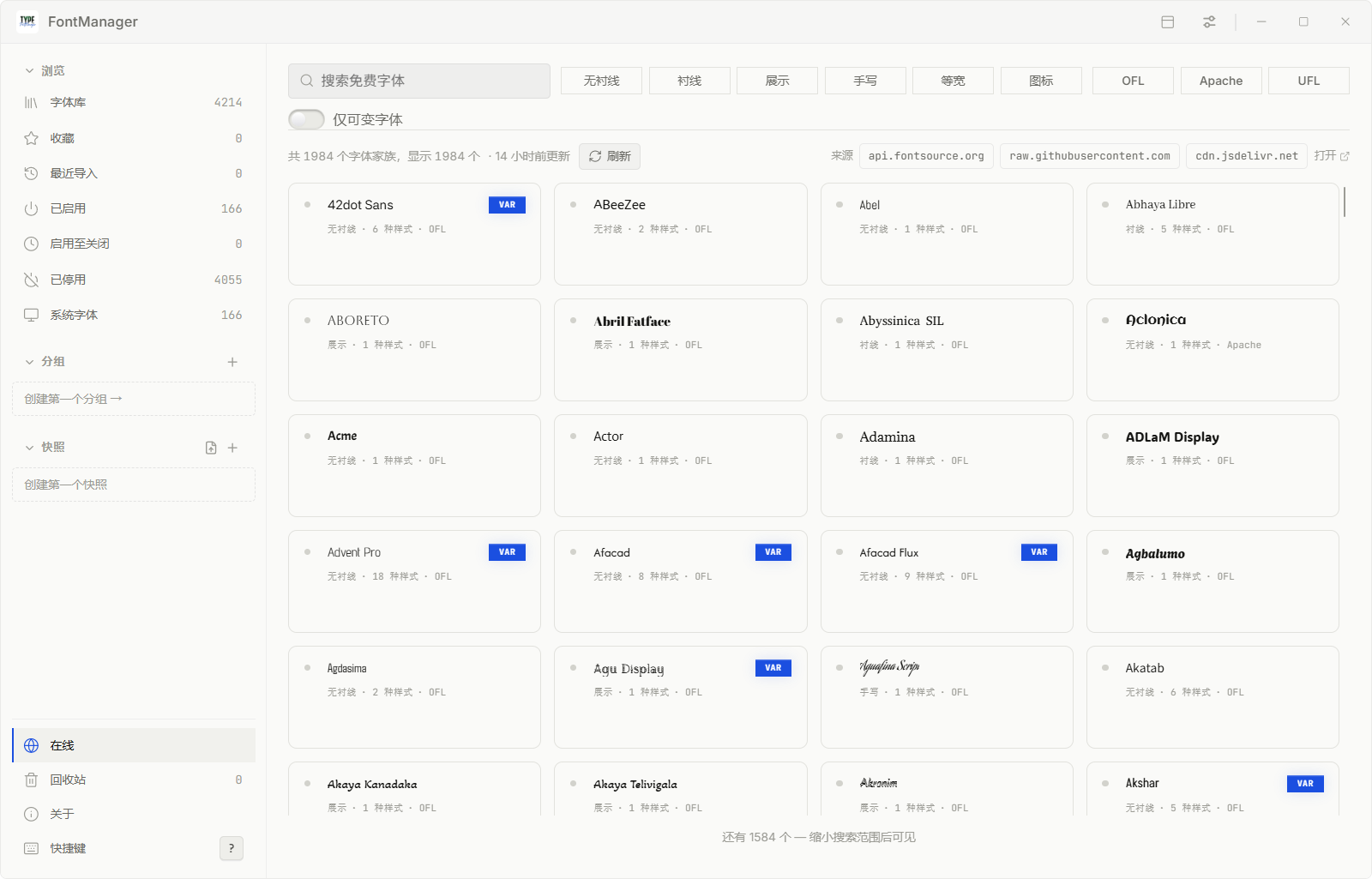
How to use it: sidebar "Online" → filter by category (sans / serif / display /
handwriting / mono / icons) and license (OFL / Apache / UFL), or just search;
cards show style · styles count · license (VAR badge = variable font); click a card
for details and add to library downloads it — the license text sits right next
to the download button and license files come along. Data: the Google Fonts
catalogue, 1,984 families.
10. Export: every way out
| What you want | Where |
|---|---|
| A single face (.ttf/.otf file) | right-click the face → export font file |
| A family / many families | right-click → export family… / export N families… (pick a folder) |
| A font list (metadata only) | right-click → export font list… |
| A specimen image (PNG) | right-click → export specimen…; or the specimen view |
| A snapshot | right-click the snapshot → export (.S-FontManager, re-importable by double-click) |
| Curation data (tags/collections/favorites/notes/manual verdicts/expiry dates) | Settings → export library data (merge on another machine) |
| Everything (curation + all fonts) | Settings → tick "include font files" → export pack → a .P-FontManager pack (auto-split above 2 GiB; import any one volume) |
Importing is always: double-click the file, or drop it on the window.
Files are recognized by content, not extension.
Every FontManager-specific file carries a sticker-paper icon (torn edges +
a handwritten caption), easy to spot in Explorer: the app icon (a TYPE
FontManager wordmark) · snapshot export .S · pack-with-fonts .P ·
data-only export .L · library folder .F:

11. Trash: regret is allowed
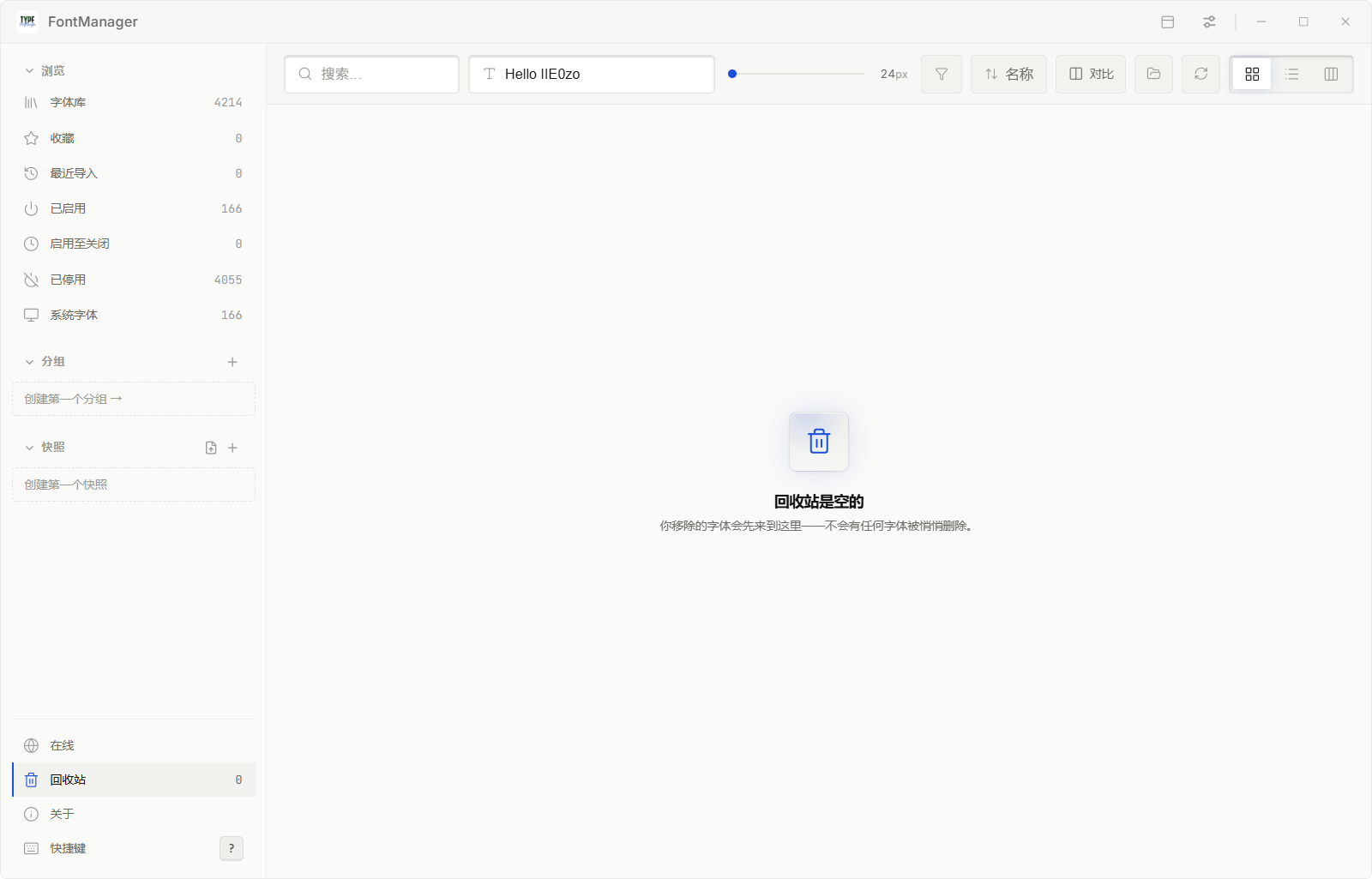
- Right-click a family → move to trash (bulk works too) — uninstalled from the
system but the files are kept - Sidebar "Trash" → restore (back exactly as it was) or delete forever
(double confirmation)
12. Licenses & duplicates: no browser needed
- Every family gets an automatic license verdict: personal / paid /
free-commercial / unknown, with an evidence sentence (which documents were read) - Badges show on cards and in the QuickBar; the full text lives in the detail panel
- No license file is ever generated. Folders that already have a license file
are simply read; when there is none, your folder is left untouched and
FontManager falls back to the copyright embedded in the font file itself
(shown as such in the detail panel); two contradictory licenses in one folder →
verdict "unknown", for you to check - Wrong verdict? Override it manually in the detail panel; it's remembered
- Duplicates: files claiming the same font identity are flagged and resolved
from the detail panel
13. Apply fonts in Photoshop / Illustrator / CorelDRAW / Affinity
Right-click a family → "Apply in {app}…":
- Photoshop / Illustrator — driven over COM scripting, no menu hunting
- CorelDRAW — FontManager drives CorelDRAW's COM object model directly
(Chinese fonts matched by localized names) - Affinity — with auto-activation on, fonts missing from your open documents
are activated from the library automatically
With the official “Font Apply (PS / AI / CDR)” plugin installed there are two
faster routes:
- Double-click any copyable spot in the QuickBar (a whole row or an expanded
face row) — the font is applied to the design app you used last; - Right-click the plugin row → “Double-click: pick a window” → after the
double-click, click the target window (within 15s; the taskbar counts too).
Switch between the two modes right from the plugin's context menu.
14. ⚡ The QuickBar: switch fonts in 1 second, anywhere
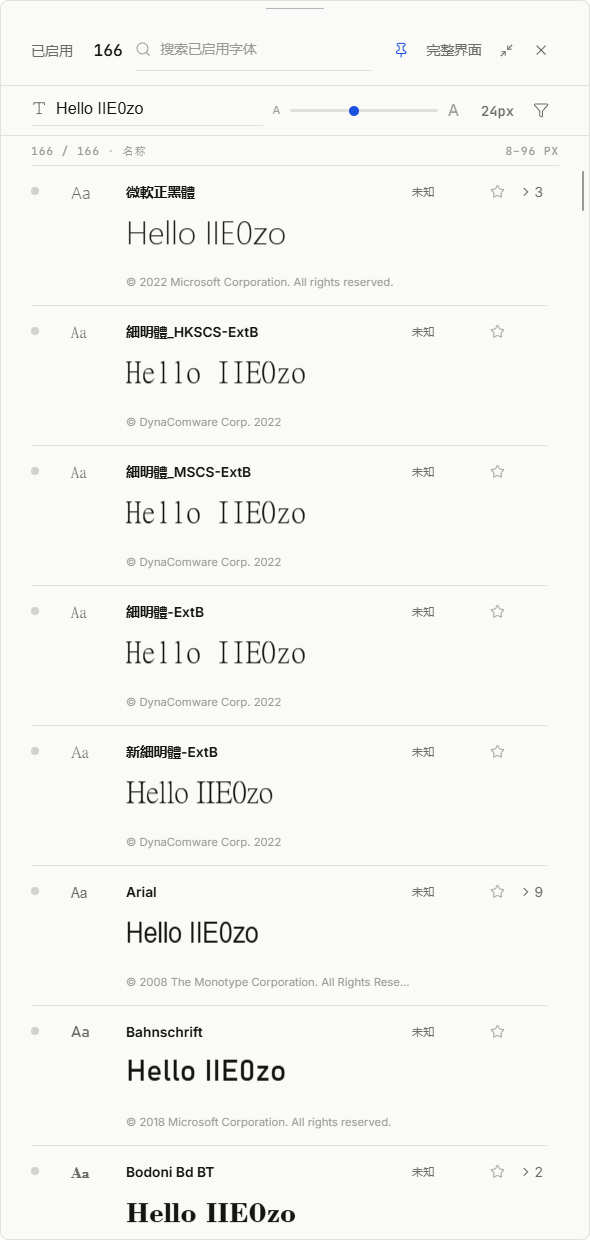
- Press Alt+` anywhere — the main window collapses into the
docked QuickBar (change the hotkey under Settings → System → "QuickBar
hotkey", see below) - It lists only activated fonts: click a name to copy, double-click to apply
it to your design app (needs the “Font Apply” plugin), ★ to favorite,
the toggle to switch off, "> 3" to expand a family's faces, right-click for
the full menu (type right in that menu to search fonts — enabled by
default, Tab for all; see section 16) - Top bar: activated count · search · preview text & size · a pin ·
"full window" to morph back - Done? Drag it back to the top edge and it collapses to a hairline that
expands as your mouse approaches — or press Alt+` again
15. Compare
- Click "Compare" in the toolbar (or multi-select → right-click → compare N)
- Pick 2–4 families
- See the same text set side by side; remove and re-pick any time
16. Keyboard first: command palette & shortcuts
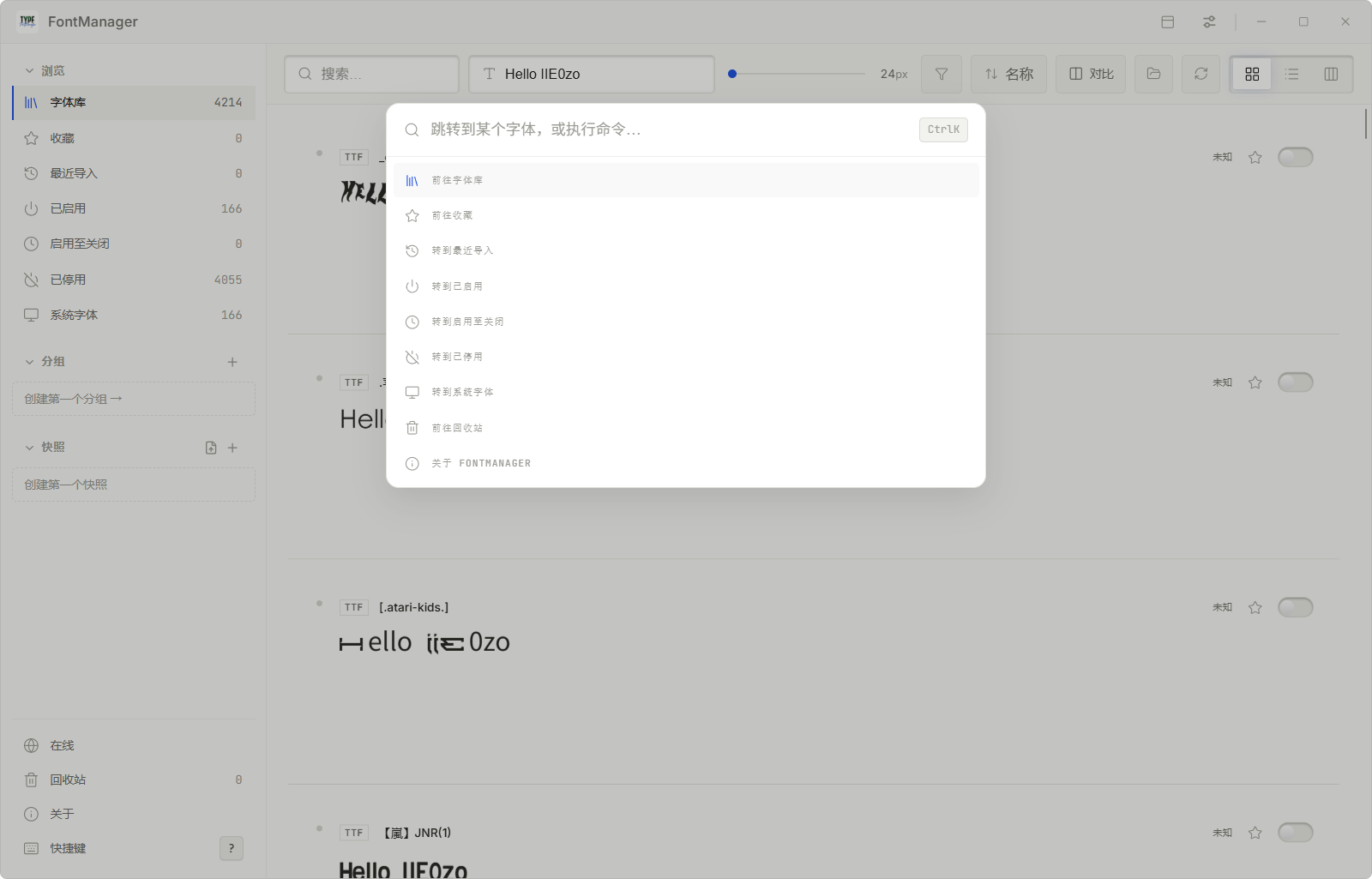
- Ctrl+K: the command palette — type to jump (views, toggles,
compare, apply-in-app, snapshots…)
- Type-to-search in any context menu: with any right-click menu open
(cards / list / specimens / QuickBar / detail panel), just start typing —
a search box appears on top and filters the whole library live.
↑↓ to pick, Enter or click to jump: the app
switches to the right view and scrolls the family into view.
Esc clears the query first, then closes the menu
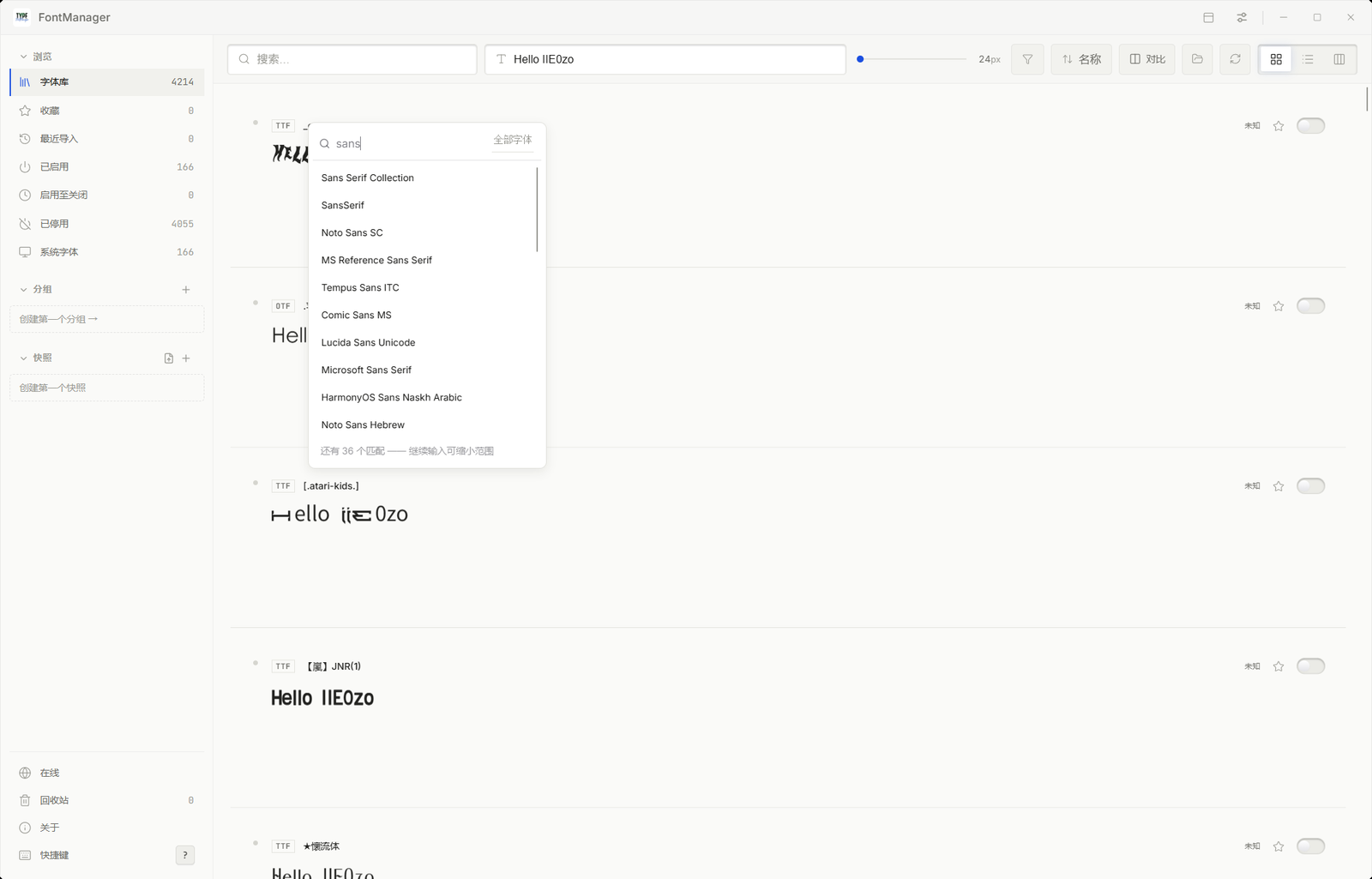
- Tab toggles the search scope: while searching, Tab (or the
badge next to the box) switches between "enabled ↔ all fonts" — the QuickBar
searches enabled fonts by default (picking one scrolls the QuickBar list;
picking a disabled one returns to the full window and locates it), the full
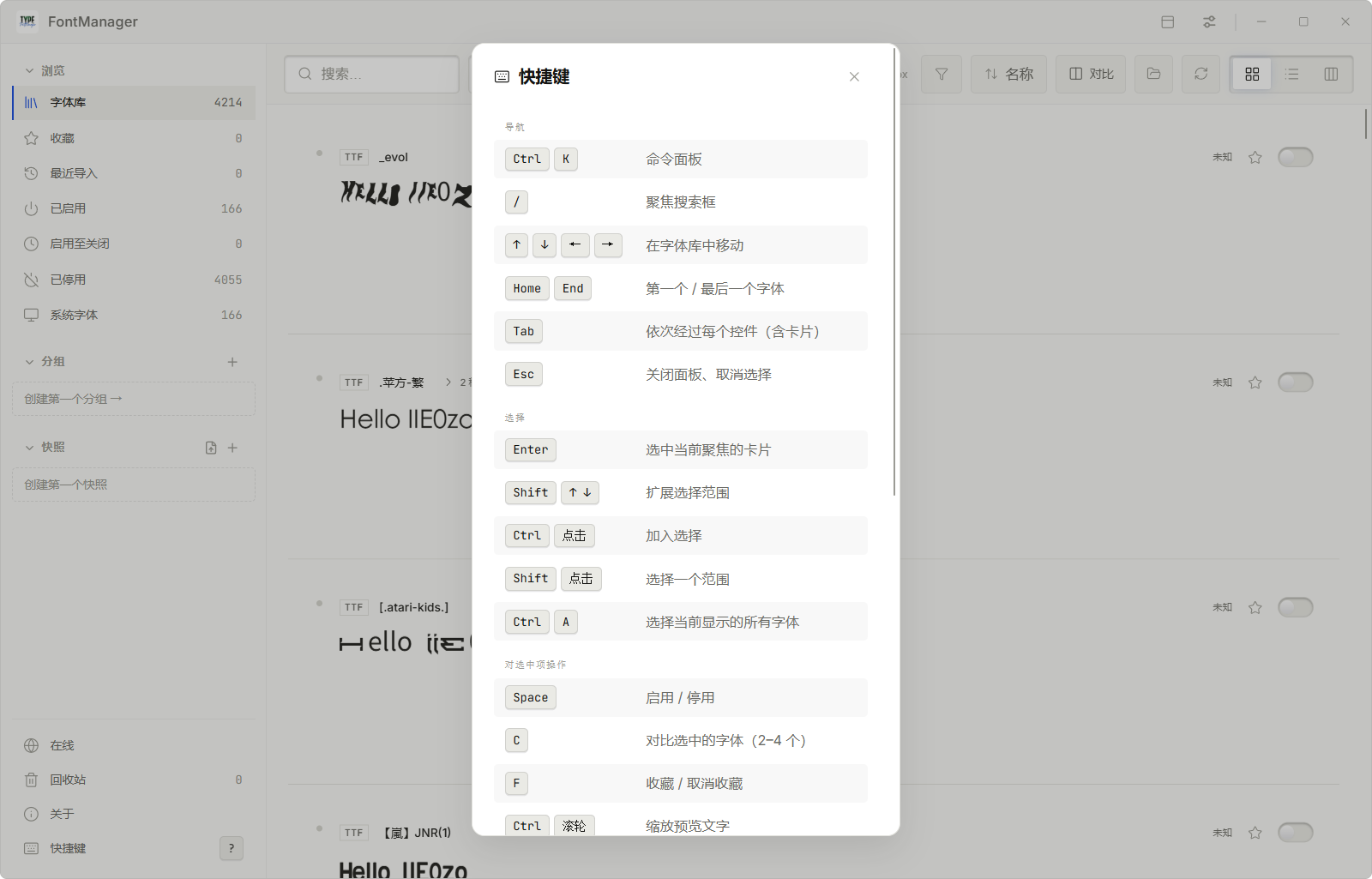
window searches all - ? (or the sidebar "Shortcuts" entry): the full shortcut list —
navigation / selection / actions on selection / snapshots
17. Multiple libraries: up to 3 folders, one-click switching
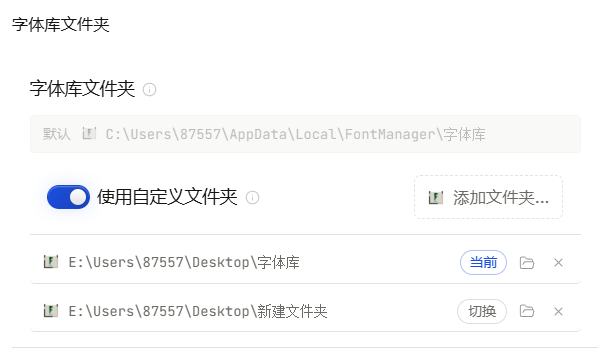
Fonts scattered across folders? Settings → Library folders:
- The default library is the "字体库" folder next to the install directory; flip on
"Use custom folders" to add your own - "Add folder…" takes up to 3 library folders, each badged with FontManager's
dedicated folder icon — easy to spot in Explorer - The "Switch" button at the end of a row makes that library current; the scan
follows instantly. The folder button opens it in Explorer, the ✕ removes it - The library list travels with the app — export your data on one machine and it
comes along
18. Look & language
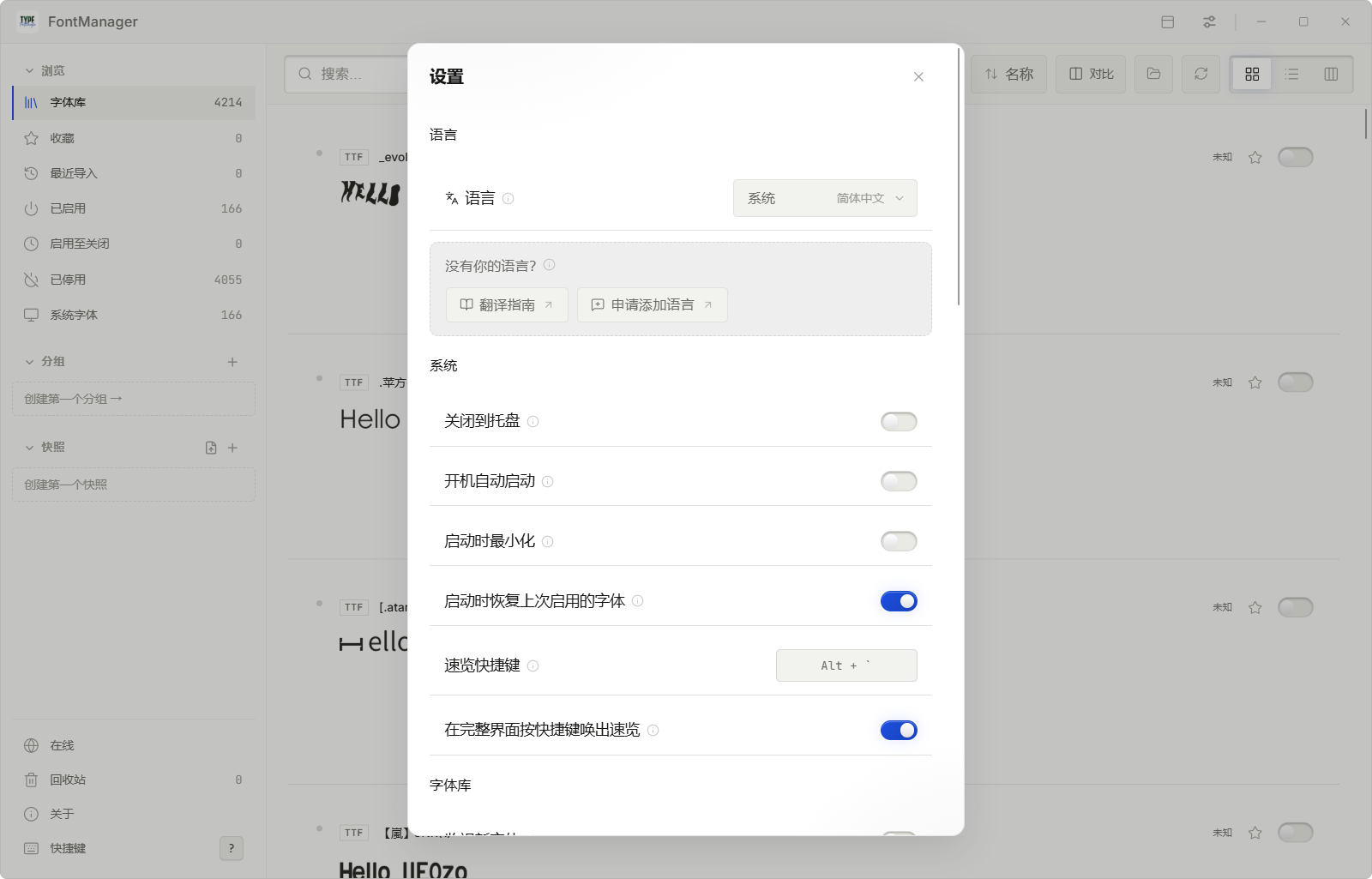
In settings: light / dark theme · interface sounds on/off · reduced motion
(calmer animation, less transparency) · nine interface languages
(简体中文 · 繁體中文 · English · 日本語 · Deutsch · Español · Français ·
Português (Brasil) · Русский).
19. Go further: plugins / API / MCP
Want the app to work by itself? Next section.
🔌 Plugins, local API & MCP
FontManager opens its core to automation — opt-in, local-only, permission-scoped:
| Layer | What it does | Docs |
|---|---|---|
| Local HTTP API | 127.0.0.1-only REST API: list/search fonts, activate/deactivate, snapshots, curation. Custom port, resettable token, every route permission-checked |
— |
| Plugins | Separate processes that talk JSON over stdin/stdout plus a restricted token — a plugin crash can never take the app down. Plugins may ship their own interpreter (interpreterPath) or a self-contained .exe |
docs/PLUGINS.md |
| MCP server | Wraps the local API as MCP tools so agents (WorkBuddy, Claude, Cursor…) can drive your library in conversation | mcp/README.md |
📥 Installing ready-made plugins
The official plugin collection lives in the FontManager-Plugin
repository. Two ways to install (1.4.4+):
- Drag & drop: drag a plugin ZIP anywhere onto the window — FontManager
detects it by itsplugin.jsonand installs it (regular font ZIPs keep
importing as fonts; the two never get mixed up); - Button: Settings → Plugins → "Install from ZIP".
Or the manual way: unzip and drop the folder into the plugins folder
(Settings → Plugins → "Open plugins folder"), then toggle it on.
Interpreters: the installer ships no interpreters (since 1.4.11) —
what to download is entirely the user's call. In Settings → Plugins each
runtime shows what's on the machine (version, disk usage, which plugins use
it), a one-click download (Python 3.13 + Pillow + fontTools, ~19 MB; or
Node.js 22 LTS, ~32 MB — pulled from the official GitHub release with a live
progress bar), and a delete button to reclaim space when no plugin needs
it. Deleted runtimes can be re-downloaded anytime. Resolution order:
plugin-bundled interpreter (interpreterPath) → app-folder runtime → user
override → system interpreter. Plugins with heavy dependencies may still ship
their own runtime/ — see docs/PLUGINS.md for the full
story, the plugin template
(template-hello)
for a 5-minute start, and troubleshooting.
Manual steps (any version):
- Grab a plugin ZIP from the plugin releases
- Unzip it (e.g. the
specimen-exportfolder) - FontManager → Settings → Plugins → "Open plugins folder", drop the folder in
- Toggle the plugin on in Settings → Plugins (or hit "Rescan")
- Right-click any family → Plugins › to use it. The plugin's own row in
Settings → Plugins is an entry point too: the gear at the end of the row
opens the plugin's settings panel (when the plugin declares one), and
right-clicking the row lists its no-family-needed actions (open export
folder, change save location…)
🖥️ Using the local API
- Turn on Settings → Local API — the address chip shows the actual base
(e.g.127.0.0.1:58202); set a custom port in the field below it - The token is masked by default; click the eye to reveal, or reset it (old token dies instantly)
- Send
Authorization: Bearer <token>on every request - Try it (PowerShell):
$cfg = Get-Content "$env:APPDATA\FontManager\api.json" | ConvertFrom-Json
curl.exe -H "Authorization: Bearer $($cfg.token)" $cfg.base/health
curl.exe -H "Authorization: Bearer $($cfg.token)" "$($cfg.base)/fonts?q=noto&limit=10"
curl.exe -X POST -H "Authorization: Bearer $($cfg.token)" -H "Content-Type: application/json" `
  -d '{"family":"Noto Sans SC"}' $cfg.base/fonts/activate
Handy endpoints: GET /health · GET /fonts & GET /fonts/families ·POST /fonts/activate & POST /fonts/deactivate · POST /fonts/scan ·GET/POST /snapshots & POST /snapshots/{name}/apply · GET/PUT /curation*
(notes, ratings, favorites, tags).
Permissions — where 403 comes from
Every route sits behind a permission gate. A plugin's token only carries the scopes
listed in its own plugin.json → permissions; step outside them and you get 403
with the missing scope named in the body.
| Scope | What it allows |
|---|---|
read:fonts |
Read font / family lists and enabled state |
write:fonts |
Enable / disable / rescan — changes system-wide state; the one to scrutinise |
read:snapshot / write:snapshot |
Read / create / delete / apply setting snapshots |
read:curation / write:curation |
Read / modify your notes, ratings, favorites, tags |
export / import |
Start a pack export + poll progress / import a font pack |
The order is 401 (no token) → 403 (scope missing) → 422 (malformed body): the gate runs
before the body is parsed, so a missing scope never shows up as 422.
Missing a scope? Add it to the plugin's own plugin.json and hit Rescan — tokens are
minted at enable time. No FontManager change needed. To see what you actually hold, readpermissions from GET /health (allPermissions is the full catalogue).
Full scope table, plus the rule for adding a new route (
routes()andperm_for(),
or the route is silently open), is in
docs/PLUGINS.md § 权限 (Chinese).
🤖 Hooking up MCP
- Enable the local API (MCP runs on top of it)
- Add an entry in your MCP client's config (use your own absolute path):
{
  "mcpServers": {
    "fontmanager": {
      "command": "node",
      "args": ["C:\\path\\to\\mcp\\index.mjs"]
    }
  }
}
- Done — the MCP server reads
%APPDATA%\FontManager\api.jsonautomatically
for port and token, so resetting the token never breaks your config.
WorkBuddy: connector manager → custom MCP → paste → "Trust"; Claude Desktop and
Cursor work the same way.
Then just ask in conversation — "list my Noto fonts", "apply the work snapshot".
All 10 tools are documented in mcp/README.md.
What can an agent actually do with it?
MCP hands the agent a small set of verbs — list, activate, deactivate, annotate —
the imagination is the agent's own. A few things that genuinely work:
- Identify a font from an image: drop a poster, logo or chat screenshot into the
chat and ask the agent to study the letterforms (serifs, weight, stroke endings…),
then compare them against the fonts in your library — "do I already have the font
in this image, and what is it called?" The agent can pull each candidate's file
path viafont_detail, render real specimens from those files to verify, and
answer with evidence instead of a guess - Heal missing fonts: hand the agent the font list a document or design file
needs — it tells you which ones your library lacks and activates the ones it has,
no more digging through font menus one by one - Curation at scale: "tag everything imported last week as pending review",
"deactivate every family rated below 3 stars" — dozens of clicks become one sentence - Scheduled checkups: give the agent a recurring task to scan for new fonts,
apply a named snapshot, and report the state of your library
Image-based tricks need an MCP client that accepts pictures in chat
(WorkBuddy and Claude Desktop both do).
Nothing here is enabled by default, and every layer dies the moment you switch
the local API off.
⌨️ Keyboard shortcuts
Press ? in the app for the full, always-current list — search,
activation, snapshots, the command palette and the QuickBar are all covered.
🌍 Translations
Nine languages ship in the box: 简体中文 · 繁體中文 · English · 日本語 · Deutsch ·
Español · Français · Português (Brasil) · Русский.
Want to add one? docs/TRANSLATING.md — no code required.
📥 Getting FontManager
Grab the latest installer from
Releases:
FontManager_x.y.z_x64-setup.exe— NSIS, per-user, no admin rights neededFontManager_x.y.z_x64_en-US.msi— MSI, per-machine, into Program Files
Both are unsigned builds; SmartScreen may ask for confirmation. Verify the
SHA-256 in the release notes before running.
Uninstalling
The NSIS uninstaller's confirmation page has a "Delete app data" checkbox:
- Unchecked (default) — only the program itself is removed. Font library,
plugins, runtimes,state.json, caches, notes and snapshots are kept, so a
reinstall picks up right where you left off. - Checked — everything this app created is removed as well:
字体库,plugins,python-runtimeandnode-runtimeinside the install folder,%APPDATA%\FontManager(plus theZFontManagerfolder left behind by 0.8.x),%LOCALAPPDATA%\FontManager\字体库, the three file-association registry keys,
and HKCU font-registry values whose data points into those font libraries.
Cleanup is a strict allowlist: system fonts, system font-registry entries, fonts
in user-selected library folders, unrelated files in the install folder, and
snapshots/samples you exported elsewhere are never touched. Upgrades never
trigger cleanup. MSI uninstalls have no such checkbox and always keep the data.
🪟 Platform notes
FontManager is built on Tauri v2 and ships Windows binaries (NSIS + MSI),
tested on Windows.
System-font protection, activation and the trash all use Windows' own
mechanisms (registry + GDI) — never by modifying font files.
🔒 Privacy
Short version: out of the box, nothing is sent anywhere.
- ❌ No account, no sign-up, no telemetry, no crash reporting
- ❌ Nothing about your fonts, tags, collections or notes is ever uploaded —
there is no feature that does this, switched on or off - ✅ Everything lives in local files on your machine
- ✅ The only optional network feature is the online font browser (off by
default), which contacts the Google Fonts catalogue and GitHub release
assets — your IP and the fonts you download, to those hosts only, and
nothing about your existing library
The local API listens on 127.0.0.1 only and stays disabled until you turn it on.
🛠 Building from source
pnpm install
npx vite build
npx tauri build --bundles nsis,msi
Rust (MSVC) 1.85+ and Node 20+ are required. Rust unit tests run withcargo test --lib, interface tests with npm test.
🙏 Credits
FontManager is built by IIEOzo, and started from ZFontManager 0.8.0.
That starting point is the only thing the two projects share today.
| 📦 Source | github.com/706972745/FontManager |
| 🔌 Plugins | github.com/706972745/FontManager-Plugin |
If FontManager is useful to you, a ⭐ genuinely helps others discover it.
📄 License
FontManager is free software, released under the
GNU General Public License v3.0.
In human terms: you may use it, share it, and change it — and if you
distribute a changed version, it must stay just as free for the next person.
The copyright notice of the 0.8.0 code FontManager started from is kept in
LICENSE, as the GPL requires.

FontManager · your fonts, your machine, your rules
Built and maintained by IIEOzo
· started from ZFontManager 0.8.0
Reviews (0)
Sign in to leave a review.
Leave a reviewNo results found