amigent
Health Pass
- License — License: MIT
- Description — Repository has a description
- Active repo — Last push 0 days ago
- Community trust — 10 GitHub stars
Code Fail
- rm -rf — Recursive force deletion command in scripts/build-mac-app.sh
- exec() — Shell command execution in scripts/make_release.py
- exec() — Shell command execution in src/amigent/amigactl.py
Permissions Pass
- Permissions — No dangerous permissions requested
No AI report is available for this listing yet.
Complete remote control for a real Amiga, by AI or manually: an MCP server for AI agents and a remote desktop like TeamViewer, tuned for slow Amigas and slow networks. AmigaOS 2.04 and up, any CPU from the 68000, Windows, macOS and Linux.
     _____            .__                            __
    /  _  \    _____  |__|   ____    ____    ____  _/  |_
   /  /_\  \  /     \ |  |  / ___\ _/ __ \  /    \ \   __\
  /    |    \|  Y Y  \|  | / /_/  >\  ___/ |   |  \ |  |
  \____|__  /|__|_|  /|__| \___  /  \___  >|___|  / |__|
          \/       \/     /_____/       \/      \/

     complete remote control for a real Amiga, by AI or manually
            tuned for slow Amigas and slow networks

Amigent connects your PC or Mac to your real Amiga over the home network. Then you can:
- let an AI agent do the work, for example Claude Code or Codex: install
software, update programs, change settings, copy files, click through
programs. Just tell it what you want. - use the Amiga yourself from your computer, as a remote desktop like
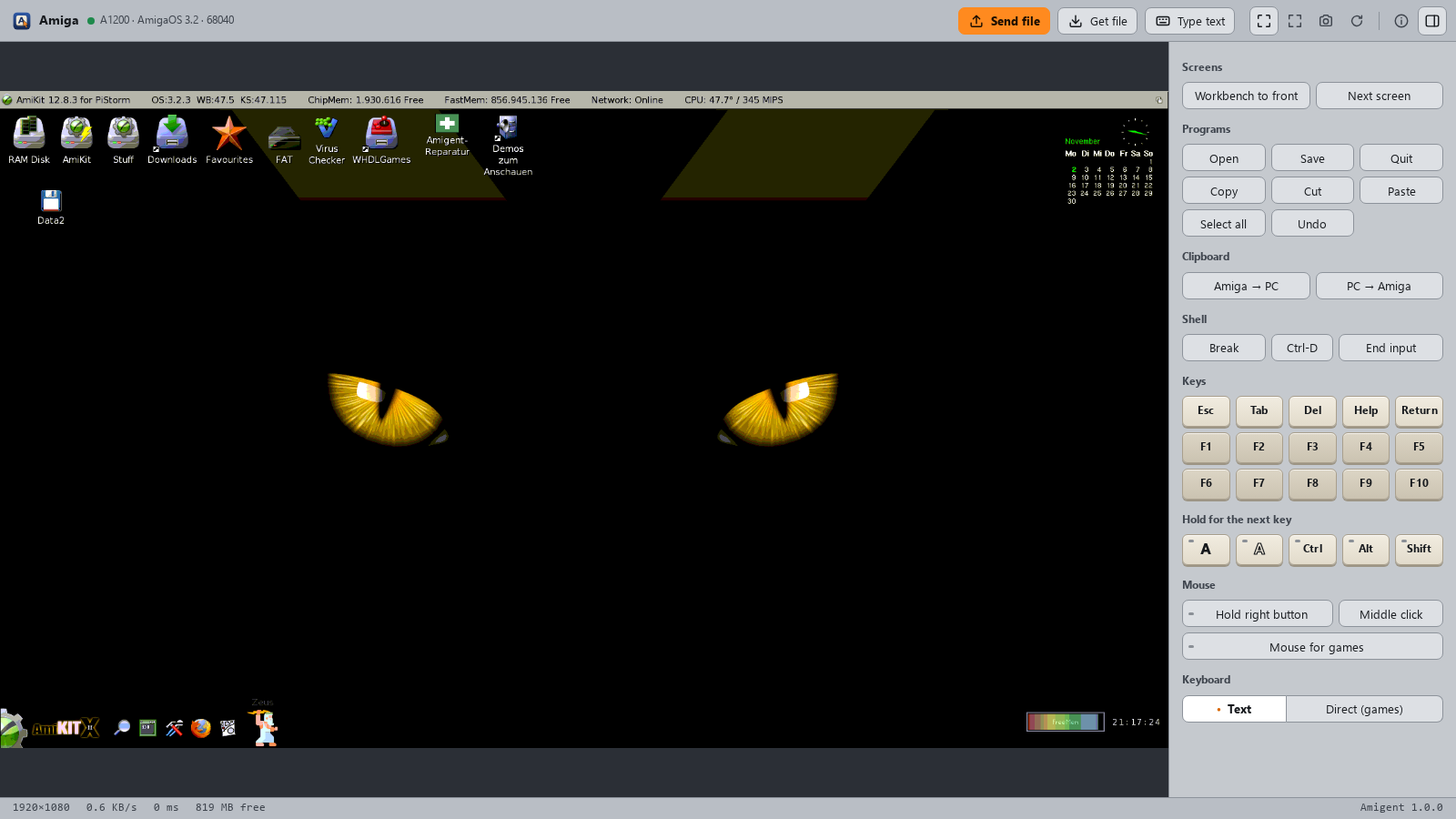
TeamViewer or VNC: a window with the live screen, your own mouse and
keyboard, file transfer and a shared clipboard. - and both of these quickly, even on a slow machine. Amigent is tuned for
slow Amigas and slow networks: a 7 MHz 68000 sends its whole screen in
under a second, and over a plipbox a click shows its result in a fraction of a second.
How it stays fast.
Both at the same time: you see every click the agent makes and can take over at
any moment.
Installation
On the Amiga
1. Copy amigentd to the Amiga (amigentd.000 on a
68000), or unpack the archive from the
releases.
2. Start it with amigentd SETUP in a Shell, or double-click its icon.
On the PC or Mac
3. Paste this into your AI agent:
Install Amigent for me: run "pipx install amigent" (if pipx or Python 3.10
or newer is missing, install them first: Windows winget, macOS Homebrew,
Linux the package manager). Then run amigent-setup; it finds my Amiga on
the network by itself. Register the MCP server "amigent" with the command
amigent-server, and run amigent-viewer --install so the remote desktop
shows up as a program. Tell me if you need to be restarted.
The agent sets up the Amiga over the network; from then on amigentd starts
with it.
Windows: Amigent appears in the Start menu. For an encrypted connectionopenssl is needed, which comes with Git for Windows.
macOS: Amigent appears in ~/Applications. On its first start, allow it
access to the local network, or it cannot reach the Amiga. Cmd is the right
Amiga key.
Linux: there is no program entry; start the remote desktop withamigent-viewer.
Without an AI agent: see the manual installation.
What you need
- An Amiga with AmigaOS 2.04 or newer, any CPU from the 68000 on, a network connection
(a plipbox on the parallel port is enough) and a TCP/IP stack such as Roadshow. - A PC or Mac with Windows, macOS or Linux and Python 3.10 or newer.
What you can ask for
"Check which programs on the Amiga are outdated."
"Install the game from my Downloads folder and add it to the Games menu."
"Copy the demo to the Amiga and start it."
"Open the remote desktop."
Made for slow machines and slow wires
Most of the work in Amigent went into making a slow Amiga on a slow network
feel quick, for the AI agent and for you at the mouse:
- The screen travels as the Amiga keeps it. Chipset screens go out as
bitplanes, graphics-card screens as small palette tiles, and only the tiles
that changed, often as the difference to what you already have. - Your input comes first. Mouse moves, clicks and keys are carried out
even while a picture is still on its way, and the area around the pointer is
sent before the rest. - The Amiga keeps its time. While nothing happens, Amigent asks rarely
and costs the Amiga only a few percent of its CPU. - Files go in one go. Whole folders travel in a single stream, and files
that are already there stay where they are.
Measured with a 640×256 Workbench screen:
| Amiga | whole screen | unchanged screen | CPU while watching |
|---|---|---|---|
| 68000, 7 MHz | 0.6–1.0 s | 80–95 ms | under 10 % |
| A1200, 68020 at 14 MHz | 0.1 s | 15 ms | 2–3 % |
On a 1920×1080 graphics-card screen over a plipbox (about 50 KB/s):
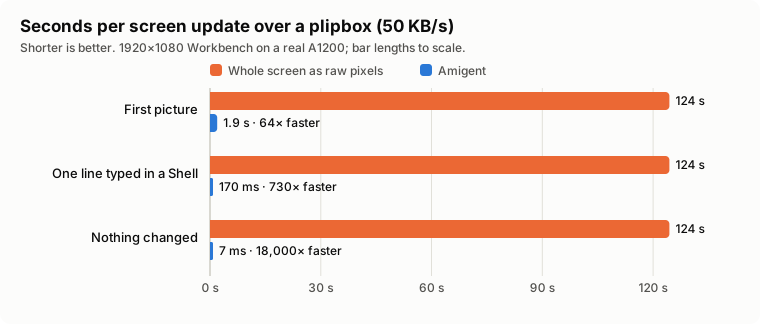
The orange bars are what moving the whole screen as raw 24-bit pixels costs on
that wire, every time; the blue ones are Amigent, measured on a real A1200.
All numbers, how they were taken and how to repeat them are in
docs/PERFORMANCE.md.
Good to know
- New address after a restart? Amigent finds the Amiga again by itself. It
takes only the one that proves to be yours. - Several Amigas?
amigent-fleetshows them side by side with a preview. - Updating Amigent?
pipx upgrade amigent, thenamigent-setup --update
puts the new amigentd on the Amiga. At the Amiga, double-click
Amigent-Update in the new archive's drawer. - Running a test or a benchmark? Pause the picture in the remote desktop
(orPAUSEby ARexx) gives the Amiga's CPU back to it for a while; mouse,
keys and files keep working. - After a big OS update,
amigent-repairputs back what the update removed. - Safe at home. A key keeps other computers on the network out, and the
connection can be encrypted. Don't open the Amiga to the internet.
More in the guide and the FAQ.
License
MIT, see LICENSE. By Andreas Wendorf (Akustikrausch).
Changes are in the changelog.
Reviews (0)
Sign in to leave a review.
Leave a reviewNo results found