screener-v2
Health Uyari
- License — License: MIT
- Description — Repository has a description
- Active repo — Last push 0 days ago
- Low visibility — Only 5 GitHub stars
Code Basarisiz
- fs.rmSync — Destructive file system operation in electron/main.cjs
- process.env — Environment variable access in electron/main.cjs
- fs module — File system access in electron/main.cjs
- network request — Outbound network request in electron/main.cjs
- fs module — File system access in electron/window-state.cjs
- network request — Outbound network request in scripts/build-library-catalog.mjs
- os.homedir — User home directory access in sidecar/ai.ts
- process.env — Environment variable access in sidecar/ai.ts
- network request — Outbound network request in sidecar/ai.ts
- os.homedir — User home directory access in sidecar/alerts.ts
- process.env — Environment variable access in sidecar/alerts.ts
Permissions Gecti
- Permissions — No dangerous permissions requested
Bu listing icin henuz AI raporu yok.
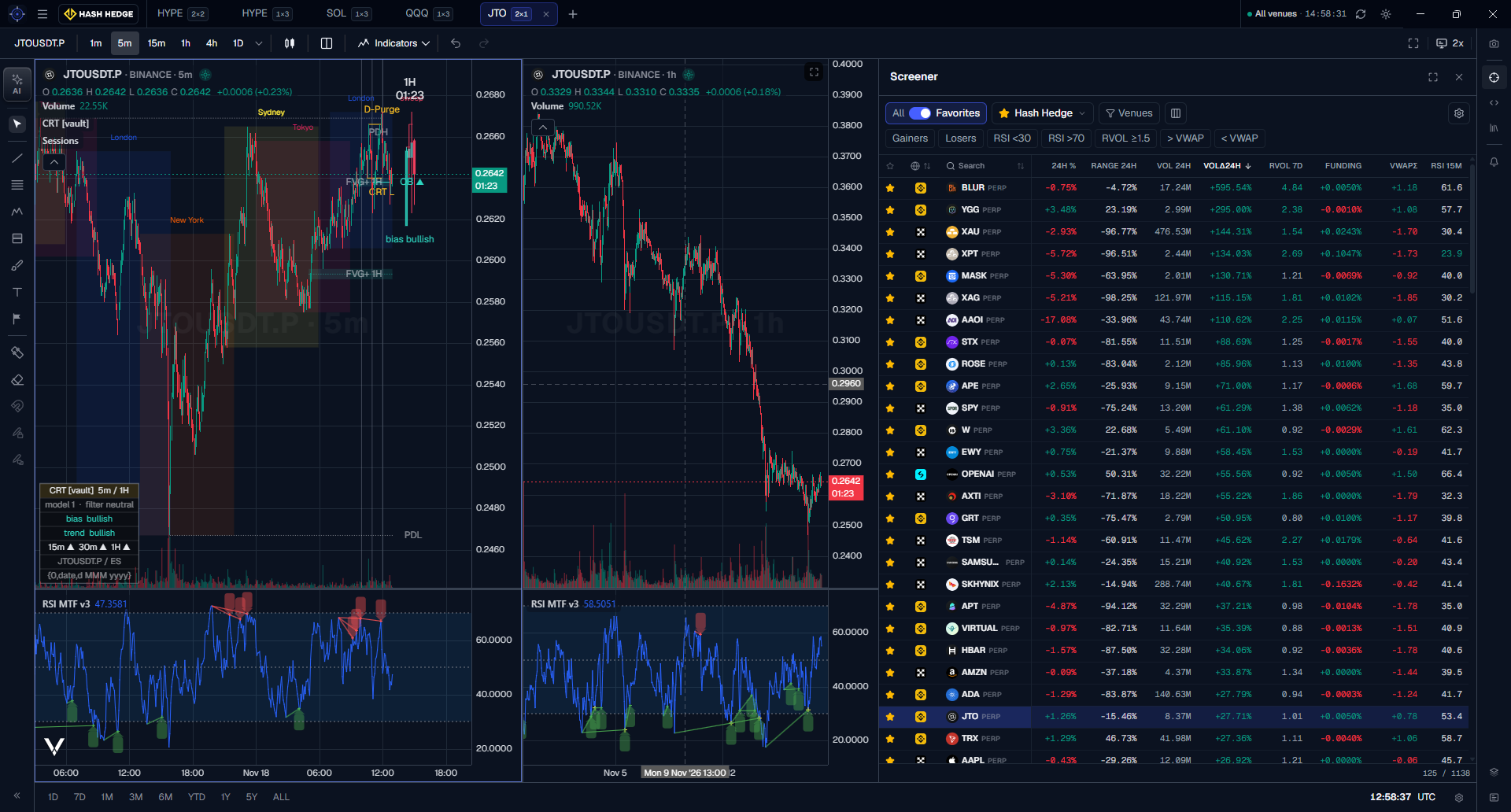
Multi-venue crypto screener for Binance, OKX, Bybit, Bitget, Hyperliquid, and Coinbase: Vela charts, Pine Script scans, a live market table, and an AI sidebar.
Screener v2
A multi-venue crypto screener (Binance, OKX, Bybit, Bitget, Hyperliquid,
Coinbase) with Vela charts and a Pine Script scanner. The UI is a Vite + React +
TypeScript app; there is no private backend and no API key.
Stack
- Vite 8, React 19, TypeScript, Tailwind CSS v4
- Base UI, Lucide, Sonner, Geist Sans / Geist Mono
@luxalgo/velaworkspace; data comes from the venue sidecar@screener/pine-engine(local MIT compiler and runtime) for Pine Script
indicators, the scanner, and the AI debug worker- Monaco Editor and Pine language support from the local
@screener/pine-editor/monacoentry, loaded lazily with the editor chunk - The local MIT
pine-script-syntax-highlightercheckout for hover docs,
formatter, signature help, semantic tokens and the outline - Public REST/WS market data from Binance spot and USDⓈ-M perps, OKX, plus
Bybit, Bitget, Hyperliquid, and Coinbase through their public APIs,
normalized byVenueAdapter - Electron shell for the desktop build: the bundled sidecar runs as a child
process, and the app uses a custom title bar with an application menu.
The app resolves @luxalgo/vela, @screener/pine-engine and@screener/pine-editor to the local ../Vela, ../pine-engine and../pine-editor checkouts, so chart, engine and editor changes run live. A
Vite bundles the chart engine, scanner and debug workers from source.
Run
npm install
npm run dev
npm run typecheck
npm test
npm run build
The public-data sidecar runs separately in development:
npm run sidecar
# http://127.0.0.1:8787/health
For the Electron modes, the installer build, and the release checklist, see
DEVELOPMENT.md.
AI assistant
Open Settings → AI assistant and fill in a base URL, model and key. The
sidecar stores them in your user profile (%APPDATA%\screener-v2\ai.json),
never in the browser, and applies them without a restart. Clear removes the
file and disables the sidebar. Add a Whisper-compatible transcription model to
enable the microphone.
Any OpenAI-compatible endpoint works: OpenRouter, a local Ollama/LM Studio, or a
provider API. The model needs tool calling; vision is optional but required for
questions about the chart image.
What the AI assistant can do
- Read the active chart: symbol, timeframe, visible range, indicators and
drawings. Chart attaches a PNG of the active chart to the newest user
message. - Work on Pine: open the current script, read large files by line range, patch
only the changed anchors, create a new indicator or strategy, and apply the
editor buffer to the chart. Creating a new script asks before replacing an
unsaved draft. - Run and debug: execute the buffer live on the chart and in a disposable
worker, then compare plots, variables, warnings and errors. The bound script
is shown asEditing <name>and survives switching Pine tabs. - Draw: list native chart drawings, add one by tool and anchors, or update,
restyle, remove and clear them as undoable chart actions.
The sidebar keeps every chat until you delete it. Chat / All chats tabs:
history searches titles and chart context, groups chats by date, renames inline
and deletes. After the first reply it generates a short title in the user's
language, falling back to the first prompt. The composer accepts pasted, dropped
or picked images and text files, dictated prompts and an optional Chart
capture that attaches the active chart image. A run's activity is folded into aUsed N … line: expand it for the Thoughts and tool cards, and expand those
further for details. The final answer stays visible. The composer also picks the
model and reasoning level. The assistant creates a new indicator or strategy in
a fresh buffer and applies it to the chart; when the editor holds an unsaved
draft, it asks whether to save, discard or cancel before replacing the buffer. Every Pine indicator's legend
row has a sparkles action that opens the sidebar already targeting that script;
the target is shown under the chat tabs and survives switching Pine tabs.
Environment variables still work and win over the stored settings:
AI_BASE_URL=https://openrouter.ai/api/v1
AI_MODEL=google/gemini-2.5-flash
AI_API_KEY=sk-or-...
AI_TRANSCRIBE_MODEL=whisper-1   # optional, enables the mic
npm run sidecar
A local server needs no key: AI_BASE_URL=http://127.0.0.1:11434/v1 withAI_MODEL set to an installed model.
Desktop build
npm run electron:start   # build the app + sidecar, launch Electron
npm run electron:pack    # release/win-unpacked/Screener.exe
The packaged app starts the bundled sidecar as a child process on127.0.0.1:8787 and serves the UI from a stable local port, so tabs, the
indicator library, and the Vela workspace persist between launches. The window
size, position, and maximized state also come back; a geometry from a monitor
that is no longer connected falls back to the default size, and an oversized
saved window is clamped to the monitor's work area. To run a headless check,
launch Screener.exe --smoke: it loads the app, waits for the table, writes a
JSON result, and exits non-zero if the table stays empty.
The About dialog shows the running build as major.BUILT.HASH: the package
major, the executable's build minute in UTC, and the short git commit
(-dirty when the tree had uncommitted changes). The --smoke result includes
the same build string.
What it does
- Binance lists USDT spot and USDⓈ-M perpetuals; OKX, Bybit, Bitget and
Hyperliquid are perpetuals; Coinbase is spot. The picker lists all venues,
sorted by ticker across exchanges; a chart opens the venue of the selected
ticker.BTCUSDTis Binance spot andBTCUSDT.Pits perpetual. - One multi-venue screener table. Columns: a favorite star, the venue icon,
Symbolwith its coin badge andperp/spottag,Last,24h %,Range 24h,Vol 24h,VolΔ24h,RVOL 7d,Funding,VWAPσ,RSI 15m,
then one column per scan plot. TheRVOLandRSIheaders name the window
that produced them. Star, venue and symbol stay pinned at the left; theColumnsmenu hides and reorders the rest, and dragging a header edge
resizes a column. Clicking a header cycles descending, ascending, unsorted;
unsorted keeps the 24h-volume order. Fundingis the current rate on perpetuals and-on spot; hovering it
shows the next funding time. The symbol cell starts with the coin logo; stock
tokens and unknown assets show a letter badge. A row click opens the matching
venue's chart; right-click offersOpen in new tab,Close tabwhen that
tab is open, andCopy symbol.- The sidecar watches an instrument the first time its 24h quote volume clears
the watch threshold and keeps it for the session: there is no row cap,
raising the threshold only changes which new rows activate, and falling
volume never drops a watched row. A favorite below the threshold is not
fetched, so it does not appear. The Screener panel's gear opens Settings on
the screener tab, where each venue can override the default threshold for
itself. - Screener metrics run on one technical candle series per watched instrument
(15m, 30m or 1h) and include the forming candle: its close follows the
ticker's last price and its high and low widen with it, so RSI,Range 24h
andVWAPσmove between closed bars and every value is provisional until the
bar closes.Range 24his the price's position inside the current day's
high-low range (0% at the day's open, 100% at its high),VWAPσis the
session VWAP z-score,VolΔ24hcompares the last 24h of volume with the 24h
before it, andRVOLcompares it with the previousRVOL dayswindows. RSI
is Wilder's on the configured timeframe. - The sidecar keeps that series per watched instrument, updates it from the
venue's kline stream (Coinbase through a REST tail) and pushes batched row
patches to the browser every two seconds; the browser only renders. A failing
venue keeps the other venues' rows and shows a per-venue warning. - Multi-chart Vela workspaces:
1,2×1,1×2,2×2,4×2,..., max4x4; cells keep their
own symbol and timeframe, and the active cell survives a reload. Panning is
session-only: a reload frames the latest bars at the same zoom level, keeping
the chart's configured right margin.
Dragging a chart into the past or zooming out loads older history in 500-bar
steps, with a loading badge in the cell. The leftmost button of the chart
toolbar's right group maximizes the selected chart over the widget and restores
the grid on a second click. - Bar replay: the
Replaybutton afterIndicatorsopens a draggable control
bar.Start bararms a chart pick (all cells dim), orSelect dateopens a
calendar; then play/pause, step, and change speed inx. The X leaves replay
and stops it. A date older than the loaded bars deepens every cell with the
reference cell's symbol before the replay starts, even when the chart has no
loaded bars. Every cell rewinds on the same clock; Vela pauses live updates and
mutes alerts while replaying. - Right-click the chart to
Copy price <price>,Add alert at <price>orDraw horizontal line at <price>at the crosshair, from the chart's own
context menu. Copying confirms with a toast; the line lands as a normal
drawing with undo. A price alert opens a prefilled dialog with the clicked
level, the chart's symbol and timeframe. - Quick filters are on/off chips - Gainers, Losers,
RSI <30/>70,RVOL ≥1.5and price above/below VWAP - combined with AND when several are
on, and with theAll/Favoritesswitch. Turning on one of an opposite
pair (oversold/overbought, above/below VWAP) turns the other off. TheVenuesmenu picks the exchanges; an unchecked venue is not fetched, and its
rows leave the table at once. Search sits in theSYMBOLheader with a clear
button, and the header still sorts while the field is not focused. - The table footer shows the shown and total row count. It also says when the
table is loading, when no venue is selected, when nothing matches the filters,
and when the active favorites list is empty. - Sort, chips, search, columns, widths and favorites persist on this device,
and the table view is shared by every workspace tab. - Screener, Pine, Library, Alerts, and Order flow
open as Vela side panels from the chart's right sidebar; the open panel and
width persist, and armed alerts keep running through reloads and sidecar
restarts. The strategy dock sits at
the foot of the chart column, under the range presets; the drawing toolbar and
the right rail keep their full height. It resizes with a drag handle, collapses
to its header, and keeps its state across reloads. - Order flow panel with
Book,DOM, andTradesviews over the public books
and tapes of every venue. Binance spot and its perpetual are both included, so
aBTCUSDT.Pchart reads seven books. The sidecar keeps the full
snapshot+diff books,
reads them around the chart venue's mid, and serves one combined ladder of up
to 100 levels a side at the chosen step (about 1/500 of the price by default).
The Book histogram follows theSize/Totalchoice.Sold,Bought,Delta, andVolumecount trades since the panel opened orReset. The tape filters by notional, joins one order's fills, and can pause
or freeze on hover. Binance rows carrySorPfor spot and perpetual, and
tiny sizes print as decimals rather than scientific notation. Venue toggles,
follow mode, columns, colors, and zoom persist per instrument; the visible tab
and venue list stay panel-wide. - Favorites: named lists managed from the star popover in the screener toolbar.
Defaultis the default list; star a symbol to add it to the active list.
Lists are stored atscreener.favorites.v2per instrument
(venue:kind:nativeId), and the oldscreener.favoriteskey folds into the
default list. Create, rename, clear, or delete lists; import a JSON/text file
into the active list; export every list as JSON. TheAll/Favoritesswitch
before the list shows only the active list, and the quick filters and
search still apply within it. The active list name labels the favorites
button in the screener toolbar. Each workspace tab keeps its own selected
list, while the named lists and the venue filter stay shared across tabs. - Pine editor with tabs, presets and Monaco highlighting, completions, signature
help, folding, search, semantic colors, outline, formatting, rich hover docs,
context actions (Go to Definition, Discard, New tab, Open script, Save,
Toggle console) and lint. Apply a script to the active chart or all charts in
the workspace; an on-chart script updates in place and keeps its inputs and
settings. The chart engine runs in a module worker, so a heavy script does not
block the UI. Scripts can draw plots, hlines, fills, markers, lines, boxes,
labels, tables and candles, and recolor chart candles withbarcolor.request.securityreads higher timeframes, lower intrabar data, and foreign
instruments such as an SMT pair. An applied script reopens with its saved
settings after a reload. - Strategies:
strategy.entry,order,exit, andcloserun as a backtest
with trade markers on the chart and a dock under it showing net P&L, the five
summary metrics and the equity curve. The viewer opensPerformance(five
metrics and a large equity curve) andTrades Log(entry, exit, size, net and
cumulative P&L). An armed alert fromalert()oralertcondition()runs on
closed bars in the sidecar, even after the chart closes; a script's live alert
events do not add history rows on their own. - Named layouts: save the full workspace (grid, markets, indicators, drawings,
applied script), open it in a new tab or load it here, update, rename,
duplicate, and import or export JSON. Updating a saved layout asks before
overwriting it;Duplicate…keeps a copy of the active layout. TheLayouts
button sits in the chart toolbar right after Maximize. - Saved indicator library stored in localStorage. Save, rename, duplicate, and
delete scripts; a duplicate appendscopyto the library name and the
top-levelindicator(...)/strategy(...)title. The same saved script can
be added to a chart more than once;On chartis informational. Export or import.pine
files and the JSON library. Saved scripts also appear in the app'sIndicators
window underMy scripts, next toBuilt-inand the Library. Indicatorswindow: a three-pane picker with search across names, families
and descriptions. It opens onMy scripts; hovering or selecting a saved
script row revealsSource codeandDelete script.Source codeopens the
script in its own Pine tab or activates the existing one; a dirty target asks
whether to save or discard before switching. Delete removes clean editor
copies and keeps dirty ones as drafts.Yoursholds favorites, recent
items, saved scripts andBring a script;Built-inlists the chart engine's indicators;Library
has Discover, all 845 bundled indicators and family filters. Results show
preview cards, the right pane shows details, andAddfetches the full Pine
source on demand, saves it with its original licence header, and adds it to
the chart.- Favorite indicators have a topbar shortcut too: the caret attached to
Indicatorsopens the favorite list. Clicking one adds it to the active
chart;Manage in Indicatorsopens the picker. - Source button on every Pine indicator legend row: opens the exact script Vela
is running in the editor, and selects the matching saved indicator. - Settings templates: the indicator gear dialog and the chart settings dialog
have aTemplatemenu that saves the current inputs and properties, or the
chart settings that differ from Vela's defaults, under a name and reapplies
them later. Templates stay in localStorage, and applying one keeps the theme
you are using. - Chart alerts: the bell on a Pine indicator's legend row arms its
alertcondition()/alert()calls for one symbol and timeframe. The alert
keeps running on closed bars after the chart or tab closes, and the Alerts
panel shows the armed rules plus a persistent history with toast, sound and
system notifications. The runner lives in the sidecar process, so alerts also
survive an app reload and a sidecar restart: missed events arrive as one
summary toast when the app reconnects, cleared history stays cleared, and an
only-once rule is never re-armed after it fired. A fully closed app does not
evaluate (the sidecar stops with it).request.*scripts run through the
sidecar's session host, including foreign-symbol and lower-timeframe series; a
missing series adds a warning without stopping the rule. A venue the app does
not serve isnawithout a warning, like the chart. Viewport-dependent
scripts are rejected when the alert is created. Screener-wide alerts are not
available. - Price alerts:
Add alert at <price>in the chart's context menu opens a
prefilled dialog for that level. The condition isCrossing,Crossing Up
orCrossing Down, the frequencyOnly onceorEvery time. The sidecar
watches the symbol's live 1-minute bar withhigh,lowand the previous
close, so a sweep that crosses and returns still fires, and one stream serves
every price alert on that symbol. Price alerts share the Alerts panel, history
and notification settings, and keep running after the chart or tab closes.
Evaluation is always on the live 1m bar, whatever timeframe the chart shows. - Alert notifications are clickable.
Open charton a toast, a click on the
system notification, or theOpen chartlink in the Alerts panel's history
opens the tab that already shows the symbol; when no tab does, it opens a new
tab at the alert's chart timeframe. - AI sidebar on the left, outside the Vela dock, so it stays visible next to the
chart and the Pine editor. Its toggle sits at the top of the chart's left
drawing toolbar, above the cursor tool. Chats are kept until deleted, and accept images,
text files and dictation. The assistant reads the script, rewrites the editor
buffer, runs a debug pass on the active chart (errors, warnings, plot values,
vars) and receives the chart as an image whenChartis on. It reads charts,
writes Pine scripts, debugs them on the active chart, and can draw the chart's
native drawings (every Vela type, from trend lines to harmonic patterns) withdraw_on_chart, list, move, restyle or delete them. It
works against any OpenAI-compatible model; the key stays in the sidecar. - Scanner runs the same script over closed candles in a Web Worker and adds the
last plot values as table columns. It walks the checked venues sequentially;
one venue's failure does not stop the rest.
Notes
- Vela is Apache-2.0; its in-chart attribution mark stays enabled.
- Monaco Editor and the local Pine engine and editor packages are MIT. The
formatter, signature help, semantic tokens and outline use the MITpine-script-syntax-highlightercheckout. - Indicators imported from the LuxAlgo Library keep their own licence header
(usually CC BY-NC-SA 4.0) and are stored with it intact. Refresh the bundled
catalog withnpm run library:catalog. - The app reads public market data only. It does not trade.
- The sidecar exposes public Binance, OKX, Bybit, Bitget, Hyperliquid, and
Coinbase data through oneVenueAdapterper venue and a shared cache. The table, scanner, and Vela
charts use the sidecar only; there is no direct exchange path in the browser.
Charts stream live candles overws://127.0.0.1:8787/stream; the sidecar keeps
one stream per symbol/timeframe and fans it out to every chart. Binance spot
and futures, OKX, Bybit, Bitget, and Hyperliquid stream over WebSockets;
Coinbase uses one REST poll per second per stream. If a venue socket stays silent, the sidecar falls
back to the same REST polling until a bar arrives. The instrument picker lists
every venue and opens the selected exchange's chart.
Updates
The installed app checks the public GitHub releases after startup and every four
hours. It downloads in the background and asks before restarting; scan results
are session-only, while armed alerts and their history persist. Build the installer with npm run electron:dist
and attach the .exe, .blockmap and latest.yml to a published GitHub
release. See CHANGELOG.md for release history.
License
The app code is MIT; see LICENSE. Third-party components keep their own
licences: Vela is Apache-2.0, the Pine engine, editor, Monaco and the syntax
highlighter are MIT, and scripts imported from the LuxAlgo Library keep their
own header (usually CC BY-NC-SA 4.0).
Yorumlar (0)
Yorum birakmak icin giris yap.
Yorum birakSonuc bulunamadi