crazy
Health Warn
- License — License: Apache-2.0
- Description — Repository has a description
- Active repo — Last push 0 days ago
- Low visibility — Only 7 GitHub stars
Code Pass
- Code scan — Scanned 12 files during light audit, no dangerous patterns found
Permissions Pass
- Permissions — No dangerous permissions requested
No AI report is available for this listing yet.
Local-first desktop studio: describe an app, let an AI coding agent (Claude Code) build it with your approval, preview, version with Git/GitHub, and install it on your Linux desktop. Tauri 2 + Rust + Vue 3.

AI App Studio
Describe an app. Watch an AI agent build it. Install it on your desktop.
A local-first desktop workbench for creating, building, versioning and installing your own apps with AI coding agents.




Features · Screenshots · Install · Quick start · User guide · Develop · Changelog · License
Why
AI coding agents can write a whole desktop app from a paragraph of text. Everything around that is still terminal work: setting up the project, watching what the agent runs, reviewing its edits, committing, building a package, installing it so it shows up in your app launcher, and rolling back when a change goes wrong.
AI App Studio puts that whole loop in one window. You describe what you want, approve what the agent does, try the app in a live preview, and press Install. Your app then appears in the GNOME app grid and runs without Studio or any agent.
It is not a no-code builder and not a cloud service. Every project is an ordinary Git repository on your disk that you can open in any editor. Studio never stores your credentials: Claude Code and the GitHub CLI keep their own logins.
Features
| 💬 Chat with an agent | Ask Claude Code to plan or make changes. Plan first proposes a plan without touching files; Make changes edits right away. Follow-ups continue the same conversation, and every run stays in one thread. |
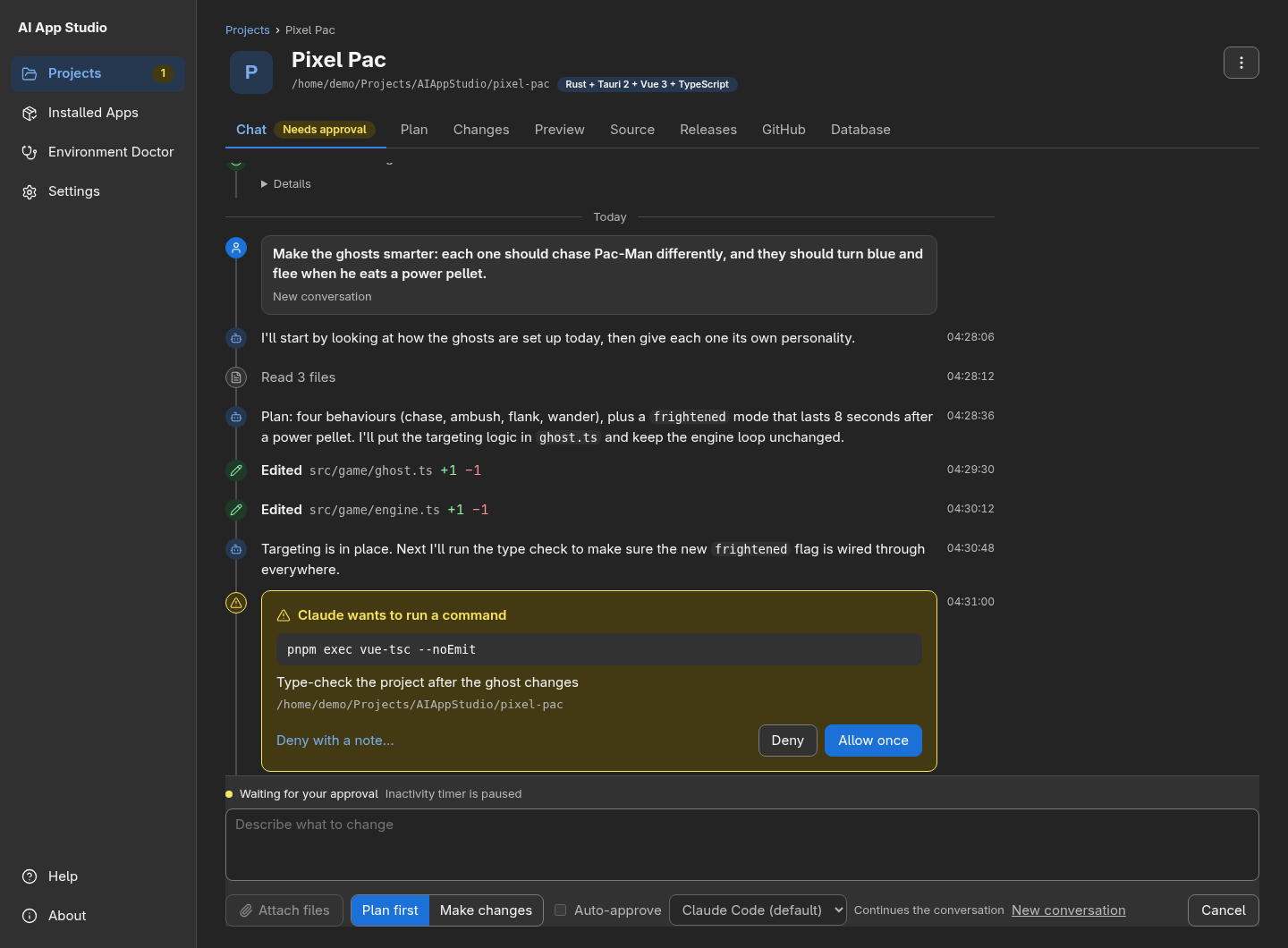
| ✅ You approve every action | Edits and commands show up as approval cards with the exact command or diff. Nothing runs until you click Allow once, or turn on Auto-approve and still get asked about risky actions like sudo or git push. |
| 🔍 Review and revert each run | The Changes tab shows the diff of every run. Revert this run… restores the files you tick. Git checkpoints are recorded before each run. |
| 🗂️ Real Git, built in | Commit selected files, branch, see history and restore files with your own Git. Sign in to GitHub, create a repository, then push, pull, merge and clone. |
| ▶️ Live preview | Run the app with tauri dev on a free port. Build errors come with Ask Claude to fix. |
| 📦 Build and install | Build an AppImage, smoke-test it and install it into the GNOME launcher in one step, then activate or roll back releases. Version and release notes are filled in for you. |
| 🌍 Export for others | Build .AppImage, .deb and .rpm files for other Linux distributions, or a Windows setup.exe, in a local Docker container. |
| 📋 Project plans | Turn an idea into a checklist plan saved in the repository, then work through it task by task. |
| 🗄️ App databases | New apps can keep their data in SQLite with versioned migrations. Browse it, back it up and restore it, and releases back the data up before they change anything. |
| 📎 Attachments | Send screenshots, PDFs, code and Word files along with a prompt. |
| 🎨 ArtCraft apps | Let Claude make sprites, icons, sounds and more with the ArtCraft creative apps, saved straight into your project's assets/. |
| 🔔 Finish notifications | While Studio is in the background, a desktop notification says when a run finishes, a preview starts or a build ends. |
| 🩺 Environment Doctor | Checks every tool Studio needs, shows where it found each one, and says how to fix what's missing. |
Screenshots
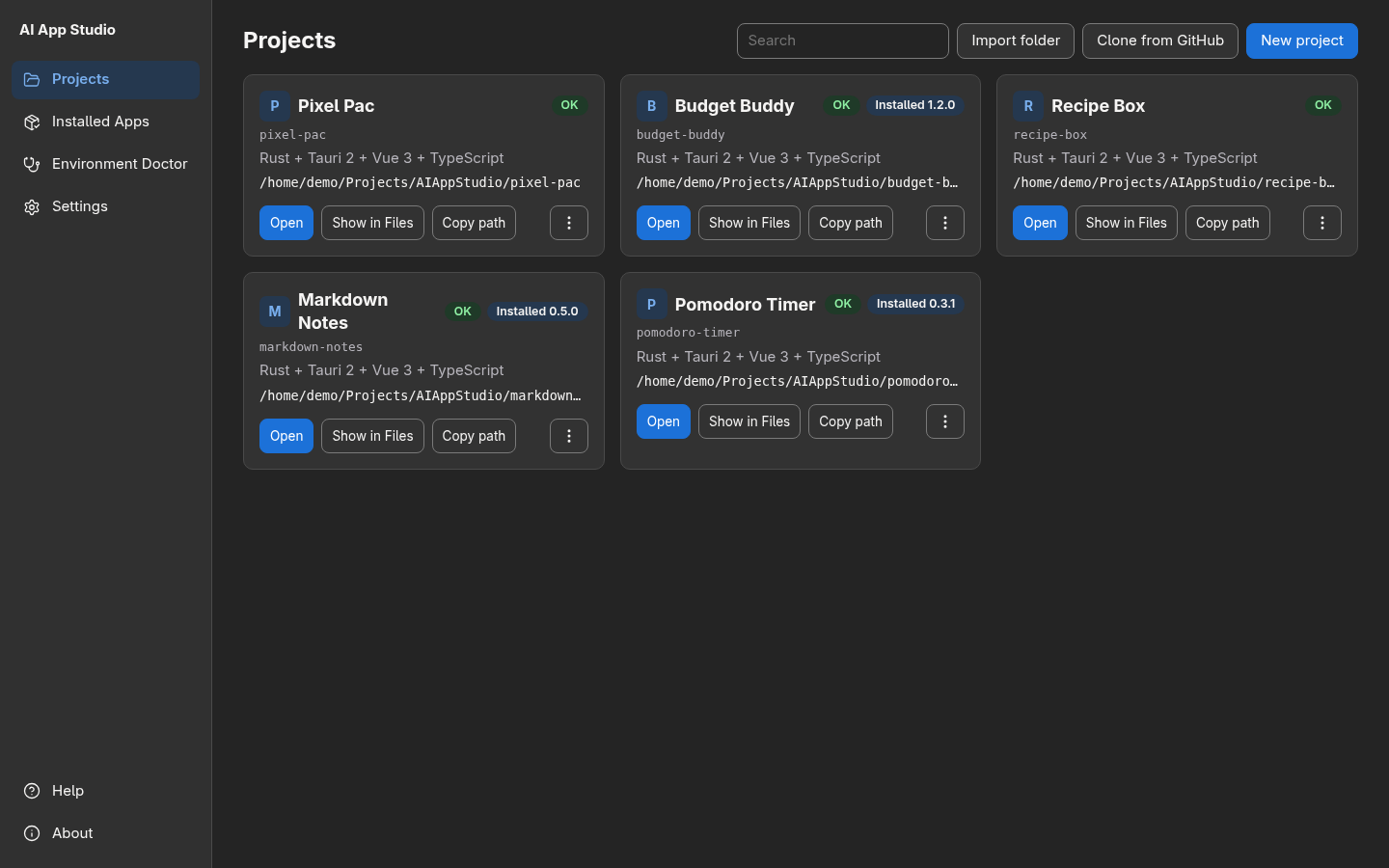 Projects. Every app you build, with its installed version. |
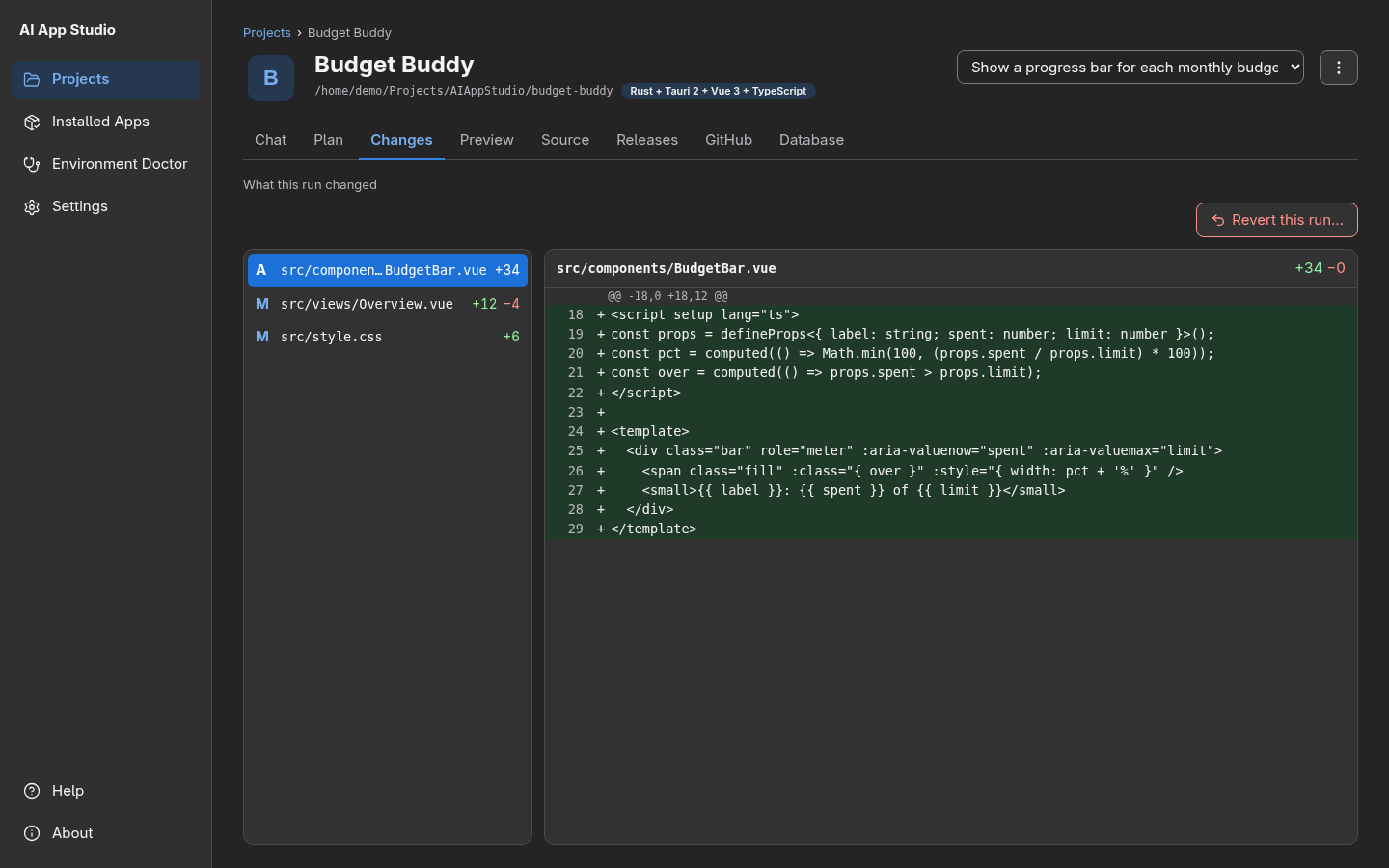 Changes. Every run's diff, file by file, with revert. |
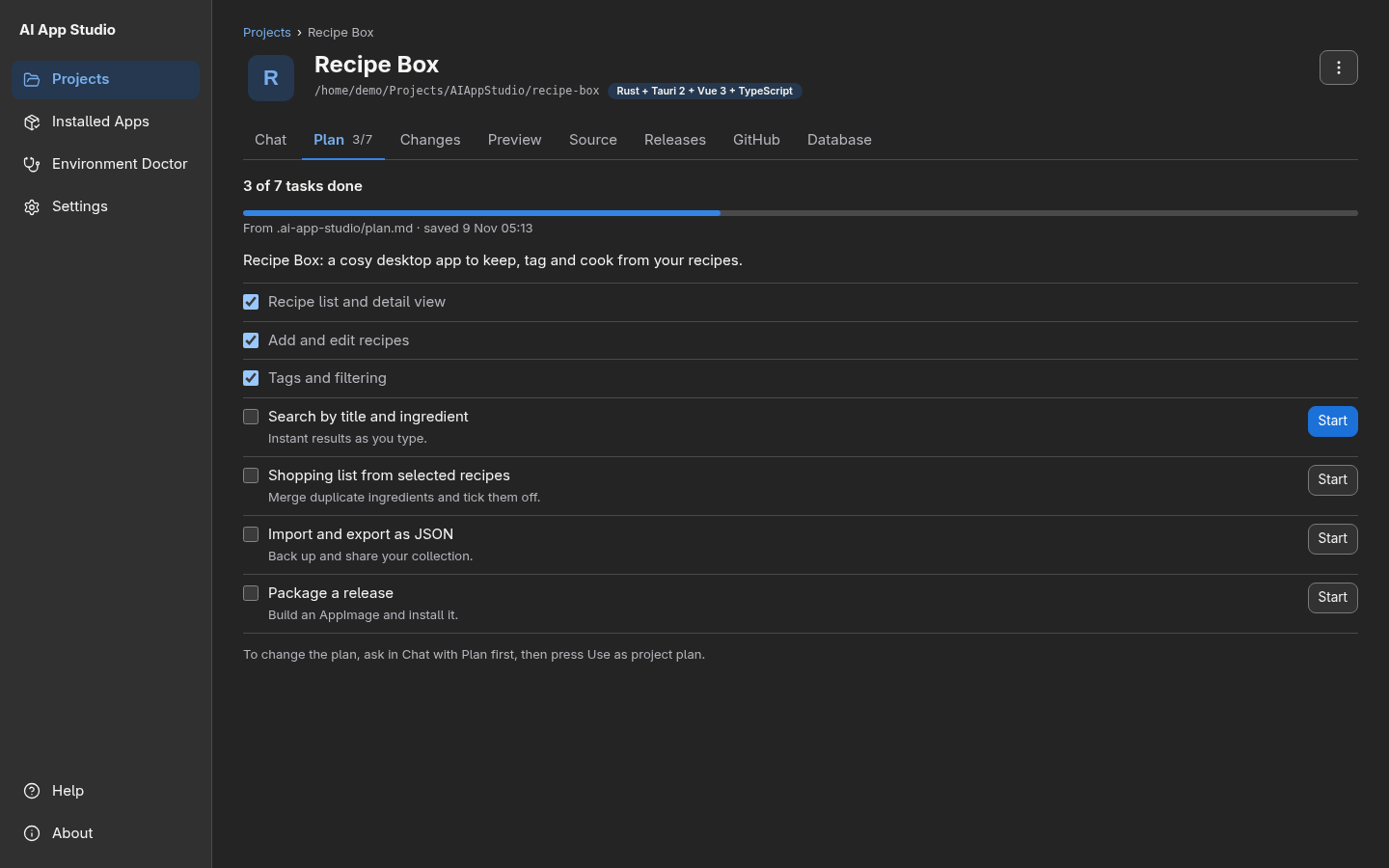 Plan. A checklist plan kept in the repository, worked through task by task. |
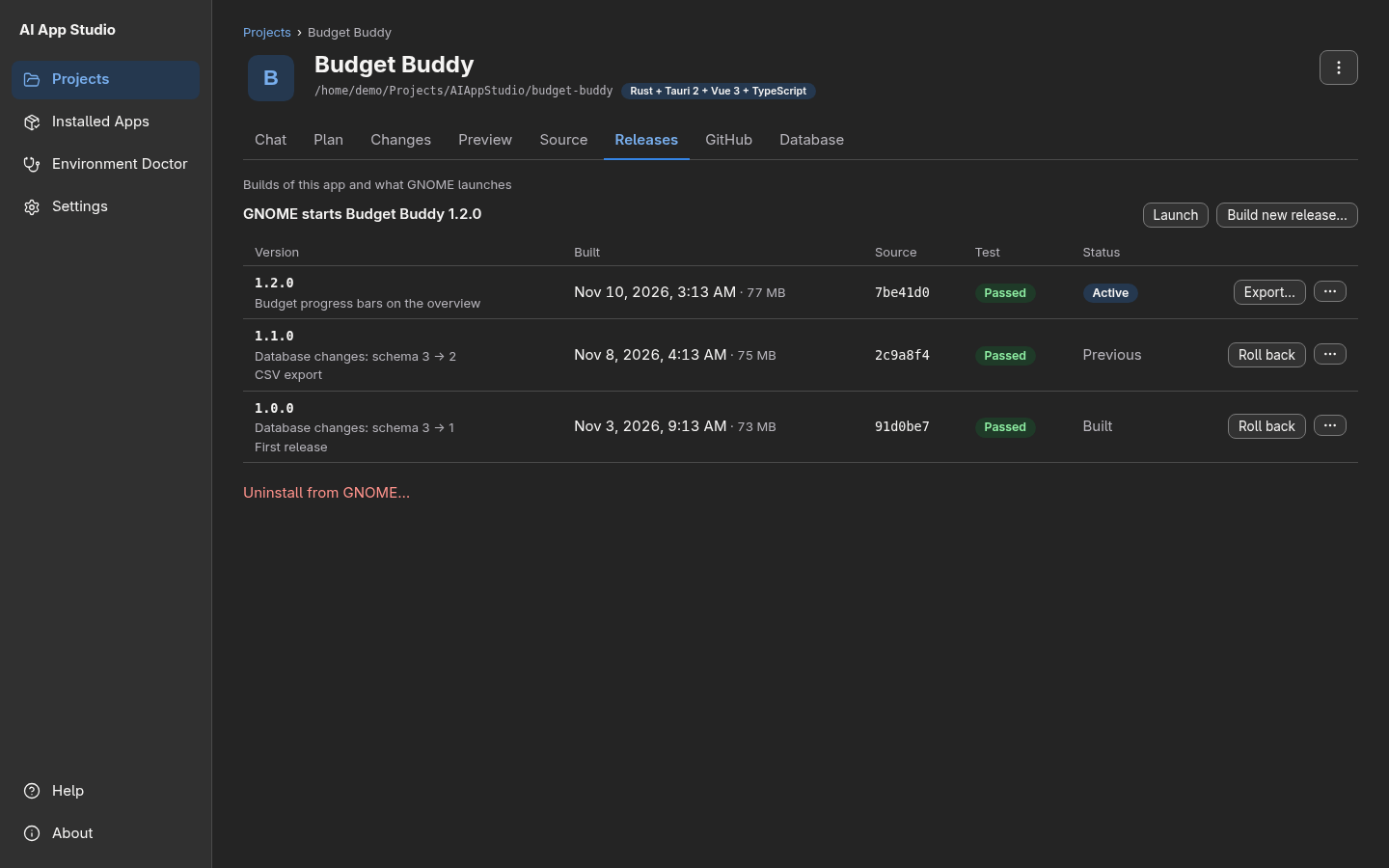 Releases. Build, test, install, activate and roll back. |
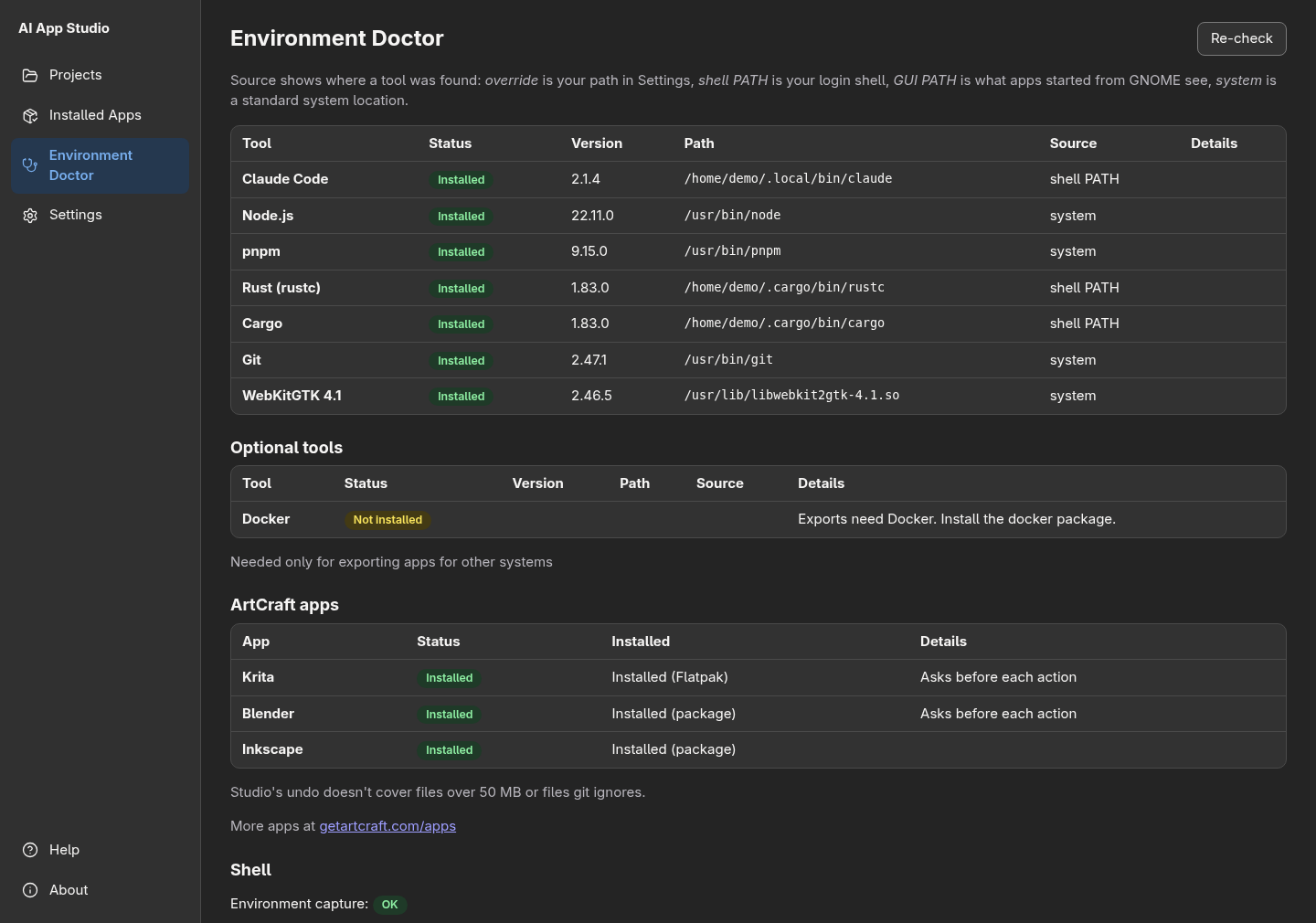 Environment Doctor. What's installed, where it was found, and what's missing. |
 Dark mode. Follows your GNOME light or dark preference. |
How it works
 Describe ──▶ Plan ──▶ Approve edits ──▶ Preview ──▶ Commit / push ──▶ Build ──▶ Install ──▶ App grid
    ▲                                        │
    └────────────── ask for changes ◀────────┘
- New project: a name, a description and a template (Tauri 2 + Vue 3, optionally with a SQLite database and a GitHub repository).
- Chat: Claude Code plans or edits; you approve each step in the timeline.
- Review: the Changes tab shows what the run changed, and you can revert any of it.
- Preview: try the app in its own window and ask for fixes.
- Source / GitHub: commit what you like and push it.
- Releases: build an AppImage, install it, and launch it from GNOME like any other app.
Under the hood Studio is a Tauri 2 app: a Rust backend that runs the agent, Git, builds and installs, and a Vue 3 frontend. Agents plug in through adapters. Claude Code is the first one, driven over its stream-json protocol with live permission prompts.
Status
AI App Studio is young (0.4.0) and is developed and used daily on Manjaro Linux with GNOME (Wayland and X11). Other Linux distributions should work if the requirements below are met. Studio itself doesn't run on Windows or macOS yet, but it can already export your apps for Windows. See CHANGELOG.md for what's new and TODOS.md for what's next.
Install
Download
Get the AppImage from the latest release, then:
chmod +x AI-App-Studio_*_x86_64.AppImage
./AI-App-Studio_*_x86_64.AppImage
It is built on Manjaro, so it needs glibc 2.44 or newer (current Arch and Manjaro; check with ldd --version). Studio still needs the tools below to build and preview your apps; the Environment Doctor checks them. On other systems, or to change Studio itself, build it from source with one command.
1. Requirements (Manjaro / Arch)
sudo pacman -S --needed base-devel git rustup nodejs pnpm webkit2gtk-4.1 \
  libappindicator-gtk3 librsvg openssl file xdotool fuse2 github-cli \
  xdg-utils desktop-file-utils
rustup default stable
cargo install tauri-cli --version "^2"   # or: pacman -S tauri-cli (AUR)
Optional: pandoc (Word attachments), docker (exports for other systems), AppImageLauncher, and the ArtCraft apps.
Agent runs need the Claude Code CLI, signed in from a terminal. Live approvals are verified with Claude Code 2.1.316 and later 2.1.x releases.
2. Build from source and install
git clone https://github.com/altafino/crazy.git ai-app-studio
cd ai-app-studio
make install    # build the AppImage and install it in ~/Applications (takes a few minutes)
make run        # open it (or find "AI App Studio" in Activities)
| Command | What it does |
|---|---|
make |
List every command |
make install |
Build the AppImage and install it, replacing older versions |
make install-last |
Install the last build without rebuilding |
make run |
Open the installed Studio |
make status |
Show what is built, installed and running |
make uninstall |
Remove the app and its menu entry (your projects and data stay) |
make install uses AppImageLauncher when it is installed (it adds the menu entry and icons); otherwise it copies the AppImage and writes its own menu entry. The build output stays in src-tauri/target/release/bundle/appimage/. Options: APPS=<folder> (default ~/Applications), AIL= to install without AppImageLauncher, NO_STRIP=true if the AppImage step fails at strip.
Quick start
- Open Studio and check the Environment Doctor in the sidebar: it lists every tool Studio needs and tells you how to install what's missing.
- In Settings > AI Agents, check the Claude Code profile. If you start Claude through a shell alias (for example one that sets
CLAUDE_CONFIG_DIR), Studio offers to copy its environment, and saves nothing until you confirm. - On Projects, click New project, give it a name and describe the app, for example "A pomodoro timer with a tray icon and a daily summary".
- In Chat, run the plan, then press Make these changes. Approve the edits and commands as they come.
- Open Preview to try it, and ask for changes in Chat.
- On Releases, click Build release… and Build and install. Once the test launch passes, your app is in the GNOME app grid.
Studio's data lives in ${XDG_DATA_HOME:-~/.local/share}/ai-app-studio/: the database, session logs (sessions/), and a private snapshot repository per project used for diffs and revert. New projects default to ~/Projects/AIAppStudio/.
User guide
Using an agent
- Open a project from the dashboard.
- In Chat, describe a change. Plan first (the default for a new project) has Claude propose a plan without changing files. Make these changes on the plan then continues the same conversation. Make changes lets Claude edit right away.
Every prompt continues the conversation, so Claude remembers what you asked before. New conversation above the message box starts the next run fresh (Undo takes it back); a plan task started from the Plan tab, or a different agent profile, starts fresh too. If the previous conversation can't be continued, the run starts fresh by itself and says why. Chat shows all of the project's runs as one thread: Show earlier runs loads older ones, and Jump to latest appears when you scroll up while a run works. - File edits and commands appear as approval cards with the exact command or edit. Nothing runs until you click Allow once. When Studio isn't focused, a desktop notification tells you a run is waiting.
Auto-approve (the box next to the mode switch) lets a Make changes run edit files, run commands and read files outside the project without asking; the timeline marks each one "Allowed automatically". Risky actions still ask:sudo,git push/commit/remote/reset --hard,rm -routside the project, downloads piped into a shell, edits outside the project or in.git, and reading hidden files in your home folder (like~/.ssh) or.envfiles. Settings > Approvals sets whether the box starts checked, and can turn off the risky-action check. Plan first always asks. - Changes shows what the selected run changed. Revert this run… restores the files you tick.
- Source shows your repository's uncommitted changes. Tick files and Commit commits exactly those; you can also create and switch branches, see the history, and Restore… files to the last commit (undoable until the next restore). Commit… at the end of a run pre-ticks that run's files.
- Preview runs the app as a separate window (
tauri dev, on a free port). It installs dependencies with the project's package manager first, shows the build phase and log, and on a build error offers Ask Claude to fix, which fills the chat without running anything. A finished run's last row offers Start preview when no preview runs; a running preview updates by itself. - Settings saves each change as you make it ("Saved" appears next to the group); only an AI Agents profile has a Save button. Settings > Tools shows where each tool was found and lets you point Studio at another one. About lists the release notes for your version, and after an update Studio offers What's new once.
- When Studio is in the background, a desktop notification says when a run finishes, a preview starts or a build ends; click it to open the project. Settings > General > Notifications turns these off (approval notifications stay on).
Git checkpoints
Before each agent run in a Git project, Studio records the project's state as refs/studio/checkpoints/<run-id> in your repository. It never moves your branch or commits your edits; the last 20 are kept. The run's details show the ref. Studio doesn't restore from checkpoints (use Revert this run…), but you can with Git:
git for-each-ref refs/studio/checkpoints            # list them
git diff refs/studio/checkpoints/<run-id>           # compare with now
git restore --source=refs/studio/checkpoints/<run-id> -- <file>...   # bring back named files
Checkpoints skip the same files as snapshots (build folders, files over 50 MB, secret-looking files). Name files rather than restoring .: Git deletes tracked files that the checkpoint doesn't contain, such as a committed .env. Tools that show every ref (git log --all, gitk) list checkpoints as commits named before; they are on no branch.
Releases
Build release… on the Releases tab fills in the next version (with minor and major links) and release notes from the runs since the last release, which you can edit. With "Install in GNOME when the test launch passes" ticked (the default, remembered per project), Build and install builds the AppImage, test-launches it and installs it. It doesn't install a release whose test launch failed or that is older than your app's data; the row then says why and lets you install it from there. If the project has uncommitted changes, Commit first… opens Source with the files ticked and brings you back to the dialog after the commit. Kept releases can be activated, rolled back and uninstalled.
GitHub
Studio talks to GitHub through the GitHub CLI (gh, in the Requirements above) and your own Git. It never stores a token: gh keeps its own login.
- Sign in from the project's GitHub tab (or the Clone dialog). Studio runs
gh auth login --weband shows the one-time code inline; enter it on the GitHub page that Open GitHub opens. Signing in once in a terminal (gh auth login) works too. - Create GitHub repository… on the GitHub tab creates the repository from the project (private by default; public needs an extra confirmation) and pushes the current branch. The new-project wizard can do this right after creating the project.
- Push N commits pushes the commits listed under "Not on GitHub yet". Studio never force-pushes; if GitHub has newer commits, pull first.
- Fetch checks GitHub; Pull only fast-forwards. When both sides changed, Merge GitHub's changes starts a merge: conflicts appear in the Source tab, where you fix them (or Ask Claude to resolve), Mark resolved and Commit merge. Abort merge goes back to where you were.
- Clone from GitHub on the dashboard picks one of your repositories (or takes any
owner/nameor URL) and opens it as a project. - Pull, merge and push are refused while the project has uncommitted changes (where it matters), a Make-changes run or a release build is running, or another sync for the project is running.
- Network Git commands run without prompts: SSH uses
BatchMode, and HTTPS to github.com gets its credentials fromgh auth git-credential. Your ownGIT_SSH_COMMANDorcore.sshCommandis kept. A transfer that stalls is stopped after about a minute, and every sync has Stop.
Attachments
Chat can send files along with a prompt. Claude reads them with its own Read tool.
- Types: images (PNG, JPEG, GIF, WebP), PDF, text and code files (txt, md, csv, json, yaml, source files and similar) and Word (.docx). Other formats, such as spreadsheets and slide decks, are refused for now. Secret-looking files (
.env, keys) are refused too. - How to attach: the Attach files button, drag and drop onto the Chat tab, or Ctrl+V in the message box to paste an image or files you copied in Files. Each file shows as a chip; a red chip says why a file can't be sent, and Run waits until it is removed.
- Limits: by default 10 files per prompt, images up to 20 MB, PDFs up to 32 MB, text files up to 2 MB, Word files up to 20 MB, and 64 MB per prompt in total. Change them in Settings > Limits; the new values apply to the next file you attach.
- Word files need pandoc (
sudo pacman -S pandoc). It is optional: the environment doctor lists it, and without it a Word file shows "Install pandoc to attach Word files". - Where files go: Studio copies each file to
${XDG_DATA_HOME:-~/.local/share}/ai-app-studio/attachments/<conversation>/, outside your project, so Source and snapshots never see them. Your original is not changed. A conversation's files stay readable for later runs of the same conversation, including Make these changes after a plan. They are deleted when none of its runs is among the project's last 20; its chips then read "File removed". Files you attached but never sent are dropped when Studio restarts, and left-over folders are cleaned after 24 hours. - Attached content is untrusted input. A document or image can contain text that tries to instruct Claude. Studio's approval cards still apply to everything beyond reading the attachments folder: edits and commands need your Allow once. Read what Claude plans to do before you approve it.
App databases
An app can keep its data (scores, notes, settings) in SQLite.
- New projects: tick Store data in a database (SQLite) in the wizard. The app's Rust code opens the database with rusqlite and applies the numbered migrations in
src-tauri/migrations/at startup; the Vue code calls Tauri commands and never runs SQL. For an existing project, the Database tab offers Ask Claude to add a database, which fills the chat with a request that follows the same convention. - Where the data lives: Preview uses
~/.local/share/<identifier>/dev/app.db, the installed app~/.local/share/<identifier>/app.db, so testing in Preview never touches the installed app's data. - Claude knows the rules: in a project with a database, Studio adds the convention to Claude's instructions (a new numbered migration for every schema change; never edit an applied one).
- Database tab: shows the Preview or the installed app's data, read-only: tables, row counts, 50 rows per page, a filter. Back up… keeps copies you can restore; the ⋯ menu copies the installed data into Preview or resets Preview data. Restore, copy and reset are disabled while the app using that file runs. Slow reads stop after the limit in Settings > Limits (2 s by default, 0 = no limit).
- Releases protect the data: Install, Activate and Roll back back up the installed app's data first and change nothing if that backup fails. A release that changes the schema says so; rolling back to an older schema offers to restore the data from before the newer release. A build's test launch runs on a copy of the installed data in temporary folders, never on the real file.
App icons
Click the icon next to the project's name to pick a picture (PNG, JPEG or WebP at least 256 × 256, or SVG). Studio writes every icon size into src-tauri/icons/; a picture that isn't square is centered on a transparent square. Preview and the next release use it, and the GNOME launcher shows it after you install that release. The changed files appear in Source like any edit, so you can commit or restore them. The new-project wizard can set the icon too (it is then part of the first commit). Changing the icon is refused while a Make-changes run or a release build is running.
Project plan
Open a project's Plan tab (next to Chat), describe what the app should do and press Make a plan: Chat opens in Plan first with a prepared request, and nothing runs until you press Run. When Claude's plan has checklist lines (- [ ] Task), press Use as project plan on it. Studio saves it as .ai-app-studio/plan.md, a normal project file that goes into Git and GitHub. The Plan tab shows the tasks with progress (also as "3/9" on the tab); Start runs a task in Make changes, and when that run succeeds Chat offers Mark done and Start next. Only you tick tasks; Claude never ticks them. To change the plan, ask in Chat with Plan first and use the new plan. The new-project wizard has the same optional "What should this app do?" field. Ticking, saving and Start are off while a Make-changes run or a release build is running.
ArtCraft apps
With the ArtCraft creative apps installed, Claude can make assets for your app: images and sprites, icons, sound effects and music, textures, video and more. Studio finds installed ArtCraft apps (AppImage or Flatpak) by itself; the Environment Doctor lists them.
- In Chat, click the ArtCraft button under the message box, switch on Use ArtCraft apps in this project and tick the apps Claude may use. For a new project, PhotoCraft, VectorCraft and SoundCraft are ticked.
- What the apps make is saved in the project's
assets/folder. With Auto-approve on, Craft tools that can only write there run without asking; everything else still asks. - The timeline shows each Craft step in plain words, with the files it wrote. The first use of an app shows "Preparing (first use)…" while its AppImage unpacks.
- Supported apps: PhotoCraft, VectorCraft, SoundCraft, DeckCraft, CADCraft, GridCraft, TextureCraft, MaterialCraft, FilmCraft, EffectCraft, FigCraft, DesignCraft, LightCraft, PdfCraft and WordCraft.
Exports for other systems
A release can also be built for people on other systems. On the Releases tab, press Export… on the active release (or ⋯ › Export for other systems… on any kept release) and pick:
- Other Linux: an AppImage (runs on most distros with glibc 2.35 or newer), a
.deb(Ubuntu, Debian, Mint) and an.rpm(Fedora, openSUSE). - Windows 11: a
setup.exeinstaller.
Studio builds the release's saved source (not your current edits) in a local Docker container on an Ubuntu 22.04 base, so the files run on older distros than this machine. The files appear under the release with their SHA-256 and Show in Files. Exports need Docker (the Doctor lists it under Optional tools). The first export downloads the build environment (about 3 GB); later exports reuse it and the download caches, which you can clear in Settings > General > Exports. Before the first Windows export, Studio asks you to accept Microsoft's license for the Windows build tools; you can withdraw it in Settings. Exports are never installed or activated on this machine.
Develop
make dev        # install dependencies if needed, run Studio with hot reload
make check      # Rust format, lint and tests, then frontend types and tests
make fmt        # format the Rust code
make bindings   # regenerate src/bindings.ts after changing a Rust command
Bindings. The frontend's TypeScript bindings (src/bindings.ts) are generated from the Rust commands with tauri-specta. After changing a command or a type it exposes, run make bindings; cargo test fails if the committed bindings are stale.
cargo test does a real AppImage build. services/builds/real_build_test.rs creates a project from the bundled template, builds it with tauri build, smoke-tests it, installs it into a temporary data folder, checks the launcher with desktop-file-validate and uninstalls it. Nothing outside the temp folder is touched (not your real ~/.local/share/applications). It needs node, pnpm, Rust, the Tauri Linux packaging tools from the requirements above and desktop-file-utils. The first run takes several minutes; the generated app's build cache lives in src-tauri/target/real-build-cache, so reruns are much faster. Without a display the launch test is recorded as Unverified. If your environment sets CI=1, run it as env -u CI cargo test: the Tauri CLI only accepts true or false there.
Opt-in end-to-end tests. Tests that need real accounts or heavy tools only run when you set their variable to 1: STUDIO_CLAUDE_E2E (the real Claude Code CLI), STUDIO_GITHUB_E2E (GitHub), STUDIO_EXPORT_E2E (a Docker export) and STUDIO_CRAFTS_E2E (every installed ArtCraft app), for example STUDIO_CRAFTS_E2E=1 env -u CI cargo test real_crafts_test -- --nocapture.
Screenshots. The images in docs/screenshots/ are the real frontend running in a browser against demo data: docs/screenshots/demo.ts mocks the Tauri backend with fixtures typed from src/bindings.ts. Run pnpm exec vite --port 5199 and open http://localhost:5199/docs/screenshots/demo.html?view=projects (also ?view=project&project=pixel-pac&tab=chat, …&project=budget-buddy&tab=changes or tab=releases, …&project=recipe-box&tab=plan, ?view=doctor, ?view=help; add &theme=dark for dark mode). Capture at 1440 × 900.
Design and decisions. DESIGN.md is the design system (tokens, components, rules); every UI change follows it. The product spec is in docs/AI_App_Studio_PRD.md, and the engineering and design reviews behind each milestone are in docs/decisions/.
Project layout
src/                     Vue 3 frontend (Pinia stores, views, Vitest specs)
src/bindings.ts          generated by tauri-specta, do not edit
src-tauri/src/
  commands/              Tauri command boundary
  domain/                project metadata and UI types
  persistence/           SQLite (rusqlite), migrations via PRAGMA user_version
  platform/              XDG paths, graphics quirks, AppImage environment cleanup
  security/              name, slug, identifier and path validation
  services/projects/     create / import / relink / list, crash-safe ordering
  services/diagnostics/  environment doctor
  services/settings/     default projects folder, tool path overrides
  services/attachments/  chat attachments: staging, limits, pandoc conversion, pruning
  services/agents/       agent profiles; Claude Code adapter (stream-json, live approvals, fallback)
  services/jobs/         job supervisor: one run per project, cancel, inactivity limit, restart recovery
  services/git/          per-project snapshot store for diffs and revert; repo.rs (your Git: status, commit, branches, restore); checkpoint.rs
  services/preview/      preview runner: preflight, install, tauri dev on a free port, phases, bounded logs
  services/builds/       release builds (AppImage via tauri build), smoke test, Docker exports for other systems
  services/install/      install, activate, roll back and uninstall releases; XDG launcher entries
  services/github/       GitHub CLI: sign-in, list, create and clone repositories
  services/appdb/        app databases: read-only browsing, backups, release data safety
  services/crafts/       ArtCraft apps: discovery, MCP servers for agent runs, confinement to assets/
  platform/process.rs    process groups, so cancel and exit never leave orphans
src/components/chat/     timeline, approval and plan cards, composer
src/components/changes/  file list, diff view, revert dialog
src/components/source/   Source file list, branch control, identity form
src/components/preview/  phase stepper, log view
src/components/releases/ release table, build dialog and stepper, export dialog
src/components/github/   GitHub tab parts, sign-in code
src/components/database/ table browser, backups
templates/tauri-vue/     template copied into every new project
DESIGN.md                design system: tokens, components, rules
docs/decisions/          decision records
docs/design/             reference mockups
Known limitations
- NVIDIA on Wayland: WebKitGTK crashed with "Error 71 (Protocol error)" on the development machine. Studio and the project template set
__NV_DISABLE_EXPLICIT_SYNC=1at startup. They only do this on NVIDIA + Wayland, and only when you haven't set the variable yourself. - Apps started from GNOME don't see the PATH set up in your shell. The doctor reads your login shell once in the background and shows where each tool was found. A shell alias that sets environment variables (e.g.
claudesettingCLAUDE_CONFIG_DIR) isn't applied automatically. Copy it into the agent profile (Settings > AI Agents offers this). - Agent runs ignore your global Claude settings. Studio starts Claude Code with
--setting-sources project,local --strict-mcp-config, so your user-level allow rules, hooks, plugins and MCP servers don't apply inside Studio, and Studio's approvals stay in charge. Project-level.claude/settings still apply. - Approval fallback: if the installed Claude Code doesn't support live approvals, Studio runs in strict mode. Every edit and file-changing command is refused, and listed afterwards with Allow and retry. Studio never uses
acceptEditsor skips permissions; Auto-approve answers the live approval requests itself, so it needs live approvals. - Changes include your own edits. A run's diff covers every change in the project while the run was active, including edits you made in another editor. The revert dialog lets you untick those files.
- Snapshots skip build folders, files over 50 MB and secret-looking files (
.env, keys), so those are never shown or reverted. Studio keeps snapshots for the last 20 runs per project. - X11 sessions with NVIDIA: Studio's NVIDIA fix only covers Wayland. If the window stays blank under X11 (for example with
GDK_BACKEND=x11), start it withWEBKIT_DISABLE_DMABUF_RENDERER=1. - AppImageLauncher, if installed, intercepts AppImages. When you open one, it may move the file into
~/Applicationsand create its own menu entry. SetAPPIMAGELAUNCHER_DISABLE=1to start an AppImage directly. - AppImage portability: a release AppImage built on Manjaro needs a glibc at least as new as the build machine's. Use Export… › Other Linux for files that run on older distros.
- Windows exports use Tauri's cross-build from Linux, which Tauri marks experimental: only an NSIS
setup.exe(no.msi), unsigned (Windows shows "More info → Run anyway"), and Studio can't start it, so it stays "Unverified" until you try it on a Windows PC. No macOS or Flatpak exports yet (TODOS.md). - Commits run your hooks and signing like a terminal does, with a 2-minute limit. A failed commit in a repo with hooks is reported as rejected by a hook, even if signing was the cause; the output is shown either way. Studio never deletes a Git
index.lock. - Undo restore brings back file contents, not what was staged, and overwrites any edits made after the restore. Secret-looking and very large files can't be undone; the dialog lists them first.
- White preview window on first start (NVIDIA + Wayland, WebKitGTK): WebKit can get a 404 from Vite for images imported from
public/by absolute path (<img src="/logo.svg">in a.vuefile) on the first load, and the app never mounts. Right-click → Reload in the app window fixes it for that session; importing images fromsrc/assets(relative paths) avoids it. New projects do this. - Database row counts: the query time limit can't stop a plain row count, so a very large table can still take a moment to count; filters and pages are stopped at the limit.
- Preview only handles Tauri projects. The free-port override applies when the dev command is the template's
pnpm dev; other projects run their dev command unchanged on their own port. - Scope so far: Claude Code is the only agent, and attachments work only with it. GitHub support covers one repository per project and its current branch: no tags, GitHub Releases, pull requests or CI results (PRD F12 P1).
- Platforms: Studio itself runs on Linux only for now (it can export apps for Windows). Final project creation renames a temp folder onto an empty target, which works on Linux but would need changes on Windows.
Roadmap
Next up, from TODOS.md:
- Restore a project's source to an older release.
- Attach spreadsheets, slide decks and OpenDocument files.
- More database engines and configured connections for apps.
- Flatpak export, macOS export via CI, and a signed Windows installer.
Beyond that: more agents besides Claude Code, through the same adapter interface.
Contributing
Issues and pull requests are welcome. Before you open a pull request:
- Run
make check: Rust format, lint and tests, then frontend types and tests. All must pass. - Follow DESIGN.md for anything visible, and keep UI text short and plain.
- Regenerate the bindings (
make bindings) if you changed a Tauri command. - Add a line to the
Unreleasedsection of CHANGELOG.md for anything a user would notice.
Bug reports are easiest to act on with the details from About › Copy details and the steps to reproduce.
Changelog
See CHANGELOG.md.
License
AI App Studio is licensed under the Apache License 2.0. You may use, modify and redistribute it, including commercially.
Forks and redistributions must credit the original project. Keep the NOTICE file, which names AI App Studio and links to this repository, in your copy, and show it wherever your work shows third-party notices (section 4(d) of the license). Modified files must say that you changed them (section 4(b)).
Contributions are accepted under the same license (section 5).
Reviews (0)
Sign in to leave a review.
Leave a reviewNo results found