quarters
Health Warn
- License — License: MIT
- Description — Repository has a description
- Active repo — Last push 0 days ago
- Low visibility — Only 9 GitHub stars
Code Warn
- network request — Outbound network request in frontend/dist/remote.js
- network request — Outbound network request in frontend/dist/sw.js
Permissions Pass
- Permissions — No dangerous permissions requested
No AI report is available for this listing yet.
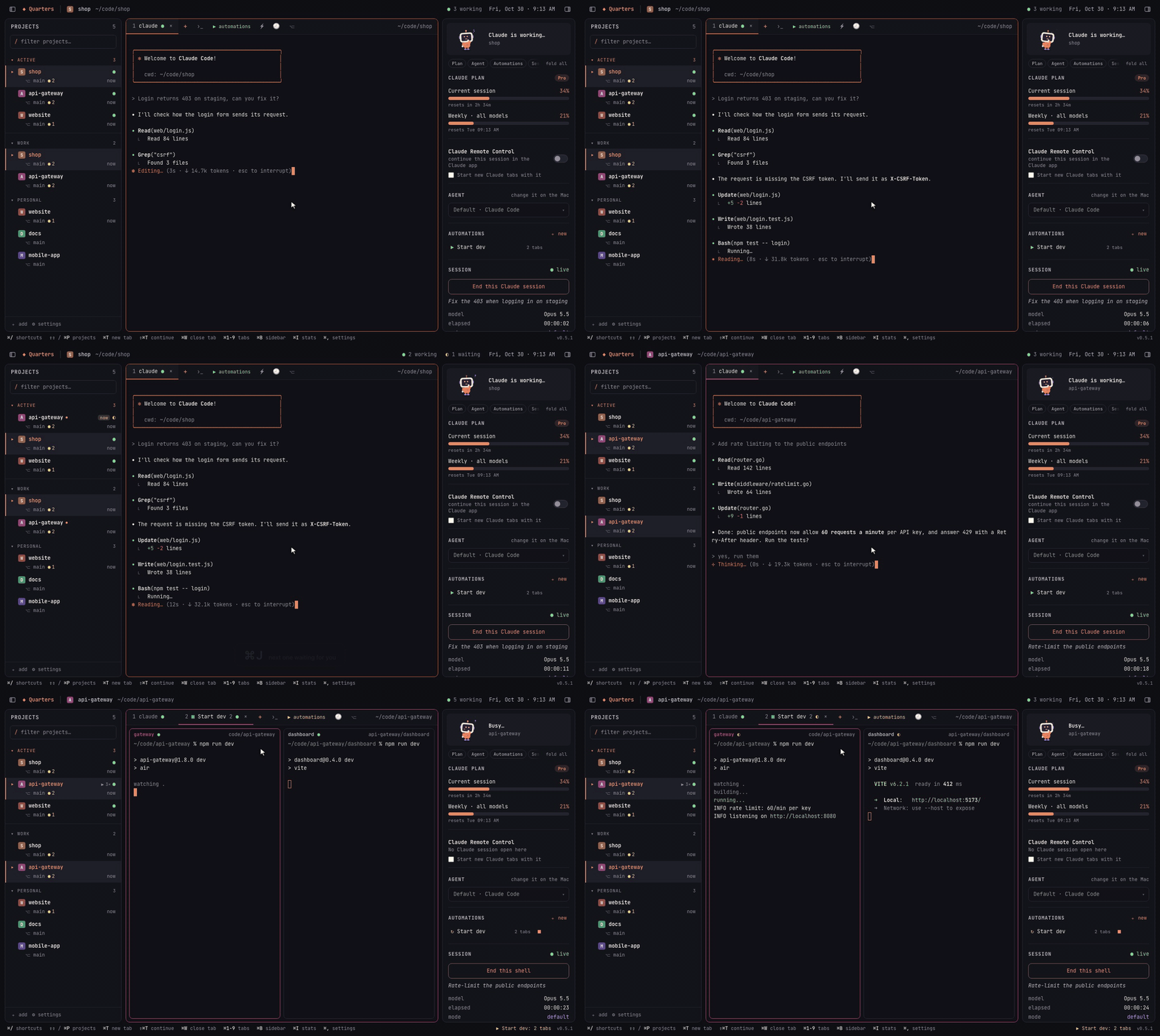
A home for terminal coding agents on macOS: run Claude Code, Codex, Gemini CLI, Aider and more across many projects at once, and pick up from your phone.

Quarters



A minimalist home for terminal coding agents, for developers who work on many projects at once.
Claude Code, Codex, Gemini CLI, Antigravity, OpenCode, Copilot CLI, Devin or Aider: switch projects in a click,
run your agents in several of them side by side, see what they're doing,
start your dev servers with one action — and do it all from your phone, too.
brew install --cask amithgc/tap/quarters
Free and open source · quarters.amithgc.com · If Quarters saves you some tab-hunting, a ⭐ helps other developers find it.
Install · Features · Coding agents · Remote access · Configuration · FAQ · Contributing
Why Quarters
If you use a terminal coding agent — Claude Code,
Codex, Gemini CLI, Antigravity, OpenCode — on more than one project, you know
the routine: a terminal window per project, cd into each one, start the
agent, start the backend, start the frontend, then remember which window was
waiting for you.
Quarters is a simple, focused home for your coding agents that takes that
routine away. Pick the agent you like (Claude Code is the default, and each
project can use a different one). Its goals are deliberately narrow:
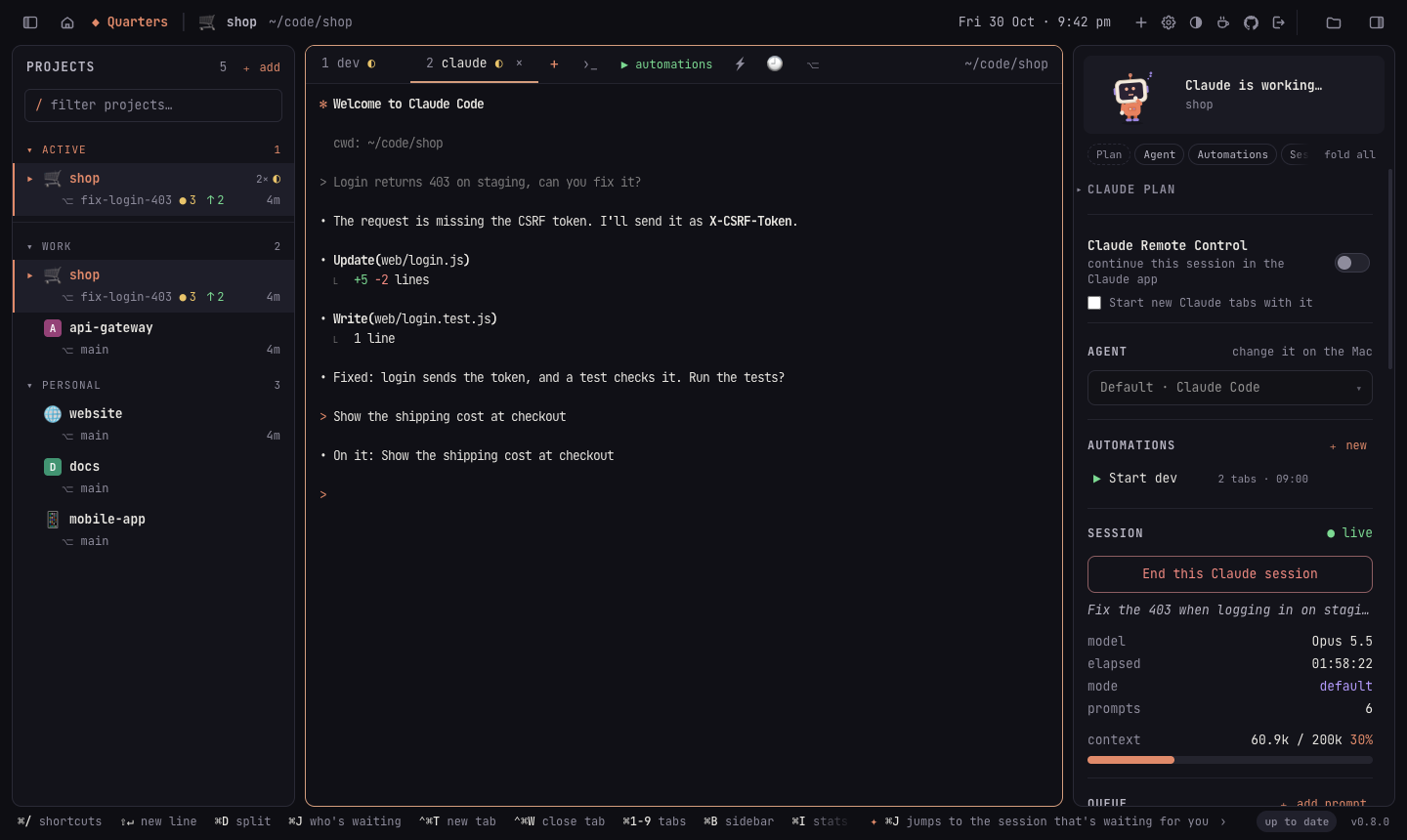
- Switch between projects instantly. Every project is one click (or
⌘P) away; its agent sessions keep running in the background while you're
elsewhere. - Work on several projects at the same time. Agents run in as many
projects as you like, and Quarters tells you which one finished and is
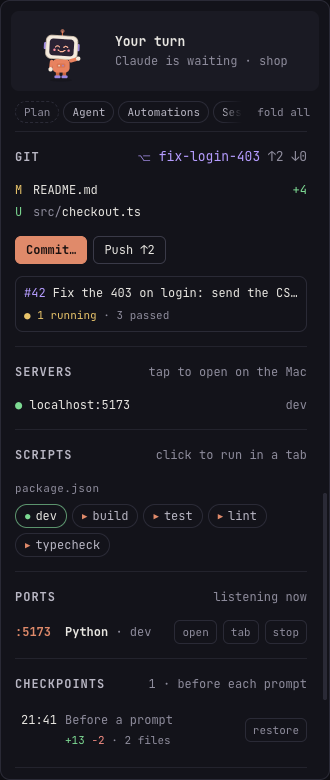
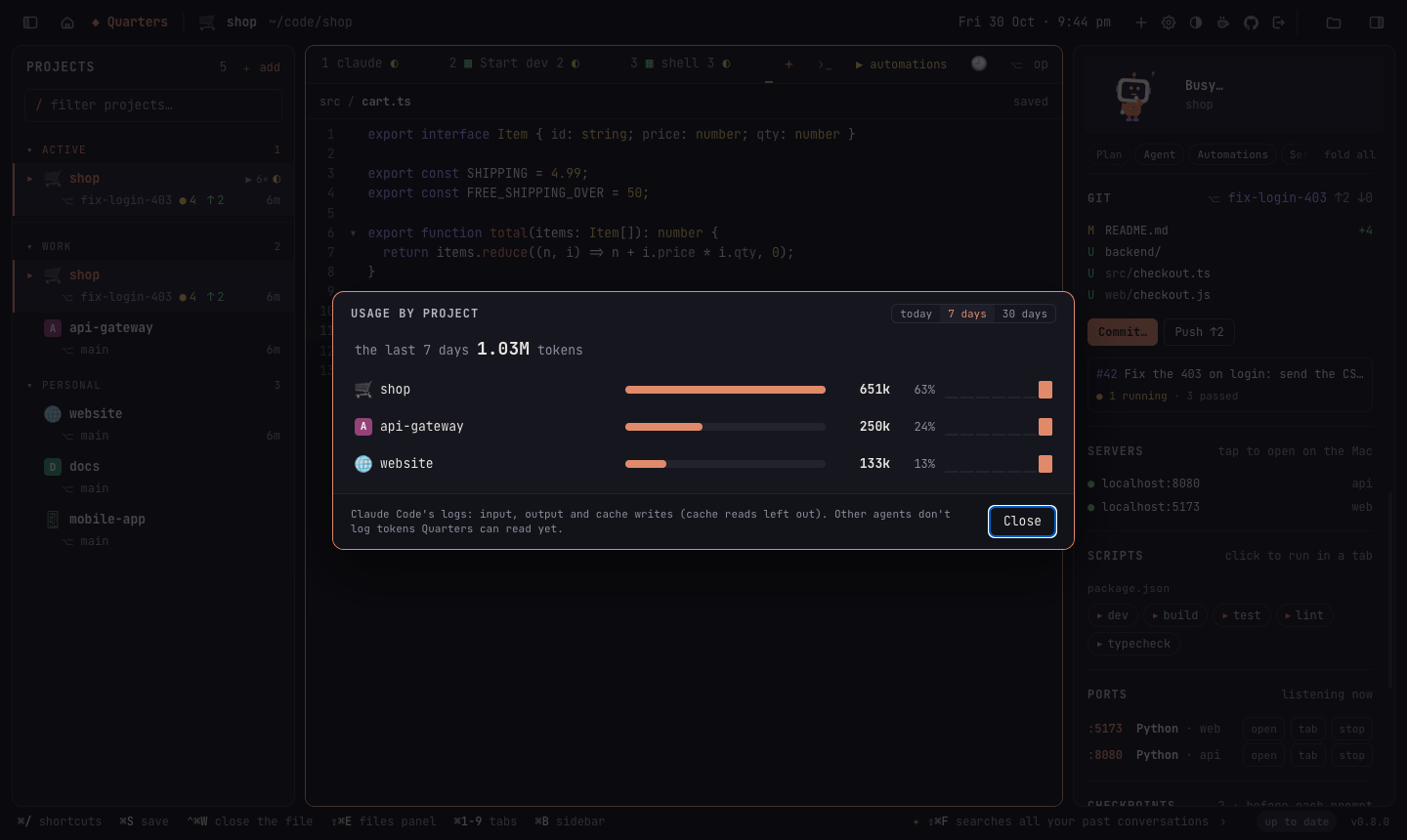
waiting for you. - See what's going on at a glance. A side panel shows git changes, the
project's automations and servers, and what the agent tells Quarters: for
Claude Code the session's model, context and tokens, your plan's usage,
what it edited, and the project's MCP servers and skills; for Antigravity
its plan and model quotas. - Start the rest of your stack in one go. Automations open the
terminals a project needs — backend, frontend, a script, a watcher — each
in its own folder, side by side, when you open the project, on a
schedule or with one click. - Do the daily chores where you work. Commit, push and open pull
requests (with CI status), run a project's scripts, stop the dev server
holding a port, undo an agent turn that went wrong, search every project
at once, and copy a summary of your day. - Work from anywhere. Leave Quarters running on your big machine at
home and use it from a laptop, tablet or phone through the browser: the
same projects, the same live sessions, secured with passkeys.
It is built for developers and their coding agents, and nothing else: no
general-purpose terminal features, no AI of its own, no accounts or cloud
services. Your projects, your logins and your machine stay yours.
Quarters is an independent open-source project. It is not made by,
affiliated with or endorsed by Anthropic, OpenAI, Google, GitHub or the
makers of the other agents it runs. Claude and Claude Code are trademarks
of Anthropic; the other names are trademarks of their owners.
Features
Home: every project at a glance
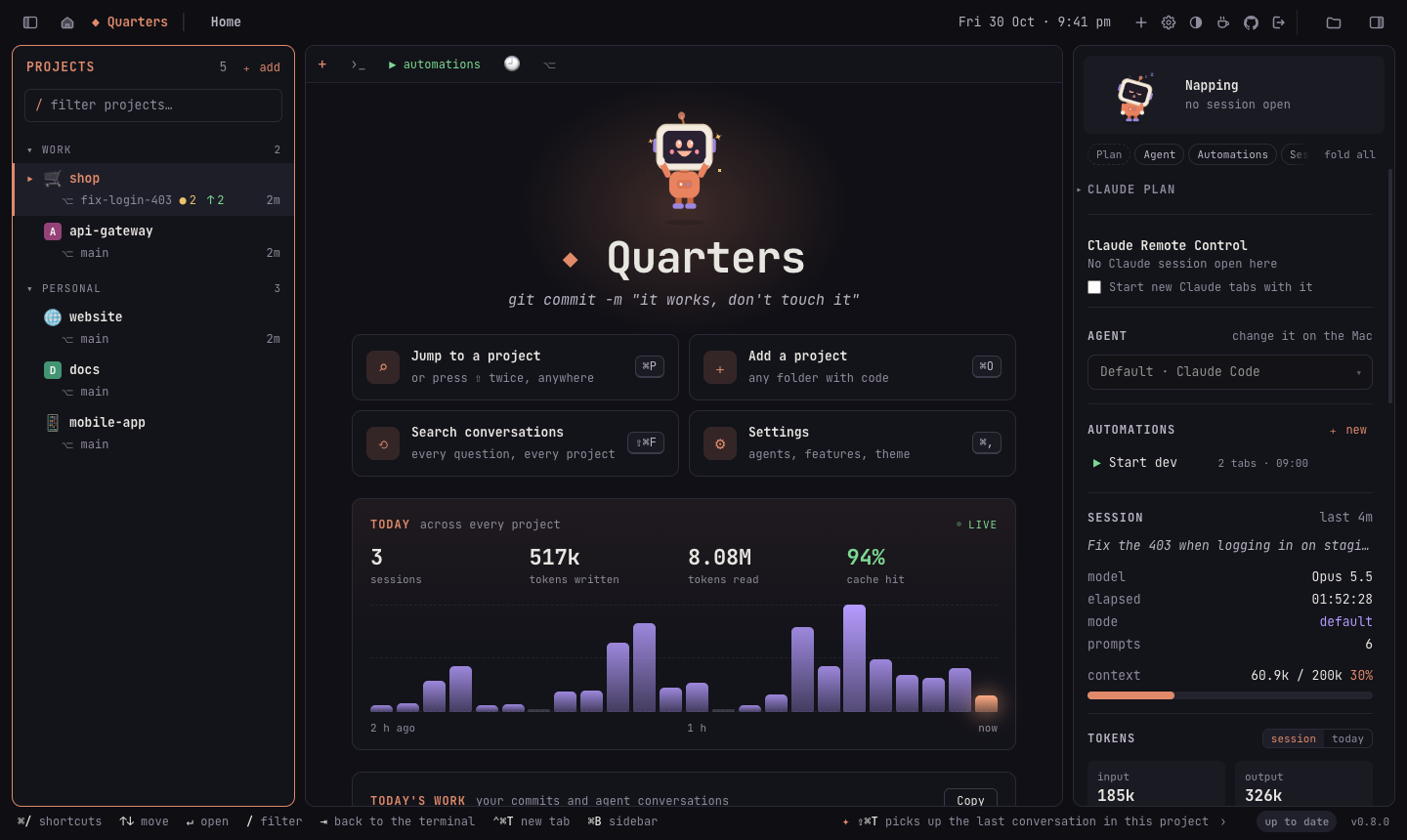
The house at the left of the title bar (or Home in ⇧⌘P) shows the home
page, with your tabs still running behind it:
- Jump to a project, add one, search conversations, Settings: one tile
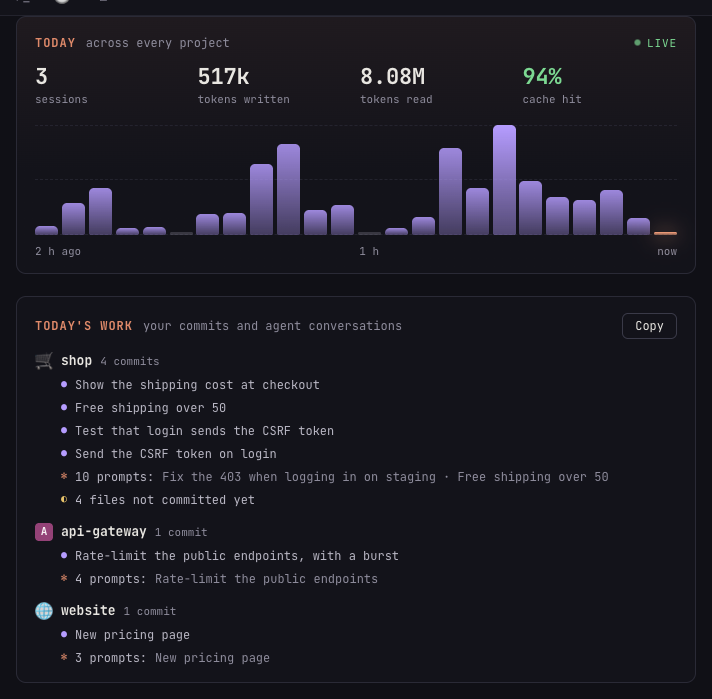
each, with its shortcut. A different tagline greets you every time. - Today, across every project: sessions, tokens written and read, and
the cache hit rate, with the last two hours as an animated chart (bars
rise in, the current five minutes glow; hover one for its time and
tokens). - Today's work: per project, your commits since midnight, the agent
conversations you had and how many prompts, and what isn't committed yet.
Copy puts it on the clipboard as Markdown, for a standup or a
timesheet (also ⇧⌘P → Copy today's summary). - Active now: every running session, the ones waiting for you first.
Projects, tabs and sessions
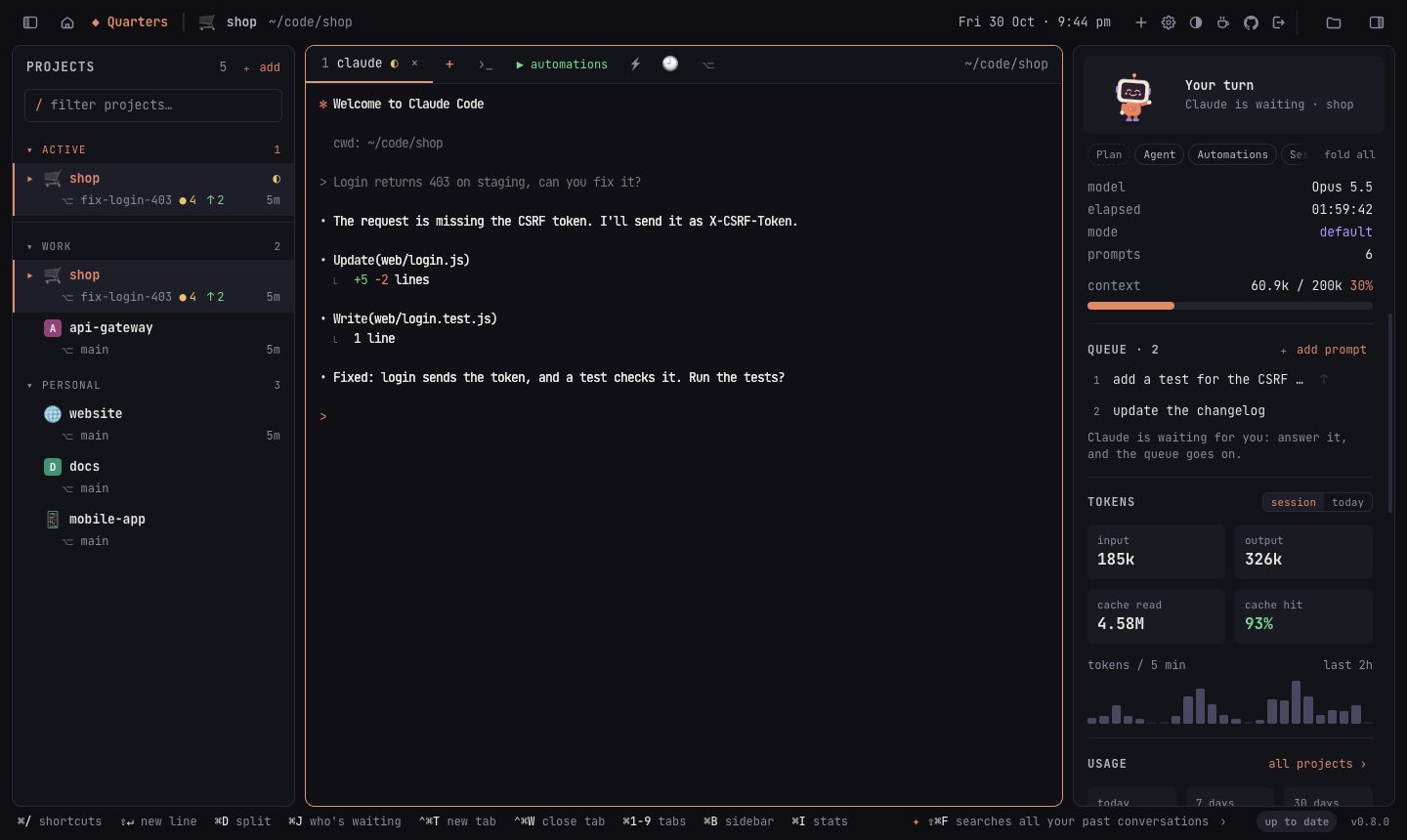
- One click opens a project; press C to start its coding agent,
⇧C to continue the last conversation, S for a shell. - Several tabs per project (agents and shells), all running in the
background while you switch. - Images in the terminal: a path to an image an agent made (or any
PNG, JPEG, GIF or WebP a tab prints) is a link: hover to preview it,
click to see it full screen. - "Your turn" alerts: when an agent finishes in a tab you aren't looking
at, you get a notification and a Dock badge, and the tab is marked. - Who's waiting for you: the ACTIVE list (with 5 projects or more)
puts the sessions that finished (or are asking you something) first,
longest waiting first, with how long; ⌘J (or a click on "◐ waiting" in the title bar) goes to the
next one. - Prompt queue: line up prompts for a session ("add tests", then "fix
lint"…); each goes in when the agent finishes the one before, never over
a question it is asking or a message you started typing. On a phone, ⏭
in the message card queues what you typed while the agent works. - Groups, project icons, drag to reorder, ⌘P / ⇧⇧ to jump anywhere,
git status (●changes ↑ahead ↓behind) in the list, and + add in the
list's header. - Project icons: an image (favicons and app icons in the folder are
suggested), or any emoji from Emoji…, every emoji there is, by group
and with a search by name. - A colour per project on its tabs and the terminal's frame, so you
can tell projects apart at a glance (from its name, or one you pick). - Every command by name: ⇧⌘P (or
>in the jump list). - Focus mode: ⇧⌘↵ leaves only the terminal; again brings the
panels back. - Tips: one quiet line at the bottom right about a key or a panel, the
ones you haven't used first. The next one fades in every two minutes;
› shows it now. - Saved prompts (⚡): type a common instruction with one click.
- The project's automations in the side panel: run, restart or stop
each one, edit it, delete it, or add a new one, right where you work. - Any of twelve coding agents, chosen for all projects or per project
(see Coding agents).
Split panes and a files panel
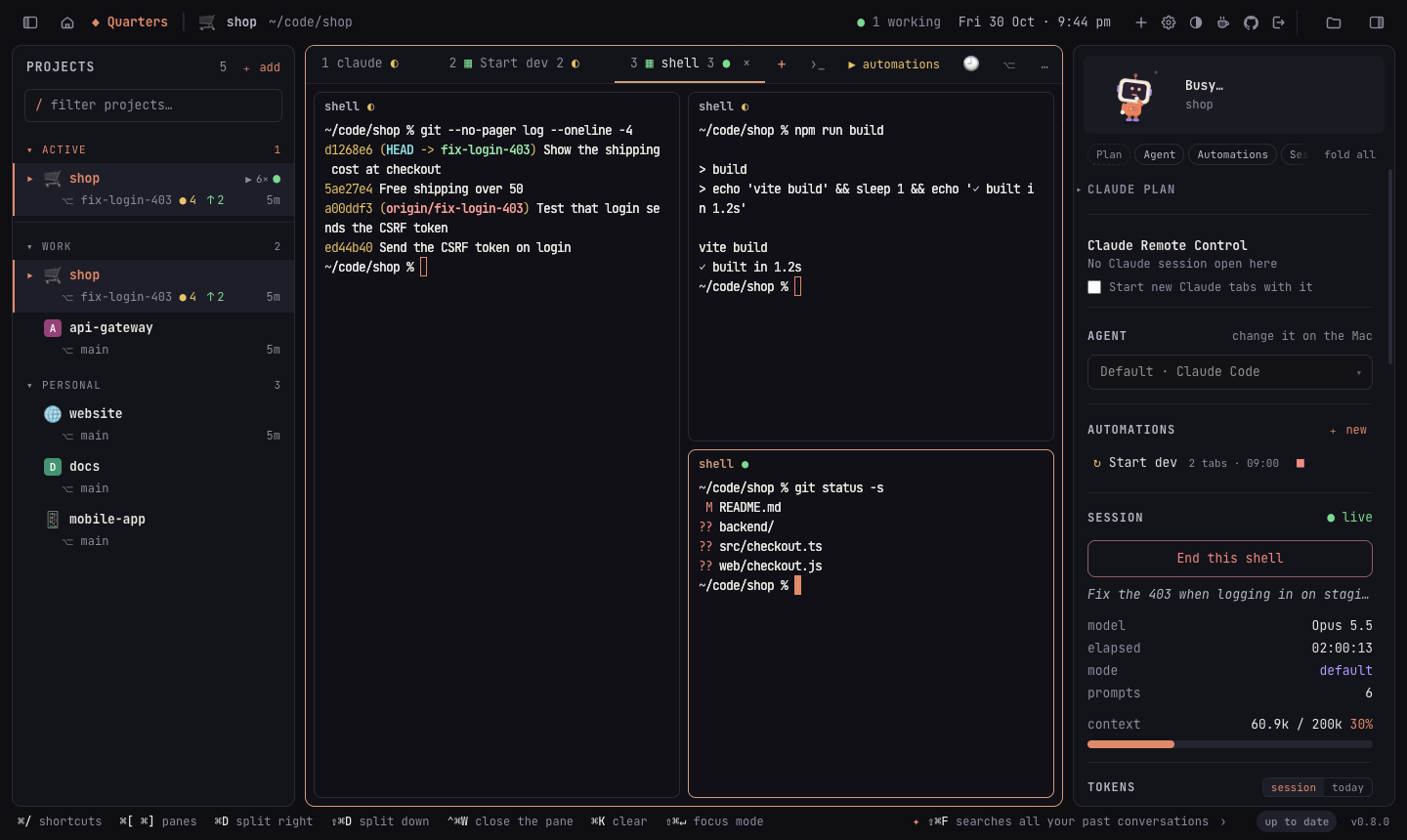
- Split panes, as in iTerm: ⌘D opens a shell beside the one you're
in, ⇧⌘D one below it, and splits nest. ⌘[ and ⌘] move between
panes, ⌘W closes just the pane, and a pane whose shell exits cleanly
closes by itself. Drag the line between two panes to resize them
(double-click to make them equal). Another window or device shows the
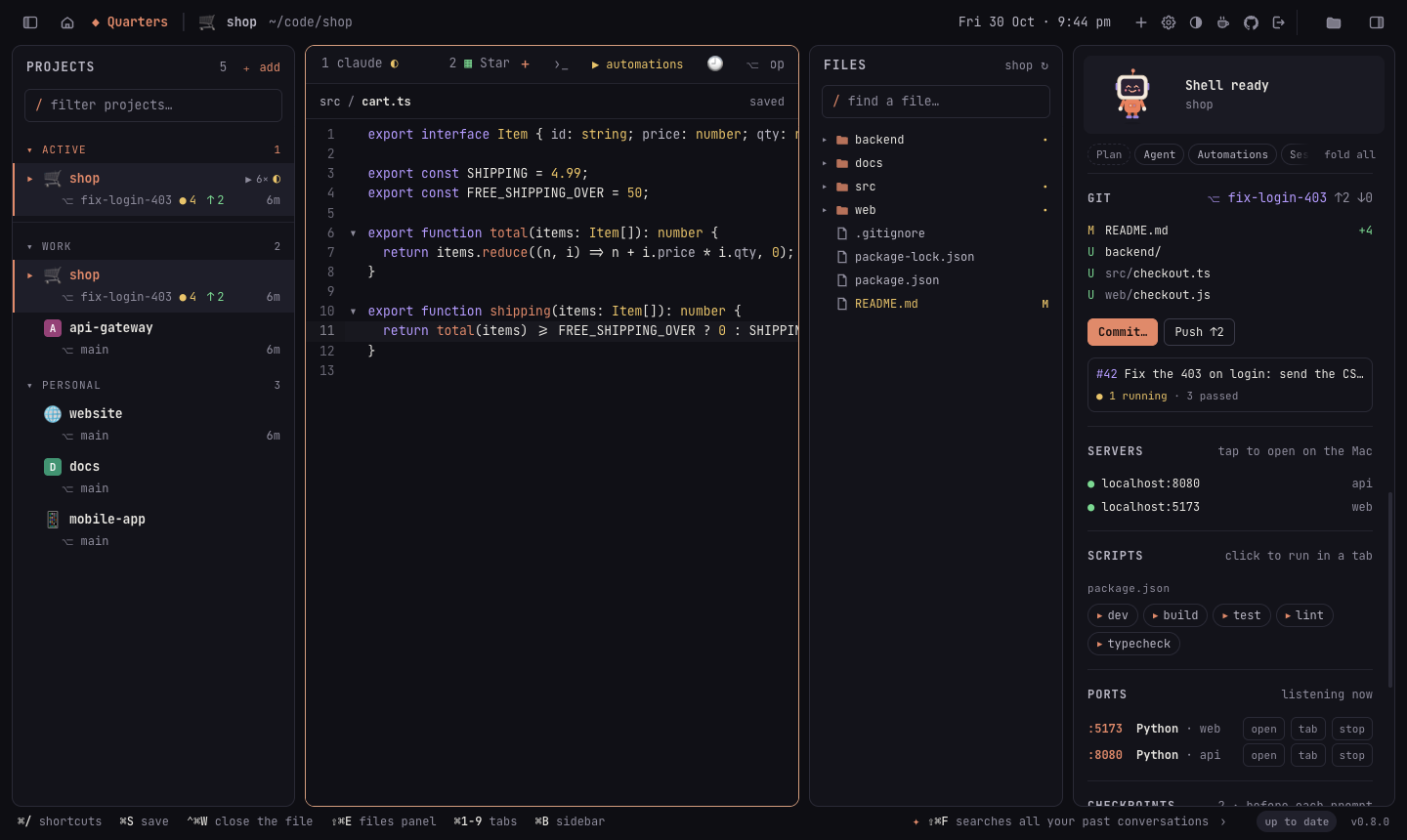
same panes. - A files panel (⇧⌘E, or the folder in the title bar, which glows
while it's open): the project's folders and files with git's marks
(changed, new, ignored), and a box that finds any file in the project.
Right-click a file to copy its path, type it in the terminal, open it
with its app or show it in Finder. - A small editor for quick fixes: click a file to open it in a tab
beside the terminals, with syntax colours for about 30 languages, search
(⌘F) and ⌘S to save. When an agent edits the same file, the editor
follows it; a save never overwrites a change made since you opened the
file (you choose to reload or keep yours). Files that may hold keys or
passwords (.env,*.pem…) are never opened.
Everyday developer tools
The chores around an agent's work, without leaving the project.
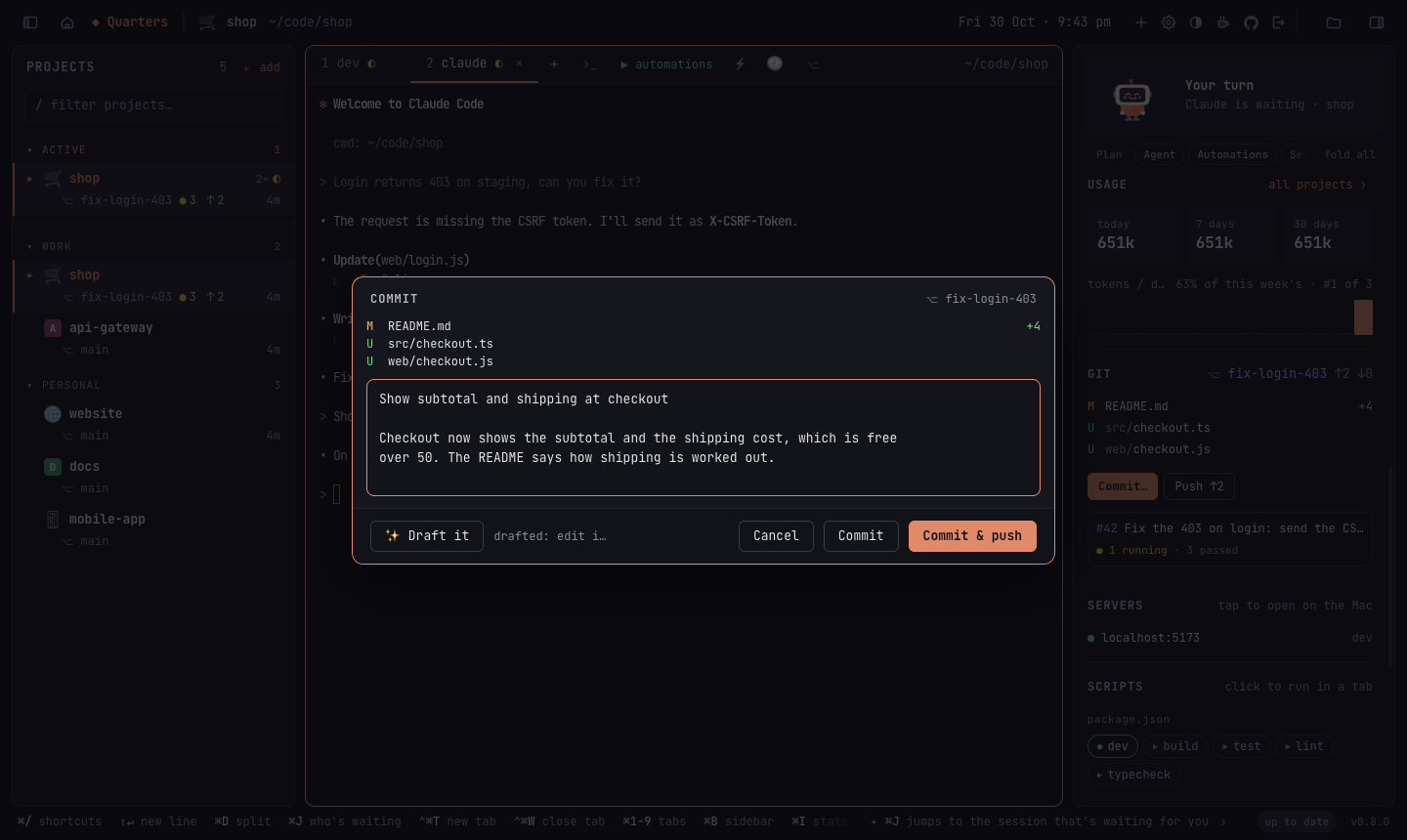
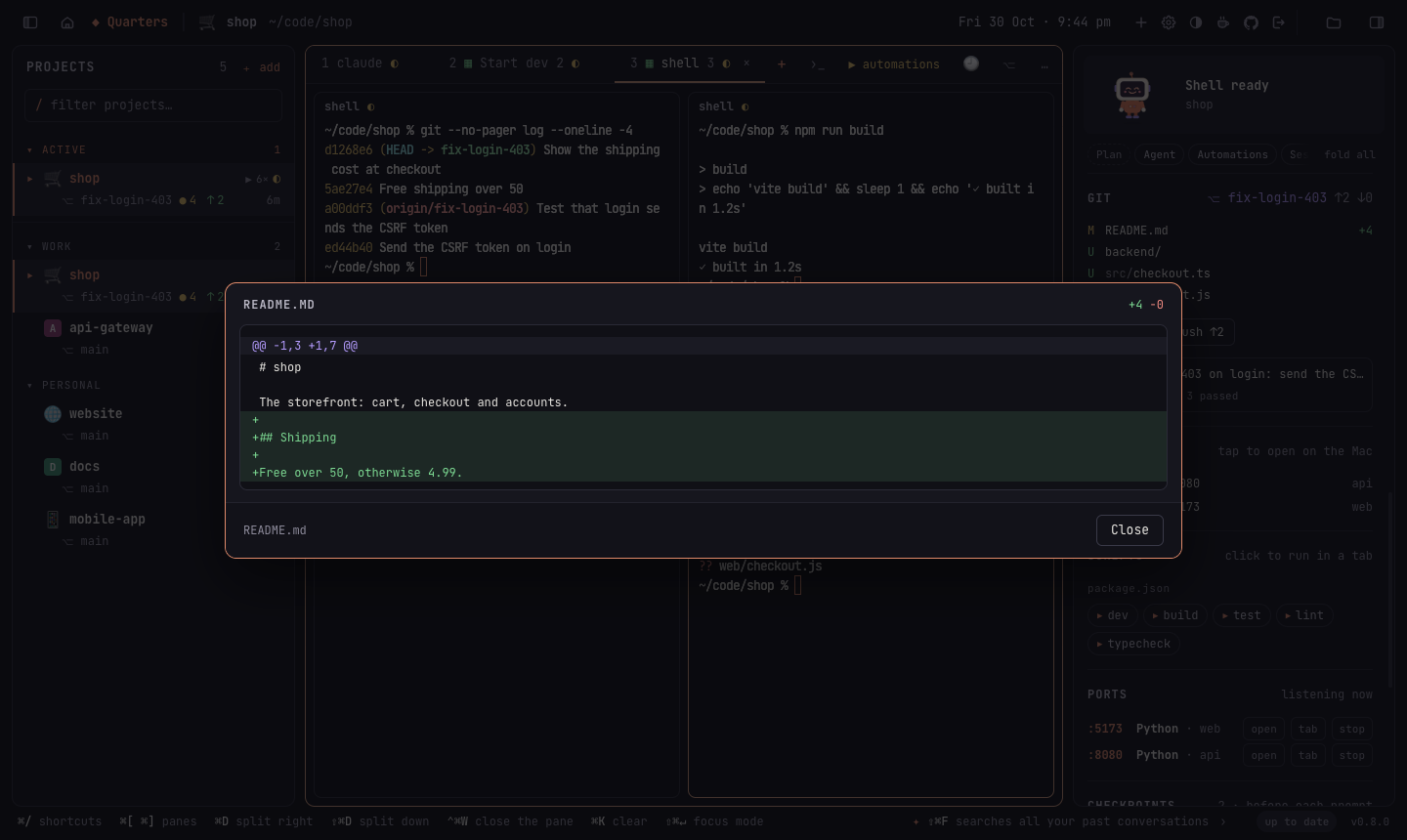
- Commit, push and pull requests: Commit… under the changed files in
the side panel's GIT section opens a dialog with the files and a message
box; ✨ Draft it asks Claude Code (claude -p) to write the message
from the diff, in the style of your recent commits, and nothing is
committed until you click. Commit & push does both; Push ↑2 pushes
what's ahead (setting the upstream the first time); Open a pull
request runsgh pr create --fill. Files that look like they hold
secrets (.env, keys…) are never committed: the commit stops and names
them. - CI at a glance: the branch's pull request shows under the files with
its checks: ✓ passed, ● running, ✕ failed (and which). It's read with the
GitHub CLI (gh), about once a minute. - Scripts, one click away: the SCRIPTS section lists what the project
knows how to run:package.jsonscripts (with pnpm, yarn, bun or npm,
from the lockfile),Makefiletargets,justfilerecipes,deno.json
tasks, and Cargo and Go commands. A click runs one in a tab of its own; a
running one is marked and goes to its tab. In ⇧⌘P,run devruns it too. - Ports: the PORTS section lists what the project's tabs are listening
on (:5173 node · web), and other processes of yours working in its
folder. open opens it in the browser, tab goes to the tab that
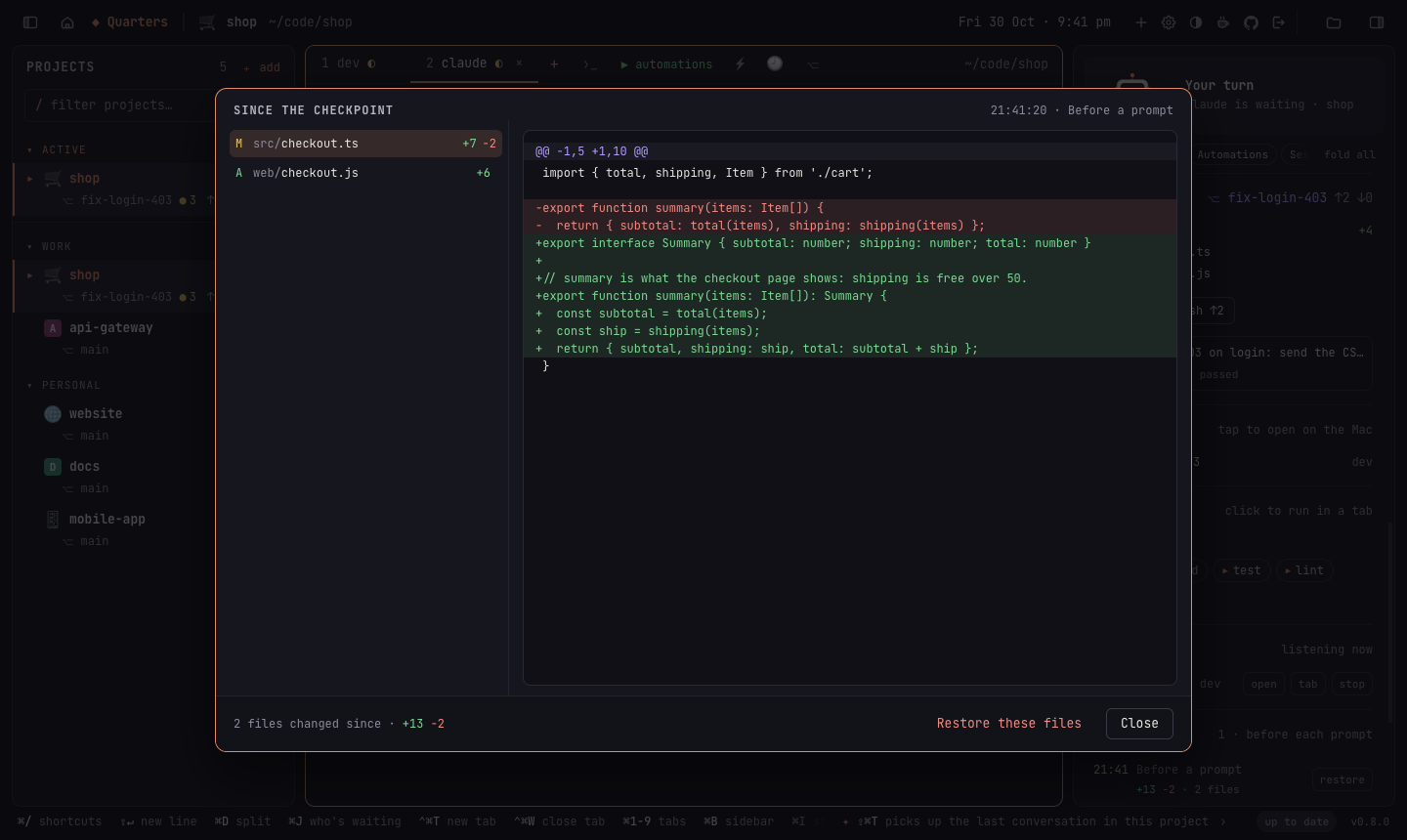
started it, stop ends it ("port 3000 is already in use", solved). - Checkpoints before every prompt: each time you send an agent a
prompt, Quarters quietly snapshots the project's files (everything git
doesn't ignore, committed or not). The CHECKPOINTS section lists them with
what changed after each; open one to see every file's diff since, and
restore to put the files back as they were. Restoring takes a
checkpoint first, so it can be undone too. Your branch, index and stash
are never touched: checkpoints are commits kept underrefs/quarters/checkpoints/, the last 50 per project, and a plaingit pushdoesn't send them anywhere.
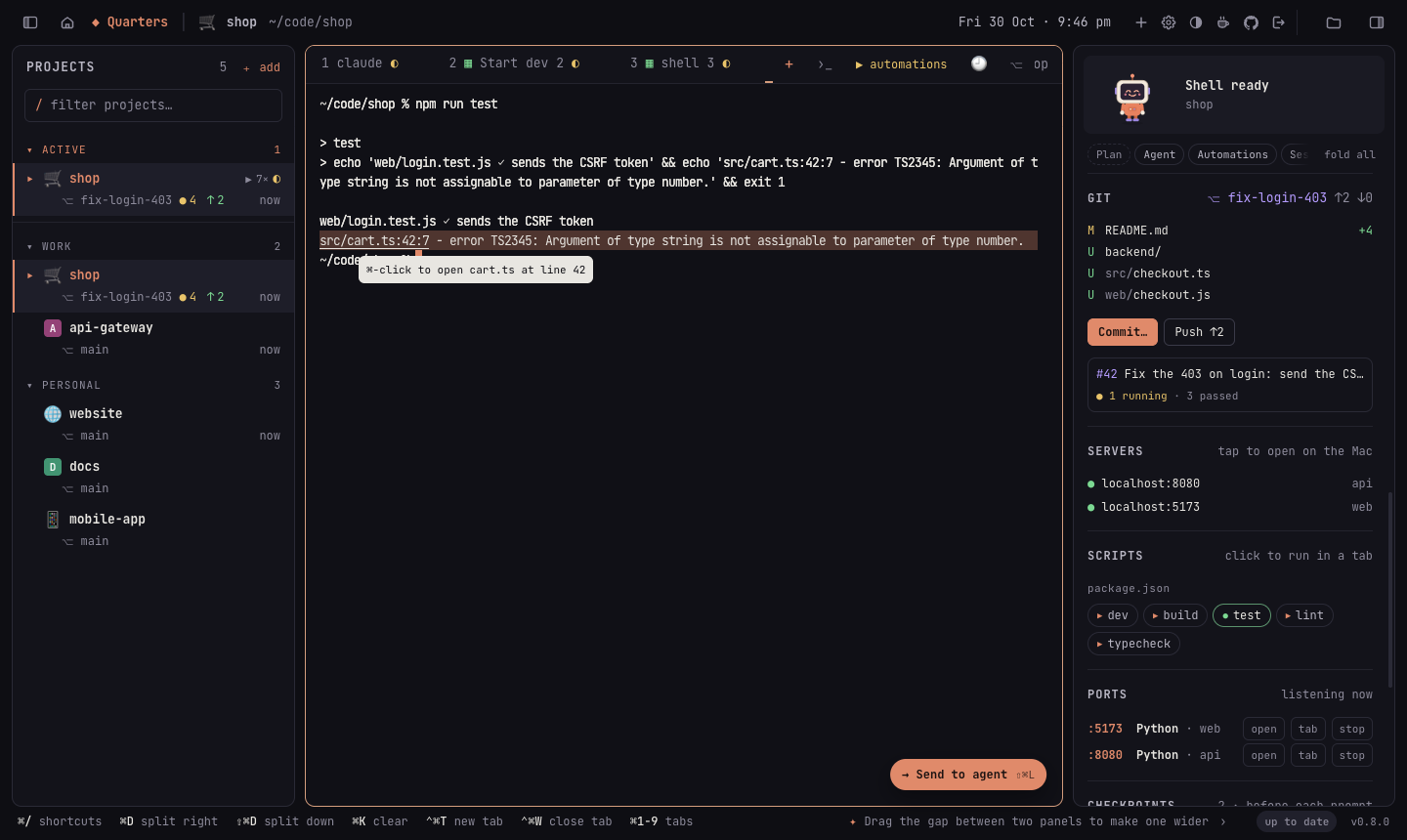
- Clickable errors:
src/cart.ts:42:7(orfile.py:12,File "x.py", line 3,Foo.cs(10,5)) in any terminal is a link when the file
is in the project: ⌘-click opens it in the editor at that line. - Send to agent: select output in a terminal, or lines in the editor,
and press ⇧⌘L (or the button that appears): it's typed into the
project's agent tab, with the file and line numbers from the editor, but
not sent, so you can say what to do with it.
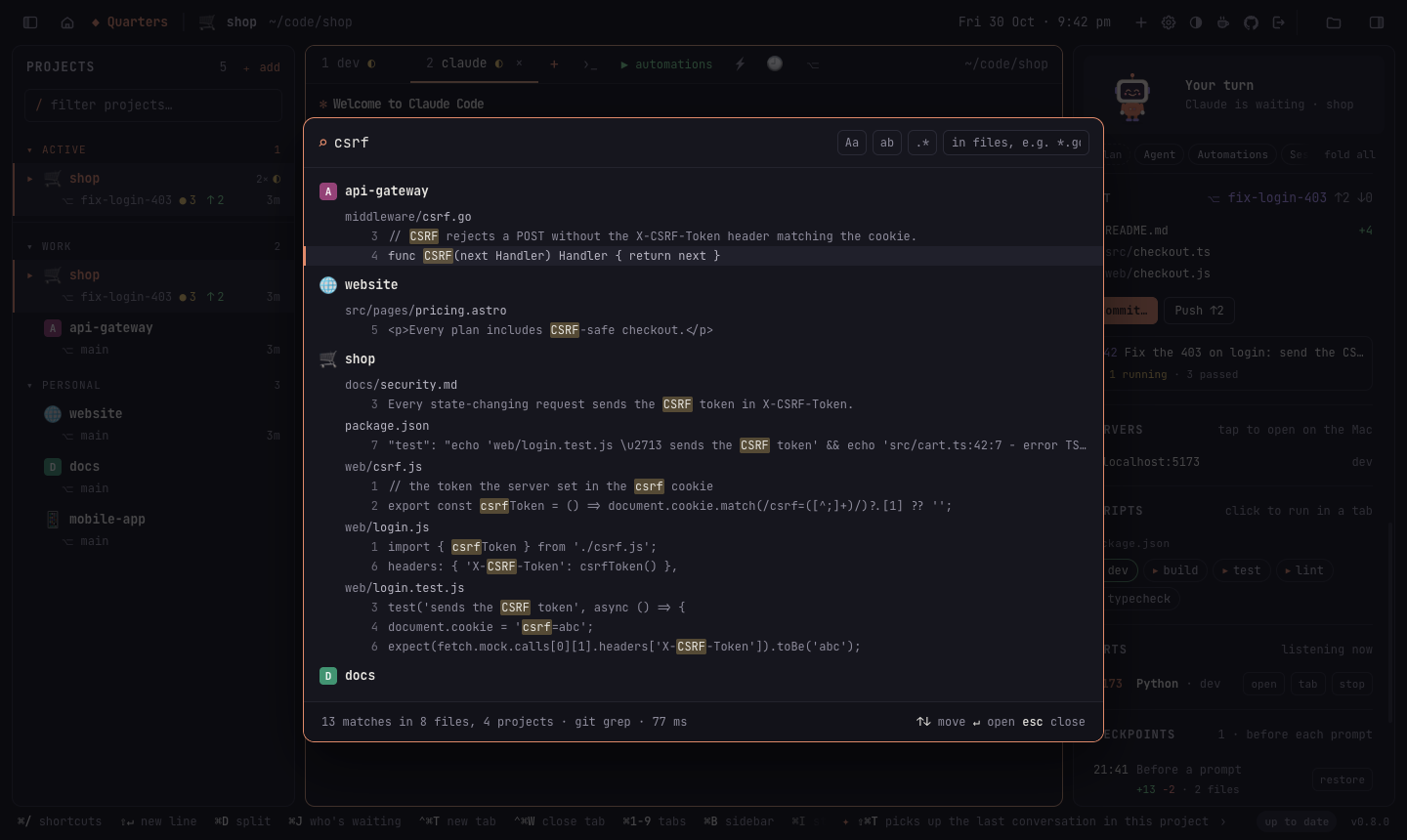
- Search every project (⇧⌘K): one box searches the files of all
your projects at once, with ripgrep when it's installed (git grep
otherwise). Match case, whole words, regular expressions and a file
filter (*.go); results by project and file, and Enter opens the file at
the line. Files that may hold secrets are never searched.
Coding agents
Choose the default in Settings → Coding agent, and per project from the
side panel's Agent menu (or ✎ on the project). Agents that aren't
installed are marked, and starting one tells you where to get it.
| Agent | Starts | Continue (⇧C) | Skip permission prompts (yolo) | Side panel |
|---|---|---|---|---|
| Claude Code (default) | claude |
--continue |
--dangerously-skip-permissions |
everything below |
| Codex | codex |
resume --last |
--dangerously-bypass-approvals-and-sandbox |
git, automations |
| Gemini CLI | gemini |
--resume latest |
--yolo |
git, automations |
| Antigravity | agy |
--continue |
--dangerously-skip-permissions |
plan and model quotas¹, git, automations |
| OpenCode | opencode |
--continue |
— (set in its own config) | git, automations |
| GitHub Copilot CLI | copilot |
--continue |
--allow-all-tools |
git, automations |
| Devin | devin |
--continue |
--permission-mode bypass |
git, automations |
| Aider | aider |
--restore-chat-history |
--yes-always |
git, automations |
| Amp | amp |
threads continue --last |
--dangerously-allow-all |
git, automations |
| Goose | goose |
session --resume |
— (GOOSE_MODE=auto in its config) |
git, automations |
| Qwen Code | qwen |
--continue |
--yolo |
git, automations |
| Cursor CLI | agent |
--continue |
--force |
git, automations |
Claude Code gets the deepest integration, because Quarters reads its session
logs: session stats, plan usage, past conversations, the phone's chat view
and Remote Control. Other agents run as they are, in their terminal (on a
phone with the same message card as Claude), with everything else Quarters does — tabs, alerts, automations, worktrees, git,
remote access — working the same.
¹ Read from the Antigravity IDE while it's open on the same machine, through
its local (unofficial) interface; nothing leaves the machine.
Agent teams (Claude Code) run inside the tab. Quarters starts Claude Code
with --settings '{"teammateMode":"in-process"}', so teammates run in the
agent's own terminal (↓ from an empty prompt manages them), on the Mac and
in a browser alike. With "teammateMode": "tmux" in your Claude Code
settings they would open in tmux panes no Quarters window shows, or fail
with "To use agent swarms, install tmux". A --settings of your own in the
project's command is left alone. Tabs also don't inherit the TMUX (orscreen) variables of a terminal Quarters was started from, so no agent
thinks it's inside tmux when it isn't.
Automations: your dev stack in one action
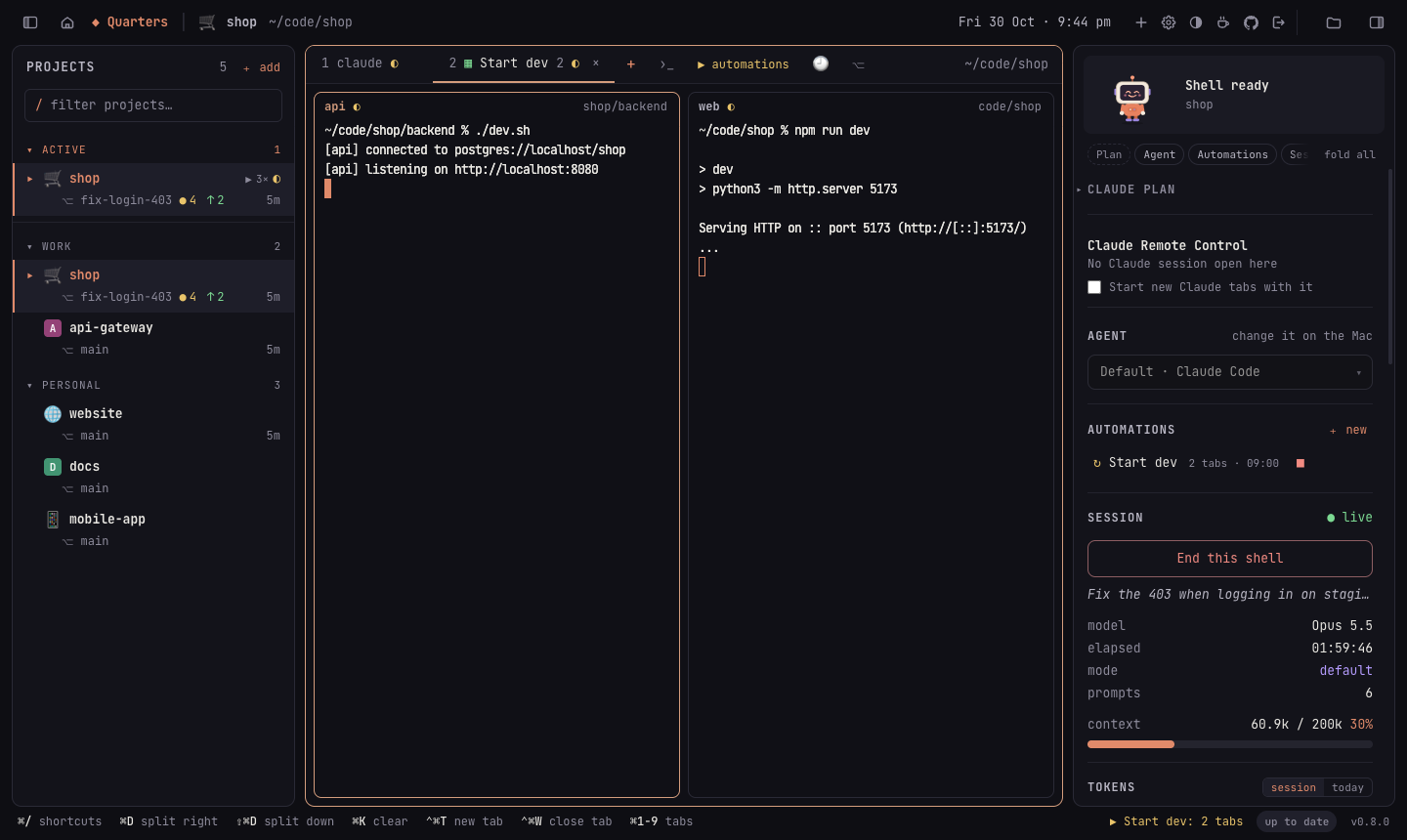
An automation opens a set of terminals, each in its own folder and running
its own command, arranged as a grid, side by side, stacked or as tabs. Run it
by hand (▶), when the project opens, or on a schedule (every weekday at
09:00, say). Servers your terminals start show up in the side panel with
whether they're answering.
The side panel: what your agent is doing
 |
|
Past conversations, restarts and worktrees
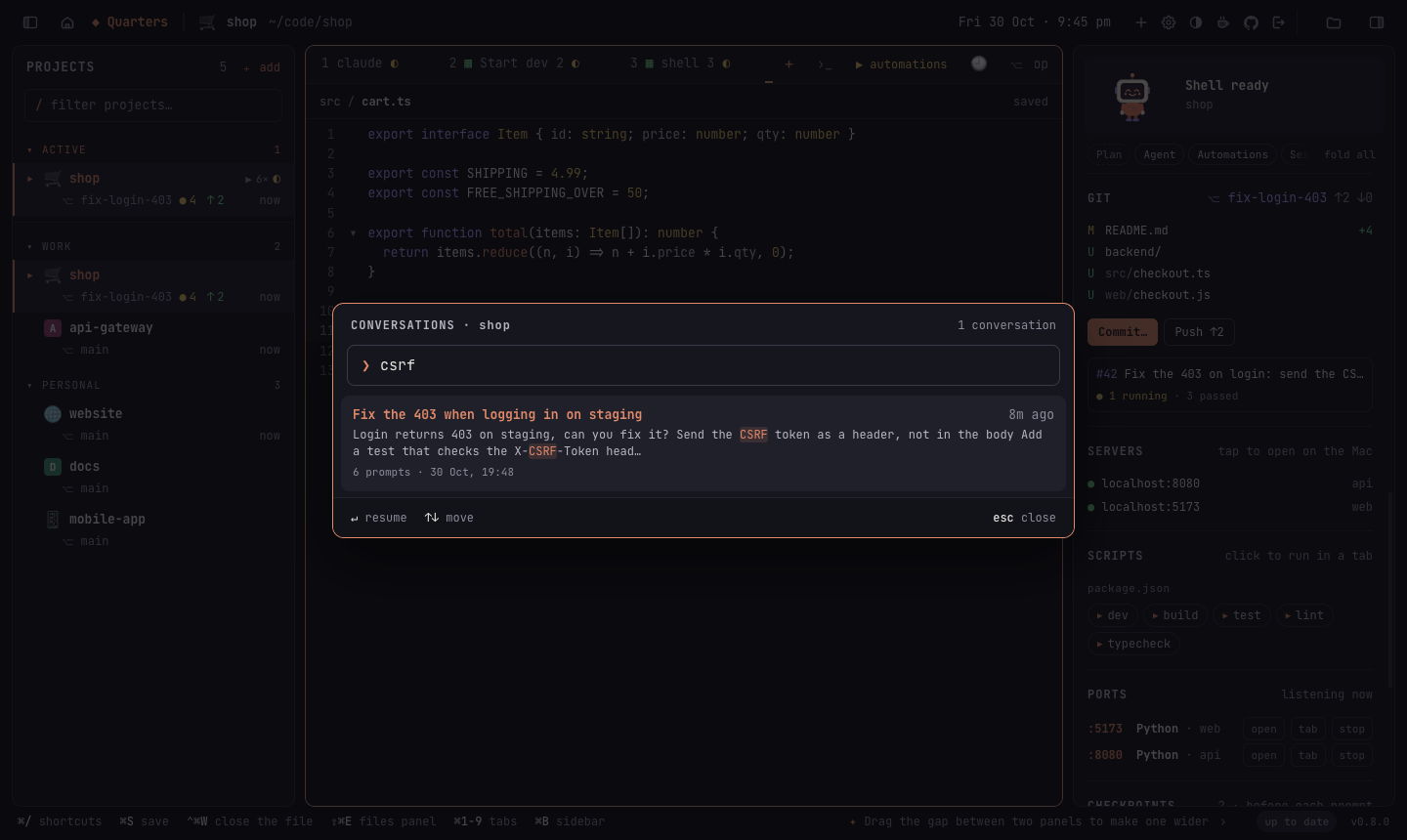
- Search past conversations (🕘 / ⇧⌘F): everything you and Claude said in
a project; open one to resume it. - Pick up where you left off: after a restart (or a crash), Quarters
offers to reopen every conversation and automation that was running. - Git worktrees (⎇ / ⇧⌘G): start Claude on a separate copy of the
project, on its own branch, so several can work on the same repository
without stepping on each other.
Settings: switch off what you don't need
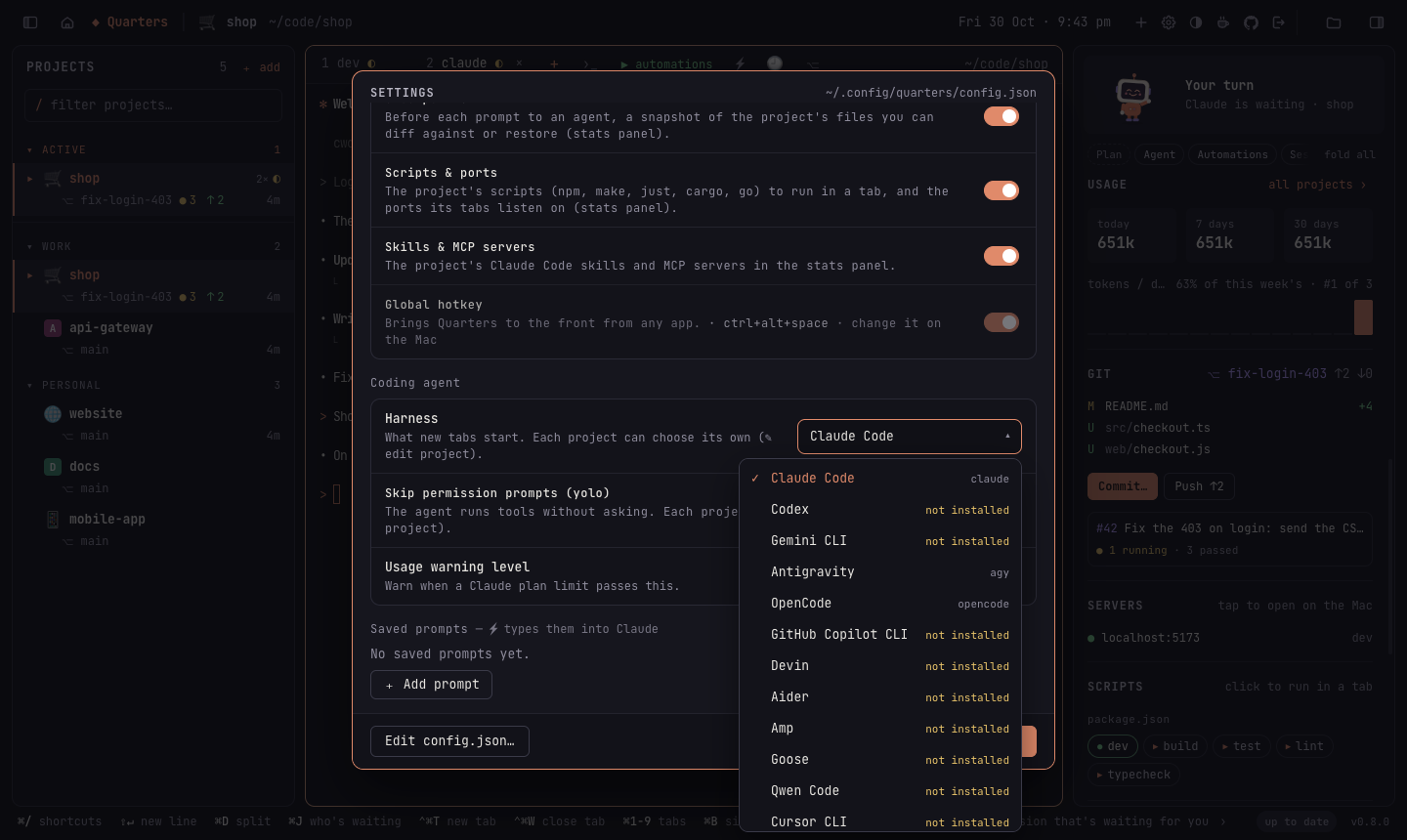
Every optional feature has a switch (checkpoints, scripts and ports among
them), and Claude's permission mode can be set globally or per project. Appearance picks light, dark or the
system's look, on each device.
Remote access: work from anywhere
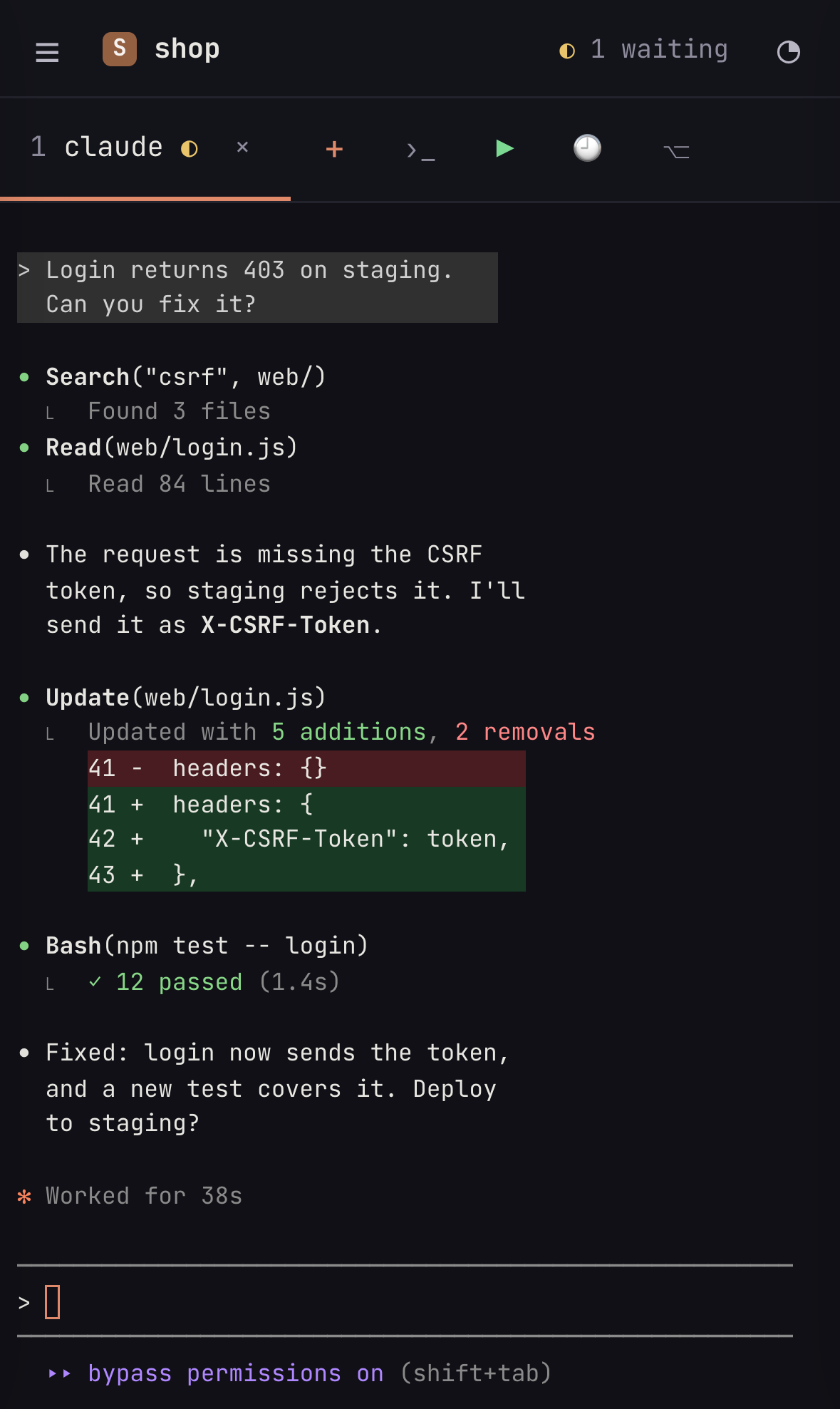 |
Run Quarters on the machine that has your code (a desktop at home, a Mac
|
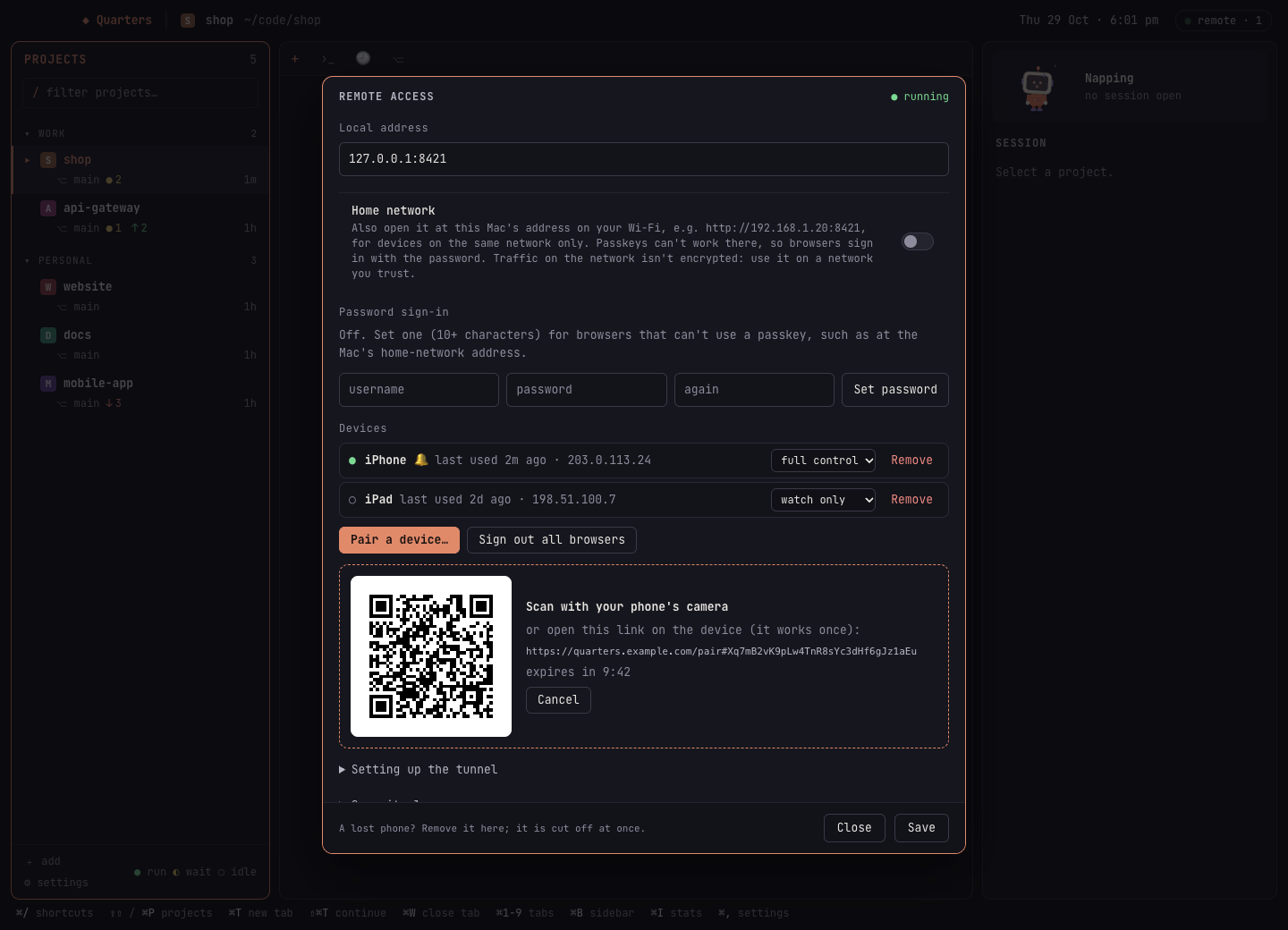
Install
Requirements: macOS 11 or later (or Linux, or Windows through WSL, for the server, below), and at least one coding agent
installed and signed in, on your PATH: Claude Code
(claude, the default) or one of the others. Quarters is developed and
tested on current macOS on Apple silicon; the app is universal (Apple
silicon and Intel).
With Homebrew:
brew install --cask amithgc/tap/quarters
The app is signed with a Developer ID and notarized by Apple, so it opens
like any other. brew update && brew upgrade --cask quarters updates it.
You can also download the zip from the
releases.
Building from source
You need Go 1.26+, Node.js 20+ and the Wails CLI:
go install github.com/wailsapp/wails/v2/cmd/[email protected]

git clone https://github.com/amithgc/quarters && cd quarters
make install        # builds Quarters.app and copies it to /Applications
make build builds it into build/bin/Quarters.app without installing. For
an Intel Mac use wails build -platform darwin/amd64. A build of your own is
signed ad hoc, so the first time macOS may ask you to confirm opening it
(right-click → Open).
Releasing (maintainers): scripts/release.sh 1.2.3 publishes a version
from a Mac: it signs and notarizes the app, publishes the GitHub release and
updates the Homebrew tap. Its header lists the one-time setup.
Linux: the server, used from a browser
On Linux, Quarters runs as a server with no window: leave it on the machine
that has your code (a home server, a big desktop, a box in a cupboard) and
use it from a browser or the phone app. Everything the browser version does
works: projects, Claude and shell tabs, automations, the chat view on
phones, plan usage, past conversations and worktrees. The Mac-only extras
(the window, the Dock badge, the global hotkey) are left out.
It is a single file with no dependencies besides your coding agent and git.
Install it with Homebrew on Linux (brew install amithgc/tap/quarters-server),
download it from the releases
(quarters-linux-amd64.tar.gz or -arm64), or build it (on any machine)
and copy it over:
git clone https://github.com/amithgc/quarters && cd quarters
make server          # build/bin/quarters-linux-amd64 and quarters-linux-arm64
scp build/bin/quarters-linux-amd64 my-server:/usr/local/bin/quarters
Then, on the server:
quarters --set-password amith   # the username and password to sign in with
quarters                        # start the server (it prints its addresses and a pairing link)
Add your projects from the browser (+ add) once signed in, or list them in~/.config/quarters/config.json. To open it on your home network, set"remote": {"lan": true} there; to reach it from anywhere, put a tunnel in
front (see Remote access setup). Plan usage is read
from ~/.claude/.credentials.json, where Claude Code keeps its login on
Linux.
Managing it without a window:
| command | does |
|---|---|
quarters --set-password NAME |
set (or change) the username and password; signed-in browsers sign in again |
quarters --pair |
a one-time link that pairs a device with a passkey (HTTPS or localhost only) |
quarters --devices |
list the paired devices and the password sign-in |
quarters --remove-device NAME |
unpair a device (by name or id); it is signed out at once |
quarters --version |
which Quarters this is, e.g. Quarters 0.7.0 (linux/amd64, server); worth adding to a bug report |
quarters --help |
all of the above |
To keep it running, a systemd user service works well:
# ~/.config/systemd/user/quarters.service
[Unit]
Description=Quarters

[Service]
ExecStart=/usr/local/bin/quarters
Restart=on-failure

[Install]
WantedBy=default.target
systemctl --user enable --now quarters
loginctl enable-linger $USER    # keep it running when you're logged out
Docker: the server in a container
The docker/ folder has a Dockerfile and a compose.yaml that
run the Linux server with Claude Code inside, as a normal user (Claude Code
won't skip its permission prompts as root). Your projects live in a folder
you mount, and settings, sign-ins and conversations in a volume, so they
survive updates.
git clone https://github.com/amithgc/quarters && cd quarters/docker
mkdir -p code                       # your projects go here (or set CODE_DIR=/path/to/code)
docker compose build
docker compose run --rm quarters quarters --set-password amith   # username and password
docker compose up -d
Open http://localhost:8421 (or http://<the machine's IP>:8421 from
another device on your network) and sign in. Then:
- Sign Claude Code in, once:
docker compose exec quarters claude,
then/login; it prints a link to open in any browser and asks for the
code it shows. The login stays in the volume. - Add projects from the browser (+ add): folders under
code/are at/home/dev/code/…in the container. To clone one there:docker compose exec quarters git clone https://github.com/you/app code/app. - Git: set your name and email once
(docker compose exec quarters git config --global user.name "You", anduser.email), or mount your~/.gitconfig; mount~/.sshto push over
SSH (both are incompose.yaml, commented out).
Good to know:
- Your user id: files Quarters writes in
code/belong to user 1000. If
your id (id -u) is different, build withQUARTERS_UID=$(id -u) docker compose build. - Ports: keep both numbers in
"8421:8421"the same; the server checks
the address it is reached at. - Changing the password: run the
--set-passwordline again, thendocker compose restart. - The home network only: the container answers plain HTTP from private
addresses (your network, Tailscale), never from the internet. For HTTPS and
passkeys, put a tunnel in front: setQUARTERS_URLincompose.yamlto its
address (e.g.https://quarters.example.com) before the first start, and
point the tunnel athttp://localhost:8421(cloudflared tunnel run --url http://localhost:8421 quarters, ortailscale serve --bg 8421). If the
settings already exist, add"url"under"remote"in~/.config/quarters/config.json(docker compose exec quarters vi …, or
edit it in the browser) and restart. - Other agents: install them in the image (add a
RUNline to theDockerfile, e.g.npm i -g @openai/codexafter adding Node.js). - Updating: change
QUARTERS_VERSIONincompose.yaml, thendocker compose up -d --build. Claude Code updates itself.
On Windows, the same files run in Docker Desktop
(with its WSL 2 backend, the default). In PowerShell:
git clone https://github.com/amithgc/quarters; cd quarters\docker
mkdir code
docker compose build
docker compose run --rm quarters quarters --set-password amith
docker compose up -d
and open http://localhost:8421 in Edge or Chrome. Keep your projects in the
container's code folder (clone them there with docker compose exec, as
above) rather than pointing CODE_DIR at a folder on C:\: Windows folders
mounted into a container work, but git and file watching are slow on them.
The user id note above doesn't apply. Or skip Docker and run the server in
WSL directly (next section).
Windows: the server in WSL
On Windows, run the Linux server inside WSL
(wsl --install in an administrator PowerShell, then open Ubuntu), with
Claude Code and your projects in WSL too. Follow the Linux steps above inside
Ubuntu, start quarters, and open http://localhost:8421 in Edge or Chrome
on Windows: WSL passes localhost through, so passkeys (Windows Hello) and
installing it as an app work. To reach it from a phone, turn on WSL's
mirrored networking and the home network. The
install guide has every
step. Prefer a container? See Docker,
which has the Windows steps too.
Getting started
- Open Quarters. The first time, it lists the folders you used Claude Code
in most recently (if you use it). Add others with + add (⌘O). If your projects are in
Documents, Desktop or on an external drive, macOS asks whether Quarters
may access them: allow it, or the project list stays empty. - Click a project and press C. Its coding agent (Claude Code unless
you chose another in Settings) starts in that folder. - Add an automation for your dev servers: right-click the project →
Automations → + Add automation. - ⌘, opens Settings. Projects → Remote Access… sets up remote use.
Keyboard shortcuts
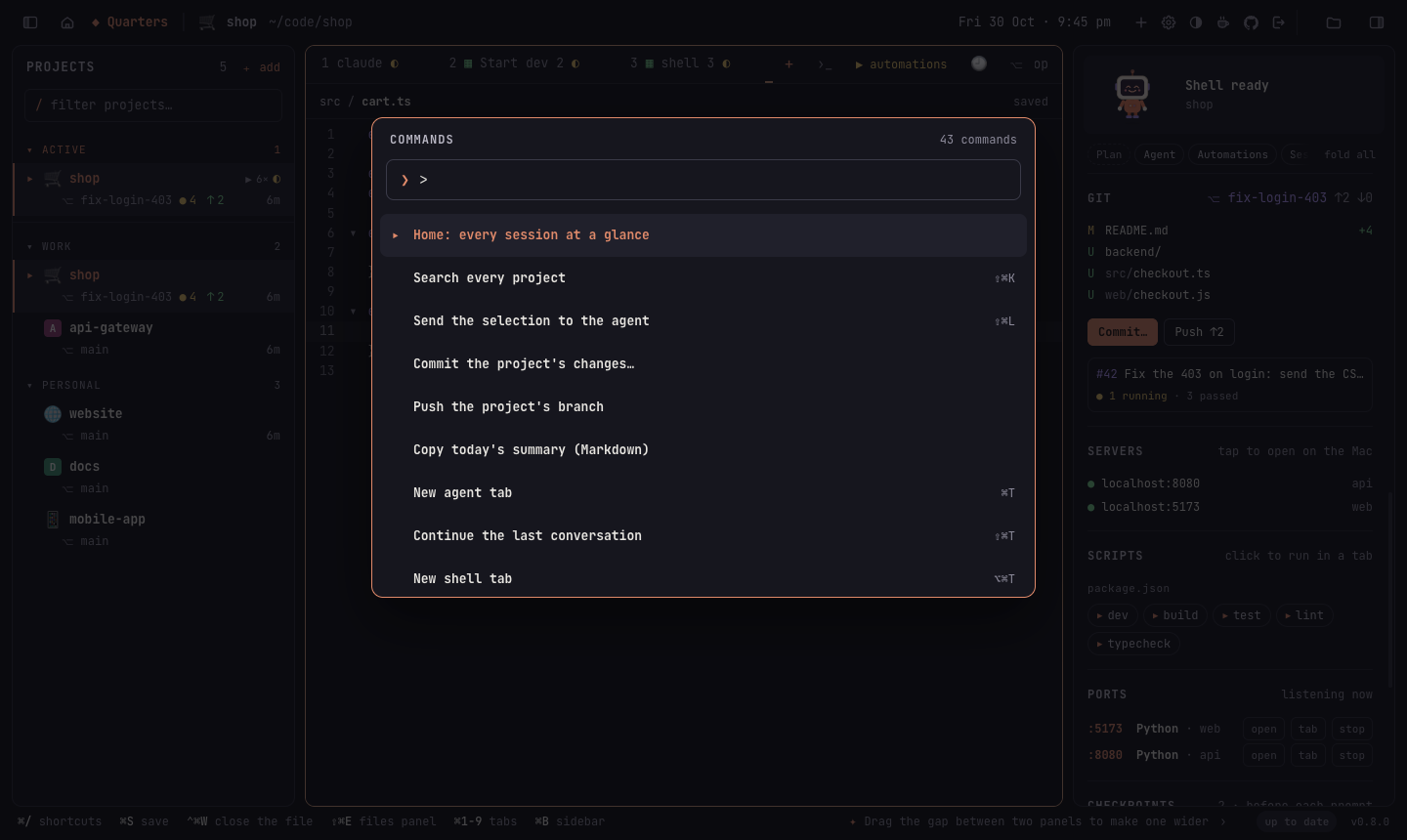
| keys | action |
|---|---|
| ⌘/ | all keyboard shortcuts (Help → Keyboard Shortcuts) |
| click, then C / ⇧C / S | open a project, then start Claude / continue / a shell |
| ⌘P or ⇧⇧ (tap Shift twice) | jump to a project or automation |
| ⇧⌘P | every command, by name |
| ⌘T / ⇧⌘T / ⌥⌘T | new Claude tab / continue last conversation / shell tab |
| ⌘W | close tab (in a split: the pane) |
| ⌘1–9, ⇧⌘[ ⇧⌘] | switch tabs |
| ⌘D / ⇧⌘D | split: a shell beside / below this one (⌘[ ⌘] switch panes) |
| ⌘J | go to the session waiting for you longest |
| ⌘B / ⌘I | show or hide projects / side panel |
| ⇧⌘E | show or hide the files panel; a click opens a file in an editor tab, ⌘S saves |
| ⇧⌘↵ | focus mode: only the terminal |
| ⌘O | add a project |
| ⌘, / ⌥⌘, | Settings / edit config.json |
| ⇧⌘F / ⇧⌘G | search past conversations / worktrees |
| ⇧⌘K | search every project's files |
| ⇧⌘L | send the selection (terminal or editor) to the agent |
⌘-click a file:line |
open it in the editor at that line |
| ⇧⌘U | usage by project |
| ⌥⌘R | start or stop the remote-access server |
| ⌃⌥Space (from any app) | bring Quarters forward, or hide it |
| ⌘= / ⌘- / ⌘0 | text size |
| ⌘K | clear the terminal |
Also: Shift+Enter adds a new line in Claude Code; drop files on a
terminal to type their paths; hover [Image #N] to see a pasted image;
double-click a tab to rename it. Light and dark mode follow macOS, or pick
one in Settings → Appearance (each device keeps its own).
Remote access setup
Remote access is off until you start it, and it gives whoever signs in a
shell on your Mac. Read SECURITY.md for how it is protected.
In short, Quarters only listens on 127.0.0.1, and you choose the tunnel
that gives it a public HTTPS address.
Give the Mac an HTTPS address with a tunnel. With Cloudflare and your own
domain:brew install cloudflared cloudflared tunnel login cloudflared tunnel create quarters cloudflared tunnel route dns quarters quarters.example.com cloudflared tunnel run --url http://127.0.0.1:8421 quartersOr with Tailscale:
tailscale funnel 8421, then use thehttps://….ts.netaddress it prints.In Quarters, Projects → Remote Access…: enter
https://quarters.example.comand press Start server.Pair a device… and scan the QR code with your phone. It creates a
passkey on the phone.On the phone, add the page to the home screen. From then on, open it and
sign in with Face ID.
No tunnel? Leave the public URL empty and press Start server: Quarters
is then at http://localhost:8421, which another computer can reach through
SSH (ssh -L 8421:localhost:8421 your-mac, then openhttp://localhost:8421 and the pairing link there). Phones need the tunnel.
At home, without a tunnel: turn on Home network in Remote Access and
set a username and password there. Phones and computers on the same Wi-Fi
then open http://<the Mac's IP>:8421 (the dialog shows the addresses and a
QR code) and sign in with the password, since passkeys don't work on a plain
IP address. The connection isn't encrypted, so keep it to networks you trust.
iPhones can add it to the home screen as is. Android's Chrome installs web
apps only from secure addresses, so on the home network tell it to trust
this one, once: in chrome://flags/#unsafely-treat-insecure-origin-as-secure
enter the address (e.g. http://192.168.1.20:8421), set it to Enabled and
relaunch; then ⋮ → Install app. The sign-in page shows these steps on
Android.
For a Mac with no screen, Quarters.app/Contents/MacOS/Quarters --serve
runs only the server (it uses the same settings and prints a pairing link);
the commands in Linux (--set-password,--pair, --devices, --remove-device) work there too.
Configuration
Settings and projects live in ~/.config/quarters/config.json. Most of it is
edited from the app, but you can also edit the file (⌥⌘,): on the Mac in
your text editor, in a browser in Quarters' own editor, which won't save a
mistake or a change to remote access. Quarters picks up changes within
seconds, and tells you if the file has a mistake without ever overwriting
it.
{
  "projects": [
    { "name": "Shop", "path": "~/code/shop", "group": "Work", "icon": "web/favicon.svg",
      "automations": [
        { "name": "Start dev", "layout": "columns", "auto": true,
          "schedule": { "at": "09:00", "days": ["mon", "tue", "wed", "thu", "fri"] },
          "tabs": [
            { "name": "api", "dir": "backend", "command": "npm run dev" },
            { "name": "web", "dir": "web",     "command": "npm run dev" },
            { "name": "shell" }
          ] }
      ] },
    { "path": "~/code/api-gateway", "group": "Work", "command": ["claude", "--model", "sonnet"], "yolo": false },
    { "path": "~/code/ml", "harness": "codex" }
  ],
  "yolo": true,
  "shell": "/bin/zsh"
}
| field | meaning |
|---|---|
projects[].path |
project folder (~ allowed); required |
projects[].name |
label in the list (default: the folder name) |
projects[].group |
heading to group projects under |
projects[].icon |
image next to the project (png, jpg, svg, ico, webp; relative = inside the project), or an emoji, e.g. "🚀" |
projects[].color |
colour of its tabs and terminal frame: #rrggbb or accent (default: from its name) |
projects[].harness |
the coding agent for this project, overriding harness |
projects[].command |
how the project's agent starts in this project |
projects[].yolo |
true/false: skip the agent's permission prompts here, overriding yolo |
projects[].automations |
terminals to start together (see below) |
harness |
the coding agent new tabs start: claude (default), codex, gemini, antigravity, opencode, copilot, devin, aider, amp, goose, qwen or cursor |
command |
how Claude Code starts (default ["claude"]) |
yolo |
skip the agent's permission prompts (default true; see below) |
shell |
shell for shell tabs (default $SHELL) |
prompts |
saved prompts for ⚡ (edited in Settings) |
features |
optional features switched on or off (Settings), e.g. {"checkpoints": false} |
hotkey |
global hotkey, e.g. ctrl+alt+space |
usage_alert_at |
warn when a plan limit passes this percentage (default 80) |
context_window |
tokens; 0 = read from Claude Code's model setting |
remote |
remote access (set in the app) |
layout |
panel widths and folded groups, saved as you change them |
Automations: layout is grid (default), columns, rows (all
terminals as panes of one tab, resizable) or tabs. dir is relative to the
project. command is typed into a login shell once it's ready, so Ctrl+C
leaves you in that shell and ↑ runs it again. auto runs it when you open the
project. schedule runs it by itself once a day, unless it's already
running.
About
yolo. By default Claude Code runs with--dangerously-skip-permissions, so it edits files and runs commands
without asking. That's convenient in your own projects and risky anywhere
else. Turn it off in Settings, or per project.Other agents get their own switch: Codex
--dangerously-bypass-approvals-and-sandbox, Gemini CLI--yolo,
Antigravity--dangerously-skip-permissions, Copilot CLI--allow-all-tools, Devin--permission-mode bypass, Aider--yes-always,
Amp--dangerously-allow-all, Qwen Code--yolo, Cursor CLI--force
(OpenCode and Goose have none; set it in their own config). "Continue"
runscodex resume --last,gemini --resume latest,agy --continue,opencode --continue,copilot --continue,devin --continue,aider --restore-chat-history,amp threads continue --last,goose session --resume,qwen --continueoragent --continue.
How it works
Quarters is a Wails app: a Go backend with a plain
JavaScript frontend in the system WebView.
- Each session runs in a pseudo-terminal on the Go side (
internal/session),
and xterm.js draws it. Every window, the Mac's and
any browser's, shows the same sessions; whichever one you're typing in
sets the terminal's size. - Each coding agent is a program started in a pseudo-terminal with its own
switches (internal/config/harness.go). - The side panel reads Claude Code's own session logs in
~/.claude/projects
(internal/stats). Plan usage comes from the endpoint/usageuses, with
the login Claude Code keeps in the Keychain, which is only ever sent to
Anthropic. - The developer tools run your own programs:
gitfor commits and
checkpoints (snapshots go through a temporary index, so yours is never
touched),ghfor pull requests and checks,claude -pfor a drafted
commit message,lsof(orss) for ports, andrg(orgit grep) for
search. - Remote access (
internal/remote) is an HTTP server with passkey
(WebAuthn) sign-in and a WebSocket carrying the same calls and events the
Mac window uses. - Idle, it stays out of the way: git runs only when something may have
changed, files are read again only when they change, the project list is
pushed to windows when it changes, and nothing on a timer runs while the
window is hidden. Measured on a Mac with 14 projects, idle in the
background: about 2% of one CPU core.
main.go, app.go, …     the app: window, menus, the functions the frontend calls
internal/config        config.json
internal/projects      the project list and icons
internal/session       pseudo-terminals
internal/stats         Claude Code logs, git, plan usage (Claude, Antigravity), conversations, skills
internal/remote        remote access: passkeys, sessions, WebSocket, push
frontend/dist          the frontend (plain ES modules, no bundler; ui/ holds the dialogs, loaded when first opened)
tools/mascot           draws the mascot
FAQ
How is this different from tmux?
tmux can hold all the sessions, and with enough scripts it can do much of
the rest. Quarters is what those scripts would add up to, without writing
them: a list of your projects with their git status, an agent started in one
key, a mark on the session that finished and is waiting for you (⌘J goes to
it), a side panel with the session's model, context, tokens, plan usage and
the files the agent changed, automations that start the dev servers with
the project, and the same live sessions in a phone's browser, signed in with
a passkey. If you live in tmux and like it there, keep it; Quarters is for
people who'd rather click a project than remember a session name.
Why not tabs in iTerm2, Ghostty, Warp or the Terminal?
A terminal knows about shells, not projects or agents. Tabs don't tell you
which agent is done, can't start a project's backend and frontend together,
and can't be picked up from your phone. Quarters keeps one place per project
(its agent tabs, shells and servers) and leaves the general terminal work
to your terminal.
What about apps that run many agents on one repository?
Several tools run a team of agents in parallel worktrees of a single
repository. Quarters starts from the other end: many projects, each with
the agent and the dev stack it needs, and quick switching between them. It
does worktrees too (⎇), when you want several agents on one repository.
Is it an editor?
No. The files panel and its editor are for a look or a quick fix (a
config value, a line the agent got wrong) without leaving the project.
Keep your editor for real work; Quarters follows its changes on the disk
the same way it follows the agent's.
Does my code or my prompts go anywhere?
No. Quarters has no AI of its own, no accounts and no analytics. It starts
the agents you installed, with their own logins, and they talk to their
providers as they always do. Remote access is off until you start it, and
then it only listens on this Mac (see SECURITY.md).
Does ✨ Draft it send my code anywhere?
Only when you click it: it runs your own Claude Code (claude -p) with the
diff of the commit (files that look like they hold secrets left out), the
same as asking it in a terminal, and uses your plan the same way.
Where do checkpoints live, and do they get pushed?
In the project's own git repository, as commits underrefs/quarters/checkpoints/ (the last 50). They aren't on any branch, sogit push doesn't send them; git for-each-ref refs/quarters lists them,
and switching Checkpoints off in Settings stops new ones.
Does it work with my Claude subscription or API key?
Yes: it runs claude (or another agent) exactly as you would in a
terminal, signed in however you signed it in.
Do sessions keep running when I quit Quarters?
No, the agents run inside Quarters. When it starts again, it offers to
reopen the conversations and automations that were open, and Claude Code
picks each conversation up where it left off. To keep agents running while
you're away, leave Quarters running on that machine (or run the
server on a Linux box) and use it
from a browser.
Contributing
Contributions are welcome. See CONTRIBUTING.md for setup
and guidelines:
make dev       # run with live reload
make test      # go test -race ./...
make lint      # gofmt, go vet, staticcheck
Please report security problems privately, as described in
SECURITY.md.
Credits
Built with Wails, xterm.js,
JetBrains Mono,
go-webauthn and the other
libraries in THIRD_PARTY_NOTICES.md. The mascot is
original to Quarters.





License
MIT © 2026 Amith
Reviews (0)
Sign in to leave a review.
Leave a reviewNo results found