craft-mcp-hub
Health Pass
- License — License: MIT
- Description — Repository has a description
- Active repo — Last push 0 days ago
- Community trust — 20 GitHub stars
Code Fail
- rm -rf — Recursive force deletion command in install.sh
Permissions Pass
- Permissions — No dangerous permissions requested
No AI report is available for this listing yet.
Unofficial MCP hub for the ArtCraft app suite: one shared, windowless MCP server per app, for every AI client session.

Craft MCP Hub

One shared, windowless MCP server per ArtCraft app, for every AI client session.
Unofficial. This project is not affiliated with ArtCraft or its apps.
The ArtCraft apps (PhotoCraft, VectorCraft, LightCraft, PdfCraft, FigCraft, WordCraft, DeckCraft, GridCraft, Craft Anything, …) each ship a command-line tool with an mcp command, so an AI client such as Claude Code can drive them. Wiring that up by hand has rough edges:
- you either keep each desktop app open, or every client session starts its own copy of the engine;
- with one engine per session, sessions can't see each other's documents, and a photo library can only be opened by the first session (the others fail with "library is already open");
- every app has to be registered in the client by hand, and again when an app is renamed or moved.
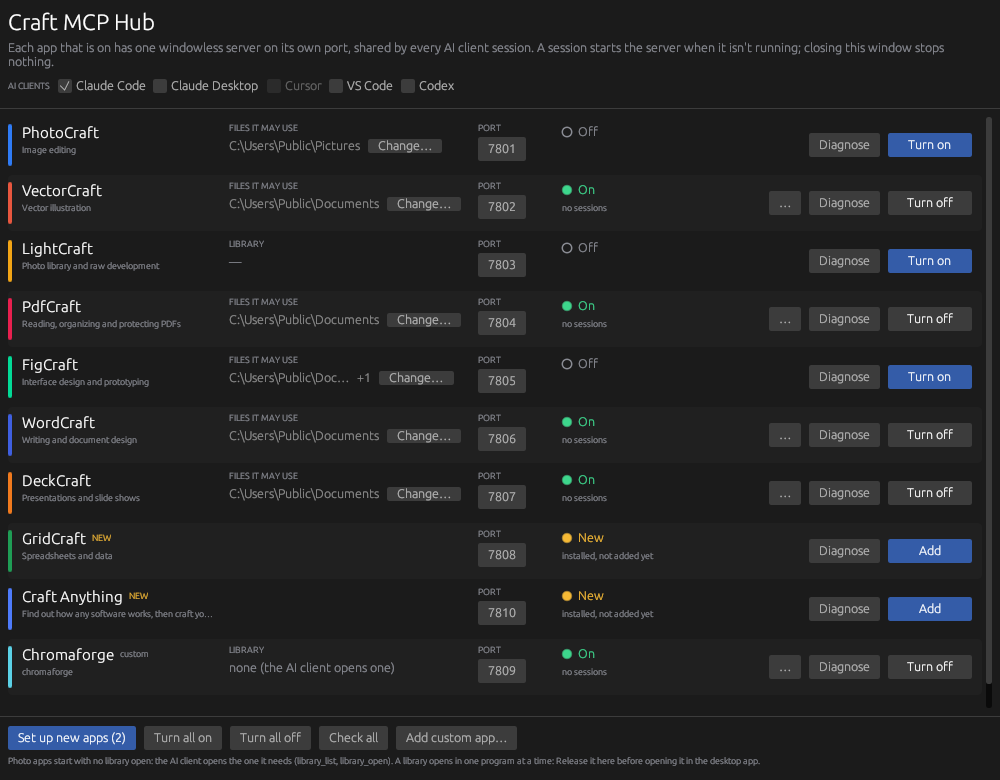
Craft MCP Hub fixes that. For each app you turn on it runs one engine, without a window, on its own local port, and every client session connects to that same engine. A control panel (and a command-line tool) turns apps on and off, picks ports, and tells you why something doesn't connect.
How it works
AI client session ──stdio──▶ crafthub connect photocraft ─┐
AI client session ──stdio──▶ crafthub connect photocraft ─┼─▶ crafthub serve photocraft ──▶ photocraft-cli mcp
control panel / crafthub ────────────────────────────────┘        (127.0.0.1:7801)            (one engine)
- It works with Claude Code, Claude Desktop, Cursor, VS Code and Codex; sessions of all of them share the same engine.
crafthub connect <app>is what the client launches. It starts the app's server if none is running, so nothing has to be open beforehand, and reconnects on its own when the server restarts.crafthub serve <app>is the shared server. It keeps the engine running, forwards each session's requests and returns the answers to whoever asked.- The list of apps comes from the ArtCraft launcher's own catalog, so a new app shows up as soon as the launcher knows it. Apps the launcher doesn't list yet can be in the hub's own list,
assets/extra-apps.toml(for now ShapeCraft). An entry there steps aside by itself once its app joins the launcher, and a pull request adding one is welcome.
Install
You need at least one ArtCraft app installed, and an AI client that can use MCP servers.
Windows 10 or 11, 64-bit (PowerShell):
irm https://raw.githubusercontent.com/AndrianLeah/craft-mcp-hub/main/install.ps1 | iex
macOS (Apple silicon or Intel) and Linux (x86_64):
curl -fsSL https://raw.githubusercontent.com/AndrianLeah/craft-mcp-hub/main/install.sh | sh
The script downloads the latest release, checks it against the checksum published with it, and puts crafthub and crafthub-panel in %USERPROFILE%\.crafthub\bin on Windows (added to your PATH, with a Start menu shortcut for the panel) or in ~/.local/bin on macOS and Linux. On macOS the control panel is also installed as the app Craft MCP Hub in Applications (Launchpad and Spotlight find it), and the programs in ~/.local/bin point into it. It needs no administrator rights. Both scripts are short enough to read first: install.ps1, install.sh.
The programs aren't code-signed. Installing with the commands above avoids the "unknown publisher" warnings, because those are only shown for files downloaded with a browser. If you download a release by hand, Windows asks once ("More info" → "Run anyway") and macOS needs System Settings → Privacy & Security → "Open Anyway".
You can also build from source.
Update
Run the install command again. Servers that are running keep the previous version until they are restarted, and restarting closes whatever their engines have open, so do it when no AI session is in the middle of something:
crafthub restart all
What changed in each version is in the changelog.
Uninstall
crafthub uninstall
It lists what it will do and asks first: it turns every app off and takes it out of your AI clients, then deletes the "Craft MCP Hub" app (macOS), crafthub and crafthub-panel, and ~/.crafthub (settings, access token, logs, backups of your clients' settings, downloaded tools). The panel's Uninstall… button does the same. The ArtCraft apps themselves are not touched. On Windows the program can't delete itself while it runs, so it says what is left: the bin folder, and its entry in your PATH.
Use
crafthub setup     # add and turn on every installed ArtCraft app
crafthub panel     # open the control panel
Then open a new session in your AI client: the apps are there.
Or let your AI set it up
You don't have to do any of this by hand, and the hub doesn't have to know your AI client. Tell your AI:
Run
crafthub guideand set Craft MCP Hub up for yourself.
The guide tells it how to see what is installed, how to register itself, which apps to ask you about, and how to check the result. If it is a client the hub has never heard of, it describes where it keeps its MCP servers with one command (crafthub clients add), and from then on the hub keeps it in step like the built-in ones.
| Command | What it does |
|---|---|
crafthub list |
Every app: installed or not, its port, and what its server is doing |
crafthub setup |
Add and turn on every installed app that isn't in the hub yet |
crafthub add <app> |
Add one app, for example one you just installed |
crafthub on <app> / off <app> |
Turn an app on or off (all for every added app) |
crafthub port <app> <port> |
Move an app's server to another port |
crafthub check [<app>] |
A full MCP round trip through the server, as a client would do |
crafthub doctor <app> |
Check everything between the client and the engine, and say what to do |
crafthub restart <app> |
Restart an app's server (all for every server that is running) |
crafthub close-library <app> |
Close the photo library an app has open |
crafthub root <app> [<folder>…] |
Show or set the folders an app's engine may read and write |
crafthub guide |
For AI agents: how to set the hub up for themselves |
crafthub clients [on|off <client>] |
Show the AI clients, or enable or disable one |
crafthub clients add <id> --file <path> |
Describe a client the hub doesn't know (remove <id> forgets it) |
crafthub snippet [<app>] |
Print the MCP servers, for a client you set up by hand |
crafthub catalog --update |
Fetch the current app list from getartcraft.com |
Closing the panel stops nothing: the servers keep running until you turn an app off.
A newly installed app
Install it with the ArtCraft launcher, then press Add in the panel (it is marked NEW), or run crafthub add <app>. crafthub setup adds all new ones at once.
Custom builds and forks
A fork or your own build of an ArtCraft app works as long as its command-line tool has an mcp command:
crafthub add chromaforge --cli "C:\Program Files\Chromaforge\chromaforge-cli.exe" --name Chromaforge
The hub reads the tool's --help to work out how to start it. To start it exactly like a known app instead, add --like lightcraft. For a photo app, --settings <folder name> says where it lists its recent libraries. The panel has the same under Add custom app… (you can drop the file on the window).
Ports
Each app has a default port (7801 and up, see assets/profiles.toml). Change it in the panel or with crafthub port. Open sessions follow the server to its new port.
Photo libraries
LightCraft-style engines choose their library when they start and can't switch afterwards, and a library can be open in only one program at a time. So the hub starts them with no library, which leaves the desktop app free, and gives the AI client three extra tools: library_list, library_open and library_close. Opening a library restarts the engine with it, for every session. Release in the panel (or crafthub close-library) closes it again so the desktop app can open it.
Files the engines may use
An AI client drives these engines, so the hub keeps each one to the folders you choose: it can't open or save anything outside them. Until you choose, that is your home folder, not the whole computer.
| Engine | Kept to folders | How many |
|---|---|---|
| PhotoCraft | yes (it has no file access at all without one) | one |
| WordCraft, PdfCraft | yes | one |
| FigCraft, VectorCraft, DeckCraft | yes | several |
| GridCraft, LightCraft, Craft Anything | no: their command-line tools have no option for it | – |
crafthub root figcraft                       # what it may use now
crafthub root figcraft ~/Design D:\Assets    # these folders, and everything in them
crafthub root figcraft --anywhere            # lift the restriction
The panel shows the folders in each row, with Change…. The restriction is the engine's own (--automation-read-root, --automation-write-root), given the same folders for reading and for writing; it was tested with each engine listed as "yes".
AI clients
The hub registers the apps that are on with the clients you enable, and they all share the same engines:
| Client | id | Where the hub registers the servers |
|---|---|---|
| Claude Code | claude-code |
its user settings, through claude mcp |
| Claude Desktop | claude-desktop |
claude_desktop_config.json (restart it afterwards) |
| Cursor | cursor |
~/.cursor/mcp.json |
| VS Code | vscode |
mcp.json in the user profile |
| Codex | codex |
~/.codex/config.toml (restart it afterwards) |
Claude Code is enabled by default when it is installed. The others are yours to enable, with the checkboxes at the top of the panel or:
crafthub clients              # which clients are on this computer, which are enabled
crafthub clients on vscode    # register the apps that are on with VS Code, and new ones from now on
crafthub clients off vscode   # take the hub's servers out of it again
Claude Desktop and Codex read their settings only when they start, so restart them after enabling them. Enable Claude Desktop while it is closed if you can: while running, it has been seen to write its settings file back without the servers added since it started. If that happens the panel says so in the app's row ("not in Claude Desktop"), and … → Register in every client, or crafthub on <app>, puts them back.
Those files belong to the clients, so the hub changes as little as it can: only its own entries, with the rest of the file, its key order, indentation and comments left as they are. It copies the file to ~/.crafthub/backup first (the five newest copies are kept), writes the new one in a single step without changing who may read it, and leaves a file alone when it can't parse it (a JSON file with comments, for example) and tells you so. Turning an app off removes it from every client; a server under the same name that the hub didn't register is never removed.
A client that isn't in the table can be described to the hub, by you or by the AI itself, if it keeps its MCP servers in a JSON or TOML file:
crafthub clients add windsurf --name Windsurf --file ~/.codeium/windsurf/mcp_config.json
crafthub clients on windsurf
--format toml, --key <name of the object or table holding the servers>, --typed (entries carry "type": "stdio") and --restart cover clients that differ from the defaults. The hub then treats it exactly like a built-in one. crafthub clients remove <id> forgets it.
For a client whose settings the hub can't edit at all, crafthub snippet prints the servers to add by hand (--format toml for TOML); they still start on demand.
When something doesn't connect
crafthub doctor <app> (or Diagnose in the panel) checks, in order: the app's program, the registration in the client, the server, the engine, a real MCP round trip, and the errors the client logged in the last day. It ends with what to do.
Settings, the access token and logs are in ~/.crafthub (%USERPROFILE%\.crafthub on Windows).
Security
The servers listen on 127.0.0.1 only. Every connection must first present a token stored in ~/.crafthub/token, readable only by you: without it, any local program, or a web page making your browser post to localhost, could drive the engines.
A connection that hasn't presented the token can send at most 4 KB and is closed after five seconds, so it can't be used to exhaust memory; a browser's HTTP request is refused at its first line.
The install scripts check each download against the checksum published with its release before installing anything. That catches a damaged or swapped download; it is not a signature, and the programs aren't code-signed.
Known limits:
- Some engines can't be kept to a folder. GridCraft, LightCraft and Craft Anything have no option for it, so an AI client can have them open or save any file you can, exactly as when their command-line tools run on their own. The others are restricted (see Files the engines may use).
- The catalog's signature is not checked. The hub reads the copy the ArtCraft launcher keeps (which the launcher verifies) or downloads one over HTTPS. The catalog only tells the hub what each app's program is called; nothing is run until you turn that app on.
- Programs running as you are trusted. They can read the token, as they can read everything else of yours.
Status
| System | State |
|---|---|
| Windows | Tested with the installed apps |
| macOS | Finds the apps the ArtCraft launcher installed, and fetches their command-line tools (the launcher installs only the desktop apps): crafthub tools |
| Linux | Builds; same as macOS, including Flatpak installs |
If you use macOS or Linux, the output of crafthub list and crafthub doctor <app> is exactly what is needed to fix the app locations in src/discover.rs. Apps whose start-up arguments haven't been verified are marked in assets/profiles.toml.
Build from source
With Rust installed:
git clone https://github.com/AndrianLeah/craft-mcp-hub
cd craft-mcp-hub
cargo build --release
The programs are target/release/crafthub and target/release/crafthub-panel; keep them in the same folder. cargo build --release --no-default-features builds the command-line tool alone, which needs no display. On Linux the panel needs the usual window-system development packages (see .github/workflows/ci.yml).
Problems and contributions
Open an issue with the output of crafthub doctor <app>. It lists file paths from your computer, so read it before posting; the access token is never in it. Reports from macOS and Linux are the most useful ones right now (see Status). To change the code, see CONTRIBUTING.md. For a security problem, see SECURITY.md.
License
ArtCraft and the names of its apps belong to their owner, and are used here only to say what this tool works with. assets/catalog.toml is a trimmed snapshot of the app catalog the ArtCraft launcher publishes.
Reviews (0)
Sign in to leave a review.
Leave a reviewNo results found