treeyard
Health Warn
- License — License: MIT
- Description — Repository has a description
- Active repo — Last push 0 days ago
- Low visibility — Only 7 GitHub stars
Code Warn
- process.env — Environment variable access in scripts/readme-screenshots.ts
Permissions Pass
- Permissions — No dangerous permissions requested
No AI report is available for this listing yet.
A goal tree for Agent-Driven Development in your terminal: a “done when” on every node, and Claude Code, Codex, Antigravity and OpenCode sessions opened from its nodes.
A goal tree for Agent-Driven Development (ADD), right in your terminal.
Plan a project as a tree of goals with a “done when” on every node, open Claude Code,
Codex, Antigravity or OpenCode sessions straight from its nodes, and let the agents report
back into the tree — until the project works in real life, not just “the code is done”.


English · Русский
https://github.com/user-attachments/assets/e2f796e4-2617-4ba7-97e9-ef8ba56e2ed3
Why I built it
I built Treeyard out of my own vibe coding. With agents, code gets written fast — and then
the project stalls. It stalls on the steps only a person can take: a server, a domain,
payments, showing it to a real person. Meanwhile the agents get side features, the plan
grows into a log thousands of lines long, and every new session starts by rereading it.
Code: done. Project: stuck.
Treeyard is the practices that got my projects past that point, put into one tool. Agents
do the work; the tree holds what the work is for and when it counts as done. That is what
I mean by Agent-Driven Development. I run my own projects this way, Treeyard itself
included.
What you get
- A goal you can see in real life at the root. Not “build an MVP” but “ten strangers
order our coffee online — and come back for a second bag”. Tests say the code works; the
goal says the project did its job. - A “done when” on every node. One sentence you can see or run: a command, a scenario,
a screenshot, a number. If you can't write it, the node isn't understood yet. - One node — one session. A session opened from a node gets why it exists (the path
from the root), when it's done, its neighbours and the project's rules — not the whole
plan. - Waiting is a status, not a dead end. A branch blocked by the outside world is
“waiting”, with a reason and a condition to come back; work goes on in other branches.
Now shows everything you can do right now, across all of them. - Your steps are in the tree too. Nodes only a person can do are marked “done by: you”
and don't pile up at the end. - Agents don't mark their own work done. An agent sets “in review” and shows proof — a
command and its output, a screenshot, its commits; “done” is yours. - A new idea is a new node, not “while I'm at it”. The journal lives in the node, the
plan in the tree, decisions in one place with their reasons. - Several agents side by side. Claude Code, Codex, Antigravity and OpenCode in tmux
panes next to the tree; idle ones fall asleep and give their memory back; every session
stays in its node to be resumed.
In numbers
- ~95% fewer tokens to get an agent going. A session opened from a node starts with
about 3k tokens of context: 2.6k–4.0k, median 3.0k over seven nodes of this repository's
tree. Handing the agent the whole plan instead — every node with its description and
journal — is 65k tokens on the same tree of 105 nodes, 84k withdocs/and the README:
the node's context is 95–96% smaller. Even the one-page overview (treeyard show, 5.5k)
is almost twice as big. - The saving grows with the tree. On a fresh tree of 12 nodes the whole plan (1.0k) is
smaller than a node's context (1.7k), so there is nothing to save yet. And most of a
session's tokens go into the code itself, not into its start. - Built with itself. Treeyard has been run by its own tree since the first commit: in
five days, 108 commits, 41 nodes done and 18 more in review, 35 agent sessions opened
from nodes (2026-10-02 → 2026-10-06).
How the tokens were counted (2026-10-06): treeyard context <id> into a file, thenclaude -p "/context" --system-prompt-file <file> — Claude's own tokenizer, checked
against a real request (3,387 tokens against “3.4k”). Codex and Gemini count with their
own tokenizers.
When to use it — and when not
Use it when
- the project lives longer than one session — days, weeks, months;
- there are several directions at once, and some of them wait for the outside world;
- part of the work is yours alone: a server, a domain, payments, a contract, showing it to
people; - you run several agents or several CLIs in parallel and want to see who is doing what;
- you keep several projects and come back to one after a break: the tree and the journals
say where you stopped.
Don't, when
- it's one small task: write a script, fix a bug, answer a question. Open plain
claude
orcodex— planting a tree, criteria and statuses won't pay off; - it's a throwaway prototype for one evening;
- a team already lives in its own tracker: Treeyard is made for one person with agents (it
does sync with a GitHub Project board, though).
Treeyard doesn't write code itself — your agents do. It keeps what they work on and when
it counts as done.
Quick start
You need Node.js 22+ and at least one agent CLI: Claude Code, Codex, Antigravity or
OpenCode. For sessions in panes next to the tree, tmux (brew install tmux on macOS).
macOS is the main platform.
npm install -g @antondanv/treeyard
cd my-project && treeyard                  # no tree yet: the planting wizard
Planting a tree with an agent takes about 20 minutes. Other ways in:
treeyard init                              # a new tree: with an agent or from a template
treeyard init --agent --brain codex        # straight to the agent, no wizard
treeyard import                            # the agent quietly reads the project's plan and builds the tree
treeyard config lang ru                    # Russian: the interface, templates and what agents get
How you work with it
- Now (
2) lists everything you can do right now, across all branches. Pick a node. copens a Claude Code session for it, in a pane next to the tree;⏎— every action,
other agents among them.- The agent gets the node's context, studies the code and proposes a plan. You agree; it
works. - When the “done when” holds, the agent sets in review and shows proof: a command and
its output, a screenshot, its commits (V). You look and pressd— done. - Hit something outside —
w: waiting, with a reason and when to come back. Go to
another branch. - A new idea on the way —
a, as an idea. Once a week, look through Waiting (3):
has the condition come?
Planting a tree with an agent
In a folder without a tree, treeyard opens a full-screen wizard: with an agent
(Claude Code, Codex, Antigravity or OpenCode) or on your own, from a template.
The agent gets the treeyard-init skill and goes like
this:
- Looks at where you are. In an empty folder it asks you to pour out everything you
think about the project, as plain text. In a project it studies the code, the documents
and the history and gives a short report: what really works, what was promised and not
done, where the loose ends are. - Asks questions. 1–3 at a time, each with its own suggestion, so “yes” is often
enough. No more than ~12, only what shapes the tree. Nothing it can see in the
repository. Small things like the README's language go straight into the draft as
nodes. - Agrees on the goal and the first milestone — in that order.
- The root gets the project's big goal: why it exists at all (“ten strangers order our
coffee online — and come back for a second bag”), not “build an MVP”. - The first branch is the first milestone: the nearest check in real life (“a stranger
orders a bag from the site”). - Plus the appetite: how much time you're ready to put in before that milestone.
- The root gets the project's big goal: why it exists at all (“ten strangers order our
- Asks about steps in the world, not in the code. A server, a domain, payments, a
contract, a live user. They go into the tree at once as “done by: you” nodes instead of
piling up at the end, where projects used to stall. - Shows the draft tree as text. The walking skeleton first, a “done when” on every
node, blockers as “waiting”, ideas in a separate branch. It plants it with one command
(treeyard import --from-json -) only after your “yes”. - Writes short documents instead of the old ten.
docs/vision.md,AGENTS.mdas the
single source of rules,CLAUDE.mdof one line,@AGENTS.md. The plan and the tasks
live in the tree.
With tmux the conversation opens on the right, and on the left the tree appears and grows
as it is planted. What you type goes straight to the agent; ⌃Q gives control back to the
tree, f to the conversation, F shows the conversation full screen. Nothing to run
after planting. Without tmux (or with open=terminal) the agent works full screen in this
terminal: leave the session, and the tree opens.
For plain claude, codex and agy to know the same skill in any folder:
treeyard skills            # where the skill is and where it is installed
treeyard skills install    # ~/.claude/skills, ~/.codex/skills, ~/.gemini/config/skills
What it looks like
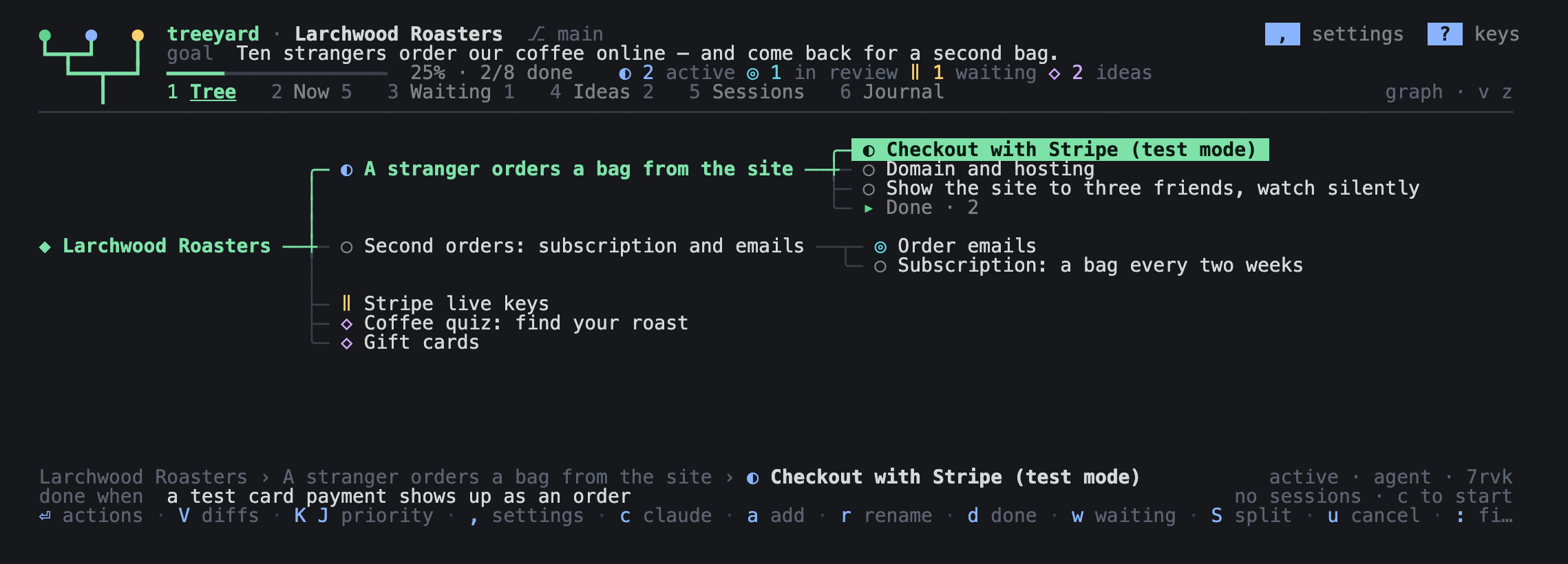
- Graph (the default): the goal on the left, branches grow to the right, a parent sits
in the middle of its children. A node is one line, so the whole working tree fits on the
screen. Children stand right after their parent's title, and leaves take the room left
on the right: a short “Done · N” doesn't push its children away, and long titles get cut
less often. The selected node is a green pill, and the path to it from the root is lit;
if its title doesn't fit, it slowly scrolls to the end and back, pausing at both ends.zshows the same nodes as cards,vthe tree as an indented list. With a session
open, the cards' width follows the room on the left. In a narrow list, long indents
shrink to…, keeping the node's status and title. With a session open, the graph and
the cards shift to the working branch; the root stays further left, and⌥←or going to
the top branch gets you there. Agent labels go compact:⠋ claude— working,? claude
— waits for you,▣ codex— an open agent pane; they show on the selected node too, set
off from its highlighted title. - The bar at the bottom: where you are, what “done” means for this node (or what it
waits for), and how its sessions are doing — an agent working, waiting for you, or no
sessions. The selected node's title and status get the room first; the path in between
shrinks to…when it doesn't fit. - Tabs:
1Tree ·2Now — everything you can do right now, across all branches ·3Waiting — blocked branches with the reason and the condition to come back ·4
Ideas ·5Sessions — this folder's sessions, grouped by Claude Code, Codex,
Antigravity, OpenCode (← →between them) ·6Journal — what happened in the tree.
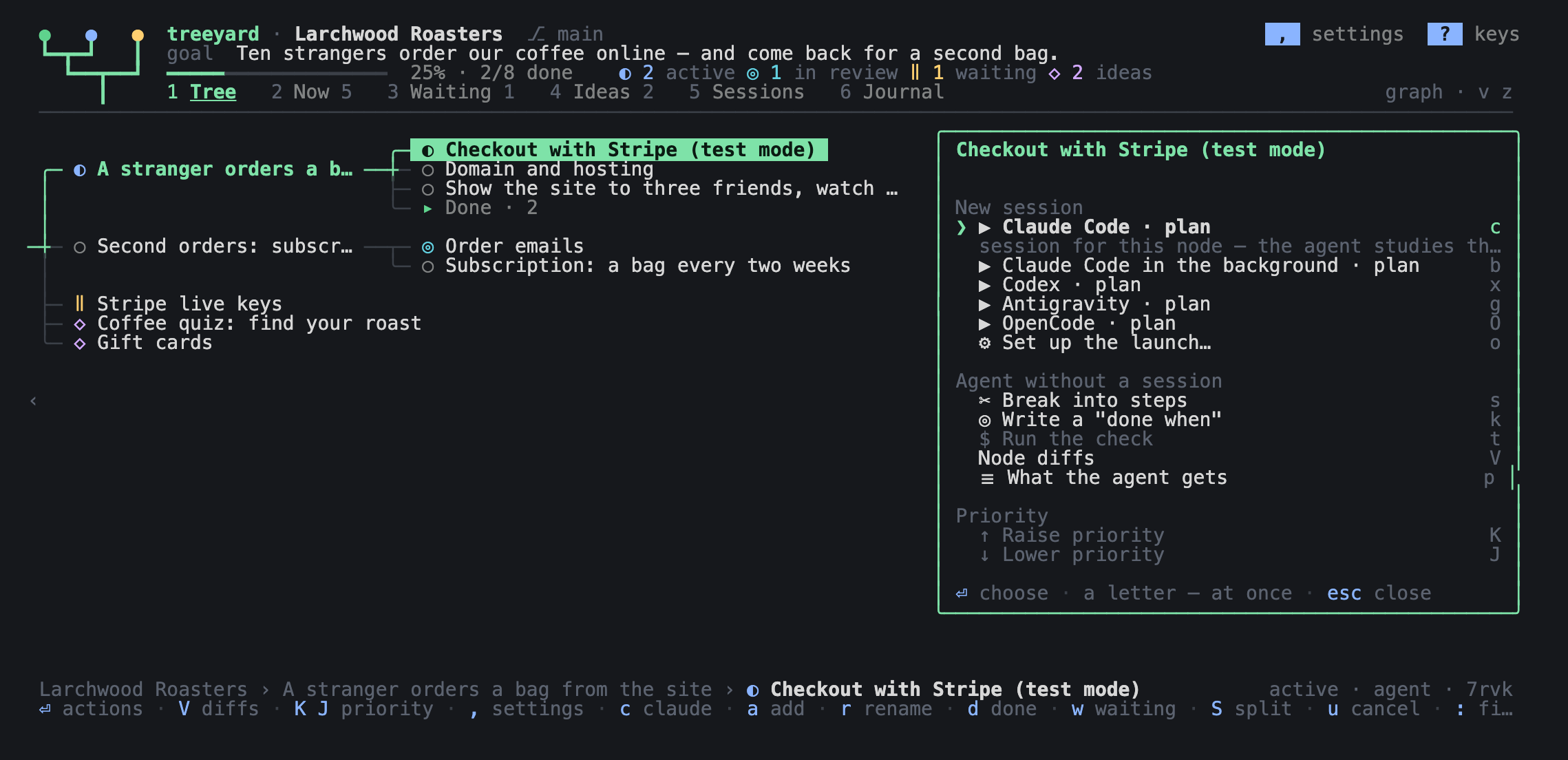
From the root, c starts a review of the whole tree by the project's agent; ⏎ opens a
menu with the review and a conversation about the project. In “⚙ Another agent, place,
model…” (o) you pick Claude Code, Codex, Antigravity or OpenCode, a pane or the
terminal; Claude can also work in the background. The agent gets the goal, an overview of
the nodes, Now, Waiting, the latest journals, the rules and the decisions. A review gives
its findings and treeyard commands first, and changes only after you agree. In a
conversation the first message is yours: ask about the status, open or close nodes. The
project's sessions are kept in .tree/tree.md, shown in the root's menu and in the
Sessions tab as belonging to the project ◆; f resumes a pane, x puts it to sleep.
Keys
Letter keys also work in the Russian layout, from the same keys: р о л д are h j k l,ф is a, Ф is A — in the tree, lists, menus and dialogs; Shift keeps the key's
meaning. Russian text in search, forms and agent panes is typed as usual.
↑ ↓ ← → |
along the graph's column · to the parent and to the children (j k — every node in turn); from the top level ← goes to the root ◆ |
space + − |
fold a branch · unfold everything · fold everything |
: or ⌃K |
palette: find any node or action by words |
/ |
filter the tree by title |
⏎ |
everything about the node: resume a session, start a new one, an agent without a session, the check |
c b |
Claude Code for the node (in a pane, with tmux) · in the background |
f F x p |
the session on the right: type into it · full screen · put to sleep · hide (more below) |
a A |
a new node inside · beside — on a line at the bottom; long text wraps and stays visible (tab — with a criterion) |
r e E |
rename · the node's fields and description · the node in your editor |
d w s |
done (on a done node — back to todo) · waiting, with a reason · any status |
D y |
delete the node · copy its id |
G |
GitHub: connect a board (wizard) or sync with the connected one |
I |
node pictures: a screenshot from the clipboard (v), a caption (n), full screen (o — full size in Preview), delete (D); a picture file can be dragged into the window |
V |
node diffs: linked commits → files → a coloured diff; also in the ⏎ menu and the : palette |
P |
project documents: every .md, read with Markdown drawn and edited in the built-in editor; also ⏎ on the root ◆ |
S |
an agent breaks the node into 3–7 steps, you tick the ones to add (who breaks it — you choose in the confirmation) |
t |
run the node's check (the command in its “check” field) |
u |
undo the last change |
tab ⇧tab |
nest · lift a level up |
K J or ⇧↑ ⇧↓ |
raise · lower the priority among siblings of the same status (also in the ⏎ menu and the : palette) |
⌥ + arrows |
move the graph · f — back to the selected node |
v z i . |
list ↔ graph · lines ↔ cards · details panel · done nodes |
, ⌃R |
settings · reread the tree from disk |
? q |
all keys (if they don't fit, ↑↓ PgUp PgDn scroll) · quit |
The “Edit node” window (e) has a multi-line “Description” field: Enter is a new line,↑↓ move the cursor between lines, ←→ along the text. A paste keeps its line breaks;
long text wraps to the width, and the visible part follows the cursor. Tab / Shift+Tab
switch fields, Ctrl+S saves the whole window; in the other fields Enter saves too.Esc drops the edits, u in the tree undoes a save. The journal is saved apart from the
description. To edit the whole Markdown file, journal included, there is still E from
the tree.
Under each parent, nodes go by status, by default: active → in review → todo → waiting →
idea → done → dropped. Within one status you set the order yourself, top to bottom; it
is kept in the nodes' order, shows in the CLI and in .tree/README.md, and u undoes a
move. Changing a status moves the node to its part. The order of statuses is a setting —
“Status order” in , or treeyard config status_order:
| Preset | Top to bottom |
|---|---|
active-first — active on top (default) |
active → in review → todo → waiting → idea → done → dropped |
done-first — done on top |
done → active → in review → todo → waiting → idea → dropped |
active-last — active at the bottom |
idea → waiting → todo → in review → active → done → dropped |
custom — your own |
as you arrange it: ⏎ on the “Status order” line opens the list of statuses, K J or ⇧↑ ⇧↓ move them, ⏎ saves |
Confirmed done nodes are gathered into a folded group “Done · N” — at the end of the
branch, or wherever “done” stands in the chosen order. Select the group and press space
(or ⏎) to unfold it; space folds it back. + unfolds these groups too. Nodes “in
review” stay in sight. Search / and the palette : find done nodes as well; inside the
group their sessions and actions are at hand. The group changes only the view: parents,
history and node files stay as they were.
With the mouse
| click | select a node in the graph and in the list (the root ◆ too), a line in Now, Waiting, Ideas, Journal, Sessions · switch tabs |
| double click | the same as ⏎: the node's actions, open a session, from the journal — to the node; in a menu — pick the item |
click on ▸ ▾ or ›4 |
unfold or fold a branch in the list · unfold a folded branch in the graph and step into it |
| click on a hint | press its key: the hints at the bottom of the screen, , ? in the header, the session pane's buttons and dialog footers |
A click on a hint is exactly a press of its key, so the mouse does what the keyboard does.
While a dialog is open, the tree on the left takes no clicks.
Confirmation and settings
Before every session and agent task treeyard asks: which node, who (Claude Code, Codex,
Antigravity, OpenCode), where (in a pane, in this terminal or in the background), how to
start, which model — and shows the first message the agent will get. ⏎ starts, o
changes the parameters, esc cancels, ! stops asking. treeyard open from the shell
asks the same way (--yes — without asking).
Claude Code, Codex and OpenCode take their permissions from their own settings (OpenCode —
the permission in its opencode.json). Antigravity has only plan and accept-edits there
and asks before every command, so treeyard starts and resumes it with full access
(--dangerously-skip-permissions).
“Plan” starts Claude Code in its plan mode and OpenCode with its plan agent: edits are
closed until you agree. Claude Code with a plan ready asks itself whether to get to work;
OpenCode asks the same or asks you to switch agents — Tab in its pane turns on the build
agent. Codex and Antigravity get the same request in words.
Before “Break into steps” and “Write a "done when"” the confirmation is a small form: the
brain (Claude Code, Codex, Antigravity, OpenCode), the model and the effort are picked
with ←→, the field with ↑↓. It starts with the project's brain and assist_model;
another choice applies only to this task, and the project's settings stay as they were. An
effort the model doesn't have (Haiku has none at all) is not passed to the agent.
Settings — the , key (always shown in the top right corner) or treeyard config:
For all projects (~/.treeyard/settings.json) |
|
|---|---|
lang |
en (default) or ru — the interface, templates and what agents get |
confirm |
confirm before starting sessions and agent tasks |
theme |
dark or light — to match your terminal |
animation |
spinners and the blinking leaf |
marquee |
running title: a long title of the selected node scrolls so you can read it whole |
status_order |
the order of statuses under each parent: active-first (default), done-first, active-last, custom, or all seven statuses comma-separated — your own |
live |
live status of Claude Code, Codex, Antigravity and OpenCode sessions: who is working, who waits for you |
open |
open sessions in a pane (pane, the default) or in the terminal (terminal); without tmux — in the terminal |
sleep_after |
put sessions to sleep after 15/30/60 idle minutes (default 30); 0 — never |
max_panes |
the limit of the project's live panes: 3/5/8 (default 5); 0 — no limit |
notes |
the folder with the tree where treeyard note writes notes from any project; off — none. In , — “Where notes go”: a path (~, . — this project), empty — none |
With live on, a working Codex shows a spinner at its node and counts among “agents
working” at the top, in a long session too. A question or a permission request in a pane
shows “waits for you”; after an answer or a cancel the wait clears on the next update.
Statuses update every 3 seconds. The counter at the top counts the sessions attached to
this tree's nodes. For OpenCode Brainyard sees only “working” so far: its question or
permission request also looks like work, not “waits for you”.
This project (.tree/tree.md) |
|
|---|---|
brain |
the default brain: claude, codex, antigravity, opencode |
start |
how a session starts: plan, do, goal, chat |
model, effort |
the sessions' model and effort — picked from the list the CLI itself gives |
assist_model |
the model for “break into steps” and the criterion — can be a cheaper one |
Models don't need typing in: treeyard asks the CLIs for them (codex debug models, agy models, opencode models — the models of the providers connected to OpenCode; for Claude
Code — the aliases fable, opus, sonnet, haiku, which always mean the latest version). Only
the efforts the chosen model understands are offered, * marks its default one. The model
and the effort belong to the project's brain: they reset when the brain changes. The same
lists are in the launch window (o). An OpenCode session doesn't get the effort at start:
OpenCode changes it — the model's variant — right in the session (ctrl+t); “break into
steps” and the criterion do pass it to OpenCode.
treeyard config                 # everything that is set
treeyard config lang ru         # Russian
treeyard config confirm off     # don't ask before starting
treeyard config sleep_after 15  # sleep after 15 minutes of confirmed idling
treeyard config max_panes 3     # up to three panes; working and visible ones are protected
treeyard config status_order done-first  # done on top
treeyard config status_order todo,review,active,waiting,idea,done,dropped  # your own order
treeyard config notes ~/Projects/my-notes  # where notes go
TREEYARD_LANG=ru treeyard       # the language for one run
Sessions next to the tree
A session opened “in a pane” lives in tmux: its screen shows to the right of the tree, you
can type into it without leaving treeyard, and closing treeyard doesn't stop it — next
time it is back in its node. All four CLIs work this way.
f or a click on the pane |
type into the session: everything, arrows, pastes and ⌃C included, goes to the CLI |
⌃Q or a click on the tree |
back to the tree |
F |
full screen; ⌃Q — back to the tree |
x |
put to sleep: the CLI closes and gives its memory back, the conversation stays in its history |
f on a node with a sleeping session |
wake it: the same conversation in a new pane (with a confirmation) |
p |
hide or show the pane |
⇧← ⇧→ or < > |
wider, narrower — the pane's border follows the arrow; a click on ⇧← ⇧→ in the pane's corner does the same |
wheel · PgUp PgDn · End |
the pane's history · page by page · to the live screen |
| drag the mouse over the pane's screen | select and copy to the clipboard (Treeyard holds the mouse, so it selects by itself) |
The top right shows how many sessions are alive and how much memory they take (Claude Code
— about 200–300 MB, Codex — about 80, Antigravity — about 350, OpenCode — 0.5–1 GB).
Treeyard reads the screen only of the session in sight and leaves the rest alone. Quiet
sessions fall asleep by themselves (sleep_after, by default after 30 idle minutes), and
when more than max_panes are alive (5 by default), the one idle the longest falls
asleep. A session that is working, waiting for you or open on the screen never falls
asleep. OpenCode doesn't fall asleep by itself at all yet — Brainyard can't tell that it's
free — x puts it to sleep. A session without a single message doesn't fall asleep but
just closes: the CLI doesn't keep an empty conversation, and there would be nothing to
wake.
In the Sessions tab (5) select a session and press x — that very session falls asleep,
even if its pane is hidden or it was started in the background with b. Claude Code
background sessions stop with its own stop command; the conversation and its node stay.
The list shows ☾ sleeping, and ⏎ resumes the same conversation. Putting a working
session to sleep by hand stops it. A session open full screen or in another terminal —
close it there first.
This folder's sessions that are in no node are marked no node — they were opened past
the tree. Above the list: how many sessions there were in the last 14 days and how many of
them went past the tree; the same at the end of treeyard sessions. To attach such a
session to a node — l.
It needs tmux: brew install tmux. Treeyard has its own tmux server (tmux -L brainyard)
and doesn't touch your own tmux or its settings.
Agents and the tree
A session from a node gets a short context: the path from the root (why this), the
criterion, the neighbours, the project's rules and the tree's commands. Agents write back
with the same commands a person uses:
treeyard show                                   # the tree; treeyard show <id> — a node
treeyard add "Show the product to a person" --who human --parent <id>
treeyard set <id> status=waiting waiting="no server" until="a VPS is up"
treeyard set <id> status=review                 # the agent; “done” is set by a person
treeyard log <id> "what is done; what is left"
treeyard note "the help doesn't fit the screen" # a note about treeyard itself — into “Notes”
treeyard image <id> shot.png --note "…"         # a picture for the node (a screenshot, proof)
treeyard diff <id> --add <sha>                  # attach your commit to the node for review
treeyard add "Codex: turn status" --project ../api --for <id>   # a change needed in another project
treeyard open root --start plan --pane          # a review of the tree in a pane
treeyard open root --start chat --brain codex   # a conversation about the project
treeyard open <id> --brain codex                # a session for the node right from the shell
treeyard open <id> --brain codex --pane         # start a pane and return to the shell
treeyard open <id> --brain opencode --pane      # the same with OpenCode
treeyard sessions                               # the folder's sessions in every CLI, “no node” — past the tree
treeyard context <id>                           # exactly what an agent gets
treeyard pointer                                # the block about the tree in AGENTS.md / CLAUDE.md
Undo (u) brings back only your own changes: if an agent has already edited the same
node, its edit stays.
The root and the project's documents
The root ◆ <project> is a stop too: ← from a top-level branch, a click on it, or ↑
from the list's first line. The root has its own card (i): the goal, progress, the
project's documents and how the tree is run. ⏎ on the root is the project's menu:
documents, “Goal, rules and decisions” (.tree/tree.md), settings, a new branch.
P (З in the Russian layout) opens “Project documents” from anywhere: every .md of
the project from Git — tracked and new, without ignored files and tree nodes; without Git
— the folder's files. .tree/tree.md first, then README, AGENTS, CLAUDE. ⏎ reads a
document: headings, lists, quotes, code and links in colour, ↑↓ PgUp/PgDn Home/End
scroll. e opens the built-in editor where you were reading:
arrows · PgUp PgDn · Home End |
cursor · page · start and end of the line (⌃Home ⌃End — of the text) |
⌥← ⌥→ · ⌃A ⌃E |
by words · to the start and end of the line |
⌃W · ⌃K · ⌃U |
delete a word · to the end of the line · to the start of the line |
⌃S · ⌃Z |
save · undo the last edit (by words) |
esc |
leave; with unsaved changes — s save, d drop, esc stay |
If the file changes on disk while it is open (an agent, another editor), ⌃S doesn't
silently overwrite someone else's edit: o — overwrite, r — reload from disk. Atree.md whose YAML header doesn't parse is not saved; its edit is undone by u in the
tree, like any edit of the tree.
Node diffs
V (М in the Russian layout), ⏎ → “Node diffs” or the palette : open the commits
linked to the selected node. a picks a commit from the Git log; n in the list of
commits loads 100 more. After a commit, the agent attaches its SHA with treeyard diff <id> --add <sha> — the command is in the node's context. The links are kept in the node
file's commits field and are committed along with the tree. Attach the commits with work
on this node: the view shows the whole selected commit.
↑↓ pick a commit or a file, Enter / → open it. The diff shows line numbers before
and after the change next to the code. Additions are green, deletions red; changed words
get a brighter background. Long lines wrap with a ↪ mark and keep their indent. Git's
service headers are hidden, and hunks are separated by line ranges. The +/− stats in
the file list are coloured too. ↑↓, PgUp/PgDn, Home/End scroll the text. Esc / ←
go back to the files, then to the commits and to the tree; r rereads Git. A line can be
picked with the mouse and opened with a double click. D in the list of linked commits
removes the link; u after going back to the tree undoes the link or its removal. The Git
commit itself stays where it is.
“Current project changes” is a separate item: files in the index, edits in the working
folder and new files that aren't ignored. They are shared by all nodes of this repository.
Each linked commit is shown on its own, against its parent (for a merge commit — the first
one), so commits of other nodes in between don't get into its diff. Binary files show
Git's mark instead of text. The view changes no files, no index and no Git history.
treeyard diff <id>                              # the diffs of every commit of the node
treeyard diff <id> --add <sha>                  # a full SHA or an unambiguous short one
treeyard diff <id> --add <sha1> --add <sha2>    # several commits
treeyard diff <id> --rm <sha>                   # remove a link, even if the commit is gone
treeyard diff <id> --commit <sha> --file src/app.ts
treeyard diff <id> --stat                       # files and +/−, no diff text
treeyard diff <id> --working                    # the current shared changes of the project
treeyard diff <id> --json                       # commits, files and diffs for a script
treeyard diff <id> --project ../X --add <sha>   # attach to the tree of another folder or the main worktree
Notes
Anything where treeyard gets in the way or lacks something — one line, without leaving
your work, from any folder: treeyard note "…". The note becomes an idea in the “Notes”
branch of the tree set by the notes setting (no such branch — it appears; to set it —, → “Where notes go” or treeyard config notes <folder>). Its description says where it
came from: From: my-app › «Close one node» (k3f9). The node is known when the command
runs from a session opened from a node: treeyard passes the session TREEYARD_NODE=<id>,
and Claude Code sessions opened earlier are recognised by their id. From a plain shell
only the project is written; you can name the node yourself: --node <id>. When notes
is set, an agent in a session from a node knows about treeyard note too: it's a line in
its tree commands.
Node pictures
A screenshot of a bug or a mockup is attached to the node instead of described in words.
Copy a screenshot (⌘⇧⌃4 on a Mac), press I on the node and v — the picture from the
clipboard is attached; opening the window alone attaches nothing. A picture file (PNG, and
on a Mac also JPG, HEIC, TIFF, GIF, BMP, WebP) can simply be dragged into the terminal
window: the terminal pastes its path, and the picture is attached to the selected node.
The node's details (i) show thumbnails with captions; the I window shows a list, a
preview, a caption (n), ←→ to flip through, o — full screen: full size in the system
viewer (Preview on a Mac). They are drawn with ▀ characters in colour — a truecolor
terminal is needed. Apple Terminal can't draw pixels and the preview there is a mosaic, so
there ⏎ opens the picture in Preview right away.
Pictures live in .tree/.local/images/<id>/ — next to the tree, but not in git. A node
that is “done” or “dropped” keeps them for another week (undo u brings the node back
with them), then they are deleted; the same a week after a node is deleted.
A session from a node gets the pictures' paths and captions in its context, and the agent
opens them itself. An agent can attach a screenshot too — for example, as proof for
review:
treeyard image <id> shot.png --note "the button is in place"   # attach; --paste — from the clipboard
treeyard image <id>                                            # paths and captions
treeyard image <id> 001.png --note "…" · --rm 001.png          # caption · delete
Shared nodes
When a node needs a change in another project, the agent doesn't quietly edit there but
opens a node in that project's tree: treeyard add "…" --project ../api --for <id>. The
node lands in that tree's “Shared nodes” branch (no such branch — it appears; --parent —
another branch), and its description says where it came from. The two nodes are linked: in
yours — needs: [../api#hv95], in that one — for: [../my-app#g9ph]; the path is from
the project's folder. Both journals get a line about the link.
What you see: on the card and under the graph — “waits for: ○ api › … · todo” and “needed
for: my-app › …”, in the tree's line — → api ○; no folder or node — a grey “not found”.
A waiting node whose needs are all done comes back to the Now tab marked “can go on”.
A person doesn't need to close a shared node: the agent that did the work there setstreeyard set <id> status=done --project ../api (agents may do this for such nodes), and
when a person marks their own node done, the shared one closes by itself — if nobody else
needs it. A link by hand: treeyard set <id> needs=../api#y79a (needs= — remove).
A GitHub Project board
Why: tasks from a GitHub board become nodes of the tree, and status travels both ways.
Move a card on GitHub — the node changes status; mark a node active or done — the card
moves to its column.
Until a board is connected, the tree's root has a GitHub node. It's not a file but an
offer. ⏎ on it (or G anywhere) opens a three-step wizard:
- gh. If it's missing, the wizard suggests
brew install gh. If you're not signed in
or have no access to boards,gh auth login/gh auth refresh -s projectrun right
in this terminal. - The repository — taken from
git remote. It tells the account: a GitHub Project
board belongs not to a repository but to an account (you or an organisation). If there
is none, you can pick one of your repositories (a remote is added) or create a new one:
yourself (named after the folder, private or public —tab, no push) or by an agent (a
node and a session: it asks the name and the visibility). - The board. Connect one of the repository owner's boards or create a new one:
yourself (default columns) or by an agent (columns for the tree's statuses, connected
by the agent). Ori— no board, only the repository's issues.
Once connected, a real “GitHub” node appears (github: hub), and the cards go inside it.G on it syncs the tree with the board and the issues. Don't need it — in the settings, → “GitHub node” → hide (in tree.md that's github: off).
The same from the shell:
treeyard github link owner/1 [--parent <id>]    # or the board's link; without --parent — into the “GitHub” node
treeyard github link owner/app                  # the repository's issues (or its link), next to a board is fine
treeyard github sync                            # both ways: the board and the issues
treeyard github                                 # what it's linked to and which columns
link finds the board's Status field and guesses which column each status lives in (Todo
→ todo, In Progress → active, Review → in review, Done → done…). The guess is written to.tree/tree.md in github.columns, where it can be fixed. If a status has no column of
its own, a card with that status stays where it is.
sync creates nodes for cards the tree doesn't have yet (done cards stay on the board),
without duplicates: a node's github.item holds its card. If the card was moved on the
board since last time, the node gets its status, and the journal gets “github · … card in
„Done“”. If the node's status changed instead, the card goes to the right column. A status
changed in the tree (treeyard set, d/w in the tree, the start of a session) moves
the card at once. If the move fails, that goes into the node's journal, and the nextsync finishes it. Everything goes through gh with its sign-in; the project scope is
needed (gh auth refresh -s project).
Issues without a board. After link owner/repository (github.repo in tree.md)sync makes an idea node from every open issue (pull requests are left out), without
duplicates: a node's github.issue holds the number. An issue closed on GitHub makes the
node done (or dropped, if closed as not planned); reopened — todo. And the other way: done
in the tree closes the issue at once, dropped closes it as not planned, back to work
reopens it. “In review” doesn't close the issue: “done” is set by a person. If an issue is
also a card on the board, it's one node. A deleted or transferred issue is a line in the
node's journal; the node itself stays.
The tree is plain md files in .tree/ (tree.md and nodes/*.md): edit them with
anything and commit them along with the code. The view, the selected node and the open
branches are remembered in .tree/.local/ — that folder doesn't go into git. ui.json is
saved when the view or the selection changes; animation frames don't write it.
How to run a project as a tree — docs/practice.md (in Russian for
now). Templates: Stages, Directions, Mikado, Finding improvements, Client work (treeyard templates).
Development
git clone https://github.com/antondanv/treeyard && cd treeyard
npm install                     # with NODE_ENV=production: npm install --include=dev
npm run build && npm link       # the treeyard command from dist/
npm run dev -- <args>           # treeyard from the sources (tsx)
npm run typecheck && npm test && npm run lint && npm run build
npm run screenshots             # the README's pictures again, in English and in Russian (needs Chrome)
FORCE_COLOR=2 npx tsx scripts/screenshot.ts ../my-app shot.png 130x36   # a PNG of the interface
scripts/screenshot.ts renders a frame of the interface and has headless Chrome take it;FORCE_COLOR=2 shows what Apple Terminal gets (256 colours). How it is built —
docs/architecture.md.
Treeyard runs React/Ink in production mode by default, so animations don't pile up debug
measurements in memory. An explicitly set NODE_ENV is kept; to debug React, runNODE_ENV=development npm run dev.
Sessions, panes and models go through Brainyard
(@antondanv/brainyard), one layer for every agent CLI.
License
Reviews (0)
Sign in to leave a review.
Leave a reviewNo results found