glanceflow
Health Warn
- License — License: MIT
- Description — Repository has a description
- Active repo — Last push 0 days ago
- Low visibility — Only 5 GitHub stars
Code Fail
- exec() — Shell command execution in glanceflow/hooks/logic.ts
Permissions Pass
- Permissions — No dangerous permissions requested
No AI report is available for this listing yet.
GlanceFlow for Claude Code: a calm checklist above the prompt showing the plan, progress and when Claude needs you. Simple view for everyone, Details for engineers.
GlanceFlow

See what Claude is doing, at a glance. A calm checklist above the prompt: the plan, the step Claude is on, how far along it is, and a clear signal when Claude needs you.
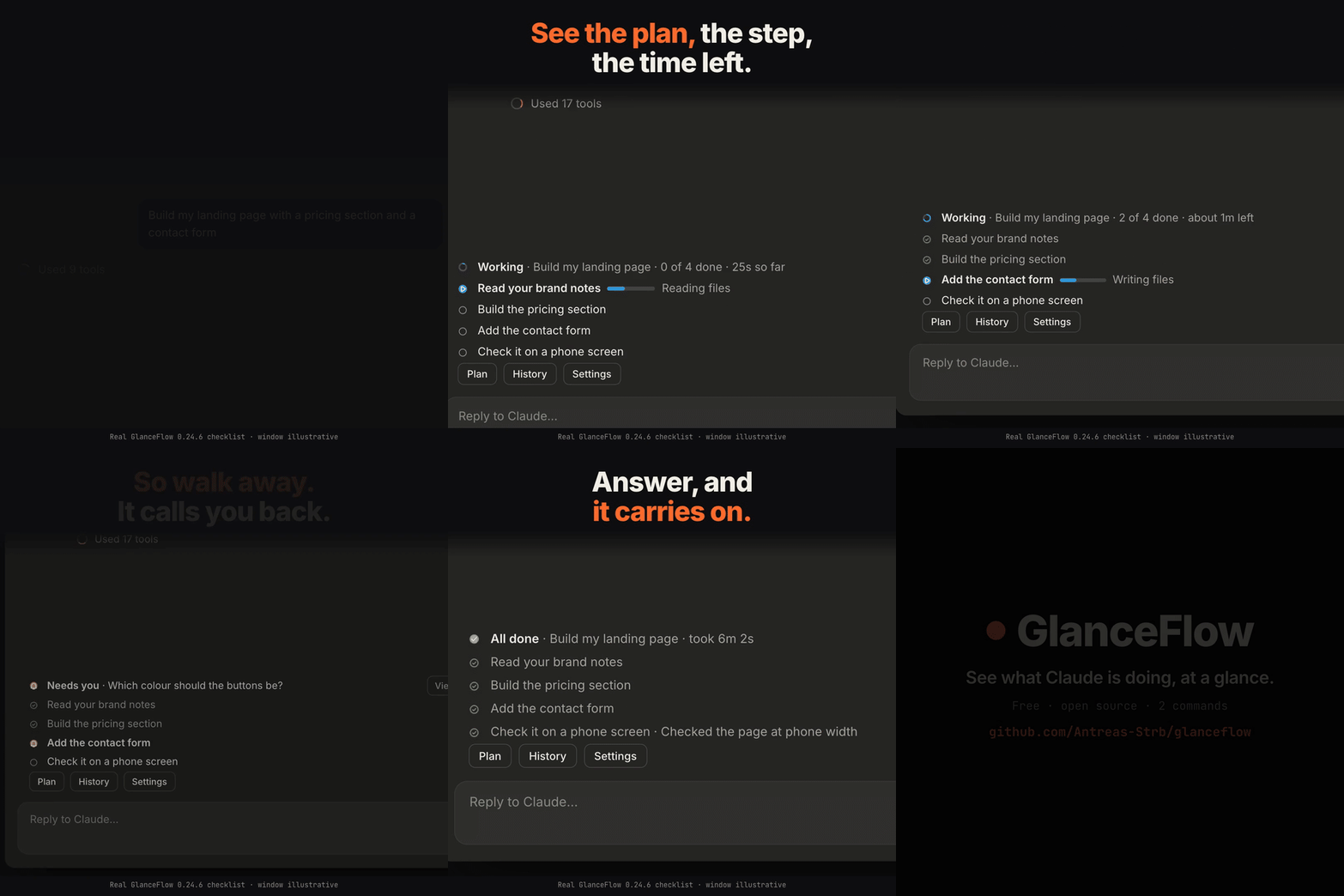
A scripted job: the checklist is drawn by GlanceFlow 0.24.6 itself; the window and the notice around it are illustrative.
Install
You need:
- Claude Code 2.1.288 or later, in the terminal or the Desktop app's Code tab.
- Mods turned on for your account. Run
claude plugin testin any folder: "served off" means they aren't on yet.
Then run:
claude plugin marketplace add Antreas-Strb/glanceflow
claude plugin install glanceflow@claude-mods
Then open a new chat. The first time, three short welcome cards above the prompt show what the checklist is, what Needs you means and where Settings and History are. Press Next ▶ or Skip; /glanceflow tour shows them again.
Update: claude plugin marketplace update claude-mods, then claude plugin update glanceflow@claude-mods, then open a new chat.
Coming from Glance? GlanceFlow is its new name. Uninstall the old one first (claude plugin uninstall glance@claude-mods), then install glanceflow@claude-mods. Your settings and history come along on the first chat; the command is now /glanceflow.
Remove: claude plugin uninstall glanceflow@claude-mods.
For everyone, and for engineers
The button above the prompt cycles Simple → Details → Off; in the Desktop app it is the View menu at the top right, with Simple, Detailed and Off. The view and on/off are remembered after a restart.
- Simple, for people who aren't technical: tool calls, file diffs and command output are hidden. You see only the checklist, plain-English step names and Claude's answers.
- Details, for software engineers: the checklist stays, and the tool calls, diffs and command output stay in view too. Each step also shows:
- its bar filling gradually from a time estimate, with running time and time left, e.g.
62% 1m 52s · ~1m leftin the terminal, orunder a minute leftin the Desktop app; finished steps show how long they took - each helper's type, model and effort, e.g.
Explore · Haiku 4.5 · low effort - tokens per step, new ones first, then the cheaper ones read back from the prompt cache, e.g.
3k new · 45k cached; Claude's final answer counts in the job's total only - plan usage all the time, e.g.
Plan usage: 5-hour 42% · weekly 18% · chat 34% full(Usage:in the Desktop app) - what each job cost, e.g.
$0.42, where Claude Code keeps a cost (pay-as-you-go API use); the History panel shows it per job and per day
- its bar filling gradually from a time estimate, with running time and time left, e.g.
- Off: Claude Code as usual. Only the password guard stays on (it has its own switch in ⚙ Settings).
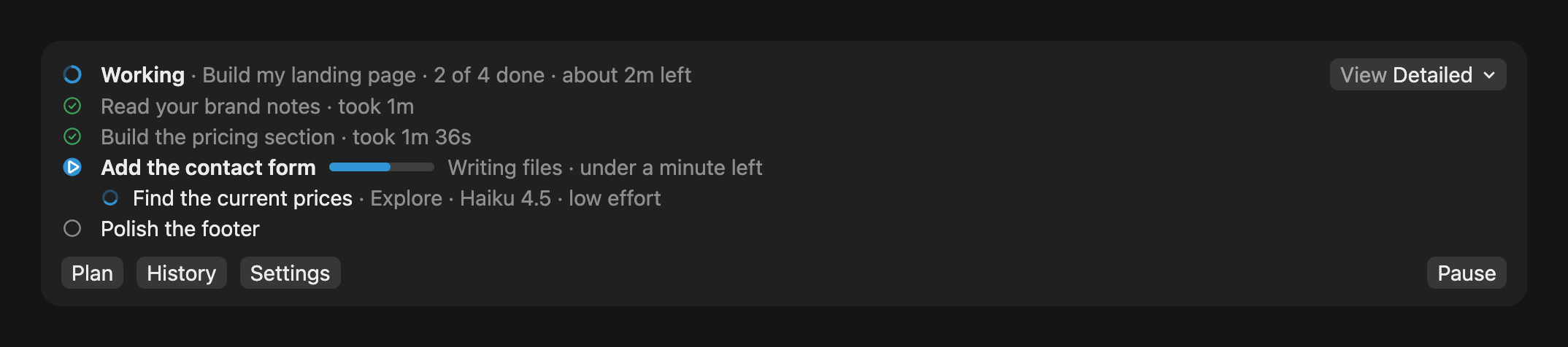
Drawn by GlanceFlow 0.24.6 itself, as the Desktop app shows it, for a sample job. The tool rows in the chat above the checklist are not shown here.
What you get
- Made for the Desktop app: in the Code tab, GlanceFlow draws its own icons, progress rings and slim bars, and lays its rows out for the app's font, so columns line up. Every header reads the same way: the state in bold, then the job and how far it is (
Working · Build my landing page · 2 of 4 done · about 2m left). When the band is narrow, a header leaves out whole pieces rather than cut a word, and its bold words get shorter but stay whole (In the background, thenBackground). A screen reader reads each thing once: a line under a step starts in empty room, and an icon's label never repeats the words beside it (the current step's icon saysNow, a warning's saysNotice). The current step has a blue mark and the only bar; finished steps get a green ringed check; amber always means Claude needs you. The colour sits in the icon, and the words keep the app's text colour, so they read on a light window too. Every control is the app's own button. The View menu (Simple, Detailed or Off) sits at the top right; under the checklist the places to go (Plan, History, Settings) sit on the left, and everything that acts sits together on the right: Where we left off after a tidy-up, Tidy up now, Fresh chat, then Pause, Continue or Start, the main one last. Another mod that draws only buttons (Replay, say) has them join that group. The welcome cards and the empty band keep the same layout. Fresh chat shows once the job has stopped or finished; while a stopped job's chat is full, Tidy up now takes its place. At a usage limit the button reads Check again. Settings are rows with a menu each, as on a Mac. The panels have no extra Close buttons, since the app's own × closes them. The terminal keeps its one-cell symbols: where this README writes ▤ Plan, ≣ History, ⚙ Settings, ‖ Pause or ▶ Continue, the Desktop app shows the same button by its name alone. - Plan first: before Claude uses a tool, it lays out 2 to 8 plain-English steps. A quick question needs no plan.
- Approve the plan first (optional): turn it on in ⚙ Settings or with
/glanceflow approve on, and Claude shows its plan and waits. Press ▶ Start, or tell Claude what to change and it lays out a new plan. - Finish on GitHub (optional): turn it on in ⚙ Settings or with
/glanceflow ship on. In a project that pushes to GitHub, a finished job offers ⇡ Ship it. Press it twice and Claude tidies the changes, commits, opens a pull request, waits for the checks and asks you to approve the exact commit before it squash-merges. If a check fails it stops and shows why. With the Desktop app's auto-archive on, the merged pull request archives the chat, so finished chats don't pile up. - Live progress: each step's meter fills as Claude reports progress. The header shows how far along the job is (the percentage in the terminal; steps done in the Desktop app, where the ring beside it fills) and about how long is left: from the first step once History knows how fast your steps go in this project (a few finished jobs), otherwise after two steps. A step that runs past its usual time says
taking longerinstead of a guess, and the total waits until it can be estimated again. A plan of more than five steps folds its finished steps, and the steps after the next one, into a line each; ▤ Plan shows them all. - What Claude is doing right now: a quiet line says it in one whole sentence: Claude's own description when it fits, like
Now: Check the page on a phone screen, otherwise a short phrase likeReading files (3)orRunning the tests. No file names or commands. In the terminal it sits under the current step; in the Desktop app it follows the step's bar. - What each step got done: when a step is checked off, Claude adds one plain-English line on what it did ("Added a pricing table with three plans"). It shows under the step until Claude moves on, and goes into the History and the Team report.
- Which files changed: ▤ Plan lists under each step the files Claude added or changed in it (
Added contact.html · changed styles.css and index.html), helpers' edits included, and ≣ History shows them under each job. Names only; the folder shows where two files share a name. - Sounds, if you want them:
/glanceflow sound onplays a short chime when Claude needs you, gets stuck, or finishes a job that took over a minute, so you can look away./glanceflow sound voicealso says it ("Claude needs you"). Off by default (turn it on in ⚙ Settings). Works on macOS, Windows and Linux; on Linux it uses the sound player the computer has (PipeWire, PulseAudio or ALSA) and, for the words, speech-dispatcher or eSpeak. - Desktop notices, if you want them:
/glanceflow notify onshows a notice from your computer when Claude needs you, gets stuck, or finishes a job that took over a minute, with the reason in it. You see it even while you work in another app. Off by default (turn it on in ⚙ Settings). Works on macOS, Windows and Linux. - Calm mode:
/glanceflow calm onstops everything that moves (the sweeping bar, the helper spinners) and shows statuses in bold. - Status at a glance: every status says what is happening and, when Claude needs you, where to answer. A finished job whose last message asks you something (a
?, or;in Greek) shows Needs you and chimes, instead of All done. When Claude ends on a question, the Needs you line shows the question itself, in Claude's own last sentence (Which colour should the buttons be?), so you don't have to look through the chat for it. The status line and the desktop notice say the same: one plain line of up to 160 characters, with keys and passwords masked. Claude waiting for its own helpers is never Needs you. - May be stuck: if Claude shows nothing new for 3 minutes while it works (no reply, no step starting or ending), the checklist shows Stuck with
no news for 3 minutesand tells you that Esc stops Claude. With sounds or desktop notices on, you hear or see it too. It clears by itself as soon as Claude moves again. - Helpers and background work: subagents and background tasks show under the step that started them. GlanceFlow doesn't say All done while they still run.
- Password guard: a message that looks like it holds a password, API key, token, card or bank number is not sent. It goes back into the prompt box; send it again within 2 minutes to send it anyway. This guard stays on even when GlanceFlow is off; turn it off in ⚙ Settings or with
/glanceflow guard offif it gets in your way. - Privacy on screen: emails, phone numbers, keys and card numbers are masked in the conversation and in step names. Claude still reads the original text.
- Plan limits: a warning shows at 80% of a plan window (red at 95%) and says when the limit resets (
resets at 18:40); with desktop notices on, you get a notice too. A "Tidy it up" button ("Tidy up now" in the Desktop app) appears when the chat is half full (pick the point in ⚙ Settings). Tidying up first has Claude save a checkpoint of the work (goal, what is done and left, decisions, the next step); the compaction keeps it, and Claude keeps reading it for the rest of the chat, so nothing important is forgotten. Afterwards the checklist offers Where we left off, which shows you that checkpoint in a side panel (also in ⚙ Settings, or/glanceflow checkpoint).
What each status means
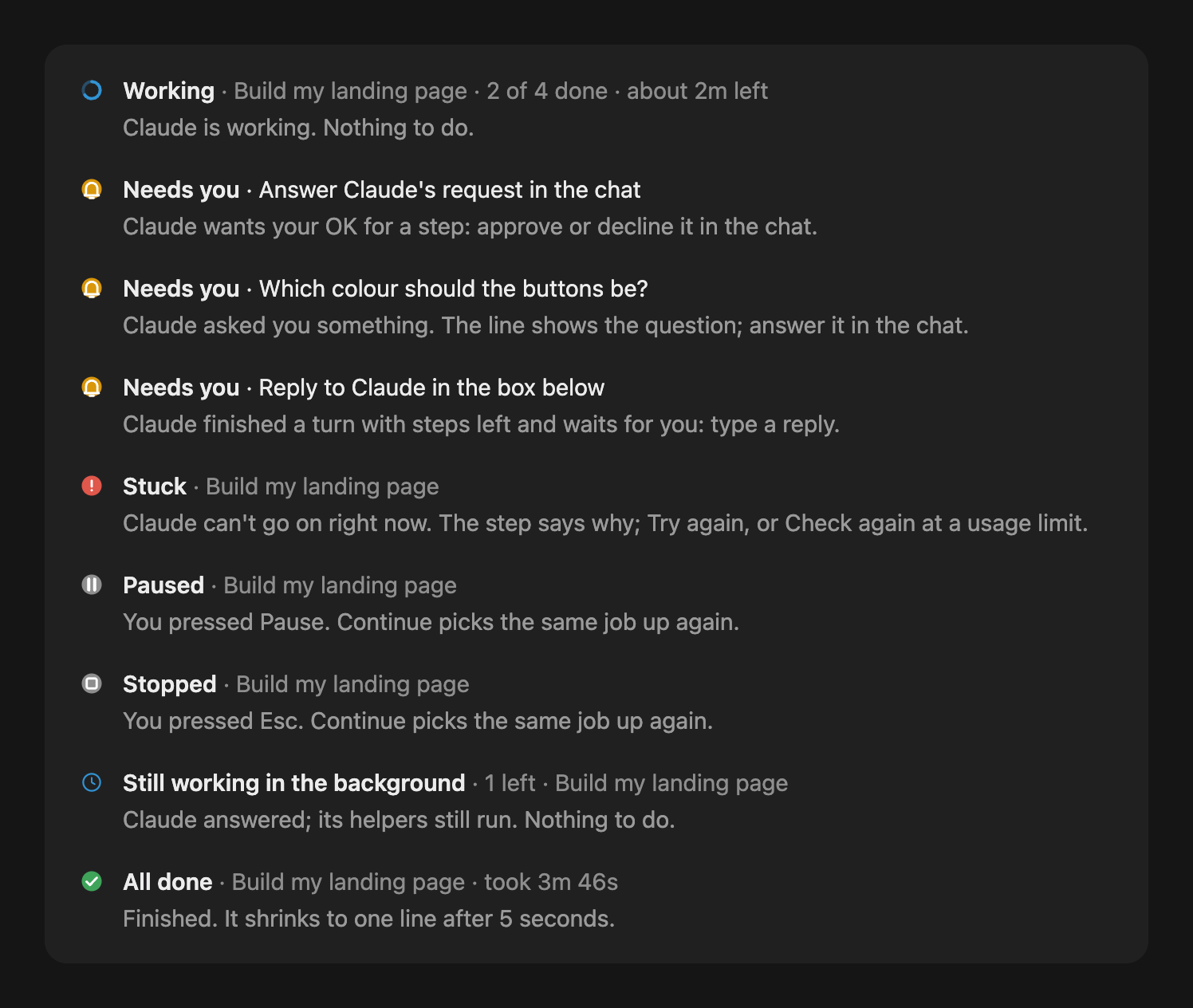
Drawn by GlanceFlow 0.24.6 itself, as the Desktop app shows each header, for a sample job; the line under each says what it means.
Pause and Continue
Under the checklist, ‖ Pause stops Claude while it works, and ▶ Continue picks the same job up again, with nothing to type. Continue also shows after Esc, when Claude got stuck, or when it is waiting with steps left; in the Desktop app, after Claude got stuck it reads Try again, or Check again at a usage limit. The header says ‖ Paused after Pause and ■ Stopped after Esc. /glanceflow pause and /glanceflow continue do the same, and so does typing "continue" (or "συνέχισε") after Esc: the same job picks up, plan and all.
The checklist also survives closing Claude Code: resume the chat (claude --resume, or reopen it in the Desktop app) and it comes back as you left it. Work that was under way shows as ‖ Paused, so ▶ Continue picks it up; a plan waiting for Start still waits. GlanceFlow keeps the last 20 chats this way.
The whole plan
▤ Plan under the checklist (or /glanceflow plan) opens the whole plan in a side panel, with what the checklist has no room for: when the job started and about when it will be done, every step however long the plan, with long names shown whole, what each finished step got done and how long it took, about how long each step still to come should take, what Claude is doing now in its own words, and every helper. In Details it adds the command or file Claude is working on, tokens per step, the job's cost and plan usage. It stays live while Claude works, so the checklist above the prompt can stay short.
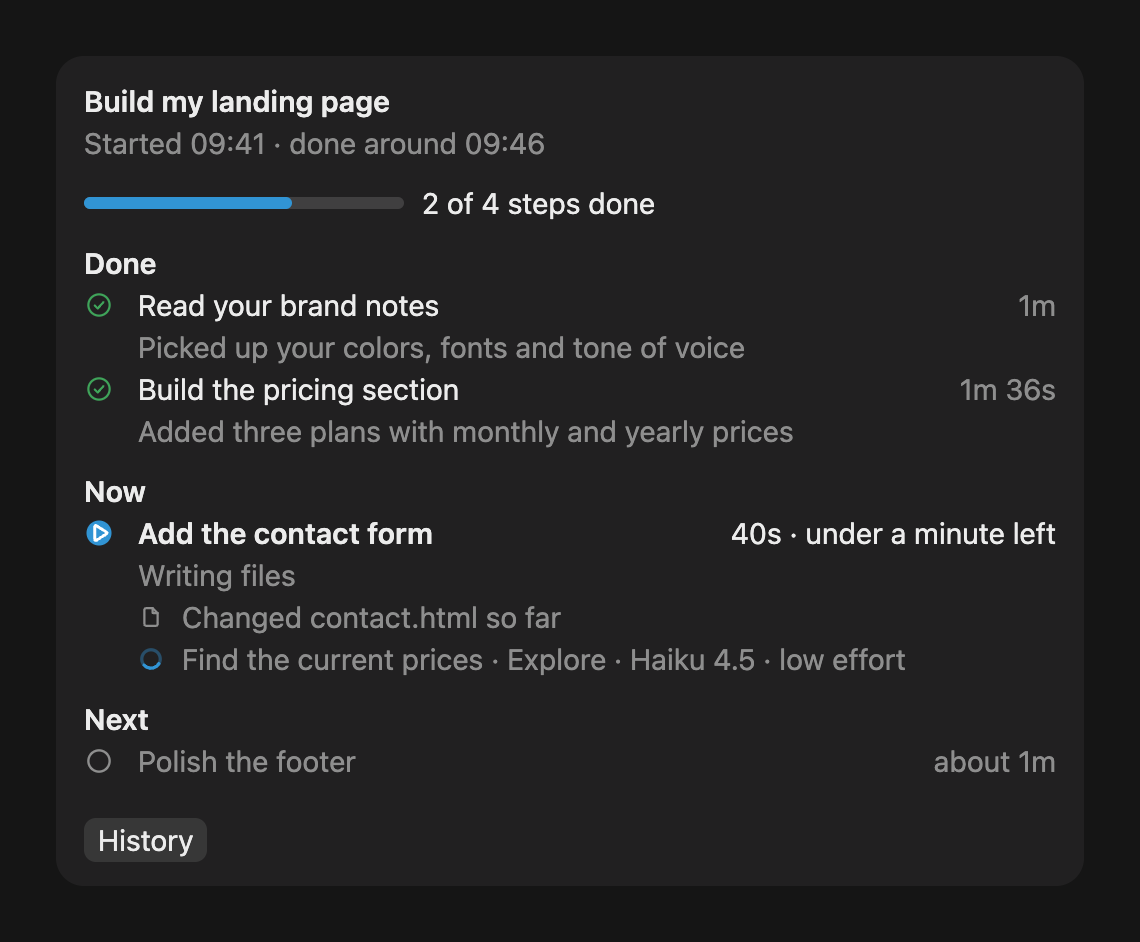
Drawn by GlanceFlow 0.24.6 itself, as the Desktop app shows it, for a sample job.
Settings
⚙ Settings under the checklist (or /glanceflow settings) puts every choice in one panel. Each shows what is picked and a line on what that choice does: the view (Simple, Details or Off), sounds (with ▶ Play it to hear them), desktop notices, other chats (the band names another chat on this computer that needs you, from any project; turn it off before you share your screen, or use /glanceflow others off), calm mode, whether to approve the plan first, the password guard, and when to tidy up the chat (never, or at 40, 50, 60 or 75% full), with a Tidy up now button. Changes apply right away and stay for your next chats.
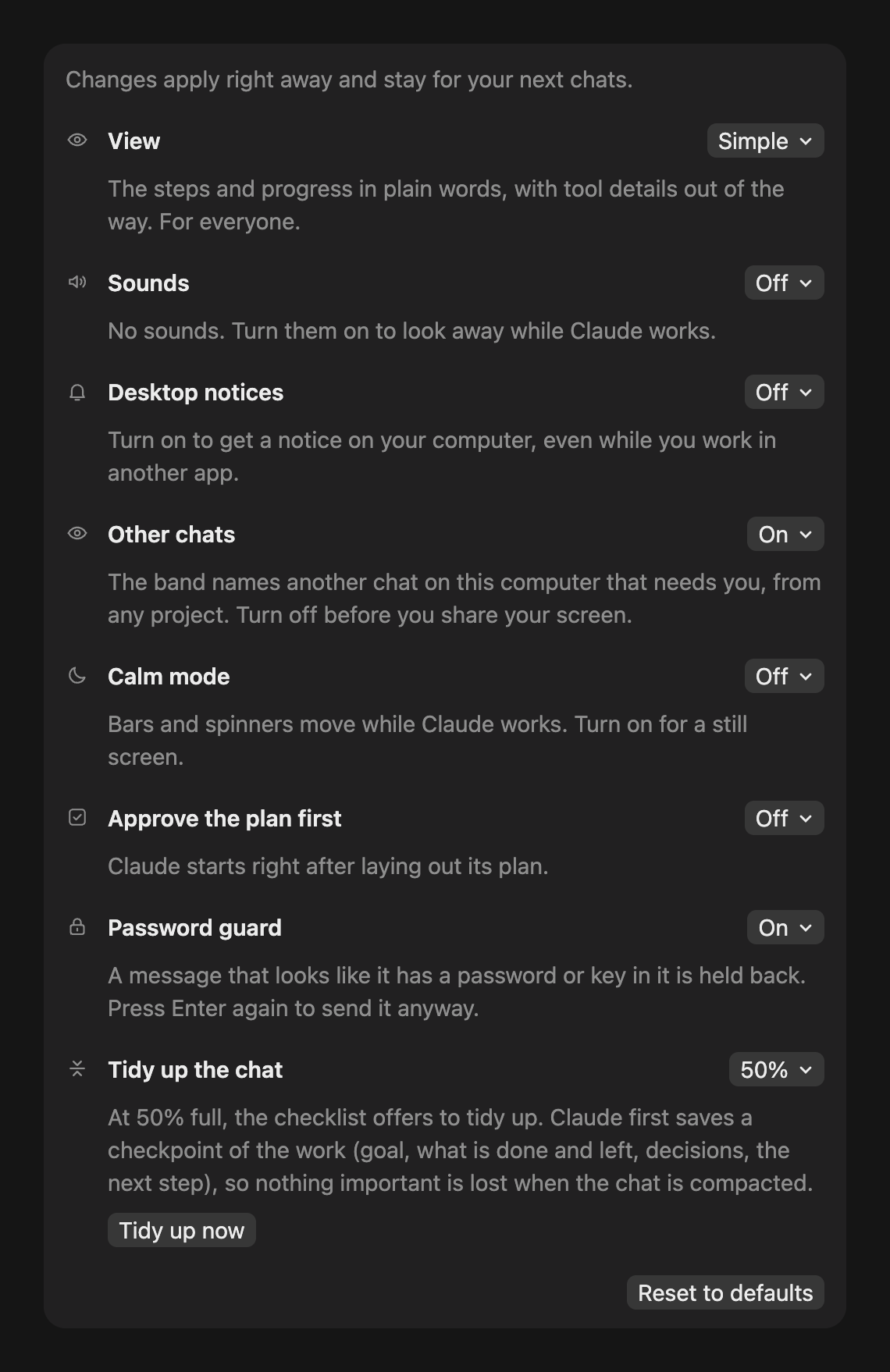
Drawn by GlanceFlow 0.24.6 itself, as the Desktop app shows it, for a sample job.
History for a retro
≣ History under the checklist (or /glanceflow history) opens a side panel with today's jobs in this project: when each started, how it ended (done, stopped or stuck), steps done, how long it took and its tokens, the files it added or changed, with the day's totals at the bottom.
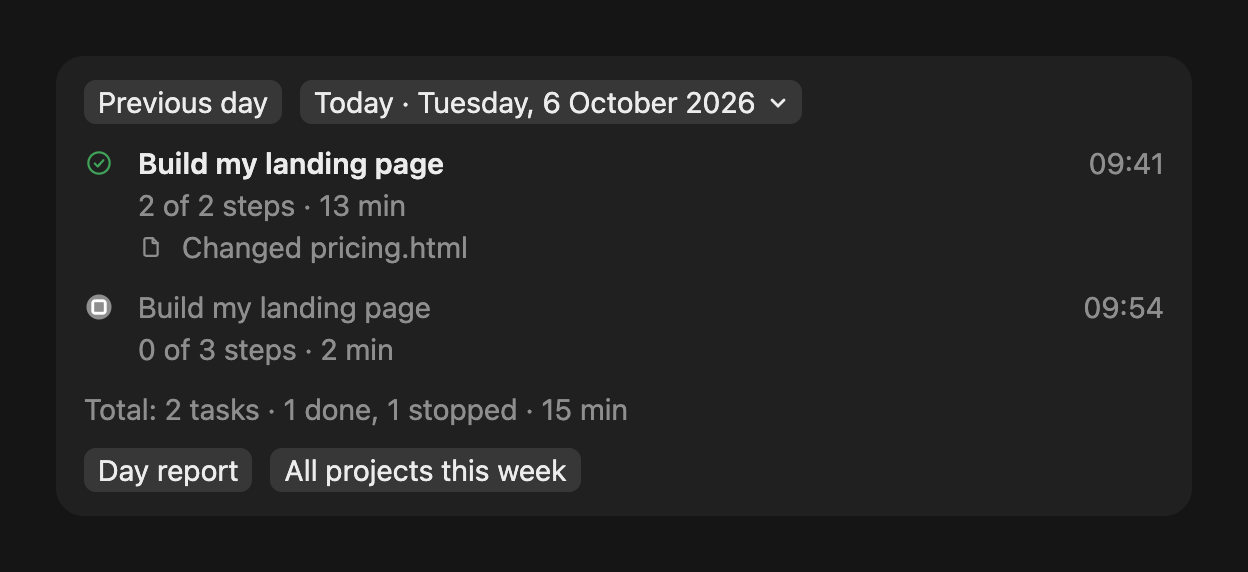
Drawn by GlanceFlow 0.24.6 itself, as the Desktop app shows it, for a sample job.
In the panel, ◀ Earlier, the day drop-down, Later ▶ and Today move between days (Previous day and Next day in the Desktop app) (or type /glanceflow history yesterday, /glanceflow history 2026-10-06). The history stays on this computer and keeps 30 days.
Team report turns the day into a short update in plain words for the team, a manager or a CEO, and copies it to paste into Slack, Teams or an email: what got done (step by step, in Claude's words), what is still open and what is next, what needs a decision, and the time spent. This week switches it to the 7 days up to the day picked, for a weekly update or a retro. In the Desktop app the buttons read Day report and Week report. No tokens, models or file names, and quick questions are left out.
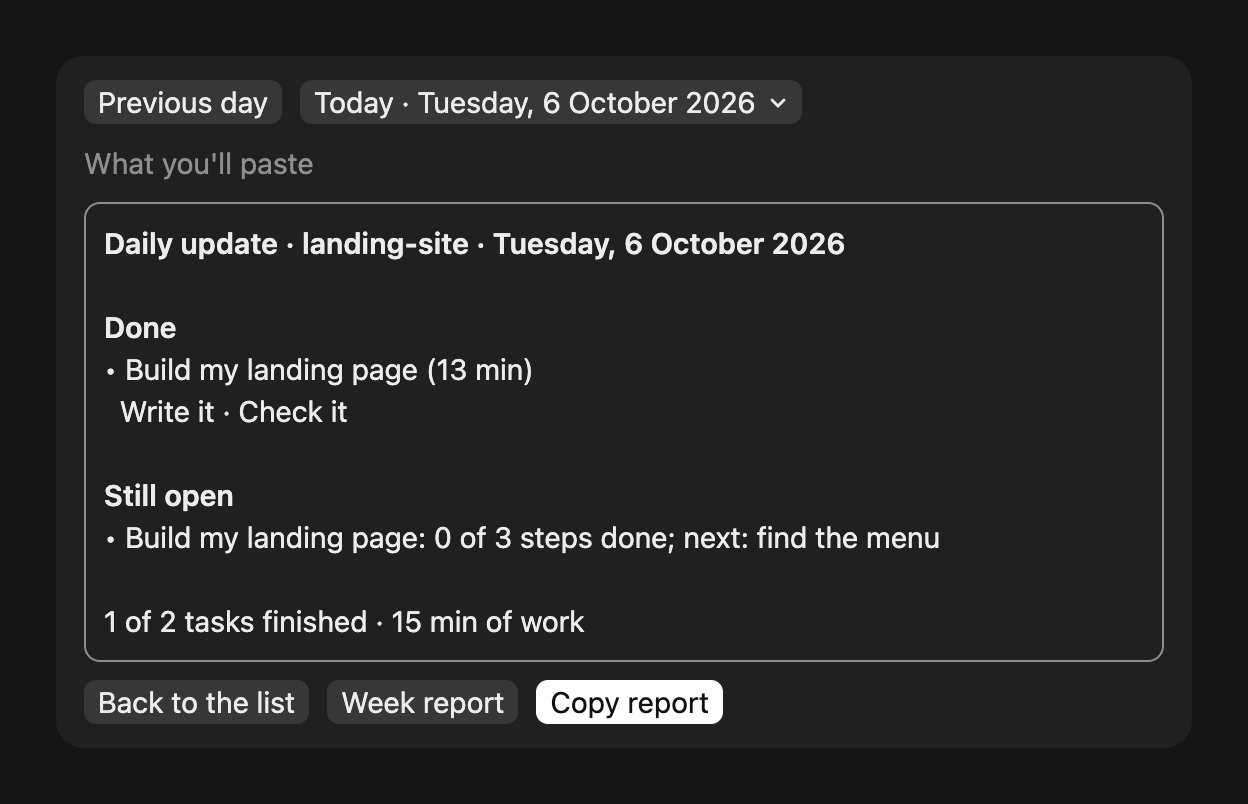
Drawn by GlanceFlow 0.24.6 itself, as the Desktop app shows it, for a sample job.
Your week (or /glanceflow week; All projects this week in the Desktop app) is a short summary just for you, across every project: how many steps Claude checked off in how many tasks, the time at work, your busiest day and the biggest tasks. It covers the 7 days up to the day picked and is copied, ready to keep or share.
Your week with Claude · 30 Sept 2026 to 6 Oct 2026

Claude checked off 23 steps in 9 tasks, and finished 7 of them.
Time at work: 4 h 10 min, across 3 projects.
Busiest day: Tuesday, with 4 tasks.

Biggest tasks
• Build the pricing page (6 steps)
• Write the welcome email (4 steps)
• Fix the contact form (3 steps)
Fresh chat (handoff)
↻ Fresh chat under the checklist (or /glanceflow handoff), shown once the chat has some work in it (in the Desktop app, once the job has stopped or finished; while a stopped job's chat is full, Tidy up now takes its place), moves the work to a fresh chat: when a chat is too long, close to its limits, or whenever you want a clean start. Press it twice (the first press asks to confirm). Claude writes a short handoff note (goal, what is done, what is left, decisions, the next step), the chat is cleared, and the note is sent as the fresh chat's first message. The note is also saved: /glanceflow handoff note puts the last one back in the prompt box.
Ship it (Finish on GitHub)
⇡ Ship it shows once a job is done, when Finish on GitHub is on and the project pushes to GitHub (or use /glanceflow ship). The first press arms it, and a second press within 8 seconds sends Claude the close-out:
- Check git and
ghsign-in. - Run a quick cleanup review of the branch's changes, using ponytail-review or simplify when they are installed.
- Make a Conventional Commits commit on a branch, never the base branch.
- Open a ready pull request with Why, What changed and Verification.
- Run
gh pr checks --watch. Passing checks are not permission to merge: Claude shows the pull request link, the checks and the full head SHA, and asks you to reply exactlyApprove merge <SHA>. Any other reply leaves the pull request open. - Only after that exact reply, run
gh pr merge --squash --delete-branch --match-head-commit <SHA>. If the head changed, Claude asks again. It never merges with--adminor--autoor gets around branch protection: if the merge is blocked, Claude says why and stops. While Ship it runs, GlanceFlow blocks direct merge commands it can inspect unless they use the exact SHA you approved and run on their own, so a failed merge can't pass for a successful one. A merge run through a wrapper such asenv,sudo,evalor( … )is always blocked, and so is agh api,curlorwgetcall that merges a pull request or branch, turns on auto-merge or adds the pull request to a merge queue. An MCP tool that does any of those, such as the GitHub MCP server'smerge_pull_request, is blocked too. GlanceFlow reads the command as written: a merge route or request body built only at runtime through variables, files, scripts, aliases or interpreters is not guaranteed to be caught, so your repository's branch protection remains the backstop.
The steps follow the finish flow of Ponytail, pstack and Cursor's thermo-nuclear code quality review. In the Desktop app, Settings → Claude Code → Auto-archive sessions when their pull request closes then archives the chat.
Commands
| Command | What it does |
|---|---|
/glanceflow |
Turns GlanceFlow on or off |
/glanceflow on, /glanceflow off |
Turns it on or off |
/glanceflow details |
Switches between Simple and Details |
/glanceflow details on, /glanceflow details off |
Picks Details or Simple |
/glanceflow history |
Shows today's jobs in this project |
/glanceflow history yesterday, /glanceflow history 2026-10-06 |
Shows another day |
/glanceflow week |
Your week across every project, in a few lines, copied to share |
/glanceflow tour |
Shows the three welcome cards again |
/glanceflow pause, /glanceflow continue |
Pauses Claude, or picks the job up again |
/glanceflow plan |
Opens the whole plan in a side panel |
/glanceflow settings |
Opens the settings: view, sounds, desktop notices, other chats, calm mode, plan approval, Finish on GitHub, password guard and when to tidy up |
/glanceflow tidy |
Saves a checkpoint, then tidies up the chat |
/glanceflow checkpoint |
Shows where we left off: the checkpoint saved before the last tidy-up |
/glanceflow tidy at 60, /glanceflow tidy off |
When the checklist offers to tidy up |
/glanceflow handoff |
Starts a fresh chat from a handoff note |
/glanceflow handoff note |
Puts the last handoff note in the prompt box |
/glanceflow sound on, /glanceflow sound voice, /glanceflow sound off |
A chime (and words) when Claude needs you, gets stuck or finishes a long job |
/glanceflow notify on, /glanceflow notify off |
A notice from your computer when Claude needs you, gets stuck or finishes a long job |
/glanceflow calm on, /glanceflow calm off |
Nothing moves; statuses in bold |
/glanceflow others on, /glanceflow others off |
Whether the band names another chat on this computer that needs you |
/glanceflow guard on, /glanceflow guard off |
Turns the password guard on or off |
/glanceflow approve on, /glanceflow approve off |
Claude waits for ▶ Start before it works, or starts right away |
/glanceflow ship on, /glanceflow ship off |
Whether a finished job in a GitHub project offers ⇡ Ship it |
/glanceflow ship |
Ships now: cleanup, commit, pull request, merge once you approve |
The button above the prompt cycles Simple, Details and Off; in the Desktop app the View menu at the top right picks Simple, Detailed or Off.
Limits
- The Desktop app draws its own one-line tool summary ("Used 3 tools"); a mod can't hide it.
- The VS Code extension doesn't draw mods yet (anthropics/claude-code#99423), so GlanceFlow shows nothing there. Run
claudein VS Code's own terminal instead, or use the Desktop app's Code tab. - Pattern matching can't catch every secret written in plain words.
- Background tasks are checked at the end of each of Claude's replies.
- Each new job gets a short English name from Haiku in the background: one small model request per job.
Questions and ideas
Ask a question, suggest a feature or show how you use it in Discussions. For a clear bug, open an issue.
Credits
The secret and personal-detail patterns in glanceflow/hooks/privacy.ts are adapted from Nate Herk's Recording Mode (MIT licence). The overall progress and time-left idea comes from his Goal Meter.
License
MIT. See LICENSE. Third-party code is listed in THIRD-PARTY-NOTICES.md.
Reviews (0)
Sign in to leave a review.
Leave a reviewNo results found