clippy
Health Warn
- License — License: MIT
- Description — Repository has a description
- Active repo — Last push 0 days ago
- Low visibility — Only 6 GitHub stars
Code Pass
- Code scan — Scanned 12 files during light audit, no dangerous patterns found
Permissions Pass
- Permissions — No dangerous permissions requested
No AI report is available for this listing yet.
Clippy rebuilt as a macOS agent that can use your computer. It reads your screen and clicks/types the thing

Clippy for macOS (on steroids)
The paperclip grew up. It can see your screen now — and click things.
Ask it to do something on your Mac and it takes a screenshot, reads the
accessibility tree of whatever's in front of you, and does it — instead
of describing the steps back to you and leaving you to click.






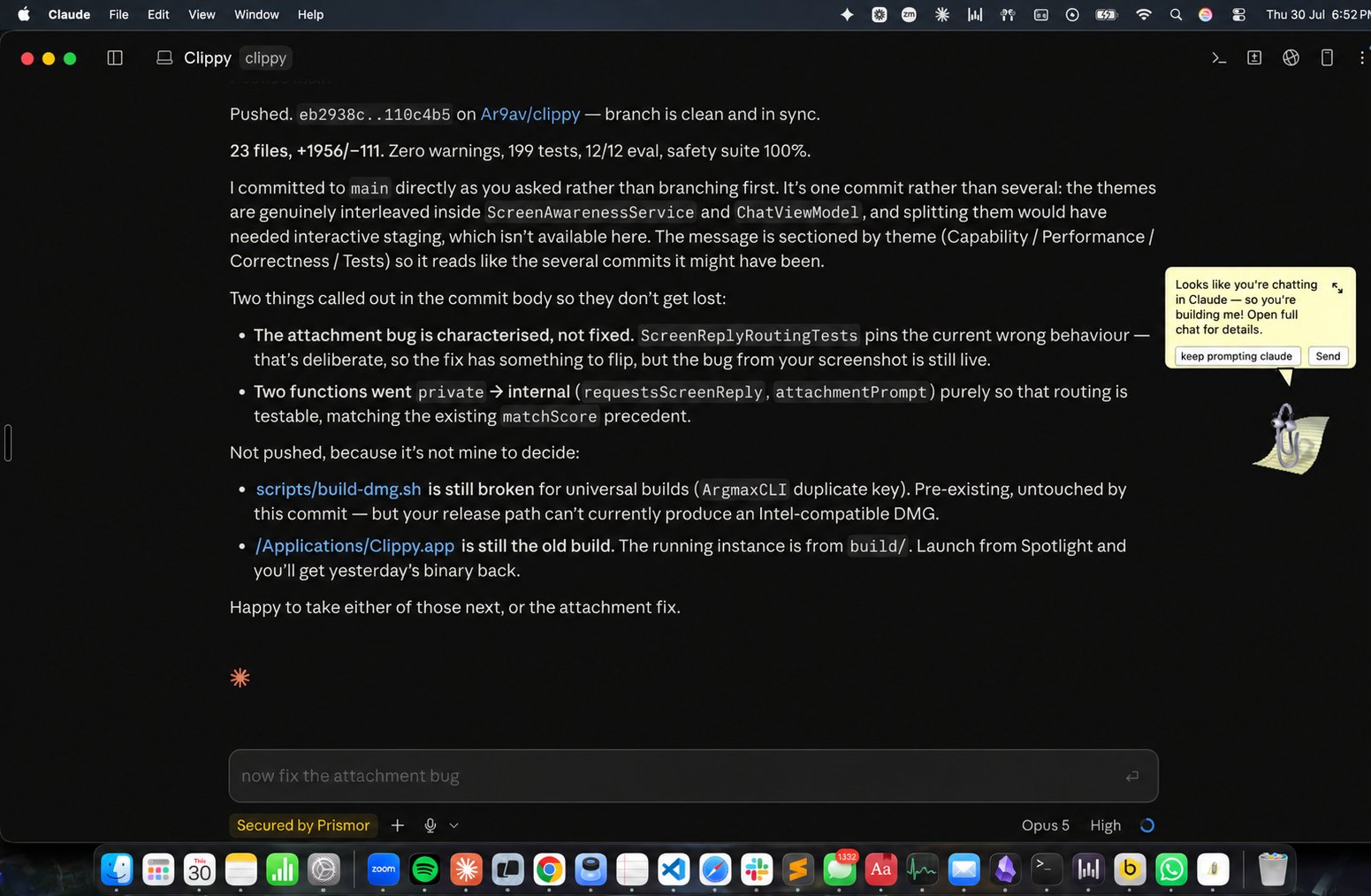
Clippy, live on the desktop, working out on making itself
Why you'd want this
Most "AI desktop assistant" demos stop at chat: you ask, it answers, and
you still do the clicking. Clippy closes that last gap. It's the
difference between:
"To turn on Dark Mode, open System Settings, click Appearance in the
sidebar, then choose Dark."
and Clippy just doing it while you watch the checklist tick over.
It lives as a small floating paperclip on your desktop: short answers come
back in the speech balloon, and the full chat window opens underneath it for
longer conversations, spoken replies, dictation, and file attachments. The
classic assistant experience, minus the 90s bugs.
Things you can actually say to it
| You say | What happens |
|---|---|
| "turn on dark mode" | Opens System Settings, finds Appearance, clicks Dark. |
| "search GitHub for swift accessibility" | Focuses the browser's address bar, types, submits. |
| "what does this error mean?" | Reads the error off your screen and explains it. No copy-paste. |
| "reply to this" | Reads the visible conversation, drafts a reply into the box — never sends it. |
| "put that in the prompt box" | Types the thing you just discussed into the field you meant. |
| "summarise this page" | Scrolls, reads, answers in the balloon. |
| "write a haiku about paperclips" | Just answers — no screenshot taken, streams in instantly. |
[!IMPORTANT]
Clippy stops before anything irreversible. Send, Submit, buy, pay,
delete, agree, and every password field are refused unconditionally — it
gets you to the last step and hands you the keyboard. See
Guardrails.
Install
- Download the latest DMG — one universal build, Apple Silicon and Intel.
- Open it, drag Clippy to Applications.
- First launch: right-click ▸ Open (the build is ad-hoc signed, so Gatekeeper warns once).
- Grant Accessibility and Screen Recording when asked. Without them Clippy still chats, it just can't see or act.
Then pick how it thinks, in Settings: your existing Claude Code or
Codex login (no extra key needed), or your own OpenAI / Anthropic
API key, stored in the macOS Keychain.
How it works
Every screen request runs the same loop, one step at a time:
 look  ──▶  plan one step  ──▶  do it  ──▶  look again  ──▶  done?
   ▲                                                          │
   └──────────────  no: what changed? re-plan  ◀──────────────┘
It never builds a ten-step plan up front and runs it blind — a real screen
rarely matches a prediction, and looking again after every action is how
Clippy notices.
- Looks when it matters, and only then. A request that could be about
your screen gets a fresh screenshot plus an accessibility scan — control
labels, roles, positions, and each control's current state. A
self-contained question ("explain tail recursion") skips the capture
entirely and streams the answer instead. If a skipped look turns out to
have been needed, Clippy notices from its own answer and retries with real
screen context, so a miss costs a second, not a wrong answer. - Reads state, not just labels. Every control reports what's already in
it — the text sitting in a field, whether a checkbox is on or off, what
currently has keyboard focus. That's what stops it retyping a search box
that already holds the right query, or toggling a setting that was already
on, and it's how it confirms a step did what it intended. - Scrolls to find things. An accessibility scan only ever describes
what's on screen right now, so a control below the fold looks exactly like
a control that doesn't exist. Clippy can scroll and look again — a few
ticks at a time, re-observing between them — instead of concluding the
target isn't there. - Retries on its own. A failed step (wrong label, a menu that opened
somewhere else) triggers an automatic retry from a fresh screenshot,
bounded to a few consecutive attempts before it stops and asks you. - Clicks and types by coordinate when labels can't be trusted. Browser
address bars are the classic case: their accessibility label varies by
version, and a page can have a look-alike search box with the exact same
placeholder text sitting right next to the real one. Clippy can click the
literal pixel it sees in the screenshot instead of gambling on a label
match. - Aware of what's already open. Before launching a fresh app instance,
it checks what's already running and prefers switching to it. - Shows its work. Every plan runs through a live checklist (✓ done,
✗ failed, • pending) and, once it finishes, gets posted to the chat
transcript as a permanent record of what actually happened. - Remembers you. Tell it your name, what you're building, or how you
like answers, and it carries that across chats and relaunches instead of
asking again on Monday. Everything it has stored is listed verbatim in
Settings ▸ What Clippy remembers, and deletable one line at a time —
memory you can't see is memory you can't correct.
The name
The paperclip is a nod to Microsoft's old Office Assistant. Everything
else — the screen reasoning, the safety checks, the retry logic — is
original.
It's a solo side project, rebuilt in public commits as bugs turned up from
using it day to day. Most of the interesting work is in getting the
automation to fail safely: a step that can't find its target should stop
and ask, not click something at random.
Guardrails
- Every step is validated before it runs: Send, Submit, publish, buy, pay,
delete, accept or agree, sign out, and password or passcode controls are
always refused. This check is unconditional and independent of
everything else below. - Return is never sent by Clippy, with exactly one exception: submitting a
browser's own address or search field (navigating to a URL or running a
search). Every other field gets typed into but never submitted; you press
Enter yourself. - Secure and password fields are refused outright, regardless of what's
asked. - Scrolling is the one action that runs without confirmation: it only
changes what's visible, commits nothing, and destroys nothing. It still
refuses to scroll a restricted app, since that's still synthetic input
aimed at one. - By default, this build's terminal and agent-CLI restriction is off
(gui-restricted-app,enabled: false): Clippy can click and type into
Terminal, Warp, iTerm, and similar apps, on the reasoning that everything
runs on your own machine and Return still can't be sent there. Flip that
one flag to restore it. - Nothing runs without both Accessibility and Screen & System Audio
Recording permission granted in System Settings. Clippy prompts for both
the first time it needs them.
The rules are a Prismor policy, not Swift
Every refusal above comes fromResources/prismor-policy.yaml — a
Prismor Warden policy file. AutomationSafety.swift
holds no rule text any more; it asks the policy and reports the answer. So
changing what Clippy will and won't touch is a diff to a YAML file, reviewable
on its own, with no rebuild of anyone's mental model of the Swift.
- id: gui-final-action
  severity: CRITICAL
  category: final_action
  title: Control performs a consequential, non-reversible action
  event_types: [ui_action]
  fields: [control_label]
  mode: enforce
  patterns: ['\bsend\b', '\bsubmit\b', '\bbuy\b', '\bdelete\b', ...]
After editing, recompile the form the app loads (CI fails the build if you
forget):
./scripts/compile-policy.sh
It fails closed. A policy that's missing, corrupt, or contains a regex
that won't compile does not degrade into "allow" — Clippy treats every
control as a final action and stops touching the screen entirely. A guardrail
that quietly stops guarding is worse than one that visibly stops working.
[!NOTE]
Clippy's dangerous act is "operate the control labelled Send", which
Warden's originalevent_typesenum couldn't express — it described agents
that run commands and edit files (shell,file_read,network, …). These
rules use aui_actionevent type withcontrol_label/ax_role/app_name/typed_textfields, contributed
upstream along with thetype: vetoallowlist
precedence the address-bar exception depends on. Everything else — severity,mode,add_patterns/disable_patternsand their strengthen-only
semantics — is stock and implemented to match, and the same file loads
identically in Warden and in Clippy.
Build it yourself
Prefer not to trust a stranger's DMG? Fair. Requirements: macOS 14+, Xcode
command-line tools, and Swift 5.10+.
chmod +x scripts/build-dmg.sh
./scripts/build-dmg.sh
The output is written to build/Clippy-macOS-universal.dmg. The included app
runs natively on both Apple Silicon and Intel Macs.
Local builds automatically use the first Apple Development code-signing
identity in the current keychain. This keeps macOS Accessibility permission
stable across rebuilds. If no development identity is available, the script
falls back to ad-hoc signing.
For public distribution without Gatekeeper warnings, set a Developer ID
identity before building:
CODESIGN_IDENTITY="Developer ID Application: Your Name (TEAMID)" ./scripts/build-dmg.sh
Then notarize the resulting DMG with your Apple Developer credentials and
staple the ticket.
Published releases are built the same way by.github/workflows/release.yml, which runs
the tests and the offline safety eval first and refuses to ship a DMG that
lost either architecture slice.
Run the checks yourself with:
swift test                    # 280 unit tests
swift run clippy-eval --offline   # replays recorded screens; safety regression gate
Provider setup
Claude Code
Install Claude Code and authenticate once in Terminal. Clippy finds common
Homebrew, npm, and user-local install locations and runs claude -p.
Codex
Install Codex and authenticate once in Terminal. Clippy runs codex exec with
network and file mutation disabled by the read-only sandbox.
APIs
Select OpenAI API or Anthropic API in Settings, enter a model and API key, then
click Save key. Keys never enter app preferences; they are stored in the
user's macOS Keychain.
Other features
Slash commands.
/clearclears the chat and starts a new session,/helplists everything. Save prompts you use often as your own commands in
Settings ▸ Custom prompts — anything typed after the command is appended, so/review this functionworks as well as a bare/review. Typing/shows
the matching commands above the composer.An editable balloon menu. The floating paperclip's options can be
renamed, reordered, or hidden in Settings ▸ Balloon menu, and any custom
prompt can be surfaced there as a one-click row. Each built-in row keeps its
behaviour — only the wording is yours.Follows your active display. On a multi-monitor setup Clippy moves to
whichever screen holds the app you just switched to, keeping its relative
position, and recovers itself if the display it was on is unplugged.Spoken replies and microphone dictation, with three engines to choose
between — Apple's built-in recogniser (default, nothing to download,
streams as you speak), local Whisper, or local Parakeet v3, which detects
the language itself and is the fastest of the three on the Neural Engine.
Both local engines transcribe entirely on this Mac. Offered once at first
launch and switchable any time in Settings.The local engines record the whole hold and transcribe once you let go —
the pipeline shape Handy uses — so
nothing gets clipped off the end of a sentence, and a Silero VAD drops
silence before the model ever sees it, which is what stops Whisper
hallucinating a "Thank you." into a pause. Local models come from
FluidAudio and
WhisperKit.Push-to-talk dictation — hold a chord to speak, release to stop. Two
destinations:- Hold ⌘⌥ to type into whatever editable field you had focused. If
there's nowhere safe to put it — no editable target, or a password
field, which is always refused — it lands on your clipboard instead and
Clippy says so. Held while Clippy itself is frontmost, it fills Clippy's
composer rather than another app. - Hold ⌥⇧ to send what you said to Clippy as a chat message.
Both work from any app (needs Accessibility; otherwise only while Clippy
is frontmost). Pressing any key mid-hold cancels the recording, so the
chords stay usable as ordinary typing modifiers. Edit ▸ Toggle Dictation
is the hands-free alternative.- Hold ⌘⌥ to type into whatever editable field you had focused. If
Classic Office-style balloon above the floating character, with an expandable full chat window
Live provider-aware work stages, elapsed time, and accessible status announcements
Compact action center for opening trusted apps and common folders
Local Codex and Claude session discovery with explicit resume-in-Terminal actions
Contextual answer actions for copying results and opening cited links
True request cancellation for API calls and local Claude Code/Codex processes
Compact-balloon attachments for images, PDFs, and text/code files: paste images or file URLs directly with Command-V
Persistent conversation history
Optional always-on-top window
Contributing
PRs welcome — see CONTRIBUTING.md for setup, the two checks
CI runs, and what changing a guardrail involves. If you're using Claude Code or
a similar agent, it can read this whole codebase in one pass; just point it at
what you want changed.
Found a way to make Clippy operate a control it should refuse? That's the bug
class this project cares most about — report it privately via
SECURITY.md.
Release notes are in CHANGELOG.md.
Reviews (0)
Sign in to leave a review.
Leave a reviewNo results found