arakun
Health Warn
- License — License: AGPL-3.0
- Description — Repository has a description
- Active repo — Last push 0 days ago
- Low visibility — Only 5 GitHub stars
Code Warn
- process.env — Environment variable access in .github/actions/runner-usage/start.mjs
- process.env — Environment variable access in .github/actions/runner-usage/stop.mjs
Permissions Pass
- Permissions — No dangerous permissions requested
No AI report is available for this listing yet.
Native desktop app for working with coding agents

Arakun
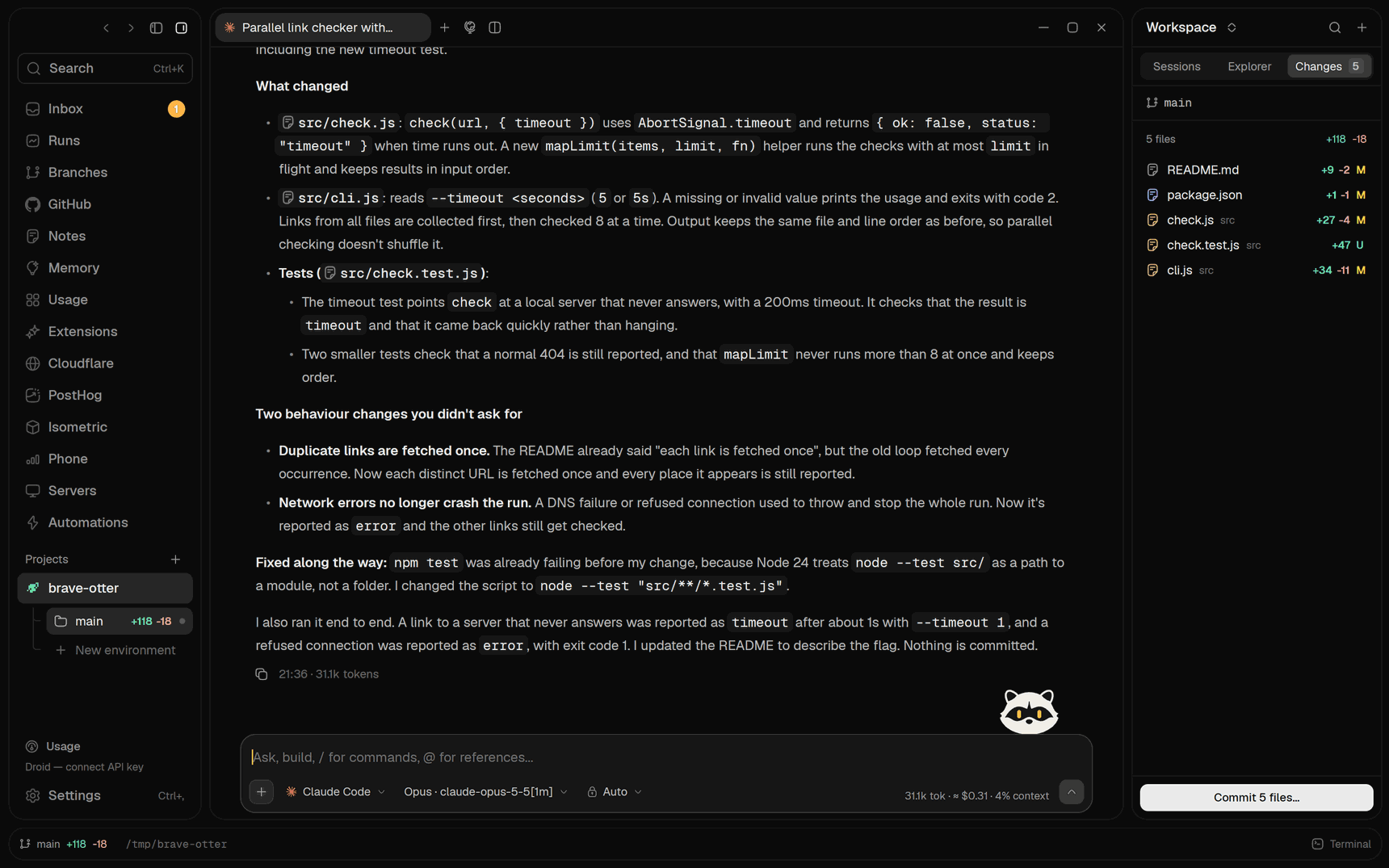
One native window for your coding agents.
Projects, git worktrees, agent sessions, terminals, a browser and GitHub, side by side.
Written in Rust with GPUI.





Install ·
Features ·
Command line ·
Shortcuts ·
Build from source ·
Contributing
Why Arakun
- Many agents, one place. Claude Code, Droid, OpenCode, Codex, Devin, Cursor, Antigravity and Workers AI
sessions side by side. Give each task its own git worktree so the agents don't step on each
other. - The agents can use the app. The
arakuncommand line lets an agent open pages,
read terminals, run the project check and leave you GitHub review drafts. - Know what they are doing. A Dynamic Island, an Inbox and a phone remote tell you
when a session finishes, fails or needs an answer. - Native and fast. A GPU-rendered Rust app, not a web view, with a keyboard-first
palette for everything.
curl -fsSL https://arakun.dev/install | sh # macOS (Apple silicon) and Linux
Windows and other options: see Install.
Features
First launch
Before you have a project, Arakun checks the machine for agents and GitHub, then walks
you through four short steps while a small copy of the window beside them changes as
you pick: the agent new sessions start with, your first project, the color scheme and
sidebar layout, and GitHub, the phone remote and crash reports. Enter goes to the next
step, and on the last one it finishes the setup. Esc goes back one step; on the first
step of a setup opened again, it closes it. Every step can be skipped, and "Skip setup"
leaves it at once. It ends on the start screen of the project
you added, with three shortcuts worth knowing. Open it again with "Show onboarding" in
the palette (Ctrl+K). That it was done is kept instate.onboarding.json, next to state.json in Arakun's data folder.
If Arakun can't read one of its files there (state.json, history.json,prompts.json, the palette's to-dos, rules and pins, the sidebar layout or a memory
store), say one written by a newer version or edited by hand, it renames it to<name>.corrupt-<time> and starts that part fresh, with a notice that says so. Nothing
saves over the copy. To restore it, quit Arakun first (it saves on quit), keep a second
copy of it, rename it back, and start a version that can read it.
Workspace
Sessions in the sidebar. With Focused (Settings › Appearance › Tabs and sessions;
a new install starts on it), the sidebar lists every session of every project, under
its project, archived ones aside (the archived toggle shows them). Each row has a mark for its state: a ring while it works,!when it needs
you, a cross when it failed or its checks failed, a check when its checks passed, a
faint dot when idle. The end of the row says what wants you, or the pull request's
number. By default a project with nothing running folds (Settings can keep it open or
hide it); the project on screen and
any project with a session that works or needs you stay open. Click a project to
fold or open it.Ctrl+click orShift+click picks rows, as described below. This
list takes the place of the Active list and the project's worktrees below. A state
file from before it keeps the projects and worktrees described next (the Classic
layout).Pinned tabs. With sessions in the sidebar, the title bar holds only the
sessions pinned to it, from any project, each with its state's mark and its project's
icon, plus the tab on screen and pages, files and views as before. Pin a session by
dragging its row up to the bar (a line marks where it lands), with Pin to the title
bar in its row's right-click menu, or withAlt+Pwhile the pointer is on its row;Alt+Pon the bar pins or unpins the tab on screen. Closing a pinned tab (Ctrl+W)
or dragging it back to the sidebar unpins it; the session stays in the tree. A
session opened from the tree without a pin shows in the bar while it is on screen.
With nothing pinned, the session you open pins itself. Tabs keep clear of the island
when the window fills the screen, shrink when the bar fills, and the rest go under
N more, which can also unpin the ones that are done. With the sidebar hidden, a
Sessions button with the count of sessions that need you opens the tree as a
menu with a search. A state file from before pins keeps every open session pinned.Active. The top of the sidebar lists the sessions of every project that need
you (waiting for an answer, or failed), then the ones running. A click opens the
session in its project. It stays the same whichever project is open. The open
project's list below holds the rest, so nothing shows twice. Move or remove it from
Customize › Sidebar.One session, one worktree. New session at the top of the sidebar's list, or
Ctrl+T, opens a composer at once and gives the session its own worktree on a random
branch when you send the first prompt, which names the branch. An open worktree is used only while it has no session yet;Alt+click
on New session asks for the branch. A prompt written in the main checkout, such as on
a project's start screen, starts its session in a new worktree too, on a server as here (a server that runs
an older Arakun, or a folder there that is no repository, starts it where it was
written). The sidebar lists each worktree by its session's title.
The main checkout is listed only while it holds older sessions; open it from the
project's right-click menu (Open main checkout, one per machine). Before a
repository's first commit there is nothing to branch from, so sessions start in
the main checkout.Several at once.
Ctrl+click (Cmd+click on macOS) rows of the sidebar's list
to pick them, andShift+click to pick a run of them. In the Active list, either
picks the session's worktree. A bar under them settles their
sessions, closes them (their tabs close and idle agents stop; the worktrees stay), or
deletes the worktrees after one question, those on a server too: each server
deletes its own. Branches stay, and so does the main checkout.Escclears the pick.Projects and worktrees. A rail of projects, each with its environments (the main
checkout plus git worktrees). The default sidebar shows the open project, with the
others in its dropdown, and its sessions as a flat list: a status dot, the title,
and one signal (Needs you, CI failed, Changes requested, Conflicts, or the diff).
An environment needs you when a session asks something, when a session finished a
turn you haven't opened yet, when CI on its branch fails, or when its pull request
has changes requested or conflicts; CI that is still going shows it as running. If
you take the Active list out, Other projects under them lists the environments
elsewhere that run or need you. The dropdown says the same per project. The + on
the Projects heading opens New: a session in the open project or another one, or
a project to add (Ctrl+TandCtrl+Opick them).Ctrl+Shift+Nalways makes a new
worktree at once on a random branch from origin's default branch (usuallymain),
fetched first, or from the project's Base branch set in Settings › Project. When
origin has no such branch it starts from the local one, else the local commit; on a
server, from that server's checkout, with no fetch. File › New Environment with
Options… asks for the branch and where to start from, the local commit among them. Every environment
has its own sessions, terminals and draft prompt. The window has one row of tabs for
all of them: a session, file, diff or browser tab belongs to its environment, and
going to the tab shows that environment. Going to an environment shows the tab it
showed last. With tabs of several environments open, each run of tabs starts with
its environment's name. The Workspace panel shows Sessions, an Explorer and the
uncommitted
Changes; the Branches tab shows the default branch's history, newest first, with up
to three branches as colored lanes beside it (more fold into a list above it). Point
at a commit, or move to it with the arrow keys, to see its author and agent, what it
changed and its pull request. A click or Enter on a commit of a branch opens that
branch.
In the Commit changes dialog, "Write with " writes the message from what
the commit takes (the staged changes, or every change, new files too, when nothing
is staged; up to 60,000 characters of diff and the first 300 files) in the style of
the last commit subjects. As in the pull request dialog, only the agent of the
environment's latest session (with no session yet, the agent its next one would use)
gets the diff: when it isn't set up, no other agent is asked and the dialog says why.
You edit the message before you commit. Closing the dialog while it writes stops the
agent.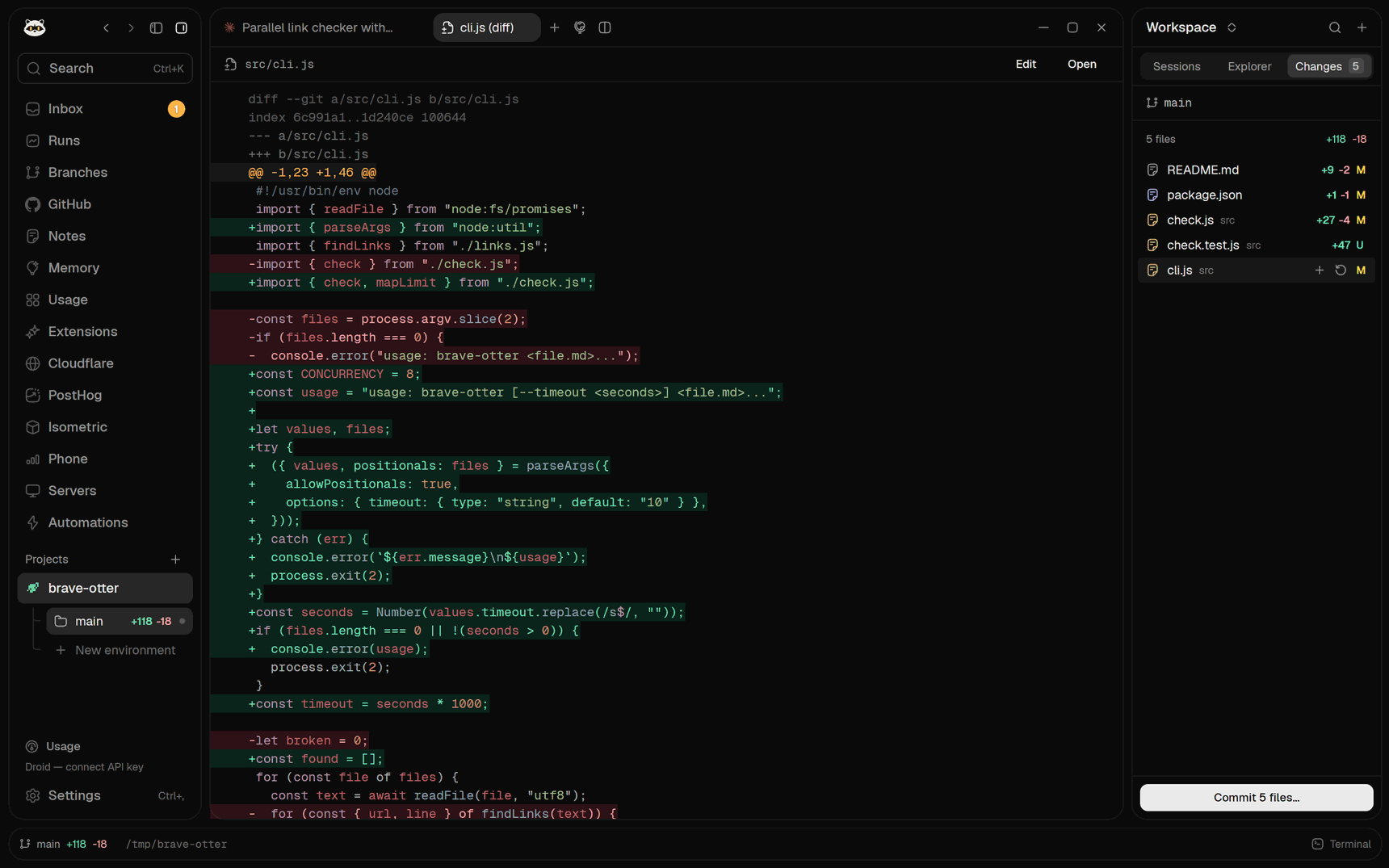
Add or clone a project. "Add project" (
Ctrl+O) searches the git repositories
in your home folder, or browses a path you type (~/code/). Paste a clone URL
(https://github.com/o/r,git@host:o/r.git, agh repo clone o/rorgit clone …
line) or type a GitHubo/rto clone it and add it in one step. GitHub repositories
are cloned withghwhen it is installed, so private ones use its sign-in. The clone
goes in the folder that already holds most of your repositories, or~/code.
With a server connected, the picker also offers to clone the URL on that server,
with its git and logins. The new folder opens in its project once the server has it.
Each project gets its own 8×8 pixel-art icon, drawn from its path. "Edit icon…" in
the project's menu lets you draw it pixel by pixel (mirrored or not), shuffle a new
one, start from a classic drawing, or change its color.Branch names from the task. A new environment starts on a random branch name
(env/brave-otter); after the first prompt, a small model names it after the task
(fix/terminal-tab-name) and Arakun renames the branch. The folder keeps its name. By
default the agent the prompt went to names it, when that is Claude Code (withhaiku)
or Droid, so the prompt goes nowhere else; other agents leave the name alone.
Settings › Branches can pick Claude Code or Droid for every environment, or turn naming
off; it saves that in~/.local/share/arakun/branch-namer.json
(%LOCALAPPDATA%\arakun\branch-namer.jsonon Windows).Archive. Right-click an environment in the sidebar and pick Archive (or pick
several rows and use the bar's archive button): its sessions that aren't working stop
asking for you and leave the lists, the open review threads of its branch's pull
request are resolved on GitHub, and that pull request's notifications are marked read.
A session's own right-click menu archives just that session, without touching
GitHub. An "N archived" row at the end of the sidebar's list (and "N archived
sessions" under the Sessions list) shows them again, a search finds them, and Restore
on the right-click menu or a new prompt brings one back. Agents that are idle and not
open in a tab stop.Archived after merge. Once an environment's pull request is merged (Arakun asks
ghevery few minutes), it is archived the same way: its open review threads are
resolved, its notifications are marked read, and the environment's sessions from
before the merge are archived. The GitHub tab
also marks read the notifications of every merged pull request it reads. Each merge is
archived once, within a week of it; threads that fail to resolve are tried again at the
next few checks. Archived merges are noted in~/.local/share/arakun/settled.json.
On by default; turn off Settings › Branches › Archive after merge (saved in~/.local/share/arakun/settle-after-merge,%LOCALAPPDATA%\arakun\on Windows).Old environments removed. Settings › Branches › Remove old environments (Off, 7, 14
or 30 days) removes an environment's worktree once its
pull request is merged or closed and it sat unused that long. Arakun checks every hour,
askinggitandgh. An environment stays when it has uncommitted or untracked files,
git-ignored files other than build output (target/,node_modules/and the like),
a commit that isn't in the pull request, an agent working or waiting for you, an
automation that is on and runs in it, or is the one on screen. The branch is kept. Off by default; the first time an environment
would have gone, a notice suggests it once. Saved in~/.local/share/arakun/env-cleanup
(%LOCALAPPDATA%\arakun\on Windows).Terminals. A dock of terminals per environment (alacritty_terminal; ConPTY on
Windows), numbered so agents and scripts can read them witharakun logs.Running servers. While a local server runs in one of your projects, the status
bar says how many do and the memory they hold (2 running · 780 MB). A click
lists them by project: the port, the command, who started it (a dock terminal, an
agent, or something outside Arakun whose folder is in an environment), its memory
and how long it has run. Under the pointer a row can open the port in the browser,
show its terminal or stop it. Stopping ends that process and what it started,
never the terminal's shell or the agent. The Running piece (Customize ›
Sidebar) opens the same list from the sidebar, with the count on its icon.Built-in browser. Browser tabs based on CEF (Chromium Embedded Framework), behind
the optionalbrowsercargo feature. Agents can drive pages on localhost througharakun page(screenshot, console, click, type, eval). Links you click open in a
browser tab; turn off Settings › General › Open links in Arakun to open them in your
own browser instead. That covers links from sessions, the GitHub view and pins; a link
clicked inside a browser tab always stays in Arakun. Builds without the browser open
links in your own browser from the start. The choice is
saved in~/.local/share/arakun/open-links(%LOCALAPPDATA%\arakun\open-linkson
Windows). A link to a pull request or issue on the hostghis signed in to opens in
the GitHub tab instead, from a chat, a terminal (⌘-click, Ctrl-click elsewhere), the
palette, the pull request button or a session card's pull request chip; its "Open on
GitHub" opens the page. A tab shows its site's icon even before its page loads again:
the icons that loaded are kept, by site, in~/.local/share/arakun/cache/favicons/
(%LOCALAPPDATA%\arakun\cache\favicons\on Windows), never in redacted mode.
Inspect (F12) opens Chromium's DevTools in a window of its own. The browser opens no
remote debugging port unlessARAKUN_CDP_PORT=<port>is set, for tools such as
Playwright. That port has no password: any program on the machine can use it to drive
your signed-in browser and read your files, sandboxed agents and other users included.
Agents may not open or drive pages on it.
Agents
| Agent | How Arakun runs it |
|---|---|
| Claude Code | Through the ACP adapter @agentclientprotocol/claude-agent-acp |
| Droid | Factory's droid CLI |
| OpenCode | The opencode CLI |
| Codex | Through the ACP adapter @agentclientprotocol/codex-acp, which brings its own codex |
| Devin | The devin CLI (devin acp) |
| Cursor | The Cursor CLI (cursor-agent acp) |
| Antigravity | Google's agy CLI (agy acp) |
| Cloudflare Workers AI | A tool loop Arakun runs itself against the Workers AI API |
The Claude Code adapter runs the Claude Code binary bundled with it (the claude on
your PATH only when that one is missing; CLAUDE_CODE_EXECUTABLE picks another), so
its version can differ from the claude in your terminal. It loads your user, project
and local settings, so your skills, hooks, plugins, MCP servers, CLAUDE.md and
permission rules work as they do in the terminal. It leaves out commands that only make
sense in the terminal app: /clear, /cost, /keybindings-help, /login, /logout,/output-style:new, /release-notes, /todos and others Claude Code marks as
terminal-only. The status line and keybindings from your settings don't apply in Arakun.
Workers AI reads the project's AGENTS.md (or CLAUDE.md) and can use skills: a
folder with a SKILL.md in ~/.claude/skills, ~/.agents/skills, the project's.claude/skills or .agents/skills, or a Claude Code plugin you turned on. Its system
prompt lists each skill's name and description, and the agent loads a skill's
instructions when a task matches it or when you type /<name>. A skill in your home
folder wins over a project skill with the same name. A headless session's sandbox only
sees the project's skills.
Agent sessions. Transcripts render markdown, diffs, tool calls and images;
sessions can be resumed, and per-turn diffs show what each turn changed, including
changes made by shell commands (files over 1 MB are left out). Each transcript is kept
insessions/in Arakun's data folder until you delete the session or remove its
environment or project, which deletes it at once. At startup, Arakun also deletes the
files of a session its state has not listed for a week, such as one whose worktree was
removed outside Arakun. It keeps the sessions it has seen instate.json.seen, next to
the state file (theARAKUN_STATEfile when that is set), and never deletes a file
whose session it hasn't seen listed. A headless session keeps its file while its folder
underheadless/in Arakun's data folder is there.Project check. A per-project command (
cargo test,npm test...) runs after each
turn that edits files; on failure the tail of the output goes back to the agent, up to
three times in a row. Checks run one at a time across all sessions, at low priority and
with half the cores for builds (CARGO_BUILD_JOBS), so several agents finishing
together don't stall the computer. Set it, and the setup script new environments run,
in Settings › Project or the project's menu. Arakun also notices when an agent loops (the same
failing command or the same edit over and over) and offers to stop and rethink.Memory. Agents save what they learn (
arakun mem), and every new session starts
with an index of it in the system prompt. Plain JSON files, one per repository plus a
global one.arakun mem scriptslists the scripts agents wrote again and again in a
project's sessions, worth keeping as a script of the project.Secrets on a card. When an agent needs something only you can give, such as a
login, an API token, a PIN or a pairing code, it asks with a card in the session
instead of a message. The card shows what it is, why the agent needs it and, when
there is one, the page to sign in or make it. Its inputs are masked (the eye shows
what you typed, and nothing copies out of them), and Save or Decline
answers. The agent gets asecret-ref:handle per field, never the value, and the
transcript records only whether you saved, declined or the request was cancelled.
A request is cancelled when you stop the run, send a new message, the turn ends,
or 10 minutes pass. Claude Code, Codex and Droid sessions on this computer have it
through Arakun's MCP server (arakun mcp, which Arakun starts for each session);
the phone and sessions on a server don't show the card yet. Saved values stay in
Arakun's memory only, for 24 hours or until a handle is used.Headless agents.
arakun agent runstarts an agent in its own process that keeps
going with the app closed. Its tools run inside a sandbox (workspace writable, the
rest read-only, no credentials, no network unless--allow net), and a policy
(--policy readonly|workspace|full) decides which tool calls need your approval
(arakun agent approve|deny). The sandbox is bubblewrap on Linux (needsbwrap) and
Seatbelt (sandbox-exec) on macOS; headless runs use Workers AI models for now.Sandboxed agents. Turn on Sandbox agents in Settings › Project and the agents
of that project's sessions run in a sandbox: Seatbelt on macOS, bubblewrap on Linux
(needsbwrap). They can write the environment, the repository's Git folder (not
its config or hooks), package caches and temporary folders; other tools' logins and
tokens (GH_TOKEN, cloud keys), browser profiles and files that look like secrets
(.env, keys) stay hidden. On Linux only the secret files a scan finds at the
start are hidden (up to 8 folders deep, 50,000 entries, skippingnode_modules,targetand the like); macOS also hides ones made later, by name. An environment
whose.gitfile leads to a folder its repository doesn't list won't start. They
keep the network and their own login (on macOS the keychain), and reach Arakun
through a socket of their own that refusesarakun run,arakun agentand anything
else that would act outside. On Linux, sandboxed Claude Code keeps its settings in~/.claude/.claude.json(a copy of~/.claude.jsonat first), because bubblewrap
can't let it write beside the file in$HOME. Workers AI sessions and Windows can't
be sandboxed yet. A sandboxed
agent can still change what you later run outside it: the project's files, and its
own settings such as~/.claude.json.SSH in a session (Linux and macOS). To use a build machine from a local
agent session without installing Arakun there, open Connect SSH in that
session. Sandboxed sessions can't use it: it would lend them your local SSH
agent. Enter the literaluser@hostand port. Compare the ED25519
fingerprint with one you got from the machine's administrator or console
before trusting it. The account needs a key already loaded in your localssh-agent; Arakun uses system OpenSSH, without SSH config aliases, password
prompts or agent forwarding. The remote account's permissions apply.Tell the agent about the connection to let it suggest a command. Review
the exact command and run it once, or enter one yourself. Each run starts a
fresh non-interactive shell: acddoesn't carry over. A run is limited
to 10 minutes and 64 KiB of combined output. Output stays in
the panel unless you share it with that session. Disconnect cancels the
local SSH client and forgets the connection; it cannot undo a command or
guarantee that a process on the remote machine stops. Connections are not
saved across restarts. The panel is not a boundary: an agent that isn't
sandboxed runs as you and can reach yourssh-agentwithout it. Sandbox the
project to keep your SSH keys from the agent.Server.
arakun server serveis Arakun without a window, for a machine nobody
sits at: a build box, the workstation at the office, a VPS. It runs sessions of any
agent signed in on that machine and keeps them going while nothing is connected.
Paired devices reach it the way phones reach the app, with the same page, pairing
and notifications, and the app follows them in its Computers tab; agents ask for
permission as they do in the app, and you answer from wherever you are.arakun-serveris the same server as a program of its own that needs no display
library. See Server.
GitHub
- CI and checks. GitHub Actions runs for each project, with jobs, annotations and
the failing log, read through theghCLI. - Create a pull request. The pull request chip of the Changes panel opens the
branch's pull request, or a dialog that creates one: the title (from the first
commit), the branch it merges into (the remote's default one; type another for a
stack), and the description GitHub's own form would start with (the repository's
pull request template, else the commit messages). It opens as a draft unless you turn
that off, pushes the branch first when it has commits GitHub doesn't, and then shows
the new pull request in the GitHub tab. "Open GitHub's form" opens the page in your
browser instead, to write the description there. "Write with " has the agent
of the environment's latest session (after "Continue with", the one it went on with;
with no session yet, the agent its next one would use) write the title and the description from the branch's commits, its diff (up to 60,000
characters) and the template. Only that agent gets the diff, since you already chose
that provider for this code: when it isn't set up here, no other agent is asked, not
even the one picked for naming branches, the description stays the template or the
commit messages, and the dialog says why. The button names the agent, so you see where
the diff goes before you click. It answers once, in an empty folder, with as little reach as its CLI allows: Claude Code, OpenCode and
Workers AI with no tools, Codex in a read-only sandbox without its shell or your Codex
config, Droid withdroid exec(read-only), Cursor in ask mode and Devin in its
default mode, which only reads.
Nothing goes to GitHub until you create the pull request. - Queue. The GitHub tab opens on one line that says how many things need you,
then a quiet list grouped by where each pull request stands (Needs you, Stuck,
pilot is on it, Waiting on CI, Waiting on others, Ready to merge), stacked pull
requests under their base, and what was merged today folded at the bottom. With
arakun-pilot (below) the list is its board; without it, the review queue: pull
requests whose review is asked of you, mentions and assignments, your own open pull
requests, the open issues assigned to you ("Assigned issues"), what is ready to merge
and what was done today, read from your notifications and searches through thegh
CLI and its session. It opens before you add a project too. - Pull request sheet. A row opens a sheet on the right with where the pull request
stands, who has it, what comes next, the checks and the stack, then tabs for what
pilot did, the conversation, checks and files. On a window under 1000 pixels tall the
details fold to one line (status, checks, review and merge) so the tabs keep the room;
"All details" (D) unfolds them and "Fewer details" folds them again, and the choice
stays for the next pull request. The box at the bottom comments (Enter
or "Comment"), and says why when a comment doesn't go out. Approve, request changes
and merge ask a second time, and an approval or a merge stops if new commits came
after you looked. - Agent fixes. When a pull request conflicts with its base branch, "Fix conflicts"
starts a session that merges the base in (no rebase), settles the conflicts, runs the
tests and commits the merge. When it has open review threads, "Address N comments"
starts a session with those threads (CodeRabbit's too): the agent fixes each one or
says why not, and lists a reply per thread for you to post. Neither pushes, replies
or resolves anything on GitHub. In the box,/conflictsand/commentsdo the same. - Failed checks. When checks failed, the Checks tab says how many, and a failed
GitHub Actions job opens the end of its failing step's log under its row (the link at
the end of the row opens its page). "Re-run failed" starts the failed jobs again
(gh run rerun --failed) once their run has finished. "Fix with agent" starts a
session with the failed checks and the logs you opened; the agent fixes it in the
checkout and doesn't push. - Review comments. Under each thread on the diff, "Reply" answers it and "Resolve"
(or "Reopen") marks it. In the Files tab, the open threads show under their lines,
and a click on a line writes a comment on it. Those comments are kept as pending
(only until you quit) and "Submit review" posts them together as one review;
"Discard" drops them. After new commits, submit or discard the pending ones before
you comment on the new diff. - Agent reviews. An agent can review a pull request for you and leave a draft
(arakun github draft) that you post, edit or discard. Posting a draft asks a second
time, and an approval goes out only for the commit the agent read: after new commits
the draft can only be posted as a comment. - Issues. An issue's sheet has "Work on it with agent" (a session that makes the
change in the open project, and leaves git and GitHub to you), "Close issue" and, on
a closed one, "Reopen issue"; both ask a second time. In the box,/work,/close
and/reopendo the same. - Alerts and filters. A pending review request alerts once per pull request.
New activity in the thread does not ask for the same review again. Mentions,
assignments and other activity from watched repositories still alert as before. Click the
repository line above the verdict to show only some organizations or repositories; the rest
doesn't show, count or alert. "Mark all read" marks only what that choice shows. - Pull request agent. With a pull request agent on a server of your own
(arakun-pilot), Ctrl+K "Connect arakun-pilot…" (also in the GitHub tab's…menu,
and under an empty queue) asks for the Worker's address, its token and, to send it
tasks, its admin token; it checks the token against the Worker before it saves them
(the admin token is saved unchecked, since only sending a task tries it), and
later "arakun-pilot settings…" changes them or disconnects. Under that row the…menu says how pilot is doing ("Connected to … · read 2 min ago", or what is
wrong), and when pilot can't be read, or its settings file can't be used, the
queue says why with a "Settings…" link to the form. From a terminal,arakun github pilot connect <url> --token -(the token on stdin) does the same;arakun github pilot statussays whether they still work andarakun github pilot disconnectremoves them. A token never goes in the command line,
wherepsand shell history would show it:--token -reads it from stdin, elseARAKUN_PILOT_TOKEN, else the token already saved for the same address. The admin
token comes the same way, from--admin-token -orARAKUN_PILOT_ADMIN_TOKEN(only
one of the two can come from stdin);--no-admin-tokenremoves the saved one, and--no-checksaves without asking the Worker first. An empty stdin is an error. The tokens
go in the system keyring and the address in~/.config/arakun-pilot/client.json
($XDG_CONFIG_HOMEwhen set to an absolute path;{"url": "…"}, readable only by you), and
Arakun readsGET <url>/boardandGET <url>/itemsevery minute. Atokenoradmin_tokenwritten in that file by hand moves to the keyring the first time Arakun reads
it. A test Arakun withARAKUN_STATEset, asarakun devstarts one, readsarakun-pilot/client.jsonin the folder of that state file instead, and keeps its own tokens.
Theurlmust behttps://; plainhttp://works only forlocalhost,127.0.0.1
and[::1], so the tokens never cross a network unencrypted. The board fills the
queue; the rows pilot doesn't follow fold under "More on GitHub". When pilot
asks you something, the sheet shows the question with one button per answer and
"Other answer…" for your own words ("Answer…" when there are no ready answers;POST <url>/items/<id>/answer), and the notice in
the island opens that sheet over whatever window is in front (Esc gives it back).
Without a board, the notice opens the pull request's sheet, which doesn't show the
question: answer it on pilot's card in the queue. On your own pull requests, "Ask pilot" in the sheet sends what you
typed as a task (POST <url>/tasks, which needs the admin token).
While the Worker has no board, its cards show at the top of the queue under "Your
agent". With a board, a card about a pull request the board follows shows under
"From pilot" in that pull request's sheet, and the rest in a "From pilot" group at the
top of the queue. "Looks good" approves the commit pilot read, and both it and
request changes go through the same second click. What you saw and dealt with is
kept in~/.local/share/arakun/pilot.json(%LOCALAPPDATA%\arakun\pilot.jsonon
Windows; next to the state file whenARAKUN_STATEis set). Ctrl+K "Send to the cloud agent…" (or typecloud: <task>) hands it new work, on the open pull request of yours picked in the tab
or on a new branch (POST <url>/tasks); that needs the admin token
too. On that cardTabswitches between your pull request and a new branch (see
Keyboard shortcuts).
Arakun reads GitHub in the background only after you open the tab once, and stops whilegh is missing or signed out. It keeps the watch list, the filter choice, the comment order and whether you
opened the tab in github.json next to its state, drafts in github/drafts/ beside
them, and the profile pictures it shows in github/avatars/ (each downloaded again
after a week).
Stay in the loop
- Dynamic Island (Linux on Wayland, macOS and Windows). A small overlay at the top of
the screen that shows what the agents of every project are doing: a dot per busy
session, a card when one finishes, fails or needs an answer. It runs as its own process
(arakun island-host). On Linux it needs a compositor with the wlr-layer-shell
protocol. On Windows it sits at the top center of the main screen; see
docs/windows.md. There it also shows agents that run outside
Arakun, such as Claude Code in another terminal: their hooks callarakun island hook, and any other agent can usearakun island session <id> <state>.
The setup is in docs/windows.md. On a MacBook it grows out of the notch, or out of
the screen's own Dynamic Island on the models that have one, and sits on the built-in
screen. On a Mac without
either it hangs from the top of the main screen. Turning it off in Settings ends that
process. If it reads the cutout wrong, setARAKUN_ISLAND_EDGEtoflat,notch:<width>x<height>orpill:<width>x<height>+<gap to the top>, in points. - Keep running in the background (Linux). Off by default; turn it on in Settings ›
General. Closing the window then hides it instead of quitting, so agents, terminals and
the island go on. On Hyprland the window waits in the special workspacearakun, on
Sway in the scratchpad, and elsewhere it is minimized. Runarakun(orarakun show,
or open it from the app launcher) to bring it back, andarakun quitto quit.
A desktop other than Hyprland and Sway may not raise a minimized window when asked
(GNOME and KDE on Wayland can refuse); click Arakun in the dock or task bar then. - Notice history. Every notice Arakun shows (on the island or as a desktop
notification) also lands in the sidebar's Inbox, under the sessions waiting on you,
grouped by day. Click one to open what it is about. The Inbox is the button at the end
of the search box when it sits next to Search in the sidebar (as in every preset), and
a row of its own anywhere else. Its badge counts the unread ones (9+ past nine); they
count as read when you close it. Arakun keeps the last 300 innotices.jsonnext to its state.arakun notices [--unseen]prints them. - Phone remote. A web page served by Arakun lets a paired phone follow sessions, send
prompts and answer the agent. While the agent works, a prompt you send waits for the
turn to end; with something written, Stop becomes "Stop and send". Phones reach the
computer over the local network (the default), over Tailscale, or through an
end-to-end encrypted relay. On the local network and over Tailscale the page comes
from the computer itself, so it only opens while the computer is on and awake; the
relay works from anywhere and says when the computer is offline (the Phone tab says so and offers Use Relay). The relay defaults
to the hosted one atapp.arakun.dev, and lets a device in only when it is signed in
to the same account as the computer. With Relay chosen, the Phone tab says "Sign in
to reach this computer from anywhere" until you press Sign in with GitHub (the
same sign-in as the User row; no Teams needed). Signed in, it shows your login, the
address to open on the phone with its QR code, and Signed-in devices: every
device signed in to the account, with its kind and when it was last used, and
Sign out for each but this computer; and Your computers: the account's
computers that run the app, online or when last seen, with Remove for each but
this computer (it asks first, by name). A computer still signed in comes back the
next time it connects. New identity removes this computer's old entry from the
account before the new key connects; if that fails, a notice says it is still
listed. A device signed out elsewhere is dropped here with its notifications, and so
is every device of the account when you sign out or change accounts; devices paired
on the network stay. There is no code to pair through the relay.
The first time a device connects, a notice says " connected for the first
time";phone.jsonkeeps it by its signed-in device's id and name, with no token,
and the account that let those devices in (relay_account, its GitHub id): signed
out, or under another account, they are dropped. Paired phones lists only the
phones paired here with a code.
On the phone, openhttps://app.arakun.dev,
sign in with GitHub and pick the computer (with one, the page opens it straight away).
Each computer in the list has Remove, and the page's Settings tab lists the
account's signed-in devices with Sign out. A device unpaired in the Phone tab
goes back to the list and does not connect again by itself. With several computers,
push notifications on the page come only from the computer opened last: a browser
keeps one subscription per site. The iOS and Android apps reach your computers the
same way, only by signing in with GitHub; they have no link or code for the relay.
They are in beta: under Phone app beta, signed in, type the email to invite
(your Apple ID for iOS, your Google account for Android; it starts as your GitHub
email) and press Join the iOS beta or Join the Android beta. Testers are
added by hand, so the row says you signed up until the TestFlight or Google Play
invite is on its way, then that you are in. Change email fixes the address
while you wait.
The Android app gets notices from every computer it has opened while they are on.
A computer sends a phone a notice only when you are away from it: by default, after
2 minutes without using it. A permission request or a question waits until you
leave, and goes only if the agent still waits. A turn shorter than 30 seconds sends
no notice. Change both under Only when I'm away for and Turns shorter than
this stay quiet: in the page's Settings tab, in Settings in the iOS app's inbox
menu, or in Account in the Android app's inbox menu. The bell in a session mutes
that session's notices on the phone.
In the iOS and Android apps, the count of changed files on top of a session opens
the files it changed, turn by turn, and each file its diff, read-only, as on the page.
Anyone who signs in to your GitHub account, or holds one of its sessions, can reach
every computer of the account: sign out what you do not know. A message from the
service's operator to your account shows as a notice with its link; opening it or
putting it away on the island marks it read.
You can run your own fromcloud/
(a Cloudflare Worker):relay_baseinphone.jsonandARAKUN_TEAMS_URLmust
name the same server. Arakun sends your session only to the server that issued it,
so when the two differ the relay stays signed out and the Phone tab names both
addresses. A server in the Computers tab added under another account server is kept
but not connected, for the same reason. Arelay_baseofhttps://arakun.dev, the old default, reads as the new one.
The page keeps shortcuts, phrases you send often, as a row of buttons over the box.
One that sends right away shows while the agent waits for you; the others show while
you write and fill the box.{number}in a shortcut is a blank you type each time,
on the number keyboard. Hold a message you sent to keep it, or tap + in the row.
Shortcuts stay in that phone's browser.
Charts and diagrams in a reply (```chartand```mermaidblocks) are drawn
on the phone as they are in the app. Code shows the block's text, and Open
shows the drawing full screen.
More tabs
Service tabs. A PostHog tab (personal API keys; matches projects by their
phc_
keys) and a Cloudflare tab (uses thecfCLI's sign-in). The PostHog tab has
Overview, Events (filter by event,key = valueproperties, a person and a range;
a row opens its properties, its person and its replay), People (search by email or
distinct_id; a profile with properties, cohorts, flags, sessions and a timeline),
Flags, Experiments, Errors and Ask. A flag, experiment or error opens inside the
tab. Fix with agent on an error and Set up with agent put a prompt in the
composer without sending it. Ask sends a question to PostHog AI, not to your
coding agent, and shows its answer and the SQL behind it; a pinned answer is a
saved copy and is not asked again. The key needsuser:read,organization:read,project:read,query:read,feature_flag:read,experiment:readanderror_tracking:read; People also needsperson:readandcohort:read, the
event pickerevent_definition:readandproperty_definition:read, and Askinsight:read. A tab whose scope is missing says which one and the others keep
working. PostHog counts queries per hour: the tab shows how many are left, keeps
each account's answers on disk (cleared when its key is replaced or removed) and
reads again only when they are 15 minutes old or you refresh.
Changing something in PostHog always asks you to type the flag key first. On a
flag, stage enable or disable (or a 10% rollout step, for release conditions in
PostHog's classic format), then review it; it needsfeature_flag:write, and
PostHog refuses it if someone else changed the flag since. On a running experiment, End experiment freezes its results and leaves
the flag as it is; Ship, offered only for a variant the results call a
winner, also gives that variant to everyone the flag already matches. Both needexperiment:write. To try the tab without a key (Linux and macOS), start a test
Arakun withARAKUN_POSTHOG_FIXTURE="$PWD/tools/posthog-fixture.json" arakun dev start.Linear. The open Linear issues assigned to you, grouped
by state (in progress, todo, backlog) with their identifier, title, team and
priority, and a search box over them. Sign in with a personal API key (Linear ›
Settings › Security & access › Personal API keys; read access is enough). Add one
sign-in per workspace; the header switches between them. The keys are kept in the
system keyring; who signed in is kept in~/.local/share/arakun/linear/sessions.json
(%LOCALAPPDATA%\arakun\linear\sessions.jsonon Windows). A key goes to Linear's
API; if you let Linear start sessions on this computer, it also goes to Arakun, to
prove the Linear user is you. The tab reads the list again when it is 5 minutes old or you refresh (at most every 30 seconds), and waits as
long as Linear asks when it hits Linear's request limit, saying how many minutes
are left. A click on an issue (or↑/↓andEnter;/goes to the search box) opens it with its description and
comments. Work on it with agent starts an agent session in the open project
with the issue's identifier, title, description, comments and link. It leaves git
and Linear to you: the agent is asked not to commit, push, open a pull request or
touch the issue. Open in Linear opens the issue in a browser tab (in your
browser when no project is open). To try the tab without a key (Linux and
macOS), start a test Arakun withARAKUN_LINEAR_FIXTURE="$PWD/tools/linear-fixture.json" arakun dev start.
An Arakun account with thelinearflag also sees Start from Linear in the
header, a page that lets Linear start sessions on this computer. The feature is
still behind thelinearflag. The server side is turned on by the operator (seecloud/README.md), and only after an app release with this feature is out.Setting it up. The switch Let Linear start sessions on this computer is off
until you turn it on. It needs an Arakun sign-in, "Reach this computer from
anywhere" on in the Phone tab, and Arakun installed in the Linear workspace by a
Linear admin (the page links to the install). Add a mapping sends a Linear
team or project of the workspace to a project on this computer; projects on a
server can't be mapped. A Linear project's mapping wins over its team's.What starts. When you assign an issue to Arakun in Linear, or mention Arakun on
it, Arakun's server hands the issue to this computer. The computer checks that the
switch is on, that the issue (read with your own Linear key) is in a mapped team
or project, and that the mapped project is still in Arakun on this computer. Then
it makes an environment on the issue's branch in that project, or reuses the one
already on that branch, without changing what is on screen. The branch is
Linear's suggested name, made safe for git, orlinear/<issue id>(for examplelinear/eng-412) when that name can't be used or is a default branch such asmain. A session never runs in the project's main checkout or on its base
branch. The session uses the project's usual agent, model and permission mode.
Its prompt is built from the issue: the title, description and comments, marked
as data. It ends by asking the agent to commit, push and open a draft pull
request that names the issue. Anyone who can write in the issue or its
comments, integrations included, can steer a session that commits and pushes
under your permission mode; map only projects where you accept that. A
session started from Linear shows its issue's identifier before its title in the
sidebar and the Inbox.Who can start what. Anyone who can assign issues to Arakun in the workspace
only starts work on their own computer: the server routes by who delegated the
issue. One gap: a Linear automation that delegates an issue assigned to you is
treated as you, because Linear does not tell a person from an automation. Text
that other people wrote in the issue becomes part of the agent's prompt, marked
as data.How many. At most three such sessions run at once on a computer. More wait in a
saved queue and start, in the order they came, as others finish. A queued issue
is read again when it starts, so its text may have changed since you delegated
it.What the issue hears. Arakun writes to the issue as the work goes:
Started in {project} on {computer}, on the branch {branch}.; when it waits,Waiting on {computer}: {n} other sessions from Linear are running. This one starts when one finishes.; a question from the session, with its choices one
per line;Waiting for your permission: run a command. Answer it in Arakun or on your phone.(only the kind of action, never the command or file; a permission
is never answered from Linear); the result, with the pull request's link when
one is known;The session failed: {reason}on a failure; andStill working.
after 25 quiet minutes. If you close Arakun while a session runs, the issue
hearsArakun was closed on {computer} while this ran. Reply here to continue.Talking to the session. A reply in Linear from the person who delegated goes to
the session as a new message. Arakun does not take a reply's text from
its server: it reads it from Linear with your own key, and if that fails the
issue asks you to send it again. With the switch off, or without a Linear sign-in for the
workspace on this computer, a reply is refused and the issue hears why. A reply
waits in the session's queue when the agent is busy, and it never answers a
permission prompt. A reply while a question is pending skips the question and
sends the reply, unless the question asks for a secret. A reply to a finished session continues it, unless another
session from Linear is working on the same issue by then. A stop in Linear
cancels the turn. A stop that arrives while a reply or a new delegation for the
same issue is still being read is applied after the work it follows. A stop
works even with the switch off, or when this computer is no longer signed in to
that Linear workspace.When nothing starts. Each case gets a line in the issue that says why: the
switch is off, the issue is not mapped, the mapped project is gone, this computer
has no Linear sign-in for the workspace, the issue can't be read, an environment
can't be made, or the same issue is already in work on this computer. If this
computer is off, the server says so in the issue and keeps the delivery for up to
7 days; it starts when the computer is back.What goes where. The Linear key of each workspace you connect goes to Arakun's
server, to prove which Linear user you are, and the server does not store it. You
connect the workspace in view by turning the switch on, and another workspace
with its Connect button while the switch is on. Its key is sent once the
workspace has a mapping, and again only if the server loses the link. Otherwise
only the relay label of this computer, the Linear organization id of the
workspace and the ids of its mapped teams and projects go for the setup. Once a
session runs, what the issue hears goes through Arakun's server to the issue:
the session's last reply (up to 7,500 characters, code included, with secrets
scrubbed), its questions and their choices, the kind of a permission it waits
for (never its arguments), the project name, the branch, this computer's name
and the reason of a failure. The server stores none of it. Turning it off removes
this computer's routes on the server and leaves the link, so your other computers
keep working. Until you turn it on nothing about Linear is sent, except that an
account with the flag asks the server whether Arakun is installed in the
workspace. The switch and the mappings (ids, names and project paths, no keys) are
kept in~/.local/share/arakun/linear/delegation.json
(%LOCALAPPDATA%\arakun\linear\delegation.jsonon Windows), with the workspaces
you connected. The runs are kept next to it in~/.local/share/arakun/linear/runs.json
(%LOCALAPPDATA%\arakun\linear\runs.jsonon Windows): which deliveries were
handled, each run with its ids, paths, the issue's identifier and state, and the
reports not yet sent. Those reports hold text and are dropped after a day.
Arakun updates the server when you change the page, add or remove a Linear
sign-in, sign in to Arakun, or add or remove a mapped project, and when this
computer reconnects to the relay; there is no timer. A report that can't be sent
is kept and tried again later, and never holds up a session. The server's side is
incloud/README.md.Doop. The canvases of a Doop instance and the frames
of the one you pick, page by page, each with its render; a click opens the frame on
the canvas in a browser tab. Sign in with the browser, or paste an agent key (the form offers the one
inDOOP_KEYor~/.config/arakun/doop_key). The form signs in to Doop
(doop.design), or to a self-hosted instance when you pick Self-hosted and type its
address. Plainhttp://is only taken for an instance on this machine or a private
network, and then the key or token crosses that network unencrypted; usehttps://
unless you trust every device on it. Every sign-in stays saved in~/.local/share/arakun/doop/sessions.json
(%LOCALAPPDATA%\arakun\doop\sessions.jsonon Windows) and the header switches between them. The
tab reads through the instance's MCP endpoint (<instance>/mcp), so a canvas an
instance doesn't list can be added by its link; those canvases are kept in~/.local/share/arakun/doop/pins.jsonand the renders in~/.local/share/arakun/cache/doop/(under%LOCALAPPDATA%\arakun\on Windows).
Accounts › Agents adds that MCP server
to Claude Code or Droid (asdoop, ordoop-<host>for a self-hosted instance), so
sessions can read and draw on the same canvases.Usage. Token use and estimated API cost from Claude Code's and Droid's own logs,
and Devin's local SQLite session history, including sessions run outside Arakun.
Devin's history is read only from$XDG_DATA_HOME/devin/cli/sessions.db(by default~/.local/share/devin/cli/sessions.db), orsessions.dbinDEVIN_SESSIONS_DIR.
Repeated responses are counted once. Models without a known API price are shown
as unpriced, not as free. Billed ACUs and experimental file-based session history
are not imported yet.
Arakun also shows Claude Code, Droid, OpenCode and Devin plan limits. Devin's daily
and weekly quota (Max has only the weekly one) comes from the endpoint the devin
CLI's/usagereads. It is not a documented API, so it can stop working after a
Devin update; then the quota is left out. Plans billed in credits or ACUs show none.
Arakun has no account of its own and never asks you to approve access: it
reads the limits with the sign-in each CLI already has (Claude Code, droid,
OpenCode, devin), and Sign in runs the CLI's own login. Devin's key goes only to
server.codeium.com, the serverdevin auth loginsigned in with. It only reads that sign-in and
never changes it. It sends it only to that provider's own host over https, never to
a gateway set inANTHROPIC_BASE_URL. Droid can also use a Factory API key you
connect in Arakun (kept in the system keyring) orFACTORY_API_KEY, which goes only
to api.factory.ai. When Claude Code runs on CLIProxyAPI, add the proxy's management key in the
tab to see the 5-hour and weekly limits of every Claude and Codex account behind it,
how many still have room, and which ones the proxy holds back (cooling down, or
signed out). For a proxy Claude Code does not run on, use Add CLIProxyAPI (or Change
address) and type its address. Refresh reads the accounts now; Change key and
Forget key replace or remove the key. The key is only sent to the proxy it was added
for, over https or to this machine. It is saved in~/.local/share/arakun/cliproxy-management-key, a typed address incliproxy-address, and the last limits read incliproxy-plan.jsonnext to it.Claude seats. With several Claude subscriptions, give each Claude Code session a
seat of its own so parallel sessions don't drain one. Save each subscription's
long-lived token (fromclaude setup-token) witharakun seat add <name>: it is read
from stdin, checked with one small call (about 35 tokens of that seat) and kept in
the system keyring, with an empty~/.local/share/arakun/seats/<name>that lists
the seat. A token an older Arakun saved in that file moves to the keyring the first
time it is read. From then on each new Claude Code session starts on the seat with
the most room in its 5-hour window that
is not near its 5-hour or weekly limit (your own sign-in and aCLAUDE_CODE_OAUTH_TOKENArakun was started with count as seats too), and keeps
that seat for its whole life, also when it is resumed or restarted. The token goes
only into that session's environment; there is no proxy. If every seat is near its
limit, the session starts on the one with the most room and says so. The composer
shows the seat of the session, and the Usage tab every seat's windows and live
sessions. Reading a token's windows sends that seat a one-token message, so Arakun
reads the windows only while the Usage tab is on screen, forarakun seat ls, and
when a new session picks its seat (waiting at most 4 seconds), at most every 15
minutes per token. Starting a session on a saved seat also checks its token with that
message (waiting at most 10 seconds) unless the same token was read in the last
minute, so a dead token shows up at the start, not in the middle of a session. A seat whose
token is refused is skipped, and a session saved on it moves to another seat and says
so. A session also keeps a SHA-256 fingerprint of its seat's token (never the token),
so it says so when a different token was saved under the same name. Sessions in the
sandbox don't use seats: they run on Claude Code's default account, and one that was
on a seat says so. Seats can't work
while~/.claude/settings.jsonsetsCLAUDE_CODE_OAUTH_TOKENin itsenvblock,
because Claude Code applies that over each session's environment; the Usage tab says
so, sessions start as before, and one that was on a seat says so. The same goes
while Claude Code runs on an API key, a gateway or a cloud provider, which win over
any seat's token. Without a saved seat nothing changes.Marketplace. Plugins, MCP servers and skills to add, and the MCP servers, plugins,
skills and permission rules the agents load now. Discover › Skills searches
skills.sh; Install copies the skill's folder from its GitHub
repository into~/.claude/skills, where Claude Code and Workers AI find it, or into
the repo's.claude/skillswhen "Install in" (below) picks this repo. A repository
with several skills is a package: a skill's details offer "Install all" for every skill
in its repository, and typingowner/repoor a GitHub link in the search box lists the
skills of that repository, also one skills.sh does not know. Skills you have already
stay as they are. It uses
yourghsign-in (orGH_TOKEN) when there is one, since GitHub answers few
requests without one. "Install in" picks where Install puts a plugin, skill or MCP
server on this computer: every repo (your user), this repo shared (its committed.claude/settings.json,.mcp.jsonor.claude/skills), or this repo just for you
(Claude Code'slocalscope; a skill goes in.claude/skillsand is listed in.git/info/exclude). An MCP server that signs in gets the repo in its name when it is
installed in a repo (github-acme-webin acme/web), so each repo has its own sign-in. Paired servers
get what you install by the mirror (see Server). Under Arakun › Extensions (or Settings ›
General › Sidebar) you turn on the tabs the sidebar shows besides Inbox, Runs, Branches and Marketplace: GitHub, Notes,
Memory, Usage, Cloudflare, PostHog, Linear, Doop, Isometric, Phone, Computers and Automations. The
palette and Customize › Sidebar list only the tabs that are on. A new install starts
with none on, except what you set up in the first-run setup: GitHub once the GitHub
CLI is signed in, and Phone if you chose to pair one. An update keeps the ones your
sidebar already had. The choice is kept inextensions.jsonnext to the state.Sidebar groups. A segment with a title folds with a click on it, and opens
folded next time. Folded, it says how many pieces it holds, with a dot when one of
them wants you (red for a failure or something waiting), so the projects get the
room. Right-click a title for Ungroup, which removes the segment and keeps its
pieces in the one above. In Customize › Sidebar, a segment can be set to start
folded or not to say what is inside; a new one is born titled and collapsible.Isometric. Animated isometric scenes: the project's
iso/*.rhaiscripts, then
the starters that ship with Arakun. New scene asks what to draw and starts a session
that writes it as a new file iniso/; Change starts a session that edits the scene
on screen. A starter is copied intoiso/first. The tab shows each save as the
agent writes it. Export PNG, Export SVG and Export animated SVG save the scene in
the look on screen: a 1600 px wide frame, one frame, or the whole loop.
Agents in any project read the guide witharakun iso docsand the shipped scenes
witharakun iso example [name].Automations. Scheduled shell commands or agent prompts per project.
Teams. A pilot, only for the accounts it is turned on for; the agents and the
rest of Arakun never need it. Click the User row of the sidebar (or Settings ›
Account) for the Profile dialog. Sign in with GitHub there opens a dialog with a
code and opens GitHub's device page:
enter the code there and approve. The dialog counts down the code's 15 minutes and
says when it ran out or GitHub turned it down, with a way to get a new one. Arakun
asks GitHub only to read your email addresses (user:email) and hands the token once
to the server. The server does not keep that token: it stores your GitHub user name
and ID, your primary verified email address (so the operator can reach you about your
account; nothing sends mail), and a hash of each session with the name and kind of
the device it is on. A server other than the default (ARAKUN_TEAMS_URL) names its
own GitHub app, which Arakun asks it for. Arakun drops the GitHub token and keeps the
session the server answers with in the system keyring: the Keychain on macOS, the
Credential Manager on Windows, and the Secret Service (gnome-keyring, KWallet or
KeePassXC) on Linux (without one, the session lasts until Arakun quits). Signed in, the User row shows
your GitHub picture and "Signed in with GitHub". An account the server has turned
Teams on for gets a Team row under Search in the sidebar; any other account is
signed in all the same, but cannot use Teams. A Team tab left open from
before says Teams is not on for the account. Sign out (in the Profile dialog) removes
the session from the keyring, then asks the server to end it; if the server can't be
reached, the session there stays valid until it expires (90 days without renewal,
180 days after sign-in at most).ARAKUN_TEAMS_URLpoints Arakun at another Teams
server, such as one run withwrangler dev(see
cloud/README.md); the default ishttps://app.arakun.dev, and
plainhttp://works only forlocalhost,127.0.0.1and[::1]. Each server
keeps its own session in the keyring, so signing in to a local server leaves the one
forapp.arakun.devalone.The Team tab is an end-to-end encrypted team chat. Each account on this
profile has its own device key pairs in the system keyring. Messages and
channel names are sealed on the device, and the server never sees them or the
team keys. It does see team names, who is in which team and with which role,
device names, invites, and who sent a message when and how large it was (see
cloud/PROTOCOL.md). With no team yet it offers Start a team,
which makes one with ageneralchannel. A channel shows the team's channels
(+ adds one) and people on the left, and the chat with a composer at the bottom.
A channel's row counts the messages from others you have not read there, up to
"99+"; a message counts as read once its channel is on screen. On a new device the
count starts at the newest message of each channel. Under Here now
the people who have this channel open come first, with a green dot. Channels
Arakun only reads, for Decisions or because you were there earlier, do not
count.
Click the team's name for your other teams, Start a team and Your devices;
"N invites" at the top opens invites to other teams; click the people at the top
right for the team's page, which invites people by GitHub login and removes members.
An owner's Change role on a person makes them an owner, an admin or a member;
Hand over makes them an owner and you an admin. A team always keeps an owner, so
its only owner can't leave or step down until someone else is one.
Withdraw takes back an invite nobody answered yet. An invite you got shows with
Accept and Decline; after you accept, the waiting page has Remind, which
tells the team's admins once an hour at most. "N waiting" at the top opens the people
who accepted an invite, each device with its code: approving hands the team key to all
their devices, from yours, only if every device's endorsement chain checks out; one
that doesn't blocks the approval. It doesn't wait for Compare, but a device marked
as not matching is refused. The server still
supplies the membership and roles; it is not an independent proof of who belongs to
the team. Removing someone rotates the key for the remaining members, not messages
already seen. Hover a message and press the reply arrow to answer it: the quote
shows above your message, and clicking it scrolls to the original. Esc drops the
reply. To edit a message of yours, hover it and press the pencil, or pressUpin
an empty composer for your last one;Entersends the edit, Esc drops it, and
the message then ends with "(edited)". An edit or a decision the server refuses
says why, with Send again.
Messages whose signature does not check out are hidden and counted. The +
of the composer (files) is not there yet.@bot reviews a discussion and proposes a decision. Reply to the first message
it should read and write@bot(or press the composer's @bot): the messages
from that one down to yours light up, and a line over the composer says how many it
will read. A plain@bot, with no reply, reads only your message. It runs on your
own Claude Code (theclaudeCLI and its login), on your machine, read-only: it may
read the open project's code and docs and search the web, and nothing else. It reads
a private copy of the project without what git ignores and without files that look
like secrets (.env*,.dev.vars,*.pem,*.keyand other key stores,id_*,
credential files such as.netrc,.npmrc,.pgpass,kubeconfig,credentials.jsonand a service account's JSON key, Terraform state and
variables, and anything under.ssh/,.gnupg/,.aws/,.kube/,.azure/or.config/gcloud/) and without files that are not text, which the answer counts
under what it could not check. Keys, tokens and passwords in the files it does
read and in its answer are replaced with[redacted]before it is posted. To
answer, Claude Code sends the messages and the code it reads to its model service
(Anthropic, or the one you set it up with), as any Claude Code session does; the
Teams server still sees only sealed messages. What it searches the web for leaves
your machine too, to the search service. It writes those searches itself, so a
message, a file or a web page written to steer it could put text from the project
in one: don't ask it with a project open whose text must not get out. The answer
ends with every search it made, or says it made none, so the team can see what
left. A long range is summed up in parts
first, and the answer says so. The answer judges each
idea (Works, Works with conditions, Won't work) with numbered citations that jump to
the message, lists what it verified in code, docs or on the web, what it assumed and
what it could not check, and ends with a Proposed decision. It is headed with whose Claude Code
wrote it, such as "karlo's Claude Code": the answer is that member's message, run
on their machine, and Arakun cannot check that a run wrote it or what it read.
Trust it as you trust the member. Accept decision
tells the team; Reject marks it on this device only, and the team is not told; Ask for more detail
starts a reply to it. While it runs, the chat shows its progress and Stop; if
it fails, Try again. Once someone accepts, the channel says "Decided." and who
accepted it. A member can take an accepted decision back: open it in Decisions and
press Reverse it, with a reason if you like. The channel then says "Reversed."
with who and why, and the Reversed filter of Decisions shows only those.
Decisions, at the top of a channel, lists what the team accepted,
with who accepted it and when, the messages it came from (click to jump there) and
what @bot checked; search it, or show only yours.Pair two agents for a review. Open the same channel and a local project on
both devices. Each member types/agents pair @other-loginto lend one Claude
Code turn; the offer stays open for 15 minutes. Either can then type/agents review <goal>:
the other agent reviews the goal, and the asking member's agent reads those
notes and posts a recommendation. Everyone in the channel sees the exchange. The model provider
receives the goal and relevant notes, not the channel history or local files.
Each CLI call has no tools, one turn and a USD 0.10 budget./agents off
cancels this device's participation; restarting or disconnecting does not
renew it. Pair again for a new review. A review cannot approve a decision,
edit a project, run a command or deploy anything.An agent already working in that environment can use the same grant:
arakun peer-review "Review the proposed rollback steps"waits and prints
the recommendation. The command cannot pair a device or select a different
channel or project. A peer that stops being available says so in the channel
and the command ends then. If the peer disconnects without a word, the
command gives up after 5 minutes. Use/agents offlocally to stop waiting sooner.
Treat the reply as peer feedback, not new permissions.Encrypted, at the top of a channel, says what the server sees and what it
can't. When a member adds a device, the chat says "@them added a new device" where
it happened, with Compare: both devices show six groups of five digits, made
from both keys of each of the two devices. Read them to each other; They match
marks the device checked on this device only (kept in the keys file below).
They don't is kept too: that person gets no team key from this device until a
later comparison matches, and this device makes no new team key while they are in
the team (compare again, or remove them).A second device of yours shows "Approve this device from your other device" and a
code: on a device that already has Teams, click the team's name › Your devices
(or Your devices at the top, on a device not in a team yet) and paste it. The
team keys and trusted device roots are kept inteams-<account>-<scope>.keysnext
to the state, sealed with a key from the keyring. The scope identifies the server
and profile. A lost cache can recover only the key envelopes the server still has
for this device, not its local trust records. Signing out discards unsent drafts.
A test Arakun with its ownARAKUN_STATE(such asarakun dev) keeps its own
Teams session, device and keys. WithARAKUN_TEAMS_FIXTURE(a stand-in account
for testing),ARAKUN_TEAMS_FIXTURE_SIGN_IN=ok,expiredordeniedstarts
signed out and plays the sign-in dialog to that end without GitHub.
Make it yours
How the app looks is changed in the Customize panel, at the right of the window where
the workspace panel is, so the work stays in view while you change it. Open it from the
palette (Customize), View › Customize… or Settings › Appearance › Open Customize, which
only sums up what is chosen. It opens without a project too.
Settings › Appearance › Tabs and sessions sets where sessions and tabs show. Three
presets set everything at once: Focused (sessions in the sidebar tree, pinned tabs
in the title bar; a new install starts here), Classic (every open tab in one row,
the sidebar with projects and worktrees, as before) and Everything (the tree and
every open tab). A state file from before this setting opens on Classic, so nobody's
window changes after an update; pick Focused to switch. Then each option can change:
Sessions live in (Sidebar, Title bar, Both), Title bar shows (Pinned, This project, All
open), State (Icon, Dot, Word), Group by project, Sort sessions (Recent, Name,
Manual), Projects with nothing running (Open, Folded, Hidden), Long titles (Cut, Two
lines) and Sidebar width. Sort sessions starts on Recent, the session that moved last
on top of its project, or of the whole tree without project headings, whether its
agent or you moved it. Sessions pinned to the title bar go first in every order, with
a pin at the end of the row and a rule under them. Recent and Name put the sessions
with a tab open next, a rule under them; a session with no tab open is dimmed. Manual is the order you drag the
sessions into within each project, kept for each project in state.json; dragging a
session onto another switches its project to Manual from the order on screen. The rows
hold still while the pointer is over the tree. The sort button in the tree's heading
says the order in use and opens a menu to pick another, with Group by project and Show
archived; its Applies to gives the order to every project, or with Select projects… to
the projects ticked in a list beside it, the rest keeping the order for all. Each
project's own order is kept in state.json too. Options that mean nothing with the others are off: with sessions only in the title bar there is nothing
to pin from or fold. Moving to pinned tabs pins every open session first. The choice is
kept in state.json as tabs.
Settings › Appearance › Reduce motion holds the mascot, spinners and the island still (its
working dots, its change of shape and its alert cards), and shows menus and dialogs
without sliding them in. System (the default)
follows macOS's Reduce motion, GNOME's Animations switch or Windows' Animation effects,
and picks up a change when Arakun's window comes to the front; On and Off ignore the
system. The choice is kept in state.json as reduce_motion.
Colors. Mode draws the color scheme on black or on a white background with dark text.
There are built-in color schemes (Arakun Black, the default, then Calma, Arakun Night,
Graphite, Midnight, Forest, Rosé). Only the center of the window is a sheet; the
sidebar, the workspace panel and the status line sit on the window itself, and the
accent is kept for what needs you. Duplicate one to change its tint, background and
accent; Arakun warns when text or the accent gets hard to read. Grays sets how bright
secondary text and borders are, and Diff colors how added and removed lines look, with a
few lines of a diff under it to see the choice. Contrast follows the system's high
contrast setting (macOS Increase contrast, Windows high contrast, GNOME's high contrast
theme), or is set to Standard or High: High raises secondary text to 7:1 and borders
to 3:1, whatever Grays says, and turns Glass off.
Reset colors goes back to Arakun Black, dark, and keeps your color schemes. The mode,
the choice and your color schemes are kept inpalettes.jsonnext to the state.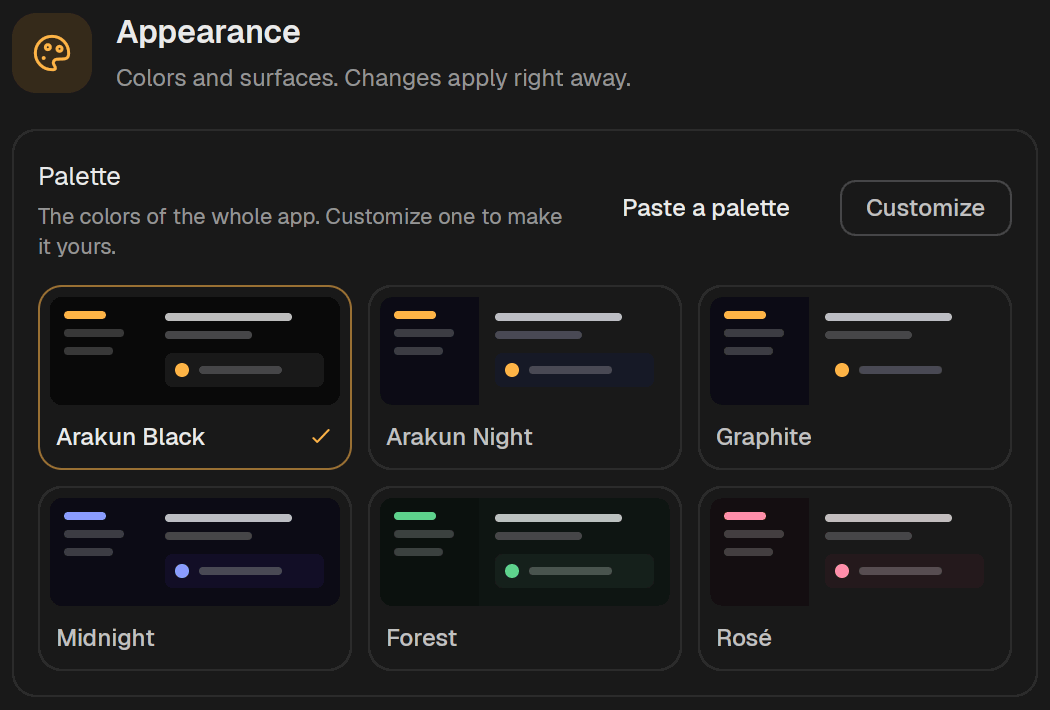
Shape. Corners makes cards, buttons and fields sharper or rounder (0 to 200%;
presets Sharp, Default, Round). Spacing makes the room inside and between things
tighter or roomier (60 to 160%; Compact, Default, Roomy). Window gap is the space
around and between the sidebar, the main area, the panel and the dock (0 to 20 px;
None, Default, Wide). The defaults (100%, 100%, 8 px) look as before and are kept inpalettes.jsontoo. Text size and Glass are here as well. Reset shape goes back to
the defaults.Sidebar. Start from a preset (Switcher, Focused, Developer, Notion, Icons,
Everything); it lays out the pieces and keeps the style you chose. Every preset holds
the User row, where you sign in with GitHub; a layout saved without it gets it once,
next to Help. Style (Card, Flush,
Floating), Rows, Width, Side, what Ctrl+B does, Counters and Shortcuts change the whole
sidebar. While this tab is open the sidebar is being arranged: it shows in full,
every segment opens as a list with its outline and title, and a click on a piece or a title selects it instead of
opening it. The tab then shows its options (name, emoji, folding, Fixed or Scroll,
Ungroup, remove) and chips to add a group, a link, a command, a title, a separator,
a spacer or what the sidebar does not hold yet, into the selected segment with a
click (with nothing selected, into the segment that holds the most views), and selects what it added. The pieces among them (not Group, Link, Command or Title, which ask for more
first) can also be dragged onto the sidebar where they should go. Pieces and segment
titles drag into another order on the sidebar itself. The panel's header has undo
and redo for these changes; what is typed into one field is one step. Done closes the panel, and "Customize sidebar…" in the
sidebar's right-click menu opens this tab. After that menu hides a piece, ungroups
or removes a segment, a note at the foot of the sidebar says so for ten seconds, with an Undo button; it stays while the pointer is on it. Reset sidebar goes back to the default
layout and width. The layout is kept insidebar.json.Share a look. Export… at the foot of the panel, on any tab, copies the colors,
the shape or the sidebar, the ones you tick, as one line (arakun:look/v1:…).
Import reads a look line and asks again which parts to use; the sidebar is off until
ticked, since it replaces the whole layout. A sidebar layout comes without its
commands, which run on a click: add those with Command…, where their text can be
read. Import also takes a color scheme line (arakun:palette/v1:…) or a sidebar layout
copied before looks existed.Design system. The card at the foot of the panel opens the Design system tab:
every color, type style and component, live, so a change can be judged on all of
them at once.
Redacted mode
For streams, demos and screen sharing. Ctrl+Shift+H, the palette or Settings › Privacy
turns it on; a "Redacted" pill in the title bar shows it is on, and a click on it turns it
off. While it is on, Arakun hides:
- account emails and names: the Cloudflare, PostHog and Doop accounts, the Linear sign-ins, the claude.ai accounts
behind CLIProxyAPI, your git name and email in the sidebar, Cloudflare's audit log; - the phone's pairing QR code and code, its addresses and the names of paired phones
("Copy link" still copies the real link); - the host Claude Code runs on, a server's pairing link, and IP addresses;
- in terminals, agent replies, tool output, tab titles, notifications and the Inbox:
emails, values shaped like keys or tokens (sk-…,ghp_…and long random words keep
their first four characters), the value after a name such asAPI_KEY=ortoken:,
the word afterBearer, IPv4 addresses other than127.0.0.1, and your user name
and the computer's name, as a shell prompt shows them (you@laptop).
It works on what it can recognize, so check a view before you share it: a secret that
looks like a plain word still shows. The choice is kept in a redacted file in Arakun's
data folder, so it is still on after a restart. ARAKUN_REDACTED=1 turns it on for one
run without changing that file.
Usage and crash reports
Arakun sends nothing until you say so. On first launch it asks whether to send crash
reports and anonymous usage counts to Arakun's PostHog project, so we can see what
breaks and what gets used: as a step of the setup, or in a dialog when you skip the
setup or already have a project. Settings › Privacy has a switch for crash reports and
one for usage counts, and a button for feedback:
- Crash reports: a panic's message and stack trace. When an agent stops with an
error: the agent's name and version number, a fixed category such as "rate
limited" or "not signed in", the step that failed (such as starting the agent or
a turn), the agent's error code or exit code, and whether the session's folder
still exists. Never the error's text. - Usage counts: app launched, app quit (with the minutes it was open), setup
finished (whether you added a project or skipped, and the step you were on),
session started (with the agent), agent turn finished (with the agent, how it
stopped and how many seconds it took), project added, environment created, a
built-in view opened (with its name) and a browser tab opened. - Feedback: what you write when you press Send on a feedback form or after an
agent error or a crash. Help in the sidebar opens the form, set to a bug or a
feature request if you pick one, and links to the docs. It is sent even with crash reports and usage counts off,
because pressing Send is your yes. An agent can also send feedback witharakun feedback, but only with usage counts on, and you get a notice with the
full text in the Inbox. Surveys made in PostHog show up only with usage counts on,
at most once per launch. Arakun fetches them from PostHog only with usage counts
on, in an anonymous request with the project token and no id. With usage counts
off, the feedback forms use the questions built into Arakun. A support question
also opens a ticket in the Arakun team's private support inbox (PostHog Support),
with the email you left, if any, so the team can reply. Other feedback (a bug,
feature request, UX note or anything else) goes to the team's Linear, through
Arakun's cloud, as a customer request. Its issue has the text without paths,
links, keys or emails, and may become a public GitHub issue. Your text as you
wrote it and your email stay in Linear. If either fails, the answer still
arrives in PostHog.
Each event carries Arakun's version, the OS and the CPU architecture. On first launch,
what happens before you answer the question waits in memory: it is sent if you turn
usage counts on, and dropped if you don't. Arakun never
sends prompts, replies or file contents. A panic's message is the one text that is
sent: before it leaves your machine, Arakun replaces your home folder with ~ and
removes paths, links, emails and anything shaped like a key or token. Its other words
are sent as they are, so a crash message can still name something it was working on. Events carry a random id kept intelemetry-id in Arakun's data folder (~/.local/share/arakun on Linux and macOS,%LOCALAPPDATA%\arakun on Windows); it is not tied to any account, PostHog makes no
person profile from it and no location from your IP, and deleting the file starts a
new one. Your answer is kept in telemetry.json in the same folder.
Whatever you answer, Arakun writes each panic to crash.log in the same folder: when it
happened, the version, the thread, the message (cleaned the same way) and the stack
trace. That file stays on your machine; attach it when you report a crash. It keeps the
most recent panics, up to about 256 KB. A panic in background work no longer closes
Arakun: what was running shows an error, and the log says "Arakun carried on".
DO_NOT_TRACK=1 or ARAKUN_TELEMETRY=0 turn both off, block all feedback and skip the question;ARAKUN_TELEMETRY=1 turns both on. Debug builds send nothing unlessARAKUN_TELEMETRY=1 is set, and the test Arakun of arakun dev never does. A build
made with ARAKUN_POSTHOG_KEY= (empty) sends nothing at all.
Platform status
| Platform | Status | Notes |
|---|---|---|
| Linux (x86_64) | Supported | Main platform. Wayland and X11. The Dynamic Island needs Wayland with wlr-layer-shell. |
| Linux (arm64) | Beta | The same build as x86_64, for ARM machines such as Snapdragon laptops, Ampere and Graviton servers. Less tested. |
| Windows 10/11 (x86_64) | Beta | Browser tabs are barely tested. See docs/windows.md. |
| macOS | Experimental | Release builds for Apple silicon. Little tested, browser tabs least of all. The Dynamic Island's shape around a notch and around the MacBook Pro's own Dynamic Island is not tested on those screens yet. |
Install
macOS (Apple silicon) and Linux (x86_64 and arm64):
curl -fsSL https://arakun.dev/install | sh
Windows (PowerShell):
irm https://arakun.dev/install.ps1 | iex
The scripts (tools/install-release.sh and
tools/install-release.ps1) download the latest release,
check it against SHA256SUMS (and its signature, when a verifier is installed; see
Updates), and install it for your user:
| Platform | Installs to | Uninstall |
|---|---|---|
| macOS | ~/Applications/Arakun.app, linked as ~/.local/bin/arakun |
rm -rf ~/Applications/Arakun.app ~/.local/bin/arakun |
| Linux | ~/.local/bin/arakun, the browser's runtime in ~/.local/share/arakun/cef, and the app launcher's entry and icon in ~/.local/share/applications/arakun.desktop and ~/.local/share/icons/hicolor/*/apps/arakun.* (under $XDG_DATA_HOME if set) |
rm -rf ~/.local/bin/arakun ~/.local/share/arakun/cef ~/.local/share/applications/arakun.desktop ~/.local/share/icons/hicolor/*/apps/arakun.* |
| Windows | %LOCALAPPDATA%\Programs\Arakun, added to your user PATH, and a Start menu shortcut |
delete that folder and the shortcut, and remove it from PATH |
To install a given version, run curl -fsSL https://arakun.dev/install | sh -s -- --version v0.2.1,
or set ARAKUN_VERSION=v0.2.1 (on Windows, $env:ARAKUN_VERSION = "v0.2.1"). There is
no build for Intel Macs yet; build from source there. v0.1.0 has no macOS build; on
macOS, install a later version. Linux on arm64 has release builds from the release after
v0.4.1. --nightly (ARAKUN_VERSION=nightly, on Windows $env:ARAKUN_VERSION = "nightly")
installs the newest nightly build instead, and --version takes a
nightly's tag, such as 0.5.1-nightly.202611180300.
The server alone (Linux x86_64 and arm64): for a machine with no display, such as a VPS, install
only arakun-server:
curl -fsSL https://arakun.dev/install-server | sh
curl -fsSL https://arakun.dev/install | sh -s -- --server    # the same
It is the install script with --server: it checks the release the same way and installs~/.local/bin/arakun-server (uninstall: rm ~/.local/bin/arakun-server). It also
installs what the server runs agents with, if it is missing: git and gh with the system's
package manager (as root, or with sudo that needs no password; otherwise it prints the
command to run), and Node.js 22 from nodejs.org in ~/.local/share/arakun/node, linked
as node, npm and npx in ~/.local/bin. Without Node, a new session fails as it
starts. When no claude is on the PATH, it installs Claude Code with
its own installer in~/.local/bin/claude; run claude once to sign in. --no-tools leaves all four to you. It takes --version too. Releases after v0.4.0 carry it. It does not update itself: run the line
again for a new release, then restart the service if it runs as one:systemctl --user restart arakun-server. A server in another folder
(ARAKUN_SERVER_DIR) is the unit arakun-server-<folder>, and a service installed as
root needs systemctl without --user.
Updates
A release build keeps itself up to date. Every 6 hours it asks GitHub for the latest
release. When there is a newer one, it downloads it, checks it against the release's
signed SHA256SUMS, and puts it next to the installed app. The update is installed when
you quit Arakun, so the next start runs it. Settings › General › Updates shows the version, has Check now,
and on Linux and macOS Restart now. Turn Update automatically off there to stop
the checks; ARAKUN_UPDATES=0 turns them off for one run.
When a version has a serious problem, Arakun can ask you to update, or require it. Once
an hour, and a few seconds after it starts, a release build reads the update-policy
feature flag from Arakun's PostHog project. The request carries only the version, the
update channel, the operating system and the processor type; the id it sends is your
install's random id only if you agreed to usage counts, and a new one each start
otherwise. If the flag says request, Arakun downloads the latest release and asks you
to restart into it; Later or Escape puts it off until the next start. If it says
force, a dialog stays over the window, and Escape and shortcuts do nothing, until you
restart into the new version (on Windows: quit and open Arakun again) or quit. After a
failed download, both offer Try again.
Neither happens when no newer release exists. Maintainers set this per version in
PostHog: one condition set per version range on $app_version, with a semver operator,
and the variant to use.
From a terminal, arakun update downloads the latest release and installs it. If Arakun
is running, it is installed when Arakun quits: on Linux and macOS arakun restart does
that now; on Windows, quit Arakun and open it again. arakun update --check only says
whether there is a newer release.
Nightly builds
Every night, if main changed, the release workflow builds it on every platform and
publishes it as a pre-release named after the next version, such as0.5.1-nightly.202611180300. They are for maintainers and testers who want what is next
and will report what breaks. Nightlies can break: nobody tests them by hand, one can
crash, lose a session or change how your data is stored, and a release may not read what
a nightly wrote. Don't use them for work you can't redo.
To get them, turn on Nightly builds in Settings › General › Updates (it shows this
warning and asks again), or run arakun update --channel nightly. The updater then takes
whichever is newest of the nightlies and the releases, so a release that comes out still
reaches you. arakun update --channel stable (or turning the switch off) goes back to
releases: the nightly stays until a release newer than it comes out, or install the latest
release again to go back now. arakun update --channel says which channel you follow.
To install a nightly from scratch, pass --nightly to the install script:curl -fsSL https://arakun.dev/install | sh -s -- --nightly, or on Windows$env:ARAKUN_VERSION = "nightly" before irm https://arakun.dev/install.ps1 | iex. A
nightly installed this way follows nightlies. For a server alone,curl -fsSL https://arakun.dev/install-server | sh -s -- --nightly installs the newest
nightly arakun-server. It does not update itself, so run the line again for a newer one.
Nightly SHA256SUMS are signed with their own key,
assets/nightly-key.pub, which the updater accepts for nightly
versions only: it can't sign a release. The install scripts and releases/latest never
see nightlies. The newest 14 are kept on the
releases page.
The updater keeps its files in Arakun's data folder (~/.local/share/arakun on Linux
and macOS, %LOCALAPPDATA%\arakun on Windows): update.json (the version waiting to be
installed, its checksum, and the last one you were told about), update.lock (held while
one updater runs), no-auto-update (there while Update automatically is off),update-channel (stable or nightly, once you pick one; without it a nightly build
follows nightlies and a release follows releases), update-channel.lock (held while the
channel changes or an update is installed) and update-download/ (the download, removed when it is done). The new version waits next to
the installed one as .arakun.update (.Arakun.app.update on macOS, .arakun.exe.update
on Windows, with its .pdb as .arakun.exe.update.pdb), unpacked first as .arakun.incoming.
Arakun updates itself where it runs from, so that folder and the binary must be yours
(the install scripts' folders are). A binary that belongs to another user, such as one a
package manager installed, is left alone: update it the way it was installed. A build
from source never updates itself: it has its own way of installing and the browser
runtime it was built against. Pull and build it again instead.
An update replaces the binary (the whole Arakun.app on macOS). The browser runtime
(CEF) comes along only when there is none yet, such as on a release from before the
browser. A release with another version of CEF is not installed by the updater, since
Windows keeps a running browser's files locked; it says so, and the install script
installs it once Arakun is closed.
What is checked: SHA256SUMS is signed with Arakun's release key, the download matches
the checksum in it, and the new binary starts and says the version it should. The
signature shows the release was made by someone who holds that key, which only the
release workflow can use: someone who can change a release on GitHub but has no key
can't make the updater install anything. A missing or bad signature stops the update.
The public key is built into Arakun and is
assets/release-key.pub. A second key, kept offline, is
accepted too (assets/release-key-backup.pub), so
releases can still be signed if the first one is ever lost.
The install scripts check the signature only when a verifier is installed: minisign,
or on Linux and macOS also OpenSSL 3 (macOS ships LibreSSL, so there it usually takesbrew install minisign). Without one they check only the checksum, and say so.
Releases up to v0.3.0 are not signed. The scripts install one only when you ask for it
with --version (ARAKUN_VERSION on Windows); an unsigned latest release is refused.
Manual download
Download the archive or disk image for your platform from
GitHub Releases and check it againstSHA256SUMS. Release builds include the browser: each carries CEF (Chromium), a few
hundred MB unpacked. To check that SHA256SUMS is signed with Arakun's release key
(releases after v0.3.0), download SHA256SUMS.minisig next to it and run
minisign:
minisign -Vm SHA256SUMS -P RWRHh4aSkL+9oL41eNxaL791lQYzu/un+QvVqfckIj7839aB8lQBoxyn
If a release says it is signed with the backup key, check it with that one instead:-P RWSxlRjKJX7FQmC0+on+hpDPmZ/ShKCW4KzyJhbnm0bAc6JGTI7KV+xg.
Each download also has a build provenance attestation. It shows that this repository's
release workflow built it, and from which commit. Check it with the
GitHub CLI:
gh attestation verify arakun-<version>-linux-x86_64.tar.gz -R arakunhq/arakun
Linux: extract arakun-<version>-linux-x86_64.tar.gz (on ARM,arakun-<version>-linux-arm64.tar.gz). arakun runs from there, or
put it somewhere on your PATH, for example ~/.local/bin, with its cef folder next to
it (or in ~/.local/share/arakun/cef). Without that folder, everything but browser tabs
works. It needs glibc 2.35 or newer (Ubuntu 22.04+,
Debian 12+, Fedora 36+); on older systems, build from source. You also need a Vulkan
driver and the usual desktop libraries (libxkbcommon, Wayland or X11, fontconfig,
freetype). Without a graphics driver it can use, as in a VM or remote desktop without a
GPU, arakun prints could not open its window with what to install, and exits with
code 1; started from a launcher, it shows the same as a desktop notification. Mesa's software Vulkan driver works without a GPU, only slower:mesa-vulkan-drivers on Debian, Ubuntu and Fedora, vulkan-swrast on Arch. It also
needs a Wayland or X11 desktop: with neither WAYLAND_DISPLAY nor DISPLAY set, or with
one that does not answer (an SSH session, a machine without a desktop), it says so the
same way and exits with code 1. There, arakun server serve runs sessions without the
window. On Ubuntu 23.10 and later, browser tabs also need the AppArmor profile in
Browser tabs on Ubuntu.
Windows: extract arakun-<version>-windows-x86_64.zip and run arakun.exe. Keep the
files next to it together: arakun-helper.exe and the CEF runtime are for browser tabs,
and arakun.pdb gives crash reports Arakun's function names.
macOS: open arakun-<version>-macos-arm64.dmg and drag Arakun.app intoApplications. The app and the disk image are signed with a Developer ID and notarized by
Apple. v0.2.1 has arakun-v0.2.1-macos-arm64.tar.gz instead: extract it and moveArakun.app to Applications. v0.1.0 has no macOS build.
Arakun does not bundle the agents. Install the ones you want to use:
- Claude Code: Node.js with
npm(Arakun installs the ACP adapter in~/.local/share/arakun/agents, or%LOCALAPPDATA%\arakun\agentson Windows) and aclaude
that is signed in or set up with an API key or another endpoint (ANTHROPIC_BASE_URL,
such as a gateway or CLIProxyAPI) in~/.claude/settings.jsonor the environment. - Droid: Factory's
droidCLI. - OpenCode: the
opencodeCLI, signed in withopencode auth login. - Codex: Node.js with
npm(Arakun installs the ACP adapter in~/.local/share/arakun/agents/codex, or%LOCALAPPDATA%\arakun\agents\codexon
Windows) and a Codex sign-in:codex loginwith your ChatGPT plan (Settings › Codex
runs it for you), orCODEX_API_KEYorOPENAI_API_KEYin the environment.ARAKUN_CODEX_ACPruns another adapter command instead. - Devin: the Devin CLI, signed in
withdevin auth login(Settings › Devin runs it for you) orWINDSURF_API_KEYin
the environment. Arakun startsdevin acp;ARAKUN_DEVIN_BINpicks anotherdevin
andARAKUN_DEVIN_ACPruns another command instead. - Cursor: the Cursor CLI, signed in with
cursor-agent login(Settings › Cursor runs it for you) orCURSOR_API_KEYin the
environment. Arakun startscursor-agent acp;ARAKUN_CURSOR_BINpicks anothercursor-agentandARAKUN_CURSOR_ACPruns another command instead. Cursor sessions
use the MCP servers in~/.cursor/mcp.jsonand the project's.cursor/mcp.json. - Antigravity: Google's Antigravity CLI
1.5 or later, signed in with Google (Settings › Antigravity runsagy acp --loginfor
you) or withGEMINI_API_KEYset up in agy. Arakun startsagy acp;ARAKUN_AGY_BIN
picks anotheragyandARAKUN_ANTIGRAVITY_ACPruns another command instead. - Workers AI: a Cloudflare API token with Workers AI access, either stored through
opencode auth loginor set asCLOUDFLARE_API_TOKENandCLOUDFLARE_ACCOUNT_ID.
The first session with Claude Code or Codex asks before it installs the adapter, and shows
the package, the folder and the npm command, so you can run it yourself instead. Once an
adapter is installed, Arakun updates it to the pinned version without asking.ARAKUN_CLAUDE_ACP and ARAKUN_CODEX_ACP start another adapter instead.
What each agent prints to stderr goes to <agent>.log in that agents folder, and
what each turn used goes to usage.jsonl in Arakun's data folder (or the fileARAKUN_USAGE_LOG names). Once a log passes its limit (8 MB for an agent log, 16 MB for
the usage log), it moves to <agent>.old.log or usage.old.jsonl (<name>.old.<ext>
next to an ARAKUN_USAGE_LOG file) and a new one starts. Arakun keeps only that one
older copy: each move replaces the previous one.
Turns of Workers AI sessions also log what each tool's results added to the context.arakun usage tools [--days N] [--json] adds them up, largest first, with bash split by
the program the command runs (bash cargo, bash git), so you can see which tools and
commands cost the tokens.
arakun usage where [--days N] [--json] reads the Claude Code transcripts on this
computer (~/.claude/projects) and shows where their tokens go: the setup that loads
with every message (skills, plugins, MCP servers, CLAUDE.md files, hook output) and
which of it no session called, each project's first-message size, how full sessions
got, and the noisiest tool results. It lists what to fix first, largest first, with one
suggestion each. The last 30 days count by default (--days 0 for all). Every number
is an estimate, at about 4 bytes a token. It only reads the files: nothing is sent
anywhere and your setup is not changed. The Usage tab shows the same findings under
Breakdown, as "Where tokens go", each with a button that opens the file, or the
Marketplace tab's installed MCP servers, plugins or skills, where you change it.
Optional tools: git (Changes, worktrees, branches), gh (CI, GitHub tab), bwrap
(headless agents on Linux), tailscale (phone over Tailscale), cf (Cloudflare tab).
Stored logins and Teams on Linux need a Secret Service on the session bus, such as
gnome-keyring, KWallet or KeePassXC; Arakun talks to it over D-Bus, with nosecret-tool needed. Teams does not work without one, since it keeps the session and
the device keys there. Without one, Arakun keeps its other keys and tokens insecrets.json in its data folder (~/.local/share/arakun), which only you can read, and tells you so once.
Build from source
You need rustup. The first cargo command in the checkout
installs the Rust version named in rust-toolchain.toml, the one CI uses.
On Linux the build also needs a C compiler, pkg-config and the development packages of
libxkbcommon, Wayland, X11 (xcb), fontconfig, FreeType, Vulkan and OpenSSL; on macOS,
the Xcode Command Line Tools. tools/setup-dev.sh installs them on Debian and Ubuntu
(apt), Fedora (dnf), Arch (pacman) and macOS; see
CONTRIBUTING.md. To install them yourself,tools/setup-dev.sh --check names the packages that are missing, and the script has
the list for each package manager.
Windows: MSVC toolchain and Visual Studio Build Tools; tools\setup-dev.ps1
installs them. See docs/windows.md.
Without the browser
The quickest path, and what most CI jobs use:
git clone https://github.com/arakunhq/arakun
cd arakun
cargo build --release --no-default-features
./target/release/arakun
With the browser (CEF)
The default browser feature needs CEF at build time and at run time.
Linux: download the CEF 156.0.15 linux64 binary distribution (linuxarm64 on ARM;
the minimal one is enough) from https://cef-builds.spotifycdn.com/index.html, unpack
it, and run:tools/install-cef.sh /path/to/cef_binary_156.0.15_linux64 cargo build --releaseThis puts the runtime in
~/.local/share/arakun/cef(loaded on the first browser tab)
and links the build-time SDK at.cef-sdk, which.cargo/config.tomlpointsCEF_PATH
at.macOS: the build also needs CMake and Ninja (
brew install cmake ninja), and the
download needs Python 3.12 or newer (brew install python; thepython3macOS ships
is too old). Run:tools/setup-dev.sh --browser cargo build --releaseThis downloads the CEF archive the release uses, checks its SHA-1, keeps it in
~/.local/share/arakun/cef-sdkfor every checkout, and links it at.cef-sdk. Thecefcrate's own download no longer works: the CDN's index is larger than it reads
("the response body is larger than request limit").Windows: see docs/windows.md. If the build's own CEF download
fails with "the response body is larger than request limit", fetch the archive withtools/fetch-cef.pyand pointCEF_PATHat it, as the release workflow does (it has
the archive names and checksums).
Browser tabs on Ubuntu
Chromium keeps web pages in a sandbox built on user namespaces. Ubuntu 23.10 and later
block those for programs that have no AppArmor profile allowing them. There Arakun does not
start the browser, and a browser tab says why. To allow it, give arakun a profile like
the one Ubuntu ships for Chrome (/etc/apparmor.d/chrome), then restart Arakun. Run in a
checkout, it takes the build in target/release; anywhere else, the arakun on yourPATH:
arakun=target/release/arakun
[ -x "$arakun" ] || arakun=$(command -v arakun)
arakun=$(readlink -f "$arakun")
if [ -x "$arakun" ]; then
  # One profile per binary, so a checkout's does not replace an installed one's.
  profile=arakun-$(printf %s "$arakun" | cksum | cut -d' ' -f1)
  # Quoted, with AppArmor's pattern characters escaped, for paths with spaces.
  attach=$(printf %s "$arakun" | sed 's/[][\\*?{}^"]/\\&/g')
  sudo tee "/etc/apparmor.d/$profile" >/dev/null <<EOF
abi <abi/4.0>,
include <tunables/global>

profile $profile "$attach" flags=(unconfined) {
  userns,
}
EOF
  sudo apparmor_parser -r "/etc/apparmor.d/$profile"
else
  echo "no arakun found; run this in the checkout or put arakun on your PATH"
fi
Each binary gets a profile of its own, /etc/apparmor.d/arakun-<number>, named after its
path, so run this again if arakun moves. To remove one, runsudo apparmor_parser -R /etc/apparmor.d/arakun-<number> and delete the file.
The server alone (no display)
arakun-server is the server built without the window. It needs none of the
system libraries above, only a C compiler, and the binary runs on a machine that has
no desktop installed:
cargo build --release --locked -p arakun-server
./target/release/arakun-server help
Build it on its own, as above. Built in the same command as the app, Cargo gives both
the same GPUI, with the display code in it. arakun-server login needs no browser on
that machine either: you enter its code on another device. On Linux x86_64 and arm64 you can also install
the release build instead: curl -fsSL https://arakun.dev/install-server | sh (see
Install).
The phone page
The page phones open (the phone remote) is a React app in phone/, built
with Vite. The app embeds the built copy in phone/dist, and the Worker in cloud/
serves the same folder, so phone/dist is committed and cargo build needs no Node.
If you change phone/, test and build it with Node 24 or newer, and commitphone/dist with your change:
cd phone
npm ci
npm test        # the encryption against the Rust side's vectors, and the screens
npm run build   # writes phone/dist
CI fails a pull request whose phone/dist is not what npm run build writes
(phone/tools/check-dist.sh).
Install for your user (Linux)
tools/install.sh builds an optimized binary and installs it to ~/.local/bin, with a.desktop entry and icons. It prepares CEF with tools/install-cef.sh if it is missing
and CEF_DIST points at an unpacked distribution. It builds the release-local profile,
which rebuilds in seconds after a change; --full builds the slower release profile
that releases use.
tools/install.sh # --full, --debug, --no-browser, --prefix DIR, --uninstall
Command line
While Arakun is running, arakun <command> acts on the environment of the current
directory, over a local control socket ($XDG_RUNTIME_DIR/arakun/control.sock, or%LOCALAPPDATA%\arakun\control.sock on Windows). Terminals and agents started by Arakun
get ARAKUN_SOCKET and arakun on their PATH, and the agents get a note in their
system prompt about it (ARAKUN_AGENT_HINT=off removes it).
One Arakun runs per state. arakun started again brings the running window up and
exits (arakun <dir> adds the project there), since two windows on one state would
save over each other and run the same automations twice. The running one holdsstate.json.lock next to state.json; an Arakun with its own ARAKUN_STATE, such asarakun dev, has its own lock and runs beside it. It also has its own socket andarakun command next to that state file (dev.sock and dev.runtime/bin/arakun for adev.json), so the command line of the daily Arakun keeps reaching the daily Arakun.
arakun .                          # add this project (or switch to it); starts Arakun if needed
arakun browse -s localhost:3000   # open a page in the side pane
arakun open -s src/main.rs:42     # open a file in the side pane at line 42
arakun run --port 5173 npm run dev   # new terminal; wait until the port answers
arakun logs 2 --until compiled    # wait until terminal 2 prints "compiled"
arakun check                      # run the project check here
arakun rename fix/tab-name         # rename this environment's branch (before it is pushed)
arakun page screenshot            # PNG of the environment's browser tab
arakun notify "done"              # desktop notification
arakun shrink -- cargo test       # run it and print a summary: failures, collapsed logs,
                                  # JSON outline; the whole output goes to a file it names
arakun feedback --kind bug "..."  # tell the Arakun team about a problem (agents use it; needs usage telemetry on)
arakun notices --unseen           # notices you haven't read yet
arakun usage tools --days 7       # which tools' results used the tokens of Workers AI turns
arakun usage where                # where Claude Code sessions' tokens go, and what to fix first
arakun seat add work < token.txt  # save a Claude seat (a `claude setup-token` token)
arakun seat ls                    # the seats and their 5-hour and weekly usage
arakun seat rm work               # forget a seat
arakun ls                         # projects, environments and sessions
arakun show                       # bring the window up (running `arakun` again does too)
arakun quit                       # quit Arakun, also when its window is hidden
arakun palette                    # bring the window up with Ctrl+K open
arakun mem search <words>         # search what agents remember about this project
arakun mem scripts                # scripts agents keep writing here, worth keeping
arakun github draft o/r#12 --verdict approve --head <sha> --body-file - --agent Claude < review.md
                                  # save a review draft for the GitHub tab; sends nothing.
                                  # --body-file takes a file or - (stdin); an agent's file
                                  # asks the user first if it is outside its workspace or
                                  # the command shares its line with others. --head is
                                  # the commit the agent read; an approval needs it
arakun github pilot connect <url> --token -
                                  # connect arakun-pilot: check the Worker, save its
                                  # settings (also status, disconnect). Tokens come
                                  # from stdin (-) or ARAKUN_PILOT_TOKEN and
                                  # ARAKUN_PILOT_ADMIN_TOKEN; also --admin-token -,
                                  # --no-admin-token, --no-check
arakun mcp                        # Arakun's MCP server on stdio (request_secret); Arakun
                                  # starts it for each agent session, not you
arakun agent run <prompt>         # start a headless agent
arakun server serve               # run sessions on this machine without the window (arakun server help)
arakun --version                  # print the version (needs no running Arakun)
Only arakun alone and arakun <dir> start the app. A word or flag it doesn't know,
such as a typo, prints an error and exits with code 2 (arakun --help lists the
commands).
-h or --help after a command prints its usage and runs nothing. A flag the command
doesn't take prints an error and exits with code 2. Both count only before the
payload, the prompt, message or command line a command passes on, soarakun run make --help runs make --help. A payload that starts with a dash needs-- before it: arakun notify -- -1 test failed.
To open the palette from any app, bind arakun palette to a global key in your
desktop. On Hyprland, for example: bind = SUPER, K, exec, arakun palette.
arakun run and arakun logs take --ready <text>, --port <n> and --timeout <s>
before the command, and fail with the tail of the output if the command exits or times
out first.
Server
To run sessions on another machine, start a server there and reach it from a device.
The app's Computers tab lists this computer first, then your servers, each with its
status as a dot and a word, and what its sessions are doing. Pick one to see how it is
reached, its environments and their sessions (a session opens in its project), its
agents and their plan limits, and its settings. A server signed in to your account
(arakun-server login) joins the list by itself: no link is needed, and the connection
goes through the relay, end to end encrypted, checked against the key your account
lists for that server. Signed out, the list says your account's servers show up once
you sign in. A server reached directly (--reach lan or --reach tailscale) is paired
with a link instead: Add a computer shows both ways. Remove, in a server's
settings or its ⋯ menu, asks once, then has the server forget the app and, for a
server on your account, takes it off the account too. Where the app is installed, arakun server is the command; arakun-server is
the same command for a machine with no display (see
The server alone).
arakun-server login          # once: sign in with GitHub, for the relay
arakun-server serve          # runs until Ctrl+C, a signal or `arakun-server quit`
arakun-server pair           # in another terminal: where a device signs in, or a link
arakun-server machines       # the account's machines, this one marked
arakun-server forget <label> # remove one of them from the account
login prints a code and https://github.com/login/device. Open that address on any
device, enter the code and approve, and the terminal says "Signed in as ." The
server keeps the sign-in in account.json in its folder and tells a running server,
which reaches the relay as your account from then on. Ctrl+C gives up, and so does a
code that runs out; when GitHub cannot be reached for a while, login says so and
keeps trying. login again asks the service whether the sign-in still works:
if it does, login says who is signed in and tells a running server, which connects
to the relay again if the relay had turned it away; if it was ended, login signs in
again. login --force signs in again in any case and ends the old sign-in. A sign-in
for another service is replaced, and login says so first. logout ends the sign-in
and removes the file; a running server stays up, leaves the relay, and devices on the
network or Tailscale stay. When the service cannot be reached, logout still removes
the file, but exits with code 1 and names the session, which is good until you sign it
out from another signed-in device.
serve through the relay needs a sign-in. Started in a terminal without one, it stops
and says to run login, or to serve with --reach lan or --reach tailscale, which
need no account. Started with --service (as service install starts it), or with no
terminal to print to, it stays up signed out instead, logs one line that says to runarakun-server login, and connects as soon as login tells it: a service that exited
would only be started again every few seconds. A server the relay signs out later (the
sign-in was ended from another device, say) keeps running, keeps the file, and logs a
line that says to run login. Once the account itself answers that the server's
sign-in is over, the server forgets every device the relay let in, with its
notifications, and asks nothing more until you run login: it can no longer learn
which of them were signed out. They are let in again when they connect after login.
A sign-in lasts at most 180 days (90 without use), so a server nobody touches is signed
out that way within half a year: run arakun-server login on it again. status shows
"Signed in as ", "Not signed in", or that the sign-in ended.
machines lists the account's machines with their label, kind and whether they are
online, and forget <label> removes one from the account. The relay hangs up on a
removed machine that is running, and it stays out until someone acts: a server comes
back with arakun-server login (plain login is enough) or a restart, and its log andstatus say so; logout keeps it out. A machine that was off is listed again when it
next connects signed in. At start, after login or logout, and every 15 minutes
while a device the relay let in gets notifications, the server asks the account for its
signed-in devices and drops the ones it no longer lists, with their notifications. An
ask that gets no answer drops nothing.
A sign-in is good only at the service it came from: https://app.arakun.dev, orARAKUN_TEAMS_URL when set. When --relay names another relay, the server starts
signed out there and says so; sign in to that one withARAKUN_TEAMS_URL=<relay> arakun-server login. While the relay has the server signed
out, pair says so instead of where to sign in.
Through the relay, pair prints no link: it says to open https://app.arakun.dev on
the device and sign in as the same GitHub account, and the device is let in. On
Tailscale and the local network, pair prints a link and its QR code. The link is good
for two minutes and pairs one device. There are two ways to use it:
- In the app. Open the Computers tab, press Add a computer, pick By link and paste the link (a link of the old relay
says to sign in on the server witharakun-server logininstead). From then on the app
connects to the server when it starts, and works there as if you were at that
machine: each folder the server offers is an environment in the sidebar, marked with
the machine's name. A folder whose repository you also have here (the sameorigin)
joins that project; the others make projects of their own. Its sessions open in the
same tabs, with the same composer, as sessions here: send, stop, approve and answer
go to the server. "New environment" makes a worktree on a server too: Alt+click the- and pick the machine, or right-click a server's environment. A plain + makes it on
the open environment's machine. To spread them instead, turn on Spread new
environments at the foot of the Computers tab's list: a new environment then goes to a connected machine
that has the project, This computer included, picking the least busy one (the fewest
sessions at work). Set each machine to Prefer, Normal, Avoid or Off in its settings there: a preferred
machine takes new environments before the others, an avoided one only when no other
can, and one that is off never does (you can still pick it in the dialog). When every
machine is off, a new environment goes to the open environment's machine. The New environment dialog starts on that machine too, and a first prompt stays
on the machine it was written on. This is kept inservers-balance.json. A new environment on a server goes in~/arakun-workspaces/<project>/<branch>there. Unless naming is off in Settings ›
Branches, Arakun names its branch after the first prompt, as here. Right-click a
server's environment to archive it there (the sessions that ask for attention
go idle, and their agents stop; a running turn is left alone) or to delete it: the
server removes the worktree, everything in it and its sessions, and the branch too if
you ask. A repository's main folder is never deleted. A phone paired with this app sees and works in the
servers' sessions too. A terminal in a server's environment is a shell in that folder
on the server, and the project commands from Settings run there too. It keeps running
while the connection is down and picks up where it was once it is back; one no app
follows for an hour is hung up. The Changes panel of a server's environment shows
that folder's changes and diffs, and stage, discard, commit, pull, push and the pull
request button run there, with the server'sgitandghlogins
(ARAKUN_GITHUB=readonlyon the server keeps it from pushing or opening pull requests;
set it beforeservice install). On a server reached over plain http, the diffs,
commit messages and pull request text cross the network unencrypted, like the rest of
that link: reach it over https or the relay. The Explorer lists a server's environment, its files
open in file tabs (text only, read from the server), and@in the composer completes
its paths. Merging into the main checkout and GitHub's form stay with this machine's
folders. Fork, compact, rewind and/stagein a server's session run on the server, with its
agent and its git: a fork or a rewind opens as a new session there. "Continue with"
hands a server's session to another of the agents on that server, in the same tab.
In a server's environment, the model menu lists the models and reasoning levels that
server offers. A new session starts with what you pick there, and picking in a running
session changes it on the server. The permission mode and fast mode are the server's
own. In the Marketplace, "Install on" picks a paired server: Discover then lists
the plugins its marketplaces offer, and Install adds a plugin or MCP server for
Claude Code there, for every project. An MCP server that wants a sign-in is signed
in to on that machine (claude mcp login <name>), since that opens a browser.
Every paired server also mirrors this computer: when it connects, and after each
install here, it adds the plugins (and their marketplaces), the user MCP servers,
the skills from skills.sh and the MCP sign-ins it lacks. What you installed in a repo
just for you is added to the server's folders that have the sameorigin; what you
shared with the repo goes with git. It never removes anything,
and keeps a sign-in of its own that lasts longer. Over plain http only plugins
and skills go. A server on macOS does not take sign-ins, which Claude keeps in the
Keychain there. The skills installed from skills.sh are listed inskills-installed.jsonin arakun's folder, and what was installed in a repo inrepo-installs.json.
To add a folder on a server, press Add a folder on it in the Computers tab,
or right-click one of its environments. Clone runs that machine's git, with its
logins, and puts the repository in the folder that holds most of the server's
folders. Folders right in the home folder do not count; with none elsewhere, the
clone goes into~/code. Clone takes https and ssh addresses, not plain http, and
gives up after 20 minutes. Add offers a folder the server already has, asarakun-server adddoes. The app keeps what pairing gave it inservers.json
next to its state, which only your user can read: a server's address, with the token
pairing gave in the system keyring (one kept in the file by an older version moves
there the next time the server is dialed), or, for one reached through the account,
only its label on the relay (the sign-in stays in the system keyring). A server paired through the relay before accounts
stays in the file as it was and says it was paired by link, which the relay no longer
takes: sign in here and runarakun-server loginon the server with the same GitHub
account, or pair it again over Tailscale. Once your account lists it, it is kept as
one of the account's; its old ticket is never sent again.
While the app cannot reach your account, a server of the account says "Could not reach
your account. Trying again." and connects once the account answers. A server whose
user removed the app from its devices is marked in the file and is not connected
again until you remove it and runarakun-server loginon it again. What each server listed last is
kept inservers-inbox.jsonbeside it, so its environments show at start before it
answers, or while it cannot be reached. A server reached over plain http shows them
only once the Computers tab connects it. Remove on a server removes it
here and has the server forget the app. A server that cannot be reached at that
moment keeps the app in its list: remove it there witharakun-server unpair <device>.
- and pick the machine, or right-click a server's environment. A plain + makes it on
- On a phone, or in any browser. Open the link. It is the page the Phone tab pairs
phones with: it lists the sessions, reads them live, and notifies you when one
finishes or needs you.
arakun-server add ~/code/app      # a folder sessions can start in; the page lists them
arakun-server new --agent claude "fix the failing test"   # start one here; prints its id
arakun-server ls                  # folders and sessions
arakun-server log <id>            # a session's status and last entries
arakun-server wait <id>           # until it stops working; prints its answer or what it asks
arakun-server send <id> <text>    # a follow-up
arakun-server approve <id>        # or deny: answer the permission it asks for
arakun-server stop <id>           # stop its turn; follow-ups waiting behind it are dropped
arakun-server devices             # paired devices; `unpair <device>` forgets one
arakun-server status
arakun-server service install   # keep it running; see Keep it running
arakun-server help lists them all.
- Agents. Claude Code, Droid, OpenCode, Codex, Devin, Cursor, Antigravity and Workers AI, as in the app. Sign in to
each one on that machine first: the server uses its logins and its permission
settings. An agent set to allow everything there asks for nothing here either.
Claude Code and Codex also need their ACP adapter. The server installs a missing one
with npm the first time a session needs it, into~/.local/share/arakun/agents
(%LOCALAPPDATA%\arakun\agentson Windows), so Node 22 or newer must be on the
server'sPATH; the server install script puts one there. The service keeps thePATHit was installed
with: if Node comes from mise or nvm, runarakun-server service installfrom a shell
wherenodeworks. - How devices reach it.
serve --reach relay(the default) dials out to the relay,
so it works behind a firewall, and everything between the device and the server is
end to end encrypted;--relay <url>names a relay of your own. It needslogin
(before or after it starts as a service), and lets in the devices signed in to the
same account, with nothing to pair.--reach tailscale
serves it at the machine's tailnet name over HTTPS; that takes the machine's HTTPS
port on the tailnet, as the app's Phone tab on Tailscale does, so only one of the two
can use it on a machine.--reach lanlistens on every
interface over plain HTTP (--port, 7474 unless told): nothing is encrypted, and
whoever can watch that network can read what a device is let in with. Use it only on a
network you trust, and Tailscale or the relay across networks. Whatserveis started
with is kept for the next run. - What it keeps.
~/.local/share/arakun/server/, which only your user can read:phone.json(how it is reached, its relay identity, the paired devices, and the
devices that came in through the relay, with no token),account.json(the account
it is signed in to and the sign-in that lets it in to the relay;logoutremoves it),state.json(folders and sessions),sessions/(transcripts, saved as the agents
work),linked/(the conversation of a session handed to another agent, as
markdown that the new agent reads) anduploads/(photos sent with prompts).ARAKUN_SERVER_DIRnames another
folder, for a second server on the machine. The app's own files are not touched: the
app and a server can run side by side. - The local socket. The commands above reach the server over
server.sockin
that folder, which only your user can open. It is also what keeps a second server
off the same folder. - A turn that is running when the server stops is cut off. Its session is still
there after a restart, and the next message picks it up. Follow-ups that were
waiting behind that turn run first, then the new message.
Keep it running
service install runs serve --service as a service: systemd on Linux, launchd on
macOS. It starts the server now, again after a crash, and at boot (Linux) or login
(macOS). On Linux it keeps running while nobody is logged in, so on a VPS you can
install it over SSH and log out. quit stops it until the next boot or login. First
put the binary somewhere that stays, not in target/:
install -Dm755 target/release/arakun-server ~/.local/bin/arakun-server
arakun-server login               # through the relay: sign in, before or after install
arakun-server service install     # takes serve's flags: --reach, --port, --relay
arakun-server pair                # where a device signs in (or a link), then log out if you like
arakun-server service status      # installed, running, lingering, and how it is reached
arakun-server service logs -f     # what it prints (journalctl, or server.log on macOS)
arakun-server service uninstall   # stop it and remove the service; the data stays
- What it writes.
~/.config/systemd/user/arakun-server.serviceon Linux,/etc/systemd/system/arakun-server.servicewhen you run it as root, and~/Library/LaunchAgents/dev.arakun.server.pliston macOS.service install --print
shows the file and installs nothing. Runninginstallagain rewrites the file and
restarts the server. - Not signed in. Through the relay, a service with no sign-in does not fail: it
runs signed out,installends by saying to runarakun-server login, and the
running server takes the sign-in with no restart. The same holds afterlogout, and
for a service installed before servers signed in (its file has no--service, and a
server with no terminal waits just the same): after updating, runarakun-server loginonce, and nothing else. - Agents. The service gets the
PATHof the shell you install it from, so it finds
the same agents. If you install an agent somewhere else later, runinstallagain.
It also keepsARAKUN_GITHUB=readonlywhen that is set in that shell.
It also keepsXDG_DATA_HOMEandARAKUN_SERVER_DIRwhen they are set, so it uses
the folder the other commands look in. - Logged out (Linux). As a normal user it turns on lingering
(loginctl enable-linger) before it starts the unit: systemd then starts your
services at boot and keeps them running after you log out. If that needs root, it
prints thesudocommand to run. It also works aftersu - userorsudo -u user,
wheresystemctl --userusually cannot find the user's systemd. - As root. Many VPSs only have root. There it installs a system unit that runs as
root and starts once the network is up. Because it runs as root at every boot, the
binary must be owned by root in folders only root can write to (/usr/local/bin,
not a home folder), and only such folders are kept on itsPATH. To run the agents
as another user, log in as that user and install from there. - Logged out (macOS). A user's launchd agent runs from login to logout, so a Mac
that nobody sits at needs automatic login. - A second server. With
ARAKUN_SERVER_DIRset, the service is named after that
folder (arakun-server-<folder>) and keeps the variable. - Windows has no
servicecommand yet: startarakun-server serve --servicefrom
Task Scheduler at logon.
Tried on Linux and macOS.
Keyboard shortcuts
On macOS, Cmd takes the place of Ctrl in the shortcuts below, except forCtrl+Tab and Ctrl+` , and the menu bar lists them. Cmd+[ / Cmd+] go back and
forward through tabs, Ctrl+Cmd+F toggles full screen, and Cmd+H, Cmd+M andCmd+Q hide, minimize and quit.
Ctrl+Tnew session (in a new worktree, made when you send the first prompt, unless the open one is a worktree without one),Ctrl+Jtoggle the terminal dock,Ctrl+Btoggle the sidebarCtrl+Alt+Btoggle the workspace panel,Ctrl+Alt+Sswitch the workspace panel to its Session tab (the session's pull request and subagents) and backCtrl+D/Ctrl+Shift+Dsplit right / down,Ctrl+Alt+arrowsmove between panesCtrl+Tab,Ctrl+1...9switch tabs, across environments;Alt+Up/Alt+Down
switch environmentsCtrl+Wclose the tab,Ctrl+Alt+Treopen the last closed tab where it was;Ctrl+Shift+PageUp/Ctrl+Shift+PageDownmove the tab left / right,Alt+Ppins
or unpins a session (see Pinned tabs). A middle click
closes a tab, dragging it left or right moves it there (a line marks where it lands,
and the order stays after a restart), and its right-click menu also
opens a new session or closes the other tabs of its environment or those to its
right. The tab on screen stays open when its environment has no other. GNOME, Ubuntu
and some KDE setups keepCtrl+Alt+Tto open their own terminal; there, use Reopen
closed tab in the File menu or a tab's right-click menuCtrl+Shift+Nnew session in a new worktree, at once on a random branch;Ctrl+Alt+Nasks for the branch and options firstCtrl+Fsearch the sessionTab/Shift+Tabmove between buttons, switches and menu rows, andEnterorSpacepresses the one with the ring. Terminals, web pages, fields and the composer
keepTabfor themselvesCtrl+K(orCtrl+P) the palette: sessions of every project, GitHub, runs, files and
symbols, views, commands, settings and memory in one search. Start with>for
commands,/for files,:for settings,@for people or#for pull requests.#lists every open pull request of your projects' repositories, not only yours;#86finds that one even when it is closed or merged, and a first word that names a
repository or project narrows to it (#arakun 86,#frameshi).
In it:→opens a row's actions or goes into it (a project, a person, Branches),←
goes back;Spaceafter the arrows marks rows for the bar at the bottom;Ctrl+Ppins
a row to the top of the palette and the sidebar, andCtrl+1...9opens a pin
(Ctrl+Alt+1...9anywhere,Alt+Up/Alt+Downreorder them);Ctrl+Enterasks an
agent. On a cloud task card (cloud: <task>),Entersends it,Tabswitches
between the open pull request and a new branch (only when there is a pull request),
andEsccancels. A question offers a short answer from Claude Haiku through Claude Code, on
your Claude account or the key or endpoint Claude Code is set up with:Enteron the offer asks, and nothing is sent
before. A sentence such as "merge #64 when the checks pass and tell me" becomes an
automation once you confirm it; one Arakun cannot read itself offers to have Claude
read it, again only onEnter.
"remind me in 20 min to review the PR", "remind me at 5pm to stretch" or
"timer 10 min" sets a reminder that rings on the island. One that comes due while
Arakun is closed rings, marked as missed, the next time it opens. "to-do: …" (or a
reminder with no time) adds a to-do, and typing "to-do" lists them,Enterticking one off. Pins are kept inpins.json, rules (reminders too) inrules.json, to-dos intodos.jsonand what you open inpalette-frecency.json,
next to the state file.Ctrl+=/Ctrl+-/Ctrl+0zoom the whole interface (in a browser tab, the page);
Settings › Appearance › Zoom does it tooCtrl+Shift+Hturns redacted mode on or off- In the composer:
Entersends,Shift+Enternew line,Upon an empty composer
recalls earlier prompts (in a Team channel it edits your last message instead);
paste or drop images to attach them. While the agent works,Enterqueues the message,Ctrl+Enterstops the turn and sends it now, andEsc
stops the turn. A queued message has a button to send it now too - In the composer's agent and model menu: the strip of agent icons at the bottom shows
an agent's models and reasoning, and a dot marks the agent in use.↑/↓move
through the models and the rows below them,←/→move between agents (on the
Reasoning row they step the level),Enterpicks andEsccloses. Picking a model
of the agent in use or a reasoning level keeps the menu open, so you can set the
reasoning next. In a running session, only picking one of another agent's models or
Continue with hands the session to another agent; reasoning and fast
mode for another agent are kept for when you switch to it. Picking a different
model for that agent clears the reasoning level kept for it, so pick the level
again after the model - In the GitHub tab:
J/K(or↓/↑) next and previous item,Aapprove,Ccomment,Rreview with an agent,Ucatch me up,Ssummarize,Dall or
fewer details,Oopen on GitHub.Enteropens the selected item's sheet, andEsccloses it (the sheet an
island notice opened over another tab too). While the sheet is closed,J/K
only move through the list; while it is open, they open the next item. On a pilot
card you clicked,1to4send its ready answers,Eopens "Other answer…" andYmarks a fixed or failed card dealt with, in the queue or the sheet; the buttons
show their keys, and after an answer the next question is picked (with the sheet open,
only from that pull request's cards). Moving to another pull request lets go of the
card. In the comment box,Entersends the
comment and/lists the actions
Contributing
Contributions are welcome. Read CONTRIBUTING.md first: it covers
setup (tools/setup-dev.sh), the checks CI runs, and the Conventional Commits titles
pull requests need. Contributors sign the CLA on their first pull request.
Please follow the Code of Conduct. Report security issues as
SECURITY.md says, not in public issues.
License
Arakun is free software under the GNU Affero General Public License v3.0
(AGPL-3.0-only). Commercial licenses are available from the copyright holder
(Karlo Aldrete). Contributions require signing the CLA; see
CONTRIBUTING.md. Third-party notices are in NOTICE.

Reviews (0)
Sign in to leave a review.
Leave a reviewNo results found