BurnGuard
Health Pass
- License — License: Apache-2.0
- Description — Repository has a description
- Active repo — Last push 0 days ago
- Community trust — 20 GitHub stars
Code Pass
- Code scan — Scanned 12 files during light audit, no dangerous patterns found
Permissions Pass
- Permissions — No dangerous permissions requested
No AI report is available for this listing yet.
All in one Design tool for EVERYONE
BurnGuard
Make websites, slides and graphics with AI. Refine them on canvas. Keep the files.
BurnGuard is a local design workspace for Windows and macOS. Bring your Claude Code or Codex connection, choose a design system, and work beside a live preview. Your projects and reusable design systems live on your computer; AI requests use your chosen provider.
Download the app · Documentation · 한국어 · 简体中文
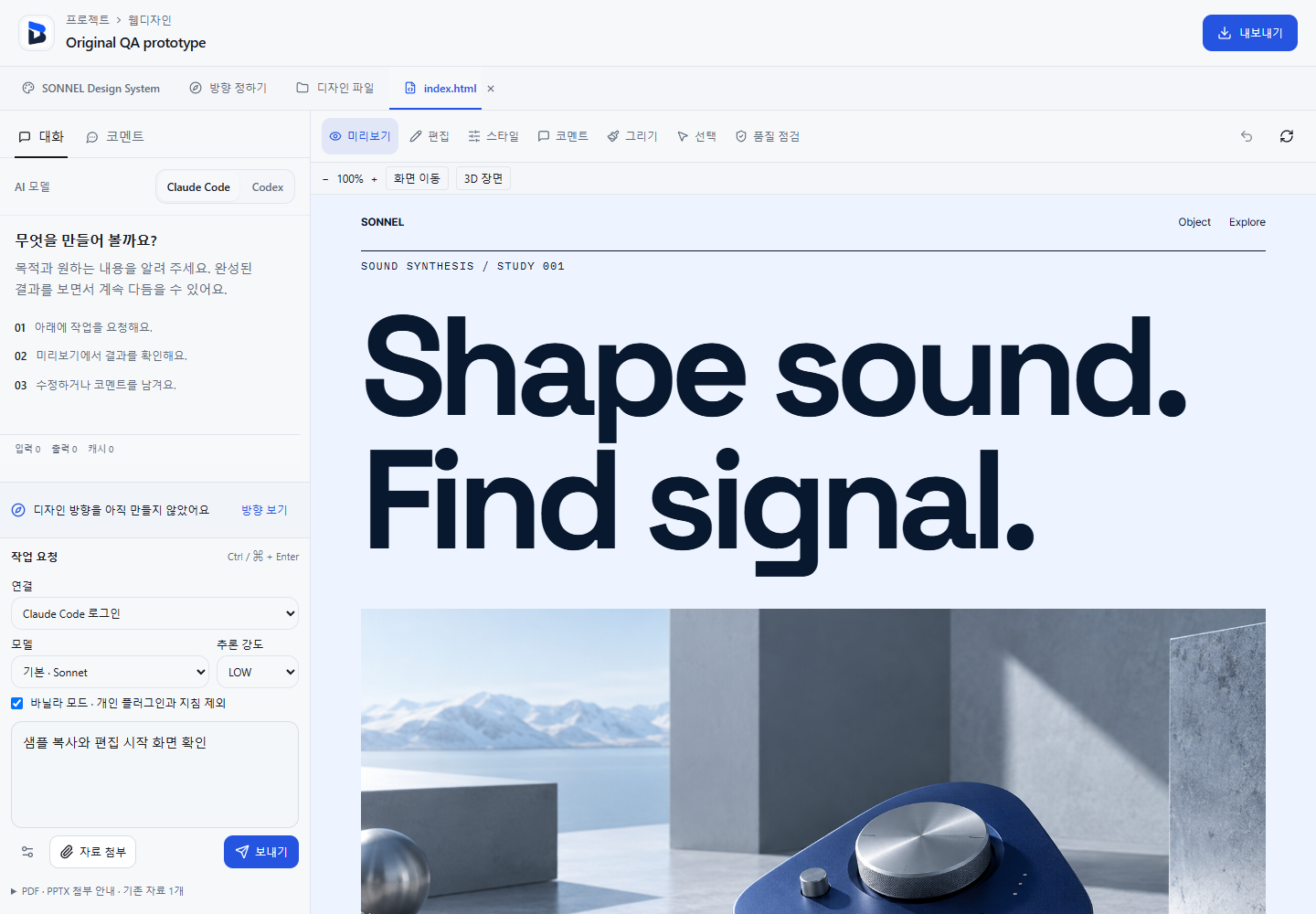
The actual editor displaying the bundled SONNEL website. Choose a model on the left, inspect the result on the right, and move between preview, editing and comments.
Start with a design direction
Choose a format, describe the project and select a registered design system during onboarding. Search the catalogue or refresh it to pick up newly registered systems. You can also start without one.
The bundled catalogue includes 41 themes, including 31 original themes. Each has a distinct navigation, hero and footer combination, with its own placement, proportions and responsive rules alongside typography and colors. These layouts adapt references from Supahero, Navbar Gallery and Footer Design; each theme records its sources. The original sample systems and prompt presets carry layout rules too. Add your own systems from supported files, websites, repositories or Figma sources, then review and publish them for project use. Explore the 41 reference layouts
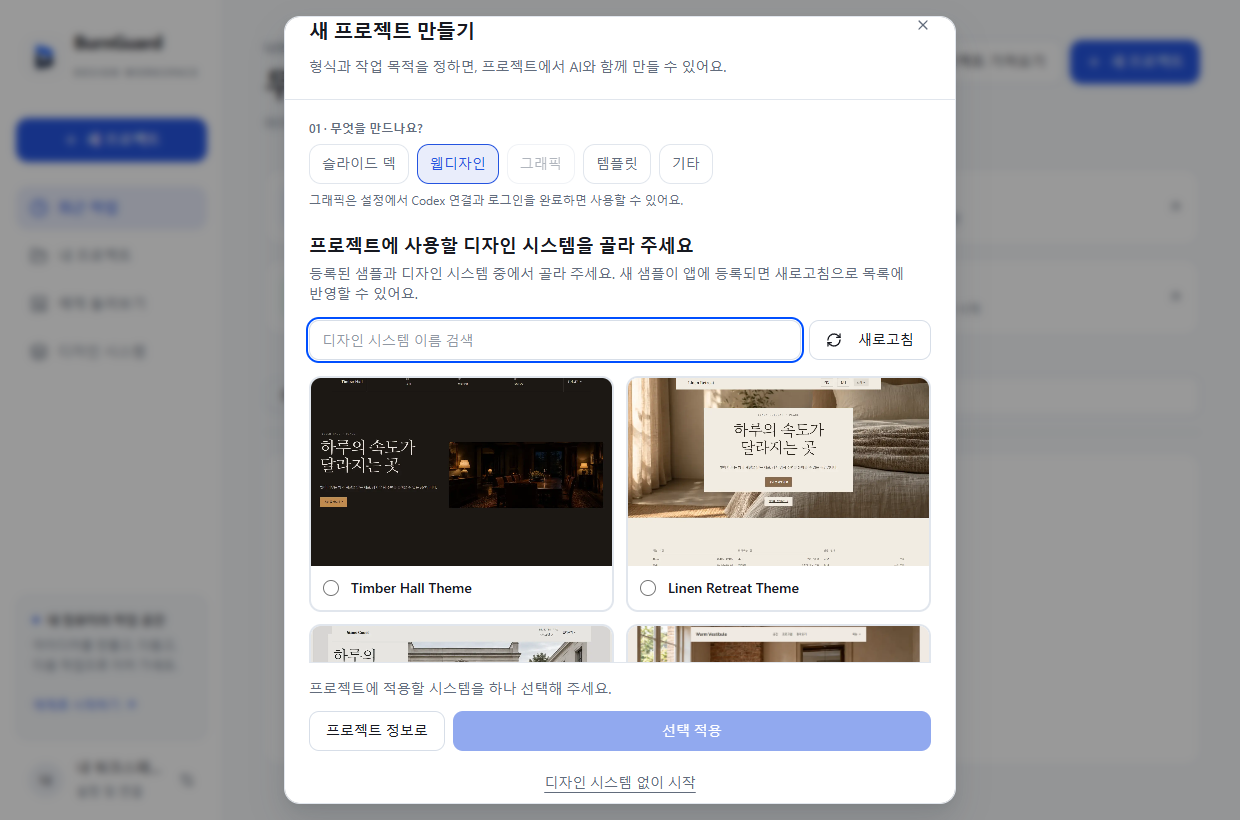
Design-system selection in the real application. Systems without a preview remain selectable by name.
Open a system's overview to inspect its navigation, hero and footer rules. Direction setting and generation use the same rules, including compact prompts: the three direction previews vary message, evidence and action emphasis within the selected system's structure. These are structural summaries; rendered output can contain richer detail. Directions saved before the system was selected or its rules changed can be regenerated from the current system.
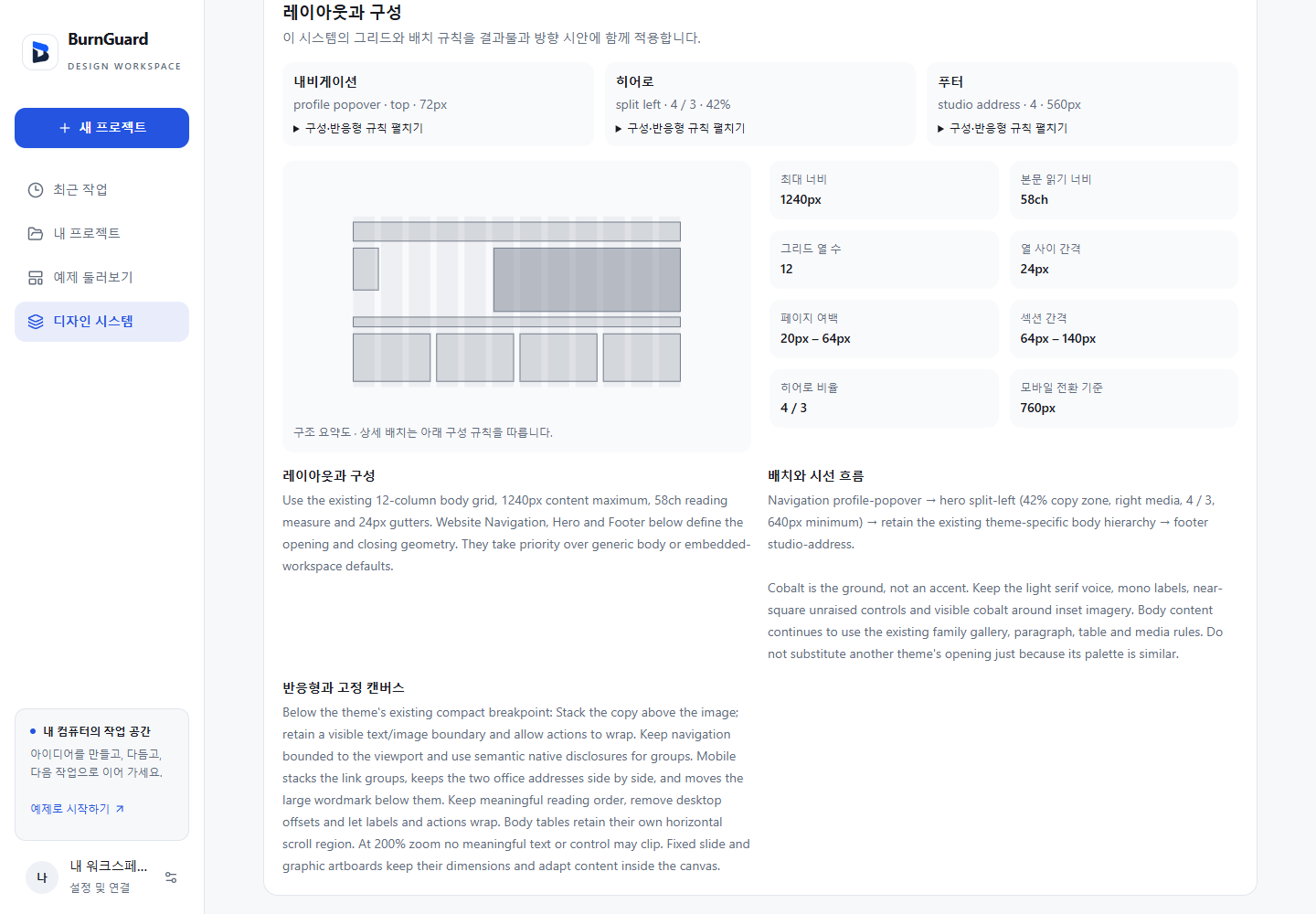
The actual Cobalt Atelier overview. Navigation, hero and footer summaries stay visible; expand a region to read its full rules. Missing bundled rules are supplemented while existing authored rules are preserved.
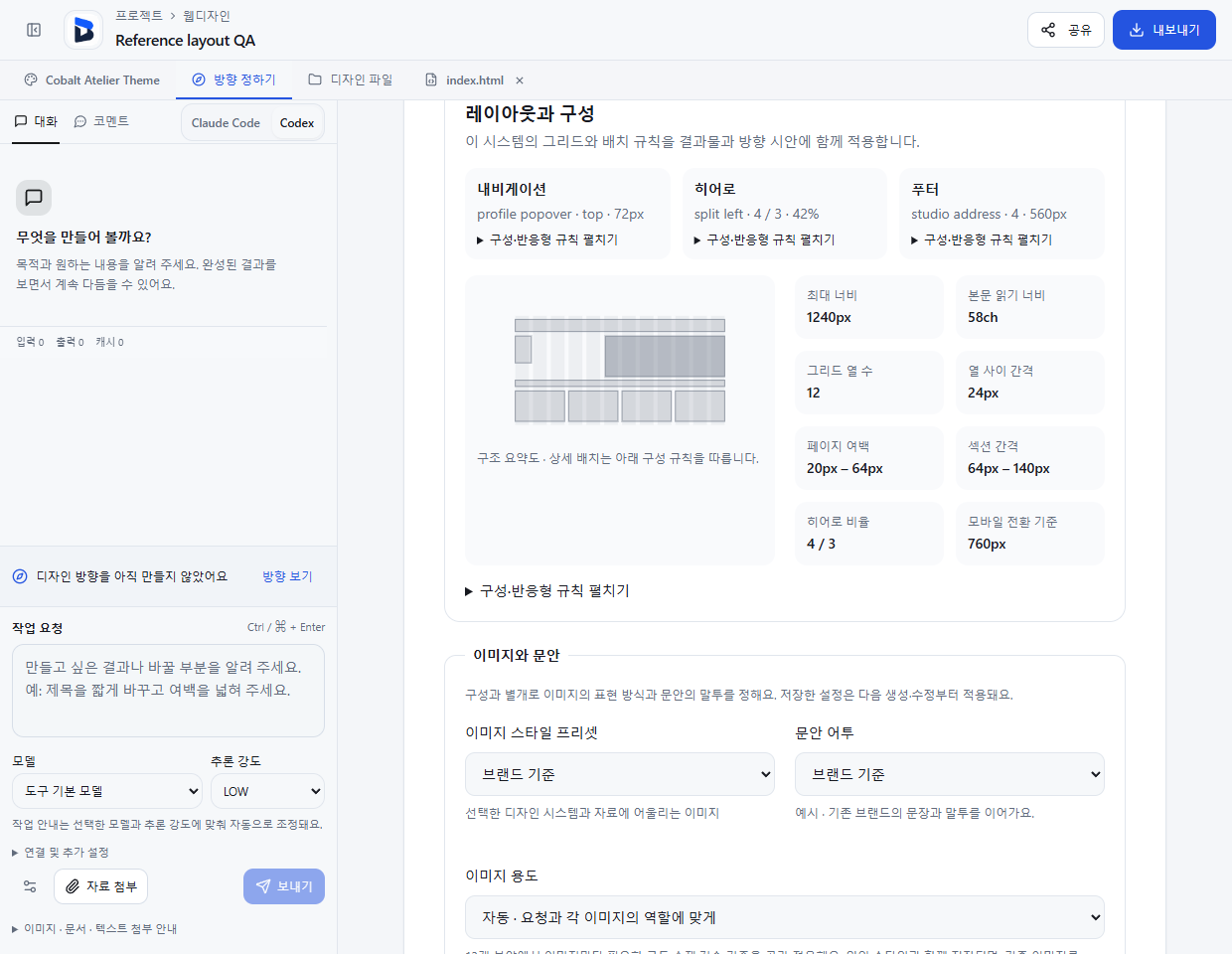
The same layout rules in a real project's direction screen, before generation. This capture shows the configured guidance, not a measured model-quality result.
Desktop packages include 41 website examples, 41 generated WebP illustrations and 41 website thumbnails captured in Chrome. The design-system library and project onboarding show the thumbnails; each theme's overview has a dedicated, scrollable website preview. Explore editorial sites, shops, workspaces, cultural pages and more in the website preview gallery. Theme token catalogue
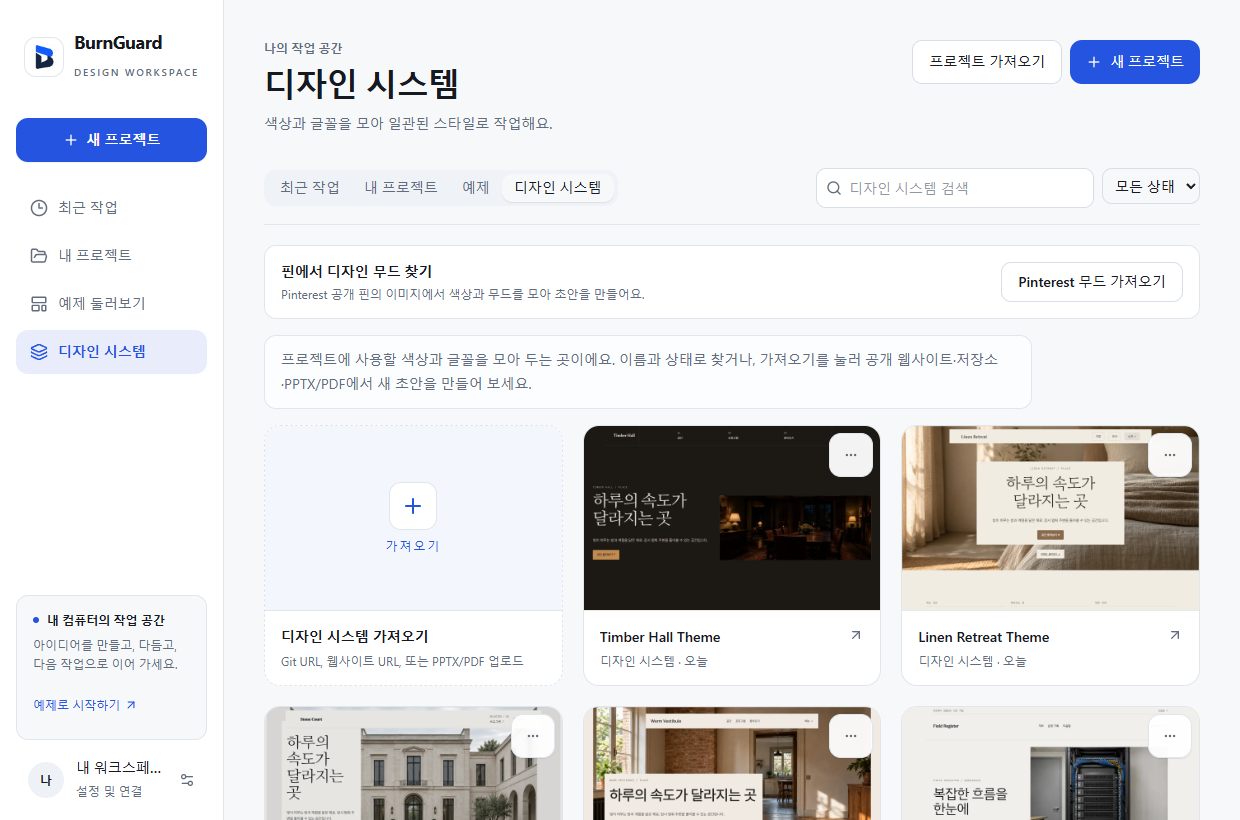
The actual design-system library with bundled website thumbnails.
These examples illustrate the bundled themes' default designs. Existing system preview files take precedence; when they are missing, BurnGuard shows the bundled reference without overwriting edited system files or publication records. In the app, the examples use the shared local font store.
72 font families ship with license notices. Bundled fonts use one shared local store, and canvas loads are reused across projects within the app window. New projects reference that store; standalone exports include the font files they need. Font catalogue · Design-system format
One workspace, several kinds of output
| Make | Work with | Take away |
|---|---|---|
| Websites | Linked pages, shared styles, images and reusable components | HTML/CSS/JS/assets ZIP, or publish to your Vercel account |
| Slide decks | Slide previews, typography, presentation mode and comments | HTML, PDF or PPTX |
| Graphics | Custom artboard sizes, posters and multi-frame compositions | PNG, PNG bundle or PDF |
| Product detail pages | Long pages with section imagery | Section-aware PNG/JPEG slices |
| Platform pages | Cafe24 Smart Design or Imweb code-widget output | Packages with manual installation guides |
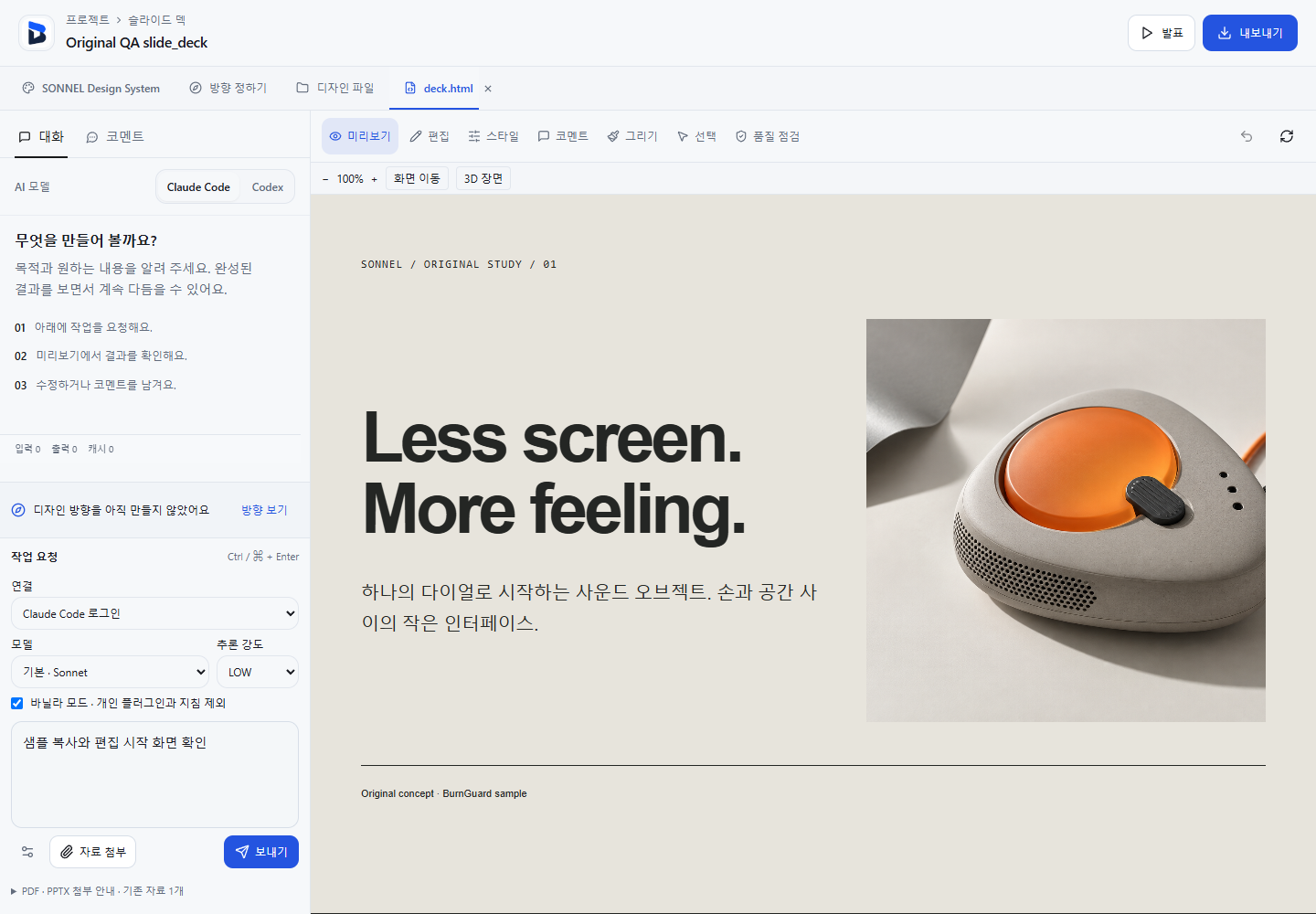
The same workspace handles a slide deck, with presentation and export controls above the canvas.
PPTX exports contain a high-resolution image of each slide and its text in speaker notes. Individual elements remain editable in BurnGuard's HTML workspace; they are not exported as editable PowerPoint objects.
Refine the result where you see it
- Edit on canvas. Select elements, adjust size and rotation, change typography and spacing, or work with colors. Saved revisions and undo help you return to an earlier result.
- Leave a targeted comment. Pin feedback to content and send an AI edit request. Pins stay attached while you scroll; click a saved pin to reopen its comment. Hover over the canvas and press Ctrl+Space on Windows/Linux or Control+Option+Space on macOS for a quick comment.
- Add source material. Attach supported PDFs, slide decks, documents, images or text, or import an exported HTML project ZIP. Original attachments are retained separately from published website assets.
- Review before sharing. Quality and UX panels identify issues and offer repair actions. Their findings are advisory; review the rendered result before exporting or publishing.
Images, charts and 3D
Give images a role in the design: a product hero, campaign scene, explanatory illustration or background. BurnGuard includes 21 image treatments and 38 purpose recipes across 13 domains. Generated images are photorealistic by default: abstract imagery is prohibited unless you ask for it, image prompts are written as a photographer's brief, and generated-art signatures such as plastic skin, glowing backdrops and garbled lettering are rejected at inspection. Non-photographic treatments apply only when you select or request them. Generation guidance calls for image production where the design needs it; the configured provider must support the requested generation. Graphic generation requires an authenticated Codex connection. Image production guide
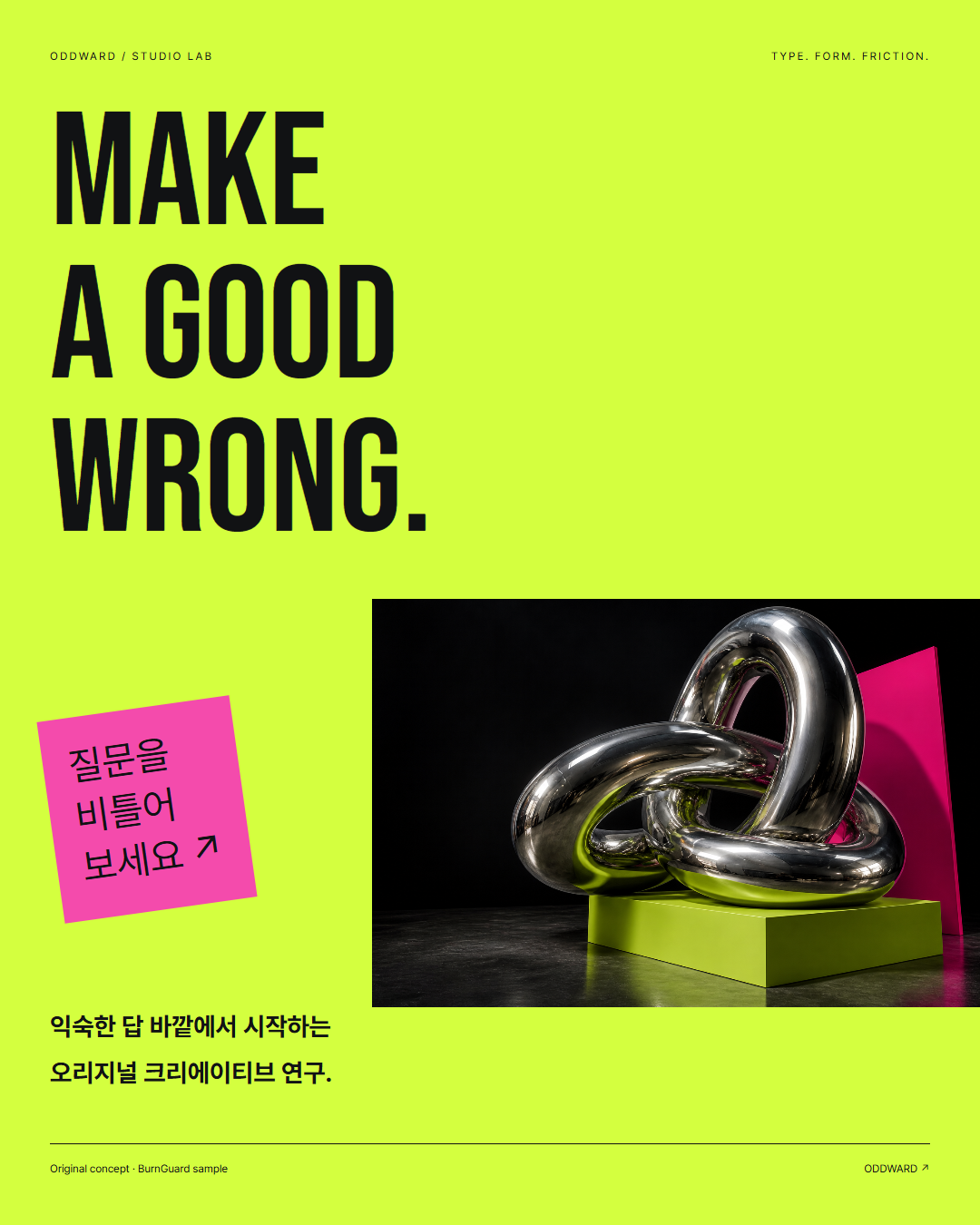
A rendered ODDWARD sample graphic from the local QA evidence. The fictional sample's creative artwork is generated imagery; this is an output preview, not an application screenshot.
Add area, line, bar, composed, radar, pie, radial or Sankey charts from the Chart panel. Paste spreadsheet rows, edit colors and keep portable SVG with its source data in the HTML. The 3D panel supports bundled Three.js objects and AI scene edits. Chart guide
Explore SONNEL, FOLIOVER, ODDWARD, VELUNE and HALIDE. Each original collection includes a website, a six-slide deck, a graphic and a design system. Sample collections · Image recipe gallery
Get started
- Install. Download a Windows or macOS package from GitHub Releases. On Windows, use the installer or extract the complete portable ZIP and open
BurnGuard.exe. On macOS, use the installer or move the portable app into Applications. Packages are currently unsigned. - Explore an example. Open a bundled project and try the canvas before connecting an AI provider.
- Connect your CLI. Install and authenticate Claude Code or Codex CLI, then choose the connection and model in Settings. LOW effort and vanilla mode are the defaults. Vanilla mode excludes personal plugins and instructions while keeping BurnGuard's project context.
- Create a project. Pick a format and design system, add your brief and reference material, then generate and refine.
- Export or share. Download the project files, or use Share → Prepare current output → Publish publicly for a website on your Vercel account.
| Requirement | Details |
|---|---|
| Windows desktop | Windows 10/11 x64, .NET Framework 4.8 and Microsoft Edge WebView2 Runtime |
| AI generation | Installed, authenticated claude or codex CLI and the corresponding provider account |
| Rendering and export | Supported Chrome/Edge or Chromium; availability is shown in Settings |
| Updates | Windows and macOS release feeds; preserve your local profile when replacing a package |
Vercel publishing requires your token and optional team ID. Hosting plans and visitor access follow your Vercel settings. Cafe24 and Imweb packages require manual installation; they have not been validated in a live customer shop.
Your projects stay local
BurnGuard keeps its database, projects, settings, systems and export cache in ~/.burnguard (%USERPROFILE%\.burnguard on Windows). Keep this profile when upgrading the app.
Generation sends selected context to your configured provider. Imports and publishing can also use the network. The local server binds to loopback, checks launch authority and isolates generated pages in a sandbox. Security model
Run from source
Use Bun 1.3.14, as pinned in CI.
git clone https://github.com/ashmoonori-afk/BurnGuard.git
cd BurnGuard
bun install --frozen-lockfile
bun run scripts/dev-launcher.ts
The launcher opens the frontend at http://127.0.0.1:5173; the backend uses 127.0.0.1:14070. Stop it with Ctrl+C. On Windows, Start-BurnGuard.bat launches the native app and builds it when needed; that build requires Bun and the .NET 8 SDK. Use --rebuild after source changes.
To inspect the repository's theme examples, open design system themes/previews/index.html in a browser. The pages use bundled local fonts and images. After editing theme tokens, rebuild the token catalogue and website previews:
bun run catalogue
bun run previews
previews rebuilds the HTML and reuses the existing illustrations; it does not call an image provider. To refresh the committed website thumbnails afterward, optionally run bun run previews:thumbnails with Node.js and Chrome installed. It captures the actual pages in Chrome.
bun run typecheck
bun run lint
bun run build:frontend
bun test
Run tests from the repository root so the preload provides an isolated temporary profile. Browser QA requires Node.js and Chrome/Edge; Windows runners may need an absolute Bun executable path. Contributing and native builds
About the screenshotsThe interface captures were selected from the repository's local .omo/evidence QA records and copied without retouching. They show seeded examples and test input, not private customer projects or proof of a live provider run. Older captures may differ slightly from the current toolbar.
| README image | Original evidence capture |
|---|---|
| Website workspace | fonts-2026-09-09/app-created-prototype.png |
| Design-system picker | reference-layout-app/selected/onboarding.png |
| Design-system library | reference-layout-app/selected/list.png |
| Layout overview | reference-layout-app/selected/overview-desktop.png |
| Layout direction | reference-layout-app/selected/direction-desktop.png |
| Slide workspace | updates-samples-2026-09-09/app-created-slide_deck.png |
| Graphic output | fonts-2026-09-09/oddward-graphic-quality.png |
Changelog
0.5.25
- Generation turns commit even when the rendered design check cannot run (Chromium missing or a large site timing out); the chat shows a "review incomplete" badge instead of refusing the turn. Must-fix findings block a turn only in pages the turn changed, and a turn that edits shared CSS, scripts or images is checked across every page.
- The Quality panel reports checks that do not apply to decks and fixed-size graphics as not applicable, measures contrast on plain gradients, treats monospace text as its own font role, scans linked stylesheets for hard-coded colours, and flags remote fonts, images and frames that exports cannot fetch.
- The design brief carries the app language, and UX-review findings, quality and platform fix requests, direction previews and every app-built AI request are shown in Korean, English or Chinese; error messages exist for every server error code.
- The prompt harness reconciles contradictory rules (charts, palettes, breakpoints, social proof, map embeds, PowerShell on Windows only), adds Hangul typography rules, stages the Lucide icon reference inside each project, gates the 3D and chart contracts by request, ships the complete design-system token block and trims pinned rules in compact mode.
- Canvas: the Edit panel edits image sources and link targets, resolved comments can be reopened, a new comment opens its editor, Ctrl/⌘+Z undoes style tweaks, colour swatches come from the page's own tokens, every bundled font is listed, and the duplicate Select mode is gone.
- Home and settings: dark mode applies on every screen, the language saves on click, backend detection failures show a retry, the creation draft clears after success, and search covers all projects.
- Website import strips scripts and forms instead of rejecting the page, records media-query context on extracted tokens and emits the canonical token contract; starter templates declare
--page-background.
0.5.24
- New projects and seeded samples load in the canvas, live preview and Present again; the bundled font set had outgrown the canvas font limit.
- PDF and PNG ZIP exports keep authored grid/flex layouts and page backgrounds, wait for lazy-loaded images, and export seeded sample graphics as artboard PDFs. Decks too large for PDF are refused before rendering with a clear reason.
- Cafe24 and Imweb packages accept ordinary links, include every page and the assets only subpages use, keep footer scripts working, ship font licenses, and no longer need Chromium.
- Exports include only the bundled fonts the document uses, ZIP files carry local timestamps, and deleted projects no longer leave cached exports behind.
- Chat reports whether a turn's work actually reached the project, including failed deck reviews and repairs; attached source pages map one-to-one to slides when requested.
- macOS app: finds CLIs and Python installed with Homebrew or in
~/.local/bin, opens external links in the browser, supports standard ⌘C/⌘V/⌘Q shortcuts, replaces an existing download, and waits for the local server to stop before quitting. - Windows app: stays open on recoverable WebView2 process failures and lists installed fonts. Linux source runs list installed fonts, and one backend now owns each profile on macOS and Linux.
- Settings are split into a shared profile and device-local credentials and policy.
0.5.23
- Logo projects show Codex image outputs as they arrive, keep candidate bytes verbatim, audit text per artboard and report clearer failure stages.
- Windows owns the backend's process trees with job objects, quotes batch provider arguments safely and routes native downloads by filename.
- Release packaging verifies native canvas, persistence and exports on Windows and macOS before a draft is prepared.
0.5.22
- Add logo-design projects with exploration rounds, a selected SVG master and brand-guideline deliverables.
- macOS: working sandboxed canvases, native export downloads, installed font listing and an app-owned Python environment for PDF dependencies.
- Security fixes: PNG decoded-size checks before decompression, SVG revalidation before design-system promotion and stricter POSIX package permissions.
- 0.5.20 and 0.5.21 were not publicly released.
0.5.19
- Recover verified legacy attachment-only artifact revisions during startup without replacing project files or uploaded originals.
- Normalize Windows line endings when reading design-system surface rules.
- Fix Windows browser-test startup and isolate provider/render fixtures; include legacy recovery checks in Windows release packaging.
0.5.18
- Fit oversized slide content to the artboard as content and images load.
- Validate actual slide content, slide counts, runtime and local images before marking generation complete; continue unfinished output instead of accepting placeholders.
- Default generated imagery to photorealistic subjects and avoid abstract decorative images.
- Keep historical specifications 04–23 and reference notes local; simplify the public documentation index.
0.5.17
- Show slide or website thumbnails for the selected project format.
- Preserve generated HTML and assets when generation is stopped, and restore the previous entrypoint if it was removed mid-write.
- Pin project design rules, audit rendered output and include review evidence in handoff exports.
Documentation and license
Documentation index · Architecture · Design guidance · Installation and updates
BurnGuard is licensed under Apache-2.0. See LICENSE, NOTICE and the image provenance notes.
Reviews (0)
Sign in to leave a review.
Leave a reviewNo results found