orca-claude-accounts
Health Warn
- License — License: MIT
- Description — Repository has a description
- Active repo — Last push 0 days ago
- Low visibility — Only 6 GitHub stars
Code Fail
- process.env — Environment variable access in lib/platform.mjs
- exec() — Shell command execution in lib/secrets.mjs
- process.env — Environment variable access in lib/secrets.mjs
- process.env — Environment variable access in lib/server-process.mjs
- network request — Outbound network request in lib/server-process.mjs
- process.env — Environment variable access in lib/store.mjs
- network request — Outbound network request in lib/usage.mjs
Permissions Pass
- Permissions — No dangerous permissions requested
No AI report is available for this listing yet.
Orca plugin: switch Claude Code between multiple accounts (setup-token), with token checks and per-account usage
Claude Accounts — Orca plugin
Switch Claude Code between several Claude accounts from
inside Orca — work, personal, team seats — without
logging in and out. Each account uses a one-year token from claude setup-token.
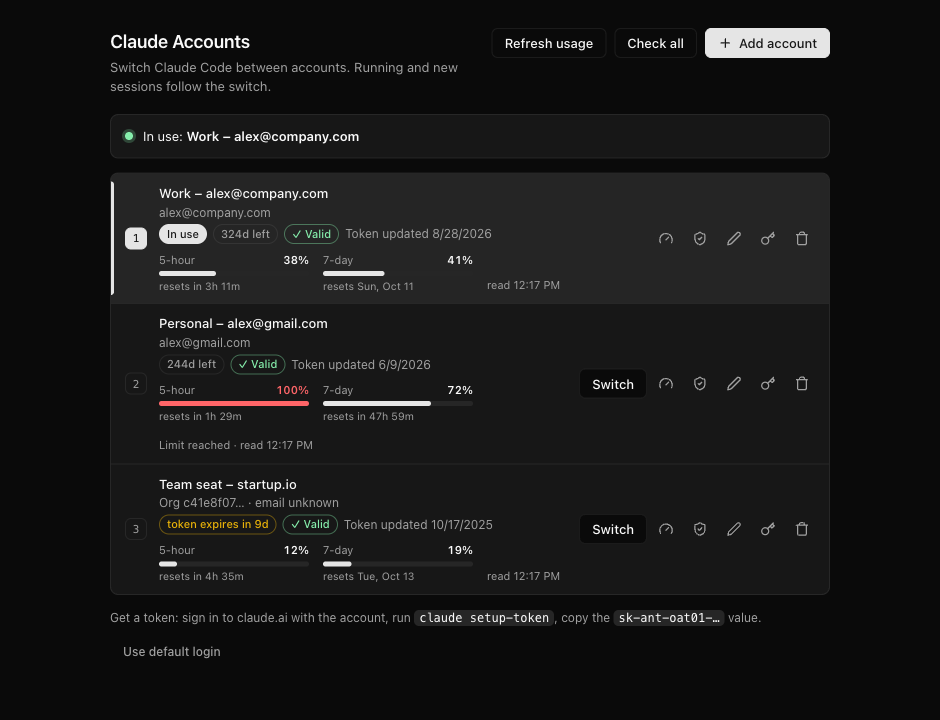
- Switch in one keystroke; running Claude Code sessions follow the switch.
- Usage per account: 5-hour and 7-day usage with reset times, shown by default.
- Token check with Anthropic before saving (uses no quota).
- Secure storage: macOS Keychain, Windows DPAPI, Linux keyring.
- Looks like Orca: the page uses the design tokens of your installed Orca and follows your theme.
Experimental: built on Orca's plugin API v1 (Orca 1.4.x), which is itself experimental.
macOS is tested daily; Linux storage is tested; Windows is untested — reports welcome.
Contents
- Before you start
- Get a one-year token for each account
- Install the plugin in Orca
- Open Claude Accounts
- Add your accounts
- Switch accounts and watch usage
- The sidebar panel
- Command line
- Troubleshooting
- How it works · Where tokens are stored · Notes
1. Before you start
You need:
- Orca 1.4 or newer (macOS, Windows or Linux)
- Claude Code installed (
claudeon your PATH) - A Claude subscription (Pro, Max, Team or Enterprise) for each account you want to add
- Linux only:
secret-tool(packagelibsecret-toolsorlibsecret) and a running
keyring such as GNOME Keyring or KWallet. Without one, tokens fall back to a
mode-600 file and the page warns you.
2. Get a one-year token for each account
claude setup-token creates a long-lived (one-year) token for the Claude account
that is signed in on claude.ai in your browser
(Claude Code docs).
For each account:
In your browser, sign in to claude.ai with that account.
Tip: use a private/incognito window, or sign out first, so you don't authorize
the wrong account.In a terminal, run:
claude setup-tokenApprove the request in the browser page that opens.
Back in the terminal, copy the printed token. It starts with
sk-ant-oat01-.
Keep the token private — it gives access to that account's Claude usage. You will
paste it into the plugin in step 5; the plugin stores it securely and never shows it again.
3. Install the plugin in Orca
Choose one of the two options.
Option A — install from Git (simplest)
In Orca, open Settings → Plugins.
Choose to install a plugin from Git and enter this URL including the
#part:https://github.com/baroned1707/orca-claude-accounts.git#v0.11.3The
#v0.11.3pins the exact release; Orca requires a tag or commit after#.Enable Claude Accounts and approve its permission (it only shows notifications).
Option B — developer path (live sidebar panel, easy updates)
git clone --branch v0.11.3 https://github.com/baroned1707/orca-claude-accounts.git
cd orca-claude-accounts
npm link        # optional: adds the `claude-accounts` command (Node.js 18+)
Then in Orca: Settings → Plugins → Developer plugin paths → add the cloned
folder, enable Claude Accounts and approve its permission.
Option B is needed for a sidebar panel that updates live (see step 7).
To upgrade later: git fetch --tags && git checkout v<new version>.
Orca asks you to approve the plugin again whenever its keyboard shortcuts change
(for example after an upgrade). Until you do, commands report
"Could not run the plugin command".
4. Open Claude Accounts
Any of these opens the Manage accounts page as a tab inside Orca:
| How | macOS | Windows / Linux |
|---|---|---|
| Keyboard shortcut | ⌘⇧M |
Ctrl+Shift+M |
| Command palette | ⌘J → type Claude Account: Manage Accounts… |
Ctrl+Shift+J → same |
Orca needs an open worktree to show the tab; otherwise the page opens in your
default browser. ⌘⇧M is also Orca's default for New markdown tab — if that is
what opens, change one of the two in Settings → Shortcuts.
5. Add your accounts
Click Add account, give it a label you will recognise (for example
"Work – [email protected]"), paste the token from step 2, and keep
Switch to it now ticked if you want to use it right away.
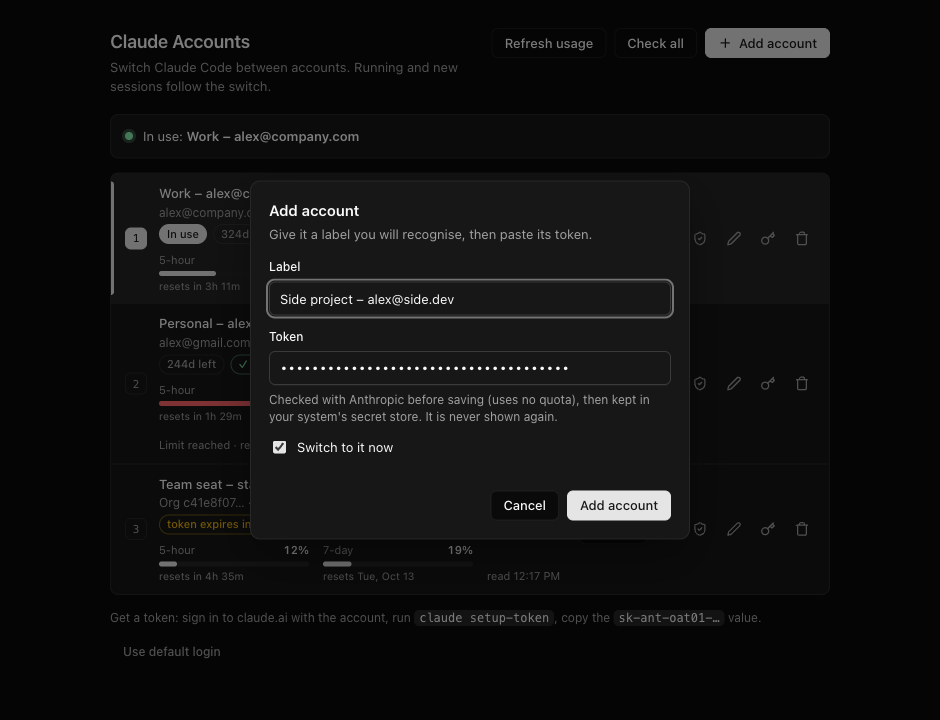
Before saving, the plugin checks the token with Anthropic (no quota used):
- a rejected token is not saved, and the dialog shows why;
- a token that is already saved is refused;
- a token from the same organization as an existing account is saved with a
note — normal on Team/Enterprise plans, whose members share one organization.
Repeat for every account.
6. Switch accounts and watch usage
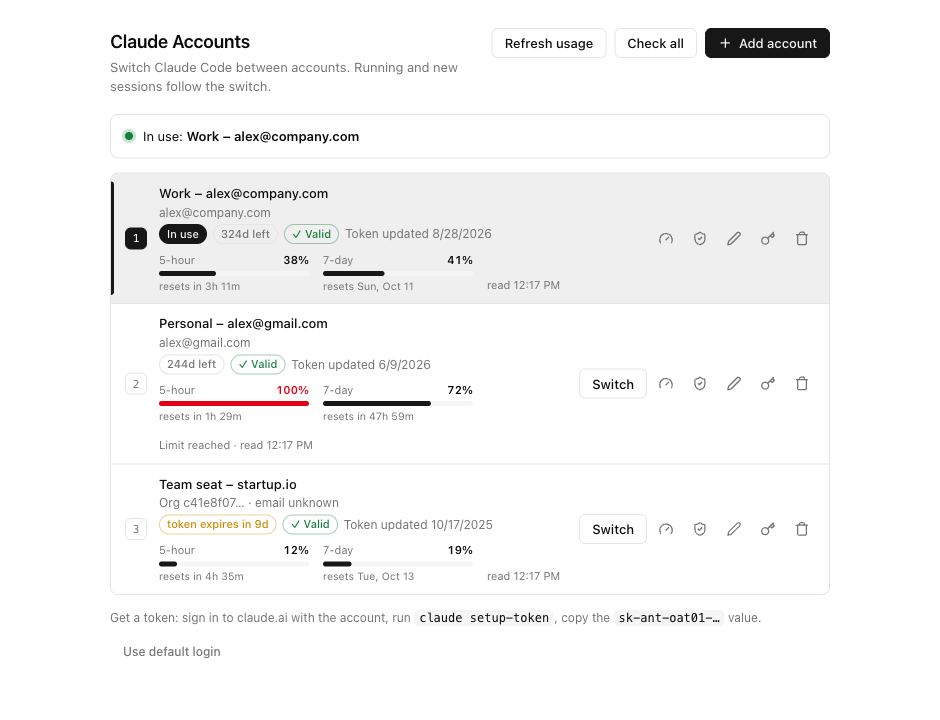
- In use — the account Claude Code uses now: shown at the top, marked with an
accent bar, a filled slot number and an In use badge. - Switch — makes that account the one in use. New and already running Claude
Code sessions use it from their next request; no restart needed. - Usage — 5-hour and 7-day bars with the time until they reset. Amber means
80 % or more, red means the limit is reached (Limit reached). Usage is read when
the page opens and every 5 minutes while it is visible. - Badges — ✓ Valid / ✕ Invalid from the last token check, days left on the
one-year token (amber from 14 days), and the account's email when it is known. - Row buttons — refresh usage, check token, edit label, update token, remove.
- Header buttons — Refresh usage and Check all for every account at once.
- Use default login — removes the token; Claude Code goes back to your normal
/loginsession.
Faster switching without opening the page:
| Action | macOS | Windows / Linux |
|---|---|---|
| Switch to the next account | ⌘⌥N |
Ctrl+Alt+N |
| Use account 1…5 | ⌘J → Claude Account: Use Slot N |
Ctrl+Shift+J → same |
| List accounts in a notification | ⌘J → Claude Account: Show Accounts |
Ctrl+Shift+J → same |
When a token is about to expire, create a new one (step 2) and use Update token
on that account.
7. The sidebar panel
Open Orca's right sidebar (⌘L / Ctrl+L) and click the bot icon:
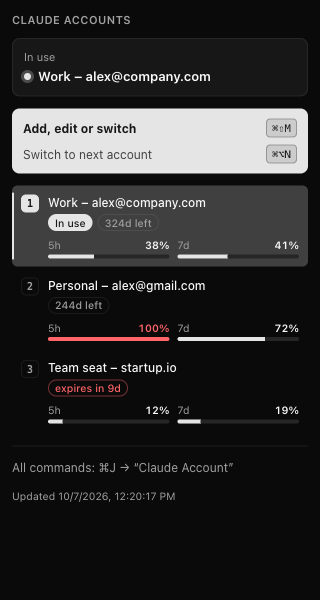
It shows the account in use, every account with its token age and last usage, and
the shortcuts. The panel is read-only — Orca doesn't let plugin panels run
commands — so use ⌘⇧M to change anything.
It updates live only with the developer path install (Option B): the plugin
refreshes it by rewriting panel.html in its folder, which Orca can't do for a
Git-installed (content-locked) copy. It never contains tokens or emails.
8. Command line (optional)
After npm link (Option B):
claude-accounts                        # list accounts (● = in use) with last usage
claude-accounts ui                     # open the Manage accounts page
claude-accounts add "Work – [email protected]" # paste the token at the hidden prompt (or: pbpaste | …)
claude-accounts use 2                  # switch by slot number or label
claude-accounts next                   # switch to the next account
claude-accounts off                    # use your normal /login session
claude-accounts usage [slot]           # 5-hour / 7-day usage
claude-accounts check [slot]           # validate tokens (no quota)
claude-accounts token 2                # replace a token
claude-accounts label 2 "New label"
claude-accounts rm 2
Troubleshooting
| Problem | What to do |
|---|---|
| Could not run the plugin command | Settings → Plugins → Claude Accounts: approve the plugin again (needed after shortcut changes), then reload it. |
⌘⇧M opens a markdown tab |
Orca's New markdown tab uses the same key. Change one of them in Settings → Shortcuts. |
| The page opened in my web browser | Orca needs an open worktree to show it as a tab. |
| The account manager is not running | It stops after 30 idle minutes. Press ⌘⇧M again. |
| token rejected by Anthropic | The token is wrong, revoked or expired. Create a new one (step 2). |
| this token is already saved as … | You pasted a token that is already stored — check your clipboard holds the new token. |
| same organization as … | Fine on Team/Enterprise plans. Otherwise you probably ran claude setup-token while the browser was signed in to that other account. |
| ⚠ Stored in a plain file (Linux) | No keyring was available. Start/unlock GNOME Keyring or KWallet, then Update token to move it into the keyring. |
| No email shown | setup-token tokens can't read the profile. The email appears only for accounts also signed in on this computer with /login; use a descriptive label instead. |
How it works
Switching writes the selected token to env.CLAUDE_CODE_OAUTH_TOKEN in~/.claude/settings.json. Claude Code reads that file at start-up and reloads
it while running, so new and running sessions use the selected account
(verified with Claude Code 2.1.292). All sessions share one account at a time.
- Token check —
GET /v1/modelswith the token: needs a working token, runs no
model, uses no quota. - Usage — setup-token tokens can't call Anthropic's usage API (it needs the
user:profilescope), so each reading sends the smallest model request (Haiku,
1 output token) and reads theanthropic-ratelimit-unified-*headers, the same
numbers Claude Code uses. Each reading spends a tiny amount of usage. - Email — the plugin records each token's organization id and shows the email
when it matches an account signed in on this computer with/login. - Manage page — plugin panels can't exchange data with the plugin, so the page
is served by a small local server running as its own process: bound to127.0.0.1, behind a random 256-bit URL secret,Host-checked, JSON-only writes
with a custom header, never returns tokens, exits after 30 idle minutes. - Theme — read at runtime from the installed Orca's
resources/app.asar, so it
matches your Orca version, theme and font; system colors if Orca can't be read.
Where tokens are stored
| Platform | Every account's token | How |
|---|---|---|
| macOS | login Keychain, service orca-claude-accounts |
security, token passed on stdin |
| Windows | %USERPROFILE%\AppData\Roaming\orca-claude-accounts\tokens\<id>.dpapi |
encrypted with DPAPI for your Windows user |
| Linux | Secret Service keyring (GNOME Keyring, KWallet…) | secret-tool, token passed on stdin |
| Linux, no keyring | ~/.config/orca-claude-accounts/tokens/<id> |
plain file, mode 600, flagged in the UI |
Tokens never appear in process arguments, the plugin folder, the sidebar panel or
the page's responses.
| Other file | Contents |
|---|---|
~/.claude/settings.json → env.CLAUDE_CODE_OAUTH_TOKEN |
the token of the account in use, in plain text — that is where Claude Code reads it |
accounts.json in the data folder¹ |
labels, dates, last check, usage — no tokens |
server.json in the data folder¹ |
URL of the running Manage page (mode 600) |
¹ ~/.config/orca-claude-accounts on macOS/Linux and%USERPROFILE%\AppData\Roaming\orca-claude-accounts on Windows — fixed paths,
because Orca starts plugins without XDG_CONFIG_HOME/APPDATA.
Notes
- setup-token tokens are inference-only: features that need a full login (for
example Remote Control) don't work while a token is in use. - Don't also pick a managed Claude account in Orca's own account switcher: Orca then
points Claude Code at a different config folder and ignores this token. - Remove any
CLAUDE_CODE_OAUTH_TOKENexported in your shell profile. - Desktop notifications from the Manage page use
osascript(macOS) andnotify-send(Linux); on Windows the page shows its own messages. - Screenshots use made-up demo accounts.
License
Reviews (0)
Sign in to leave a review.
Leave a reviewNo results found