video-skills
Health Warn
- License — License: MIT
- Description — Repository has a description
- Active repo — Last push 0 days ago
- Low visibility — Only 5 GitHub stars
Code Pass
- Code scan — Scanned 12 files during light audit, no dangerous patterns found
Permissions Pass
- Permissions — No dangerous permissions requested
No AI report is available for this listing yet.
Edit a talking-head reel in one prompt. Skills for Codex (GPT-6 Astra) and Claude Code, plus reel templates, fill-in scripts, a review loop, an edit check and a local editor.
Video Skills
Edit a talking-head reel in one prompt. This is my reel-editing workflow, packaged as a skill for Codex with GPT-6 Astra and for Claude Code, plus three ready-made reel templates with fill-in scripts and a local editor that does the rendering.
The one prompt
Use this repository as a template (the green Use this template button, or download the latest release). Open the folder in Codex with GPT-6 Astra, or in Claude Code, and paste:
Use the reel-edit skill in this repository to edit my talking-head clip.

Source: [MY VIDEO PATH]
Template: [founder-story / product-breakdown / playful-explainer]
Optional style reference: [REFERENCE PATH OR NONE]
The full version with the editorial rules is prompts/first-edit.md. The skill lives in .agents/skills/reel-edit/SKILL.md (Codex) and .claude/skills/reel-edit/SKILL.md (Claude Code). Both copies are identical. The assistant inspects your footage, transcribes it locally, cuts long pauses and false starts, places the cards on the phrases you actually said, grades the colour, renders a preview, and hands you the editable project. Revise with timestamps using prompts/revisions.md.
Astra, Codex and Claude Code need your own access. The model is not included and is not open source. Everything else here is.
Pale Yellow Reel skill
For a single lifestyle clip with a fixed title, use pale-yellow-reel. It saves the approved four-second, 30 fps layout: pale-yellow lettering, fixed text placement and a lower, wider crop. It provides both 540×960 previews and 1080×1920 exports, with explicit source/output timing and validation.
Use the pale-yellow-reel skill to edit my portrait clip.
Source: [MY VIDEO PATH]
Local template assets: [FOLDER WITH title.png AND audio.m4a]
The exact lettering and audio stay in your local asset folder; public copies contain the style settings and renderer. An installed personal skill can keep the assets beside its settings. The composition diagram illustrates the layout without using personal footage. This skill has its own render command and does not change the editor's three talking-head templates.
Script from a reel that already works
Before you record, hand the assistant a reel you admire and your own facts:
Use the reference-script skill in this repository to write my version of a reel.

Reference: [LINK, FILE PATH, OR PASTED TRANSCRIPT]
My facts: voice/[MY NAME].md
It logs the reference beat by beat (transcript, hook, B-roll, captions, pace), then writes your version beside it in one table: time, their line, your line, the visual, the on-screen text. Every number, name and goal comes from your facts file, written once from voice/facts-interview.md; anything missing is marked [CHECK] instead of invented. You revise line by line, record, and the reel-edit skill takes it from there. The full prompt is prompts/reference-script.md; voice/example-facts.md is a filled example for a fictional founder.
No AI account? Use the editor
- Install Python 3.12 or newer if you do not already have it.
- Open Start-Mac.command on Mac, Start-Windows.bat on Windows, or run
sh start-linux.shon Linux. The first setup installs the tools inside this folder and needs internet access. Leave that window open. - The local editor opens in your browser. Click Try an illustrated demo, or add your own footage. Choose a style, edit the words, and click Render preview. Review it, then Export 1080p.
If the launcher does not open, run python3 bootstrap.py (Windows: py bootstrap.py) from a terminal in this folder. See troubleshooting. Nothing is installed into your global Python. Speech recognition and optional background separation run on your computer and download a model on first use.
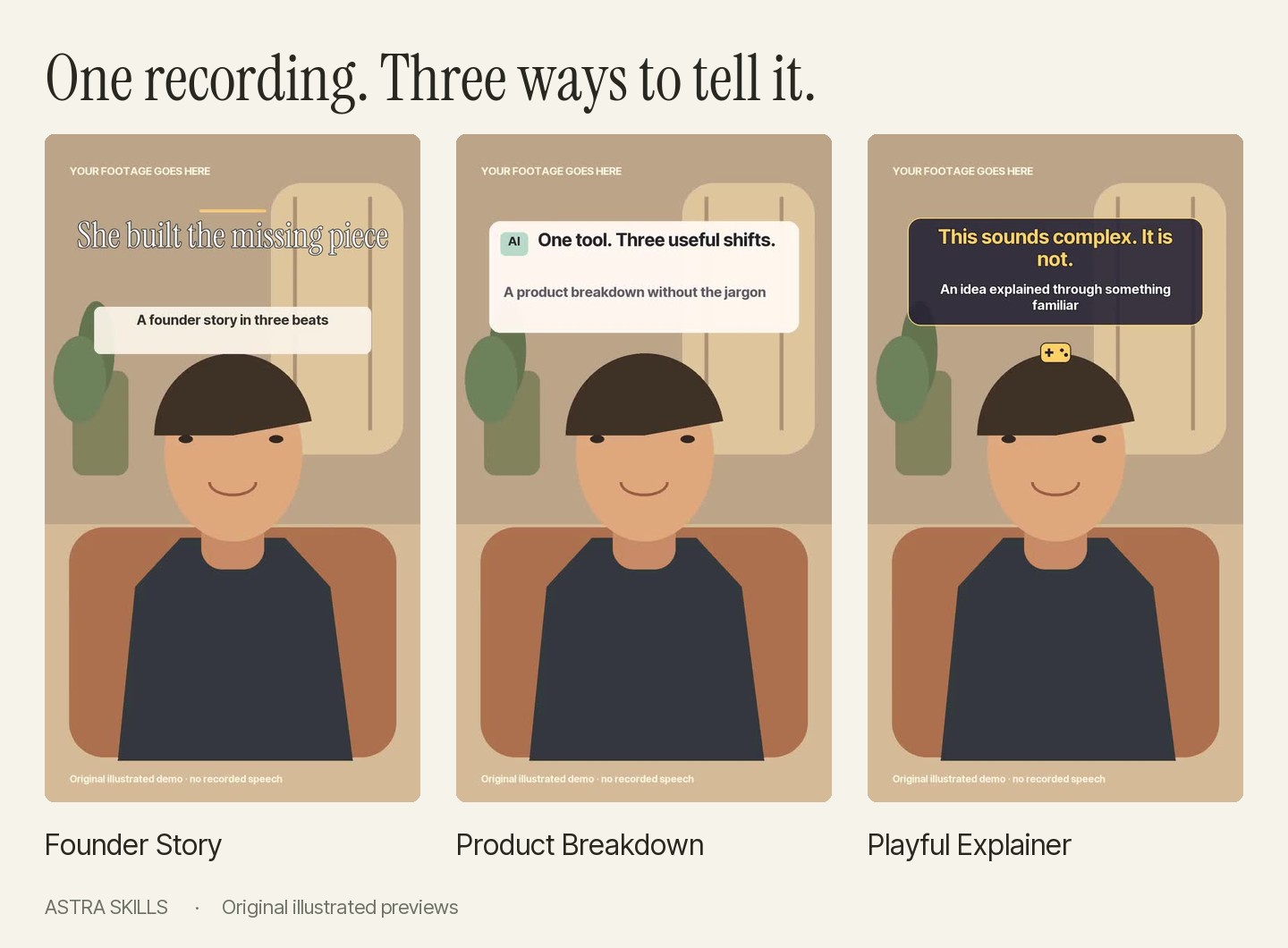
Three templates, make them yours
| Template | Best for | Look | Fill-in script |
|---|---|---|---|
| Founder Story | Founder profiles, origin stories, lessons | Editorial serif, cream note cards, warm accents | scripts/founder-story.md |
| Product Breakdown | Launches, tool reviews, feature explainers | Bold sans type, numbered white cards, muted green | scripts/product-breakdown.md |
| Playful Explainer | AI concepts, analogies, approachable explainers | Bold amber type, original icons, subtle sound hooks | scripts/playful-explainer.md |
Watch the Founder, Product, or Explainer demos. They use an original illustration and no recorded speech, so you can try the whole renderer before adding your own footage. The example companies are fictional.
Each template is a JSON file in templates/. Copy one, change the hook, cards, ending, colours and positions, and it is your style. The project format documents every field.
What the renderer does on its own
- Conservative long-pause trimming, short audio joins, optional steady-noise reduction, and dialogue loudness normalisation.
- Captions from local speech recognition or your own source-timed SRT, remapped through the cuts.
- Editable hook, three cards, ending, accent, text positions, warm grade, per-clip tint correction, and synthesised transition sounds.
- Original framing kept intact, blurred canvas fill for non-vertical sources, optional portrait separation for background blur.
- A 540×960 draft or 1080×1920 H.264/AAC export, plus the edit decisions, project JSON, captions, and a validation report.
Default card timing splits the edit into five even sections. Phrase-specific timing comes from stage_starts, which the skill fills in from the transcript. The renderer does not decide which repeated phrases are intentional, promise exact reference matching, or fetch B-roll. Those are the assistant's editorial calls, with your review.
How the workflow runs
The walkthrough is the real review loop: inspect the source, transcribe, cut in source time, add graphics, match colour across clips, revise with timestamps, export, keep the project. Cuts are expressed in original source time and graphics in edited output time, so a revision never loses track of where a moment came from.
Review with notes, not paragraphs
.venv/bin/python -m reelkit review my-preview/preview.mp4
The draft opens in your browser with a waveform and its captions. Click a moment or drag a range, type what is wrong, press Enter. Notes save next to the render as preview.review.json, with the words you were hearing. Paste the "Work through my review notes" prompt from prompts/revisions.md and the assistant fixes each note, writes a one-line reply under it and marks it done; the page refreshes by itself. python -m reelkit review FOLDER lists every render under a folder with its open-note count, and --print gives the notes as text. Nothing is uploaded.
The rules behind the edits
docs/editing-rules.md is the short list the skill applies before a cut and before a delivery: first word by frame 6, something on screen every 1.5 to 2 s, captions one to three words landing two frames early and never on the face, one type family in two weights, keep the camera colour, music 10 dB under the voice, preview before master, deliver the cut list with the render. Each rule came from a draft that was sent back. Copy it, cross out what is not you, and the skill follows yours.
Check the edit before you post
.venv/bin/python -m reelkit check my-preview/preview.mp4
Prints PASS or FAIL for the faults a reviewer keeps catching: a pause left in the cut (over 0.5 s), a frozen picture, loudness off target (integrated −16 LUFS, true peak under −1 dBTP), a phrase said twice across a cut (a retake that survived), and loud stretches with no caption (speech the captions missed, or music). It picks up captions.srt and edit-decisions.json beside the render on its own; --captions, --edl, --max-pause, --target-lufs and --json adjust it. The skill runs it on every draft before handing the video over. It needs only the bundled FFmpeg.
Pink B-roll Reel skill
Use pink-broll-reel for the approved three-shot lifestyle montage: fixed pink lettering, reference audio and a 12.6-second ending. It provides 540×960 previews and 1080×1920 masters, explicit source/output timing and configurable crops. See the layout diagram.
Use the pink-broll-reel skill with these three portrait clips, in order.
Sources: [OPENING CLIP], [SECOND CLIP], [CLOSING CLIP]
Local assets: [FOLDER WITH title.png AND audio.m4a]
The public skill includes settings and a standalone renderer. Exact lettering, reference audio and personal footage stay local. It does not change the three talking-head templates below.
For developers
python3 bootstrap.py --check
.venv/bin/python -m unittest discover -s tests -v
.venv/bin/python -m reelkit demo --template all
On Windows use .venv\Scripts\python.exe. python3 bootstrap.py --lite skips the speech and portrait dependencies. Code is in reelkit/, styles in templates/, renders go to .local/ which Git ignores. Python 3.10+ required, 3.12+ recommended. SDR/Rec.709 input, English and Latin-script typography.
Version 0.1.0 is a tested starter, not a general timeline editor. Test evidence · Contributing · Security
License and credits
Original code, docs, icons, and demo artwork are MIT licensed. Inter Tight and Instrument Serif keep their SIL Open Font Licenses. Dependencies and downloaded models keep their own licenses, listed in THIRD_PARTY_NOTICES.md. No personal footage, proprietary fonts, or other creators' reference videos are included.
This is an independent community workflow. GPT-6 Astra and Codex are OpenAI products; see OpenAI's model documentation for availability.
Reviews (0)
Sign in to leave a review.
Leave a reviewNo results found