chat-ui-example
Health Pass
- License — License: MIT
- Description — Repository has a description
- Active repo — Last push 0 days ago
- Community trust — 23 GitHub stars
Code Pass
- Code scan — Scanned 12 files during light audit, no dangerous patterns found
Permissions Pass
- Permissions — No dangerous permissions requested
No AI report is available for this listing yet.
AI chat app using Browser Use v3 SDK
Browser Use Chat UI Example
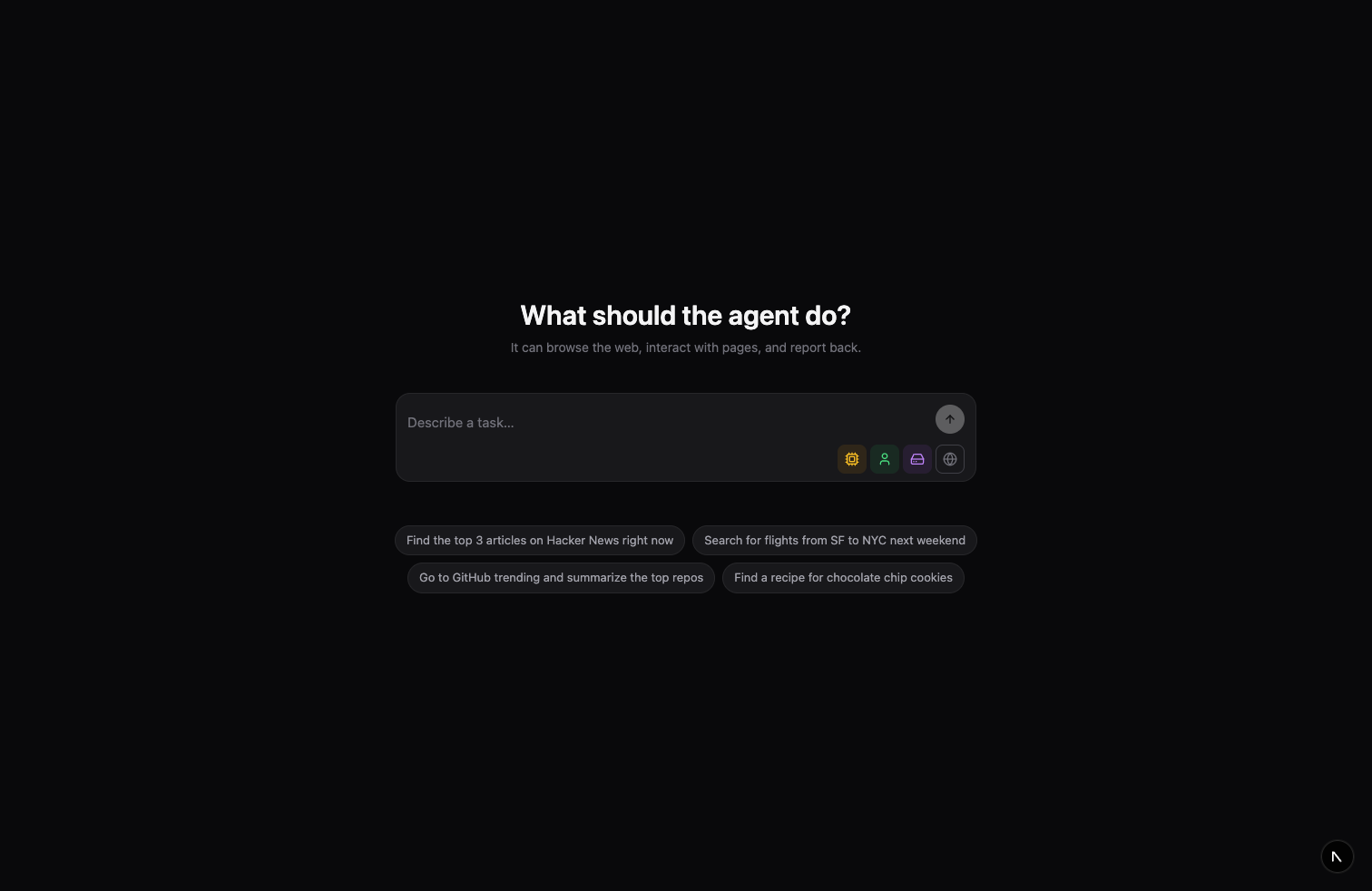
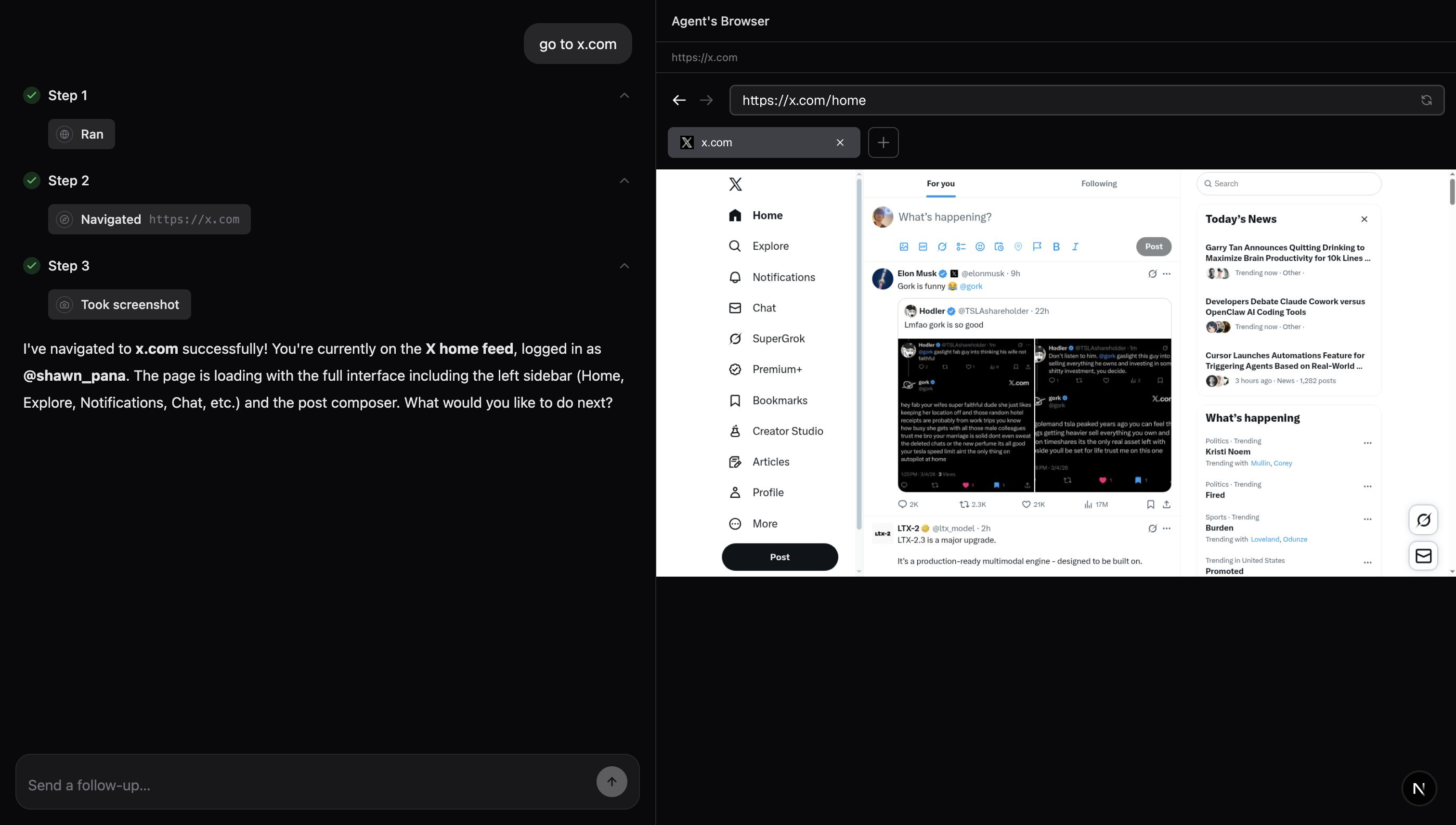
A chat interface for Browser Use that lets you give tasks to an AI agent that can browse the web in real time. Built with Next.js 15, React 19, and the Browser Use SDK.
Quick Start
1. Get a Browser Use API Key
Sign up at browser-use.com and grab your API key from the dashboard.
2. Clone & Install
git clone https://github.com/browser-use/chat-ui-example.git
cd chat-ui-example
npm install
3. Configure Environment
cp .env.example .env.local
Edit .env.local and add your API key:
BROWSER_USE_API_KEY=your-api-key-here
4. Run
npm run dev
Open http://localhost:3000.
Usage
- Type a task like "Find the top 3 articles on Hacker News"
- The agent browses the web and reports back in real time
- Watch the agent work in the live browser panel (desktop only)
- Send follow-up messages to refine or continue the task
- When the session ends, download an MP4 recording of the browser session
Settings
Use the icon buttons below the chat input to configure:
| Icon | Setting | Options |
|---|---|---|
| CPU | Model | BU Mini (fast) / BU Max (powerful) |
| User | Profile | Browser profiles with saved cookies/sessions |
| HardDrive | Workspace | Workspace context for file operations |
| Globe | Proxy | Route traffic through 190+ country proxies |
Settings are persisted in localStorage across sessions.
How It Works — Browser Use SDK
This app is built on the Browser Use Cloud SDK (browser-use-sdk). Here's how the key pieces are wired up.
1. Install the SDK
npm install browser-use-sdk
2. Initialize the client
// src/lib/api.ts — server-only, never imported in client components
import { BrowserUse } from "browser-use-sdk/v3";

const client = new BrowserUse({
  apiKey: process.env.BROWSER_USE_API_KEY,
});
3. Create a session
A session gives you a persistent browser that the agent controls. You pick the model and optionally attach a profile, workspace, or proxy.
const session = await client.sessions.create({
  model: "bu-mini",       // or "bu-max" for complex tasks
  keepAlive: true,        // keep browser open between tasks
  enableRecording: true,  // get MP4 recording after completion
});
// session.id         → use to send follow-up tasks
// session.liveUrl    → embed in an iframe (available immediately)
4. Stream messages with for await
Send a task and stream messages as the agent works — no manual polling needed:
const run = client.run("Find the top 3 articles on Hacker News", {
  sessionId: session.id,
});

for await (const msg of run) {
  console.log(`[${msg.role}] ${msg.summary}`);
}

// Iterator done — task completed
console.log(run.result.output);
console.log(run.result.status); // "idle" | "stopped" | "error" | "timed_out"
5. Stop a task
await client.sessions.stop(session.id, { strategy: "task" });
6. Get recording
After a session completes, retrieve the MP4 recording:
const urls = await client.sessions.waitForRecording(session.id);
// urls → string[] of presigned MP4 download URLs
In this app, SDK calls live in src/lib/api.ts, and message streaming is handled with for await on client.run() in src/context/session-context.tsx.
For full SDK documentation, see docs.browser-use.com/cloud/introduction.
Related Example
Need an always-on Browser Use Cloud agent outside a web app? Browser Use Box runs on your own Linux box, keeps a Browser Use profile online, and lets you control the agent from Telegram. Watch the demo.
Architecture
src/
├── app/
│   ├── layout.tsx              # Root layout with providers
│   ├── page.tsx                # Home — create new session
│   └── session/[id]/page.tsx   # Session — chat + browser view
├── components/
│   ├── browser-panel.tsx       # Live browser iframe
│   ├── chat-input.tsx          # Auto-expanding textarea + send
│   ├── chat-messages.tsx       # Conversation turn rendering
│   ├── markdown.tsx            # GFM markdown renderer
│   ├── model-selector.tsx      # Settings icon dropdowns
│   ├── step-section.tsx        # Collapsible task steps
│   ├── thinking-indicator.tsx  # Animated thinking dots
│   └── tool-call-pill.tsx      # Tool call display pills
├── context/
│   ├── session-context.tsx     # Session polling & message state
│   └── settings-context.tsx    # User preferences (localStorage)
└── lib/
    ├── api.ts                  # Browser Use SDK wrapper
    ├── countries.ts            # Country codes for proxy selector
    ├── message-converter.ts    # API → UI message transformation
    ├── tool-labels.ts          # Tool name/icon mapping
    └── types.ts                # TypeScript type definitions
Data Flow
- User sends a task from the home page
- App creates a session (gets
liveUrlimmediately) and redirects to/session/[id] - Session context streams messages via
for awaitonclient.run() - Messages are converted into conversation turns (user message + agent steps + final answer)
- The browser panel displays a live iframe of the agent's browser
- When the task completes, the user can send follow-ups or download the recording
Scripts
| Command | Description |
|---|---|
npm run dev |
Start dev server with Turbopack |
npm run build |
Production build |
npm start |
Start production server |
npm run lint |
Run ESLint |
Tech Stack
- Next.js 15 with Turbopack
- React 19
- Tailwind CSS for styling
- TanStack Query for data fetching & polling
- Browser Use SDK for agent API
- react-markdown with GFM for message rendering
- lucide-react for icons
License
MIT
Reviews (0)
Sign in to leave a review.
Leave a reviewNo results found