antigravity-link-extension
Health Pass
- License — License: MIT
- Description — Repository has a description
- Active repo — Last push 0 days ago
- Community trust — 133 GitHub stars
Code Fail
- process.env — Environment variable access in mcp-server.mjs
- network request — Outbound network request in mcp-server.mjs
- process.env — Environment variable access in src/extension.ts
- os.homedir — User home directory access in src/server/index.ts
- process.env — Environment variable access in src/server/index.ts
- process.env — Environment variable access in src/services/cdp.ts
Permissions Pass
- Permissions — No dangerous permissions requested
No AI report is available for this listing yet.
VS Code extension that bridges Antigravity sessions to mobile for uploads and voice-to-text
Antigravity Link (VS Code Extension)




Read this in your language:
日本語 · 中文(简体) · 中文(繁體) · 한국어 · Deutsch · Français · Español · Português · Русский · Italiano · Polski · Türkçe · Tiếng Việt · Bahasa Indonesia · العربية
GitHub repo: https://github.com/cafeTechne/antigravity-link-extension
Open VSX: https://open-vsx.org/extension/cafetechne/antigravity-link-extension
Bring your Antigravity sessions to your phone. Upload files, dictate prompts, stop generation, and control multiple active Antigravity chats from a mobile-friendly interface — or automate them via MCP or the local HTTP API.
MCP server + OpenAPI API
Antigravity Link provides two automation surfaces for agent workflows:
- MCP server (
mcp-server.mjs) for MCP-compatible clients - OpenAPI-spec'd local HTTP API (
openapi.yaml) for direct integrations
This allows agents and automation tools to interact with live Antigravity IDE sessions for snapshot retrieval, prompt submission, stop generation, instance switching, and plan/task/walkthrough access.
Who this is for
- Teams who want a simple, secure mobile companion for Google's Antigravity IDE.
- Power users who want fast uploads and voice-to-text on the go.
- Developers who want to automate or integrate Antigravity sessions via API or MCP.
- New developers who want a zero-config way to interact with a running Antigravity session.
What you get
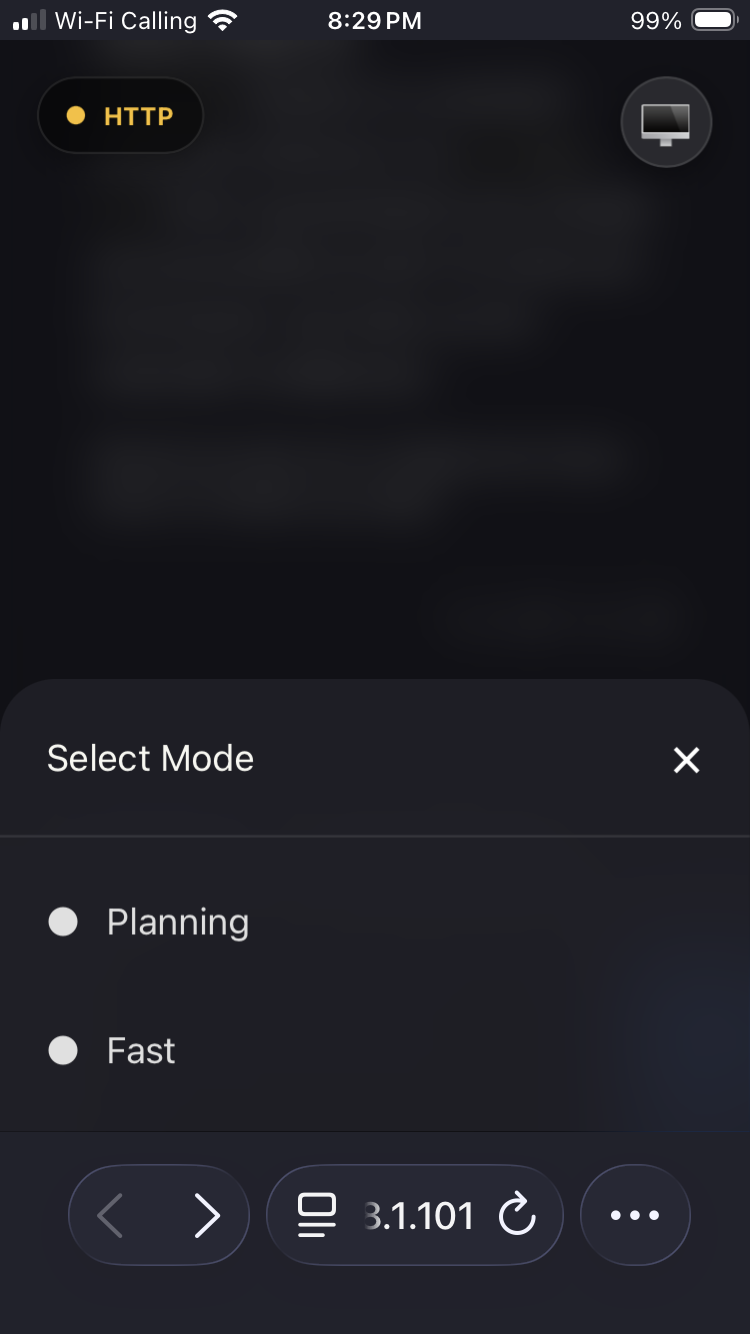
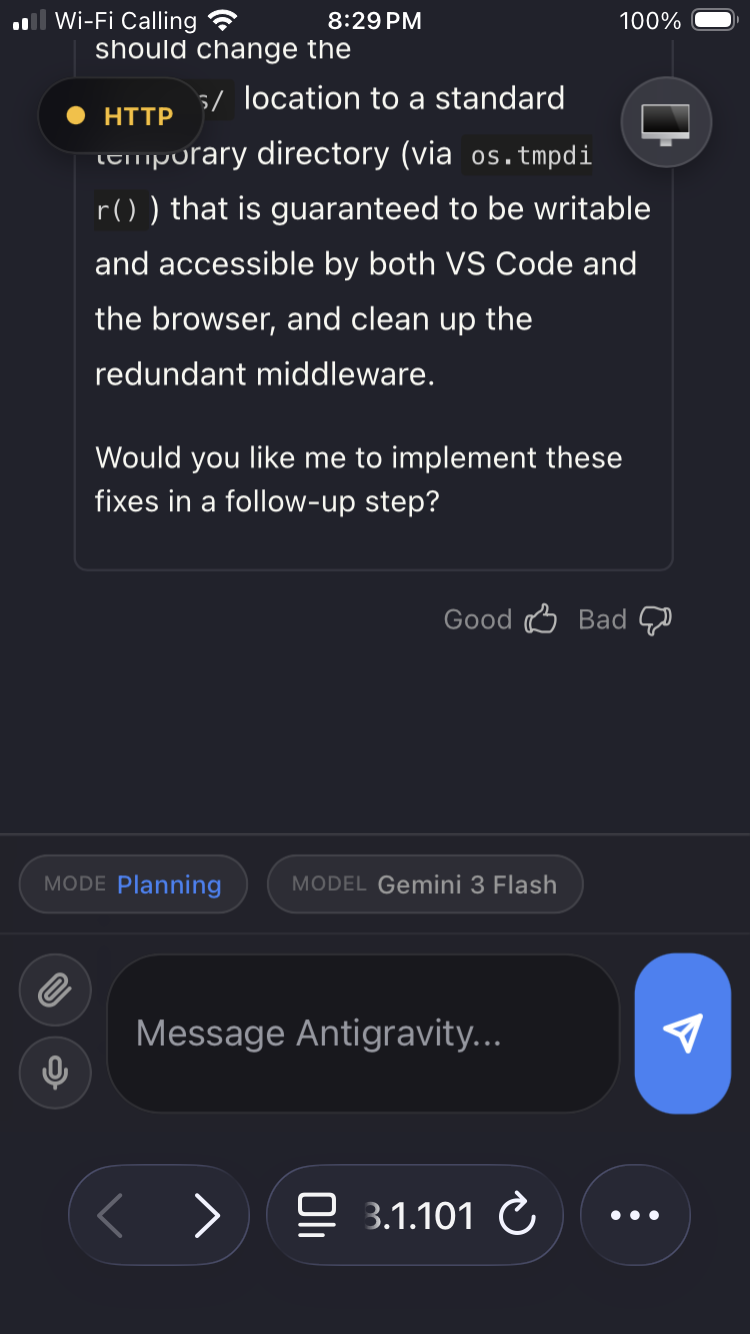
- Live mirror of the active Antigravity chat — read and interact from your phone.
- File upload into the active Antigravity chat.
- Voice-to-text input from mobile (HTTPS required for mic permissions).
- Stop generation from your phone with a dedicated stop chip.
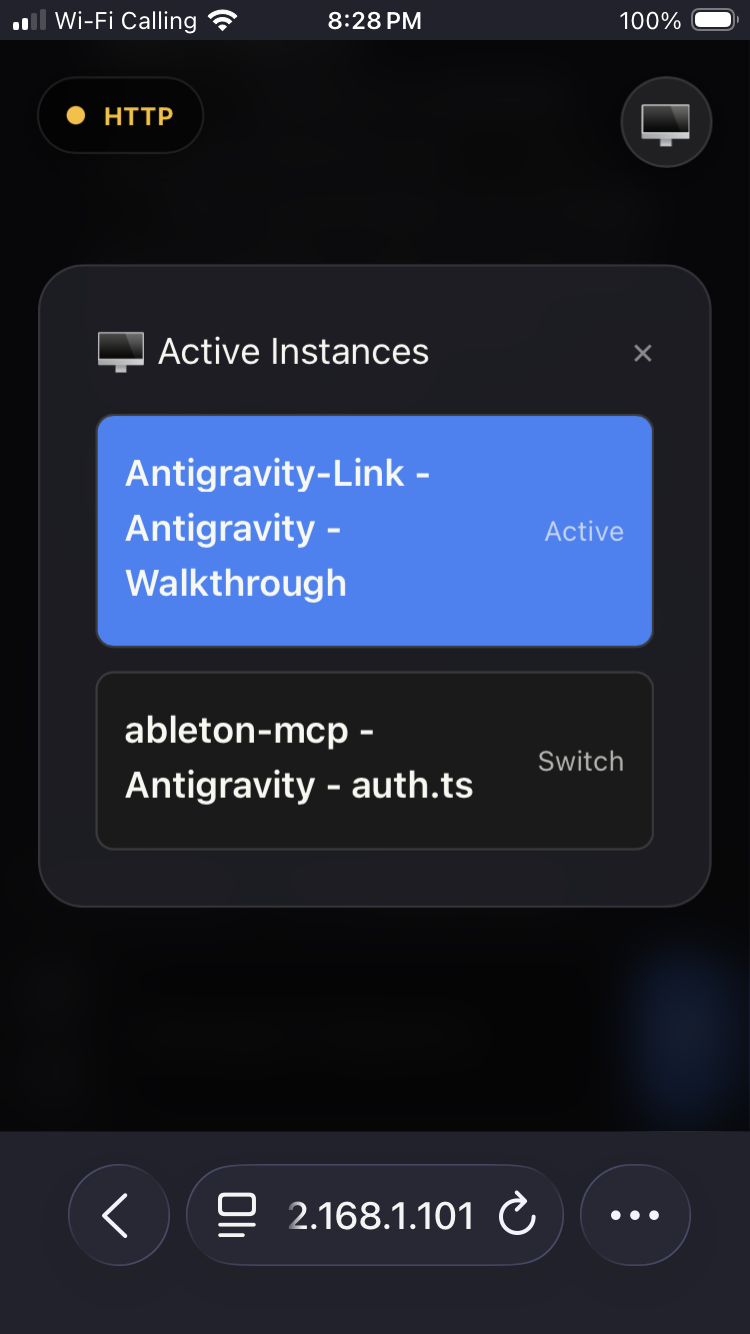
- Active instance switching for multiple Antigravity windows.
- Local HTTP API for automation and integrations (see API).
- MCP server for AI assistant integration (see MCP server).
- Local-only server with token authentication.
- Interface available in 16 languages with automatic detection and RTL support.
For agent builders
If you want to integrate quickly, use this sequence:
- Start the extension server and copy the token from the QR URL (
?token=...). - Use either MCP tools (
mcp-server.mjs) or direct HTTP calls againsthttps://localhost:3000. - Validate control flow with
/snapshot,/send, and/stop.
OpenAPI example:
curl -k https://localhost:3000/snapshot \
  -H "Authorization: Bearer <token>"
MCP client configuration example:
{
  "antigravity-link": {
    "command": "node",
    "args": ["/path/to/antigravity-link-extension/mcp-server.mjs"],
    "env": {
      "AG_BRIDGE_URL": "https://localhost:3000",
      "AG_BRIDGE_TOKEN": "<token>"
    }
  }
}
Demo photos
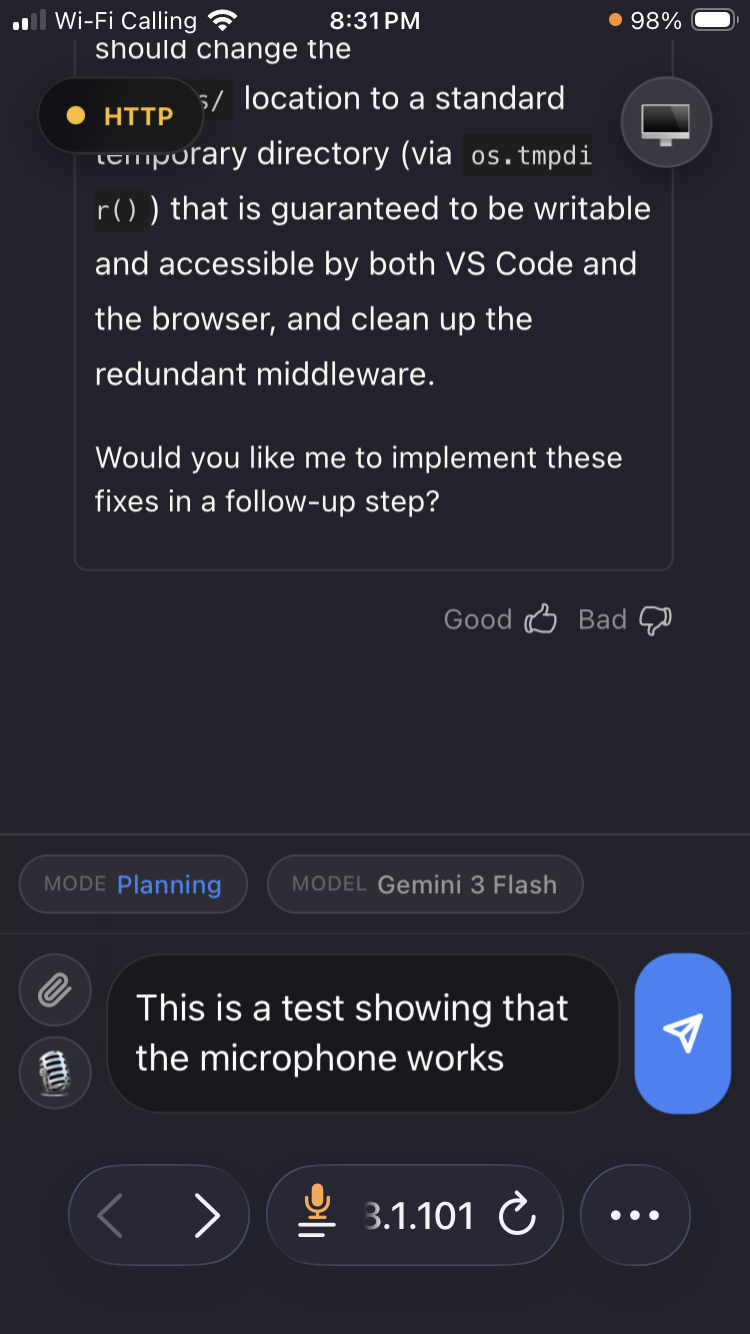 |
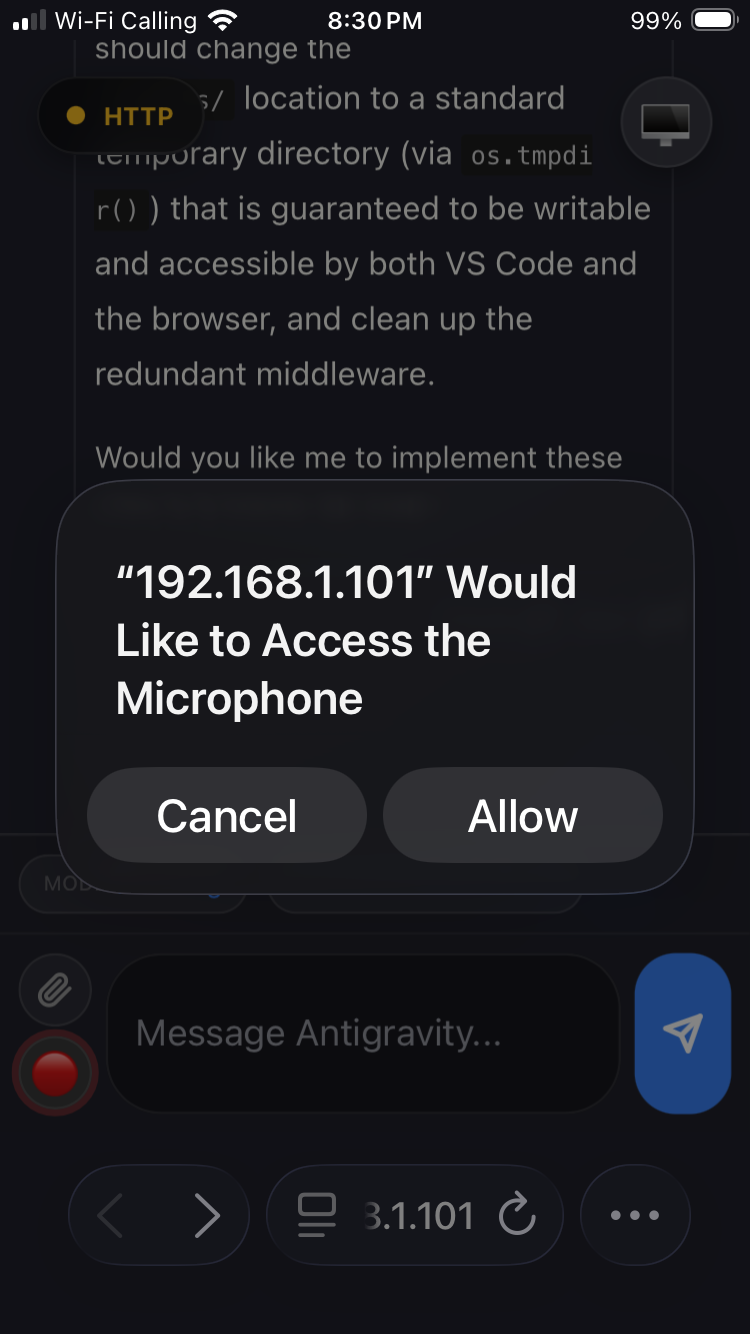 |
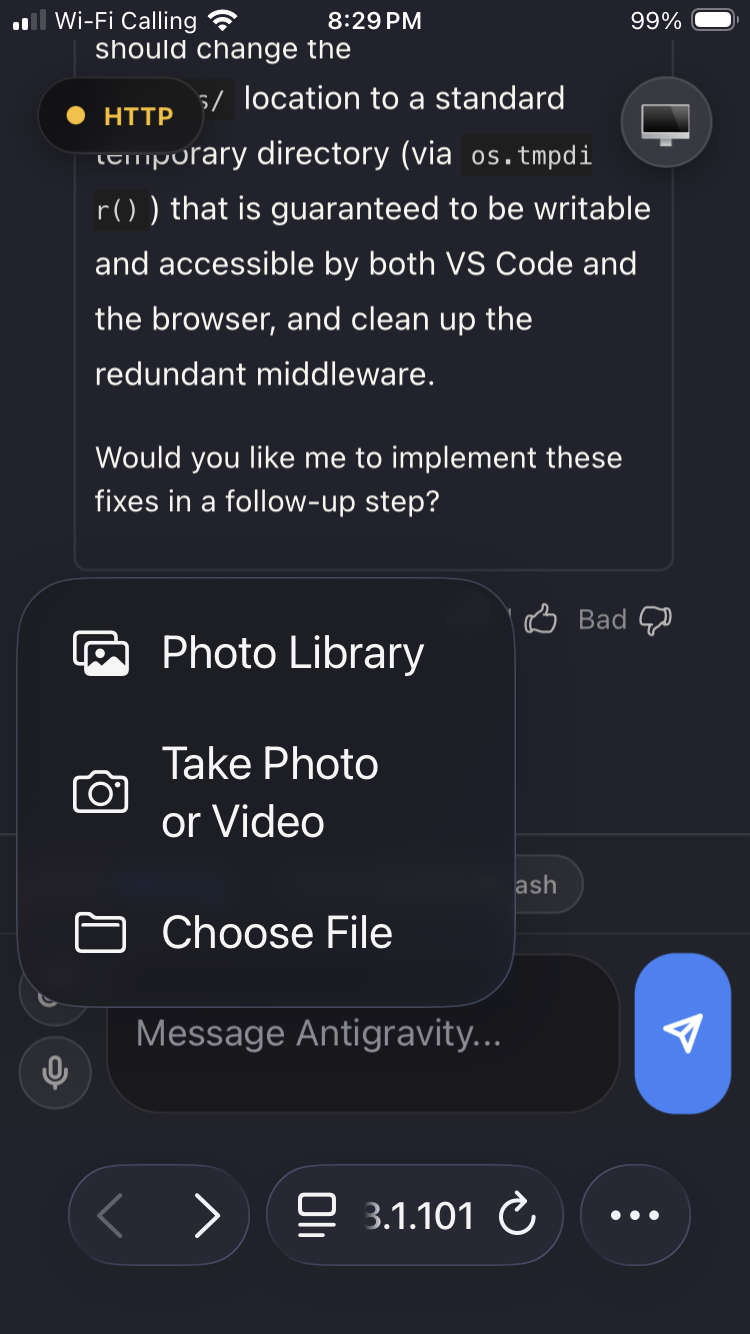 |
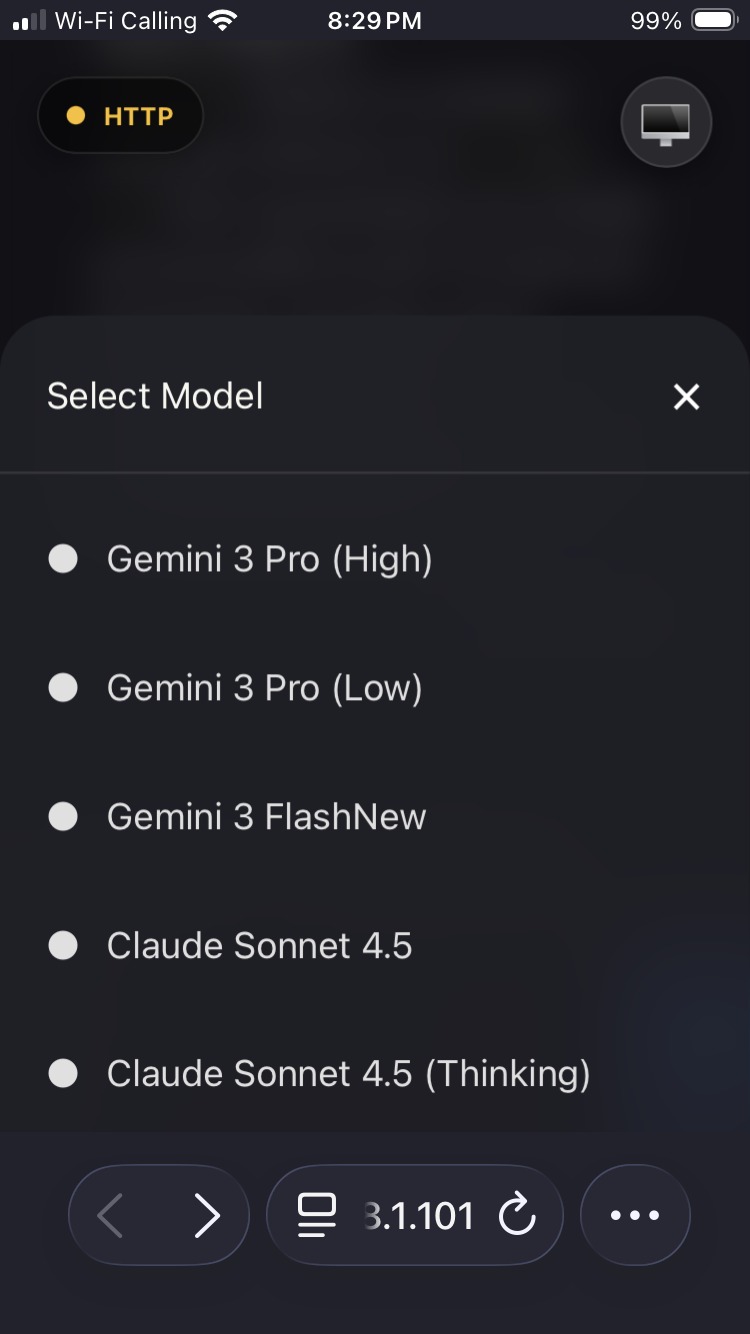 |
 |
 |
 |
Quick start
- Start Antigravity with remote debugging enabled. This is required; sessions launched without this flag are not discoverable by the extension.
Example (Windows, Start Menu shortcut path):
& "C:\Users\<username>\AppData\Roaming\Microsoft\Windows\Start Menu\Programs\Antigravity\Antigravity.lnk" --remote-debugging-port=9000
Replace <username> with your Windows username. Multiple Antigravity sessions are supported, but every window must be launched with this command.
In VS Code, run:
Antigravity Link: Start ServerThen run:
Antigravity Link: Show QR CodeScan the QR code with your phone. Your mobile UI is ready.
Your phone may warn that the connection is unsafe because the certificate is self-signed. This is expected for local HTTPS. Use your browser's "Advanced" or similar option to proceed (wording differs between Safari/Chrome/Firefox).
Commands
| Command | Description |
|---|---|
| Antigravity Link: Start Server | Starts the local bridge server. |
| Antigravity Link: Stop Server | Stops the server. |
| Antigravity Link: Show QR Code | Displays the connection QR code. |
| Antigravity Link: Select Network Interface | Choose which network interface the QR URL advertises. |
Settings
| Setting | Default | Description |
|---|---|---|
antigravityLink.port |
3000 |
Port for the local bridge server. |
antigravityLink.autoStart |
false |
Start the server on VS Code launch. |
antigravityLink.useHttps |
true |
Serve over HTTPS for mic access. |
antigravityLink.preferredHost |
"" |
Optional LAN IPv4 to advertise in QR URL (example: 192.168.1.101). |
antigravityLink.strictWorkbenchOnly |
true |
Only bind to workbench.html CDP targets for stability. |
antigravityLink.includeFallbackTargets |
false |
Allow jetski/launchpad fallback targets when strict mode is disabled. |
API
The extension exposes a local HTTP API at https://localhost:3000 (or your configured port). All endpoints except /ping require an Authorization: Bearer <token> header. The token is the value after ?token= in the QR code URL.
| Method | Endpoint | Description |
|---|---|---|
| GET | /ping |
Health check — returns pong. No auth required. |
| GET | /snapshot |
Current chat surface: HTML, CSS, mode/model, isGenerating. |
| GET | /instances |
List active Antigravity windows. |
| POST | /instance |
Switch active window. Body: { "targetId": "..." } |
| POST | /send |
Send a message. Body: { "message": "..." } |
| POST | /click |
Click a UI element. Body: { "selector"?, "text"?, "x"?, "y"? } |
| POST | /stop |
Stop AI generation. |
| POST | /upload |
Upload a file (multipart/form-data, field name file). |
| GET | /task |
Read the current task document. |
| GET | /walkthrough |
Read the current walkthrough document. |
| GET | /plan |
Read the current implementation plan. |
Full schema: openapi.yaml
MCP server
Antigravity Link ships an MCP (Model Context Protocol) server that lets AI assistants drive your Antigravity session directly.
Setup
Add the following to your MCP client configuration (e.g. claude_desktop_config.json):
{
  "antigravity-link": {
    "command": "node",
    "args": ["/path/to/antigravity-link-extension/mcp-server.mjs"],
    "env": {
      "AG_BRIDGE_URL": "https://localhost:3000",
      "AG_BRIDGE_TOKEN": "<your-token>"
    }
  }
}
The token is the value after ?token= in the QR code URL. The extension server must be running before the MCP client connects.
Available tools
| Tool | Description |
|---|---|
get_snapshot |
Get current chat state, mode, model, and generation status. |
send_message |
Send a message to the active chat. |
stop_generation |
Cancel active AI generation. |
get_instances |
List available Antigravity windows. |
switch_instance |
Switch to a different Antigravity window. |
click_element |
Click a UI element by selector, text, or coordinates. |
get_task |
Read the current task document. |
get_walkthrough |
Read the current walkthrough document. |
get_plan |
Read the current implementation plan. |
Standalone vs workspace assets
This extension is self-contained. It ships its own public/ assets and uploads/ folder and does not require the parent npm run dev build.
If your workspace contains public/ or uploads/, the extension will prefer those paths automatically. This makes it easy to customize the mobile UI or keep uploads in your project root, but it also means behavior can differ between workspaces.
How it works (high level)
- The extension starts a local server (HTTP or HTTPS).
- It discovers Antigravity targets via the Chrome DevTools Protocol (CDP).
- Your phone connects to the mobile UI and sends upload/command requests.
- The extension injects into the selected chat target and saves files to
uploads/.
Security and privacy
- The server runs locally and is authenticated with a token.
- HTTPS is enabled by default to allow microphone access on mobile.
- No data is sent to third-party services by this extension.
Troubleshooting
- No instances found: Make sure every Antigravity window was launched with the
--remote-debugging-portcommand shown above. - Can't connect from mobile: Ensure your phone and computer are on the same network.
- Uploads save but don't appear in chat: Switch to the correct Active Instance in the mobile UI.
- Stuck on "Initializing…": The server is reachable but the chat surface has not been captured yet. Wait a few seconds for the CDP connection to initialize.
FAQ
It does not work unless Antigravity is launched with the debug port.
Use the exact launch command shown in the Quick start section. Any Antigravity window started without--remote-debugging-portcannot be discovered or controlled.Can I run multiple sessions?
Yes. Multiple Antigravity windows are supported as long as each one is launched with the command shown above.Can I use this for automation?
Yes. The local HTTP API and MCP server are designed for exactly this. See the API and MCP server sections.
Internationalization and accessibility
The mobile interface automatically detects your browser's language and renders in:
English · 日本語 · 中文(简体)· 中文(繁體)· 한국어 · Deutsch · Français · Español · Português · Русский · Italiano · Polski · Türkçe · Tiếng Việt · Bahasa Indonesia · العربية
Arabic is rendered right-to-left automatically. Language detection uses navigator.language with no configuration required.
The interface is built with semantic HTML, ARIA roles, aria-live regions for connection status, keyboard navigation, and screen-reader-compatible labels throughout.
Contributing
We are accepting pull requests and actively looking for contributors. If you want to help, check the TODOs in the codebase or open an issue to discuss ideas.
See CONTRIBUTING.md for setup and PR notes.
License
MIT. See LICENSE.
Acknowledgments
Inspired by early community projects including:
Reviews (0)
Sign in to leave a review.
Leave a reviewNo results found