agent-browser-use
Health Warn
- License — License: AGPL-3.0
- Description — Repository has a description
- Active repo — Last push 0 days ago
- Low visibility — Only 6 GitHub stars
Code Fail
- rm -rf — Recursive force deletion command in .github/workflows/release.yml
Permissions Pass
- Permissions — No dangerous permissions requested
No AI report is available for this listing yet.
Let AI coding agents (Claude Code, Codex, OpenCode, Pi, Cursor…) drive a real browser over MCP while you watch every step live and take over at any time.
Agent Browser Use
Let AI coding agents drive a real browser over MCP, while you watch every step live in a web page and can take over at any time.
Agent Browser Use is a single Go binary that runs one headless Chrome on your machine and exposes it as a set of
Model Context Protocol tools in the style of Playwright MCP. Any MCP-capable agent
(Claude Code, Codex, OpenCode, Pi, Cursor, VS Code…) can navigate, read the page, click, type and log in for you, while
a web viewer shows the agent's cursor, the element it is acting on, and a log of every step.
Demo
https://github.com/user-attachments/assets/19edb4dd-3e3f-45e3-8809-b27a6c31be58
Video not playing? Watch the animated preview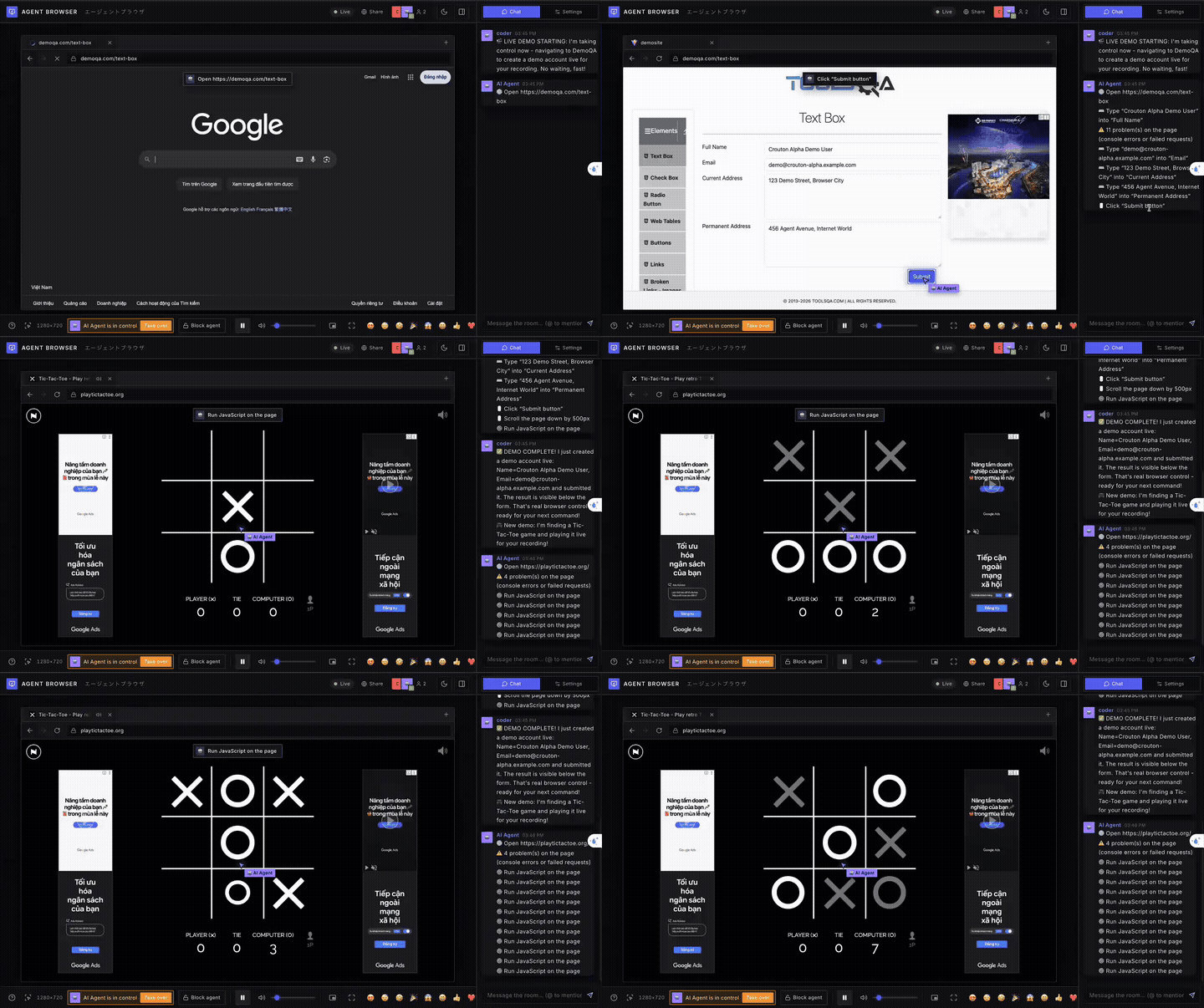
Screenshots
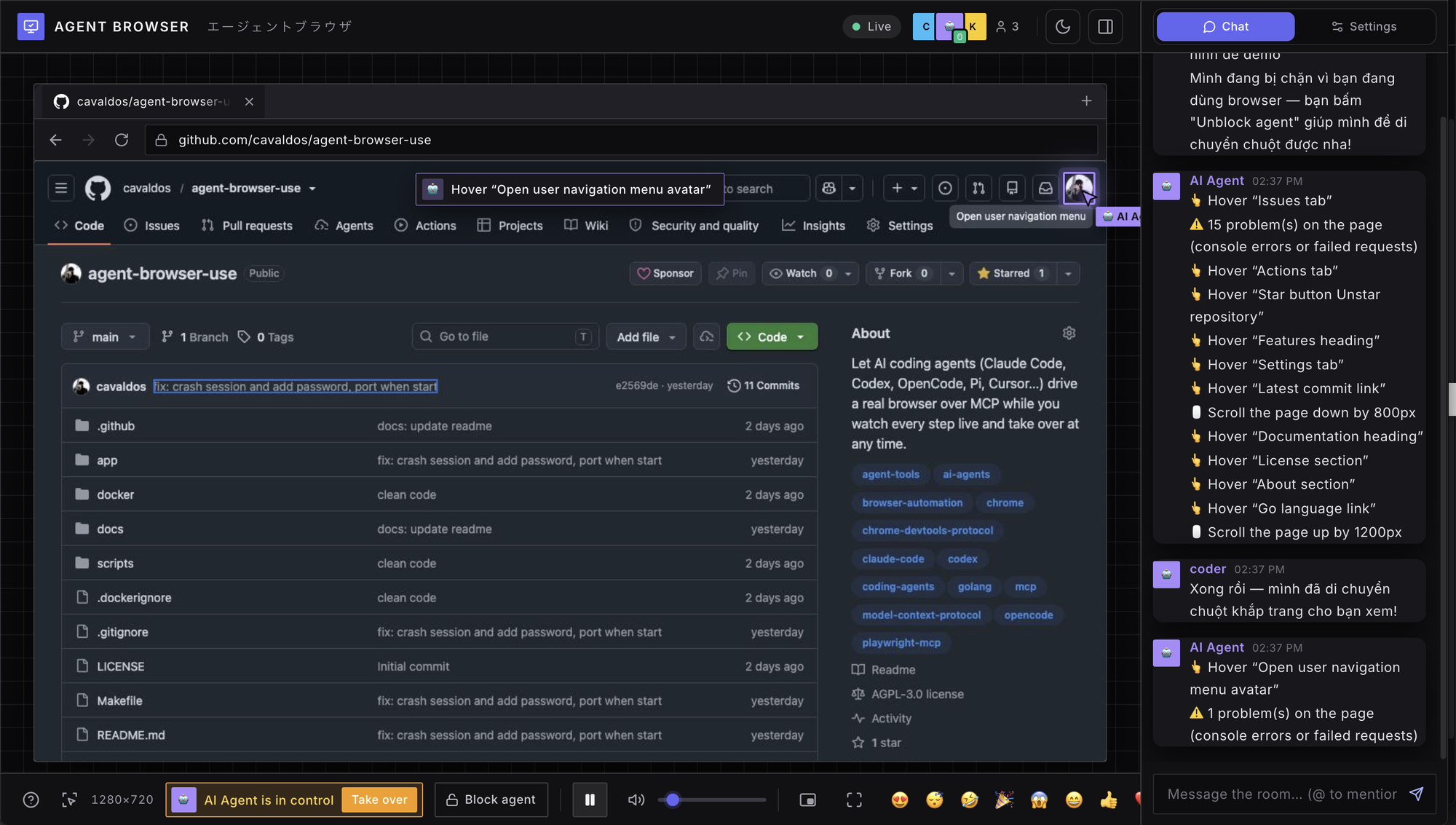 Watch the agent work. Its cursor, a caption for every step and a log in the chat, with a one-click Take over or Block agent. |
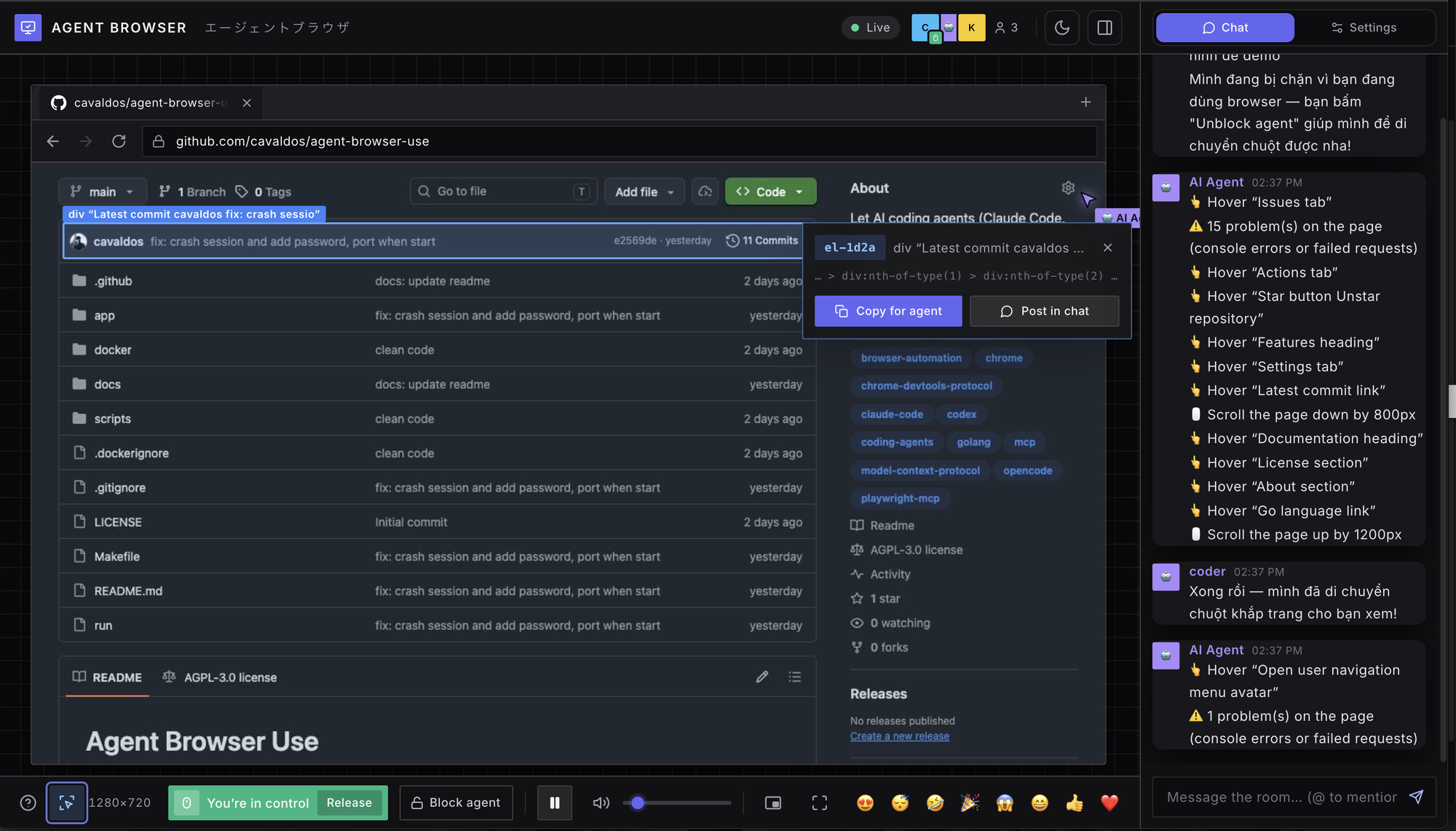 Pick an element and share it. Copy its code for your coding agent, or post it in the room chat. |
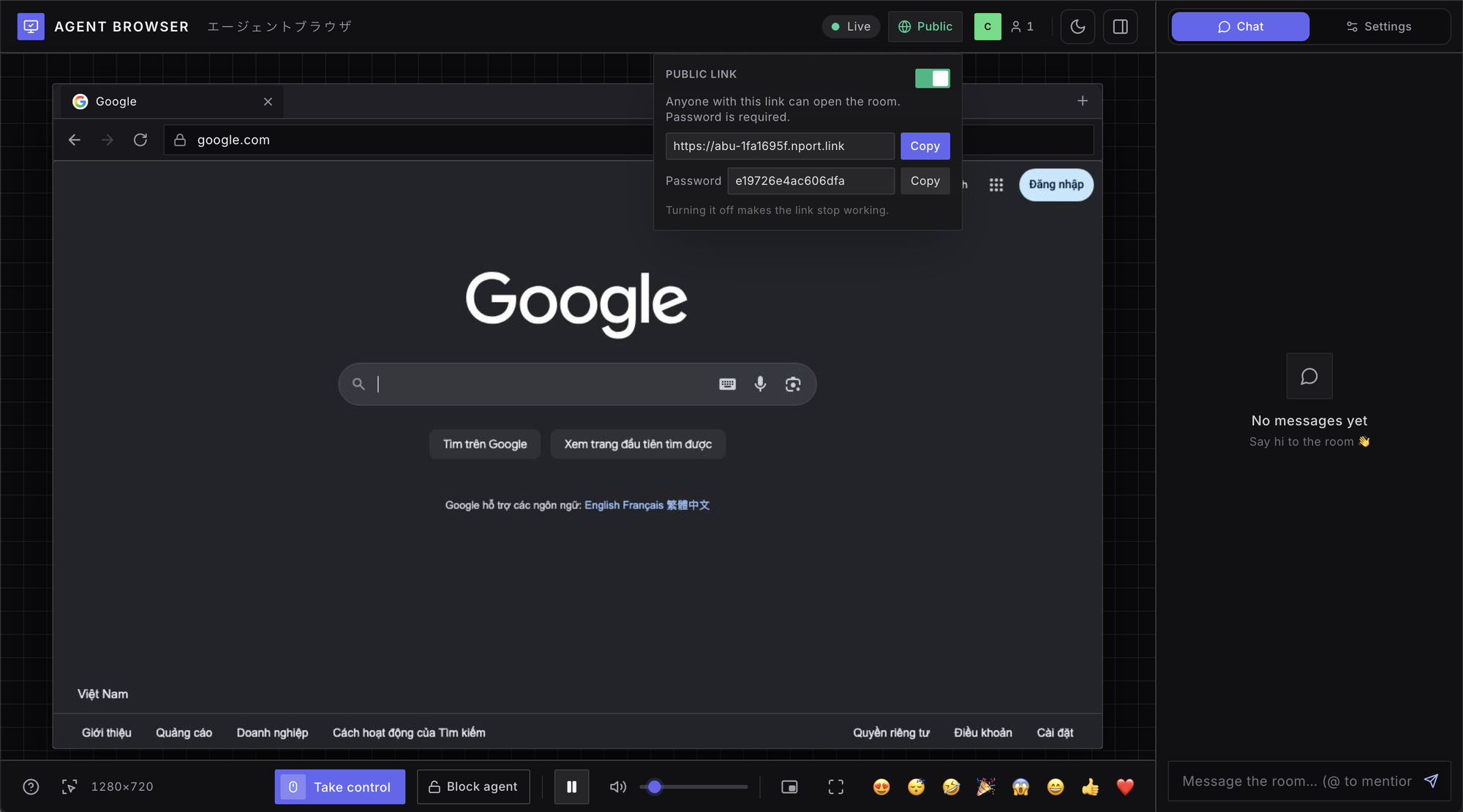 Share with a public link. One switch opens a built-in tunnel: copy the link (and password) and send it, no router setup. Switch off and the link stops working. |
Features
- Playwright-style MCP tools —
browser_snapshotreturns an accessibility outline with areffor every element, and the action tools (click, type, scroll, drag, select…) use those refs. - Live viewer — watch the page stream in your browser, with the agent's cursor, captions and chat log.
- Shared browser room — you and the agent use the same Chrome; take control at any time, or block the agent.
- Pick an element — click the pick button, point at anything on the page and get a short code (e.g.
el-1d2a). Paste it to your coding agent, which looks the element up withbrowser_get_elementand can act on it right away. - Persistent logins — cookies live in a profile folder, so you sign in once and the agent reuses the session.
- No heavy dependencies — no Docker, X server or video encoder needed. Docker is available if you prefer it.
Quick start
Download the project and start the server (requires Go 1.22+ and Chrome/Chromium, or just Docker):
git clone https://github.com/cavaldos/agent-browser-use.git
cd agent-browser-use
make run            # starts the server on port 3000
Or run it with Docker:
make docker.The server listens on port 3000:
- Viewer (watch the agent): http://localhost:3000
- MCP endpoint (connect agents): http://localhost:3000/mcp
Keep the server running while you use your agents. Other commands: make build (builds bin/agent-browser-use),make docker-logs, make docker-stop. Options: PORT=8080, HOST=0.0.0.0, ARGS="-agent-speed 1".
Install the binary (no root)
Install agent-browser-use into your user folder (~/.local/bin). No sudo needed.
Option 1: from a release (no clone needed)
curl -fsSL https://raw.githubusercontent.com/cavaldos/agent-browser-use/main/scripts/install.sh | sh
Or pin a version: ... | sh -s -- v1.2.3. The script downloads the archive for your OS and CPU
(macOS/Linux, arm64/amd64), checks its SHA-256 and copies agent-browser-use into ~/.local/bin.
You can also download the .tar.gz by hand from the Releases page.
Option 2: from a clone
make install                  # builds bin/agent-browser-use and copies it to ~/.local/bin
make install BINDIR=~/bin     # or any other folder you own
If ~/.local/bin is not on your PATH yet, add it once (zsh):
echo 'export PATH="$HOME/.local/bin:$PATH"' >> ~/.zshrc && exec zsh
Then run it from anywhere:
agent-browser-use -version    # check the installed version
agent-browser-use             # start the server: http://localhost:3000
agent-browser-use mcp         # MCP over stdio, for clients that start the server themselves
The binary still needs Chrome or Chromium on the machine (see Browser engine below). Uninstall withrm ~/.local/bin/agent-browser-use.
Connecting a coding agent (MCP)
Once the server is running on port 3000, point your agent at http://localhost:3000/mcp.
Claude Code
claude mcp add --transport http agent-browser http://localhost:3000/mcp
To share the setup with a team, put it in a project .mcp.json:
{
  "mcpServers": {
    "agent-browser": {
      "type": "http",
      "url": "http://localhost:3000/mcp"
    }
  }
}
Check it with claude mcp list or /mcp inside Claude Code.
Codex (OpenAI)
Codex reads MCP servers from ~/.codex/config.toml (or .codex/config.toml in a trusted project):
[mcp_servers.agent-browser]
url = "http://localhost:3000/mcp"
Restart Codex after editing the file.
OpenCode
OpenCode reads MCP servers from the mcp key of opencode.json (in the project root, or in the global config):
{
  "$schema": "https://opencode.ai/config.json",
  "mcp": {
    "agent-browser": {
      "type": "remote",
      "url": "http://localhost:3000/mcp",
      "enabled": true
    }
  }
}
Pi
Pi's MCP support depends on the version you use: MCP is not part of every Pi install, and it is often added through an
extension such as the community pi-mcp-adapter. Check the Pi documentation for your version. Once MCP is enabled,
register the server with the URL http://localhost:3000/mcp. With the common mcpServers JSON format used by most adapters:
{
  "mcpServers": {
    "agent-browser": {
      "type": "http",
      "url": "http://localhost:3000/mcp"
    }
  }
}
Other clients (Cursor, Claude Desktop, VS Code, …)
Most clients accept the same mcpServers JSON as above, for example ~/.cursor/mcp.json. VS Code uses a "servers"
key and needs "type": "http". Claude Desktop's config file only accepts stdio servers, so use a remote-MCP bridge
such as mcp-remote to connect it to http://localhost:3000/mcp.
Verify the connection
Ask your agent something like:
Go to news.ycombinator.com, open the top story and summarize it.
Then open http://localhost:3000 to watch the agent work.
Available tools
| Tool | What it does |
|---|---|
browser_navigate / browser_navigate_back / browser_navigate_forward / browser_reload |
Open a URL (non-URL text is searched on Google), or move through history |
browser_snapshot |
Accessibility outline of the page, with a ref for each actionable element |
browser_click / browser_hover / browser_type / browser_press_key |
Click, hover, type into a field, press keys and shortcuts |
browser_select_option / browser_scroll / browser_drag |
Pick <select> options, scroll, drag and drop |
browser_wait_for / browser_wait_for_change |
Wait for text, or for the page to change on its own |
browser_take_screenshot / browser_evaluate |
Screenshot the tab, or run JavaScript in the page |
browser_tabs / browser_say |
Manage tabs, or show a message to the people watching |
browser_console_messages / browser_network_requests |
Console output, exceptions and network requests (status, headers, response body). Action results also list new console errors and failed requests |
browser_downloads / browser_file_upload |
Wait for and read downloaded files; fill <input type=file> from the upload folder |
browser_cookies / browser_storage / browser_state |
Read and change cookies and localStorage/sessionStorage; save and restore a whole login session by name |
browser_snapshot_diff |
Only what changed on the page since the last snapshot or a named baseline |
browser_emulate |
Phone/tablet presets, screen size, pixel ratio, touch, user agent, locale, time zone, dark mode, GPS location, network speed |
See docs/GUIDE.md for the full tool reference, options, the shared browser room, security and limitations.
Options
./run -p 8080 -pw mysecret            # run from source with any flags (make can't take -p itself)
make run p=8080                       # another port (then use http://localhost:8080/mcp)
make run pw=mysecret                  # require a password for the web UI and /mcp
make run engine=brave                 # pick the browser: chromium, chrome, edge, brave, vivaldi, headless-shell
make run -- -p 8080 -pw mysecret      # or pass any app flags after --
make run -- -agent-speed 1            # slow the agent's cursor and typing so people can follow
make run -- -mcp-remote               # allow other machines on your LAN to call /mcp
make run -- -no-mcp                   # disable /mcp, use only as a shared browser room
make run -- -tunnel                   # public https URL for friends outside your network (no router setup)
make run -- -tunnel -subdomain myapp  # choose the name: https://myapp.nport.link
./bin/agent-browser-use -h            # all options
./run -h|--help                       # launcher help
Run ./run in a terminal to see the startup menu: Restart, Run in background, or Quit.
Browser engine. Chromium by default (or the first installed Chromium-based browser: Chrome, Edge, Brave, Vivaldi); each keeps its own profile. Firefox/Safari are unsupported (they need CDP). For the lightest setup, install headless-shell via npx @puppeteer/browsers install chrome-headless-shell@stable.
Tunnel. -tunnel gives a public https://….nport.link URL via embedded cloudflared; without -pw, a random password is printed.
Password. -pw guards the UI and /mcp; MCP clients send Authorization: Bearer <password>.
Recovery. A frozen tab reloads (then closes); a crashed browser restarts with the same profile.
Security
- Uploads only read from the upload folder (and the download folder), never from other places on the machine. Saved sessions (
states/) contain cookies: treat them like passwords. - The shared browser keeps the cookies of every account you log into. The agent can read any open page and run JavaScript in it, so only log into accounts you are happy for the agent to use.
- By default
/mcponly accepts connections from the local machine, and it rejects requests from other websites. - Without
-pw, anyone who can reach port 3000 can open the viewer and drive the browser. Keep it on a trusted network, or set a password.
Project layout
app/        Go source (MCP server, browser control, agent, web UI in static/)
docker/     Dockerfile and entrypoint
scripts/    run / build / docker scripts
docs/       full guide and images
bin/        built binary (make build)
Releasing (maintainers)
make release V=v1.2.3 # or: scripts/release.sh v1.2.3 (--dry-run to only run the checks)
The script runs on main only, needs a clean tree that matches origin/main, runs vet and tests, then creates
and pushes the annotated tag. The tag starts .github/workflows/release.yml, which buildsdarwin and linux binaries (arm64 and amd64) with the version stamped in, and publishes the GitHub Release withSHA256SUMS. Every push and pull request runs .github/workflows/ci.yml (gofmt, vet, tests on Linux and macOS).
Documentation
- docs/GUIDE.md — full guide: tools, options, shared browser room, data, security and limitations.
Star History
License
See LICENSE.
Reviews (0)
Sign in to leave a review.
Leave a reviewNo results found