earheart
Health Pass
- License — License: MIT
- Description — Repository has a description
- Active repo — Last push 0 days ago
- Community trust — 17 GitHub stars
Code Fail
- fs.rmSync — Destructive file system operation in main/autostart.js
- os.homedir — User home directory access in main/autostart.js
- process.env — Environment variable access in main/autostart.js
- fs module — File system access in main/autostart.js
Permissions Pass
- Permissions — No dangerous permissions requested
No AI report is available for this listing yet.
Talk to your coding agents — press a hotkey, speak your prompt, and it lands in Claude Code, Codex, or Cursor. Fully local voice dictation (Parakeet + Gemma), nothing leaves your machine. Windows, macOS & Linux.

Earheart
Talk to your coding agents.
Press a hotkey, speak your prompt, press again — it lands in Claude Code,
Codex, Cursor, or whatever else has focus.
Fully local. No cloud, no account, nothing leaves your machine.
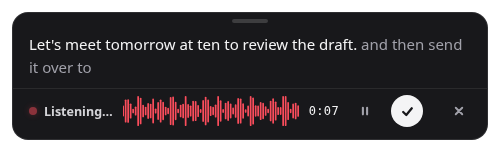


The overlay transcribes live as you speak, shows progress while it finishes up, then confirms where the text landed — without stealing focus.
Working with an agent is a conversation, but you type it like a form. The
prompts that actually work are long — context, constraints, the three things
you already tried, the "no, not like that." Typing all of that is the slow part
of the loop, and the reason people send a one-liner instead and then spend four
turns correcting it.
Earheart turns that part into talking. Press a global hotkey, say what you
want, press it again: your speech is transcribed on-device (NVIDIA Parakeet),
tidied up on-device (a small Gemma model drops the ums, false starts and
backtracking), and pasted straight into whatever app has focus — the
terminal running Claude Code, the Codex composer, Cursor's chat box, a GitHub
issue, an email.
Nothing leaves your machine, which matters more for agent prompts than for
ordinary dictation: what you say to an agent is your own code, your file
layout, your architecture, your unshipped work. Out of the box both models run
inside the app, on your computer — no separate program, no Python, no
account, no telemetry. The setup wizard downloads a small
Parakeet speech model and
a small Gemma cleanup model (with a progress
bar) and runs them in-process.
It is still a general-purpose dictation app — the hotkey works the same in your
email client, your notes and your browser. Agents are just where it earns its
keep. See Talking to agents for the practical setup.
Prefer to point Earheart elsewhere? Both steps are also modular,
OpenAI-compatible HTTP clients, so you can choose where your voice goes:
- Built-in (default): Parakeet + Gemma run in-process — fully private,
nothing to install. - Local server: run the Parakeet STT server and an
Ollama/llama.cpp model yourself. - Mix and match: local STT with a hosted LLM for cleanup, or any other
combination. Switching is just a base URL in Settings.
Features
- Global hotkey (default
Ctrl/Cmd+Shift+Space): press to start, press to
stop. A small overlay draws your voice live and shows progress without
stealing focus from the app you're dictating into. With the built-in
engines, a slim bar tracks the finishing passes too — estimated from your
machine's measured decode speed while transcribing (so it deliberately
stops short of the end rather than overpromise), and following actual
generation during cleanup. - Pause and resume mid-dictation — the overlay's pause key holds the take
(talk to someone, take a call) and resumes the same dictation; paused time
is never captured and never counts against the max dictation length.
Optionally bind a global pause hotkey in Settings → General. - Speech-to-text with NVIDIA Parakeet — by default Parakeet TDT 0.6B v3
(multilingual, 25 languages) runs in-process via sherpa-onnx / ONNX
Runtime, faster than realtime on CPU and with no network hop. Or point
Earheart at any OpenAI-compatible transcription API, or run the optionalearheart-sttserver yourself. - Live transcript while you speak (on by default) — with the built-in
engine the overlay fills in the text as you talk, with a cleaned-up version
settling in behind the raw words on pauses. The final transcript on stop is
unchanged. Toggle it under Settings → Speech-to-text. - LLM cleanup (on by default) — punctuation, filler-word removal, false
starts, so a rambled prompt arrives as something an agent can actually read.
By default a small Gemma model runs in-process; or point cleanup at any
OpenAI-compatible chat API. If cleanup fails, the raw transcript is delivered
instead — your words are never lost. - Cleanup styles and a personal dictionary — one slider picks how far
cleanup may stray from your exact words (Verbatim → Clean →
Polished), and the prompt underneath is fully editable. The dictionary in
Settings → Cleanup fixes the terms speech-to-text always mangles: your repo
and product names,pnpm,kubectl,useEffect, colleagues' names. - Auto-paste, clipboard, or both — paste straight into the focused app
(with clipboard restore), paste and keep the transcript on the clipboard,
or clipboard-only if you prefer to paste yourself. - Start on login (optional) — have Earheart launch into the tray
automatically when you sign in, so the hotkey is always ready. Off by
default; toggle it under Settings → General. Works on Windows, macOS and
Linux. - Local history — recent transcriptions are kept in a local JSON file so a
mis-aimed paste never loses a dictation. Can be disabled. - No telemetry, no accounts, no cloud requirement.
Install
1. Download the right file for your OS
Open the latest release page
and, under Assets, download the file that matches your system. <version>
is just the version number (e.g. 0.8.0).
🪟 Windows
- Most people:
Earheart-Setup-<version>.exe— the installer. - Don't want to install?
Earheart-<version>.exe— a portable build you can
run directly. - Windows on ARM (Snapdragon X): use the same x64 files above — Windows
runs them under built-in emulation, and both transcription and cleanup work.
There is no separate ARM installer yet.
🍎 macOS
- Apple Silicon (M1/M2/M3/M4):
Earheart-<version>-arm64.dmg - Intel Macs:
Earheart-<version>.dmg - Not sure which Mac you have? Click → About This Mac and look at
"Chip" / "Processor".
🐧 Linux
- Any distro:
Earheart-<version>.AppImage— works everywhere. - Debian / Ubuntu:
earheart_<version>_amd64.deb— installs as a normal
package.
2. Install it
| Your download | What to do |
|---|---|
Earheart-Setup-<version>.exe |
Double-click and follow the installer. |
Earheart-<version>.exe (portable) |
Just double-click to run — no install. |
Earheart-<version>*.dmg |
Open it, then drag Earheart into Applications. (See the macOS note below — the first launch needs one extra step.) |
Earheart-<version>.AppImage |
In a terminal: chmod +x Earheart-*.AppImage, then double-click or run it. |
earheart_<version>_amd64.deb |
sudo apt install ./earheart_<version>_amd64.deb |
⚠️ macOS first launch: "Earheart is damaged and can't be opened"
This does not mean the app is broken. Earheart isn't signed/notarized
yet, so macOS quarantines it. After dragging Earheart to Applications, run
this once in Terminal:xattr -dr com.apple.quarantine /Applications/Earheart.appThen open Earheart normally. (The "right-click → Open" trick only clears the
milder "unidentified developer" warning, not the "damaged" one.) More detail
in macOS notes below.You only ever do this once: Earheart updates itself from GitHub releases
(see below), and updates installed from inside the app clear the quarantine
automatically.
That's it — the built-in engines need nothing else installed. The first-run
wizard downloads the speech and cleanup models for you.
Updates
Earheart checks GitHub releases for a new version on startup and twice a day
(toggle under Settings → Advanced → Updates) and shows a notification plus an
Update to vX.Y.Z entry in the tray menu when one is out. One click
downloads the release, verifies its checksum and reinstalls in place:
- Windows (installed): the new installer runs silently and the app
relaunches. The portable exe can't update itself — the app opens the
releases page instead. - macOS: the app bundle is swapped and the quarantine attribute is
stripped automatically, so the updated app opens normally — noxattr
needed after the first manual install. - Linux (AppImage): the AppImage file is replaced in place (same path, so
launchers and autostart keep working) and the app relaunches. A.deb
install opens the releases page instead (upgrading needssudo).
Advanced: a local STT server with uv
If you'd rather run the Parakeet STT server as a separate
process (e.g. to share it with other tools or use a GPU), start it yourself and
point Earheart's speech-to-text at its URL (default http://127.0.0.1:8484/v1)
in Settings → Speech-to-text. Running it needs
uv installed:
curl -LsSf https://astral.sh/uv/install.sh | sh   # Linux / macOS
winget install astral-sh.uv                       # Windows
cd stt-server && uv run earheart-stt              # start the server
Or point Earheart at a hosted transcription service (OpenAI, Groq, …) —
Settings → Speech-to-text lets you enter its URL and API key instead.
Upgrading from 0.4.x? The in-process engines are new defaults; your
existing configured STT/cleanup endpoints are preserved and keep working
(migrated to the "remote" engine). The old "start a local STT server
automatically" option has been removed — run the server yourself as above.
Build from source
If there's no release for your platform (requires Node 22+):
git clone https://github.com/cleanunicorn/earheart
cd earheart
npm install
npm run dist     # installers for the current platform land in dist/
(Or run it unpackaged with npm start.)
First run
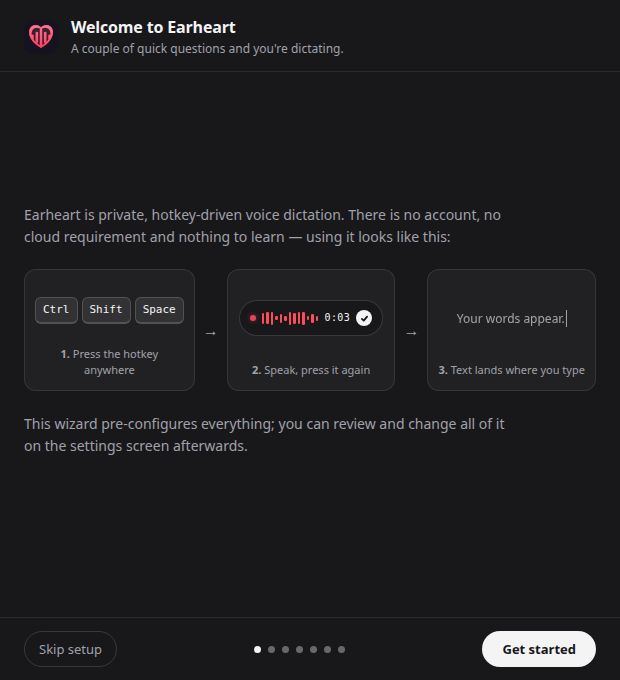
On first launch a short setup wizard walks through hotkey, microphone,
speech-to-text, cleanup and output. It sets up the on-device engines for
both speech-to-text and cleanup, so first-run dictation is fully local and
private with nothing to configure. Prefer a remote service? Switch any time in
Settings → Speech-to-text or Settings → Cleanup.
The wizard's last step downloads the models that run on your machine — a small
Parakeet speech model (≈ 670 MB) and a small Gemma cleanup model (≈ 800 MB) —
showing a progress bar as it goes. It's a one-time download; everything after
that is faster than realtime, even on CPU. You can pick a larger, higher-
quality cleanup model in the wizard or later in Settings → Cleanup.
Transcript cleanup
Cleanup is on by default and runs the built-in Gemma model in-process: a
language model fixes punctuation and removes filler words and false starts,
with no network hop. You can disable it, pick a larger built-in model, or edit
the prompt in Settings → Cleanup.
Prefer to run cleanup elsewhere? Any OpenAI-compatible chat endpoint works. A
fully local example with Ollama:
ollama pull llama3.1:8b
Then in Settings → Cleanup: base URLhttp://127.0.0.1:11434/v1, model llama3.1:8b. For a hosted service
instead, use its base URL, API key and model name (e.g. OpenRouter, Groq,
OpenAI).
Using Earheart
- Put your cursor wherever you want text — an email, an editor, a chat box.
- Press the hotkey (default
Ctrl/Cmd+Shift+Space). A slim bar appears at
the bottom of the screen — a status dot and word, your voice drawn live,
and a timer; it never steals focus. - Speak, then press the hotkey again (or the bar's ✓ key). Earheart
transcribes, optionally cleans up, and pastes the result right where you
were typing. The ✕ key discards the dictation — nothing is typed.
Earheart lives in your system tray. From the tray menu you can start a
dictation, open the transcription history, or change any choice you made in
the wizard:
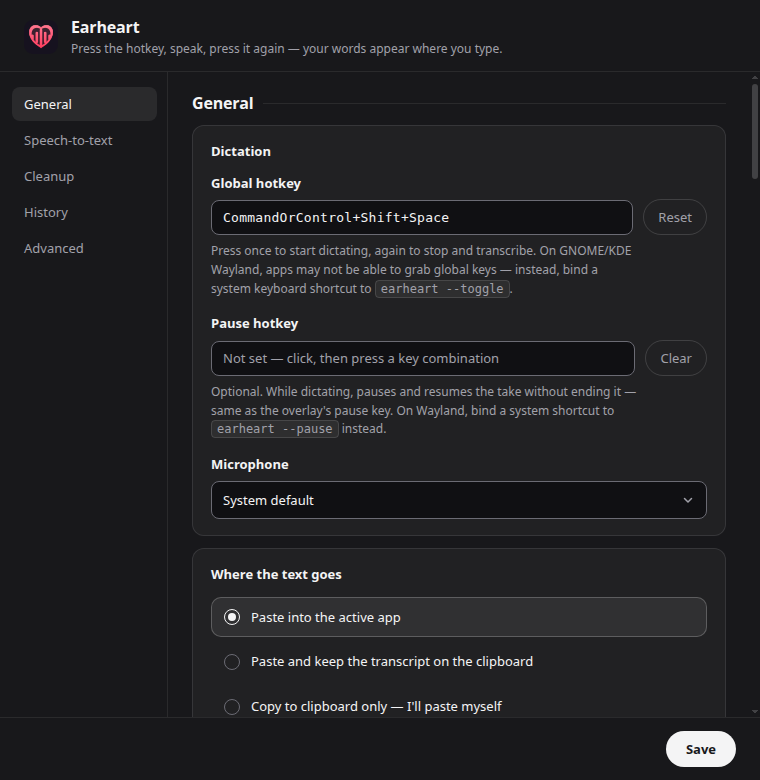
A mis-aimed paste never loses your words: the History section in Settings
keeps recent transcriptions in a local file (you can turn this off).
Talking to agents
Earheart pastes into the focused window, so it works with any agent you can
type into — no integration, no plugin, no API key. Put the cursor in the
agent's input, hold the thought, press the hotkey, and say the whole prompt
including the parts you'd normally leave out because typing them is tedious.
| Where you're prompting | What to know |
|---|---|
| Claude Code / Codex CLI (terminal) | Paste lands in the TUI input like any paste. On Linux, auto-paste needs xdotool/wtype — see Platform notes. |
| Cursor, VS Code, JetBrains chat | Nothing special — click the chat box and dictate. |
| claude.ai, ChatGPT, agent web UIs | Same. The overlay never steals focus, so the composer keeps it. |
| Anywhere via a shortcut | Bind a system shortcut, mouse button or foot pedal to earheart --toggle instead of using the built-in hotkey. |
Three settings are worth a minute for agent work:
- Cleanup style (Settings → Cleanup). Clean — the default — is the
right one for prompts: it removes the ums and the restarts but keeps your
wording and your intent. Switch to Verbatim when you're dictating exact
strings, commands or code and want nothing touched. Avoid Polished for
prompts; smoothing prose is not what you want done to an instruction. - Dictionary (Settings → Cleanup). Speech-to-text has never heard of your
repo. Add the words you say fifty times a day — service names,pnpm,kubectl,PostgreSQL,useEffect, your teammates' names — and near-misses
get corrected to the exact spelling. - Cleanup prompt (Settings → Cleanup). Editable. Agent prompts are not
prose, and you can say so — e.g. tell it to keep file paths, flags and
identifiers exactly as spoken and never to answer the transcript. (The
default prompt already forbids acting on the transcript's content: your
dictation is text to clean, never instructions to follow.)
What it doesn't do yet. You still press Enter yourself — Earheart pastes,
it doesn't submit. The agent can't ask you a question by voice, and it can't
talk back. Those are the next things we're building; the ideas are filed as
issues under theagents
label, and opinions on them are welcome.
Using other services
Anything that implements the OpenAI API shapes works out of the box:
| Component | Endpoint used | Examples |
|---|---|---|
| Speech-to-text | {base URL}/audio/transcriptions |
earheart-stt (local Parakeet), speaches, Groq (https://api.groq.com/openai/v1), OpenAI (https://api.openai.com/v1) |
| Cleanup | {base URL}/chat/completions |
Ollama, llama.cpp server, LM Studio, vLLM, OpenRouter, OpenAI, … |
The reverse is also true: earheart-stt is a standalone OpenAI-compatible
transcription server, usable from any other dictation app that supports custom
endpoints (e.g. OpenWhispr) or from scripts via the OpenAI SDK. See
stt-server/README.md for GPU use and other models.
Platform notes
Linux
Auto-paste needs a keystroke tool:
xdotool(X11) orwtype/ydotool
(Wayland). Without one, Earheart falls back to clipboard-only and tells you.sudo apt install xdotool # X11 sudo apt install wtype # wlroots Wayland (Sway, Hyprland, …)Global hotkeys on Wayland: GNOME and KDE on Wayland prevent apps from
grabbing global keys. Instead, bind a system keyboard shortcut (GNOME
Settings → Keyboard → Custom Shortcuts) to:earheart --toggleEarheart runs single-instance; a second invocation just toggles dictation in
the running app. The same works for pause/resume withearheart --pause.
macOS
"Earheart is damaged and can't be opened" on first launch means
Gatekeeper has quarantined the download — the app is unsigned and not yet
notarized, not corrupt. Drag it to Applications, then strip the quarantine
attribute once:xattr -dr com.apple.quarantine /Applications/Earheart.appAfter that it opens normally. (Right-click → Open only works for the
"unidentified developer" prompt, not the "damaged" one.)The first dictation asks for Microphone permission.
Auto-paste simulates Cmd+V via System Events, which requires
Accessibility permission (System Settings → Privacy & Security →
Accessibility → enable Earheart). If auto-paste stops working later, use
Settings → Advanced → Fix auto-paste permission to re-check it and jump
to the right System Settings pane.
Windows
- No special permissions needed. Auto-paste uses PowerShell
SendKeys.
Privacy
- With the built-in engines (the default), audio and transcripts never leave
the app process — there is no network hop and no localhost socket. - If you point speech-to-text at an HTTP service instead, audio is held in
memory and sent only to the STT endpoint you configure (e.g.127.0.0.1
for the optional local Parakeet server). - Transcripts go to an external cleanup endpoint only if you switch cleanup to
a remote service; the default Gemma cleanup stays on your machine. - History and settings live in plain local files (Electron's user data
directory). API keys are stored in that settings file — on shared machines,
prefer local services or OS-level disk encryption. - No telemetry, no accounts, no cloud.
Star history

Contributing
Want to hack on Earheart? It's plain JavaScript with no bundler and only two
runtime dependencies (the native STT and cleanup engines). See
CONTRIBUTING.md for the development setup, architecture
overview, and how to build installers.
License
Reviews (0)
Sign in to leave a review.
Leave a reviewNo results found