godmode-bot
Health Warn
- License — License: MIT
- Description — Repository has a description
- Active repo — Last push 0 days ago
- Low visibility — Only 5 GitHub stars
Code Warn
- network request — Outbound network request in apps/cloud/docker-compose.yaml
- process.env — Environment variable access in apps/cloud/drizzle.config.ts
Permissions Pass
- Permissions — No dangerous permissions requested
No AI report is available for this listing yet.
An AI teammate you can trust to get work done — Claude Code + browser-use + a secure vault for your logins & 2FA. Persistent agents with memory, routines and delegation. Desktop app (macOS/Windows/Linux) + web dashboard. MIT.

Godmode Bot
The AI coworker that works like a human on your computer.
Godmode Bot gives Claude a real browser, your logins and your 2FA codes — safely — so it can finish tasks
end-to-end without interrupting you. Start with one chat, or build a team of persistent agents with their own
memory, routines and history.





Get Godmode ·
Quick start ·
Features ·
Security ·
Architecture
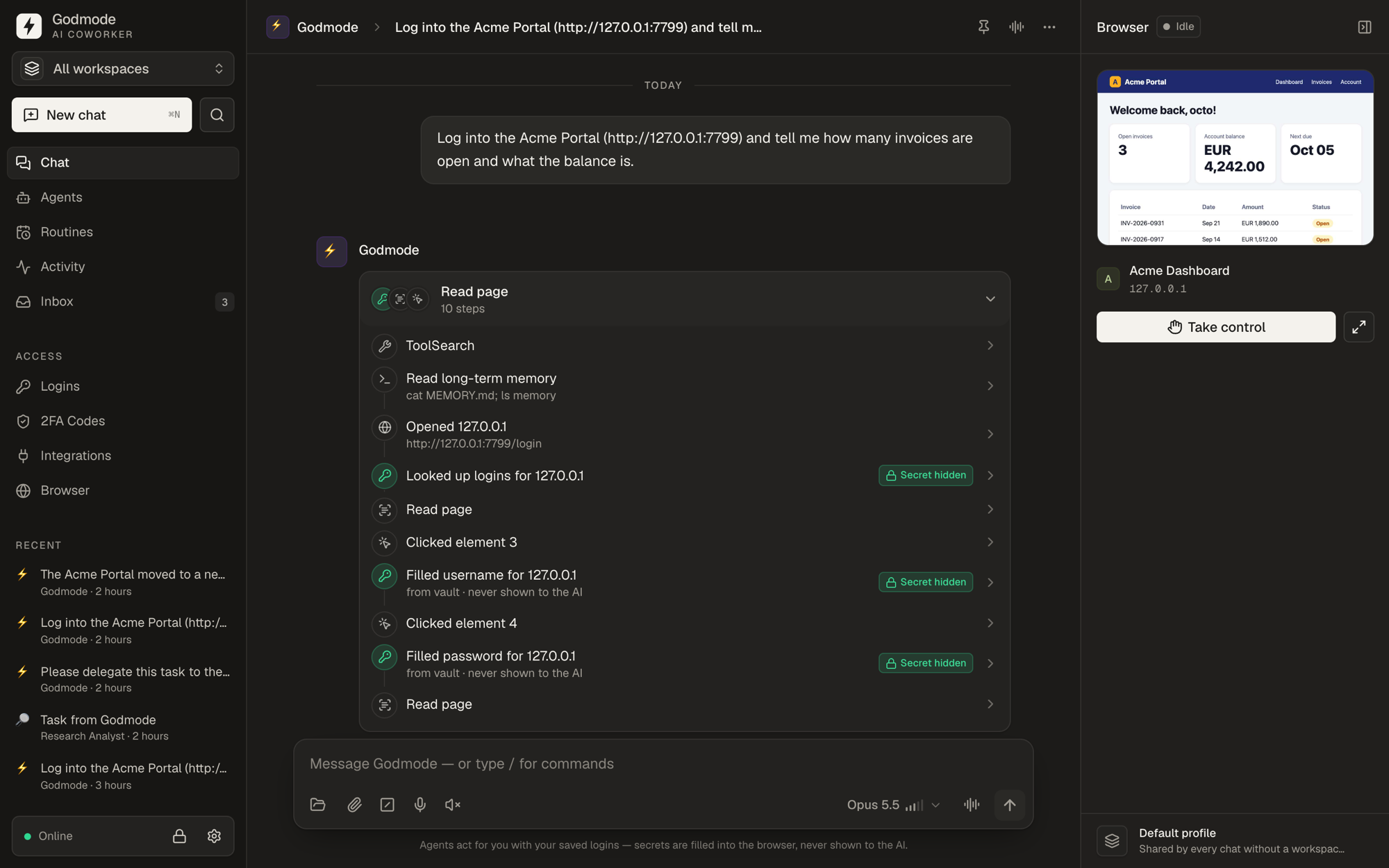
Godmode logs into a portal: the password and the 2FA code are filled from the vault — the AI never sees them. The live browser preview on the right shows where it is; Take control jumps in anytime.
✨ Why Godmode?
Most AI assistants stop the moment they hit a login screen. Godmode Bot is built around the things a real coworker
needs to be useful:
- Access — a managed browser (via browser-use), your Chrome sessions,
and hundreds of apps through Composio or any MCP server. - Credentials without exposure — a local, encrypted vault for logins and TOTP 2FA. Passwords and codes are typed
into the page for the agent; the model never sees them. - Autonomy — powered by Claude Code (Opus 5.5) in full-bypass mode, so work continues
without permission prompts. - Continuity — every agent has its own git repository with memory, conversations, logs and state.
- Judgement — when a login is missing or broken, agents tell you exactly what they need instead of stalling.
🚀 Features
| 💬 Chat first | Start with one conversation with Godmode, your main AI coworker. It can answer, act, and create other agents for you. |
| 🤖 Persistent agents | Bots with their own instructions, conversations, memory (MEMORY.md), routines and history — each in its own git repo. |
| 🫧 Characters & personality | Every agent is a little creature with a face: pick its body, eyes, mouth, hat, glasses or bow tie and colour (or hit Surprise me), give it a name and a personality — Buddy, Sunny, Calm, Witty, Straight shooter, Curious, Butler, Hype or your own words — and it greets you and reports back in that voice. Its face shows what it's doing: it thinks, looks busy while it works, waves when it needs you, hops when the job is done and naps while switched off. Godmode itself is the mint mochi with the lightning bolt. |
| 🌙 Dreaming | While you're away, agents review their recent conversations and rewrite their memory: they pick up what they learned (even if nobody said "remember this"), merge duplicates, fix contradictions and update dates ("is going to Singapore in July" → "went to Singapore in July"). They also tidy their workspace: loose files into topic folders, leftovers of finished work out. Memory loads into every new chat, so dreams also keep it short: details move into notes, and an agent whose memory outgrows what a chat loads dreams as soon as it is idle. Pick the model that dreams (Opus by default); every dream can be reviewed as a diff and undone. |
| 📁 Working folders | Optionally point a chat or an agent at any folder on your machine — it works on the files there and keeps its memory in its own repo. |
| 🎯 Goals | Say what the work is for: a goal (Close Q4 books on time — why it matters, by when) above the board shows how far it is — tickets done of all, what it cost — and a click filters the board to its tickets. Every ticket that serves a goal tells its agent why, so choices the ticket leaves open go the right way; parts serve their ticket's goal. |
| 📋 Task board | A Trello-style Kanban board per workspace: create tickets, assign them to agents, drag them across Backlog → Todo → In progress → In review → Done. A ticket that lands in Todo starts its agent. Every ticket works in its own git worktree of the workspace's repository (a cloned URL or a local folder), on its own branch, so agents running side by side never get in each other's way. When the agent on a Coding ticket is done, Godmode pushes its branch and opens a pull request — merged pull requests close their ticket. Reply to a ticket to ask for changes; the pull request updates. Archive finished tickets (one by one, or a whole Done column) to keep the board focused — they keep everything and come back in one click. Tickets carry a priority, a due date and labels (filter by them; urgent ones start first and the agent is told the deadline). Every ticket keeps a timeline — each delivery with its full result, your feedback, the agent's notes, blocks and pull requests — and shows what it cost and how long the agent worked. Review in one click (Approve / Request changes / Reopen); A run that fails on a hiccup (an API error, a crash, a restart) is tried again on its own — twice at most — so work gets done without you; Blocked is left for what needs you, and says why — the agent needs something, the run kept failing — and offers the matching way on. A ticket whose agent set itself a follow-up shows Waiting — continues tomorrow at 10:00 instead of landing in review. A ticket can wait for others (Reconcile October waits for #3 Get the bank statements): it stays in Todo, says so, and starts by itself once they are delivered — with their results in its brief. Big tickets split into parts: a lead hands them to its team (or you add them), its ticket waits until they're delivered and then continues with their results — approve the whole and its parts are done too. |
| ⚡ Automations | Work starts when it happens: on a schedule (“weekdays at 08:00”), when something happens in a connected app (a new email, a Slack message, a calendar event, a Notion update), when a condition you describe comes true (“competitor pricing changes”), or when a webhook is called. Describe it in one sentence and Godmode sets it up. |
| ⏰ Follow-ups | When a task needs waiting — a reply to an email, a delivery, a build, office hours — the agent sets itself a time and picks the chat up again on its own, with all the context, like a coworker who says “I'll check back tomorrow at 10”. You see when it comes back and can continue now, move it or cancel it. |
| Heartbeats & watchdog | Agents with real work keep moving between your prompts. Switch on an agent's heartbeat (every 15 minutes to once a day, optionally only in working hours on weekdays) and it wakes on its own rhythm: it picks up its tickets that stand still, tries a failed one again, starts one that never did — each in the ticket's own chat, told exactly what changed since it last worked on it — and runs its standing checklist. Every beat ends with a trail on the agent's Heartbeat tab; a beat with nothing to do is quiet and costs nothing. The watchdog looks at every run while it works: a run that shows no sign of life, or calls the same tool with the same result over and over, is stopped with a precise report of where it stood. Board tickets try again once on their own; anything else is escalated to you. |
| 🤝 Delegation | Agents hand tasks to peer agents or spawn short-lived subagents. The Godmode agent can list, check, create and configure all agents. Follow a handoff both ways: open the teammate's chat from the handoff card, and jump back to the chat that asked from there. |
| 🧰 Claude Code & MCP | Build your team from the terminal: connect Claude Code — or Cursor, Codex, Claude Desktop, any app that speaks MCP — and say “Create a Godmode agent that…”. One click in Settings → Claude Code & MCP adds Godmode to Claude Code for every project. The app gets Godmode's own management tools (agents, automations, tasks, runs, VMs) through a key of its own, with full or look-only access; scripts reach the same tools with godmode call. Passwords, 2FA codes and settings stay out of its reach. |
| 🏢 Team & org chart | Give every agent a role (Bookkeeper, Research analyst) and a lead; agents are told who does what and who they report to, so work goes to the right one. The org chart shows the whole team with what each is doing right now. Status tells the truth — Working in 2 chats, Queued, Needs your answer, Last run failed (one click opens the run) — and each agent's page shows what's on its plate: live work, waiting chats, board tickets, follow-ups and its next automations. Duplicate an agent in one click; messages from automations, the board or other agents are labelled as such, never shown as yours. Or start a whole team in one click — Back office, Marketing, Sales, Product & QA: a lead and its reports, wired up, with their schedules. |
| 💰 Spend & budgets | See what the team cost today, this week, this month and all time — per agent and per kind of work, booked when it was spent. Give the team (and any agent) a monthly budget: you're told at 80%; at 100% automations, follow-ups and board tickets are held, not failed — they continue by themselves next month or as soon as you raise the budget, or right away when you click Let it run. Chats you start always run. |
| 📨 Message queue | Keep writing while an agent works: your messages wait in a queue above the message box, and the agent picks them up at its next step and works them into what it is doing — a correction lands right away, an extra request comes after the current step. Reword or remove a queued message until it is picked up, or hit Send now to interrupt. |
| 🙋 Questions & approvals | When a decision is yours — or before a step that sends, pays or deletes something you didn't ask for — the agent asks: a question with suggested answers, or Approve / Decline for exactly that step. The work stands still (it doesn't pretend to be done), you're notified, and you answer with one click in the chat, the inbox, the task, from your phone or by replying in Slack, Telegram or Teams; the agent continues right where it stopped. Stop the run and the question is withdrawn. |
| 📌 Needs you | One list of everything that waits for you — questions and approvals, missing logins (leading back to the stuck chat or ticket), tickets to review or blocked, paused chats, held budgets, failed chats, failing automations, people asking for access — on Home and in the Inbox, each with its one action. Items leave by themselves once handled. Chats with something new are marked in the sidebar, you're told when work finishes or fails while you're elsewhere (never when you're looking, never twice), toasts open the thing, and each automation chooses when it tells you: on failures, always or never. Back after a while? Home first sums up what the team did meanwhile — who worked, what it cost, what was delivered and what went wrong. |
| ⏸️ Pause & continue | Pause an agent or a single chat and continue later: it lets the step it is in finish, stands still, and picks the work up exactly where it stopped — same run, same message, same Claude session. When Claude's usage limit is reached mid-task, the work waits instead of failing and continues by itself once the limit has reset. A turn that failed, timed out or was stopped gets Continue or Try again right under it — one click, same chat. Quit, update or restart Godmode while agents work and their chats, automations and handed-over tasks continue by themselves once it is back, where they stopped. |
| 🔎 Find anything | Press ⌘K: what waits for you comes first, then type to find tickets (by number or title), automations, chats — also by what was said in them — agents, settings and actions. Pick one to open it; New chat with … starts one right there. Press ? for every keyboard shortcut — G then T jumps to Tasks, G I to the Inbox, and so on. |
| ⌨️ Slash commands | Type / for every Claude Code command — /compact, /model, /effort, /clear… — with argument hints and tab completion. |
| 🧩 Ultracode | Switch on Claude Code's dynamic workflows — for one chat (model picker or /effort ultracode), an agent, or everything: Claude plans the task and runs several agents on it at once. Thorough, but slower and far more tokens. A card in the chat shows every workflow's agents while they work. |
| 🌐 Real browser | browser-use drives a managed Chromium over CDP. Watch it live right next to the chat and take control for CAPTCHAs. |
| 🗂️ Parallel chats, own tabs | Every chat gets its own tab (in its own background window) in the shared browser profile, so several chats and agents browse at the same time — signed in with the same logins, without ever touching each other's pages. |
| 🥷 Bot-detection hardening | Sites that block automated browsers see a normal Chrome: the automation flag stays off, and even a headless browser has the user agent and screen of a regular Chrome window. Run check (Settings → Browser) shows what bot detection sees, signal by signal. |
| 🖥️ Computer use | Share a single window, a display, the entire desktop (every monitor) or a browser tab with an agent — like sharing your screen with ChatGPT. A shared window is controlled in the background with Cua Driver: your mouse and keyboard stay yours. Watch live and take over anytime. |
| 💻 macOS VMs | Give an agent its own Mac: spin up isolated macOS virtual machines (Apple's Virtualization framework, via Tart) with one click and assign them to an agent, a chat or a workspace. The agent works entirely inside the VM — commands, files, apps (computer use with Cua Driver) and the web (Google Chrome with browser-use) — and no browser opens on your Mac. It gives the software it installs there the macOS permissions it needs (Accessibility, Screen Recording, Automation, …) itself, so no permission dialog stops it. Watch the VM's screen next to the chat and take control anytime. Allow it once and agents sign in inside the VM too: Godmode fills your saved logins and 2FA codes for them (best effort — the agent controls the VM, so it's closer to reveal than to fill-only). VMs live on your Mac, keep everything between tasks, suspend when you quit, and can be reset to a clean macOS or duplicated in seconds. |
| 🔌 SSH servers | Let agents work on your servers: save a server with a password or an SSH key (paste it, pick one from ~/.ssh or generate a new one) and give it to a chat or an agent. Godmode signs in and answers sudo — the AI never sees the password or the key. Agents run commands, edit config files and copy files back and forth; the host key is pinned on the first connection. |
| 🧩 Plugins | Claude Code plugins for your agents. Install whole plugins from GitHub in one click — Claude Video lets agents watch videos, oh-my-claudecode adds multi-agent workflows — or any other repository by its link, and switch them off, update or uninstall them just as easily. Small ones (Claude Code mods) run inside every turn: refuse risky shell commands, keep agents away from .env files, mask keys in tool output, cap runaway turns, expand !shortcuts — add one Godmode made, write your own in the built-in editor or let Godmode draft it. Every plugin is checked by Claude Code's own validator, and Godmode shows what it brings and what it can reach before you switch it on. |
| 🍪 Chrome session import | Continue where Chrome left off — import cookies from your Chrome/Edge/Brave profile (profile-use technique), or sync via browser-use profile-use. |
| 🔐 Vault | Logins with password generator, per-workspace or global, AES-256-GCM encrypted, fully audited. |
| 📥 Password import | Bring logins over from Chrome (and Edge, Brave, Arc), 1Password (.1pux or CSV), Bitwarden, Apple Passwords, Firefox and more — with a preview that updates saved logins instead of duplicating them. |
| 🔢 2FA / TOTP | Import Google Authenticator QR codes from screenshots — including multi-account export QR codes — or scan with your camera. |
| 📬 Missing-login inbox | Agents report missing or broken logins, accounts and 2FA; add them in one click. |
| 🧩 Integrations | Composio toolkits (Gmail, Slack, GitHub, Notion…) and custom MCP servers — globally, per workspace, or per agent. |
| 🔧 Tools | Hand agents any API with your key — Nano Banana image generation, OpenAI, ElevenLabs voices, Perplexity search or your own services. Add the key, say what it's for and paste the docs (presets fill them in); agents work out the calls themselves. Godmode adds the key to each request and only sends it to the tool's address, so the model never sees it — or opt in to an environment variable for scripts and SDKs. Global, per workspace or per agent; images, audio and files from responses land as files. |
| 💬 Messaging | Talk to your agents from Slack, Telegram and Microsoft Teams. Connect a bot, pick which agents it reaches, and approve who may use it; /agent, /new and /stop work right in the chat, and every chat is also a Godmode conversation. |
| 🗂️ Workspaces | Separate clients/projects with their own agents, logins, 2FA, integrations and browser profile, plus shared global ones. Assign any browser profile to a workspace (Browser → profile menu, or in the workspace's settings) and its agents browse with it. |
| 🧬 Workspace folders & repos | Attach project folders and git repositories to a workspace — paste https://github.com/you/app and Godmode clones it with your git sign-in, keeps it up to date and hands it to every agent in the workspace. |
| 🎙️ Voice mode | Dictate and hear replies; hands-free conversation loop (Web Speech, OpenAI or ElevenLabs). |
| 💾 Backup & restore | Encrypted .godmode-backup archives of your whole setup, including agent repositories. |
| 🧹 Cleanup | Settings → Cleanup shows what Godmode's data folder holds, checks tools, permissions, updates, the database and disk space in one go, and frees what piles up: browser caches, worktrees of finished tasks, unused clones, agents' scratch files and old run logs, unpacked agent history, leftovers of interrupted runs, old logs and the database's free pages — once a day on its own, or with one click. Anything that may still hold work stays. |
| 🩺 Diagnostic log | Errors, slow spots and how every run went, with secrets masked. Settings → Logs groups recurring problems and copies an AI-ready report — paste it into Claude to find bugs and speed things up. |
| 🖥️ Desktop + dashboard | Native app for macOS, Windows and Linux — or run headless on any device and use the web dashboard. |
| 🖥️ Runners | Keep working with the lid closed: put Godmode on another Mac — a Mac mini, an old laptop — with one install command, and pick it under Run on when you start a chat. Godmode copies your agents, logins, 2FA codes and browser sessions there, the work happens there, and you watch it here live like any other chat. Install, pairing and Claude Code set themselves up; a health view shows what's missing (software, macOS permissions, the vault) with one-click fixes, or hand it to Fix with Claude. Encrypted end to end. |
| 📱 Phone app | Control Godmode from your iPhone or Android phone: hand over tasks, follow answers as they're written, stop runs, run automations and watch an agent's browser, shared screen or VM live — tap to take control. Pair once by scanning a QR code; the phone talks to your computer over Tailscale, or through the gateway of a Godmode Cloud you link it to. Liquid Glass on iOS 26. |
| ☁️ Godmode Cloud (optional) | A self-hosted account service: open your computer's dashboard in any browser and reach it from your phone without Tailscale, with accounts, invites, roles, an admin dashboard and Stripe plans. Godmode works fully without it; nothing leaves your computer unless you link it to a cloud. See apps/cloud. |
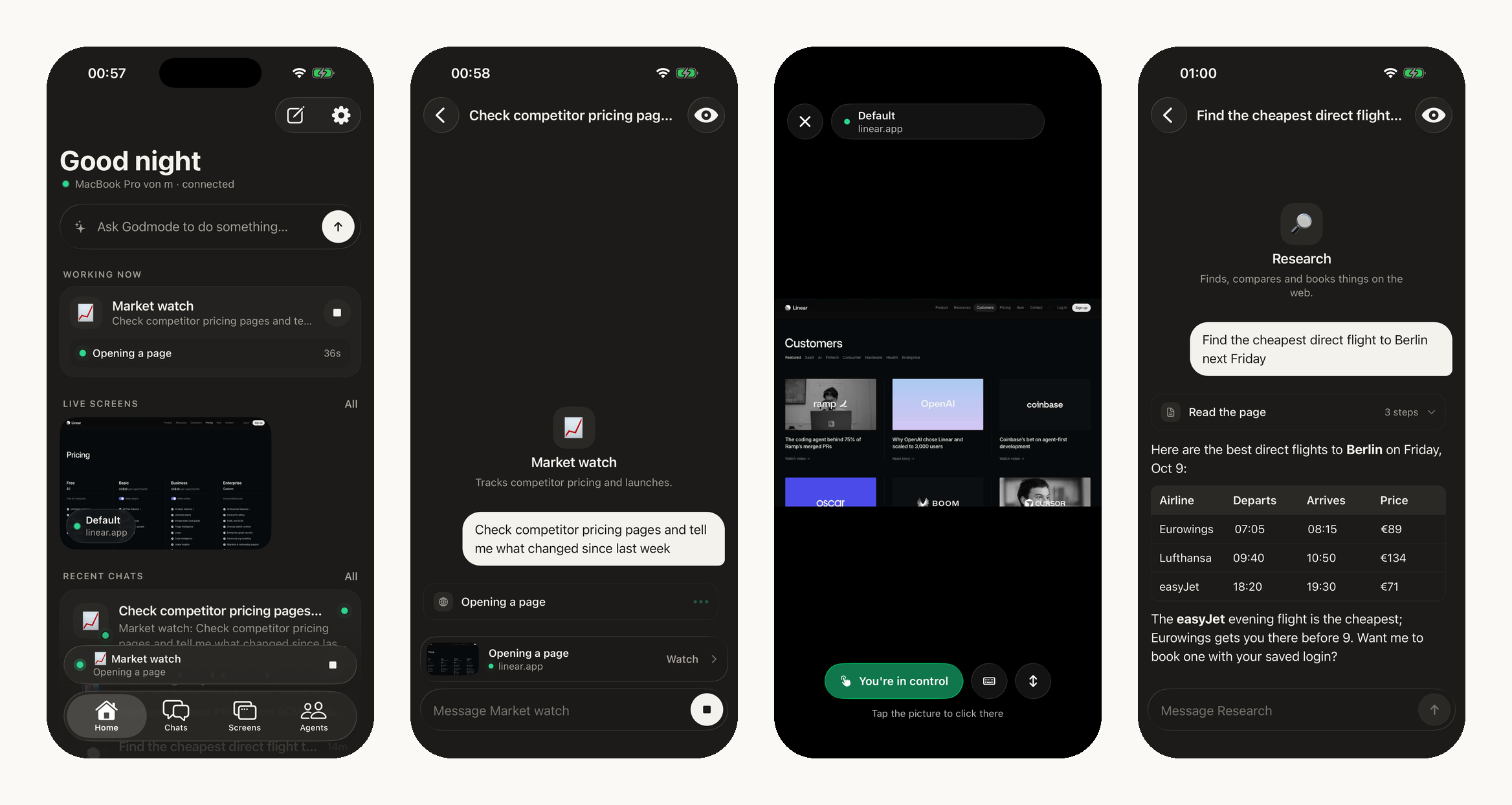
Phone app — what your agents are doing right now, a chat that streams as it's written, the agent's browser live (tap to take control), and the answer.
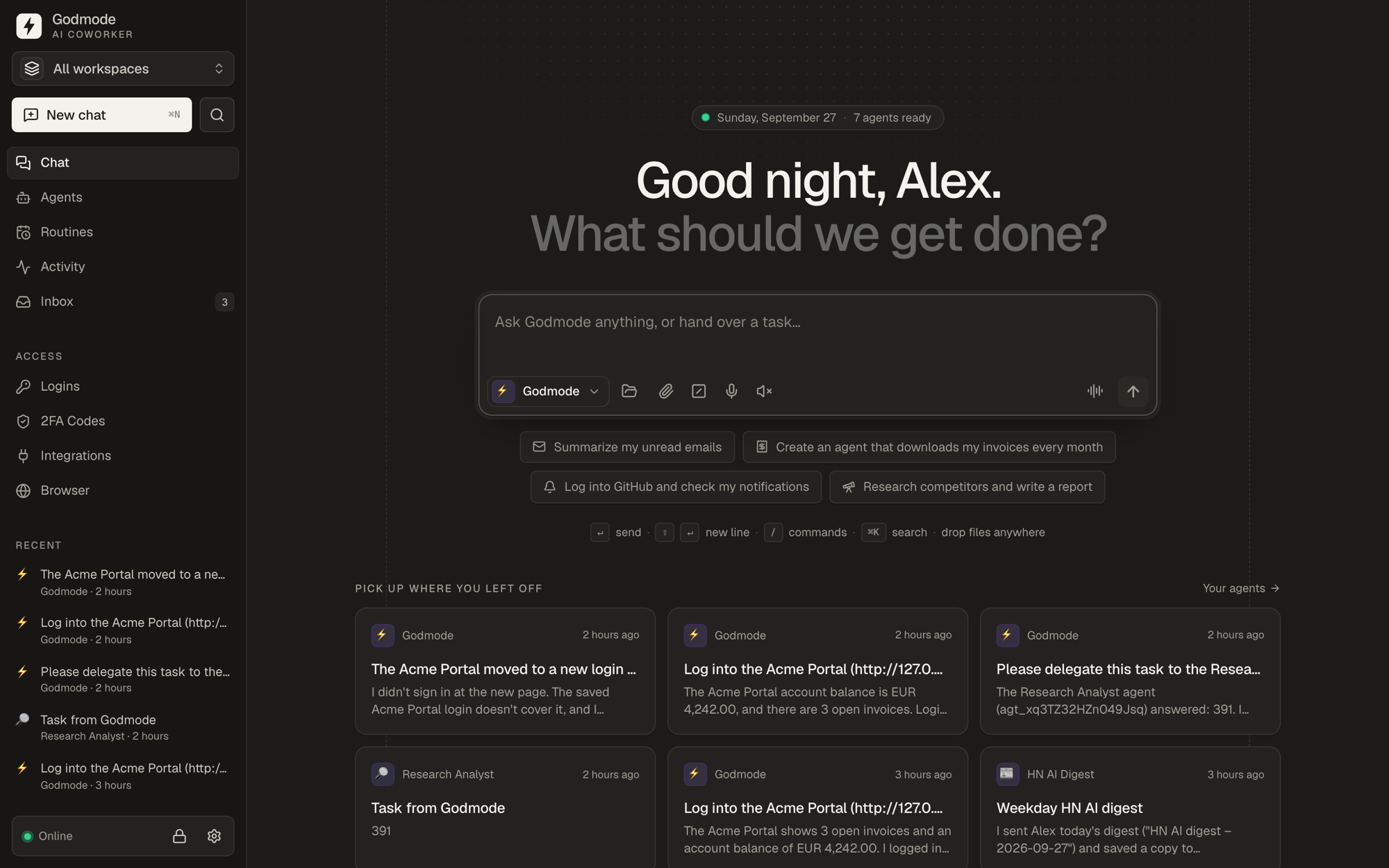 Chat first — hand over a task, pick up where you left off |
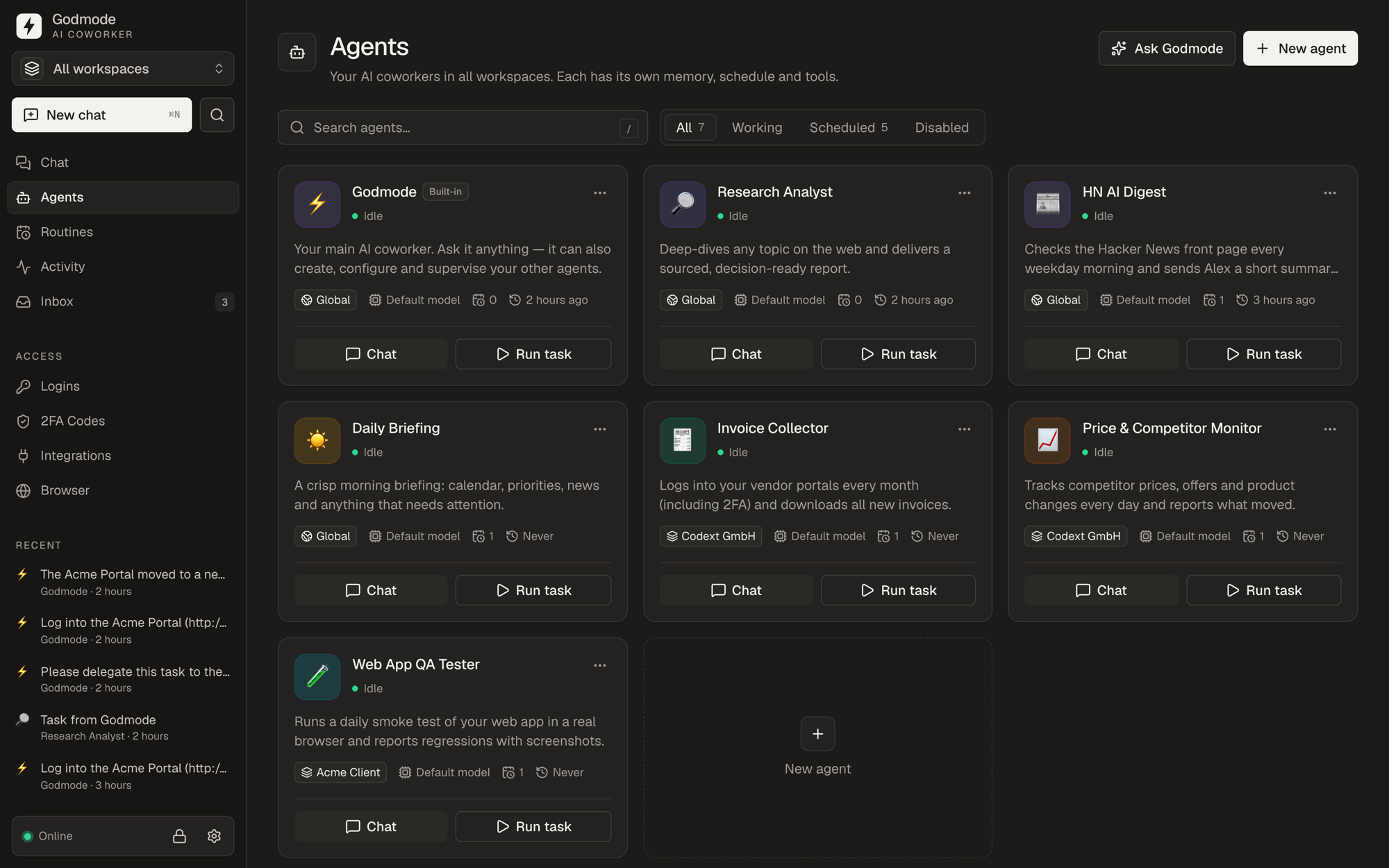 Agents — persistent coworkers with memory, schedules and tools |
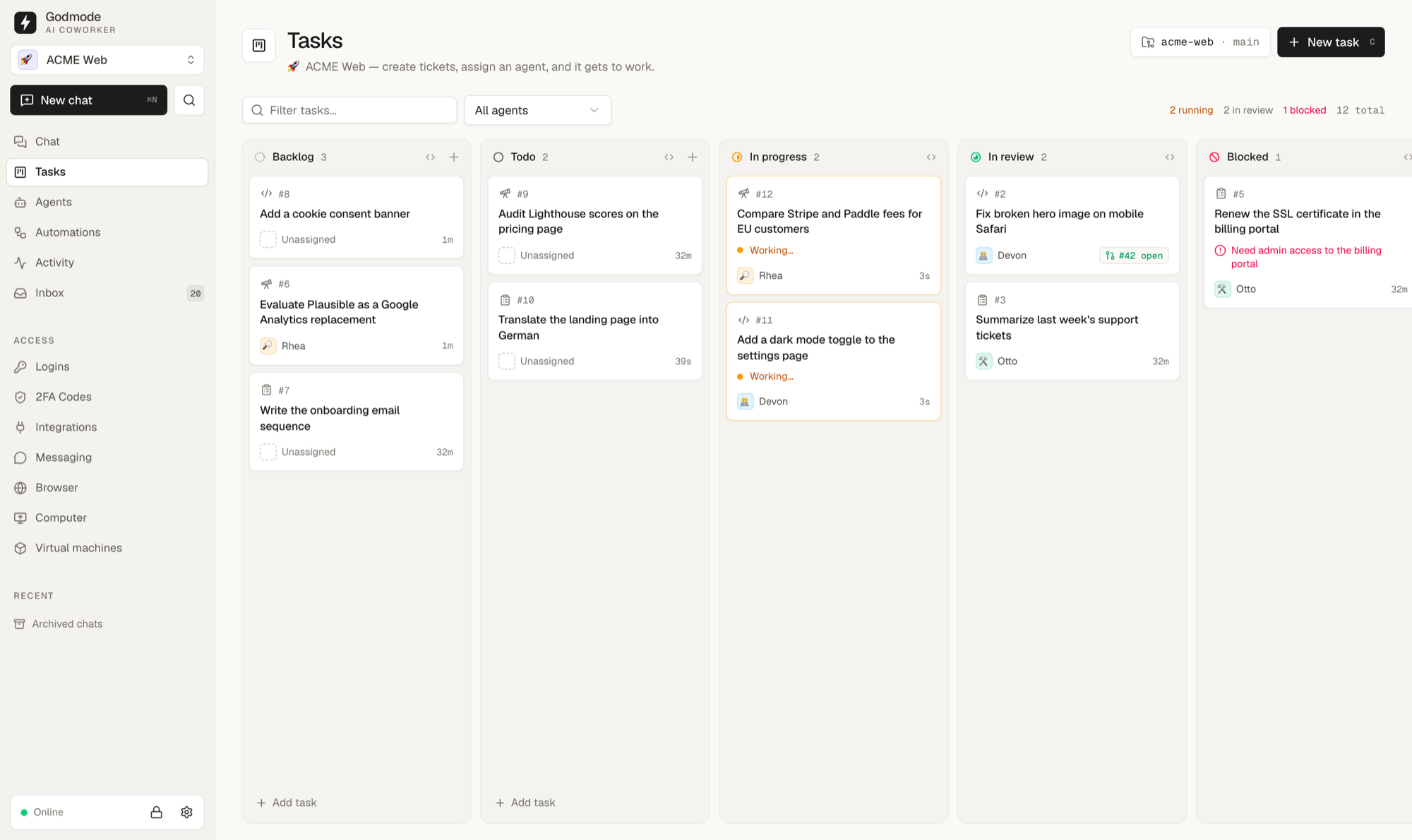 Task board — tickets for your agents; Todo starts them, coding tickets end in a pull request |
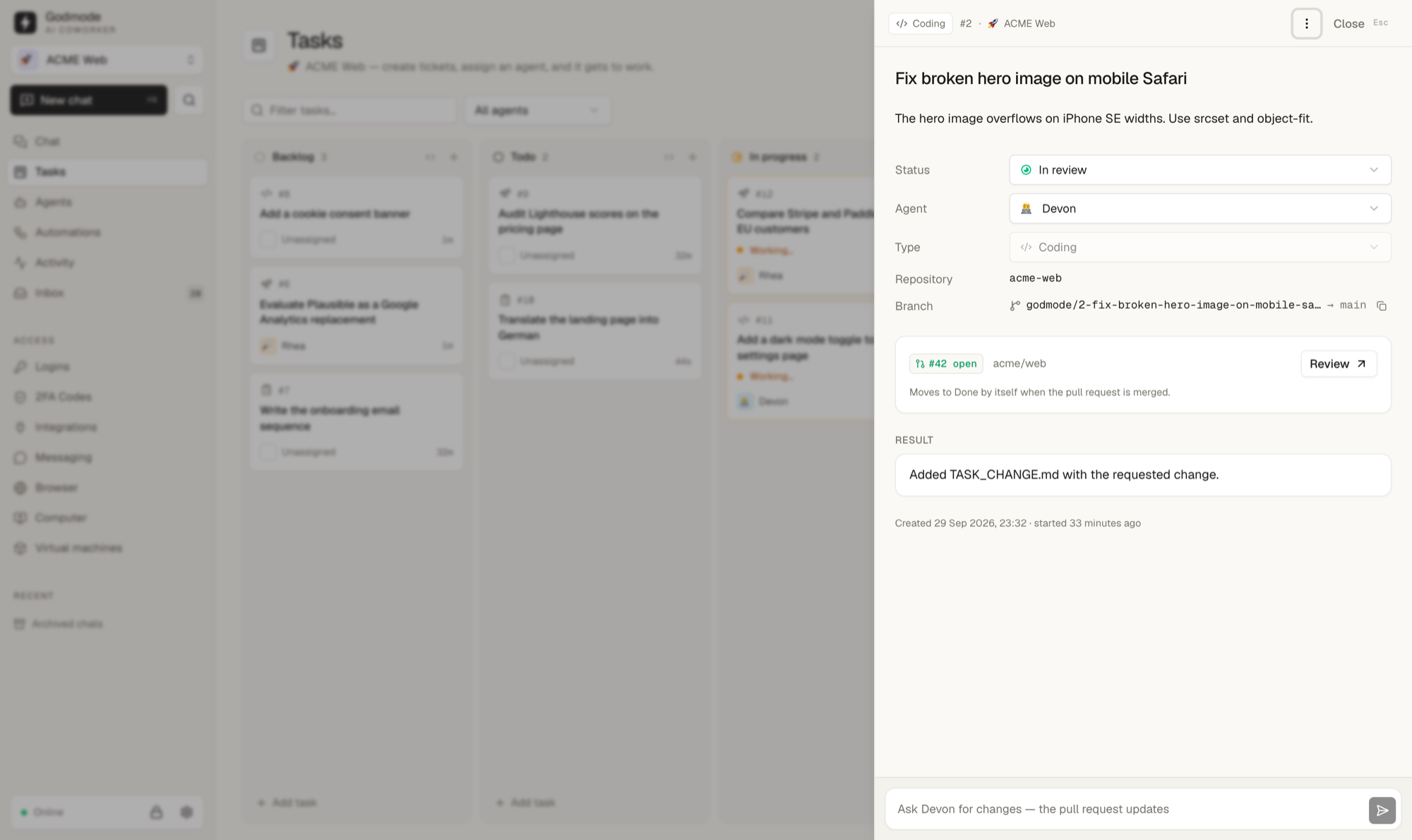 Task detail — live progress, branch, pull request and follow-ups |
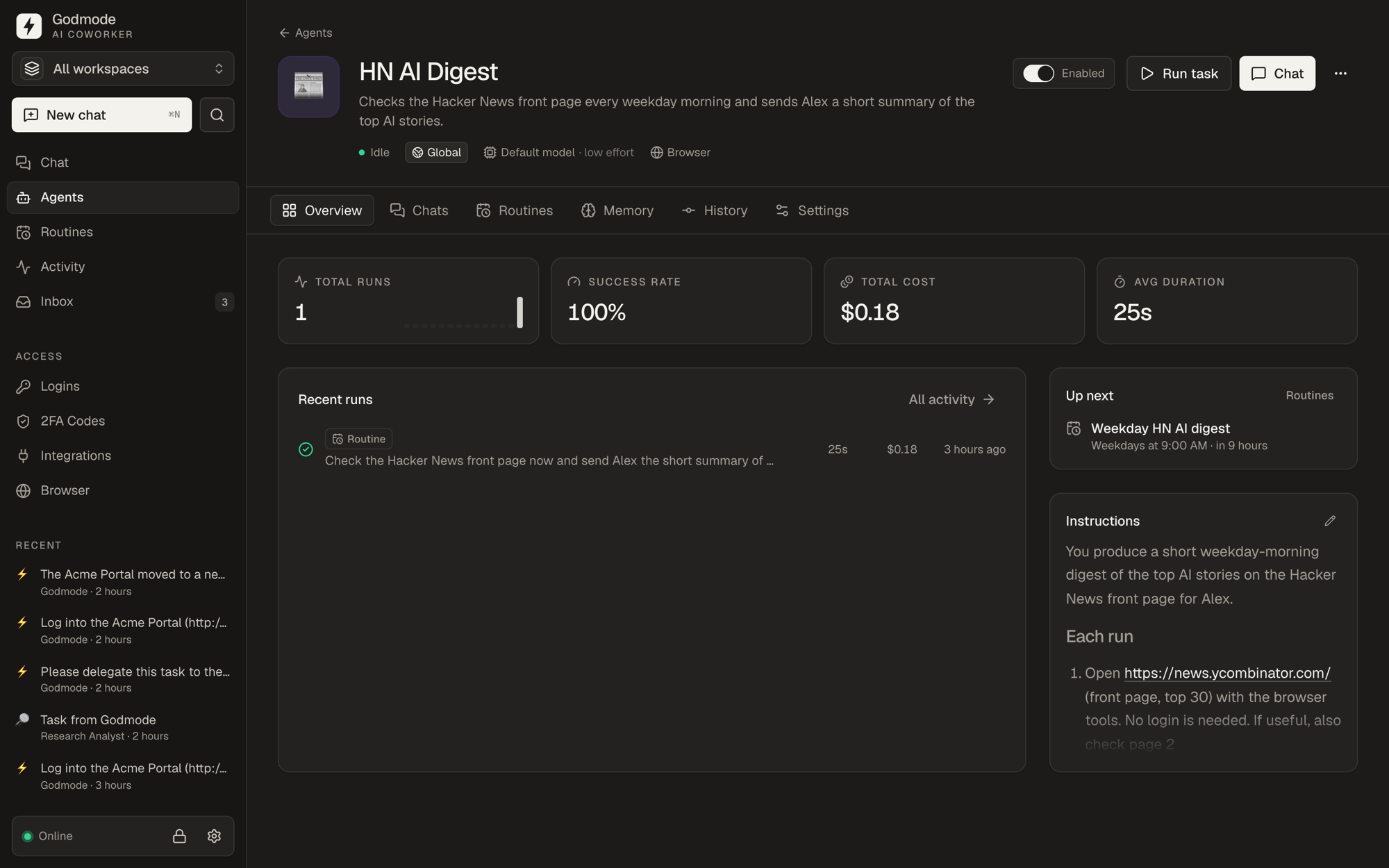 Agent detail — runs, routines, memory (git), history, settings |
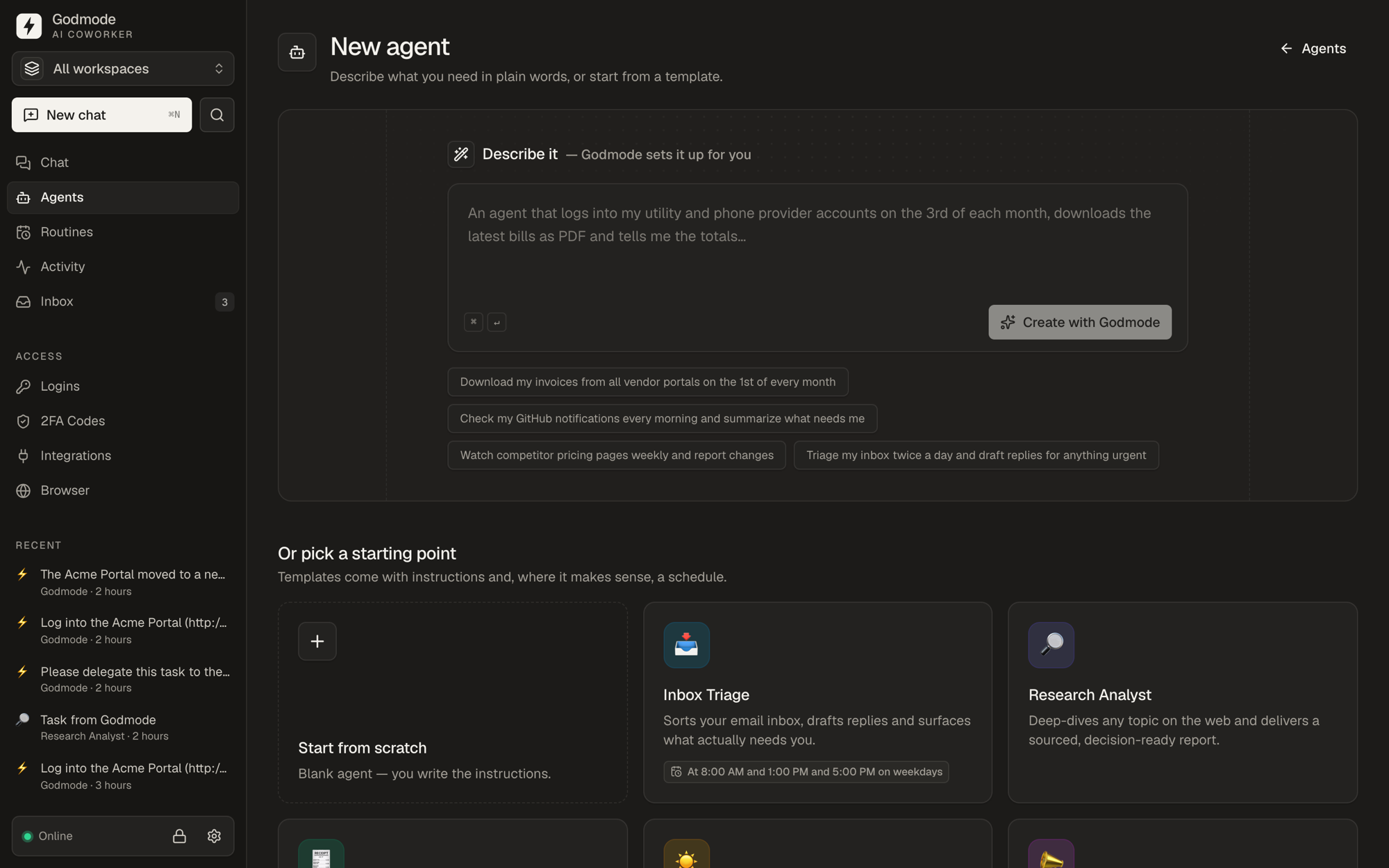 New agent — describe it in plain words or start from a template |
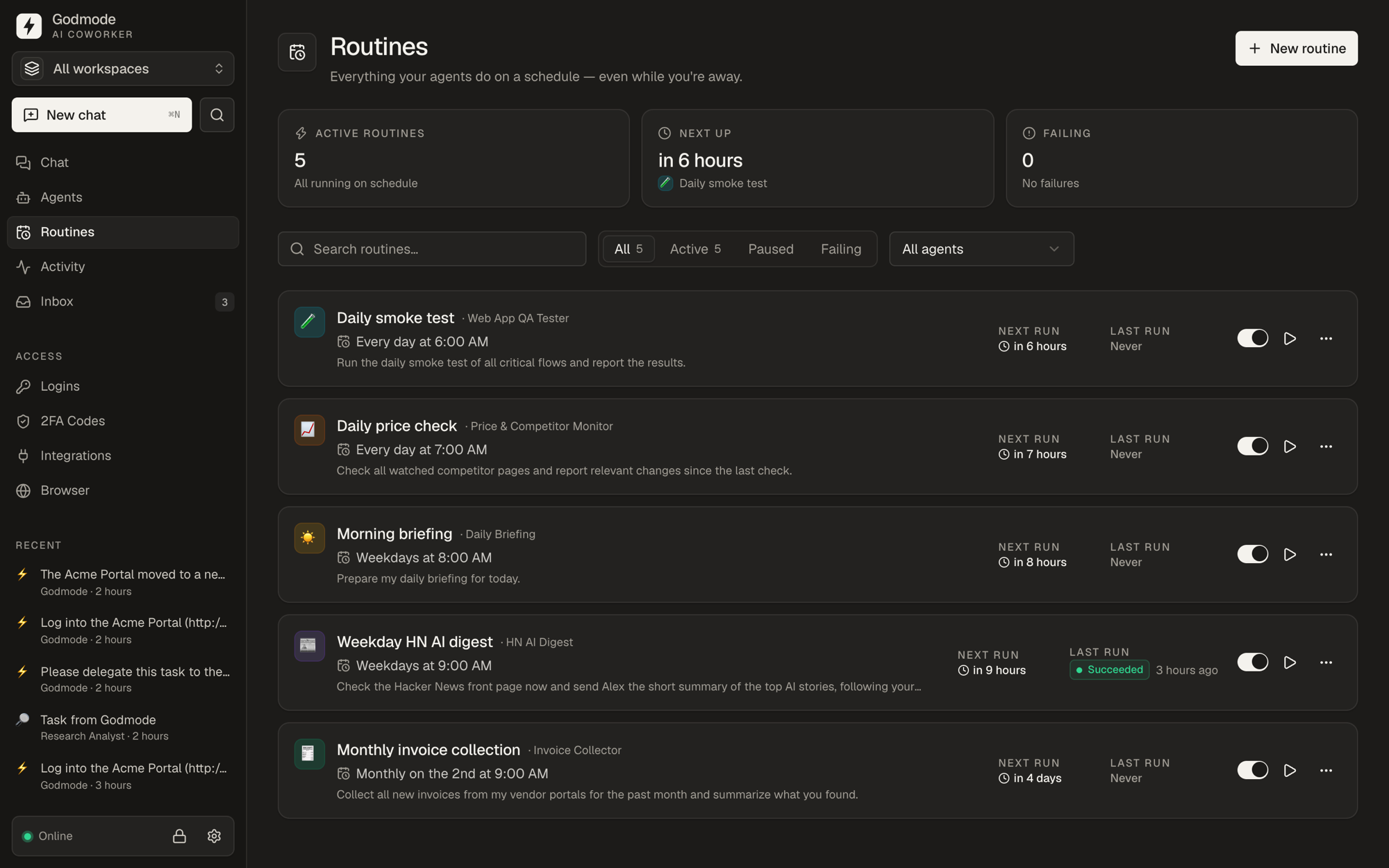 Routines — everything your agents do on a schedule, at a glance |
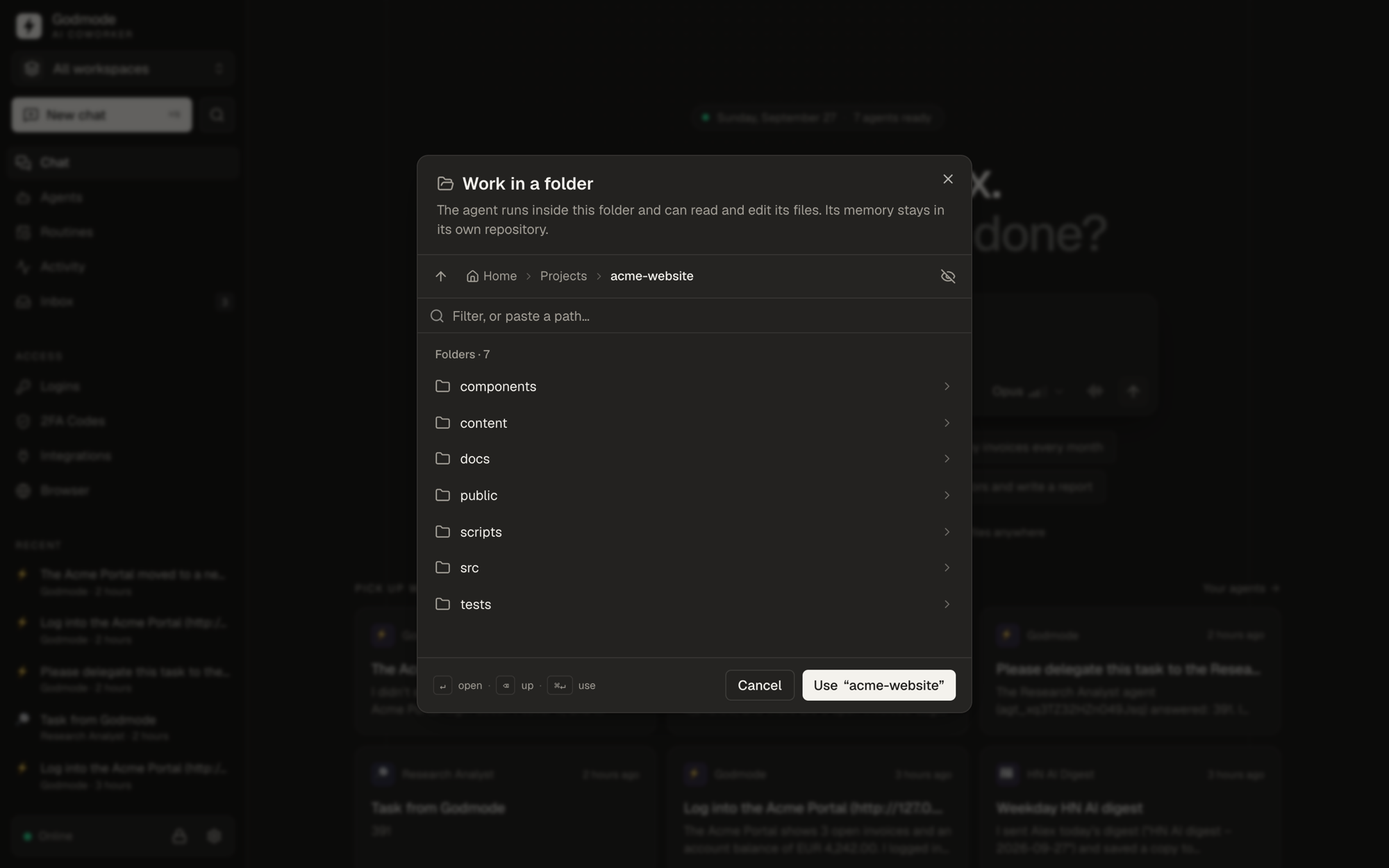 Working folders — point a chat or an agent at any folder on your machine |
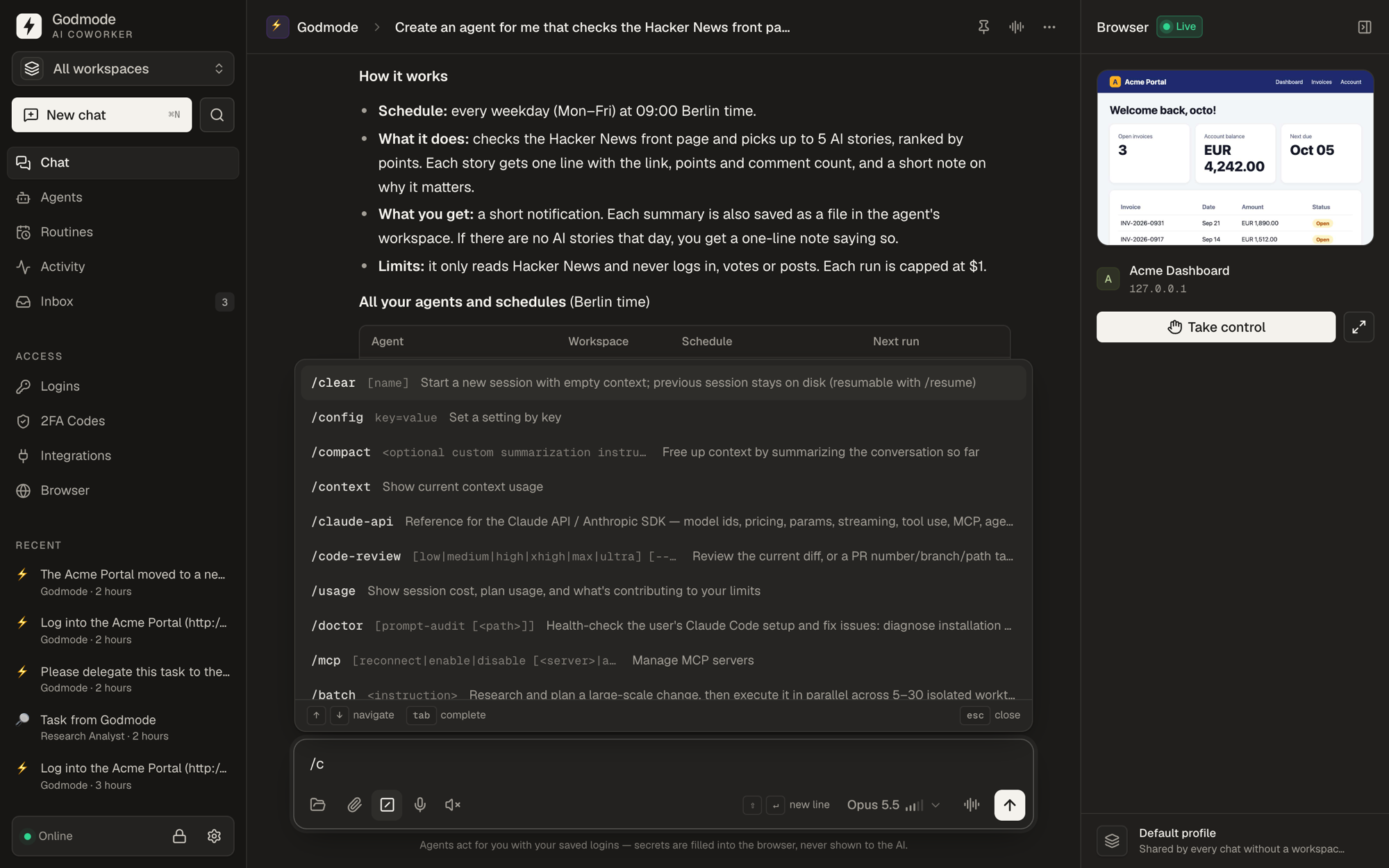 Slash commands — every Claude Code command, right in the composer |
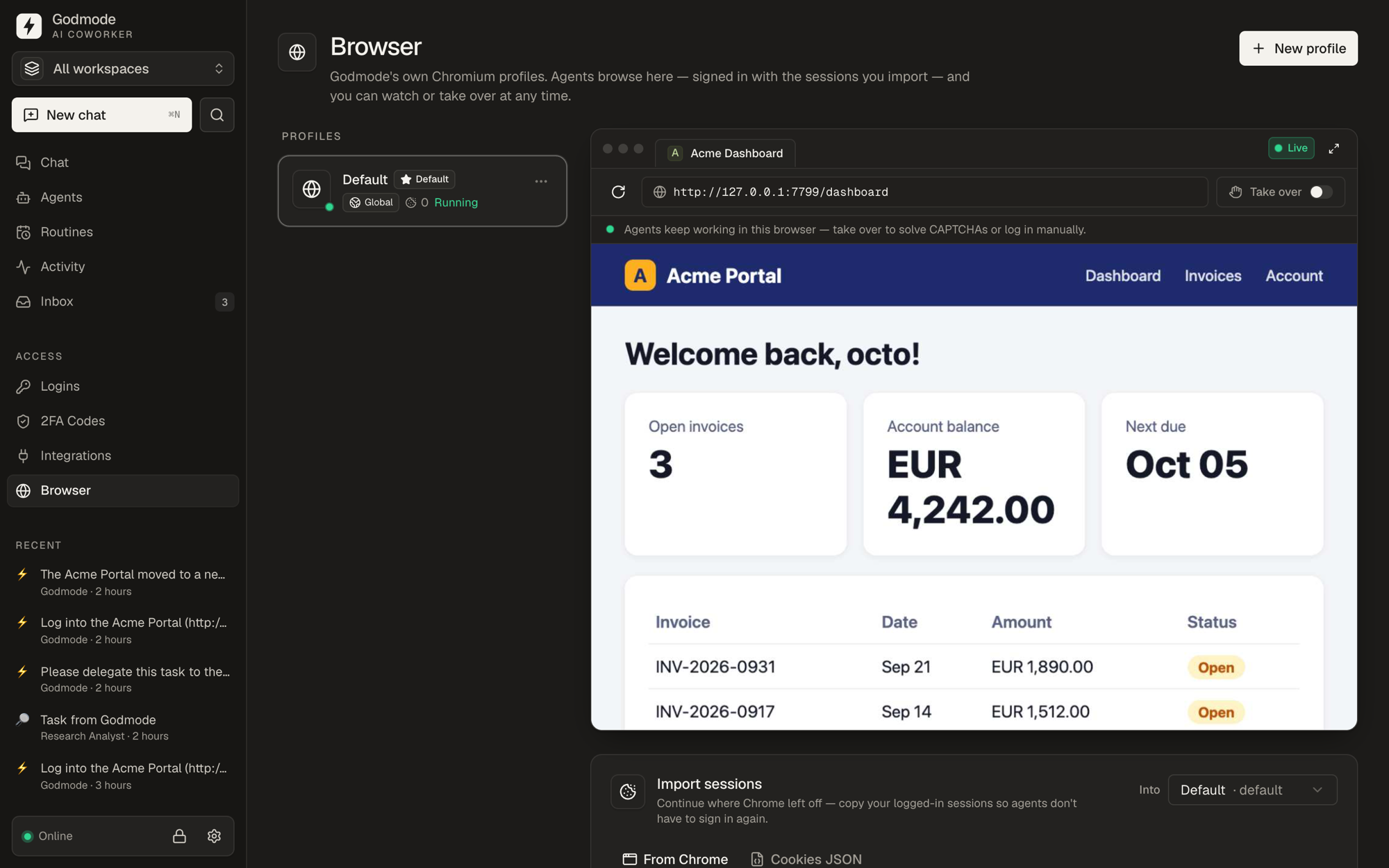 Browser — live view of the agent's Chromium, take over anytime |
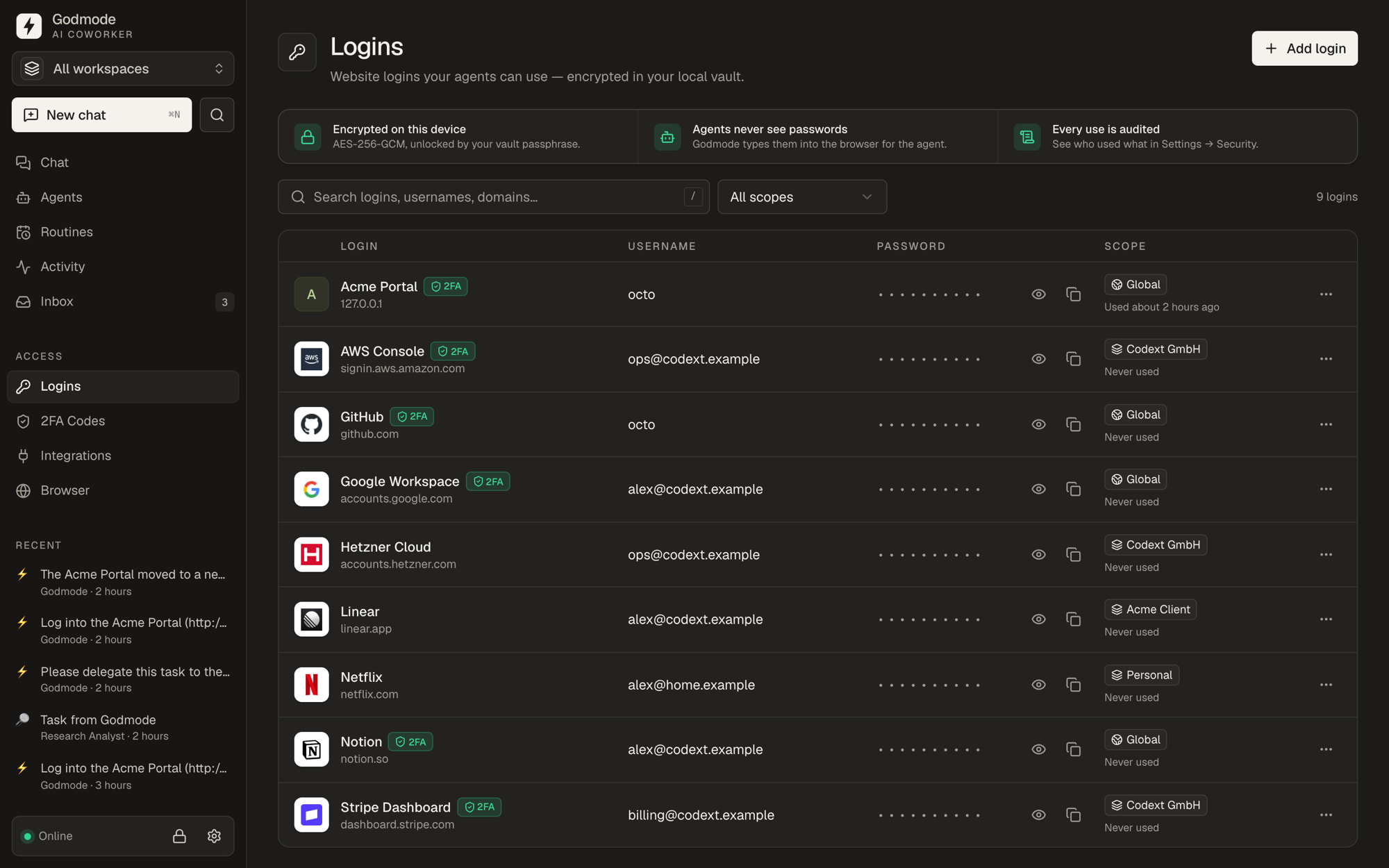 Logins — encrypted, scoped per workspace, filled for agents |
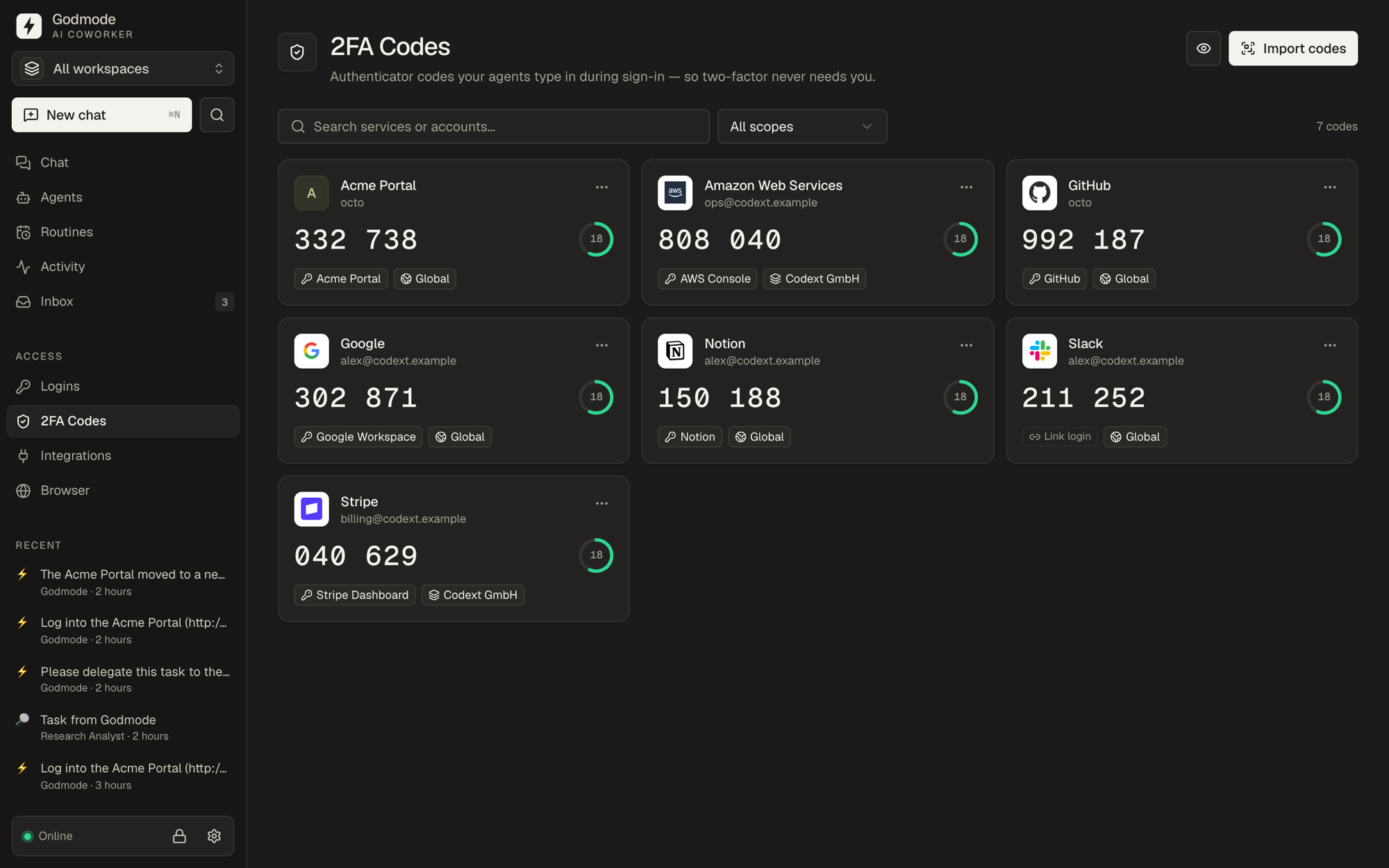 2FA codes — import Google Authenticator QR screenshots |
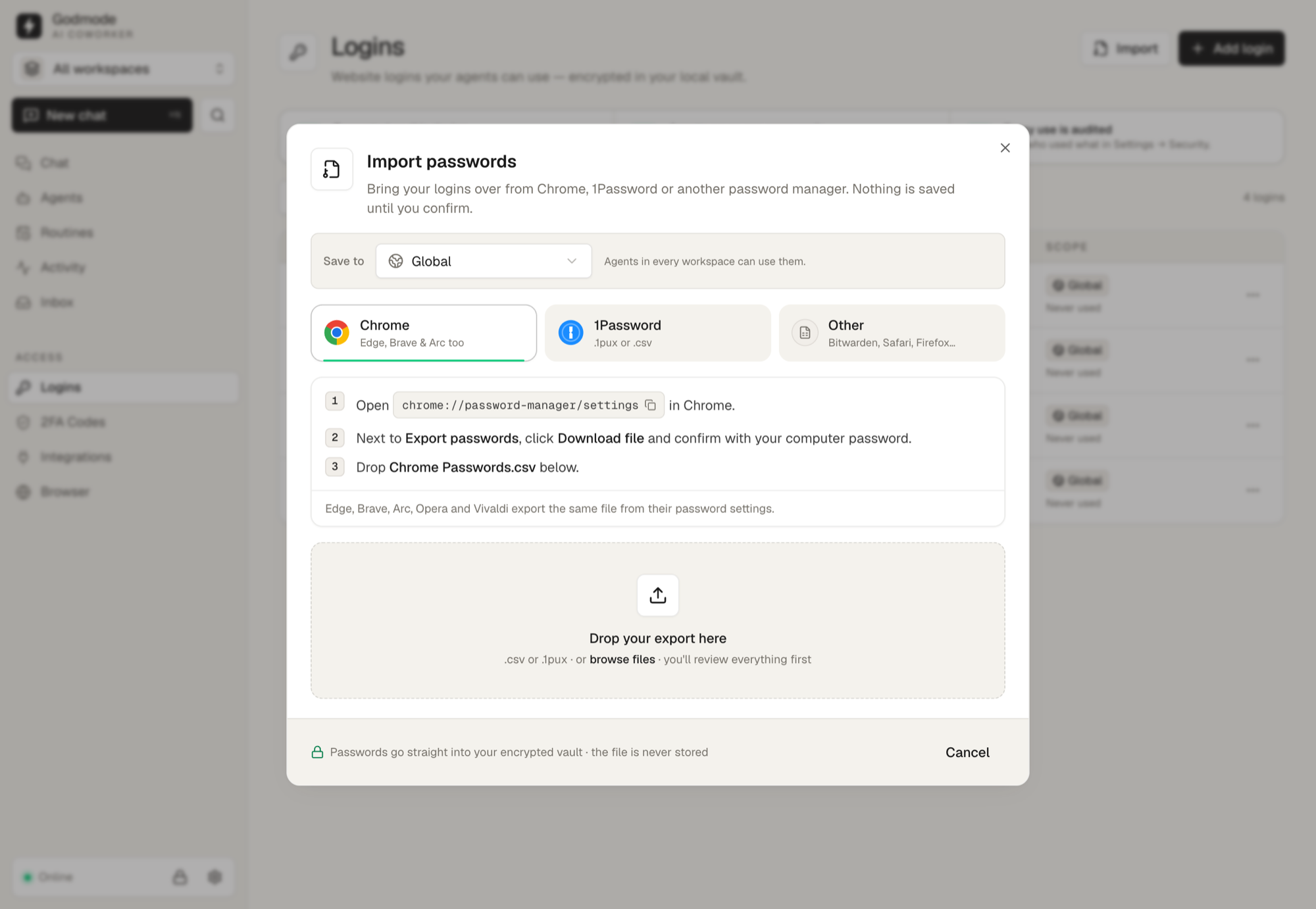 Password import — Chrome, 1Password, Bitwarden, Apple Passwords and more |
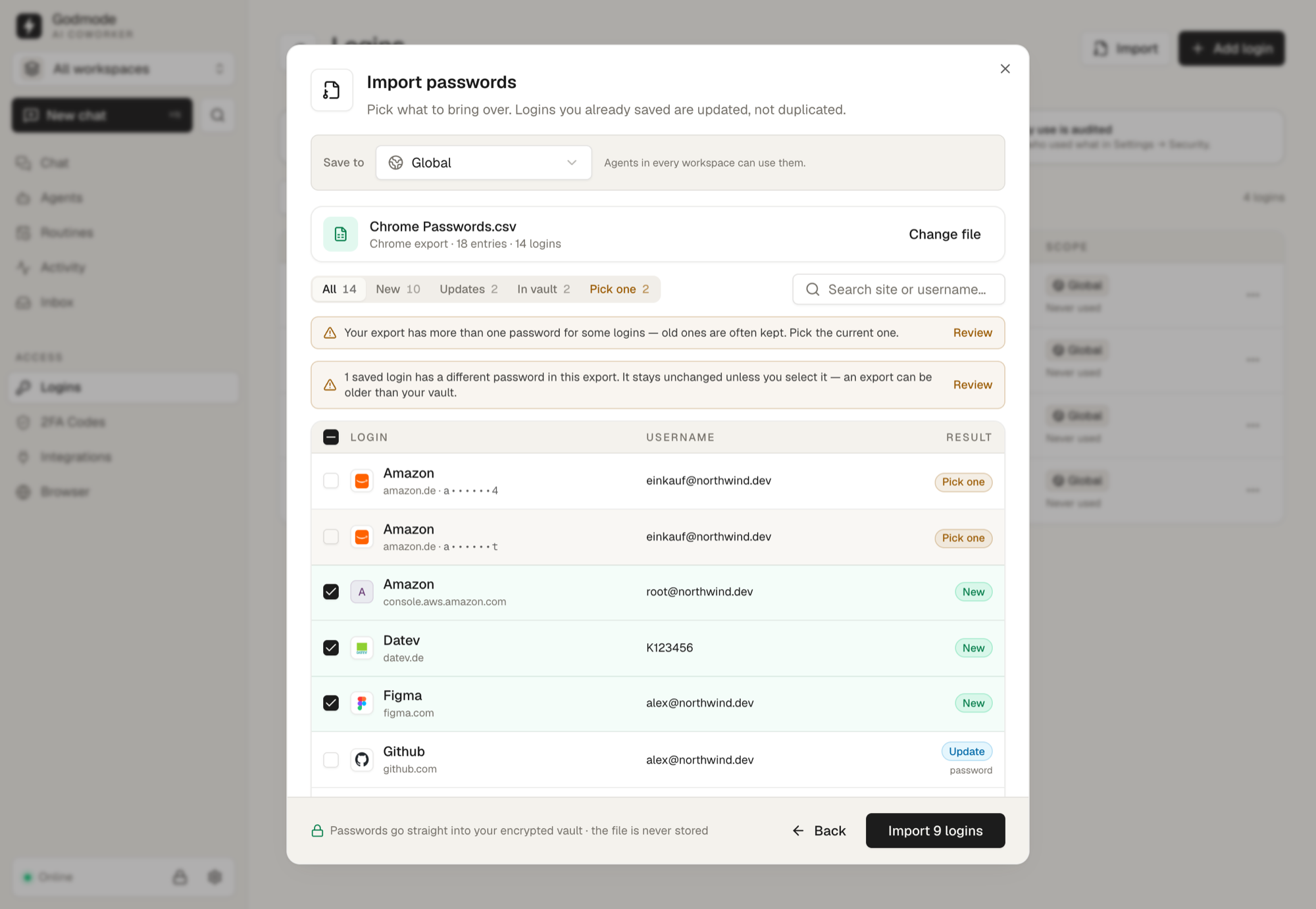 Import review — new, updated and already saved logins at a glance |
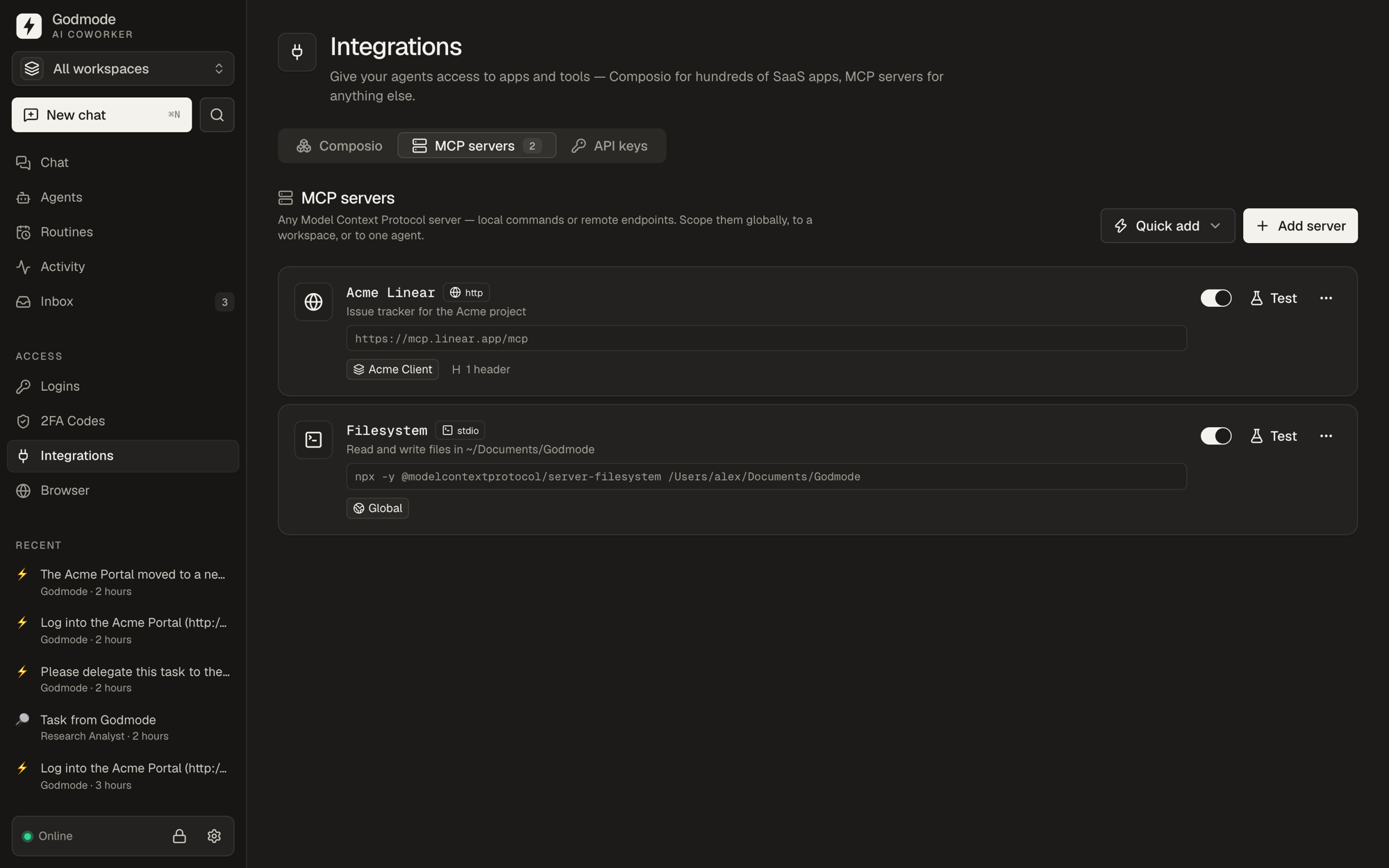 Integrations — custom MCP servers and Composio toolkits, scoped per workspace |
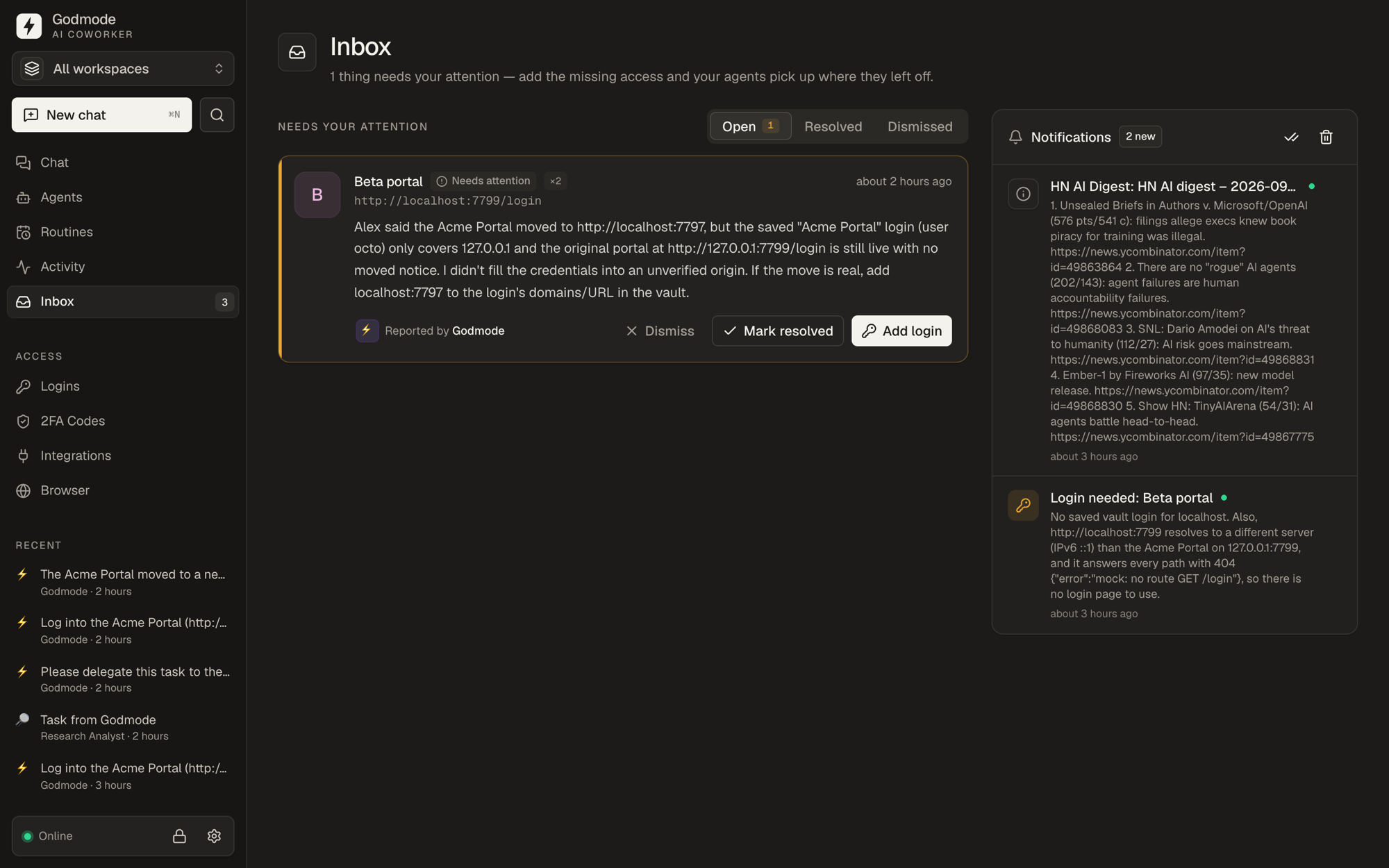 Inbox — agents report missing or broken logins |
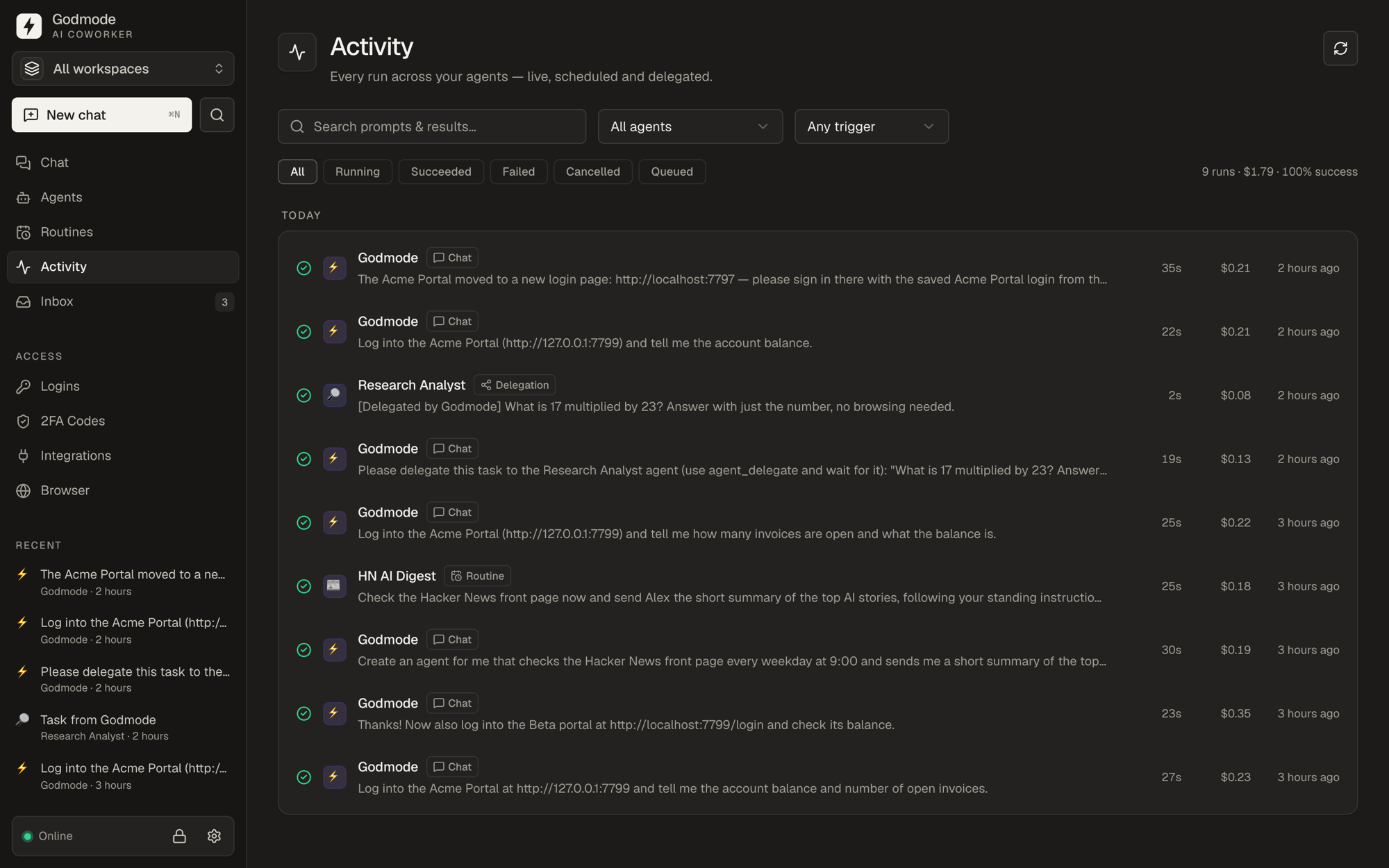 Activity — every run, its cost, duration and result |
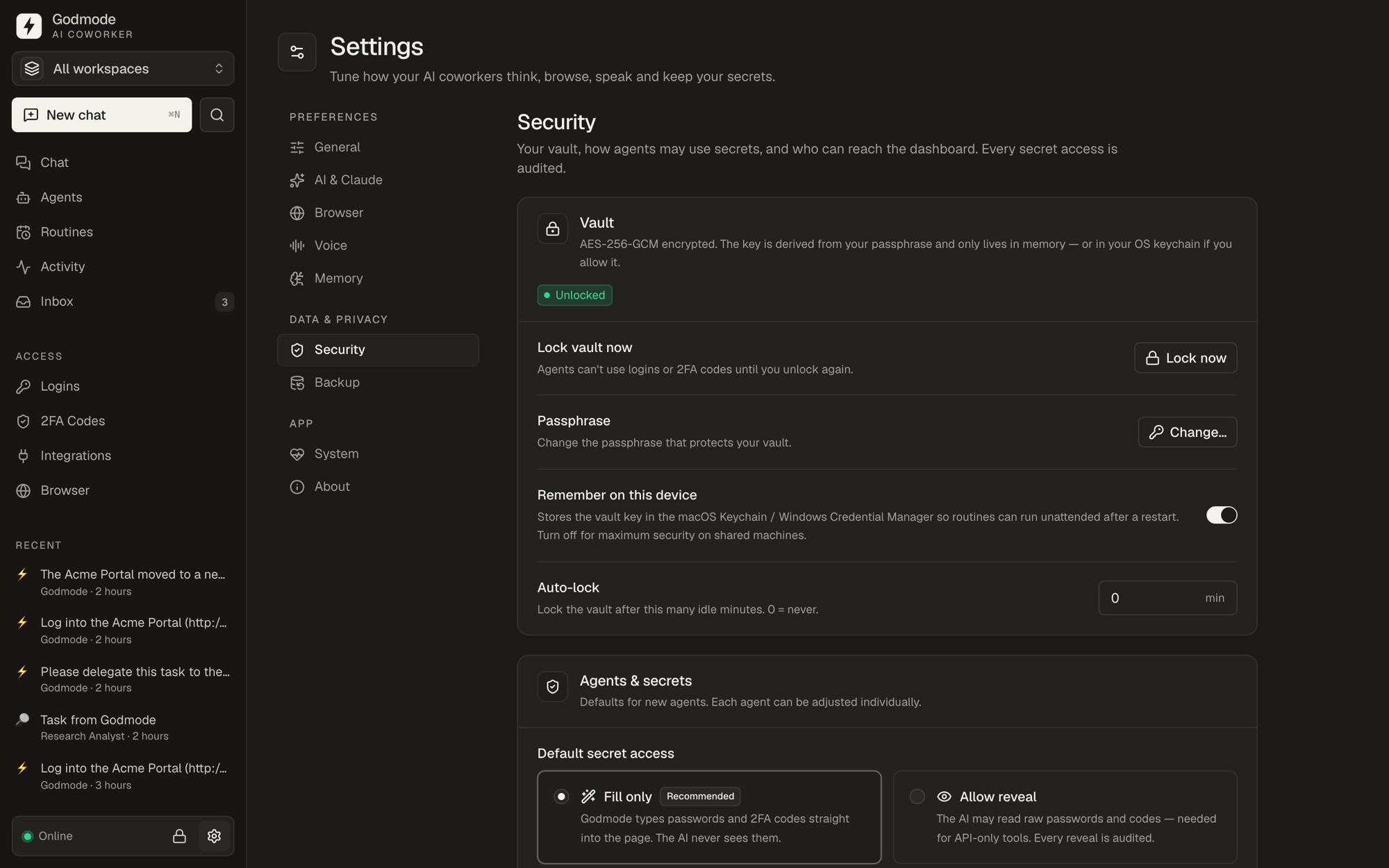 Security — fill-only secrets, device keychain and auto-lock |
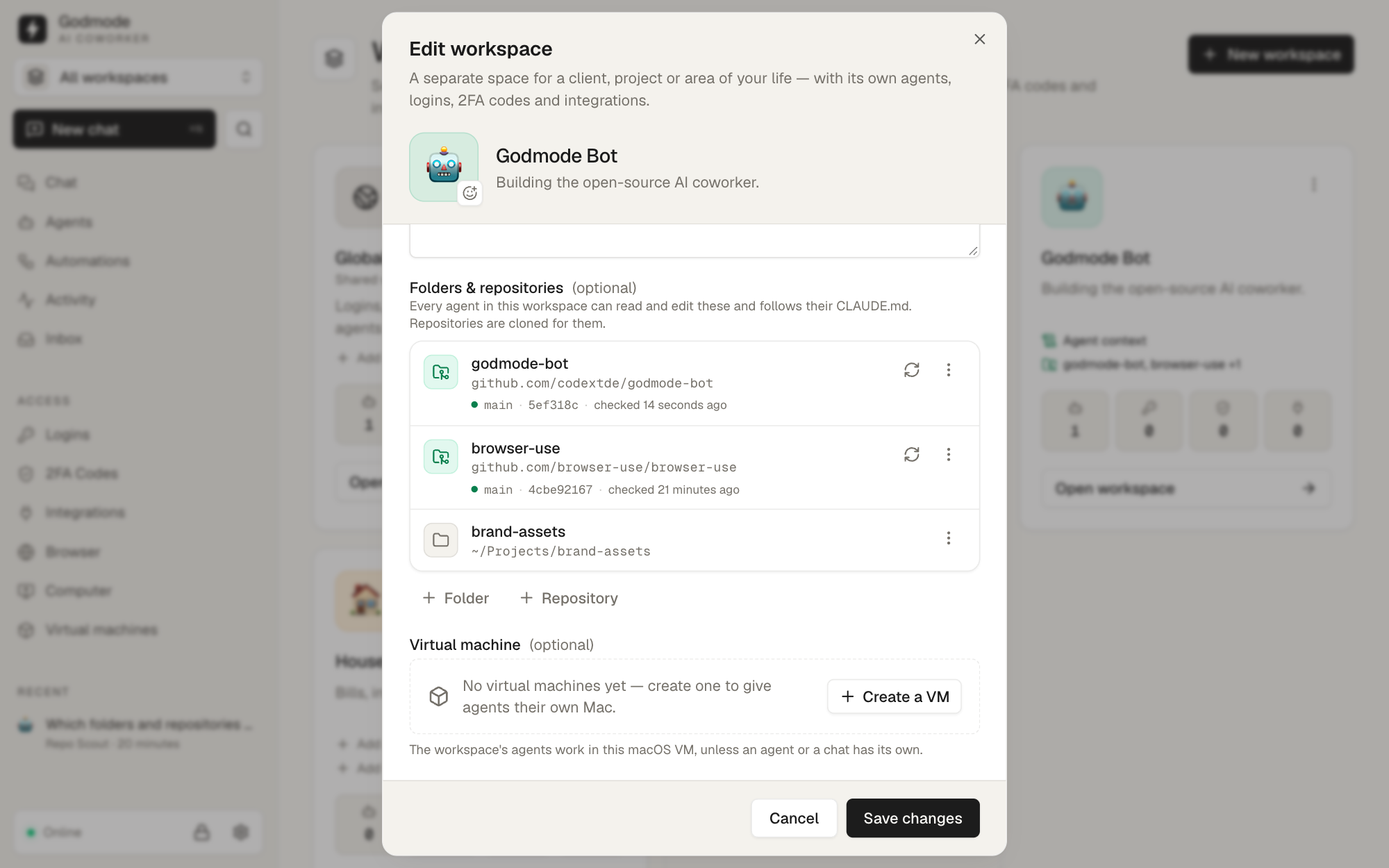 Workspace folders & repos — every agent in the workspace works with them |
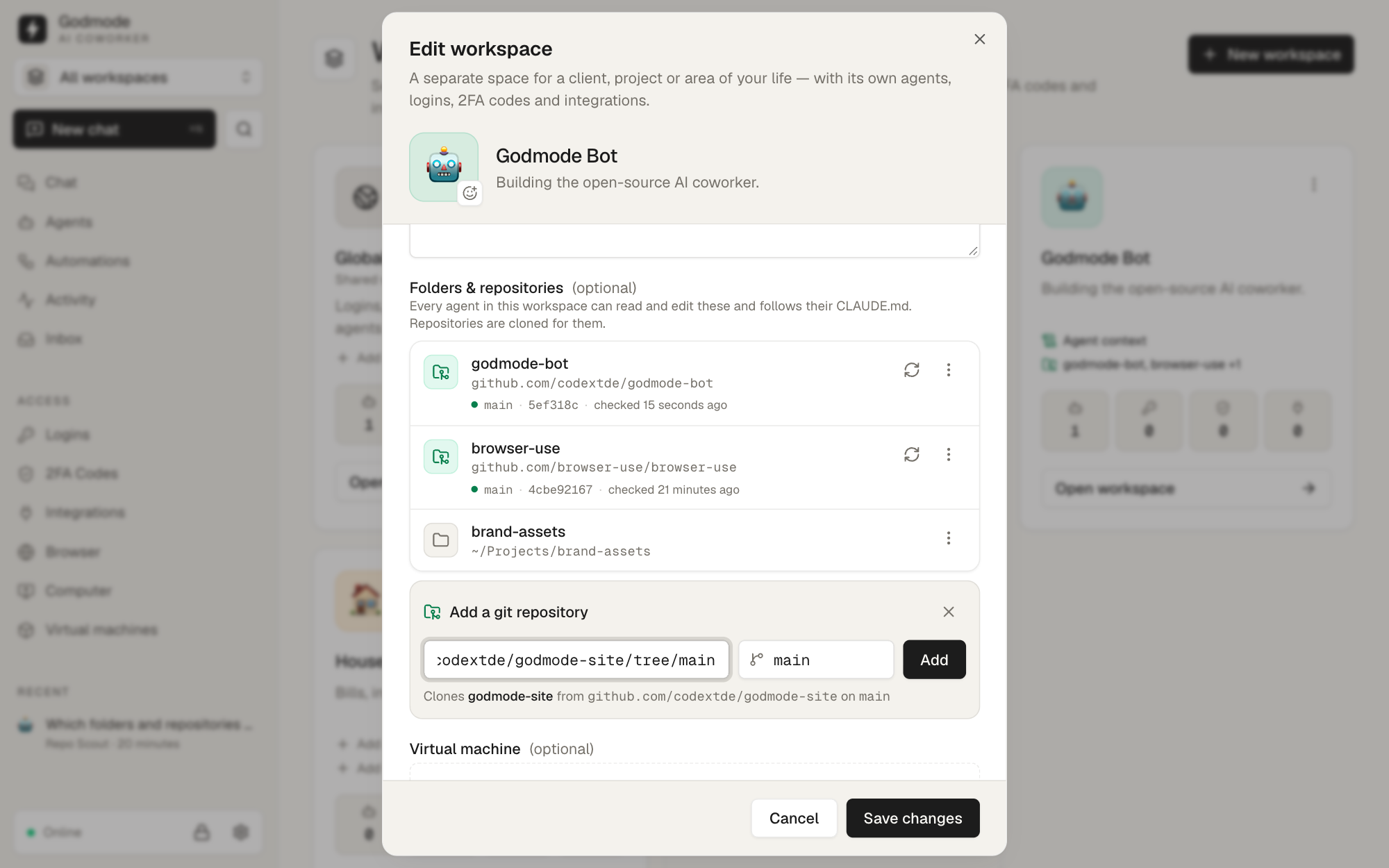 Add a repository — paste a URL, Godmode clones it and keeps it up to date |
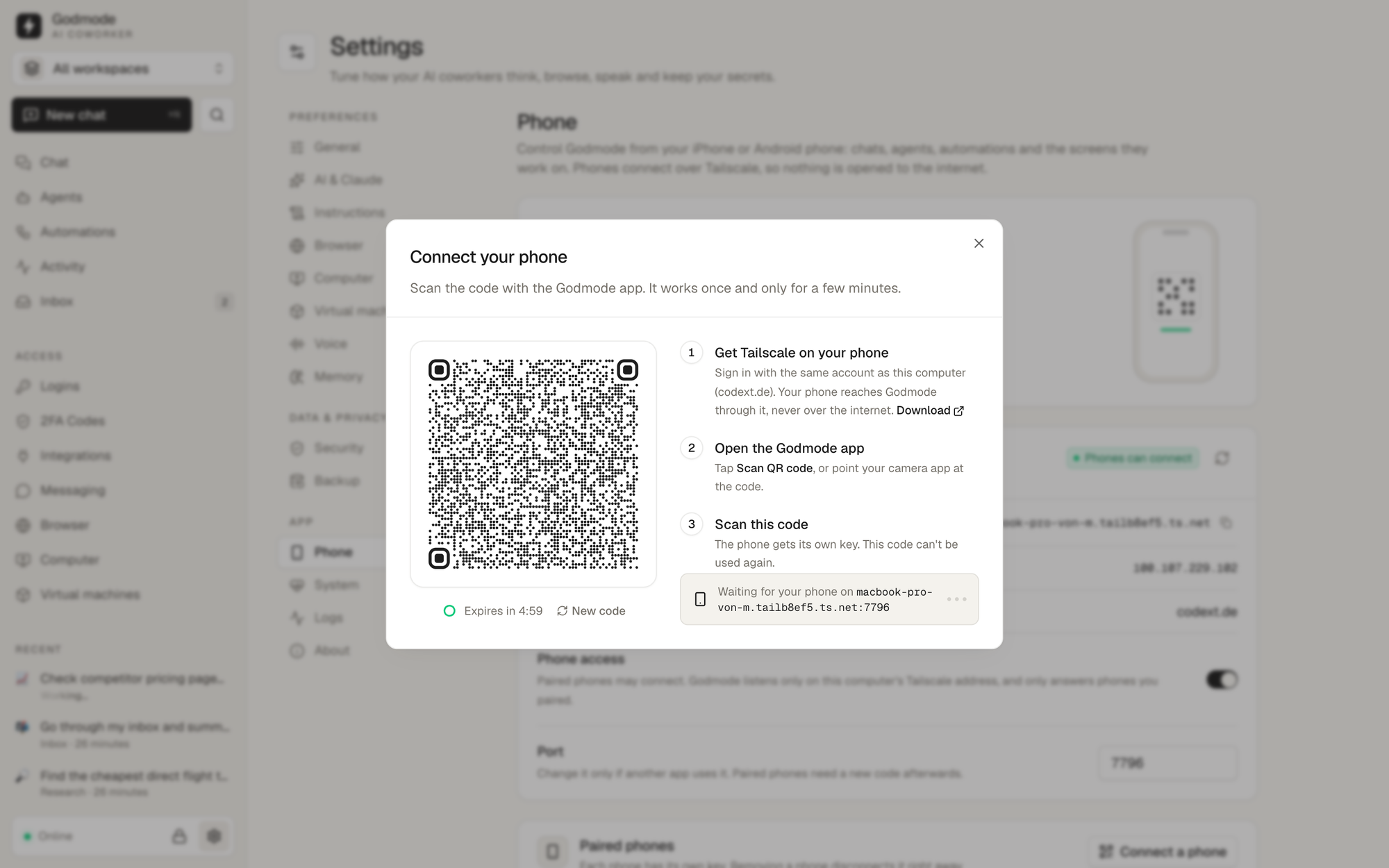 Connect a phone — scan a one-time code; the phone gets its own key |
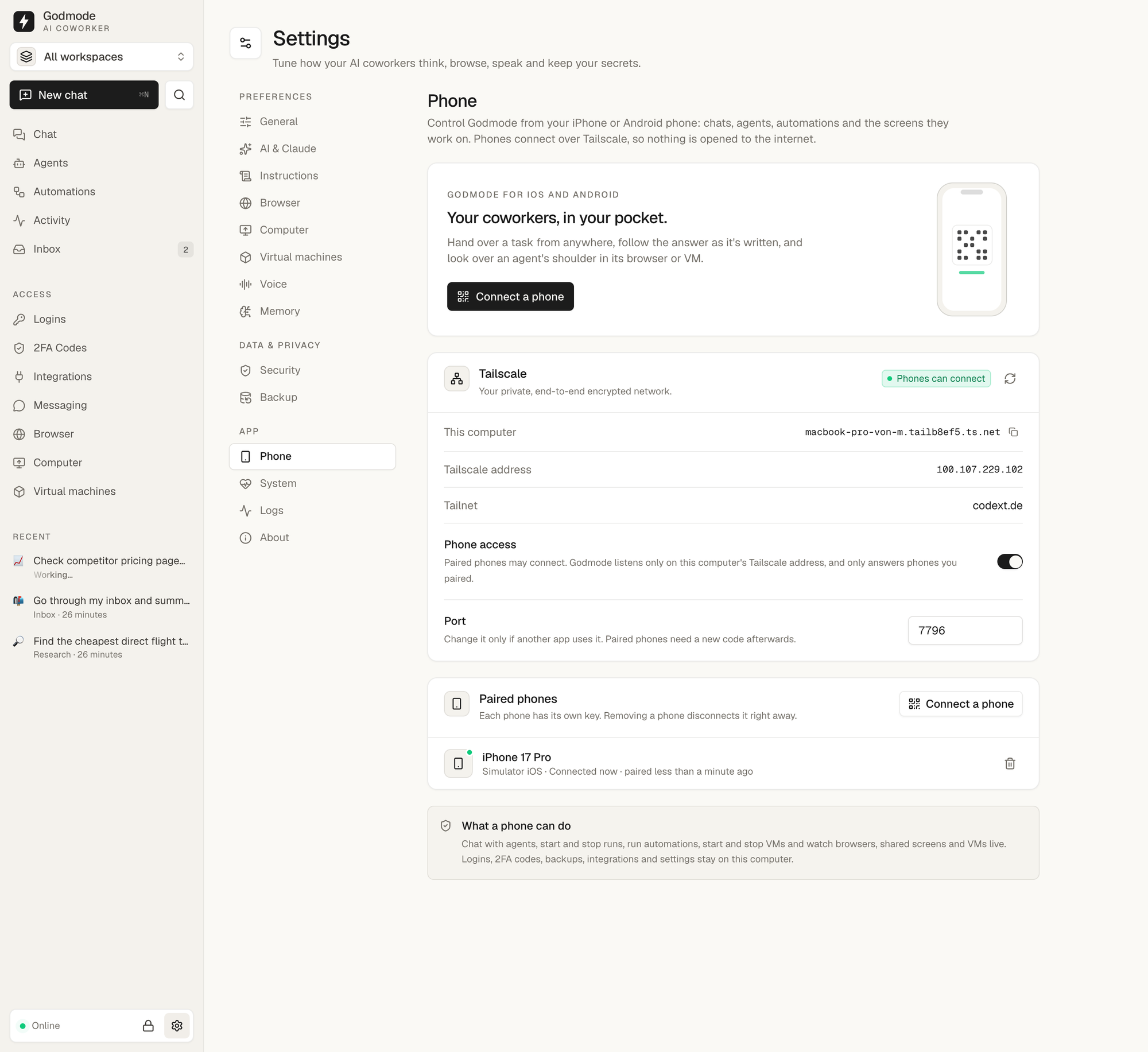 Phone settings — Tailscale status, paired phones, remove one anytime |
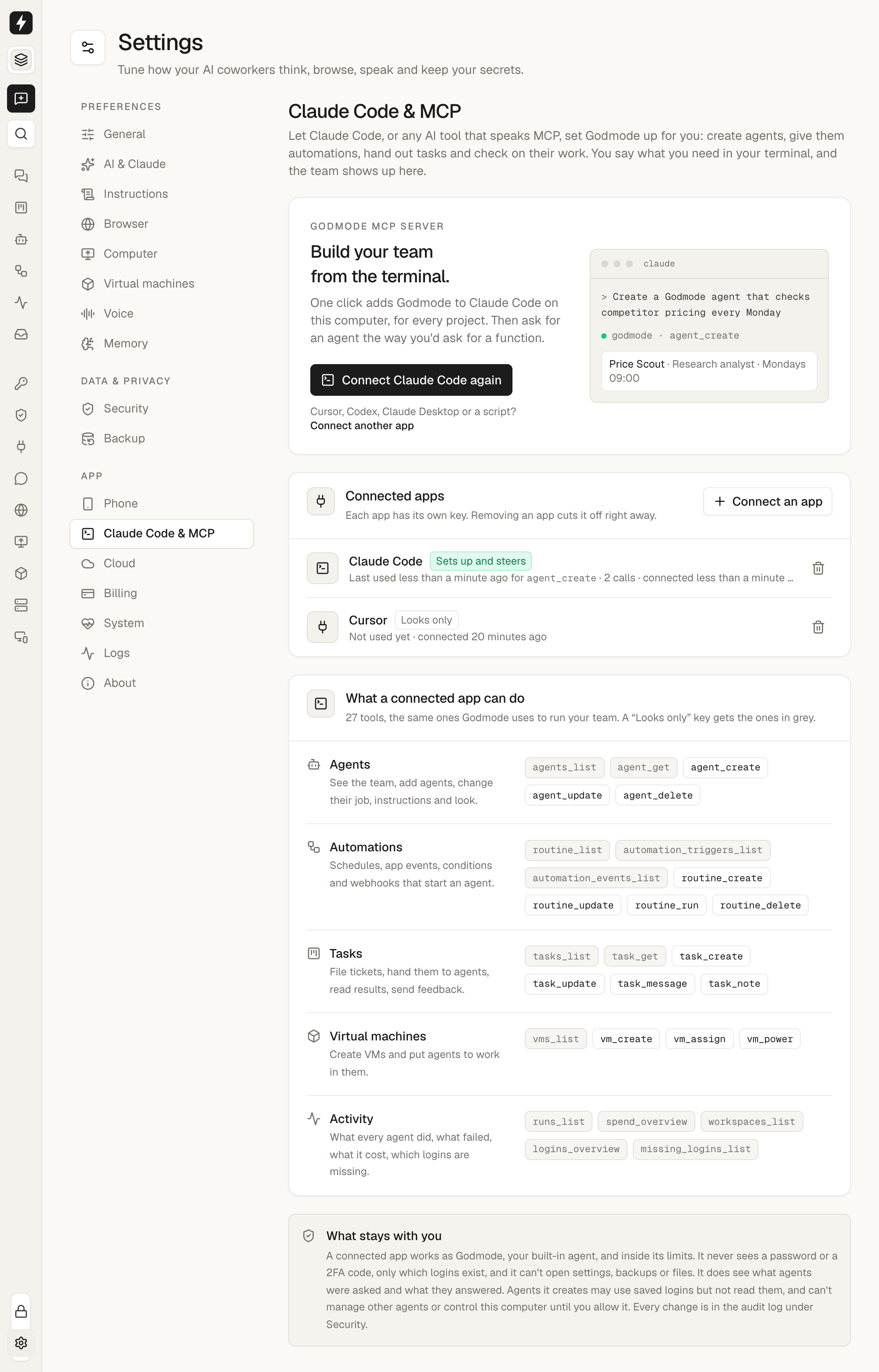 Claude Code & MCP — connected apps, their access and the tools they can call |
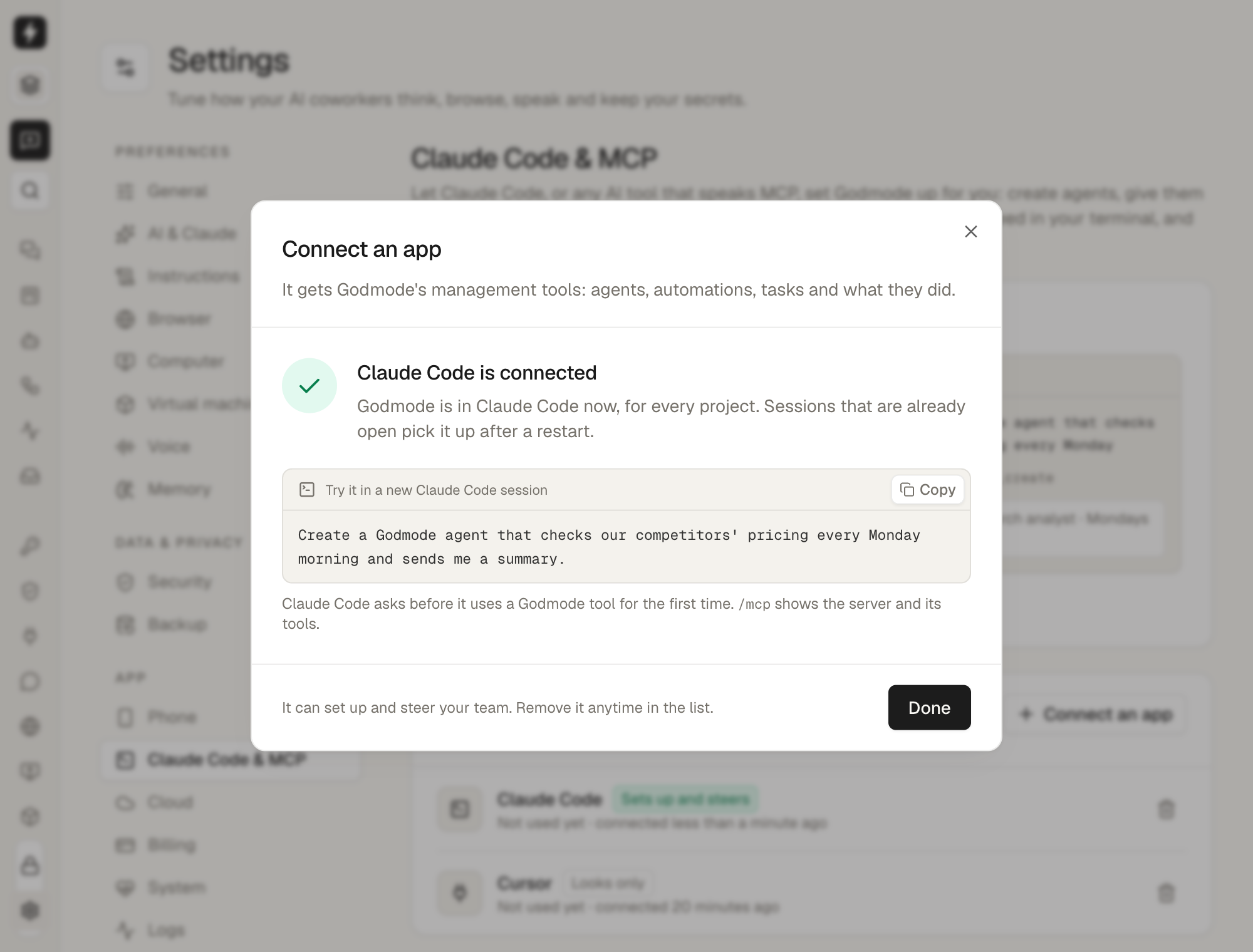 One click — Godmode adds itself to Claude Code; ask for an agent in your next session |
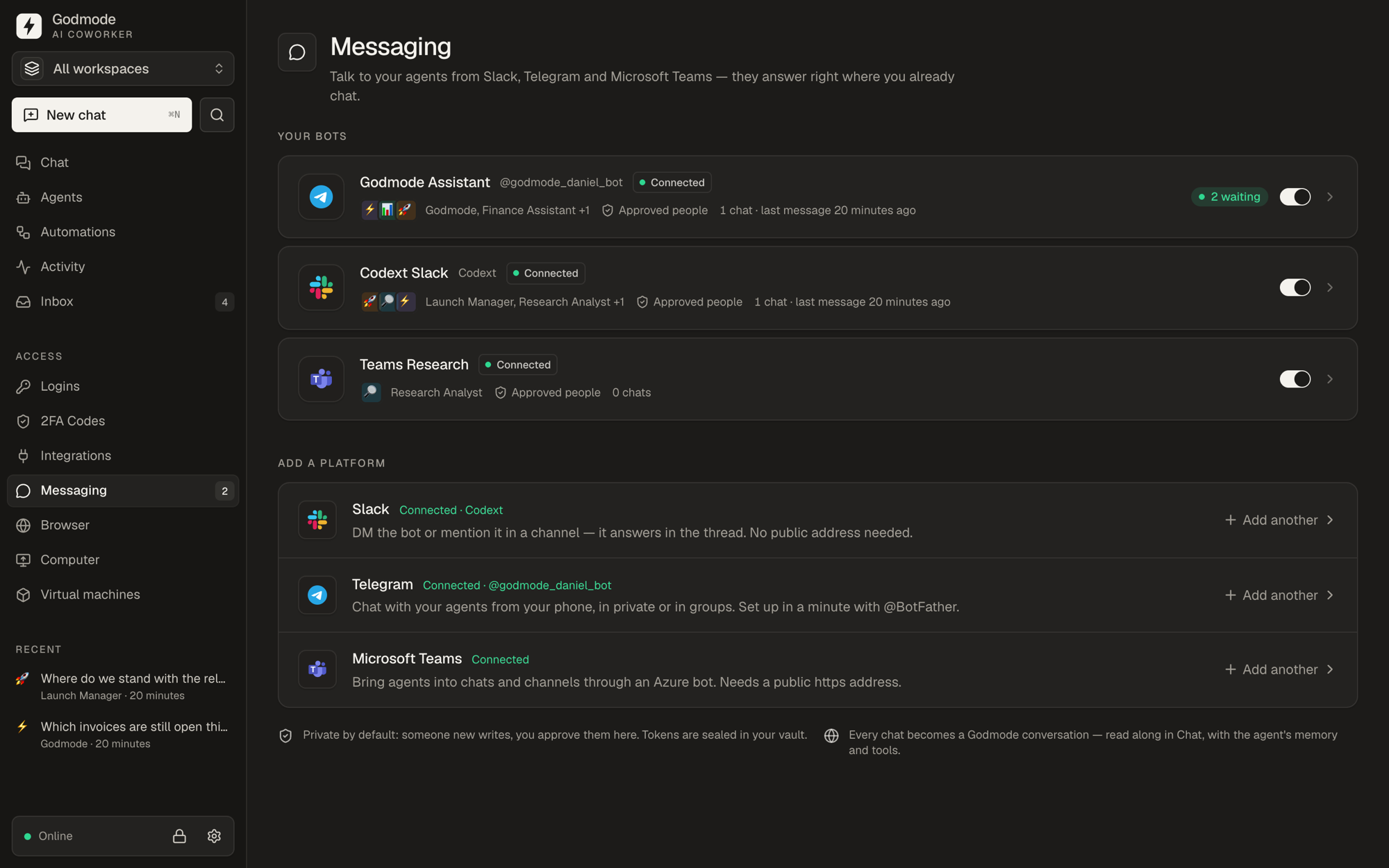 Messaging — talk to agents from Slack, Telegram and Microsoft Teams |
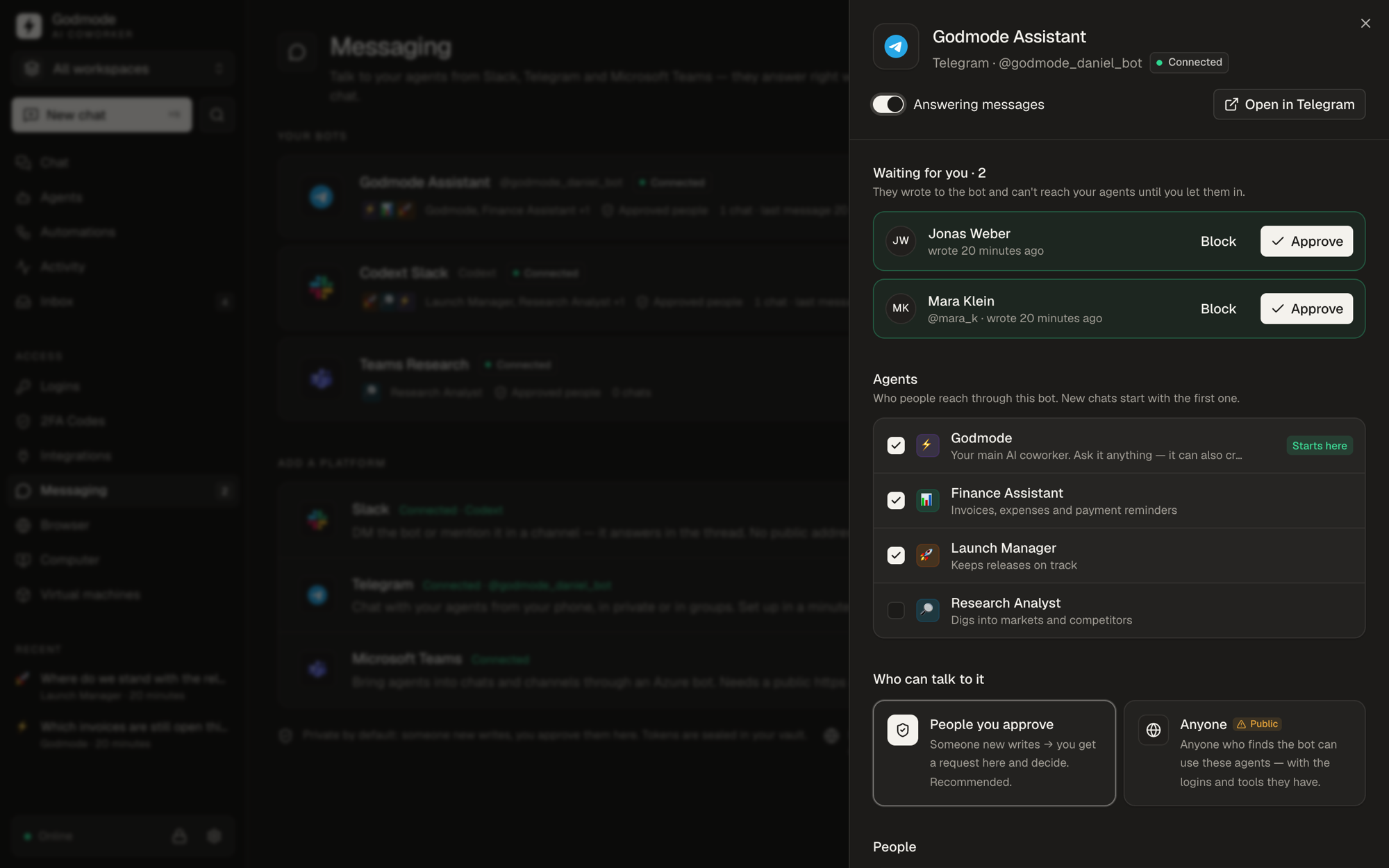 Bot settings — approve people, pick agents, see every chat |
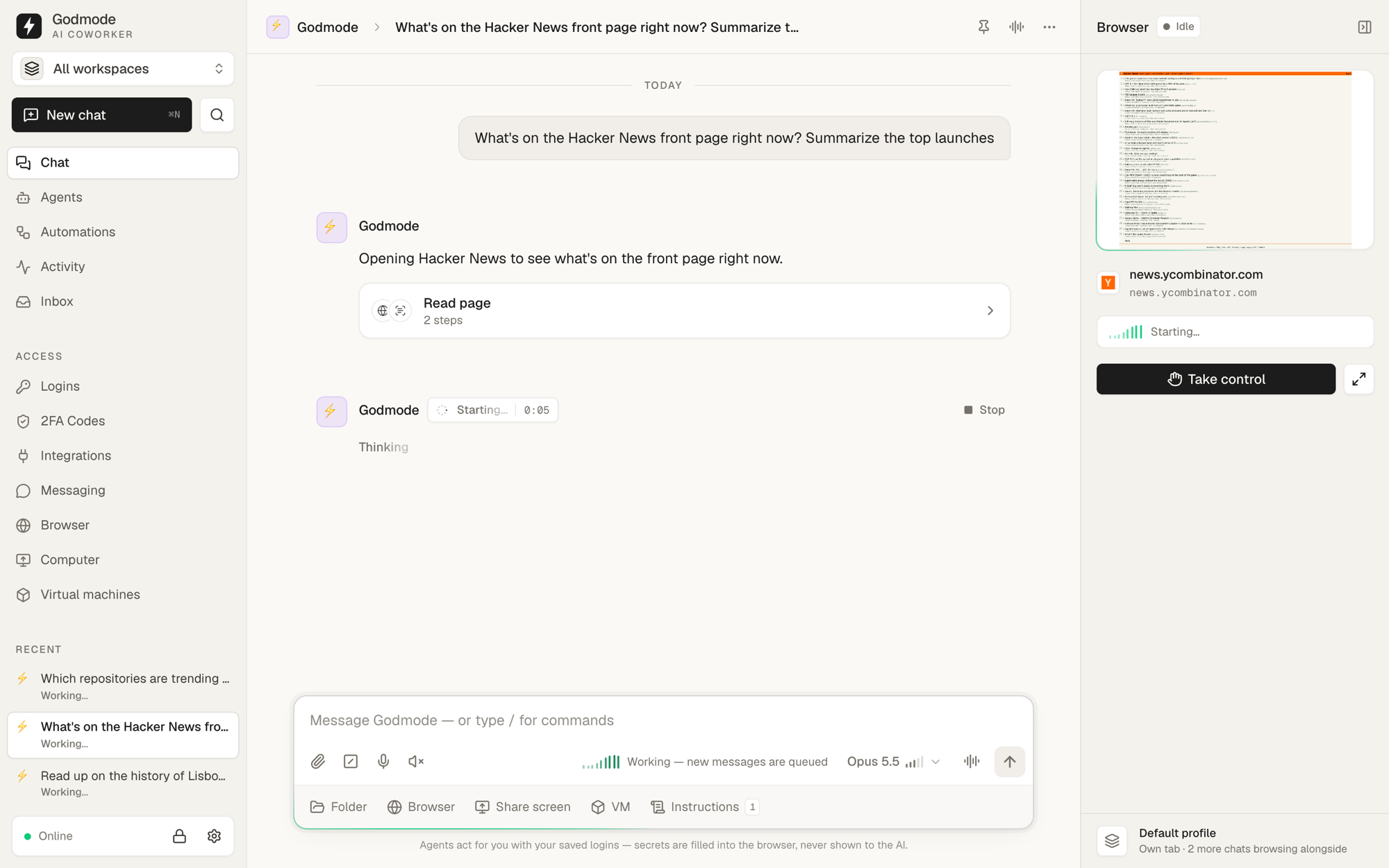 Own tab per chat — the preview shows only this chat's page, while others browse alongside |
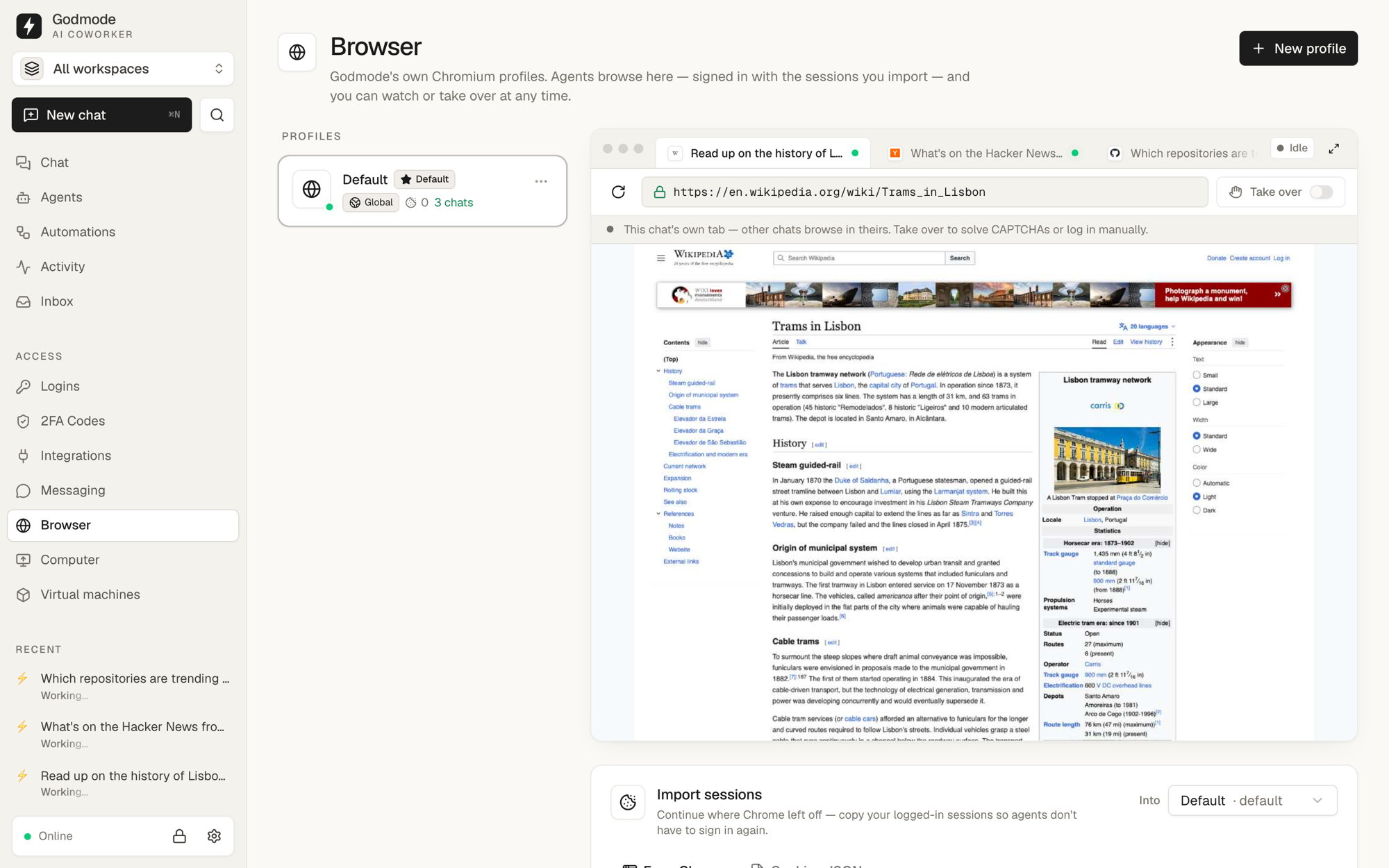 Parallel chats — one browser profile, one tab per chat; switch between them live |
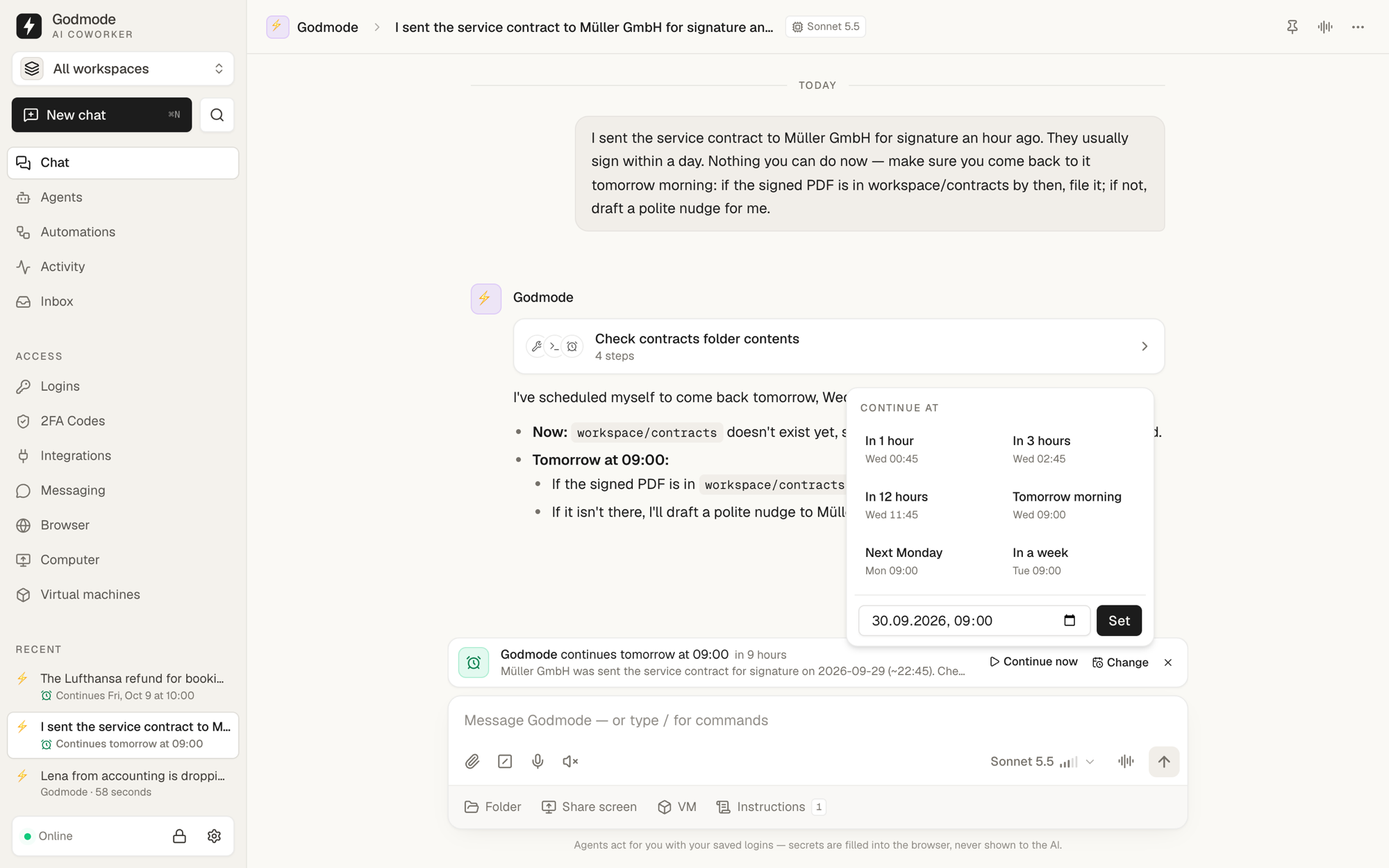 Follow-ups — the agent sets itself a time to continue; move it, cancel it or continue now |
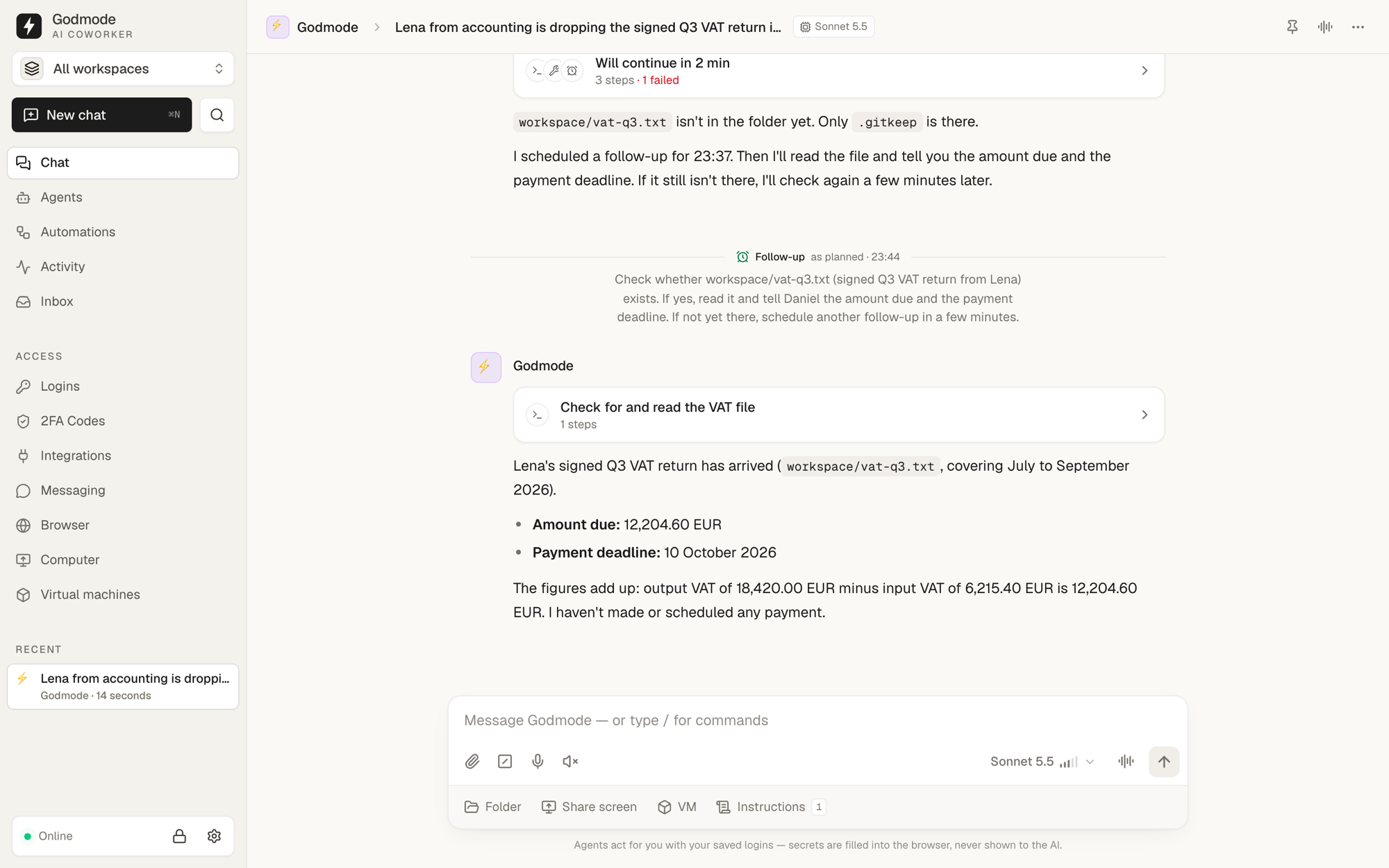 Back on it — at that time the agent picks the chat up again, with all the context |
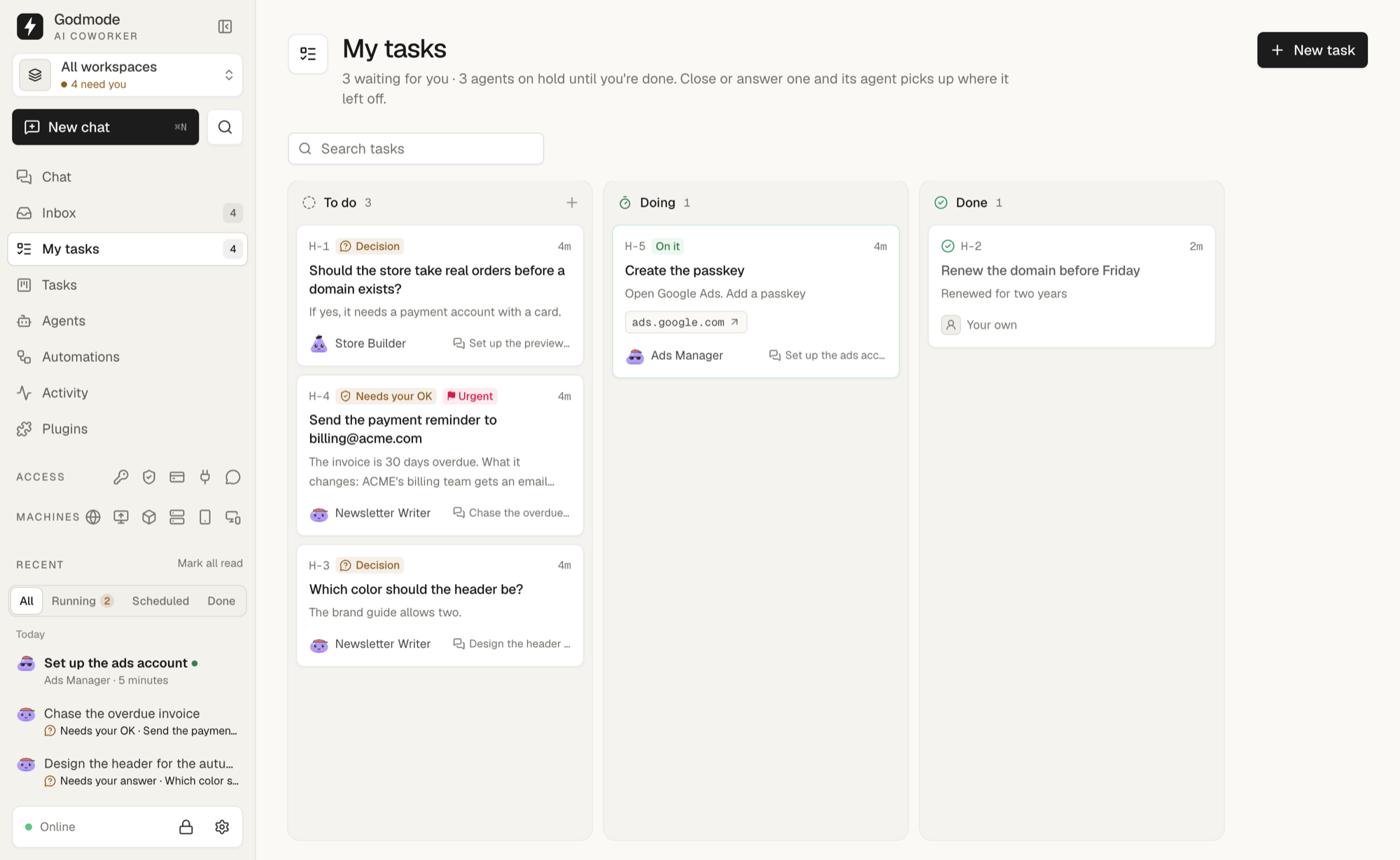 My tasks — everything your agents need from you on one board: things to do, questions, approvals, open decisions |
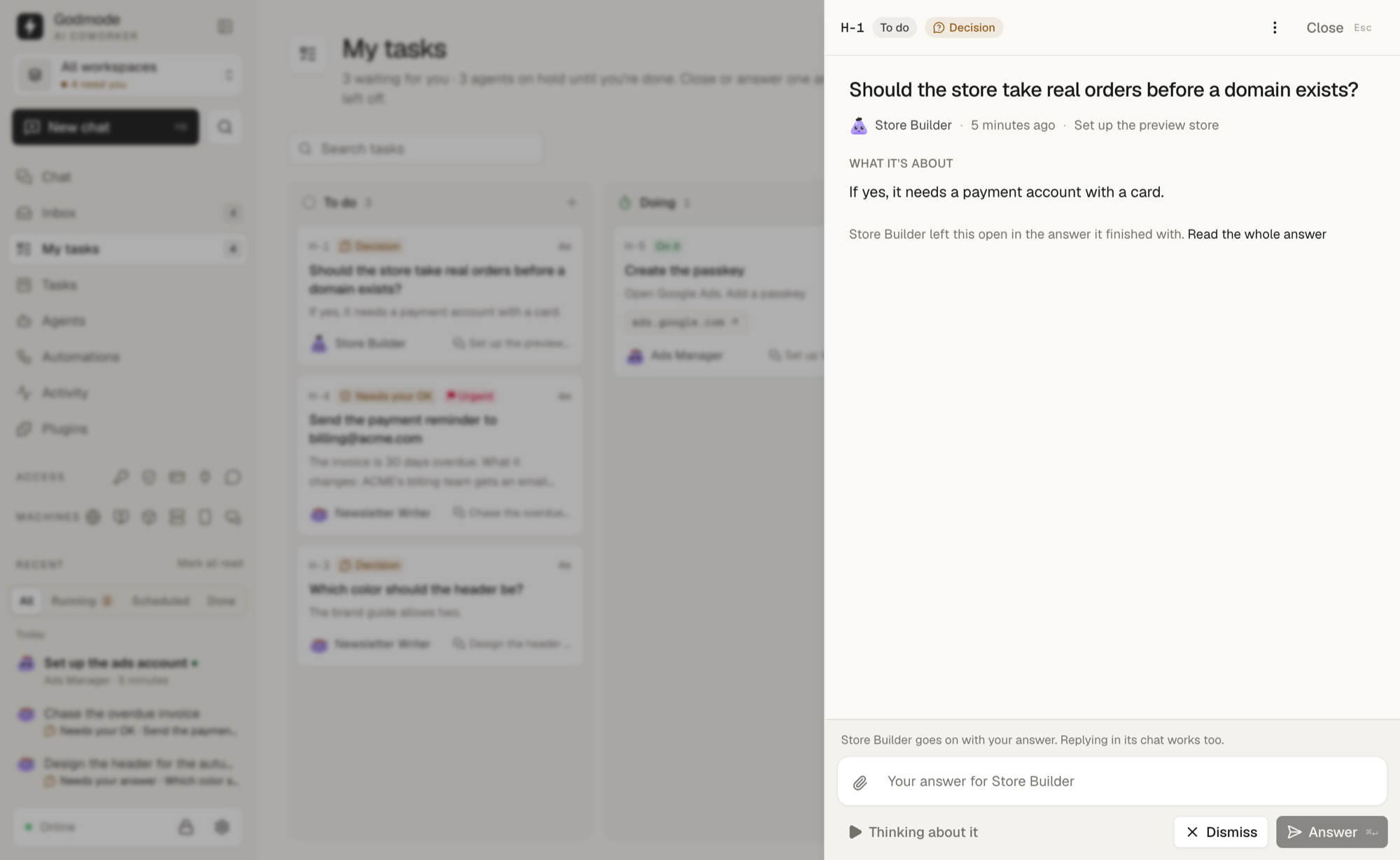 Open decisions — an agent that finishes with a question for you gets a ticket; your answer continues its chat |
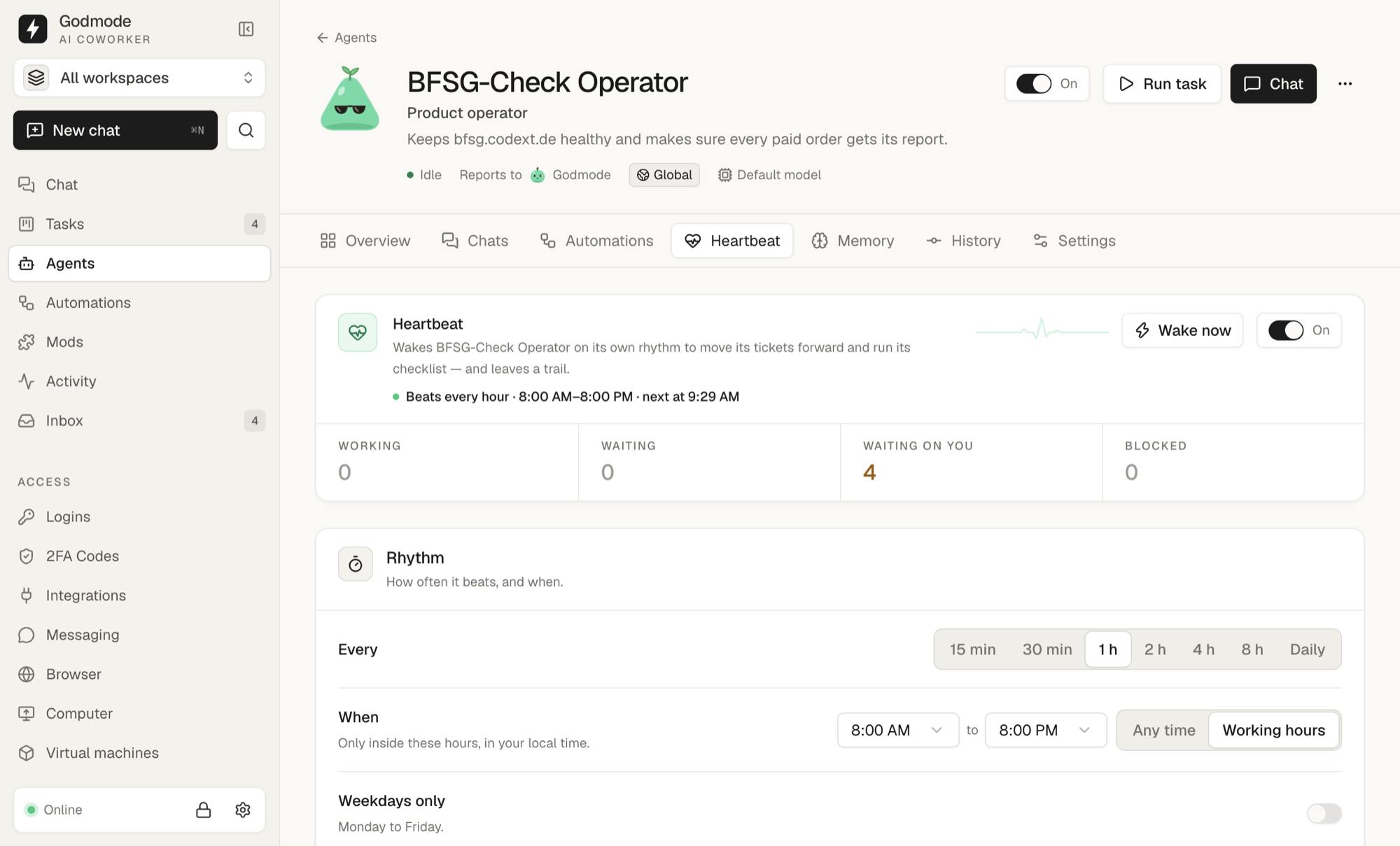 Heartbeat — the agent wakes on its own rhythm to move its tickets forward and run its checklist |
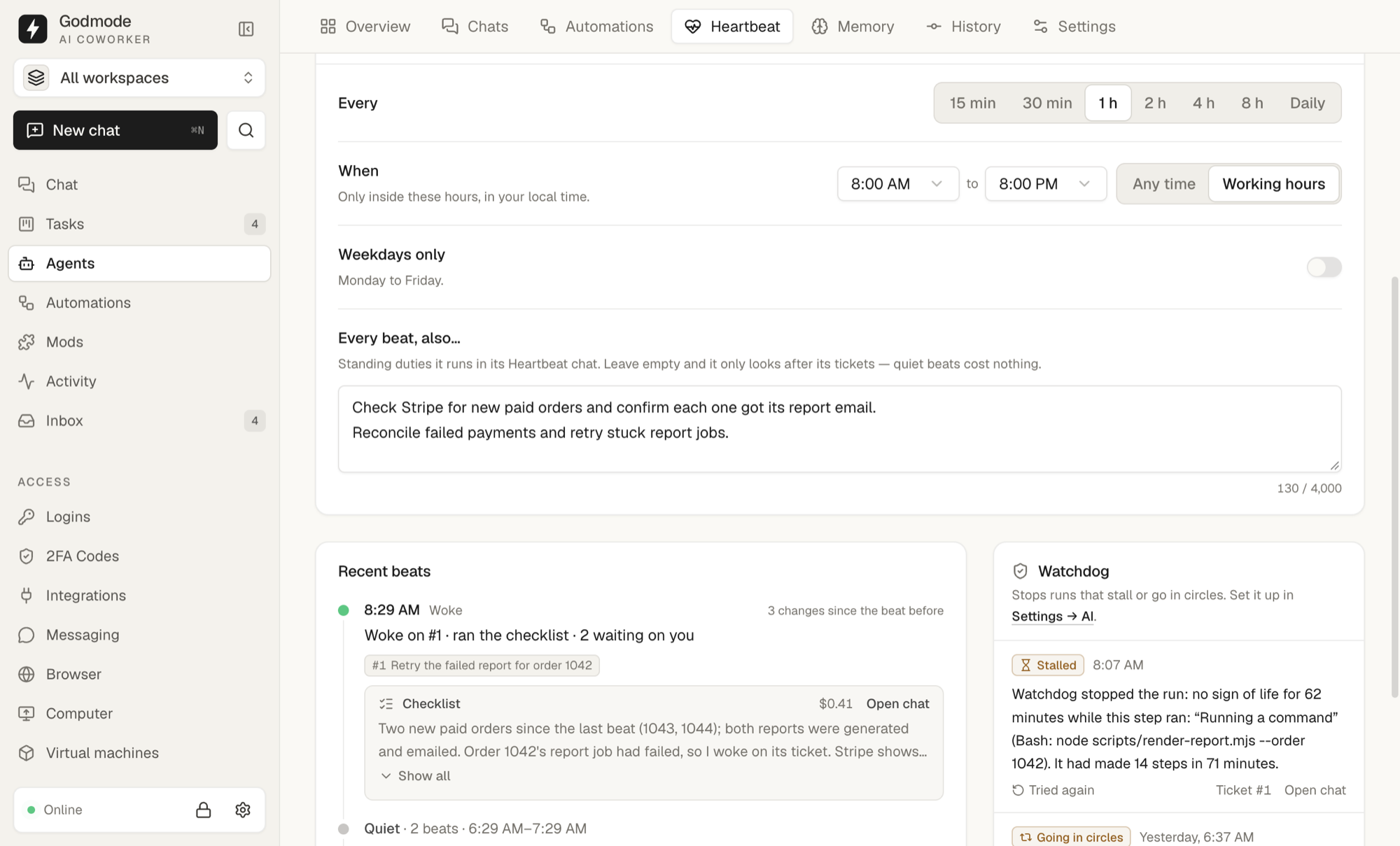 Beats & watchdog — every beat leaves a trail; stalled or looping runs are stopped with a precise report |
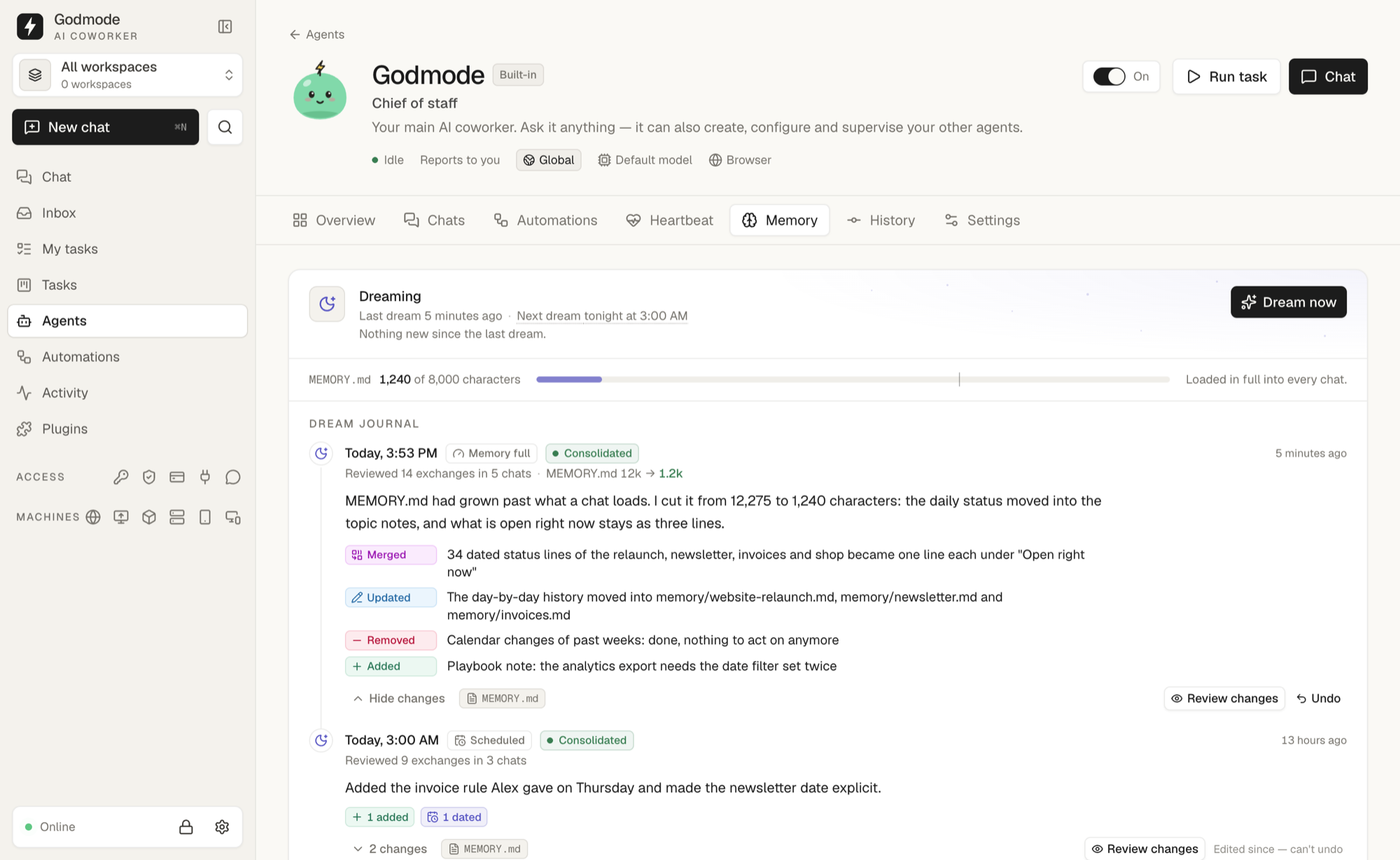 Dreaming — agents keep their memory short enough to load into every chat; every dream is a diff you can undo |
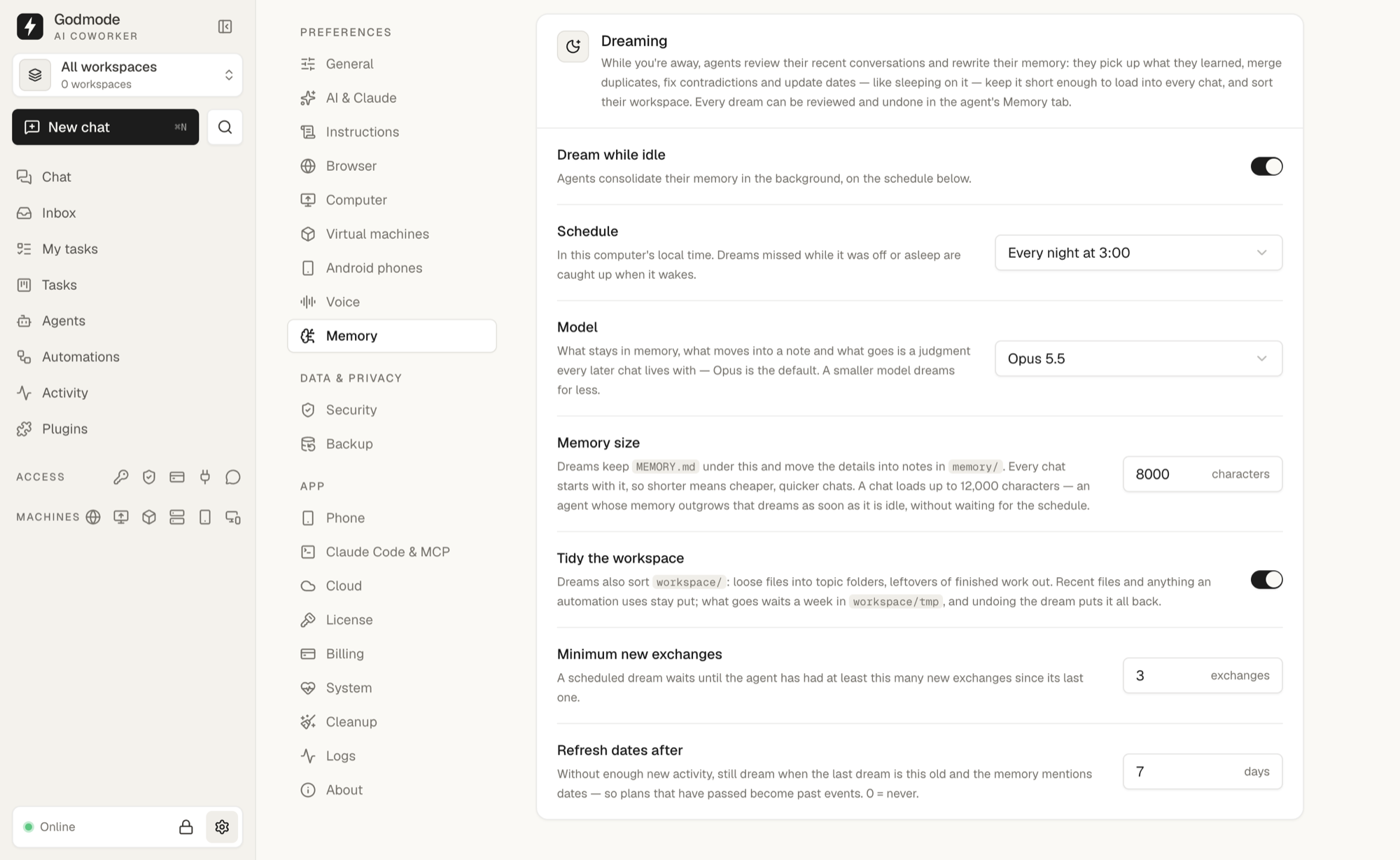 Your rules — when agents dream, with which model, and how long their memory may get |
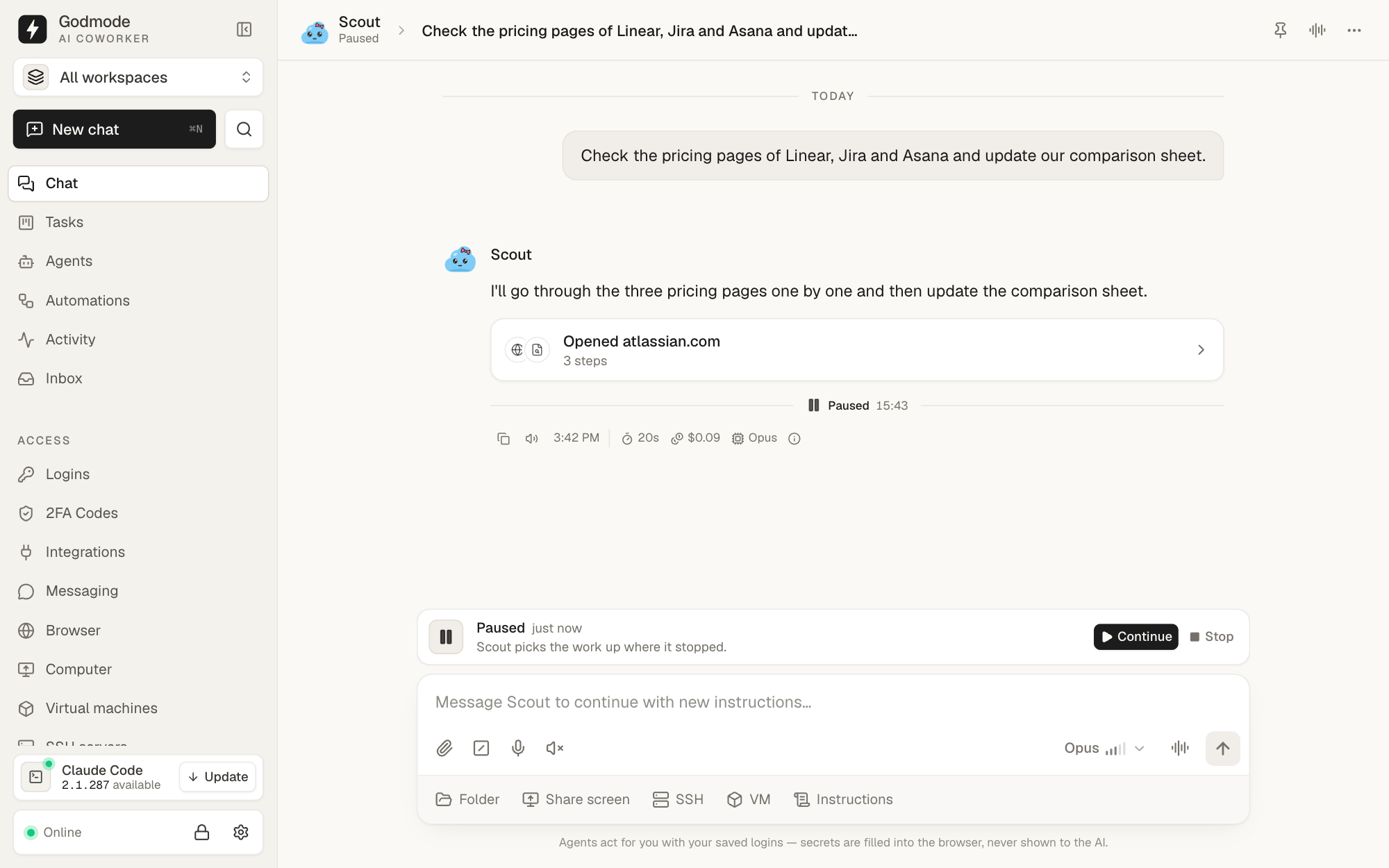 Pause & continue — the agent finishes its step, stands still and picks the work up where it stopped |
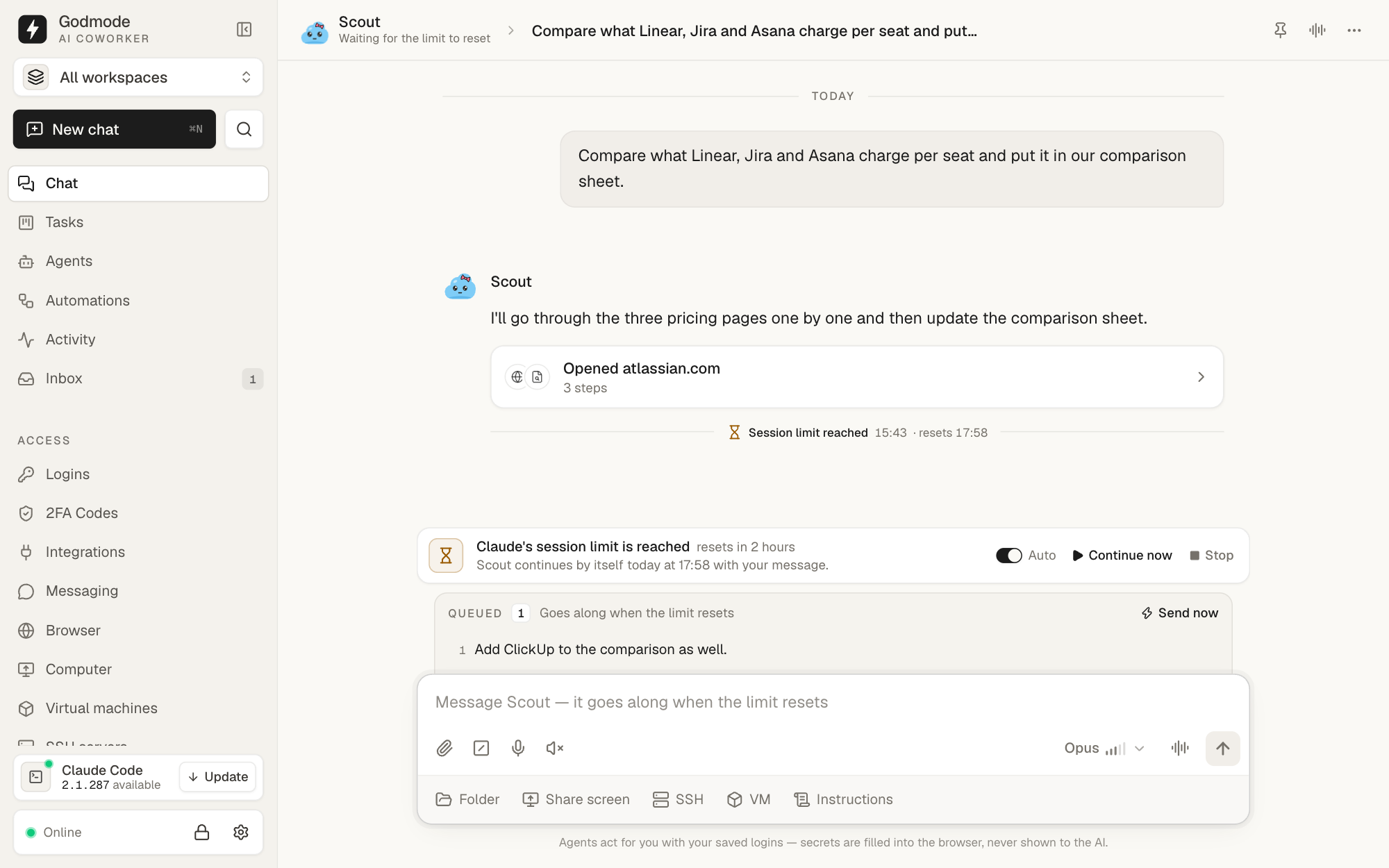 Usage limit — the work waits for the reset and continues by itself, with what you wrote meanwhile |
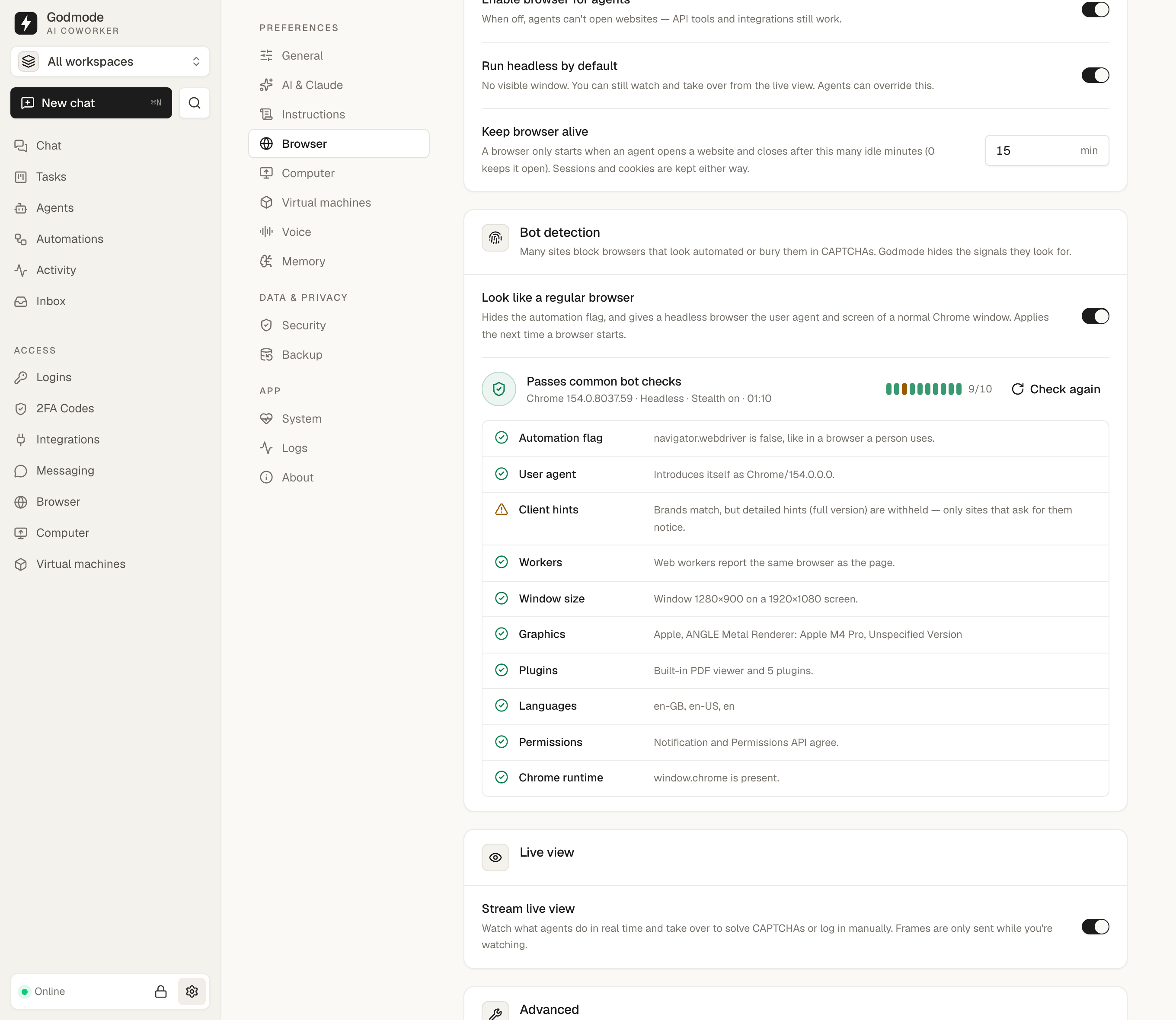 Bot check — what bot detection sees in the agents' browser |
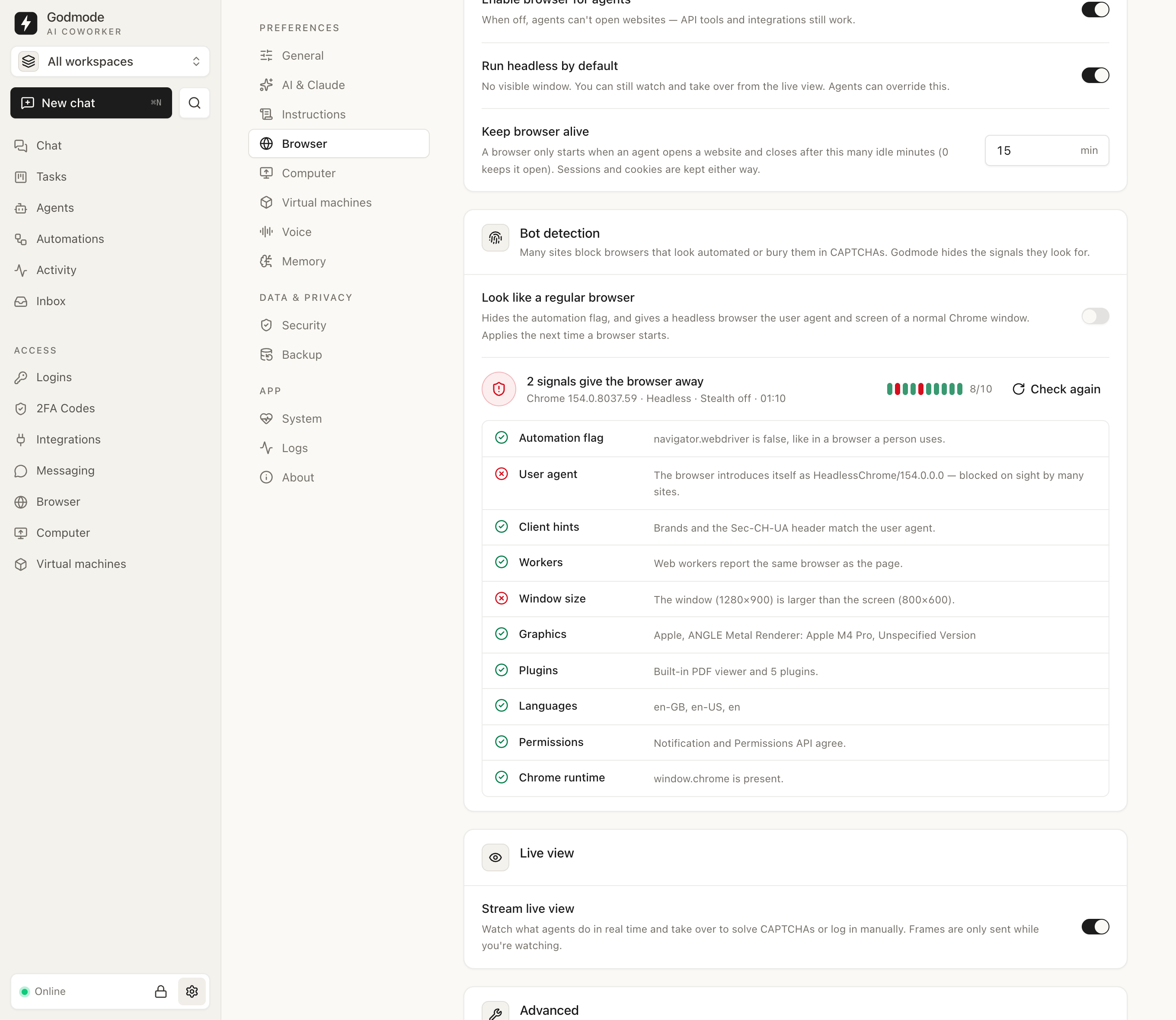 Without hardening — headless Chrome gives itself away |
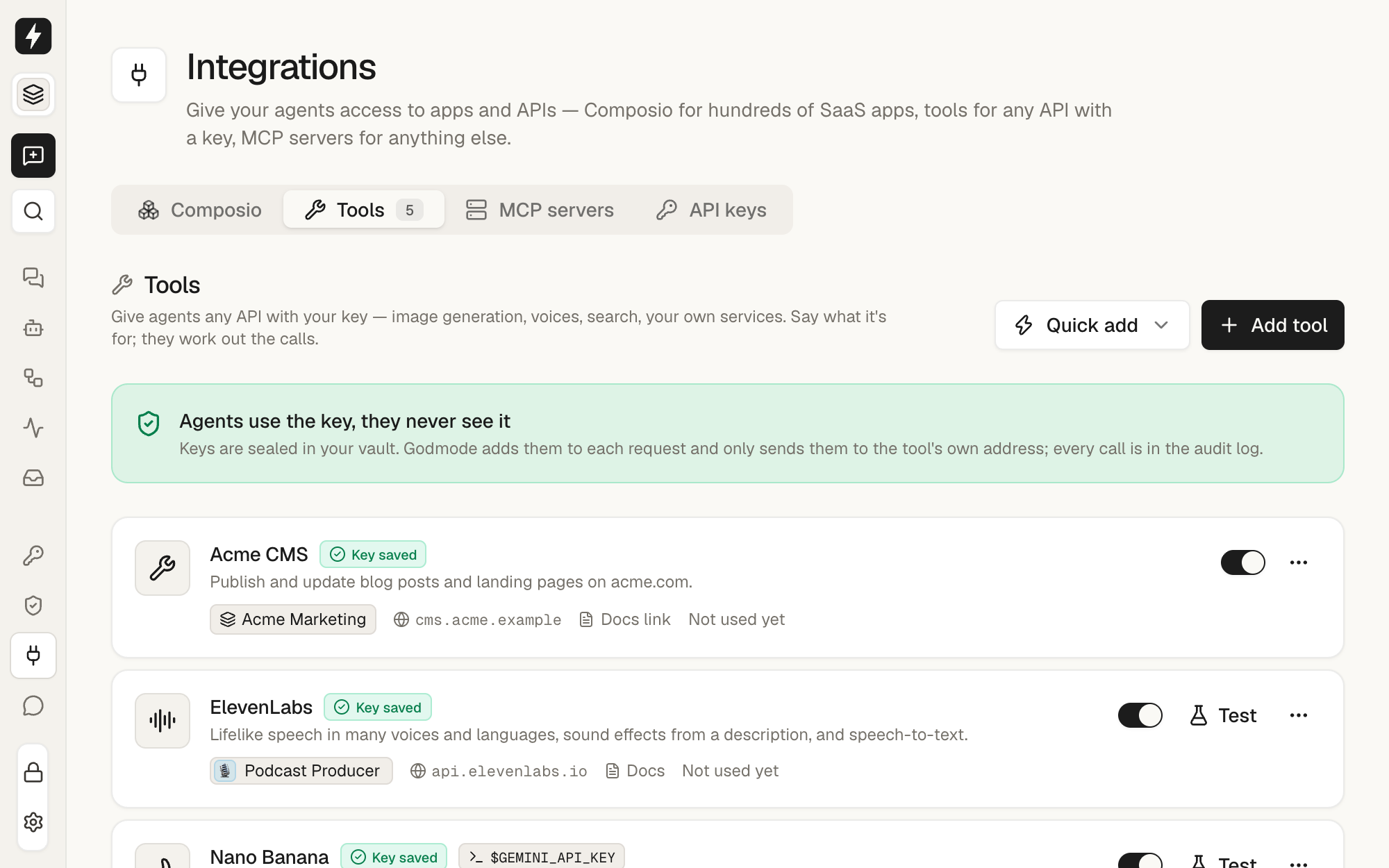 Tools — APIs agents use with your keys, scoped globally, per workspace or per agent |
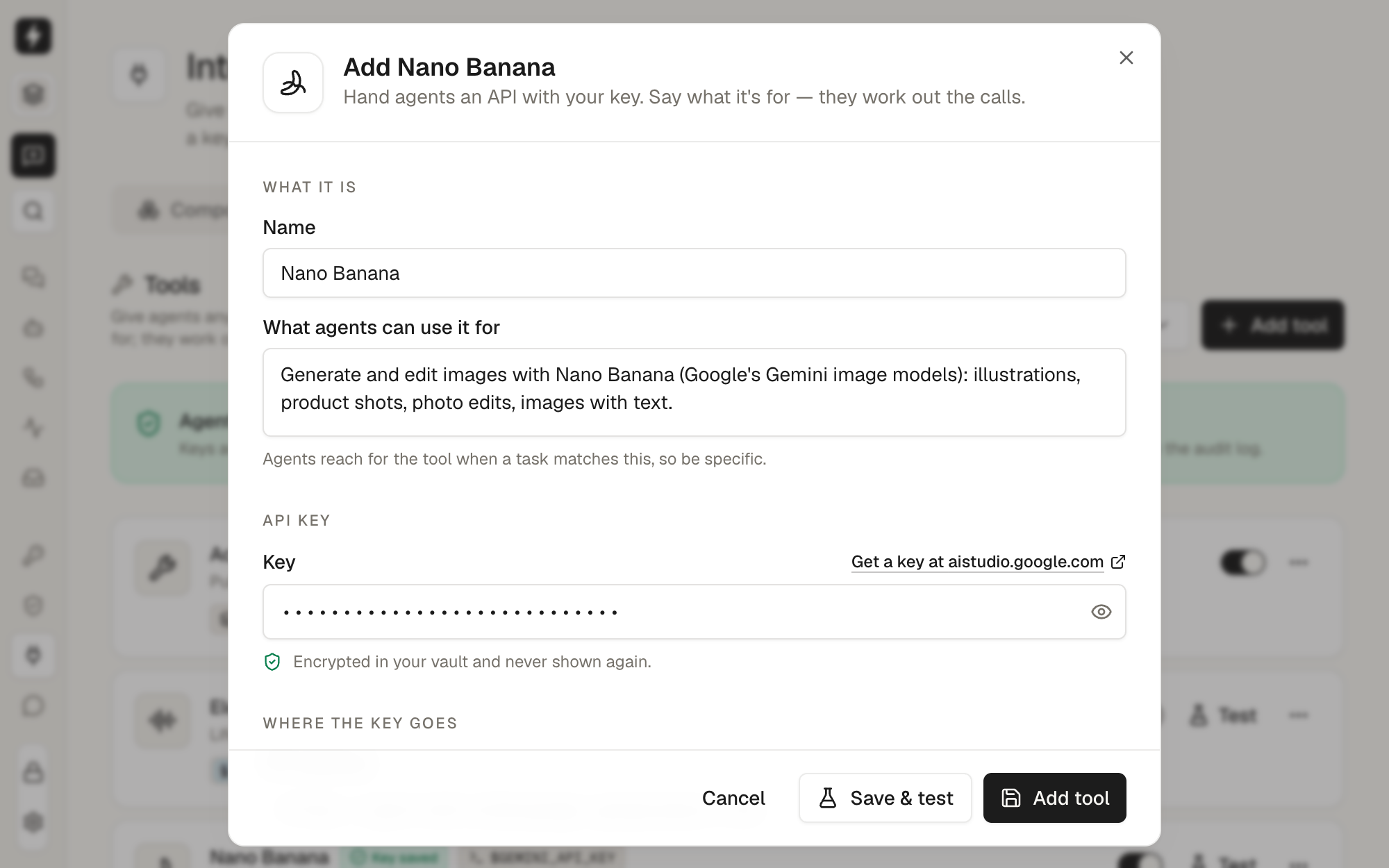 Add a tool — presets bring the address and docs, you add the key |
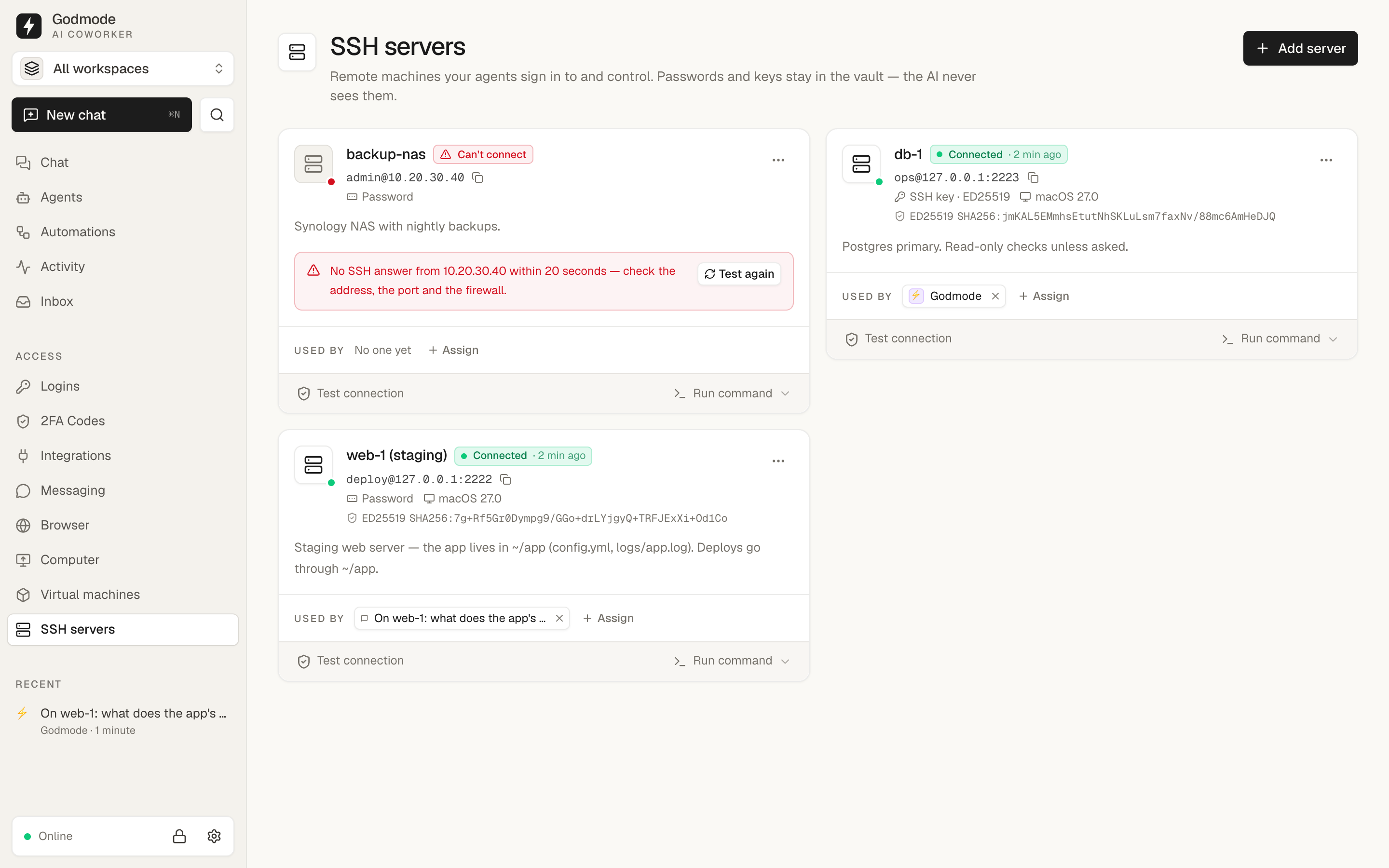 SSH servers — password or key, sealed in the vault; host keys pinned on the first connection |
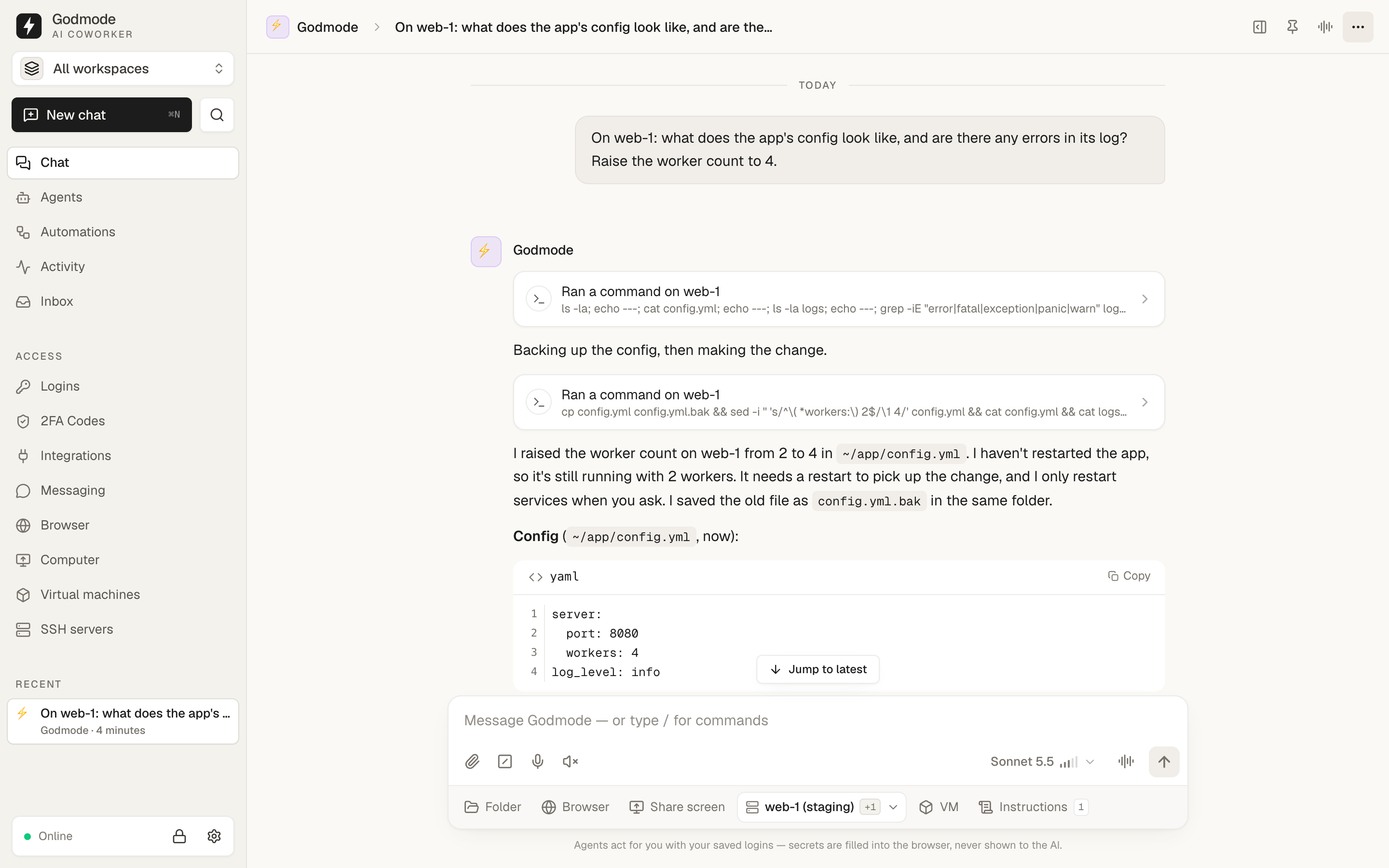 Work on servers — pick servers for a chat; the agent runs commands and edits files there |
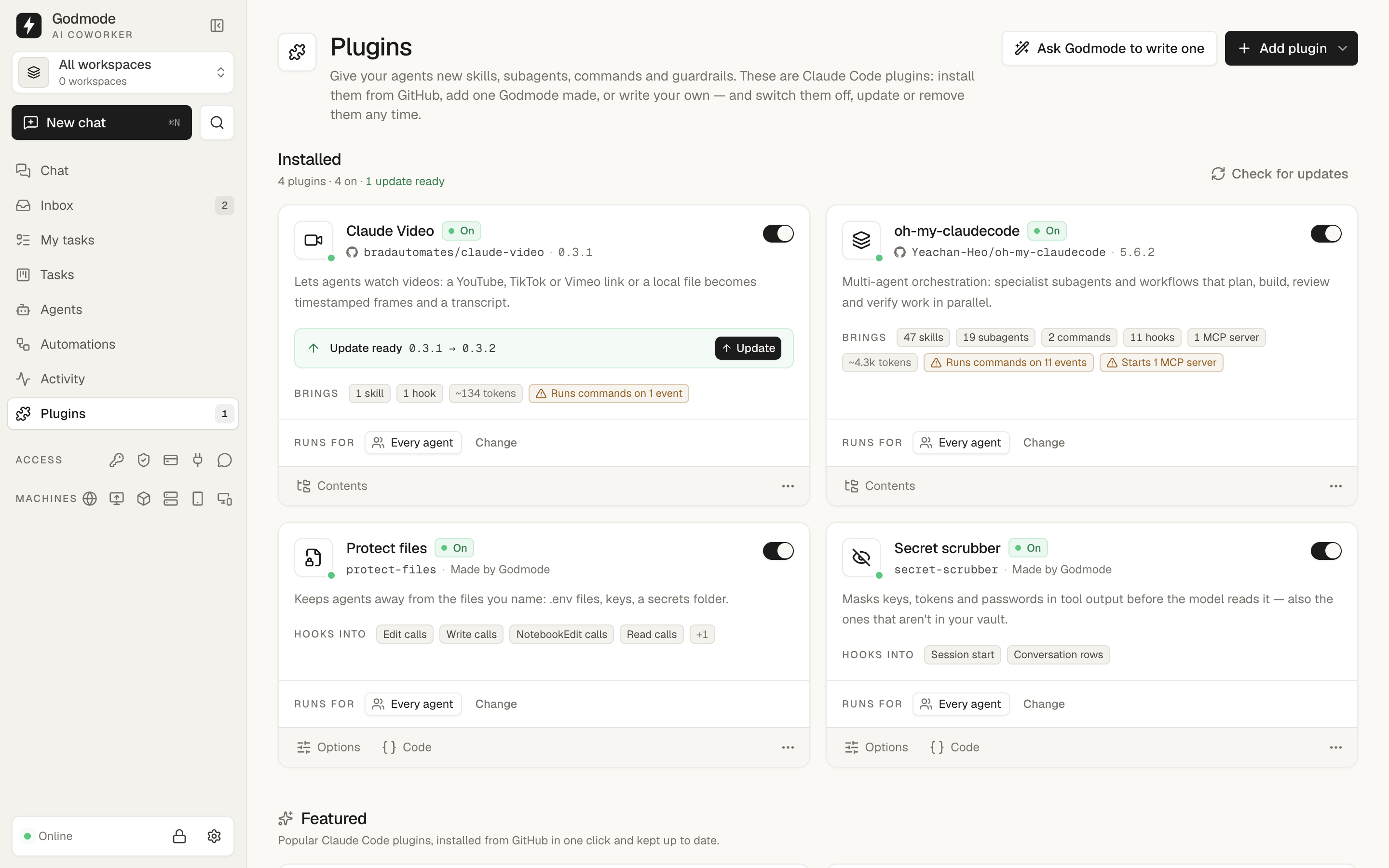 Plugins — what each one brings, what it can reach, whose runs load it, and an update one click away |
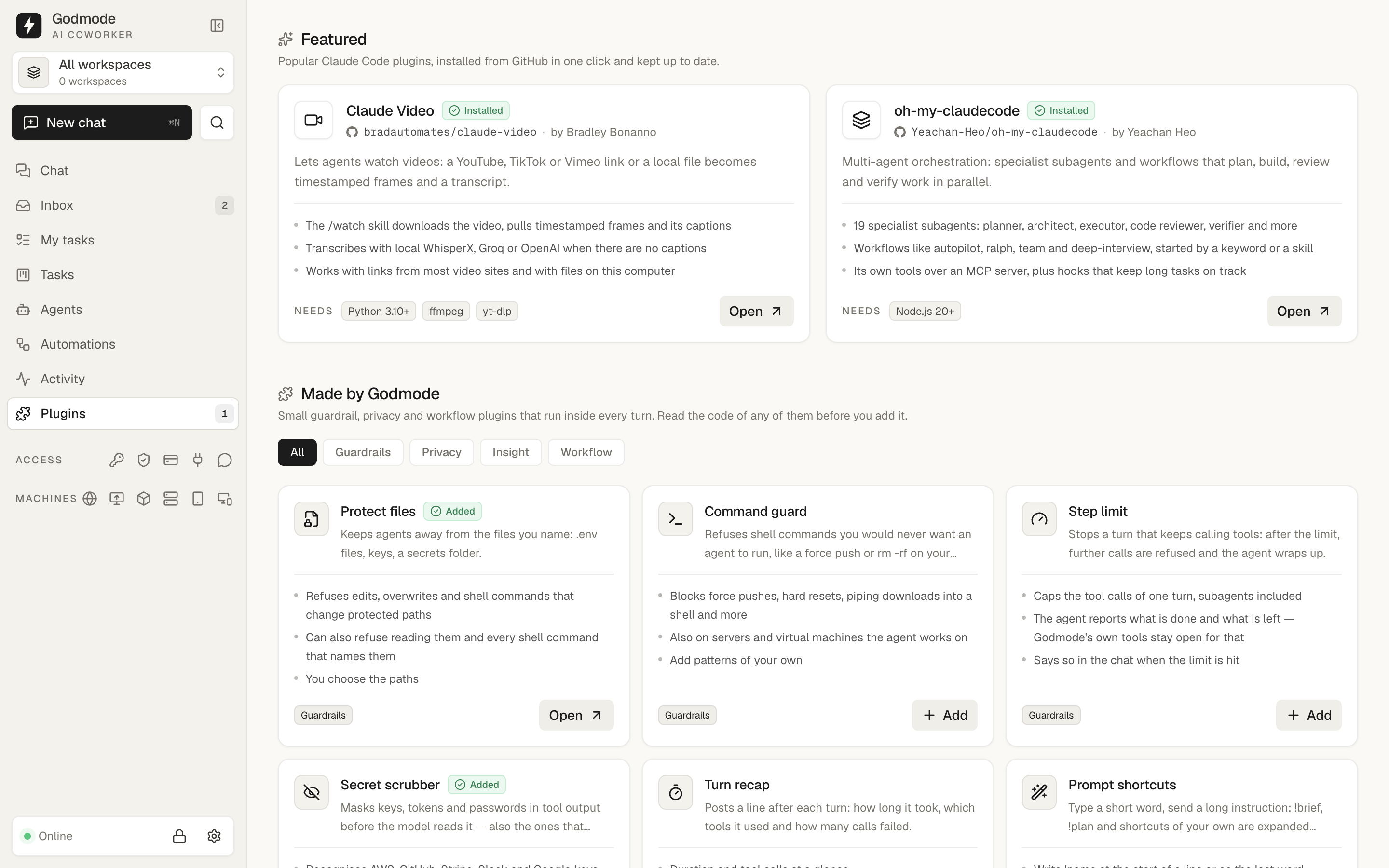 Featured — Claude Video and oh-my-claudecode from GitHub in one click, guardrails made by Godmode below |
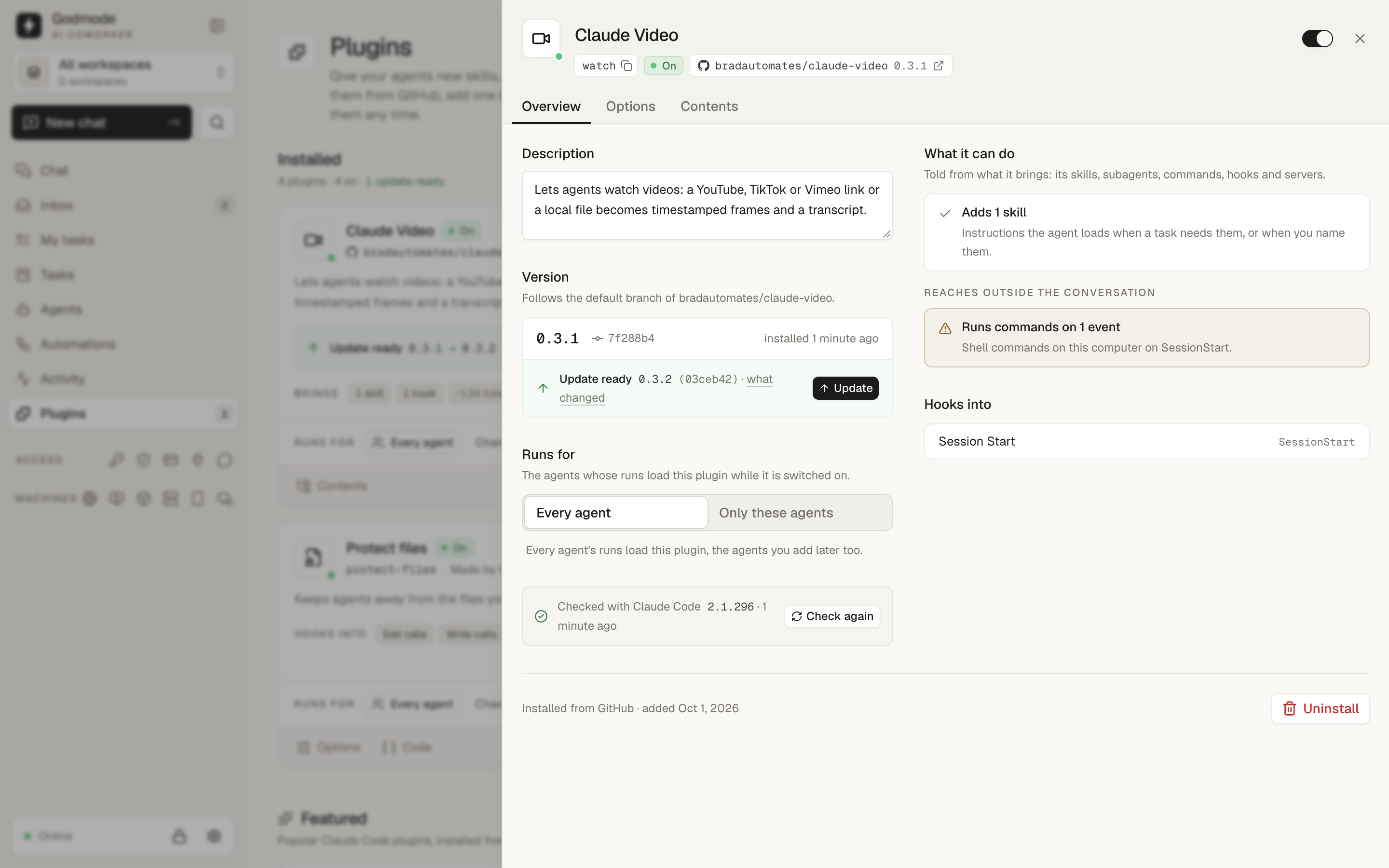 Version and updates — the commit that runs, what changed upstream, update or uninstall |
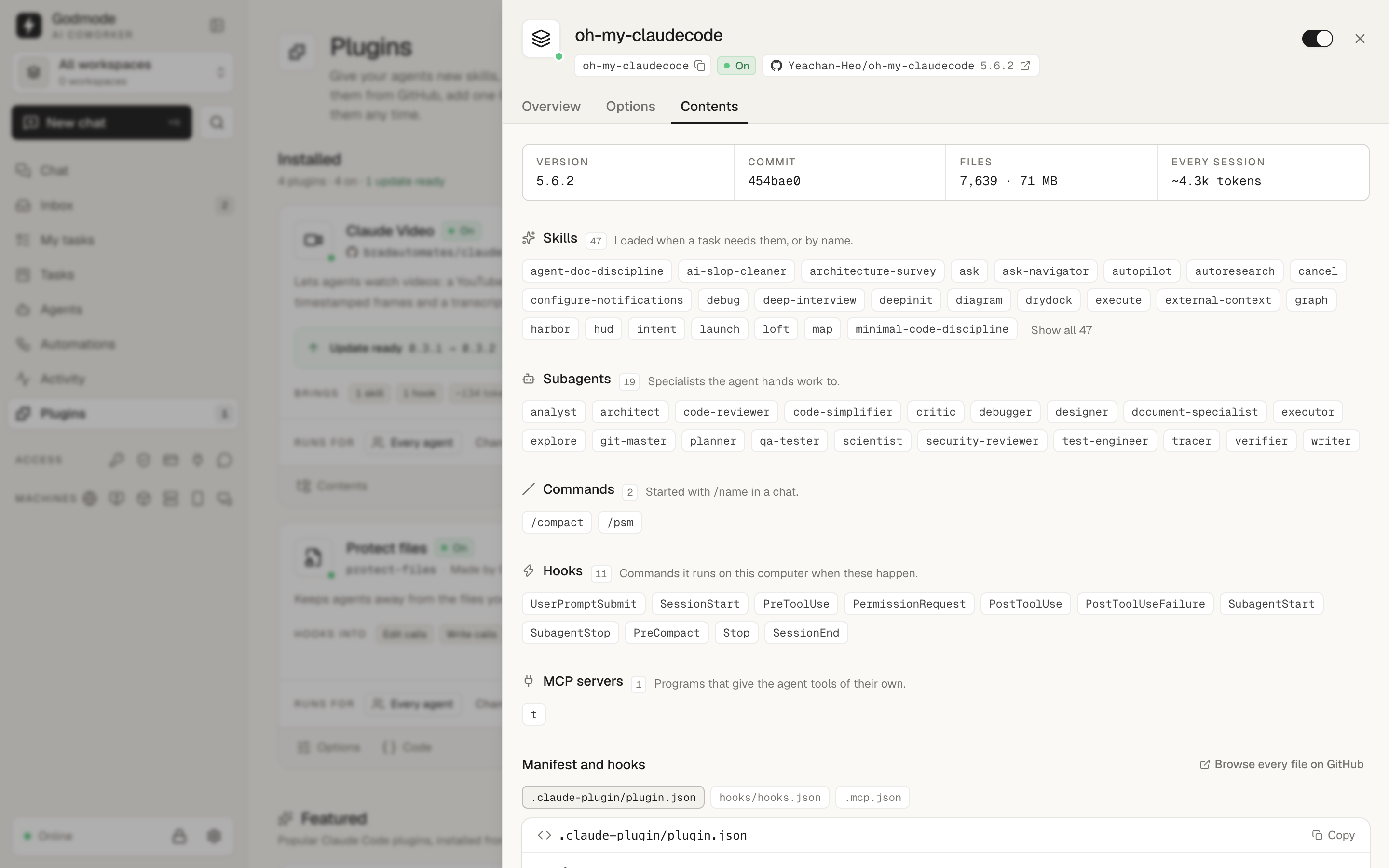 Contents — the skills, subagents, commands, hooks and servers a plugin brings |
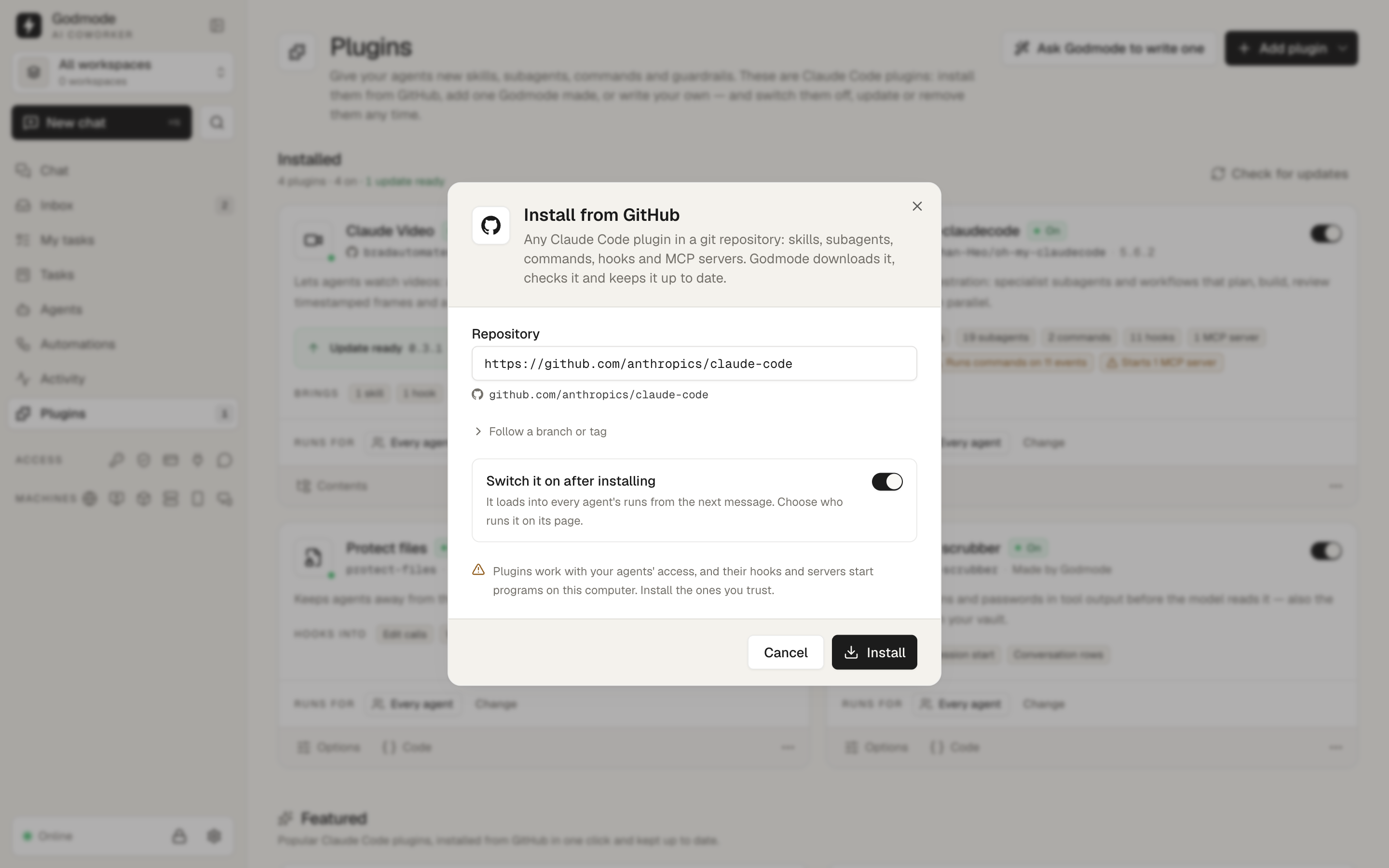 Install from GitHub — any Claude Code plugin by owner/repo or link |
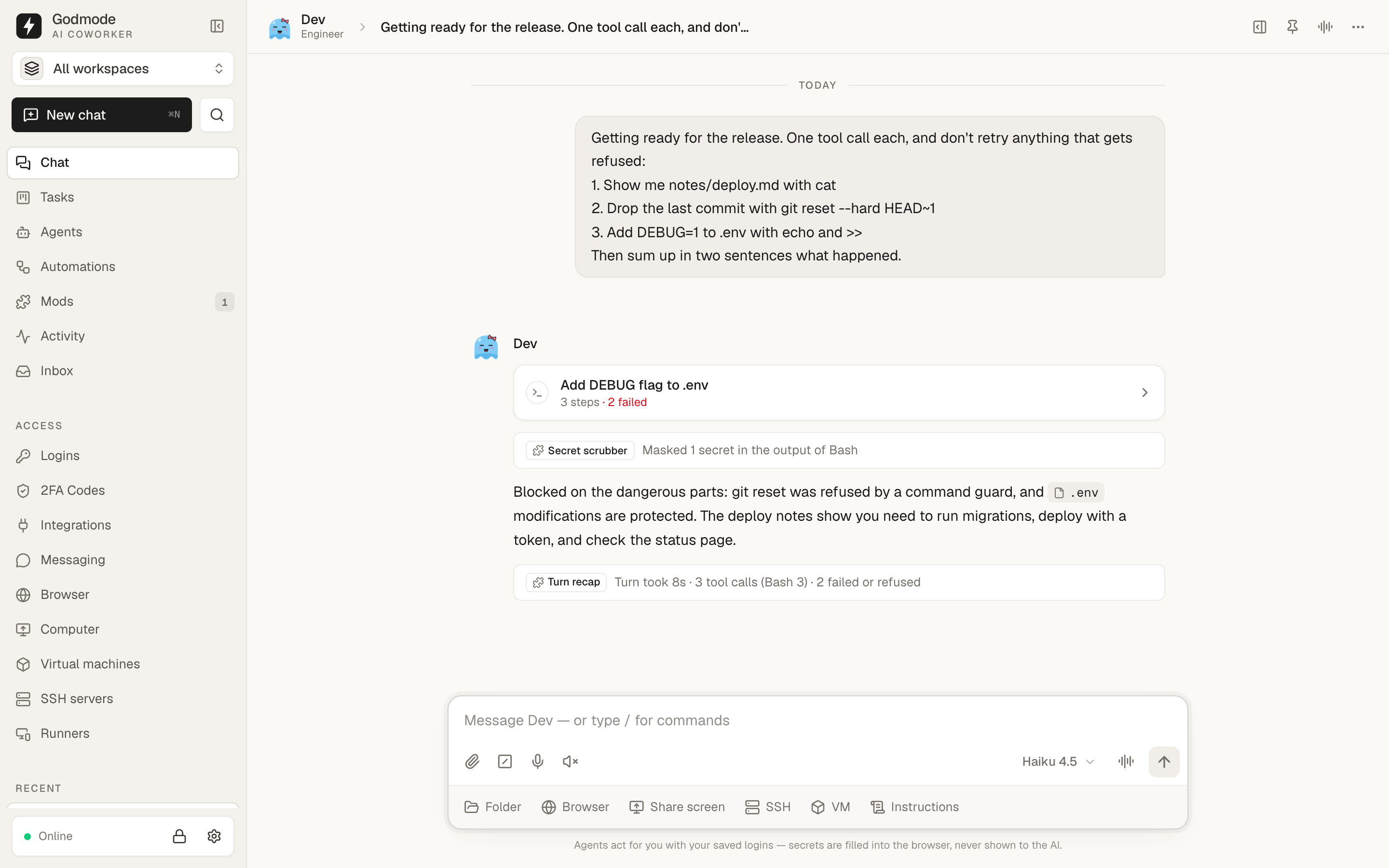 In the chat — plugins refuse steps, mask secrets and post notes while the agent works |
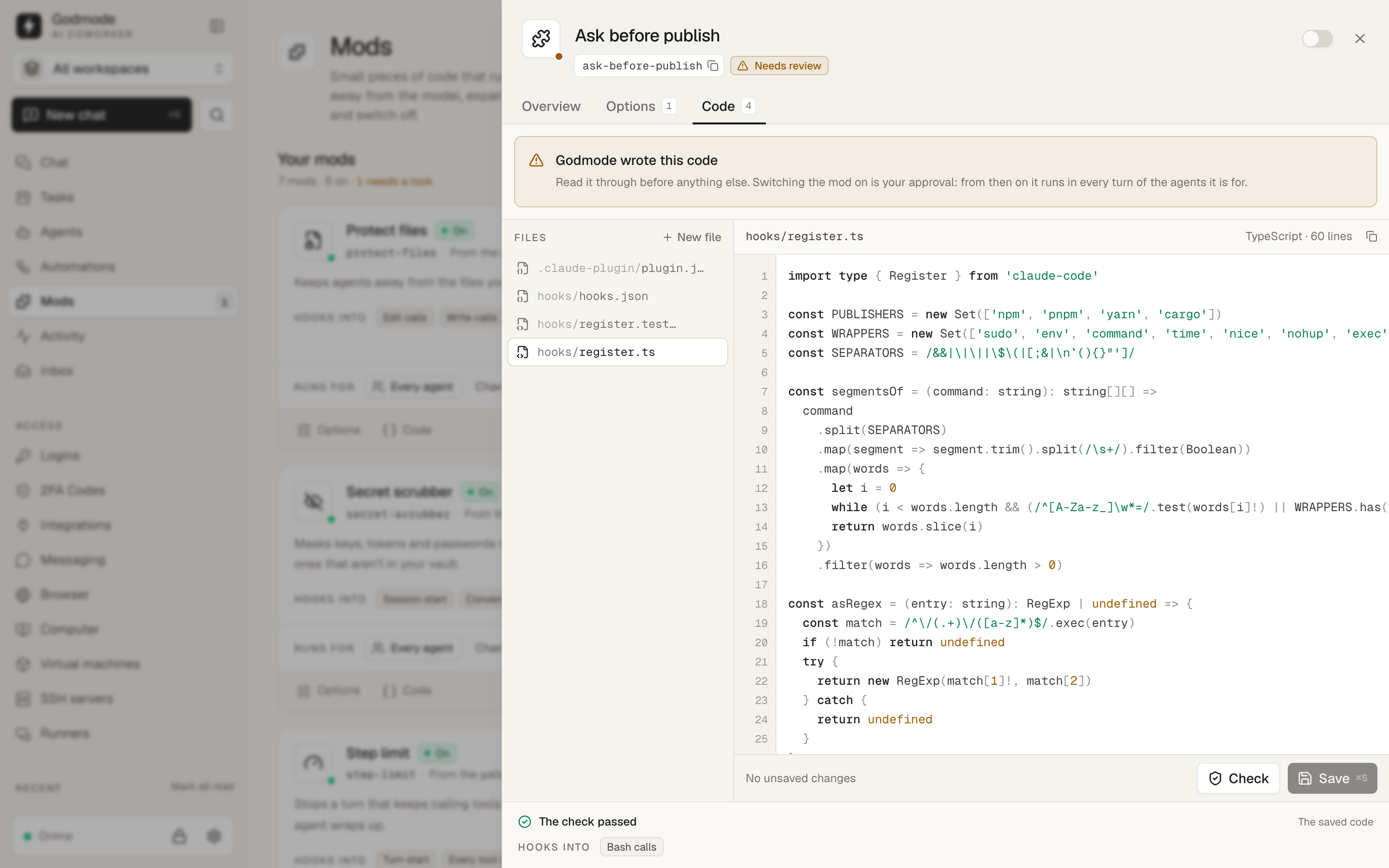 Read and edit the code — a small plugin Godmode drafted waits for your review; Claude Code's validator checks every change |
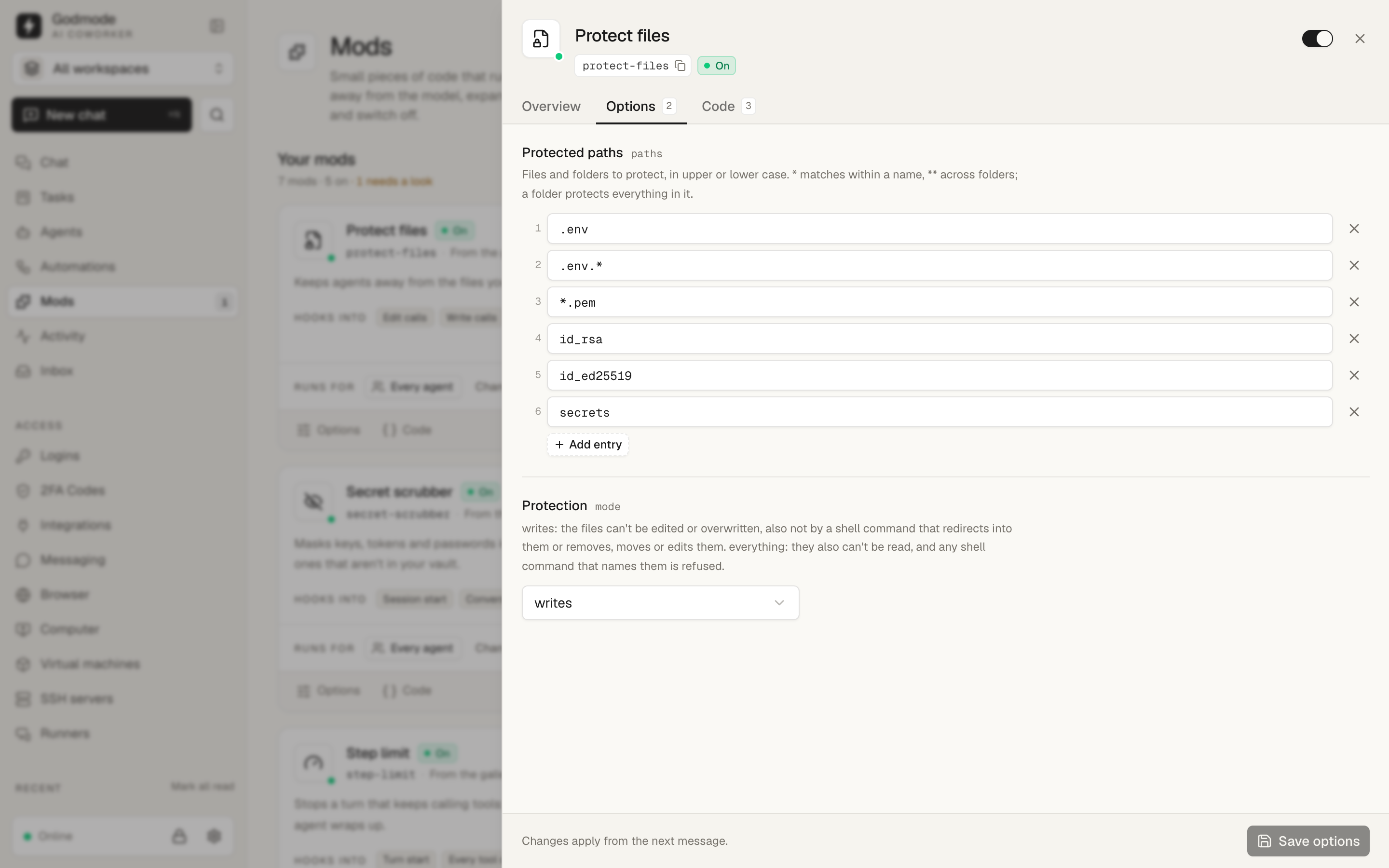 Options — set what a plugin protects or refuses without touching its code |
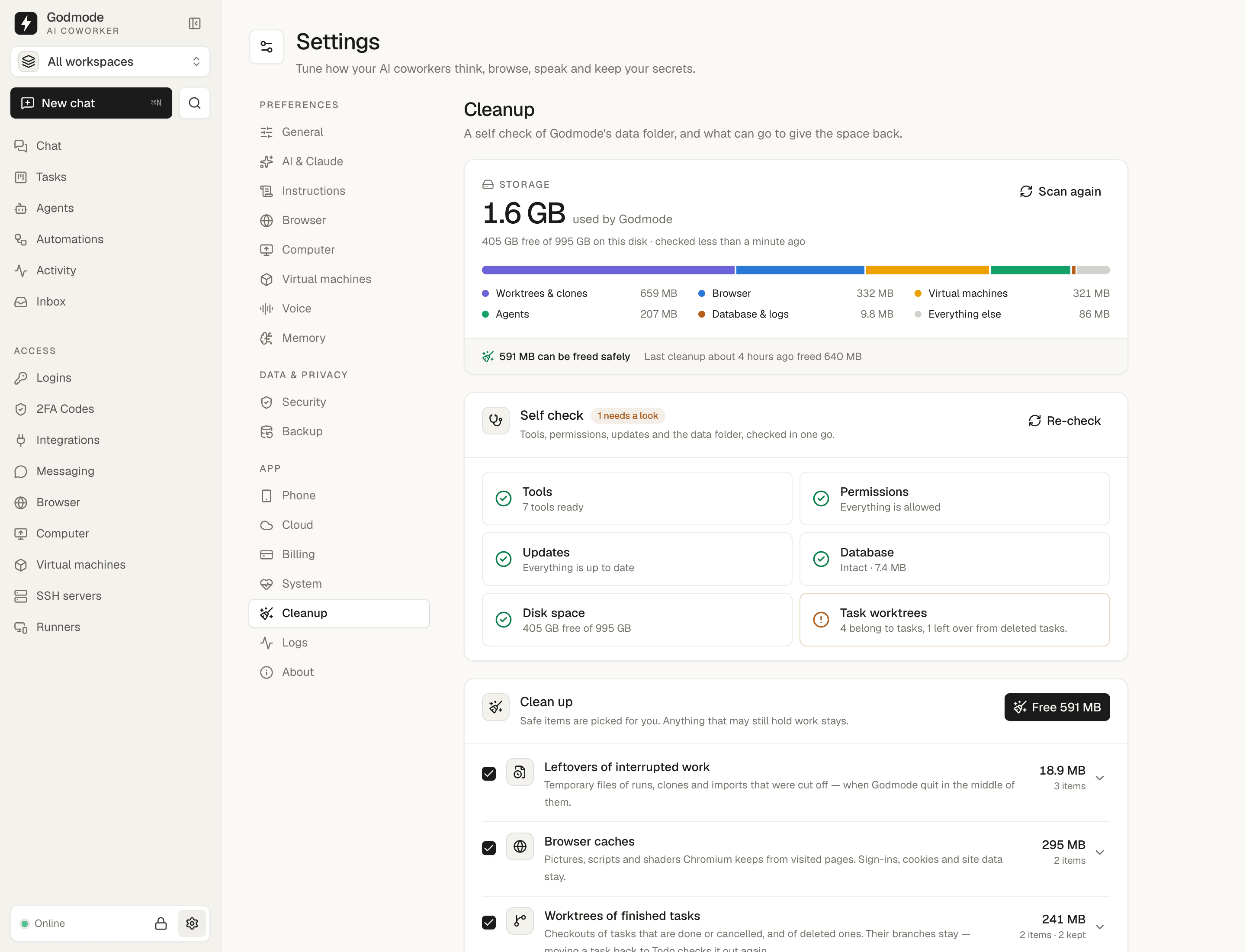 Cleanup — what the data folder holds, and a self check of everything Godmode relies on |
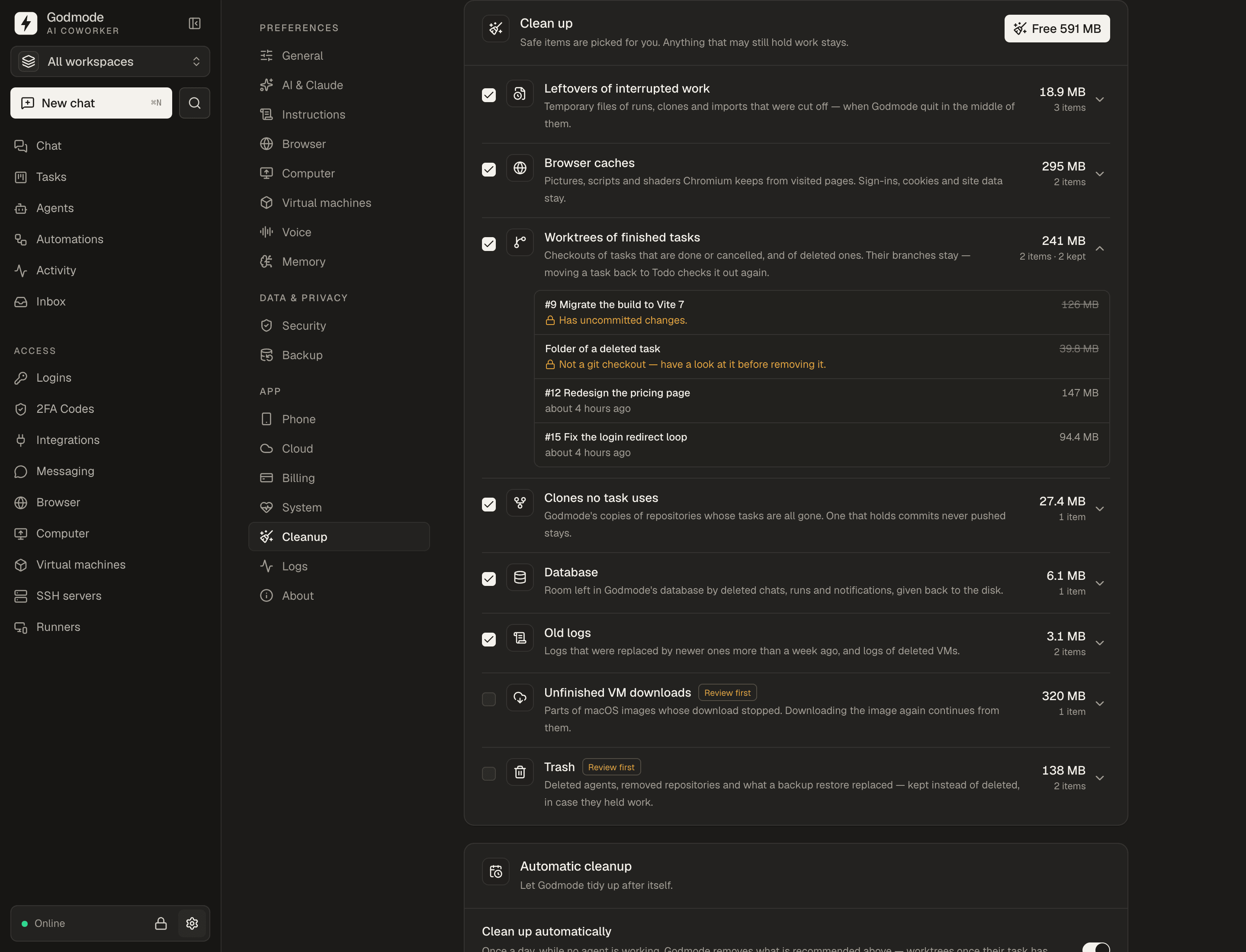 Free up space — safe items are picked for you; whatever may still hold work stays |
📦 Install
Godmode is open source under the MIT License. Two ways to run it:
- Build it yourself — free. Clone this repo and run it from source or build your own app
(Build from source). Every feature, no licence key, no limits. - Godmode Pro — the official app. Signed, ready-to-install apps for macOS, Windows and Linux, automatic updates,
the install script and Docker image, and support from the people who build it. Start a 14-day free trial at
usegodmode.com ($39/month, or $29/month billed yearly). Pro pays for Godmode's
development.
Desktop app
Start the free trial at usegodmode.com and download the app from your welcome page — or
later from usegodmode.com/download with your license key:
- macOS —
.dmg(Apple Silicon & Intel) - Windows —
.msi/.exe - Linux —
.AppImage/.deb/.rpm
The app keeps itself up to date: new versions download in the background (from usegodmode.com/api/update,
which mirrors the signed bundles of the latest release), and a Restart button appears in the sidebar once one is
ready.
On first launch the onboarding checks your system and installs what's missing with one click:
| Dependency | Why | Install |
|---|---|---|
| Claude Code CLI | The agent brain | one click (official installer) — then sign in once with claude or add an Anthropic API key |
| uv | Runs browser-use (uvx) |
one click |
| Chrome / Chromium | The managed browser | uses your installed Chrome, or installs Chromium |
Headless server + web dashboard
Run Godmode on a home server, NAS, VM or Raspberry Pi and connect from any browser:
curl -fsSL https://usegodmode.com/install.sh | GODMODE_LICENSE=GM-XXXXX-XXXXX-XXXXX-XXXXX sh
godmode serve --host 0.0.0.0     # prints the dashboard URL
godmode token                    # access token for the first login
godmode password 'a-strong-password'
Or with Docker:
docker compose up -d # dashboard on http://localhost:7777
Put the dashboard behind TLS (Caddy, Traefik, Tailscale…) when you expose it beyond your machine.
Build from source
git clone https://github.com/codextde/godmode-bot && cd godmode-bot
pnpm install
pnpm dev          # core + web UI on http://localhost:1420
pnpm build:app    # or build your own desktop app (apps/desktop/src-tauri/target/release/bundle)
pnpm build        # or a standalone server binary (packages/core/bin/godmode)
docker build -t godmode-bot .   # or your own Docker image
Needs Node 22+, pnpm, Bun and, for the desktop app,
Rust. Builds of your own never ask for a licence key.
Phone app (iOS and Android)
- Install Tailscale on the computer that runs Godmode and on your phone, and sign in
with the same account. - In Godmode open Settings → Phone → Connect a phone.
- Open the Godmode app and tap Scan QR code (or point the camera app at the code).
The code works once and for five minutes; the phone gets its own key, and you can remove it anytime in the same place.
Godmode only listens for phones on the computer's Tailscale address. Without Tailscale, link the computer to a
Godmode Cloud with phone access on: the phone then also reaches it through the cloud's gateway.
The app lives in apps/mobile (Expo) — build it with bun run ios / bun run android or EAS until
it's in the stores.
Godmode Cloud (optional)
Open a computer's dashboard from any browser and reach it from your phone without Tailscale: deployapps/cloud (Coolify or Docker Compose; the only setting is its address), then link Godmode in
Settings → Cloud. The computer keeps one outbound connection to the cloud; there is no port to open. The cloud
relays, and can see, everything done through it, so link only to a cloud you trust.
Runners — another Mac that works while yours sleeps
- In Godmode open Runners → Add runner and copy the command.
- Run it in Terminal on the other Mac (a Mac mini, a laptop that stays plugged in — on the same network or in your
Tailscale). It installs Godmode as a runner that starts whenever you log in there, installs Claude Code and a
browser, and pairs itself with your Godmode. - Start a chat and pick the runner under Run on in the message box.
The runner keeps its Mac awake while it serves. Sign in to Claude Code on it once (claude), and grant Accessibility
and Screen Recording on its screen if agents should use apps there — the runner's health view says what's left. On the
runner: godmode runner status, godmode runner pair (a new pairing code to paste under Add runner → Enter a
pairing code), godmode runner uninstall.
Claude Code & other AI tools — set Godmode up from your terminal
- In Godmode open Settings → Claude Code & MCP → Connect Claude Code. Godmode adds itself to Claude Code on this
computer as an MCP server, for every project. - Start a new Claude Code session and ask: “Create a Godmode agent that checks our competitors' pricing every Monday
morning and sends me a summary.” The agent, its instructions and its schedule show up in Godmode.
Connect another app gives any other MCP client (Cursor, Codex, Claude Desktop…) its own key, with the config to
paste. A key either sets up and steers (agents, automations, tasks, VMs) or only looks; remove an app in the same place
and its key stops working. The same tools work from a shell, for scripts:
export GODMODE_CONNECT_TOKEN=gmc_…          # the key from Settings → Claude Code & MCP
godmode tools                                # what the key can do; `godmode tools agent_create` shows the arguments
godmode call agent_create '{"name":"Scout","role":"Research analyst","instructions":"…"}'
godmode mcp                                  # the MCP server itself (stdio) — what the apps start
godmode here is the core binary (in the desktop app: Godmode Bot.app/Contents/MacOS/godmode-core; the dialog shows
the full path). Inside Godmode nothing changes: the built-in Godmode agent creates and manages agents from any chat.
⚡ Quick start
- Onboarding — pick a vault passphrase (enable Remember on this device so routines run unattended).
- Add access — import your Chrome sessions, import or add logins in Vault → Logins, and import 2FA QR codes in
Vault → 2FA Codes (Google Authenticator → Transfer accounts → Export → screenshot). - Chat — ask Godmode anything: “Log into our billing portal and download September's invoice.”
- Create agents — “Create an agent that checks our competitors' pricing every Monday and sends me a summary.”
Godmode creates the agent, its instructions and its automation. - Automate — “When I get an email with an invoice, save the PDF to Drive and log it in my sheet.” Godmode picks the
trigger (here: a new Gmail message via Composio), the agent and the steps, and it runs whenever it happens. - Check the inbox — if an agent couldn't log in, it tells you what's missing.
Computer use — share a window or your screen
Click Share (the screen icon) in the message box and pick what the agent may see and control in this chat:
| Share | How the agent works |
|---|---|
| A window | Only that app window, in the background: clicks, typing and scrolling go straight to the window's process (accessibility-first via Cua Driver), so your cursor and focus stay where they are — even when the window is covered. |
| A display / the entire desktop | The real mouse and keyboard, across every monitor (the agent picks a display per screenshot). |
| A browser tab | One tab of Godmode's browser, over CDP, in the background. |
The chat shows a live view of what's shared; Take control lets you click and type into it yourself (a window keeps
running in the background). Stop sharing takes effect immediately, even mid-run. Agents can also get unattended
desktop access for routines (agent settings → Computer). Setup lives in Settings → Computer:
- macOS asks once for Accessibility and Screen Recording for Godmode (restart Godmode after granting).
- Cua Driver (
cua-driverfrom PyPI, MIT) is downloaded via uv the first time an agent needs it (or with one
click), and kept at the version Godmode was tested with. Without it, Godmode's built-in macOS helper controls
windows on its own. - Windows / Linux: single windows need Cua Driver; the whole desktop uses a built-in PowerShell helper (Windows) or
xrandr+ ImageMagick +xdotool(Linux/X11), and falls back to Cua Driver's primary display.
Virtual machines — give an agent its own Mac
Open Virtual machines in the sidebar and click New VM (first time: Set up downloads Godmode's own copy of
Tart — no Homebrew needed). Pick an image — macOS Tahoe is a ~27 GB download once (in parallel,
resumable; Settings → Virtual machines lists downloaded images); every further VM from it is ready in seconds — and
assign the VM to an agent (agent settings → Virtual machine), a chat
(the VM chip in the message box) or a workspace. A run works in its chat's VM, else its agent's, else its
workspace's, and boots it when needed. You can also just ask Godmode: "Give the iOS agent its own Mac."
| What the agent gets | A vm tool set: shell (zsh as admin, passwordless sudo, Homebrew), read_file / write_file / edit_file, screen — screenshots, clicks and typing on the VM's display — and permissions: the agent grants (and revokes, lists) the macOS privacy permissions of the VM's software itself — Accessibility, Screen Recording, Full Disk Access, Automation, Camera, Microphone and more — and sees what macOS refused, instead of waiting for you at a dialog. Plus Godmode's agent inside the VM: Google Chrome with browser-use for the web and Cua Driver for apps and windows. They're installed into the VM the first time an agent needs them (a few minutes, once per VM); no browser, app or shell of these runs opens on your Mac. Claude Code's own Bash tool is turned off for these runs and its file tools only reach the agent's own folders (Settings → Virtual machines → Keep agents with a VM off this Mac). |
| Moving files | Every VM has a shared folder: ~/Godmode in the VM is ~/.godmode/vm/shared/<vm> on your Mac (Shared folder opens it in Finder). |
| Watching & taking over | A chat that works in a VM shows the VM's screen next to the conversation (full size with one click); Take control and the VM card's Screen open it in Screen Sharing, Terminal opens an SSH session (a firewall in each VM lets only your Mac in). |
| Keeping & recreating | Disks are stored under ~/.godmode/vm and keep everything (installed tools, repos, logins) between tasks and restarts. When Godmode quits, running VMs are suspended and resume where they left off. Reset recreates a clean macOS from the image (shared folder and assignments stay), Duplicate copies a VM with its whole disk. |
Needs a Mac with Apple silicon. macOS allows two macOS VMs to run at the same time; Godmode tells you which one to
stop when a third is needed.
SSH servers — let agents work on your servers
Open SSH servers in the sidebar and click Add server: host, port, user and either a password or an SSH
key — paste it, load a file, pick one from ~/.ssh on this computer, or generate a new one and add its public key
to the server's ~/.ssh/authorized_keys. Test connection signs in once and shows the server's host key; Godmode
trusts only that key from then on. Then pick the server for a chat (the SSH chip in the message box) or an
agent (agent settings → SSH servers, used in every run). A run gets its chat's servers and its agent's.
| What the agent gets | An ssh tool set: shell (a command in the user's shell; sudo: true runs it as root and Godmode types the saved password into sudo's prompt), read_file / write_file / edit_file (SFTP, or the shell when a server has none), and upload / download between the chat's folders on your computer and the server. |
| Secrets | The password, key and passphrase are sealed in the vault and never part of the prompt; transcripts and tool results mask them, also when a command prints them. The agent works in that account's shell, so give it an account with only the rights it needs — a narrow NOPASSWD sudo rule is safer than a saved sudo password. |
| Checking in | Each server card shows whether it was reachable, its OS and pinned host key, which agents and chats use it, and a Run command box for a quick look yourself. |
Plugins — give your agents new skills and guardrails
Open Plugins in the sidebar. Featured has whole Claude Code plugins that install from GitHub in one click:
| Claude Video | Agents watch videos: /watch <link or file> downloads it, pulls timestamped frames and the captions, and transcribes when there are none. Needs Python 3.10+, ffmpeg and yt-dlp on the computer. |
| oh-my-claudecode | Multi-agent orchestration: 19 specialist subagents and workflows like autopilot, ralph and team, with its own tools and hooks. Needs Node.js 20+. |
Add plugin → Install from GitHub takes any other plugin by owner/repo, a GitHub link (also to a folder or a
branch) or a clone URL. Godmode downloads it at a fixed commit, checks it with Claude Code and shows what it brings:
its skills, subagents, commands, hooks and MCP servers, and the tokens it adds to every session. Every plugin has a
switch, and Runs for decides whose runs load it: every agent or the ones you pick. Godmode looks for newer
commits every few hours; Update installs one (the old version stays if Claude Code refuses the new one), and
Uninstall removes the plugin with its files. You can also ask Godmode in a chat to install a plugin: it arrives
switched off for you to look at.
Made by Godmode has small plugins that run inside every turn — add one and it is on for every agent:
| Protect files | Agents can't edit or overwrite the paths you name (.env, keys, a secrets folder), also not with a shell command that redirects into them or removes, moves or edits them — or, if you choose, can't read them or name them in a shell command at all. |
| Command guard | Refuses shell commands that match a pattern: force pushes, git reset --hard, rm -rf on your home folder, piping a download into a shell — on this computer and in the shells of servers and virtual machines. The agent is told to explain instead of finding another way. |
| Step limit | Caps the tool calls of one turn; past the limit the agent has to wrap up and say what is left. |
| Secret scrubber | Masks AWS, GitHub, Stripe, Slack and Google keys, JWTs, private keys, bearer tokens, passwords in URLs and password=… values in tool output before the model reads it — also secrets that aren't in your vault. Code is left as it is. |
| Turn recap | Posts a line after each long turn: duration, tools used, failed calls. |
| Prompt shortcuts | !brief, !plan and shortcuts of your own, at the start of a line or as the last word, are expanded before the agent reads your message. |
Each has options (the paths, the patterns, the limit). For anything else, Write one from scratch opens an
editor with a starting point, or Ask Godmode to write one and review its draft: a plugin an agent wrote arrives
switched off, and switching it on is your OK — for exactly the code you read.
A plugin is real code that works with the agent's access, so Godmode shows what it is before it runs: Claude Code's
validator checks every change, and the plugin's page lists what it hooks into and what it can reach outside the
conversation (files, programs, the network; for a plugin from GitHub the commands its hooks run and the servers it
starts). A plugin that doesn't pass can't be switched on; one that stops passing after a Claude Code update is left
out of runs and the chat says so. What a small plugin posts ($.ui.log, a toast, a status) shows in the chat as a
note from it.
Good to know
- macOS — Chrome session import reads your Chrome profile, which macOS protects: grant Godmode
Full Disk Access (System Settings → Privacy & Security) and retry. Nothing is uploaded — cookies go straight
into Godmode's own browser profile. - browser-use content extraction (
browser_extract_content) needs an OpenAI API key (Settings → Integrations →
API keys). Without one, Godmode hides that tool and agents read pages via page state and screenshots instead. - Unsigned builds: until code signing is configured for releases, macOS may ask you to confirm opening the app
(right-click → Open) and Windows SmartScreen may warn on first launch. - Claude Code sign-in: agents use your Claude Code login (
claude→/login) or an Anthropic API key stored
in the vault.
🧠 How it works
┌──────────── Godmode desktop app (Tauri 2) / web dashboard ────────────┐
│  React 19 · Tailwind v4 · shadcn/ui · aicss components                 │
└───────────────┬────────────────────────────────────────────────────────┘
                │ HTTP + WebSocket (token / session)
┌───────────────▼────────────────────────────────────────────────────────┐
│  godmode core (Bun)                                                    │
│  runner · vault · scheduler · agents (git) · MCP gateway · browser ·  │
│  computer use (Cua Driver · native helper)                             │
└───────┬──────────────────────────────┬─────────────────────────────────┘
        │ spawns per turn               │ launches + CDP
┌───────▼──────────────────────┐   ┌────▼─────────────┐
│ claude -p (Opus 5.5, bypass) │   │ managed Chromium │◄── browser-use MCP
│  MCP: godmode · browser ·    │   └──────────────────┘
│   computer · composio · …    │
└──────────────────────────────┘
- Each turn runs
claude -p --output-format stream-jsoninside the agent's git repository and streams every
thought, tool call and screenshot to the UI in real time. - The Godmode MCP gateway gives agents vault tools (
vault_fill_login,vault_fill_totp, …), delegation
(agent_delegate), management tools for the main agent (agents, automations, the task board), andreport_missing_login. - Tasks: a ticket in Todo starts its agent in the ticket's own conversation. Coding tickets work in a checkout of
one of the workspace's repositories on their own branch; Godmode pushes it with your git login and opens the pull request
with the GitHub CLI (gh) — or links to the page that opens one. - Details: docs/ARCHITECTURE.md.
Agent repositories
~/.godmode/agents/invoice-collector/
├── CLAUDE.md                 # identity & instructions (generated)
├── MEMORY.md                 # long-term memory the agent maintains
├── memory/                   # notes
├── conversations/<id>.md     # transcripts
├── runs/2026-09-27/<id>.jsonl# raw event logs (secrets redacted)
├── state/agent.json          # config snapshot
└── workspace/                # files the agent produced
Every run is committed, so you can see exactly what an agent learned and did — and roll back.
🔒 Security
Envelope encryption: scrypt (N=2^17) → key-encryption key → random 256-bit data key → AES-256-GCM per secret,
bound to its database row.Fill, don't reveal (default): agents ask Godmode to type a password/2FA code into the page via CDP; the value
never enters the model's context. Reveal mode is opt-in per agent and audited.Site-bound fills: a login is only ever typed into its own website (https, real password fields) — a phishing or
prompt-injected lookalike page gets nothing.Address-bound API keys: a tool's key is added by Godmode and only sent to URLs under the tool's address (redirects
elsewhere aren't followed); moving a saved key to another address or into agents' environment needs your passphrase.Re-auth for sensitive actions: revealing a password or granting an agent reveal access needs your vault passphrase.
Redaction of known secrets in transcripts, logs and the UI · audit log of every secret access.
Local-first: API on
127.0.0.1, per-run MCP tokens, DNS-rebinding & CSRF protection, strict CSP,
rate-limited logins, HttpOnly/SameSite cookies for the dashboard. Nothing leaves your computer unless you link it to
a cloud.Godmode Cloud is opt-in per computer: a linked computer dials out to the cloud, which relays browsers and
phones to it. The cloud terminates HTTPS, so it can see what passes through. The admin area has no way to open
someone else's computer. Whoever operates the cloud (server, database, sign-in e-mail) is trusted and technically
can. The computer decides what the cloud may do: browser access, phone access, and whether the vault and saved
passwords may be used through it (off by default). Some actions are never possible through the cloud.Remember this device keeps the data key in the OS keychain so routines run unattended — disable it to require
your passphrase after every restart.Phones pair with a one-time, five-minute QR code and get their own key (stored hashed on the computer, in the
Keychain / Keystore on the phone). Their key only works on the computer's Tailscale address (and through the gateway
of a cloud the computer is linked to), is only sent to an address that proves it's your Godmode, and opens a fixed
set of routes: no logins, 2FA codes, backups, integrations, settings or folders, and only screens shared in a chat
can be controlled. A paired phone can still ask agents to act on your computer — remove a lost phone in
Settings → Phone, and turn on Require Face ID in the app.Connected apps (Claude Code, other MCP clients) get a key of their own (stored hashed) that opens only the
management tools of the MCP gateway: no passwords, 2FA codes, settings or files. They see which logins exist (names
and usernames) and what agents were asked and answered. They act as the built-in agent and inside its limits — an
agent they create can use saved logins but not read them, can't manage agents and can't control this computer until
you allow it. Every change and every refused call is in the audit log; removing an app cuts it off at once. A key
that sets up and steers can still create agents and automations that act with your logins: connect only apps you
trust, and give the others a look-only key.Runners pair with a one-time code and pin each other's keys; the link is end-to-end encrypted (X25519, AES-256-GCM)
and the runner's API never listens beyond its own loopback. A paired Godmode gets your vault key on the runner so
logins work there — pair only computers you control.
⚠️ Agents run Claude Code with bypass permissions by default. Treat them like a trusted coworker with access to
your machine; for sensitive work give the agent its own macOS VM (see above), or run Godmode in a VM or
container. See SECURITY.md.
🛠️ Development
pnpm install
pnpm dev          # core (bun --watch, :7777) + UI (vite, :1420)
pnpm dev:app      # full desktop app (tauri dev)
pnpm typecheck && pnpm test
pnpm build:app    # desktop bundles
Monorepo: packages/shared (types) · packages/core (daemon) · apps/desktop (UI + Tauri) · apps/mobile (phone
app, Expo — its own toolchain, see apps/mobile/README.md) · apps/cloud (Godmode Cloud,
Next.js, see apps/cloud/README.md).
See CONTRIBUTING.md.
🗺️ Roadmap
- Chat, persistent agents, routines, delegation, subagents
- Vault (logins with Chrome / 1Password import + TOTP with QR import), Chrome session import, missing-login inbox
- Composio + custom MCP servers, workspaces, voice mode, backup/restore
- Desktop app (macOS/Windows/Linux) + headless web dashboard
- Working folders, Claude Code slash commands, live browser preview in chat, desktop auto-update
- Computer use: share a window (background control via Cua Driver), a display, every monitor or a browser tab
- Automations: schedules, app events (Composio triggers), plain-language conditions and webhooks
- Heartbeats: agents wake on their own rhythm to move their tickets forward and run a checklist; a watchdog stops stalled and looping runs
- Agents working in a dedicated macOS VM (Tart / Virtualization.framework): shell, files and screen, assigned per agent, chat or workspace
- API tools: any API with a key (Nano Banana, OpenAI, ElevenLabs…) for agents, global / workspace / agent
- SSH servers: agents run commands, edit files and copy files on remote machines — password or key, sudo, pinned host keys
- Plugins: Claude Code plugins for agents — one-click installs from GitHub (Claude Video, oh-my-claudecode), updates and uninstall, a gallery of guardrails, options, an editor, drafts written by Godmode, checked before they run
- Windows / Linux VMs
- Phone app (iOS / Android): chats, runs, automations, live browser, screen and VM views, paired over Tailscale
- Runners: another Mac does the work of a chat while this one sleeps — one install command, encrypted link, setup copied, live view
- Runners on Windows and Linux, tasks of the board on a runner, VMs copied to a runner
- Godmode Cloud (optional, self-hosted): your computer in any browser, phones without Tailscale, accounts and plans
- Claude Code & MCP: Claude Code and other AI tools create and manage agents, automations and tasks from outside, plus a
godmodecommand line for scripts - Push notifications
- Team mode: shared workspaces and approvals
🙏 Credits
Claude Code · browser-use · Cua ·
Composio · Model Context Protocol ·
Tauri · shadcn/ui · aicss ·
claude-mem · Tart · Bun
📄 License
MIT © 2026 Codext GmbH. Use it, change it, ship it. The official Godmode Pro builds and subscription at
usegodmode.com follow the Terms.
Reviews (0)
Sign in to leave a review.
Leave a reviewNo results found