LiteDB
Health Warn
- License — License: MIT
- Description — Repository has a description
- Active repo — Last push 0 days ago
- Low visibility — Only 7 GitHub stars
Code Fail
- exec() — Shell command execution in public/sql-wasm.js
- fs module — File system access in public/sql-wasm.js
- network request — Outbound network request in public/sql-wasm.js
Permissions Pass
- Permissions — No dangerous permissions requested
No AI report is available for this listing yet.
SQL editor/viewer for SQLite and PostgreSQL. Features an interactive Schema Visualizer, Context-Aware AI (Text-to-SQL), and transactional batch operations. Built with Electron and React.
LiteDB
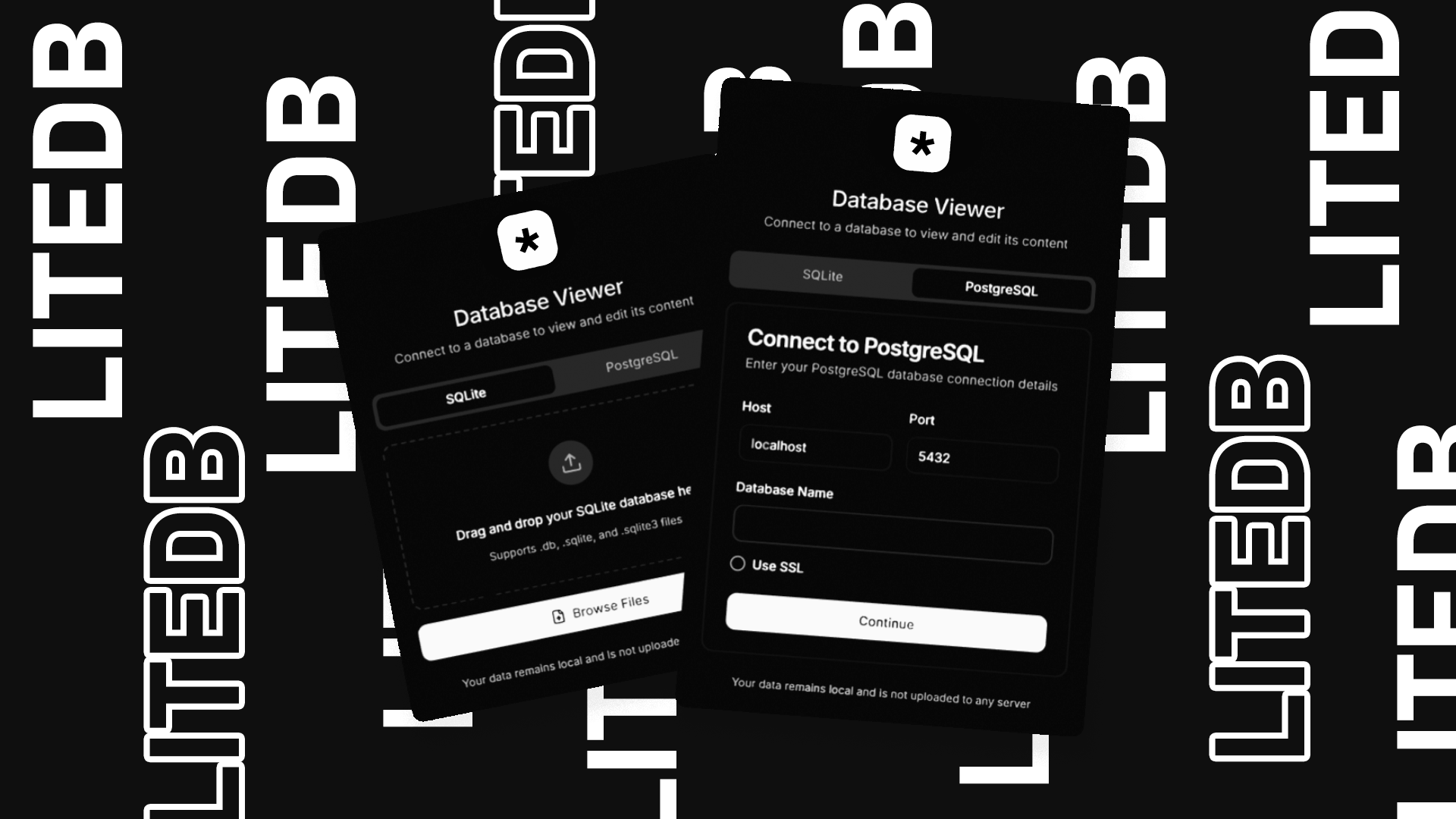
A modern, fast, and user-friendly database viewer/editor built with React and Tauri (Rust). Now supporting both SQLite and PostgreSQL with seamless database management and advanced vector search capabilities.


Features
- Schema Visualization: Visualize your database structure, relationships, and foreign keys in an interactive diagram.
- Auto-Layout: Automatically arranges tables to minimize crossing lines.
- Export: Save your schema diagram as PNG or SVG for documentation.
- Edit Support: View and edit database records directly
- Advanced Search: Filter and search through your data
- Real-time Updates: Changes reflect immediately
- Data Sorting: Sort any column with a click
- Responsive Design: Works great on any screen size
- Batch Operations: Execute multiple SQL statements with transaction support
- SQL Script Management: Save and reuse your SQL scripts
- Dual Database Support: Works with SQLite and PostgreSQL
- AI Agent (Text-to-SQL): Turn natural language into SQL queries.
- Privacy-First AI: 100% Local Text-to-SQL support with Ollama.
- Supports OpenAI, GitHub, and Azure providers.
- Schema is injected into the LLM upon initialization and refresh.
- Autosave & Export: Automatically save changes and export query results to CSV, Excel, or JSON.
- Vector Search & Semantic Search: Perform semantic similarity searches on your data using pgvector and local embedding models.
Schema Visualization
LiteDB now includes a powerful Entity Relationship Diagram (ERD) generator:
- Interactive Graph: Drag and drop tables, zoom in/out, and explore relationships.
- Visual Foreign Keys: Lines connect Foreign Keys (Source) to Primary Keys (Target) automatically.
- Key Indicators: Visual icons for Primary Keys (🔑), Foreign Keys (🔗), and Unique constraints (#).
- Export Ready: One-click export to high-quality images for your technical documentation.
Vector Search & Semantic Search
LiteDB integrates advanced vector search capabilities powered by pgvector and local embedding models:
- Semantic Search: Find similar rows based on vector embeddings.
- Search by Row ID: Find rows that are semantically similar to a specific record.
- Search by Text: Enter natural language queries to find relevant records using local embedding models.
- Local Embedding Models: Run embedding models locally in your browser/app using Transformers.js.
- Supported models:
all-MiniLM-L6-v2,bge-base-en-v1.5,bge-large-en-v1.5. - Privacy-first: No data is sent to external APIs for embedding generation.
- Supported models:
- Distance Metrics: Support for multiple distance metrics to suit your data:
- Cosine Distance (
<=>): Best for normalized vectors. - L2 Distance (
<->): Euclidean distance. - Inner Product (
<#>): Dot product (negative).
- Cosine Distance (
- Visual Feedback: Color-coded similarity bars to quickly identify the most relevant results.
AI Architecture (Text-to-SQL)
Unlike standard API wrappers, LiteDB implements a Context-Aware RAG Pipeline to ensure high-accuracy SQL generation:
- Schema Extraction: On connection, the app actively introspects the database to extract table definitions, foreign keys, and data types.
- Dynamic Context Injection: This metadata is formatted and injected into the LLM's system prompt (System Message), giving the model "awareness" of the specific database structure.
- Driver-Specific Validation: The system prompts are tailored to the active driver (e.g., enforcing PostgreSQL specific syntax vs. SQLite), reducing syntax errors in generated queries.
Tech Stack
- React
- TypeScript
- Vite
- Tailwind CSS
- Tauri (Rust)
- PostgreSQL
- SQLite
Getting Started
Prerequisites
- Node.js (v16 or higher)
- Rust (latest stable)
- PostgreSQL (if using PostgreSQL features)
Installation
- Clone the repository:
git clone https://github.com/createdbyadham/LiteDB
- Install dependencies:
npm install
- Start the development server:
npm run tauri dev
Building for Production
npm run tauri build
Usage
Connecting to Databases:
- SQLite: Click "Upload Database" or drag & drop your SQLite file
- PostgreSQL: Open the Connection Manager, enter your credentials, and connect
- Switch Databases: Use the database switcher to toggle between SQLite & PostgreSQL
- Browse tables using the table selector
- Use the search bar to filter data
- Double-click any row to edit
- Check multiple rows at once then click "Delete" to remove them
- Click "Save Changes" to persist modifications
PostgreSQL-Specific Features:
- Run SQL queries with real-time feedback
- View table structures directly in the UI
- Batch execute multiple statements in transaction mode
- Securely connect using SSL
Batch Operations & SQL Scripting
The batch operations feature allows you to execute multiple SQL statements at once, which is perfect for complex database operations.
Using Batch Operations
- After loading a database, click on the "Batch Operations" tab
- Enter your SQL statements in the editor, separating them with semicolons (
;) - Use the "Use Transaction" toggle to enable/disable transaction mode:
- When enabled (default): All statements succeed or none do (atomic operations)
- When disabled: Each statement is executed independently
- Click "Execute Script" to run your SQL commands
- View the results including execution time, affected tables, and any errors
Saving and Reusing Scripts
- Write your SQL script in the editor
- Enter a name for your script in the input field
- Click "Save Script" to store it for future use
- Access your saved scripts by clicking on the "Saved Scripts" tab
- Use the "Load" button to load a script back into the editor
- Delete unwanted scripts with the delete button
Example Scripts
Here are some example SQL scripts you can try:
Create new table and insert data:
CREATE TABLE users (
  id INTEGER PRIMARY KEY,
  name TEXT NOT NULL,
  email TEXT,
  age INTEGER
);

INSERT INTO users (id, name, email, age) VALUES (1, 'name-example1', '[email protected]', 32);
INSERT INTO users (id, name, email, age) VALUES (2, 'name-example2', '[email protected]', 28);
Update and delete records:
UPDATE users SET age = 33 WHERE name = 'John Doe';
DELETE FROM users WHERE name = 'Jane Smith';
Schema modifications:
ALTER TABLE users ADD COLUMN created_at TEXT;
UPDATE users SET created_at = datetime('now');
CREATE INDEX idx_users_name ON users (name);
Complex operations with transaction:
BEGIN TRANSACTION;
CREATE TABLE temp_users AS SELECT * FROM users;
UPDATE users SET age = age + 1;
INSERT INTO users SELECT * FROM temp_users WHERE age > 30;
DROP TABLE temp_users;
COMMIT;
Development
Project Structure
src/
  ├── components/     # React components
  ├── hooks/         # Custom React hooks
  ├── lib/           # Utilities and services
  ├── styles/        # Global styles
  └── types/         # TypeScript type definitions
Contributing
- Fork the repository
- Create your feature branch (
git checkout -b feature/amazing-feature) - Commit your changes (
git commit -m 'Add some amazing feature') - Push to the branch (
git push origin feature/amazing-feature) - Open a Pull Request
License
This project is licensed under the MIT License - see the LICENSE file for details.
Reviews (0)
Sign in to leave a review.
Leave a reviewNo results found