xefm
Health Pass
- License — License: NOASSERTION
- Description — Repository has a description
- Active repo — Last push 0 days ago
- Community trust — 12 GitHub stars
Code Fail
- rm -rf — Recursive force deletion command in macos_app/build.sh
- rm -rf — Recursive force deletion command in macos_app/create_dmg.sh
Permissions Pass
- Permissions — No dangerous permissions requested
No AI report is available for this listing yet.
Keyboard-driven dual-pane file manager for the desktop (Windows, macOS) and the terminal (Windows, macOS, Linux). SSH, S3 and archives open like folders; extend it in Python — or let an AI agent write the extension.
XeFM — a dual-pane file manager for the desktop and the terminal
XeFM — short for Xenolith File Manager — is a keyboard-driven dual-pane file manager that runs as a native desktop application on Windows and macOS, and in the terminal on Windows, macOS, and Linux. SSH servers, S3 buckets and archives open like any folder, and almost everything is yours to change in Python: install ready-made extensions, write your own, or ask an AI coding agent to write one with the XeFM skill.



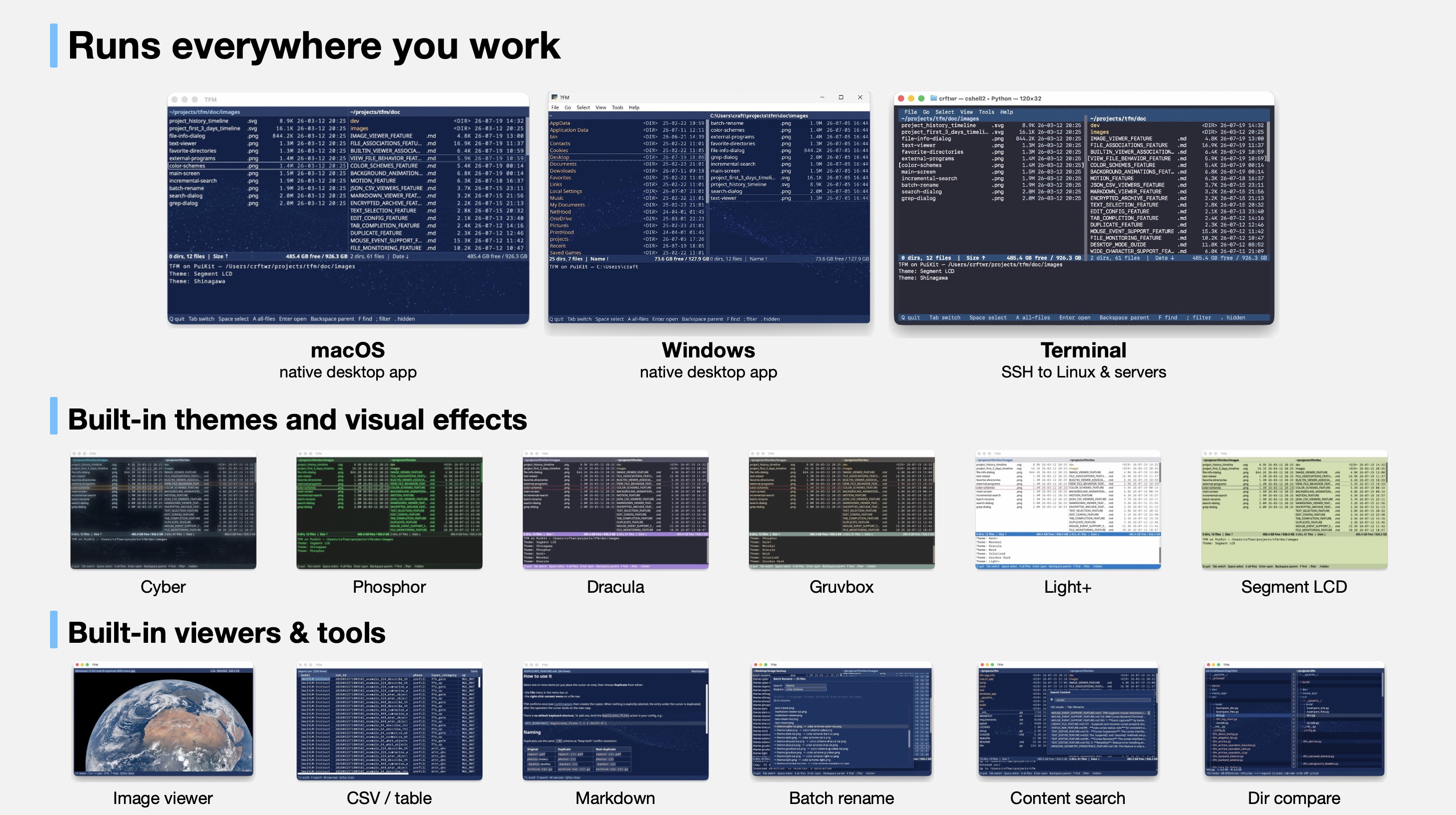
| GUI (macOS) | TUI |
|---|---|
|
https://github.com/user-attachments/assets/f121401d-990b-445d-aa79-526d34e4a44e |
 |
Key Features
- Cross-platform - Native desktop app on Windows and macOS; terminal (TUI) app on Windows, macOS, and Linux
- Dual-pane interface with independent navigation and cross-pane operations
- Archive browsing - Navigate ZIP, TAR, and compressed archives as virtual directories
- SFTP support - Browse and manage remote servers via SSH with optimized performance
- AWS S3 support for cloud storage operations
- Connect to Server - Find file servers on the network, browse their shares, and mount one from inside XeFM, with no Finder or Explorer detour (macOS and Windows)
- Advanced search with real-time filtering, background processing, and multi-selection bulk operations
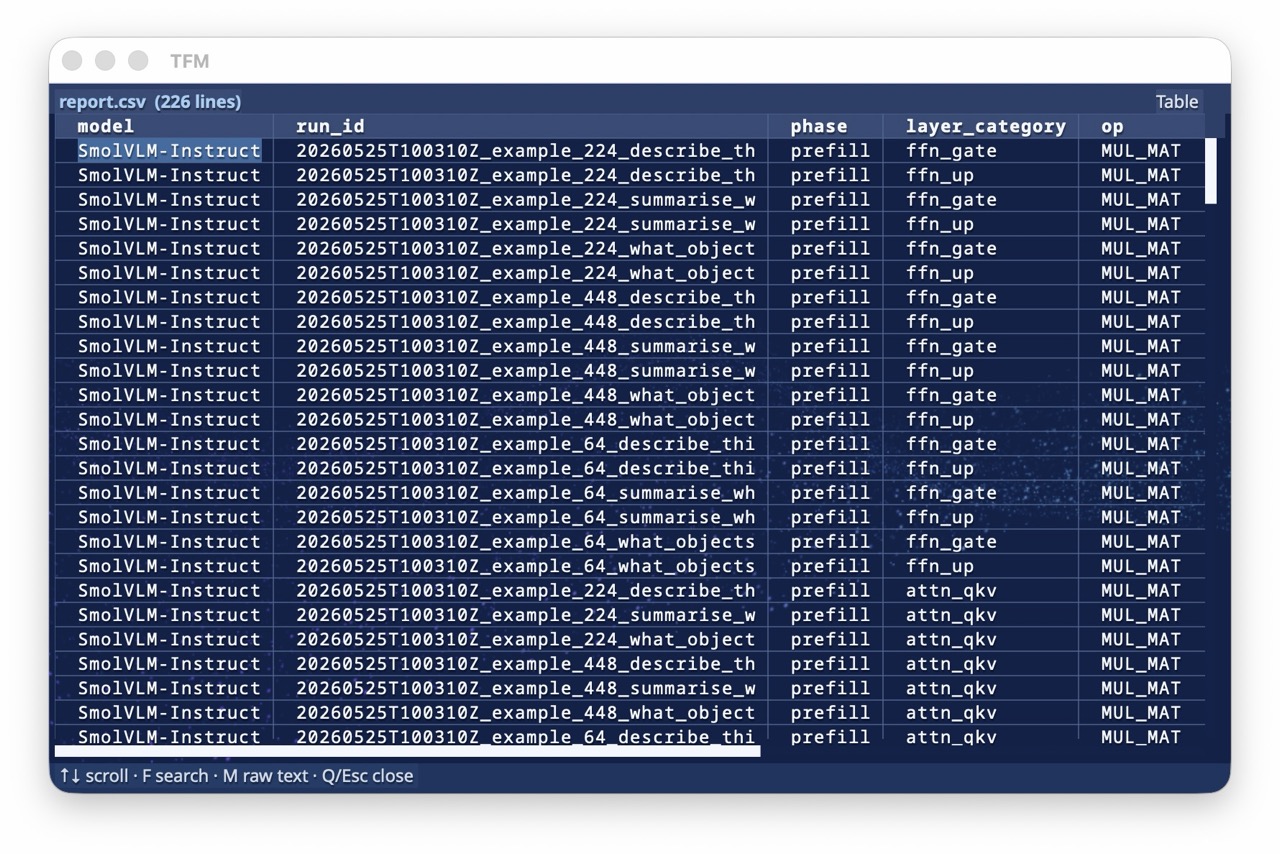
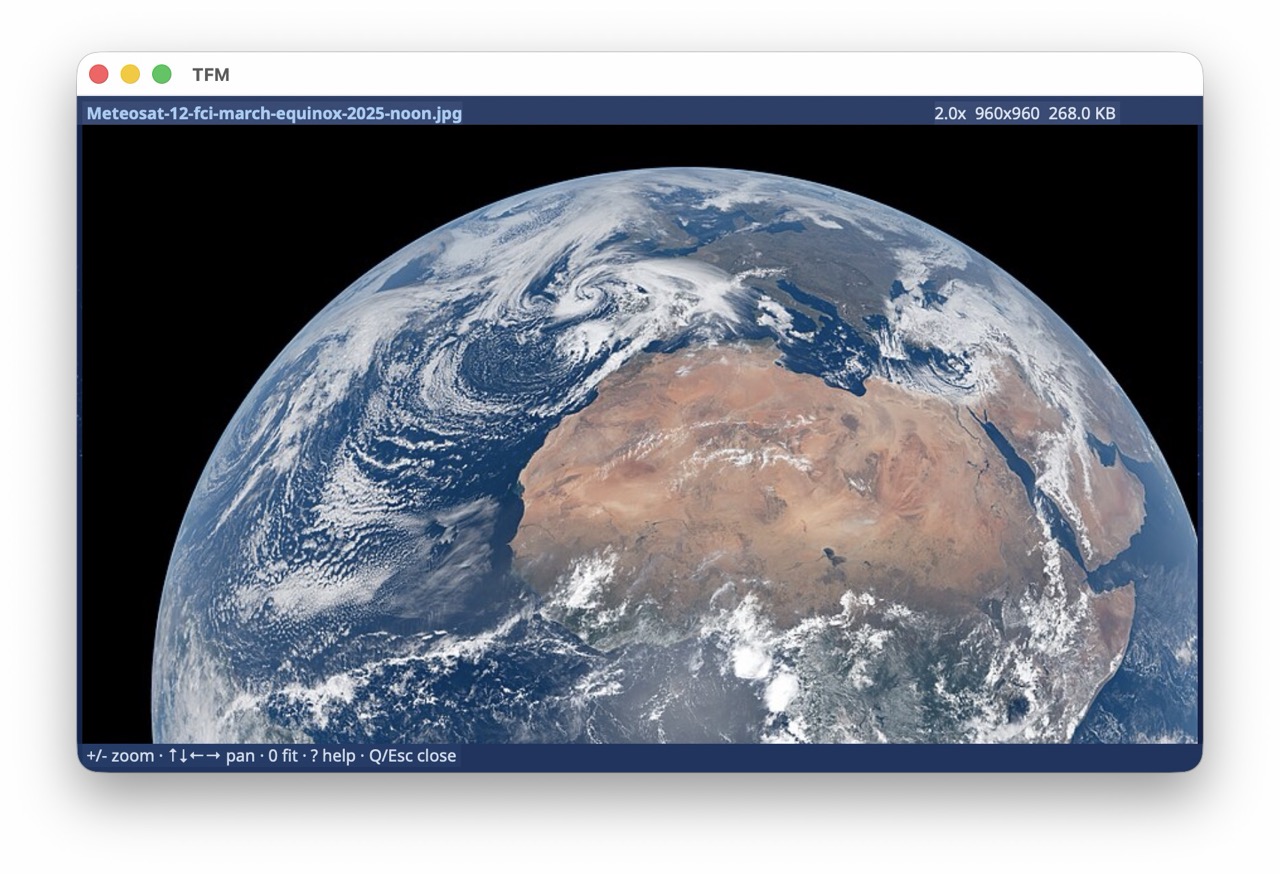
- Rich built-in viewers - Syntax-highlighted text, images, Markdown, JSON, and CSV/TSV
- Themes & visual effects - A dozen built-in themes; desktop mode adds GPU background animations, CRT/phosphor screen effects, and text-reveal animations
- Customizable - Fully configurable key bindings, settings, and external program launchers; a command palette finds every action by name
- Extensions - Install packages that add actions, themes, filters, syntax highlighting and more — browse the list — or let an AI agent write one with the XeFM skill
Quick Start
Installation
Pick the install that matches how you want to run XeFM:
| Get it from | Gives you | |
|---|---|---|
| Desktop app — Windows | the Microsoft Store | A real installed application, signed by Microsoft: one click, automatic updates, no SmartScreen prompt. No Python needed. |
| Desktop app — macOS | the latest release, or Homebrew: brew install --cask crftwr/tap/xefm |
A real installed application: own icon, Dock entry, own file permissions. No Python needed. |
| Terminal app — Windows, macOS, Linux | PyPI | The xefm command in any terminal, including over SSH. Needs Python 3.10+. |
| Terminal app — macOS, Linux | Homebrew: brew install crftwr/tap/xefm |
The same xefm command, managed by Homebrew. Use PyPI instead if you want to add Python libraries of your own. |
The desktop and terminal apps coexist and share their settings in ~/.xefm/ —
installing both is a perfectly normal setup.
Desktop app (Windows, macOS)
The desktop packages bundle their own Python, so there is nothing else to install.
Windows — install from the
Microsoft Store, or runwinget install --id 9PK2X44W810V --source msstore: XeFM lands in the Start
menu, updates automatically, and uninstalls from Settings → Apps. An unsigned
portable zip also ships with every
release; it needs
unblocking once.
macOS — download XeFM-<version>-macos.dmg from the
latest release, drag
XeFM to Applications, and launch it from Launchpad or Spotlight. It is
signed with the author's Apple Developer ID. Or let Homebrew install and
upgrade it:
brew install --cask crftwr/tap/xefm
Full install details, including Gatekeeper notes, are in the
Desktop Mode Guide.
Use the package, not
xefm --backend gui— that path is for developing
XeFM, not for using it: the Dock / taskbar icon and, on macOS, the file
permissions get attributed to Python / your terminal instead of to XeFM. See
Why notxefm --backend gui?.
Terminal app (Windows, macOS, Linux)
XeFM is on PyPI. Install it as a tool and run
it — no checkout and no virtualenv to manage:
pipx install xefm     # or:  uv tool install xefm,  or:  pip install xefm
xefm
pipx and uv keep XeFM in
its own environment while putting the xefm command on your PATH; uvx xefm
tries it once without installing anything. Python 3.10+ is the only
prerequisite — the install for SSH sessions, remote servers, and
terminal-centric workflows.
On macOS and Linux, Homebrew can install the terminal app instead:
brew install crftwr/tap/xefm
If your config.py imports a library XeFM doesn't ship, or you want a Pillow
plugin such as pillow-heif, list it in ~/.xefm/requirements.txt and runxefm deps sync (or Tools → Advanced → Sync Python Packages). That works the same for
every install, the desktop apps included, and survives upgrades. See
Extra Python Libraries.
Upgrade with the same tool you installed with (pipx upgrade xefm,uv tool upgrade xefm, pip install --upgrade xefm, or brew upgrade xefm) — they are not
interchangeable. Details and fixes for common install errors are in the
User Guide.
From source
Working on XeFM itself? Use a checkout instead:
git clone https://github.com/crftwr/xefm.git
cd xefm
make venv        # creates .venv with every dependency
make run         # launch XeFM through it, no activation needed
make help lists the rest — editable install, PuiKit co-development, and the
macOS / Windows app bundles.
Essential Controls
- Navigate:
↑↓to move up/down,←→to switch panes/navigate directories - Select:
Spaceto select/deselect files,Afor all files,Shift-Afor all items - File operations:
C(copy),M(move),K(delete),R(rename) - Search:
Ffor incremental search,Shift-Ffor filename search,Shift-Gfor content search - Remote paths: open
ssh://hostname/pathors3://bucket/pathlike any directory - Help:
F1opens the help dialog with every key binding organized by category — no need to memorize - Quit:
Qto exit
Documentation
User Documentation
- Complete User Guide - Comprehensive guide covering all features, configuration, and usage
- Configuration - Complete configuration reference and customization guide
- Desktop Mode - Native Windows / macOS desktop app setup and options
- Color Schemes & Visual Effects - Themes, themeable GPU background scenes, and screen effects
- Image Viewer, Markdown Viewer & JSON / CSV Viewers - Built-in viewers
- Diff Viewer & Batch Rename - File / directory diffs and regex-based multi-file renaming
- SFTP Support - Remote server access via SSH with file operations and search
- AWS S3 Support - Cloud storage integration and S3 bucket management
- Connect to Server - Mount SMB / WebDAV shares, and disconnect or eject volumes, without leaving XeFM
- Archives - Create, extract, and browse archives as directories
- Migemo Search - Japanese matching from typed romaji in incremental search
- Search Animation - Advanced search features and visual feedback
- Folder Tabs, Quick View & Command Palette - Several places per pane, a live preview in the other pane, and every action by name
- Searching the OS Index & File Lists - Spotlight / Windows Search results, or any tool's list of paths, as a pane
- Find Similar Files - Identical files and similar images, videos and audio
- Extension Packages - Install, upgrade and write extensions
- The XeFM Skill for AI Agents - Let an AI coding agent edit your configuration and write extensions
Every feature guide is listed at the end of the User Guide.
Recipes and community extensions are collected on the XeFM wiki.
Developer Documentation
- Project Structure - Repository layout and where things live
- Path Polymorphism System - Storage-agnostic architecture and extensibility
- Navigation System - Core navigation implementation
- External Programs - Program integration system
Archive Virtual Directory Browsing
Press Enter on an archive file (.zip, .tar, .tar.gz, .tgz, .tar.bz2,.tar.xz) to browse it as if it were a regular directory — no extraction
needed. Navigate nested directories, view files, search by name or content, and
copy files out with the normal copy key; Backspace leaves the archive. P
creates a new archive, U extracts one. See the
Archive Feature Guide.
Built-in File Viewers
Press V (or Enter) to view the selected file. XeFM picks the right viewer
for the file type: syntax-highlighted text (20+ formats, line numbers, wrapping,
in-file search), images with zoom / pan (inline in iTerm2 / kitty / sixel
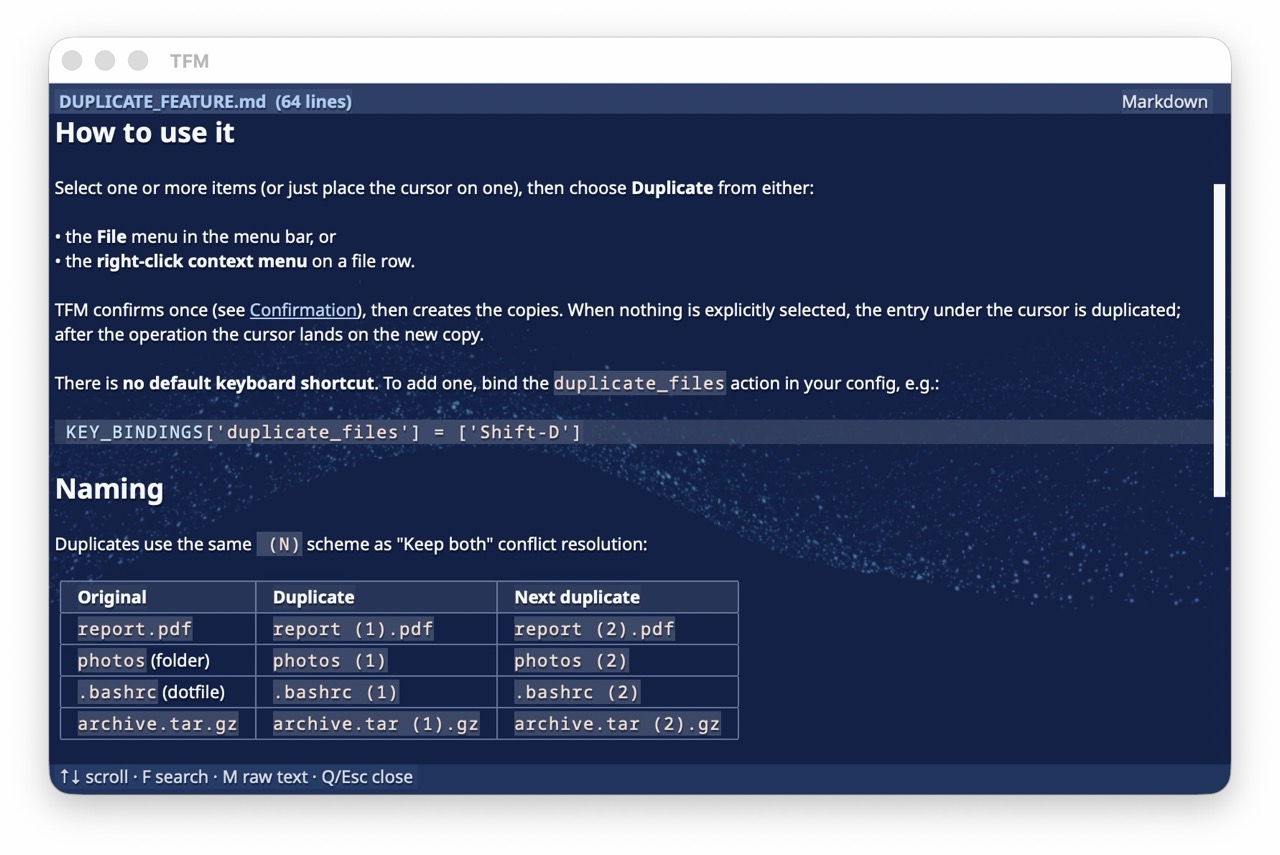
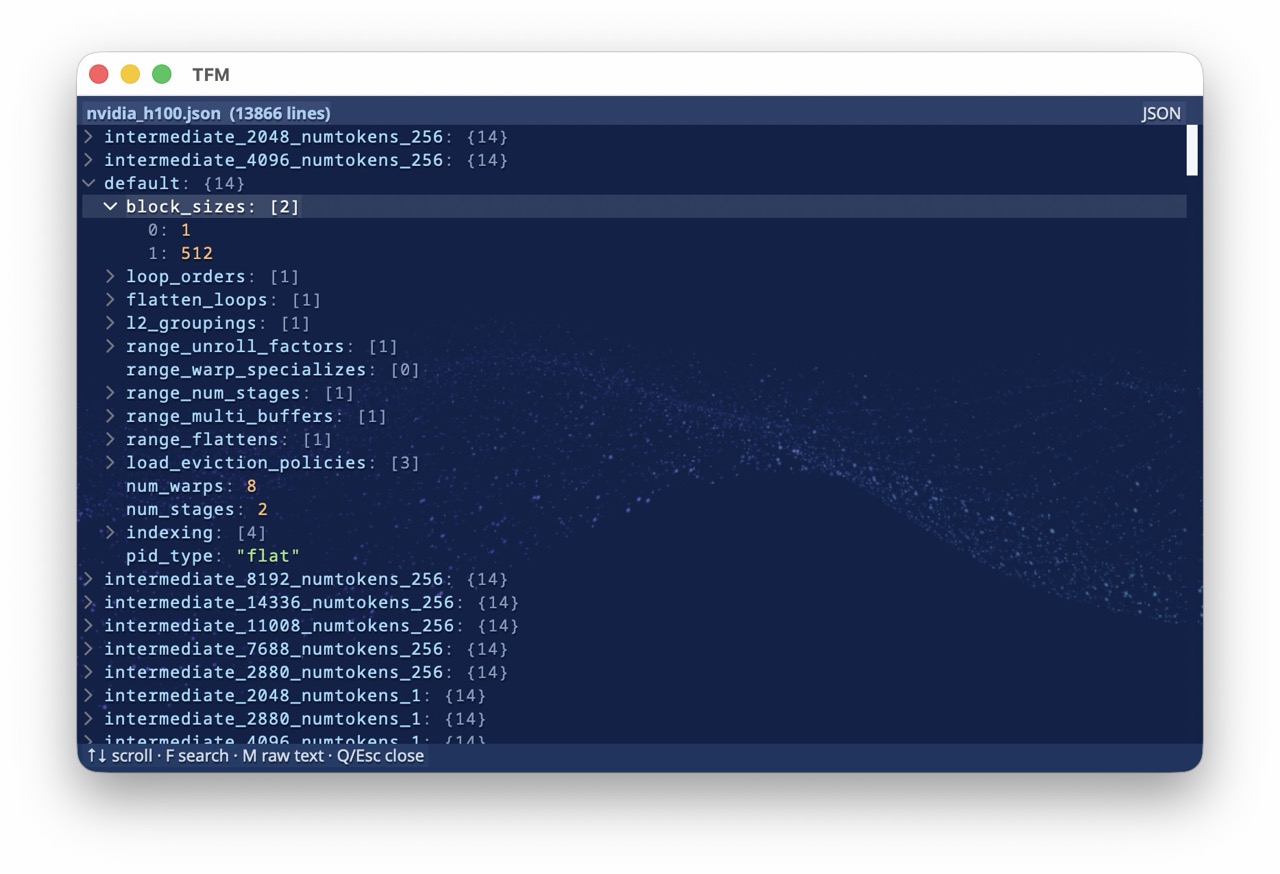
terminals and in desktop mode), and rendered views for Markdown, JSON, and
CSV/TSV (M toggles rendered / raw). All viewers work on local files, inside
archives, and on remote SFTP / S3 paths without extraction or download.
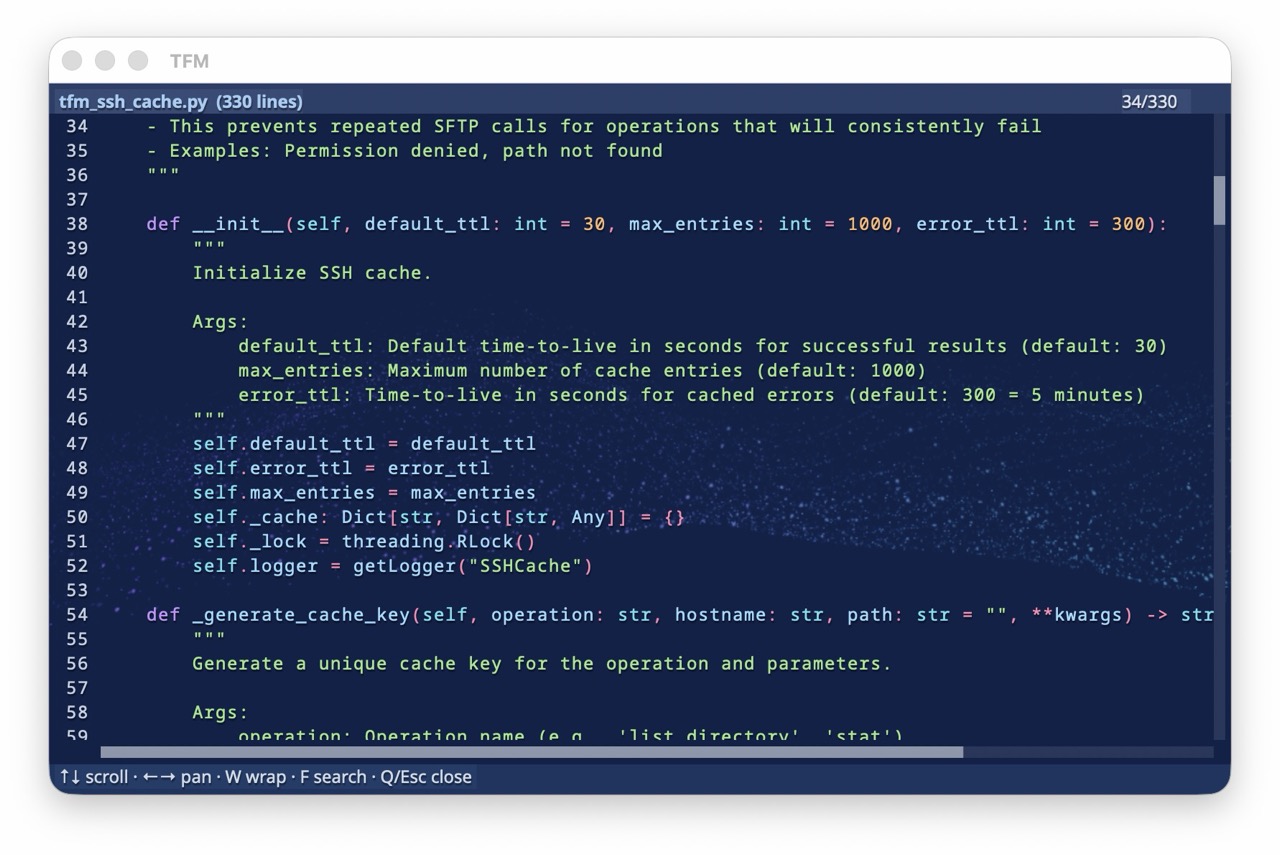
| Markdown | JSON / JSONL | CSV / TSV |
|---|---|---|
 |
 |
 |
| Rendered headings, lists, code, and links | Collapsible, syntax-colored tree (.json, .jsonl, .ndjson) |
Column-aligned table grid (.csv, .tsv) |
Themes & Visual Effects
XeFM ships a dozen built-in themes. Press T to cycle to the next theme, or pick one from the View → Theme menu — your choice is remembered across restarts. Define your own in ~/.xefm/config.py and they appear in the picker alongside the built-ins.
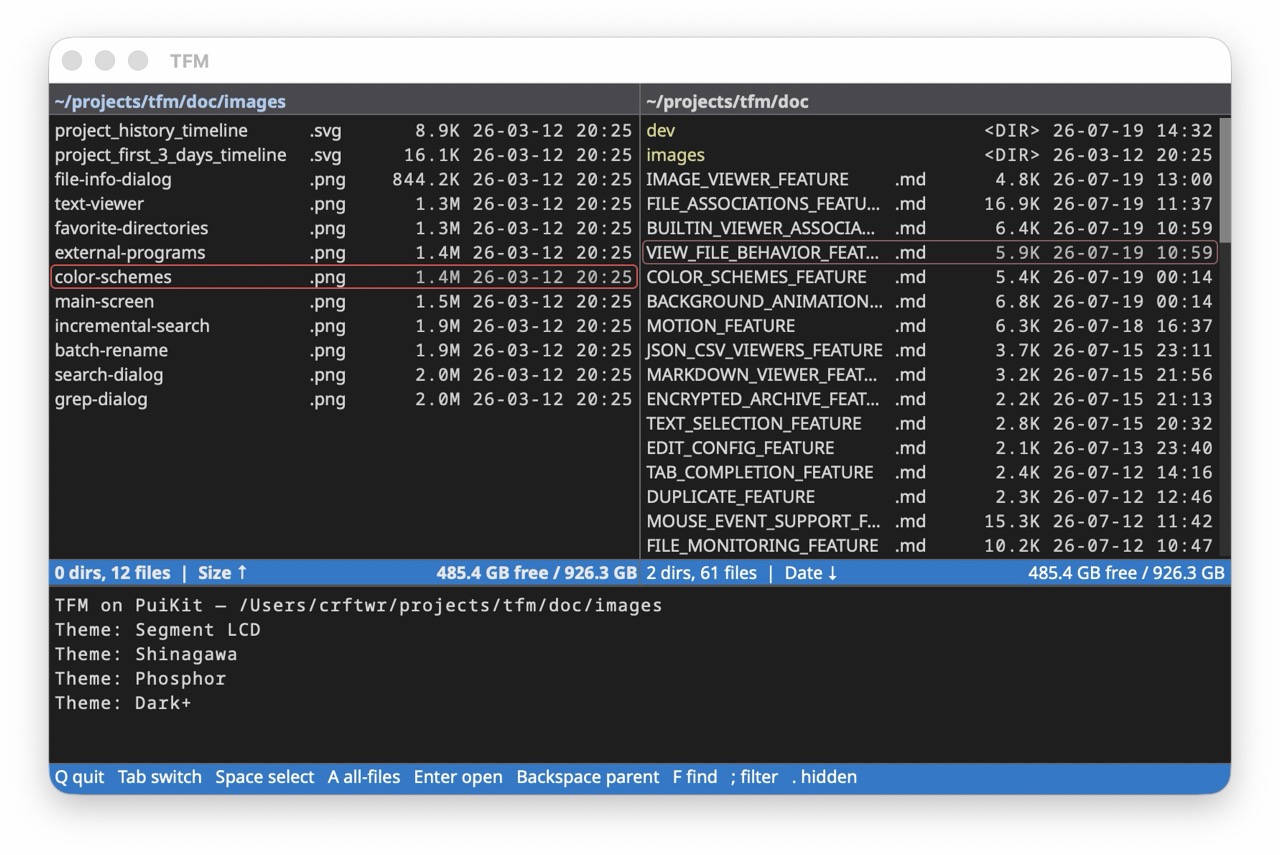 Dark+ |
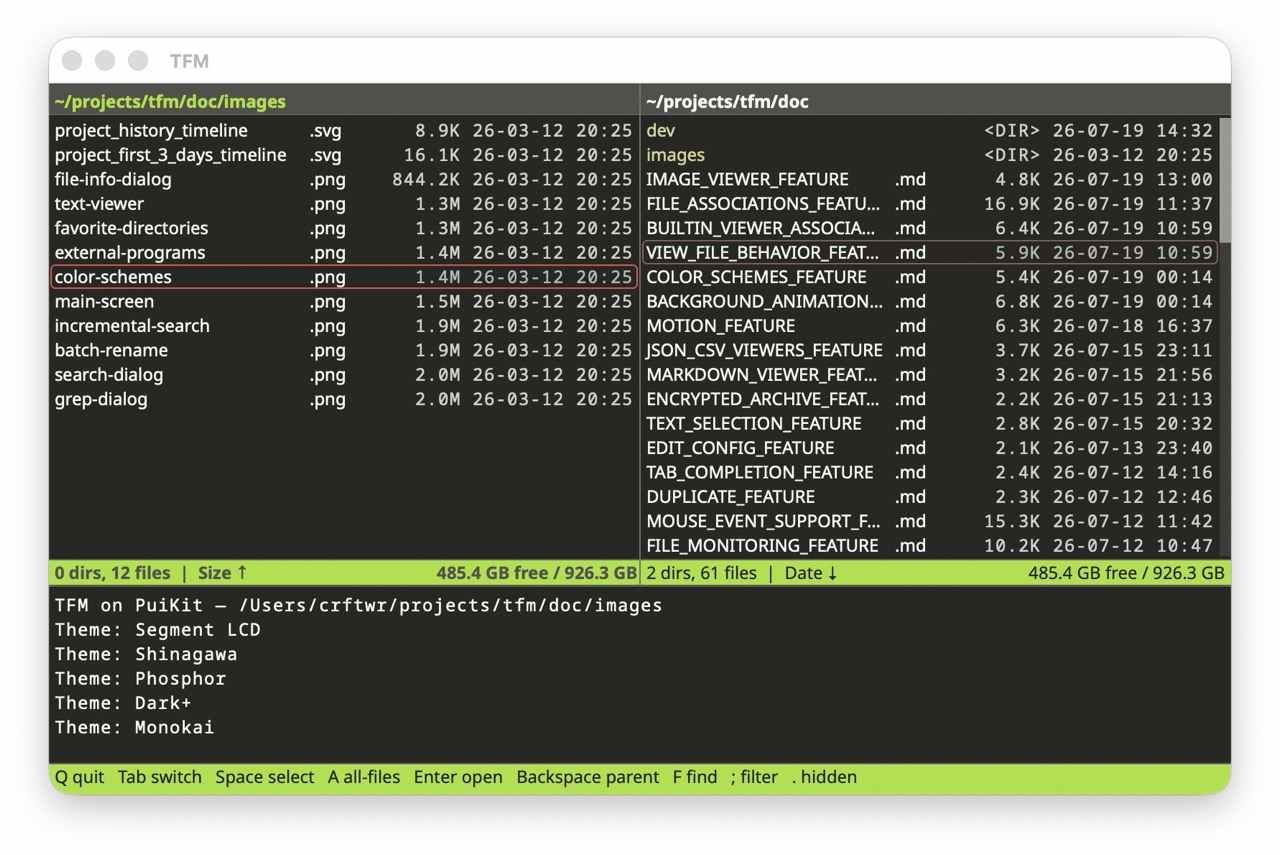 Monokai |
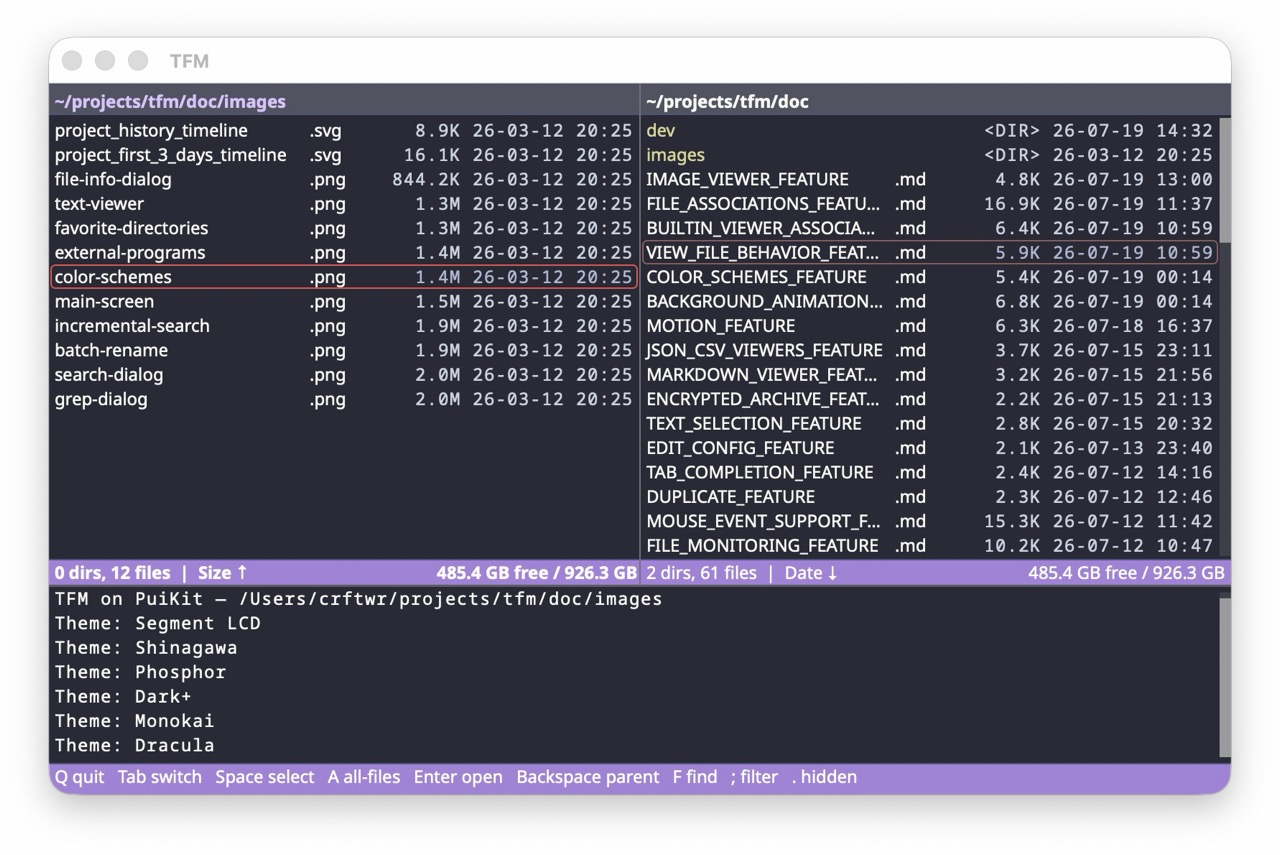 Dracula |
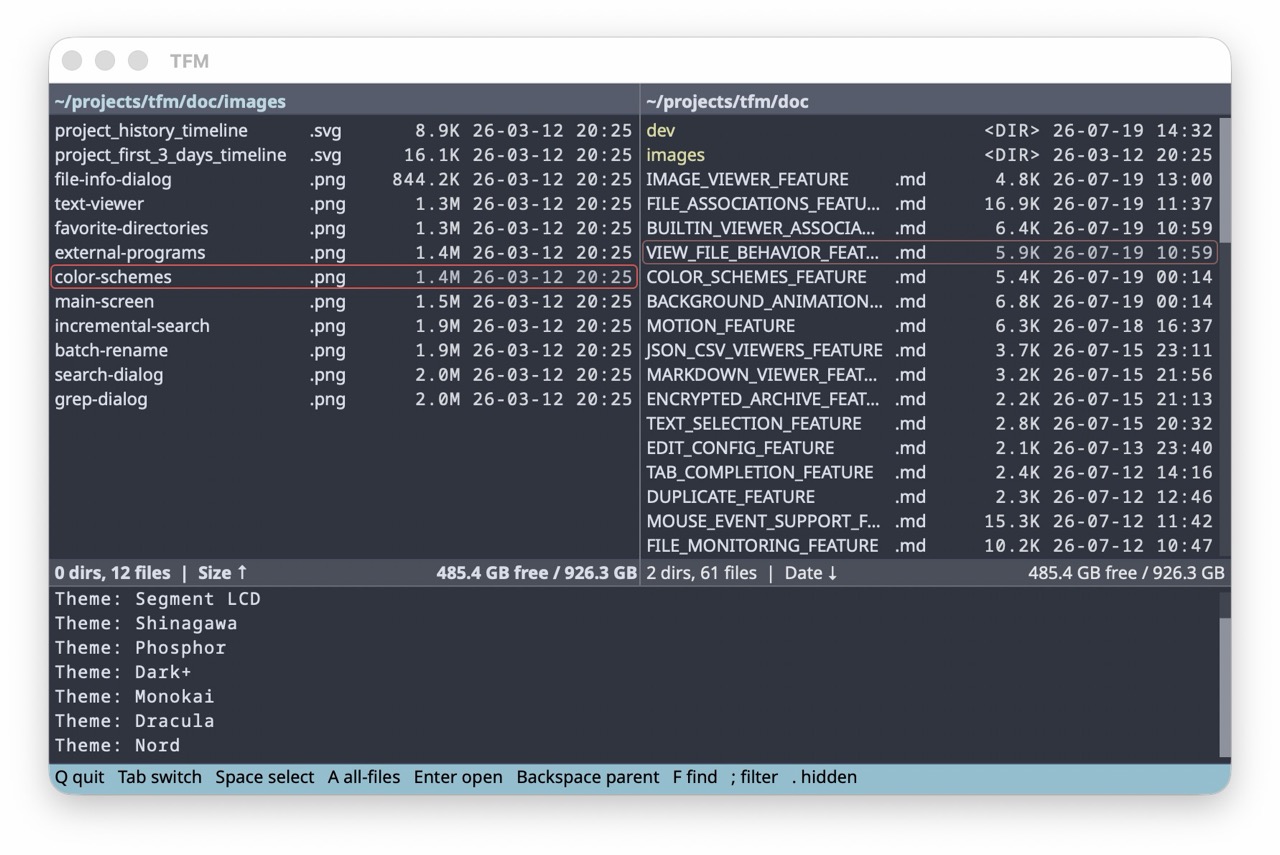 Nord |
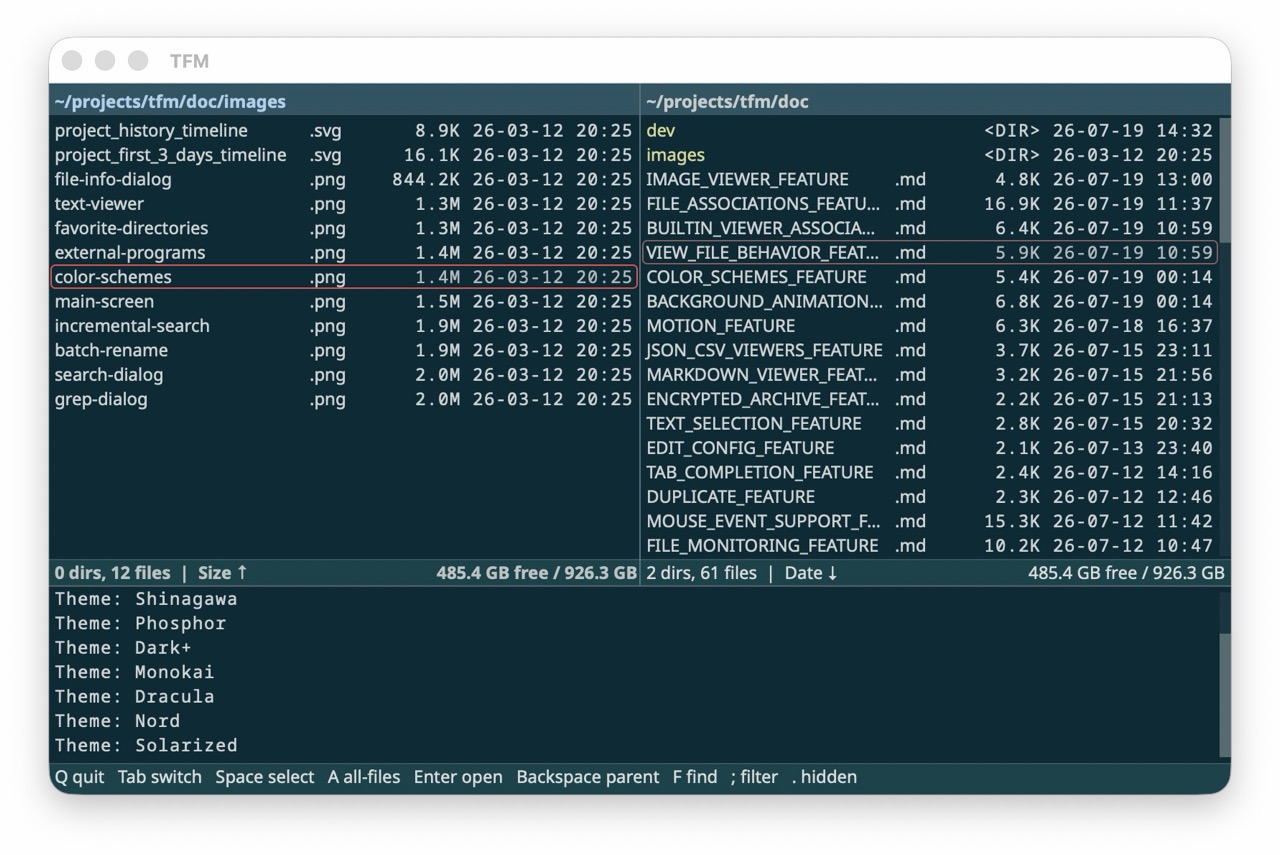 Solarized |
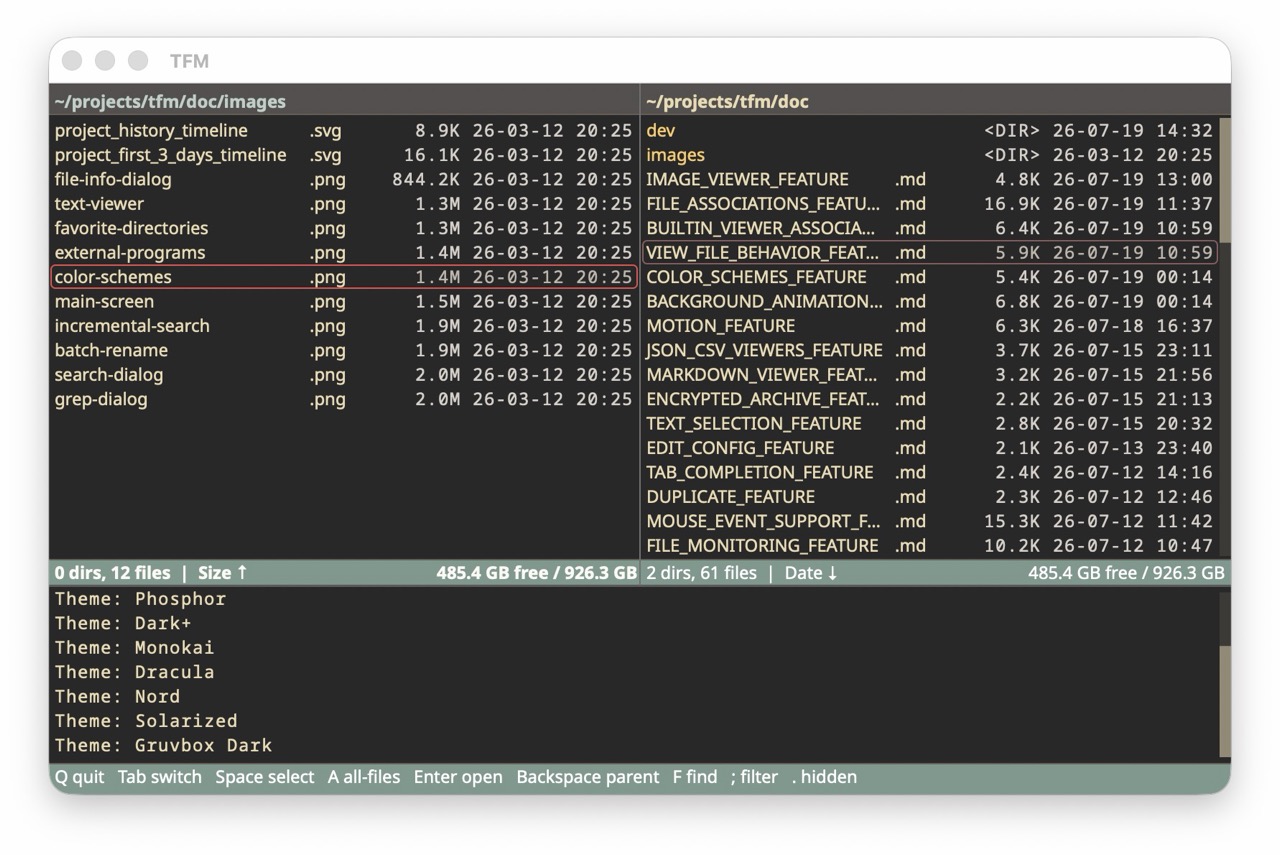 Gruvbox Dark |
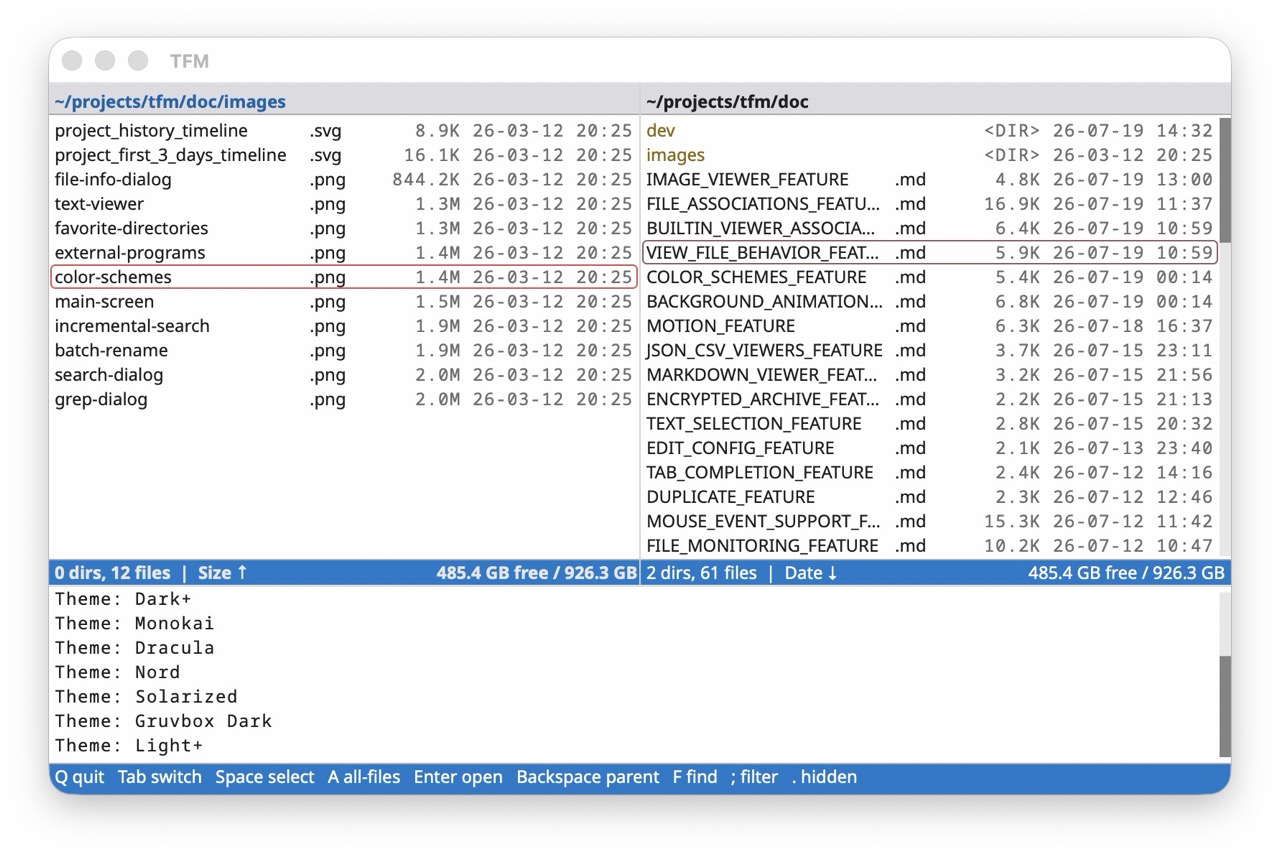 Light+ |
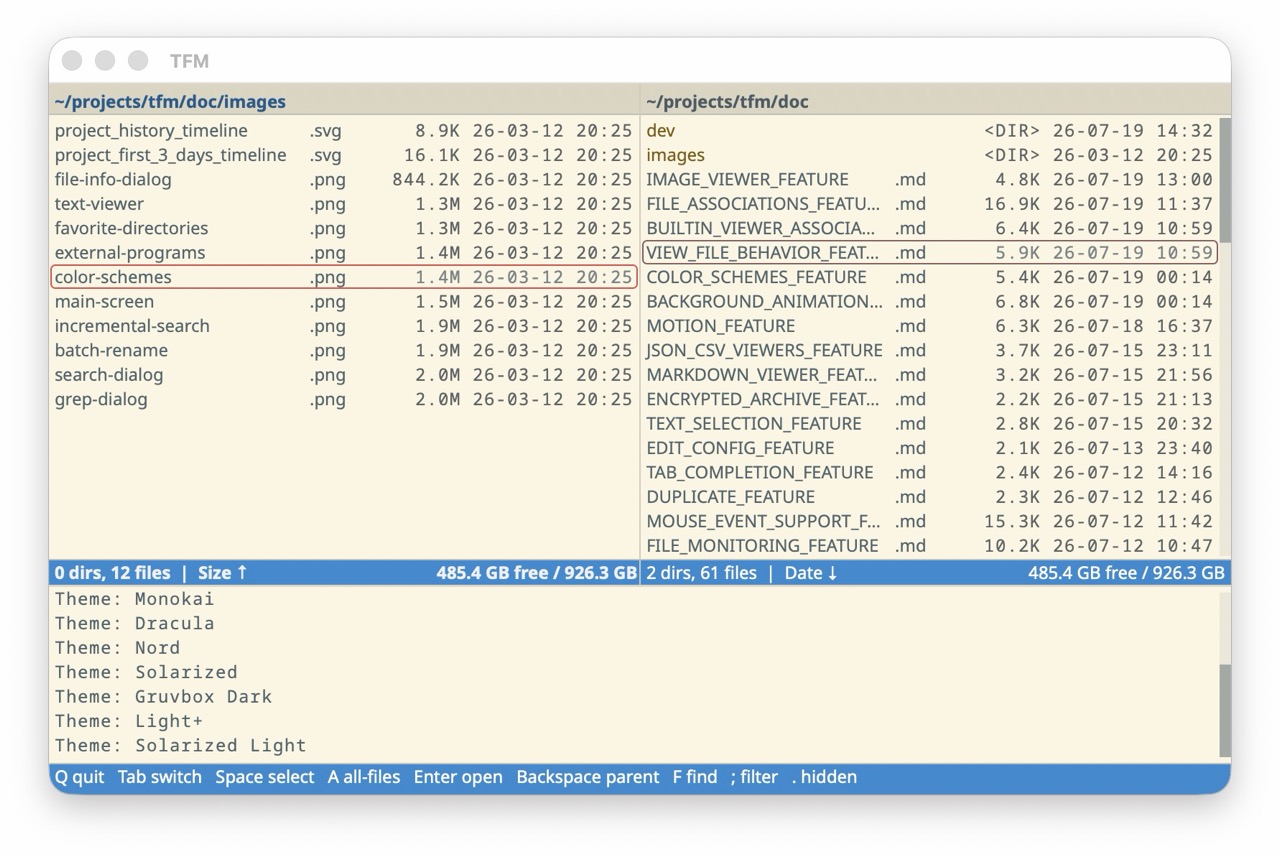 Solarized Light |
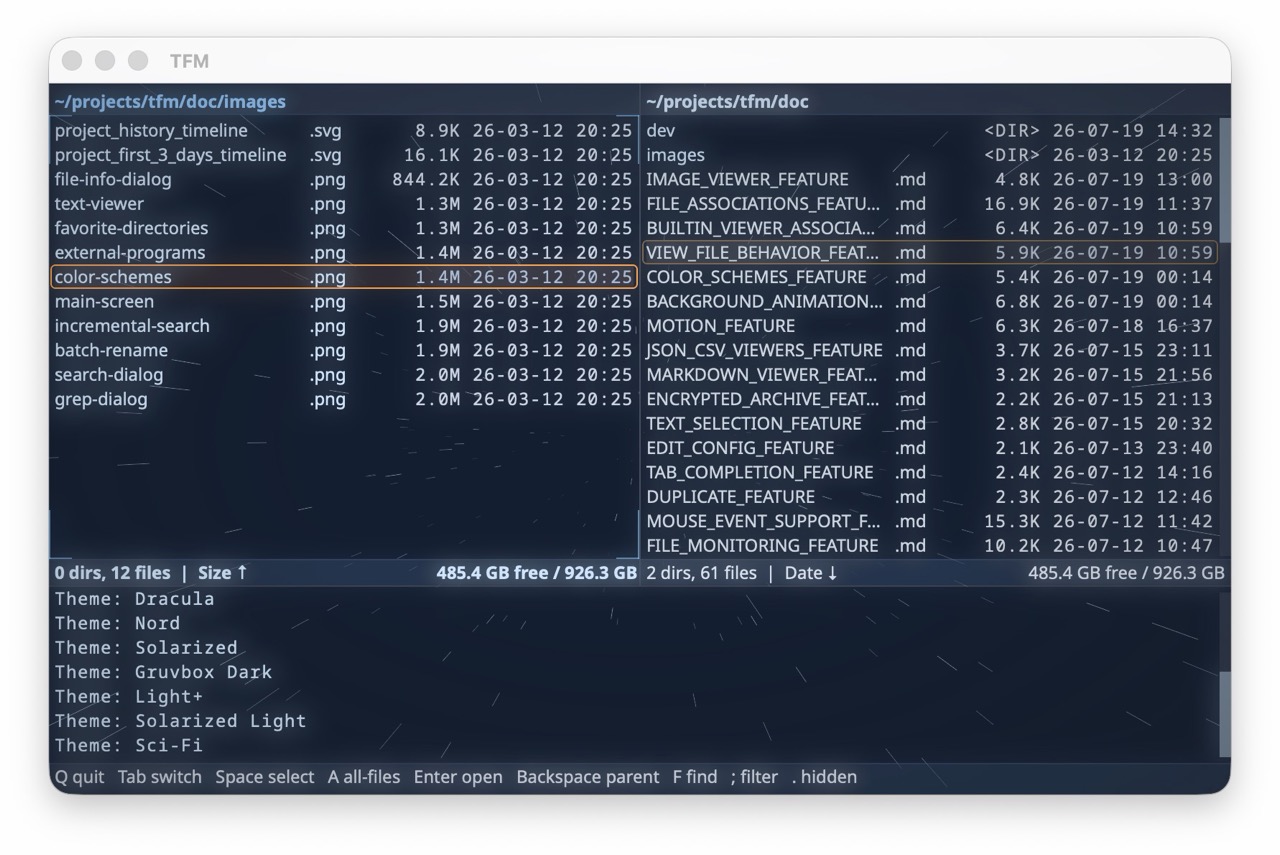 Sci-Fi |
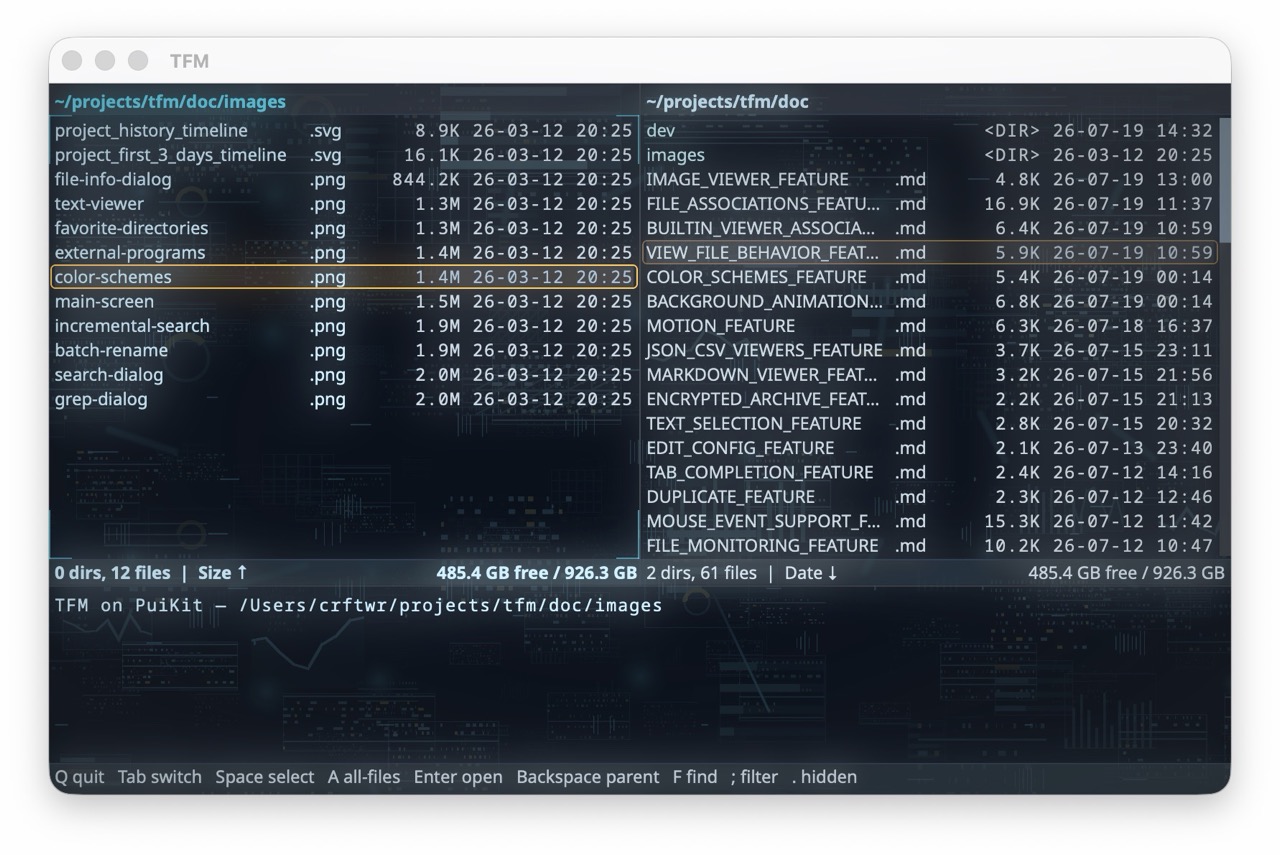 Cyber |
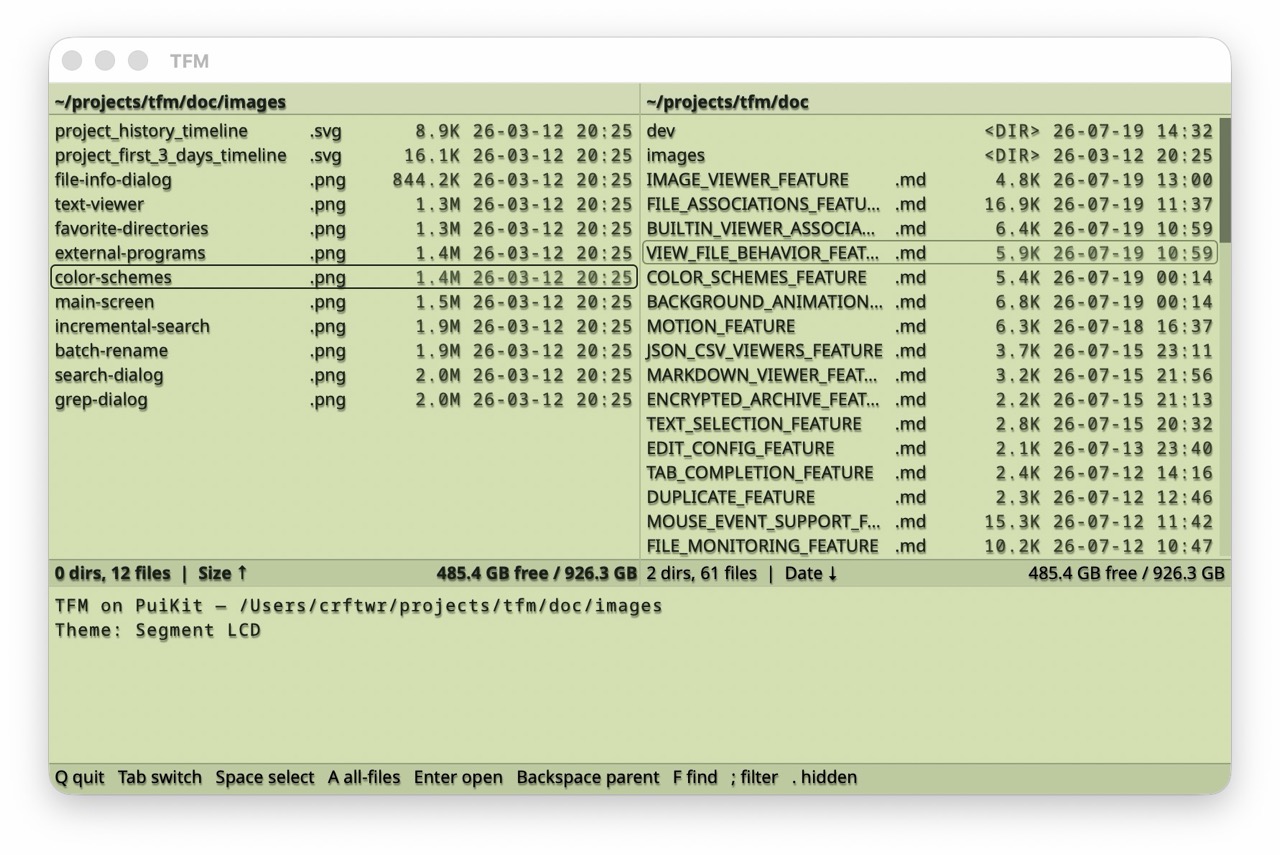 Segment LCD |
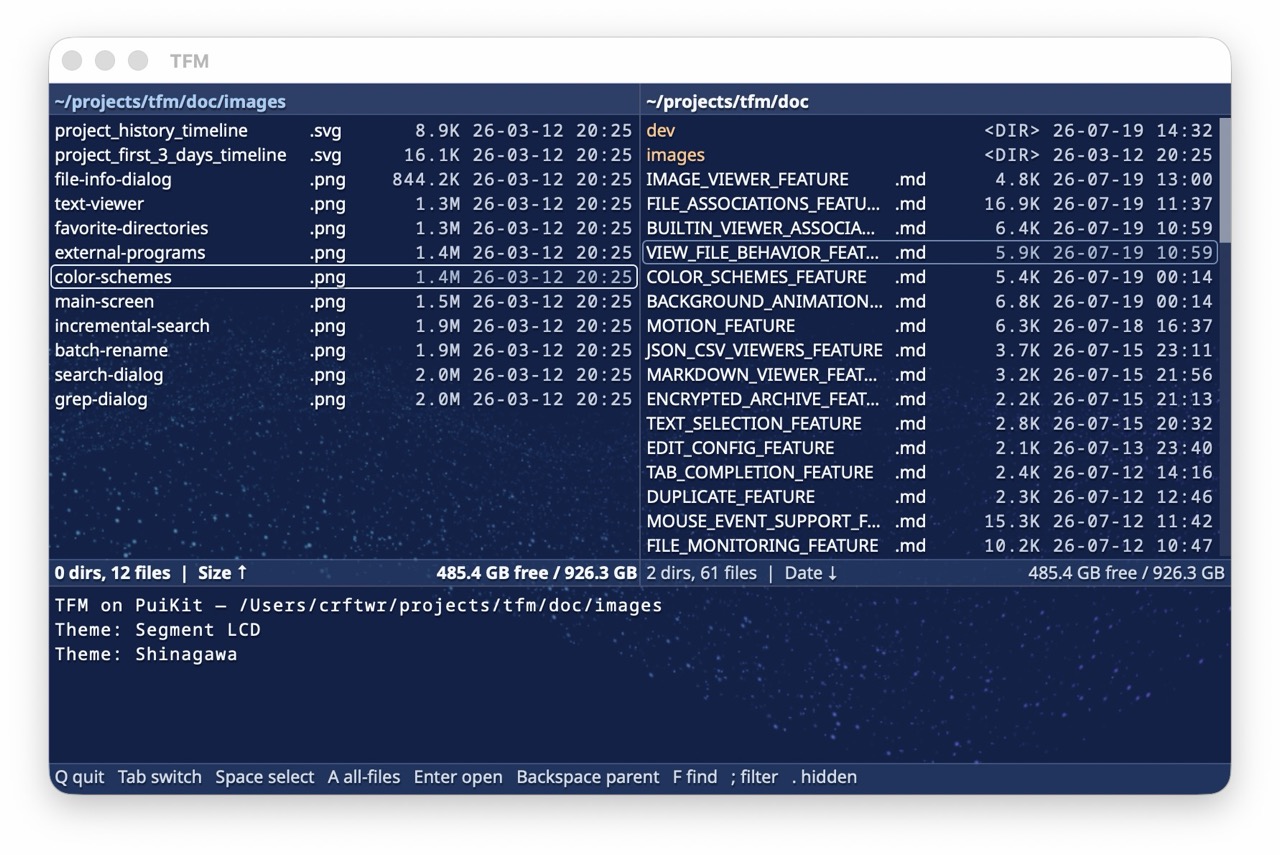 Shinagawa |
In desktop mode a theme can also carry visual effects the GPU renders behind
and over the interface: background animations (starfield, rain, hologram,
…), CRT / phosphor screen post-effects, text-reveal animations, and translucent
surfaces. Effects are pure theme data — a custom theme can mix and match them,
and terminal mode ignores them. See
Color Schemes & Visual Effects.
Sub-shell Mode
Press Shift-X to temporarily suspend XeFM and enter a shell whose environment
describes the current panes and selection (XEFM_LEFT_DIR, XEFM_THIS_DIR,XEFM_LEFT_SELECTED, …); type exit to return to XeFM. The full variable list
is in the User Guide.
Command Line Options
These apply to the terminal install and to source checkouts (where every command
also works as python3 -m xefm …); the desktop packages take no arguments.
xefm                                    # terminal mode (the default)
xefm --left /path/a --right /path/b     # startup directories
xefm --backend gui                      # desktop window — development path only
The full flag set is --backend {tui,curses,gui,macos,windows}, --left DIR,--right DIR, --version, and --help. Backend details are in the
Desktop Mode Guide.
Configuration
XeFM is highly configurable through ~/.xefm/config.py — themes and visual
effects, key bindings, external programs and file associations, favorite
directories, and behavior settings. Open it with Tools → Edit Configuration…
in the menu bar, or edit the file directly. See the
Configuration Feature Guide.
Extensions
Extension packages add actions, event hooks, themes, sort orders, filters,
picture formats, locations or syntax highlighting without touchingconfig.py, and install, upgrade and uninstall as one unit:
xefm ext install github:crftwr/xefm-extensions/compute-hash
xefm ext list
In the desktop apps, use Tools → Advanced → Install Extension… instead.
The wiki's Extensions
page lists what is available — the official packages in
crftwr/xefm-extensions, from
hashes and line counts to presigned S3 links and a classic blue theme, and the
community's.
To write your own, see Extension Packages — or
give an AI coding agent the XeFM skill and ask
it for the feature. The extension API is a Preview, so the format may still
change.
Troubleshooting
- "Windows protected your PC" when launching the portable
XeFM.exe— the zip is not code-signed; click More info → Run anyway, or unblock the zip before extracting. The Microsoft Store install is signed and never shows this prompt - "XeFM cannot be opened because the developer cannot be verified" on macOS — right-click
XeFM.appin Applications and choose Open, then confirm once - Install problems (
command not found,externally-managed-environment, upgrade errors) — see Installation troubleshooting
More in the User Guide and the Desktop Mode Guide.
Contact & Support
- GitHub Issues: Report bugs or request features
- GitHub Discussions: Ask questions and show what you have built
- Wiki: Recipes and community extensions
- Microsoft Store: XeFM on the Store — the Windows desktop app
- PyPI: pypi.org/project/xefm — released versions (
pipx install xefm) - Author's X (Twitter): @crftwr
License
MIT License - see LICENSE file for details.
Reviews (0)
Sign in to leave a review.
Leave a reviewNo results found