FocusRelayMCP
Health Warn
- No license — Repository has no license file
- Description — Repository has a description
- Active repo — Last push 0 days ago
- Community trust — 19 GitHub stars
Code Fail
- rm -rf — Recursive force deletion command in scripts/test-homebrew-formula.sh
Permissions Pass
- Permissions — No dangerous permissions requested
This is a Model Context Protocol (MCP) server that bridges AI assistants with the OmniFocus task management app on macOS. It allows you to use natural language to query, filter, and manage your tasks, projects, and tags.
Security Assessment
Risk Rating: Medium. The tool inherently accesses sensitive data by design—it reads your personal OmniFocus tasks, projects, and tags. While the permissions scan shows no dangerous overarching privileges or hardcoded secrets, the codebase contains a `rm -rf` (recursive force delete) command within a testing script (`scripts/test-homebrew-formula.sh`). Although typically standard for cleaning up test environments, automatic recursive deletion commands always warrant slight caution. No unauthorized network requests or hidden payloads were detected.
Quality Assessment
The project is actively maintained, with its most recent code push happening just today. It has a decent baseline of community trust, sitting at 19 GitHub stars. However, it lacks an open-source license. The absence of a license is a significant drawback: it legally means all rights are reserved by the creator, which restricts how you can safely use, modify, or distribute the code in professional environments.
Verdict
Use with caution: the application works as advertised and is actively updated, but you should weigh the risks of its local task data access, a force-deletion script, and the lack of a formal software license before deploying.
Talk to your OmniFocus tasks. An OmniFocus MCP server that lets AI assistants query your tasks, projects, and tags using natural language—no more clicking through endless lists.
FocusRelayMCP
A Model Context Protocol (MCP) server for OmniFocus on macOS. Query tasks, projects, and tags using natural language through AI assistants like Claude.
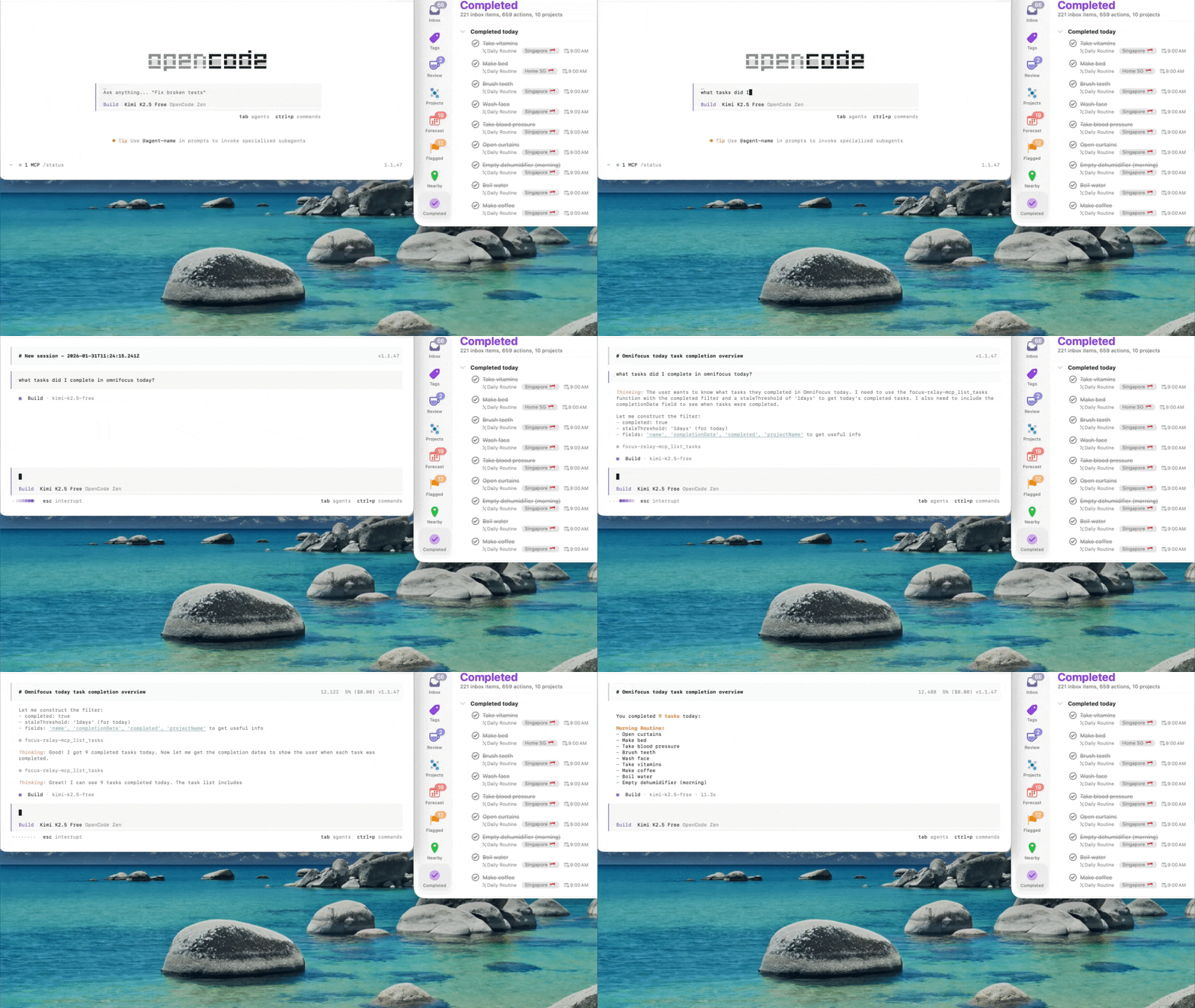
Just ask "What should I do today?" and get instant, filtered results.
What You Can Do
Stop clicking through endless task lists. Just ask:
Daily Planning
- "What should I be doing today?" - Tasks due today, respecting your timezone
- "What about this morning?" - Available tasks for 6am-12pm
- "What can I do this afternoon?" - Tasks for 12pm-6pm
- "What should I work on this evening?" - Tasks for 6pm-10pm
Project Management
- "What projects have no next actions?" - Find stalled projects
- "Show me my stalled projects" - Projects with tasks but nothing available
- "What tasks do I have in my [Project Name] project?"
Context Switching
- "What contexts do I have available?" - See which tags have actionable tasks
- "Show me tasks I can do on my Mac" - Filter by context
- "What calls do I need to make?"
Task Discovery
- "What have I been avoiding?" - Tasks deferred 365+ days ago
- "What am I procrastinating on?" - Tasks deferred recently
- "Find my flagged items"
- "What did I accomplish this week?"
Features
- Time-based Queries: Natural language time period filtering
- Project Health: Detect stalled projects and missing next actions
- Context Awareness: Tag-based filtering and availability
- Completion Date Filtering: Query completed tasks/projects by specific date ranges
- Smart Filtering: By tags, due dates, defer dates, completion, duration
- Timezone Aware: Automatic local timezone detection and handling
- High Performance: Single-pass filtering with early exit optimization
Installation
Quick Overview: Regardless of which installation method you choose, you'll need to complete these steps:
- Install the binary (via Homebrew, manual download, or build from source)
- Install the OmniFocus plugin (Step 2 below)
- Configure MCP in your client (Step 3 below)
- Restart OmniFocus (Step 4 below)
Option A: Homebrew Installation (Recommended for macOS)
If you have Homebrew installed, this is the easiest method:
# Add the tap (once)
brew tap deverman/focus-relay

# Install the MCP server and OmniFocus plugin
brew install focusrelay
Then continue with Step 2: Install the OmniFocus Plugin below.
Option B: Manual Binary Installation
If you don't want to use Homebrew, download a pre-built binary:
- Download the latest release from the Releases page
- Extract the binary to a location in your PATH (e.g.,
~/bin/or/usr/local/bin/) - Download the plugin:
FocusRelayBridge.omnijsfrom the same release
Then continue with Step 2: Install the OmniFocus Plugin below.
Option C: Developer Installation (Build from Source)
Prerequisites
- macOS with OmniFocus installed (4.x recommended)
- Swift 6.2+ toolchain
- This has been tested on opencode but should work with Claude Desktop or other tools with MCP integration
Step 1: Clone and Build
git clone <repository-url>
cd FocusRelayMCP
swift build -c release
The binary will be at .build/release/focusrelay (CLI + MCP server).
Then continue with Step 2: Install the OmniFocus Plugin below.
Step 2: Install the OmniFocus Plugin
Homebrew users: Copy the plugin from the Homebrew installation:
cp -r $(brew --prefix focusrelay)/share/focusrelay/Plugin/FocusRelayBridge.omnijs \
  ~/Library/Containers/com.omnigroup.OmniFocus4/Data/Library/Application\ Support/Plug-Ins/
Developer installation:
./scripts/install-plugin.sh
This installs the FocusRelay Bridge plugin to your OmniFocus plugin directory.
⚠️ IMPORTANT: When upgrading, you must reinstall the plugin!
The plugin JavaScript changes frequently and must stay in sync with the binary.
Step 3: Configure MCP
Add to your opencode.json or Claude Desktop config:
For Homebrew installations (recommended):
{
  "mcp": {
    "focusrelay": {
      "type": "local",
      "command": ["/opt/homebrew/bin/focusrelay", "serve"],
      "enabled": true
    }
  }
}
For developer installations (build from source):
{
  "mcp": {
    "focusrelay": {
      "type": "local",
      "command": ["/path/to/FocusRelayMCP/.build/release/focusrelay", "serve"],
      "enabled": true
    }
  }
}
Note: focusrelay without arguments shows help; use focusrelay serve to run the MCP server.
Step 4: Restart OmniFocus
⚠️ Important: After installing or updating the plugin, you must restart OmniFocus:
osascript -e 'tell application "OmniFocus" to quit' && sleep 2 && open -a "OmniFocus"
Or manually: Quit OmniFocus completely and reopen it.
Step 5: First Time Setup (Security Approval)
⚠️ Critical: The first time you query OmniFocus, a security dialog will appear:
- Ask your AI assistant: "What should I do today?" (or any OmniFocus query)
- OmniFocus will show a security prompt: "Allow script to control OmniFocus?"
- Click "Run Script" (not "Cancel")
- If you don't see the prompt, check if OmniFocus is behind other windows
What happens if you don't approve:
- You'll see "Bridge timed out" or "Plugin not responding" errors
- The MCP server cannot communicate with OmniFocus
- Queries will fail silently or with timeout errors
To fix approval issues:
- In OmniFocus: Automation → Configure Plug-ins...
- Find "FocusRelay Bridge" in the list
- Check if it's enabled, or try removing and reinstalling it
- Restart OmniFocus and try again
Quick Validation After Setup
After Step 5, verify the install path end to end:
focusrelay bridge-health-check
focusrelay list-tasks --fields id,name --limit 1
Expected result:
bridge-health-checkreportsok: true- the first
list-tasksquery may trigger the OmniFocus approval prompt - after approval,
list-tasksreturns real task data instead of timing out
CLI Usage
The focusrelay binary provides command-line equivalents of the MCP tools.
Run focusrelay --help for the full command list.
# List tasks with selected fields
focusrelay list-tasks --fields id,name,completionDate --completed true --completed-after 2026-02-10T00:00:00Z

# List projects with task counts
focusrelay list-projects --status active --include-task-counts

# List completed projects in last 30 days (sorted by completion date)
focusrelay list-projects --completed-after 2026-01-12T00:00:00Z --fields name,completionDate

# Fetch a single task by ID
focusrelay get-task <task-id> --fields id,name,note

# Check bridge health
focusrelay bridge-health-check

# List tasks with total count (shows returnedCount and totalCount)
focusrelay list-tasks --fields name --limit 10 --include-total-count
Dates should be ISO8601 (e.g. 2026-02-04T12:00:00Z).
Usage Examples
Daily Planning
- "What should I be doing today?"
- "What about this morning?" (6am-12pm)
- "What can I do this afternoon?" (12pm-6pm)
- "What should I work on this evening?" (6pm-10pm)
Project Management
- "What projects have no next actions?"
- "Show me my stalled projects"
- "What tasks do I have in my Leave DFS project?"
Context Switching
- "What contexts do I have available?"
- "Show me tasks I can do on my Mac"
- "What calls do I need to make?"
Task Discovery
- "What have I been avoiding?" (tasks deferred >365 days)
- "What am I procrastinating on?" (tasks deferred recently)
- "Find my flagged items"
Status Queries
- "What did I accomplish this week?" (tasks completed in last 7 days)
- "What tasks did I complete today?"
- "What projects did I complete in the last 30 days?"
- "How many projects did I complete this month?" (count without listing)
- "How many tasks are in my inbox?"
- "Show me completed tasks"
Completed Perspective Parity
All completion queries match the OmniFocus Completed perspective:
- Includes: Completed actions, action groups, and projects
- Excludes: Dropped items (only status=done)
- Sorting: Results sorted by completionDate descending (most recent first)
- Time windows: Use completedAfter/completedBefore for precise date filtering
Available Tools
list_tasks
Query tasks with various filters:
dueBefore,dueAfter: Filter by due datesplannedBefore,plannedAfter: Filter by planned datesdeferBefore,deferAfter: Filter by defer datescompletedBefore,completedAfter: Filter by completion dates (impliescompleted: true)tags: Filter by specific tagsproject: Filter by projectflagged: Show only flagged taskscompleted: Show completed or remaining tasksinboxView: View mode (available/remaining/everything). Use withinboxOnly: truefor inbox-scoped queries.inboxOnly: Scope query to inbox tasks onlyincludeTotalCount: Set totrueto include total count of all matching tasks (see Response Counts below)- Sorting: When filtering by completion, results are automatically sorted by
completionDatedescending (most recent first) to match OmniFocus Completed perspective
Useful task date fields you can request:
dueDateplannedDatedeferDatecompletionDate
Response Counts:
All list operations now include automatic counting to prevent errors:
returnedCount: Always included - shows actual items in this responsetotalCount: Only included whenincludeTotalCount: true- shows total matching items
Example response:
{
  "items": [...],
  "returnedCount": 10,
  "totalCount": 1784,
  "nextCursor": "10"
}
list_projects
Query projects with status and task counts:
statusFilter: active, onHold, dropped, done, allcompleted: Filter by completion status (true/false)completedBefore,completedAfter: Filter by completion date windows (implies completed projects, excludes dropped)includeTaskCounts: Get available/remaining/completed task countscompletionDate: Field available when requested- Returns: hasChildren, isStalled, nextTask for project health
- Sorting: When filtering by completion, results are automatically sorted by
completionDatedescending (most recent first) to match OmniFocus Completed perspective
list_tags
Query tags with task counts:
statusFilter: active, onHold, dropped, allincludeTaskCounts: Get task counts per tag
get_task_counts
Get aggregate counts for any filter combination. Supports full task filtering including:
- All task filters: completed, completedAfter/Before, tags, project, availableOnly, etc.
- Time-window counts: Get counts of completed tasks in specific date ranges (e.g., "completed today", "completed last 30 days")
- Sorting: When filtering by completion, applies same sorting as list_tasks
- Performance: Uses native OmniFocus task collections where possible for faster/reliable counts on larger databases
Example: Get count of tasks completed today without listing them
get_project_counts
Get counts of projects and actions. Supports completion date filtering:
- Completed projects count: Use
completedAfter/completedBeforeto count completed projects in time windows - Returns:
projects(count of completed projects),actions(count of completed tasks in those projects) - Excludes dropped: Only counts status=done projects
- Use case: "How many projects did I complete this month?" without listing all items
Example: Count projects completed in the last 30 days
Timezone Handling
FocusRelayMCP automatically detects your local timezone and uses it for time-based queries. When you ask:
- "What should I do this morning?" → Returns tasks available 6am-12pm your local time
- Tasks due today → Tasks due before end of day in your timezone
The timezone is detected from your macOS system settings and passed to OmniFocus for accurate filtering.
Performance
- Cached Queries: Projects and tags are cached for 5 minutes (faster repeat queries)
- Single-Pass Filtering: All filters applied in one iteration (optimized for speed)
- Early Exit: Stops processing once page limit is reached
- Typical Response Time: ~1 second (limited by OmniFocus IPC)
- Reduced API Calls: Use
includeTotalCount: trueto get counts and list in one call instead of two
Troubleshooting
"Bridge timed out" or "Plugin not responding"
This is the most common issue. Several causes:
Security approval missing (most common)
- Solution: See Step 5 (First Time Setup) above. You must click "Run Script" in the OmniFocus security dialog.
Plugin needs reinstallation
- Solution: Run
./scripts/install-plugin.shagain, then restart OmniFocus completely
- Solution: Run
OmniFocus not properly restarted after plugin update
- Solution: Force quit OmniFocus and reopen it
Check plug-in configuration
- In OmniFocus: Automation → Configure Plug-ins...
- Verify "FocusRelay Bridge" appears in the list and is enabled
- If you see errors here, remove the plug-in and reinstall
"Wrong time period results"
- Cause: Timezone detection may need refresh after travel
- Solution: Restart both OmniFocus and opencode/Claude Desktop
"Tasks not appearing"
- Check that tasks have proper defer/due dates set
- Verify task is not marked as completed or dropped
- For inbox-specific results, use
inboxOnly: true(for example:inboxOnly: true, inboxView: "available")
Cache Issues
- Projects/Tags cache for 5 minutes
- Task queries are never cached (always fresh)
- Restart opencode/Claude to clear any client-side caching
Development
Build
swift build
Test
swift test
Package Plugin
./scripts/package-plugin.sh
Architecture
- Swift Layer: MCP server, request handling, caching
- OmniFocus Plugin (JavaScript): Executes within OmniFocus, queries database
- IPC: File-based communication between Swift and OmniFocus
- Timezone: Detected in Swift, passed to plugin for local-time calculations
License
MIT
Contributing
Issues and PRs welcome! See AGENTS.md for development notes.
Reviews (0)
Sign in to leave a review.
Leave a reviewNo results found