EDT-MCP
Health Pass
- License — License: AGPL-3.0
- Description — Repository has a description
- Active repo — Last push 0 days ago
- Community trust — 130 GitHub stars
Code Pass
- Code scan — Scanned 6 files during light audit, no dangerous patterns found
Permissions Pass
- Permissions — No dangerous permissions requested
This is an MCP server plugin for 1C:Enterprise Development Tools (EDT). It acts as a bridge, allowing AI coding assistants like Claude, Cursor, or GitHub Copilot to interact directly with an EDT workspace to read code, analyze errors, inspect metadata, and manage projects.
Security Assessment
Overall risk: Low. The tool is designed to integrate deeply with your local IDE environment and project files, which inherently requires accessing your source code. However, the automated code scan found no hardcoded secrets or dangerous code patterns, and it does not request any risky system permissions. Because it uses HTTP/SSE transport to communicate with AI models, keep in mind that project data and code context will be sent to whichever AI assistant you configure it with. No malicious background network requests or hidden shell executions were detected.
Quality Assessment
The project is in excellent health. It is highly active, with repository updates pushed as recently as today. Backed by 130 GitHub stars, the tool demonstrates a solid level of community trust and adoption. It is distributed under the standard AGPL-3.0 license, ensuring clear open-source usage terms. The documentation is thorough and provides transparent, straightforward installation instructions.
Verdict
Safe to use, provided you are comfortable sharing your local workspace data and code context with your chosen AI assistant.
MCP for 1C:EDT


EDT MCP Server
MCP (Model Context Protocol) server plugin for 1C:EDT, enabling AI assistants (Claude, GitHub Copilot, Cursor, etc.) to interact with EDT workspace.
[!IMPORTANT]
EDT version compatibility:
EDT 2025.x is supported up to and including plugin version 1.26.1.
Starting from plugin version 1.27.0, only EDT 2026.1+ is supported.
Features
- 🔧 MCP Protocol 2025-11-25 - Streamable HTTP transport with SSE support
- 📊 Project Information - List workspace projects and configuration properties
- 🔴 Error Reporting - Get errors, warnings, problem summaries with filters
- 📝 Check Descriptions - Get check documentation from markdown files
- 🔄 Project Revalidation - Trigger revalidation when validation gets stuck
- 🔖 Bookmarks & Tasks - Access bookmarks and TODO/FIXME markers
- 💡 Content Assist - Get type info, method hints and platform documentation at any code position
- 🧪 Query Validation - Validate 1C query text in project context (syntax + semantic errors, optional DCS mode)
- 🧩 BSL Code Analysis - Browse modules, inspect structure, read/write methods, search code, and analyze call hierarchy
- 🖼️ Form Screenshot Capture - Get PNG screenshots from the form WYSIWYG editor for visual inspection
- 🚀 Application Management - Get applications, update database, launch in debug mode
- 🎯 Status Bar - Real-time server status with tool name, execution time, and interactive controls
- ⚡ Interruptible Operations - Cancel long-running operations and send signals to AI agent
- 🏷️ Metadata Tags - Organize objects with custom tags, filter Navigator, keyboard shortcuts (Ctrl+Alt+1-0), multiselect support
- 📁 Metadata Groups - Create custom folder hierarchy in Navigator tree per metadata collection
- ✏️ Metadata Refactoring - Rename/delete metadata objects with full cascading updates across BSL code, forms and metadata; add new attributes to existing objects
Installation
Only EDT 2026.1+ (for plugin v1.27.0+; use plugin v1.26.1 for EDT 2025.x)
From Update Site
- In EDT: Help → Install New Software...
- Add update site URL:
https://ditrixnew.github.io/EDT-MCP/ - Select EDT MCP Server Feature
- Restart EDT
From Windows command line - "one shot" very fast install
Close your EDT (!) and run:
rem Here  "%VER_EDT% = 2025.2.3+30"  just for example - please, set YOUR actual version !
set VER_EDT=2025.2.3+30

"\your\path\to\EDT\components\1c-edt-%VER_EDT%-x86_64\1cedt.exe" -nosplash ^
    -application org.eclipse.equinox.p2.director ^
    -repository https://ditrixnew.github.io/EDT-MCP/ ^
	-installIU com.ditrix.edt.mcp.server.feature.feature.group ^
	-profileProperties org.eclipse.update.reconcile=true
Installation Result
Once the installation has been completed successfully, we will see the following: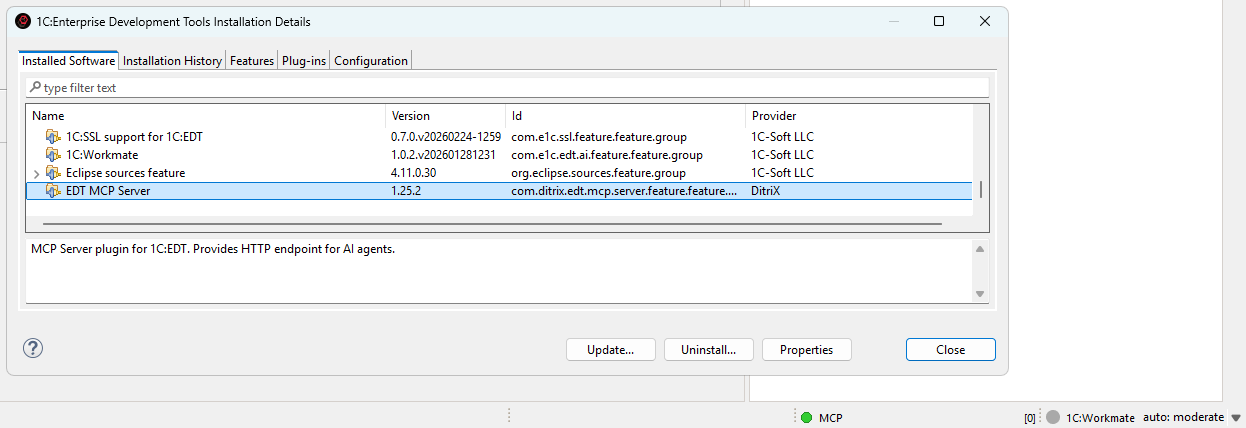
After that, EDT will automatically monitor the update site and install available updates when detected.
As well, we can also manually check via Help → About → Installation Details → Select MCP → Update
Configuration
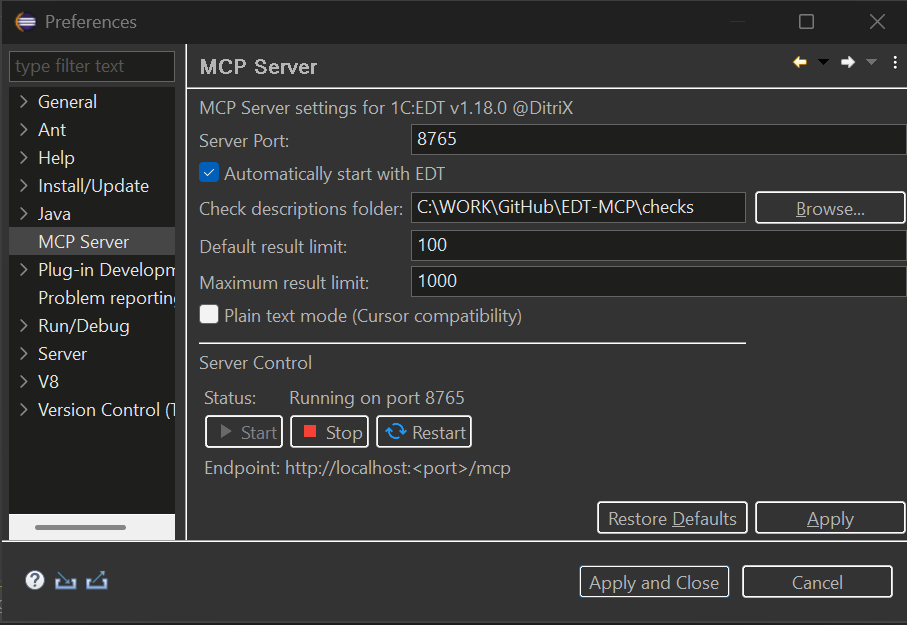
Go to Window → Preferences → MCP Server:
- Server Port: HTTP port (default: 8765)
- Check descriptions folder: Path to check description markdown files
- Auto-start: Start server on EDT launch
- Default result limit: Default number of results returned by tools (default: 100)
- Maximum result limit: Maximum number of results that can be requested (default: 1000)
- Plain text mode (Cursor compatibility): Returns results as plain text instead of embedded resources (for AI clients that don't support MCP resources)
- Show tags in Navigator: Display tags as decorations in the Navigator tree
- Tag decoration style: How tags are displayed — all tags as suffix, first tag only, or tag count
Status Bar Controls
The MCP server status bar shows real-time execution status with interactive controls.
Status Indicator:
- 🟢 Green - Server running, idle
- 🟡 Yellow blinking - Tool is executing
- ⚪ Grey - Server stopped
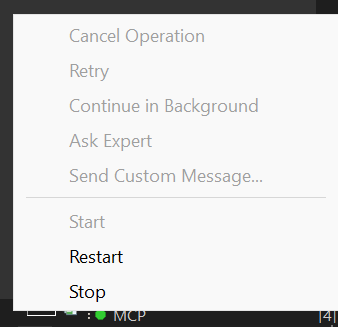
During Tool Execution:
- Shows tool name (e.g.,
MCP: update_database) - Shows elapsed time in MM:SS format
- Click to access control menu
When a tool is executing, you can send signals to the AI agent to interrupt the MCP call:
| Button | Description | When to Use |
|---|---|---|
| Cancel Operation | Stops the MCP call and notifies agent | When you want to cancel a long-running operation |
| Retry | Tells agent to retry the operation | When an EDT error occurred and you want to try again |
| Continue in Background | Notifies agent the operation is long-running | When you want agent to check status periodically |
| Ask Expert | Stops and asks agent to consult with you | When you need to provide guidance |
| Send Custom Message... | Send a custom message to agent | For any custom instruction |
How it works:
- When you click a button, a dialog appears showing the message that will be sent to the agent
- You can edit the message before sending
- The MCP call is immediately interrupted and returns control to the agent
- The EDT operation continues running in the background
- Agent receives a response like:
USER SIGNAL: Your message here

Signal Type: CANCEL
Tool: update_database
Elapsed: 20s

Note: The EDT operation may still be running in background.
Use cases:
- Long-running operations (full database update, project validation) blocking the agent
- Need to give the agent additional instructions
- EDT showed an error dialog and you want agent to retry
- Want to switch agent's focus to a different task
Connecting AI Assistants
VS Code / GitHub Copilot
Create .vscode/mcp.json:
{
  "servers": {
    "EDT MCP Server": {
      "type": "sse",
      "url": "http://localhost:8765/mcp"
    }
  }
}
Cursor IDE
Note: Cursor doesn't support MCP embedded resources. Enable "Plain text mode (Cursor compatibility)" in EDT preferences: Window → Preferences → MCP Server.
Create .cursor/mcp.json:
{
  "mcpServers": {
    "EDT MCP Server": {
      "url": "http://localhost:8765/mcp"
    }
  }
}
Claude Code
Note: By editing the file
.claude.jsoncan be added to the MCP either to a specific project or to any project (at the root). If there is no mcpServers section, add it.
Add to .claude.json (in Windows %USERPROFILE%\.claude.json):
"mcpServers": {
  "EDT MCP Server": {
    "type": "http",
    "url": "http://localhost:8765/mcp"
  }
}
Claude Desktop
Add to claude_desktop_config.json:
{
  "mcpServers": {
    "EDT MCP Server": {
      "url": "http://localhost:8765/mcp"
    }
  }
}
Cline - extension for VSCode.
{
  "mcpServers": {
    "EDTMCPServer": {
      "type": "streamableHttp",
      "url": "http://localhost:8765/mcp"
    }
  }
}
Available Tools
| Tool | Description |
|---|---|
get_edt_version |
Returns current EDT version |
list_projects |
Lists workspace projects with properties |
get_configuration_properties |
Gets 1C configuration properties |
get_project_errors |
Returns EDT problems with severity/checkId/objects filters |
get_problem_summary |
Problem counts grouped by project and severity |
clean_project |
Cleans project markers and triggers full revalidation |
revalidate_objects |
Revalidates specific objects by FQN (e.g. "Document.MyDoc") |
get_bookmarks |
Returns workspace bookmarks |
get_tasks |
Returns TODO/FIXME task markers |
get_check_description |
Returns check documentation from .md files |
get_content_assist |
Get content assist proposals (type info, method hints) |
get_platform_documentation |
Get platform type documentation (methods, properties, constructors) |
get_metadata_objects |
Get list of metadata objects from 1C configuration |
get_metadata_details |
Get detailed properties of metadata objects (attributes, tabular sections, etc.) |
find_references |
Find all references to a metadata object (in metadata, BSL code, forms, roles, etc.) — top-level objects only |
rename_metadata_object |
Rename a metadata object or attribute with full refactoring: cascading updates in BSL code, forms, and metadata. Preview + confirm workflow |
delete_metadata_object |
Delete a metadata object or attribute with reference cleanup. Preview + confirm workflow |
add_metadata_attribute |
Add a new attribute to a metadata object (Catalog, Document, Register, etc.) |
get_tags |
Get list of all tags defined in the project with descriptions and object counts |
get_objects_by_tags |
Get metadata objects filtered by tags with tag descriptions and object FQNs |
get_applications |
Get list of applications (infobases) for a project with update state |
update_database |
Update database (infobase) with full or incremental update mode |
debug_launch |
Launch application in debug mode (auto-updates database before launch) |
get_form_screenshot |
Capture PNG screenshot of form WYSIWYG editor (embedded image resource) |
list_modules |
List all BSL modules in a project with module type and parent object |
get_module_structure |
Get BSL module structure: procedures/functions, signatures, regions, parameters |
read_module_source |
Read BSL module source code with line numbers (full file or line range) |
write_module_source |
Write BSL source code to metadata object modules (searchReplace, replace, append) with syntax check |
read_method_source |
Read a specific procedure/function from a BSL module by name |
search_in_code |
Full-text/regex search across BSL modules with outputMode: full/count/files |
get_method_call_hierarchy |
Find method callers or callees via semantic BSL analysis |
go_to_definition |
Navigate to symbol definition (method by name, metadata object by FQN) |
get_symbol_info |
Get type/hover info about a symbol at a BSL code position (inferred types, signatures, docs) |
validate_query |
Validate 1C query text in project context (syntax + semantic errors, optional DCS mode) |
Content Assist Tool
get_content_assist - Get content assist proposals at a specific position in BSL code. Returns type information, available methods, properties, and platform documentation.
Parameters:
| Parameter | Required | Description |
|---|---|---|
projectName |
Yes | EDT project name |
filePath |
Yes | Path relative to src/ folder (e.g. CommonModules/MyModule/Module.bsl) |
line |
Yes | Line number (1-based) |
column |
Yes | Column number (1-based) |
limit |
No | Maximum proposals to return (default: from preferences) |
offset |
No | Skip first N proposals (for pagination, default: 0) |
contains |
No | Filter by display string containing these substrings (comma-separated, e.g. Insert,Add) |
extendedDocumentation |
No | Return full documentation (default: false, only display string) |
Important Notes:
- Save the file first - EDT must read the current content from disk to provide accurate proposals
- Column position - Place cursor after the dot (
.) for method/property suggestions - Pagination - Use
offsetto get next batch of proposals (e.g., first call with limit=5, second call with offset=5, limit=5) - Filtering - Use
containsto filter by method/property name (case-insensitive) - Works for:
- Global platform methods (e.g.
NStr(,Format() - Methods after dot (e.g.
Structure.Insert,Array.Add) - Object properties and fields
- Configuration objects and modules
- Global platform methods (e.g.
Validation Tools
clean_project: Refreshes project from disk, clears all validation markers, and triggers full revalidation using EDT's ICheckSchedulerrevalidate_objects: Revalidates specific metadata objects by their FQN:Document.MyDocument,Catalog.MyCatalog,CommonModule.MyModuleDocument.MyDoc.Form.MyFormfor nested objects
validate_query: Validates query language text in project context and returns syntax/semantic errors.- Parameters:
projectName(required),queryText(required),dcsMode(optional, defaultfalse) - Use
dcsMode=truefor Data Composition System (DCS) queries
- Parameters:
Project Errors Tool
get_project_errors - Get detailed configuration problems from EDT with multiple filter options.
Parameters:
| Parameter | Required | Description |
|---|---|---|
projectName |
No | Filter by project name |
severity |
No | Filter by severity: ERRORS, BLOCKER, CRITICAL, MAJOR, MINOR, TRIVIAL |
checkId |
No | Filter by check ID substring (e.g. ql-temp-table-index) |
objects |
No | Filter by object FQNs (array). Returns errors only from specified objects |
limit |
No | Maximum results (default: 100, max: 1000) |
Objects filter format:
- Array of FQN strings:
["Document.SalesOrder", "Catalog.Products"] - Case-insensitive partial matching
- Matches against error location (objectPresentation)
- FQN examples:
Document.SalesOrder- all errors in documentCatalog.Products- all errors in catalogCommonModule.MyModule- all errors in common moduleDocument.SalesOrder.Form.ItemForm- errors in specific form
Platform Documentation Tool
get_platform_documentation - Get documentation for platform types (ValueTable, Array, Structure, Query, etc.) and built-in functions (FindFiles, Message, Format, etc.)
Parameters:
| Parameter | Required | Description |
|---|---|---|
typeName |
Yes | Type or function name (e.g. ValueTable, Array, FindFiles, Message) |
category |
No | Category: type (platform types), builtin (built-in functions). Default: type |
projectName |
No | EDT project name (uses first available project if not specified) |
memberName |
No | Filter by member name (partial match) - only for type category |
memberType |
No | Filter: method, property, constructor, event, all (default: all) - only for type category |
language |
No | Output language: en or ru (default: en) |
limit |
No | Maximum results (default: 50) - only for type category |
Metadata Objects Tool
get_metadata_objects - Get list of metadata objects from 1C configuration.
Parameters:
| Parameter | Required | Description |
|---|---|---|
projectName |
Yes | EDT project name |
metadataType |
No | Filter: all, documents, catalogs, informationRegisters, accumulationRegisters, commonModules, enums, constants, reports, dataProcessors, exchangePlans, businessProcesses, tasks, commonAttributes, eventSubscriptions, scheduledJobs (default: all) |
nameFilter |
No | Partial name match filter (case-insensitive) |
limit |
No | Maximum results (default: 100) |
language |
No | Language code for synonyms (e.g. en, ru). Uses configuration default if not specified |
Metadata Details Tool
get_metadata_details - Get detailed properties of metadata objects.
Parameters:
| Parameter | Required | Description |
|---|---|---|
projectName |
Yes | EDT project name |
objectFqns |
Yes | Array of FQNs (e.g. ["Catalog.Products", "Document.SalesOrder"]) |
full |
No | Return all properties (true) or only key info (false). Default: false |
language |
No | Language code for synonyms. Uses configuration default if not specified |
Find References Tool
find_references - Find all references to a metadata object. Returns all places where the object is used: in other metadata objects, BSL code, forms, roles, subsystems, etc. Matches EDT's built-in "Find References" functionality.
Parameters:
| Parameter | Required | Description |
|---|---|---|
projectName |
Yes | EDT project name |
objectFqn |
Yes | Fully qualified name (e.g. Catalog.Products, Document.SalesOrder, CommonModule.Common) |
limit |
No | Maximum results per category (default: 100, max: 500) |
Returns markdown with references in EDT-compatible format:
# References to Catalog.Items

**Total references found:** 122

- Catalog.ItemKeys - Attributes.Item.Type - Type: types
- Catalog.ItemKeys.Form.ChoiceForm.Form - Items.List.Item.Data path - Type: types
- Catalog.Items - Attributes.PackageUnit.Choice parameter links - Ref
- Catalog.Items.Form.ItemForm.Form - Items.GroupTop.GroupMainAttributes.Code.Data path - Type: types
- CommonAttribute.Author - Content - metadata
- Configuration - Catalogs - catalogs
- DefinedType.typeItem - Type - Type: types
- EventSubscription.BeforeWrite_CatalogsLockDataModification - Source - Type: types
- Role.FullAccess.Rights - Role rights - object
- Subsystem.Settings.Subsystem.Items - Content - content

### BSL Modules

- CommonModules/GetItemInfo/Module.bsl [Line 199; Line 369; Line 520]
- Catalogs/Items/Forms/ListForm/Module.bsl [Line 18; Line 19]
Reference types included:
- Metadata references - Attributes, form items, command parameters, type descriptions
- Type usages - DefinedTypes, ChartOfCharacteristicTypes, type compositions
- Common attributes - Objects included in common attribute content
- Event subscriptions - Source objects for subscriptions
- Roles - Objects with role permissions
- Subsystems - Subsystem content
- BSL code - References in BSL modules with line numbers
Note:
find_referencessupports top-level metadata objects only (e.g.Catalog.DataAreas,CommonModule.Saas). Passing a sub-object FQN such asCatalog.DataAreas.Attribute.DataAreaStatusreturns a descriptive error indicating that sub-objects are not supported. Userename_metadata_objectordelete_metadata_objectto work with attributes and nested objects.
Metadata Refactoring Tools
Rename Metadata Object Tool
rename_metadata_object - Rename a metadata object or attribute with full refactoring support. All references in BSL code, forms, and metadata are updated automatically.
Workflow:
- Call without
confirmto preview all change points - Review change point indices and optionally skip some with
disableIndices - Call with
confirm=trueto apply
Parameters:
| Parameter | Required | Description |
|---|---|---|
projectName |
Yes | EDT project name |
objectFqn |
Yes | FQN of the object to rename. Top-level: Catalog.Products. Nested: Document.SalesOrder.Attribute.Amount |
newName |
Yes | New name for the object |
confirm |
No | true to execute the rename. Default false = preview only |
disableIndices |
No | Comma-separated indices of optional change points to skip (e.g. '2,3,5') |
maxResults |
No | Max change points to show in preview (default: 20, 0 = no limit) |
Supported child types in FQN: Attribute, TabularSection, Dimension, Resource
Delete Metadata Object Tool
delete_metadata_object - Delete a metadata object or attribute. References in BSL code, forms, and other metadata are cleaned up automatically.
Workflow:
- Call without
confirmto preview affected references and problems - Call with
confirm=trueto apply
Parameters:
| Parameter | Required | Description |
|---|---|---|
projectName |
Yes | EDT project name |
objectFqn |
Yes | FQN of the object to delete (e.g. Catalog.Products, Document.SalesOrder.Attribute.Amount) |
confirm |
No | true to execute the deletion. Default false = preview only |
Add Metadata Attribute Tool
add_metadata_attribute - Add a new attribute to a metadata object via BM write transaction. The attribute is created with default properties.
Parameters:
| Parameter | Required | Description |
|---|---|---|
projectName |
Yes | EDT project name |
parentFqn |
Yes | FQN of the parent object (e.g. Catalog.Products, Document.SalesOrder) |
attributeName |
Yes | Name for the new attribute |
Supported parent types: Catalog, Document, ExchangePlan, ChartOfCharacteristicTypes, ChartOfAccounts, ChartOfCalculationTypes, BusinessProcess, Task, DataProcessor, Report, InformationRegister, AccumulationRegister, AccountingRegister
Tag Management Tools
Get Tags Tool
get_tags - Get list of all tags defined in the project. Tags are user-defined labels for organizing metadata objects.
Parameters:
| Parameter | Required | Description |
|---|---|---|
projectName |
Yes | EDT project name |
Returns: Markdown table with tag name, color, description, and number of assigned objects.
Get Objects By Tags Tool
get_objects_by_tags - Get metadata objects filtered by tags. Returns objects that have any of the specified tags.
Parameters:
| Parameter | Required | Description |
|---|---|---|
projectName |
Yes | EDT project name |
tags |
Yes | Array of tag names to filter by (e.g. ["Important", "NeedsReview"]) |
limit |
No | Maximum objects per tag (default: 100) |
Returns: Markdown with sections for each tag including:
- Tag color and description
- Table of object FQNs assigned to the tag
- Summary with total objects found
Application Management Tools
Get Applications Tool
get_applications - Get list of applications (infobases) for a project. Returns application ID, name, type, and current update state. Use this to get application IDs for update_database and debug_launch tools.
Parameters:
| Parameter | Required | Description |
|---|---|---|
projectName |
Yes | EDT project name |
Update Database Tool
update_database - Update database (infobase) configuration. Supports full and incremental update modes.
Parameters:
| Parameter | Required | Description |
|---|---|---|
projectName |
Yes | EDT project name |
applicationId |
Yes | Application ID from get_applications |
fullUpdate |
No | If true - full reload, if false - incremental update (default: false) |
autoRestructure |
No | Automatically apply restructurization if needed (default: true) |
Debug Launch Tool
debug_launch - Launch application in debug mode. Automatically updates database before launching and finds existing launch configuration.
Parameters:
| Parameter | Required | Description |
|---|---|---|
projectName |
Yes | EDT project name |
applicationId |
Yes | Application ID from get_applications |
updateBeforeLaunch |
No | If true - update database before launching (default: true) |
Notes:
- Requires a launch configuration to be created in EDT first (Run → Run Configurations...)
- If no configuration exists, returns list of available configurations
updateBeforeLaunch=trueskips update if database is already up to date
BSL Code Analysis Tools
List Modules Tool
list_modules - List all BSL modules in an EDT project. Can filter by metadata type or specific object name. Returns module path, type, and parent object.
Parameters:
| Parameter | Required | Description |
|---|---|---|
projectName |
Yes | EDT project name |
metadataType |
No | Filter: all, documents, catalogs, commonModules, informationRegisters, accumulationRegisters, reports, dataProcessors, exchangePlans, businessProcesses, tasks, constants, commonCommands, commonForms, webServices, httpServices (default: all) |
objectName |
No | Name of specific metadata object to list modules for (e.g. Products) |
nameFilter |
No | Substring filter on module path (case-insensitive) |
limit |
No | Maximum results (default: 200, max: 1000) |
Get Module Structure Tool
get_module_structure - Get structure of a BSL module: all procedures/functions with signatures, line numbers, regions, execution context (&AtServer, &AtClient), export flag, and parameters.
Parameters:
| Parameter | Required | Description |
|---|---|---|
projectName |
Yes | EDT project name |
modulePath |
Yes | Path from src/ folder (e.g. CommonModules/MyModule/Module.bsl) |
includeVariables |
No | Include module-level variable declarations (default: false) |
includeComments |
No | Include doc-comments for methods (default: false) |
Returns: Markdown with:
- Module summary (procedure/function counts, total lines)
- Regions list with line ranges
- Methods table: type, name, export, context, lines, parameters, region, description (when
includeComments=true) - Variables table: name, export flag, line, region (when
includeVariables=true)
Read Module Source Tool
read_module_source - Read BSL module source code from EDT project. Returns source with line numbers. Supports reading full file or a specific line range. Max 5000 lines per call.
Parameters:
| Parameter | Required | Description |
|---|---|---|
projectName |
Yes | EDT project name |
modulePath |
Yes | Path from src/ folder (e.g. CommonModules/MyModule/Module.bsl or Documents/SalesOrder/ObjectModule.bsl) |
startLine |
No | Start line number (1-based, inclusive). If omitted, reads from beginning |
endLine |
No | End line number (1-based, inclusive). If omitted, reads to end |
Write Module Source Tool
write_module_source - Write BSL source code to 1C metadata object modules. Modes: searchReplace (content-based find and replace, default), replace (replace entire file), append (add to end). Specify modulePath or objectName + moduleType. Automatically checks BSL syntax before writing.
Parameters:
| Parameter | Required | Description |
|---|---|---|
projectName |
Yes | EDT project name |
modulePath |
No* | Path from src/ folder (e.g. Documents/MyDoc/ObjectModule.bsl). Alternative to objectName + moduleType |
objectName |
No* | Full object name (e.g. Document.MyDoc, CommonModule.MyModule). Supports Russian names |
moduleType |
No | Module type: ObjectModule (default), ManagerModule, FormModule, CommandModule, RecordSetModule |
source |
Yes | BSL source code to write. For searchReplace: new code replacing oldSource. For replace: complete module content. For append: code to add |
oldSource |
No** | Existing code to find and replace (required for searchReplace mode). Must match exactly one location in the file. Serves as proof that you have read the current file content |
mode |
No | Write mode: searchReplace (default), replace, append |
formName |
No | Form name, required when moduleType=FormModule |
commandName |
No | Command name, required when moduleType=CommandModule |
skipSyntaxCheck |
No | Skip BSL syntax validation (default: false). Checks balanced Procedure/EndProcedure, Function/EndFunction, If/EndIf, While/EndDo, For/EndDo, Try/EndTry |
*One of modulePath or objectName is required.
**Required for searchReplace mode.
Notes:
- Content-based editing:
searchReplacemode findsoldSourcein the file and replaces it withsource. IfoldSourceis not found or matches multiple locations, the operation fails safely. This eliminates line-number drift issues when making multiple edits - Creates new module file if it does not exist (only in
replacemode) - Preserves UTF-8 BOM encoding
- Syntax check validates the complete resulting file, not just the inserted fragment
Read Method Source Tool
read_method_source - Read a specific procedure/function from a BSL module by name. Returns method source code with line numbers and signature. If method not found, returns list of all available methods.
Parameters:
| Parameter | Required | Description |
|---|---|---|
projectName |
Yes | EDT project name |
modulePath |
Yes | Path from src/ folder (e.g. CommonModules/MyModule/Module.bsl) |
methodName |
Yes | Name of the procedure/function to read (case-insensitive) |
Returns: Method source code with:
- Method type (Procedure/Function), signature, export flag
- Line range and line count
- Source code with line numbers
Search in Code Tool
search_in_code - Full-text search across all BSL modules in a project. Supports plain text and regex patterns, case sensitivity, context lines around matches, and file path filtering.
Parameters:
| Parameter | Required | Description |
|---|---|---|
projectName |
Yes | EDT project name |
query |
Yes | Search string or regex pattern |
caseSensitive |
No | Case-sensitive search (default: false) |
isRegex |
No | Treat query as regular expression (default: false) |
maxResults |
No | Maximum number of matches to return with context (default: 100, max: 500) |
contextLines |
No | Lines of context before/after each match (default: 2, max: 5) |
fileMask |
No | Filter by module path substring (e.g. CommonModules or Documents/SalesOrder) |
outputMode |
No | Output mode: full (matches with context, default), count (only total count, fast), files (file list with match counts, no context) |
metadataType |
No | Filter by metadata type: documents, catalogs, commonModules, informationRegisters, accumulationRegisters, reports, dataProcessors, exchangePlans, businessProcesses, tasks, constants, commonCommands, commonForms, webServices, httpServices |
Get Method Call Hierarchy Tool
get_method_call_hierarchy - Find method call hierarchy: who calls this method (callers) or what this method calls (callees). Uses semantic BSL analysis via BM-index, not text search.
Parameters:
| Parameter | Required | Description |
|---|---|---|
projectName |
Yes | EDT project name |
modulePath |
Yes | Path from src/ folder (e.g. CommonModules/MyModule/Module.bsl) |
methodName |
Yes | Name of the procedure/function (case-insensitive) |
direction |
No | callers (who calls this method, default) or callees (what this method calls) |
limit |
No | Maximum results (default: 100, max: 500) |
Notes:
- Requires EMF model (BSL AST) — does not work in text fallback mode
callersuses IReferenceFinder to search across the entire projectcalleestraverses the method's AST to find all invocations
Go To Definition Tool
go_to_definition - Navigate to the definition of a symbol. Resolves method calls like CommonModuleName.MethodName to the actual definition with source code, signature, and location. Also resolves metadata object FQNs like Catalog.Products. Supports both English and Russian metadata type names.
Parameters:
| Parameter | Required | Description |
|---|---|---|
projectName |
Yes | EDT project name |
symbol |
Yes | Symbol to find definition for. Formats: ModuleName.MethodName (method in a common module), MethodName (method in context module, requires modulePath), Catalog.Products (metadata object FQN). Russian metadata type names are also supported |
modulePath |
No | Context module path from src/ folder (e.g. Documents/SalesOrder/ObjectModule.bsl). Required when symbol is an unqualified method name |
includeSource |
No | Include method source code in the response (default: true) |
Returns: Markdown with:
- Method signature, export flag, line range
- Source code with line numbers (when
includeSource=true) - File path for navigation
- For metadata objects: FQN, synonym, available modules
Get Symbol Info Tool
get_symbol_info - Get type and hover information about a symbol at a specific position in a BSL module. Returns inferred types, signatures, and documentation — the same info that EDT shows on mouse hover. Useful for understanding variable types in dynamically-typed BSL code.
Parameters:
| Parameter | Required | Description |
|---|---|---|
projectName |
Yes | EDT project name |
filePath |
Yes | Path to BSL file relative to project's src/ folder (e.g. CommonModules/MyModule/Module.bsl) |
line |
Yes | Line number (1-based) |
column |
Yes | Column number (1-based) |
Returns: Markdown with symbol information. Uses a multi-level approach:
- Editor hover (best): Returns inferred types, method signatures, documentation — same as IDE hover tooltip
- EObject analysis (fallback): Returns structural info — symbol kind, name, signature, export flag, line range
- EMF model (last resort): Basic node info without opening editor
Use cases:
- Determine the inferred type of a variable (BSL is dynamically typed)
- Get method signature and documentation at a call site
- Inspect property types on objects accessed via dot notation
- Understand platform method parameter types
Output Formats
- Markdown tools:
list_projects,get_project_errors,get_bookmarks,get_tasks,get_problem_summary,get_check_description- return Markdown as EmbeddedResource withmimeType: text/markdown - JSON tools:
get_configuration_properties,clean_project,revalidate_objects- return JSON withstructuredContent - Text tools:
get_edt_version- return plain text
API Endpoints
| Endpoint | Method | Description |
|---|---|---|
/mcp |
POST | MCP JSON-RPC (initialize, tools/list, tools/call) |
/mcp |
GET | Server info |
/health |
GET | Health check |
Metadata Tags
Organize your metadata objects with custom tags for easier navigation and filtering.
Why Use Tags?
Tags help you:
- Group related objects across different metadata types (e.g., all objects for a specific feature)
- Quickly find objects in large configurations
- Filter the Navigator to focus on specific areas of the project
- Share object organization with your team via version control
Getting Started
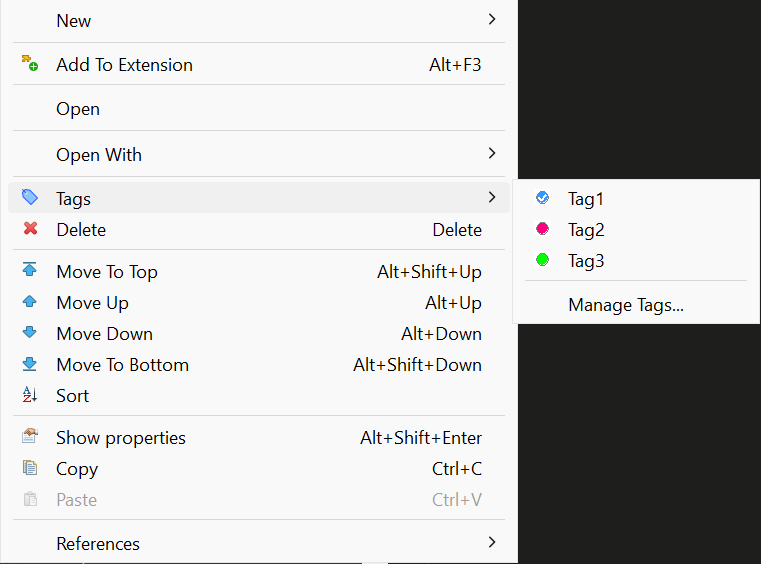
Assigning Tags to Objects:
- Right-click on any metadata object in the Navigator
- Select Tags from the context menu
- Check the tags you want to assign, or select Manage Tags... to create new ones
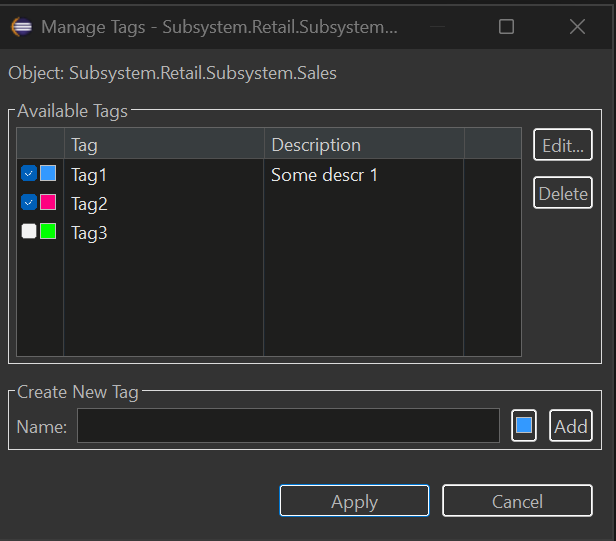
Managing Tags:
In the Manage Tags dialog you can:
- Create new tags with custom names, colors, and descriptions
- Edit existing tags (name, color, description)
- Delete tags
- See all available tags for the project
Viewing Tags in Navigator
Tagged objects show their tags as a suffix in the Navigator tree:
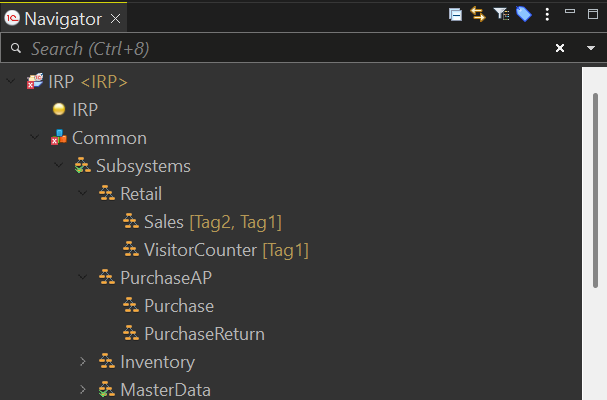
To enable/disable tag display:
- Window → Preferences → General → Appearance → Label Decorations
- Toggle "Metadata Tags Decorator"
Filtering Navigator by Tags
Filter the entire Navigator to show only objects with specific tags:
- Click the tag filter button in the Navigator toolbar (or right-click → Tags → Filter by Tag...)
- Select one or more tags
- Click Set to apply the filter
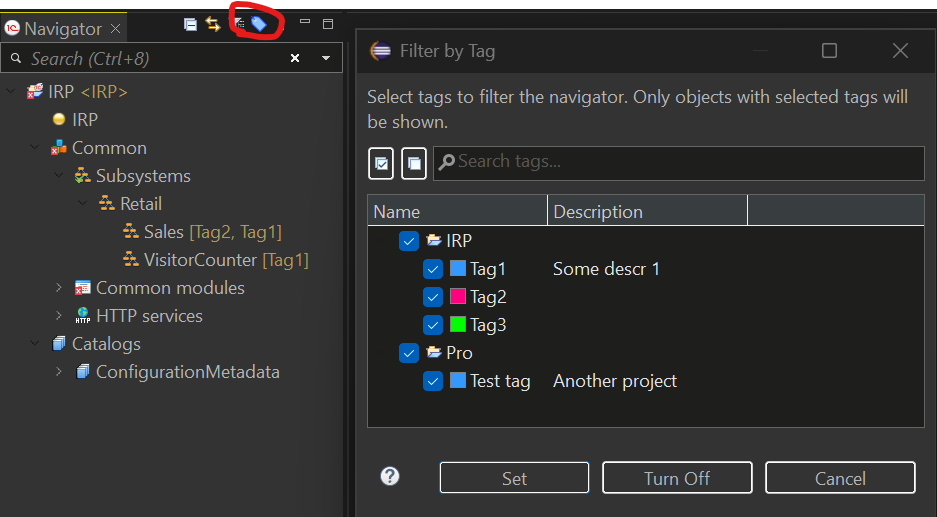
The Navigator will show only:
- Objects that have ANY of the selected tags
- Parent folders containing matching objects
To clear the filter: Click Turn Off in the dialog or use the toolbar button again.
Keyboard Shortcuts for Tags
Quickly toggle tags on selected objects using keyboard shortcuts:
| Shortcut | Action |
|---|---|
| Ctrl+Alt+1 | Toggle 1st tag |
| Ctrl+Alt+2 | Toggle 2nd tag |
| ... | ... |
| Ctrl+Alt+9 | Toggle 9th tag |
| Ctrl+Alt+0 | Toggle 10th tag |
Features:
- Works with multiple selected objects
- Supports cross-project selection (each object uses tags from its own project)
- Pressing the same shortcut again removes the tag (toggle behavior)
- Tag order is configurable in the Manage Tags dialog (Move Up/Move Down buttons)
To customize shortcuts: Window → Preferences → General → Keys → search for "Toggle Tag"
Filtering Untagged Objects
Find metadata objects that haven't been tagged yet:
- Open Filter by Tag dialog (toolbar button or Tags → Filter by Tag...)
- Check the "Show untagged objects only" checkbox
- Click Set
The Navigator will show only objects that have no tags assigned, making it easy to identify objects that need categorization.
Multi-Select Tag Assignment
Assign or remove tags from multiple objects at once:
- Select multiple objects in the Navigator (Ctrl+Click or Shift+Click)
- Right-click → Tags
- Select a tag to toggle it on/off for ALL selected objects
Behavior:
- ✓ Checked = all selected objects have this tag
- ☐ Unchecked = none of the selected objects have this tag
- When objects are from different projects, only objects from projects that have the tag will be affected
Tag Filter View
For advanced filtering across multiple projects, use the Tag Filter View:
Window → Show View → Other → MCP Server → Tag Filter
This view provides:
- Left panel: Select tags from all projects in your workspace
- Right panel: See all matching objects with search and navigation
- Search: Filter results by object name using regex
- Double-click: Navigate directly to the object
Where Tags Are Stored
Tags are stored in .settings/metadata-tags.yaml file in each project. This file:
- Can be committed to version control (VCS friendly)
- Is automatically updated when you rename or delete objects
- Uses YAML format for easy readability
Example:
assignments:
  CommonModule.Utils:
    - Utils
  Document.SalesOrder:
    - Important
    - Sales
tags:
  - color: '#FF0000'
    description: Critical business logic
    name: Important
  - color: '#00FF00'
    description: ''
    name: Utils
  - color: '#0066FF'
    description: Sales department documents
    name: Sales
Metadata Groups
Organize your Navigator tree with custom groups to create a logical folder structure for metadata objects.
Why Use Groups?
Groups help you:
- Create custom folder hierarchy in the Navigator tree
- Organize objects by business area, feature, or any logical structure
- Navigate large configurations faster with nested groups
- Separate grouped objects from ungrouped ones
Getting Started
Creating a Group:
- Right-click on any metadata folder (e.g., Catalogs, Common modules) in the Navigator
- Select New Group... from the context menu
- Enter the group name and optional description
- Click OK to create the group
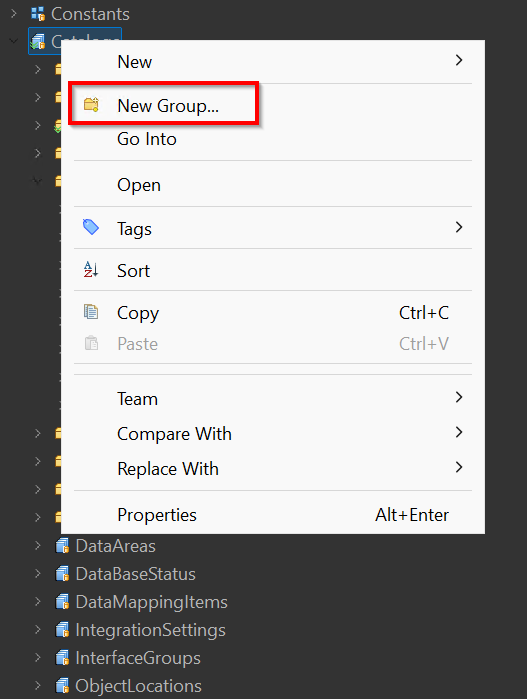
Create Group Dialog:
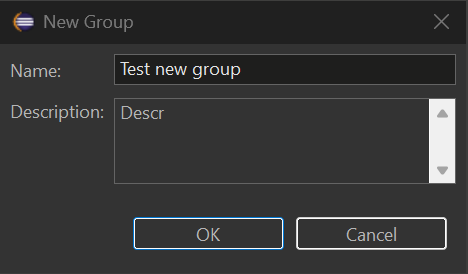
Adding Objects to a Group:
- Right-click on any metadata object in the Navigator
- Select Add to Group...
- Choose the target group from the list
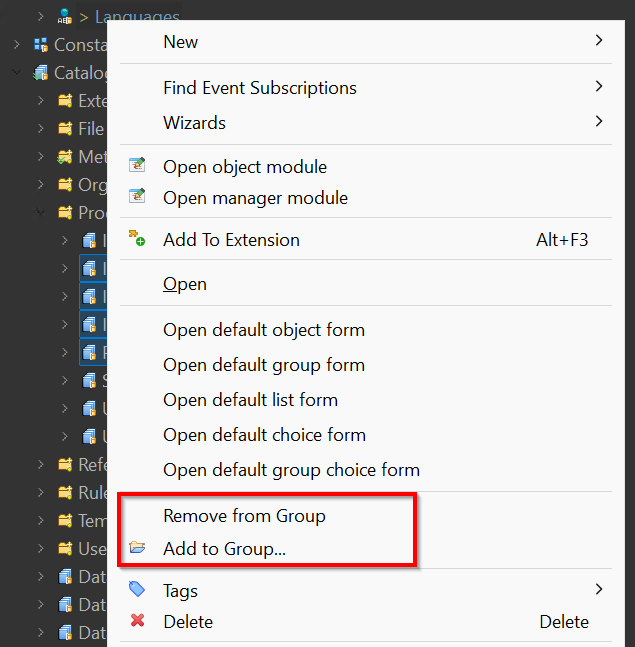
Removing Objects from a Group:
- Right-click on an object inside a group
- Select Remove from Group
Viewing Groups in Navigator
Grouped objects appear inside their group folders in the Navigator tree:
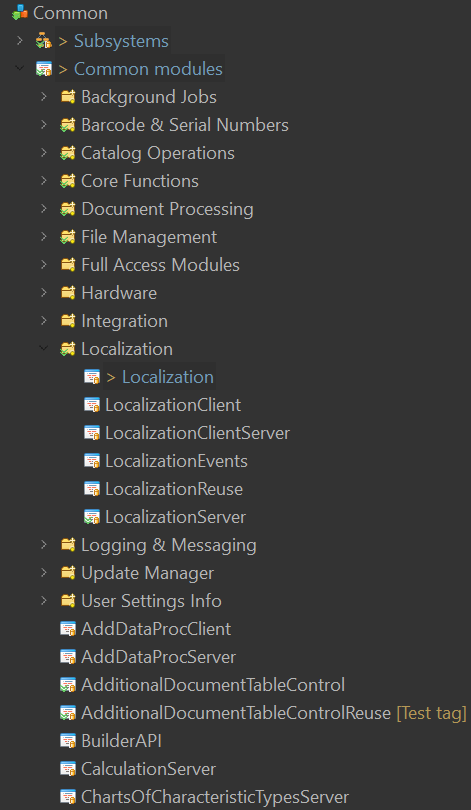
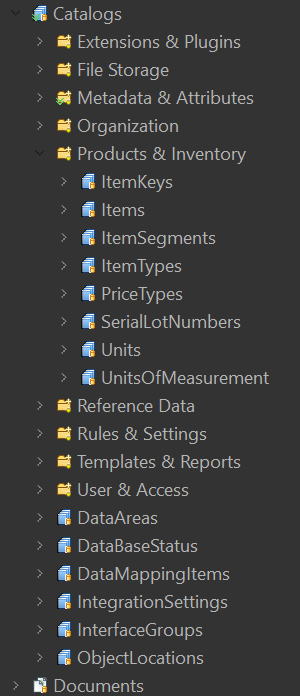
Key Features:
- Groups are created per metadata collection (Catalogs, Common modules, Documents, etc.)
- Objects inside groups are still accessible via standard EDT navigation
- Ungrouped objects appear at the end of the list
Group Operations
| Action | How to Do It |
|---|---|
| Create group | Right-click folder → New Group... |
| Add object to group | Right-click object → Add to Group... |
| Remove from group | Right-click object in group → Remove from Group |
| Copy group name | Select group → Ctrl+C |
| Delete group | Right-click group → Delete |
| Rename group | Right-click group → Rename... |
Where Groups Are Stored
Groups are stored in .settings/groups.yaml file in each project. This file:
- Can be committed to version control (VCS friendly)
- Uses YAML format for easy readability
- Is automatically updated when you rename or delete objects
Example:
groups:
- name: "Products & Inventory"
  description: "Product and inventory catalogs"
  path: Catalog
  order: 0
  children:
    - Catalog.ItemKeys
    - Catalog.Items
    - Catalog.ItemSegments
    - Catalog.Units
    - Catalog.UnitsOfMeasurement
- name: "Organization"
  description: "Organization structure catalogs"
  path: Catalog
  order: 1
  children:
    - Catalog.Companies
    - Catalog.Stores
- name: "Core Functions"
  description: "Core shared functions used across the application"
  path: CommonModule
  order: 0
  children:
    - CommonModule.CommonFunctionsClient
    - CommonModule.CommonFunctionsServer
    - CommonModule.CommonFunctionsClientServer
- name: "Localization"
  description: "Multi-language support modules"
  path: CommonModule
  order: 1
  children:
    - CommonModule.Localization
    - CommonModule.LocalizationClient
    - CommonModule.LocalizationServer
    - CommonModule.LocalizationReuse
Requirements
- 1C:EDT 2025.2 (Ruby) or later
- Java 17+
License
Copyright (C) 2026 DitriX
Licensed under GNU AGPL v3.0
Reviews (0)
Sign in to leave a review.
Leave a reviewNo results found