permark
Health Warn
- License — License: Apache-2.0
- Description — Repository has a description
- Active repo — Last push 0 days ago
- Low visibility — Only 5 GitHub stars
Code Warn
- network request — Outbound network request in .github/workflows/ci.yml
Permissions Pass
- Permissions — No dangerous permissions requested
No AI report is available for this listing yet.
🔖 Read what your AI writes. Write what it reads. A free, open-source Markdown app for Windows, macOS and Linux: open any .md as a clean page, keep notes that save themselves, and follow, review and steer what your AI agents write.

PerMark
AI speeds the work. Your vision steers it.
PerMark is a free, open-source unified document workspace (UDW) for Windows, macOS and Linux: one place to read, write and
organize Markdown and the files around it, and to steer AI projects through their documents. It opens any .md file as a
clean page, keeps notes that save themselves, and turns a project folder into a place where you follow, review and steer what
your AI agents write: read what your AI writes, write what it reads. It works with any AI tool, or with none.
Created and maintained by Edelmar Schneider.
Get PerMark: Microsoft Store (Windows) · GitHub Releases (Windows, macOS, Linux)
Features · Install · Usage · Shortcuts · Roadmap · Contributing
[!NOTE]
TrailMark is now PerMark (since 0.5.6). The command ispermark(permark mcp,permark context); if an AI agent is
set up with the oldtrailmarkcommand, run the setup lines from Settings → Agent connection again. PerMark 0.6 no longer
renames old.trailmark/project folders: if you still have TrailMark, update to 0.5.8 first, then to 0.6.
Where to start
Build with AI agents?
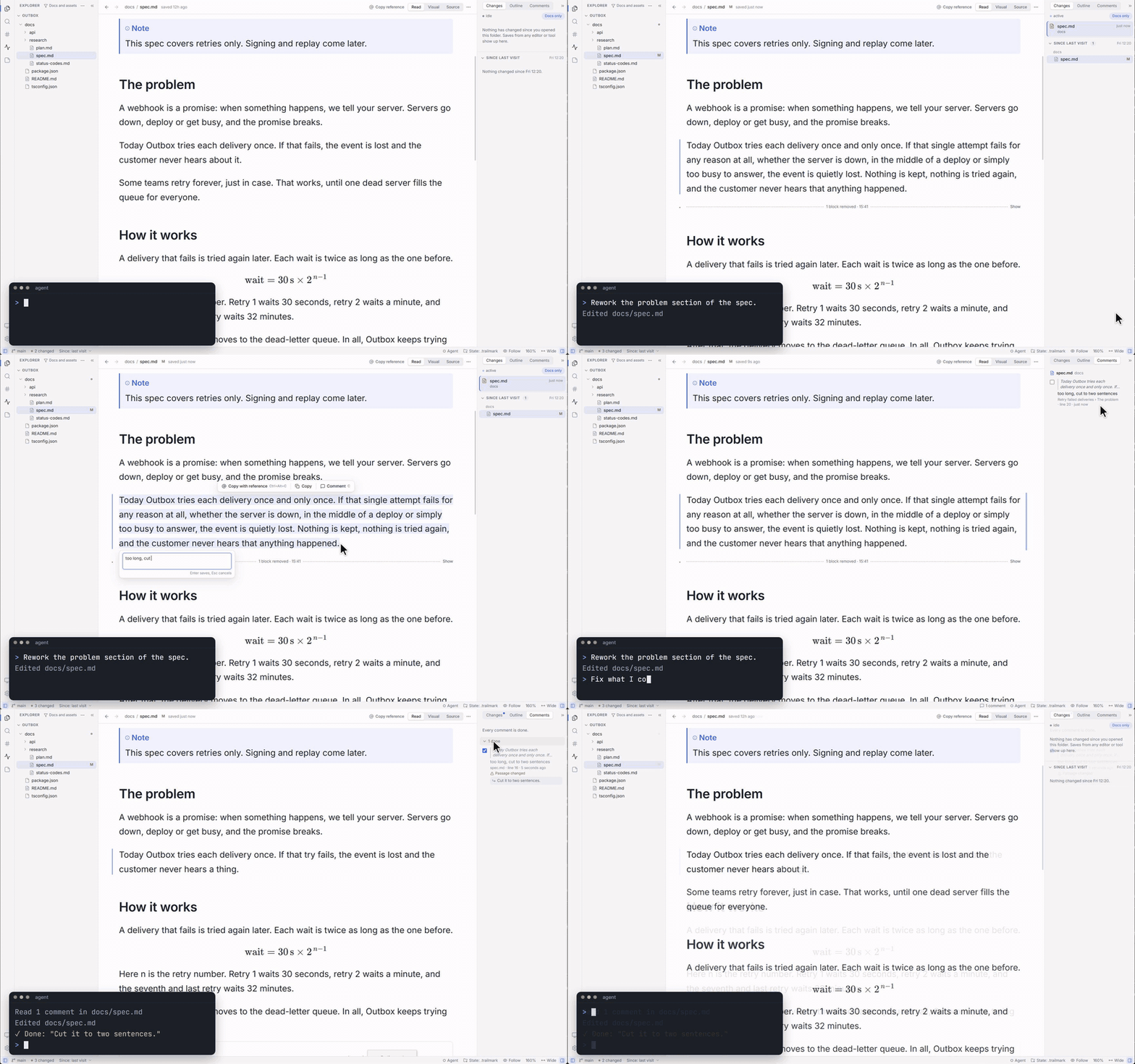
Your agents write the plans, specs and reports. Your job is to read them, judge them and steer. PerMark is the working environment for that
job: open the project folder and keep it next to your terminal. It doesn't run your agent; it shows you what your agent writes.
- Watch. Changed passages glow as your agent writes, removed ones leave a marker, and a live feed lists every file it
touches, across git worktrees too. A reload keeps your place. - Review. Unread dots mark every document that changed since you last read it, like new mail. Git badges and a "since your
last visit" view still work after the agent has committed. - Find. One search for every file, section, tag and command, and code references like
src/main.rs:42that open at the
line in the editor you choose. - Steer. Select a passage, press
Cand write a comment. With the optional agent connection (MCP),
your agent reads your open comments, marks them done with a reply, and knows which document, section and words you mean when
you say "rewrite this". - Edit next to it, safely. Only the blocks you change are rewritten, and if your agent changes a file while you edit it, you
choose Reload theirs or Keep mine.
More in Follow your agents live and Use with an AI agent.
Got a .md file?
Your AI, a colleague or a download gives you a .md file. Open it with PerMark and read it as a page, not a wall of symbols.
- It reads like a page. Tables, checklists, highlighted code, Mermaid diagrams, math, alerts and footnotes, in light or dark,
with three reading widths and a focus mode. - Links work. Relative links and anchors open in the app, with back and forward and an outline of the headings.
- You can fix it. Edit visually, with a toolbar, or in Source. Only the blocks you changed are saved, and the rest of the file
stays exactly as it was. - Notes that save themselves. Open Notes and type. No name to choose, no folder to pick, and closing
never asks. Pin the notes you keep, bring back an earlier version, and copy a drafted prompt to your AI as clean Markdown. - Your files are safe. A file you open is listed next to your notes and written only when you press
Ctrl+S. PerMark is
listed under Open with for Markdown files. It becomes your default app only if you choose so, at install or on first run:
that choice stays yours.
More in Reading that feels like a book and Notes.
Either way, PerMark only relies on your filesystem and git. It works the same with Claude Code, opencode, Cursor, Aider,
Codex or Gemini CLI, or with none.
Why Markdown
Markdown was made for readers. So is PerMark. It was designed in 2004 so that plain text reads well as it is. Twenty years
later, AI adopted it for the same reason: it is structured enough for a machine and clear enough for a person. PerMark is the
reader's tool for it.
It is also an opinion: many documents that live in Word or PDF today would be better as Markdown. They would be smaller,
comparable line by line in git, readable by any AI, and never locked inside one app.
Features
📖 Reading that feels like a book
- GitHub-flavored Markdown: tables, task lists, footnotes, alerts (
> [!NOTE]), description lists - Mermaid diagrams, KaTeX math, syntax-highlighted code with copy buttons
- Code blocks are highlighted for about 190 languages. Name the language after the opening backticks, for example
```python, and
the block is colored and labelled in its corner. The usual short names work (js,ts,py,sh,ps1,c#,c++,yml,rs...),
and so do fences with attributes (```rust title="main.rs"). A block with no language is colored only when its language is
unmistakable, and is then labelled auto; otherwise it stays plain. Edit and Source color the code too while you edit - Frontmatter shown as a clean metadata card
- Light and dark themes (with a softer paper, sage or gray tone for the light one), adjustable zoom, and a focus mode (
Ctrl+Alt+F) that leaves only the page - Three reading widths: Comfortable (a book-like column), Wide and Full. Wide tables, diagrams and images take the room
they need while the text stays at a comfortable measure - JSON, XML and plain text, and small config files (TOML, YAML, INI,
.env,.properties, ignore files) and.toonfiles as
clean sheets, with secret values masked
🧭 Navigate like a wiki
- Open a folder as a project (tree, search, live feed) or a single file for a distraction-free reader
- Relative links, anchors and images resolve inside the app, with back and forward history. Right-click (or press and hold) Back or
Forward to list the documents on that side and jump straight to one, like in a browser; Go to a recent place... in the command
palette (Ctrl+Shift+P) lists your whole trail - An Outline of the open document's headings (
Ctrl+Alt+O): the section you're reading is marked, click a heading to jump,
collapse sections you don't need. It keeps working while you edit - A filter for the Explorer (Documents, Docs and assets, Everything, or your own patterns) keeps a code repository's tree to the
documents that matter, and tells you how many files it hides - Workspaces that collect several repositories show each one, even when the parent's
.gitignoreleaves it out. Hidden
files and files ignored by git have their own switches in the filter, off by default - Each window opens where you left it, and its title names the document and the project, so several windows are easy to tell
apart in the taskbar andAlt+Tab - The Explorer follows the file you open, however you got there: quick open, a link, search, the feed, back and forward
- Quick open (
Ctrl+P), find in page (Ctrl+F), session restore and recent projects - Code references are links.
src/main.rs:42,lib.rs#L10-L20or`docs/plan.md`in a document opens the file at the line:
Markdown in PerMark, anything else in your editor (VS Code, Cursor, Zed, Sublime Text, JetBrains IDEs or a command of your own,
in Settings → External editor). Only names of files the project really has become links - One app, many windows: open several projects side by side. A bar at the top lists them and switches between them
(Ctrl+Alt+→/Ctrl+Alt+←). From a terminal:permark ~/code/my-project
🖼️ Pictures, sound and video
- Images open in the pane. PNG, JPEG, GIF (animated), WebP, AVIF, BMP, ICO and SVG. A picture is fitted to the window; click it, or use the
button, to see it at 100%, andCtrl+=,Ctrl+-andCtrl+0zoom it the way they zoom text (Ctrl+0fits it again). A checkerboard
shows through transparency, in light and dark. The header gives the size in pixels and on disk. A picture that changes on disk
(an agent regenerating a screenshot) reloads by itself. An SVG is drawn as an image, never inline, so nothing in it can run. - Audio and video play in the pane, in the window's own player: MP3, WAV, OGG, Opus, FLAC, M4A, AAC and WebM audio; MP4, M4V, WebM,
OGV and MOV video. A long file is read in parts as it plays, so it starts at once, seeks freely and is never loaded whole. A format or
codec the window cannot play (MKV, AVI, WMV and the like) says so, and offers the program your system has for it. - Documents can use them.
<video>and<audio>tags play in place, next to the document, and a link to a media file opens it in the
pane. Nothing starts by itself:autoplayis dropped, and a player only reads the length of its file until you press play. - Open with default app hands a file the pane cannot show to the program your system has for its type: a button in the pane, an item
in the Explorer's right-click menu, and a command (Ctrl+Shift+P). Programs and scripts (.exe,.bat,.ps1,.sh,.app,.lnk, installers, Office documents that can hold macros such as.docm,.docand.xls, and the like) are never opened from a click; PerMark says which kind of file it refused and offers
to show it in the file manager. Files outside the open folder are never served, and a link that leaves it is not followed. - Open in browser for
.htmland.htmfiles: in the Explorer's right-click menu, in the ... menu of the open page, and in the
command palette. The page opens in the application your system uses for web pages (your browser, on almost every computer); PerMark
does not draw web pages itself. - The Explorer filter has Audio and Video file types. Docs and assets shows them by the same rules as images: next to a document, in
a folder named likeassets,images,video,audioorclips, or when a document links to them. Quick open and Search everywhere
find pictures, sound and video by name whatever the filter hides, and list folders too: pick one to reveal it in the Explorer.
⚡ Follow your agents live
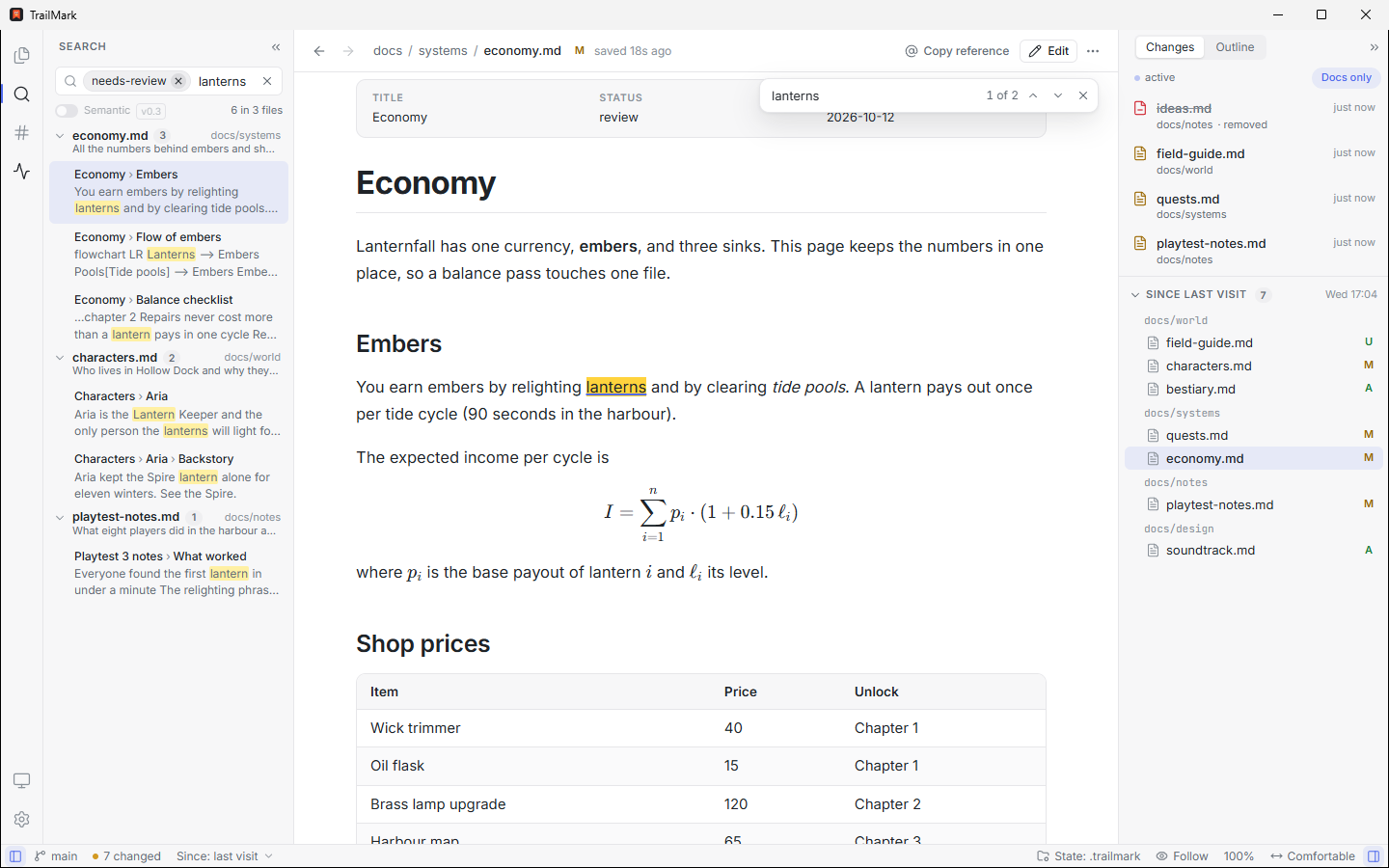
- Documents reload without losing your scroll position
- Changed blocks glow and fade; removed blocks leave a marker you can expand
- Live changes feed: one entry per file, bursts grouped,
git checkoutstorms collapsed into one line - Follow mode automatically opens the doc the agent is writing (it never jumps while you are editing)
- Git worktrees are discovered automatically, so changes made by agents working in parallel branches show up too
- Unread markers, like mail: a dot on every document that changed since you last read it, in the tree, search and the feed.
Reading it (a second in front of you) clears the dot,Alt+Utakes you to the next one, and the Unread tab lists what you
haven't seen
🔍 Find anything, to the section
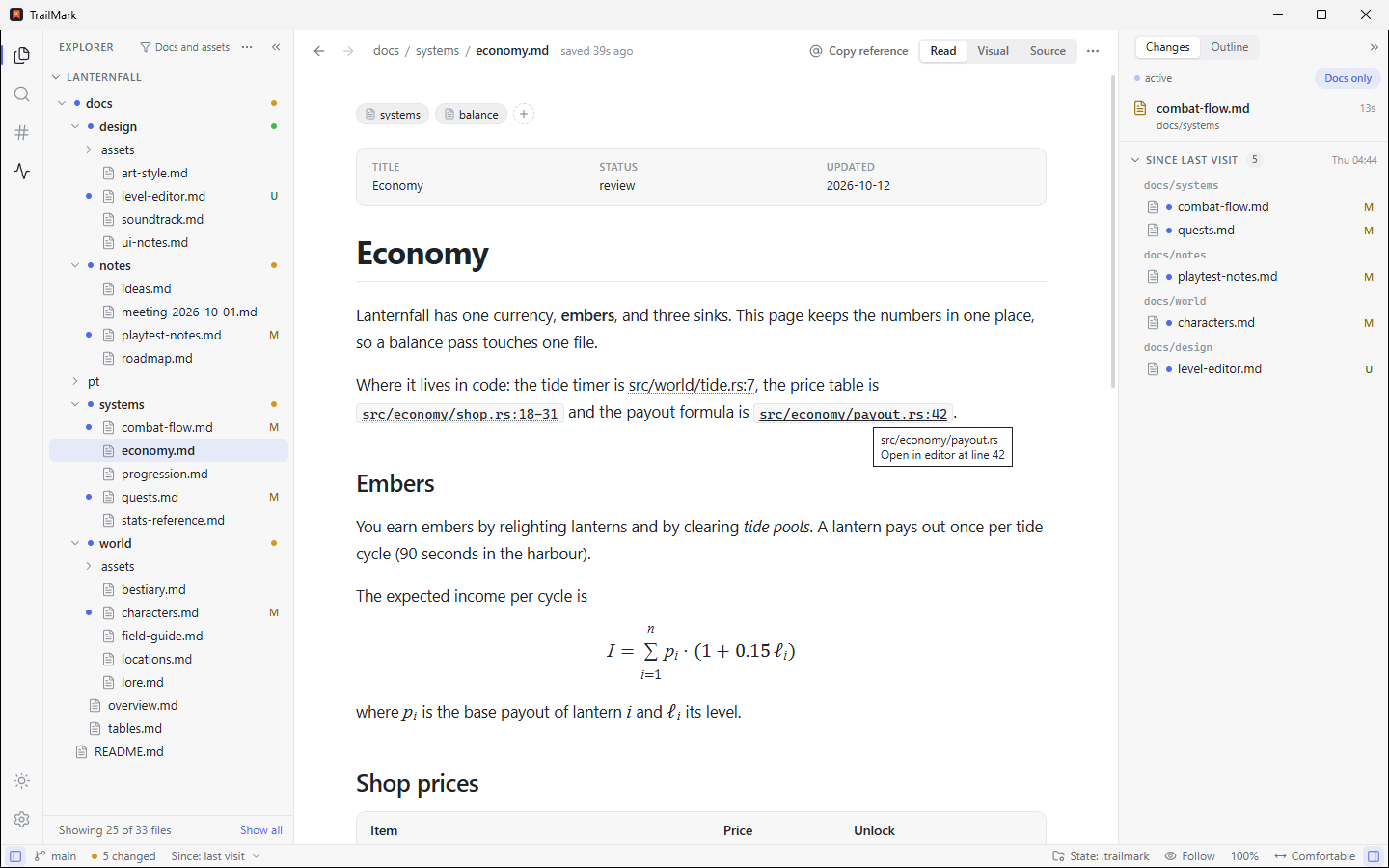
- Search everywhere (
Ctrl+T): files, sections, tags and commands in one box.Tabmoves between scopes,>jumps to
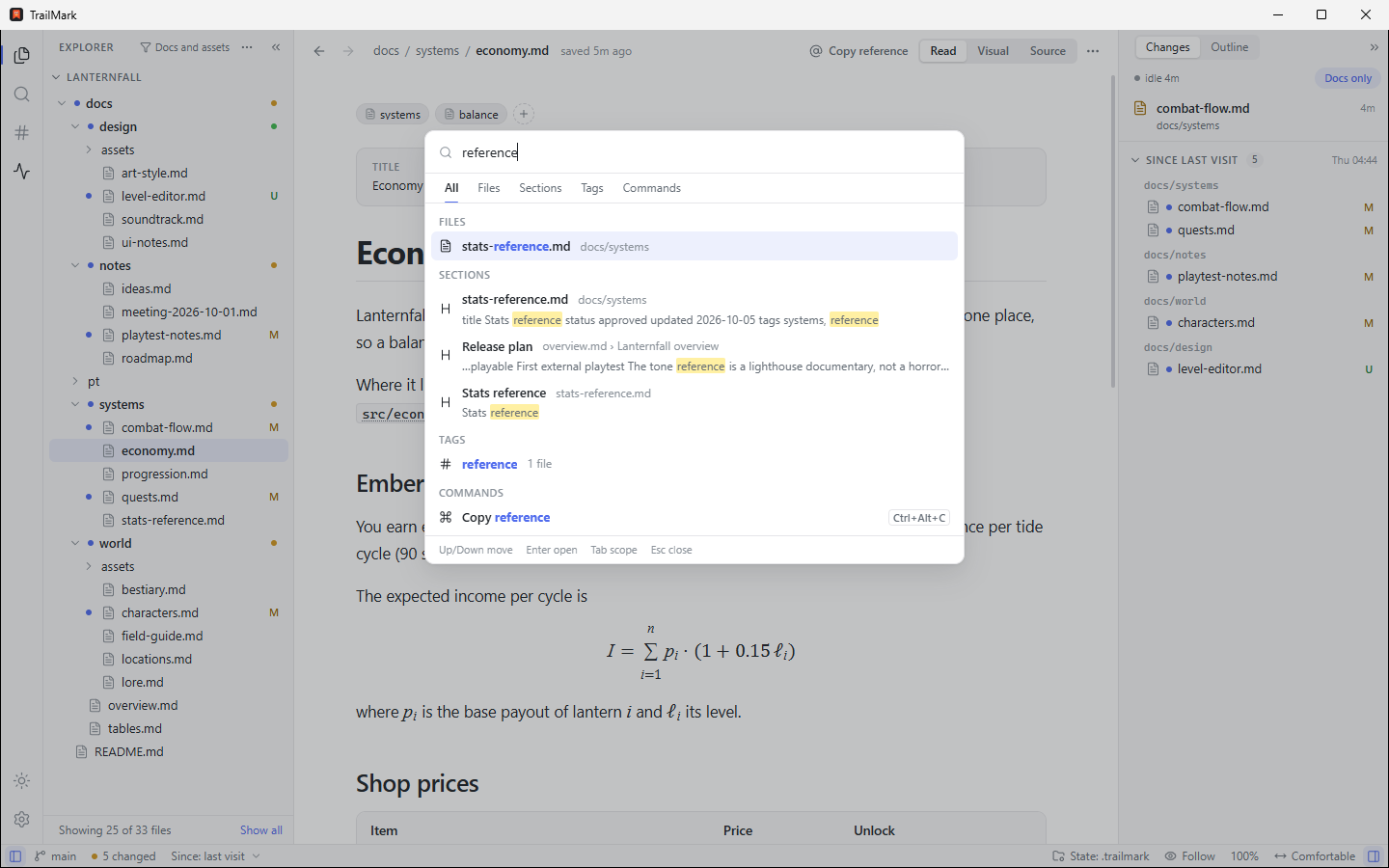
commands and#to sections;Ctrl+Shift+Popens the command list with every action of the app and its shortcut - Section-level full-text search (
Ctrl+Shift+F): results showfile › heading › snippetand jump to the exact spot - Accent- and case-insensitive, with light stemming, and incremental updates as files change
- Filter by tag: pick a tag in the search box (the Tags scope), then type your words
🏷️ Tags and descriptions
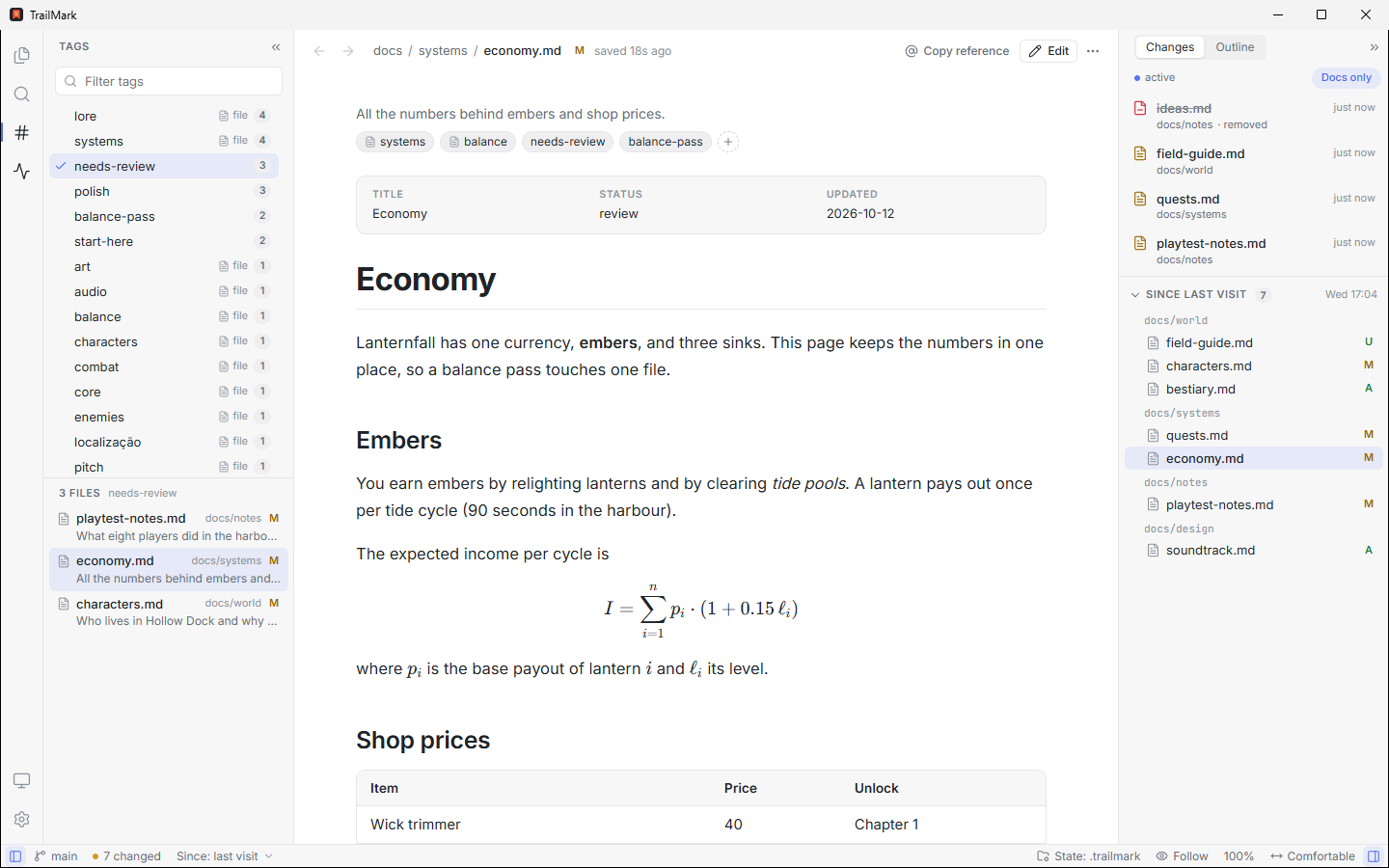
- Give any file a one-line description and tags ("needs-review", "character sheets"). Tags in a document's frontmatter
are read automatically; the ones you add in the app never touch your files - Added tags live in
.permark/meta.tomlonce the project is initialized (plain text you can commit, so teammates and agents
can read it), or in the app's own storage before that. Renaming or moving a file keeps its tags - A Tags view lists every tag with its number of files. Pick one, or
Ctrl+clickseveral to narrow the list - Descriptions and tags show up where you look for files: tree tooltips, quick open, search results
- Give a tag a color and an icon (right-click it in the Tags view) to see at a glance what kind of document you are in front of
- Your agent uses them too, to find the right documents in a large project without reading hundreds of search hits: it asks which tags
there are (list_tags), narrows a search to the documents that carry them, and reads only the few that fit
✏️ Edit without fear
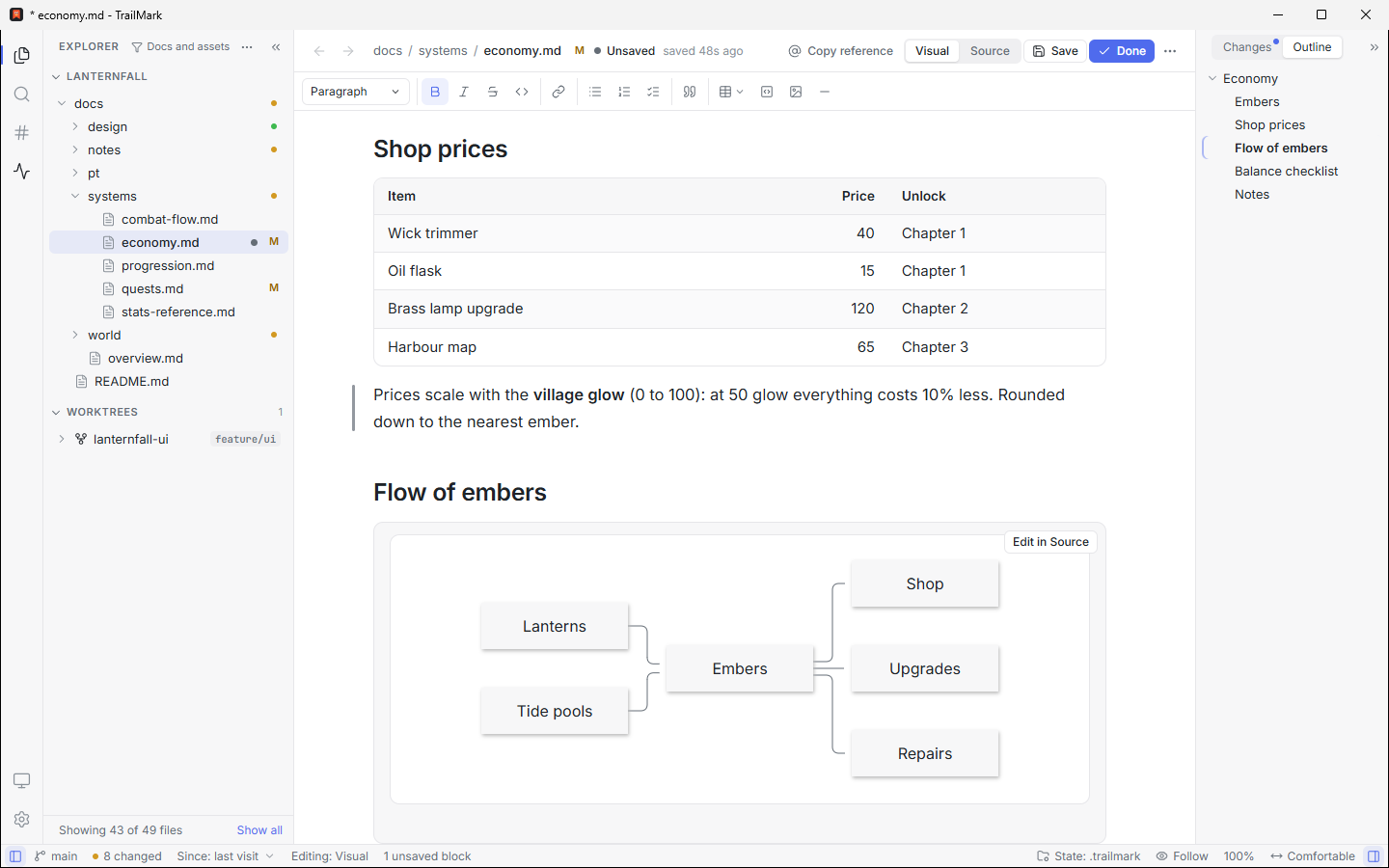
- One switch in the header, View | Edit | Source, goes to any mode in one click and keeps your place and your unsaved work. View is the
rendered document. Edit is a WYSIWYG editor with a toolbar, a/block menu, tables, task lists and code blocks (with a language
field); Source shows the file exactly as it is, nothing hidden, masked or drawn over it, with highlighting (also inside code fences),
line numbers, find and replace (Ctrl+F,Ctrl+H) and go to line (Ctrl+G).Ctrl+Etoggles View and the editor you used last,Ctrl+Alt+Etoggles Edit and Source. Both editors are loaded only
when you start editing - Only the blocks you changed are rewritten. Every other byte of the file stays as its author (or agent) wrote it, including line
endings and a byte-order mark. A block you edited carries a bar in the margin until you save, and the status bar counts them - Blocks Edit can't write back faithfully (front matter, raw HTML, math, diagrams, footnotes) stay as they are,
with an Edit in Source button that opens the Markdown at that block - Agents and you can share a file safely. If something changes the file while you edit, a clean buffer reloads in place, and
one with your edits asks: Reload theirs or Keep mine. A save never overwrites a version you haven't seen - Unsaved work is never lost quietly: a mark in the header and the tree, a
*in the window title, and a Save / Discard / Keep editing
prompt before you leave - New file (
Ctrl+N): type a name in the tree, and it opens for editing with the caret after the title - Pictures pasted, dropped or picked are saved next to the document and linked with a relative path
🔗 File operations that keep your links working
- Rename (
F2), move (drag and drop), delete (Del: to the system trash, andCtrl+Zbrings it back; on macOS an undo
cannot take a file out of the Trash) and New folder, from the keyboard or the context menu. Select several files withCtrl+clickorShift+click - Drop files in from outside. With a project open, files and folders dragged onto it from the file manager come into the project, into the
folder under the pointer. You choose Copy or Move; names that already exist are listed first (keep both, or skip them); a big
folder shows its progress and can be stopped; and one Undo takes it all back - Links are updated for you. Moving or renaming a file or folder rewrites the links and images that point to it, and the
relative links inside the files that move. "Update 7 links in 4 files?" shows every change first: Apply, Move without
updating or Cancel. Only the destination changes; code is never touched - Undo (
Ctrl+Zin the Explorer, or the toast's Undo button) puts back the files and every rewritten link. It is conservative:
a document that changed since is not overwritten, and you're told what couldn't be restored - Tags follow the files, and the live feed shows the whole operation as one row
🌿 Git-aware
- Badges for modified, added and untracked files, with folder roll-up and a legend that says what each letter means
- Baseline "since your last visit" (default) or "since HEAD": useful when agents commit every few minutes
- Banner for rebase or merge in progress; clear messages when git can't read a repo
🔁 Close the loop with your AI
- Copy reference (
@docs/plan.md) and copy selection with reference: a quoted excerpt plus path and section,
ready to paste into any AI chat or CLI - Configurable reference template
- Comments: select a passage, press
Cand write a comment; your agent can read the open ones and mark them done
(see Use with an AI agent), and Send to agent copies them as a prompt, ready to paste into any agent chat
📝 Notes
Open PerMark, type, close: nothing to name, nothing to save, no folder to pick.
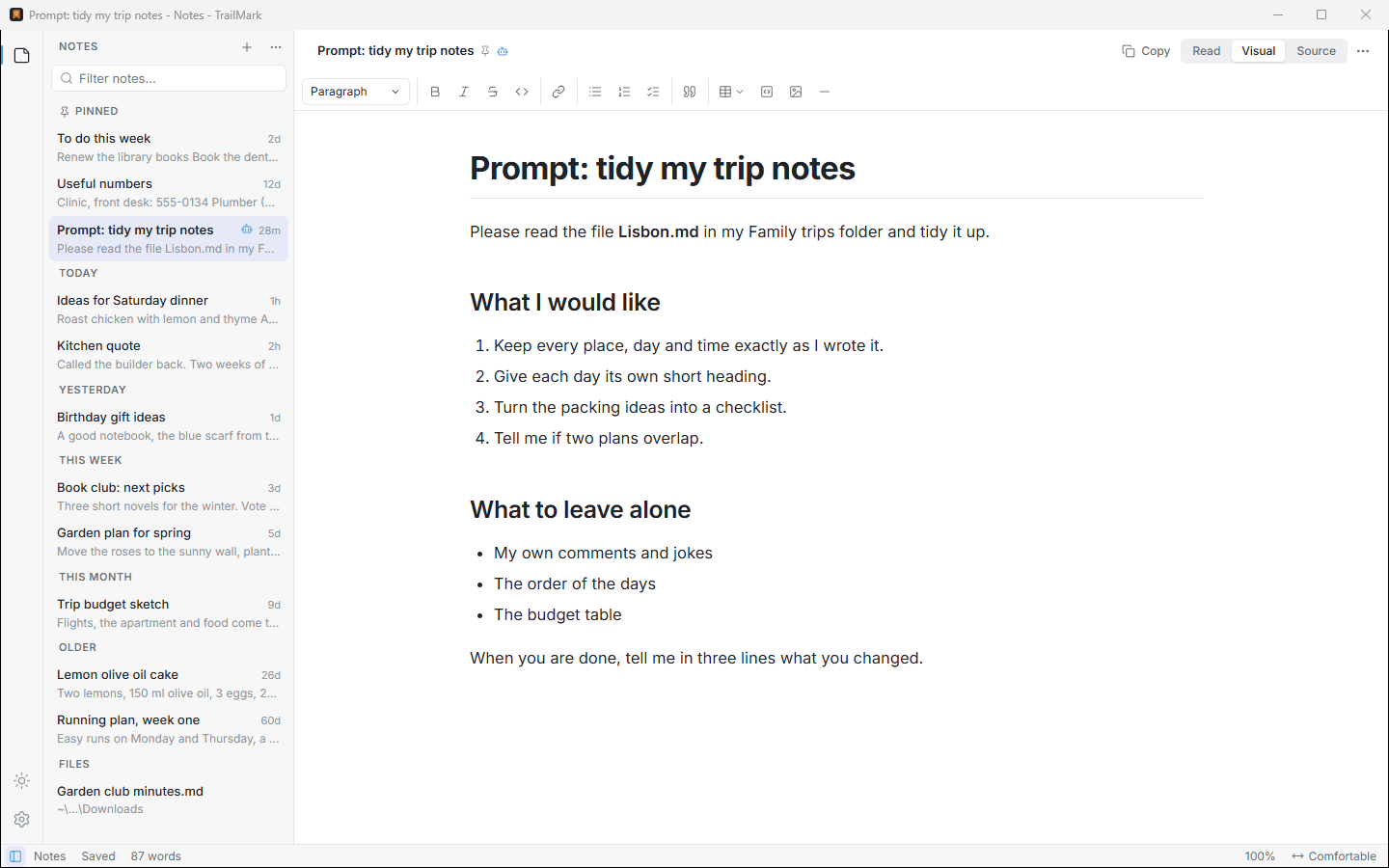
- A notes window of its own: open it from Notes on the welcome screen, from the + menu at the top, or with the Open the
Notes command (Ctrl+Shift+P).Ctrl+Nstarts a new note, in Edit with the caret ready. A note is a plain Markdown file inDocuments/PerMark Notes(change it in Settings → Notes); PerMark makes the default folder by itself the first time. A note's name
is the date and time (2026-10-15 1432.md) and its title is its first line, until then "Untitled note" - A new note is there at once, and
+(orCtrl+N) always makes another, even when the note on screen is still empty. Empty notes
stay in the list, also after a restart, until you delete them: nothing is removed for you - Saved as you type, a moment after you stop. Switching notes, leaving the window or closing it saves too, and closing
never asks. Each note remembers its mode and where you were. PerMark writes nothing inside a note's text, and never overwrites a version
it has not seen: if something else changed the file, you choose Reload theirs, Keep mine or Save as new file - Pinned notes first, then Today, Yesterday, This week, This month and Older. A note moves up when you leave it, not while you type.
Pin a note and drag it where you want it;Ctrl+1…9jump to the pinned ones. The filter box andCtrl+P,Ctrl+TandCtrl+Shift+Fsearch the notes - Copy (
Ctrl+Shift+C) puts the exact Markdown of the note on the clipboard and marks it, with a Delete note button right in the toast,
for the prompts and snippets you write only to paste. Delete copied notes clears the marked ones and keeps the pinned. In a project,Ctrl+Shift+Ccopies the whole open document - Deleting is gentle: the note goes to the system trash, the toast has Undo, and a pinned note asks first. Show earlier versions restores
an earlier text of the note (one is kept at the first save after you open a note and about every 10 minutes after; the newest 50 stay) - Files from anywhere join the list under Files: open a Markdown or text file with "Open with PerMark", with
Ctrl+Shift+O, or by
dropping it on the Notes window (a file inside the project you have open still opens in that project). A file is never written on its own: it
opens in Read,Eedits it, andCtrl+Ssaves it. What you type before you save is kept apart from the file and comes back after a
restart, with an "unsaved" mark; closing the window asks nothing. If the file changes on disk while it is open, what you see stays until you
choose Reload (your typed text is kept as a note first) or Keep mine (the next save asks once more before it replaces the version on
disk). A file that is not found stays in the list, dimmed, with Locate... and Remove from list, and a rename in its folder is followed.
Text files (.txt) are edited in Source. Removing a file from the list never touches the file - Move to project... is for a note that grew into a document: the Save dialog opens in the project you used last, with a name made
from the title; the note is written there exactly as it is, goes to the system trash, and its row moves to Files. The toast has
Open in project and Undo (which brings the note back, and takes the copy away unless you changed it since) - Share with agents marks a note that an AI agent connected to any of your projects may read (see
What an agent can do); a small mark shows it in the list and in the header. Notes you did not share stay private - Rename (
F2) gives a note a real file name, and Open notes folder shows it in your file manager. Notes are ordinary files: edit them
with any tool, and PerMark picks the change up - A notes folder you chose that goes missing (an unplugged drive, a renamed folder) is reported, with Locate... and Create it: PerMark
never makes an empty one in its place by itself, which would split your notes in two - On start (Settings → Notes) can open the Notes window instead of the welcome screen
🗂️ Zero footprint by default
PerMark keeps its state in your user profile. If you want settings and tags to travel with the project, run
Initialize PerMark in this project to create a .permark/ folder (shared config.toml and meta.toml; caches are gitignored automatically).
🖱️ Open with PerMark
Windows: right-click a folder, the background of a folder or a Markdown file and choose Open with PerMark (under Show more options on
Windows 11). The same menu offers New Markdown file with PerMark, which makes untitled.md in that folder and opens it.
You can also list PerMark in the Open with menu of .md files. Both are optional: pick them in the installer or later in
Settings → File manager, which adds and removes them at once. PerMark never takes over a file type on its own: the installer asks (Markdown types checked, others not), and Choose in Windows Settings takes you to the
Windows page where you pick the default app. Nothing needs administrator rights, and uninstalling removes every entry.
The Microsoft Store version has the same entries on folders and on the background of a folder, and on Windows 11 they are in the main
right-click menu, not under Show more options. The package provides it (and the Open with entry for Markdown files), so
there are no switches for it in Settings, and uninstalling the app removes it.
macOS: PerMark is listed in Finder's Open With for Markdown files, without becoming the default, and a folder dropped on its
Dock icon opens as a project. Linux: the .deb and .rpm list PerMark under Open With for Markdown files.
🌍 Your language
PerMark speaks English, Português (Brasil), Español, Deutsch, 简体中文 and Italiano. It follows your system's language, and Settings → Language
switches it at once, no restart. The Windows installer asks for a language too.
Install
Prebuilt installers for Windows, macOS and Linux are published on the Releases page:
| System | Download |
|---|---|
| Windows | the -setup.exe installer (recommended). The .msi stays for updating copies that were installed from a 0.5 .msi |
| macOS | the universal .dmg (Apple silicon and Intel) |
| Linux | the .AppImage, .deb or .rpm |
On Windows you can also get it from the Microsoft Store, which keeps it up to date.
The other copies update themselves: when a new version is out, you'll be offered a one-click restart to update. The installers
are not code-signed yet, so your system warns you the first time; the release notes say how to continue.
PerMark 0.6 was tested on Windows. The macOS and Linux versions are built by the project's CI and have not been tested by hand yet.
Build from source (requires Rust, Node.js 24 and the
Tauri prerequisites; the program lives in app/, and app/rust-toolchain.toml pins
the Rust version, which rustup installs for you):
git clone https://github.com/EdelmarSchneider/permark.git
cd permark/app
npm ci
npm run tauri build   # or: npm run tauri dev
Usage
permark                  # welcome screen with recent projects
permark .                # open the current folder as a project
permark docs/plan.md     # open a single file
permark --notes          # open the Notes
You can also drag and drop a folder or a .md file onto the window.
Use with an AI agent
PerMark can tell an AI agent what you are looking at, the way a code editor tells it the open file. Say "rewrite this
paragraph" or "go through my comments" and the agent knows which document, which section and which words you mean. It talks to
PerMark through the Model Context Protocol (MCP), so it works with any tool that supports MCP
(Claude Code, Cursor, opencode, Codex, Gemini CLI, Claude Desktop and others), and without one of them nothing changes.
It is off by default, per project, and local. PerMark shares nothing until you turn on Share this project with agents in Settings → Agent connection (or
Agent connection: turn on in the command palette), and it only talks to programs on your computer: it has no server and sends
nothing over the network. The agent you connect is another matter. It may send what it reads (your selection, your comments, search
results) to its AI service, as it would anything else you show it. The switch is yours alone: it is kept in PerMark's own data
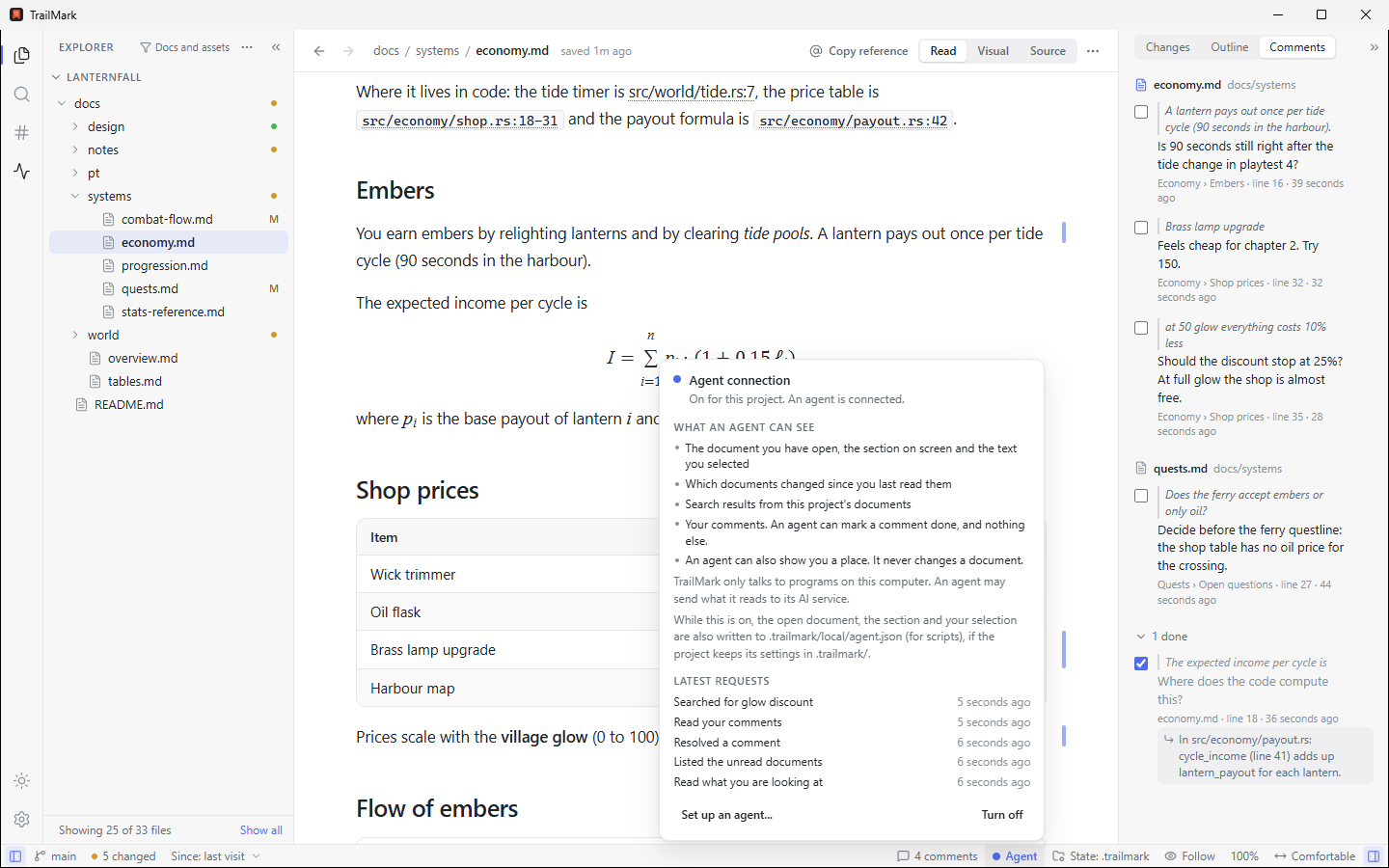
folder, so nothing inside a project, such as a cloned repository, can turn it on. While it is on, the status bar shows Agent, with
a dot that fills while an agent is connected. Click it to see what is shared and what was asked lately, and to turn it off in one click.
Connect an agent
Turn the connection on, then add PerMark to your agent as an MCP server. Settings → Agent connection shows the lines below with
the right path filled in, and a Copy button for each.
Claude Code
claude mcp add permark -- "<path to PerMark>" mcpAny other MCP client (Cursor, Claude Desktop, ...): add this to its MCP servers configuration.
{
  "mcpServers": {
    "permark": { "command": "<path to PerMark>", "args": ["mcp"] }
  }
}
<path to PerMark> is the full path of the program, which Settings shows for the copy you are running: the program the
installer put on your machine, the one inside PerMark.app on macOS, or the AppImage file. Use the full path: on Windows and
macOS permark is not on your PATH after an install, so the bare name only works where you put it there yourself. (The Microsoft
Store version on Windows is the exception: it puts permark on your PATH, so there Settings shows the short lines, such asclaude mcp add permark -- permark mcp.) Quote the path when it has spaces. The agent runs in your project's folder, and PerMark finds the project from it, so one
configuration serves every project you have opened in PerMark. Before it sends anything, permark mcp checks that what answers
is PerMark running as you, and not another program that took the name.
What an agent can do
| Tool | What it answers or does |
|---|---|
get_context |
The open document, whether you are reading or editing, the section on screen, your selection (up to 2,000 characters), whether there are unsaved edits, and how many of your comments are open (call list_comments when it is not 0) |
list_unread |
The documents that changed since you last read them, newest first |
map |
The files below a folder, by path: approximate size in tokens, flags (unread, changed), and the tags and descriptions you gave them. The place to start in a large project |
search |
"Where is X described?": ranked sections with path, line, size, snippet and heading, from the same index as Search everywhere. tags narrows the search to the documents that have all of them, and budget caps the size of the answer |
list_tags |
The tags in use, with how many documents have each, plus how many documents have no tag; or, for one tag, the documents that have it with their descriptions |
outline |
The parts of one file (headings, JSON keys, parts of a config file) with line ranges and sizes, so an agent reads only the part it needs; optionally the documents that link to it and where its links lead |
read |
The text of one part of a file: a heading, an anchor, a key path or a range of lines. Long parts continue with a cursor |
list_comments |
Your comments: the open ones, each with the quoted passage, its section and line, and your text |
resolve_comment |
Marks a comment done, with an optional short reply that you read under the comment |
list_notes |
The notes you chose to share with agents, each with its title, when it changed and its size |
read_note |
The text of one shared note, by the name list_notes gave |
activity |
What you did in PerMark since you last pressed Hand off to agent (checked against the disk), plus the changes made outside PerMark |
open |
Shows you a place (a document, a line or a heading) without taking the focus from the agent's terminal, and offers a way back |
Answers are short on purpose: a header line, then tab-separated rows, so an agent spends few tokens. Hand off to agent (from the
Agent item in the status bar, or the command palette) copies one line for your prompt, such asPerMark: 7 actions since last hand-off -> call activity since=handoff, so the agent asks PerMark what you did instead of
rereading the project.
The agent only reads, shows you a place, and checks off comments you wrote. It cannot create comments and it cannot edit a document through
PerMark. It sees the project you opened and nothing else: no other project, no file outside the project folder, no file your .aiignore lists, and
no secret values (keys, tokens and passwords are masked in everything an agent receives). In Settings → Agent connection you choose what
it may do, group by group (where you are, what changed, searching and reading, reading comments, resolving comments, notes, showing a
place, your activity); a project's .permark/ can narrow that, never widen it. Your notes are private:
the agent sees only the notes you shared one by one (Share with agents in a note's menu, Stop sharing takes it back at once), throughlist_notes and read_note, in any project whose connection is on; it cannot list the notes folder, read a note you did not share, or change
one, and a notes folder that lies inside a project is not part of that project's search. When PerMark is
closed, the other tools still work from the files, get_context says that
PerMark is not open, and open starts it. With the connection off, every tool says so and explains how to turn it on.
Add what you are reading to every prompt
permark context prints where you are as one short line and exits, for tools that can run a command before each prompt:
Viewing docs/plan.md › Plan › Rollout (lines 40-62), selected (lines 44-46): 'ship it on Friday', 2 comments open.
When no comment is open, the line stops at the period and says nothing about comments.
In Claude Code, a UserPromptSubmit hook in .claude/settings.json (or your user settings) adds it to every prompt:
{
  "hooks": {
    "UserPromptSubmit": [
      { "hooks": [{ "type": "command", "command": "\"<path to PerMark>\" context" }] }
    ]
  }
}
Other tools can do the same from their own hooks. When there is nothing to say (the connection is off, or PerMark is not open), the
command prints nothing, so a hook never adds noise to a prompt. A project that keeps its settings in .permark/ also has.permark/local/agent-context.json while the connection is on: the same answer as a file, for a script or a tool without MCP. It holds
the open document, the section on screen and your selected text, and any program running as you can read it, as can a folder-sync tool
that watches the project. It stays out of git (local/ ignores itself) and is deleted when the connection is turned off.
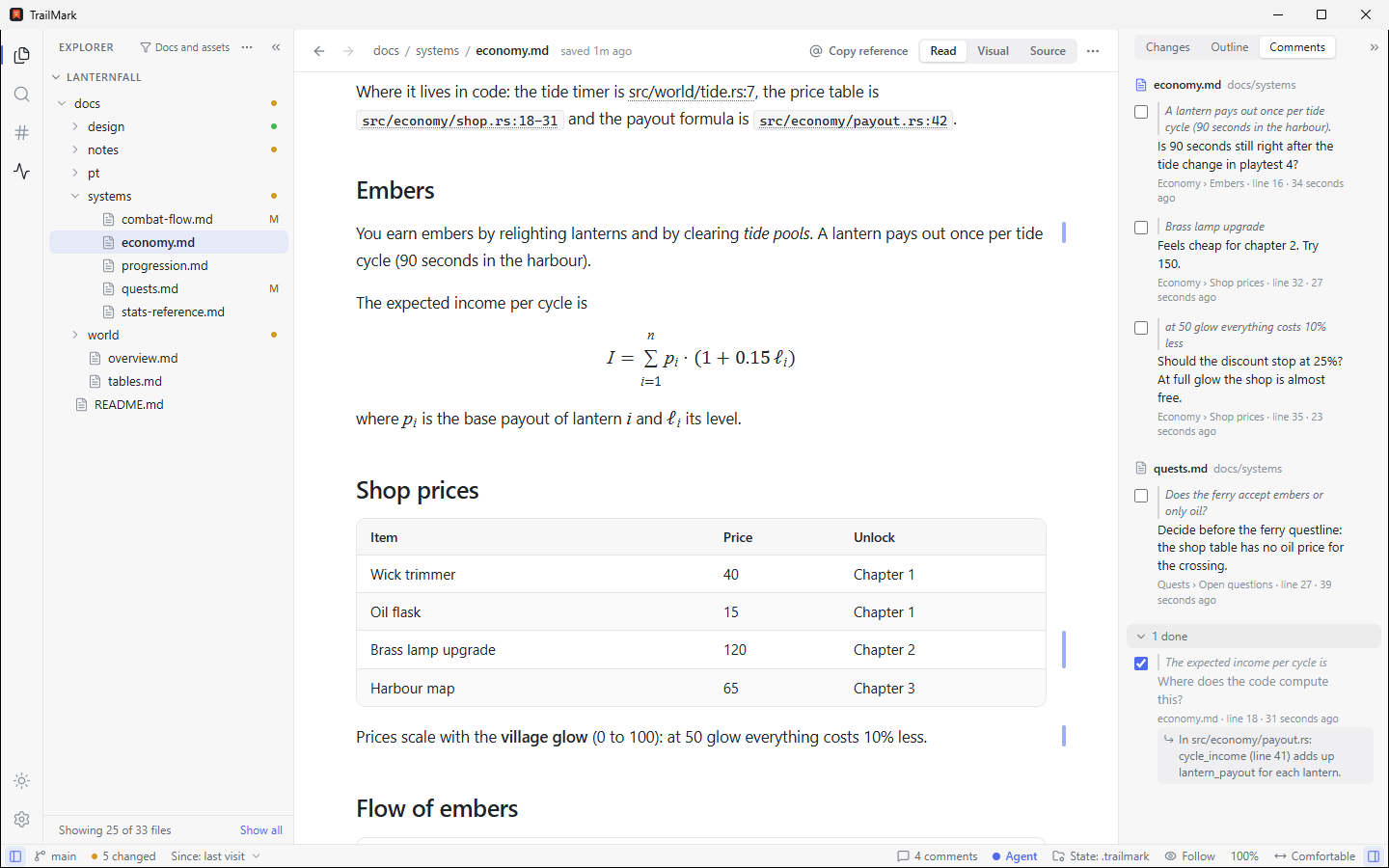
Comments
Select a passage while you read and press C (or choose Comment in the selection toolbar), type a comment and press Enter. A thin
bar marks the passage in the margin, and the Comments tab of the right panel lists the open comments by document, with the ones you
finished folded away. A click on a comment goes to its passage. Check a comment off yourself, or press Send to agent on a comment
(or Send all at the top of the tab) and paste the copied prompt into any agent chat. You can also ask your agent to "go through my comments":
it reads them with list_comments, and when it marks one done its reply appears under the comment.
Comments follow their passage when the document changes: they are found again by their words, then by their section, then by their
line. A comment whose passage was rewritten stays in the list marked Passage changed. Comments are yours, kept next to the other local
state (.permark/local/comments.json once you initialize PerMark in the project, otherwise in your user profile), never committed (the folder ignores itself),
and they work without the agent connection.
Keyboard shortcuts
On macOS, use Cmd where this table says Ctrl.
Reading and navigating
| Action | Shortcut |
|---|---|
| Search everywhere (files, sections, tags, commands) | Ctrl+T |
| Quick open file | Ctrl+P |
| Commands | Ctrl+Shift+P |
| Search all docs (by section) | Ctrl+Shift+F |
| Find in page | Ctrl+F |
| Show the Explorer | Ctrl+Shift+X |
| Show / hide the Outline | Ctrl+Alt+O |
| Cycle the reading width | Ctrl+Alt+W |
Focus mode: only the page (Esc or the same keys leave it) |
Ctrl+Alt+F |
| Next / previous change | F7 / Shift+F7 |
| Next unread document | Alt+U |
| Follow mode | Ctrl+Shift+L |
| Back / forward | Alt+← / Alt+→ |
| Copy reference (or selection with reference) | Ctrl+Alt+C |
| Copy the whole document | Ctrl+Shift+C |
| Open in your editor | Ctrl+Shift+E |
| Edit tags and description | T |
| Leave a comment on the selected passage | C |
| Zoom in / out / reset (on a picture: zoom it, or fit it to the window) | Ctrl+= / Ctrl+- / Ctrl+0 |
| Open a folder / a file | Ctrl+O / Ctrl+Shift+O |
| Settings | Ctrl+, |
| Close the folder | Ctrl+W |
| Next / previous open project | Ctrl+Alt+→ / Ctrl+Alt+← |
While you review what changed in a document: K keep, R revert, N / P next / previous change, Shift+K / Shift+R keep / revert all.
Every shortcut can be changed in Settings → Keyboard shortcuts.
Editing
| Action | Shortcut |
|---|---|
| Start editing, in the editor you used last | Ctrl+E |
| Done (back to View) | Ctrl+E or Esc |
| Switch between Edit and Source (from View: the editor you did not use last) | Ctrl+Alt+E |
| Save | Ctrl+S |
| New file | Ctrl+N |
| Bold / italic / strikethrough | Ctrl+B / Ctrl+I / Ctrl+Shift+X |
| Link / inline code | Ctrl+K / Ctrl+Shift+C |
| Headings 1 to 6 (Edit) | Ctrl+Shift+1 … 6 |
| Paragraph (Edit) | Ctrl+Alt+0, or Ctrl+Shift+0 where Windows lets it through |
| Block menu (Edit) | / in an empty paragraph |
| Find / replace / go to line (Source) | Ctrl+F / Ctrl+H / Ctrl+G |
Notes
| Action | Shortcut |
|---|---|
| New note | Ctrl+N |
| Copy the note's text (in a project: the open document) | Ctrl+Shift+C |
| Open a pinned note | Ctrl+1 … 9 |
| Open a file (listed under Files) | Ctrl+Shift+O |
| Save a file you opened (a note saves itself) | Ctrl+S |
| Next / previous note | Ctrl+Alt+↓ / Ctrl+Alt+↑ |
| Rename the note / delete it | F2 / Del |
In the Explorer
| Action | Shortcut |
|---|---|
| Rename | F2 |
| Delete (to the system trash) | Del |
| Select several files | Ctrl+click / Shift+click |
| Undo the last file operation | Ctrl+Z |
Roadmap
v0.2: organize, edit and reorganize (released)
- Tags and descriptions, the Explorer filter, reading widths, an Explorer that follows the open file, and the Outline
- A visual and a source editor with block-preserving saves, safe sharing of a file with agents, new files and images
- File operations (rename, move, delete) that update links and can be undone
v0.2.1: your language (released)
- Português (Brasil), Español and Deutsch, "Open with PerMark" in the Windows file manager, one Read | Visual | Source switch,
a window that remembers its place, and an Explorer for workspaces of several repositories
v0.3 (released)
- Search everywhere (
Ctrl+T): files, sections, tags and commands in one box - Unread markers ("changed since I last read it") and clickable code references (
src/main.rs:42) - "Open with PerMark" in the macOS and Linux file managers (Windows has it already)
v0.4: your agent sees what you see (released)
- An optional, local connection (MCP, plus a plain file for tools without it) that lets any coding agent know which document and
section you are reading and what you selected, so "rewrite this paragraph" just works - Comments: leave them on passages while you read, and your agent picks up the open ones
- Your agent can ask PerMark "where is X described?" and point you to a section, and it knows what you have not read yet.
Off by default, per project, and read-only: an agent can show you a document, never edit through it
v0.5: Notes (released)
- Open PerMark, type, close: notes save themselves, with no name to choose and no folder to pick. Keep a sticky note for
months, draft a prompt and copy it to your agent, and open loose Markdown files from anywhere, with changes on disk detected - v0.5.2: pictures, audio and video open in the pane, code blocks are highlighted for about 190 languages, and folders
show up in Quick open - v0.5.8: PlantUML diagrams, a new Markdown or text file from a folder, a note's path, heading shortcuts that work with AltGr, and wide blocks that stay in the pane
- v0.5.7: review what changed since you last read (Keep or Revert), send comments to your agent, silence a folder, repair broken links, complete as you type, a Mermaid preview while you edit, and a Projects menu
- v0.5.6: TrailMark is now PerMark: a new name, the same app, and nothing lost on the way
- v0.5.5: tags with colors and icons, tags as your agent's index (
list_tags, tag filter insearch), a folder switcher, the navigation trail, and Open in browser for web pages - v0.5.4: the interface in Italiano (Italian), soft light tones (Paper, Sage, Gray), and the Git letters explained in plain words
- v0.5.3: the interface in 简体中文 (Simplified Chinese), and search that finds Chinese and Japanese words inside sentences
v0.6: a workspace for documents and the files around them (released)
- One app with many windows and a bar of open projects, a Plugins page and a full Settings page with an editable keyboard map
- Small config files (TOML, YAML, INI,
.env,.properties, ignore files) and TOON as clean sheets you can edit without disturbing
the rest of the file; optional token counts and a converter to compact formats (off until you turn them on) - Review code and text files line by line, with changed lines that glow; very large text files open at once
- The agent connection grows to 13 tools, with short answers, permission groups,
.aiignoreand a hand-off button - Focus mode, and dropping files into a project (copy or move, with undo)
Later, no promises
- Spec-driven workflows
- Semantic search with a local, offline, multilingual model, so "retry policy" finds the section that describes it whatever words
it uses - Richer JSON and XML views, backlinks, and installer extras (
permarkon thePATH)
Tech
PerMark is a Tauri 2 app. The core is written in Rust: rendering (comrak + ammonia), file watching
(notify), git (the one on your computer, or a built-in libgit2 when there is none), the search index and the block-preserving saves. The UI is Svelte 5 + TypeScript running in the system
webview, with CodeMirror 6 (Source) and Milkdown (Edit). That keeps the installer small and memory use
low compared to Electron apps.
Contributing
Issues and pull requests are welcome. The project uses git-flow (develop for integration, feature/* branches) and a strict
quality gate:
cd app
npm run check   # version, rustfmt, prettier, build, clippy -D warnings, svelte-check, cargo test, vitest
See CONTRIBUTING.md before opening a pull request. It also explains how to fix or add a translation.
License
Copyright (c) 2026 Edelmar Schneider. Licensed under either of MIT or Apache-2.0, at your option.
"PerMark" and its logo are trademarks of Edelmar Schneider: forks are welcome under a different name. See TRADEMARKS.md.
Reviews (0)
Sign in to leave a review.
Leave a reviewNo results found