agent-screen
Health Warn
- License — License: MIT
- Description — Repository has a description
- Active repo — Last push 0 days ago
- Low visibility — Only 5 GitHub stars
Code Fail
- rm -rf — Recursive force deletion command in .github/scripts/check-release-credentials.sh
- rm -rf — Recursive force deletion command in .github/scripts/check-sparkle-key.sh
- rm -rf — Recursive force deletion command in .github/scripts/test-release-decision.sh
Permissions Pass
- Permissions — No dangerous permissions requested
No AI report is available for this listing yet.
Give each AI agent its own Mac screen: Claude Code and Codex work on virtual displays while your mouse and keyboard stay yours.

Agent Screen
Give each AI agent its own Mac screen.
A free, MIT-licensed macOS 15+ menu bar app that gives each Claude Code, Codex, or MCP agent session its own virtual display, while your cursor, keyboard and windows stay yours.
Website · Install · Download · MCP Clients · Develop




brew tap fanzzzd/agent-screen
brew trust fanzzzd/agent-screen
brew install --cask agent-screen
macOS 15 (Sequoia) or later · Apple-notarized DMG also on GitHub Releases · Then open Agent Screen and press Connect… in Settings (or see full install steps).
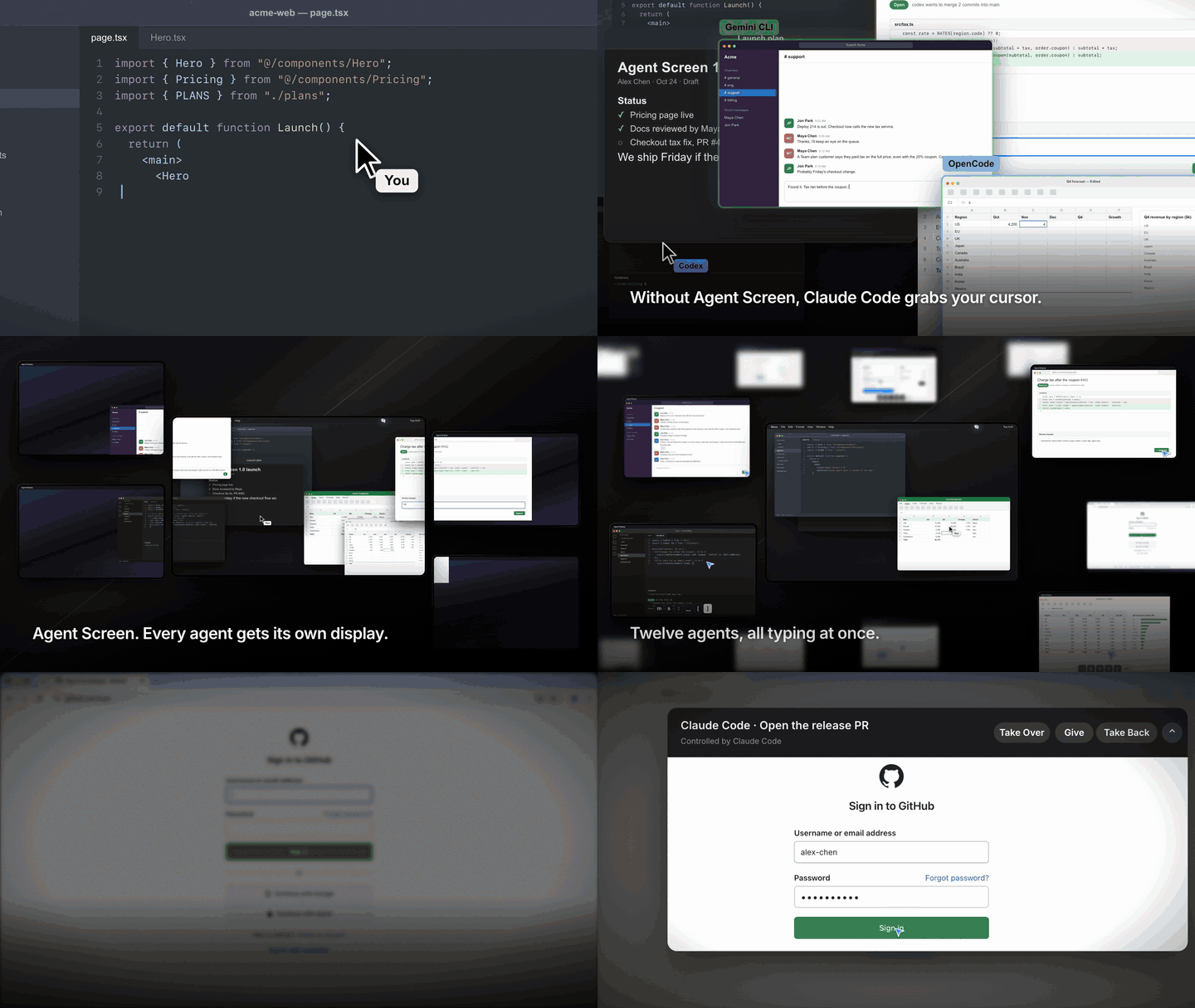
An animation of Agent Screen's behavior, built from its interface and recordings of the repo's test sessions. More at agentscreen.app.
Built-in computer use drives your real mouse and keyboard, so you stop working while the agent works. Agent Screen moves each agent session onto a virtual display of its own and sends clicks and keys in the background through SkyLight and Accessibility. You watch every agent from the menu bar, step in when it asks, and hand the screen back with one click.
Status and releases. Agent Screen is in active early development (0.1.x). Releases ship frequently through GitHub Releases, the Homebrew tap, and automatic Sparkle updates; main can document upcoming changes ahead of the latest tagged DMG release. It uses private macOS APIs (SkyLight, CGVirtualDisplay), so it is not on the Mac App Store and future macOS updates may require patches; it is not a security sandbox. See CHANGELOG.md and Known limits.
What you get
- A display per agent session. Run three agents at once and each gets its own screen. Subagents of one session share theirs. Each display can hold several apps and windows. A session that needs two screens at once can ask for up to four, each with its own label. Your windows stay put unless you give them to an agent.
- Peek. Hover the menu bar icon to see every agent's screen live.
- Web Preview. Watch any live Agent Display read-only in your browser from the
preview_urllinkcreate_displaygives the agent, or copy it with Copy Web Link in the display's menu. - Takeover. Click into an agent's screen to take the wheel. The agent pauses until you press Let … Continue or explicitly tell it to continue in the conversation.
- Help Request. An agent stuck on a login or a captcha asks for you with a card under the menu bar icon and a notification, then waits.
- Menus and controls through accessibility. Agents press buttons and pick menu items by name, so a button still gets pressed after its window moves or resizes. A control that offers no accessibility press, as a page element in Dia, gets a background click at its center instead, and the agent is told, so a press the app ignores no longer reports success. Sliders and steppers that support accessibility adjustment can move one app-defined step with
incrementordecrement, without dragging or moving your pointer.set_valuechooses from supported pop-up buttons and web selects with the menu closed. In a Chromium app the agent started, it picks the page's option directly. In an AppKit app it types the item's title into the closed pop-up, never a space, and checks what it shows; the app may act on items passed on the way, and the agent is told. In another Chromium browser, such as Dia or a Chrome window you handed over, it types the option's title into the closed select the same way, never a space. While your window of that browser has focus, it sends nothing and tells the agent to wait. For unsupported pop-ups,set_valueleaves the menu closed and tells the agent what to try next. A combo box gets its value and a confirmation in one call. - Handover. Drag one of your windows onto an agent's screen, or tell the agent to take it in the conversation. Take it back with Take Back or ask the agent to return it.
- Window authorization. Tell the agent it may take windows for this session, from all apps or selected apps. It can then take matching windows without another confirmation. You can revoke that access from the conversation, Viewer or Peek.
| Agent Screen | Built-in computer use | A virtual machine | |
|---|---|---|---|
| You keep your mouse and keyboard | Yes | No | Yes |
| Works with your real apps and logins | Yes | Yes | No, set them up again |
| Several agents at once | Yes, one display each | No | One VM each |
| Watch and step in | Menu bar, one click | Watch your own screen | VM window |
| Isolated from your Mac | No; uses private macOS APIs | No | Yes |
Install
Install with Homebrew. It needs macOS 15 or later.
brew tap fanzzzd/agent-screen
brew trust fanzzzd/agent-screen
brew install --cask agent-screen
Homebrew loads casks from a tap outside its own only once you trust it, which
brew trustdoes.Or download the DMG from the latest release and drag Agent Screen into Applications. Agent Screen is signed with a Developer ID and notarized by Apple, so it opens like any downloaded app.
Agent Screen updates itself. It downloads a new version in the background and installs it once no Agent Display is open, so it never ends an agent's work. Restart to Update… in the menu bar icon's menu installs it sooner, and Check for Updates… checks now.
Open Agent Screen. Its Settings window asks for Screen & System Audio Recording and Accessibility. Both stay on this Mac. Settings works from the keyboard: Tab moves between buttons, Return or Space presses one, Escape closes it.
Connect your agents. Press Connect… in Settings (right-click the menu bar icon and choose Settings…), or run:
"/Applications/Agent Screen.app/Contents/MacOS/AgentScreen" mcp installThis registers the MCP server with Claude Code for all projects and adds it to
~/.codex/config.toml. It also writes the Agent Screen skill (step 4) to~/.claude/skills/agent-screenand~/.codex/skills/agent-screen. Each update of the app brings those copies up to its version. Running it again is safe: it keeps your own settings in the Codex entry. For any other MCP client, such as Cursor, Gemini CLI, OpenCode, Claude Desktop, VS Code or Zed, add a stdio server with the command/Applications/Agent Screen.app/Contents/MacOS/AgentScreenand the argumentmcp. docs/clients.md has the config for each client, with the tool timeout some clients need, and how Agent Screen keeps each client's sessions apart.The Agent Screen skill makes agents use their display without being told. Step 3 installs it for Claude Code and Codex. Claude Code loads MCP tools only when it searches for them, so without the skill it often opens apps with
open -aor AppleScript on your screen instead. The skill tells it when a task needs a screen: opening, operating or testing a Mac app or a web page, clicking or filling in something on screen, a screenshot of an app, a login to a site.For Claude Code you can install it as a plugin from this repository instead. The plugin follows this repository, so it can describe tools your version doesn't have yet. With the plugin installed,
mcp installwrites no second copy.claude plugin install agent-screen --marketplace Fanzzzd/agent-screenOn Claude Code before 2.1.292, run
claude plugin marketplace add Fanzzzd/agent-screenfirst, thenclaude plugin install agent-screen@agent-screen.claude plugin update agent-screenfetches a newer skill.For Cursor, Gemini CLI and other agents that read Agent Skills, install it with the skills installer:
npx skills add Fanzzzd/agent-screen -gOr copy skills/agent-screen into the agent's skills folder, such as
~/.agents/skills. For an agent without skills, paste docs/agents/AGENTS.md into the project'sAGENTS.mdorCLAUDE.md. The skill is that file with a description on top.
Then ask your agent something like "Use Agent Screen to open Calculator on your own display and work out 12 × 34." Start a new session after connecting, so the agent loads the tools. Once it has, Settings and the menu name the agent, and after a restart they say which agent last loaded the tools, and on which day. For another MCP client, Copy MCP Config in Settings copies an "agent-screen" server entry with command and args to paste into its JSON config, and Client Guide opens docs/clients.md for clients that use another format. If Agent Screen isn't running, it starts when the agent's client connects.
Agent tools
| Tool | What it does |
|---|---|
create_display, end_display |
Get the session's display, or finish with it. create_display also returns preview_url, a local read-only link where you can watch that display live in a browser until it ends. A repeated call returns the same display; new: true adds another, up to four per session. A new or reused display is placed away from your screens before the agent gets it; if macOS cannot verify that position, creation fails and the unassigned display is released. end_display says which windows wait for your review and which of yours went back to you. |
launch_app, place_window, list_windows |
Open apps on the display and list its windows. launch_app takes an app name, bundle id or .app path, and finds an app by name wherever macOS knows it, Finder included. A browser that is already running opens a file path in a new window, as it does a URL. Google Chrome gets a separate instance for agents on its own profile, kept in ~/Library/Application Support/Agent Screen/Browser Profiles, whether or not you run it, so your use of your own browser never stops the agents' and their work never touches your profile (ADR 0022). All agent sessions share that profile and its sign-ins. The agents' instance quits once no Agent Display holds its windows, and when Agent Screen quits. If your Dock click or a link reaches it while your own browser isn't running, Agent Screen gives the front back and starts your browser; the link itself still opens in the agents' instance. Other Chromium browsers, such as Dia, aren't verified for this yet: while you run one, agents' windows open in your own browser, as before, and the agent is told its window stops while you work in that browser. launch_app takes arguments and environment for a new instance, as a development build needs. list_windows with strays: true lists windows of the agent's apps that opened elsewhere, and its windows that left the display, for place_window. place_window takes a window id, or an app's name or bundle id. It answers once the window has stayed on the display, and fails when it keeps going back. When it finds no window, it says why. place_window with x, y, width or height sets a window's frame on the display, in screenshot pixels from its top-left corner, and returns the frame the app kept, also when the app answers with an error but moves the window. |
computer |
Anthropic-style actions on the whole display. Every action except wait, cursor_position and zoom returns a screenshot, unless the agent passes screenshot: false for a step it doesn't need to see. zoom returns a region at up to twice the detail. type and key with via_input_method go through your input method, and use your keyboard for that call (ADR 0008). |
record_display |
Record the display to an MP4 in ~/Movies/Agent Screen, with the sound of its apps and a timeline of the agent's actions and Takeovers beside it. |
get_window_state, act_on_element |
One window's screenshot and accessibility tree, and actions on its numbered elements. get_window_state with image: false returns the tree only. Actions: press, click, set or insert text, read text. Numbers stay put while the element stays in the window. root reads one numbered element's subtree. max_depth stops traversal below that depth, so a long list cannot use up the budget for later branches. First read with a small max_depth to find a branch marked "more inside", then pass its number as root. act_on_element with result: "changes" compares reads with the same root and depth, or with "none" just says that it's done. |
wait_for_change |
Wait until one window, or one element's subtree, changes, or until an element with a given role or text appears or disappears. It compares with the last tree the agent got for that window and scope, reads again at most twice a second, less often while nothing changes, and returns the elements that changed in act_on_element's + / ~ / - form, or timed_out after timeout_seconds (default 30, at most 120). It also returns when the window closes or the display ends. |
set_disposition |
Keep or close a window when the user closes the display. |
wait_for_control, request_help |
Wait out a Takeover, or ask the user to step in; the answer says whether they took over, let you continue, gave a window, or replied. |
input_queue |
Inspect, wait for, withdraw or finish this session's approval requests in the shared queue. Only completed means a queued drag ran; approval alone is not completion. |
get_diagnostics |
Collect the compiled build identity of the app and of this session's AgentScreen mcp, without starting the app or creating a display. |
report_issue |
Report an Agent Screen bug from the session where it happened. Agent Screen adds its version and build, the macOS version, the client's name and version and the session's diagnostics. It redacts known patterns, such as window titles, quoted text, links, host names, paths, file names, email addresses and keys, but it can't recognize every private word, so review each report before sending it. Every report waits on the card under the menu bar icon, where Show Report shows all of it. Open on GitHub opens that one report's prefilled form for you to submit; nothing leaves your Mac before that. Once you have opened a report, later ones first check GitHub: a known issue comes back with its number, and a bug fixed in a newer release with a request to update. Turn reports off on the card, in Settings or in the menu's Agent Bug Reports. |
request_control |
During a Takeover, ask the user to hand the display back. With user_instruction, relay their explicit chat instruction to hand it back, or with control: "user" to pause. |
window_access |
Grant, inspect or revoke session window authorization, or return handed-over windows. Grant and return require the user's explicit user_instruction. |
A session can only see and drive its own display. place_window with user_instruction relays your instruction to hand over that window without another confirmation. Agent Screen trusts the agent's relay and records it; it does not read or independently verify your conversation. The skill from Install step 4 tells agents how to use these tools.
Your side
- Peek. Hover the menu bar icon for 300 ms to start opening Peek. Click the icon to pin it, including when hover already showed it. A later click closes pinned Peek; a click on the closed icon opens it pinned without the hover wait. Unpinned Peek waits 500 ms outside both the icon and Peek before starting to close. Moving between them keeps it open. Click outside or press Esc to dismiss. Right-click the icon for the menu: New Display, Recordings…, Settings…, Report a Problem… and Quit, and anything that needs fixing. Report a Problem… asks first, then copies this build's diagnostics and opens the bug report form; you paste and submit them. Displays in use come first, then those waiting for review. The narrow + creates a display of your own. Where macOS would mirror a new display onto your screen and change its resolution, Agent Screen has it extend the desktop for about a second while it makes the display, then sets your setting back, so your screen keeps its resolution; a monitor you plug in during that second extends instead of mirroring. If macOS mirrors anyway, Agent Screen turns the mirror off, parks the display beside your screen and has macOS remember that arrangement, so your screen flashes once and the next display of that size lands beside it. If the mirror can't be turned off, or comes back after macOS stored the arrangement, Agent Screen releases the display at once and pauses new displays for up to 30 minutes. The menu then says so and offers Allow New Displays, and + explains why it made no display.
- A permission turned off. If macOS turns off Screen & System Audio Recording while displays are open, Peek tiles, the Help Card and the mouse card say so instead of waiting for a picture, and the Viewer offers Fix Permissions…. With Accessibility off, the Viewer says clicks and typing don't reach the apps, and offers the same fix. Peek names a recording display to VoiceOver and in the red dot's tooltip.
- Web Preview. Each live Agent Display has a read-only web page served on
127.0.0.1(http://127.0.0.1:<port>/d/<token>, ADR 0019).create_displaygives the link to the agent so it can share it in chat, and you can copy it from the display's submenu in the menu bar menu or by right-clicking its tile in Peek (Copy Web Link). The stream encodes JPEG frames at up to 1280 pixels wide only while a browser tab is connected, sends no input, and stops as soon as the display ends: an open page shows "This preview has ended", and the link then returns a404page that says the display may have ended or Agent Screen restarted. - Takeover. Your first click, scroll or key press in the Viewer, or Take Over, pauses the agent, including automatic window acquisition. Its input tools fail until you press Let … Continue or explicitly tell the agent to continue in the conversation. Collapsing the Viewer keeps the Takeover. The agent can ask you to hand control back; a request or timeout never resumes it by itself. If you leave the mouse and keyboard alone for 15 seconds, an agent waiting for the display is told you may be done, so it can ask you in the chat. Your input method, such as pinyin, composes in the Viewer: its own window shows what you type and the candidates at the app's text cursor, and the app gets the text you pick. Shortcuts, arrows and other keys that type no text go to the app as keys. Other apps don't see your presses in the Viewer, so an app's pop-up list on the display, such as WeCom's search results, stays open for your click.
- Help Request.
request_helpdrops a card from the menu bar icon with the display's picture and the agent's reason, and posts a notification. You answer it in one of four ways. Take Over, on the card or the notification, opens the display in Takeover, and handing it back tells the agent you are done. Continue lets the agent go on without a Takeover, for a step you did yourself. Give a Window opens the Give menu for that display, and the window you pick answers the request. Reply, on the card or the notification, sends the agent what you type, word for word, up to 2000 characters; a longer reply from the notification opens on the card for you to shorten. An agent session that started before you updated Agent Screen gets only Take Over and Later until its client restarts. Clicking the picture or the notification only opens the display. Later puts the card away; the icon stays orange, and the agent's next request brings the card back. During a Takeover the card steps aside, but the icon stays orange and the notification stays until you hand the display back. When the agent gives steps, the Viewer lists them under its header while you are in control. - Input queue. When a web drag has no working background route, or a drag goes from one window to another, such as a file from Finder onto a web page, a card drops from the menu bar icon, in the same form as a Help Request's: it names the agent that wants your mouse, draws each drag's path or click's point on the display's picture, numbered and listed when there are several, and says what Allow covers. Allow lets agents use your mouse for complete drags, one at a time, including new requests until 30 seconds of queue inactivity. While approval lasts, a thin red edge with a soft glow runs around the inside of your screens, the card shows which step runs, and a small pill at the bottom of the screen names the agent using your mouse, or while nothing runs, the idle time before approval ends. Move the mouse or press a key to take control back, or press Stop on the card or the pill. Not Now declines the waiting batch. If macOS interrupts input monitoring, approval ends. Agent Screen restores monitoring after cleanup, but queued actions still need a fresh Allow. Takeover pauses that display's requests. When approval ends normally, your pointer, your front app and the window you were using in it come back; after you take control, the app leaves your new action alone. A request that only asked for approval runs nothing by itself. Use
input_queueto withdraw an obsolete request or declare your session done. An Electron app takes a menu item an agent presses in the background as the item's keyboard shortcut, which many apps ignore while a text field has focus. So pressing an item of its menu bar while a field has focus asks the same way, and the card names the item. Allowed, the agent's display shows the app's menus, your pointer clicks the item there, and once it is chosen the approval ends, unless another agent is using it. Declined, nothing is chosen. Some apps take a click sent in the background only partway: WeCom, for example, selects a chat in its sidebar without opening it. An agent that sees its click had no effect can repeat it withreal_input, and the card names the click, the app and the window. If what is under the point changed while you decided, as when a new message reorders the chat list, nothing is clicked and the agent is told to look again. Allowed, the window comes forward on the agent's display, your pointer makes that one click there, and the approval ends, unless another agent is using it. Declined, nothing is clicked, not even in the background. Right, middle and Control clicks can't use your pointer: the menu they open would close as soon as your front app comes back. - Notifications. Pending Help, Control, Window and Input requests show an orange count on the menu bar icon, highlight the approval card and play a notification sound. Besides those requests, Agent Screen tells you when an agent leaves windows on its display, by finishing or by disconnecting. Allow notifications in Settings.
- Where an app's windows went. When you bring an app to the front, from the Dock or a launcher, and all its windows are on Agent Displays, Peek comes down from the menu bar icon. That display's tile glows orange, with the app's windows outlined on it. Click the tile to open it in the Viewer, or Take Back to bring the windows to your screen. Peek goes after 5 seconds unless the pointer is on it. Every explicit click on the app's Dock icon reminds again, even when the app is already in front, and restarts the 5-second reminder. Automatic app activation remains limited to once a minute. Before setup is done, a notification names the displays instead.
- Recording. While an agent records its display, the Viewer header and Peek show a red Recording mark. The video has the sound of the apps whose every window is on that display. macOS separates sound by app, not by window, so an app you also have open elsewhere, such as your browser, stays silent in it, and the agent is told which apps were left out.
- Recording playback. Recordings… in the menu bar icon's menu opens the local MP4 library in
~/Movies/Agent Screen, newest first, each with its display's label and start time. Select a video, play or pause it, or drag its progress bar to seek. While you drag, the video pauses and keeps showing its last frame, and it resumes on release if it was playing. Space plays or pauses, ← and → move 5 s, ↑ and ↓ pick a recording, and ⌘W closes the window. Show in Finder reveals the file. Show Pointer toggles a visual overlay without changing the video, sound or playhead; it reads Pointer Unavailable when the video has no usable pointer timeline. New recordings include pointer timing and coordinate metadata. Older videos still play; missing, damaged, incomplete or older timelines cannot accurately replay a pointer. The overlay hides during Takeover because user pointer movements were not recorded. Playback never sends input to the recorded apps. - Recording format. New recordings prefer HEVC/MP4 when macOS advertises it and use H.264/MP4 when HEVC is unavailable. The agent receives the selected codec. HEVC may need a newer video player outside Agent Screen. Hardware encoder use and same-quality space savings have not been verified for ScreenCaptureKit.
- System prompts. A macOS prompt that opens on an Agent Display, such as a keychain password request, moves to your main display.
- Agent Pointer. The Viewer and Peek share an original rounded arrow with an even light rim and dark edge. It keeps the theme accent, glide and click ripple. The pointer is clipped to the display image, not drawn on the display itself, so agent screenshots don't contain it. Your Mac's system cursor is unchanged.
- Wallpaper. Choose… on the Wallpaper row in Settings sets the picture agent displays show in the Viewer and in recordings. Use Default puts back Agent Screen's own, which the app draws at each display's size with the display's name, so System Settings tells agent displays apart; it needs no file in the app and shows on a first install. Agents' screenshots leave the wallpaper out either way.
- Handover. Drag one of your windows onto the Viewer, or pick it under Give in the Viewer's header. Take Back brings any window back. A handed-over window returns to where it was, and it goes back by itself when the agent ends its display or after a brief reconnect grace when the agent disconnects. The × beside them closes the display.
- Window Requests. An agent can ask for one of your windows, such as an app it opened with a script, including one in another AeroSpace workspace. A card drops from the menu bar icon, with a notification, naming the window. Hand Over gives it the window as a Handover; Keep leaves it with you. If you already explicitly told the agent to take that window, or gave it matching continuing authorization, it can take the window without asking again. An agent that wants a window another agent is using, or one on a display waiting for your review, asks you the same way, and the card names the agent that has it. Hand Over moves the window to the asking agent's display, and the other agent is told on its next call. A window you had handed over to the first agent still comes back to you when the second one finishes. Only your answer, or your explicit instruction naming that window or app, moves it; one agent never takes a window from another by itself.
- Window authorization. A continuing authorization covers each of this session's displays and the apps you named, or all apps. Viewer and Peek show its scope, whether Takeover has paused it on that display, and a way to revoke it. Revoking prevents future automatic acquisition; existing windows stay where they are. Ask the agent to return one or all handed-over windows separately. A window you take back, including one returned through the conversation, stays excluded until you explicitly authorize that window again. Unknown app names fail without granting access. Authorization ends when the session's last display ends or the agent disconnects. It never permits taking another agent's windows, which always take your answer, borrowing your keyboard or approving unrelated actions such as purchases.
- Review. When the agent stops using a display, the windows you handed over go back to you, and the display closes by itself if it is then empty, and otherwise shows Needs Review until you press Review Windows…. See ADR 0004.
- Closing a display lists its windows with what the agent suggested for each, keep or close, and you can change any of them. Esc cancels, ⌘Return confirms. Quitting Agent Screen applies the same plan without asking.
The app follows your Mac's language: Chinese when it comes first in your preferred languages, English otherwise.
Privacy
Agent Screen runs on your Mac and collects no telemetry. It checks GitHub for updates once a day, through Sparkle. Screen & System Audio Recording lets it show agent displays and take the screenshots agents ask for. Accessibility lets it click, type and place windows on them. Agents reach it through a socket only your user account can open.
Known limits
- It uses private macOS APIs, so it can't be in the App Store, and a future macOS may break it.
- The menu bar strip in the Viewer mirrors your own front app. A click on it opens the menus of the app in front on the agent's display; status items there take no clicks. A window's zoom control can put its toolbar in that strip. For agent tools, recover with
place_windowon that window and an explicit frame. Agent Screen constrains that request below the strip and returns the actual frame. For a window already on its Agent Display, omitting frame arguments keeps its frame. Zoom itself is not automatically corrected. - The first click on a window only activates it, the same as a real click on an inactive window.
- Clicks on an empty part of a display reach nothing.
launch_appon a running single-window app such as Calculator gets no new window, and says so at once. For a URL, hand the app's window over withplace_window, then calllaunch_appwithopento open the URL in that window. Every window of the app must be on the same Agent Display. You can also quit the app before callinglaunch_app.place_windowbrings a window you minimized out onto the display without showing it on your screen, and puts it back in the Dock when the agent is done. It does this only while the window's app is in the background with no other window you could see. It doesn't show an app you hid, since that would bring back all its windows, and it can't reach a closed window or one on another macOS Space. It tells the agent which, and the agent asks you to bring the window up.- When an agent opens a new window in an app that is already running, the window shows on your screen for about 30 ms before it moves, 140 ms at most in tests.
- A new window of an app the agent started goes to the agent's display if the display was driven in the last 3 seconds, by the agent or by you through its Viewer, and you didn't click or type in that app, Finder, the Dock or a launcher such as Spotlight meanwhile. For an app the agent starts, this holds for 30 seconds from the launch, so a slow app's windows still arrive. A window you open stays on your screen. One the app opens by itself later, with nobody acting, goes to the agent's display too while none of the app's other windows is on your screen, as a VM viewer's new window after its guest reboots. One that opens while you both act, or with nobody acting while the app has a window on your screen, stays where it opened; the agent's next screenshot or window state names it, and the agent can move it with
place_window. Take back one of the app's windows and the whole app is yours; hand a window over again and the agent can use it. - A window that refuses to close, such as one with unsaved changes, is left to macOS, which moves it to your main display.
- Canvas apps and games that filter per-process events may ignore forwarded input.
- A web drag first uses the app's private DevTools pipe when available (ADR 0010). A slider can instead change its accessibility value when its numeric range, orientation and current thumb position determine the drag's meaning. Ambiguous sliders are left alone. After a value write, the app must confirm the result; uncertainty stops the action rather than sending a second drag. The slider moves from its current value by the drag's distance, so a grab beside the thumb's centre goes the way the drag goes. A Chromium page ignores a written value, so its slider moves by its own increments instead, each confirmed before the next, and stops within half a step of the value. A web drag with neither route enters the Input Queue, waits up to 60 seconds for your answer and returns
input_pending, without sending even a mouse-down. Once you allow it, a complete queued drag can run with your pointer and reportsroute: real_input. Split presses held across calls cannot use your pointer; the agent must submit the whole drag in one call. A drag from one window to another on the agent's display, such as a file from Finder onto a web page, needs a system drag session, which follows only your pointer. It asks the same way instead of reporting a background drag that dropped nothing. Allowed, your pointer may cross any window on that display between the two ends, but never leaves it; if the drop window moved while you decided, nothing is pressed. The drag itself takes under a second: the window comes forward first, which takes half a second while AeroSpace runs, then the pointer presses, waits for the drag to start, moves in 12 to 24 steps and rests a moment on the drop point so a web page takes the drop. Your pointer comes back when the agent says it is done or 30 seconds after its last drag.input_queue statusreports when each request was asked, allowed, started and ended, so an agent can tell your time from the drag's.computerwithreal_input: trueon a drag, a left press or a left, double or triple click queues the same kind of intent after an agent observes a background failure. A fresh browser profile still has separate sign-ins and does not add a pipe to an existing window. Keep that window and userequest_helpif its login session is required. - With the menu bar icon hidden, for example behind the notch, Peek and the Viewer drop from the top center of the screen under the pointer.
- Copy, paste and undo shortcuts need a focused app, so they do nothing in an app on an agent's display. Agents copy and paste with
act_on_element'sread_textandinsert_textinstead; Command-A still selects all. - Window managers move windows too. With AeroSpace, see docs/aerospace.md. Others, such as yabai, are untested.
- The Viewer shows a display at one pixel per point, scaled up, so small text in it looks soft. Agents' screenshots are unaffected.
Troubleshooting
For a bug, collect diagnostics in the failing session and follow Reporting bugs. The guide covers stale MCP clients and older builds too.
- The agent has no Agent Screen tools. Start a new session after connecting; a running session doesn't load new MCP servers.
claude mcp get agent-screenshows whether Claude Code has it. - Tools fail with a permissions error after an update. macOS ties the grants to the app's signature. The menu, which opens when you right-click the menu bar icon, then shows Finish Setup: Allow …. Choose it, and in each list it opens switch Agent Screen off and on. If the row still says Off 30 seconds after the pane opened, the helper beside System Settings adds a second step: if the switch is already on, remove Agent Screen from the list with − and drag its icon in again, since macOS may be holding an entry for another copy of the app.
- Tools say Agent Screen isn't running. The agent's client starts it when it connects, and the next tool call starts it again if it quit. If that fails, open
/Applications/Agent Screen.apponce yourself. - An agent's tools act like an older version after an update. The tools run in the app, so every session uses the updated app from its next call. A session started before version 0.1.39 keeps the MCP process it started with, which still works, until you restart its MCP connection (
/mcpin Claude Code) or start a new session. - The agent says you closed its display. Closing a display from Peek or the Viewer tells its agent to stop and ask you before it makes another. Tell it to go on, and it creates a new one.
- An agent's typing fails and names a window of yours. When an app you use also has a window on an Agent Display, keys sent to the app reach whichever of its windows has focus. Agent Screen first gives the agent's window focus, with the app still in the background. If it can't, it sends no keys and tells the agent which window has focus, so the agent can set the field's text through accessibility instead.
- The Mac stutters with many agent displays. On every display change macOS reads its color records of every display ever connected, once per display online, and retries every 5 s until a read finishes within 50 ms. Turn on Smooth Display Changes in Agent Screen's Settings (or run
AgentScreen colorsync setup). It asks for your administrator password once and installs a small tool that Agent Screen runs as root, throughsudo, after displays change and every 30 minutes. The tool removes the records of displays that aren't connected and hold only what macOS made for them, and keeps display names in English and your languages, which makes the reads about five times faster. Profiles you chose for a display stay, and macOS makes a record again when you plug that display in.AgentScreen colorsync removetakes the tool away. Without it, Agent Screen refuses a new display when the reads would take too long. - An agent's keys fail in a browser you're also using. Google Chrome, when
launch_appopens it, gets its own instance for agents, which this doesn't affect. Dia and other Chromium browsers, a window you hand over from your own browser, and Safari still do. When an app on the agent's display is your front app and another of its windows is focused, keys sent to it would reach your window, and a click would take your window's focus. So Agent Screen sends it no keys or clicks. A plain left click presses the control under it, or picks the text field there, through accessibility. Agent Screen then watches the agent's page, display and the app's windows for up to 0.6 seconds and tells the agent whether anything changed, so a link whose page cancels the click no longer reads as one that worked. A select, or another control whose press opens a menu, isn't pressed, because the open menu would take your keyboard;act_on_element set_valuechooses its item where the browser allows it. Text goes into the picked field, and Return, Escape, Backspace and Command-A act on what was picked. Tab and Shift-Tab move focus to the next or previous field, button or link of the agent's page and pick it. That order follows the page's structure, so it can differ from the page's own tab order. Return in a web form's text field doesn't submit the form, because the browser doesn't say which of the form's buttons submits it, so the error names the buttons for the agent to click. Other shortcuts, right clicks, double clicks, a select, and a click oract_on_elementpress on a control that takes no accessibility press, as the elements of a page in Dia, wait in the Input Queue instead, with nothing sent. Anact_on_elementpress or click waits as a click at the element's center. They need no approval and never use your pointer: once your window of that app loses focus, because you switched to another app, the action goes in the normal background way. The agent's call waits up to 30 seconds, then tells the agent the action still waits. It still goes in by itself once you switch away, for up to 10 minutes, unless the agent does something else on that display first. A click doesn't run if what was under its point changed meanwhile. After 30 seconds the display's card in Peek and the Viewer header say "Waits for you to leave Dia", and the menu bar icon counts it, with no notification. "Let the agent continue" beside that line, also on the Input Queue card when it is open, runs the waiting actions now: Agent Screen stands in front of the app for the moment they take, then gives it the front back with your window focused. Keys you type meanwhile go to your window after, and typing or clicking stops what is left, which waits again. A page sees no key presses for that text, so typing that relies on them, such as a search box's suggestions, may not react until you switch to another app. Agent Screen doesn't switch it for you. A context menu the agent asks for there isn't opened either, and an item of the app's menu bar isn't pressed, since its command would act on your window. If Accessibility can't tell which window has focus and the app has a window on your screen, keys stay refused, a click goes in only through accessibility as above, and drags and other clicks are refused, so nothing can make the agent's window key. An app with all its windows on Agent Displays takes clicks as before. So does your front app when its focused window is on the agent's own display, such as a window you handed over: that window isn't one you're typing in. - Tools fail with "locked". macOS blocks input and screenshots on every display while the screen is locked. Unlock and retry.
Develop
To build and install from source instead of the DMG, with Rust installed: apps/macos/scripts/install.sh. See docs/DEVELOPMENT.md for testing and how it works. To send a change, read CONTRIBUTING.md. Agent Screen is MIT licensed. Its background input recipe is ported from trycua/cua; see THIRD_PARTY_NOTICES.md.
Reviews (0)
Sign in to leave a review.
Leave a reviewNo results found