claude-code-eyes
Health Pass
- License — License: MIT
- Description — Repository has a description
- Active repo — Last push 0 days ago
- Community trust — 43 GitHub stars
Code Pass
- Code scan — Scanned 3 files during light audit, no dangerous patterns found
Permissions Pass
- Permissions — No dangerous permissions requested
No AI report is available for this listing yet.
Give Claude Code eyes 👁️ — a camera skill so it can SEE real hardware, displays and wiring: verify a rendered panel, check wiring before power-on, and catch bugs that live on the glass, not the logs.
claude-code-eyes
Give Claude Code eyes. A camera skill so Claude doesn't just read about your
hardware — it sees it and drives the whole loop: write the firmware, flash the
board, connect the API, look at the display, fix the UI, reflash — verifying its
own work where it actually lives: on the glass.
Built by a quadriplegic dev who watched Claude Code wire up an ESP32 and fix its on-screen UI — by looking. This skill is how Claude sees.
Most of what Claude works with is text: code, logs, API responses. But some outputs
live where no test can reach them — a font that silently drops characters, a wire in
the wrong hole, a number clipped at the edge of an LCD. claude-code-eyes grabs the
current camera frame so Claude can read it like any other file — then act on it:
edit, reflash, and look again until the real thing is right.
See it in action
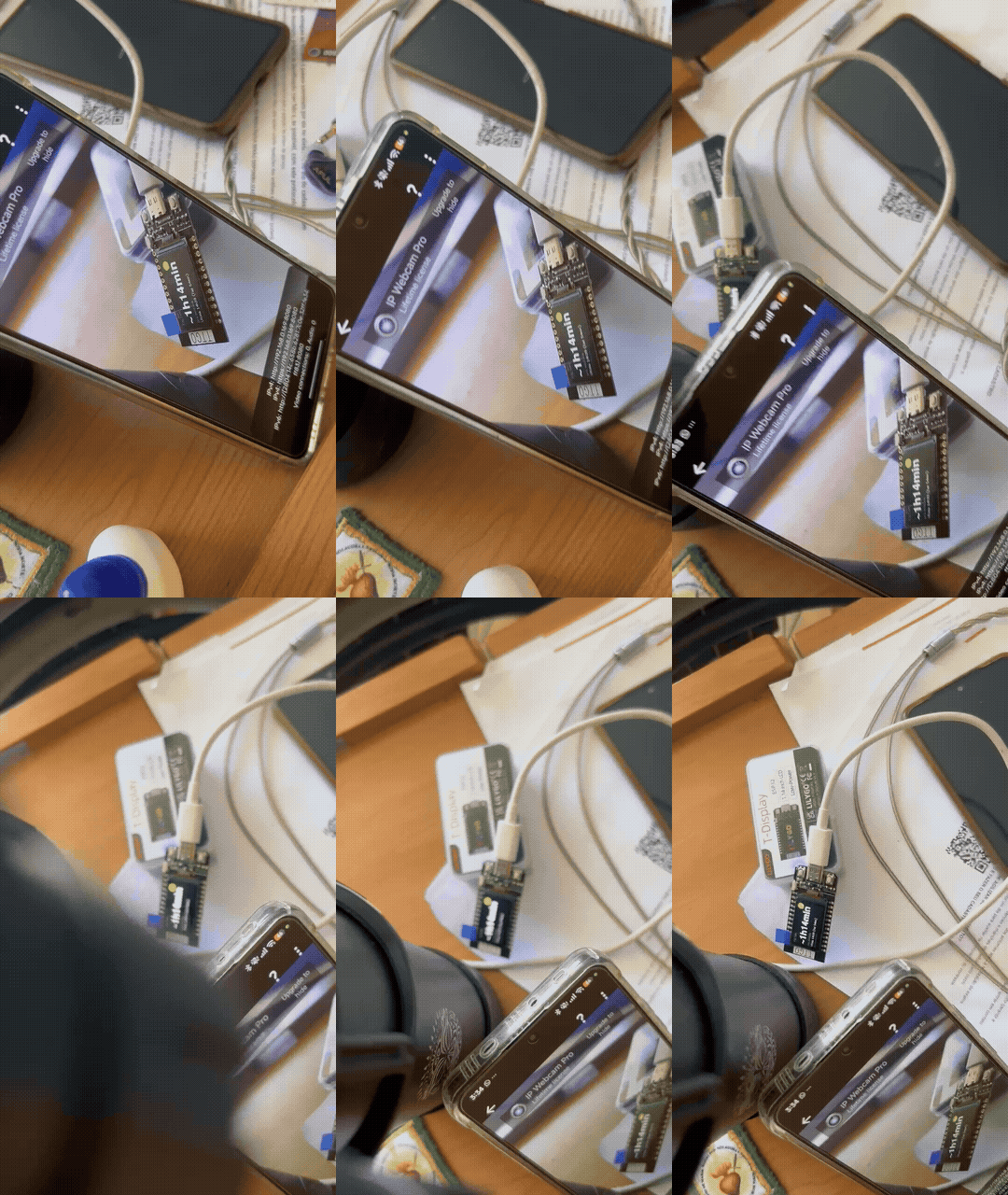
▶️ Watch the full 25-second demo — Claude drives the build from the laptop, the board runs the live countdown, and the phone (IP Webcam) is the eye Claude looks through.
🤯 What Claude Code pulled off here — from a prompt, my home Wi-Fi, and the API it would use, and with zero hardware help from me: it designed the board → relay → API architecture, wrote the ESP32 firmware and a Go relay service, flashed the board, shipped 5 clean OTA updates, wrote its own tests (and caught two of its own that were testing nothing) — and found and fixed a UI bug on the display that every green test missed, by looking at the panel through this camera. My whole job: set the goal, plug in the cable, press the button, aim the phone. Claude did the engineering.
Get a camera in 2 minutes (recommended: IP Webcam)
The primary, best-supported camera source is the IP Webcam Android app — it
turns any spare Android phone into an HTTP snapshot camera.
- Install it from Google Play:
👉 https://play.google.com/store/apps/details?id=com.pas.webcam - Open the app, scroll to the bottom, and tap Start server.
- The app shows an address on screen, e.g.
http://192.168.0.42:8080. ThatIP:portis your camera URL. - Point the phone at whatever you want Claude to see (a phone stand or a stack of
books works). Set the config below to that URL.
export CCE_CAM_TYPE=ipwebcam
export CCE_CAM_URL=http://192.168.0.42:8080      # the IP:port the app shows
# optional, if you enabled "Login/password" in the app:
# export CCE_CAM_AUTH=user:pass
No Android phone? Any camera that can serve a still image over HTTP works — see
Camera backends for a Raspberry Pi or a fully generic snapshot
URL.
Install
The skill is a folder with a SKILL.md and a snap.sh. Put it where Claude Code
looks for skills:
Personal (all your projects):
git clone https://github.com/fcavalcantirj/claude-code-eyes.git \
  ~/.claude/skills/claude-code-eyes
Project-scoped (shared with a repo):
git clone https://github.com/fcavalcantirj/claude-code-eyes.git \
  /path/to/your/project/.claude/skills/claude-code-eyes
Or just copy the skill's files into a claude-code-eyes/ folder under eitherskills/ location. That's the whole skill.
One-command setup
From the installed skill folder, run the setup helper — it writes your camera
config and grabs a test frame, so there's nothing to hand-edit:
bash ~/.claude/skills/claude-code-eyes/setup.sh
It asks for your camera URL — or, if you leave it blank, scans your LAN for an
IP Webcam and lets you pick one. Prefer non-interactive?
# writes the config and verifies it in one shot (add --auth user:pass if needed)
bash ~/.claude/skills/claude-code-eyes/setup.sh --url http://192.168.0.42:8080 --type ipwebcam
Other flags: --scan (just list IP Webcams on the LAN), --local (write./.cce.env for this project instead of the global config), --show (where config
lives). You can still set the env vars or edit the config by hand — see
Configuration.
Then ask Claude to look:
"Are you seeing this? Is the yellow wire in G4?"
"Look at the display — does it say~1h23minin full?"
"Watch this — I'm going to press the button."
What it's for
Visual-verify — catch what green tests cannot
A rendered screen is an output no unit test can see. Snap before and after a
render change and diff the frames; check the frame against what the spec/API says
the screen should show; report the mismatch. It has a small case library baked
into the skill: font coverage / dropped characters, text-vs-graphic collisions,
clipping at a panel edge, and stale-vs-live renders.
Wiring-mentor — a second set of eyes before power-on
Ask Claude to check a build's wiring against its wiring table before you apply
power: it calls out mismatches, verifies polarity and voltage rails (no 5 V on a
3.3 V-only pin), and — importantly — refuses to guess a pin it can't read,
asking you to aim the camera closer instead.
Camera backends
Selected with CCE_CAM_TYPE:
CCE_CAM_TYPE |
Source | Request |
|---|---|---|
ipwebcam |
Android IP Webcam app | GET $CCE_CAM_URL/shot.jpg |
camera-streamer |
Raspberry Pi camera-streamer | GET $CCE_CAM_URL/snapshot |
url (default) |
Anything that returns a still image over HTTP | GET $CCE_CAM_URL (verbatim) |
The url mode is the escape hatch: point it at any endpoint that returns a JPEG or
PNG (a webcam server, an ESP32-CAM, a signed snapshot URL, ?action=snapshot,
etc.). snap.sh verifies the response is actually an image (by magic bytes), so a
web page served with 200 OK won't be mistaken for a photo.
# Raspberry Pi camera-streamer
export CCE_CAM_TYPE=camera-streamer
export CCE_CAM_URL=http://raspberrypi.local:8080

# Any snapshot URL
export CCE_CAM_TYPE=url
export CCE_CAM_URL=http://192.168.0.50/cam/snapshot.jpg
Experimental: local USB webcam (untested — verify it yourself)
If you have a USB/built-in webcam and ffmpeg installed, you can grab a single
frame directly. This is not shipped as a snap.sh backend because it can't be
tested in an automated/headless environment (macOS in particular blocks camera
access behind an interactive permission prompt). The portable, supported path is a
snapshot URL via one of the backends above. If you want to wire a local camera in
yourself, these are the one-liners:
# macOS (avfoundation) — index 0 is usually the built-in camera
ffmpeg -y -loglevel error -f avfoundation -framerate 30 -i "0:none" -frames:v 1 out.jpg

# Linux (v4l2)
ffmpeg -y -loglevel error -f v4l2 -i /dev/video0 -frames:v 1 out.jpg
Grant your terminal camera permission first, run it manually, and confirm out.jpg
is a real image before trusting it.
Configuration & precedence
Set config however you like — snap.sh resolves it in this order (first wins):
- Environment variables already exported in your shell.
./.cce.envin the current working directory.${XDG_CONFIG_HOME:-$HOME/.config}/claude-code-eyes/config.
Config files only fill in values you haven't already exported, and they are
read, never executed (snap.sh parses KEY=VALUE for a fixed allowlist of
keys — a config file cannot run code or set anything else). Example .cce.env:
CCE_CAM_TYPE=ipwebcam
CCE_CAM_URL=http://192.168.0.42:8080
# CCE_CAM_AUTH=user:pass
| Key | Meaning |
|---|---|
CCE_CAM_URL |
Camera URL (interpreted per CCE_CAM_TYPE) |
CCE_CAM_AUTH |
Optional HTTP basic auth user:pass |
CCE_CAM_TYPE |
ipwebcam | camera-streamer | url (default url) |
CCE_OUT_DIR |
Where frames are written (default ./.claude-code-eyes) |
Watch mode
bash snap.sh 3 2 # 3 frames, 2 seconds apart — for "watch this"
Captured frames are written under ./.claude-code-eyes/ (override withCCE_OUT_DIR) and their paths are printed one per line. They land in the working
directory, not $TMPDIR, on purpose — see the sandbox note below.
Troubleshooting: the camera stopped working after a Claude Code update
Claude Code runs Bash commands inside a sandbox.
It changed two things this skill depends on. Both are handled as of the current
version, but if you are on an older copy — or you see the symptoms below — this is why.
1. The sandbox blocks your camera's address
Symptom: Claude reports the camera as unreachable, but the exact samecurl works in your own terminal.
The sandbox pre-allows no network destinations. How it blocks depends on the
address, and the two cases need different fixes (measured on Claude Code 2.1.236):
| Camera address | How it's blocked | Fix |
|---|---|---|
Private / LAN (192.168.x, 10.x, 172.16-31.x, localhost, *.local) |
Below the proxy — the connection just fails, with no HTTP status | sandbox.excludedCommands |
| Public host or public IP | The proxy answers 403 |
sandbox.network.allowedDomains |
Almost every camera is on your LAN, so this is usually the one you want —
it keeps the sandbox on for everything else and runs only the capture outside it:
{ "sandbox": { "excludedCommands": ["bash snap.sh"] } }
Match how you actually invoke it — use the full path if you call snap.sh by path.
sandbox.network.allowedDomains does not work for a LAN camera: private
ranges are rejected from the domain lists, which require public domain names.
For a camera on a public host, it is the right fix:
{ "sandbox": { "network": { "allowedDomains": ["cam.example.com"] } } }
IPs must be listed exactly — wildcards never match an IP.
Put either in ~/.claude/settings.json and restart Claude Code. setup.sh
prints the correct one for your camera, and snap.sh prints it on failure. Run/sandbox to inspect the active policy.
A blocked LAN camera and a sleeping camera look identical at the network
layer — both are just a failed connection.snap.shwill not claim the sandbox
is at fault when it cannot tell; it reports the connection failure and notes the
sandbox as a possibility. The deciding test: if your own terminal can reach the
camera and Claude cannot, it is the sandbox.
2. Frames written to $TMPDIR were unreadable
Symptom: snap.sh prints a path, but Read cannot open it.
Sandboxed commands get a different $TMPDIR than the Read tool sees, so a$TMPDIR path is not a shared address between them. snap.sh therefore writes
frames under the working directory (./.claude-code-eyes/), which both agree on.
Add that directory to your project's .gitignore.
3. Your phone was simply asleep
Symptom: the first capture fails, a retry moments later succeeds.
Android dozes the Wi-Fi radio, so the IP Webcam server refuses the first
connection while the phone wakes. snap.sh retries 3 times before giving up.
Why this exists
I'm a quadriplegic developer. I'm fluent in code, and I knew nothing about
electronics or IoT — I'd never wired a board in my life. So I ran an experiment:
could Claude Code connect an ESP32 to my system and just… do the whole thing?
It did. Given a goal, my Wi-Fi, and the API it would talk to, Claude designed the
architecture, wrote the firmware and a relay service, flashed the board, ran OTA
updates, and wrote its own tests. The part I didn't expect: it fixed the UI on
the little display. A 48-pixel clock font was silently dropping characters —
handed ~1h23min it rendered 1 24m on the panel — and every automated test
stayed green, because the bytes really were ASCII; the narrow thing was the
font's glyph coverage, which lives on the glass and nowhere else. Claude only
caught it by looking at the panel.
And that's where the friction was. Before this skill, "let Claude see the board"
meant a soul-crushing manual loop: screenshot the display → send it to myself over
WhatsApp → download it → paste it into Claude Code. Every. Single. Iteration.claude-code-eyes deletes that loop — Claude grabs the frame itself, reads it,
fixes the code, reflashes, and looks again.
"This is fucking awesome. And yeah — I'm a quad developer."
Honest footnote: I still set the spec, plugged in the cable, and pressed the
button — and on one layout bug it was my own eyes that caught what Claude had
already marked "pass." Eyes help; they're not infallible. That humility is baked
into the skill: it refuses a blurry frame, and it knows what an instrument can and
cannot see — a blank frame is not a "no" until the camera is proven to be looking.
License
MIT — see LICENSE.
Reviews (0)
Sign in to leave a review.
Leave a reviewNo results found