termmate
Health Pass
- License — License: NOASSERTION
- Description — Repository has a description
- Active repo — Last push 0 days ago
- Community trust — 12 GitHub stars
Code Pass
- Code scan — Scanned 12 files during light audit, no dangerous patterns found
Permissions Pass
- Permissions — No dangerous permissions requested
No AI report is available for this listing yet.
agentic AI coding assistant integrating claude code and codex cli
TermMate
Agentic Coding Mate from Design to meet Code
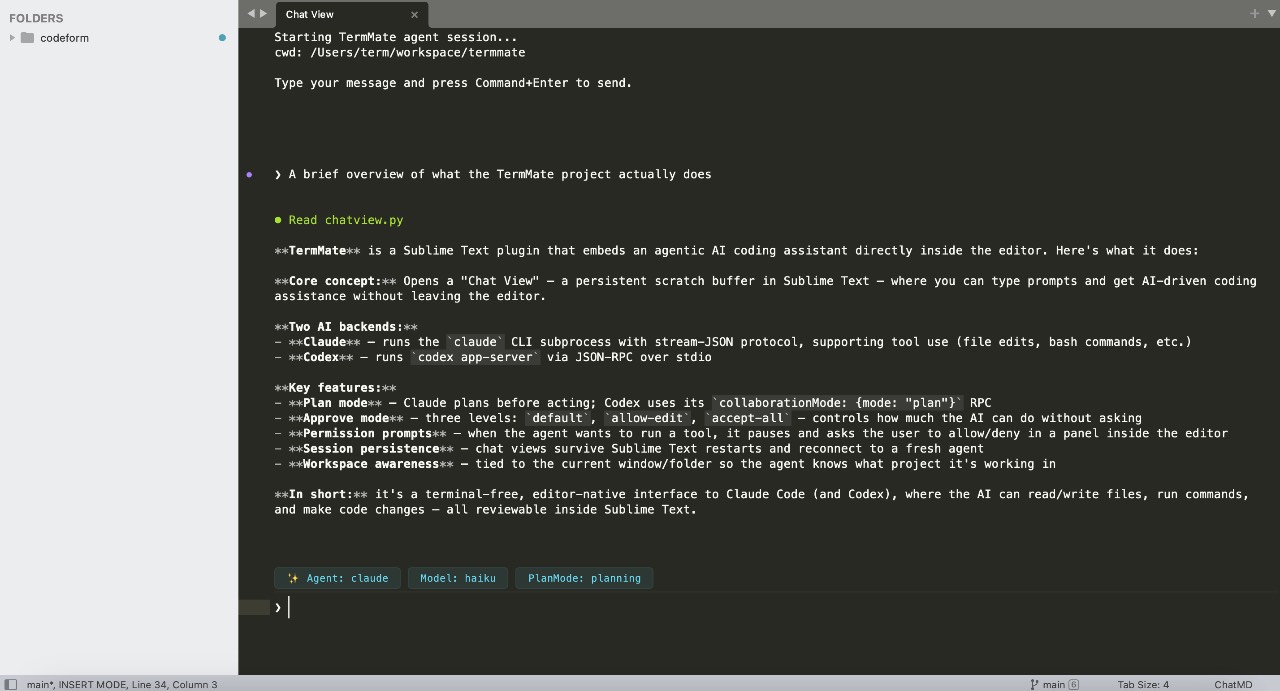
TermMate is a powerful agentic coding design tool for Sublime Text, bringing the full capabilities of AI-driven development directly into your editor. Built to work seamlessly with ClaudeCode and Codex, TermMate allows you to orchestrate complex coding tasks, refactor entire modules, and explore your codebase with a conversation-driven workflow that understands your project context.
Getting Started
1. Prerequisites
TermMate relies on external agent cli. Install the required CLI tools:
Claude Code:
curl -fsSL https://claude.ai/install.sh | bash
Codex:
npm install -g @openai/codex
Note: TermMate automatically detects CLI installation paths across multiple environments, including Homebrew, npm-global, Yarn, and common local binary directories. You typically don't need to manually configure environment variables or search paths.
2. Authentication
Authenticate the agents via your terminal:
Claude Code:
claude /login
Codex:
codex login
3. TermMate Installation
Install TermMate via Package Control:
- Open the Command Palette (
Cmd+Shift+Pon macOS,Ctrl+Shift+Pon Windows/Linux). - Type
Package Control: Install Packageand pressEnter. - Search for
TermMateand pressEnter.
4. Start Chat
- Open the command palette (
Cmd+Shift+Pon macOS,Ctrl+Shift+Pon Windows/Linux). - Type
TermMate: Start Chatand pressEnter. - A new view will open for the TermMate chat.
- Type your message and press
Cmd+Enter(macOS) orCtrl+Enter(Windows/Linux) to send. - Alternatively, you can use a shortcut to start the chat (see Custom Keybindings below).
Usage & Key Features
Quick Prompt Without Chat View
Use the command palette (TermMate: Prompt) to send a quick instruction to the agent without opening the chat view manually.
Clear Session
To reset the current conversation history and start a completely fresh context, open the command palette and run TermMate: Clear Session. This will reload the agent and clear its memory for the current workspace.
Set Working Space
Right-click on any folder in the sidebar and select Set TermMate Working Space to set the working directory for the agent. This affects the current working directory when agents execute commands or access files. You can also use the command palette.
Chat with Current File or Selection
You can right-click in any file, tab, and select Chat with TermMate agent. This will:
- Open the TermMate chat view (if not already open).
- Insert a reference to the file (
@filename) or selected line range (@filename#L1-10) into the message prompt. - Tagged files will be automatically sent as context to the active agent.
Smart Completion
Type @ in the chat view for real-time suggestions of files and workspace symbols.
Advanced Control (Pro Features)
TermMate provides deep integration with agentic workflows via the Command Palette:
Plan Mode
Toggle between Fast (direct execution) and Planning (deliberative reasoning) via TermMate: Plan Mode.
Approve Mode
Agents perform various actions (tools) like reading files, searching the web, or executing commands. You can control how much manual approval is required via the command palette: TermMate: Approve Mode
- Default: Prompts for your approval by default.
- Allow Edit: Automatically approves "safe" read/edit operations; still prompts for "risky" commands.
- Accept All: Automatically approves all tool calls, including shell command execution for maximum autonomy.
Switch Agents & Model Selection
Effortlessly swap between Claude, Codex, or custom agent providers. Fine-tune performance by selecting specific LLM models for different tasks.
Shortcuts & Commands
| Action | macOS | Windows/Linux | Command Palette |
|---|---|---|---|
| Start New Chat | - | - | TermMate: Start Chat |
| Send Message | Cmd+Enter |
Ctrl+Enter |
- |
| Navigate Input History | Up / Down |
Up / Down |
- |
| Mention File | @ |
@ |
- |
| Set Workspace | - | - | TermMate: Set Working Directory |
| Switch Mode | - | - | TermMate: Plan Mode |
| Approve Mode | - | - | TermMate: Approve Mode |
Configuration
Customize TermMate by editing your settings: Preferences -> Package Settings -> TermMate -> Settings
While TermMate automatically detects most agent CLI installation paths, you may need to configure them manually if:
- You use a custom installation location not listed in the default paths.
- You have multiple versions installed and want to pin a specific binary.
- Automatic detection fails on your specific OS configuration.
{
    "claude_command": "/path/to/your/custom/claude",
    "codex_command": "/path/to/your/custom/codex"
}
The env configuration allows you to inject custom environment variables directly into the process when starting an agent CLI command. This is useful for providing API keys, custom base URLs, or passing specific environment values without altering your global system configuration.
For example, to configure OpenRouter for Claude, you can provide your OpenRouter API key and base URL in the env section of your settings(ANTHROPIC_API_KEY should be empty in the case):
{
    "env": {
        "ANTHROPIC_BASE_URL": "https://openrouter.ai/api/v1",
        "ANTHROPIC_AUTH_TOKEN": "sk-openrouter-token",
        "ANTHROPIC_API_KEY": ""
    }
}
Custom Keybindings
By default, TermMate does not register a shortcut for TermMate: Start Chat to avoid conflicts. You can manually add a shortcut (like Cmd+Alt+G or Ctrl+Alt+G) by navigating to Preferences -> Key Bindings and adding the following configuration:
[
    {
        "keys": ["primary+alt+g"],
        "command": "term_chat_cli",
        "args": {},
        "context":
        [
            { "key": "setting.is_widget", "operand": false }
        ]
    }
]
💡 Tips
- Selection as Context: Select code before starting a chat to focus the agent's attention on specific logic.
- Iterative Refinement: Use Planning Mode for large architectural changes to see the agent's proposed steps before they are applied.
Privacy & Data Handling
TermMate does not send your entire workspace or file contents to any external servers.
Your data will only be sent to the respective LLM services (Claude Code or Codex) under the following specific conditions:
What data is sent:
*   Any text you manually type into the TermMate ChatView.
*   The contents of specific files you explicitly tag using the `@filename` syntax.
*   The outputs of shell commands, directory listings, or file contents that the agent explicitly requests to read.
How TermMate interacts with Agents:
*   **Local Execution**: The core plugin logic runs entirely on your local machine. All communication happens locally via the official CLI tools (`claude` or `codex`) installed on your system.
*   **No Data Collection**: TermMate does not collect, store, or transmit any of your source code or usage telemetry to our servers. TermMate does not send data to any third-party middleman servers; data goes directly to Anthropic or OpenAI using your own configured authentication credentials.
*   Data is only sent when you actively hit command+enter(or ctrl+enter) in the ChatView, or when the agent executes a tool (if you have granted permission via your `Approve Mode` settings).
License
TermMate is provided under the Apache License, Version 2.0 with the Commons Clause condition.
This means it's free to use, modify, and redistribute the code for personal or internal use. However, commercial resale or providing a paid service is strictly prohibited.
For complete details, please see the LICENSE file.
Reviews (0)
Sign in to leave a review.
Leave a reviewNo results found