esim-mcp
Health Warn
- License — License: MIT
- Description — Repository has a description
- Active repo — Last push 0 days ago
- Low visibility — Only 9 GitHub stars
Code Warn
- Code scan incomplete — No supported source files were scanned during light audit
Permissions Pass
- Permissions — No dangerous permissions requested
No AI report is available for this listing yet.
Add Atli's eSIM MCP server to Claude, ChatGPT, Gemini, Cursor and any MCP client: find, buy and install travel eSIMs from chat

eSIM MCP
Find, buy and install travel eSIMs from your AI assistant.
One remote MCP server for Claude, ChatGPT, Gemini, Cursor, VS Code and any other MCP client.
https://mcp.heyatli.com
Quick start · Connect your client · What you can ask · Try it · Tools · Signing in · Payments and safety · FAQ
The eSIM MCP server is Atli's public Model Context Protocol server.
Add it to your assistant once, then just ask: "I'm going to Japan for 10 days, which eSIM should I get?" The assistant
searches Atli's plans in your currency, checks that your phone supports eSIM, gets you a final price, hands you a secure
payment link, and walks you through installing the eSIM once you've paid.
- No account needed to start. Browse and buy as a guest, or sign in with Atli for your eSIMs in every chat.
- Nothing is paid without your yes. You pay on Atli's Stripe-hosted page, or the assistant charges a saved card only after
telling you the price and the card. - Your card never passes through the chat. Stripe handles it. Atli never receives the full number.
- 59 tools, from searching plans to running a company's eSIM group.
- Free to add. You pay only for the eSIM you buy.
This repository is documentation only: the server is hosted by Atli, so there is nothing to install or run.
[!TIP]
Building your own eSIM store, app or bot rather than using an assistant? See
Forgesoft-ai/esim-api for Atli's white-label API, embeddable widget and partner
program.
Quick start
| What | Value |
|---|---|
| Server address | https://mcp.heyatli.com |
| Transport | Streamable HTTP (remote MCP) |
| Authentication | None to start. OAuth 2.1 sign-in is optional, and offered when needed |
| With a referral code | https://mcp.heyatli.com/r/YOUR_CODE |
| Product page | heyatli.com/mcp |
Paste the address wherever your app adds a remote MCP server, custom connector or custom app. Leave
authentication empty: the server asks you to sign in by itself if and when a tool needs your account.
The fastest way, if you use Claude Code:
claude mcp add --transport http atli https://mcp.heyatli.com
Connect your client
Assistant apps move their menus from time to time. If a step below doesn't match what you see, search the app's help for
"custom connector" or "remote MCP server".
- Open Customize, then Connectors.
- Choose Add custom connector.
- Name it
Atli, pastehttps://mcp.heyatli.com, and add it. - In a chat, make sure Atli is switched on in the tools menu, then ask about an eSIM for your trip.
Claude asks you to sign in to Atli when a tool needs your account. Connectors added on claude.ai also appear in the
desktop and mobile apps. Your Claude plan may limit how many custom connectors you can add.
claude mcp add --transport http atli https://mcp.heyatli.com
Add --scope user to have it in every project, or --scope project to share it with your team through .mcp.json:
{
  "mcpServers": {
    "atli": {
      "type": "http",
      "url": "https://mcp.heyatli.com"
    }
  }
}
To sign in to your Atli account, run /mcp in Claude Code, pick atli and choose Authenticate.
From the directory. Atli is listed in ChatGPT's apps directory as Atli eSIM. Search for it, choose Connect,
and pick it from the + menu in a new chat.
By address, with developer mode (paid plans):
- Open Settings → Apps & Connectors → Advanced settings and turn on Developer mode.
- Under Apps & Connectors, choose Create. Name it
Atli, pastehttps://mcp.heyatli.com, and choose
No authentication. - In a new chat, open the + menu and pick Atli.
- Open Settings & help, then Connected Apps.
- Under custom apps, choose Add a custom app and paste
https://mcp.heyatli.com. - In a new chat, ask about an eSIM for your trip.
Custom apps need a personal Google account with Google AI Pro or Ultra, in the US, with Keep Activity on.
Gemini CLIIn ~/.gemini/settings.json:
{
  "mcpServers": {
    "atli": {
      "httpUrl": "https://mcp.heyatli.com"
    }
  }
}
Ask Muse, in these words:
Add the Atli MCP from this address: https://mcp.heyatli.com
Confirm it if Muse asks, then ask about an eSIM in a new chat.
CursorIn ~/.cursor/mcp.json (every project) or .cursor/mcp.json (one project):
{
  "mcpServers": {
    "atli": {
      "url": "https://mcp.heyatli.com"
    }
  }
}
Or open Cursor Settings → Tools & MCP → New MCP Server and paste the same.
VS Code (GitHub Copilot)In .vscode/mcp.json, or run MCP: Add Server from the Command Palette and choose HTTP:
{
  "servers": {
    "atli": {
      "type": "http",
      "url": "https://mcp.heyatli.com"
    }
  }
}
Then switch Copilot Chat to Agent mode and turn on Atli's tools.
WindsurfIn ~/.codeium/windsurf/mcp_config.json:
{
  "mcpServers": {
    "atli": {
      "serverUrl": "https://mcp.heyatli.com"
    }
  }
}
In ~/.codex/config.toml:
[mcp_servers.atli]
url = "https://mcp.heyatli.com"
Or run codex mcp add atli --url https://mcp.heyatli.com.
In Zed's settings.json:
{
  "context_servers": {
    "atli": {
      "url": "https://mcp.heyatli.com"
    }
  }
}
Run goose configure, choose Add Extension → Remote Extension (Streamable HTTP), name it atli and pastehttps://mcp.heyatli.com.
Bridge the remote server with mcp-remote, which needs Node.js 18 or later. For
example, in Claude Desktop's claude_desktop_config.json:
{
  "mcpServers": {
    "atli": {
      "command": "npx",
      "args": ["-y", "mcp-remote", "https://mcp.heyatli.com"]
    }
  }
}
The same command and args work in any client that takes a stdio server. mcp-remote opens your browser when you
sign in.
TypeScript, with @modelcontextprotocol/sdk:
import { Client } from "@modelcontextprotocol/sdk/client/index.js";
import { StreamableHTTPClientTransport } from "@modelcontextprotocol/sdk/client/streamableHttp.js";

const client = new Client({ name: "my-travel-agent", version: "1.0.0" });
await client.connect(
  new StreamableHTTPClientTransport(new URL("https://mcp.heyatli.com")),
);

const plans = await client.callTool({
  name: "search_plans",
  arguments: { destination: "Japan", days: 10, currency: "EUR" },
});
console.log(plans.content);
Python, with the mcp package:
import asyncio
from mcp import ClientSession
from mcp.client.streamable_http import streamablehttp_client

async def main():
    async with streamablehttp_client("https://mcp.heyatli.com") as (read, write, _):
        async with ClientSession(read, write) as session:
            await session.initialize()
            tools = await session.list_tools()
            print([t.name for t in tools.tools])

asyncio.run(main())
Through the Claude API's MCP connector, pass it as a
remote server:
"mcp_servers": [
  { "type": "url", "url": "https://mcp.heyatli.com", "name": "atli" }
]
Each tool's full input schema is in tools/list.
List the tools with plain curl:
curl -s https://mcp.heyatli.com \
  -H 'content-type: application/json' \
  -H 'accept: application/json, text/event-stream' \
  -d '{"jsonrpc":"2.0","id":1,"method":"tools/list"}'
Or explore them in the MCP Inspector:
npx @modelcontextprotocol/inspector
Choose Streamable HTTP and enter https://mcp.heyatli.com.
With a referral code
Add /r/YOUR_CODE to the address, for example https://mcp.heyatli.com/r/FRIEND10. The code is linked to each new guest
the connection starts, so its discount applies to their first order. You can also just tell the assistant your code:
it applies it with apply_referral_code.
What you can ask
| Goal | Try asking |
|---|---|
| Find a plan | "eSIM plans for Japan for 10 days, in euros" |
| Check your phone | "Can my iPhone 15 Pro use an eSIM?" |
| Buy or top up | "I'll take the unlimited one" |
| Install it | "How do I install my eSIM?" |
| Track your data | "How much data do I have left?" |
| Get help | "My eSIM isn't connecting. What should I try?" |
| Share an eSIM | "Buy an eSIM for my sister" |
| Use your rewards | "How many points do I have?" |
| Get a receipt | "Show me the receipt for my last order" |
| Run a group | "Who in our team group has used most of their data?" |
A typical purchase goes like this:
You    I'm going to Japan for 10 days. Which eSIM should I get?
Atli   search_plans → unlimited and standard packages for Japan, in your currency
You    The unlimited one, please.
Atli   get_quote → final price with any discount
       start_purchase → a secure payment link
You    (pay on Atli's page) Done.
Atli   get_order_status → paid and ready
       get_install_instructions → steps for your phone, a QR code and the manual code
Try it: MCP reference and Sandbox
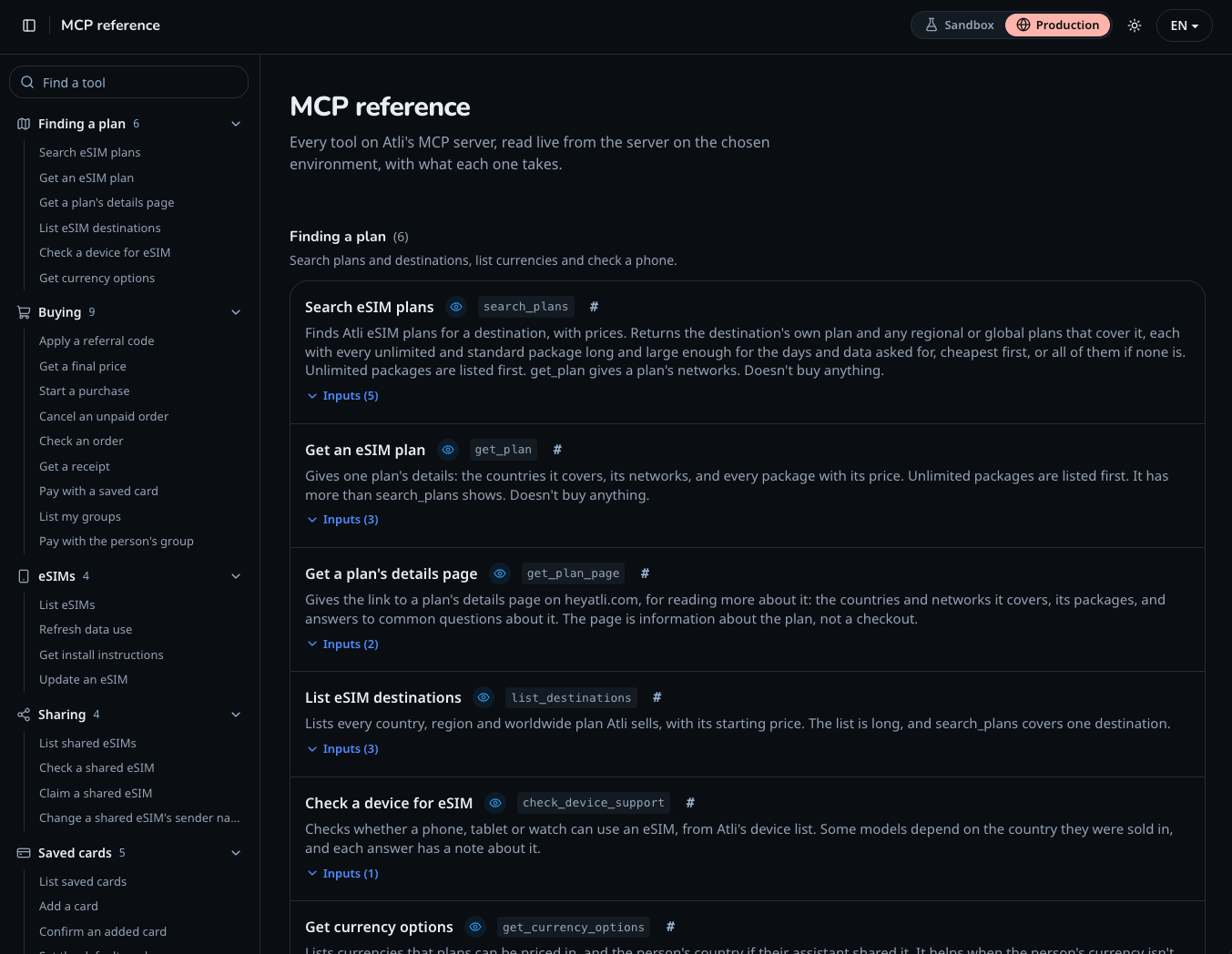
partners.heyatli.com/dev/mcp/reference lists every tool, read
live from the server you pick, with what each one takes. Search by name or words, browse by section in the side
panel, and see at a glance which tools only read, which change things and which are destructive.
Switch the top bar to Sandbox to play with the tools for real, without spending money:
- Try on any tool opens a form built from its inputs, filled with a sample that gives a real answer. Edit it, run
it, and read the JSON it sent and the answer beside it. - Tries run as one shared Sandbox test account that already has a saved test card and an eSIM, so account tools
have something to show. - Or sign in with your own Sandbox account above the list, the same OAuth sign-in an assistant uses, and the tools
act for that account instead. - Sandbox is a separate world: its own accounts, test payments only (Stripe's
4242 4242 4242 4242, any future
expiry, any CVC), eSIMs from a test carrier that can't be installed on a phone, and no commission.
To point your own client at Sandbox, use its address instead of production's:
| Environment | Address | With a referral code |
|---|---|---|
| Sandbox | https://staging.public.mcp.heyatli.com |
https://staging.public.mcp.heyatli.com/r/YOUR_CODE |
| Production | https://mcp.heyatli.com |
https://mcp.heyatli.com/r/YOUR_CODE |
partners.heyatli.com/dev/mcp has the setup steps with your partner code
already in the address once you're signed in.
Tools
Every tool has a title and read-only or destructive hints, so assistants that respect them ask before anything that
changes your account or spends money. Each tool also names its section in _meta["com.heyatli/section"].
Plans: no account needed
| Tool | What it does |
|---|---|
search_plans |
Finds plans for a country, region or city, with prices. Unlimited packages are listed first |
get_plan |
One plan's countries, networks and every package with its price |
get_plan_page |
The link to a plan's page on heyatli.com |
list_destinations |
Every country, region and worldwide plan, with its starting price |
check_device_support |
Whether a phone, tablet or watch can use an eSIM |
get_currency_options |
Currencies plans can be priced in |
Help: no account needed
| Tool | What it does |
|---|---|
search_help |
Searches Atli's help articles on installing, connecting, payments and refunds |
list_help_articles |
Lists the help articles |
get_atli_links |
Links to Atli's sites, apps, chats, Partners, Groups and developer docs |
Buying
| Tool | What it does |
|---|---|
apply_referral_code |
Applies a referral code for a discount on the first order |
get_quote |
The final price of a package, with any discount |
start_purchase |
Creates an order from a quote and returns a secure payment link |
pay_with_saved_card |
Charges a saved card for a quote, after the person says yes |
list_my_groups |
The groups the person belongs to, such as an employer that pays for eSIMs |
pay_with_group |
Buys with the group's card, for the person's own eSIM or one to share |
get_order_status |
Where an order is, and completes it once it's paid |
cancel_order |
Cancels an unpaid order |
get_receipt |
The receipt for an order, or for a plan on an eSIM |
Your eSIMs
| Tool | What it does |
|---|---|
list_my_esims |
Your eSIMs, with their plans and data left |
refresh_usage |
Up-to-date data use from the network |
get_install_instructions |
Install steps for your phone, a QR code link and the manual code |
update_esim |
Renames an eSIM, or makes it the one new plans go on |
Account and rewards
| Tool | What it does |
|---|---|
get_my_profile |
Name, language, currency and sign-in details |
update_my_profile |
Changes the name, language, currency or billing country |
get_my_rewards |
Points, credit, tier, your own referral code and recent changes |
list_my_vouchers |
Your vouchers and what each is worth |
redeem_voucher |
Adds a voucher code as points, credit or a discount |
Sharing an eSIM
| Tool | What it does |
|---|---|
list_shared_esims |
eSIMs you bought to share, with the link to send and who claimed |
check_shared_esim |
What's in a shared link, and whether it can still be claimed |
claim_shared_esim |
Claims a shared eSIM into your account |
update_shared_esim_sender |
Changes the sender name recipients see |
Saved cards
| Tool | What it does |
|---|---|
list_saved_cards |
Brand, last four digits and expiry of your saved cards |
add_card |
A secure link where you add a card, on Stripe |
confirm_added_card |
Saves the card once you've added it |
set_default_card |
Chooses the default card |
remove_card |
Removes a saved card |
Running a group (sign-in required)
For people who run an Atli group, where an employer, school or club pays for its members' eSIMs.
| Area | Tools |
|---|---|
| Group | groups_list_managed, groups_get_overview, groups_create, groups_rename |
| Limits | groups_update_settings, groups_set_rule_limits, groups_update_finance_details |
| Who can join | groups_list_access_rules, groups_add_access_rules, groups_remove_access_rules, groups_verify_domain |
| Members | groups_list_members, groups_update_member, groups_remove_member |
| Reports | groups_list_purchases, groups_get_purchase, groups_get_activity |
| Cards | groups_add_card, groups_confirm_added_card, groups_set_default_card, groups_remove_card |
| Suspension | groups_suspend, groups_restore |
The live list, with full descriptions and input schemas, is always the server's own tools/list, and the
MCP reference shows it with a Try button on Sandbox.
Signing in
You can use the server two ways, at the same address:
As a guest (no sign-in). The first time you buy, the server creates a guest account and returns a privateguest_key, which the assistant keeps in that conversation and passes back to later tools. Your eSIMs stay reachable
from that chat. Nothing to set up.
With your Atli account (recommended). Connect with OAuth and every tool acts for your own account, so your eSIMs,
points, cards and groups are there in any chat and in Atli's apps.
- An account tool called without sign-in answers
401with aWWW-Authenticateheader that points tohttps://mcp.heyatli.com/.well-known/oauth-protected-resource. MCP clients that support OAuth start the sign-in from
there by themselves. - The authorization server is
https://api.heyatli.com. You sign in on heyatli.com, so the assistant never sees your
password or sign-in codes. - Tokens are checked on every call. Remove Atli's access from your account, and the next call asks you to sign in
again.
Group tools always need sign-in. Everything else works either way.
If you buy as a guest and sign in later, ask the assistant in the original chat for your eSIMs: the guest purchase stays
under its guest_key.
Payments and safety
- You approve every payment.
start_purchaseonly returns a link to Atli's payment page, where you pay yourself.pay_with_saved_cardandpay_with_groupare marked destructive, so the assistant must tell you the price and the
card and get your yes before it charges. - Card numbers never reach the chat. Cards are added on a Stripe page from
add_card. The assistant only ever sees
a card's brand, last four digits and expiry. - Check before you pay. Assistants can make mistakes. The payment page shows the plan and price, so check them there.
- What the assistant sees: the plans you look at, your orders and data use, your eSIMs' install details, your
profile, points, vouchers and receipts, and your saved cards' brand, last four and expiry. How the chat itself is
stored is up to the assistant's maker. - Keep your
guest_keyprivate. Anyone holding it can act on that guest account, including charging a card you
saved to it. Signing in with OAuth avoids keys in the chat altogether.
FAQ
What is this, exactly?A way to connect Atli's eSIM store to your AI assistant, through MCP, an open standard for giving assistants tools. Your
assistant can then look up plans, help you buy one and install it, right in the chat.
Adding the server is free. You pay only for the eSIM you choose. Your assistant's own plan may limit which connectors
you can add.
No. You can buy as a guest. Signing in is recommended, so your eSIMs are there in any chat.
Which destinations are covered?Ask your assistant to "list Atli's destinations", or see heyatli.com. There are country,
regional and worldwide plans, with unlimited and standard data packages.
Ask "Can my use an eSIM?" and the assistant checks Atli's device list with check_device_support. Your
phone must also be carrier-unlocked.
If you signed in, just ask in any chat. If you bought as a guest, ask in the chat you bought it in.
Can I top up an eSIM I already have?Yes. Ask for more data for your eSIM, and the assistant quotes a plan that goes onto it.
Can I build my own travel agent on it?Yes. Any MCP client can connect, and no API key is needed to browse or to buy as a guest. See
Your own agent above. For a branded integration with your own pricing, see
Atli Partners.
Troubleshooting
| Problem | Try this |
|---|---|
| The assistant doesn't use Atli | Check Atli is switched on for the chat, start a new chat, or ask by name: "Use Atli to find…" |
| "Unauthorized" or a sign-in prompt on a tool | That tool needs your account. Sign in when asked, or keep going as a guest |
| Sign-in loops or a token expired | Disconnect and reconnect Atli in your client, then sign in again |
| The client only supports local servers | Use mcp-remote as a bridge |
Opening https://mcp.heyatli.com in a browser shows a page |
That's expected. The address is for MCP clients, and the page just explains it |
| My eSIM isn't connecting | Ask the assistant: it searches Atli's help articles. Or contact support at chat.heyatli.com/help |
Links
- heyatli.com/mcp: the product page, with a short film
- heyatli.com: Atli's eSIM store
- MCP reference: every tool, with Try on Sandbox
- MCP Server for partners: the address with your partner code
- Connect an AI assistant to the Atli eSIM MCP server: the guide on
Atli's blog - Forgesoft-ai/esim-api: build your own store on Atli's API and widget
- Model Context Protocol: the open standard
- Support: chat.heyatli.com/help
License
The documentation in this repository is released under the MIT License. The Atli service, its brand and its
mascot belong to Atli.
Reviews (0)
Sign in to leave a review.
Leave a reviewNo results found