omarchy-ai-usage-bar
Health Warn
- License — License: MIT
- Description — Repository has a description
- Active repo — Last push 0 days ago
- Low visibility — Only 6 GitHub stars
Code Warn
- fs module — File system access in tests/selection.test.cjs
Permissions Pass
- Permissions — No dangerous permissions requested
No AI report is available for this listing yet.
AI Usage Bar — an old-school ASCII progress bar widget for the Omarchy dock that tracks usage, quotas and rate limits for Claude Code, Grok, Codex, Antigravity and other AI providers

AI Usage Bar — Omarchy Plugin 🤖📊


An old-school ASCII progress bar widget for the Omarchy dock that tracks usage, quotas and rate limits for your installed AI providers — Claude Code, Grok, Codex, Antigravity and more — in real time.
+-------------------------------------------------------------+
| Claude 5h [████████████████] 100%   4m                      |
| Grok Wk   [████████████████] 100% 1d4h                      |
+-------------------------------------------------------------+
✨ Features
- 📺 Old-School ASCII Progress Bars: Displays authentic terminal-style progress bars right in your Omarchy bottom dock.
- ⚡ Multi-Limit Tracking: Track several AI limits at once in a compact grid of stacked HUD lines. Choose how many bars stack in each column (1–3) and how many columns sit side by side (1–4) — up to 12 limits. Optionally let partly filled columns use their spare height. The default is one column of two bars.
- 🔍 Auto-Discovery: Automatically discovers and parses quota and rate-limit data from any installed Omarchy AI provider:
- Claude Code: 5-hour session window, weekly 7-day quota, Fable weekly limits.
- Grok: Weekly credit allowance and subscription tier (e.g. SuperGrok), read from the Grok CLI's own log.
- Google Antigravity: Thinking Models Quota, Flash Models Quota, Claude 5h Session Window.
- OpenAI Codex, Fireworks AI, OpenCode, and custom agent integrations.
- 🎨 6 ASCII Styles:
blocks:[████████░░░░░░░░](Default modern blocks)shaded:[▓▓▓▓▓▓▓▓░░░░░░░░](Dithered shading)ascii:[=======> ](Classic CLI arrow)retro:[########--------](80s BBS / Retro style)squares:[■■■■■■■■□□□□□□□□](Unicode square boxes)braille:[⣿⣿⣷⣀⣀⣀](Slim braille; each cell fills dot-by-dot)
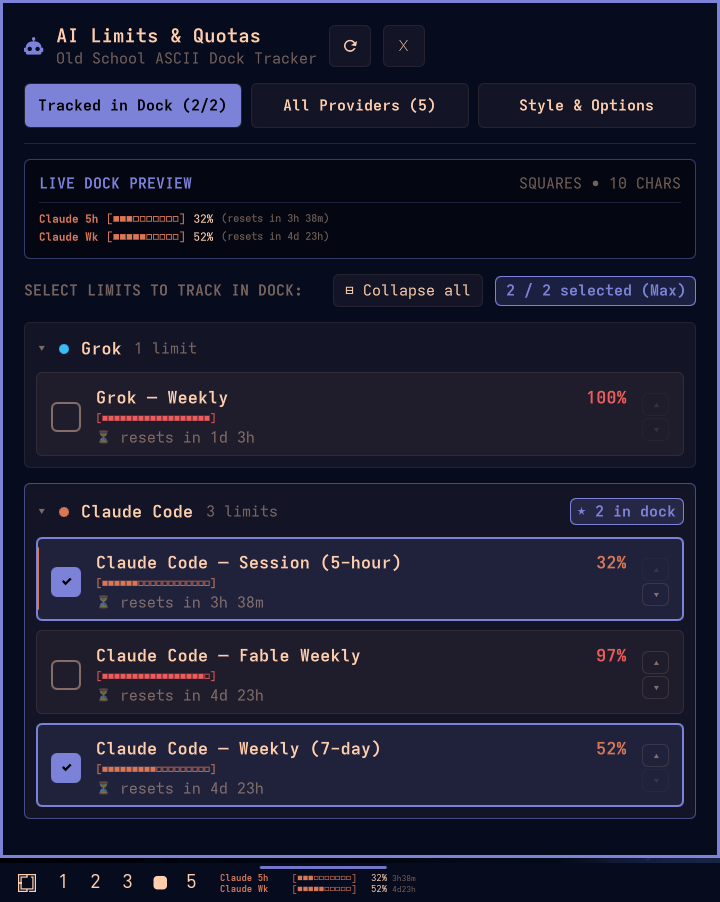
- 🎛️ Interactive Popup Dashboard:
- Live Dock Preview: Test and view your dock layout in real-time.
- Limit Selector: Easily toggle and select which limits appear in the dock, up to what your dock layout holds. Picking one more than that replaces the oldest selection. Reorder the dock sequence directly so providers stay in the rows you prefer.
- Collapsible Provider Panels: Every limit is grouped under its provider. All provider panels start collapsed on both tabs, showing their headline limit and how many limits are pinned to the dock. Click a provider header to expand it, or press
eto expand/collapse them all. - Arrange Each Panel: Nudge a limit up or down with the
▲/▼buttons on its row. The order is yours and is remembered (limitOrder), and the row you put first becomes the provider's headline limit — the one its header reports when the panel is folded, on both tabs. A marker down the left edge shows which row that is. Limits you never move stay in the collector's own order (busiest first), below the ones you arranged. - All Providers Overview: Detailed status cards with tokens, sessions, reset times, and raw allowance numbers — also grouped into collapsible panels.
- Style Customizer: Interactive buttons to change bar styles, the dock layout (bars per column × columns), bar length (8 to 32 characters), and toggle labels, percentages, and reset countdowns.
- 📣 Depleted / Reset Announcements:
- When a limit hits 100%, a scrolling
<marquee>-style banner announces it with a randomly picked quip ("Ooops, tokens for Claude Code Session (5-hour) depleted!") over a pulsing red background. - When a limit rolls over into a fresh window, the same banner celebrates it with a sliding rainbow.
- Each announcement runs for 15 seconds or until you click it; extras queue up behind it (the
✕ +Nbadge shows how many). - While the popup is closed the dock bar itself animates: the ASCII bar of a depleted limit turns into a Larson scanner sweeping back and forth in pulsing red (with an occasional nudge sideways), and a limit that just reset plays a refill wave in cycling rainbow colours — all in your chosen bar style.
- When a limit hits 100%, a scrolling
- 🖱️ Instant Mouse Controls:
- Left Click: Open / close full configuration dashboard.
- Right Click: Instantly cycle between ASCII bar styles.
- Middle Click: Force an immediate refresh from local agent state files.
- 📡 Omarchy IPC Support: Full CLI scriptability via
omarchy-shell.
📦 Requirements
- Omarchy with the Quickshell-based shell (plugin
schemaVersion1). python3onPATH. The collector (collect.py) uses only the standard library — nopippackages, no virtualenv.
It makes no network requests. Everything it shows is read from the usage JSON Omarchy's own agent integrations already write to ~/.local/state/omarchy/agents/usage/. To keep that fresh it may run Omarchy's local updater (~/.config/omarchy/agents/update or /usr/share/omarchy/bin/omarchy-agent-usage-update) and, when the Antigravity usage plugin is installed, that plugin's own scanner — refreshing antigravity.json in the directory above. Providers you have not installed simply do not appear.
Omarchy has no Grok integration, so Grok is read straight from the log the Grok CLI keeps at ~/.grok/logs/unified.jsonl: every time the CLI fetches your credit allowance it logs the usage percentage and the current weekly window. There is nothing to configure — Grok shows up once you have signed in with grok and started a session. The figure updates whenever the CLI runs; if the logged window has already ended, the widget shows it as reset. Should Omarchy ever ship its own grok.json, that takes precedence.
🚀 Installation
Install it with Omarchy's own plugin command — no cloning, no symlinks:
omarchy plugin install https://github.com/gladimdim/omarchy-ai-usage-bar.git --enable
(omarchy plugin add is the same command under its original name.)
Omarchy does the rest for you:
- Shows the standard "plugins run unsandboxed code" warning and asks you to confirm the URL.
- Clones the repo into
~/.config/omarchy/plugins/gladimdim.ai-limitsand validates it against the plugin manifest schema. - Asks which bar section to put it in — press Enter to accept the manifest default,
right. - Enables it live. The widget shows up in your bar immediately; no shell restart needed.
Unattended install
--yes skips both prompts and places the widget in the manifest's default section (right):
omarchy plugin install https://github.com/gladimdim/omarchy-ai-usage-bar.git --enable --yes
Install now, enable later
Drop --enable to just add the plugin, then enable it whenever you like and choose exactly where it sits:
omarchy plugin install https://github.com/gladimdim/omarchy-ai-usage-bar.git
omarchy plugin enable gladimdim.ai-limits --section right
omarchy plugin enable also takes --index, --before <widget-id> and --after <widget-id> if you want it in a particular spot within that section.
Optional: configure by hand
Everything is configurable from the popup dashboard. Preferences are saved immediately to ~/.config/omarchy/ai-usage-bar.json (or $XDG_CONFIG_HOME/omarchy/ai-usage-bar.json) and survive shell restarts, plugin rebuilds, and replacement of shell.json. This JSON object uses the settings listed below and can also be edited directly; changes reload automatically.
Existing inline settings are imported automatically for keys not yet saved in that file. The widget still mirrors popup changes to its entry in ~/.config/omarchy/shell.json when the shell API is available, but saved preferences take precedence over that entry. For an initial installation you can seed settings there:
{
  "bar": {
    "layout": {
      "right": [
        {
          "id": "gladimdim.ai-limits",
          "barStyle": "blocks",
          "barLength": 16,
          "tracked": [
            "antigravity:thinking-models-quota",
            "claude:session-5-hour"
          ]
        }
      ]
    }
  }
}
If you ever need to reload the shell, use omarchy restart shell, not omarchy refresh shell — the latter resets ~/.config/omarchy/shell.json to Omarchy defaults and discards your bar layout. AI Usage Bar's separate preferences survive that reset and are restored when the widget is enabled again.
Selected limits that temporarily disappear from provider data are omitted until they return; the widget does not substitute other providers. Clearing every selection leaves the dock unselected. Shrinking the dock layout shows only the first selections that still fit.
🔄 Updating
omarchy plugin update gladimdim.ai-limits
It fetches upstream, shows you the diff, fast-forwards the installed copy, and re-validates the manifest — rolling the update back if validation fails. Add --yes to skip the diff and the confirmation. Running omarchy plugin update with no id updates every git-managed plugin you have.
🗑️ Removal
omarchy plugin remove gladimdim.ai-limits
That one command does the whole job: it disables the widget (dropping it from your bar layout), deletes ~/.config/omarchy/plugins/gladimdim.ai-limits, and rescans the shell. It asks for confirmation first; pass --yes to skip the prompt.
To take it out by hand instead:
omarchy plugin disable gladimdim.ai-limits
rm -rf ~/.config/omarchy/plugins/gladimdim.ai-limits
omarchy restart shell
Disabling removes the plugin's entry from ~/.config/omarchy/shell.json. Saved preferences in ~/.config/omarchy/ai-usage-bar.json remain for reinstallation; remove that file too if you want a complete reset (use the corresponding $XDG_CONFIG_HOME path if set).
The collector also writes a refreshed copy of Omarchy's own Antigravity usage cache, ~/.local/state/omarchy/agents/usage/antigravity.json, and only when the Antigravity usage plugin is installed to produce it. That cache belongs to Omarchy's shared agent-usage state rather than to this plugin, so removal leaves it in place; delete it yourself if you want it gone.
⚙️ Configuration Reference
All settings can be tweaked in ~/.config/omarchy/ai-usage-bar.json or via the interactive popup dashboard. Existing shell.json settings are imported automatically:
| Setting | Type | Default | Description |
|---|---|---|---|
tracked |
array |
["claude:session-5-hour", "grok:weekly"] |
Array of limit IDs to display in dock (up to barsPerColumn × columns). |
barsPerColumn |
integer |
2 |
Bars stacked in each dock column (1–3). Rows shrink to fit the bar height. |
columns |
integer |
1 |
Dock columns placed side by side (1–4). Limits fill each column top to bottom before starting the next. |
adaptiveRowHeight |
boolean |
false |
Use the available vertical space in each column independently. For example, the fifth item in a 2×3 layout renders as a full-height line while the first four remain stacked. |
limitOrder |
array |
[] |
Limit IDs in the order you arranged them inside their provider panel. Only the providers you rearranged appear; unlisted limits keep the collector's order below them. A provider's first ID here is its headline limit. |
barStyle |
string |
"blocks" |
ASCII style: blocks, shaded, ascii, retro, squares, braille. |
barLength |
integer |
16 |
Length of progress bar body in characters (8–32). |
showLabel |
boolean |
true |
Show short provider label (e.g. Claude 5h, AGY Think). |
showPercent |
boolean |
true |
Show percentage number (e.g. 92%). |
showReset |
boolean |
true |
Show relative countdown until quota reset (e.g. 2h43m). |
coloredBars |
boolean |
true |
Colorize progress bars using provider brand colors. |
refreshIntervalSec |
integer |
60 |
Background refresh interval in seconds. |
⌨️ Omarchy IPC Commands
You can control or query the plugin from terminal, scripts, or Hyprland keybindings using omarchy-shell:
# Open popup dashboard
omarchy-shell gladimdim.ai-limits open

# Close popup dashboard
omarchy-shell gladimdim.ai-limits close

# Toggle popup dashboard
omarchy-shell gladimdim.ai-limits toggle

# Cycle to next ASCII progress bar style
omarchy-shell gladimdim.ai-limits nextStyle

# Force refresh data from agent logs
omarchy-shell gladimdim.ai-limits refresh

# Preview an announcement banner: depleted or reset
omarchy-shell gladimdim.ai-limits demoEvent depleted

# Get current status and active limits JSON
omarchy-shell gladimdim.ai-limits debugInfo
Development checks
With Python 3, Quickshell, and Node.js installed:
python3 -B -m unittest discover -s tests -v
node tests/selection.test.cjs
Persistence checks run headlessly in temporary directories, including a fresh process restart, plugin recreation, and multiple widget instances. They do not change desktop settings.
👤 Author
Dmytro Gladkyi
- GitHub: @gladimdim
📄 License
This project is licensed under the MIT License.
Reviews (0)
Sign in to leave a review.
Leave a reviewNo results found