Claude-Usage-Tracker
Health Pass
- License — License: MIT
- Description — Repository has a description
- Active repo — Last push 12 days ago
- Community trust — 1836 GitHub stars
Code Fail
- rm -rf — Recursive force deletion command in .github/workflows/generate-appcast.yml
Permissions Pass
- Permissions — No dangerous permissions requested
No AI report is available for this listing yet.
Native macOS menu bar app for tracking Claude AI usage limits in real-time. Built with Swift/SwiftUI.
Claude Usage Tracker

A native macOS menu bar application for real-time monitoring of Claude AI usage limits





🇬🇧 English • 🇪🇸 Español • 🇫🇷 Français • 🇩🇪 Deutsch • 🇮🇹 Italiano • 🇵🇹 Português • 🇯🇵 日本語 • 🇰🇷 한국어 • 🇨🇳 简体中文
Download Latest Release (v3.0.3)
macOS 14.0+ (Sonoma) | ~6 MB | Native Swift/SwiftUI | Officially Signed

Overview
Claude Usage Tracker is a lightweight, native macOS menu bar application that provides real-time monitoring of your Claude AI usage limits. Built entirely with Swift and SwiftUI, it offers a clean, intuitive interface to track your 5-hour session window, weekly usage limits, and Opus-specific consumption.
Key Capabilities
- Multi-Profile Support: Manage unlimited Claude accounts with isolated credentials and settings
- Multi-Profile Display: Monitor all profiles simultaneously in the menu bar
- Claude Code Integration: Sync CLI accounts and auto-switch credentials when changing profiles
- Real-Time Monitoring: Track session, weekly, API console usage, and API costs per profile
- Usage History: Interactive charts tracking session, weekly, and billing data over time
- Global Shortcuts: System-wide keyboard shortcuts (no Accessibility permission)
- Headless Mode: Works on headless Macs via Remote Desktop
- Customizable Interface: 5 icon styles + 3 color modes (Multi-Color/Greyscale/Single Color) + remaining/used percentage toggle
- Smart Automation: Auto-start sessions, auto-switch profiles, threshold notifications
- Developer Tools: Terminal statusline integration with model, context, profile display, pace markers, and color modes
- Privacy-First: Local storage, no telemetry, no cloud sync
- Native Performance: Lightweight Swift/SwiftUI design for macOS

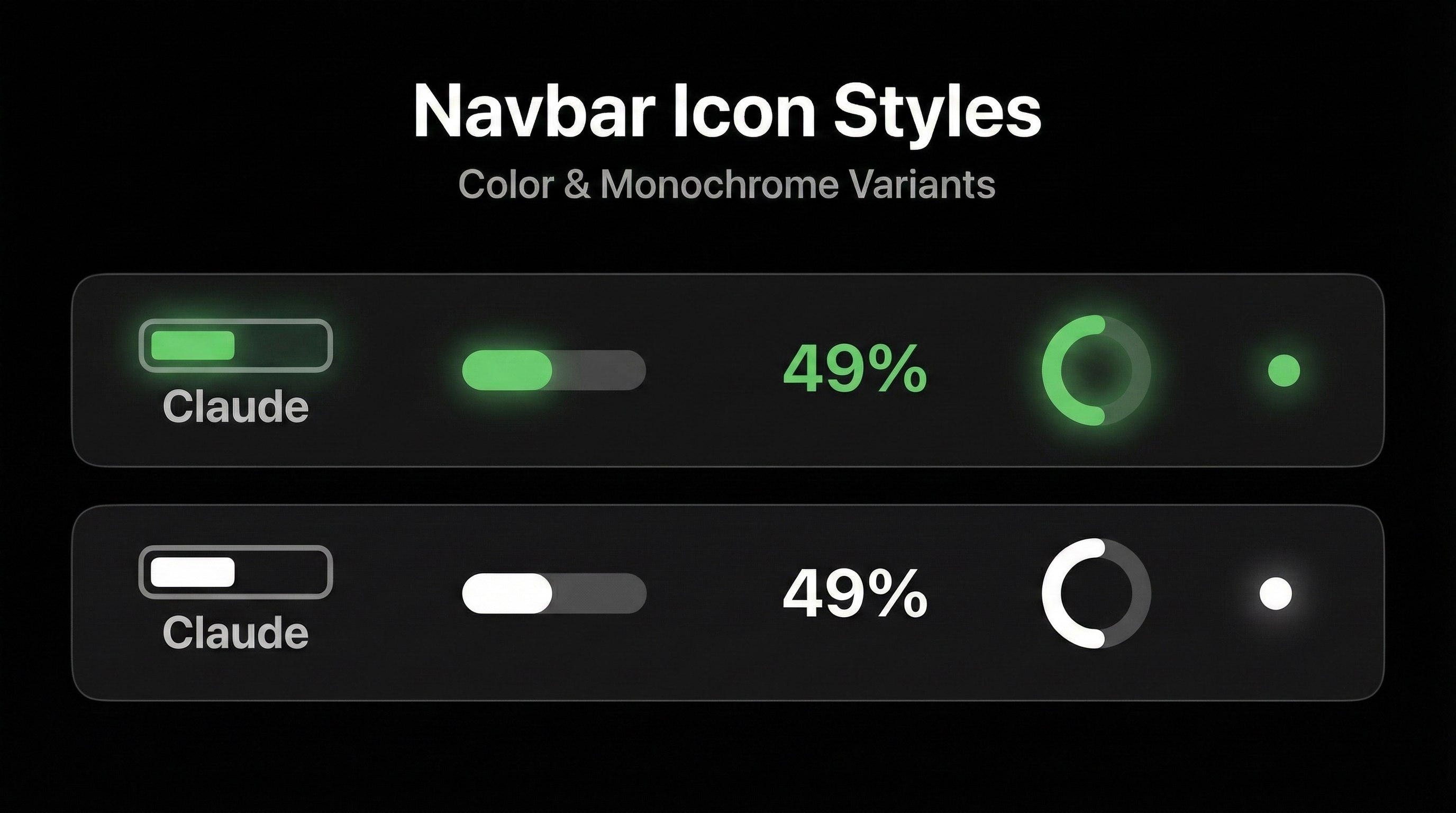
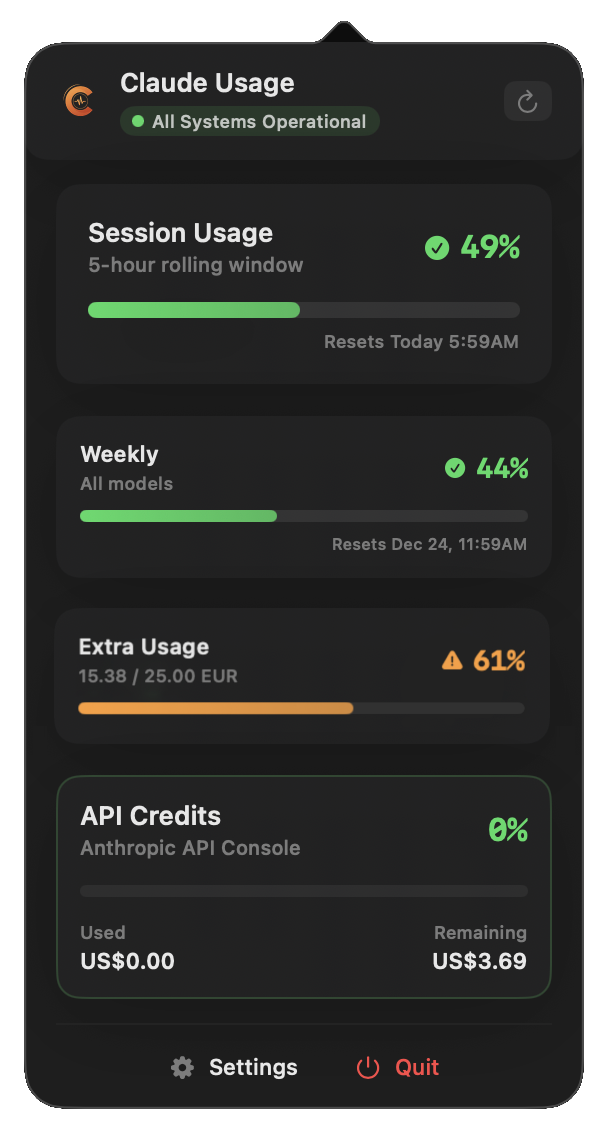
Menu bar icon and detailed usage popover

Live terminal statusline showing directory, branch, model, context, and color-coded usage
What's New
v3.0.3 (2026-03-10): 6-tier pace system (Comfortable → Runaway) with colored pace markers on progress bars, 3 color modes (Multi-Color/Greyscale/Single Color) for menu bar and statusline, label toggles (Ctx/Usage/Reset), 24-hour time format, terminal-matching preview colors, CPU spin-loop fix in menu bar rendering
v3.0.2 (2026-03-10): API cost tracking with daily chart, browser-based authentication (WKWebView sign-in), rate limit header usage for CLI OAuth, auto-sizing popover, 3-way time display picker, adaptive green color, session key expiry tracking & notifications
v3.0.1 (2026-03-08): Popover settings tab (remaining time toggle), multi-display CPU fix
v3.0.0 - Major Release (2026-03-08):
- Headless mode: Remote Desktop support for headless Mac environments
- Usage history: Interactive timeline charts with export to JSON/CSV
- Global keyboard shortcuts: Configurable hotkeys (no Accessibility permission needed)
- Auto-switch profiles: Automatically switch when session limit reached
- Borderless settings window: Full vibrancy design with custom traffic lights
- 6 new statusline components: Model name, context window, profile name, and more
- Time-elapsed markers & pace-aware coloring: Smart progress indicators
- Network debug view: Timed capture with request/response detail viewer
- Simplified Chinese (9th language)
- 12 ported improvements from novastate fork including CLI auto-detection, wake-from-sleep refresh, and custom notification thresholds
v2.3.0 – Multi-profile menu bar display, remaining percentage toggle
v2.2.0 – Multi-profile management, CLI integration, Korean language
v2.1.0 – 3-step setup wizard, smart organization preservation
v2.0.0 – Apple code signing, automatic updates, Keychain security
Getting Started
Prerequisites
Before installing Claude Usage Tracker, ensure you have:
- macOS 14.0 (Sonoma) or later - Check: Apple menu → About This Mac
- Active Claude AI account - Sign up at claude.ai
Authentication (choose one method):
- Easiest: Claude Code installed and logged in - App automatically uses CLI credentials (v2.2.2+)
- Browser Sign-In: Sign in via the built-in browser — session key extracted automatically (v3.0.2+)
- Manual: Web browser access to extract session key from claude.ai (Chrome, Safari, Firefox, etc.)
Note: For terminal statusline integration, you'll still need to manually configure a session key even if using Claude Code OAuth
Installation
Option 1: Homebrew (Recommended)
brew install --cask hamed-elfayome/claude-usage/claude-usage-tracker
Or tap first, then install:
brew tap hamed-elfayome/claude-usage
brew install --cask claude-usage-tracker
Note: Starting with v2.0.0, the app is officially signed with an Apple Developer certificate. No security workarounds needed!
To update:
brew upgrade --cask claude-usage-tracker
Or use the built-in automatic update feature (Settings → Updates).
To uninstall:
brew uninstall --cask claude-usage-tracker
Option 2: Direct Download
- Download the
.zipfile from the link above - Extract the zip file (double-click or use Archive Utility)
- Drag
Claude Usage.appto your Applications folder - Double-click to launch - that's it!
v2.0.0+ Note: The app is now officially signed with an Apple Developer certificate. You can install and run it like any other Mac application - no security warnings or workarounds needed.
Automatic Updates: Once installed, the app will automatically check for updates and notify you when new versions are available (Settings → Updates).
Option 3: Build from Source
# Clone the repository
git clone https://github.com/hamed-elfayome/Claude-Usage-Tracker.git
cd Claude-Usage-Tracker

# Open in Xcode
open "Claude Usage.xcodeproj"

# Build and run (⌘R)
Quick Start Guide
Option A: Automatic Setup with Claude Code (Easiest)
New in v2.2.2: If you have Claude Code installed and logged in, the app works automatically!
Install Claude Code (if not already installed)
- Download from claude.com/claude-code
- Log in using
claude login
Launch Claude Usage Tracker
- The app automatically detects your Claude Code Account
- No manual configuration needed!
Verify It's Working
- Click the menu bar icon
- You should see your usage statistics immediately
Option B: Browser Sign-In (v3.0.2+)
If you don't use Claude Code, sign in directly through the app:
- Click the menu bar icon and select "Settings"
- Navigate to "Personal Usage" tab
- Click "Sign in to Claude.ai" — an embedded browser opens
- Log in with your Claude.ai credentials (email, Google SSO, etc.)
- Session key is extracted automatically — the app validates and saves it
- Select your organization from the list and confirm
Option C: Manual Setup with Session Key
If you prefer manual configuration:
Step 1: Extract Your Session Key
Open Claude AI
- Navigate to claude.ai in your browser
- Make sure you're logged in
Open Developer Tools
- Chrome/Edge: Press
F12orCmd+Option+I(macOS) /Ctrl+Shift+I(Windows) - Safari: Enable Developer menu in Preferences → Advanced, then press
Cmd+Option+I - Firefox: Press
F12orCmd+Option+I(macOS) /Ctrl+Shift+I(Windows)
- Chrome/Edge: Press
Navigate to Cookies
- Go to: Application tab (Chrome/Edge) or Storage tab (Firefox)
- Expand: Cookies → https://claude.ai
- Find:
sessionKeycookie - Copy: The value (starts with
sk-ant-sid01-...)
Step 2: Configure Session Key
- Click the menu bar icon and select "Settings"
- Navigate to "Personal Usage" tab
- Expand "Advanced: Manual Session Key"
- Paste your session key and click "Test Connection"
- Select your organization from the list
- Review and click "Save Configuration"
Step 3: Verify It's Working
- Check Menu Bar: You should see the Claude Usage icon in your menu bar
- Click the Icon: Popover appears showing your usage statistics
- View Data: Session usage, weekly usage, and reset timers should display
Success! The app is now monitoring your Claude usage.
Next Steps
- Customize Icon: Go to Settings → Appearance to choose your preferred menu bar style
- Enable Notifications: Settings → Notifications to get threshold alerts
- Auto-Start Sessions: Settings → Session Management to enable automatic session initialization
- Terminal Integration: Settings → Claude Code to set up statusline (requires session key configuration)
- Keyboard Shortcuts: Settings → Shortcuts to configure global hotkeys
Advanced Configuration
Manual Session Key Setup
If you prefer to configure the session key manually instead of using the setup wizard:
# Create session key file
echo "sk-ant-sid01-YOUR_SESSION_KEY_HERE" > ~/.claude-session-key

# Set secure permissions (important for security)
chmod 600 ~/.claude-session-key
After creating the file, launch the app and it will automatically detect the session key.
Multi-Profile Management
New in v2.2.0: Claude Usage Tracker now supports unlimited profiles, allowing you to manage multiple Claude accounts seamlessly with automatic credential switching.
New in v3.0.0: Auto-switch profiles when session limit reached, usage history tracking, and global keyboard shortcuts!
Features
Profile Management
- Unlimited Profiles: Create as many profiles as needed for different Claude accounts
- Multi-Profile Display: Show all profiles in the menu bar at once
- Toggle between Single mode (active profile only) and Multi mode (all profiles)
- Each profile displays with its own icon style and settings
- Click any profile icon to view its usage details
- Independent refresh rates per profile
- Fun Auto-Names: Profiles auto-generate with names like "Quantum Llama", "Sneaky Penguin", "Turbo Sloth"
- Custom Names: Rename profiles to whatever you prefer
- Quick Switching: Switch profiles instantly via popover dropdown or settings sidebar
- Profile Badges: Visual indicators show which profiles have Claude.ai credentials and CLI accounts
Claude Code CLI Integration
- One-Click Sync: Sync your currently logged-in Claude Code account to a profile
- Automatic Switching: When you switch profiles, CLI credentials automatically update
- Credential Display: View masked access tokens and subscription type
- Smart Re-Sync: Credentials automatically refresh before profile switches to capture CLI changes
- Per-Profile CLI: Each profile can have its own Claude Code account or share the system account
Per-Profile Settings
Each profile has isolated settings:
- Credentials: Separate Claude.ai session keys, API keys, and organization IDs
- Appearance: Independent icon styles and monochrome mode
- Refresh Interval: Custom refresh rates (5-300 seconds)
- Auto-Start Sessions: Enable/disable per profile
- Notifications: Independent threshold alerts (75%, 90%, 95%)
- Usage Data: Tracked separately per profile
Profile Switcher
Access profile switcher in multiple places:
- Popover Header: Dropdown menu with profile badges
- Settings Sidebar: Active profile picker with visual indicators
- Manage Profiles Tab: Full profile management interface
How to Use
Create Profiles:
- Go to Settings → Manage Profiles
- Click "Create New Profile"
- Auto-generates a fun name or enter your own
Configure Credentials:
- Switch to desired profile in sidebar
- Go to Claude.AI / API Console / CLI Account tabs
- Enter credentials (isolated per profile)
Sync Claude Code (Optional):
- Log in to Claude Code in terminal
- Open Settings → CLI Account
- Click "Sync from Claude Code"
- Now when you switch profiles, CLI credentials auto-update!
Switch Profiles:
- Click popover dropdown
- Or use settings sidebar picker
- CLI credentials apply automatically
Features
Installation & Updates
- Official Apple Code Signing: Professionally signed application - installs like any Mac app
- Automatic Updates: Built-in update system powered by Sparkle framework
- One-Click Installation: No security workarounds or manual approvals needed
- Update Notifications: Get notified when new versions are available
Usage Tracking & Monitoring
- Real-time monitoring of 5-hour session, weekly limits, and Opus-specific usage
- API console usage tracking with monthly cost dashboard and daily cost chart
- Per-API-key cost breakdown with model-level detail
- Extra usage cost tracking for Claude Extra subscribers
- Color-coded indicators (adaptive green/orange/red) based on consumption levels
- Smart countdown timers for session and weekly resets with 3-way display (time, remaining, or both)
Menu Bar & Interface
- 5 Customizable Icon Styles: Battery, Progress Bar, Percentage Only, Icon with Bar, Compact
- Multi-Metric Icons: Display separate icons for session, weekly, and api usage simultaneously
- 3 Color Modes: Multi-Color (threshold-based), Greyscale (adapts to appearance), Single Color (custom hex)
- 6-Tier Pace System: Pace markers colored by projected usage (green/teal/yellow/orange/red/purple)
- Interactive Popover: One-click access with detachable floating window capability
- Live Status Indicator: Real-time Claude system status from status.claude.com
- Multi-Language Support: 9 languages (English, Spanish, French, German, Italian, Portuguese, Japanese, Korean, Simplified Chinese)
- Adaptive colors for light/dark mode
Automation & Intelligence
- Auto-Start Sessions: Automatically initialize new sessions when usage resets to 0%
- Auto-Switch Profiles: Automatically switch to next profile at session limit
- Wake-from-Sleep Refresh: Auto-refresh after waking with debounce
- Smart Notifications: Threshold alerts at 75%, 90%, 95% + custom thresholds with sound picker
- Network Monitoring: Auto-detect connectivity changes and handle offline scenarios
- Launch at Login: System-level auto-start option
- Configurable Refresh: Set intervals from 5 to 120 seconds
- Session reset and auto-start confirmations
Developer Integration
- Claude Code Terminal Statusline: Real-time usage in your terminal
- Customizable components: directory, git branch, model name, context window, profile name, usage percentage, progress bar, pace marker, reset timer
- 3 color modes: Multi-Color, Greyscale, Single Color (custom hex) for statusline
- Pace marker: 6-tier colored marker on progress bar showing projected usage pace
- Label toggles: Show/hide "Ctx:", "Usage:", "Reset:" prefixes
- 24-hour time: Optional 24-hour format for reset time
- Terminal-matching preview with ANSI-equivalent colors
- Instant rendering via usage cache (no startup delay)
- One-click automated installation
- Live preview before applying changes
Security & Privacy
- macOS Keychain Storage: Session keys stored in macOS Keychain (most secure option)
- Automatic Migration: Seamless migration from old storage methods
- Apple Code Signed: Verified by Apple for enhanced security and trust
- Advanced Error Handling: Professional error system with user-friendly recovery
- Robust Validation: Session key and API endpoint validation
- Local storage with no cloud sync
- Zero telemetry or tracking
- HTTPS-only communication with Claude API
Advanced Capabilities
- Multi-screen support
- First-run guided setup wizard
- Protocol-based modular architecture
- Persistent settings with App Groups
- Comprehensive test coverage
Usage
Menu Bar Interface
Click the menu bar icon to access:
- Session Usage: 5-hour rolling window percentage and reset time
- Weekly Usage: Overall weekly consumption across all models
- Opus Usage: Weekly Opus-specific usage (if applicable)
- API Cost: Monthly cost with daily chart and per-key breakdown (if Console configured)
- Quick Actions: Refresh and Settings
Settings
Access comprehensive settings through the menu bar popover → Settings button. The app features a modern sidebar interface with profile switcher and organized tabs:
Profile-Specific Settings
Profile Switcher (Sidebar)
- Quick Profile Selection: Dropdown to switch between profiles instantly
- Profile Badges: Visual indicators for Claude.ai 🔵 and CLI ✅ credentials
- Active Profile Display: Shows currently selected profile
Claude.AI (Credentials)
Configure your Claude.ai personal account:
- Browser Sign-In: Sign in via embedded browser to extract session key automatically (v3.0.2+)
- 3-Step Setup Wizard: Guided session key configuration
- Non-destructive connection testing
- Visual organization selector
- Configuration summary with preview
- Manual Key Entry: Advanced option under disclosure group for direct session key input
- Smart Updates: Organization preserved when re-entering same key
API Console (Credentials)
Configure API console usage tracking:
- Browser Sign-In: Sign in via embedded browser for Anthropic Console (v3.0.2+)
- API Session Key: Set your API authentication key (manual fallback)
- Organization ID: Configure organization for API tracking
- Dual Tracking: Monitor both web and API usage simultaneously
- API Billing: View API console spend, prepaid credits, and monthly cost breakdown
- Session Key Expiry: Visual status indicator showing when your session key expires
CLI Account (Credentials)
Sync Claude Code CLI credentials:
- One-Click Sync: Copy currently logged-in Claude Code account to profile
- Credential Display: View masked access token and subscription type
- Auto-Switch: Credentials automatically update when changing profiles
- Remove Sync: Unlink CLI account from profile
Appearance
Customize menu bar icon per profile:
- Icon Style Selection: Choose from 5 different display modes
- Battery Style (classic indicator with fill)
- Progress Bar (horizontal bar with percentage)
- Percentage Only (text-only minimalist)
- Icon with Bar (Claude icon + progress)
- Compact (space-efficient)
- 3 Color Modes: Multi-Color (threshold-based), Greyscale (adapts to appearance), Single Color (custom hex)
- Pace Marker: Colored time marker on progress bars showing projected usage pace (6 tiers)
- Percentage Display Mode: Toggle between used/remaining percentage
- Show "75% used" or "25% remaining" - your choice
- Color coding automatically adapts (green for high remaining, red for low)
- Helps focus on budget left rather than budget spent
- Live Preview: See changes in real-time before applying
General (Profile Settings)
Per-profile behavior configuration:
- Refresh Interval: Configure auto-refresh rate (5-300 seconds)
- Auto-Start Sessions: Enable/disable automatic session initialization on reset
- Model Selection: Uses the most cost-effective model available
- Notifications: Per-profile threshold alerts (75%, 90%, 95%) + custom thresholds with sound picker
App-Wide Settings
Manage Profiles
Create and manage multiple profiles:
- Create Profiles: Add new profiles with fun auto-generated names
- Rename Profiles: Customize profile names
- Delete Profiles: Remove unused profiles (minimum 1 required)
- Profile List: View all profiles with credential status indicators
- Display Mode Toggle: Switch between Single and Multi mode
- Single Mode: Show only the active profile in menu bar
- Multi Mode: Show all profiles simultaneously in menu bar
- Auto-Switch Profile: Automatically switch to next available profile when session limit reached
Language
Application language preferences:
- Language Selection: Choose from 9 supported languages
- Live Updates: Interface updates immediately when language changes
- Supported: English, Spanish, French, German, Italian, Portuguese, Japanese, Korean, Simplified Chinese
Claude Code (Statusline)
Terminal integration (app-wide):
- Component Selection: Choose what to display (directory, branch, model name, context window, profile name, usage, progress bar, pace marker, reset time)
- Color Mode: Multi-Color, Greyscale, or Single Color with custom hex picker
- Pace Marker: 6-tier colored marker showing projected usage pace on progress bar
- Label Toggles: Show/hide "Ctx:", "Usage:", "Reset:" prefixes for compact display
- 24-Hour Time: Optional 24-hour format for reset time
- Live Preview: Terminal-matching preview with ANSI-equivalent colors
- One-Click Install: Automated script installation to
~/.claude/ - Automatic Updates: Statusline updates when switching profiles
- Usage Cache: Instant CLI rendering via cached usage data
- See Claude Code Integration section for detailed setup
Updates
Automatic update configuration:
- Automatic Update Checking: Configure how often to check for updates
- Update Notifications: Get notified when new versions are available
- One-Click Installation: Download and install updates with a single click
- Release Notes: View what's new in each update
About
Application information:
- Version Information: Current app version
- Credits: Contributors and acknowledgments
- Links: GitHub repository, issue tracker, documentation
Claude Code Integration
Bring real-time Claude usage monitoring directly into your terminal with Claude Code statusline integration! Display your current usage percentage, model name, context window, profile name, git branch, and working directory without leaving your development workflow.
What is Claude Code?
Claude Code is Anthropic's official CLI tool for interacting with Claude AI directly from your terminal. The statusline feature allows you to display custom information at the bottom of your terminal window.
Example: Terminal statusline with all components enabled
Setup Instructions
Prerequisites
- Claude Code installed: Download from claude.com/claude-code
- Session key configured: Must be manually configured in the Personal Usage tab (Claude Code OAuth doesn't work for statusline - it requires direct session key)
Installation Steps
Open Claude Usage Tracker Settings
- Click the menu bar icon
- Click "Settings"
- Navigate to the "Claude Code" tab
Choose Your Components
- Toggle on/off the components you want to see:
- Directory name: Shows current working directory
- Git branch: Displays current branch with ⎇ icon
- Model name: Shows current model (Opus, Sonnet)
- Profile name: Shows active profile name
- Context window: Shows context usage as percentage or token count
- Usage statistics: Shows session percentage with color coding
- Progress bar: Visual 10-segment indicator (optional when usage is enabled)
- Pace marker: Colored
┃on progress bar at elapsed time position (6-tier pace colors) - Reset time: When your session resets (12h or 24h format)
- Color mode: Choose Multi-Color, Greyscale, or Single Color
- Label toggles: Show/hide "Ctx:", "Usage:", "Reset:" prefixes
- Toggle on/off the components you want to see:
Preview Your Statusline
- The live preview shows exactly how it will appear with terminal-matching ANSI colors
- Example:
claude-usage │ ⎇ main │ Opus │ Work │ Ctx: 48% │ Usage: 25% ▓▓┃░░░░░░░ → Reset: 3:45 PM
Apply Configuration
- Click "Apply" button
- Scripts will be installed to
~/.claude/ - Claude Code's
settings.jsonwill be updated automatically
Restart Claude Code
- Close and reopen your Claude Code terminal
- The statusline will appear at the bottom of your terminal window
What Gets Installed
The setup automatically creates:
~/.claude/fetch-claude-usage.swift: Swift script that fetches usage data from Claude API~/.claude/statusline-command.sh: Bash script that builds the statusline display~/.claude/statusline-config.txt: Configuration file with your component preferences~/.claude/settings.json: Updated with statusline command (or created if doesn't exist)
All scripts are set with secure permissions (755) and only read your existing session key file.
Customization
Available Components
| Component | Description | Example |
|---|---|---|
| Directory | Current directory name | claude-usage |
| Git Branch | Active git branch | ⎇ main |
| Model | Current model name | Opus |
| Profile | Active profile name | Work |
| Context | Context window usage | Ctx: 48% or 96K |
| Usage | Session percentage | Usage: 25% or 25% |
| Progress Bar | 10-segment visual indicator | ▓▓░░░░░░░░ |
| Pace Marker | Colored marker at elapsed time position | ▓▓┃░░░░░░░ |
| Reset Time | When session resets | → Reset: 3:45 PM or → 15:45 |
Color Coding
Usage bar is color-coded with a 10-level gradient:
- 0-10%: Dark green
- 11-30%: Green shades
- 31-50%: Yellow-green transitioning to olive
- 51-70%: Yellow to orange
- 71-90%: Dark orange to red
- 91-100%: Deep red
Pace marker uses a 6-tier system based on projected end-of-period usage:
- Comfortable (projected <50%): Green
- On Track (50-75%): Teal
- Warming (75-90%): Yellow
- Pressing (90-100%): Orange
- Critical (100-120%): Red
- Runaway (>120%): Purple
Color modes (applies to both menu bar and statusline):
- Multi-Color: Full color palette (default)
- Greyscale: No colors, adapts to system theme
- Single Color: All elements use your custom hex color
Disabling Statusline
To remove the statusline:
- Open Claude Usage Tracker Settings → Claude Code tab
- Click "Reset" button
- Restart Claude Code
This removes the statusline configuration but keeps the scripts installed for easy re-enabling.
Troubleshooting
Statusline Not Appearing
- Verify Claude Code is installed and working
- Check that you restarted Claude Code after applying
- Ensure session key is valid in General settings tab
- Check that
~/.claude/settings.jsonexists and has the statusline configuration
Shows "Usage: ~"
This indicates the Swift script couldn't fetch usage data:
- Verify your session key is valid
- Check that
~/.claude-session-keyexists - Ensure you're connected to the internet
- Try refreshing your session key from claude.ai
Permission Issues
If scripts can't be executed:
chmod 755 ~/.claude/fetch-claude-usage.swift
chmod 755 ~/.claude/statusline-command.sh
Example Statuslines
With all components enabled (Multi-Color mode):
my-project │ ⎇ feature/new-ui │ Opus │ Work │ Ctx: 48% │ Usage: 47% ▓▓▓▓┃░░░░░ → Reset: 4:15 PM
Compact (labels hidden, 24h time):
my-project │ ⎇ develop │ 12% ▓┃░░░░░░░░ → 16:15
Model and context only:
Sonnet │ Ctx: 96K │ Usage: 25%
Architecture
Technology Stack
- Language: Swift 5.0+
- UI Framework: SwiftUI 5.0+
- Platform: macOS 14.0+ (Sonoma)
- Architecture: MVVM with Protocol-Oriented Design
- Storage: UserDefaults with App Groups
- Networking: URLSession with async/await
- Design Patterns: Coordinator pattern, Protocol-based services, Modular components
API Integration
The application integrates with multiple Claude API endpoints for comprehensive usage tracking:
Web Usage Endpoint
GET https://claude.ai/api/organizations/{org_id}/usage
Authentication: Session cookie (sessionKey) from claude.ai
Response Structure:
five_hour: 5-hour session usage datautilization_pct: Usage percentage (0-100)reset_at: ISO 8601 timestamp for next reset
seven_day: Weekly usage across all modelsutilization_pct: Weekly usage percentage
seven_day_opus: Opus-specific weekly usageutilization_pct: Opus weekly percentage
extra_usage: Claude Extra cost tracking (if applicable)current_spending: Amount spentbudget_limit: Maximum allowed spending
API Console Endpoint
GET https://api.anthropic.com/v1/organization/{org_id}/usage
Authentication: API Key (x-api-key header)
Response Structure:
- API console usage statistics
- Billing information
- Rate limits and quotas
Dual Tracking
The app can simultaneously monitor both web (claude.ai) and API console usage, providing complete visibility into your Claude consumption across all access methods.
Security
- macOS Keychain: Session keys stored securely in macOS Keychain (most secure storage available)
- Automatic Migration: v2.0+ automatically migrates session keys from older storage methods to Keychain
- Apple Code Signed: Officially signed with Apple Developer certificate for verified authenticity
- Secure Updates: Automatic updates delivered over HTTPS with code signature verification
- No Cloud Sync: All data remains local to your machine
- No Telemetry: Zero tracking or analytics
- Advanced Error Handling: Robust error system with user-friendly recovery
- Session Key Validation: Comprehensive validation of API credentials
- Network: HTTPS-only communication with claude.ai and Anthropic API
Troubleshooting
Application Not Connecting
- Verify your session key is valid
- Check that you're logged into claude.ai in your browser
- Try extracting a fresh session key
- Ensure you have an active internet connection
403 Permission Errors
If you see "Unauthorized" or 403 errors:
- Open Settings → Personal Usage
- Use the 3-step wizard to reconfigure:
- Test your session key
- Select the correct organization
- Save configuration
- The wizard will preserve your organization selection when updating keys
Menu Bar Icons Showing Zero
If icons briefly flash to zero during refresh:
- This has been fixed in v2.1.0+
- Update to the latest version for smooth refresh experience
- Old data now stays visible until new data arrives
Menu Bar Icon Not Appearing
- Check System Settings → Desktop & Dock → Menu Bar
- Restart the application
- Check Console.app for error messages
Session Key Expired
Session keys may expire after a period of time. You'll receive a notification 24 hours before expiry (v3.0.2+). To refresh:
- Go to Settings → Personal Usage (or API Console)
- Click "Sign in to Claude.ai" (or "Sign in to Anthropic Console") to re-authenticate via the built-in browser
- Or expand "Advanced: Manual Session Key" to paste a new key manually
Updates Not Working
If automatic updates aren't working:
- Check Settings → Updates to ensure automatic checking is enabled
- Verify you're running v2.0.0 or later (earlier versions don't have auto-update)
- Check your internet connection
- Manually download the latest version from GitHub if needed
Contributors
This project is built for the community — everyone is welcome
Special Thanks
A huge thank you to everyone who opened pull requests. Many features in v3.0.0 were inspired by or ported from community PRs that couldn't be merged directly due to the scale of this release and resulting conflicts. Your code, ideas, and effort made this release possible:






Contributing
Contributions are welcome! Please feel free to submit a Pull Request. For major changes, please open an issue first to discuss what you would like to change.
Development Setup
- Fork the repository
- Create your feature branch (
git checkout -b feature/AmazingFeature) - Commit your changes (
git commit -m 'Add some AmazingFeature') - Push to the branch (
git push origin feature/AmazingFeature) - Open a Pull Request
Code Style
- Follow Swift API Design Guidelines
- Use SwiftUI best practices
- Maintain MVVM architecture
- Add comments for complex logic
- Write descriptive commit messages
License
This project is licensed under the MIT License - see the LICENSE file for details.
Acknowledgments
- Built with Swift and SwiftUI
- Designed for macOS Sonoma and later
- Uses Claude AI's usage API
- Inspired by the need for better usage visibility
Disclaimer
This application is not affiliated with, endorsed by, or sponsored by Anthropic PBC. Claude is a trademark of Anthropic PBC. This is an independent third-party tool created for personal usage monitoring.
AI Transparency
This project is developed using AI-assisted workflows (primarily Claude Code via Happy). We believe in transparent collaboration between human developers and AI tools.
Reviews (0)
Sign in to leave a review.
Leave a reviewNo results found