AI-News-Briefing
Health Pass
- License — License: MIT
- Description — Repository has a description
- Active repo — Last push 0 days ago
- Community trust — 13 GitHub stars
Code Pass
- Code scan — Scanned 12 files during light audit, no dangerous patterns found
Permissions Pass
- Permissions — No dangerous permissions requested
This tool is an automated daily pipeline that uses the Claude Code CLI to search the web for AI news across multiple topics, compiles a structured briefing, and publishes the results directly to a Notion database or team chat platforms like Slack and Teams.
Security Assessment
Because this tool is written in Shell/Bash and natively orchestrates a headless CLI, it inherently executes system commands. It relies heavily on network requests to perform web searches, interact with the Notion API, and send webhook payloads. While the automated light audit found no dangerous code patterns, hardcoded secrets, or requests for overly broad system permissions, users should be aware that API tokens (such as Notion integration keys) must be configured in the environment. Proper handling of these credentials is the user's responsibility. Overall risk is rated as Medium, primarily due to the fundamental requirement of executing shell scripts and managing external API keys.
Quality Assessment
The project is highly active, with its most recent code push occurring today. It is properly licensed under the permissive and standard MIT license, which is excellent for open-source adoption. Community trust indicators are modest but positive, currently sitting at 13 GitHub stars. The codebase appears well-structured and has passing tests.
Verdict
Safe to use, provided you securely manage your API keys and review the shell scripts before executing them on your local machine.
Automated daily AI news briefing pipeline - Claude Code CLI spawns search agents across 9 topics (Claude Code, OpenAI/Codex, AI IDEs, agentic ecosystem, open source AI, startups, regulation, and more), compiles a two-tier TL;DR + full report, and publishes directly to a Notion database. Runs headlessly on macOS/Windows on wake or on demand.
AI News Briefing





















Automated daily AI news research agent that searches the web, compiles a structured briefing, publishes it to Notion, and delivers a styled summary to Microsoft Teams and Slack -- powered by Claude Code CLI. Supports both macOS (launchd) and Windows (Task Scheduler). Includes an on-demand Custom Brief mode for deep multi-agent research on any topic. Fully automated pipeline with zero manual intervention required after setup.
[!NOTE]
Live AI News Notion page: https://hoangsonw.notion.site/9c34d052d9354beda82a3423e2d2f404?v=d43c53fe405c4896bfd95ad0cc22246f
Overview
AI News Briefing is a fully automated pipeline that runs every morning on your machine. It uses Claude Code in headless mode to act as a news research agent: searching the web across 9 AI-related topics, compiling the results into a two-tier briefing (TL;DR + full report), writing the finished page directly to a Notion database, and optionally posting a styled Adaptive Card summary to Microsoft Teams and Slack.
The entire process -- from triggering to publishing -- requires zero human intervention. You wake up, open Notion (or Teams or Slack), and your daily AI briefing is already there.
Custom Brief extends this with on-demand deep research: pick any topic, and 5 parallel research agents investigate it from different angles (breaking news, technical analysis, industry impact, trends, and policy). Results publish to Notion, Teams, and/or Slack -- or just print to your terminal.
Why it exists
Keeping up with AI news across models, tools, policy, funding, and open source is a full-time job. This project compresses that into an automated daily digest that covers 9 topic areas in a consistent format, delivered to your Notion workspace before you start your workday. When you need to go deeper on a specific topic, the custom brief gives you a comprehensive research report on demand.
Architecture
We leverage the scheduling capabilities of the OS (launchd on macOS, Task Scheduler on Windows) to trigger a shell script at a specific time each day. The script reads a prompt template, invokes the Claude Code CLI in headless mode, and the agentic prompt performs web searches, compiles results, and calls the Notion MCP tool to create a new page in the database.
flowchart TD
    subgraph Schedulers
        A1[macOS launchd]
        A2[Windows Task Scheduler]
    end

    A1 -->|8:00 AM daily| B1[briefing.sh]
    A2 -->|8:00 AM daily| B2[briefing.ps1]

    B1 -->|Reads| C[prompt.md]
    B2 -->|Reads| C

    B1 -->|Invokes| D[Claude Code CLI]
    B2 -->|Invokes| D

    D -->|Step 1: Search| E[WebSearch Tool]
    E -->|9 topics x multiple queries| F[Web Results]
    F -->|Step 2: Compile| G[Two-Tier Briefing]
    G -->|Step 3: Write| H[Notion MCP]
    H -->|Creates page| I[Notion Database]

    D -->|Step 4: Write card| J2[logs/YYYY-MM-DD-card.json]

    B1 -->|If Teams webhook set| T[notify-teams.sh]
    B2 -->|If Teams webhook set| T2[notify-teams.ps1]
    T -->|POST card.json| V[Teams Webhook]
    T2 -->|POST card.json| V
    V --> W[Teams Channel]

    B1 -->|If Slack webhook set| S1[notify-slack.sh]
    B2 -->|If Slack webhook set| S2[notify-slack.ps1]
    S1 -->|Convert + POST| SV[Slack Webhook]
    S2 -->|Convert + POST| SV
    SV --> SW[Slack Channel]

    B1 -->|Logs output| J[logs/YYYY-MM-DD.log]
    B2 -->|Logs output| J
    J -->|Auto-cleanup| K[Delete logs older than 30 days]
Data flow summary:
- The platform scheduler fires the entry point script (
briefing.shon macOS,briefing.ps1on Windows) at the configured time each day. - The script reads the prompt from
prompt.mdand passes it to the Claude Code CLI in print mode. - Claude Code executes the prompt as an agentic task -- performing web searches, compiling results, and calling the Notion MCP tool.
- Notion receives the finished briefing as a new database page.
- If the
AI_BRIEFING_TEAMS_WEBHOOKenvironment variable is set, the entry point script callsnotify-teams.sh/notify-teams.ps1, which validates and POSTs the pre-builtlogs/YYYY-MM-DD-card.jsonfile (written by Claude in Step 4) to the configured Teams webhook. - If the
AI_BRIEFING_SLACK_WEBHOOKenvironment variable is set, the entry point script callsnotify-slack.sh/notify-slack.ps1, which converts the Teams card to Slack Block Kit format and POSTs it to the configured Slack webhook. - Logs are written to a date-stamped file and automatically pruned after 30 days.
Prerequisites
| Requirement | Details |
|---|---|
| OS | macOS or Windows 10/11 |
| Claude Code CLI | Installed at ~/.local/bin/claude with a valid Anthropic API key or Max subscription |
| Notion MCP | The Notion MCP server must be configured in Claude Code's MCP settings with access to your workspace |
| WebSearch tool | Available by default in Claude Code (no extra setup needed) |
| Python 3.x | Optional (legacy card builder only, not used in current flow) |
| Make (optional) | GNU Make for using the Makefile task runner (winget install GnuWin32.Make on Windows, pre-installed on macOS) |
Installation
1. Clone the project
git clone https://github.com/hoangsonww/AI-News-Briefing
cd AI-News-Briefing
2. Platform-specific setup
macOS (launchd)
# Make the shell script executable
chmod +x ~/ai-news-briefing/briefing.sh

# Install the launchd plist
cp ~/ai-news-briefing/com.ainews.briefing.plist ~/Library/LaunchAgents/
launchctl load ~/Library/LaunchAgents/com.ainews.briefing.plist

# Verify the agent is registered
launchctl list | grep ainews
Optionally, set up the manual trigger command:
mkdir -p ~/.local/bin
cat > ~/.local/bin/ai-news << 'EOF'
#!/bin/bash
echo "Starting AI News Briefing..."
launchctl kickstart "gui/$(id -u)/com.ainews.briefing"
echo "Running. Check Notion or: tail -f ~/ai-news-briefing/logs/$(date +%Y-%m-%d).log"
EOF
chmod +x ~/.local/bin/ai-news
Make sure ~/.local/bin is in your PATH (add export PATH="$HOME/.local/bin:$PATH" to your ~/.zshrc if needed).
Windows (Task Scheduler)
Open PowerShell and run the installer script:
cd $env:USERPROFILE\ai-news-briefing
.\install-task.ps1
This registers a Task Scheduler task named AiNewsBriefing that runs daily at 8:00 AM under the current user account.
To customize the time:
.\install-task.ps1 -Hour 7 -Minute 30
Configuration
Change the schedule
macOS: Edit com.ainews.briefing.plist and modify the StartCalendarInterval section, then reload:
launchctl unload ~/Library/LaunchAgents/com.ainews.briefing.plist
launchctl load ~/Library/LaunchAgents/com.ainews.briefing.plist
Windows: Re-run the installer with new time parameters:
.\install-task.ps1 -Hour 9 -Minute 0
Change the model
Edit the entry point script for your platform:
- macOS:
briefing.sh-- change the--model sonnetflag - Windows:
briefing.ps1-- change the--model sonnetargument
Model trade-offs:
| Model | Speed | Cost | Quality |
|---|---|---|---|
haiku |
Fastest | Lowest | Good for basic summaries |
sonnet |
Balanced | Moderate | Recommended default |
opus |
Slowest | Highest | Best for deep analysis |
Change the budget cap
Edit the --max-budget-usd value in briefing.sh (macOS) or briefing.ps1 (Windows). The default is 2.00 (USD per run). This acts as a safety cap -- if the agent's token usage would exceed this amount, the run stops.
Change the topics
Edit prompt.md and modify the "Topics to Search" list. You can add, remove, or rename topics. If you change the number of topics, also update the "Topics": 9 value in the Notion properties section at the bottom of the prompt.
Usage
Automatic (scheduled)
Once installed, the briefing runs automatically every day at the scheduled time (default: 8:00 AM). No action needed.
Manual trigger
Using Make (recommended, cross-platform):
make run            # Run in foreground
make run-bg         # Run in background
make run-scheduled  # Trigger via OS scheduler
Platform-native:
# macOS
ai-news
# or: launchctl kickstart "gui/$(id -u)/com.ainews.briefing"

# Windows (PowerShell or cmd)
schtasks /run /tn AiNewsBriefing
Watch the progress
make tail # Cross-platform: tail today's log
Or platform-native:
# macOS
tail -f ~/ai-news-briefing/logs/$(date +%Y-%m-%d).log

# Windows (PowerShell)
Get-Content "$env:USERPROFILE\ai-news-briefing\logs\$(Get-Date -Format 'yyyy-MM-dd').log" -Wait
A typical successful run takes 2-4 minutes and ends with a message like:
2026-03-09 14:08:08 Briefing complete. Check Notion for today's report.
Makefile Reference
The project includes a cross-platform Makefile that auto-detects your OS and routes commands to the correct platform tools. Requires GNU Make.
| Target | Description |
|---|---|
make help |
Show all targets with descriptions |
make run |
Run briefing in foreground |
make run-bg |
Run briefing in background |
make run-scheduled |
Trigger via OS scheduler |
make tail |
Tail today's log live |
make log |
Print today's log |
make logs |
List all log files with sizes |
make log-date D=YYYY-MM-DD |
Print log for a specific date |
make clean-logs |
Delete logs older than 30 days |
make purge-logs |
Delete all logs |
make install |
Install platform scheduler |
make uninstall |
Remove platform scheduler |
make status |
Show scheduler status |
make check |
Verify Claude CLI is installed |
make validate |
Validate all project files and prompt structure |
make prompt |
Print the current prompt |
make info |
Show config summary (model, budget, paths) |
Utility Scripts Reference
The scripts/ directory contains 13 utility script pairs (.sh for macOS/Linux, .ps1 for Windows) for managing and troubleshooting the system.
| Script | Description | Example Usage |
|---|---|---|
health-check |
Verify full setup (CLI, files, prompt structure, scheduler) | bash scripts/health-check.sh |
log-summary |
Tabular summary of recent runs with status and size | bash scripts/log-summary.sh 14 |
log-search |
Search across all logs by keyword with context | bash scripts/log-search.sh --search "Anthropic" --context 3 |
dry-run |
Run the full pipeline without writing to Notion | bash scripts/dry-run.sh --model haiku --budget 1.00 |
test-notion |
Quick Notion MCP connectivity test | bash scripts/test-notion.sh |
cost-report |
Estimate API costs from log history | bash scripts/cost-report.sh --month 2026-03 |
export-logs |
Archive logs to tar.gz (Unix) or zip (Windows) | bash scripts/export-logs.sh --from 2026-03-01 --to 2026-03-09 |
backup-prompt |
Version prompt.md with timestamped backups | bash scripts/backup-prompt.sh --list |
topic-edit |
Add, remove, or list topics in prompt.md | bash scripts/topic-edit.sh --add "AI Hardware" "GPU news" |
update-schedule |
Change daily run time | bash scripts/update-schedule.sh --hour 7 --minute 30 |
notify |
Send native OS notification for briefing status | bash scripts/notify.sh |
notify-teams |
Validate and POST pre-built card.json to Microsoft Teams webhooks |
bash scripts/notify-teams.sh or --all for multiple |
notify-slack |
Convert Teams card to Slack Block Kit and POST to Slack webhooks | bash scripts/notify-slack.sh or --all for multiple |
uninstall |
Remove scheduler; --all also removes logs and backups |
bash scripts/uninstall.sh --all |
Windows equivalents use the same names with .ps1 extension and PowerShell parameter syntax (e.g., .\scripts\health-check.ps1, .\scripts\topic-edit.ps1 -Action add -Name "AI Hardware" -Description "GPU news").
Notion Setup
Database schema
The prompt expects a Notion database with at least these properties:
| Property | Type | Example Value |
|---|---|---|
Date |
Title | 2026-03-09 - AI Daily Briefing |
Status |
Select or Text | Complete |
Topics |
Number | 9 |
You can add additional properties to the database (tags, priority, etc.), but the three above are what the agent writes to.
Data source ID
The prompt references a specific Notion data source ID:
856794cc-d871-4a95-be2d-2a1600920a19
To use your own database, replace this value in prompt.md (in the Step 3 section). To find your data source ID:
- Open Claude Code and ensure the Notion MCP is connected.
- Ask Claude: "List my Notion data sources" or use the
notion-searchMCP tool. - Copy the
data_source_idfor the database you want to use. - Replace the ID in
prompt.md.
Page format
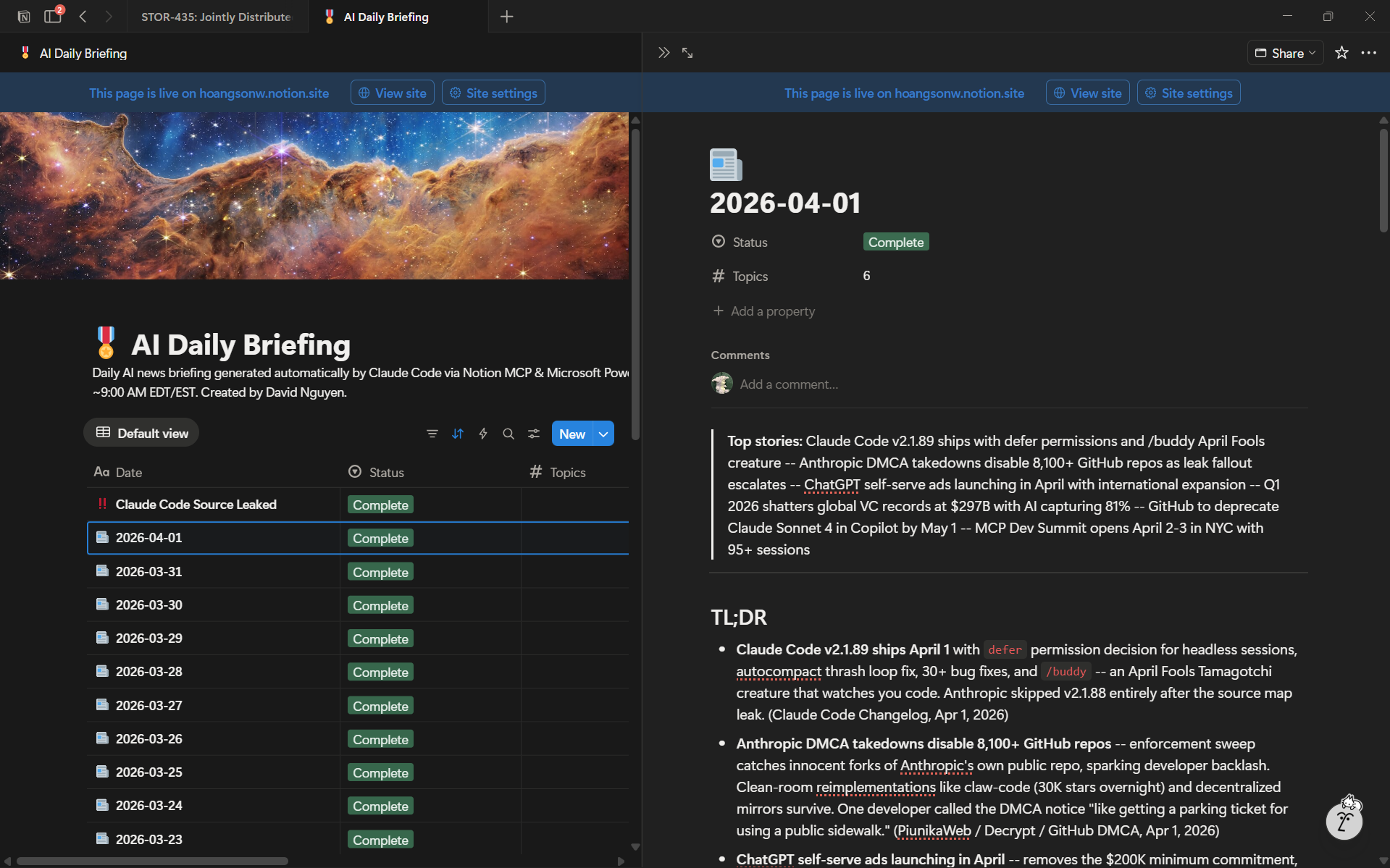
Each generated page contains:
- TL;DR -- 10-15 bullet points covering the biggest stories (roughly a 1-minute read)
- Divider
- Full Briefing -- 9 sections (one per topic), each with 3-8 detailed bullet points and source attribution
- Key Takeaways table -- a summary table of major trends and signals
Delivery Integrations (Teams + Slack)
The notification system supports both Microsoft Teams and Slack after a successful briefing run. Both channels are optional and can be enabled independently.
- Shared source artifact: Claude writes one card file,
logs/YYYY-MM-DD-card.json, in Step 4. - Teams path:
notify-teams.sh/.ps1validates JSON and POSTs the payload directly to Teams webhook URL(s). - Slack path:
notify-slack.sh/.ps1converts the same card file to Slack Block Kit usingscripts/teams-to-slack.py, then POSTs to Slack webhook URL(s). - Fan-out support: Both channels support semicolon-separated webhook URLs.
flowchart LR
    A["Claude writes logs/YYYY-MM-DD-card.json"] --> B{"Channel"}
    B --> C["notify-teams.sh / notify-teams.ps1"]
    B --> D["notify-slack.sh / notify-slack.ps1"]
    C --> E["POST Adaptive Card JSON to Teams webhooks"]
    D --> F["teams-to-slack.py conversion"]
    F --> G["POST Block Kit JSON to Slack webhooks"]
Teams Setup
- Create a Teams webhook (Power Automate workflow).
Full guide: NOTIFY_TEAMS.md - Set
AI_BRIEFING_TEAMS_WEBHOOK. - Run the briefing or call
notify-teamsdirectly.
Slack Setup
- Create a Slack app incoming webhook at api.slack.com/apps.
- Set
AI_BRIEFING_SLACK_WEBHOOK. - Run the briefing or call
notify-slackdirectly.
Set Webhook URL(s) Persistently
macOS / Linux
# Teams
export AI_BRIEFING_TEAMS_WEBHOOK="https://first-teams-webhook"

# Slack
export AI_BRIEFING_SLACK_WEBHOOK="https://hooks.slack.com/services/T.../B.../..."
Windows (PowerShell)
[Environment]::SetEnvironmentVariable("AI_BRIEFING_TEAMS_WEBHOOK", "https://first-teams-webhook", "User")
[Environment]::SetEnvironmentVariable("AI_BRIEFING_SLACK_WEBHOOK", "https://hooks.slack.com/services/T.../B.../...", "User")
Multiple Webhooks and --all / -All
Configure multiple URLs with semicolons:
export AI_BRIEFING_TEAMS_WEBHOOK="https://teams-webhook-1;https://teams-webhook-2"
export AI_BRIEFING_SLACK_WEBHOOK="https://slack-webhook-1;https://slack-webhook-2"
notify-teams/notify-slackdefault: send to first URL only.--all(bash) /-All(PowerShell): send to all configured URLs.- Current
briefing.shandbriefing.ps1call both notifiers with all URLs.
# First URL only
bash scripts/notify-teams.sh
bash scripts/notify-slack.sh

# All configured URLs
bash scripts/notify-teams.sh --all
bash scripts/notify-slack.sh --all
Test Delivery Directly
macOS / Linux
bash scripts/notify-teams.sh --all --card-file logs/2026-03-24-card.json
bash scripts/notify-slack.sh --all --card-file logs/2026-03-24-card.json
Windows (PowerShell)
.\scripts\notify-teams.ps1 -All -CardFile .\logs\2026-03-24-card.json
.\scripts\notify-slack.ps1 -All -CardFile .\logs\2026-03-24-card.json
For full setup and troubleshooting:
Custom Brief: Deep Topic Research
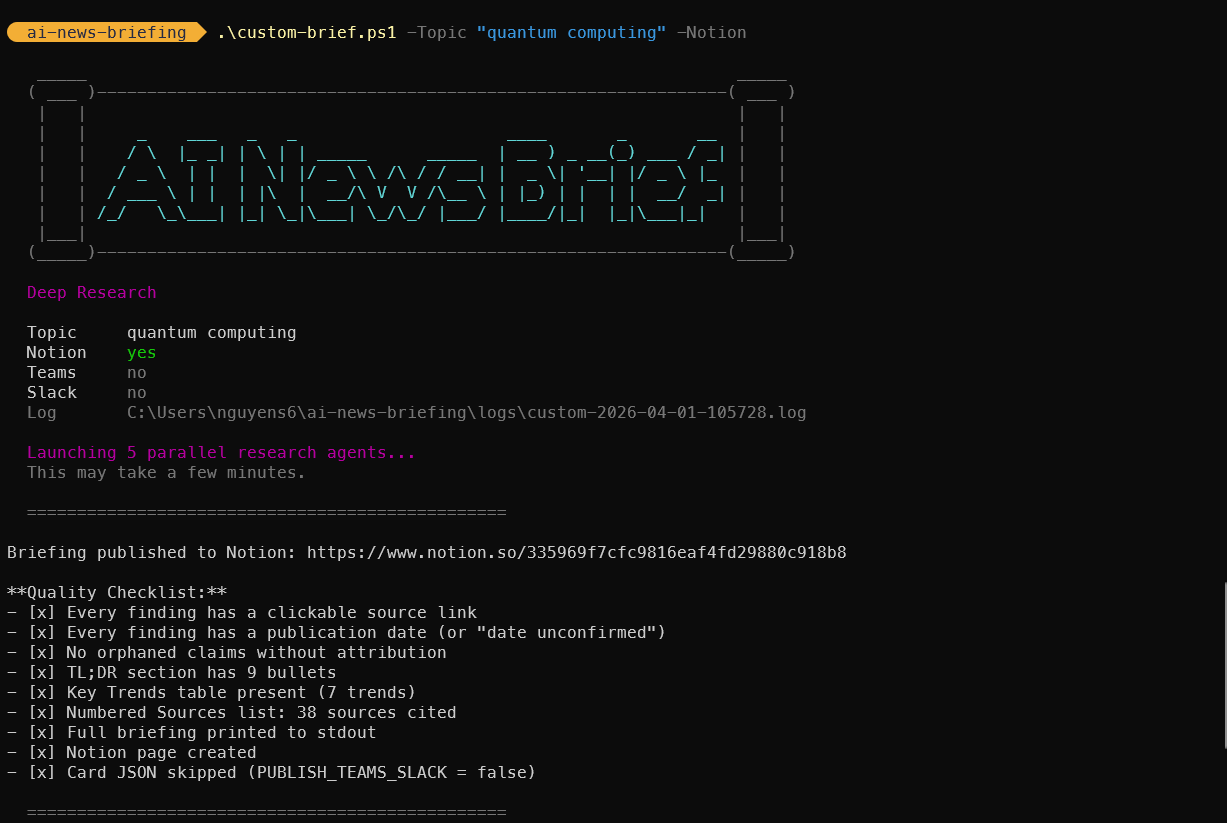
In addition to the daily automated briefing, you can run a deep research briefing on any topic on demand. This spawns 5 parallel research agents that investigate the topic from different angles, then synthesizes findings into a comprehensive news briefing.
flowchart LR
    subgraph "Input"
        A["--topic 'AI in healthcare'"]
        B["--notion --teams --slack"]
    end
    A --> C[custom-brief.sh / .ps1]
    B --> C
    C -->|5 parallel agents| D[Deep Research]
    D --> E[Structured Briefing]
    E --> F[Terminal Output]
    E -->|optional| G[Notion]
    E -->|optional| H[Teams]
    E -->|optional| I[Slack]
Quick start
# Full research with all destinations
./custom-brief.sh --topic "AI in healthcare" --notion --teams --slack

# Terminal + Notion only
./custom-brief.sh -t "quantum computing" -n

# Interactive mode (prompts for topic and destinations)
./custom-brief.sh

# PowerShell
.\custom-brief.ps1 -Topic "AI regulation EU" -Notion -Teams

# Make
make custom-brief T="open source LLMs" NOTION=1 TEAMS=1
What it produces
- TL;DR -- 5-10 bullet points with key findings
- Thematic sections -- 3-6 sections organized by theme with linked citations and dates
- Key Trends & Outlook -- strategic implications table
- Sources -- numbered list of every URL cited
Every finding includes a clickable source link and publication date. Full details: CUSTOM_BRIEF.md
How the Prompt Works
The prompt (prompt.md) instructs Claude to execute four sequential steps within a single agentic session:
Step 1: Search for News
Claude uses the WebSearch tool to perform multiple searches per topic, targeting news from the past 24-48 hours. The search strategy includes date-qualified queries like "[topic] news today 2026-03-09" and company-specific queries.
Step 2: Compile the Briefing
Search results are synthesized into a two-tier format:
- Tier 1 (TL;DR): 10-15 one-sentence bullet points covering the top stories across all topics. Designed as a quick-scan summary.
- Tier 2 (Full Briefing): 9 sections with detailed coverage, source attribution, and a closing Key Takeaways table.
Step 3: Write to Notion
Claude checks whether a page for today already exists (captured during Step 0b). If one exists, it updates the page in place. If not, it creates a new page in the target database. This prevents duplicate pages when the briefing runs multiple times in a day.
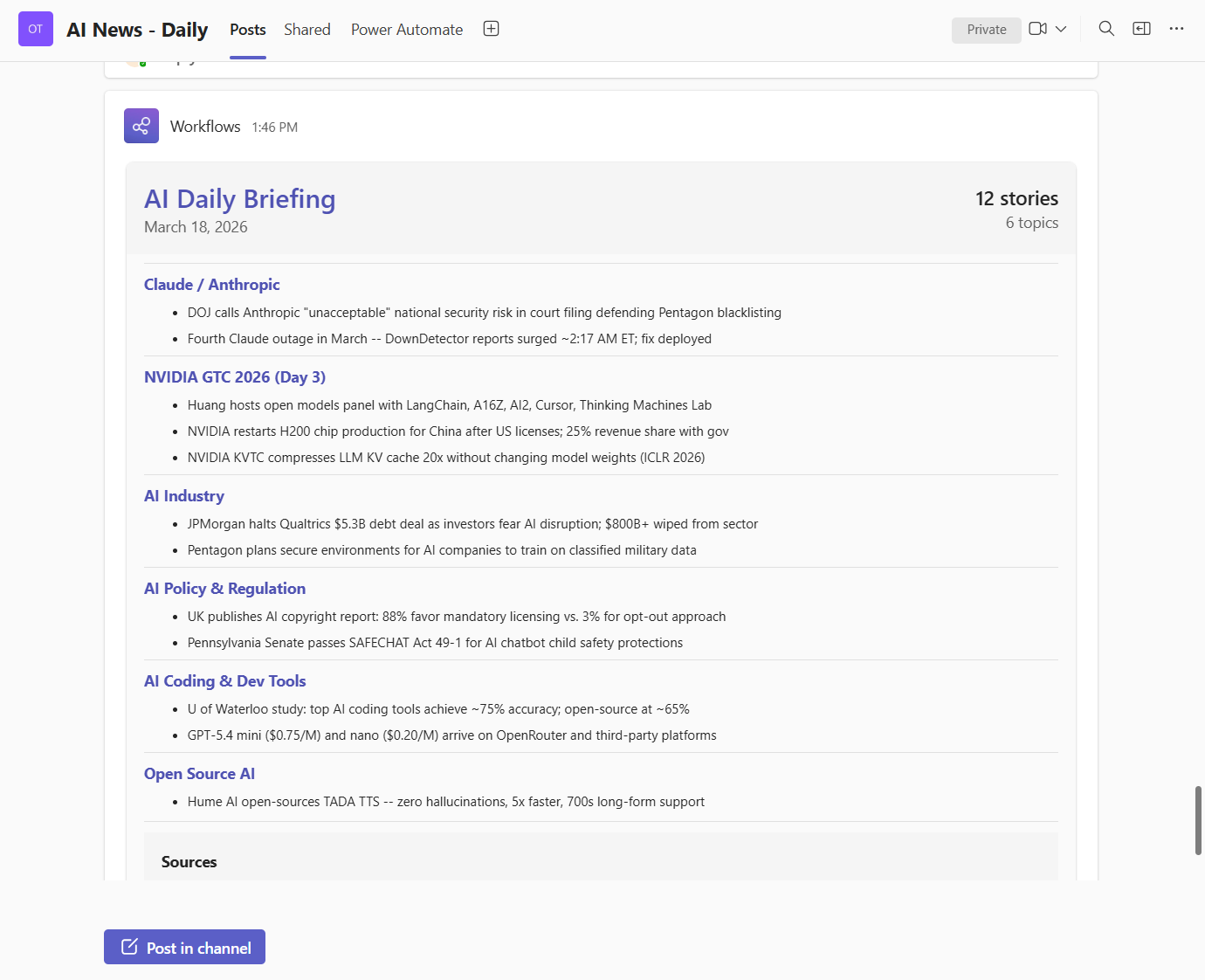
Step 4: Generate Teams Card JSON
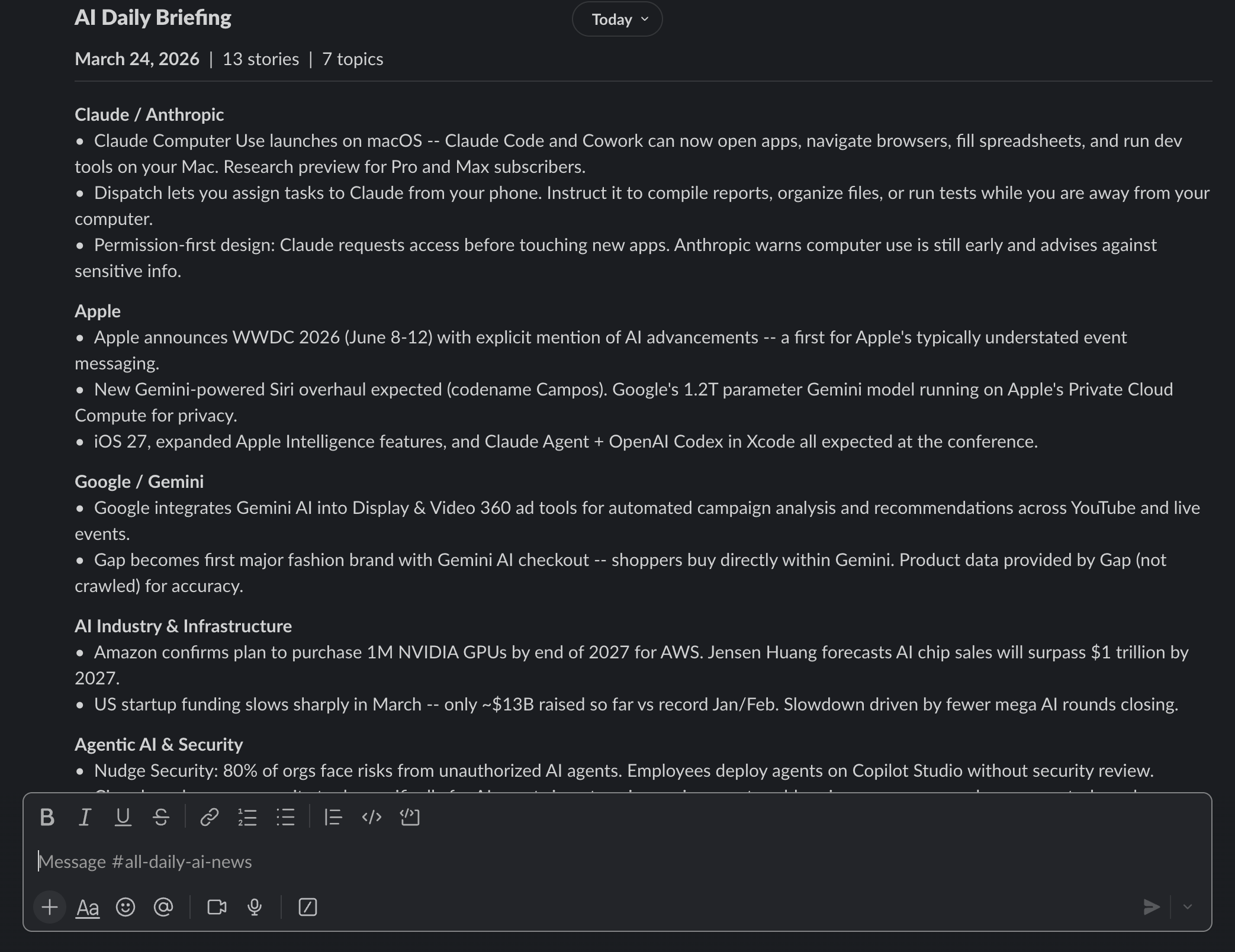
Claude writes a complete Adaptive Card JSON payload to logs/YYYY-MM-DD-card.json. This is the exact file that gets POSTed to the Teams webhook -- no parser or transformation sits between the AI output and Teams. The card includes a styled header, TL;DR bullets, topic sections, and an action button linking to the full Notion page.
Here is what a card looks like in Teams:
And in Slack:
Topic Coverage
| # | Topic | What It Covers |
|---|---|---|
| 1 | Claude Code / Anthropic | New features, releases, Anthropic announcements, blog posts |
| 2 | OpenAI / Codex / ChatGPT | Model updates, Codex features, ChatGPT capabilities, API changes |
| 3 | AI Coding IDEs | Cursor, Windsurf, GitHub Copilot, Xcode AI, JetBrains AI, Google Antigravity |
| 4 | Agentic AI Ecosystem | Agent frameworks (LangChain, CrewAI, AutoGen), MCP updates, new agent products |
| 5 | AI Industry | New model releases, benchmarks, major company announcements |
| 6 | Open Source AI | Llama, Mistral, DeepSeek, Hugging Face, open-weight model releases |
| 7 | AI Startups & Funding | Funding rounds, acquisitions, notable startup launches |
| 8 | AI Policy & Regulation | Government policy, EU AI Act, state laws, AI safety developments |
| 9 | Dev Tools & Frameworks | Vercel, Next.js, React Native, TypeScript, AI-related developer tooling |
Logs
Location
All logs are stored in the logs/ directory within the project:
| File | Contents |
|---|---|
YYYY-MM-DD.log |
Full output from each run (timestamps, Claude output, success/failure) |
launchd-stdout.log |
(macOS only) Standard output captured by launchd |
launchd-stderr.log |
(macOS only) Standard error captured by launchd |
Additionally, the logs/YYYY-MM-DD-card.json file contains the raw Adaptive Card JSON generated by Claude for Teams notifications.
Reading logs
macOS:
cat ~/ai-news-briefing/logs/$(date +%Y-%m-%d).log
tail -f ~/ai-news-briefing/logs/$(date +%Y-%m-%d).log
Windows:
Get-Content "$env:USERPROFILE\ai-news-briefing\logs\$(Get-Date -Format 'yyyy-MM-dd').log"
Get-Content "$env:USERPROFILE\ai-news-briefing\logs\$(Get-Date -Format 'yyyy-MM-dd').log" -Wait
Auto-cleanup
Logs older than 30 days are automatically deleted at the end of each run on both platforms. The macOS-specific launchd-stdout.log and launchd-stderr.log files are not date-stamped and may need periodic manual cleanup.
Tests
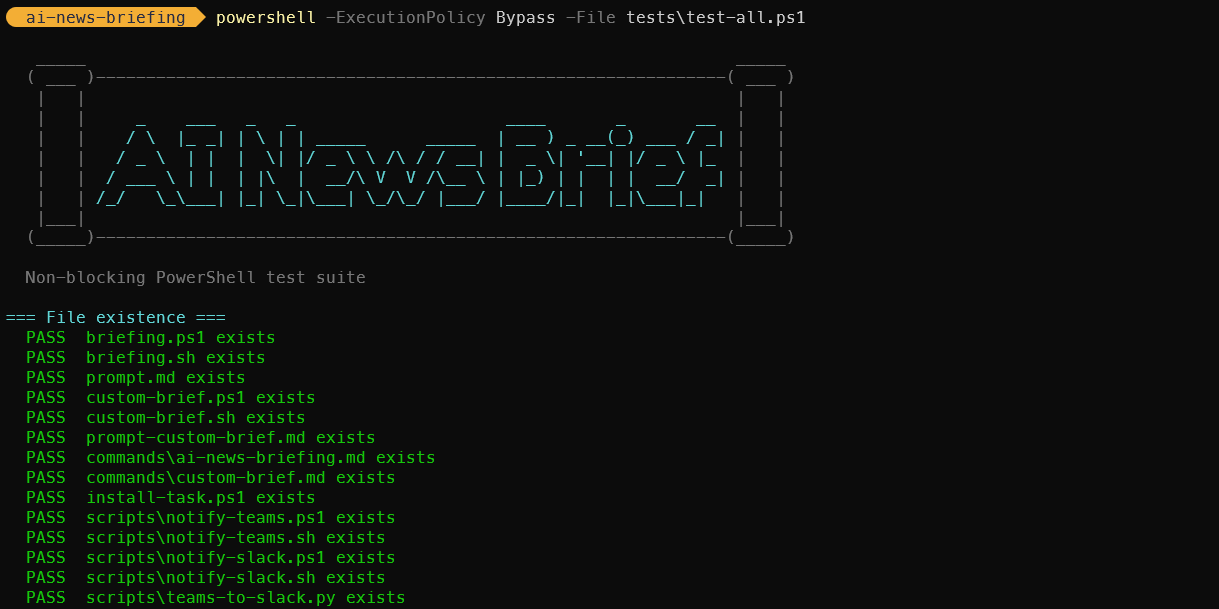
We have several test suites, with 247 non-blocking tests that verify syntax, structure, arg handling, template substitution, card JSON, notification error paths, and cross-platform portability. No external services are called.
# All bash tests (macOS / Linux / Git Bash)
bash tests/run-all.sh

# Individual suites
bash tests/test-custom-brief.sh
bash tests/test-daily-brief.sh
bash tests/test-notifications.sh
bash tests/test-portability.sh
# PowerShell (Windows)
powershell -ExecutionPolicy Bypass -File tests\test-all.ps1
| Suite | Tests | Coverage |
|---|---|---|
test-custom-brief.sh |
37 | Args, template substitution, prompt structure, skill |
test-daily-brief.sh |
56 | Prompt steps, 9 topics, 8 changelog URLs, entry scripts, dedup file |
test-notifications.sh |
37 | Card JSON validity, Adaptive Card structure, converter, error handling |
test-portability.sh |
26 | Bash 3.2 compat, awk, date, -f not -x, ANSI color safety |
test-all.ps1 |
91 | PowerShell syntax, all prompts, template substitution, cards, docs |
Full documentation: TESTS.md
Troubleshooting
"Claude Code cannot be launched inside another Claude Code session"
This error occurs when the CLAUDECODE environment variable is set, which happens if you trigger the script from inside a Claude Code terminal session. Both briefing.sh and briefing.ps1 unset this variable automatically, but if you see this error:
- Make sure you are running the briefing from a regular terminal, not from within Claude Code.
- Verify the entry point script contains the
unset CLAUDECODE/$env:CLAUDECODE = $nullline.
Scheduled task does not run at the expected time
macOS (launchd):
- Mac was asleep: launchd will run the job when the Mac wakes up if the scheduled time was missed. If Power Nap is disabled or the lid was closed, the job may not fire until the next login.
- Powered off at scheduled time: The job is skipped entirely for that day.
- Agent not loaded: Verify with
launchctl list | grep ainews. If missing, reload the plist. - Path issues: The plist sets a custom
PATHandHOME. If Claude is installed in a non-standard location, update thePATHin the plist.
Windows (Task Scheduler):
- Machine was off/asleep:
StartWhenAvailableis enabled, so the task runs as soon as the machine wakes or the user logs in. - Task not registered: Verify with
schtasks /query /tn AiNewsBriefing. If missing, re-runinstall-task.ps1. - Execution policy: The task action uses
-ExecutionPolicy Bypass. If this is overridden by group policy, contact your IT admin or runbriefing.ps1manually.
Run succeeds but no Notion page appears
- Check that the Notion MCP is configured in Claude Code's MCP settings.
- Verify the data source ID in
prompt.mdmatches a database your Notion integration has access to. - Look at the log output -- Claude typically prints a Notion URL on success.
Budget exceeded
If the log shows the run stopped mid-way, the --max-budget-usd cap may have been reached. Increase the budget in the entry point script or switch to a cheaper model.
Multiple runs in the same day
Running the briefing multiple times in a day updates the existing Notion page rather than creating a duplicate. The agent checks for an existing page during Step 0b and updates it if found. Logs append to the same date-stamped file, so all runs for a given day are captured in one log.
Cost Estimate
With the default configuration (opus model, 9 topics):
| Component | Estimated Cost per Run |
|---|---|
| Input tokens (prompt + search results) | ~$0.30-0.60 |
| Output tokens (briefing + tool calls) | ~$0.20-0.40 |
| WebSearch tool calls (~15-25 searches) | ~$0.15-0.40 |
| Total per run | ~$0.70-1.40 |
| Monthly (daily runs) | ~$21-42 |
| Custom Brief (on-demand) | ~$1.50-3.00 |
Actual costs vary based on the volume of news, number of search queries, and briefing length. The --max-budget-usd 2.00 cap ensures no single run exceeds $2.00.
Project Structure
ai-news-briefing/
├── index.html                   # Landing page / project wiki
├── wiki/                        # Landing page assets
│   ├── style.css                # Styles
│   └── script.js                # Interactions
├── Makefile                     # Cross-platform task runner
├── scripts/                     # Utility scripts (sh + ps1 pairs)
│   ├── health-check.sh/.ps1     # Verify full setup
│   ├── log-summary.sh/.ps1      # Summarize recent runs
│   ├── log-search.sh/.ps1       # Search across all logs
│   ├── dry-run.sh/.ps1          # Test without writing to Notion
│   ├── test-notion.sh/.ps1      # Test Notion MCP connectivity
│   ├── cost-report.sh/.ps1      # Estimate API costs from logs
│   ├── export-logs.sh/.ps1      # Archive logs to tar.gz/zip
│   ├── backup-prompt.sh/.ps1    # Version and restore prompt.md
│   ├── topic-edit.sh/.ps1       # Add/remove/list topics
│   ├── update-schedule.sh/.ps1  # Change daily run time
│   ├── notify.sh/.ps1           # Send native OS notifications
│   ├── notify-teams.sh/.ps1     # Post briefing to Microsoft Teams
│   ├── notify-slack.sh/.ps1     # Post briefing to Slack
│   ├── teams-to-slack.py        # Convert Teams Adaptive Card JSON to Slack Block Kit
│   ├── build-teams-card.py      # Legacy card builder (not used in current flow)
│   └── uninstall.sh/.ps1        # Full cleanup and removal
├── briefing.sh                  # Daily briefing entry point (bash)
├── briefing.ps1                 # Daily briefing entry point (PowerShell)
├── prompt.md                    # Daily briefing agent prompt
├── custom-brief.sh              # Custom topic briefing entry point (bash)
├── custom-brief.ps1             # Custom topic briefing entry point (PowerShell)
├── prompt-custom-brief.md       # Custom briefing deep research prompt
├── commands/
│   ├── ai-news-briefing.md      # Claude Code skill: daily briefing
│   └── custom-brief.md          # Claude Code skill: custom topic briefing
├── com.ainews.briefing.plist    # macOS launchd schedule definition
├── install-task.ps1             # Windows Task Scheduler installer
├── tests/                       # 247 non-blocking tests
│   ├── run-all.sh               # Bash test runner
│   ├── test-custom-brief.sh     # Custom brief tests
│   ├── test-daily-brief.sh      # Daily briefing tests
│   ├── test-notifications.sh    # Notification pipeline tests
│   ├── test-portability.sh      # Cross-platform portability tests
│   └── test-all.ps1             # PowerShell test suite
├── logs/                        # Run logs (git-ignored)
├── backups/                     # Prompt backups (git-ignored)
├── .gitignore
├── ARCHITECTURE.md              # Detailed architecture documentation
├── E2E_FLOW.md                  # End-to-end pipeline walkthrough
├── CUSTOM_BRIEF.md              # Custom topic briefing documentation
├── TESTS.md                     # Test suite documentation
├── LOGS.md                      # Log tailing and management guide
├── SETUP.md                     # Full setup guide
├── NOTIFY_TEAMS.md              # Teams integration setup guide
├── NOTIFY_SLACK.md              # Slack integration setup guide
└── README.md                    # This file
Author
Created by Son Nguyen -- AI researcher and developer focused on building tools that empower people to harness the power of AI in their daily lives.
Thanks for checking out the project! If you have any questions, suggestions, or want to contribute, feel free to open an issue or submit a pull request.
Reviews (0)
Sign in to leave a review.
Leave a reviewNo results found