ai-command-center
Health Warn
- License — License: MIT
- Description — Repository has a description
- Active repo — Last push 0 days ago
- Low visibility — Only 6 GitHub stars
Code Fail
- spawnSync — Synchronous process spawning in scripts/check-native.cjs
- fs module — File system access in scripts/check-native.cjs
- fs module — File system access in scripts/fake-acp.cjs
Permissions Pass
- Permissions — No dangerous permissions requested
No AI report is available for this listing yet.
Centro de mando local para tus IAs, agentes y proyectos. Windows, Electron, sin servidor ni telemetria.
AI Command Center
English · Español
A local command center for your AIs, your agents and your projects.
Everything on your own machine: no account, no server, no telemetry.







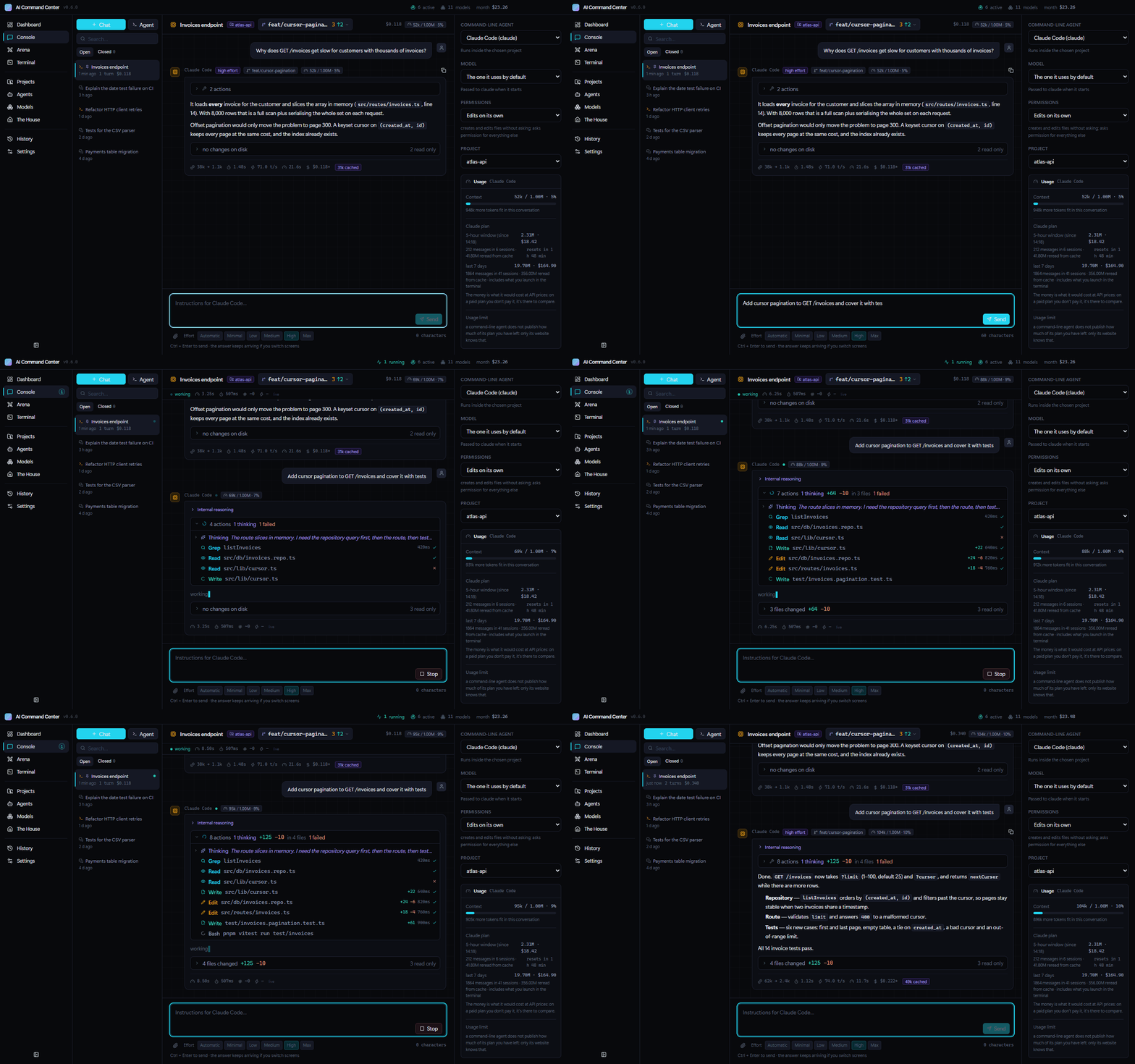
A Claude Code agent working on a project, live. All screenshots use made-up demo data.
Contents
- What it is
- A quick look
- What's new in 0.9 · in 0.8
- Installation — which file · Windows · macOS · Linux · build it
- Verifying your download
- First steps
- Updating and uninstalling
- Troubleshooting
- What it does
- Providers
- Development
- Cutting a release
- Layout
- Where your data lives
- Contributing
- License
What it is
A desktop application for Windows, macOS and Linux that pulls together, in one place,
three things normally scattered across half a dozen tabs and terminals:
- Access to your AIs — 8,000+ models from 32 API providers, whichever command-line
agents you already have installed (Claude Code, Codex, Aider, OpenCode…) and the local
models you run through Ollama, all from the same console. - Analytics on what you spend — cost per day, tokens, time to first token, generation
speed, error rate and a model ranking. Including sessions you started outside the app. - Your projects — files, a syntax-highlighting editor, full git with a commit graph,
GitHub, real terminals and agents running inside each folder. - A workbench — several sections at once in panes you split, drag and save; a task
board for your agents and live quotas for all your AIs.
Everything runs locally. Keys are encrypted with your system's own credential store
(DPAPI on Windows, the Keychain on macOS, GNOME Keyring or KWallet on Linux) and the
history lives in your own files. There is no server, no account to create, no telemetry.
A quick look

Dashboard — spend, tokens, latency and speed per model, what each provider says you have left, and your Claude Code usage including sessions started in other terminals. |

Arena — one prompt, several models or agents answering side by side, and a table that marks the best in each metric. |

Terminal — real consoles in tabs (ConPTY on Windows, a pseudo-terminal on macOS and Linux), so full-screen tools and interactive agents work with their colours. |

Git graph — branches, merges and tags drawn per project; merge, rebase, cherry-pick or reset from any commit. |

Files — the project tree and an editor with syntax highlighting, indentation guides and a warning when an agent changed the file under you. |

The House — every AI you have lives here; the ones with work in progress get up and do chores. |
What's new in 0.9
Laya decides for you
- Router (Models › Router, and “Route with Laya” in the Console). Write the prompt and
Laya, a decision model running on your computer,
reads what kind of task it is, how hard it is, whether files or images are involved and
whether it needs careful thinking. From that it picks model, effort and provider among
what you actually have: API keys, signed-in CLIs with quota left, and local models.
“Launch” opens the conversation with that choice and sends the prompt; the alternatives
and Laya's answers are shown below, so you can see why. - One-click install, nothing leaves your computer. Its own Python environment with
CPU-only PyTorch and the multilingual model (about 1.5 GB). Everything is pinned to what
was reviewed: thelaya0.4.6 wheel is checked by SHA-256 and the weights (safetensors,
no pickle) come from a fixed Hugging Face commit. Its HTTP server is not used: it is a
child process speaking over stdin/stdout, with no open port, and works offline once
downloaded. - No hype. Measured on 70 hand-labelled tasks: on unseen tasks Laya gets the kind right
half the time and the difficulty, within one point, nine times out of ten. That is why it
is combined with the recommender's existing rules; the recommender uses it as its
classifier too.
A Dashboard your way
- Arrange. Drag each Dashboard box by its handle, resize width and height from its
corner, or hide it. It saves itself; “Reset” brings back the default. Keyboard too: ← →
move it and, with Shift, resize it. In a narrow pane small boxes rearrange on their own
without touching what you saved.
Accounts that stick
- Fixed: Claude Code and OpenCode showed “signed out” on Windows even when they were
signed in. The app ran the extensionlessclaudeshim npm creates for Git Bash, which
Windows cannot launch. - More accounts: GitHub Copilot CLI, Qwen Code, Cursor CLI, Ollama (ollama.com) and
Hugging Face, on top of the existing ones. Each with Sign in and Install: if it is
not installed, “Sign in” installs it with pnpm (runningpnpm setupfirst if needed) and
then opens its sign-in in the same terminal. - Live and steady. Signing in or out from any terminal shows up at once; if a tool does
not answer, the last known state is shown instead of “signed out”. - Every key in one place. Each provider that only works with a key is listed in
Accounts with a link to its keys page and a field to paste it; it is tested on save. - OpenRouter listens for the callback on IPv6 too and, if the browser does not come
back to the app, you can paste the address it ended up on.
Security: the sprintf-js alert (GHSA-hp3w-g68c-fv3c), pulled in by the packaging
tools, is gone.
What's new in 0.8
0.8 is the big one: the app stops being just a place to launch AIs and becomes the place
where you work with them.
A workbench that fits you
- Several sections at once. The window splits into up to four panes: the Console
beside the Terminal, a project with its Tasks below. Split from the layout button in the
title bar, with Ctrl+click in the menu, or by dragging a section and dropping it on the
edge of a pane. Handles share out the space, layouts are saved by name and the app
remembers how you left it. Changing the layout remounts nothing: whatever you were
typing is still there. - Each section adapts to its pane. When it is short on width, its side lists fold into
a tab that opens on top and grids drop columns. - A new look. The "Mesa" theme (warm charcoal, higher-contrast text) and its light
version, on top of the twelve that were already there. Typefaces ship inside the app —
Atkinson Hyperlegible for reading, Bricolage Grotesque for titles — so it looks the same
on Windows, macOS and Linux. - The menu, your way. Sections are reordered by dragging and hidden with a right-click;
the Ctrl+1…9 shortcuts follow your order. - Welcome tour and help. The first time, a short tour points out, on the interface
itself, where everything is and lets you choose the look. The ? button (or F1) opens
the full documentation, searchable, in Spanish and English.
Agents, as in their own terminal
- They ask for permission in the app. Claude Code (through its control protocol),
OpenCode and Gemini CLI (through ACP) and Codex (through itsapp-server, the same
protocol its VS Code extension uses) ask here just as they do in their terminal:
Allow, Always… or Deny, in the conversation or from the Tasks card. Each
with its own modes (Claude Code's; Codex's Auto, Read Only and Full Access; OpenCode's
plan and build). - They resume their session. Each turn continues in the agent's own session, or forks it.
- "Open in its terminal" starts the original CLI, on that same session, in an app
terminal, for whatever only exists there. - Codex and Gemini CLI are no longer plain text: steps, tokens, plan and session.
- MCP in API agents, plus
web_fetch. AGENTS.md and CLAUDE.md are read and edited
from the project.
Never left stranded
- Quotas for all your AIs, in one place and saying where each figure comes from: the
official % of your Claude and ChatGPT/Codex plan, Copilot requests, balances at
OpenRouter, DeepSeek and Moonshot, what is measured for Gemini CLI and OpenCode Go, and
your own budgets. With a projection ("at this pace you hit the limit at 17:40") and
alerts at 50, 80 and 95 %. - Everything live, including what happens elsewhere. A Claude Code, Codex, Gemini CLI
or OpenCode session open in another terminal — or in Claude's desktop app — enters
history and quotas while it happens: in the tests, under half a second for a growing
Claude Code session and just over a second for Codex's %. API balances are checked every
minute while the window is in view, and right after a run with that provider. - Hand-off between AIs. "Continue with…" packs the goal, the latest messages, the
to-dos, the touched files and the diff, and launches it on another agent. The app
suggests it by itself when one runs out of quota. - Budgets that work: per month, day, project, provider or agent, with alerts and, if
you want, a block before launching. - Per-turn checkpoints: "Undo this turn" puts the files back as they were, without
touching your stash or your branches.
Agents in parallel
- Tasks: a board with what your agents are working on (running, needs your answer, to
review, done), from which you answer a permission or review the diff without opening the
conversation. - A worktree per task, so each agent works on its own copy and doesn't step on your folder.
- Code Arena: the same task to several agents, each in its worktree, with its tests,
and you merge the winner. - Scheduled tasks: daily, on weekdays, weekly or every few hours; the app in the tray
is enough. - Diff review with comments that go back to the agent, and AI review before the
commit or the pull request.
Choosing well
- Benchmarks and capabilities on each model's card, a comparer and favourites.
- Recommender: describe the task and it proposes three options with estimated cost and time.
- Personal Elo from your Arena winners, repeatable prompt batteries and a local judge.
Accounts
- Settings › Accounts shows what you are signed in to (GitHub, Claude Code, Codex,
Gemini CLI, OpenCode) and lets you sign in to the rest. GitHub sign-in happens without
leaving the app:ghissues its single-use code and the app shows it; the token is kept
bygh. Each CLI signs in with its official command. OpenRouter, through its OAuth with
PKCE. Other providers don't offer sign-in to third-party apps: you use their key, and
the app says so.
And also
- Command palette (Ctrl+K) and search across conversations and history.
- System tray: closing the window doesn't stop what is running.
- Quick prompt: a global shortcut opens a small window on top of any app.
- New-version notice, with the download for your system (it doesn't update itself).
- Git and GitHub with AI: generated commit message, pull requests with their CI.
- Console: edit and resend, regenerate, fork from any message, a prompt library with
variables, pasted images, export and import. - File explorer that searches the whole project.
- Linux and macOS: on a Linux desktop without an icon tray, closing the window no
longer hides it where it can't be recovered; quitting with work in progress (⌘Q, the
Dock) asks first;--quickopens the quick prompt from a desktop shortcut (Wayland).
What can't be done, said plainly. The OpenCode Zen balance and Cursor usage are only
on their websites. What you chat on claude.ai or chatgpt.com leaves no trace on your
machine. Codex, through its server, has been checked against the real Codex up to opening
a conversation and a turn; its approvals follow its published schema and are tested with a
stand-in, not with a ChatGPT account. macOS is checked in CI and by reading the code, not
by hand.
Installation
Windows · macOS · Linux · build it yourself
Which file do I download?
Everything is on the downloads page,
under Assets. Pick the line for your system:
| Your system | Download | What it is |
|---|---|---|
| Windows 10 or 11 | AI-Command-Center-Setup-0.9.0.exe |
Installer (recommended) |
AI-Command-Center-0.9.0-x64.zip |
Portable, nothing to install | |
| macOS with an Apple chip (M1, M2, M3, M4…) | AI-Command-Center-0.9.0-mac-arm64.dmg |
Disk image |
| macOS with an Intel processor | AI-Command-Center-0.9.0-mac-x64.dmg |
Disk image |
| Ubuntu, Debian, Linux Mint, Pop!_OS… | AI-Command-Center-0.9.0-linux-amd64.deb |
Package, installed with apt |
| Any other Linux (Fedora, Arch, openSUSE…) | AI-Command-Center-0.9.0-linux-x86_64.AppImage |
Single file, nothing to install |
| Linux on ARM (Raspberry Pi 5, Ampere…) | …-linux-arm64.deb or …-linux-arm64.AppImage |
Same as above, for ARM64 |
Not sure which Mac you have? Apple menu → About This Mac. If it says Chip Apple
M…, takemac-arm64; if it says Processor … Intel, takemac-x64.
Requirements
| Windows | macOS | Linux | |
|---|---|---|---|
| System | Windows 10 (22H2 or later) or 11, 64-bit | macOS 13 Ventura or later | 64-bit (x64 or ARM64). Tested on Ubuntu 24.04 |
| Disk | Around 400 MB | Around 400 MB | Around 400 MB |
| Administrator | Not needed | Not needed | Only for the .deb (sudo apt). The AppImage needs nothing |
No Node, no Python, no compilers: everything is bundled.
Optional. Each one unlocks a part of the app, and none of them is required:
| Program | What it enables | Windows | macOS | Linux (Debian/Ubuntu) |
|---|---|---|---|---|
git |
The git panel and the commit graph | winget install --id Git.Git |
xcode-select --install |
sudo apt install git |
gh |
The GitHub panel | winget install --id GitHub.cli |
brew install gh |
sudo apt install gh |
| Ollama | Local models | winget install --id Ollama.Ollama |
the app from ollama.com or brew install ollama |
install.sh from ollama.com |
| Any agent CLI | Running it from the app | Claude Code, Codex, Aider, OpenCode, Gemini CLI… | same | same |
Anything you don't have shows up as "not found" on its own screen and the rest of the
application works exactly the same. Nothing breaks because something is missing.
Why every system warns you the first time. The application is not signed with a
paid certificate: on Windows that costs €200–400 a year, and on macOS Apple charges
US$99 a year for the program that lets an app be notarized. This project is free and
has neither. The warning does not say the program is dangerous; it says nobody has
paid to certify who publishes it. The source is all here, the binaries are
built in the open by GitHub Actions — every package is installed
and tested there before it is published — and you can check
that what you downloaded is exactly what was built, or build it
yourself and download no binary at all.
Windows
Option A — Installer (recommended)
- Download
AI-Command-Center-Setup-0.9.0.exe. - Double-click it. Windows will show you a blue warning; that is expected and is
explained below: click More info, then
Run anyway. - Pick an install folder or keep the suggested one.
- When it finishes you will have shortcuts on the desktop and in the Start menu.
It never asks for administrator rights and touches nothing outside your user profile.
Option B — Portable (no installation)
Useful if you would rather not install anything, if you want to carry it on a USB stick,
or if the installer is being blocked for you.
Download
AI-Command-Center-0.9.0-x64.zip.Before extracting, right-click the
.zip, open Properties, tick Unblock at
the bottom and click OK.This step matters. Windows marks everything downloaded from the internet, and that
mark spreads to every file extracted from the zip. Unblocking the zip first saves you
the warning on every file inside it.Extract the folder wherever you like.
Go in and run
AI Command Center.exe.
It writes nothing to the registry and leaves no trace outside its own folder and the data
folder. To uninstall it, delete the folder.
Windows will warn you: why, and what to do
Windows protected your PC
Microsoft Defender SmartScreen prevented an unrecognized app from starting.
Running this app might put your PC at risk.
Click More info and a Run anyway button appears. That's all, and it only happens
the first time.
If there is no "Run anyway" button, you have Smart App Control enabled — a
protection that ships on by default on clean Windows 11 installations and blocks every
unsigned executable without offering any choice. You have three ways out, in this order:
- Try the portable build, remembering to
unblock the zip before extracting. It sometimes gets through where the installer
doesn't. - Build it yourself. Anything produced on your own machine
skips that filter. This is the route that always works. - Turning Smart App Control off is technically possible, but it cannot be turned back
on without reinstalling Windows. Not worth it for one application — use option 2.
macOS
Download the
.dmgfor your Mac:mac-arm64for an Apple chip,mac-x64for Intel.Open it and drag AI Command Center onto the Applications folder in the same
window.Open it from Applications or Launchpad. The first time, macOS blocks it because it
isn't notarized; this is how to let it through, once:macOS 15 Sequoia and later (including macOS 26 Tahoe):
- Double-click the app. A window says "AI Command Center" Not Opened (or that Apple
could not verify it is free of malware). Click Done — not Move to Trash. - Open System Settings → Privacy & Security and scroll down to the Security
section. There is a line saying "AI Command Center" was blocked to protect your
Mac. Click Open Anyway. - Confirm with your password (or Touch ID) and click Open Anyway once more.
macOS 13 Ventura and 14 Sonoma: right-click (or Control-click) the app in
Applications, choose Open, and then Open again in the dialog. The System
Settings route above works too.From then on it opens like any other app.
- Double-click the app. A window says "AI Command Center" Not Opened (or that Apple
The first time a project or a terminal goes into your Documents, Desktop or Downloads
folders, macOS asks whether AI Command Center may access them. Say Allow: that is
where your projects live.
Prefer the Terminal? This does the same as the steps in point 3 in one line:
xattr -dr com.apple.quarantine "/Applications/AI Command Center.app"
Things that are specific to the Mac, and already taken care of:
- Your command-line tools are found even when you open the app from the Dock. A Mac
app doesn't inherit your terminal'sPATH, soclaude,codex,opencode,ghorollamainstalled with Homebrew, npm or pnpm would be invisible. The app asks your login
shell (zsh, bash or fish) for itsPATHwhen it starts. - Keys go into the macOS Keychain, tied to your user.
- Local models use the unified memory: on an Apple chip there is no separate VRAM, and
the recommendations are computed with the share macOS lets the GPU use. - The shortcuts use ⌘: ⌘1…9 to switch sections, ⌘Enter to send, ⌘C/⌘V to copy and
paste in the terminal (where Ctrl+C is still a real Ctrl+C).
Linux
Option A — .deb package (Ubuntu, Debian, Mint, Pop!_OS, elementary, Zorin…)
From the folder where you downloaded it:
sudo apt install ./AI-Command-Center-0.9.0-linux-amd64.deb
(The ./ matters: without it apt looks for a package with that name online.) It shows
up in your applications menu as AI Command Center, and can be started from a terminal
with ai-command-center. The package also sets up Chromium's sandbox properly, including
the AppArmor profile Ubuntu 24.04 and later require.
Option B — AppImage (any distribution)
chmod +x AI-Command-Center-0.9.0-linux-x86_64.AppImage
./AI-Command-Center-0.9.0-linux-x86_64.AppImage
Or give it execute permission from your file manager (Properties → Permissions → Allow
executing as program) and double-click it. Nothing is installed and nothing is written
outside your home folder.
AppImages need FUSE 2, which some recent distributions no longer install by default. If it
doesn't open and a terminal shows an error about libfuse.so.2:
| Distribution | Command |
|---|---|
| Ubuntu 24.04 and later | sudo apt install libfuse2t64 |
| Ubuntu 22.04, Debian | sudo apt install libfuse2 |
| Fedora | sudo dnf install fuse-libs |
| Arch, Manjaro | sudo pacman -S fuse2 |
On Ubuntu 23.10 and later, prefer the
.deb. Those versions only let an app use the
user namespaces Chromium isolates its windows with if the app has an AppArmor profile,
and only the.debcan install one. The AppImage still opens and works — its launcher
detects the restriction and starts the app with--no-sandboxrather than crashing —
but without that isolation, and Settings → Security says so. On Fedora, Arch and
most other distributions there is no such restriction and the AppImage runs isolated.
Keys on Linux
Keys are encrypted with your session's keyring (GNOME Keyring or KWallet), which GNOME and
KDE desktops come with. On a desktop without one the app does not pretend: the
Security screen tells you keys are stored encoded, not encrypted. Install gnome-keyring,
or pass your keys as environment variables (ANTHROPIC_API_KEY, OPENAI_API_KEY…) instead
of saving them in the app.
Build it yourself
This is the cleanest route on any system: what you compile on your own machine goes
through no reputation filter, so there are no warnings of any kind.
You need Node 22, git and pnpm — never npm, it breaks thenode_modules tree. Node brings pnpm with it; enable it once with:
corepack enable pnpm
On macOS you also need Apple's command-line tools (xcode-select --install), because the
terminal's native module is compiled on install. Windows and Linux need nothing else: it
comes precompiled.
Then:
git clone https://github.com/Hredo/ai-command-center.git
cd ai-command-center && pnpm install
pnpm dist
pnpm dist builds for the system you run it on, into release/:
| System | What you get |
|---|---|
| Windows | The installer and the portable zip. If your Windows won't let you generate the installer, pnpm dist:zip produces only the portable build and never needs to launch an executable while packaging |
| macOS | The .dmg for your Mac's architecture |
| Linux | The .deb and the AppImage for your architecture |
To work on the code without packaging anything: pnpm dev.
Verifying your download
Every Release includes a SHA256SUMS.txt file with the fingerprint of each package. To
check that what you downloaded is exactly that, run this in the folder where you
downloaded it:
| System | Command |
|---|---|
| Windows (PowerShell) | Get-FileHash '.\AI-Command-Center-Setup-0.9.0.exe' -Algorithm SHA256 |
| macOS | shasum -a 256 AI-Command-Center-0.9.0-mac-arm64.dmg |
| Linux | sha256sum -c SHA256SUMS.txt --ignore-missing |
The value must match, character for character, the matching line in SHA256SUMS.txt (on
Linux the command compares them for you and prints OK). If it doesn't, don't run
it: delete it and download it again.
First steps
The first time, a welcome tour shows you where everything is and lets you choose the
look. After that, the ? button in the top bar (or F1) opens the full, searchable
help.
The application starts empty on purpose: it ships no keys, creates no account and
connects to nothing on its own. To make it do something you need at least one of these
three. Settings › Accounts gathers the sign-ins: GitHub, each agent and OpenRouter.
1. An API key
Any of the 32 providers will do.
- Open Settings and go to Providers.
- Find yours and paste the key.
- Done — it now shows up in the Console, in the Arena and in the model catalog.
Where your key ends up. It is stored encrypted with your system's own credential
store, tied to your user account — DPAPI on Windows, the Keychain on macOS, GNOME
Keyring or KWallet on Linux — insecrets.jsoninside the
data folder. It never leaves your machine except toward the
provider you are sending it to, and it is never written to the history or the logs. If
you would rather not store it at all, the app also reads the usual environment variables
(ANTHROPIC_API_KEY,OPENAI_API_KEY,GEMINI_API_KEY…).
2. A command-line agent
If you already use Claude Code, Codex, Aider, OpenCode or Gemini CLI, you need no key at
all: the app finds them on your PATH and runs them with your existing session.
- Open Agents. Whatever you have installed shows up detected, with its version.
- If one isn't signed in, Settings › Accounts › Sign in runs its official command in
an app terminal. - Pick one in the Console and start typing. When it needs permission for something, it
asks you right there.
3. Local models, paying nobody
- Install Ollama and start it.
- Open Settings and go to Local. The app finds it by itself on
localhost:11434. - From there you get your hardware, the models you have, and recommendations computed
from your GPU's actual VRAM (or, on an Apple chip, the unified memory macOS gives the
GPU). Install and remove them with one button.
Updating and uninstalling
| System | Updating | Uninstalling |
|---|---|---|
| Windows | Run the new installer over the old one | Settings → Apps, or the uninstaller in the Start menu. Portable: delete the folder |
| macOS | Drag the new version onto Applications and choose Replace | Drag the app from Applications to the Trash |
Linux .deb |
sudo apt install ./ followed by the new .deb's name |
sudo apt remove ai-command-center |
| Linux AppImage | Replace the file with the new one | Delete the file |
Updating keeps your settings, your keys and the whole history. The app itself tells you
when there is a new version and shows the download for your system (Settings ›
Preferences); it doesn't update itself, because it isn't signed.
Your data is not deleted when you uninstall, so reinstalling doesn't put you back at
zero. It stays in the data folder; to really remove it, delete
that folder by hand.
Troubleshooting
| System | Symptom | What's happening | Fix |
|---|---|---|---|
| Windows | "Windows protected your PC" | The app isn't signed | More info → Run anyway |
| Windows | No "Run anyway" button | Smart App Control is on | Use the zip, or build it |
| Windows | Antivirus quarantines it | Common false positive for unsigned Electron binaries | Verify the SHA-256 and add an exception, or build it yourself |
| macOS | "AI Command Center" Not Opened / can't be opened | It isn't notarized | System Settings → Privacy & Security → Open Anyway (step by step) |
| macOS | "AI Command Center" is damaged and can't be opened | macOS says this when the quarantine mark and the signature don't agree; it isn't damage | xattr -dr com.apple.quarantine "/Applications/AI Command Center.app" |
| macOS | It doesn't find a CLI you installed with the app open | The PATH is read when the app starts |
Quit it (⌘Q) and open it again |
| Linux | The AppImage doesn't open; error about libfuse.so.2 |
FUSE 2 isn't installed | Install it, or use the .deb |
| Linux | Security says the app started with --no-sandbox |
The AppImage on Ubuntu 23.10+, which blocks the user namespaces Chromium needs | Use the .deb, which installs its AppArmor profile |
| Linux | Security says keys are "encoded, not encrypted" | There's no keyring in your session | Install gnome-keyring, or use environment variables |
| All | The app opens but everything is empty | That's normal at the start | Add a key or an agent: see First steps |
| All | The terminal opens and hangs | The native console binaries are missing | Download again; if you built it, run pnpm install then pnpm dist |
| All | The git panel says git is missing | git is not on your PATH |
Install it (table) and restart the app |
| All | The GitHub panel asks you to sign in | GitHub's CLI or its session is missing | Install it (table); then Settings › Accounts › Sign in |
| Linux | Closing the window quits the app instead of keeping it in the tray | Your desktop has no icon tray (GNOME without the AppIndicator extension) | That is correct: without a tray there would be no way back to it |
| Linux | The quick prompt's global shortcut doesn't respond | On Wayland global shortcuts don't arrive | Bind the command shown in Settings › Preferences (… --quick) in your desktop's shortcuts |
| All | Ollama doesn't show up | The server isn't running | Start it, or use the button in Settings → Local |
| All | A provider returns 401 | Wrong or expired key | Paste it again in Settings → Providers |
None of this helps? Open an issue
with your system and its version, how you installed the app, and what you did right before.
What it does
Dashboard — spend per day, input and output tokens, average time to first token,
generation speed, error rate, and a ranking of models by cost and performance.
Console — conversations with any model or with a command-line agent. While it answers
you see live metrics (elapsed time, first token, estimated tokens and speed); when it
finishes those are replaced by the provider's real numbers. Each conversation is a session
you can close, reopen, rename, pin or delete, and it survives closing the application.
Around every turn you see what the model or the agent actually reports:
- Reasoning, collapsible, when it publishes any. From the APIs come Anthropic's
thinking blocks,reasoning_contentfrom the OpenAI-compatible ones, Gemini's
thoughts and Ollama'sthinking. From command-line agents, Claude Code'sthinking
blocks and OpenCode'sreasoningevents. If an agent publishes none, it says so; it is
never reconstructed by guessing at the output. - Context consumed against the model's window, in tokens and as a percentage.
- Rate limits: how many requests and tokens are left, and when they reset. It comes
from the provider's response headers, so it only appears if the provider sends it.
In the conversation sidebar there's a usage panel keeping the three things apart: how
much context you've spent and how much still fits, how many requests and tokens are left
on your plan, and a countdown to the reset. Whatever the provider doesn't publish is said
in those words, instead of drawing half a bar. The Dashboard collects the same from every
provider that has answered since you opened the app.
Claude Code gets its own section on top of that: what you've spent in the five-hour
window and over the last seven days, with the messages and sessions in each, and a
countdown to the reset when the agent itself announces one. It also counts what you run
outside the application, because it reads the transcripts Claude Code leaves in~/.claude/projects. Two caveats the panel states in writing: cache-read tokens are kept
separate — added in with the rest they'd reach hundreds of millions in an afternoon — and
the money shown is what it would cost at API prices, which on a paid plan is not what you
pay. Nobody publishes the plan's ceiling, so no percentage is drawn: you get the real
spend and the reset time, and it stops there.
- Files it touched: the ones that actually changed, measured by diffing the repository
before and after, with lines added and removed; and separately the ones the agent says
it opened, distinguishing what it only read from what it edited. - Branch it ran on, with a picker to switch branches or create a new one.
- Attachments: you pick files and they travel with the prompt. An API model gets the
contents (truncated if oversized, and it says so); a command-line agent gets the paths,
since it knows how to open them. - Reasoning effort, from minimum to maximum. Every provider asks for it differently
and it is translated automatically: thinking budget on Anthropic and Gemini,reasoning_efforton OpenAI,thinkon Ollama, and each CLI's own option on claude,
codex and aider. On "Automatic" nothing is sent, so the request goes out exactly as it
always did. If a provider rejects the field, it is retried without it instead of
failing. - What the agent is doing, step by step and while it happens: every thought and every
tool with its name, on which file or which command, how long it took, whether it
succeeded, and the +N −M of what it edited. At the top, a summary of the run: how
many actions, how much was added and removed, across how many files. It stays open while
running so you can see it hasn't hung; when it finishes it folds away and leaves the
answer clean. What the agent doesn't report isn't drawn: if a tool doesn't say how many
lines it touched, no counter appears. - Model and permissions for the console agent. Each CLI asks here what it would ask
in its terminal — editing a file, running a command, leaving the project — with
Allow, Always… and Deny, and with its own modes: Claude Code's, Codex's
(Auto, Read Only, Full Access) and OpenCode's and Gemini CLI's. The answer goes back to
the CLI itself through its protocol, not through a shortcut of the app.
Arena — the same prompt against two, three or four contenders at once, in columns,
streaming simultaneously. A contender can be an API model or a command-line agent; both
end up in the same comparison table, which highlights the best in each metric. You mark a
winner and it is saved.
Terminal — real terminals inside the application, in tabs. Behind them is a real
console (ConPTY on Windows, a pseudo-terminal on macOS and Linux), so full-screen
applications work: opencode, vim, agents in interactive mode, all with their colors and
their interfaces. Ctrl+C is a genuine Ctrl+C. Each tab's path and each command's duration
come from a shell integration that only adds invisible markers to the prompt — for
PowerShell, bash, zsh and fish, loading your own configuration first so your prompt,
aliases and PATH stay exactly as they are. On macOS every new terminal is a login shell,
as in Terminal.app.
Projects — you register folders, and from there you open them in VS Code or in your
file manager (Explorer, Finder…), get a terminal of the project's own, and launch agents inside with their output
live. The app scans the project: git branch, languages, package manager, AI dependencies
and the names (never the values) of its .env variables. package.json scripts run by
clicking them, in the built-in terminal. A project can be closed: it stays saved with
its history but leaves the list, and reopens whenever you want.
Each project also has:
- Files — a folder tree that expands one level at a time (heavy ones like
node_modulesare flagged and only read if you open them yourself), and an editor with
Ctrl+S, line numbers, and a warning if the file changed on disk since you opened it,
which is what happens when an agent has been working behind your back. Code is
syntax-highlighted — comments, strings, numbers, keywords, types and calls — with
indentation guides marking each level, and Tab inserts a tab instead of jumping
between controls. The highlighting is homegrown, no library: a handful of regular
expressions per language family (TypeScript, JavaScript, Python, shell, JSON, CSS, HTML,
YAML, SQL, Go, Rust, C, Java, PHP, Ruby and Markdown). The same colors apply to code
blocks in chat replies, guessing the language when the markdown fence doesn't say. You
can create, send to the recycle bin (the Trash on a Mac), and reveal in Explorer or
Finder. Every path is resolved
against the project root: one..too many is rejected. - Git — what changed with its line counts, the diff of each file, stage, commit,
stash and pop, fetch, pull, push, and a box for any other git command. The box is not a
shell: the command is split into arguments and goes straight to git, only subcommands
from a list are accepted, and the ones that can throw work away (reset --hard,push --force) ask for confirmation. Interactive things (arebase -i, which would
open an editor) are sent to the built-in terminal, where they make sense. - Graph — the history drawn: one lane per branch, merges with their curve, and the
labels of every local branch, remote branch or tag on its commit. Clicking a commit lets
you merge, rebase, cherry-pick, revert, create a branch or a tag right
there, check it out, or reset back to it keeping or discarding what came after. If a
merge or a rebase stalls, the top of the panel says what is going on, which commit it is
at and which files are conflicted — they open in the editor with one click — with
continue, skip and abort. The actions are not free text: the interface says
what it wants to do and the main process assembles the git call, so a branch name can't
smuggle in a flag. Git runs with no editor and no questions (GIT_EDITOR=true), so
nothing sits waiting for a keyboard that isn't there. - GitHub — you sign in with its official CLI without leaving the app:
ghissues a
single-use code, the app shows it and you authorize in the browser. The application
never sees or stores your password or your token; it only asksghwhich account it is
on. The project's pull requests, with their CI, are viewed and created from the Git tab. From there you browse and
search your repositories, and clone any of them into a folder you pick — registered as a
project in the same gesture.
Tasks — a board with what your agents are working on: running, needs your answer, to
review and done. From the card you allow or deny a permission, review the diff and send
comments back. "New task" launches an agent in its own worktree; "Schedule" repeats it
by itself.
Agents — two kinds, and both work as agents: they use tools and loop as many times as
needed to finish the task. API agents are a model with its instructions, effort and
permissions: they read, search, edit and run commands with the app's tools, in the project
or, without one, in their own folder. Command-line agents are the CLIs you already have
installed (Claude Code, Codex, opencode, Aider, Gemini CLI…): the app finds them on your
PATH and runs them inside the project. From Claude Code and OpenCode it extracts real
tokens and cost. For OpenCode you pick the provider —Zen or your Ollama models—, the model
and the effort; with Ollama, every model always runs with its full context window.
And also the sessions you did not start here: if you open claude in any terminal,
that conversation still lands in the history and the statistics, with its project, its
model, its messages and the files it touched, flagged as having come from outside. It is
read from Claude Code's transcripts, which only grow at the end and are never rewritten,
so they are read in full once and after that only the new part; meanwhile the folder is
watched, so a session that is still alive shows up while you work, not whenever you
remember to look.
Models — a dynamic catalog with over 8,000 models from 200 providers and their prices,
pulled from models.dev and OpenRouter. Click a model and its card opens: context, prices,
modalities and links to its page, its weights or its documentation. When a provider
publishes no per-model page, it says so and links their list instead of inventing a URL.
Local (in Settings) — Ollama management without leaving the app: server status and a
button to start it, your hardware, the installed models with their size, and
recommendations computed from your GPU's real VRAM and each model's real size according to
Ollama's registry. Install and remove from there, with a progress bar.
The House — the one screen that doesn't configure anything: it's there to look at.
Every AI the application detects — each console agent, each local model, each provider with
a key — lives in a house drawn pixel by pixel, in plan and three-quarter view, with a
kitchen, living room, office, bedroom, games room, garden, pool and basketball court.
If you give it nothing to do, each one is resting: on the sofa, having a nap, at the
arcade machine, in the water or shooting hoops, moving somewhere else now and then. Give
it a task and it gets up and starts doing chores around the house — cooking, washing up,
sweeping, watering, typing in the office. Give it two at once and an identical neighbour
comes in through the front door for the second one, leaving the way they came as soon as
that task ends. Hovering tells you who it is and what they're doing.
All the artwork is original: no images, no downloaded sprites, nothing generated
elsewhere. It's painted on a 768×640 canvas and scaled up by a whole number with smoothing
off, which is what makes the pixels come out square instead of blurry. The animation stops
by itself when you switch tabs.
History — every run, with filters, a detail card and export to CSV or JSON.
Notifications — system notifications when a prompt, an agent, a comparison, a model
download or a terminal command taking more than twelve seconds finishes.
Details that matter
Nothing is interrupted by switching screens, or by switching windows. Conversations,
agents, terminals and the Arena live in a global store in the renderer, not in the pages:
a screen you have visited stays mounted and is merely hidden, so you don't lose your
scroll position, your open terminal tab, or what you were halfway through typing. Each
terminal keeps its emulator alive; coming back to it resizes and refocuses without
repainting the scrollback from scratch.
The same goes for switching to another application. Chromium stops producing frames when
its window is minimized or covered, and text arriving in the meantime was left waiting for
a frame that never came: on return it all appeared at once and looked like the AI had
hung. Now there is a fallback timer — whichever fires first wins — and the window asks not
to be throttled in the background. It costs a little battery, and in exchange what runs in
the background actually runs. The top and side bars show how many tasks are in flight and
where.
The screen doesn't go stale. The main process watches each project's folder —fs.watch for immediate notice, plus a sweep every four seconds for whatever slips past —
and tells the interface when the repository changes. Committing from the app, from an
outside terminal or from an agent makes no difference: the change list, the branch, the
graph and the file explorer update themselves, with no "refresh" to press. A notice is
only sent when the state really changed, so a sweep that finds nothing repaints nothing.
Same for spend and history: they are re-read when each run finishes.
Local engines are detected on their own. The main process probes their ports every few
seconds and tells the renderer when one appears or disappears: starting Ollama with the
app already open is noticed without pressing anything. If an engine only answers on one of
the two addresses (127.0.0.1 or localhost), the one that works is remembered.
Security
The renderer window runs with sandbox, contextIsolation and no Node access. It cannot
navigate anywhere, open new windows, or request camera, microphone or location. A content
security policy blocks loading anything that isn't its own. Messages arriving over IPC are
checked: that they come from the right window, and that the arguments are of the expected
type and size. Opening an external link means http(s) and nothing else. All of it lives
in src/main/security.ts, and the application displays it on its
own Security screen — so if somebody loosens a setting, it shows.
Providers
32 in the catalog, speaking four protocols: Anthropic, OpenAI (and the ~20
compatible ones), Google Gemini and native Ollama.
Cloud — Anthropic, OpenAI, Google, OpenRouter, Groq, DeepSeek, xAI, Mistral, Together,
Fireworks, Cerebras, Perplexity, Cohere, Moonshot, Zhipu, Qwen, NVIDIA, SambaNova, Nebius,
Hyperbolic, Hugging Face, GitHub Models and Azure OpenAI.
Local, detected by port probing — Ollama, LM Studio, llama.cpp, vLLM, Jan, LocalAI,
GPT4All, KoboldCpp and Text generation WebUI.
Development
Requires Node 22 and pnpm (never npm — it breaks the node_modules tree), on
Windows, macOS or Linux; on macOS also Apple's command-line tools (xcode-select --install). The git panel needs git on the PATH, and GitHub needs its official CLI (see
the table); without it the rest of the application works the same and
the panel says so.
pnpm dist prepares and checks, before packaging, the real console's binaries
(scripts/check-native.cjs). Without that check you can produce an installer that starts
fine and leaves the terminal hanging on the first tab: it happened once, because a failednode-gyp had emptied build/Release.
pnpm install
pnpm dev            # hot-reloading app
pnpm build          # compiles to out/
pnpm dist           # packages for the system you are on, into release/
pnpm dist:win       # Windows: installer and portable zip
pnpm dist:zip       # Windows: only the portable version
pnpm dist:mac       # macOS: the .dmg for this Mac's architecture
pnpm dist:linux     # Linux: .deb and AppImage
pnpm typecheck      # typechecks both processes
Self-test. The application can check itself: started with ACC_SELFTEST=<folder>, it
opens with throwaway data, exercises the window, a real terminal with every shell it finds
(bash, zsh, fish or PowerShell), the agent's commands and the user's PATH, writesselftest.json and two screenshots to that folder and exits with 0 or 1.scripts/selftest.sh launches it the way the Dock or a desktop
launcher would, with an empty environment. It's what CI runs on every system
(src/main/selftest.ts).
Verification:
pnpm exec electron scripts/smoke.cjs         # starts up and takes a screenshot
pnpm exec electron scripts/test-engine.cjs   # streaming engine, against a fake SSE server
pnpm exec electron scripts/test-pty.cjs      # real terminal: opencode, Ctrl+C, exit codes
pnpm exec electron scripts/test-terminal.cjs # the pipe-based fallback engine
pnpm exec electron scripts/test-features.cjs # sessions, links, detection, notifications
pnpm exec electron scripts/test-agents.cjs   # reasoning, context, limits, files, effort
pnpm exec electron scripts/test-workspace.cjs # project files, git and GitHub
pnpm exec electron scripts/test-v08.cjs      # everything in 0.8: quotas, permissions, workbench, help…
pnpm exec electron scripts/shot.cjs Terminal # screenshots of one section
python scripts/make-icon.py                  # regenerates build/icon.png
scripts/ollama-setup.cjs sets Ollama up with the best models for the machine. With--dry-run it only reports what it would do.
The tests use a local SSE server and fake agents — Node scripts speaking the same
protocols as Claude Code (permissions over standard input), OpenCode and Gemini CLI (ACP)
and Codex (app-server), plus a fake gh and a fake OpenRouter — so they spend no tokens
and touch no account. The git and file tests build a temporary repository and delete it
when they're done.
Native dependencies
Exactly one: @homebridge/node-pty-prebuilt-multiarch, which provides the real console.
It is an N-API module, so the same binary works with any version of Node and Electron and
nothing has to be rebuilt for Electron. How it gets to build/Release depends on the
system, and scripts/check-native.cjs handles all three:
- Windows: its install script downloads it prebuilt — Visual Studio is not
required. - Linux: it ships prebuilt, but in
prebuilds/linux-<arch>/, which is not where it is
looked for inside Electron; the script copies it into place. - macOS: it is compiled on install (hence the command-line tools), together with
spawn-helper, which must stay executable or every tab dies withposix_spawnp failed.
If it ever failed to load, the terminal falls back on its own to a pipe-based engine that
groups output into blocks; you lose interactivity but the app keeps working, and it says so
on screen.
Nothing else is native, on purpose: the history is JSONL rather than SQLite.
pnpm 11 requires install scripts to be authorized under allowBuilds inpnpm-workspace.yaml. Without that the module installs with no binary, silently.
Cutting a release
The binaries are built by GitHub Actions, not on the development machine: that is the
only way to have a Windows, a Mac of each architecture and a Linux of each architecture at
hand every time. For Windows there is a second reason: on the development machine Smart
App Control is enabled and enforcing, so the NSIS installer cannot even be generated —
electron-builder needs to launch a temporary executable to write the uninstaller and
Windows won't let it.
Releasing is pushing a tag. Before that, bump the version in package.json and in.codex-plugin/plugin.json — the manifest the
HOL registry reads — or theplugin-scanner workflow fails:
git tag v0.9.0 && git push origin v0.9.0
.github/workflows/release.yml builds, on clean GitHub
machines, the Windows installer and zip, the .dmg for Apple chips and for Intel Macs,
and the .deb and AppImage for Linux x64 and ARM64. Then it installs each one the way a
user would — the .dmg dragged into Applications, the .deb with apt under Ubuntu's
AppArmor restrictions — and runs the self-test on it; on the Mac also
opened through the Finder, with launchd's bare environment. Only if all of them pass does
it compute the SHA-256 sums and publish the Release. Run from the Actions tab without a
tag, it does the same and publishes nothing..github/workflows/ci.yml compiles and runs the self-test on
Windows, macOS and Linux on every push and every pull request.
The Mac app is signed ad hoc — which costs nothing and is what Apple chips need to run
it at all — but it is not notarized: that takes Apple's paid developer program, hence the
first-open steps.
Updating a Windows installation without the installer
All of the application's code lives in resources\app.asar, so on a machine where the
installer is blocked it is enough to replace that and leave the executable — which Windows
already allows — alone:
pnpm build && pnpm exec electron-builder --win --dir
powershell -ExecutionPolicy Bypass -File .\scripts\actualizar-instalacion.ps1
The script asks for elevation, closes the application if it is open, saves a dated copy
under release\respaldo-<date> and copies the new build in. To roll back, copy the
backup's app.asar over the current one. This only holds while the Electron version
doesn't change.
Layout
src/
  shared/types.ts      the contract shared by all three processes
  shared/ipcContract.ts  every channel between processes, with its types
  shared/workspace.ts  the workbench: the pane tree and its operations
  main/
    index.ts           window, lifecycle and CSP
    ipc.ts             main channels, with errors turned into messages
    ipcExtra.ts        terminals, sessions, Ollama, links and notifications
    config.ts          config.json
    secrets.ts         keys encrypted with the system keyring (DPAPI, Keychain,
                       Secret Service)
    platform.ts        what changes between Windows, macOS and Linux
    shellEnv.ts        the user's shell PATH, for apps opened from the Dock
    selftest.ts        the self-test CI runs on every system
    runs.ts            JSONL history and metric aggregation
    sessions.ts        conversations you can close and pick back up
    terminal.ts        real console (ConPTY, or a pseudo-terminal on macOS and
                       Linux), shell integration and the pipe fallback
    ollama.ts          status, hardware, downloads and recommendations
    notify.ts          system notifications
    detect.ts          detection of providers, CLIs and local engines
    projects.ts        project scanning
    files.ts           project files, never leaving the project root
    git.ts             status, branches, diffs, commit graph and operations
    watch.ts           watches each project and reports repository changes
    usage.ts           the last thing each provider said about your limits
    claudeSessions.ts  reads Claude Code transcripts: usage windows and
                       sessions started outside the application
    claudeWatch.ts     watches that folder so a live session shows up running
    github.ts          session and repositories through gh
    attach.ts          prompt attachments
    effort.ts          reasoning effort, translated per provider
    security.ts        hardening: CSP, permissions and IPC validation
    providers/
      catalog.ts       the 32 providers
      models.ts        dynamic catalog and price computation
      links.ts         from a model to its page
      run.ts           streaming engine: 4 dialects and metrics
      limits.ts        rate limits read from response headers
    agents/cli.ts      command-line agent execution and their permissions
    agents/acp.ts      ACP: OpenCode and Gemini CLI ask in the app
    agents/codexServer.ts  Codex's app-server: approvals, threads and permissions
    accounts.ts        what is signed in and how to sign in (gh, each CLI, OpenRouter OAuth)
    quotas/            quotas for every AI: plans, balances, budgets and alerts
    external/          Codex, OpenCode and Gemini CLI sessions opened outside the app
    checkpoints.ts     a snapshot of the project before each turn, to undo it
    worktrees.ts       a copy of the project per task
    schedules.ts       scheduled tasks
    tray.ts, quick.ts  system tray and quick prompt
    updates.ts         new-version notice
    mcp/               each CLI's MCP servers and the client for API agents
  preload/index.ts     isolated bridge to the renderer
  renderer/
    lib/engine.tsx     live state for everything, outside the pages
    lib/ansi.ts        ANSI escape interpreter for fallback mode
    lib/highlight.ts   syntax highlighting and indent guides, no library
    lib/house.ts       The House's floor plan: rooms, doors, spots and the
                       residents' comings and goings
    lib/pixelArt.ts    The House's artwork, pixel by pixel, no images
    lib/i18n.tsx       the strings, in Spanish and English
    lib/workspace.ts   the workbench: panes, layouts and menu
    lib/help.ts        the documentation behind the help button
    components/        Terminal (xterm.js), FilesPanel, Code (highlighting editor),
                       GitPanel, GitGraph (graph, merges and rebases), GithubPanel,
                       AgentPanel (context, usage, Claude's plan, branches),
                       AgentActivity (what the agent is doing), HouseCanvas,
                       Workbench (panes, handles and drop zones), Help (help and
                       tour), AccountsPanel, QuotasPanel, CommandPalette, Stats…
    pages/             the eleven sections
Where your data lives
| System | Folder |
|---|---|
| Windows | %APPDATA%\AI Command Center\data\ |
| macOS | ~/Library/Application Support/AI Command Center/data/ |
| Linux | ~/.config/AI Command Center/data/ |
| File | What's in it |
|---|---|
config.json |
Providers, agents, projects and preferences |
secrets.json |
API keys encrypted with your system's keyring |
runs.jsonl |
One line per run, with all its metrics |
sessions.json |
Conversations and agent sessions |
models-cache.json |
Model catalog and prices |
shell-init.ps1, shell/ |
The shell integration the terminal loads (PowerShell; bash, zsh and fish) |
Open it from Settings → Preferences → Open data folder.
None of this leaves your machine. There is no server to send it to, no telemetry, and no
license check.
Contributing
Contributions are welcome, through the usual GitHub route:
- Fork the repository.
- Create a branch for your change (
git checkout -b fix-whatever). - Make sure
pnpm typecheckandpnpm buildpass. - Open a pull request against
main.
The main branch is protected. It cannot be pushed to directly, force-pushed, or
deleted: everything arrives through a pull request, with CI green, and the merge is
approved by the repository owner. That is why step 1 is a fork.
To report a bug, use the
issue template: it asks for
your version and how you installed the app, which is what's needed to reproduce it.
License
MIT — © 2026 Hredo.
You may use, modify and distribute it, including commercially, as long as the copyright
notice is kept. It is provided with no warranty of any kind.
See also the terms of use and the privacy policy.
Reviews (0)
Sign in to leave a review.
Leave a reviewNo results found