mcp-vnc
Health Pass
- License — License: MIT
- Description — Repository has a description
- Active repo — Last push 0 days ago
- Community trust — 40 GitHub stars
Code Warn
- process.env — Environment variable access in src/index.ts
- process.env — Environment variable access in src/test.ts
Permissions Pass
- Permissions — No dangerous permissions requested
This tool acts as a Model Context Protocol (MCP) server that allows AI agents to control a remote desktop environment via a VNC connection. It grants the AI the ability to simulate mouse movements, click, and press keyboard keys on a target machine.
Security Assessment
The overall risk is rated as High. By design, this tool gives an AI full, interactive control over a remote operating system. While there are no hardcoded secrets, it requires a VNC password to be passed directly through plain-text environment variables (which triggered the automated `process.env` warnings). It does not request dangerous local host permissions itself, but it inherently makes network requests to an external VNC server. Because it allows an AI to execute arbitrary clicks and keystrokes, a misconfigured or compromised AI could easily damage the remote system, delete files, or access sensitive data on the target machine.
Quality Assessment
The project demonstrates solid baseline health. It is licensed under the permissive MIT license and is actively maintained, with recent pushes to the repository. It has garnered 40 GitHub stars, indicating a fair level of community interest and trust for a niche tool. The code is written in TypeScript, which is easy to audit.
Verdict
Use with extreme caution—only deploy this in secure, sandboxed remote environments where an AI agent cannot accidentally or maliciously compromise sensitive infrastructure.
Remote desktop control for AI
💻 mcp-vnc


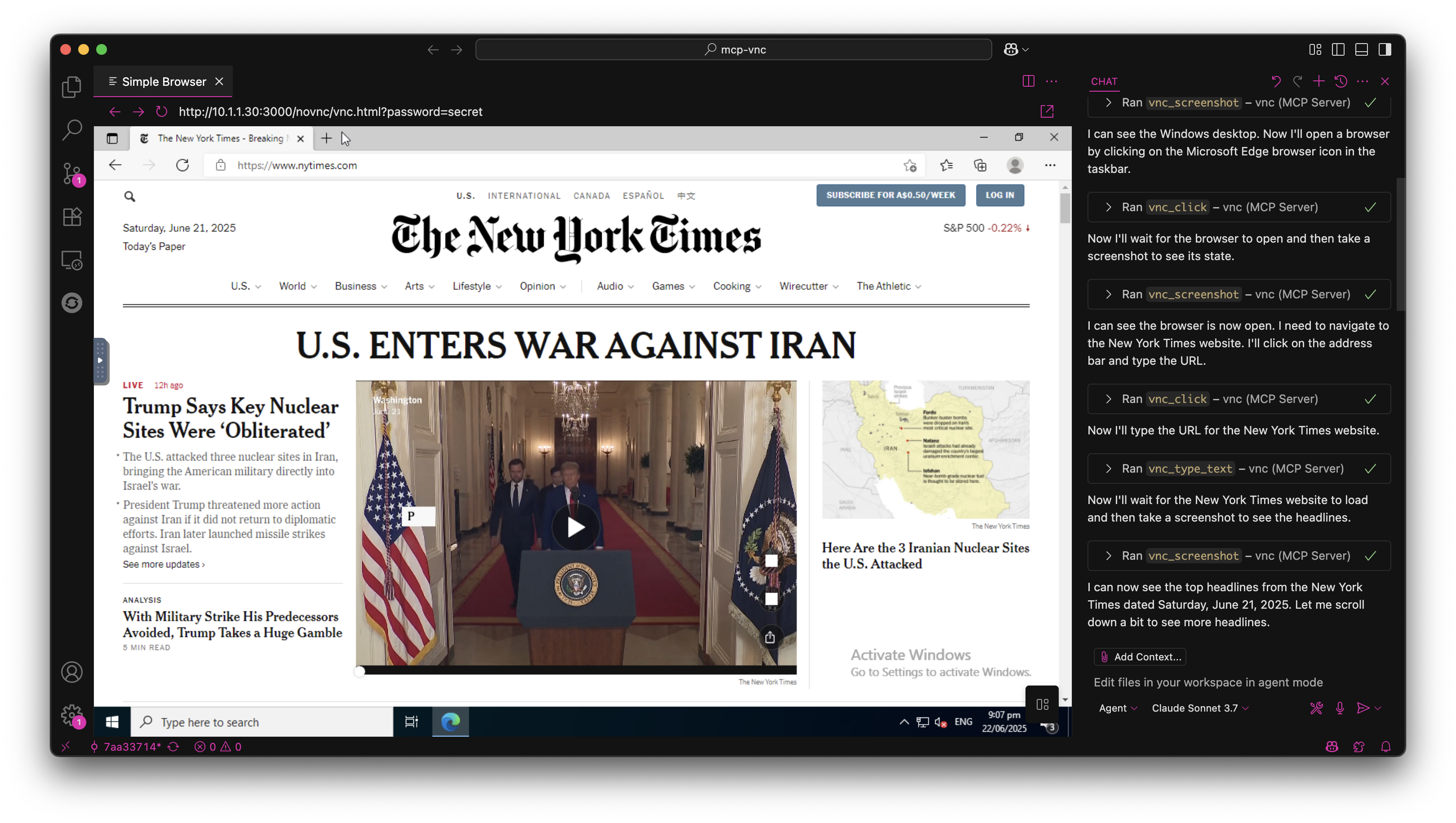
A Model Context Protocol (MCP) server that enables AI agents to remotely control Windows, Linux, macOS or anything else that can run a VNC server (don't worry, it's probably fine).
🚀 Quick Start
Install from NPM
npm install -g @hrrrsn/mcp-vnc
Install from Source
git clone https://github.com/hrrrsn/mcp-vnc
cd mcp-vnc
npm install
npm run build
⚙️ Configuration
Claude Desktop
Locate and open your Claude Desktop configuration file:
- macOS:
~/Library/Application Support/Claude/claude_desktop_config.json - Windows:
%APPDATA%\Claude\claude_desktop_config.json - Linux:
~/.config/Claude/claude_desktop_config.json
- macOS:
Add the following configuration:
Using NPM Install:
{
  "mcpServers": {
    "vnc-controller": {
      "type": "stdio",
      "command": "mcp-vnc",
      "env": {
        "VNC_HOST": "192.168.1.100",
        "VNC_PORT": "5900",
        "VNC_PASSWORD": "your-vnc-password"
      }
    }
  }
}
Built from Source:
{
  "mcpServers": {
    "vnc-controller": {
      "type": "stdio",
      "command": "node",
      "args": ["dist/index.js"],
      "cwd": "/path/to/mcp-vnc",
      "env": {
        "VNC_HOST": "192.168.1.100",
        "VNC_PORT": "5900",
        "VNC_PASSWORD": "your-vnc-password"
      }
    }
  }
}
VS Code
Please refer to the VS Code documentation
🛠️ Available Tools
The MCP server provides the following tools for remote desktop control:
🖱️ Mouse Control
vnc_click - Click at specified coordinates| Parameter | Required | Type | Description | Default |
|---|---|---|---|---|
x |
✅ | number | X coordinate | - |
y |
✅ | number | Y coordinate | - |
button |
❌ | string | Mouse button (left, right, middle) |
left |
double |
❌ | boolean | Double-click instead of single click | false |
Example: vnc_click(x=100, y=200, button="right", double=true)
| Parameter | Required | Type | Description |
|---|---|---|---|
x |
✅ | number | X coordinate |
y |
✅ | number | Y coordinate |
Example: vnc_move_mouse(x=500, y=300)
⌨️ Keyboard Control
vnc_key_press - Send keys and key combinations| Parameter | Required | Type | Description |
|---|---|---|---|
key |
✅ | string | Key or key combination to press |
Supported Keys:
- Single keys:
a,Enter,F1,Escape,Up,Down,Tab,Space - Key combinations:
Ctrl+c,Alt+F4,Ctrl+Alt+Delete,Shift+Tab - Modifiers:
Ctrl,Alt,Shift,Super/Win,Meta/Cmd
Examples:
vnc_key_press(key="Enter")vnc_key_press(key="Ctrl+Alt+Delete")
📝 Text Input
vnc_type_text - Type single-line text| Parameter | Required | Type | Description | Default |
|---|---|---|---|---|
text |
✅ | string | Text to type | - |
enter |
❌ | boolean | Press Enter after typing | false |
Example: vnc_type_text(text="Hello World!", enter=true)
| Parameter | Required | Type | Description |
|---|---|---|---|
lines |
✅ | string[] | Array of lines to type |
Example: vnc_type_multiline(lines=["Line 1", "Line 2", "Line 3"])
📸 Screen Capture
vnc_screenshot - Capture screen| Parameter | Required | Type | Description | Default |
|---|---|---|---|---|
delay |
❌ | number | Delay before screenshot (0-300000ms) | 0 |
Example: vnc_screenshot(delay=1000) - Wait 1 second before capture
🤝 Contributing
Contributions are welcome! Please feel free to submit a Pull Request.
📄 License
This project is licensed under the MIT License - see the LICENSE file for details.
Reviews (0)
Sign in to leave a review.
Leave a reviewNo results found