codexbar-gnome
Health Pass
- License — License: NOASSERTION
- Description — Repository has a description
- Active repo — Last push 0 days ago
- Community trust — 11 GitHub stars
Code Fail
- rm -rf — Recursive force deletion command in install.sh
Permissions Pass
- Permissions — No dangerous permissions requested
No AI report is available for this listing yet.
Codexbar for GNOME
CodexBar for GNOME
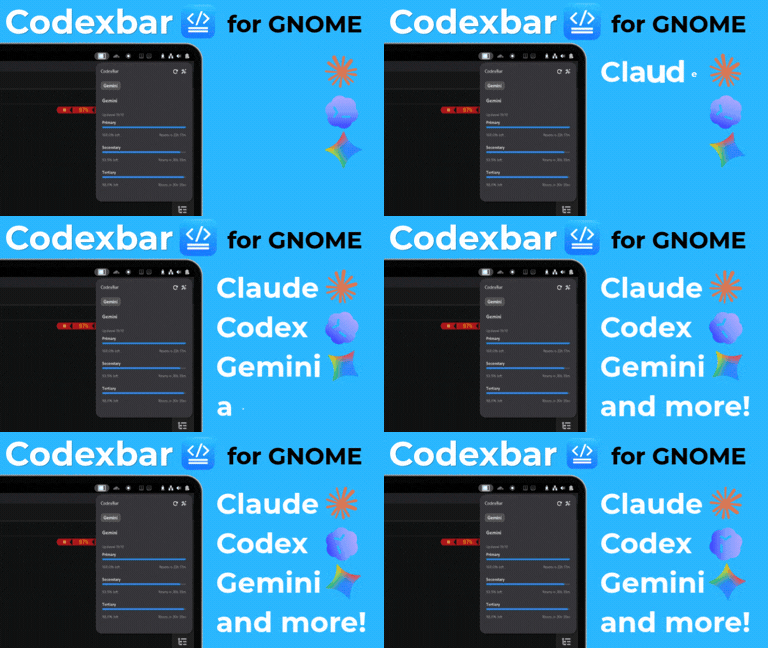
A GNOME Shell extension to monitor AI provider usage metrics directly from the system panel. This extension acts as a graphical interface for the CodexBar CLI, providing real-time visibility into your API quotas and usage tiers.
Features
- Real-time monitoring of AI provider usage (Gemini, OpenAI, etc).
- Support for multiple usage tiers
- Toggle between Remaining Quota and Used Quota display modes.
- Automatic background refreshes with configurable intervals.
- Visual warnings (color changes) when reaching quota limits.
- Automatic resolution of CodexBar CLI paths (Homebrew supported).
Requirements
The extension requires the CodexBar CLI tool installed on your system.
Install CodexBar CLI
It is recommended to install the CLI via Homebrew:
brew install steipete/tap/codexbar
Ensure you have configured your providers and API keys in the CLI before using the extension.
Installation
Manual Installation
- Clone this repository or download the source code.
- Run the provided installation script:
./install.sh - Restart GNOME Shell:
- On X11: Press
Alt+F2, typer, and pressEnter. - On Wayland: Log out and log back in.
- On X11: Press
- Enable the extension using GNOME Extensions or via command line:
gnome-extensions enable [email protected]
Configuration
Access the settings through the gear icon in the extension menu.
Provider Commands
Each provider must be configured with a command that returns JSON output.
Example for Gemini:
codexbar --provider gemini --source api --format json
The extension will automatically attempt to locate the codexbar binary in common locations such as /home/linuxbrew/.linuxbrew/bin/ if an absolute path is not provided.
Display Mode
You can choose how metrics are displayed:
- Remaining: Shows the percentage of quota left (default).
- Used: Shows the percentage of quota consumed.
Documentation
Detailed setup guides and troubleshooting information can be found at help.inled.es/codexbar-gnome.
License
This project is licensed under the terms of the MIT license. Contributions are welcome!
Reviews (0)
Sign in to leave a review.
Leave a reviewNo results found