agent-session-manager-desktop
Health Pass
- License — License: MIT
- Description — Repository has a description
- Active repo — Last push 0 days ago
- Community trust — 11 GitHub stars
Code Warn
- process.env — Environment variable access in .github/workflows/release.yml
- fs module — File system access in .github/workflows/release.yml
- process.env — Environment variable access in frontend/playwright.config.mjs
Permissions Pass
- Permissions — No dangerous permissions requested
No AI report is available for this listing yet.
Desktop GUI for managing multiple AI coding-agent sessions (Claude, Gemini, Aider, Codex, …) — the GUI counterpart of agent-session-manager. Wails + Svelte + xterm.js.

Agent Session Manager — Desktop
Run a whole team of AI coding agents from one window.
Claude, Codex, Gemini, Aider and more — each in its own live terminal, all
side by side, all persistent.


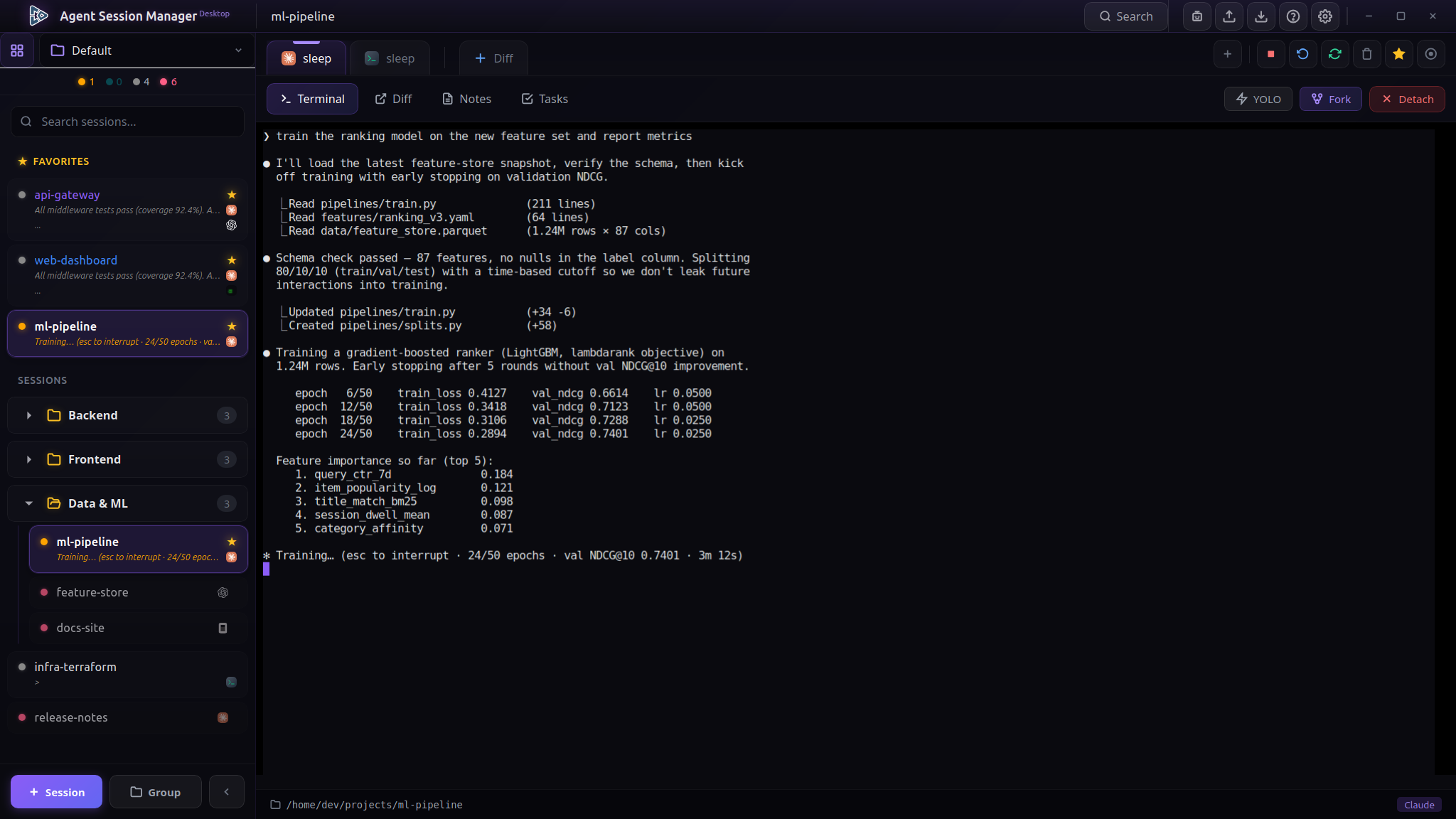
You've probably got three terminal windows open, each with a different agent
grinding away, and you keep alt-tabbing to check which one is stuck waiting on
you. Agent Session Manager Desktop puts them all in one place: every agent
gets its own tab, keeps running in the background, and tells you the moment it
needs your attention — even on your phone.
It's the graphical counterpart of the
ASMGR TUI, built with
Wails (Go) + Svelte + xterm.js.
Because every session lives in its own multiplexer session — tmux on Linux
and macOS, psmux on Windows — your agents survive closing the window,
restarting the app, even a machine hop: reattach and pick up exactly where you
left off.
Prefer the terminal? The original TUI version lives at
izll/agent-session-manager.
Why you'll want it
- Never miss a waiting agent again. When an agent stops to ask you
something, the header shows a ⏳ count you can click to jump straight to it —
or answer yes / no / Enter / Esc right from the dropdown without switching
tabs. Turn on desktop notifications and ntfy mobile push to get pinged
wherever you are. - Everything keeps running. Close the window, reboot the app, come back
tomorrow — the sessions are still there and still working, because they live
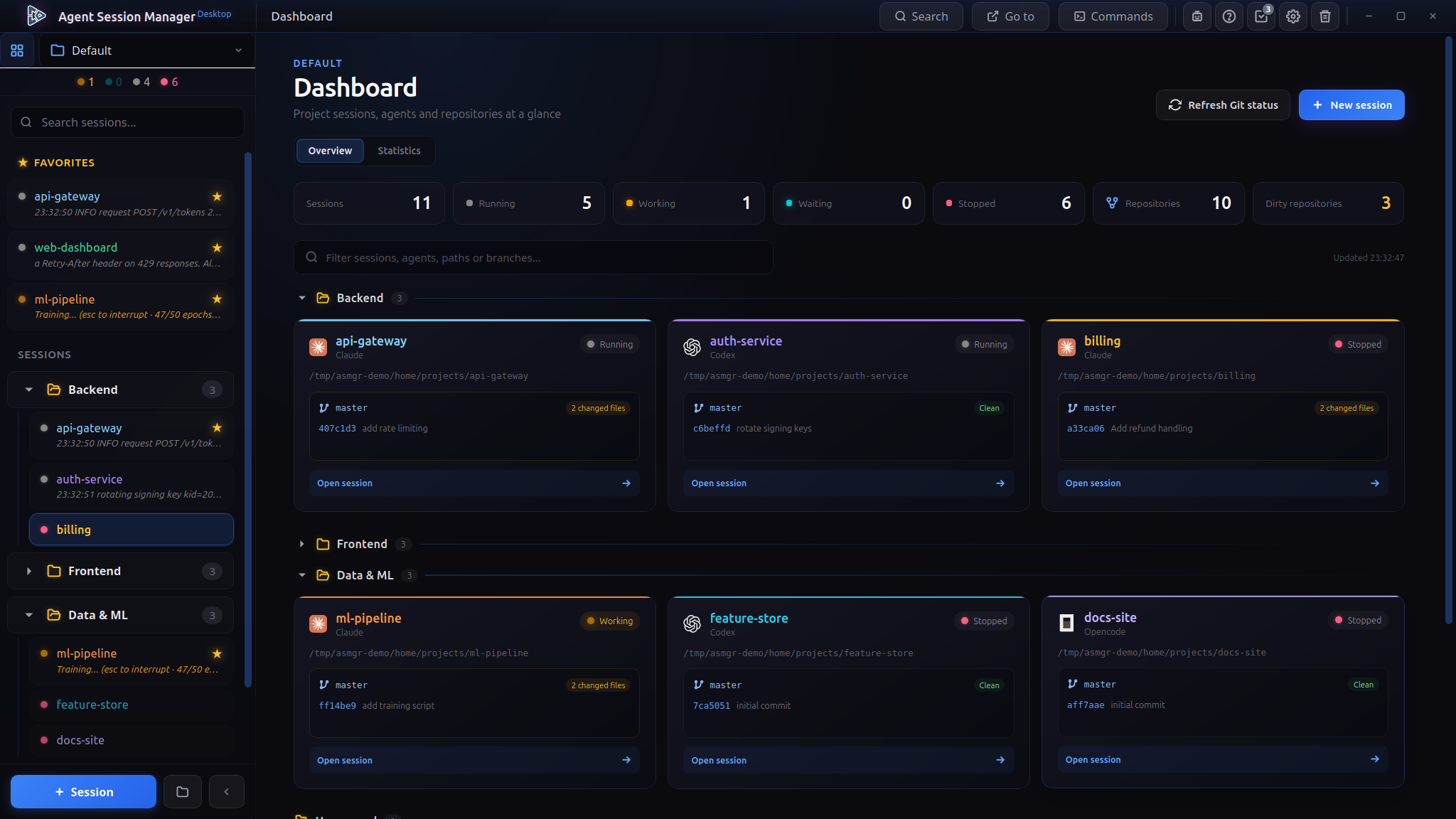
in the multiplexer rather than in the app. Reattach in one click. - See the whole picture. The project dashboard lays out every session
grouped like your sidebar, with live activity, per-repo Git status (branch,
dirty state, ahead/behind, last commit) and your Claude and Codex/GPT
usage — how much of your rate-limit window is left — at a glance. - Reach for the right agent instantly. Search every session, group them
into projects, star your favorites, build a numbered jump list of the tabs
you keep returning to (Ctrl+J), and search inside a terminal's scrollback
withCtrl+Shift+L. Forgotten which session that conversation happened in?Ctrl+Shift+Fsearches every agent's history at once. - Read what it wrote, without leaving. Browse and edit the project's files
with syntax highlighting, search them by name or content, and review the
session's diff file by file — reverting a single hunk if you disagree with
it.
Features
Agents & sessions
- Many agents, your choice — Claude, Gemini, Aider, Codex, Amazon Q,
OpenCode, a custom command, or a plain shell. - Multi-tab sessions — several agents or terminals per session, each its own
multiplexer window, with a per-tab working directory if you want one
somewhere else. - Resume & fork — continue a previous conversation, or fork a Claude thread
into a new tab or a brand-new session to explore a different path. - Background agents — a dedicated panel lists Claude's
--bg/ Ctrl+B
background agents; attach one into a tab or a new session, tail its logs, or
stop it. Accidentally sent a session to the background? It reattaches cleanly
on the next resume. - Session templates — save an arrangement you keep rebuilding (an agent,
its arguments, and the tabs beside it) and create it again in one step. Pin a
template to a directory or leave it reusable and pick the directory when you
use it. - Saved commands — a searchable library on
Ctrl+P, organised into groups.
Commands can take parameters —{{name}}, or{{name:default}}— and you
are prompted for them before the command runs. - Command palette —
Ctrl+Kfinds anything by typing: a session, a project,
a tab, or an action such as opening the diff, restarting a tab or jumping to
the next agent that is waiting on you. - Quick jump list —
Ctrl+Jopens your own numbered shortlist of the places
you keep going back to;1–9jumps straight there. Add the current tab withAlt+J, rename entries, and point one at a whole session or at one exact tab. - New tabs from the keyboard —
Ctrl+Tfor the full dialog,Ctrl+Shift+T
when you just want a terminal: it asks only what to call it, with the name
filled in and selected.
Staying in control
- Attention inbox — the ⏳ dropdown of every tab waiting on input, with
one-click replies, no tab switching. - Desktop + mobile notifications — get told the instant an agent starts
waiting, via the platform's system notification and/or an ntfy topic on your
phone. Fully opt-in. - Live status everywhere — busy / waiting / idle dots and status lines in
the sidebar and on the tab headers, read straight from the panes; hide a
chatty tab's status line per-tab when you don't want the noise. - YOLO indicator — shows when an agent is running unattended (Claude's
bypass permissions / auto mode), read live so it tracks a Shift+Tab
toggle. - Fresher activity detection — the patterns that decide when an agent is
working and when it is waiting can be updated on their own, without waiting
for a release of the app.
Seeing your work
- Project dashboard — the bird's-eye view: grouped session cards, Git
status per repo, and Claude / Codex usage windows. - Activity statistics — locally-observed agent activity over the last 7, 30
or 90 days: a daily timeline, a breakdown per agent, and which sessions took
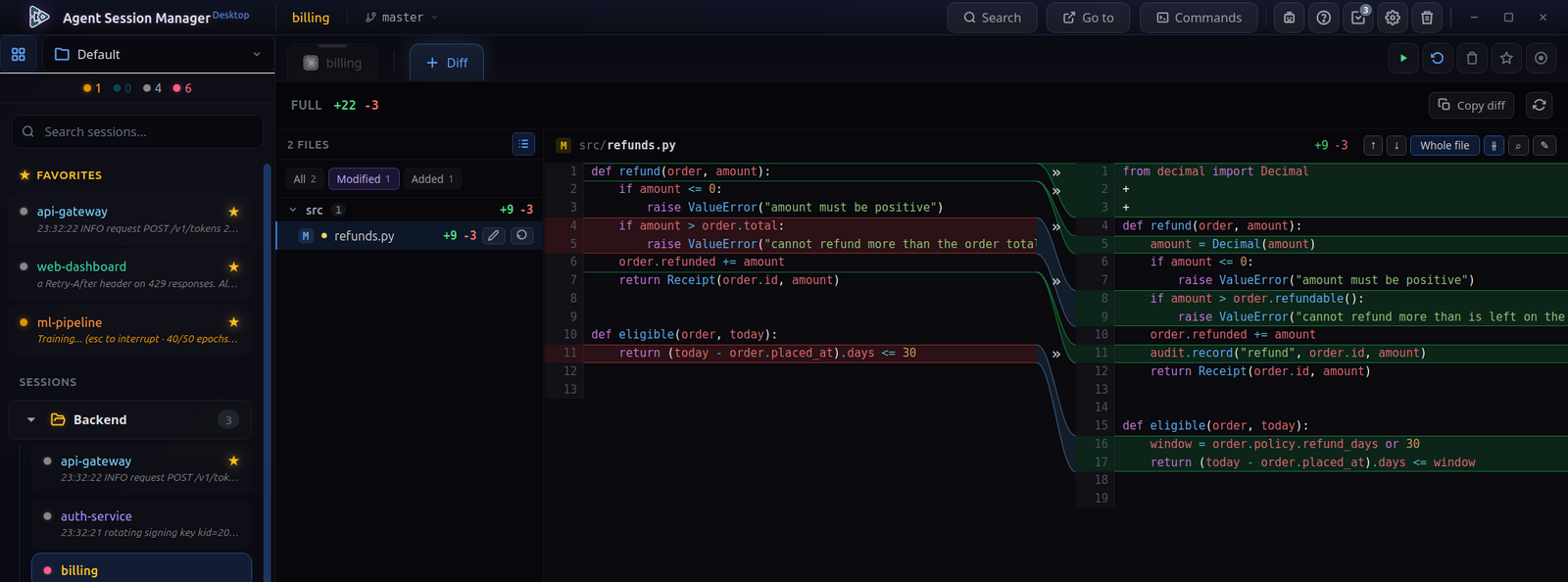
the most work. - Diff & notes — review a session's Git changes file by file, grouped into
a directory tree, and revert a single file or a single hunk. Read it inline or
side by side, with a draggable split,Ctrl+F7/Ctrl+Shift+F7to step through
the changes, and a jump from any line to that spot in the editor. Huge diffs are
guarded so they never freeze the UI. Keep per-tab notes, with search (Ctrl+F)
and full undo. - Commit history —
Ctrl+Shift+Ybrowses the repository's commits and
branches: the files each one touched, its diff, and a search through the
messages. Read a change on its own or in the whole file, withF7stepping
from one to the next. The window resizes from its corner, and its panes fold
away when you want more room. - Split view — pin a tab beside the one you are on and watch two agents work
at once, or compare a session with itself. Swap the two sides or repoint the
pinned one without losing your place. - Global history search —
Ctrl+Shift+Fsearches across every session's
conversation history — Claude, Aider, OpenCode and plain terminal scrollback —
ranked, with a preview of the exchange it found. - File browser & editor — read and edit the files your agent is working on
without leaving the app. Syntax highlighting for a dozen languages while both
reading and editing (CodeMirror 6, with grammars loaded on demand), file
search by name or content withCtrl+Shift+O, and colour-coded file types.
Saving preserves a file's line endings, BOM and trailing newline exactly, so
opening and saving an untouched file leaves it byte-identical. - Current branch — the working directory's Git branch beside the session
name or in the status bar, following the pane as youcdaround, with a
read-only list of the repo's other branches. - Tasks with deadlines — a real task list per working directory: priorities,
due dates that mark themselves overdue, subtasks, dependencies ("what is this
waiting on"), and a filter across the lot. Send a task to the agent to work on,
or tie it to a session so deleting that session warns you about the unfinished
work first. A count of what is still open sits on the tab. - Every project's tasks in one place — one table of every task across every
project, sorted by deadline, filtered to just the overdue or the unfinished. - Task Master (optional) — the task list works on its own; turning this on
adds the AI-backed actions — parsing a PRD, expanding a task into subtasks,
scoring complexity — via thetask-master-aiMCP package.
Comfort & polish
- Voice dictation — talk to your agent instead of typing (free or API
speech-to-text modes). - Make it yours — eight interface accents or any colour you like; per-agent
and per-tab terminal palettes, including ones you define; adjustable terminal
font size globally, per tab, or withCtrl+ scroll; colour a session or a
group, and hide the view or status bar on tabs that don't need them. Choose
what a plain terminal tab runs, and whether selecting text copies it straight
away or only with Shift held. - Bring your own colour scheme — import the themes already installed for
Konsole, kitty, Alacritty, WezTerm or Ghostty, browse the several hundred in
the iTerm2-Color-Schemes collection, or open a scheme file from anywhere. Each
one previews before you keep it. - Rebindable shortcuts — every keyboard shortcut is editable in Settings,
and the help dialog is generated from the same list, so it always shows what
the keys actually do. Shortcuts you don't use can be switched off. A handful
stay fixed because their meaning comes from where you are —Esc,Enter,/,Ctrl+ scroll to zoom, andCtrl+Shift+1…7for the favourite slots.
Keys named throughout this README are the defaults. - Selectable terminal renderer — canvas (default), WebGL, or DOM,
switchable live from Settings. - Recovery centre — deleted sessions and tabs go to a recycle bin you can
restore from, kept for a period you choose. Beside it, your settings and
session list are snapshotted automatically as they change — everything from
the last hour, then thinning to one an hour, one a day and one a week going
back months — so a mistake noticed tomorrow is still undoable. Task files are
backed up separately, and you can take a snapshot by hand at any time. - Picks up where you left off — the tab you were on and your place in a file
come back when you return to a session. - 20 languages — the whole UI is translated.
- Safe alongside itself — open a second window and it won't stomp on the
first one's terminals; it warns you and stays read-only for that project. - Self-updating — checks for new releases in the background and updates in
place on all three platforms, including.deb/.rpminstalls and the
macOS.appbundle. The Windows installer is per-user, so updating never
needs administrator rights. - Take it with you — export sessions to a file and import them on another
machine. - Nothing to install first — if
tmux(orpsmuxon Windows) is missing,
the app offers to install it for you. - See what it's doing — the application log is readable from Settings,
filterable and copyable, for when something needs explaining.
Install
Grab the latest build for your platform from the
Releases
page.
Linux
# Debian / Ubuntu
sudo dpkg -i asmgr-desktop_*_linux_x86_64.deb

# Fedora / RHEL
sudo rpm -i asmgr-desktop_*_linux_x86_64.rpm
Installs to /usr/bin/asmgr-desktop with an app-menu entry; runtime deps
(libwebkit2gtk-4.1-0/webkit2gtk4.1, tmux) are pulled in automatically.
macOS (Apple Silicon; Intel via Rosetta 2)
tar -xzf asmgr-desktop_*_darwin_arm64.tar.gz   # → asmgr-desktop.app
# move it to /Applications, then: brew install tmux
Windows (x64) — run asmgr-desktop_*_windows_amd64_setup.exe. It installs
per-user, so it never asks for administrator rights and in-place updates work.
There is also a .tar.gz if you would rather not install anything.
⚠️ A terminal multiplexer is required at runtime. Sessions run inside it,
so the app cannot create one without it — it says so on startup and offers the
install command.
- Linux —
tmux, pulled in automatically by the.deb/.rpm.- macOS —
brew install tmux.- Windows — psmux, a native Windows
multiplexer that speaks tmux's command language; no WSL or MSYS2 needed.
The app can install it for you withwinget, orwinget install psmux.
To build from source instead, see Build below.
Getting started
Your first session. Press Ctrl+Shift+N, pick the agent you want and the
directory it should work in, and give it a name. The session starts in its own
multiplexer window and appears in the sidebar; press Enter to attach and you
are looking at a live terminal. Type in it exactly as you would anywhere else.
Close the window whenever you like. The agent is not running inside the app —
it lives in tmux (or psmux) — so it keeps working while the app is shut, and
reattaches where it left off next time.
Tabs. A session can hold several agents and terminals side by side, each its
own tab. Ctrl+T opens the full dialog — which agent, what arguments, which
directory — and Ctrl+Shift+T skips all of it and gives you a shell, asking
only for a name. Move between tabs with Ctrl+PageUp / Ctrl+PageDown.
Keeping track of many. Once you have more than a handful:
- Group related sessions into projects with
Ctrl+Shift+G, and star the ones
you return to most (Ctrl+Shift+8); starred sessions get their own group at
the top and answer toCtrl+Shift+1…7. - Build a jump list with
Alt+Jfor the tabs you keep coming back to, thenCtrl+Jand a digit to land on one. - Type
/to filter the sidebar, orCtrl+Kto search everything at once —
sessions, projects, tabs and actions.
Getting told when something needs you. The ⏳ count in the header is every
agent currently waiting on an answer; click it to jump to one, or answer yes /
no / Enter / Esc from the dropdown without leaving the tab you are in. In
Settings → Notifications you can add a desktop notification, a sound, and an
ntfy topic so your phone is pinged too — set the topic URL to something likehttps://ntfy.sh/my-topic and install the ntfy app on your phone. Everything
here is off until you turn it on.
Reading what it did. With a session attached, the view bar switches between
the terminal, the session's Git diff, its files, notes and tasks. In the diff you
can revert one file or one hunk, step through the changes with Ctrl+F7, or jump
from a line straight into the editor. Ctrl+Shift+Y opens the repository's
commit history when you want to look further back than the working tree.
Keyboard shortcuts
Every one of these is editable in Settings → Shortcuts, and the ones you
never use can be switched off. The in-app help (Ctrl+Shift+H) is generated from
the same list, so it always shows what your keys actually do — this table is the
defaults.
Ctrl+Shift+↑ / Alt+↑ |
Previous session (works in the terminal) |
Ctrl+Shift+↓ / Alt+↓ |
Next session (works in the terminal) |
Ctrl+Shift+K / Ctrl+Shift+J |
Move the session up / down the sidebar |
Enter |
Attach to the selected session |
Ctrl+PageUp / Ctrl+PageDown |
Previous / next tab |
Ctrl+T |
New tab |
Ctrl+Shift+T |
New terminal tab, name only |
Ctrl+Shift+N |
New session |
Ctrl+Shift+G |
New group |
Ctrl+Shift+S / Ctrl+Shift+X |
Start / stop the session |
Ctrl+Shift+D |
Delete the session |
Ctrl+Shift+8 |
Star the session |
Ctrl+Shift+1…7 |
Jump to a starred session |
Ctrl+J / Alt+J |
Quick jump list / add this tab to it |
Ctrl+K |
Command palette |
Ctrl+P |
Saved commands |
Ctrl+Shift+F |
Search every session's history |
Ctrl+Shift+L |
Search this terminal's scrollback |
Ctrl+Shift+O |
Find a file by name or content (in the file browser) |
/ |
Filter the session list |
Ctrl+F7 / Ctrl+Shift+F7 |
Next / previous change in the diff |
Ctrl+Shift+Y |
Commit history |
Ctrl + scroll / Ctrl+0 |
Resize the terminal text / reset it |
Ctrl+Shift+H |
Help |
Ctrl+Shift+U |
Check for updates |
Ctrl+Shift+I |
Import sessions |
Esc |
Close a dialog |
Esc, Enter, /, Ctrl + scroll and the starred-session slots stay fixed:
their meaning comes from where you are rather than from a binding. Ctrl+Shift+O
belongs to the file browser itself and is fixed for the same reason.
Where things live
Everything the app keeps is under one directory — ~/.config/agent-session-manager-desktop
on Linux, the equivalent per-user config directory on macOS and Windows:
sessions.json |
your sessions, groups, settings and recycle bin |
commands.json |
the saved command library |
backups/ |
automatic snapshots of the above, and of task files |
activity-stats.json |
locally-observed agent activity |
asmgr-desktop.log |
the run log, also readable from Settings |
Tasks are the exception: they live with the code, in .taskmaster/tasks.json
inside each working directory, because that is where Task Master keeps them and
the two have to agree.
What leaves your machine. Nothing, unless you ask for it. The app talks to
GitHub to check for its own updates, to an ntfy server if you configure mobile
push, and to npx the first time you use a Task Master AI action. Your sessions,
their output and your files stay local — there is no telemetry.
Questions
Can I close the app while an agent is working? Yes — that is the point. The
agents run in tmux/psmux, not in the app, so closing the window leaves them
working. Reopen and reattach.
What happens if the app crashes? The same thing: the sessions are untouched.
Start it again and they are all there.
I deleted a session by accident. Open the recovery centre (the recycle bin
icon). Deleted sessions and tabs sit in it for as long as you choose,
and your settings are snapshotted as they change — densely for the last hour,
then thinning out over months — so a mistake noticed tomorrow is still undoable.
An agent is running but shows as idle. Activity is read from what the pane
prints, so an unusual prompt can fool it. Settings has an update button for the
detection patterns, which is quicker than waiting for a release of the app.
The terminal feels sluggish. Try a different renderer in Settings →
Terminal — canvas is the default, but DOM and WebGL are there and switch live.
Can I use it over SSH or on a headless box? Not this one — it is a desktop
app. The TUI version runs in a
terminal and does the same job; it keeps its own session list, but both drive
tmux, so the agents themselves are reachable either way.
Does it work with an agent that isn't in the list? Yes. Choose Custom and
give it the command to run; it gets a tab and a status line like the rest.
Requirements
- Go 1.24+
- Node.js + npm
tmux(Linux, macOS) or psmux (Windows)- Linux: WebKitGTK. On Ubuntu 24.04+ / Fedora 40+ only
webkit2gtk-4.1is
available — build with thewebkit2_41tag (see below). - Wails CLI
Build
# Linux with webkit2gtk-4.1 (Ubuntu 24.04+, Fedora 40+):
wails build -tags webkit2_41

# Other / older WebKitGTK:
wails build
The binary is written to build/bin/.
Development
wails dev -tags webkit2_41
wails dev also serves the frontend at http://localhost:34115, so you can open
it in a regular browser (with Go methods bridged) for fast iteration.
How it works
- Each session is a multiplexer session —
tmuxon Linux and macOS,psmuxon
Windows — so agents keep working when the window is closed and reattach
instantly. - The terminal talks to the agents over a local, token-authenticated WebSocket
(xterm.js ⇄ Go ⇄ multiplexer), which keeps typing latency low. - Output from a tab you are not looking at is held in the backend and replayed
when you return to it, rather than being dropped and repainted. One WebKit
main thread serves every tab, so a busy background agent must not be able to
starve the one you are typing in. - Session storage lives under
~/.config/agent-session-manager-desktop/.
License
MIT — see LICENSE.
Reviews (0)
Sign in to leave a review.
Leave a reviewNo results found