ai-visualizer
Health Warn
- License — License: AGPL-3.0
- Description — Repository has a description
- Active repo — Last push 0 days ago
- Low visibility — Only 5 GitHub stars
Code Warn
- network request — Outbound network request in core.js
Permissions Pass
- Permissions — No dangerous permissions requested
No AI report is available for this listing yet.
Give your AI agent a face. Four full-screen visualizers. A living circuit board with a cinematic fly-through, a particle-orb starburst, Matrix rain that looks back, and a constellation brain. All driven live by your voice agent's signal bus. Zero dependencies: a browser and one tiny Python server. Pairs with backtalk out of the box.
ai-visualizer
Never used Claude Code? Start at jaredrhod.com: pick your situation and it routes you to the right path.
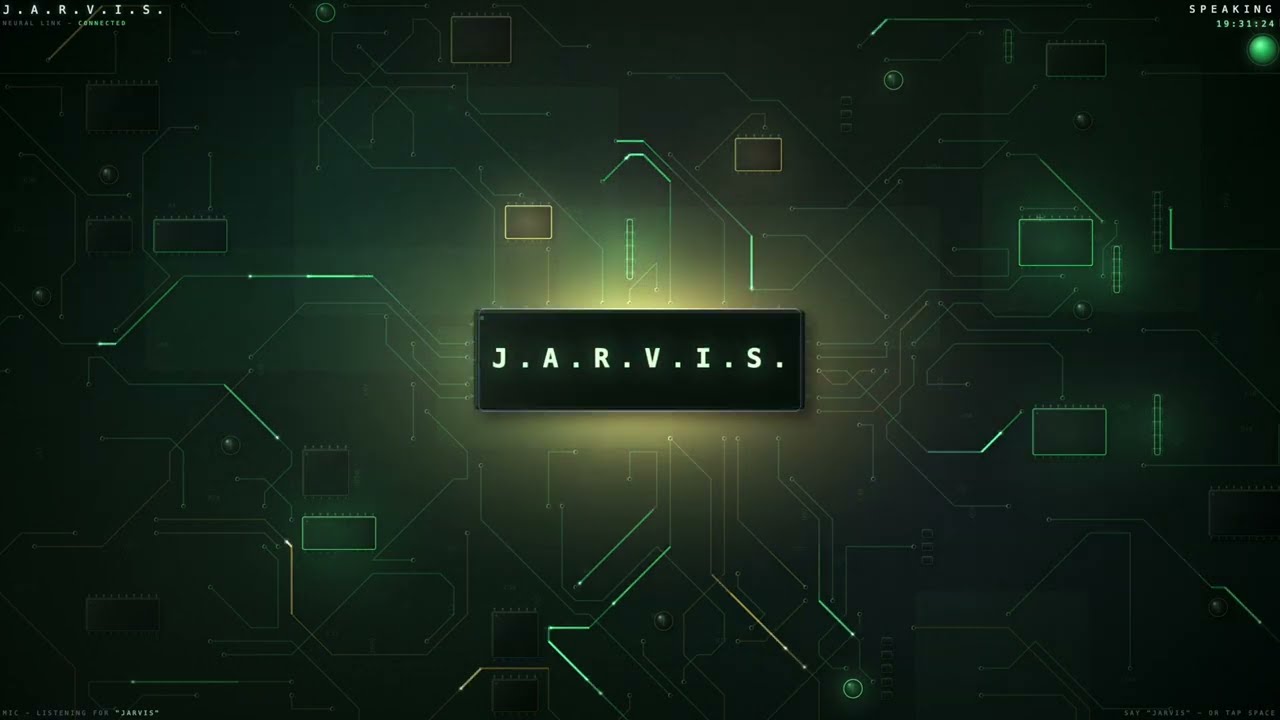
The visualizer from my videos. Not a lookalike and not a prompt that asks your AI to build one: the actual living circuit board I run on stream, plus three more faces from my own rig, shipped as working code. Point it at your voice line and your agent gets a face that idles, listens, thinks, and speaks in sync with the real conversation.
There is nothing to install. The whole thing is a folder of web pages and one tiny Python server that uses only the standard library. If your machine can open a browser, it can run this.
Watch it in action:
The four faces
- The Circuit Board. A full-bleed procedural PCB with your agent's name on the center chip. Data pulses stream the traces, components flash as signals hit them, and the whole board reverses flow when it listens to you. Press Space for a live cinematic flythrough of the board while it works.
- The Radial. An 80-bar starburst around a living particle orb, thousands of grains that rotate, churn, and detonate from the core with every syllable. Galaxy backdrop, sonar ripples at idle, radar sweeps while it thinks.
- Face in the Code. Matrix rain that idles like a screensaver, until the agent speaks and a face surfaces inside the glyphs, breathing with the voice. Ships with my AI portrait; drop in
assets/face.pngand the code looks back with yours. - Neural Core. A constellation brain: nine labeled color islands, a white crescent, traveling thought-pulses, and a CORTEX STATUS panel wired to the real states.
Every face speaks the same signal bus, so switching faces is just opening a different page. The gallery at the root URL shows all four with one-click demos.
Install
git clone https://github.com/jaredrhod/ai-visualizer
cd ai-visualizer
./run.sh
That starts the server and opens the default face (the board, unless you change face in the config). The gallery of all four faces stays at the root URL. Python 3 is the only requirement, and it ships with macOS and most Linux systems. On Windows, run run.bat (or python server.py) in this folder.
The easy way to configure it: open this folder in Claude Code and say "read ai-visualizer.md and set me up." The wizard picks your face, your agent's name, and wires your voice line with you.
Already in a Claude Code session with your agent? One sentence does the whole install: "clone https://github.com/jaredrhod/ai-visualizer.git, then read ai-visualizer/ai-visualizer.md and set me up." Your agent clones it, runs the wizard, and wires it in for you.
The manual way: edit ai-visualizer.json. Set name to your agent's name (it goes on the chip and in every HUD), and face to the one the root URL should open.
See it perform with no voice line
Every face has a demo mode: a scripted voice turn that cycles idle, listening, thinking, and speaking with a synthesized voice. Click "watch the demo" on any gallery card, or add ?demo=1 to a face URL. You can also pin a state to stare at it: ?demo=1&state=speaking.
Or run the server itself in mock mode and every face rides the synthetic bus: ./run.sh --mock speaking.
Wire your voice
The faces read three tiny files, the same signal-bus contract backtalk writes natively:
.voice_state        idle | listening | thinking | speaking
.voice_waveform     JSON {ts, samples: [64 floats]} while audio plays
.voice_loading_pid  exists while the voice line plays a thinking sound
Point them at each other in either direction: set bus_dir in ai-visualizer.json to your backtalk folder, or set signals_dir in backtalk's config to this folder. Restart both, say something, and the face performs the real conversation. Anything else that writes those three files works exactly the same, so a custom voice line can drive the faces too.
The thinking sound
assets/thinking.wav is the processing sound from my videos, and it ships here because people kept asking for it. The face plays it in the browser while the agent thinks, and it automatically stays quiet when your voice line is already playing its own, so you never hear it twice. Move the mouse and a small SND toggle appears bottom left; browsers may need one click on the page before they allow audio at all. Turn it off for good with "thinking_sound": false in the config.
On stream
Each face is a browser page, so OBS takes it as a browser source pointed at the face URL, or you can fullscreen a window with the F key and capture that. The board's Space-key flythrough is rendered live over whatever the board is doing, which makes for an unreasonably good B-roll shot.
Make it yours
namein the config renames the agent everywhere, chip label included.badgeputs your handle in the neural core's chrome, empty by default.- Swap
assets/face.pngfor any portrait on a black background and the rain face becomes yours. - Add a face. Drop a folder into
faces/with anindex.html(and optionally aface.jsonwith a title and tagline) and it appears in the gallery automatically. Includecore.js, callAV.init(), readAV.stateandAV.envandAV.samplesin your draw loop, and your face rides the same bus as the built-ins. The four shipped faces are the reference.
The fine print that matters
- The listening visuals (the amber ribbon, the mic gauges) use your microphone if you allow it, purely for the on-screen meter. Deny the permission and everything still works; those meters just run flat.
- The server binds to 127.0.0.1 only and serves nothing outside this folder. Change the port in the config if 8790 is taken.
- An optional
.voice_alertfile in the bus folder (non-empty means alert) turns any face red until it's cleared. Nothing writes it by default.
Credits
The VT323 typeface by Peter Hull, licensed under the SIL Open Font License 1.1 (see assets/VT323-OFL.txt). Everything else here is hand-rolled canvas code with zero dependencies.
The rest of it
A face is better with a voice behind it. The visualizer performs your real conversations only when a voice line is wired in, and the agent doing the talking is only as good as the memory behind it.
- The whole stack, one command. fullstack-agent installs the memory, the voice, the face, and the hands, and wires them together for you. Pick only the pieces you want: https://jaredrhod.com
- The videos. Free series on all of it: https://youtube.com/@jaredrhod
- The Discord. Thousands of builders, and the fastest place to get unstuck: https://discord.gg/YSdsqMv3V8
- Everything else, free and open source: https://jaredrhod.com
Support
Free to use, and always will be. If this helped you out, you can buy me a coffee:

License
Copyright (c) 2026 Jared Rhodenizer.
Licensed under the GNU Affero General Public License, version 3 or later (AGPL-3.0-or-later). Use it in your business, commercially, for free. Run it, change it, build your workflow on top of it, and charge for the work you do with it. The one rule is that it stays open: if you hand it to someone else, or run a modified version as a service other people use, your version ships under this same license with its source available. Credit me when you build on it. Want it inside a closed-source commercial product? Email [email protected]. Full terms are in the LICENSE file and at https://www.gnu.org/licenses/agpl-3.0.html
Reviews (0)
Sign in to leave a review.
Leave a reviewNo results found