jolo
Health Pass
- License — License: MIT
- Description — Repository has a description
- Active repo — Last push 0 days ago
- Community trust — 30 GitHub stars
Code Pass
- Code scan — Scanned 12 files during light audit, no dangerous patterns found
Permissions Pass
- Permissions — No dangerous permissions requested
No AI report is available for this listing yet.
A coding workspace for AI agents, with a desktop app, terminal CLI, and shared tasks.
Jolo


A desktop app and CLI for working with coding agents.
Use Claude Code, Codex, Devin CLI, Grok CLI, Gemini CLI, or your own API provider. Keep your chats, files, terminal, and browser in one workspace.
Download · Website · User guide · Report a bug
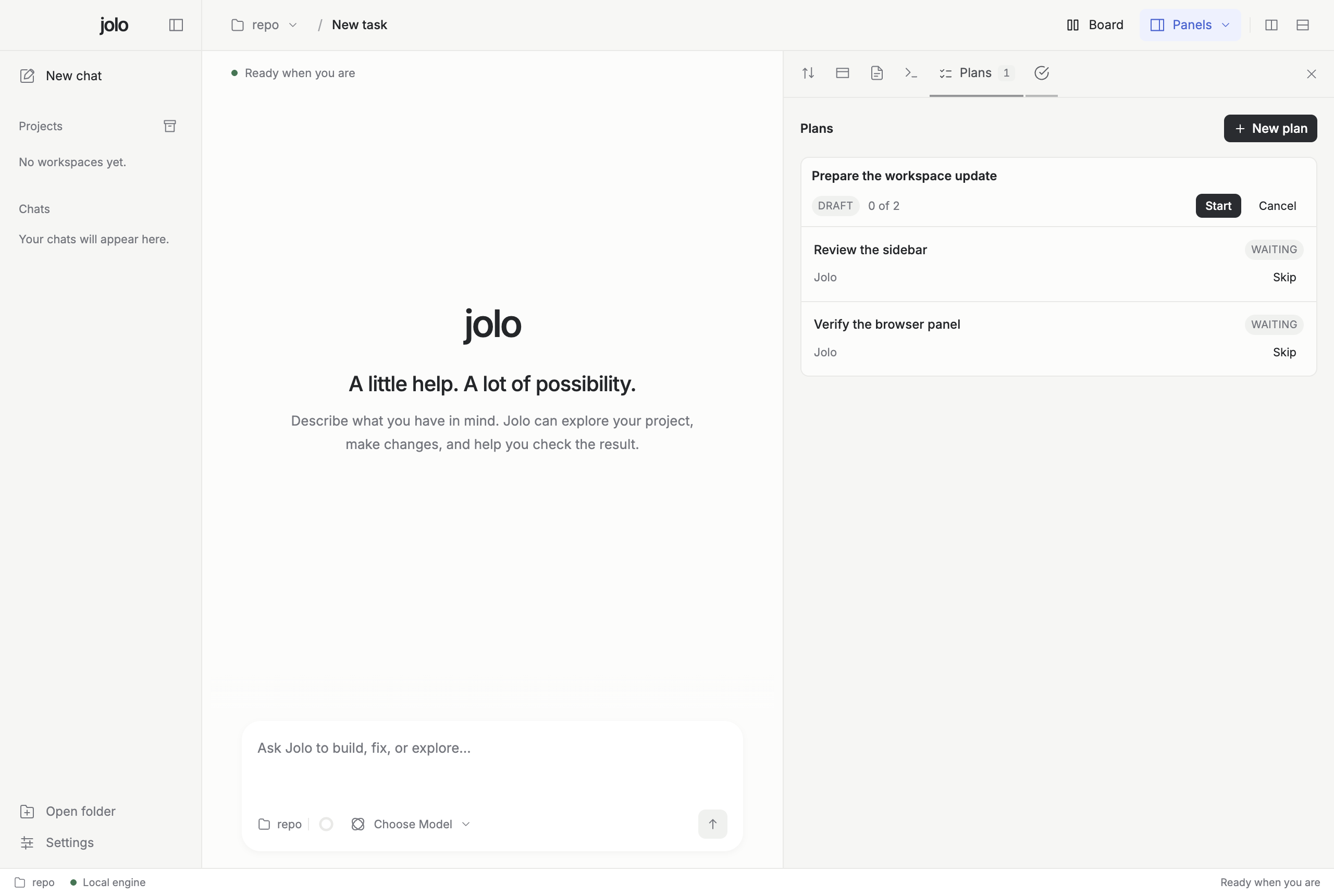
What you can do
- Ask an agent to explain code, build a feature, or fix a bug.
- Review changes and run checks beside your chat.
- Open files, a terminal, and a browser without leaving the app.
- Work on several tasks at once, with split views and separate Git worktrees.
- Create a plan, choose an agent for each step, and run the steps in order.
- Attach files and explore diagrams and interactive visualizations.
Install
Desktop: Download the archive for your platform from GitHub Releases:
- macOS (
.dmg, Apple Silicon and Intel): open it and drag Jolo into Applications. With Homebrew:brew install --cask jolo-build/tap/jolo. - Windows (
.zip, x64): unpack it and runJolo.exeinside. - Linux (
.tar.gz, x64 and ARM64): unpack it and run./Jolo-linux-*/Jolo.
Jolo is in early development. The macOS app is not yet notarized, Windows and Linux builds are unsigned, and automatic updates are not available.
CLI: Run this in your terminal:
curl -fsSL https://jolo.build/install.sh | bash
Or with Homebrew: brew install jolo-build/tap/jolo-cli.
This installs the CLI, not the desktop app. CLI packages are available for macOS and Linux, on ARM64 and x64.
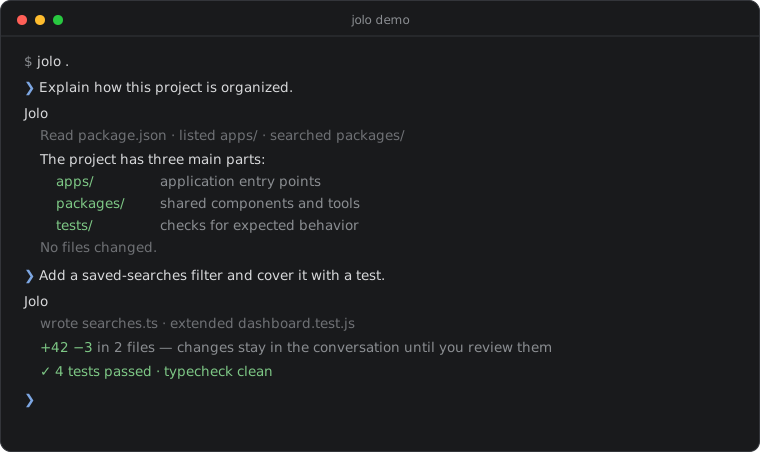
Want a look first? jolo demo plays a scripted session — no agent or account needed:
Start a task
- On your first launch, follow the guide to choose an agent, open a folder, and prepare a first task. You can skip it and reopen it from Getting started on the work board.
- Choose an agent and model below the message box.
- Describe what you want to do.
- Review the agent's work and continue the conversation.
The guide opens suggested tasks as editable drafts. Review the message and press Send when you are ready. You can also start a new chat without a project folder.
Install and sign in to your coding agent separately before using it in Jolo. You can also configure an API provider.
For Devin, install the Devin CLI and sign in with devin auth login. Restart Jolo, then choose Devin CLI or mention @devin in chat. Jolo uses your existing local CLI login and reads the available models from Devin.
Prefer the terminal? Open a project with:
jolo /path/to/project
Or run a single task:
jolo run --agent claude "Explain this repository" --path /path/to/project
See the CLI guide for more commands.
Web tasks
Jolo Access lets you manage personal and team tasks in your browser. Sign in to connect them to the desktop or CLI, then type # in chat to reference a task.
An account is optional. You can use Jolo locally without one.
Run from source
Install the Bun version in .bun-version, then:
git clone https://github.com/jolo-build/jolo.git
cd jolo
bun install --frozen-lockfile
bun run desktop
For the CLI, use bun run jolo.
Contribute
Bug reports and pull requests are welcome. Read CONTRIBUTING.md for development setup and checks, or SECURITY.md to report a vulnerability.
Community
- GitHub Discussions — questions, ideas, and show-and-tell.
- ROADMAP.md — where the project is heading.
- CHANGELOG.md — what changed in each release.
License
MIT. Fonts, agent icons, and optional components in vendor/ keep their own licenses.
Reviews (0)
Sign in to leave a review.
Leave a reviewNo results found