study-stash
Health Warn
- License — License: MIT
- Description — Repository has a description
- Active repo — Last push 0 days ago
- Low visibility — Only 5 GitHub stars
Code Pass
- Code scan — Scanned 12 files during light audit, no dangerous patterns found
Permissions Pass
- Permissions — No dangerous permissions requested
No AI report is available for this listing yet.
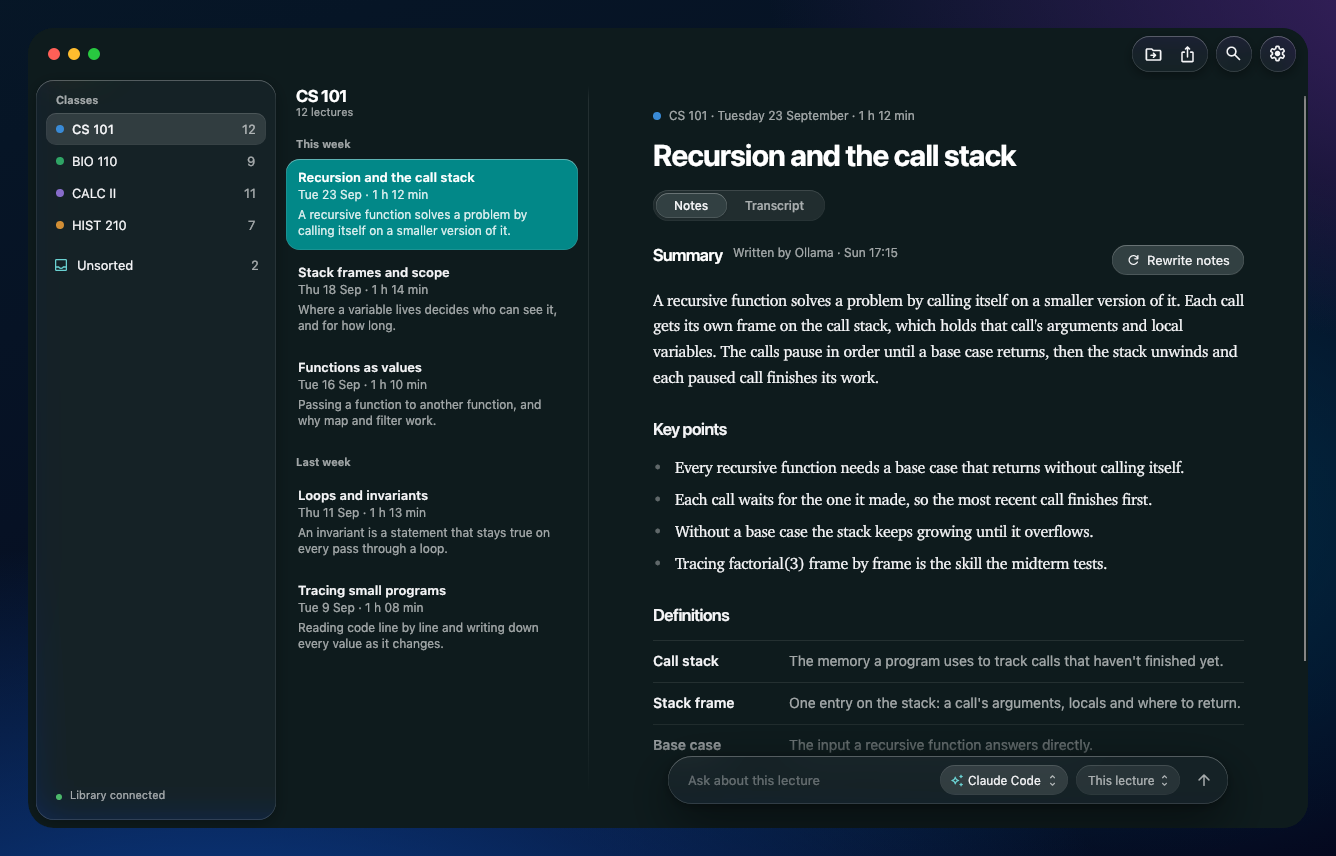
Your own lecture library. Record a lecture, and it's transcribed on your computer, filed under the right class, and turned into study notes — next to your Canvas assignments, and ready to ask about. Free and open source, for Mac and Windows, and everything stays on your own computers.

Study Stash
Your own lecture library. Record a lecture, and it's transcribed on your computer, filed under the
right class, and turned into study notes — next to your Canvas assignments, and ready to ask about.
Free and open source, for Mac and Windows, and everything stays on your own computers.
What it does
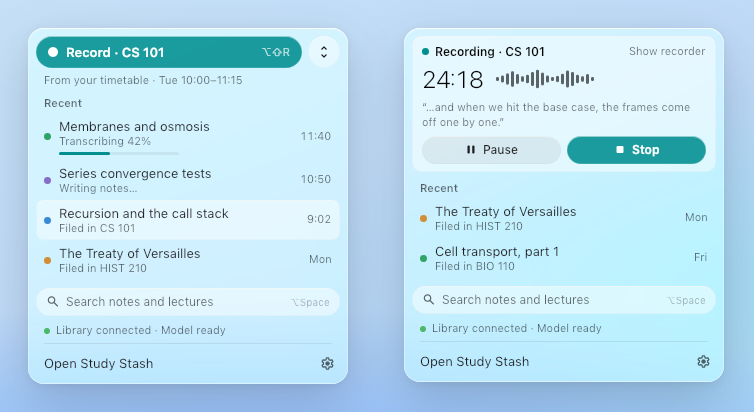
- Records and transcribes on your computer. Click Record in the menu bar (Mac) or tray
(Windows), or press ⌥⇧R / Ctrl+Alt+R. Whisper large-v3 transcribes as you go — Metal on Apple
silicon, Vulkan or the CPU on Windows — and the audio never leaves your computer. While it
records, a tiny pill shows the time and the level; pause or stop from the menu bar. - Writes study notes with the AI you choose. A summary, key points, definitions and questions
to review, written by Ollama (free and private) or by Claude Code, Codex or Gemini with the plan
you already have. Rewrite a lecture's notes with another engine and keep whichever you like. - Files every lecture under its class, working out which from what was said, or using the class
you picked. Anything it can't place waits in Unsorted, and a lecture you don't need can be
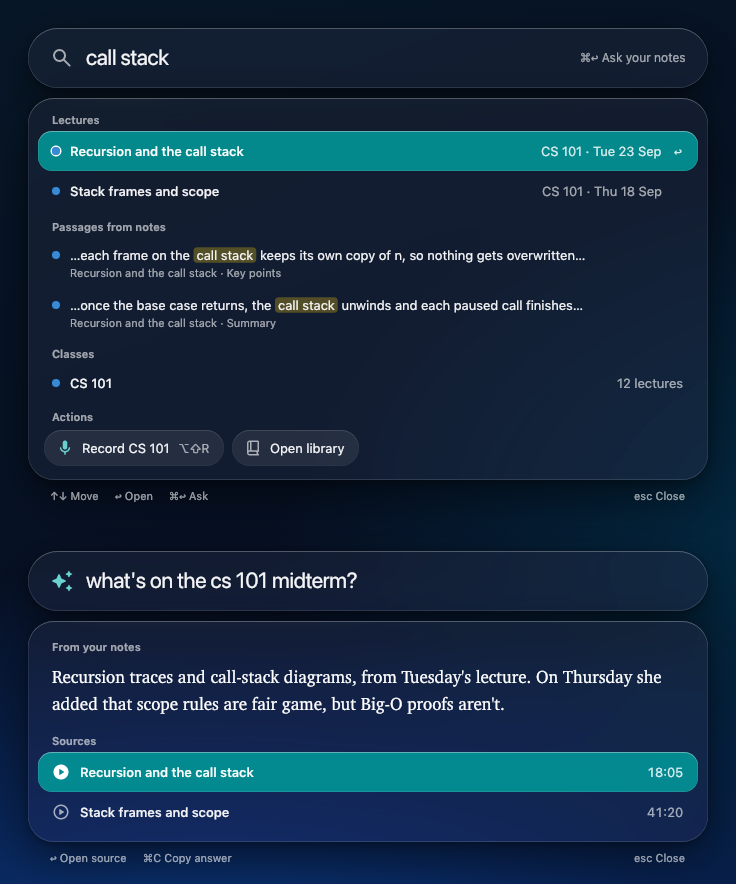
deleted (with Undo). - Ask about any lecture, class, or all of them. The Ask bar under a lecture's notes answers
from your notes and transcripts, with the engine you pick for that question. - Finds anything in a second. The quick panel (⌥Space on a Mac, Alt+Shift+Space on Windows)
searches lectures, passages in your notes, and classes, and asks your notes a question. - Knows what's coming up. Paste your calendar's link (Google's secret iCal address, iCloud,
Outlook or your school's) in Settings → Calendars and pick which calendars to share. Upcoming
classes show in the menu bar, the quick panel and the library, and a lecture recorded during one
is named after it and filed under its class. - Takes your own notes and slides too. Attach iPad handwriting, slides, PDFs or photos to a
lecture or class (drag them in). Their words, handwriting included, are read on your computer
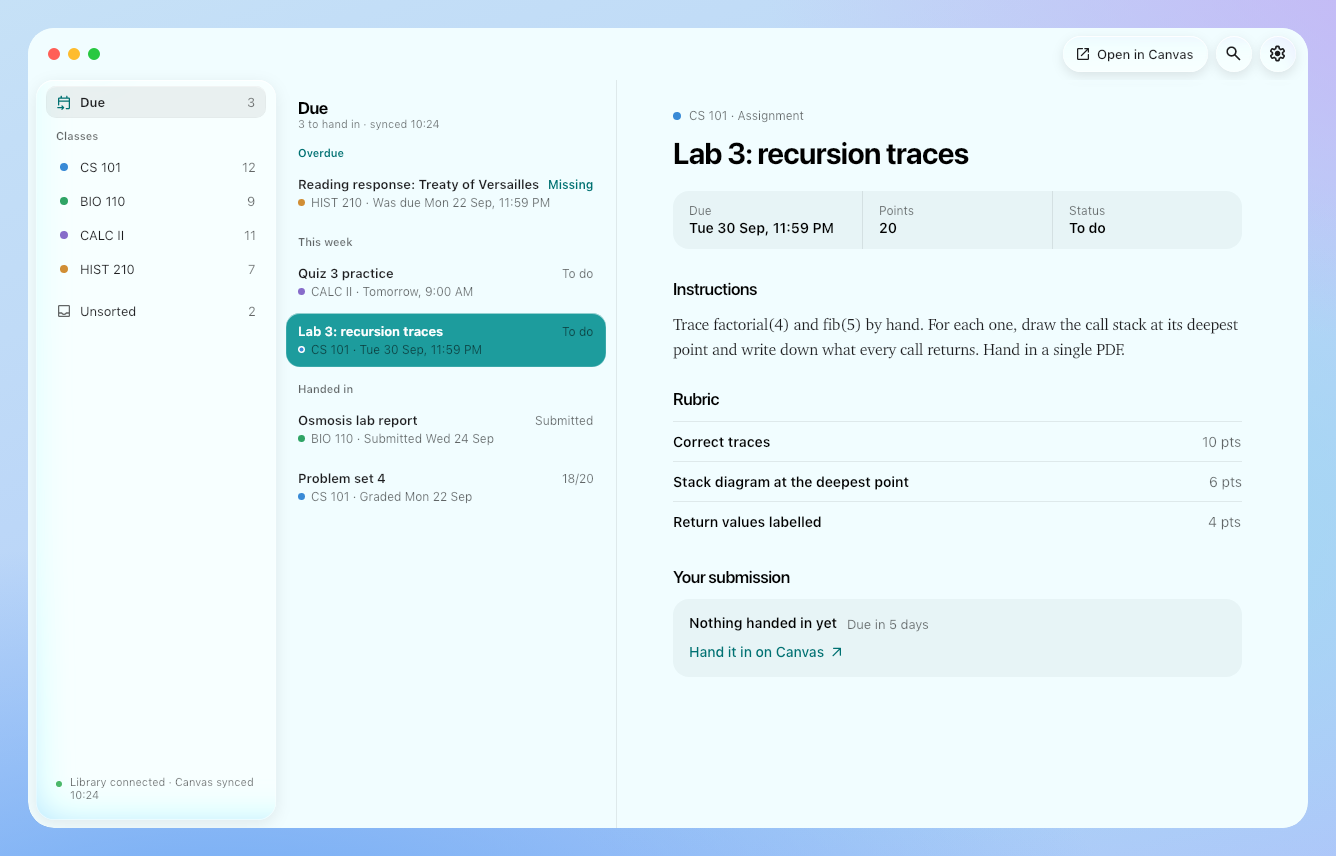
and go into the lecture's notes, Ask and Claude. - Brings in Canvas. What's due across your classes, each assignment's instructions, rubric,
your submission and feedback, module files and pages, announcements, quizzes and discussions. - Comes with you on your phone. Your library serves a phone app over Tailscale: read your
notes, see what's coming up, search, and add photos and PDFs to a lecture from your iPhone or
iPad. Settings → Your library → Phone shows a code to pair it (docs/phone.md). - Lets Claude read your library over MCP: Claude Code, Claude Desktop and claude.ai.
- Looks at home on your computer. A native Mac look (Liquid Glass) and Windows 11's, light and
dark, with ten colour themes in Settings → Appearance. - Keeps itself up to date, quietly, when nothing is recording.
One computer or two
Study Stash is one app with two jobs, so you can use it the way that suits you:
- One computer. Your laptop records, keeps the library and writes the notes itself. Nothing
else to set up. Notes are written while it's on. - A laptop and a library. Your laptop records; a computer that stays on at home (a Mac mini,
an old laptop, any Mac or PC) keeps the library, writes the notes and syncs Canvas, even while
your laptop is asleep. The laptop reaches it at home or, anywhere, over
Tailscale.
your laptop                                  your library (this laptop, or a computer at home)
┌────────────────────────────┐   lectures   ┌──────────────────────────────────────────────┐
│ record → Whisper (local)   │ ───────────▶ │ study notes (your AI) → filed under its class │
│ ask, search, Canvas, notes │ ◀─────────── │ Canvas mirror · Claude/MCP · search           │
└────────────────────────────┘              └──────────────────────────────────────────────┘
Install
One download for every computer, on the latest release:
| Mac | Windows |
|---|---|
| Study-Stash.dmg | Study-Stash-Setup.exe |
It's the same app either way; what a computer is for is chosen when you first open it, not when
you download it.
- Mac: open the DMG and drag Study Stash into Applications. Study Stash isn't signed with a
paid Apple Developer ID yet, so the first time macOS asks: click Done, then System Settings
→ Privacy & Security → Open Anyway. Allow the microphone when it asks. - Windows: run the Setup.exe. It installs for your account only, no admin rights needed. If
Windows says "Windows protected your PC", click More info, then Run anyway.
Then open Study Stash and follow setup. It asks how you'll use it:
- Just this computer: check the microphone, download the transcription model, choose who
writes the notes, Canvas, your classes, and starting at login (recommended, so your library runs
whenever you're logged in). - This is my library: a password for your library, who writes the notes, Canvas, your classes, and
starting at login. It ends by showing the address and password to connect a laptop. - This is my laptop: find your library (or type its address and password), check the microphone,
download the transcription model, Canvas, and your classes.
Changed your mind, or your plans changed? Switch any time in Settings → Connection → This
computer: a laptop can also become your library (bringing over whatever it was connected to
before), and a library can become a laptop, sending its own lectures to the new one first so
nothing is left behind. Nothing to reinstall or redownload.
Or install from a terminal:
# Mac (Terminal)
curl -fsSL https://raw.githubusercontent.com/Joseph-Rus/study-stash/main/install.sh | sh
# Windows (PowerShell)
irm https://raw.githubusercontent.com/Joseph-Rus/study-stash/main/install.ps1 | iex
AI engines
Pick who writes your notes and who answers your questions in setup or in Settings → Your
library → AI engines — one engine for everything, or a different one for each job. The engines
run on your library's computer (with one computer, that's your laptop). Without an engine, lectures
are still filed and keep their transcripts.
Ollama — free, and nothing leaves your computer. Install it from ollama.com,
and Study Stash offers to download a model.
Claude Code — uses your Claude plan. Install it, then run claude once in Terminal and sign in:
curl -fsSL https://claude.ai/install.sh | bash # Mac (or: brew install --cask claude-code)
irm https://claude.ai/install.ps1 | iex # Windows (PowerShell)
Codex — uses your ChatGPT plan. Install it, then run codex once and choose Sign in with
ChatGPT:
npm install -g @openai/codex # Mac or Windows (or on a Mac: brew install --cask codex)
Gemini — the Gemini CLI, signed in with your Google account.
Setup's notes step shows these commands with a Copy button, opens Terminal for you, and has
Check again to pick the engine up once it's installed and signed in.
Notes
A lecture's notes write formulas and diagrams as their own engine can, and the app draws them, in
the notes, in a quick answer and in the Ask chat:
- Formulas are LaTeX (
$...$inline,$$...$$on their own line), typeset in the app's own
type, light or dark. One CSharpMath can't typeset shows its plain source instead, calmly. - Diagrams: a process, cycle, pathway or hierarchy comes back as a Mermaid flowchart
(```mermaid) and is drawn natively, in the theme's colours; something spatial (a structure, a
physics setup, a circuit) comes back as a sanitised SVG. Either kind opens larger on a click, and
a diagram Study Stash can't draw shows its source with a plain reason instead of failing. - Download: a lecture's "Download as Markdown…" (or a whole class's) saves a
.mdfile that
Obsidian, Typora and VS Code all open well — formulas stay LaTeX, a Mermaid diagram is saved
again as an SVG beside it, and an SVG diagram becomes an image link to its own sanitised file.
Canvas
Study Stash reads Canvas through Chrome with your own sign-in — no Canvas password or token — and
only reads; nothing on Canvas changes. On your library's computer:
- Settings → Your library → Canvas (or the Canvas step in setup): type your school's Canvas
address. - Click Add to Chrome. It opens Chrome's extensions page and shows the extension's folder.
Turn on Developer mode, click Load unpacked, and pick that folder. - Sign in to Canvas in Chrome, then click Find my courses and match each class to its course.
Canvas then syncs about once an hour while Chrome is open (it can stay minimized): what's due,
assignments with rubrics, your submissions and feedback, modules, files, pages and announcements,
filed into each class's folder.
Claude and MCP
Your library speaks MCP, so Claude can read your lectures, notes
and Canvas work (read-only). Set it up in Settings → Your library → AI tool access:
- Claude Code or Codex, on your computers: copy the setup from AI tool access and paste it into
a terminal (Claude Code) or~/.codex/config.toml(Codex). - Claude Desktop and claude.ai: turn on internet access (it uses a
Tailscale Funnel, protected by signing in with your
library password), then in Claude add a custom connector named Study Stash with the addresshttps://<your library's name>.<your tailnet>.ts.net/mcp.
Updates
Installed copies update themselves: they check for a new release a few minutes after starting and
every 6 hours, and install it when nothing is recording or being transcribed. To update right
away, click Update now in Settings. On a Mac an update swaps in the new Study Stash.app; on
Windows it runs the new Setup.exe quietly. Every download is checked against the release'sSHA256SUMS.txt first.
Uninstall
Mac: quit Study Stash and drag it from Applications to the Trash. Windows: Settings → Apps →
Study Stash → Uninstall. Your lectures and settings stay where they are; only the app goes.
docs/claude-connector.md walks through adding Study Stash as a custom connector in Claude,
what Claude can read, troubleshooting, and how each requirement of Claude's connectors is met and tested.
Where your data lives
Everything is under ~/.study-stash (or --home, or the STUDYSTASH_HOME environment variable):
your settings, the lecture database, and the notes themselves as plain Markdown files in a folder
per class, which you can open, back up or sync however you like.
Build from source
You need the .NET 10 SDK, and Node (22 or later) for the
phone app in web/.
dotnet build engine/StudyStash.slnx
dotnet test engine/StudyStash.slnx
dotnet run --project engine/src/StudyStash.App -- --home /some/temp/dir
(cd web && npm ci && npm test && npm run build)   # the phone app, into web/dist, which the app then carries
macos/build-app.sh builds "Study Stash.app" and Study-Stash.dmg (with Xcode's command line tools), andwindows/build.ps1 Study-Stash-Setup.exe; both build the phone app into it first. engine/README.md has more on the projects and tests.
Releases come from CI (.github/workflows/ci.yml): every change is tested on macOS, Linux and
Windows, and both apps are built, self-tested and installed. To ship a release, bumpStudyStashVersion in engine/Directory.Build.props and merge to main; CI publishesStudy-Stash.dmg, Study-Stash-Setup.exe (and copies under the old installers' names, so older copies
still update) and SHA256SUMS.txt. A push that only changes the version, on top of a commit that
already passed, skips the tests and just builds and publishes.
License
MIT. No warranty: check your notes against the lecture before relying on them, since AI
makes mistakes. Record only where you're allowed to — many schools and places require everyone's
consent. See SECURITY.md to report a security problem.
Notes and diagrams are drawn with CSharpMath (MIT,
bundling the Latin Modern Math font under
the GUST font licence), Svg.Skia (MIT), and
Microsoft Automatic Graph Layout (MIT).
Reviews (0)
Sign in to leave a review.
Leave a reviewNo results found