Ruum
Health Warn
- License — License: GPL-3.0
- Description — Repository has a description
- Active repo — Last push 0 days ago
- Low visibility — Only 8 GitHub stars
Code Fail
- rm -rf — Recursive force deletion command in .github/workflows/release.yml
Permissions Pass
- Permissions — No dangerous permissions requested
No AI report is available for this listing yet.
Fast cross-platform disk space analyzer & treemap explorer built in Rust with GPUI. Scan local & SSH disks, monitor free space with an AI watchdog, and safely clean files via GUI or MCP.
ruum
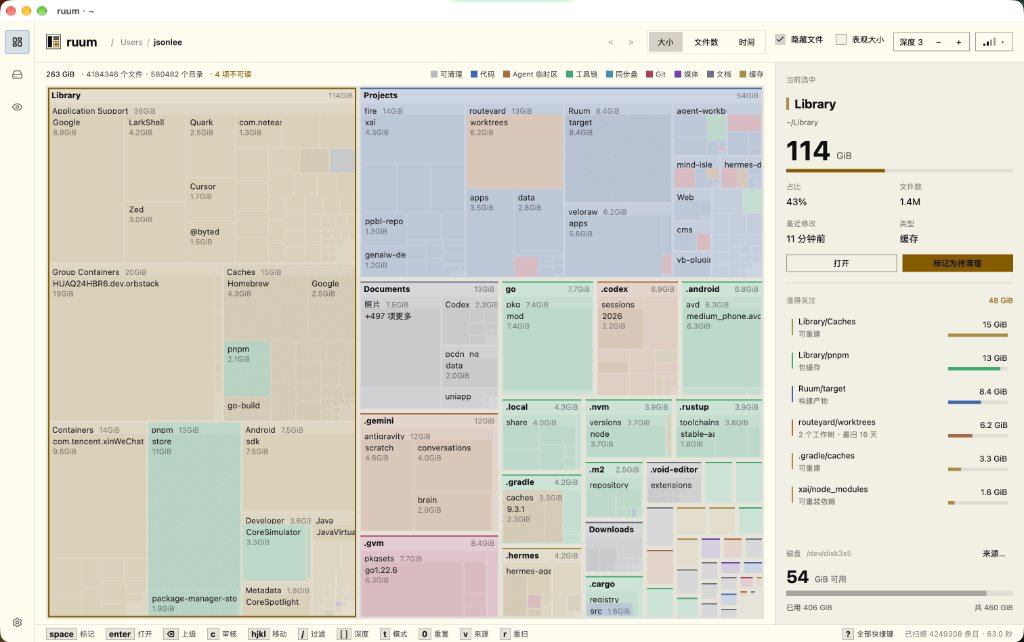
Find what is filling a disk, mark what should go, and clean it up safely — with your volume's free space in view the whole time.
ruum is a cross-platform treemap disk analyzer and cleanup companion for macOS, Linux, and Windows. Built with GPUI and gpui-omarchy, it turns your drives and remote SSH servers into an interactive nested mosaic sized by real disk usage, pairs it with non-destructive mark-and-review workflows, and adds a low-overhead Disk Space Watchdog, AI cleanup assistant, and headless stdio MCP server (ruum mcp). The UI and CLI automatically localize into English, Simplified Chinese (zh), Japanese (ja), and Korean (ko).
Why "Ruum"?
Ruum takes its name from the Old Norse sense of spaciousness and open room (rúm). A disk analyzer shouldn't just draw another dense tree of numbers — its purpose is to clear away accumulated build artifacts, forgotten caches, and stray clutter so your drives have open breathing room again.
Table of Contents
- Installation & Initial Setup
- Quick Start Tutorial (3 Steps to Free Up Space)
- Remote Server Analysis over SSH
- Disk Space Watchdog & AI Cleanup Assistant
- MCP Server Integration for AI Agents
- CLI & Keyboard Shortcuts Reference
- Safety Guards, Measurement Notes & Development
- License
Installation & Initial Setup
macOS
Install via Homebrew (macOS 11 or newer, Apple Silicon aarch64-macos & Intel x86_64-macos):
brew tap JsonLee12138/tap && brew install --cask ruum
Or download an installer from the latest release:
- Disk image (
.dmg): openruum-*-aarch64-macos.dmg(orx86_64) and dragruum.appintoApplications. - Installer package (
.pkg): runruum-*-aarch64-macos.pkgto install/Applications/ruum.appand link/usr/local/bin/ruum. - Archive (
.zip): unzipruum-*-aarch64-macos.zipand dragruum.appintoApplications.
First-launch setup on macOS:
- Clear Gatekeeper quarantine (for unsigned builds): if macOS reports that the app cannot be verified or appears damaged, clear the browser quarantine attribute once:
(Or open it once and choose Open Anyway in System Settings › Privacy & Security.)xattr -dr com.apple.quarantine /Applications/ruum.app - Grant Full Disk Access: to inspect protected locations (Mail, Messages, Safari, Trash, and other app containers), grant ruum Full Disk Access in System Settings › Privacy & Security — the side panel shows an Open Privacy Settings button whenever items are unreadable — then reopen the app. If you launch
ruumfrom a terminal, your terminal app also needs Full Disk Access. macOS also prompts once for Desktop, Documents, and Downloads.
Linux
Download a package from the latest release (x86_64 or aarch64):
- Arch / Omarchy (AUR):
yay -S ruum-bin # prebuilt release binary # or: yay -S ruum # build from source - Debian / Ubuntu (
.deb):sudo apt install ./ruum-*-x86_64-linux.deb - Fedora / RHEL (
.rpm):sudo dnf install ./ruum-*-x86_64-linux.rpm - AppImage:
chmod +x ruum-*-x86_64-linux.AppImage && ./ruum-*-x86_64-linux.AppImage - Portable tarball: unpack
ruum-*-x86_64-linux.tar.gzand run./install.sh(or copyruumonto yourPATH).
Hyprland floating window rule: Hyprland tiles new windows by default; ruum works best in a roomy floating window (class is ruum):
windowrule = float, class:^(ruum)$
windowrule = size 1400 900, class:^(ruum)$
Windows
On Windows 10 or 11 (x86_64 or aarch64), download from the latest release:
- Installer wizard (
-setup.exe): runruum-*-x86_64-windows-setup.exe(supports silent install, Start Menu/Desktop shortcuts, and optionalPATHregistration). - MSI package (
.msi): installruum-*-x86_64-windows.msiper-machine with Start Menu shortcut and optionalPATHfeature. - Portable archive (
.zip): unpackruum-*-x86_64-windows.zipanywhere and runruum.exe.
NTFS fast scans on Windows: when scanning a whole NTFS drive (such as C:\) without --follow-links, running as Administrator lets ruum read the NTFS Master File Table (MFT) directly — several times faster than directory traversal — and inspect protected folders like System Volume Information. The side panel offers Restart as Administrator whenever elevation can speed up or unlock unreadable items.
Build from Source & Verify Downloads
Building requires Rust 1.97 or newer (pinned in rust-toolchain.toml via rustup).
- macOS & Linux (Linux also requires a Wayland or X11 session with a Vulkan-capable GPU, plus the
muslstdlib targets for embedded static SSH helpers):# Linux only (for embedded static SSH helpers, no C cross-compiler required): rustup target add x86_64-unknown-linux-musl aarch64-unknown-linux-musl git clone https://github.com/JsonLee12138/Ruum.git cd Ruum make install- On Linux,
make installinstalls~/.local/bin/ruum, a desktop entry (adding an Open with handler for directories without changing your default file manager), and theruum.svgicon. Usesudo make install PREFIX=/usr/localfor system-wide installation, ormake uninstallto remove everything it placed. - On macOS,
make installbuilds and installs~/Applications/ruum.appand symlinks~/.local/bin/ruum(requires Xcode or Command Line Tools). - If an older binary earlier on
PATHshadows~/.local/bin/ruum, addexport PATH="$HOME/.local/bin:$PATH"to your shell configuration.
- On Linux,
- Windows (MSVC toolchain / Visual Studio Build Tools with C++ workload):
git clone https://github.com/JsonLee12138/Ruum.git
cd Ruum
cargo build --release    # target\release\ruum.exe
Verify release artifacts: every release publishes SHA256SUMS, per-artifact .sha256 files, and Sigstore build provenance attestations:
sha256sum -c SHA256SUMS --ignore-missing
gh attestation verify <downloaded-artifact> --repo JsonLee12138/Ruum
Register the ruum CLI in PATH
If you installed the desktop app from a .dmg, .zip, or portable archive, register the ruum terminal command in one click:
- Open Settings (
⌘,on macOS,Ctrl+,on Linux & Windows, or click the gear icon in the Left Icon Rail). - Under Command-Line Tool, click Install CLI Command (also accessible from the macOS menu bar via ruum › Install CLI Command…).
This registers /usr/local/bin/ruum on macOS, ~/.local/bin/ruum on Linux, or copies ruum.exe into %LOCALAPPDATA%\Programs\ruum\bin and updates your user Path on Windows — enabling ruum, ruum ssh, ruum watchdog, and ruum mcp from any shell or AI agent.
Quick Start Tutorial (3 Steps to Free Up Space)
Step 1: Choose a Source & Scan Root
- Launch ruum: running
ruumscans your home directory (~) immediately, largest entries first. - Pick another folder, drive, or remote host: press
v(or click Source… in the right panel, click the ruum logo, or runruum --choose) to open Sources & Drives:- Choose This computer (or enter an SSH target and click Connect SSH). Discovery lists mounts without probing network shares or scanning files.
- Select a mounted volume and click Scan selected root, or type any absolute path and click Scan directory.
- Widen to the whole disk anytime: press
g, launchruum --disk, or click an ancestor breadcrumb above your scan root (such as/). Widening is memoized: the subtree already scanned is reused so going from~to/only walks directories outside~.
Step 2: Explore & Locate Space Hogs
Use the Left Icon Rail on the far left edge to switch between Explore treemap, Sources & Drives, Watchdog, and Settings.
In the Explore screen:
- Read the treemap at a glance:
- Tile area shows proportional disk usage (or file count).
- Colors classify what data is: Code, Agent scratch, Toolchains, Synced, Git, Media, Documents, and Cache (
Otheris neutral). - Diagonal hatching marks Reclaimable directories (caches, sync history, package stores, compiler/bundler build output, reinstallable dependencies, sandbox layers, snapshots, trash, temporary files).
- Tune the view controls in the top bar:
- Size / Files / Age (
t): switch between allocated bytes, file count, or last-write Age (This week through Older). - Hidden files (
i): include or skip dotfiles and hidden folders (included by default because~/.cacheoften dominates home usage). - Apparent size (
d): toggle between real allocated blocks (st_blocks × 512) and logical file lengths (ls -l). - Depth 1–6 (
[/]): draw fewer or more nested levels simultaneously (default3). - Power Efficiency: choose worker presets (
Miser,Balanced,Aggressive,Drain My Battery) for future scans, or pass--scan-threadsvia CLI.
- Size / Files / Age (
- Navigate and filter quickly:
- Scroll wheel zooms smoothly toward the cursor and descends continuously into subdirectories; scroll out to climb back up.
- Press
Enterto open the selected directory at any depth,BackspaceorEscto step up,Alt+←/Alt+→(⌘[/⌘]on macOS, or mouse side buttons) to move through history,← ↑ ↓ →orhjklto step between tiles, andTabto cycle to the next largest sibling. - Press
/to filter by name — only matching paths stay colored; pressEnterto isolate matches orEscto clear.
- Inspect the right side panel:
- Selection: large size readout, Of scan percentage, Files count, Last write age, Kind, and hook-free Git status (uncommitted changes, stashes, unpushed commits), plus Open and Mark for removal buttons.
- Worth a look: automatically surfaced top reclaimable folders, stale worktrees, and untouched experiment directories.
- Marked & Disk: running list of marked items and a live Disk bar projecting how much free space you recover after cleanup.
Step 3: Mark, Review & Clean Up Safely
Marking is 100% non-destructive — nothing is touched on disk until you review and commit:
- Mark targets: hover over any tile or select it with arrows and press
Spaceorx(or⌘-click on macOS /Ctrl-click on Linux & Windows to mark without moving focus). Marking a directory automatically absorbs any marks inside it (Goes with<ancestor>), and space savings are never double-counted. - Open Review: press
cor click Review N marked · frees … at the bottom of the side panel. - Choose how to clean up (or hand off):
- Move to trash (
m, default when available): moves items to the OS Trash / Recycle Bin / XDG Trash (trash-put,gio trash, or built-in XDG trash), so they remain recoverable until emptied. - Delete permanently (
p):rm -rfsemantics — always opens an explicit confirmation modal listing the items and bytes to be freed before anything is deleted. - Export instead of deleting: press
s(Save list…) to export a plain path list, ora(Copy as prompt) to copy a carefully guarded prompt for a coding agent.
- Move to trash (
- Commit & verify: press
Enter(or click the action button). Once finished, ruum automatically rescans the root and opens Done, showing the actual volume freed measured before and after cleanup.
Remote Server Analysis over SSH
Inspect servers without moving files or risking accidental remote deletions:
ruum ssh dev                 # connect and pick a remote mount or root
ruum ssh user@server /var    # scan a specific remote directory directly
ruum ssh dev --disk          # scan the volume holding the remote home directory
ruum ssh dev -a /srv         # measure apparent size on /srv
ruum ssh dev --check /var/log  # headless CLI summary without opening a GUI window
You can also connect from inside the app via Sources & Drives › Connect SSH by entering an SSH host alias or user@host.
How Remote Scanner Deployment Works
- Linux packaged builds (
make build/cargo xtask portable): bundle staticx86_64andaarch64muslLinux scanners inside the executable. On connect, ruum checks the server's OS/CPU and uploads the matching helper to~/.cache/ruum/ssh/<sha256>/(checksum-verified, nosudo, no system package changes, no dependency on remoteglibc). You can also extract a binary manually:ruum extract-scanner x86_64 ./ruum-scan ruum extract-scanner aarch64 ./ruum-scan-arm64 - Development, macOS, or Windows desktop builds: install the small headless helper (
ruum-scan, no GUI dependencies) on the remote server'sPATHor~/.local/bin/ruum-scan:# On the remote server inside a checkout: make install-scan # Or: cargo install --path crates/ruum-scan --locked - Authentication & connection safety: ruum uses your normal SSH config, keys, and
ssh-agent. Terminal launches can prompt for passwords/passphrases directly; GUI launches rely on key/agent auth or an SSH askpass helper. Connect once withssh devto trust the host key. One compressed SSH stream carries bounded records without storing the tree in remote memory, stops at nested mounts, and terminates cleanly on disconnect.
Read-Only Remote Review & Safe Export Workflow
Remote GUI sessions are strictly export-only — trash/delete buttons, Git checks, and local reveal actions are disabled, and free space is sampled at scan time (press r to refresh):
- Mark target paths on the treemap (
Space/x), then presscto open Review. - Choose an export option:
- Copy as prompt (
a): includes SSH host, remote OS, scan root, marked paths, sizes, and mandatory safety instructions requiring hostname and machine ID verification before any deletion. - Save list… (
s): saves remote paths locally, one path per line. - Copy delete script (
y) / Save delete script… (e): produces a GNU/Linux shell script. Running the script with no flags only previews the targets; runningsh ruum-delete.sh --deleteconnects to the SSH host, verifies that the remote server's actual kernel hostname and machine ID (HostIdentity) match the scanned machine (aborting on mismatch), and refuses system, root, home, mount-point, or symlink-redirected paths.
- Copy as prompt (
Disk Space Watchdog & AI Cleanup Assistant
Let ruum watch your free space silently in the background (O(1) statvfs / disk-space check — zero background directory walks) and propose safe cleanup candidates when space runs low.
1. Configure Watchdog & Background Service
Open Settings (⌘, on macOS / Ctrl+, on Linux & Windows):
- Toggle Enable Watchdog Free-Space Monitoring.
- Toggle Run as OS Background Service at Login (launchd / systemd / Windows) to manage the native background daemon:
- macOS:
launchduser agent (com.ruum.watchdog) - Linux:
systemd --userservice (ruum-watchdog.service) - Windows: zero-UAC
HKCU\Software\Microsoft\Windows\CurrentVersion\Runentry + hidden background process (CREATE_NO_WINDOW)
(You can also run the monitor manually from a terminal viaruum watchdogor a single check withruum watchdog --once.)
- macOS:
- Adjust thresholds:
- Minimum Free Space Threshold (GB): default
20GB (min1GB). - Check Interval (minutes): default
5minutes (min30seconds). - Re-Alert Cooldown (min 5 minutes): default
360minutes / 6 hours (min5minutes).
- Minimum Free Space Threshold (GB): default
- Toggle Automatically Run AI Analysis on Low Disk Space if you want the configured AI CLI to prepare a cleanup proposal automatically when free space drops below your threshold.
- Click Save Settings.
2. Configure an AI Assistant CLI
Still on the Settings page under AI Assistant CLI:
- Choose a provider preset: Agy, Pi, Codex, or Custom (with Custom Executable Command / Path and Custom Extra Arguments).
- Optionally set Model Override (optional), click Test CLI Connection to verify the executable, or click Fetch Models and test latency per model (or benchmark all models) to pick the fastest model.
- Click Save Settings.
3. Review & Confirm AI Cleanup Proposals
- Open the Watchdog page from the Left Icon Rail (or click the System Tray / Menu Bar icon) to inspect Volume Status, run Check Disk Space Now, trigger Run AI Analysis Now, or open Review & Confirm… (Review Latest Proposal… in the tray).
- Nothing is ever deleted unattended. Every AI proposal opens in the standalone Confirm Cleanup window (
ruum --confirm-cleanup ...):- Inspect each candidate's read-only removal-mode badge (Trash / Permanent), path, byte size, reason, and local Git dirty/unpushed warning.
- Use Select All / Select None or individual checkboxes to choose which paths to keep or clean.
- Click Confirm & Clean (or Cancel to abort safely).
- Tray residency note: when the system tray / menu bar icon is active, closing the main window keeps ruum running quietly in the background; press
⌘Q/Ctrl+Q(orqin Explore view), or choose Quit Ruum from the tray, to exit completely.
MCP Server Integration for AI Agents
ruum includes a headless Model Context Protocol (stdio JSON-RPC 2.0) server with zero GUI startup and clean stdout framing (ruum mcp).
Configure Your MCP Client
First ensure ruum is on PATH (via Settings › Command-Line Tool › Install CLI Command), then add ruum to your MCP client configuration:
{
  "mcpServers": {
    "ruum": {
      "command": "ruum",
      "args": ["mcp"]
    }
  }
}
For strictly non-destructive analysis sessions, pass --read-only:
{
  "mcpServers": {
    "ruum": {
      "command": "ruum",
      "args": ["mcp", "--read-only"]
    }
  }
}
Exposed MCP Tools (8 Tools)
| Tool | Scope | Key Arguments | Safety Boundary |
|---|---|---|---|
list_volumes |
Local / SSH | ssh_host? |
Read-only mount discovery; no file walk |
scan_directory |
Local / SSH | path?, disk?, ssh_host?, apparent_size?, include_hidden?, max_entries?, rescan? |
Read-only scan; cached in session |
inspect_subtree |
Local / SSH | root, subpath?, filter?, ssh_host?, max_entries? |
Read-only tree lookup & substring search |
find_reclaimable |
Local / SSH | root, ssh_host?, limit? |
Read-only heuristic findings (caches, build dirs, worktrees) |
check_git_safety |
Local only | paths (array) |
Hook-free read-only Git status; rejects ssh_host |
plan_removal |
Local / SSH | root, targets (array), ssh_host? |
Dry-run validation against removal guards; never deletes |
trash_paths |
Local / SSH | root, targets (array), ssh_host? |
Disabled in --read-only; requires interactive GUI Confirm Cleanup checkbox approval |
delete_permanently |
Local only | root, targets (array), reason? |
Disabled in --read-only; forbidden over ssh_host; requires GUI Confirm Cleanup checkbox approval + OS native auth (e.g. Touch ID) |
If CleanupConfirmAdapter or OS native authentication fails, times out, or has no interactive desktop session, mutating tools fail closed and remove nothing.
CLI & Keyboard Shortcuts Reference
CLI Commands & Options
ruum [OPTIONS] [PATH]                  # scan PATH (defaults to ~)
ruum ssh HOST [OPTIONS] [PATH]         # inspect a remote host over SSH (read-only)
ruum mcp [--read-only]                 # run stdio MCP server
ruum watchdog [--once]                 # run disk watchdog daemon (or single check)
ruum extract-scanner ARCH OUTPUT       # extract embedded Linux helper (x86_64 | aarch64)
| Flag | Description |
|---|---|
--choose |
Open Sources & Drives before scanning |
-a, --apparent-size |
Measure apparent file length instead of allocated blocks |
-l, --follow-links |
Follow symlinks (local scans only) |
-H, --no-hidden |
Skip dotfiles and dot-directories |
-D, --disk |
Scan the whole disk containing your home directory |
-X, --cross-filesystems |
Include other mounted disks, network shares, and pseudo-filesystems below PATH (local only; off by default) |
-d, --depth N |
Initial treemap levels drawn at once (1–6, default 3) |
--power-efficiency PRESET |
Worker preset: miser, balanced (default), aggressive, drain-my-battery |
--scan-threads N |
Fixed scan workers (capped by available CPU count) |
--adaptive-threads |
Opt into experimental adaptive thread admission |
--fixed-threads |
Disable adaptive admission and CPU governor |
--thread-throughput-percent N |
Retain this percent of sampled initial throughput (default 80) |
--thread-system-cpu-percent N |
Best-effort host CPU budget percent; 0 disables (default 80) |
--metric files|bytes |
Rank tiles by file count (files) or bytes (bytes) |
--open-screen SCREEN |
Start directly on explore, sources, watchdog, or settings |
--check |
With ssh: deploy helper and print scan summary without opening a window |
-h, --help |
Show localized CLI usage help |
Keyboard & Mouse Shortcuts — Explore View
| Key / Input | Action |
|---|---|
Space / x |
Mark or unmark the pointed/selected tile |
Ctrl-click (⌘-click on macOS) |
Mark or unmark without moving the selection |
Enter |
Open the selected directory at any depth |
Backspace (⌫) / Esc / u |
Go up one directory (when no filter/scan/selection overrides Esc) |
Alt+← / Alt+→ (⌘[ / ⌘] on macOS, mouse side buttons) |
Navigate back and forward through visited directories |
← ↑ ↓ → / h j k l |
Move between tiles at the current level |
Tab / Shift+Tab |
Next / previous largest sibling |
| Scroll wheel | Zoom toward a directory and enter it continuously |
Shift-scroll |
Pan the magnified treemap view |
[ / ] |
Draw fewer or more treemap depth levels (1–6) |
- / = (+) / 0 |
Shrink, magnify, or reset the view transform |
Ctrl (⌘ on macOS) + = / - / 0 |
Interface zoom |
/ (or s) |
Filter by name (Enter shows only matches; Esc clears) |
c |
Open Review for marked items |
t |
Cycle Size, Files, and Age modes |
d |
Toggle Disk usage vs Apparent size |
i |
Toggle Hidden files |
r / Ctrl+R (⌘R on macOS) / F5 |
Scan again from the same root |
Esc (while scanning) |
Cancel the scan in progress |
v |
Open Sources & Drives |
Ctrl+O (⌘O on macOS) |
Choose another local directory to scan |
g |
Scan the whole disk (or click an ancestor breadcrumb above root) |
p |
Show or hide the selection details panel |
o / Ctrl+Shift+R (⌘⇧R) / Right-click |
Reveal in Finder, File Explorer, or the file manager |
Ctrl+, (⌘, on macOS) |
Open Settings |
? |
Toggle full keyboard & mouse help overlay |
q / Ctrl+Q (⌘Q on macOS) |
Quit ruum (Ctrl+W / ⌘W closes the focused window) |
Keyboard Shortcuts — Review View
| Key | Action |
|---|---|
m |
Select Move to trash (local only) |
p |
Select Delete permanently (local only) |
! |
Unmark all items |
s |
Save list… (one path per line) |
a |
Copy as prompt for a coding agent |
y / e |
Copy delete script / Save delete script… (exports a preview-first GNU/Linux shell script for shell or remote SSH review) |
Enter |
Commit the chosen removal mode (local only; permanent always confirms) |
Esc |
Go back to Explore |
Safety Guards, Measurement Notes & Development
Built-In Removal & Git Safety Guards
All deletion rules are enforced in crates/ruum-core/src/removal.rs and backed by tests against real directory trees:
- Only paths strictly inside the scanned root can be removed.
- The filesystem root, the scanned root, your home directory, and any directory holding your home directory or a system tree are always refused.
- Mount points and directories containing mount points are refused; permanent deletion stops at mount boundaries rather than crossing filesystems.
- Protected OS and package-manager trees (
/usr,/etc,/boot,/var/lib,/nix/store,/gnu/store, Homebrew prefixes, etc.) are refused even when writable. - On Windows,
Windows,Program Files,ProgramData,System Volume Information,Recovery,Boot, page/hibernation files, and top-level user profile folders (FOLDERID_UserProfiles, e.g.C:\Users\*) are refused, while subdirectories inside profiles remain cleanable. - Symlinks are unlinked rather than followed; paths are never interpolated into a shell (a file named
-rfis treated safely as a filename). - Git inspection runs read-only with fsmonitor, hooks, and pager disabled, and refuses to evaluate repositories with custom filter drivers.
Disk Accounting & Platform Differences
- Allocated blocks vs. apparent size: default sizes come from
st_blocks × 512(Unix) and NTFS cluster allocation (Windows), matching what is actually reclaimed on delete. - Hardlinks counted once: multiple hardlinks to the same inode are deduplicated during bottom-up tree aggregation.
- One volume per projection: nested mount points (including Linux bind mounts and same-device
btrfssubvolumes) are skipped by default; when-Xis used locally, marks on other volumes are excluded from the live free-space projection meter. - macOS specifics: free space matches
df(excluding Finder's purgeable space); APFS file clones share blocks so deleting one copy may free less than shown; Time Machine local snapshots are excluded from walks; cloud-evicted folders (iCloud Drive, Dropbox) are never opened or downloaded.
Development
make run       # release build, opening Sources & Drives
make lint      # rustfmt --check + clippy --all-targets -D warnings
make test      # core unit/filesystem tests + GPUI window-harness tests
make test-ssh  # real localhost SSH tests (Linux; requires bun + openssh)
make ci        # lint, then test
On Windows, run cargo xtask lint, cargo xtask test, and cargo build --release directly.
| Path | Responsibility |
|---|---|
crates/ruum-core |
Scanning, tree aggregation, squarified layout, space accounting, removal guards, Watchdog, AI CLI, SSH & MCP |
crates/ruum-scan |
Lightweight headless remote SSH scanner binary (no GUI dependencies) |
crates/ruum-app |
GPUI desktop interface, state/keybindings, localization (en/zh/ja/ko), tray & window-harness tests |
xtask/, packaging/, assets/ |
Release bundling, cross-platform installers, icons, and desktop entry templates |
License
GPL-3.0-only — see LICENSE. Portions derived from upstream disktree / ruum are attributed under the MIT License in THIRD_PARTY_NOTICES.md.
Reviews (0)
Sign in to leave a review.
Leave a reviewNo results found