debug-graph
Health Warn
- License — License: MIT
- Description — Repository has a description
- Active repo — Last push 0 days ago
- Low visibility — Only 9 GitHub stars
Code Pass
- Code scan — Scanned 12 files during light audit, no dangerous patterns found
Permissions Pass
- Permissions — No dangerous permissions requested
No AI report is available for this listing yet.
The VS Code extension that turns your debugger into a visual story of your code's execution.
📊 Debug Graph — See Exactly How Your Code Executes
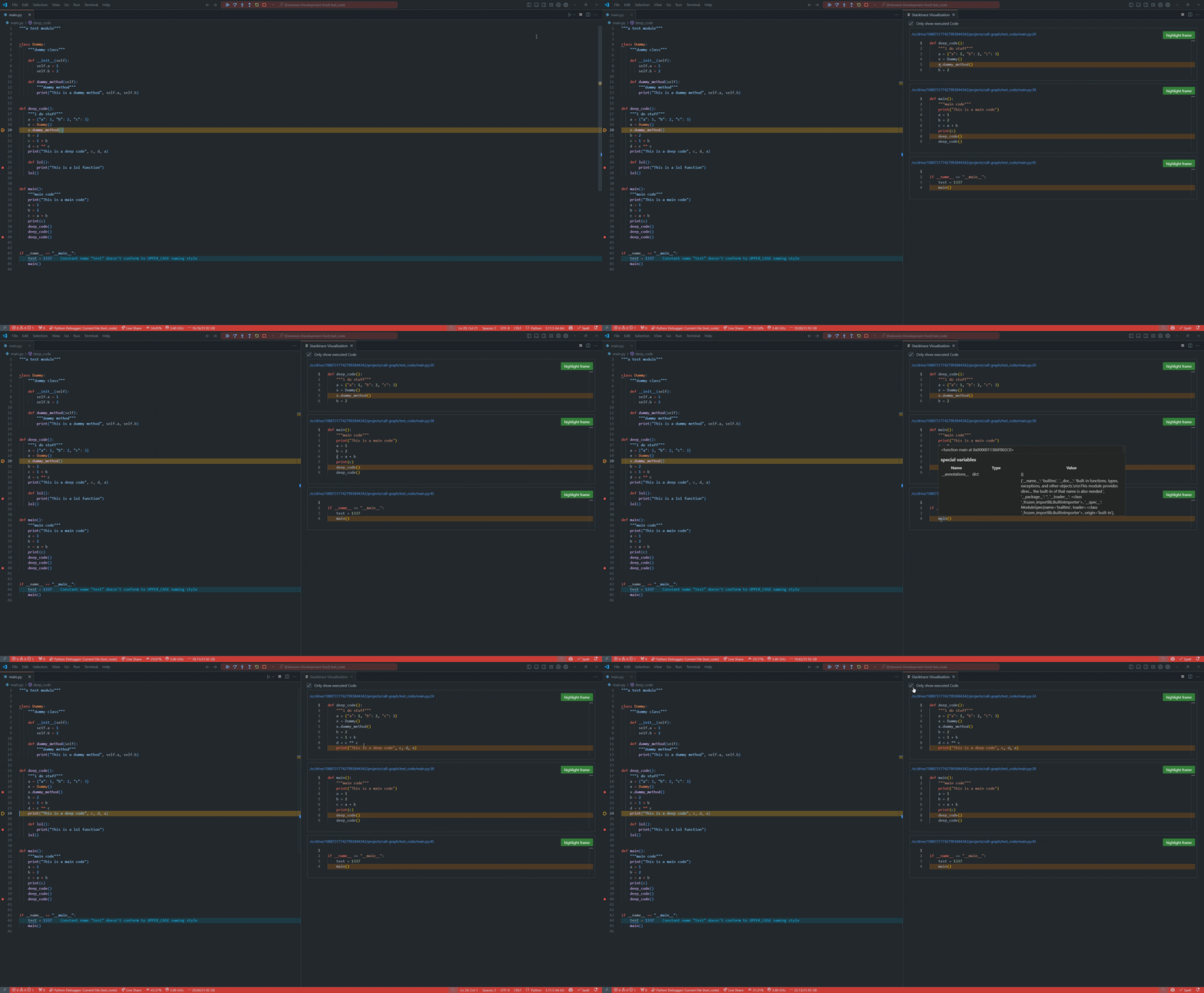
The VS Code extension that turns your debugger into a visual story of your code's execution.
See every function call, inspect every variable, and let AI agents debug for you — across 9 languages.



Why?
The built-in VS Code debugger shows you where you are. Debug Graph shows you how you got there.
When you hit a breakpoint, the standard call stack is a flat, text-heavy list. You have to click through each frame one at a time, mentally reconstructing the call chain. If you want to know a variable's value three frames up, you switch frames, scroll, squint, switch back. You repeat this hundreds of times a day.
Debug Graph renders the entire call chain as an interactive visual tree — every function, its source code, and every variable, all visible at once. No clicking between frames. No mental reconstruction. Just scroll and see everything.
And if you're using AI coding agents (Copilot, Cursor, Claude Code), Debug Graph gives them something no other extension does: direct control over the VS Code debugger through 20 MCP tools. Your AI agent can set breakpoints, step through code, inspect variables, and evaluate expressions — autonomously.
✨ What It Does
| Capability | What you get |
|---|---|
| 🗺️ Visual Call Tree | Every function in the call chain displayed with its full source code, stacked vertically. Scroll through the entire execution path at a glance |
| 🔍 Inline Variable Inspection | Hover over any identifier in any frame to see its runtime value — no switching frames, no debug console |
| 🎯 One-Click Navigation | Click any frame header to jump to that exact line in your editor. Click "Highlight Frame" to focus the debugger on that stack level |
| 🧹 Executed-Code-Only Mode | Collapses functions to show only the lines that actually ran. See the execution path without the noise |
| 🌐 Any Languages, One Tool | Go, Python, JavaScript, TypeScript, C, C++, Rust, C#, Zig - same UI, same workflow |
| 🤖 AI Agent Debugger (MCP) | 20 tools + 1 prompt that let AI coding agents control the debugger directly. See below |
🤖 MCP Server — Give Your AI Agent a Debugger
This is the headline feature. Debug Graph includes a built-in Model Context Protocol server that exposes the VS Code debugger to AI agents.
Your Copilot, Cursor agent, or Claude Code can now:
- Start and stop debug sessions
- Set and remove breakpoints
- Step through code (over, into, out)
- Inspect variables in any stack frame
- Evaluate expressions in the running program
- Read source files
- List threads and switch between them
- Wait for breakpoint hits with timeouts
The 20 Tools
| Category | Tools |
|---|---|
| Session | get_active_session, list_debug_configs, start_debug, stop_debug, restart, disconnect |
| Breakpoints | list_breakpoints, set_breakpoint (source + function), remove_breakpoint |
| Execution | resume, pause, step_over, step_into, step_out |
| Inspection | get_stack_trace (per thread), list_threads, get_variables (all scopes, per frame), evaluate (per frame), get_source |
| Coordination | wait_for_breakpoint_hit (with timeout, early-return if already paused) |
How Agents Use It
The MCP server publishes a debug_session_workflow prompt. When an agent calls it, it receives a complete workflow guide. A typical agent debugging session looks like:
1. list_debug_configs        → Find available launch configurations
2. start_debug               → Launch the program
3. set_breakpoint            → Set breakpoints at suspicious locations
4. wait_for_breakpoint_hit   → Wait until the program pauses
5. get_stack_trace           → Read the call stack
6. get_variables             → Inspect all variables in scope
7. evaluate                  → Test hypotheses with expressions
8. step_over / step_into     → Advance execution
9. (repeat 5-8 until root cause found)
No more "I can't see runtime values" from your AI agent. It can now inspect the actual program state.
⚙️ Configuration
The MCP server is enabled by default. Your AI agent discovers it automatically — no setup required.
To disable: set "debug-graph.mcp.enabled": false in VS Code settings, then run Debug: Restart MCP Server.
🚀 Supported Languages
Works with any VS Code debug adapter. Tested and verified:
| Language | Debugger | Linux | Windows | Notes |
|---|---|---|---|---|
| Go | delve | ✅ | ✅ | Full symbol resolution |
| Python | debugpy | ✅ | ✅ | |
| JavaScript | Node.js | ✅ | ✅ | |
| TypeScript | pwa-node | ✅ | ✅ | Deno runtime |
| C++ | GDB | ✅ | ❔ | |
| C | GDB | ✅ | ❔ | |
| Rust | LLDB | ✅ | ❔ | |
| C# | dotnet | ✅ | ✅ | .NET 6 & 8 |
| Zig | LLDB | ✅ | ❔ | v0.14 |
✅ Verified ❌ Known issues ❔ Not yet tested
Test projects for every language live in test_code/.
📥 Install
VS Code Marketplace (one click):
ext install k0in.debug-graph
Or search "Debug Graph" in the Extensions panel.
🛠️ Usage
- Set a breakpoint anywhere in your code
- Start debugging (F5)
- When the debugger pauses, click the 📊 Call Graph button in the editor toolbar
- The call tree opens — scroll through every frame, hover over variables, click to navigate
Pro tip: Use the dropdown to switch between Default (full source), Only Executed Code (collapse noise), and Full Scopes (expand all scopes).
🏗️ Architecture
┌─ VS Code Extension Host ──────────────────────────────────────┐
│                                                               │
│  ┌─ extension.ts ──────────────────────────────────────────┐  │
│  │  • Manages webview lifecycle                            │  │
│  │  • Fetches stack traces via Debug Adapter Protocol      │  │
│  │  • Extracts source code + symbols for each frame        │  │
│  │  • Starts HTTP server for MCP                           │  │
│  └─────────────────────────────────────────────────────────┘  │
│       │                              │                        │
│       ▼                              ▼                        │
│  ┌─ Webview (Vue 3) ────┐    ┌─ MCP HTTP Server ───────────┐  │
│  │  • Monaco editors    │    │  • 20 debug tools           │  │
│  │  • Comlink RPC       │    │  • Streamable HTTP transport│  │
│  │  • Theme sync        │    │  • Zod schema validation    │  │
│  │  • Variable hover    │    │  • Direct vscode.debug.*    │  │
│  └──────────────────────┘    └─────────────────────────────┘  │
│                                                               │
└───────────────────────────────────────────────────────────────┘
Key design decisions:
- No child process for MCP — runs in-process via
http.Server, zero latency, no serialization overhead - Monaco in webview — full editor fidelity, VS Code theme matching, hover providers
- Comlink RPC — typed, bidirectional communication between extension host and webview
- Symbol-aware extraction — uses VS Code's document symbol providers to extract function boundaries, not just line ranges
🤝 Contributing
Bug reports, feature requests, and pull requests are welcome.
git clone https://github.com/K0IN/stacktrace-history.git
cd stacktrace-history
npm run install-deps  # Install all dependencies
npm run compile-all   # Build extension + frontend
Press F5 to launch the Extension Development Host.
📦 Tech Stack
| Layer | Technology |
|---|---|
| Extension host | TypeScript, VS Code API, Debug Adapter Protocol |
| MCP server | @modelcontextprotocol/server, Zod, Streamable HTTP |
| Webview UI | Vue 3, Pinia, Monaco Editor |
| RPC bridge | Comlink (Google Chrome Labs) |
| Frontend build | Vite, esbuild |
| Extension bundle | Webpack |
📄 License
MIT — see LICENSE.
Built with ❤️ for developers who are tired of `console.log` debugging.
Reviews (0)
Sign in to leave a review.
Leave a reviewNo results found