DeadWeight
Health Warn
- License — License: MIT
- Description — Repository has a description
- Active repo — Last push 0 days ago
- Low visibility — Only 9 GitHub stars
Code Fail
- exec() — Shell command execution in dist/action/index.js
- process.env — Environment variable access in dist/action/index.js
- fs module — File system access in dist/action/index.js
- network request — Outbound network request in dist/action/index.js
Permissions Pass
- Permissions — No dangerous permissions requested
No AI report is available for this listing yet.
VS Code extension: find and remove unused npm packages and dead code, and catch malicious dependencies. Verified removal with auto-undo.
💀 Deadweight
Find and remove unused npm packages and dead code, and catch malicious dependencies, right inside VS Code.





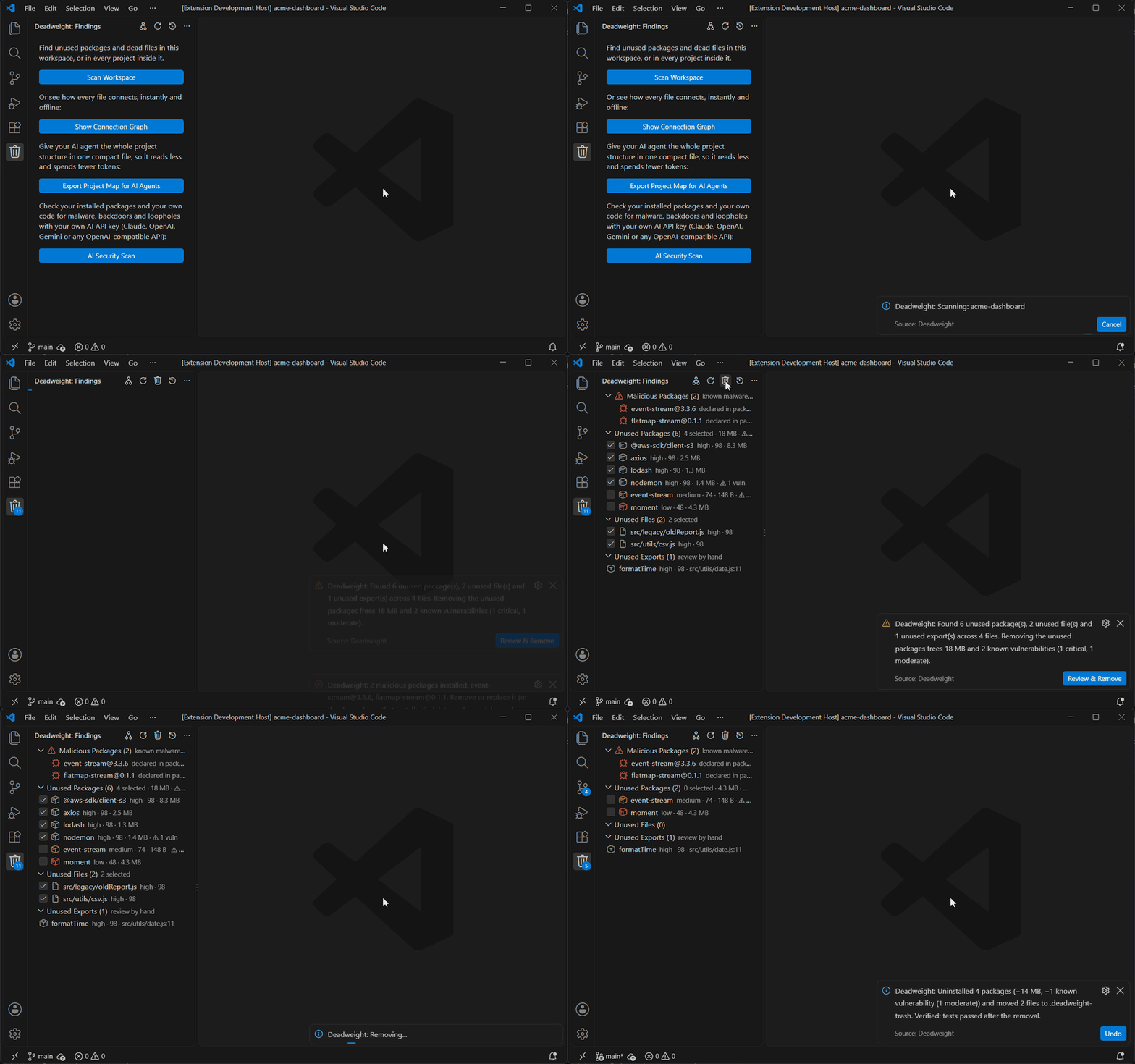
Install from the Marketplace · or run ext install kalyanmanna.deadweight from Ctrl+P
- 📦 Unused packages: dependencies nothing imports, with the MB each one frees from
node_modules - 🗂️ Dead files and unused exports: code no entry point can reach, marked right in the editor
- ☣️ Malicious dependencies: every installed package checked against the npm advisory database and OSV.dev malware records
- 🎯 Safe-to-delete score: every finding rated 0–99 with the reason, so you know what's safe before you touch it
- ✅ Verified one-click removal: your own type check, build and tests run after removal, and it's undone automatically if anything breaks
- 🔓 Deletes vulnerabilities too: see the known CVEs you remove, e.g. "frees 84 MB and 3 known vulnerabilities"
- 🕸️ Connection graph, blast radius, MCP server for AI agents and a PR guard GitHub Action
Works with npm, yarn and pnpm, in JavaScript and TypeScript projects, including folders with several projects.
📑 Contents
- The problem
- Quick start (1 minute)
- The complete workflow
- Understanding the safe-to-delete score
- The Connection Graph
- Commands & settings
- Troubleshooting & FAQ
- How it works
- Safety philosophy
- Development
🚨 The Problem
Modern projects accumulate technical clutter surprisingly fast.
You install a package for a feature that gets removed.
You create a utility file that stops being used.
You leave behind dependencies from an old implementation.
Over time, these become deadweight: unnecessary dependencies, unused files, larger projects, harder navigation, more maintenance and more technical debt.
Tools that detect dead code already exist — but they print a list of 40 paths in a terminal and leave you to double-check every one before daring to delete anything. Most people never act on it.
Deadweight closes that loop: detect → understand → remove safely → undo if needed.
⚡ Quick start (1 minute)
- Install — in VS Code open Extensions (
Ctrl+Shift+X/Cmd+Shift+X), search Deadweight, click Install. - Open your project — File → Open Folder… and pick the folder that contains your
package.json. - Click the Deadweight icon (🗑️) in the left activity bar → Scan Workspace.
- Read the results — every item has a score like
high · 98. Hover it to see why. - Click the trash icon at the top of the panel → check the preview → Remove.
- Changed your mind? Click Undo.
That's it. The rest of this page explains each step in detail.
🧭 The complete workflow
 Install ─► Open project ─► Scan ─► Read scores ─► Investigate ─► Review & Remove ─► (Undo) ─► Scan again
                              │                        ▲
                              └──► Connection Graph ───┘   (optional: see how everything connects)
Step 1 — Install
- VS Code: Extensions view → search Deadweight → Install, or press
Ctrl+Pand runext install kalyanmanna.deadweight. - From a file: download the
.vsixfrom the GitHub releases, then Extensions view → ⋯ → Install from VSIX…
Installing does nothing on its own — Deadweight never runs in the background or on startup. It only works when you ask.
Step 2 — Open your project
Open the folder that directly contains package.json (File → Open Folder…).
💡 If your project lives in a subfolder — e.g. you opened
my-projects/but the app is inmy-projects/my-app/— openmy-appitself. Otherwise Deadweight will tell you it can't find apackage.json.
Tip: commit your work to git before cleaning up. Then the cleanup shows up as its own, easy-to-review diff.
Step 3 — Scan
Click the Deadweight icon in the activity bar, then Scan Workspace (or run Deadweight: Scan for unused code from the Command Palette).
- A progress notification appears; you can keep working, or Cancel at any time.
- The first scan downloads the analysis engines and can take 30–60 seconds; later scans take a few seconds.
- When it finishes, the panel fills with three groups:
| Group | What it lists | Can Deadweight remove it? |
|---|---|---|
| 📦 Unused Packages | Dependencies in package.json that nothing imports, runs or configures |
✅ Yes (uninstalls with your package manager) |
| 🗂️ Unused Files | Files no entry point can reach | ✅ Yes (moves them to a trash folder) |
| 🧩 Unused Exports | Exported functions, classes, constants and types that no file imports | ✋ No — you delete the code yourself |
If nothing is found you'll see "No deadweight found" — that's a clean project. 🎉
Step 4 — Read the scores
Every finding shows a band and a safe-to-delete score from 0 to 99:
| Score | Band | Meaning | Pre-checked? |
|---|---|---|---|
| 80–99 | 🟢 high | Independent checks all agree it's unused | ✅ Yes |
| 50–79 | 🟡 medium | Probably unused, but something is worth a look | No |
| < 50 | 🔴 low | Could be used in a way that can't be proven (dynamic imports, config, plugins…) | No |
Hover any finding to read exactly why it got its score — for example "No import found across 5 scanned files; depcheck agrees. Deadweight's graph agrees: nothing imports it." See Understanding the score for all the rules.
Step 5 — Investigate
- Click a finding to open it: a file opens directly, a package jumps to its line in
package.json, an export jumps to the exact function. - In the editor, dead files and unused exports are marked with a ⊘ in the gutter and a note like "Deadweight: unused export · high 98" at the end of the line. Unused files are also dimmed in the Explorer.
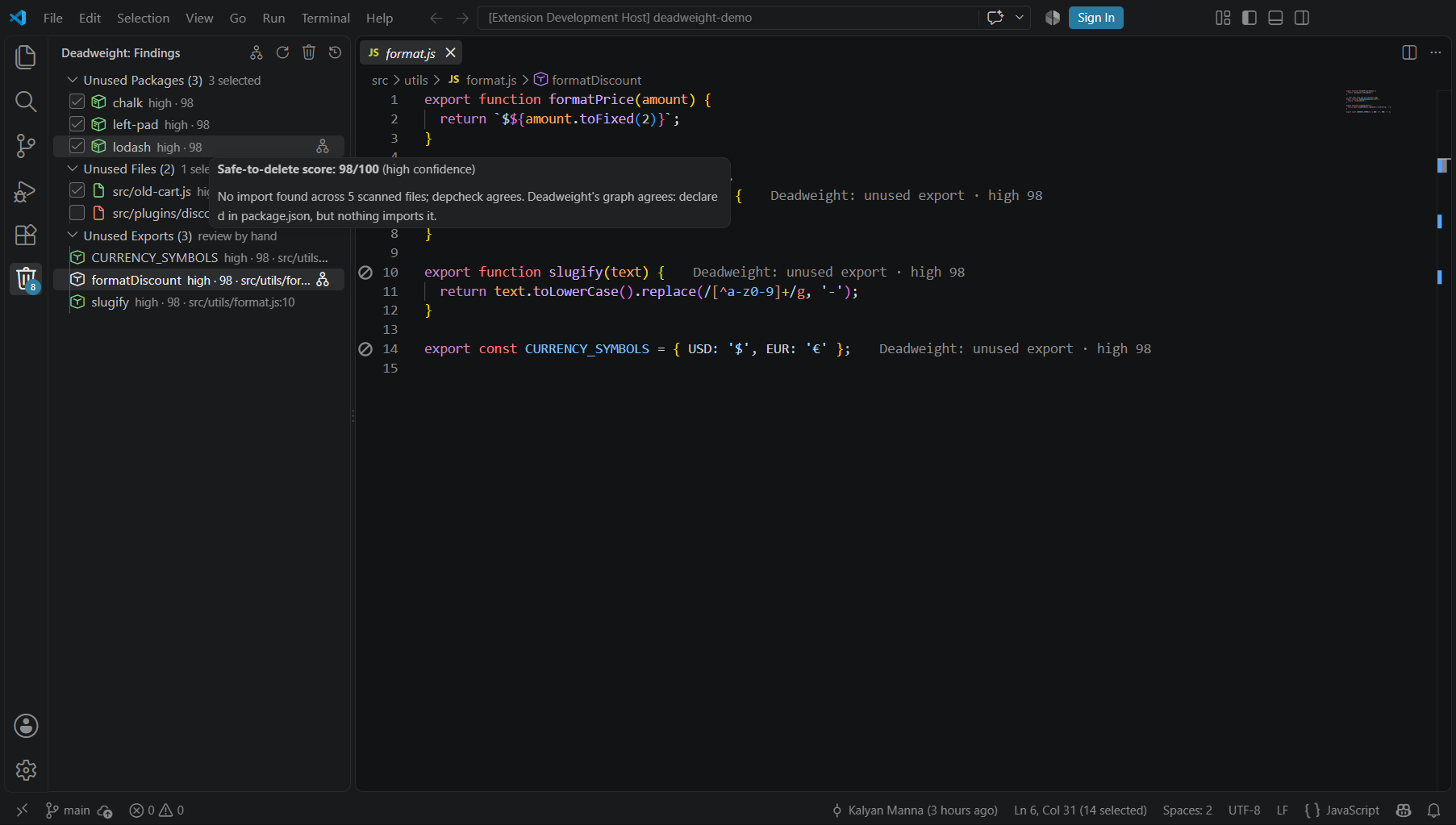
- Right-click a finding → Show in Connection Graph to see what it is (or isn't) connected to.
Step 6 — Review & Remove
- Tick or untick the checkboxes. High-score packages and files start ticked; medium and low never do.
- Click the trash icon at the top of the Deadweight panel (Review & Remove).
- A preview opens — nothing has changed yet. It shows:
- the exact uninstall command (e.g.
npm uninstall chalk left-pad lodash), - a View package.json diff button,
- which files will move to
.deadweight-trash/<timestamp>/, - the checks that will verify the removal (your type check,
buildandtestscripts), - a warning if you have uncommitted changes.
- the exact uninstall command (e.g.
- Click Remove & verify to go ahead, or Cancel to leave everything as it is.
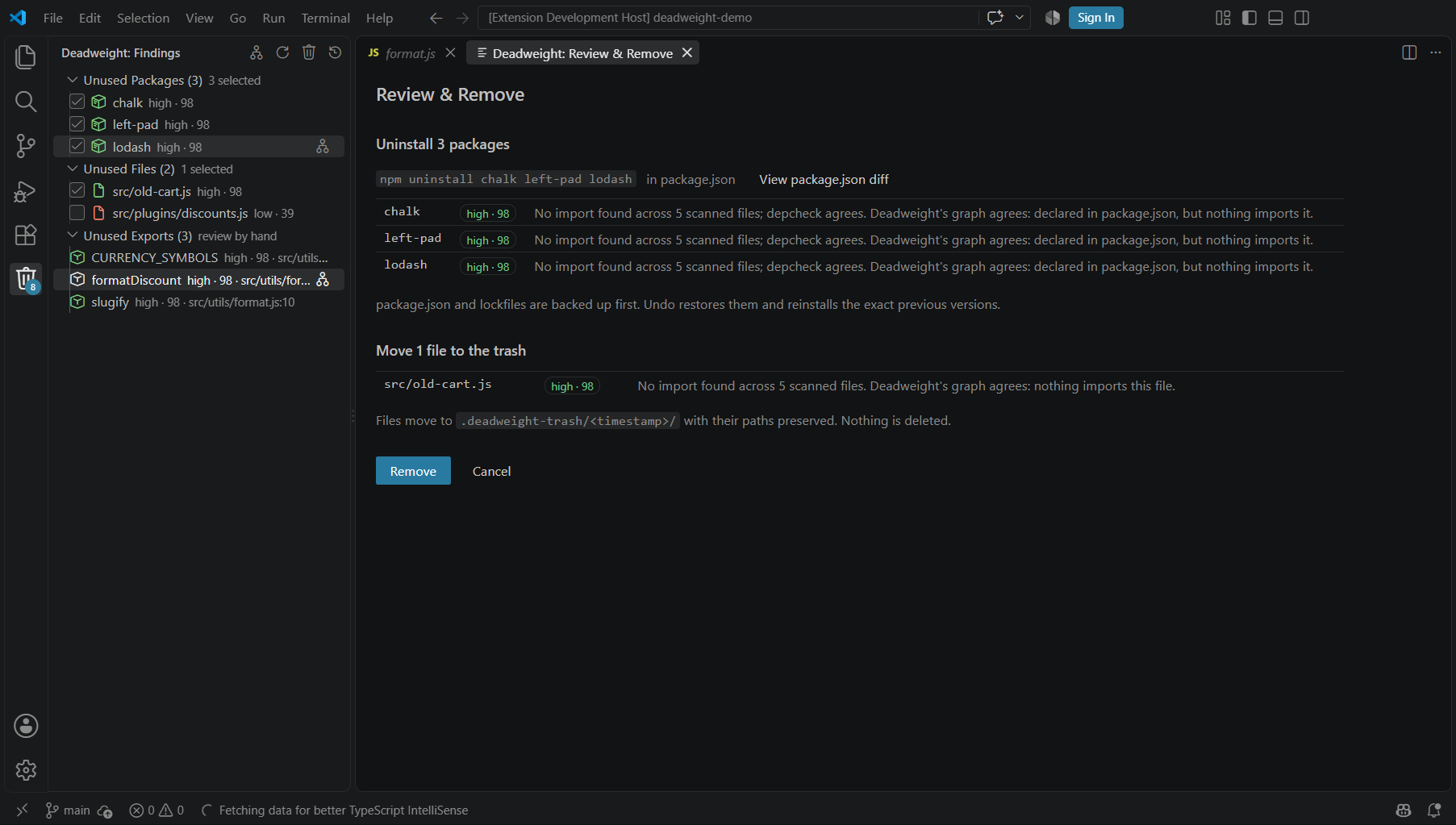
What actually happens:
- Packages are uninstalled in one command with your package manager (npm, yarn, pnpm or bun — detected automatically).
package.jsonand your lockfile are backed up first. - Files are moved, never deleted, into
.deadweight-trash/<timestamp>/with their folder structure preserved. The trash folder is added to your.gitignoreautomatically. - Unused exports are never touched — open them and delete the code by hand if you agree.
🛡️ Delete a vulnerability
Every unused package shows what removing it really gains: the space it and the dependencies nothing else needs take up in node_modules, and the known vulnerabilities among them (from the npm advisory database, the one npm audit uses):
lodash     high · 98 · 1.3 MB · ⚠ 5 vulns
minimist   high · 98 · 32 KB  · ⚠ 1 vuln
Hover a package for the list of advisories with links. The scan summary and the Review & Remove panel add it up: "Frees 1.4 MB and removes 6 known vulnerabilities (1 critical, 2 high, 3 moderate)." Unused code you never run can still be installed, audited against and exploited in your supply chain; removing it is the cheapest fix there is.
The lookup sends the names and versions of the unused packages (and their exclusive dependencies) to registry.npmjs.org, like npm audit does. Turn it off with deadweight.checkVulnerabilities; sizes are measured locally either way.
☠️ Malicious packages
Every scan also checks everything installed in node_modules, used or not, for known malware: hijacked releases of real packages (like [email protected]) and packages published only to steal tokens. The exact installed versions are matched against the npm advisory database and OSV.dev (the OpenSSF malicious-packages records), so a clean version of the same package is never flagged.
⚠ Malicious Packages (2)        known malware · remove by hand
   [email protected]                  declared in package.json
   [email protected]         installed by event-stream
Each one shows its version, whether you declared it or which of your dependencies installs it, and links to the reports on hover. You also get an error notification, with the details in the Deadweight output channel.
Deadweight doesn't remove malware for you: remove or replace the package (or the dependency that installs it), delete node_modules and reinstall. Its code may already have run on install, so treat tokens, keys and .env secrets on that machine as leaked and rotate them.
The check needs dependencies installed, and sends the names and versions of the installed packages to registry.npmjs.org and api.osv.dev. Turn it off with deadweight.checkMalware.
🤖 AI Security Scan (bring your own key)
The databases only know malware that has already been reported. AI Security Scan asks an AI to look for what they can't know yet, using your own API key for Claude, OpenAI, Gemini, or any OpenAI-compatible API (OpenRouter, Groq, Mistral, DeepSeek, a local Ollama server…). Click it in the Deadweight view, or run Deadweight: AI Security Scan. The first time, it asks for the provider, the key and the model.
It reviews:
- Install scripts (
preinstall/install/postinstall) of every installed package, with the files they run. Most npm malware runs this way. - Your dependencies, looking for typosquats and packages pulled from unexpected sources.
- Your own code, configs and CI: lines matching backdoor and exfiltration patterns (
eval, shell commands, base64 payloads, environment dumps, credential-file reads, webhook hosts, reverse shells, hard-coded master passwords, disabled TLS checks), with the code around them. .npmrc,.yarnrcand CI files, where registries and tokens get redirected.
You get a report with a verdict and each finding's severity, location, evidence and fix.
Before anything is sent, Deadweight shows how much evidence will go and to which host, and you can Preview exactly what goes. Tokens, keys and passwords are replaced with <redacted>, and .env and key files are never read. The key is kept in your OS keychain through VS Code's SecretStorage, never in settings or the workspace. Change or remove it with Deadweight: Set AI Provider & API Key.
An AI review is a second opinion, not a guarantee: it sees the evidence Deadweight collected, not every line of every package.
✅ Verified removal
Static analysis can only guess. Deadweight checks its work with your project's own checks:
- Before removing, it runs the ticked checks: your type check (
typecheck/check-typesscript, ortsc --noEmit),buildandtest. Checks that already fail are left out, since they can't prove anything. - After removing, it runs the passing ones again.
- If one that passed before now fails, the removal is undone automatically. Deadweight reads the error output, names the likely cause (e.g. "Cannot find module 'lodash'" →
lodash) and marks it in use, so it stays at the bottom of the score in future scans.
When everything still passes you get "Verified: type check, build and tests passed after the removal", plus the usual Undo. Untick any check in the panel to skip it (your choice is remembered), or turn verification off with deadweight.verifyRemovals.
Step 7 — Undo (if you need to)
- Right after removing: click Undo in the notification. Files go back to where they were and packages are reinstalled at their exact previous versions.
- Any time later: click the clock icon at the top of the panel (Restore from Trash) and pick the removal to restore. Every removal is kept until you delete it.
When you're happy with a cleanup, you can delete the .deadweight-trash folder yourself.
Step 8 — Scan again
Click the refresh icon at the top of the panel. The list should be shorter — or show "No deadweight found".
🎯 Understanding the safe-to-delete score
Deadweight never guesses and never uses AI. Every score comes from evidence it can show you, and your code never leaves your machine.
What raises the score — independent engines agreeing:
- knip found no import of it,
- depcheck agrees (packages),
- Deadweight's own connection graph agrees nothing reachable uses it,
- for exports: the name appears in no other file at all.
What lowers the score — anything that could mean it's still used:
| Situation | Effect |
|---|---|
Loaded by a computed import like import(`./plugins/${name}.js`) or require(x) |
→ low |
| Referenced by path or name in a config file (webpack, next.config, …) | → low / medium |
| Run by an npm script or CI | → medium |
Type definitions (@types/*), a peer dependency of another package |
→ low |
| Plugins and presets loaded by name (ESLint, Babel, PostCSS, …) | → medium |
Barrel files (index.ts), packages inside a monorepo workspace |
→ medium |
| An entry file's exports (may be public API) | → medium |
Agreement can raise a score only within the band its risks allow — a risky item can never climb to high. The score never reaches 100, because nothing is ever certain.
🕸️ The Connection Graph
An interactive map of how every file and package in your project connects — built in milliseconds, fully offline, no scan needed.
Open it with the graph icon at the top of the Deadweight panel, or Deadweight: Show Connection Graph from the Command Palette.
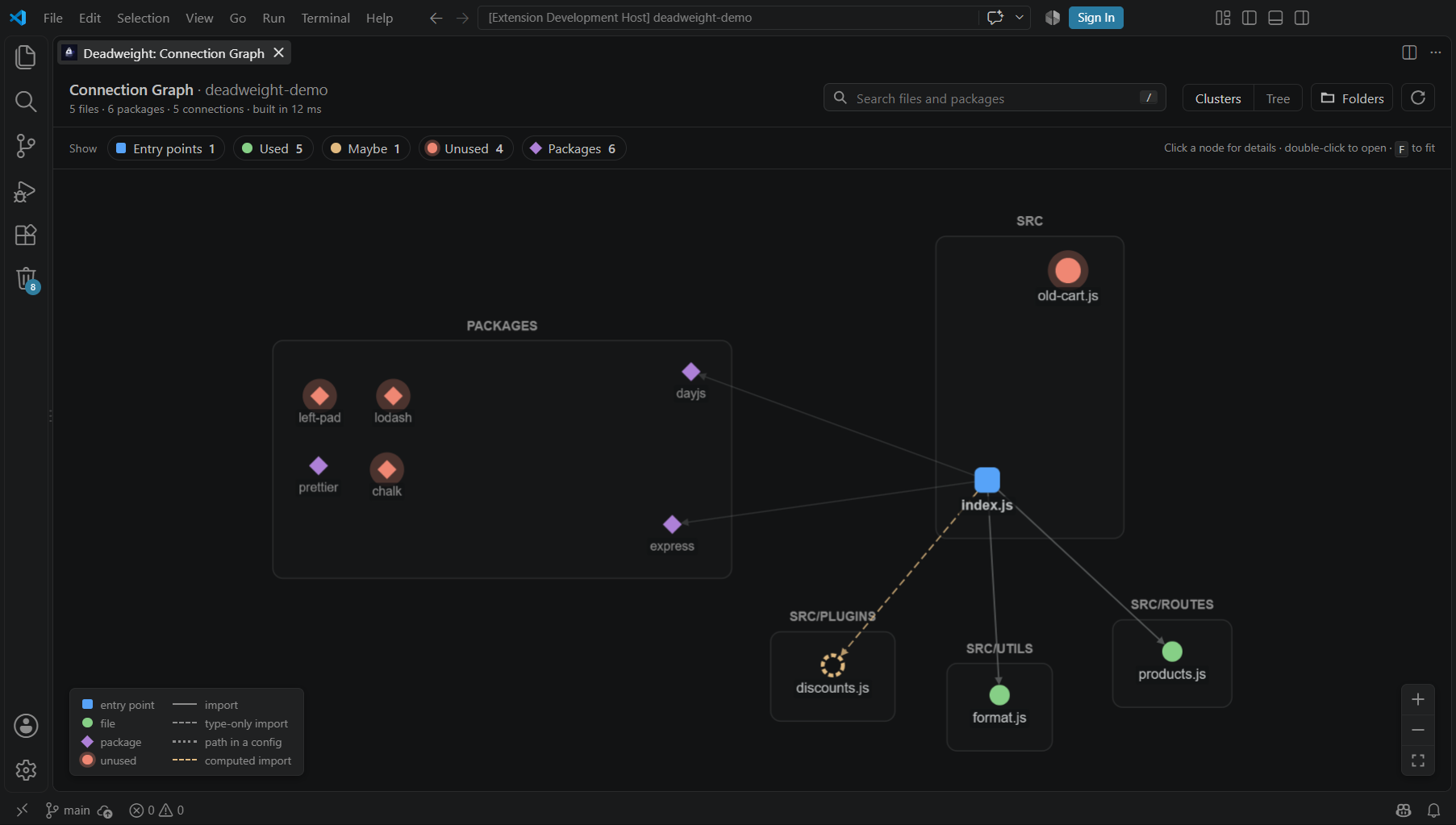
Reading it
| Shape / line | Meaning |
|---|---|
| 🟦 square | Entry point — where the app starts (main/bin, framework pages, configs, tests, npm scripts) |
| 🟢 circle | Used file — reachable from an entry point |
| 🟡 dashed circle | Maybe — only reachable through a computed import, can't be proven |
| 🔴 glowing circle | Unused — nothing reachable uses it |
| ◆ diamond | Package (purple = used, red = unused) |
| solid line | import · dashed: type-only import · dotted: path in a config · yellow dashed: computed import |
Using it
| To… | Do this |
|---|---|
| See why a file is used or unused | Click it — the details panel shows the reason, Imported by and Imports |
| Open a file | Double-click it, or Open file in the details panel |
| Find a file | Type in the search box (press /), Enter jumps to each match in turn |
| Show only the problems | Click the Entry points and Used chips to hide them (their neighbours stay faintly visible for context) |
| Hide packages | Click the Packages chip |
| See the flow from the entry points | Switch the layout to Tree |
| Zoom | Mouse wheel, the + / − buttons, or F to fit everything |
| Update after editing code | Click Rebuild (⟳) |
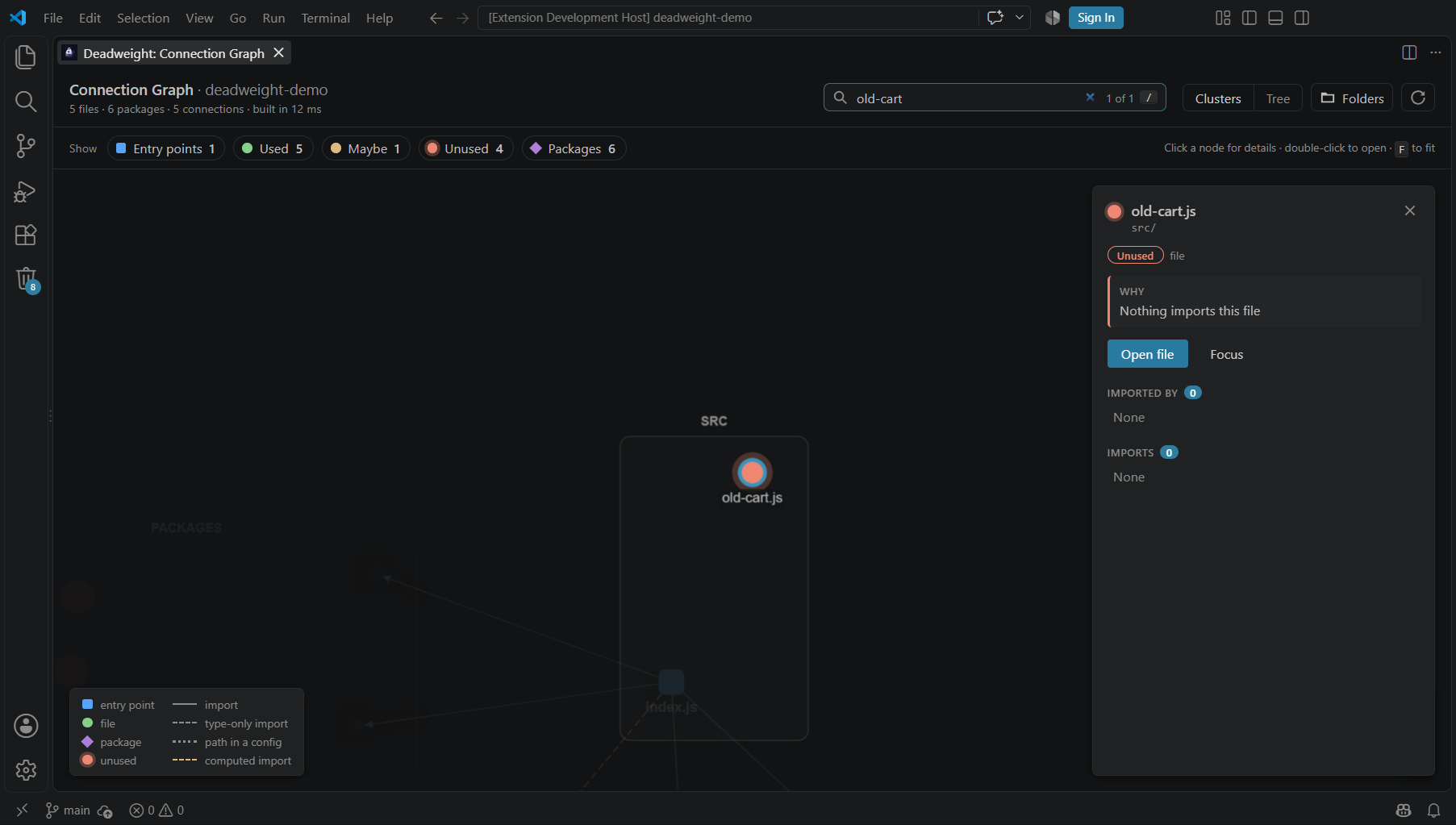
Your filters and layout are remembered. Very large projects open on the problems only; click a chip to show everything.
💥 Blast radius: what breaks if I change this?
Right-click any JavaScript/TypeScript file (in the Explorer, its editor tab or the editor) → Show Blast Radius. You get every file that depends on it, directly or through other files, and the entry points it reaches (pages, commands, tests):
Blast radius of format.ts: 14 files (5 direct, 9 indirect) · 3 entry points
Pick a file to open it, or Show in Connection Graph to see the whole chain highlighted in orange. In the graph, every file's details panel shows its blast radius with a Highlight what it can break button.
🤖 AI agents (MCP)
Deadweight ships an MCP server, so coding agents can ask how your project connects instead of opening file after file to find out. That's fewer tokens and fewer wrong guesses.
| Tool | What the agent gets |
|---|---|
project_map |
The compact project map (every file, its imports, entry points, unused code), optionally for one folder |
file_info |
What a file imports, what imports it, whether it's used, and its blast radius |
blast_radius |
Everything a change to a file or package can break, and the entry points affected |
import_path |
The import chain from one file to another file or package |
find_unused |
Unused and maybe-unused files and packages, with reasons |
Connect an agent: run Deadweight: Connect AI Agents (MCP) and pick yours.
- GitHub Copilot (VS Code 1.101+): nothing to do. Deadweight appears in Copilot Chat's Agent mode tools list.
- Claude Code: registers it with
claude mcp addin a terminal. - Cursor: adds it to the project's
.cursor/mcp.json. - Anything else (Windsurf, Claude Desktop, Cline, Zed…): copies an
mcpServersconfig to paste.
The server runs offline on your machine and only reads source files. Agents other than Copilot need Node.js on your PATH.
🛡️ PR guard (GitHub Action)
Stop dead code at the door. The Deadweight action scans every pull request and its base branch, and comments with only what the PR adds: new unused files, packages and exports, with their safe-to-delete score and any known vulnerabilities. Old dead code on the base branch never makes a PR noisy.
Add .github/workflows/deadweight.yml:
name: Deadweight
on: pull_request

permissions:
  contents: read
  pull-requests: write   # to comment

jobs:
  deadweight:
    runs-on: ubuntu-latest
    steps:
      - uses: actions/checkout@v5
      - uses: actions/setup-node@v5
        with:
          node-version: 24
      - run: npm ci                       # optional: enables sizes and vulnerability checks
      - uses: Kalyan-github-4/DeadWeight@v1
        with:
          fail-on: none                   # or "new" / "new-high" to fail the check
What you get on each pull request:
- One comment, updated on every push (never a new one each time): "This pull request adds 1 unused package and 2 unused files", a table with scores and reasons, a warning when the new unused packages carry vulnerabilities, and a 🎉 when the PR removes dead code.
- Inline warnings on the changed lines of the diff.
- A caution block and a failed check when a known-malicious package is installed, on any PR, with the version and the dependency that installs it.
- A job summary, and outputs
added,removed,existing,vulnerabilities,malwarefor later steps.
| Input | Default | |
|---|---|---|
path |
. |
Folder to scan; may hold one project or several |
fail-on |
none |
new: fail when the PR adds unused code · new-high: only for high-confidence findings |
comment |
true |
Set false to only write the job summary |
check-vulnerabilities |
true |
Look up known vulnerabilities (run npm ci first) |
check-malware |
true |
Check every installed package for known malware (run npm ci first). Malware fails the check, whatever fail-on says |
exclude |
.gitignore-style patterns, one per line |
|
entry-points |
Extra entry-point globs, one per line |
Pull requests from forks get a read-only token, so they get the job summary and annotations but no comment.
⚙️ Commands & settings
Commands
| Command | What it does |
|---|---|
| Deadweight: Scan for unused code | Find unused packages, files and exports |
| Deadweight: Show Connection Graph | Open the interactive file & package graph |
| Deadweight: Review & Remove | Preview and remove the checked findings |
| Deadweight: Restore from Trash | Undo any earlier removal |
| Deadweight: Show Blast Radius | See every file a change to this file can break (also on right-click) |
| Deadweight: Connect AI Agents (MCP) | Give Copilot, Claude Code, Cursor and others Deadweight's graph tools |
| Deadweight: Export Project Map for AI Agents | Save or copy a compact map of the project for any AI chat |
| Deadweight: AI Security Scan (Malware & Backdoors) | Have Claude, OpenAI, Gemini or another AI review install scripts, dependencies and your code, with your own API key |
| Deadweight: Set AI Provider & API Key | Choose the AI provider and model, and save or remove the API key |
Settings
Open Settings (Ctrl+,) and search Deadweight.
| Setting | Default | Use it when |
|---|---|---|
deadweight.exclude |
[] |
You want to hide some files or packages from the results, as .gitignore-style patterns: legacy/, **/*.stories.tsx, @types/* |
deadweight.entryPoints |
[] |
A file is run in a way Deadweight can't see (a cron job, a custom loader). Globs like scripts/*.js — they and everything they import count as used |
deadweight.minimumConfidence |
low |
You only want to see medium+ or high results |
deadweight.packageManager |
auto |
You want to force npm, yarn, pnpm or bun |
deadweight.verifyRemovals |
true |
Turn off if your checks are too slow to run twice per removal |
deadweight.verifyTimeoutMinutes |
10 |
A check needs longer than 10 minutes (it counts as failed after this) |
deadweight.checkVulnerabilities |
true |
Turn off to keep package names from being sent to the npm advisory database |
deadweight.checkMalware |
true |
Turn off to skip the malware check, which sends installed package names to the npm advisory database and OSV.dev |
deadweight.ai.provider / deadweight.ai.model / deadweight.ai.baseUrl |
— | You want to change the AI security scan's provider, model or OpenAI-compatible URL (application-wide only; the key itself is in the keychain) |
Example .vscode/settings.json:
{
  "deadweight.exclude": ["legacy/", "@types/*"],
  "deadweight.entryPoints": ["scripts/*.js"],
  "deadweight.minimumConfidence": "medium"
}
🩺 Troubleshooting & FAQ
"No package.json found in …"
You opened a folder above your project. Open the folder that directly contains package.json (File → Open Folder…).
The scan failed.
Click Show Details on the error (or View → Output → Deadweight). The scan needs Node.js and npm on your PATH, and an internet connection the first time, because it runs knip and depcheck through npx. The Connection Graph works without either.
The first scan is slow.
The first run downloads the analysis engines. Later scans take a few seconds.
Deadweight flagged something I actually use.
It's probably loaded in a way no static analysis can see. Add it to deadweight.entryPoints (for files) or deadweight.exclude, and please open an issue — false positives are the thing we care about most.
Does it upload my code anywhere?
No. Everything runs locally. No AI, no API key, no telemetry.
Does it delete my files?
No. Files are moved to .deadweight-trash/, and every removal can be undone.
Why can't it remove unused exports for me?
Deleting code inside a file is a change a human should make and review. Deadweight shows you exactly where each one is.
Does it work in Cursor / Windsurf / VSCodium?
Yes — it needs VS Code 1.90 or newer (or a compatible editor). Install it from the .vsix file if the editor can't reach the VS Code Marketplace.
Which projects are supported?
JavaScript and TypeScript projects with a package.json — React, Next.js, Vue/Nuxt, Svelte/SvelteKit, Remix, Astro, Gatsby, Angular, Expo/React Native, Node CLIs and servers. Monorepos work, with findings inside workspace packages capped at medium confidence for now.
Requirements
- VS Code 1.90 or newer
- Node.js and npm on your
PATH(for the scan) - Internet access for the first scan
🧠 How it works
                        ┌─────────────┐
                        │   Project   │
                        └──────┬──────┘
          ┌────────────────────┼────────────────────┐
          ▼                    ▼                    ▼
        knip               depcheck          Deadweight graph
  (files, packages,     (second opinion     (its own import graph:
      exports)            on packages)       entry points → reachability)
          └────────────────────┼────────────────────┘
                               ▼
                 Safe-to-delete score + reasons
                               │
                    ┌──────────┴──────────┐
                    ▼                     ▼
               ✅ Required          💀 Deadweight
                                         │
                            Review → Remove → Undo
Deadweight's own graph finds your entry points (main/bin/exports in package.json, framework conventions for Next.js, Nuxt, SvelteKit, Remix, Astro, Gatsby, Angular and Expo, npm scripts, CI workflows, config files and tests), resolves every import (relative paths, index files, .js→.ts, tsconfig/jsconfig path aliases, monorepo packages, file paths in configs and build scripts) and walks from the entry points to see what's reachable. When independent engines agree, confidence goes up; anything they can't prove lowers it.
🔐 Safety Philosophy
Deadweight should never encourage developers to blindly delete code.
A file or dependency can appear unused while still being required through:
- Dynamic imports
- Configuration
- Build tooling
- Runtime behavior
- Framework conventions
- External consumers
That's why Deadweight is an analysis and decision tool, not an auto-deleter:
- every finding explains itself,
- uncertain items are never pre-checked,
- nothing is removed without a preview,
- files go to a trash folder instead of being deleted,
- and every removal can be undone.
🧪 Development
git clone https://github.com/Kalyan-github-4/DeadWeight.git
cd DeadWeight
npm install
npm run compile
Press F5 in VS Code to launch an Extension Development Host with Deadweight loaded.
| Script | What it does |
|---|---|
npm run compile |
Type-check, lint and build |
npm run watch |
Rebuild on every change |
npm run test:unit |
Unit tests, including the zero-false-positive release gate on the fixture projects |
npm run vsix |
Build deadweight-<version>.vsix |
Tech stack: VS Code Extension API · TypeScript · Node.js · knip & depcheck · Cytoscape.js
🗺️ Roadmap
- Unused dependency detection
- Dead-file analysis
- Unused export detection
- Safe-to-delete score with explanations
- Connection graph visualization
- One-click cleanup with undo
- Configurable safety rules
- Framework-specific analysis
- Automatically find projects in subfolders
- Full monorepo support (cross-workspace verification)
- Bundled engines for faster, fully offline scans
- CI/CD integration (PR guard GitHub Action)
- Malicious package detection
📄 License
MIT © Kalyan Manna
Reviews (0)
Sign in to leave a review.
Leave a reviewNo results found