itop-ai-assistant
Health Warn
- License — License: AGPL-3.0
- Description — Repository has a description
- Active repo — Last push 0 days ago
- Low visibility — Only 5 GitHub stars
Code Pass
- Code scan — Scanned 12 files during light audit, no dangerous patterns found
Permissions Pass
- Permissions — No dangerous permissions requested
No AI report is available for this listing yet.
AI-powered middleware for Combodo iTop that reduces ticket back-and-forth and helps engineers start working faster.
iTop AI Assistant


AI-powered middleware for Combodo iTop that reduces ticket back-and-forth and helps engineers start working faster.
The problem
Engineers waste time on tickets that arrive without enough information: vague descriptions, missing hardware details, no steps to reproduce. Before any work can start, they have to write back to the user and wait. This creates delays, drops SLA metrics and frustrates everyone.
How it works
The engineer sees the ticket only when it's ready to work on.
When a new ticket arrives, the assistant intercepts it via webhook — no changes to iTop itself are needed. Processing runs as a single AI agent that decides what the ticket needs and acts through a fixed set of tools:
- Classify — if the ticket has no service or subcategory, the agent reads the service catalog from iTop and writes the best match back to the ticket. The classification tools validate every id against the catalog, so the agent cannot invent a category.
- Ask — if the ticket is too vague to classify or to work on, the agent posts exactly one focused clarifying question in the public log and stops. The user replies through the portal as usual, which triggers a new webhook and a fresh round. Two rounds at most per stage, then the ticket moves on with whatever is available.
- Hand off — once the picture is clear, the agent writes a structured internal note for the engineer and marks the ticket done.
The subcategory's own description in iTop is what the agent treats as the completeness criteria — so the questions it asks are specific to the service context, not generic prompts.
The agent decides the order; the tools enforce the rules. The round limits, the "one question per run" rule and the "stop once an engineer takes the ticket" guard are plain code, not instructions in a prompt — a model that misbehaves gets its call rejected rather than the ticket damaged.
All AI actions are performed under a dedicated iTop service account, so every comment is clearly attributed and auditable. Every run leaves a full trace — each model turn, each tool call and its result, tokens and wall time — in the Runs screen of the admin UI.
Examples
Scenario 1 — incomplete ticket
A user opens a ticket in the service portal:
Title: printer broken
Description: Not printing.
The service subcategory is Hardware, which requires: device model, OS and exact error. The description provides none of this. The assistant posts in the public log within seconds:
AI Assistant
Thank you for reaching out! To help us resolve this quickly, could you please provide:
— the manufacturer and model of the printer (e.g. HP LaserJet 400 M401dn);
— your operating system and version;
— the exact error message or what happens when you try to print.
Scenario 2 — complete ticket
Another user submits:
Title: HP LaserJet 400 M401dn not printing after Windows 11 update
Description: My HP LaserJet 400 M401dn stopped printing after a Windows 11 update yesterday evening. Error: "Driver unavailable". Already restarted both printer and PC.
All required fields are present. No question is asked. Instead, the engineer immediately sees an internal note:
AI Assistant (internal note)
Issue: HP LaserJet 400 M401dn stopped printing after a Windows 11 update. Error: "Driver unavailable".
Already tried: Restarted printer and PC.
Suggested next step: Reinstall or update the printer driver from HP's website; check if Windows Update pushed an incompatible driver version.
The flow
Ticket created           User commented
       │                        │
       └───────────┬────────────┘
                   │
                   ▼
┌─ guard (plain code) ──────────────────────────────┐
│  Already processed?      ──yes──▶  stop           │
│  Engineer assigned?      ──yes──▶  stop           │
│  Last comment was ours?  ──yes──▶  stop           │
└─────────────────────────┬─────────────────────────┘
                          │ no
                          ▼
┌─ agent session ───────────────────────────────────┐
│  In the prompt: the ticket, the conversation,     │
│  plus the service catalog while the ticket is     │
│  still unclassified.                              │
│                                                   │
│  The agent picks a tool, the tool enforces:       │
│                                                   │
│   set_classification    service + subcategory     │
│                         set, session continues    │
│   post_public_question  one question in the       │
│                         public log, session ends  │
│   finish_handoff        internal note for the     │
│                         engineer, session ends    │
└─────────────────────────┬─────────────────────────┘
                          ▼
Ticket marked processed, or left waiting for a reply
that arrives as the next webhook
Requirements
- iTop 3.x with REST API enabled
- Redis (included in the Docker Compose stack)
- Postgres with
pgvector— optional, only for the semantic index that upcoming features build on. Included in the compose stack but unused untilDATABASE_URLis set; without it the assistant runs Redis-only - An LLM that calls tools reliably — OpenAI, Google Gemini, Ollama, or any OpenAI-compatible endpoint (LM Studio, vLLM, LiteLLM Proxy, DeepSeek, Azure); see supported providers
- Docker and Docker Compose for the quick start; uv for local development
Quick start
git clone https://github.com/knowitop/itop-ai-assistant.git
cd itop-ai-assistant/docker
cp .env.dist .env
docker compose up -d
The compose stack starts iTop, Redis and the assistant together. If you already have an iTop or Redis instance, comment out those services in docker-compose.yml.
Once running:
| Service | URL |
|---|---|
| iTop | http://localhost:8000 |
| Admin UI | http://localhost:8001/ui |
| API docs | http://localhost:8001/docs |
Open http://localhost:8001/ui — the Setup Wizard starts automatically and walks you through all the required steps.
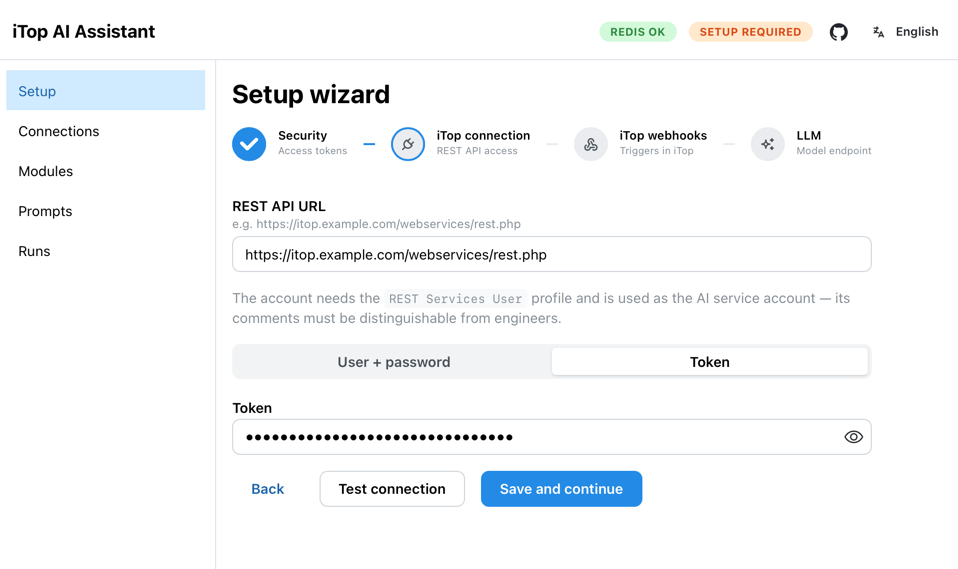
Documentation
- Setup — setup wizard walkthrough and manual iTop configuration
- Admin UI — Connections, Modules, Prompts and Runs screens
- Configuration — environment variables, module settings and supported LLM providers
- Customizing prompts — editing LLM prompts via UI or files
Roadmap
The current release covers the first-contact intake loop — intercepting new tickets, asking clarifying questions and preparing them for the engineer. Planned next phases:
- Pattern analysis — background jobs that surface recurring issues and trends across tickets.
- Knowledge base maintenance — automatically flag outdated KB articles and suggest updates based on resolved tickets.
- Change Management review — AI-assisted risk and impact assessment for RFCs.
- Engineer console — an AI panel inside the iTop ticket page: explicit slash commands for summaries, similar past tickets and draft replies, plus free-text questions answered by a read-only agent that cannot change the ticket.
- User memory — persistent context per user across tickets: no repeated questions about device or department, automatic adaptation to technical vs. non-technical communication style and pattern detection across a user's ticket history.
Feedback and ideas are welcome in GitHub Issues.
Local development
Requires uv.
cd assistant
uv sync
cp docker/.env.dist .env   # fill in LLM and iTop settings
uv run uvicorn itop_ai_assistant.main:app --host 0.0.0.0 --port 8001 --reload
Tests:
cd assistant
uv run pytest                   # unit tests (mocked LLM, iTop and Redis), with coverage
uv run pytest test/pg           # pgvector tests (Testcontainers, needs Docker)
uv run pytest test/integration   # agent against a real LLM (needs .env.test)
Only the unit tests run by default; the other two suites are opt-in because they need a Docker daemon and a reachable model endpoint respectively.
Admin UI (requires Node.js; the dev server proxies /api to the backend on :8001):
cd ui
npm ci
npm run dev     # hot-reload dev server
npm run build   # production build into ui/dist
Architecture details and development conventions are in CLAUDE.md.
License
Reviews (0)
Sign in to leave a review.
Leave a reviewNo results found