clipbubble
Health Warn
- License — License: MIT
- Description — Repository has a description
- Active repo — Last push 0 days ago
- Low visibility — Only 5 GitHub stars
Code Fail
- rm -rf — Recursive force deletion command in .github/workflows/linux.yml
Permissions Pass
- Permissions — No dangerous permissions requested
No AI report is available for this listing yet.
A tiny bubble that remembers everything you copy. Clipboard history for macOS with a mascot and an MCP server for AI agents.
ClipBubble
A tiny bubble that remembers everything you copy.
Clipboard history for macOS, Windows and Linux with a mascot, a magnet, and an MCP server for your AI agents.
Plus an iPhone app that syncs with any of them.
Download · Website · MCP · Mascots

What it does
- A floating bubble with a pet. It stays translucent in a screen corner until you need it. Drag it anywhere and it magnet-snaps to the nearest corner. When it catches a copy, the mascot hops and a badge counts up. Rather not see it all day? On Mac and Windows, switch on Hide bubble until needed in Settings: it stays out of sight until you copy something or press ⌃⌥B, and leaves again after a few idle seconds.
- Remembers 7 days of everything. Text, images, files, every screenshot (even the ones you never copied), recent downloads, and copies from your iPhone through Universal Clipboard.
- You choose what shows up. Settings (⚙ in the panel) has a switch for each kind. Off means it isn't saved and is hidden everywhere, your agents included.
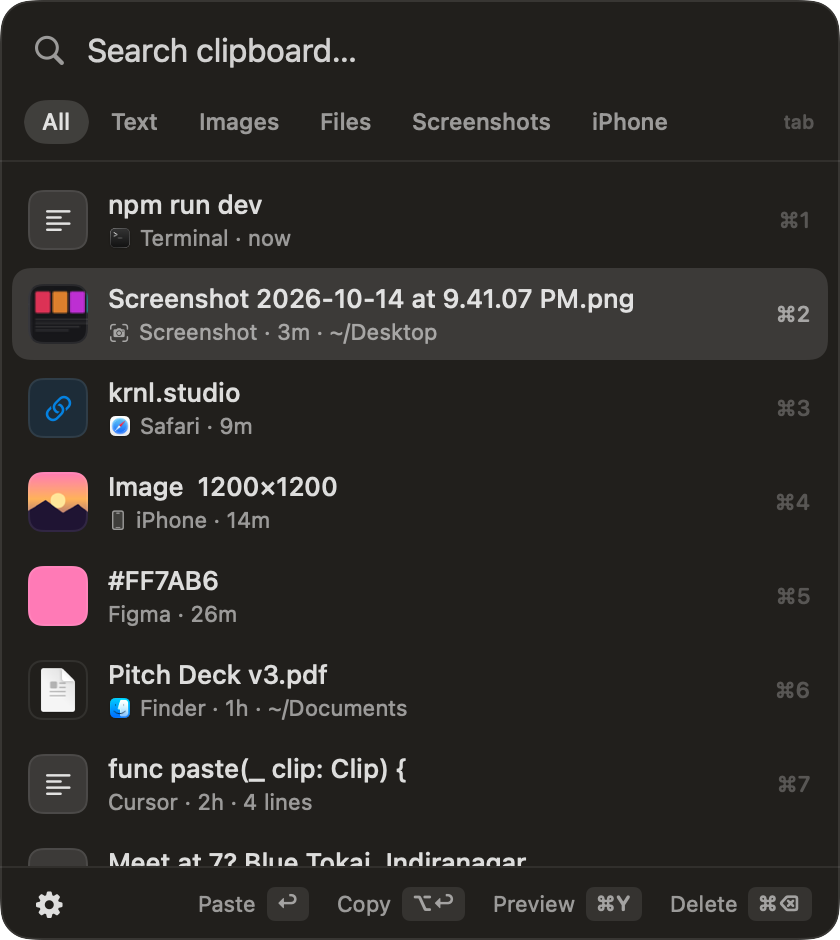
- Paste without hunting. Press ⌃⌥V anywhere, type to search, and press ↩: it pastes straight into the app you were in. Or drag any item out into Slack, Figma or a browser upload.
- Hover to peek at your last three copies; one click pastes.
- Built-in MCP server. Claude Code, Codex, Cursor and Claude Desktop can read your clipboard history (and actually see the images), put things on your clipboard, and design new mascots for you.
- Private and tiny. Native Swift with zero dependencies. Everything lives in a local SQLite file. Nothing leaves your Mac apart from an update check with GitHub, which you can turn off, sync with devices you linked yourself, and what you let AI tools read over MCP. It skips password-manager copies and deletes its history after 7 days. A file another device sent you stays in
Downloads/ClipBubbleuntil you delete it. It uses about 30 MB of RAM and 0% CPU at idle.
Install
Download: grab ClipBubble.dmg from Releases, open it, and drag ClipBubble.app to Applications. It's signed and notarized by Apple, so it opens like any other app.
Or build from source (needs the Xcode command line tools):
git clone https://github.com/rohit3a/clipbubble && cd clipbubble && ./build.sh
build.sh compiles the app, installs it to ~/Applications and launches it. Requires macOS 14 or later.
Updates: ClipBubble checks GitHub for a new version every few hours. When there is one, a dot appears on ⚙, and Settings → General → Update installs it and reopens the app. ClipBubble --update does the same from a terminal.
Permissions: Settings (⚙ in the panel) → Folders & permissions shows each one live, with a switch and a Fix button that opens the right page in System Settings:
- Screenshots: ClipBubble watches the folder from your macOS screenshot setting (⌘⇧5 → Options → Save to), and notices when you change it. You can also pick a different folder.
- Recent downloads: your Downloads folder.
- Auto-paste: needs Accessibility access. Without it (or with it switched off), picking an item just copies it.
Windows
The Windows version lives in Windows/. It's a separate C# app with the same panel, mascots, history database and MCP tools. It needs Windows 10 22H2 or Windows 11 and nothing else. It runs on the .NET Framework that ships with Windows, as one 360 KB ClipBubble.exe.
Download: grab ClipBubble.exe from Releases, put it in %LOCALAPPDATA%\Programs\ClipBubble and run it. Anywhere works on its own, but other devices look for it there. It isn't signed, so the first launch shows SmartScreen: click More info → Run anyway. After that it updates itself from Settings → General → Update.
Or build from source (needs the .NET SDK):
git clone https://github.com/rohit3a/clipbubble; cd clipbubble
powershell -ExecutionPolicy Bypass -File Windows\build.ps1
Windows blocks unsigned scripts by default, which is why the command allows this one. build.ps1 builds the app, installs it to %LOCALAPPDATA%\Programs\ClipBubble and launches it. To run the tests, run dotnet build Windows\Tests\ClipBubble.Tests.csproj -c Release, then Windows\Tests\bin\Release\net48\ClipBubble.Tests.exe.
What's different on Windows:
- CtrlShiftSpace opens the panel. You can change it in Settings. In the panel, Ctrl replaces ⌘ and Alt replaces ⌥, and CtrlDelete deletes, because Ctrl⌫ deletes a word in the search box.
- CtrlAltB shows or hides the bubble with Hide bubble until needed on. You can change that in Settings too.
- Screenshots come from
Pictures\Screenshots, where WinPrtScn and Snipping Tool save them, or from a folder you pick. - There's no iPhone filter, because Windows has no Universal Clipboard.
- Auto-paste needs no permission. Apps running as administrator only get a copy, because Windows blocks typing into them.
- Copies marked as secret by password managers (
ExcludeClipboardContentFromMonitorProcessing) are never stored. - History lives in
%LOCALAPPDATA%\ClipBubble. - Sync over SSH uses the OpenSSH client built into Windows. For other machines to link to this PC, turn on the OpenSSH Server feature and keep
ClipBubble.exein%LOCALAPPDATA%\Programs\ClipBubble, wherebuild.ps1puts it. Link iPhone… in Settings turns the server on for you.
For MCP, use the path of your ClipBubble.exe, or copy the setup prompt from Settings:
claude mcp add --scope user clipbubble -- "$env:LOCALAPPDATA\Programs\ClipBubble\ClipBubble.exe" --mcp
Linux
The Linux version lives in Linux/. It's a Python app with the same history database, sync and MCP tools, plus a small GNOME Shell extension that watches copies, shows the bubble and pastes. It needs Python 3.8 or later. The panel and bubble need GNOME 48 to 51 with GTK 4, so Ubuntu 25.04 or Fedora 42 or later. On an older desktop, or none, it still syncs and serves MCP. CtrlAltV opens the panel.
Download: grab ClipBubble-Linux.tar.gz from Releases, then run:
tar xzf ClipBubble-Linux.tar.gz && ClipBubble-Linux/install.sh
install.sh installs ClipBubble for your user in ~/.local and starts it at login. Run it again to update. Log out and back in once so GNOME loads the extension.
Sync between computers
Copy on one computer, paste on another: ClipBubble links Macs, Windows PCs and Linux machines directly over SSH, with no server in between.
Link two computers: on one, open ClipBubble → Settings → Sync over SSH → Link iPhone…. Below the QR code it shows an address and a short code. On the other computer, choose Add a computer… in the same place and enter them. On Linux, run clipbubble --link ADDRESS CODE instead. Before anything syncs, it shows who answered, the user it connects as, and that computer's identity, and nothing syncs until you start it.
- It uses ClipBubble's own key,
~/.ssh/clipbubble_ed25519, and sends only its public half. On the other computer, that key can run ClipBubble and nothing else. - It pins the other computer's identity in ClipBubble's own
known_hosts, and never edits~/.ssh/config. Hosts already in~/.ssh/configshow up too, with a switch each. - If a link fails, Settings says at which step: the name doesn't resolve, SSH is off there, its identity is new or changed, the login was refused (naming the user and host it tried), or ClipBubble isn't installed or running there. Each comes with the button that fixes it, such as Check identity… or Link again….
ClipBubble --status(clipbubble --statuson Linux) prints each link's state, version and last connection, and nothing from your history. A Mac app's binary is at~/Applications/ClipBubble.app/Contents/MacOS/ClipBubble.
iPhone
The iPhone app lives in iOS/. It shows the history from your computers, takes anything you share to it, and adds a keyboard that types from your history in any app. It syncs with a Mac, a Windows PC or a Linux computer over SSH on your Wi-Fi, so it gives you a Universal Clipboard with computers Apple's doesn't reach.
Link a computer: on the computer, open ClipBubble → Settings → Sync over SSH → Link iPhone…, and scan the code with the iPhone's Camera. On Linux without a desktop, run clipbubble --pair and scan the code it prints. The iPhone sends its key over your Wi-Fi, and the computer lets that key run ClipBubble and nothing else.
- On Windows, the first link asks to turn on OpenSSH Server, which the iPhone connects to. Installing it can take a few minutes.
- On Linux, the SSH server must be running (
sudo apt install openssh-serveron Ubuntu). If your firewall is on, let the iPhone through once withsudo ufw allow 22,47821/tcp. - The iPhone syncs while ClipBubble or its keyboard is open, because iOS doesn't let apps keep a connection in the background.
Install: the app isn't on the App Store yet. To try it now, install XcodeGen, run xcodegen generate in iOS/, open ClipBubble.xcodeproj in Xcode and run it on your iPhone.
Sync between computers
Settings → Sync over SSH lists the hosts in your ~/.ssh/config, with a switch for each. Turn one on, and your history and new copies go both ways over SSH, using your own keys and nothing else in between. Something you copy on one computer lands on the clipboard of the others. Files up to 25 MB come over on their own, and bigger ones wait for you to press Get. ClipBubble has to be installed on both sides, and Settings can set it up on a Linux host for you.
Keys
| Key | Action |
|---|---|
| ⌃⌥V | Open or close the panel from anywhere |
| ⌃⌥B | Show or hide the bubble, with Hide bubble until needed on. Change it in Settings. |
| ↑ ↓ | Move the selection |
| ↩ | Paste into the app you were in |
| ⌥↩ | Copy only |
| ⌘1–⌘9 | Paste one of the first nine items |
| ⌘Y | Full-size preview |
| ⌘⌫ | Delete from history |
| Tab | Next filter (All, Text, Images, Files, Screenshots, Downloads, iPhone) |
| Esc | Close the preview, clear the search, or close the panel |
Mascots






The blob family blinks, wiggles when you hover, squishes when you click and grins when it catches a copy. Switch mascots from the ⚙ menu in the panel, or add your own image (PNG, GIF, JPG or SVG; GIFs play while you interact with it).
Custom mascots are small JSON files in ~/Library/Application Support/ClipBubble/mascots/:
{ "id": "pinky", "name": "Pinky", "kind": "blob", "color": "#FF6AD5" }
{ "id": "owl", "name": "Owl", "kind": "emoji", "idle": "🦉", "active": "🤩" }
{ "id": "fox", "name": "Fox", "kind": "image", "idle": "fox-idle.svg", "hover": "fox-wave.gif" }
hover and active (shown on click or when a copy lands) fall back to idle.
MCP for AI agents
The app binary doubles as a stdio MCP server. The easiest way to connect an agent: open the panel, click ⚙ → AI agents (MCP) → Copy setup prompt, and paste it into Claude Code, Codex, Cursor or any other agent. It registers ClipBubble itself, using the exact path of your copy of the app, and checks that it works.
Or register it by hand (adjust the path if the app is in /Applications):
claude mcp add --scope user clipbubble -- ~/Applications/ClipBubble.app/Contents/MacOS/ClipBubble --mcp
For Codex it's codex mcp add clipbubble -- <same path> --mcp. For Claude Desktop, Cursor or Windsurf, add "clipbubble": { "command": "<same path>", "args": ["--mcp"] } under mcpServers.
| Tool | What it does |
|---|---|
clipboard_history |
Recent items, filterable by kind, source (iPhone, Screenshot, Downloads, an app name), search text and time |
clipboard_get |
One item in full, including the image itself so the model can see it |
clipboard_set |
Put text or a history item on your clipboard |
mascot_list / mascot_set |
See and switch mascots |
mascot_add / mascot_remove |
Create mascots from a colour, emoji, image files or inline SVG |
Try asking your agent: "Make my ClipBubble mascot a tiny pixel-art fox" or "What was that error I copied an hour ago?"
How it works
Sources/Capture.swiftpolls the clipboard every 0.4 s and waits for it to settle first, so paste-through tools like Wispr Flow (which paste and then restore your clipboard) aren't disturbed and don't clutter history. Copies marked as concealed or transient by password managers are never stored.Sources/Store.swiftkeeps everything in~/Library/Application Support/ClipBubble/clips.sqlite(WAL mode, so the MCP server can read while the app writes). Copied images are stored as PNGs next to it.Sources/UI.swifthas the bubble, the panel and the peek: non-activating panels, so your app keeps focus and ↩ can paste into it.Sources/MCP.swiftis a small JSON-RPC server over stdio, with no SDK.Sources/Mascot.swiftdraws the mascots with plain SwiftUI shapes. When nobody is interacting, the only thing that animates is a blink every few seconds.
License
Reviews (0)
Sign in to leave a review.
Leave a reviewNo results found