spyhop
Health Warn
- License — License: MIT
- Description — Repository has a description
- Active repo — Last push 0 days ago
- Low visibility — Only 5 GitHub stars
Code Fail
- rm -rf — Recursive force deletion command in macos/build.sh
- network request — Outbound network request in site/frames.py
- network request — Outbound network request in site/shots.py
Permissions Pass
- Permissions — No dangerous permissions requested
No AI report is available for this listing yet.
Every AI coding session on one board, each with its own progress. Claude Code and Codex in Orca, Terminal, iTerm2, Ghostty or WezTerm (macOS).

Spyhop
Every AI coding session on one board, each with its own progress.
See all your Claude Code, Codex and OMP sessions at once, and how far each one has come: done, now, next.
Tour the features (intro page with demo video) →







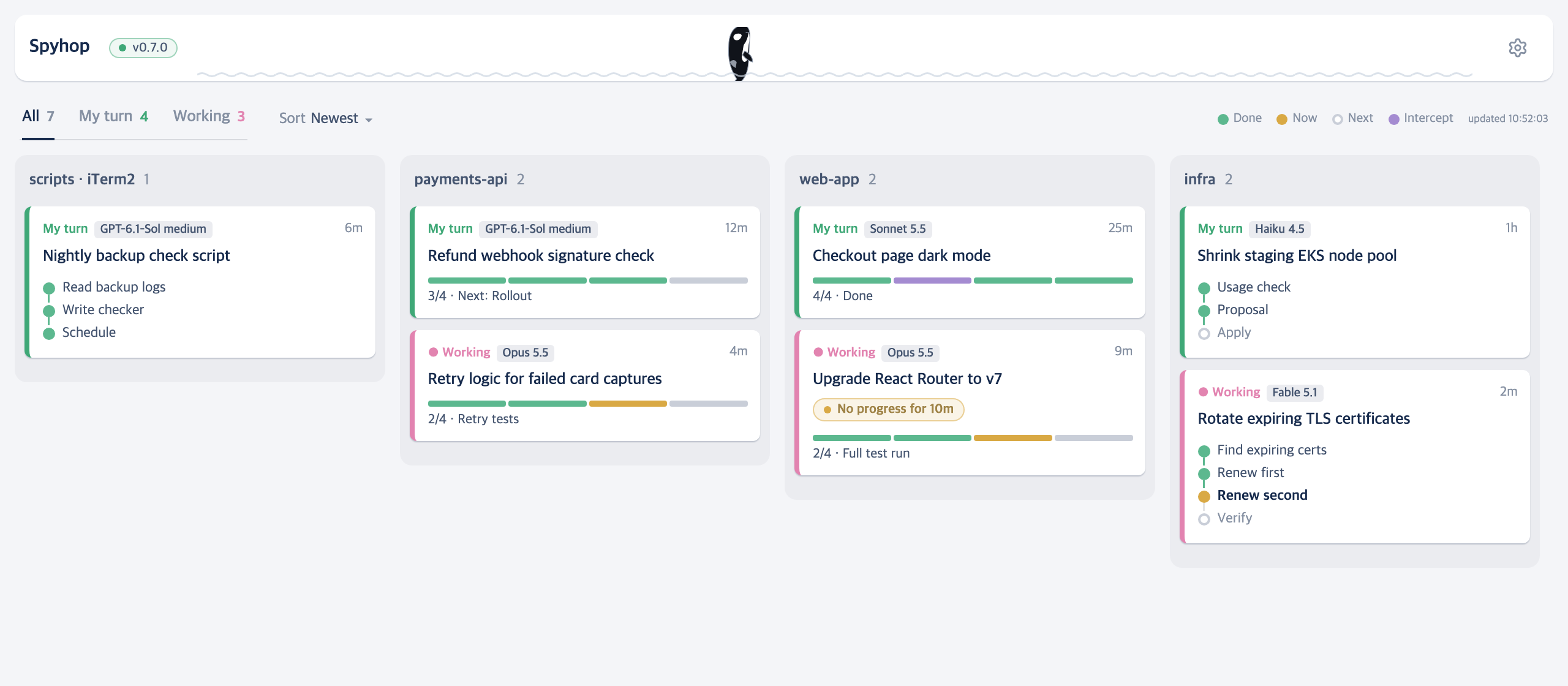
Demo data. The last column is a session started in iTerm2, outside Orca.
- All sessions in one place. Every Claude Code, Codex and OMP session you have open becomes a card on one board, with the ones waiting for you on top.
- Progress for each session. Spyhop reads the transcript and lays the work out as steps: what's done, what it's on now, what's next.
- Grouped by topic. Switch to AI topics and the AI puts sessions doing related work in one column, by what the work is about rather than which folder it runs in.
Contents: Get started · How to · Reference · How it works · Roadmap
Get started
You need macOS, Homebrew, and a logged-in claude or codex CLI (Spyhop uses it to summarize). Orca is optional.
Install and start:
brew install leeleelee3264/tap/spyhop
spyhop
The board opens in Orca as a Spyhop workspace if you have it, and always at
http://127.0.0.1:47613/.Start or keep a Claude Code or Codex session running anywhere (Orca, Terminal, iTerm2, Ghostty, WezTerm). It shows up as a card within a few seconds, and its steps fill in once the first summary is done.
Click a card to see every step, the last reply and its TODO list. Go to session jumps to that pane or tab.
Optional, menu bar:
brew install --cask swiftbar, then runspyhoponce more. The orca icon shows how many sessions are waiting for you.
Or use the Mac app (beta)
Spyhop.app shows the same board in its own window, with the orca in the menu bar built in. No browser tab, no SwiftBar.
- Download
Spyhop-<version>.dmgfrom Releases and drag Spyhop into Applications. - Open it. The app is not signed with an Apple Developer ID, so macOS blocks the first open: go to System Settings → Privacy & Security and click Open Anyway once.
- It needs the Xcode Command Line Tools for Python (
xcode-select --install), and a logged-inclaudeorcodexCLI as above.
The app runs the same board server, so sessions, summaries and settings are the same. Closing the window keeps the orca in the menu bar; Start at login opens the app there too. If the brew version is also installed, spyhop opens the app. The app takes over the menu bar from SwiftBar, so you can quit SwiftBar if you only used it for Spyhop.
To update, quit the app, replace it in Applications with the new one and open it. It restarts the board on the new version.
How to
Update
brew upgrade spyhop && spyhop
A running board switches to the new version by itself within a minute after brew upgrade. Settings, topic columns and your AI sessions are kept. If your board started on 0.5.0 or older, run spyhop once after upgrading.
Find a session that is missing or looks wrong
spyhop doctor            # explains, card by card, how each session was found or why it was not
spyhop doctor --titles   # same, with titles and prompts shown
tmux and SSH sessions outside Orca are not supported.
Change the summarizer model
Open Settings → Summarizer and pick a claude or codex model. Transcripts go to the model you pick, so pick one your organization allows.
Add OMP (Oh My Pi) sessions
Start OMP once after installing Spyhop, run spyhop, then restart your OMP sessions so they load the bundled status extension. Moving OMP sessions between Orca workspaces is not supported yet. Details are under OMP in Reference.
Move a session to another Orca workspace
Drag its card to another column. The Orca pane moves there and the conversation continues in its original folder. Only sessions showing My turn can be moved, and only inside Orca.
Group by topic instead of location
In Settings → Group by, pick AI topics. Drag a card to another topic to pin it there, or drop it on + New column to make your own.
Uninstall
Turn off Start at login in Settings first, and remove the .spyhop project from Orca's sidebar. Then:
brew uninstall spyhop && rm -rf ~/.spyhop
For the Mac app, turn off Start at login in Settings first, quit it from the orca menu (right-click), then delete it from Applications.
Reference
Commands
| Command | What it does |
|---|---|
spyhop |
Starts the board (or switches to a newly installed version) and opens it |
spyhop doctor |
Explains how each session was found, or why it was not. Titles are hidden unless you add --titles |
What works where
| Orca | Terminal, iTerm2, Ghostty, WezTerm | Other terminals | |
|---|---|---|---|
| Card, steps, summary, detail view | ✅ | ✅ | ✅ |
| Columns (Group by: Location) | Orca workspaces | folder and terminal (e.g. workspace · iTerm2) |
folder and terminal |
| Go to session | the exact pane | the exact tab | brings the app to the front |
| End session | closes that split pane | stops the AI program, the tab stays | stops the AI program, the tab stays |
| Drag a card to move the session to another workspace | ✅ | ❌ | ❌ |
| Cross-check line under a card (panes started through Orca) | ✅ | ❌ | ❌ |
| AI topic grouping | ✅ | ✅ | ✅ |
spyhop doctor |
✅ | ✅ | ✅ |
On the board
- Steps on every card:
Done·Now·Next, plus purpleInterceptfor a quick side task. When space runs out, cards shrink to progress bars (3/4 · Review). - No progress badge when a working session hasn't written anything for 5 minutes.
- Cross-check: a pane a session starts through Orca orchestration (a Codex cross-check, a review) appears as one line under that session, and its result shows in the detail view. If that session's pane is closed, it shows as its own card.
- Detail view: every step explained, the last reply, a TODO checklist, the session ID, and buttons to jump to or end the session.
- Filter and sort: All / My turn / Working tabs with counts, and a Sort menu (Newest or Longest wait). Both choices are remembered.
- Narrow windows: columns wrap onto the next row (3 across in a 900px window, 1 on a phone).
- Settings: summarizer, group by (Location or AI topics), 9 themes, start at login, update interval, live CPU and memory.
- Menu bar: how many sessions are waiting for you; click a row to jump there. Built into the Mac app, or through SwiftBar with the brew version.
OMP
The status extension is installed at ~/.omp/agent/extensions/spyhop-status.ts when the OMP agent directory exists (or PI_CODING_AGENT_DIR when set for spyhop). OMP must allow its normal extension discovery. It records only PID, process start time, session ID, transcript path, folder and busy/idle state in ~/.spyhop/omp/. Tested with Oh My Pi 18.12.2.
Files
Settings and topic groups live in ~/.spyhop; summaries and board state in /tmp/progress-board/. More in docs/details.md.
How it works
- Finding sessions. Spyhop looks at the running
claude,codexand OMP programs, so sessions show up wherever you start them. Orca, when present, adds exact panes, workspaces and cross-check links. - Summaries. Only sessions whose transcript changed are summarized, at most once a minute each (every 3 or 5 minutes at the 30 s or 60 s update interval), and only the new part is sent. Idle sessions cost nothing. Measured over 30 minutes with 6 sessions open: 53 summarizer calls, about 4,500 characters each.
- Privacy. The only thing that leaves your Mac is the transcript, sent to the summarizer model you picked, with anything that looks like a key or password masked first.
- Updates. After
brew upgrade, the running board notices the new version within a minute and hands over to it. The version next to the title stays highlighted until you rest the pointer on it; the tooltip links to the release notes.
More on timing, privacy and internals: docs/details.md.
Roadmap
- Work without Orca: sessions in Terminal, iTerm2, Ghostty and WezTerm, grouped by folder and terminal.
-
spyhop doctorto explain missing or wrong cards. - A "reset groups" button for AI topics.
- Moving a session to another workspace, made safe end to end.
- Notify when a session turns to "My turn".
- Search past Claude and Codex sessions and reopen one (
claude --resume/codex resume) from the board.
Reviews (0)
Sign in to leave a review.
Leave a reviewNo results found