StupidMirror
Health Warn
- License — License: NOASSERTION
- Description — Repository has a description
- Active repo — Last push 0 days ago
- Low visibility — Only 5 GitHub stars
Code Pass
- Code scan — Scanned 12 files during light audit, no dangerous patterns found
Permissions Pass
- Permissions — No dangerous permissions requested
No AI report is available for this listing yet.
Native macOS mirroring and MCP automation for iOS and Android devices.
StupidMirror
Your phone, on your Mac. Your agent, on your phone.
Bring real iPhone and Android screens into Codex. Mirror, control, and test devices with your AI agent.




Download · Website · Codex integration · MCP setup · Changelog · 简体中文
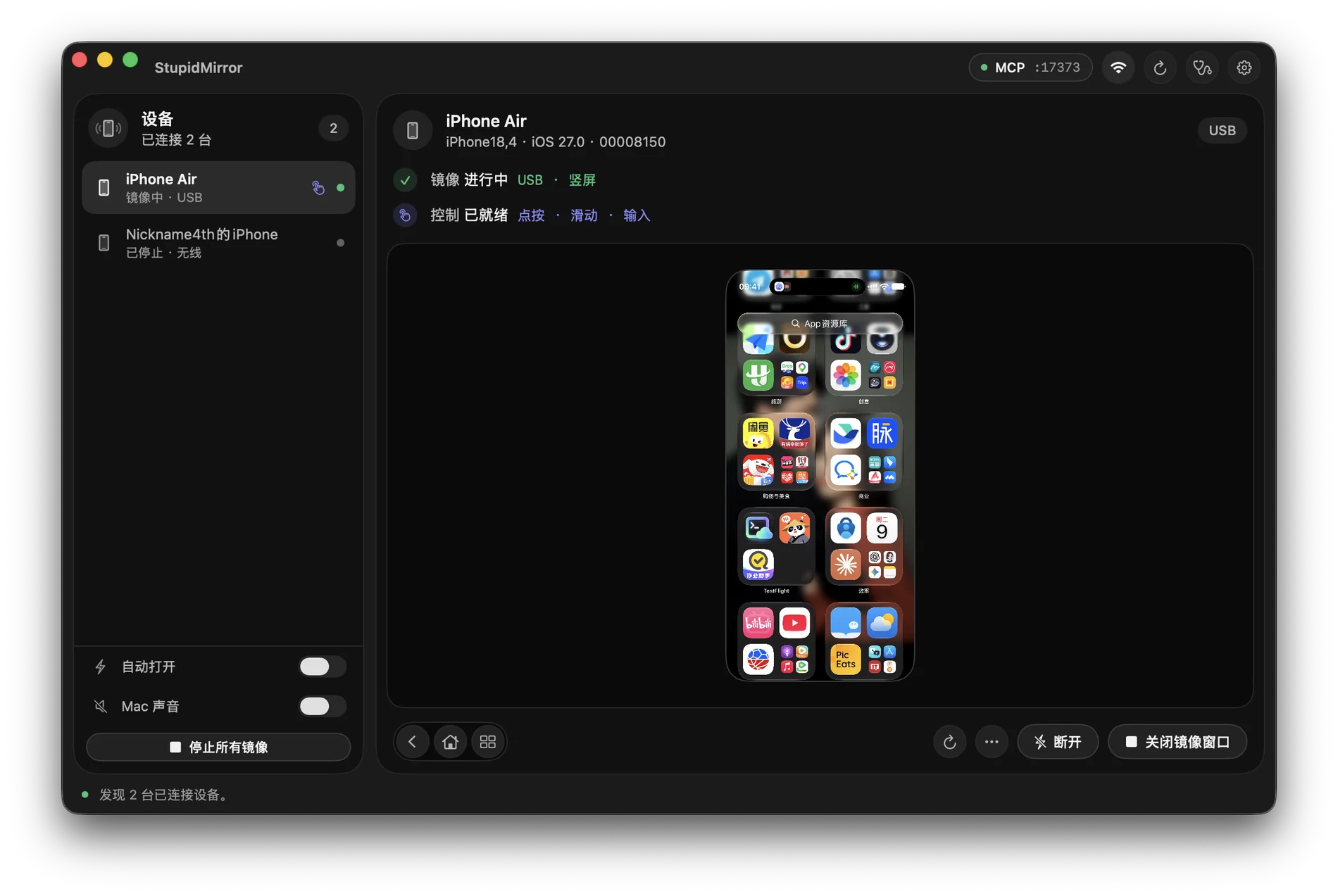
StupidMirror brings real mobile devices into a native macOS workspace. View an iPhone over USB or Wi-Fi, mirror an Android device through ADB, and interact with either through an explicit control session.
The same workspace is available to AI agents over MCP: observe the current screen, locate a target with local OCR or native accessibility, act on the device, and inspect the result. Watch the phone inside Codex with the bundled plugin, or use the native Mac mirror.
One device can be mirrored and controlled without signing in. An SM- activation code unlocks simultaneous devices without signing in. The source is available under PolyForm Noncommercial; commercial use requires separate authorization. License details.
Built for Codex
StupidMirror includes a Codex plugin that lets your agent see and operate a real iPhone or Android device, with the live phone screen right inside your Codex chat. Use it to inspect mobile UI, walk through app flows, reproduce bugs, and verify changes on a connected device.
- Watch the phone inside Codex. The embedded panel streams the live screen over local WebRTC, with device selection, pause/resume, and screenshot copying.
- Ask Codex to act and verify. Read screen content, locate controls, tap, swipe, and enter text through MCP, then inspect the result on the device.
- Point out exactly what you mean. Freeze a frame, mark regions, and send the annotated screenshot with your instructions in hosts that support image messages. You can also enable manual control to tap and drag the preview.
To get started, install StupidMirror and complete device setup, then click Settings → MCP Automation → Connect Codex. Open a new Codex chat, select StupidMirror, and ask:
Use StupidMirror to show my phone screen inside Codex and read the current page without tapping anything.
The app installs its bundled plugin through the Codex desktop app's CLI; no repository clone, separate Python / Node.js installation, or token copying is needed. See Codex setup for the full steps and the plugin guide for controls and troubleshooting.
What makes it useful
- A native place for your devices. Menu bar access, a device dashboard, live thumbnails, and independent mirror windows built with SwiftUI and AppKit.
- Real devices and simulators. USB iPhone capture through AVFoundation, wireless iPhone H.264 over the local network, Android H.264/audio through a pinned scrcpy server, and booted iOS Simulators and Android emulators on this Mac.
- Control when you ask for it. Tap, swipe, type, press device buttons, switch apps, and launch or terminate apps through native WebDriverAgent on iOS or Appium on Android. Opening a USB or Android mirror does not start a control session.
- An agent can see what it is doing. Live frames, Apple Vision OCR, optional accessibility trees, semantic targeting, waits, and assertions share the same device workspace.
- Automation stays visible. Agent taps, swipe paths, and selected targets appear on the Mac mirror. These overlays do not alter the phone screen or encoded video.
- Bring your own AI client. Built-in connection guides for Codex and Claude Code. StupidMirror itself needs no model API key and runs no embedded model.
Start with one device
Download the macOS app from GitHub Releases, move it to Applications, and open it. StupidMirror runs as a menu bar utility and shows a Dock icon while its windows are open. From 0.3.7 it checks for signed updates itself (Check for Updates… in the menu bar or Settings); Open at login is in Settings > Startup & Updates.
| Connection | Prepare | Video and audio |
|---|---|---|
| iPhone · USB | Trust this Mac; allow Camera access when requested | AVFoundation capture; optional device audio on the Mac |
| iPhone · Wi-Fi | Complete Set Up This iPhone once over USB (it turns on the phone's Wi-Fi connections); keep both devices on the same LAN | H.264 over SRT through a CoreDevice tunnel, VideoToolbox decoding; wireless audio is not available |
| Android · ADB | Android 11+; install Android SDK Platform-Tools on the Mac; enable USB debugging and approve the Mac's key | H.264 video and optional device audio from scrcpy |
| iOS Simulator | Xcode; boot the simulator | The screen agent is built once for the simulator (no signing) and streams its screen; all of its ports listen on this Mac only |
| Android emulator | Same as Android · ADB; start the emulator | Same as Android · ADB; listed by its AVD name |
Simulators and emulators appear automatically while they are booted and count toward the simultaneous device limit like real devices. They are not mirrored automatically, so a simulator you are running UI tests on is left alone until you open it.
macOS 15+ is required. Device compatibility can depend on OS versions, trust state, and the available automation runtime. The project remains experimental.
iPhone over USB
- Connect the iPhone, unlock it, and accept Trust This Computer.
- Open StupidMirror and grant Camera access from the in-app permission button.
- Select the discovered device and open its mirror.
Camera permission is needed because macOS exposes the iPhone screen as an AVFoundation capture source; StupidMirror is not using the Mac webcam for this. Play Device Audio on Mac is off by default, preserving playback on the iPhone. Turning it on routes USB device audio to the Mac and also requires Microphone permission.
iPhone over Wi-Fi
Open Set Up This iPhone while the phone is connected over USB. The guide checks the device and Apple Development signing identity, builds and installs the screen runner, test-launches it, and enables Wi-Fi connections on the phone (the same switch as Xcode's "Connect via network") before you unplug.
Later sessions reach the phone through the bundled smtunnel sidecar: it opens Apple's CoreDevice tunnel over the local network with an in-process network stack and starts the runner through testmanagerd, so no Xcode launcher, administrator password, Local Network prompt, or tap on the phone is involved. Wireless mirroring does not require Camera permission or a ReplayKit Broadcast Extension. It does require this signed device-side runner and Developer Mode on the phone; video setup does not itself enable a control session.
The app finds the phone over the same path: once usbmuxd lists it on the network, it shows as connected and can be started from the app or through MCP. Plugging the cable in while a wireless mirror or control session is in use keeps that session on Wi-Fi.
Android
Install adb, enable USB debugging, connect the device, and approve this Mac on the phone. Select the discovered device to start mirroring. Video and audio work independently of the optional Appium control connection.
Device control
Click Connect to start control.
| Platform | Control backend | First connection |
|---|---|---|
| iOS | WebDriverAgent driven directly through the smtunnel tunnel (one path for USB and Wi-Fi) |
Run Set Up This iPhone once over USB: trust the Mac, enable Developer Mode, and let it sign and install the screen agent with an Apple Development identity |
| Android | Appium + UiAutomator2 (the release bundles the Node/Appium runtime for this) | Installs Appium settings/server helper APKs when needed |
Mirror gestures reproduce what the mouse did: a slow drag replays its recorded path and timing, a quick flick keeps its start point, direction and speed so the phone coasts naturally, holding still is a long press (so is a right click), a double click is a double tap, the mouse wheel and trackpad scroll, trackpad pinch and rotate map to the device's pinch and rotate, and back is the system edge swipe. On iPhone, touches go straight to XCTest's event synthesizer through a StupidMirror route in the agent, skipping WebDriverAgent's per-call app lookup; phones prepared before 0.4.0 fall back to the stock endpoints until Prepare Again is run once over USB in iPhone Setup. XCTest can only replay a gesture once the mouse is released, so the finger cannot be followed while the button is held. Diagnostics shows each device's recent gesture round-trip times. The app follows the system light or dark appearance; Settings → Interface (and the menu bar) can pin either. Advanced settings support a custom Appium endpoint for Android; the default is http://127.0.0.1:4723.
Connect an AI agent
Codex plugin: connect from the app
Install a build that includes the Codex plugin in Applications and open StupidMirror. For a first iPhone connection, connect by USB and complete the app's iPhone setup guide. Android needs USB debugging and authorization for this Mac.
Open Settings → MCP Automation and click Connect Codex. The app enables local MCP and installs its bundled plugin using the Codex / ChatGPT desktop app's CLI. No repository clone, Python / Node.js install, token copying or manual configuration is required.
Start a new Codex chat, choose StupidMirror, and send:
Use StupidMirror to show my phone screen inside Codex and read the current page without tapping anything.
Codex starts StupidMirror in the background when needed. The live screen uses local WebRTC inside the Codex plugin panel, with device selection, refresh, pause/resume, Home and screenshot-copy controls. No native mirror window opens automatically. Keep the phone connected and unlocked.
Interaction and annotation: Enable 操作 to connect device control, then tap or drag the preview. AI actions continue to use the existing MCP tools. 标注 freezes the displayed frame. Drag empty space to draw regions, drag inside a box to move it, or drag its edges and corners to resize. The compact composer stays below the image and supports deletion and undo. Send just the marked screenshot and your note with ⌘ Enter (or Ctrl Enter); plain Enter inserts a newline. Drawing annotations never sends gestures to the phone.
Video uses encrypted local WebRTC without a cloud relay. Hosts without a WebRTC API use native-resolution PNG; WebRTC failures show a reason and a retry button instead of silently switching to screenshots; annotation delivery requires the host’s image-message capability.
Installation errors appear in the app and can be retried. Reconnect the plugin or start a new chat if tools have not loaded. StupidMirror 0.3.1 fixes the -32603 initialization error caused by experimental client capabilities; restarting Codex does not fix that error in older builds. The embedded panel is named StupidMirror. Verify installation, discovery and control separately: list_devices, then observe_screen, then an authorized action followed by observation.
After updating StupidMirror, click Update or reinstall plugin (shown as Connect Codex after reopening settings) to refresh the installed copy. Developers can also run bash scripts/install-codex-plugin.sh with a compatible Codex CLI, after building with bash scripts/build-app.sh and installing the resulting app.
The plugin reuses the app's device engine and automatically reads port and token changes. While MCP is enabled, the app maintains ~/Library/Application Support/StupidMirror/MCP/connection.json with directory permissions 0700 and file permissions 0600, removing it when the service stops. Never include this credential file in plugin packages or chat messages.
The installer migrates an existing manual stupidmirror MCP entry only when its URL matches this app's current endpoint, retaining a private local recovery copy. Other MCP entries are untouched; a conflicting connection produces an actionable error.
Manual MCP setup / Claude Code
Expand Advanced connection settings · Other AI clients:
- Open Settings → MCP and enable the local MCP server.
- Choose Codex or Claude Code in the connection guide.
- Copy the generated configuration or command into that client. It includes the endpoint, bearer authentication, and setup timeout.
- Keep StupidMirror open and ask the agent to call
list_devices.
The server listens only on http://127.0.0.1:<port>/mcp. Rotating the bearer token invalidates the previous credential. First-time control setup can be slow, so the guide configures a 240-second tool timeout.
Try an instruction such as:
List my connected devices, start mirroring my iPhone, and highlight the visible clickable elements without tapping them.
Observe → act → verify
| Step | Tools | Behavior |
|---|---|---|
| Connect | list_devices, show_screen, connect_control |
Discover the target and prepare the required sessions |
| Observe | observe_screen, find_any_element |
Read a live frame; use local OCR and request accessibility only when needed |
| Act | tap_text, tap_element, replace_text, swipe |
Target observed content or an explicit gesture |
| Verify | wait_for, assert_screen, observe_screen |
Check the resulting state |
| Guide | highlight_clickable_elements, highlight_elements, clear_highlights |
Draw targets on the Mac mirror without sending input |
| Apps | list_apps, install_app, uninstall_app, open_url, activate_app, terminate_app |
Install a build (.app/.ipa/.apk), open a deep link, launch or stop an app |
| Record | start_recording, stop_recording |
Save the live mirror as an .mp4 in ~/Movies/StupidMirror (up to 10 minutes) |
- Pass
device_idwhen more than one device is present. tap_textaccepts up to 16 candidate labels. By default it runs one local OCR pass, then at most one shared native hierarchy snapshot if needed.find_any_elementperforms the lookup without tapping.observe_screendefaults to an image plus compact local OCR, without a native hierarchy. Keep the image for visual or ambiguous tasks; passinclude_image=falsefor text-only reads.find_elementandfind_any_elementalso return compact matches. Element IDs and observation IDs remain usable withtap_element;center: [x, y]is a rounded normalized hint, while taps use stored full-precision geometry.- Set
response_format="full"on these tools for the original metadata/bounds/hierarchy format. The format does not change image/accessibility flags: keepinclude_image=truefor visual evidence, orinclude_accessibility=true, include_ocr=falsefor native switch values and control state. - For icons, canvases, or custom controls, request
include_image: true, inspect the screenshot, then use an observed coordinate. - Pass the observation UUID to
tap_elementto reject stale element IDs after the screen changes. - On iOS, accessibility snapshots can disturb focused text fields. After focusing, use
replace_textorclear_textdirectly; usetype_textto append. Replacement and clearing verify the resulting native value. - Vision OCR supports
fastandaccuratemodes, defaults to Chinese and English, and runs on demand outside the capture/encoding path. - Input tools are marked as potentially destructive in MCP metadata because their effect depends on the app currently open on the device.
The tool definitions are the authoritative schema.
Architecture and privacy
iPhone USB → AVFoundation ─┐
iPhone LAN → H.264 / SRT ──┼→ Capture → native mirror / Vision OCR
Android → ADB / scrcpy ────┘     └→ VideoToolbox H.264 → local WebRTC → Codex panel
Codex → bundled stdio bridge → authenticated localhost MCP → observations/actions
iOS actions → WDA through smtunnel; Android actions → Appium / UiAutomator2
Capture, playback, and OCR run locally. StupidMirror does not independently upload mirrored content to a model provider. An external AI client can receive screenshots and tool results through MCP; its account, model provider, and data settings determine what happens to that information afterward.
Account sign-in and license validation contact the configured Supabase service. License requests contain account/activation data, not mirrored frames or control input. See the privacy policy and security policy.
Build from source
Use macOS 15+, a Swift 6 toolchain, Go (see the sidecar go.mod files), and Node.js 22+ for widget development:
git clone https://github.com/LiuTianjie/StupidMirror.git
cd StupidMirror
make run
swift build --build-system native # Compile
swift test --build-system native  # Run tests
make app           # Create dist/StupidMirror.app
open dist/StupidMirror.app
Before packaging widget changes, run npm ci --prefix plugins/stupidmirror/ui, then npm run build --prefix plugins/stupidmirror/ui and npm test --prefix plugins/stupidmirror/ui. The generated self-contained HTML is bundled in the app. make app builds both Go sidecars and the stdio bridge.
For a host Appium installation, use make setup-appium and make run-appium. Source execution and packaged apps have separate macOS permission identities; grant permissions to the process you are actually running.
The probe tools help inspect discovery, capture, and WDA readiness. make probe-avfoundation-frame saves a local frame under the git-ignored artifacts/ directory.
Contributing and documentation
Device bugs are most useful with macOS/device OS versions, connection type, reproduction steps, and redacted diagnostics. Changes to capture or control should include real-device verification; a successful Swift build cannot establish device compatibility.
| Document | Scope |
|---|---|
| Contributing | Development setup and pull request expectations |
| Codex plugin guide | Embedded video, manual control, annotation, troubleshooting |
| Architecture notes | Original design and implementation context |
| Research notes | Capture and device-integration research |
| Release process | Signing, notarization, fixed app identity, and artifact upload |
| Changelog | Release history |
| Account licensing | Activation, account migration, and licensing infrastructure |
License
StupidMirror is source-available under the PolyForm Noncommercial License 1.0.0. It permits the noncommercial uses described in that license and is not an OSI-approved open-source license. Commercial use requires separate written authorization; see commercial licensing.
The current app allows one mirror and one control session without activation. To unlock simultaneous devices, enter an SM- activation code from the official store. No sign-in is required. Account sign-in remains optional for restoring an existing account license or binding a Mac license. iTool IT- codes are not accepted. Feature activation and commercial authorization are separate matters.
Third-party components retain their own licenses. See NOTICE.
Reviews (0)
Sign in to leave a review.
Leave a reviewNo results found