LlamaTree
Health Warn
- License — License: Apache-2.0
- Description — Repository has a description
- Active repo — Last push 0 days ago
- Low visibility — Only 5 GitHub stars
Code Fail
- rm -rf — Recursive force deletion command in tools/install/install.sh
- network request — Outbound network request in tools/screenshots/capture.mjs
Permissions Pass
- Permissions — No dangerous permissions requested
No AI report is available for this listing yet.
One window for all your Claude Code and Codex sessions, with Git Changes, diffs and worktrees for each, sessions on your own servers, and agents that can message and start each other. For Windows and Linux.
www.llamatree.dev · Formerly Claude Terminals.
One window for many local Claude Code and Codex sessions, with a Visual Studio–style Git Changes / Git Repository view and diff viewer for each session's worktree.
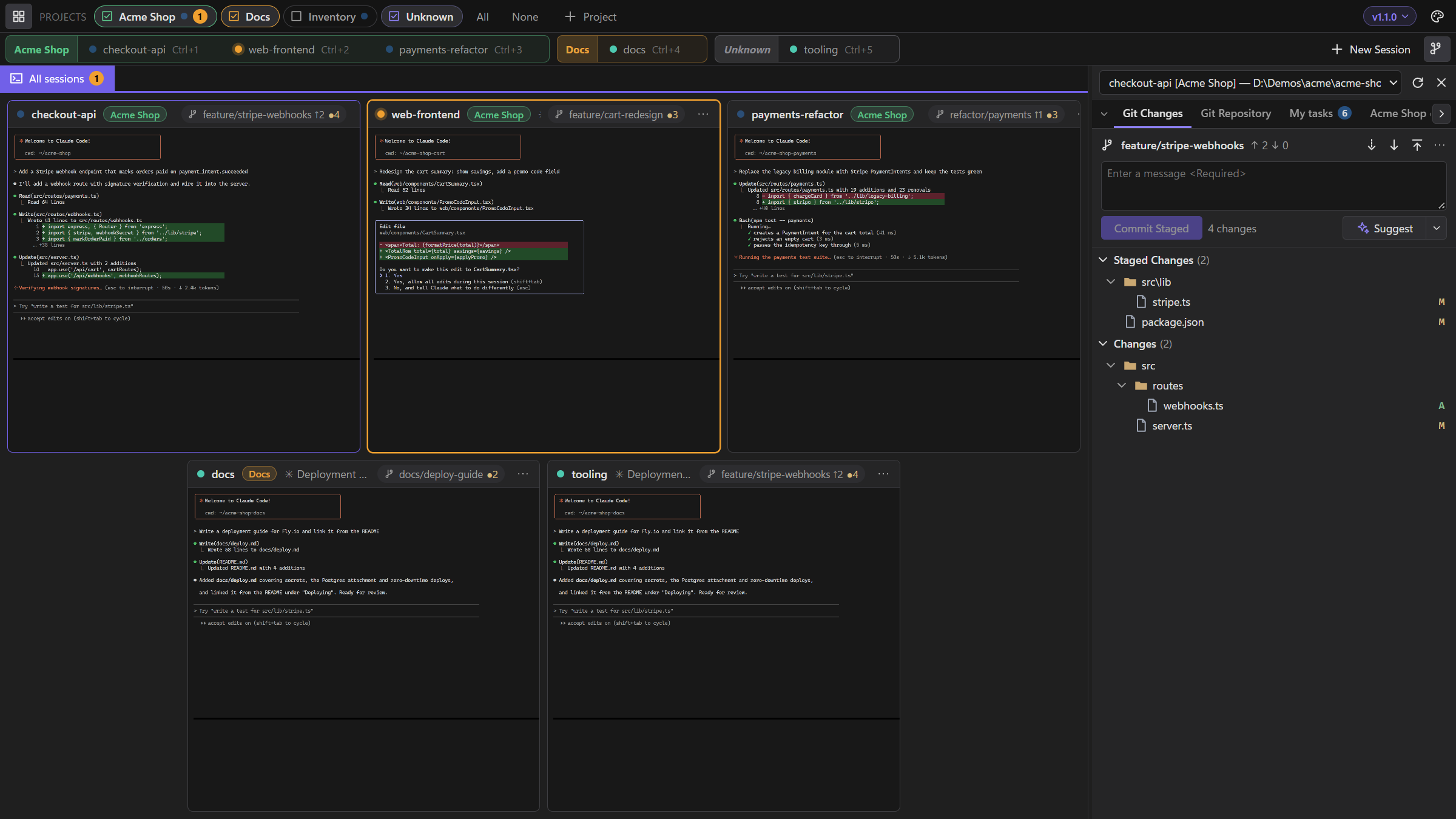
Tick projects on and off in the Projects row; each session tab group and tile is tagged with its project.
 Click a tile to work in that session full-size; Shift+Esc goes back. Fetch, pull and push from the Git toolbar. |
 VS-style side-by-side diffs open in tabs next to the terminal. |
 Outgoing commits, history and each commit's changes. |
 Start fresh or resume any saved Claude Code conversation. |
 The ticks beside the terminal are your prompts: hover for a preview, click to read that part of the conversation. |
 The whole conversation as text, here in the light theme (System, Light or Dark from the palette button). |
 Panels Claude shows beside the terminal: your tasks grouped by status, with ticks, badges and buttons that fill in a prompt for you. |
 Dock tabs where you want them: here Git Changes on top and an errors panel below, with stats, a trend and details. |
Screenshots show a fictional demo project with simulated sessions; regenerate them with tools\screenshots\run.ps1.
What it does
- All your sessions in one window. Every Claude Code or Codex session runs in its own real terminal, shown side by side as live tiles. Click one to work in it full-size; status dots show which are working, which are waiting for you and which need an answer before Claude can carry on.
- Projects. Group sessions (for example one product's worktrees) and show or hide each group; hidden sessions keep running and still tell you when they need you.
- Git, Visual Studio style. Each session's worktree gets Git Changes (stage, commit, Undo Changes, fetch, pull, push) and Git Repository (history, outgoing commits), with side-by-side diffs that update as Claude edits. Suggest writes the commit message for you, and a chip links the branch's pull request on GitHub or Azure DevOps.
- Look back through a conversation. A rail of ticks beside the terminal, one per prompt; hover for a preview, click to read the whole conversation in its own tab. Works even in Claude's full-screen mode.
- Panels from Claude. Claude can show your task list, an error summary or notes as a tab beside the Git panel, through a small MCP server built into the app; buttons on them only ever fill in a prompt for you. A ready-made example skill gets you started.
- Arrange the side panel. Drag tabs into groups stacked one above the other (Git Changes on top, your panels below, say), resize them, and fold any group down to its tabs.
- Claude Code and Codex, side by side. Run either in any session, or both in the same project: each gets its own conversation, the conversation rail, panels, the needs your answer dot and Suggest. See Claude Code and Codex for what each supports.
- Picks up where you left off. Each session has a conversation of its own and reopens it when the app restarts, following you through
/clear(or Codex's/new); you can also resume any saved conversation. - Light or dark, in your colours. Follows Windows' light/dark mode and accent colour, or choose your own; Claude itself is started in matching colours.
- Keeps itself up to date. Tells you when a new version is out and installs it in a click; your sessions carry on afterwards.
Install
Windows (PowerShell):
powershell -c "irm https://github.com/LlamachantTechnology/LlamaTree/releases/latest/download/install.ps1 | iex"
Linux:
curl -fsSL https://github.com/LlamachantTechnology/LlamaTree/releases/latest/download/install.sh | sh
Each downloads the latest release, checks it against the SHA-256 GitHub publishes for it, and installs it. On Windows that's the setup below, run silently. On Linux it's the .deb or .rpm when there's apt, dnf or zypper and you can use sudo (it asks for your password); otherwise it's the .tar.gz unpacked into ~/.local/share/LlamaTree, with a llamatree command in ~/.local/bin and a menu entry, for your account only. Set LLAMATREE_INSTALL=tar to choose that anyway (curl … | LLAMATREE_INSTALL=tar sh). Both scripts are in tools/install if you'd like to read them first.
Or install by hand: download LlamaTree-Setup-<version>.exe from the latest release and run it. It installs for your account only (no admin), and later versions install themselves from inside the app.
Releases are signed by Llamachant Technology Ltd. If SmartScreen still warns about a new release ("Windows protected your PC"), check that the publisher says Llamachant Technology Ltd, then choose More info › Run anyway.
Requirements
- Windows 10 1809+ or Windows 11 (x64)
- Claude Code and/or Codex CLI on
PATH, plus Git - WebView2 Runtime (built into Windows 11; setup offers the download if it's missing)
- To build it yourself: .NET 10 SDK and Node.js (for the bundled xterm.js / Monaco packages)
Linux
Download the package for your distribution from the latest release and install it; the package manager installs what it needs (WebKitGTK, libnotify) with it. Nothing else is needed: no .NET, no Node.js.
| Distribution | Package | Install |
|---|---|---|
| Ubuntu, Debian, Mint, Pop!_OS… | llamatree_<version>_amd64.deb |
Open it in your software centre, or sudo apt install ./llamatree_<version>_amd64.deb |
| Fedora, openSUSE, RHEL… | llamatree-<version>-1.x86_64.rpm |
sudo dnf install ./llamatree-<version>-1.x86_64.rpm (openSUSE: sudo zypper install …) |
| Anything else | LlamaTree-<version>-linux-x64.tar.gz |
Install WebKitGTK 4.1 and libnotify, unpack it anywhere and run LlamaTree |
Then start LlamaTree from your applications menu, or run llamatree. It's 64-bit Intel/AMD (x86-64) only for now. It updates itself like the Windows app (see Updates): a package asks for an administrator's password to install the new version; an unpacked .tar.gz replaces its own folder. Uninstall with sudo apt remove llamatree (or sudo dnf remove llamatree); your sessions and settings stay in ~/.config/LlamaTree.
macOS: LlamaTree runs there too, built from source for now (see macOS and Linux).
Using it
| Action | How |
|---|---|
| Expand a session | Click its tile, its tab in the title bar, or press Ctrl+1…Ctrl+9 |
| Back to all sessions | Click the open session's tab again, Shift+Esc, the collapse button in the tile header, or the mouse Back button |
| Next / previous session | Ctrl+Tab / Ctrl+Shift+Tab |
| Toggle Git panel | Ctrl+Shift+G (the side panel, with the Git tabs turned off; with nothing in it, opens its options) |
| New session | Ctrl+Shift+N: start a new conversation (optionally one session per worktree) or resume an existing conversation |
| Another session in a project | The + at the end of the project's group on the session tab row (at the end of the row when there are no projects). It works from that project's current session (or its first): In the same folder adds a session there in one click, with a conversation of its own; In a new worktree… (only in a Git repository) creates a worktree of it on a new branch (next to the repository by default) and opens a session there, unless you untick Start a session in it; A different folder… opens New session with the project chosen |
| Switch a session to another conversation | Session menu (⋯) › Resume a different conversation… |
| Close a session | The × on its tab in the title bar, or middle-click the tab. After you confirm, the session is removed and its process stopped; the folder isn't touched |
| See a project's worktrees side by side | Click the project's name at the start of its group in the session tab row (again to go back), or Session menu (⋯, or right-click a session tab) › Project view, or right-click the project in the Projects row: one row per worktree with its session, what it's on, its changes, how far its branch is from main, and its pull request. Click a row for the detail and the actions |
| Show one project | Ctrl+click its name in the Projects row, or right-click it › Show only this project |
| Show several projects | Click a project's name or checkbox to show or hide it; All shows every project, None hides them all |
| Put a session in a project | Pick the project when adding the session, drag its tab into the project's group, or right-click its tab › Move to project… |
| Reorder tabs | Drag session, project or diff tabs (or right-click › Move left/right). Unknown stays last and the Terminal tab first |
| Rename, recolour, reorder or delete a project | Right-click the project. Edit project sets its name and colour (a swatch, a custom colour or Automatic). Deleting it keeps its sessions; they just have no project |
| Look back through the conversation | Hover the ticks at the right edge of the open terminal; click one (or right-click › Show conversation) to open the Conversation tab at that prompt |
| Write a commit message | Suggest, next to Commit in the Git panel |
| Arrange the side panel | Drag a tab (Git Changes, Git Repository or a panel) onto another group's tab row to move it there, or onto the top or bottom half of a group to split it into a new group above or below. Drag the dividers to resize. The chevron at the left of a tab row (or double-clicking the row) folds a group down to its tabs. Right-click a tab for the same moves, Reset layout and Reopen a closed panel. The layout is remembered |
| Light, dark or follow Windows; accent colour | The palette button at the top right |
| Check for updates | Click the version chip (v1.x.y ▾) at the top right |
| Terminal font size | Ctrl+= / Ctrl+- / Ctrl+0 |
| Newline in Claude prompt | Shift+Enter |
| Copy / paste | Ctrl+C with a selection / Ctrl+V (or right-click when expanded). With an image on the clipboard, such as a screenshot, Ctrl+V pastes the path of a PNG saved from it, which Claude Code and Codex attach; files copied in Explorer paste as their paths |
| Open a file or folder named in the terminal | File and folder paths in the output (absolute, ~/…, or relative to the session's folder, with or without a :line) are underlined on hover once they're found to exist. Click one to open it (a file opens to view or edit, never runs); right-click it for Open containing folder and Copy path. Network paths are never looked at |
| Diff tabs | Click a file for a preview tab (italic, reused); double-click to keep it open. Tabs belong to their session's project: switching to a session in another project shows that project's tabs, and yours come back when you return |
| Terminal ↔ diffs | Click the Terminal tab, Shift+Esc from a diff, or Ctrl+PgUp / Ctrl+PgDn |
| A tab beside the terminal | Drag a diff, Conversation or plugin tab down into the area, near the edge you want it on (left, right, top or bottom), or right-click it and pick a side; the middle shows it on its own again. Drag the Terminal tab the same way to put the terminal on that side of the tab. While split, the tab you pick goes beside the terminal, Shift+Esc goes back to the terminal and leaves it there, and Ctrl+W closes the tab only while you're in it. Drag the divider to resize (double-click to even up); the side and size are remembered |
| Close diff tab | Ctrl+W or Ctrl+F4, middle-click, or the tab's ×; Alt+↑/↓ jumps between changes. (In the terminal Ctrl+W stays Claude's delete-word) |
Plain Esc always goes to the terminal, because Claude Code uses it to interrupt.
Sessions
Status dots: each state has its own colour, and its own shape and motion.
- Working (blue): the session's name on its tab shimmers too.
- Needs your answer (pink): Claude is asking you something (a permission, a question, a plan to approve, whether to trust the folder) and can't carry on until you answer; it goes back to normal once you have.
- Waiting for you (orange): the session finished working while you weren't watching (or rang the bell).
- Idle: a green dot with a slowly breathing glow. When a session finishes working while you watch it, the dot pops in with one ring.
- Not running: a hollow grey ring that stays still.
How working, waiting and asking move is up to you: the palette button › Status dots shows four styles side by side, each moving, and previews the one you click on the whole app.
| Style | Working | Waiting for you | Needs your answer |
|---|---|---|---|
| Glow (default) | three dots bounce in turn | the dot beats and glows | the dot hops, landing with a small ring, and glows as it leaps |
| Classic | a comet spins round a breathing core | a dot in a ring, sending out a ping | the dot hops, and the session's tab lights up with a pink outline |
| Calm | a ring with a gap turns slowly | a dot in a ring, fading gently | a pink diamond that slowly swells |
| Signal | a ring fills round a small core | a square light blinking | a dot in a ring that shakes |
With Windows' animation effects turned off the dots stay still, and in every style their shapes still tell the states apart.
Each session has its own conversation: a new session's command is just claude (plus any options you add), and the app gives it a conversation id of its own.
- Starting: it starts Claude with
--session-id <id>until there's something saved, then with--resume <id>. Restarting the app or the session always reopens that conversation, even with several sessions in the same folder. - Following Claude: when you
/clearor/resumeinside Claude, the app follows it to the new conversation once Claude has saved it. - Where to see it: hover the session's tab or the name on its tile for the conversation's title, when it started and when it was last used (or that it's a new one, with nothing in it yet). Edit session shows the id.
- Existing sessions: a session made with
claude --continue(the previous default) starts on the folder's latest conversation once, then keeps that one. A plainclaudesession saved before 1.1.0 never told the app which conversation it was in, so it gets a new one of its own, and the app says once which sessions those are; Resume a different conversation… takes one back to an earlier conversation. - Commands that choose for themselves: commands with their own
--resume,--session-idor--fork-sessionare left alone.
Resuming: the picker reads Claude Code's saved conversations from ~/.claude/projects. Picking one (in New session, or Resume a different conversation…) makes it the session's conversation; New conversation gives the session a fresh one. Close the conversation in any other terminal first. Conversations updated in the last few minutes are tagged active now as a reminder.
Codex sessions work the same way, with a few differences: see Claude Code and Codex.
Closing the window with sessions running asks what to do with them. Keep running closes only the window: the sessions carry on in the background, and opening LlamaTree again shows them as they are, with what they printed meanwhile. Stop sessions stops them but loses nothing: Claude keeps every conversation, and the sessions come back with the app; the question says which pick up where they left off (those that continue or resume) and which start a new conversation. Tick Don't ask again to always do one or the other; the version menu (top right) changes it, and has Quit and stop all sessions. With no session running, closing the window ends LlamaTree.
Sessions on servers, among your own. In the New Session dialog, Computer picks where a session runs: this computer, or a server (user@server, ssh://user@server:port, or a Host from your SSH config). A server's sessions show with your local ones, in your projects, with the server's name on their tile and a link mark on their tab; typing, Git, diffs, Browse…, opening files and pasting pictures all work as for a local session, on that server. Once LlamaTree has connected to a server, every session its LlamaTree has shows here. They keep running there when LlamaTree closes or the connection drops: the tile says Can't reach the server, LlamaTree keeps trying, and clicking the server's name tries again now. Their panels show here, and they can message your local sessions and be messaged by them (with the same permissions), while their server is connected. The requirements are those below.
A server's own window. LlamaTree --remote user@server opens a window of its own for a server's sessions only: they run on the server, in its folders, and keep running there when the window closes or the connection drops (the window reconnects by itself). The server can also be ssh://user@server:port or a Host from your SSH config.
Sessions on a server, in either kind of window, need:
sshon this computer (Windows 10 and 11 have it), signing in with a key or ssh-agent: LlamaTree can't type a password. Connect once from a terminal first, so the server's host key is known.- LlamaTree installed on the server (the
.debor.rpmgives thellamatreecommand it runs; it doesn't need a desktop there). Update it there as you do its other packages. - If the server ends your processes when you log out (systemd's
KillUserProcesses), runloginctl enable-lingerthere once, or the sessions end with the connection.
The server's files are reached through the window. Browse… in the new session dialog, and Browse the folder wherever you'd open one in File Explorer or Finder, show the server's folders in the window. A file you open (a path link in the terminal, Git's Open, a file in those folders) is copied to this computer and opened there, as it would be locally: it's a copy, so edits to it stay here. Pictures and files you paste into a session are copied to the server first (its LlamaTree data folder, pasted/, cleared after a week) and their paths there are pasted. The server's plugins show as they would locally: the window is sent a copy of each plugin's folder. Web links open on this computer.
Starting when opened: when the app starts, a Claude session it brings back waits until you first open it (its tile says Starts when you open it; pressing Enter in it works too). Claude's start-up context, such as hooks, the date and Git status, is then fresh when you use the session, and one you don't open runs nothing. A message from another session starts it too, so the sender isn't left waiting. New sessions, and sessions running any other command (a dev server, say), start straight away.
Sessions are saved in %APPDATA%\LlamaTree\sessions.json. Set LLAMATREE_DATA to use a different folder (separate profiles, testing). Until 1.2 the app was called Claude Terminals: the first time 1.2 runs it moves %APPDATA%ClaudeTerminals and %LOCALAPPDATA%ClaudeTerminals to their new names, and the old CLAUDE_TERMINALS_DATA still works. Only one copy runs per profile; launching again brings the existing window forward.
Claude Code and Codex
A session's command decides what it runs: claude for Claude Code, codex for OpenAI's Codex CLI (each with any options you add), or anything else, such as a shell or a dev server. Claude Code and Codex sessions can sit side by side, in the same project or even the same folder.
| Claude Code | Codex | Any other command | |
|---|---|---|---|
| Sessions and window | |||
| Terminal tiles, tabs, projects, shortcuts | ✓ | ✓ | ✓ |
| Status: working, waiting for you, idle, not running | ✓ | ✓ | ✓ |
| Status: needs your answer | ✓ Permissions, questions, plans, the folder trust check | ✓ Approvals and questions (Codex reports them), the folder trust check | — |
| Starts when you first open it, after the app restarts | ✓ | ✓ | — starts straight away |
| Conversations | |||
| A conversation of its own, even several in one folder | ✓ the app picks its id | ✓ learned once Codex saves it | — |
| Reopens it when the app or the session restarts | ✓ --resume <id> |
✓ codex resume <id> |
— |
| Follows you to another conversation | ✓ /clear, /resume |
✓ /new; /resume once you send a prompt in it |
— |
| Resume picker | ✓ | ✓ tagged Codex | — |
| Conversation title on hover, and in the closing question | ✓ | ✓ | — |
| Conversation rail and tab | |||
| Rail of prompts and the Conversation tab | ✓ | ✓ | — |
| Works in full-screen mode | ✓ | ✓ | — |
| Project view: latest prompt and answer | ✓ | ✓ | status only |
| Panels | |||
| Panels beside the terminal, and their buttons | ✓ | ✓ | — |
| Theme | |||
| App, terminal and diff colours, accent, themes | ✓ | ✓ | ✓ |
| The agent itself started in matching light or dark colours | ✓ | not yet | — |
| Git | |||
| Git Changes, Git Repository, diffs, fetch/pull/push, pull requests, Project view | ✓ | ✓ | ✓ |
| Suggest writes the commit message | ✓ Claude Code | ✓ Codex | ✓ Claude Code, if installed |
| App | |||
| Plugins | ✓ | ✓ | ✓ |
| Updates: sessions carry on in their conversations | ✓ | ✓ | restarted |
How Codex sessions do it:
- Its own conversation. Codex can't be told which conversation id to use, so a new session learns its conversation once Codex has saved it: the latest one started in its folder since the session started, not counting
codex execruns. From then on it's reopened withcodex resume <id>. A Guardian review thread Codex starts under a conversation opens that conversation. - Following you. After
/newthe session moves to the new conversation once Codex has saved it. After/resumeit moves to the conversation you picked once you send a prompt in it, read from Codex's prompt history (~/.codex/history.jsonl); withhistory.persistence = "none"in Codex's config,/resumeisn't followed. - Saved conversations are read from
~/.codex/sessions, orCODEX_HOMEwhen it's set. - Panels: the app adds its MCP server to Codex's command line (
-c mcp_servers.llamatree.…), passing the session's token in an environment variable rather than on the command line. A command that sets that server itself is left alone. - Needs your answer: Codex reports in the terminal when it's waiting on you (an
OSC 7501sequence withstate=blocked), so the dot doesn't depend on reading its screen. Any program that reports its state that way gets the dot too. - Suggest runs
codex exec --ephemeral -s read-onlywith low reasoning: read-only and not saved as a conversation, using a little of your Codex plan. - Commands that choose for themselves:
codex resume …andcodex fork …keep their own choice of conversation, and Codex's other subcommands (codex exec, say) run as they are.
Projects
Projects group sessions, for example everything for one product across its worktrees. Only the ticked projects' sessions are shown. Sessions with no project are grouped under Unknown, which you tick and untick like a project. Each session's tab and tile carry a tag in its project's colour, so two sessions with the same name in different projects can be told apart. Hidden sessions keep running, and each project tab counts its sessions waiting for you, so a hidden project still gets noticed.
Project view
Project view (click a project's name at the start of its group in the session tab row, or find it on a session's ⋯ menu, a session tab's right-click menu, or a project's right-click menu in the Projects row) switches to it the way clicking a session's tab switches to that session: no session is open, and the third row holds just its Project tab. Click the project's name again, or a session's tab, to leave it. It shows every worktree of the project in a table (with no projects, of every session): one row per worktree of each repository the project's sessions are in, taken from git's own worktree list, so worktrees made outside the app, or whose session was closed, show too. Each row has:
- its branch and folder, and the session in it (or no session), with the session's status dot;
- what the session is on: its status and latest prompt, or its conversation's title while it isn't running;
- how many files are changed in it, with a ⚠ when a file is also changed in another worktree of the same repository (a line under the table names the file and both worktrees, and lights their rows when hovered);
- how far its branch is ahead of (↑) and behind (↓) the base branch (what
origin/HEADpoints at, else a localmainormaster); - its open pull request, as the Git panel's chip finds it.
The summary line counts the worktrees, how many need you, how many are behind the base branch and how many can be removed. Click a row for the detail: the latest prompt and the start of Claude's answer, the changed files, what's worth knowing (behind the base branch, merged, not in a pull request yet), and the actions:
- Open session (or Conversation), and Start a session here for a worktree that has none, with the options of the project's other sessions;
- View PR or New pull request in the browser;
- Remove worktree… for a worktree other than the main one: its sessions are removed first, then git removes the folder, never forced, so one with uncommitted changes is refused and left as it is. The branch stays.
New worktree… on the view's toolbar adds a worktree of the project's repository on a new branch, started from its base branch (origin/main, say), with a session in it unless you untick Start a session in it; a project with sessions in several repositories asks which. Its row then shows with the others, and Start a session here adds a session to it later. The new branch has no upstream until its first Push, which publishes it under its own name.
The view follows the sessions as they work and re-reads the repositories every half minute (or on Refresh).
Git
Not using Git? The ▾ beside the side panel button in the title bar turns Git Changes and Git Repository on or off, each on its own (or right-click either tab › Hide Git Changes / Hide Git Repository). With both off, the side panel holds only Claude's panels and side-panel plugins, and stays out of the way until one opens; the button stays, so the ▾ can always bring them back. The branch chip on each tile still shows the branch and its changes. A tab you turn back on returns where it was. The same ▾ lists what's open in the side panel, reopens a closed panel and resets the layout.
Git panel: shows the selected session's repository. Git Changes has staged/unstaged trees, stage/unstage, commit, and VS-style Undo Changes (right-click a file or folder, or the ↶ on a section header; new files go to the Recycle Bin; it refuses rather than guesses if the files changed after you confirmed, or if restoring would overwrite a file that now exists at a deleted or renamed file's old name). Right-click a folder for Open in File Explorer. Git Repository has outgoing commits and history, plus each commit's files. Click any file to open a diff. Open diffs refresh as the session edits the file.
Suggest writes a commit message for what Commit would take (the staged changes, or all of them), in the style of the repository's recent commits; Ctrl+Z brings back what was in the box. The ▾ beside it sets how much it writes, remembered for next time: Short (one line), Standard (a line, plus a few brief points when a change covers several things) or Detailed (a line and a paragraph on what changed and why). It runs the session's own agent headless with your own sign-in, sending it the diff, so it uses a little of that agent's plan: Claude Code as claude -p (Haiku, no tools, not saved as a conversation), Codex as codex exec (read-only, low reasoning, not saved). A session running anything else uses Claude Code.
Fetch, Pull and Push sit on the Git panel's toolbar, next to the branch and its outgoing/incoming counts. Pull only fast-forwards: it never creates a merge commit or leaves conflicts in a worktree a session may be editing, and stops with git's explanation if the branch has diverged. Push never forces; a branch with no upstream is published to origin and tracked. Each runs for up to 5 minutes, long enough to sign in through Git Credential Manager.
Pull request chip: when the branch has an open pull request on GitHub or Azure DevOps, a PR 958 ▾ chip appears next to it, with Open in Browser, Refresh, View Pull Requests and New Pull Request. To find it the app calls that service's API with the credential Git Credential Manager already holds for the remote: it is only sent to that service over HTTPS, the lookup never opens a sign-in window (without a stored credential there's simply no chip), and results are cached for 3 minutes.
Conversation rail and tab
The ticks down the right edge of the open terminal are the prompts you've sent in that session, newest at the bottom. Hovering one shows the prompt and the start of Claude's reply; clicking opens the session's Conversation tab next to the diff tabs, scrolled to that prompt. It shows the whole conversation as text: your prompts, Claude's answers with their formatting, and its tool calls (long runs folded). It follows along while Claude works, and its own rail jumps between prompts. Both come from Claude Code's saved transcript (the session's Claude process names it in ~/.claude/sessions), so they work in Claude's full-screen mode, which keeps no terminal scrollback. Nothing is sent anywhere.
Panels
Claude can put things beside the terminal for you to keep in view: your task list, an error summary, a checklist. Each panel is a tab next to Git Changes and Git Repository, holding Markdown or a list of items (a key, title, badges, a link and buttons), optionally in groups up to three levels deep. Groups and Markdown headings fold with a click, and the app remembers what you folded in each panel. When there are more tabs than fit, ◀ ▶ arrows scroll them, as in the other tab rows. LlamaTree has no code for any tracker or service. Claude fills panels with whatever it can reach through your own MCP servers and skills, so a team can share a /my-tasks skill that reads their tracker and shows the result in a panel.
How Claude reaches the app: each Claude session is started with
--mcp-configpointing at a small MCP server inside the app, on127.0.0.1at a port picked when the app starts. Its tools (show_panel,update_panel,close_panel,list_panels) are allowed without asking. Every session has its own token, which ties each panel to the session that made it and keeps other programs out. Your own MCP servers still load as usual; a command that passes its own--mcp-configis left alone.Where a panel shows: with the session that made it, by default. Its ⋯ menu shows it with every session of that project, or with every session, instead. The tabs follow the selected session.
Buttons never run anything. Here buttons type their prompt into the session you're looking at, for you to send. New buttons open New session with the folder, project and first prompt filled in; that session starts a new conversation with the prompt you leave there. Refresh sends the panel's refresh prompt (for example
/my-tasks) to the session that made it.What a panel can hold:
- a count on its tab;
- figure tiles at the top, with trend arrows and small trend lines;
- items with times that stay current ("4 min ago"), progress bars and trend lines;
- Details that open under an item, in Markdown, with code coloured by language;
- tick boxes. Your ticks are saved, Claude can read them (
get_panel), and they survive a refresh.
Long lists get a filter box. Buttons can also copy a text (a branch name, a command) to the clipboard. All of it is drawn by the app from plain data; Claude never supplies HTML, SVG or scripts.
Working with a panel:
- Updated dot: a tab Claude has updated since you last looked at it gets a dot.
- Ask about ticked (n): types the ticked items into the session you're looking at, so you can say what to do with them.
- Sorting: the ⋯ menu sorts list items by time, key or title, remembered per panel.
Panels stay until you close them (middle-click the tab, or ⋯ › Close panel; both ask first) or remove their session, including across restarts. A panel closed by mistake can be brought back while the app runs: right-click any tab › Reopen a closed panel. Panels are kept in
panels.jsonnext tosessions.json. Copy as Markdown copies a panel's content.Getting started: right-click any tab › Example panel skill… shows a ready-made
/my-tasksskill (groups by status, ticks, Start session / Ask here / Copy branch buttons, Refresh) to save as.claude/skills/my-tasks/SKILL.mdand point at your tracker's MCP tools.
Messages between sessions
Claude and Codex sessions can message each other, through the same llamatree MCP server that shows panels, so neither needs a connection of its own. Its tools are list_sessions (the other sessions this one may message), send_message (to: a session's name or id, text, and reply_to when it answers a message), wait_for_reply (waits for the answer to a message it sent, up to 110 seconds, 50 by default since Codex cuts a tool call off at 60) and read_messages (this session's unread messages, each read once). Ask an agent to "ask the api session what it changed in the parser", and it sends the question and waits for the answer.
- You decide who may message whom. The first time a session messages one it has no rule for, the app asks you. Your answer can be for this time only (delivered or dropped, and you're asked again next time), or a rule: for that session, for any session in its project, or for any session, or for every session (the All sessions rules). Closing the dialog leaves the message waiting. Rules go one way, and a session can always reply to a message it was sent, for an hour.
- The sender is the session that called the tool, known from its own token, never a name it gives. A message reaches the other agent through
read_messagesorwait_for_reply, marked as from another agent rather than from you, so it's weighed as a colleague's request, not your prompt. - Telling a session it has messages: once it's idle (not working or asking you something) and you haven't typed into it for a few seconds, the app types and sends one line saying who it has messages from and to read them with
read_messages. A stopped session is told when it next runs. - Exchanges end: a message and the replies to it can run to 12 messages, so two agents allowed to answer each other can't go on for ever. Past that a reply is refused, and the agent is told to tell you where things stand and start afresh only if you ask.
- Limits: up to 8,000 characters a message, 20 messages a minute from a session, 20 waiting for your answer per pair, and 100 unread per session. The rules are kept in
relay.jsonnext tosessions.json, and unread and waiting messages and the log inrelay-messages.json, so they outlast a restart. - Seeing and changing it: Permissions › By session (below) shows each session's rules, with Pause messages to stop all of it at once. A session with unread messages shows an envelope and their count on its tile (click to see them), and one that may message others by rules of its own a link; its ⋯ menu has Permissions…, and while messages wait for your answer, Permissions in the palette menu counts them. Permissions › Messages lists the latest 500 messages, newest first, from every session or one: who sent what to whom, when, and whether it's unread, read, waiting for your answer (click to answer), refused or dropped. Open one to read all of it; Clear forgets those done with.
Plugins
A plugin is a web page of your own, shown in a document tab (like a diff or the Project view) or in the side panel (beside Git Changes). The palette button lists your plugins under Plugins, each with the menu items it adds there; pick one to open it. Plugins can add items to a project's or a session's menu too, and a button to the title bar. Open the plugins folder opens the folder they live in: plugins in the app's data folder (%APPDATA%\LlamaTree\plugins). The folder is read each time the menu opens, so a plugin you add shows without restarting.
Each plugin is a folder holding a plugin.json and its page:
plugins\
  counter\
    plugin.json
    index.html
{
  "title": "Counter",
  "description": "Shown when you hover its tab",
  "entry": "index.html",
  "placement": "panel",
  "menu": [
    { "label": "Start again", "command": "reset" },
    { "label": "Count this session", "command": "count", "where": ["session", "sessionTab"] }
  ],
  "toolbar": { "icon": "counter.svg", "tooltip": "open the counter", "command": "open" }
}
The folder's name is the plugin's id and its address:
https://counter.plugin.local/index.html. Use letters, digits and hyphens.titleis its name on the menu and its tab (the folder's name if left out).iconis shown beside its name there and in Permissions: an image file in its folder (SVG, PNG, ICO, GIF, JPEG or WebP, up to 64 KB); without one it has its title bar button's icon, if it has a button, or the app's plugin icon.entryis its page, a file inside the folder (index.htmlif left out). Its scripts, styles and images load from the same folder with relative paths.placement:"tab"(the default) opens it as a document tab;"panel"gives it a tab in the side panel, which is there as soon as the app has read the plugin, without opening it first, and which you can drag to another group like the others. Close it with a middle-click or its right-click menu; it then stays out of the panel until you open it again from the palette, a menu or its button.menu: up to 8 items. Picking one opens the plugin and sends it the item'scommand, with what was clicked.wherenames the menus it's on, one or a list (the palette menu if left out):"palette": under the plugin's name in the palette menu;"project": a project's right-click menu in the Projects row;"session": a session's ⋯ menu on its tile (or a right-click on the tile's header);"sessionTab": a session tab's right-click menu.
In the project and session menus, plugins' items are under a Plugins heading at the end, each with its plugin's name beside it.
access: what it asks for beyond its own page, one or a list:"sessions"(see Seeing your sessions below),"message"(see Messaging your sessions), and"ask"(to put questions about them to Claude). Leave it out and it gets nothing. No access lets a plugin type into a session as you: what it has to say reaches an agent as a message from it.inbox:truelets sessions message it first, not only answer what it sends them (it needs"message"access too).toolbar: a button in the title bar, after New Session and Git Changes, set apart from them.iconis an image file in the plugin's folder (SVG, PNG, ICO, GIF, JPEG or WebP, up to 64 KB); the button shows only the icon, never text, so it can't pass for one of the app's own buttons. Its tooltip is the plugin's name, thentooltipif given. Clicking it opens the plugin and sendscommand, if given, with the open session as context. The plugin's badge shows on its button too. Right-click the button › Hide this button to hide it; the plugin's Show its title bar button in the palette menu brings it back.
Talking to the app. A plugin and the app exchange a few messages, each { type: 'llamatree:<name>', … }. Listen with addEventListener('message', …); send with parent.postMessage(…, '*'). Plugins written before 1.2 use 'claude-terminals:<name>', which still works: the app answers them under that name too.
| Message | Direction | What it does |
|---|---|---|
theme { theme: 'light' | 'dark', id, name, colors, font, glow } |
To the plugin | Sent when its page loads and whenever the theme changes. id and name are the theme file on (nerds, one of yours), or null for System, Light and Dark. colors are the app's own colours by the names in the themes section (chrome, panel, text, accent, accent-strong, ok, working, asking, …), font the theme's font family or null, glow whether its text glows, so a plugin can paint itself to match whatever theme is on. The page is also opened with ?theme=light or ?theme=dark, and ?look=<id> when a theme file is on. |
command { command, context } |
To the plugin | One of its menu items, or its title bar button, was picked; sent once its page has loaded. context says what was clicked (below). |
open { placement, state } |
From the plugin | Moves the plugin to the other placement for now: tab (a document tab, wide) or panel (the side panel). Its page starts again there, so it sends along whatever state it wants back (JSON, up to 1 MB), and gets it in a state message once it has loaded. It returns to its plugin.json placement when that tab closes. The page is opened with ?placement=tab or ?placement=panel, so it knows where it is. |
state { placement, state } |
To the plugin | After an open: where the page is now, and the state it sent along. |
badge { count } or { dot: true } |
From the plugin | Puts a count (99+ above 99) or a dot on its own tab; { count: 0 } clears it. |
title { title } |
From the plugin | Changes its own tab's caption (up to 60 characters); { title: null } puts its name back. |
request { requestId, name, … } |
From the plugin | Asks for something its access lets it see (below). |
response { requestId, result } or { requestId, error } |
To the plugin | The answer to a request. |
message { unread, from, fromName } |
To the plugin | A message came for it (with "message" access); read it with readMessages (below). |
The badge and caption last until its tab is closed. A plugin can only change its own tab; anything else it sends is ignored.
What a command's context holds, by the menu it came from:
| Menu | context |
|---|---|
palette |
{ menu: 'palette' } |
toolbar (its title bar button) |
{ menu: 'toolbar' }, plus the session fields below for the session that's open, if one is |
project |
{ menu: 'project', project }: the project's name (null for the sessions with no project) |
session, sessionTab |
{ menu, sessionId, session, directory, project }: the session's id and name, its working folder, and its project's name (null if none) |
A plugin's items are only on the sessions and projects it may see: it needs access (below) that you haven't refused, and a session in its projects that you haven't hidden from it. Until you've answered, its items are there, but say only { menu }; choosing one is how it gets to ask. Its title bar button is always there, with the session fields only for a session it may see.
Without access, that's all a plugin learns. The session id tells clicks on different sessions apart and stays the same while the session exists; it isn't a way into the session. The folder is the one the session runs in; the plugin still can't read it.
Seeing your sessions. A plugin whose plugin.json has "access": ["sessions"] can ask about your sessions. The first time it asks, the app asks you whether to let it, saying what it would see, and keeps your answer either way. You also choose which sessions: Only sessions in these projects (the open session's project is ticked to start with), or All sessions, including projects you add later. A session in a project you ticked is seen as it comes and goes; a new project isn't until you add it, and a session moved out of one stops being seen (the plugin's page reloads, so it no longer holds what it was shown). A plugin allowed before this keeps seeing every project. It's read only: nothing here types into a session or changes a file.
Permissions. The palette menu's Permissions opens a tab showing what every plugin and session may do. By plugin lists each plugin with the access its plugin.json asks for, each set to Allowed, Ask first (you're asked the next time it needs it) or Not allowed; change any of them there at any time. Taking access away reloads the plugin's page, so it no longer holds what it was shown. A plugin allowed to see your sessions sees those in the projects you chose (Change projects changes them) except any you've hidden from it, which are listed under its access with Show all. Answers about a plugin you've since removed are listed too, with Forget. By session starts with All sessions: the global rules for every Claude and Codex session messaging a session in the same project, and any other session (Allowed, Ask first or Not allowed). Then each session, with the plugins that ask to see sessions, each marked whether it sees this one (click one to hide the session from it, or show it again; a plugin can't tell a hidden session from one that doesn't exist, and hiding one reloads its page) and, for Claude and Codex sessions, Messages it may send: its own rules for any other session, for sessions in its project, and for each other session. Each of a session's own is Default unless you set it, leaving it to the next rule, and says what that comes to. The most specific rule decides: one for that very session, then the session's rule for its project, then for anyone, then the global rule for the same project, then for anyone; with none, you're asked. Messages waiting for your answer are marked there, and clicking the mark asks you again. Pause messages on the toolbar stops every session messaging another until you resume.
| Request | Answer |
|---|---|
sessions |
Every session: { id, name, project, directory, worktree, status, open }. worktree is the top of its Git working tree (null outside Git). status is its status dot: working, running (idle), asking (needs your answer), attention (finished, waiting for you) or exited. open is true for the session that's open. |
activity { ids, have } |
What Claude did in each session, read from its conversation: [{ id, found, conversation, version, from, events }]. Each event is { t, k, file, text, ok, q }: its time; its kind (prompt, read, search, edit, run, build, test, ask, say, agent, compact or other); the file read or edited; the prompt, question, command or first sentence of an answer; whether a test, build or edit succeeded, once known; and whether an answer ends in a question. The first event of each reply also carries its cost, ctx (the tokens the agent was sent, cached or not) and out (the tokens it wrote). have maps a session id to the { conversation, version } you already have, so only newer events come back, from index from. |
folders { sessionId } |
The top-level folders of the session's repository with how many tracked files each holds, and the folders directly in each with theirs (the biggest forty): { root, folders: [{ name, files, folders: [{ name, files }] }] }, root being the repository's main worktree. null outside Git. |
showSession { sessionId } |
Opens the session, as clicking its tab would. |
showPrompt { sessionId, at, index, text } |
Opens the session's Conversation tab scrolled to the prompt sent at at (an ISO time from activity), or failing that the indexth prompt; answers { index }. Claude's full-screen mode keeps no terminal scrollback, so the Conversation tab is where a prompt can be jumped to. |
Messaging your sessions. A plugin with "access": ["message"] can message Claude and Codex sessions through the same relay sessions use (see Messages between sessions). You're asked first, and choose the projects whose sessions it may message, as for seeing them; the two share the same projects and the sessions you hid. Its messages reach an agent as from the plugin ("Messenger (plugin)"), never from you, and the agent is told it has one as for any message. With "inbox": true sessions may message it first too; otherwise they can only answer it. Plugins never message each other, and every message is in Permissions › Messages.
| Request | Answer |
|---|---|
messageTargets |
The sessions it may message now: [{ id, name, project, agent, running }]. |
sendMessage { to, text, replyTo } |
Sends text to the session to (an id from messageTargets), as a reply to replyTo if given: { outcome, id }, outcome being delivered or denied, and id the message's, which an answer names as its replyTo. |
readMessages |
The messages sent to it since it last read them, each read once: [{ id, from, fromName, text, sent, replyTo, turn }]. |
When a message comes for it, the app sends message { unread, from, fromName } to its page (once it has loaded, if it isn't open yet); read them with readMessages. samples/plugins/messenger is a plugin that uses them: pick a session, send it a message, and see its answer. To try it, copy the folder into your plugins folder.
Asking Claude about your sessions. A plugin with "access": ["sessions", "ask"] can also put a question about your sessions to an agent. You're asked separately before it may, because each question runs Claude once, headless, with your own sign-in, the way Suggest a commit message does, and counts against your usage. The agent is the sessions' own when they all share one that can answer this way (Codex, say), otherwise Claude; it runs with no tools and saves no conversation, so it can't change anything. The question goes with the conversations of the sessions named: your prompts, what the agent answered and the tools it used, each session's newest turns first within a fixed budget, so an old or long conversation is cut short at the top. The plugin sees the answers. Stop it asking Claude about your sessions in the palette menu takes it away again.
| Request | Answer |
|---|---|
ask { question, ids, history } |
{ answer, writer, sessions }: the agent's answer (light Markdown), the name of the agent that wrote it, and the ids of the sessions it was about. ids names the sessions to ask about (stopped ones too: their saved conversations are read); history is earlier [{ question, answer }] of the same chat, the last eight, so a follow-up makes sense. |
Reset. A plugin's card in Permissions › By plugin has Reset once you've answered anything about it: it forgets what it may do, its projects and the sessions hidden from it, so it asks again. A session's card in By session has Reset once it has rules of its own: they're cleared, and All sessions' rules decide.
Where your answers are kept. Your answers about plugins (what each may do, its projects, the sessions you hid) are kept in plugin-grants.json next to sessions.json, where both the page and the message relay read them. Each answer that allows something remembers the plugin's plugin.json: if that file changes, what you allowed is asked again, and Permissions marks the plugin Changed since you allowed it.
What a plugin can't do. A plugin is only a page. It's given no terminals, files or Git, no sessions unless you allowed it to see them, and it can't reach the app:
- it runs in a sandboxed frame with an origin of its own, so it can't read or change the app's page, or another plugin's;
- the app listens to it only for the messages above, never through the bridge the app's own page uses, and answers a request only with what that plugin was allowed to see;
- it can't navigate the app, open windows, or use storage, the clipboard, the camera or notifications;
- other origins can't read a plugin's files, and its frame can't leave its own plugin's address.
It can still run scripts, show forms and dialogs, load files from its own folder, and reach websites as any page can, so a plugin you let see your sessions could send what it sees elsewhere. Its page reloads when its tab is closed, or dragged to another group. Install only plugins you trust, as you would any page you open.
Theme and colours
Theme: System, Light, Dark, or one of the themes below, from the palette button at the top right. System (the default) follows Windows' app mode (Settings › Personalisation › Colours), and changes with it. The terminals go light too, and each Claude is started in its matching theme (--settings with {"theme":"light"} or "dark"): Claude can't detect the terminal's colours itself, because the Windows console layer doesn't pass the question through. Sessions whose command passes its own --settings are left alone. Claude reads its theme when it starts, so after switching, the app offers to restart running Claude sessions; each carries on in its conversation.
Accent colour: by default the app uses your Windows accent colour for tabs, buttons and highlights, and follows it when you change it. To pick another, use Accent colour › Change… under the palette button: Windows accent, the original purple, eight swatches or any custom colour, previewed as you click (Cancel or Esc puts back what you had). Shades are chosen so white text and the background stay readable in both themes, so a very light or dark colour is toned where needed.
Themes: a theme is a JSON file of colours. The app comes with three. Nerds: everything in shades of your accent colour on near-black, like an old monochrome screen, in a monospaced face with a faint glow. Pick green under Accent colour for a phosphor terminal, amber for an old amber one; the whole app recolours as you click. Status, Git's changes and the terminal's colours differ by how light or strong their shade is rather than by hue, and the status dots still differ in shape. Tron: the Grid, near-black ruled with light-lines in your accent colour (cyan for the original, red for Ares), with amber for what needs you, mint for what went well and red for what went wrong, in Bahnschrift with a glow; the terminals and diffs dress to match. Like Nerds it's built from the accent colour, but keeps those signal colours, Git's change colours and the terminal's own sixteen. Matrix: green phosphor on black in a monospaced face, with glyphs raining down the window's floor and, dimmed, behind the terminals' text; red for a question.
To add your own, the quickest start is Save as a new theme… under the palette button: it writes the theme you're looking at (Light, Dark, Nerds in your accent, or one of yours) to your themes folder as a file with every colour written out, for you to change. Or choose Open the themes folder and put a <name>.json there (letters, digits and hyphens; not light, dark or system). The folder is read each time the menu opens, so a theme shows without restarting. For example:
{
  "name": "Forest",
  "base": "dark",
  "font": "Cascadia Mono",
  "glow": true,
  "accent": { "line": "#39ff6a", "strong": "#0b6b26" },
  "colors": { "chrome": "#050a06", "text": "#8cf0a6", "working": "#3fe0d0" },
  "terminal": { "background": "#020703", "foreground": "#5cf08a", "red": "#e0524a" },
  "diff": { "insertedLine": "#1a5a2a55", "removedLine": "#5a1d1d55", "keyword": "#c8ffd8" }
}
monochrome:truebuilds every colour from the accent colour, as Nerds does; colours the theme sets itself still win.base(darkorlight) fills in every colour the theme leaves out, so a theme can set three colours or all of them. It's also what Claude and plugins are told, so Claude runs in its dark or light colours.colors: the app's own:chrome,chrome-2,chrome-3(backgrounds, darkest last),panel,panel-2,hover,hover-strong,border,border-soft,border-strong,text,text-dim,text-faint,text-strong,focus,select,select-inactive,terminal-bg,editor-bg, the status coloursok,working,attention,asking,danger,danger-fill, Git'sst-m,st-a,st-d,st-r,st-u(modified, added, deleted, renamed, untracked),graph,ref-bg,ref-fg,ref-head-bg,ref-head-fg,ref-tag-bg,ref-tag-fg, andinfo-bg,info-border,error-bg,error-border,pv-warn-bg,pv-warn-border,ico-folder,ico-file,scroll-thumb,scroll-thumb-hover,tab-border-shown,tab-border-hover,tick,tick-active,tick-hot,card-bg,card-border,bubble,code-fg,code-bg,well,table-head,link,update-fg. Colours are#rgb,#rrggbb,#rrggbbaa,rgb()orrgba().terminal: xterm.js's names:background,foreground,cursor,cursorAccent,selectionBackground,selectionForeground,selectionInactiveBackground, the sixteenblack…whiteandbrightBlack…brightWhite, andoverviewRulerBorder,scrollbarSliderBackground,scrollbarSliderHoverBackground,scrollbarSliderActiveBackground.diff:background,foreground,lineNumber,lineNumberActive,selection,cursor,lineHighlightBorder,insertedLine,insertedText,removedLine,removedText,insertedGutter,removedGutter,insertedOverview,removedOverview,diagonalFill,scrollbar, and the syntax colourscomment,keyword,string,number,type;#rrggbbor#rrggbbaaonly.accentssuggests accent colours, offered first in the Accent colour dialog while the theme is on: up to eight{ "name": "Ares", "color": "#ff3b3b" }, each a short name and a#rrggbb. Tron suggests its own cyan and Ares' red; Nerds green phosphor, amber and paper white. They're only suggestions: any accent still works.accentreplaces the accent colour while the theme is on:linefor lines and highlights,strongfor fills with white text. Leave it out to keep the one picked in Accent colour.fontis a font family for the app's own text (not the terminals');glowmakes text glow faintly in the accent colour.grid:truerules the window's floor in faint lines of the accent colour, with a glow at the horizon, behind the title bar, tabs and panels and under the terminals' text, as the Tron themes do; editors, menus and cards keep their own backgrounds.rain:truehas glyphs rain down the window's floor in the accent colour, as Matrix does, behind the title bar, tabs and panels and, dimmed, under the terminals' text; editors, menus and cards keep their own backgrounds. With Windows' reduce-motion setting on, the rain stands still.cursor:"light-cycle"makes the terminals' cursor a light cycle, as in the Tron themes: it glows in the terminal's cursor colour and leaves a ribbon of light fading behind it as it moves, turning at right angles when it changes line. Leave it out for the plain cursor. With Windows' reduce-motion setting on, the glow stays and the ribbon doesn't.
A theme is only data: the app takes the names above and checks each value, so it can't restyle anything else or load anything. A file it can't use, or a value it leaves out, is listed under Why? in the palette menu.
Updates
A few seconds after starting, and every 15 minutes, the app checks this repository's latest GitHub release (an anonymous request; nothing about you or your sessions is sent). When there's a newer version, an Update to x.y.z button appears in the title bar, showing what's new. Update and restart downloads the installer, checks it against the SHA-256 GitHub publishes for it (it won't run a file that doesn't match), closes the app, installs silently and reopens it. On Linux, the package you installed from (.deb or .rpm) is downloaded and checked the same way, then installed with apt, dnf or zypper behind your desktop's administrator password prompt, before the app closes and reopens; a cancelled prompt leaves things as they were. A copy unpacked from the .tar.gz into a folder you own is replaced by the new one. On macOS (for now), the button links the release instead. Running sessions carry on in the conversations they were in. The version is shown at the top right and in the window title; clicking it offers Check for updates and turns the automatic check off.
Tips and offers
Now and then a line under the title bar suggests something: a Tip about the app, an Offer (something from someone else, such as a free subscription), or News. They come from https://downloads.llamachant.com/downloads/TerminalsData/notices.json (always that address), read a few seconds after starting and every 30 minutes (an anonymous request, like the update check). One shows at a time; its × closes it for good. Show tips and offers, in the version number's menu or the line's right-click menu, turns tips and offers off; news still shows. Tips and offers…, in the same menus, lists every notice that's current, in full and with its link, and shows one you closed again.
Each notice in the file:
{
  "id": "llamalogger-free-year",
  "kind": "offer",
  "color": "green",
  "text": "If you want to start tracking exceptions in one place, check out LlamaLogger. Through LlamaTree, you can get a 1 year standard subscription for free.",
  "link": { "label": "Get your free year", "url": "https://example.com" },
  "from": "2026-11-01",
  "until": "2027-01-31",
  "minVersion": "1.1.5"
}
- id: lowercase letters, digits,
.,_and-; closing a notice remembers its id, so a changed notice needs a new one. - text: up to 400 characters. It wraps to fit the window;
\nstarts a new line (up to 4 lines). A link in the text is written as in Markdown,[www.llamalogger.com](https://www.llamalogger.com), and must behttps; only what it shows counts towards the 400. - kind:
tip(the default),offerornews. - color:
accent(the default),blue,green,amber,orange,red,purple,pink,grey, or a#rrggbbof its own. It tints the line and colours the label and link; the text keeps the theme's colour. - link (optional): an
httpsaddress; the label defaults to Learn more. - from, until, minVersion, maxVersion (optional): the first and last day (UTC) and the versions it shows for.
A notice that doesn't follow these is left out.
Only signed notices show. Next to the file, the app fetches notices.json.p7s, a signature by our code signing certificate (the one the installer is signed with), and shows nothing unless it's valid for exactly that file: the certificate must be for code signing, issued to the organisation Llamachant Technology Ltd and chain to a root Windows trusts. So whoever can change the files in storage, or sits between storage and the app, still can't put words in the banner. To publish:
- Change
notices.jsonin this repository and merge it tomain(the tests check that every notice in it is well formed). - Run the notices pipeline (
azure-pipelines-notices.yml) onmain. On the agent with the certificate's token, it runstools/sign-notices.cs, then uploads both files todownloads/TerminalsData/(untick Upload to only sign; the files stay on the run either way, under Artifacts › notices). Within 30 minutes they show.
Notices are judged as of when they were signed, so they keep showing after the certificate expires; changing them after that needs the renewed certificate, which the signing picks up by itself.
Building
cd web; npm ci; cd ..                                   # once: xterm.js + Monaco
dotnet run --project src\LlamaTree -f net10.0-windows   # the Windows app
dotnet test                                             # tests
On macOS and Linux:
(cd web && npm ci)                  # once: xterm.js + Monaco
dotnet run --project src/LlamaTree
dotnet test
- Host: one app with two windows (
src/LlamaTree).net10.0-windowsis the Windows app: WinForms + WebView2 (Hosting/WinForms).net10.0is the macOS and Linux app: a Photino window, which hosts WKWebView on macOS and WebKitGTK on Linux (Hosting/Photino); it also runs on Windows (-f net10.0, on WebView2) for trying it out. Everything else is shared:AppHostholds the sessions, git, panels and plugins, and talks to the same page through either window. - Session host:
AppHostruns in a process of its own, the same program started with--host(Hosting/SessionHost.cs), so sessions can outlive the window. The window starts it if it isn't running and connects through a named pipe (Windows) or a Unix socket (macOS, Linux; in$XDG_RUNTIME_DIRor the per-user temp folder) that only the same user can open, one per profile (Hosting/Link). The page's messages pass through unchanged; the folder picker, clipboard, title bar colours and plugins' pages stay with the window (Hosting/HostLink.cs). The host keeps the end of each session's output for a window that attaches later, and ends once no window is attached and no session is running. An update waits for both processes to end; the installer checks for either (AppMutex). - Sessions on servers among your own: this computer's session host keeps an ssh connection to each server with sessions here (
Hosting/ServerConnection.cs) and is a window to that server's host: what it tells its page about a session is passed to this page under the session's id here, and requests about the session go there under its id there; a request naming a server instead (adding sessions, browsing its folders, its saved conversations) goes to that server (AppHost.Servers.cs).sessions.jsonkeeps each server session's place, project, and what it was last seen as (Server,RemoteId). While connected, the server's host passes its sessions' tool calls (panels, messages) up to this host, which answers them as for its own sessions; without it the server answers them itself. - Sessions on a server: a window started with
--remote <target>runsssh -T -o BatchMode=yes <target> llamatree --attachand speaks the same protocol over ssh's input and output. On the server,--attach(Hosting/HostBridge.cs) connects to that user's session host there, starting it detached if needed, and copies between the two; when SSH drops only the bridge ends. The host's lock is per user across login sessions on macOS and Linux (Hosting/InstanceLock.cs), and it listens again if its socket file is removed (Linux empties$XDG_RUNTIME_DIRwhen the last login ends). Told the window is remote, the host skips update checks and opens nothing on its own desktop: a folder opens in the page's folder browser (fs.list), and a file is sent to the window in pieces (Hosting/ServerFiles.cs,ServerCopies.cs), which opens its copy. Pasted files go the other way (upload.*, the window waiting every few pieces for the host to catch up), and a plugin's folder is sent ahead of the page hearing of it, so the window serves the copy as it would a local folder.LLAMATREE_SSHnames another ssh program;LLAMATREE_REMOTE_COMMANDreplacesllamatree --attach. - Terminals: real pseudo terminals rendered with xterm.js: ConPTY on Windows, where child processes live in a kill-on-close job object; a Unix pty on macOS and Linux (
UnixPtyProcess, started with posix_spawn in a session of its own), where closing a session hangs up its terminal. - Diffs: Monaco diff editor, with dark and light themes after Visual Studio's
macOS and Linux
Run from source as above; GitHub Actions also builds and tests every push on Windows, Linux and macOS and keeps a self-contained build of each (LlamaTree-osx-arm64, -osx-x64, -linux-x64) on the run for two weeks. Releases carry Linux packages (Linux), made by tools/package-linux.cs from publish.ps1 (on Windows, with no Linux tools); there's no macOS app bundle yet, and a macOS copy doesn't update itself: Check for updates says when a new version is out and links its release.
- Linux needs WebKitGTK 4.1 and libnotify (Debian/Ubuntu:
sudo apt install libwebkit2gtk-4.1-0 libnotify4). Pasting an image or copied files into a terminal useswl-paste(Wayland) orxclip(X11) if they're installed. - Sessions get your login shell's environment (
$SHELL -l -i, read again after a minute), soclaude,codex,nodeandgitare found as in a terminal even when the app is started from the Dock or a desktop menu. Commands run through/bin/sh, so a session's command is written the way you'd type it in a terminal. - Keys: on a Mac, ⌘ does what Ctrl does on Windows (⌘1…⌘9, ⌘⇧G, ⌘⇧N, ⌘W, ⌘C/⌘V in the terminal); Ctrl+C and the other Ctrl keys go to the terminal as themselves.
- Data lives in
~/Library/Application Support/LlamaTree(macOS) or~/.config/LlamaTree(Linux);LLAMATREE_DATApicks another folder, as on Windows. - The page and plugins are served from
http://127.0.0.1:<port>/for this run only (WebView2's virtual hosts don't exist elsewhere). The window's message bridge is reachable from every frame, so the host only acts on messages carrying a token it gives the top-level page; each plugin's files are under a random path made for the run, so one plugin can't load another's page. - Undo Changes moves files to the Trash (Linux:
gio trash, else the freedesktop.org trash folder).
Installer
winget install JRSoftware.InnoSetup   # once
.\publish.ps1                         # -> artifacts\LlamaTree-Setup-<version>.exe
.\publish.ps1 -SkipInstaller          # -> artifacts\publish\ (portable folder only)
- Self-contained x64 build (no .NET install needed). The version comes from
<Version>inLlamaTree.csproj; bump it for each release. - Installs per-user to
%LOCALAPPDATA%\Programs\LlamaTree(no admin), with a Start Menu shortcut, an optional desktop shortcut and an uninstaller. Admins can choose an all-users install. - Upgrading: run the newer setup. It asks to close a running copy first. Saved sessions are kept; uninstalling also keeps them in
%APPDATA%\LlamaTree. - Setup warns and links to the download if the WebView2 Runtime is missing (it's built into Windows 11).
- Local builds aren't code-signed, so on other PCs SmartScreen shows "unknown publisher" (More info › Run anyway).
- The icon is generated by
tools\make-icon.ps1.
Releasing
Signed releases are built by azure-pipelines.yml on the Azure DevOps agent with the company's code signing token:
- Bump
<Version>inLlamaTree.csprojand merge tomain. - In Azure DevOps, run the pipeline on
main(or on a tagv<version>) with Create the GitHub release ticked. Untick it for a trial run that only builds and signs, keeping the installer on the run's Artifacts. - The pipeline runs
publish.ps1 -Sign, which signsLlamaTree.exe/.dll, setup and its uninstaller as Llamachant Technology Ltd (picked from the certificate store by subject, as the NuGet signing does), timestamps them with Sectigo's server, and fails unless each carries a valid, timestamped signature from that publisher. It then creates a draft GitHub release with the installer, the Linux packages and the two install scripts fromtools/install(which the one-line installs fetch from the latest release, so keep their names). - Write the release notes on the draft and publish it: that's what makes the in-app updater offer the new version. The updater shows everything above the notes' Install heading, and needs the installer named
LlamaTree-Setup-<version>.exeon av<version>tag (Linux copies update from the.deb,.rpmand.tar.gzunder the namespublish.ps1gives them).
License
Apache License 2.0, see LICENSE and NOTICE. Copyright 2026 Llamachant Technology Ltd. Versions up to 1.2.0 were released under the MIT License, which still applies to them. The license doesn't grant use of the LlamaTree or Llamachant names or logos (section 6). Bundles xterm.js and Monaco Editor (both MIT).
Reviews (0)
Sign in to leave a review.
Leave a reviewNo results found