solo
Health Pass
- License — License: NOASSERTION
- Description — Repository has a description
- Active repo — Last push 0 days ago
- Community trust — 33 GitHub stars
Code Pass
- Code scan — Scanned 12 files during light audit, no dangerous patterns found
Permissions Pass
- Permissions — No dangerous permissions requested
No AI report is available for this listing yet.
Terminal-first editor for working with AI agents
Solo
English | 简体中文
Agents write the code. You read it, judge it and direct them.
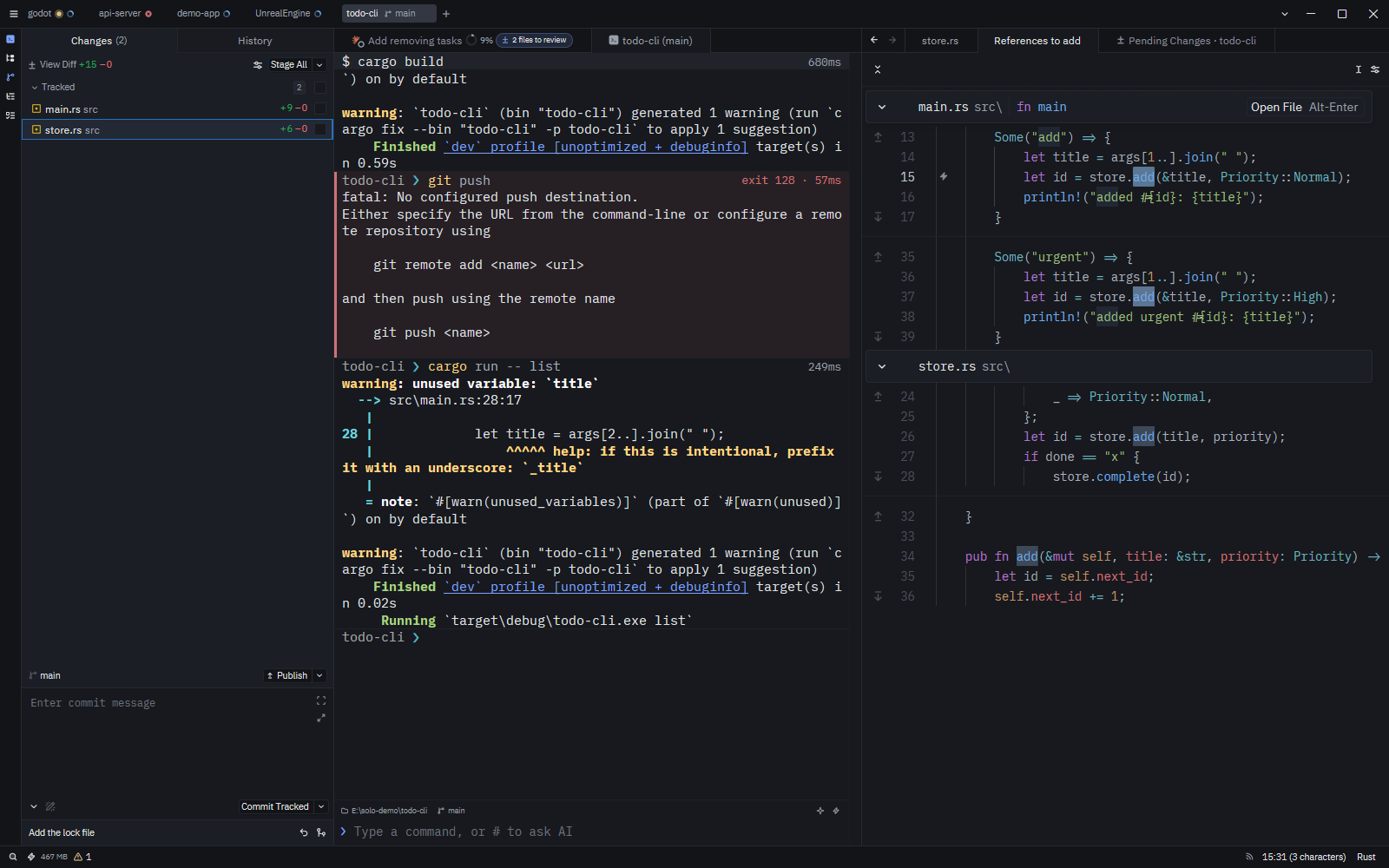
Solo is an editor for AI coding agents, built on Zed. The terminal fills the window, and agents like Claude Code and Codex run in a real terminal, with the command-line tools and subscriptions you already have. When you need to look at code, a full code editor opens on the right, so you can see what the agent changed at any time.
Download: Windows x64 installer (all releases). The installer is unsigned: when SmartScreen warns, click "More info", then "Run anyway". You can also install from the Microsoft Store (Store page): signed by Microsoft, updated through the Store, and possibly a version behind GitHub.
User guide · Compared with other tools
https://github.com/user-attachments/assets/85627f07-1bb5-4f68-8199-c3afbdc9fa3b
Features
The ones used most come first; the full feature list follows.
Terminal and editor side by side
The terminal fills the whole window. Open a file and the editor appears on the right; close the last file and it goes away again. The divider can be dragged, and the split is remembered. A row of buttons on the left opens the sidebars: files, git, outline, the agent board and more.
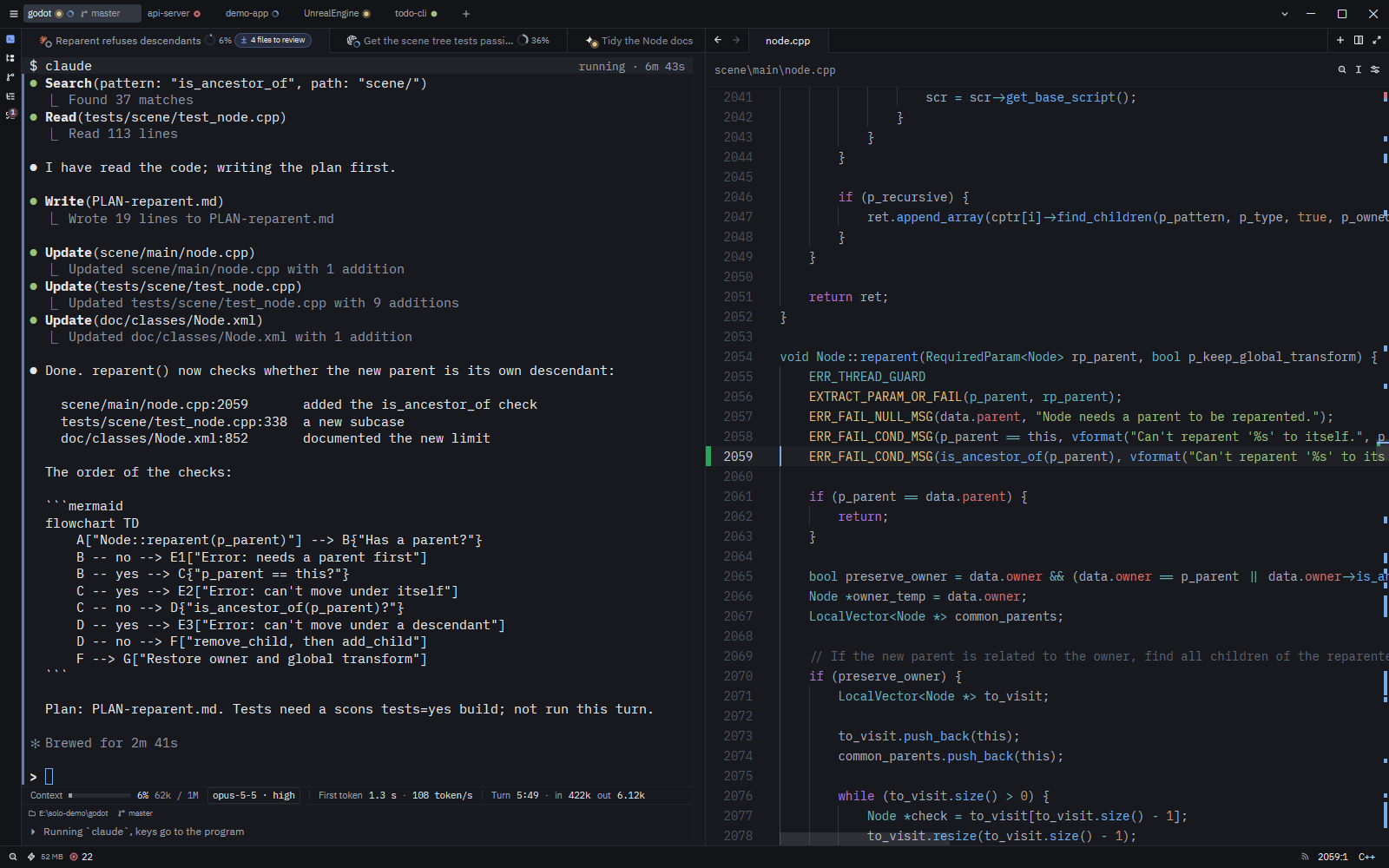
Agent status at a glance
The tab of a terminal running an agent shows the agent's icon, its session name and a traffic-light status: blue working, yellow waiting for you, green done with a turn for you to look at, red failed; then how much of the context is used. Hover it for the model and reasoning effort, the context, the directory and branch, the tokens and time of the turn and the session, the time to the first token and the output speed. With Solo in the background, an agent that needs your input sends a desktop notification.
Claude Code, Codex and Copilot CLI report their status through hooks Solo adds for the session, and OpenCode through a plugin Solo adds, without changing their config; other agents are recognized from their screen with per-agent rules.
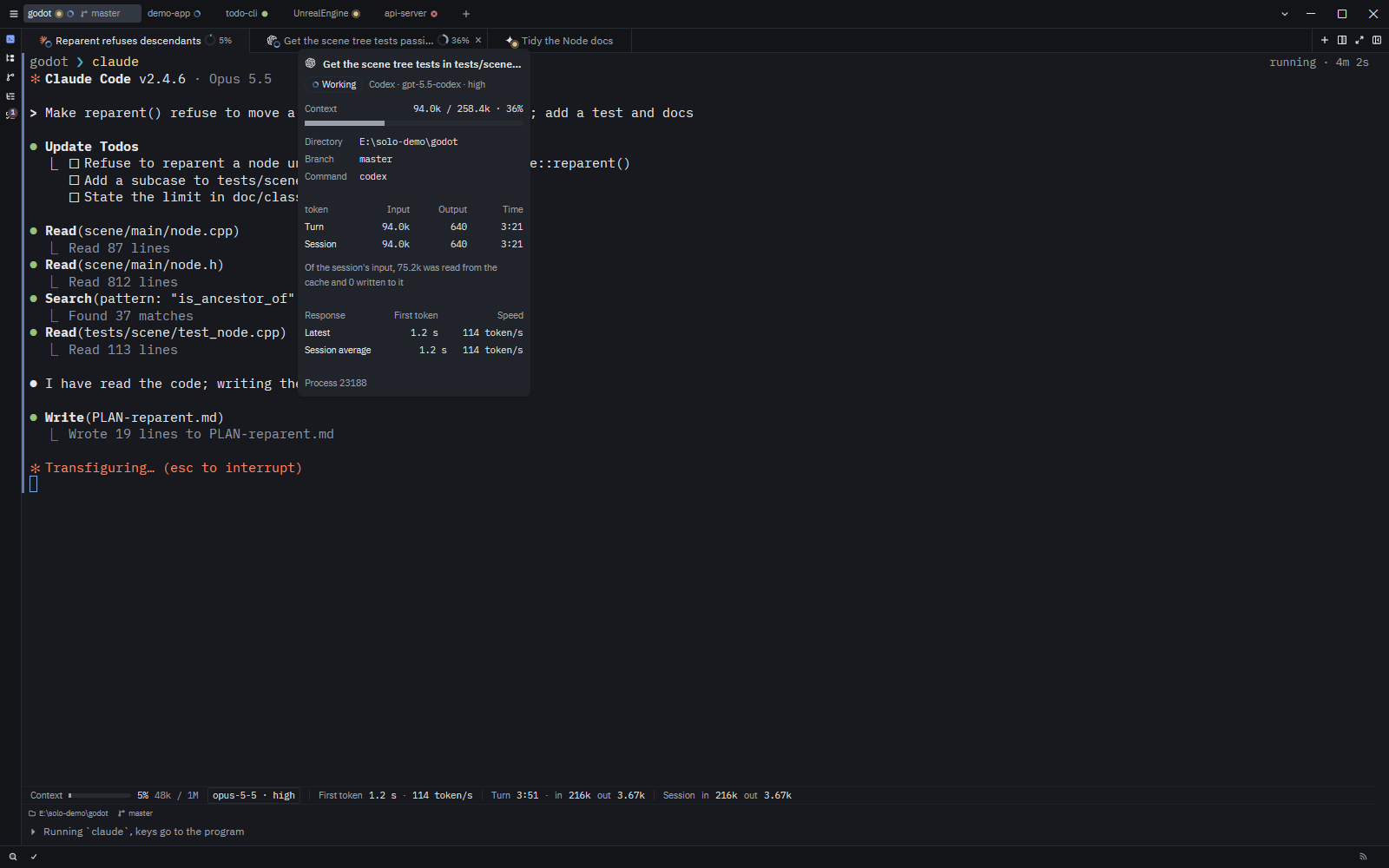
When a status looks wrong, right-click in the terminal and choose "Why This Agent Status?": Solo tells you whether it came from a hook report, the program exiting or a screen rule, and when the last report and output arrived.
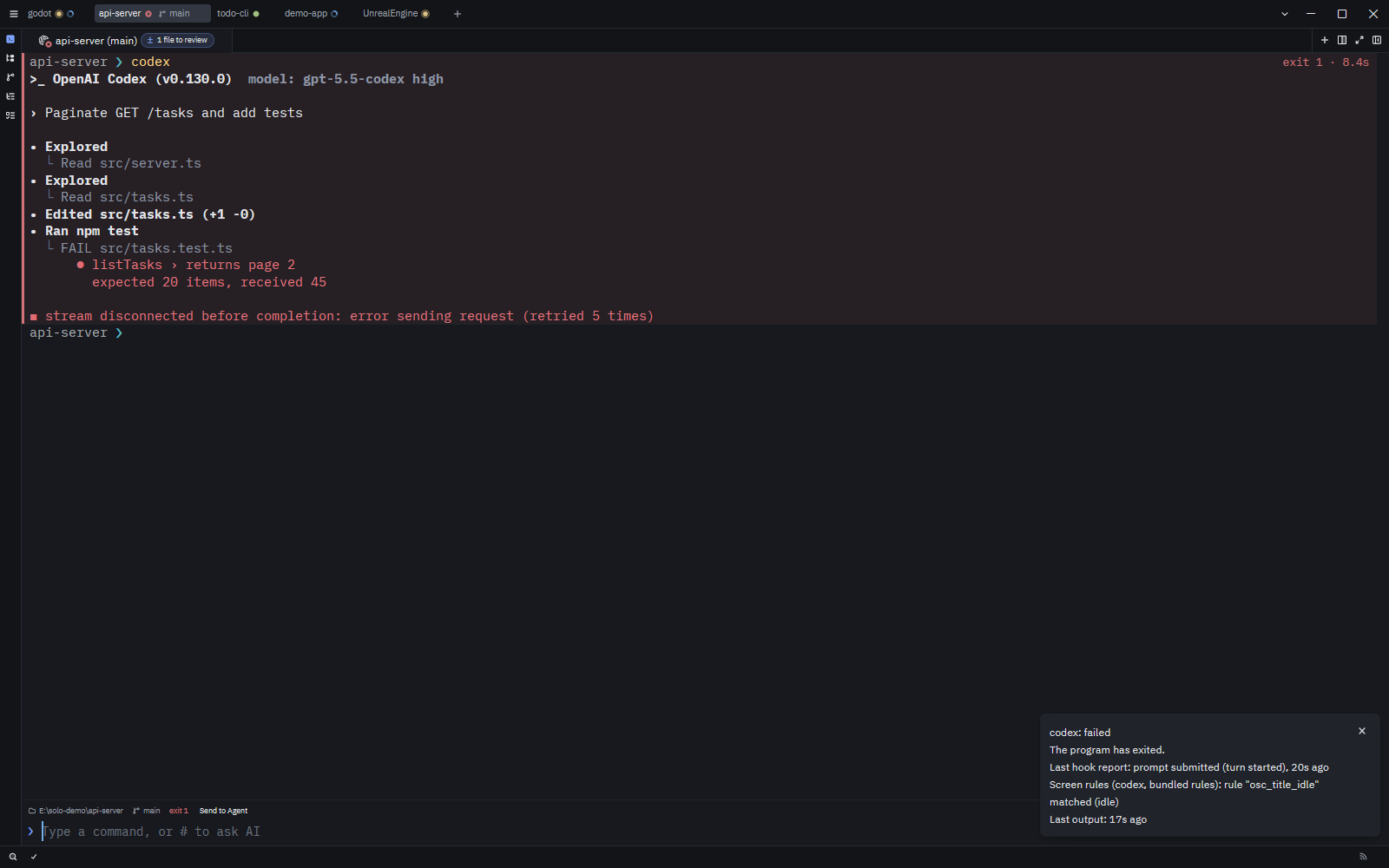
Workspace tabs: one per project
Each project folder is a workspace with a tab in the title bar, holding its own terminals, agents, editors and file tree; switching tabs swaps all of them. A tab shows the status of the project's agents, so you see an agent waiting in a background project too; its menu lists its terminals, and a click jumps to one. Ctrl+Alt+1…9 switches, and all the tabs come back after a restart.
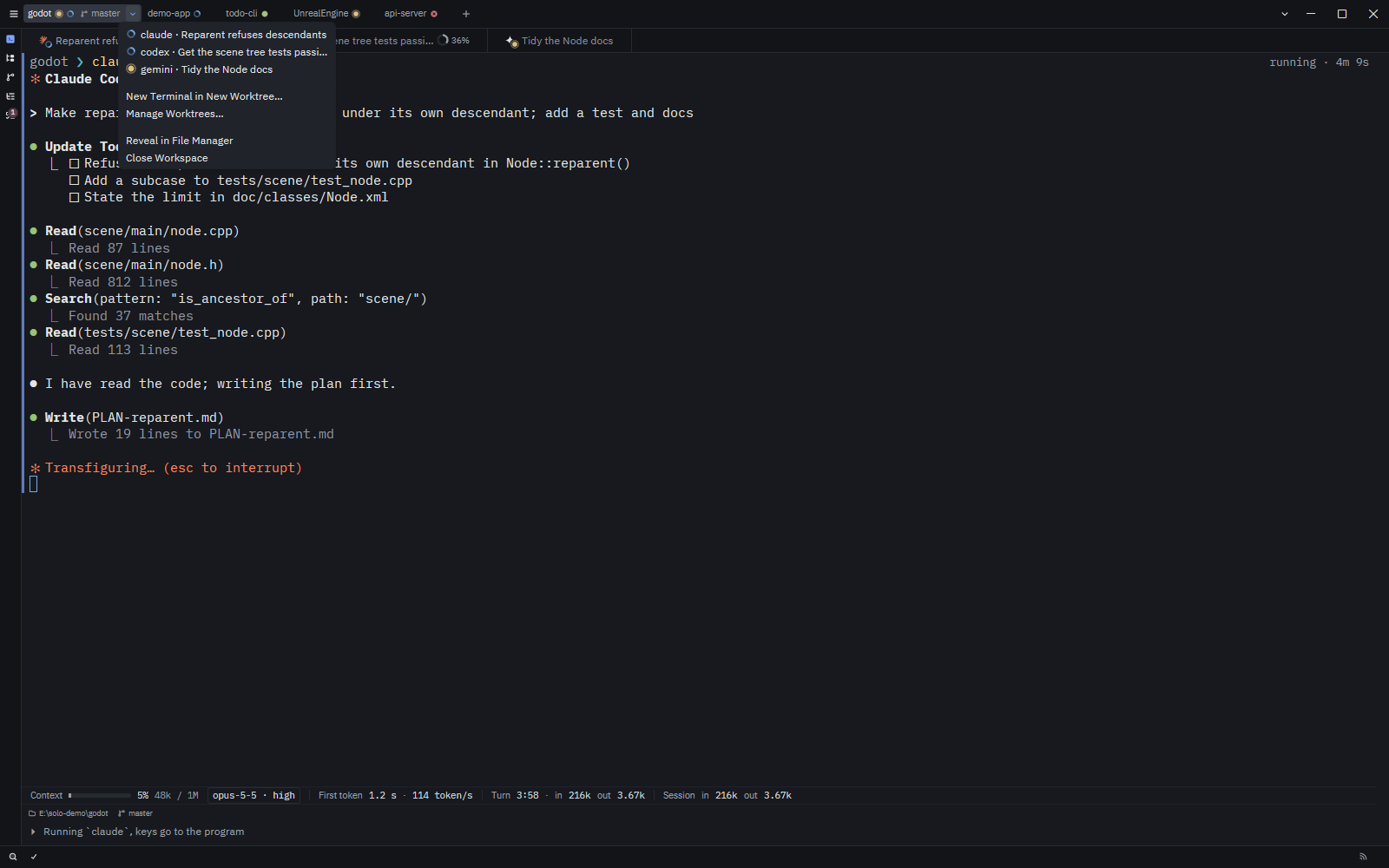
Pending changes and roll back
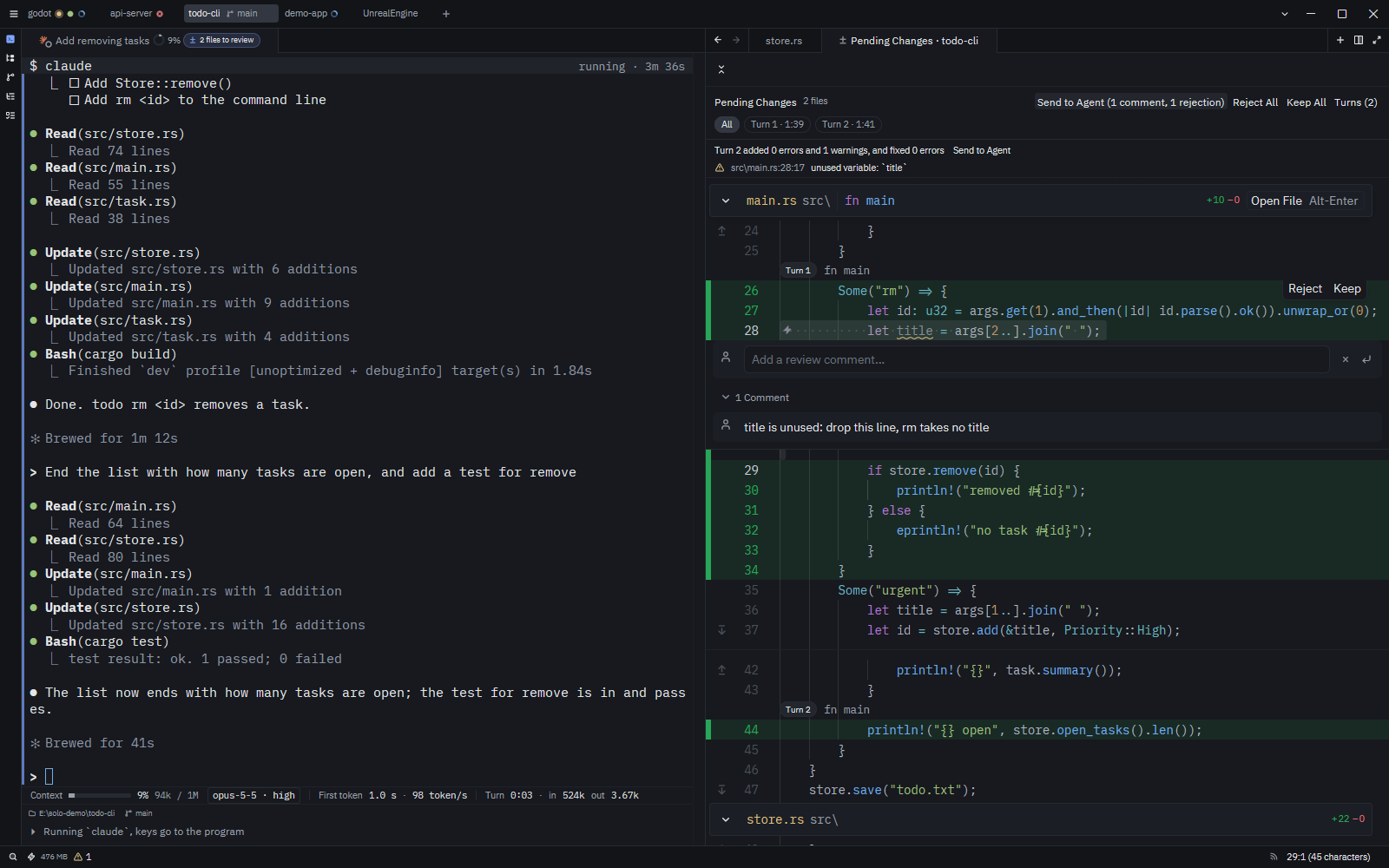
What an agent changed is pending until you accept it, and its terminal tab shows "N files to review". Open it: each file is compared with what you last accepted of it, so changes from several turns show together, each hunk marked with its turn. Keep or reject each hunk (also after a later turn changed the same file), comment on lines and send the comments and what you rejected to the agent at once. Changes you don't review are accepted when the next turn ends; your own edits and what you commit aren't pending. Solo also tells you how many errors and warnings the turn added, and how many it fixed. You can roll back to before any turn, and undo the rollback; snapshots are kept in Solo's own folder, never touching your branch, index or stash. More →
Agent timeline
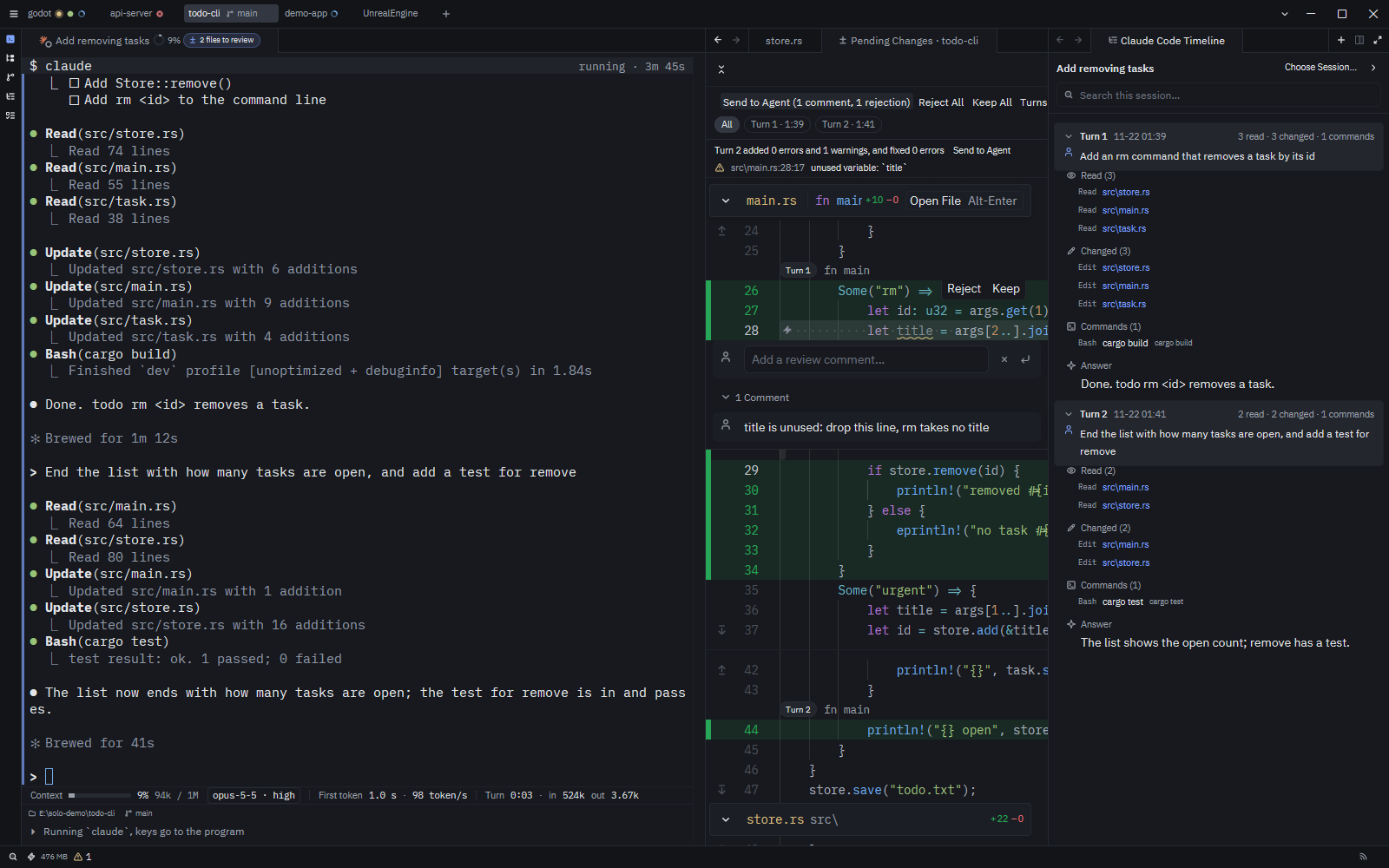
Claude Code and Codex sessions are listed turn by turn: each prompt, the files read and changed, the commands run and the answer, with files opening on a click. Right-click a terminal tab and choose "Agent Timeline".
Updates and crashes don't stop your agents
Each terminal's shell runs in a small background process. When Solo restarts for an update, or even crashes, the agents and builds that are running keep going; when Solo opens again it connects to them, with the screen, the output printed meanwhile and the agent's status. Quitting Solo yourself asks first when agents are running, as closing a window does, and then ends them (terminal.keep_running_on_quit keeps them running instead). Idle shells end with Solo. A terminal whose agent couldn't be kept offers to continue its session after a restart.
Click links in the terminal
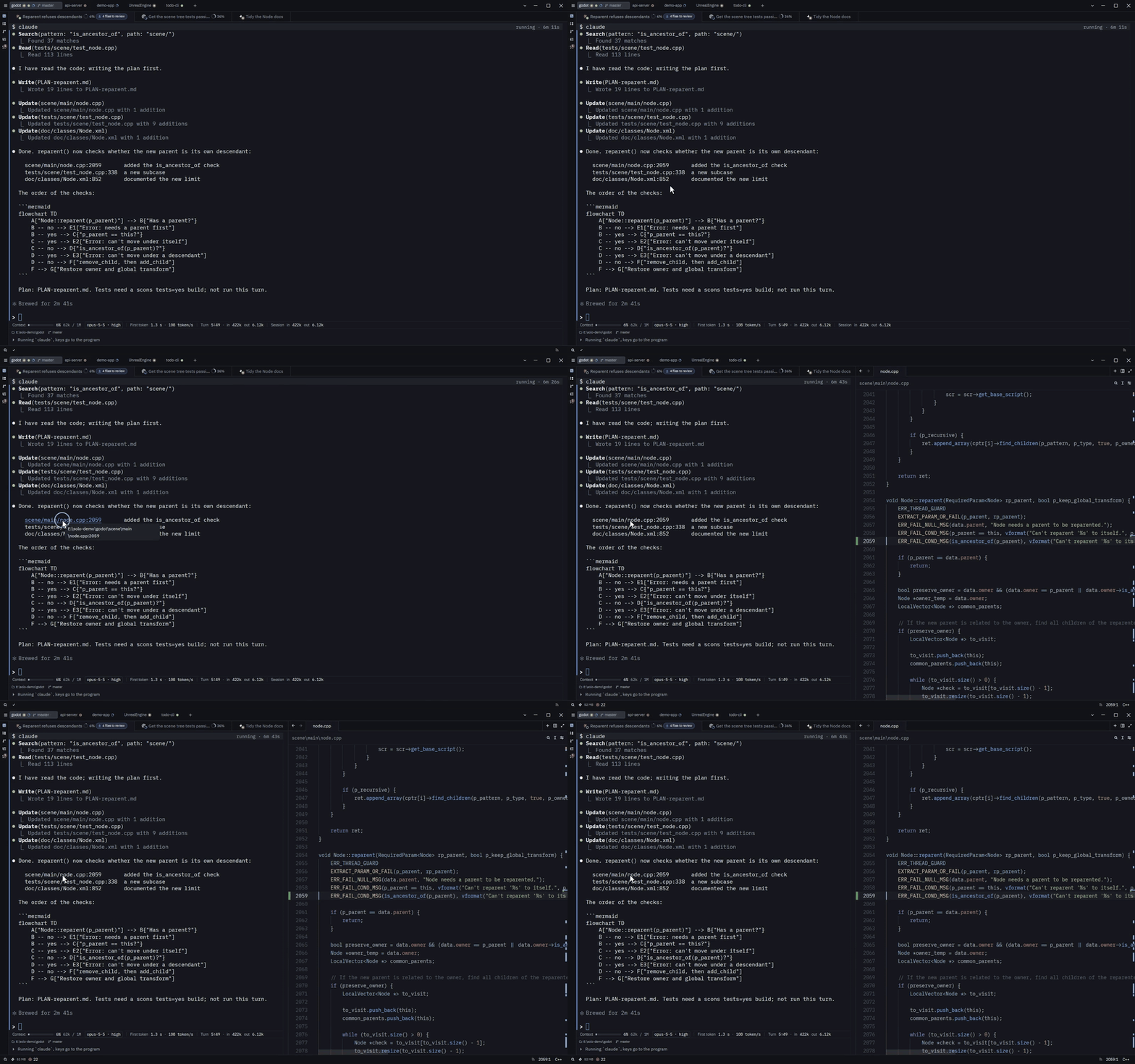
A file path in the terminal's output opens with a click: code in the editor, Markdown in a rendered preview (Mermaid diagrams and images included), images in the image viewer. When the agent says "changed src/app.ts:42", a click takes you to that line; when the output only has a line number (such as (:120)), Solo finds the file mentioned earlier that has that line and opens it.
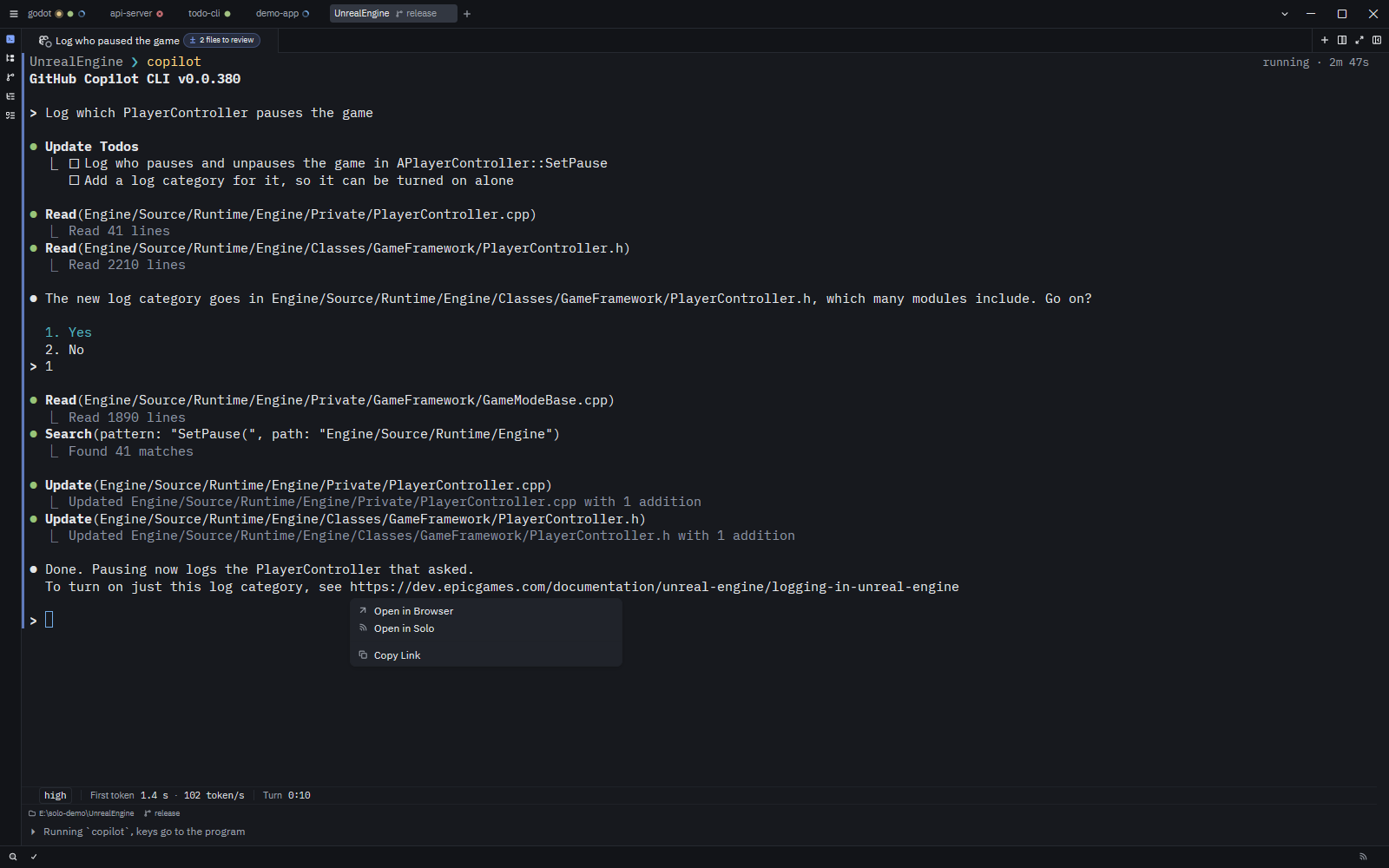
Links Solo shouldn't just open show a small menu instead: a web address outside this computer (open in the browser or in Solo, copy it), a file Solo can't open such as an .apk or .dll (open it with its program, show it in File Explorer, copy the path), a file name several files have when it isn't clear which one is meant (pick one), and a file only another project tab has (switch to that tab). Files Solo can preview ask too, with the preview first: an HTML file (open in Solo's browser, the source file, the default program), a CSV, TSV, PSV or SSV table (table preview) and an SVG image (image preview), and a PDF (open in Solo's browser). Markdown still opens its preview straight away. Ctrl+click does the menu's first option (for a file Solo can preview, the preview), except that a file whose first option would hand it to another program, such as one Solo can't open, is only shown in File Explorer; for programs and shortcuts (.exe, .lnk, ...) running it is the menu's last option. The terminal.link_menu setting (Settings › Terminal › "Menu When Clicking Links") turns the menu on for every link (always) or off (never).
Mermaid diagrams and document review
Click the mermaid line of a mermaid block in an agent's output to see the diagram; when the screen only shows part of it, Solo takes the whole block from the agent's transcript. Mermaid diagrams in Markdown previews render too.
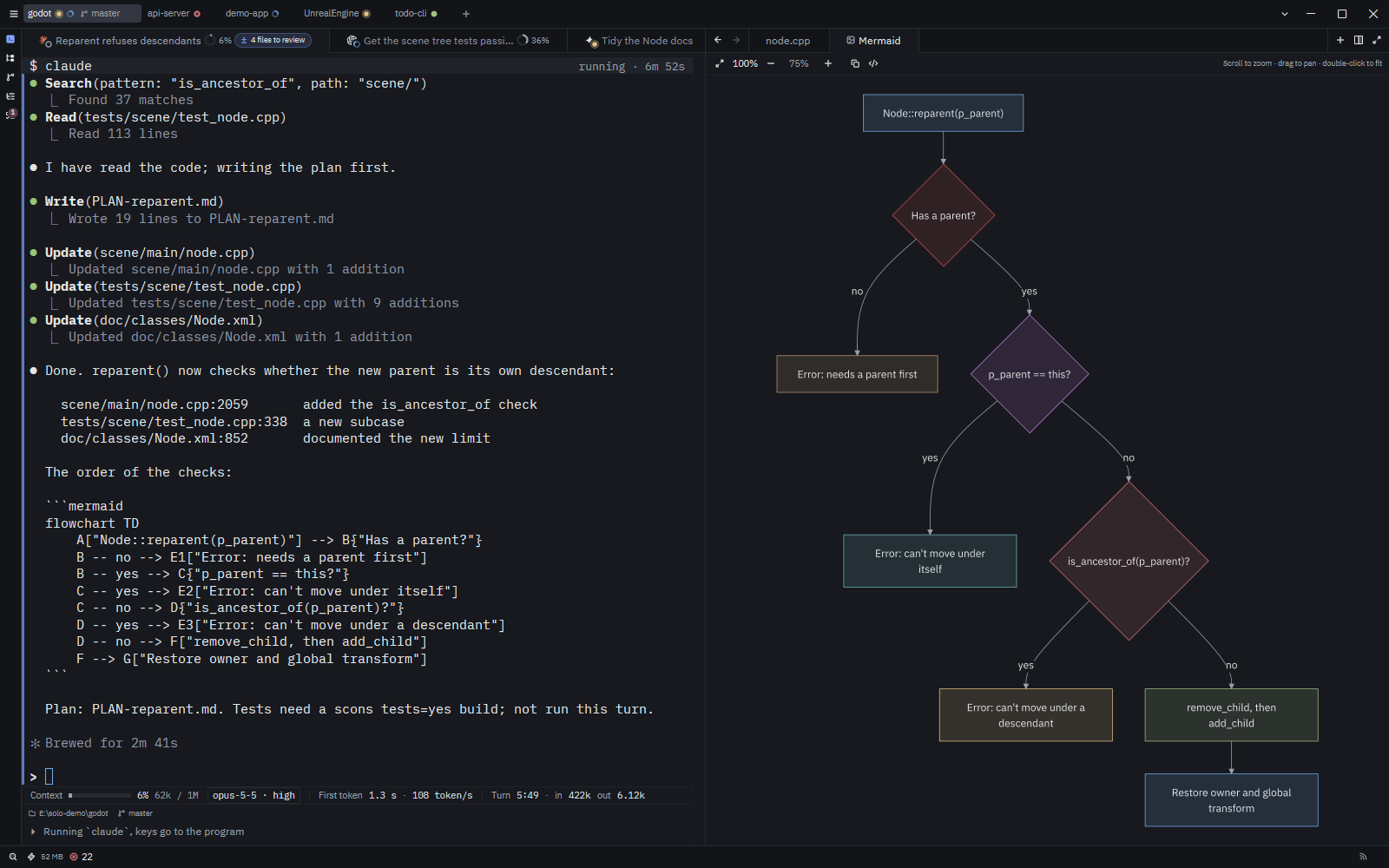
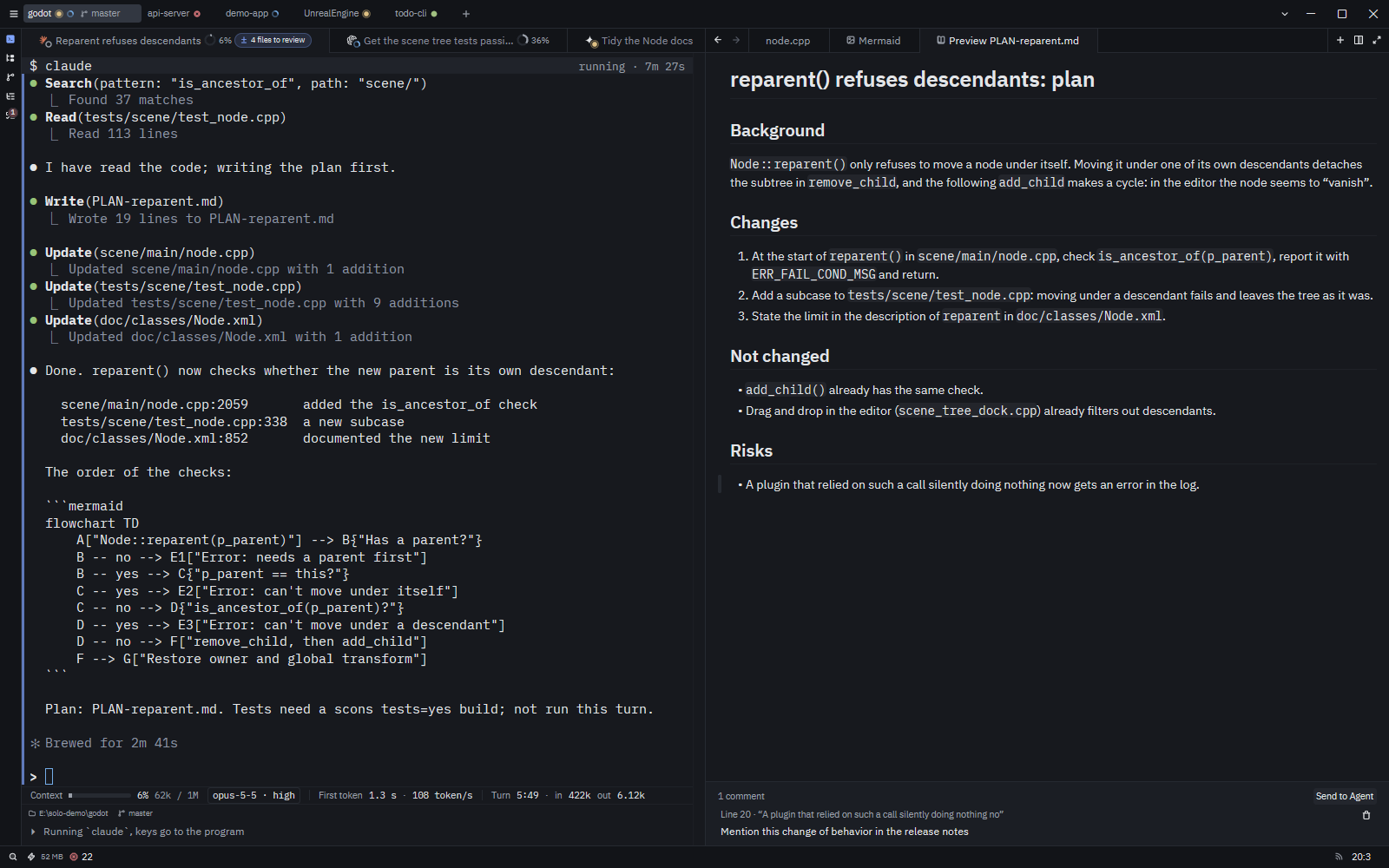
Plans and designs the agent writes open in a preview: select text, comment, and send the comments to the agent at once; when the document changes again, Solo tells you which parts. More →
Several agents at once
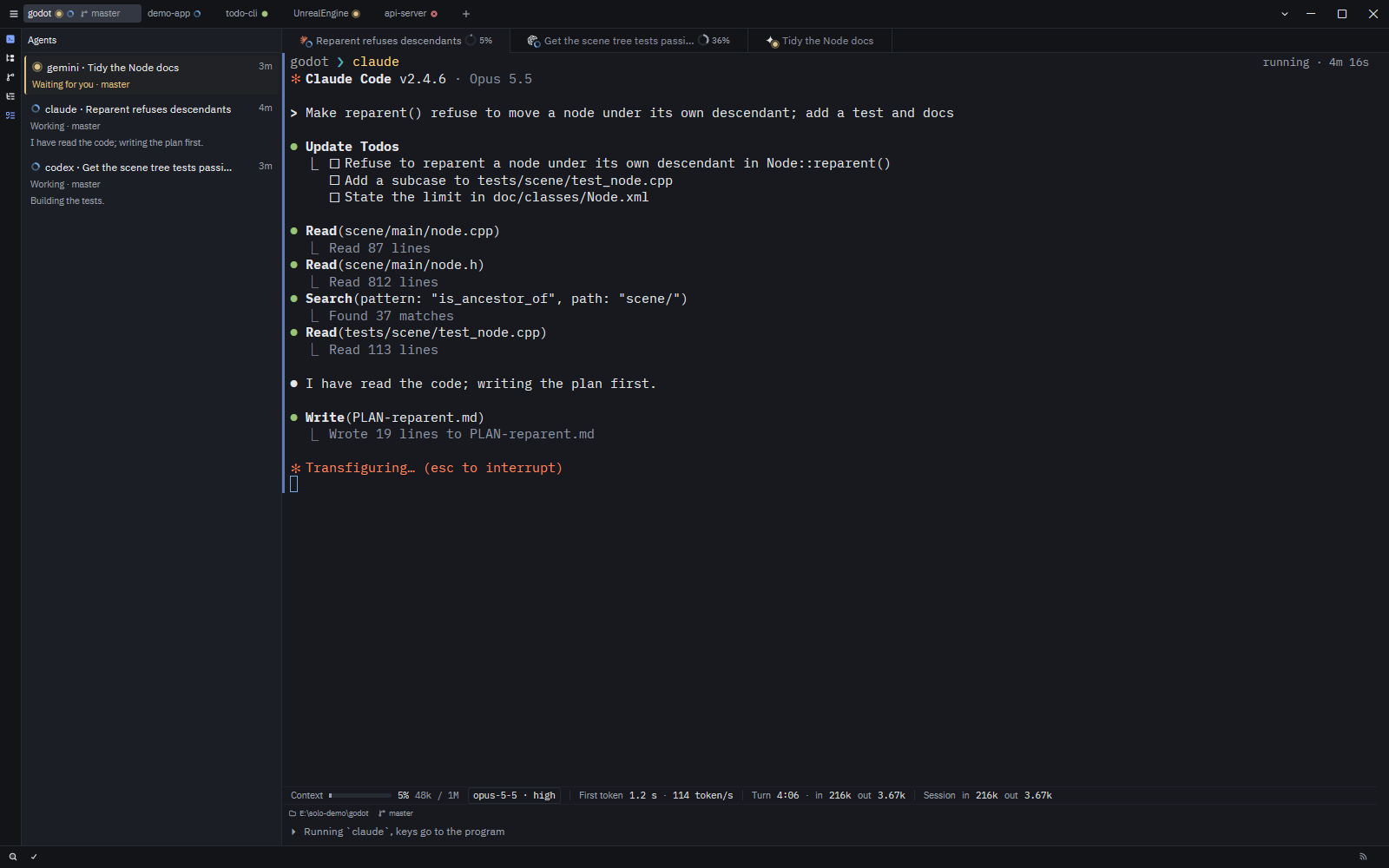
Each task gets its own git worktree and branch, so agents don't get in each other's way; merge it, open a pull request or discard it when done. In a workspace with several repositories, a task can span them. The agent board on the left lists every agent and task, with those waiting for you first. An agent in a terminal can also use solo-cli agent to look at and wait for the other agents, send them messages, or start a new task. More →
Built-in browser
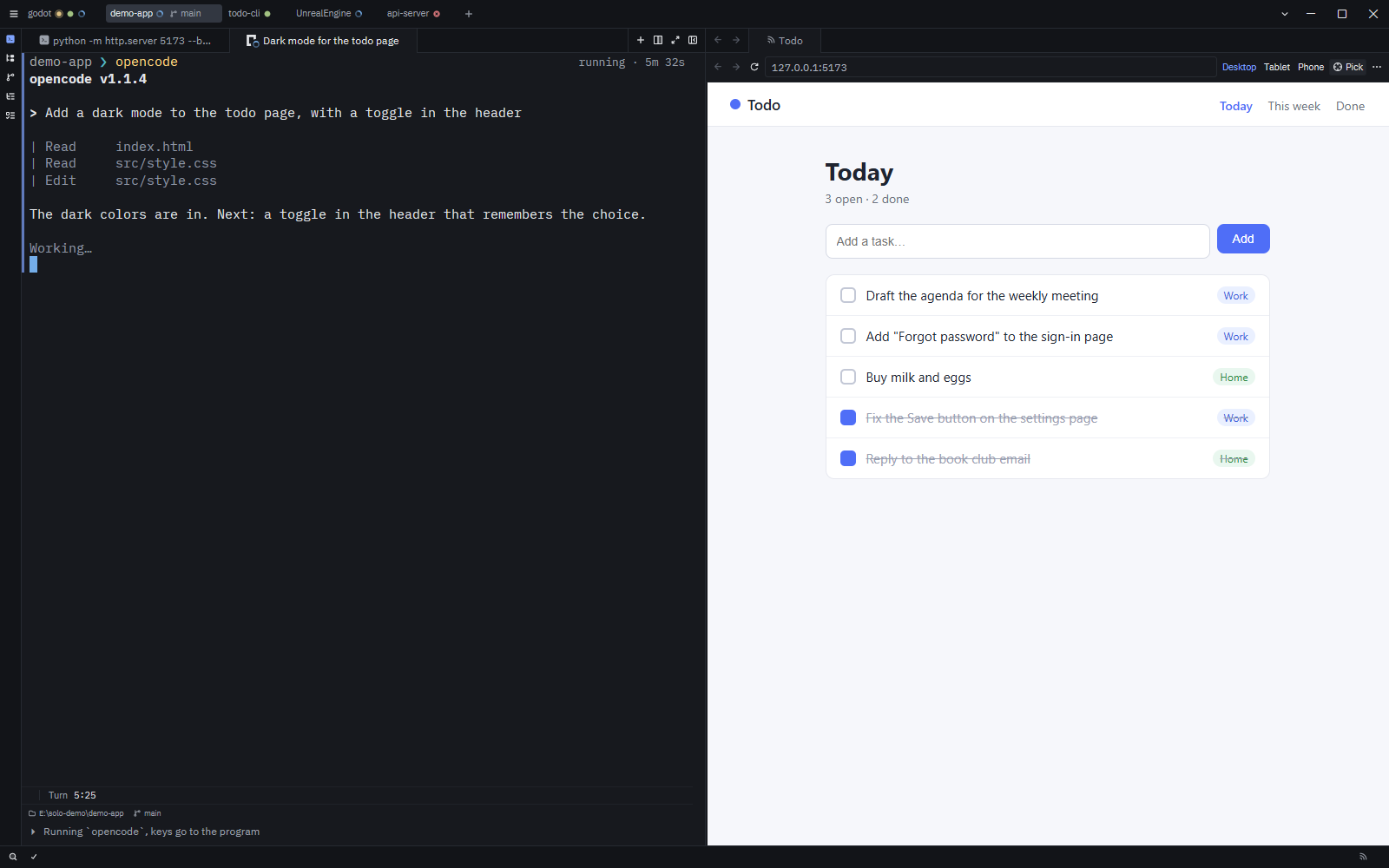
Links to local addresses (localhost and the like) open in Solo, so you don't switch windows while developing. Pick elements on a page, comment on them, and send the comments to an agent at once, with their selectors, HTML, styles and screenshots. With a setting on, agents started in Solo's terminals can also open pages, click, fill in forms and take screenshots in this browser while you watch. More →
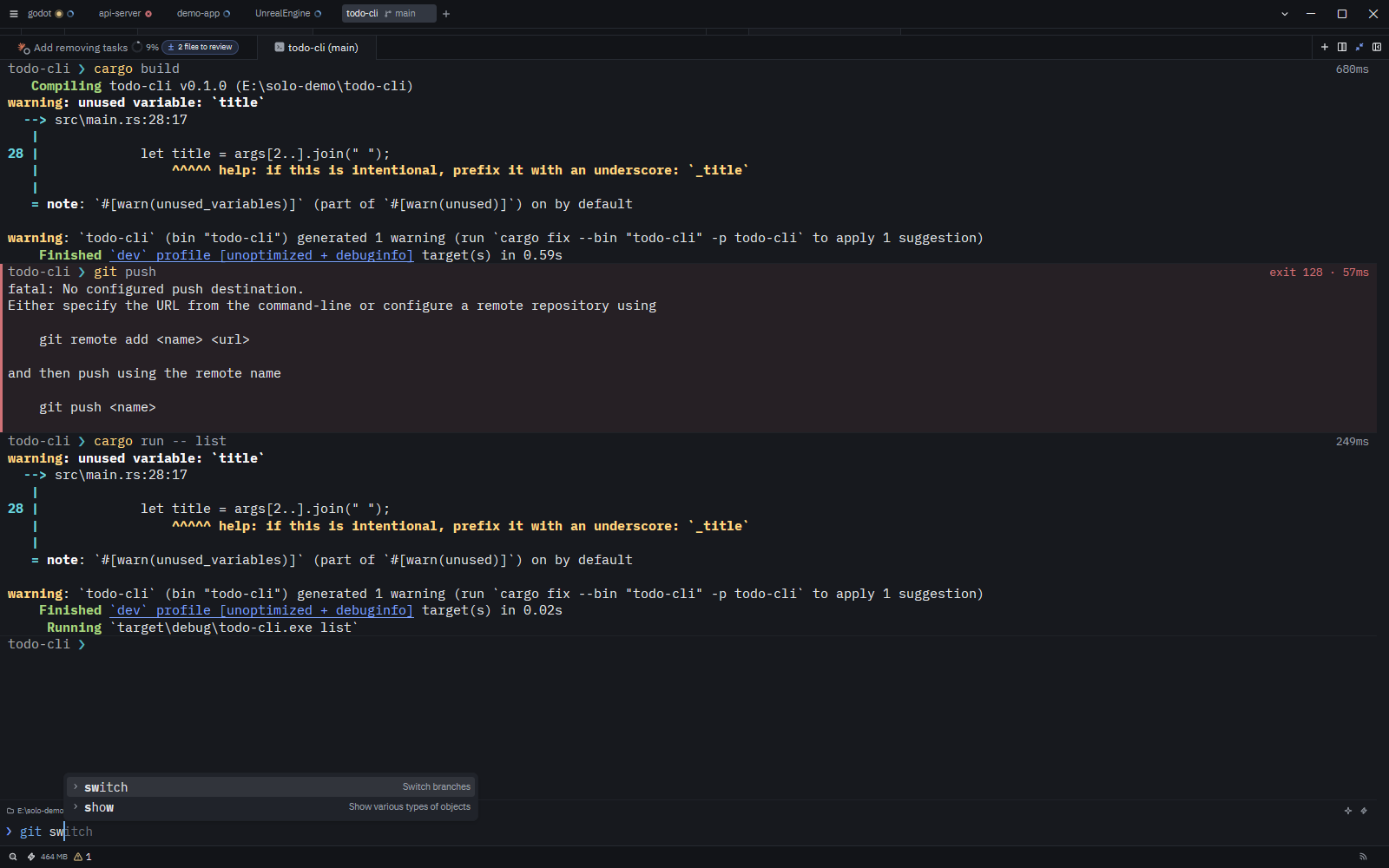
A good terminal
Command blocks, an input editor at the bottom, completions as you type, a failed command's errors sent to an agent in one click, and a command from a sentence by your own Claude Code or Codex. More →
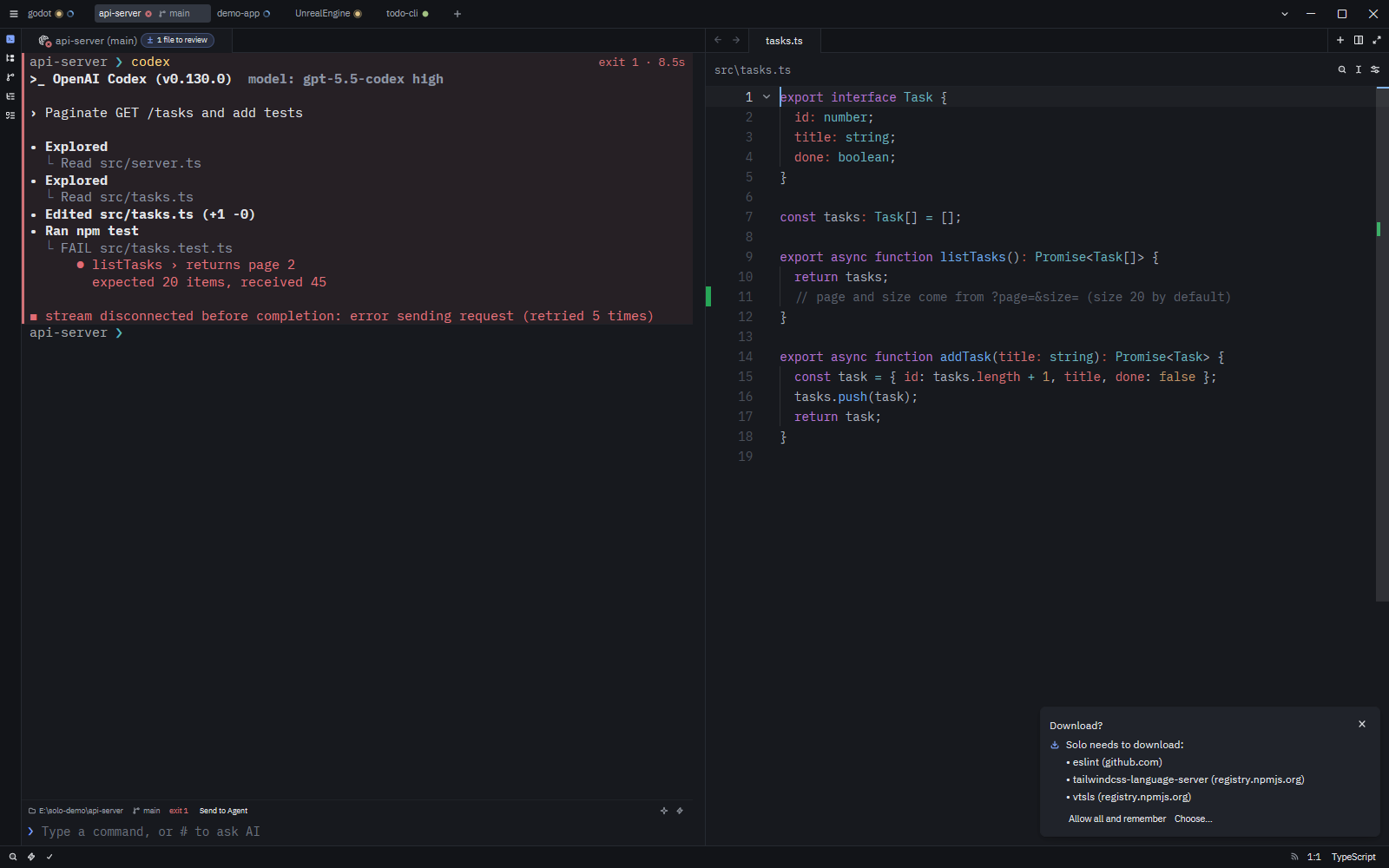
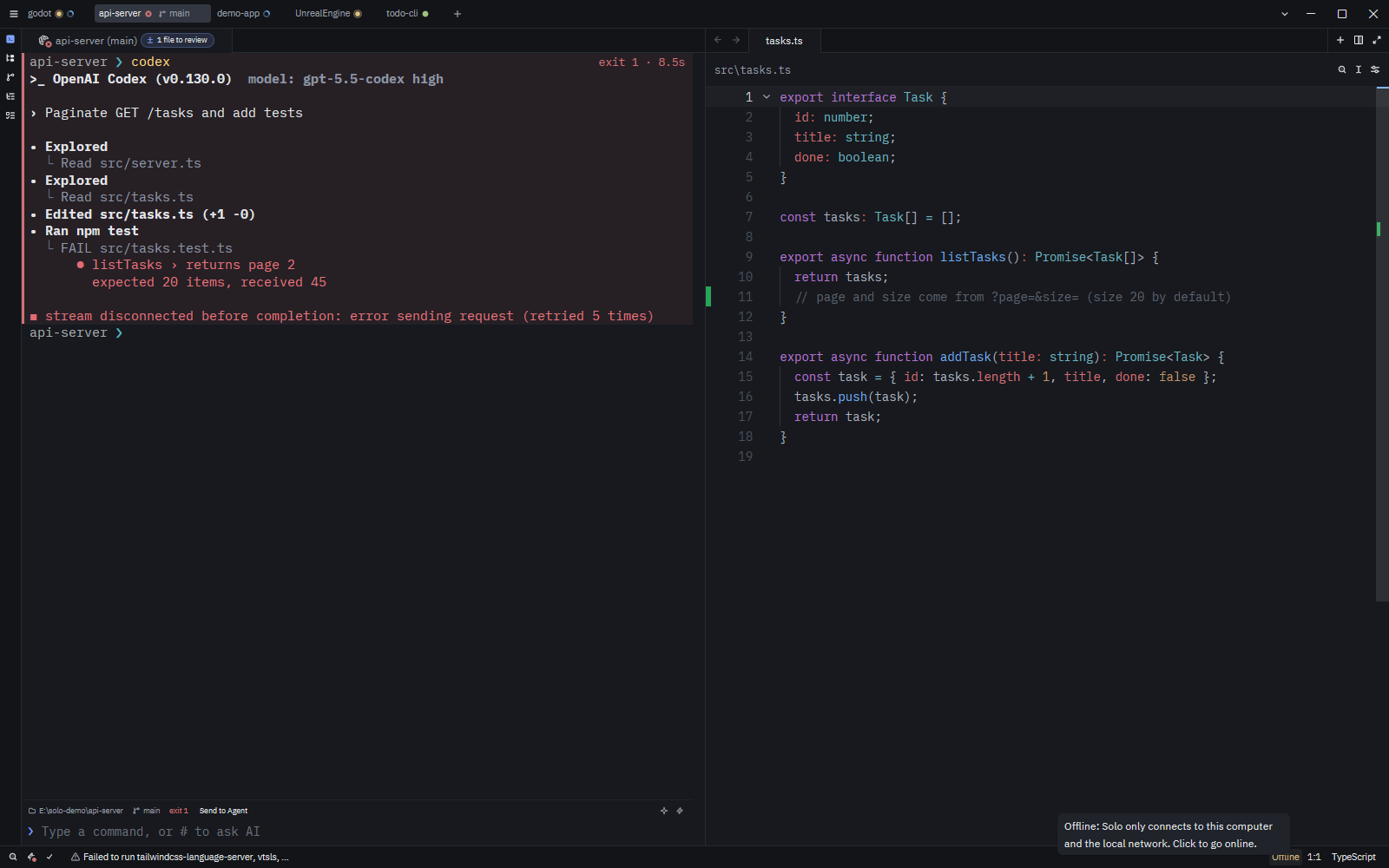
Asks before downloading, works offline
Before a language server, Node.js and the like is first downloaded, Solo asks once and says where it comes from; you can allow all and remember, choose one by one, or point to a local copy. The button at the right of the status bar switches to offline mode, where Solo only connects to this computer and the local network.
Voice input
Press Ctrl+Alt+M and say it: the text is recognized on your computer and filled in where you were typing, in the input box, in the agent running in the terminal, or in an editor, and never sent for you. The model (SenseVoice Small, 253 MB) is downloaded the first time, after asking. The sound isn't saved or uploaded.
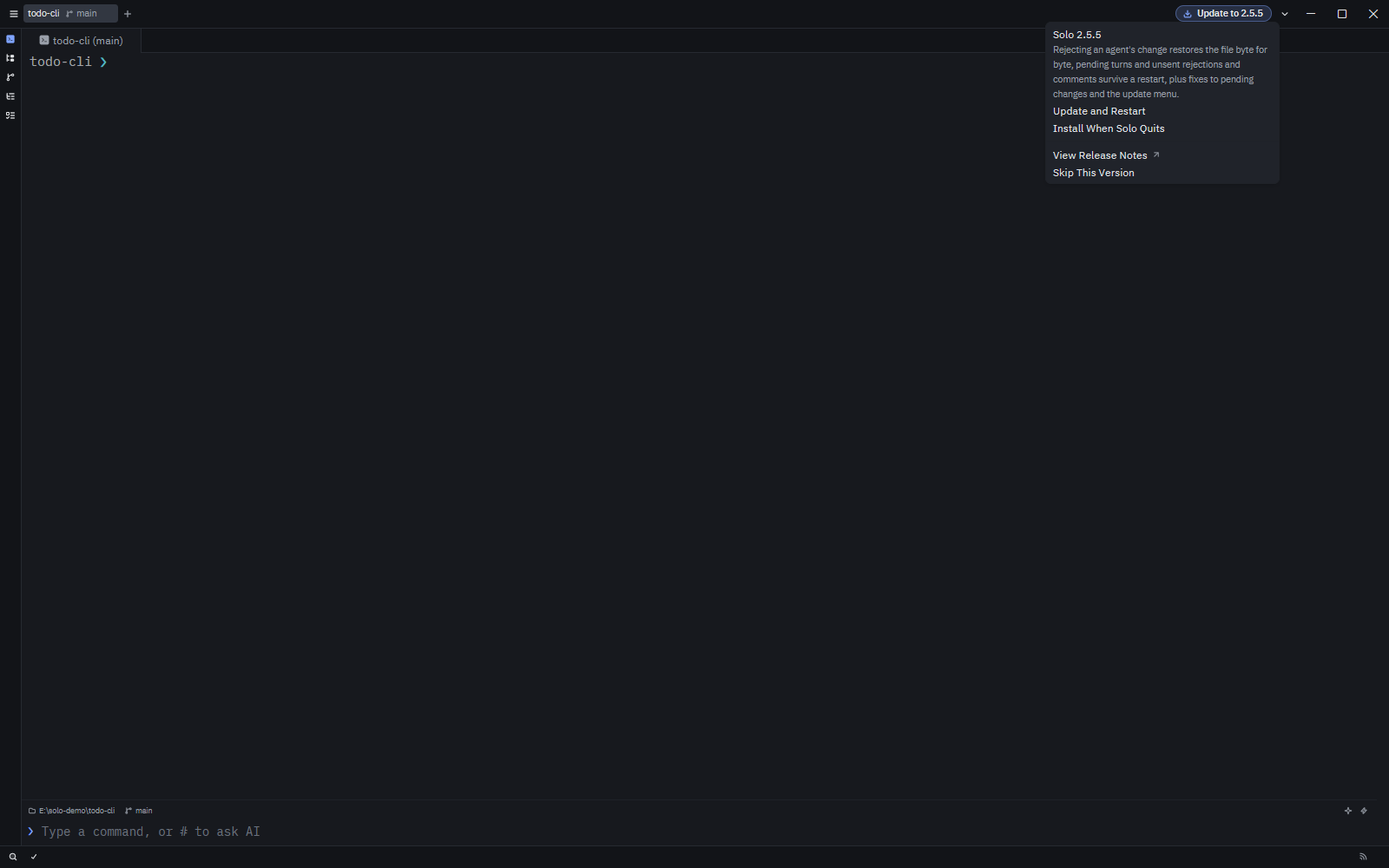
Updates inside Solo
A newer version shows an update button at the right of the title bar, with no notification; its menu sums up the release and offers "Update and Restart", "Install When Solo Quits", the release notes or skipping the version.
All features
Terminal
- Command blocks: each command and its output form a block, with the exit code and duration, failed ones in red, a timer while running, and the command pinned to the top while scrolling through long output. Select a block to copy the command or the output, run it again, or send it to an agent in another terminal with
Alt+Enter. - Send failures to an agent: when a command fails, click "Send to Agent". Solo picks out only the compiler errors, failed tests and assertions (cargo, tsc, gcc/clang, MSVC, pytest, go, jest), or else the end of the output, and pastes it into the agent working in the same directory.
- Input editor: commands are typed in a real editor at the bottom, with multiple cursors, undo,
Shift+Enterfor new lines and syntax highlighting. - Completions as you type: subcommands, options and argument values (git branches, npm scripts, docker containers, ...) for about 500 common commands, plus PowerShell's own completions; grey suggestions from history and command specs, and fuzzy history search on
Ctrl+R. # what you want: describe it in a sentence, and your own Claude Code or Codex (with their tools turned off) suggests a command, which runs only once you confirm it; the command that just failed and its output can go along.- Workflows: save commands you use often with
{{arguments}}, bring them up withCtrl+Shift+R, or run one in a new terminal from the + menu. - Shells: PowerShell, bash, zsh, fish. After a restart, terminals reopen in their directories and with their titles. Like Windows Terminal, a new terminal takes
PATHand the other environment variables from the system's current settings, so a program installed while Solo was open (or one Solo's launcher didn't pass on) is found without restarting Solo. - The terminal column can be hidden while its agents keep running; meanwhile the terminal icon on the left shows how many agents want a look.
Agents and status
- More than twenty agents are recognized with no setup; other programs can be added with
agent_commands, or report their own status through the status protocol. - Terminal tabs: the agent's icon, its session name, a traffic-light status, and a context ring with its percentage; the hover card and the usage bar at the bottom of the terminal show the model, reasoning effort, tokens, turn time, time to first token and output speed.
- Desktop notifications (with Solo in the background): when an agent needs your input, when a program asks for one, when a long command finishes, and (off by default) when an agent stops; each has its own switch.
- Agent board: a sidebar listing every agent terminal and agent task, with its status, branch, last turn's changes, running time and last message; click one to go to its terminal. A task's pull request is followed with
gh: its checks, new comments and whether it can be merged show on the board, you get a notification when something needs you, and what's new can be sent to the agent (automatically, if you like). - Timeline (Claude Code, Codex): each turn's prompt, the files read and changed, the commands run and the answer.
- Sending things to an agent: in the editor,
Ctrl+Alt+Ksends the selection or the cursor position, andCtrl+Alt+Shift+Msends the file's diagnostics. - IDE tools for agents: Claude Code and Codex in Solo's terminals can use the language servers Solo already runs: find symbols, go to definition, find references, see diagnostics; read-only, and only in that workspace (
terminal.ide_toolsturns them off). - Why this status?: right-click a terminal tab and choose "Why This Agent Status?" to see whether the status came from a hook or from the screen, and when the last report arrived; agents can ask with
solo-cli agent why. - Closing a terminal or a window while an agent runs asks first.
Workspaces
- One workspace tab per project folder, each with its own terminals, agents, editors and file tree; the tab shows its agents' status, and its menu lists its terminals.
- When a terminal
cds into another project, its tab gets a mark and a bar on top offers to move it to that project's tab (without interrupting what runs in it); you can also "Move to" a tab at any time. - A workspace holding unrelated projects can be split into several tabs.
- "Open with Solo" on a file or folder in Explorer puts it in the open window, in the matching tab.
Review and roll back
- Each turn's changes: keep or reject each hunk, or keep or reject all; rejecting a file the turn created moves it to the recycle bin.
- Comment on lines and send the comments to the agent at once.
- How many errors and warnings the turn added and fixed; click one to go there.
- Go to definition, find references and search work in the review, and a line above each hunk names the function it's in.
- Roll back to before any turn, and undo the rollback; a rollback that fails partway keeps the undo point.
- When the agent reports the files it edits (Claude Code does, and Solo reads Codex's from the telemetry Codex sends it), a turn is only those files: what you or another agent changed meanwhile is listed separately, and "Reject All" leaves it alone.
- When the folder isn't a git repository or has too many files to snapshot, the turn still lists the files it changed.
- Untracked files over 50 MB aren't snapshotted: the review says so, and a rollback leaves them alone. Old snapshots are cleaned up automatically, 4 GB at most in all.
Editor
- Zed's editor: language servers, go to definition, find references, project-wide search, multiple cursors, the git panel, diffs and blame.
- Language servers use fewer resources on large repositories by default; the status bar shows how much memory they take, and each project can choose full analysis, open files only, or off. Solo warns when they take a lot of memory, and says why when one fails to start.
Documents, Markdown and diagrams
- Paths in the terminal's output open with a click: code, Markdown previews, the image viewer; links with only a line number find the right file too.
mermaidblocks in an agent's output open as diagrams, and Mermaid diagrams and images in Markdown previews are shown.- Comment in a Markdown preview and send the comments to an agent at once; when the document changes later, Solo says how much changed, and "Show Changes" marks the changed blocks.
- A file Solo can't open (an .apk, say) shows its full path, with "Reveal in File Explorer" and opening it with the default app.
Built-in browser
- Web links in the terminal, Markdown previews and the timeline: local addresses open in Solo by default and the rest in the system browser (
browser.open_linkschanges it);Ctrl+Shift+click opens a link the other way. - New Web Page in the editor's + menu opens an empty tab with the cursor in the address bar.
- Toolbar: back and forward, the address bar, desktop/tablet/phone viewports, developer tools, find in page.
- Pick: click page elements to comment on them, numbered on the page; "Send to Agent" pastes them into the agent's prompt (without sending it).
- Letting agents use the browser (
browser.allow_agent_control, off by default): Claude Code and Codex get Playwright MCP (Node.js needed) to open pages, read them, click and take screenshots in Solo's browser.
Parallel tasks and the agent command line
- Agent tasks: each task gets a branch and a git worktree, with a terminal there running an agent; when done, merge it into the branch it started from, open a pull request or delete it; with uncommitted changes, the agent can be asked to commit them.
- A task can span several repositories in a workspace.
- A repository's
.solo/worktrees.jsonsets where worktrees go, which ignored files they get a copy of (such as.env), the commands to run before and after, and a port for each task. - "New Terminal in New Worktree…" in the + menu opens an empty shell or any installed agent in a new worktree.
- Install Agents… (the + menu, the empty terminal column, the command palette) lists the 11 agents Solo can follow: the installed ones with their versions, and an Install button for the rest that fills the install command into a new terminal's input without running it. The + menu lists the installed agents.
solo-cli agent: an agent in a terminal can list the other terminals, send them messages, wait for them to finish, read their answers, or start a new task (details); theagent_controlsetting limits how far it can go.
Terminals that keep running
- Terminals running an agent or a command keep running when Solo restarts for an update or crashes, and Solo connects to them again when it opens, with the whole screen back and the agent recognized. Quitting Solo asks first when agents are running, then ends them.
- An agent terminal that couldn't be kept offers to continue its session after a restart (Claude Code, Codex, Copilot CLI, OpenCode, Gemini CLI, Cursor CLI, Aider).
Updates
- Solo updates inside Solo, without opening the Store; a newer version shows an update button at the right of the title bar, with no notification.
- Choose "Update and Restart" or "Install When Solo Quits"; with agents running it says which ones updating now would affect. You can also read the release notes or skip the version.
Settings and more
- Chinese and English interface (
ui_language, following the system by default). - The settings page covers the terminal, notifications, language servers and more; settings and data live in Solo's own folders, apart from Zed's.
- No account, no telemetry; by default Solo only checks for updates.
- Asking before downloading: before a language server, Node.js, Prettier, a debug adapter and the like is first downloaded, Solo asks once, naming where it comes from; you can allow and remember it, skip it for now or point to a local copy (
downloads.mode). - Voice input:
Ctrl+Alt+Mor the microphone on the input box; recognized on this computer (voice_input), filled in at the cursor or pasted into the program, never sent for you. - Offline mode: the button at the right of the status bar, or
network.offline; Solo then only connects to this computer and the local network and installs nothing, while what's already installed keeps working.
In development
- A phone app: see and control the agents on your computer from your phone.
Supported agents
| Agent | Where the status comes from | Per-turn review | Resume after a restart |
|---|---|---|---|
| Claude Code, Codex, Copilot CLI | hooks Solo adds, exact | yes | the most recent session |
| OpenCode | a plugin Solo adds, exact | yes | its own session |
| Gemini CLI, Qwen Code | hooks Solo adds for the session (system defaults settings file), exact | yes | its own session |
| Pi, oh-my-pi | an extension Solo loads with -e, exact |
yes | its own session |
| Kilo Code CLI | Solo's plugin folder (KILO_CONFIG_DIR), exact |
yes | its own session |
| Kimi Code CLI, MastraCode | written to their own config once turned on one by one in global_agent_hooks (backed up first, removed cleanly); otherwise their screen (Kimi) or terminal output |
yes | its own session, once turned on |
| Cursor CLI | its screen | yes | the most recent session |
| Amp, Cline, Droid and the other agents with rules | its screen | yes | no |
Aider and programs added with agent_commands |
its output | no | Aider's chat history; others no |
| Other programs | the status protocol | yes | no |
The full list is in the feature reference.
Install
Solo is Windows x64 only for now. There are two ways to install it; one is enough:
- GitHub installer: download
Solo-Setup-<version>.exefrom GitHub Releases. It's unsigned, so Windows' SmartScreen says "Windows protected your PC" when you run it: click "More info", then "Run anyway". You can choose the install folder (by default%LOCALAPPDATA%\Programs\Solo), and Solo updates itself afterwards. - Microsoft Store: download Solo Code's installer; it installs Solo Code without opening the Store app. If the link doesn't download, install it from Solo Code's Store page. The Store version is signed by Microsoft, updated through the Store, and may be a version behind GitHub. To put it on another drive, choose that drive under Settings > System > Storage > Advanced storage settings > Where new content is saved > New apps will save to before installing it, or move Solo Code later from Settings > Apps (these menu names are as Microsoft documents them, not tested).
Getting started: open Solo, open a project folder, and run claude, codex or the agent you use in the terminal (install the agent yourself first).
Updating happens inside Solo: the Store version updates through the Store without opening it; the GitHub version downloads the new installer and installs it silently. Solo checks 30 seconds after it starts and every hour after that. A newer version shows an update button at the far right of the title bar (no notification), and nothing updates until you agree; with agents running you can choose "Install When Solo Quits", and the button goes away until Solo quits (checking for updates by hand shows it again). To turn off the automatic checks, set "auto_update": false.
Uninstalling: uninstall Solo Code (Store version) or Solo (GitHub installer) from Settings > Apps. Uninstalling doesn't remove your settings and data; to remove everything, see the user guide.
Build from source
What you need (Windows x64):
- Git.
- Rust: install it with rustup, or run
script\install-rustup.ps1. The repository'srust-toolchain.tomlpins the compiler version (1.98.1), which rustup installs on the first build. - Visual Studio 2022 or later (or only the Build Tools with the "Desktop development with C++" workload), with these components: MSVC x64/x86 build tools, MSVC x64/x86 Spectre-mitigated libs, Windows SDK (10.0.20348.0 or later) and CMake ("C++ CMake tools for Windows"). With only the Build Tools, build from "Developer PowerShell" in the Start menu. For component IDs and common problems, see Zed's Windows build notes.
- Disk space: leave at least 40 GB. One release build took 14 GB, and the Rust toolchain and cargo's downloaded sources about 6 GB; a debug build's
target\debugkeeps growing as you rebuild. How this was measured is in Building from source.
Development build:
git clone https://github.com/lucas9801/solo
cd solo
cargo run -p solo        # debug build: builds and runs target\debug\solo.exe
This builds only solo.exe. solo-agent-hook.exe (for agent hooks), solo-terminal-host.exe (which keeps terminals running after Solo closes) and solo-cli.exe are built separately, see Building from source; Solo works without them, but those features fall back to slower ways or don't keep terminals running.
Release build and packaging:
script\package-solo.ps1 # optimized build; stages the files to package in dist\Solo
The script first generates the license list of the dependencies (installing cargo-about if needed). Optional parameters: -TargetDir (cargo's output folder) and -OutDir (the output folder, dist by default). The Store package is made from dist\Solo with script\package-solo-msix.ps1; the GitHub installer with script\package-solo.ps1 -Step Installer (needs Inno Setup 6). See Building from source.
Notes:
- The first build downloads the dependencies and compiles more than a thousand crates, which takes a while (tens of minutes to a few hours, depending on the machine). Many rustc processes run at once, each possibly taking more than 1 GB; when memory is tight, limit them with
cargo run -j 4 -p soloor theCARGO_BUILD_JOBSenvironment variable. - Releases are built and packaged by GitHub Actions (Solo package); local builds are only for development and testing.
Current status
- Windows only.
- No account, no telemetry. By default Solo only checks for updates now and then (which can be turned off); any other network access comes from features you use. See privacy.
- Open source, GPL-3.0.
More docs
- User guide (中文): every feature and setting explained
- Feature reference: the full feature list, settings and agent support table
- Agent status protocol, the command line for agents
- Building from source: build details, and how releases are built and published
- Package contents: where each file comes from and its license
- Code signing, version information and network access: who signs the Store package, and which network addresses Solo contacts on its own
Credits and license
Solo is based on Zed by Zed Industries. Like Zed, it's licensed under GPL-3.0-or-later (see LICENSE-GPL); some Zed crates are Apache-2.0 (see LICENSE-APACHE and each crate's license file).
Bundled third-party code, with local changes marked SOLO: (see vendor/README.md):
- alacritty_terminal (Apache-2.0), from Zed's fork
- vte (Apache-2.0 / MIT)
- Warp's command signatures (MIT; many specs are adapted from Fig, also MIT)
- Herdr's agent screen detection rules (Apache-2.0, unmodified)
Solo isn't affiliated with Zed Industries or Warp. It uses no code from the Warp terminal app (AGPL); the related features were reimplemented.
Reviews (0)
Sign in to leave a review.
Leave a reviewNo results found