aura-datadock-db
Health Warn
- License — License: MIT
- Description — Repository has a description
- Active repo — Last push 0 days ago
- Low visibility — Only 5 GitHub stars
Code Pass
- Code scan — Scanned 12 files during light audit, no dangerous patterns found
Permissions Pass
- Permissions — No dangerous permissions requested
No AI report is available for this listing yet.
Database manager for VS Code: browse, query, edit and chart Postgres, MySQL and MariaDB in Docker, local or remote over SSH.

English | Português (Brasil)
Open source VS Code extension that connects to your Postgres, MySQL and MariaDB databases. Databases running in Docker containers show up on their own, with no configuration, and you add the rest with a direct connection or an SSH tunnel. It shows schemas, tables and columns in the sidebar, draws the database diagram, runs queries, exports data and schema, and hands the schema to the AI you already use.
Screenshots
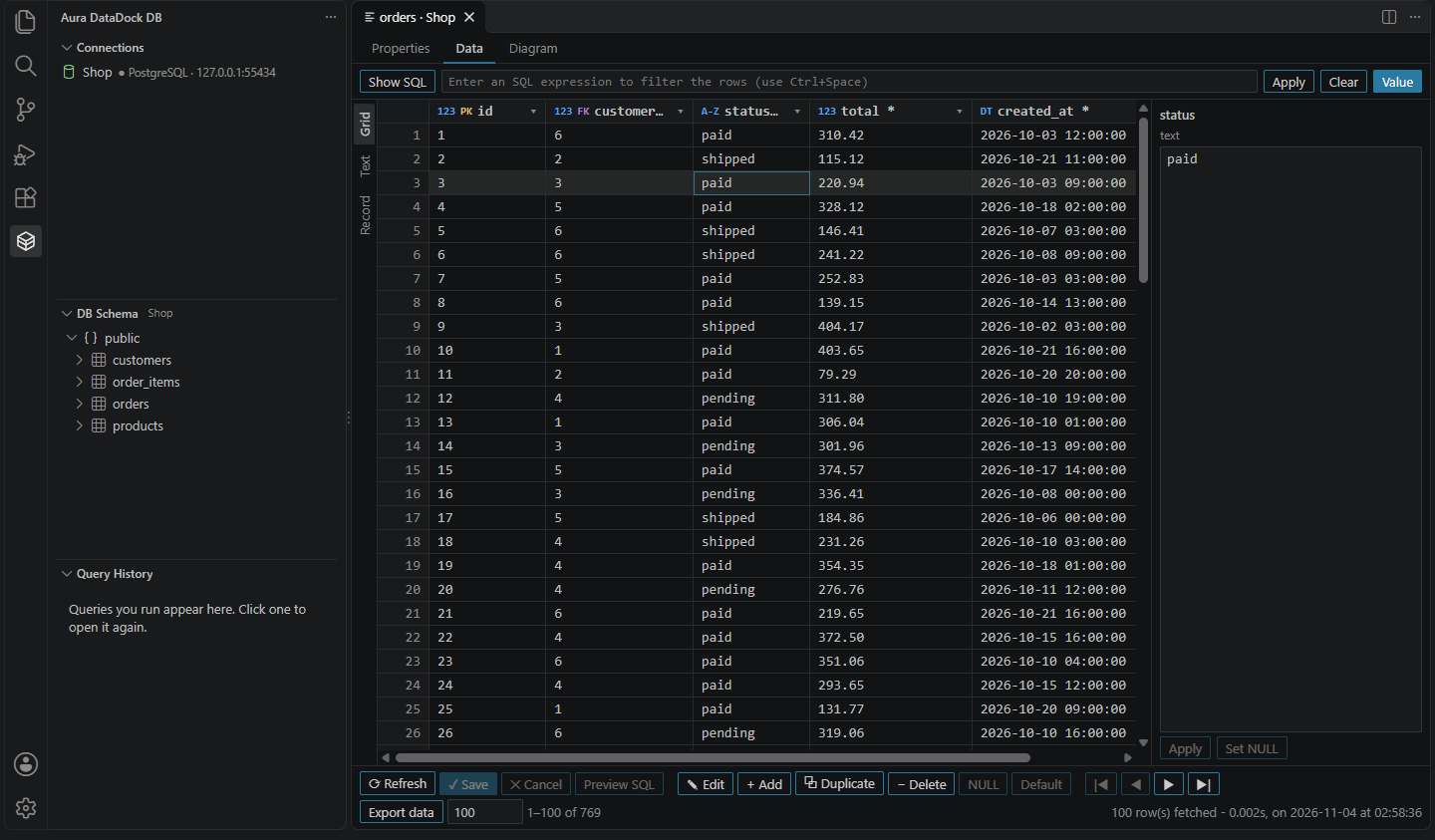
Browse and edit table data
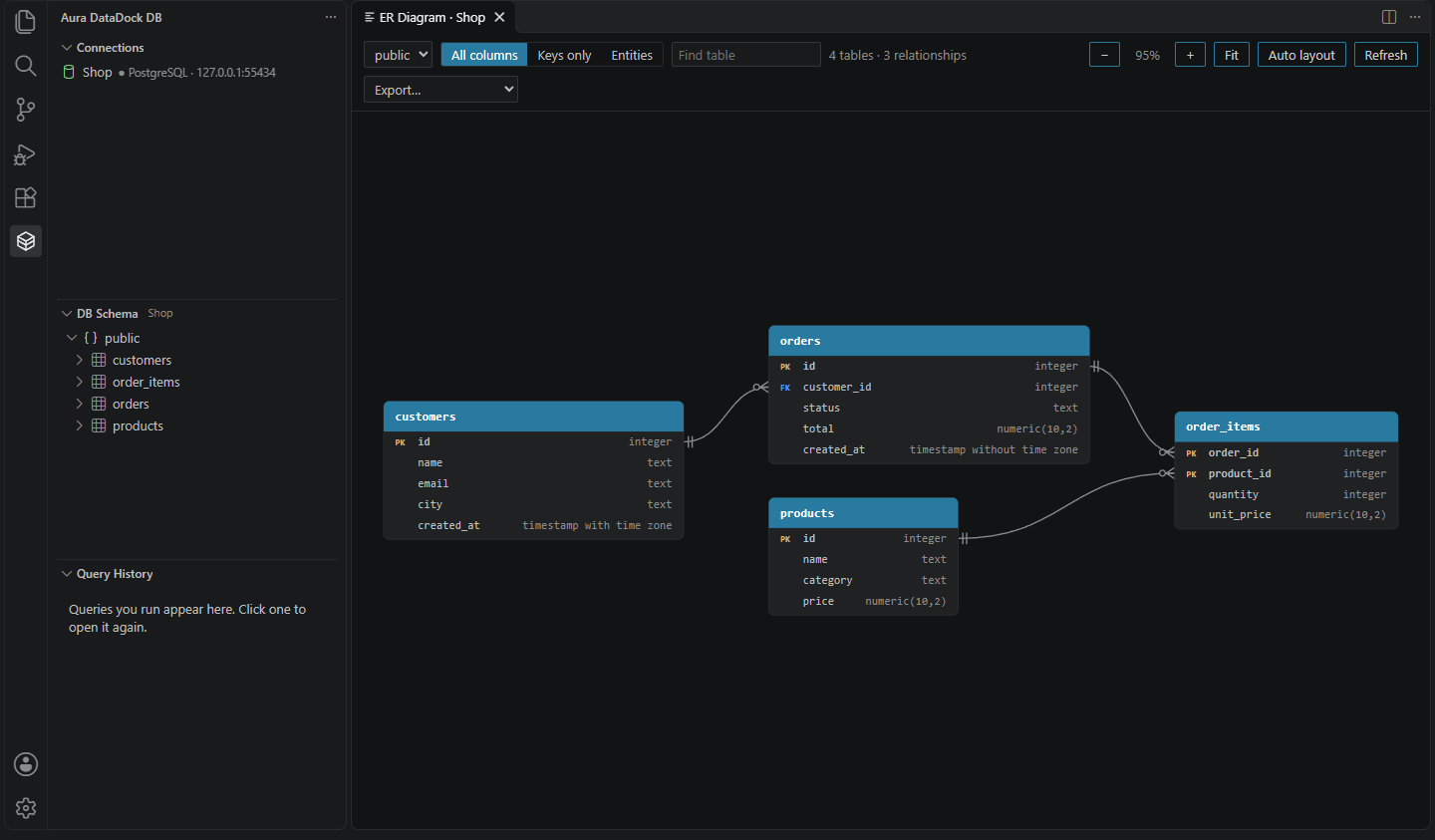
See the database diagram
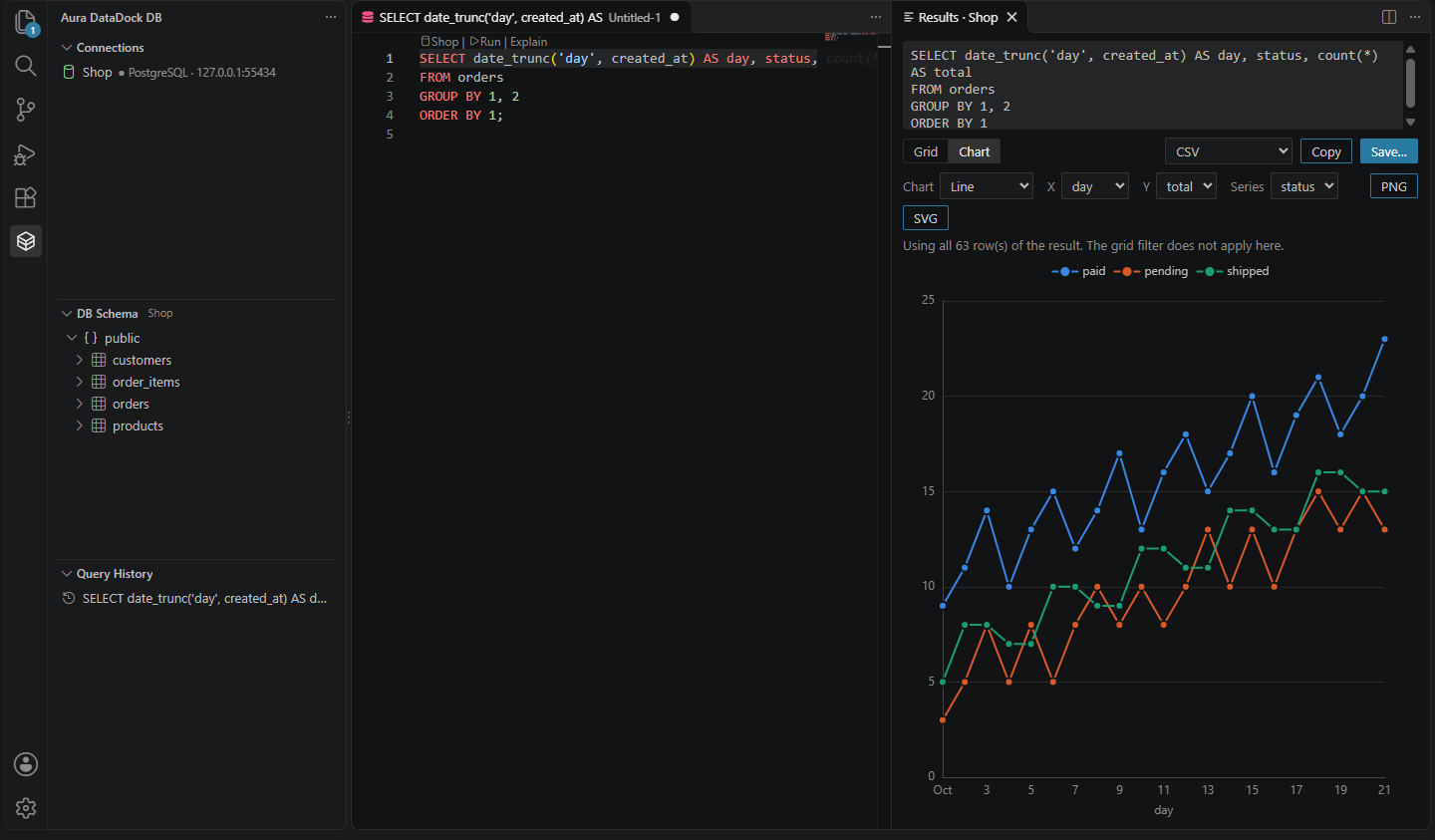
Turn a query result into a chart
Features
- Automatic discovery: detects Postgres, MySQL and MariaDB containers (including PostGIS, TimescaleDB and pgvector) and reads the user, password and database from the container's environment variables.
- Saved connections: local or remote databases, with TLS, SSH tunnel and connection string. Docker is optional.
- Every database on the server: a Postgres connection expands into the databases of the server, so a container that creates several databases shows all of them.
- DB Schema section: schemas, tables, views, columns, indexes and foreign keys of the selected connection, with a filter and menu actions.
- Table screen: Properties, Data and Diagram tabs. Edit cells, add, duplicate and delete rows, filter by SQL expression, view the data as a grid, text or record, and run SQL below the grid, with writes in a transaction.
- Drivers: PostgreSQL, MySQL and MariaDB, with an architecture ready for new databases.
- ER diagram: tables and relationships in crow's foot notation, with cardinality derived from the constraints, at the levels all columns, keys only and entities only.
- Query editor: runs the selection, the statement under the cursor or the whole file, with table and column autocomplete,
EXPLAIN, cancellation and history. Each file is bound to its database. - Results grid: one tab per statement, sorting, filtering, copying a cell, row or column, and smooth scrolling with many rows.
- Charts: view a query result as a line, area, bar, pie, scatter with regression, histogram, boxplot or heatmap, and export it as PNG or SVG.
- Export: results and whole tables as CSV, JSON, NDJSON, Markdown and SQL
INSERT; schema as DDL, Mermaid, DBML and JSON; diagram as SVG and PNG. - Safeguards: read-only globally or per connection, confirmation before
DROP,TRUNCATE,ALTERandDELETEorUPDATEwithoutWHERE, and confirmation of any write on a remote database. - AI to generate SQL: describe what you need and the extension writes the query from the real schema, including foreign keys. Works with VS Code models (GitHub Copilot), Anthropic, OpenAI or a local Ollama.
- MCP server for reads, off by default: agents such as VS Code agent mode, Claude Code and Cursor can list databases, read the schema and run read queries.
- English and Brazilian Portuguese interface: the interface is available in English and Brazilian Portuguese and follows the VS Code display language.
Requirements
- VS Code 1.101 or later
- For automatic discovery: Docker running (Docker Desktop, Docker Engine, Colima or Podman with a compatible socket) and the database port published to the host, for example
-p 5432:5432 - For SSH tunnel: the OpenSSH
sshcommand on thePATH, which already ships with Windows 10 or later, macOS and most Linux distributions
None of this is needed for a direct connection. The extension has no database of its own and no external service.
Usage
- Open the Aura DataDock DB tab in the activity bar.
- Connect to a database:
- With Docker: start the database in a container and it shows up on its own, within 15 seconds. To try it out, use the
docker-compose.dev.ymlin this repository:docker compose -f docker-compose.dev.yml up -d - Without Docker or for a remote database: click Add New Connection.
- With Docker: start the database in a container and it shows up on its own, within 15 seconds. To try it out, use the
- Click the connection. The DB Schema section shows its schemas and tables.
On Postgres, expand the connection to see every database on the server and click one to open it, as in DBeaver. The database from the container's environment variables is marked as default. - Click a table to view and edit its data, or use New Query on the connection to open a SQL editor.
- Use Show ER Diagram on the connection or on the schema to see the diagram.
- Use Generate SQL with AI at the top of the tab to write a query in natural language.
If the container password comes from a secret file (POSTGRES_PASSWORD_FILE, for example), click the container to enter the password. It is stored in the operating system's keychain.
Adding a connection
The Add New Connection form has three tabs. Paste a connection string (postgres://, mysql://, mariadb://) to fill in the fields, and use Test Connection before saving.
| Tab | What it configures |
|---|---|
| Connection | Name, database type, host, port, user, password and database |
| Security | TLS and read-only |
| SSH | SSH tunnel: host, port, user, key and jump host |
TLS modes:
| Mode | What it does | When it is the default |
|---|---|---|
| Off | No encryption | Local host or SSH tunnel connection |
| Required | Encrypts, without validating the certificate | Never |
| Verified | Encrypts and validates the certificate | Remote host |
For databases such as Amazon RDS, the Verified mode needs the provider's CA file. For MySQL over an SSH tunnel, it validates the certificate chain but not the host name, because the driver does not allow setting the real name.
The tunnel uses the system ssh, so your ~/.ssh/config, keys, ssh-agent and known_hosts apply. Three limitations:
- Password login is not supported. Keys with a passphrase must be in the
ssh-agent. - An unknown server must be accepted once, by connecting from the terminal. The extension does not accept host keys on its own.
- The database host is resolved by the SSH server, so
localhostmeans the server itself.
Editing data
Clicking a table opens a tab with three parts:
- Properties: columns, indexes, references in both directions and the DDL, with Copy and Open in Editor.
- Data: the rows, paginated on the server (
auraDataDockDb.table.pageSize). - Diagram: the table and its direct neighbors. Double-click opens the neighbor.
In the Data tab:
| Action | How |
|---|---|
| Edit a cell | Double-click, Enter or F2; Enter confirms, Tab moves to the next editable column and Esc cancels |
| Move the selection | Arrow keys and PageUp/PageDown |
| Copy the cell | Ctrl+C |
| View or edit a long value | Value panel, with formatted JSON; Apply sends the value to the cell |
| Write NULL | NULL in the bottom bar, or Set NULL in the panel |
| Use the database default in a new row | Default in the bottom bar |
| Add a row | + Add; a column without a value uses the database default, and * marks the required ones |
| Duplicate rows | Duplicate; copies the values to new rows, without generated columns and without a primary key that has a default |
| Select rows | Click the row number; Ctrl toggles and Shift selects a range |
| Delete rows | Delete or − Delete, on the selected rows or on the row of the current cell; repeating undoes the mark |
| Sort | Click the header: ascending, descending, no order |
| Filter by a column | Column ▾ menu: by the selected cell's value, contains, IS NULL, IS NOT NULL |
| Filter by expression | Write the WHERE in the field at the top and press Enter; Ctrl+Space suggests columns and operators |
| Adjust the width | Drag the header border |
| Switch the view | Grid, Text (a text table, easy to copy) or Record (one row at a time), on the left |
| Change the page size | Field next to Export data |
| See what will run | Preview SQL |
| Save | Save or Ctrl+S |
Nothing is written until Save, which applies everything in one transaction: if a change fails, none is saved and they stay pending. Changes survive page switches. If you close the tab with pending changes, the extension offers to reopen it with them.
Show SQL opens the screen's SELECT below the grid, which you can edit and run with Ctrl+Enter. This panel and the filter field highlight the SQL and suggest tables, columns and keywords as you type, or with Ctrl+Space:
- A single read statement shows the result in the grid itself, read-only, until Back to Table. It returns at most the page size.
- Anything else follows the path of a normal query, with the same confirmations, and the result appears in the results panel.
- Chart runs a single read statement and opens the result as a chart in the results panel.
The filter expression is only the condition of a WHERE, such as id > 10, without SELECT or ;. A whole query typed there moves to the Show SQL panel and runs from it. The condition is SQL you write, and it can only read. That check analyzes the text and does not see the effect of a function called inside the expression. On a read-only connection, the database itself blocks writes; on the others, the risk is the same as writing the query in the editor.
Each row is identified by its primary key, and each change must affect exactly one row. If someone else removed the row, nothing is saved. On the other hand, if two people edit the same row, the last write wins.
Limits:
- A table without a primary key accepts only new rows, and the order may change between pages.
- Views and read-only connections cannot be edited.
- Generated, identity
ALWAYSand binary columns are read-only. - Complex types, such as array and JSON, are edited as text in the database format.
Changing the structure
The tree menu has Create Table, Add Column, Rename Table, Rename Column, Drop Column, Create Index, Truncate Table and Drop Table. These actions do not run anything on their own: they open the SQL in an editor, for you to review and run with Ctrl+Enter, going through the same safeguards as any query.
Remote databases
A remote database may be production, so:
- New remote connections come as read-only. The protection applies in the extension and in the database session.
- Without read-only, any write asks for confirmation, even with
auraDataDockDb.confirmDestructiveQueriesturned off. - A saved connection never becomes the active connection on its own. It is only used after you choose it.
- The tree, the editor and the status bar show when the database is remote.
Running queries
| Action | How |
|---|---|
| Run the selection or the statement under the cursor | Ctrl+Enter (Cmd+Enter on macOS) or Run above the statement |
| Run all statements in the file | Ctrl+Shift+Enter (Cmd+Shift+Enter on macOS) |
| See the execution plan | Explain above the statement |
| Cancel | Cancel in the results panel or Aura DataDock DB: Cancel Running Query |
| Change the file's database | Click the database name at the top of the file or in the status bar |
Statements in sequence run one at a time and stop at the first error, with one result per statement. Each one is confirmed separately; to group them, use BEGIN and COMMIT in the file itself. Double-click a cell to open the full value in an editor, with formatted JSON.
Charts
After running a query, switch from Grid to Chart in the results panel. On the table screen, use Chart in the Show SQL panel. The extension suggests a chart from the shape of the result, and you change the type and the columns in the fields above it.
SELECT date_trunc('day', created_at) AS day, status, count(*) AS total
FROM orders
GROUP BY 1, 2
ORDER BY 1;
This query becomes a line chart by day, with one series for each status.
| The result has | Suggestion |
|---|---|
| 1 row and 1 value | The number, highlighted |
| Date and number | Line |
| Category and number | Bars |
| Two categories and number | Heatmap |
| Two numbers | Scatter, with optional trend line and R² |
| One number across many rows | Histogram |
Area, pie and boxplot are available in the Chart field. PNG and SVG save the chart with a light background.
The chart uses the rows the query returned and warns you, above it, when:
- the result was cut off by
auraDataDockDb.maxRows, because the chart is partial. Prefer aggregating withGROUP BY; - there are rows with
NULLor values that are not numbers, which are left out; - there are repeated rows for the same position, which are summed;
- there are too many series: above 8, or 3 in the scatter, the extra ones become Other;
- an integer is too large to be drawn exactly. The grid still shows the exact value.
The grid filter does not apply to the chart. Dates appear as the database returned them, without time zone conversion.
Diagram
Drag the tables to arrange them, use the mouse wheel to zoom and drag the background to pan. Positions are saved per container and schema, and Auto layout goes back to the automatic arrangement. Click a table to highlight its relationships and double-click to open its data.
Relationships come from the foreign keys declared in the database. A foreign key to another schema does not draw a line: the column appears as FK and the target is in the column tooltip.
Export
- Query result: choose the format in the grid and use Save… or Copy. All returned rows go, up to the
auraDataDockDb.maxRowslimit, regardless of the grid's filter and sorting. - Whole table: Export Table… in the table menu. Data is read in batches and written straight to the file, with progress and cancellation, without the
maxRowslimit. - Filtered rows: Export data in the Data tab. It exports all rows that match the screen's filters and sorting, the same way, and not just the current page.
- Schema: Export Schema… on the container, on the schema or in the diagram menu. Show DDL in the table menu opens the DDL in an editor.
- Diagram: the diagram's Export… menu, as SVG or PNG, always with a light background.
The DDL is generated from the database catalog and includes columns, primary and foreign keys, indexes, defaults and views. Triggers, check constraints, functions and custom types are not included, and materialized views come out as plain views. For a full backup, use pg_dump or mysqldump.
Settings
| Setting | Default | Description |
|---|---|---|
auraDataDockDb.readOnly |
false |
Blocks any write statement on all connections, in the extension and in the database session itself |
auraDataDockDb.connections |
[] |
Saved connections, without passwords. Only applies in user settings; manage it through the form |
auraDataDockDb.confirmDestructiveQueries |
true |
Asks for confirmation before destructive statements |
auraDataDockDb.maxRows |
500 |
Limit of rows shown in the result |
auraDataDockDb.table.pageSize |
100 |
Rows per page in the data editor |
auraDataDockDb.codeLens.enabled |
true |
Shows the file's database and the Run and Explain actions in SQL files |
auraDataDockDb.history.maxEntries |
200 |
How many queries to keep in the history; 0 turns it off |
auraDataDockDb.dockerHost |
empty | Docker endpoint; empty uses DOCKER_HOST or the system default |
auraDataDockDb.ai.provider |
vscode |
vscode, anthropic, openai or ollama |
auraDataDockDb.ai.model |
empty | Provider model; empty uses the default |
auraDataDockDb.ai.ollamaUrl |
http://localhost:11434 |
Ollama address |
auraDataDockDb.mcp.enabled |
false |
Exposes the databases to agents through MCP. Only applies in user settings |
API keys are saved with the Aura DataDock DB: Set AI Provider API Key command and, like passwords, are kept in the system keychain, never in settings.json.
Privacy
- To generate SQL, only the database structure (tables, columns, types and keys) is sent to the model. Row data never leaves your machine.
- With the
ollamaprovider, nothing leaves your machine. - The history keeps the query text locally, in VS Code storage. Set
auraDataDockDb.history.maxEntriesto0if they may contain sensitive data. - The extension collects no telemetry.
Security
- Settings that decide where the extension connects or sends data (
dockerHost,connections,ai.provider,ai.model,ai.ollamaUrlandmcp.enabled) only apply from user settings. A repository cannot set them. - A repository can turn on
readOnlyandconfirmDestructiveQueries, but cannot turn them off. - The extension does not run in a workspace you have not trusted.
- Read-only mode blocks writes and known functions that act on the server, and on Postgres each read runs in a read-only transaction that is rolled back. This reduces the risk but does not replace permissions: for a sensitive database, connect with a user that can only read what it needs.
- In CSV exports, a text cell that a spreadsheet would run as a formula starts with
'. Other formats keep the exact value. - The TLS mode Required encrypts without validating the certificate, so use Verified outside a trusted network. A
tcp://Docker endpoint is not encrypted.
To report a vulnerability, see SECURITY.md.
Using the MCP server outside VS Code
In VS Code, turn on auraDataDockDb.mcp.enabled in your user settings to register the server. To use it in other clients, point to the dist/mcp-server.js file of the installed extension. Example with Claude Code on Windows, where 0.1.6 is the installed version:
claude mcp add aura-datadock-db -- node "%USERPROFILE%\.vscode\extensions\lucascodev.aura-datadock-db-0.1.6\dist\mcp-server.js"
Available tools:
| Tool | What it does |
|---|---|
list_databases |
Lists the databases found in containers and whether they can be queried |
describe_schema |
Returns the tables, columns and foreign keys of a database |
run_query |
Runs one read query at a time and returns the rows as JSON |
The server rejects what it classifies as a write and reads inside a read-only session. Agents see every row they read, and they use the credentials of the container, which are often an administrator. Use it with development data. It only sees databases in Docker containers: saved connections are not available to agents.
Development
npm install
npm run watch
Then press F5 in VS Code to open a window with the extension loaded. Other commands:
| Command | Description |
|---|---|
npm run build |
Builds the extension, the MCP server and the webviews into dist/ with esbuild |
npm run typecheck |
Type-checks the extension and the webviews with TypeScript |
npm test |
Runs the tests with Vitest |
npm run test:integration |
Starts temporary databases in Docker and tests the adapters against them |
npm run package |
Builds the .vsix file |
The code organization is explained in docs/architecture.md and the contribution guide is in CONTRIBUTING.md.
Sponsor
If this extension helps you, you can support its development on GitHub Sponsors.
License
MIT. The extension bundles open source packages, with their own licenses, listed in THIRD_PARTY_NOTICES.md.
Reviews (0)
Sign in to leave a review.
Leave a reviewNo results found