ha-nova
Health Pass
- License — License: MIT
- Description — Repository has a description
- Active repo — Last push 0 days ago
- Community trust — 22 GitHub stars
Code Fail
- exec() — Shell command execution in .github/workflows/ci.yml
Permissions Pass
- Permissions — No dangerous permissions requested
No AI report is available for this listing yet.
Use Home Assistant from Claude, ChatGPT, Codex, and other AI apps, safely. Each device pairs on its own, and risky changes wait for your OK.



hanova.app · the 5-minute tour · the demo house · look around before you connect your own
One code to connect. Every change checked.
On HA OS or Supervised, connect your AI by signing in with Home Assistant — or with one six-digit code from the NOVA page.
Changes are previewed first and verified by reading them back — only unambiguous everyday actions run right away.
Locks, gates, the alarm, and deletes wait for you: a click in a window on your computer, a tap on your linked phone, or a one-time code.
Works with Claude Code · Claude Desktop · Codex CLI · OpenCode · Google Antigravity · Hermes Agent (preview)
"When I get home, set my main lights to a warm welcome scene" — one sentence in, a fully reviewed automation out, including suggestions you might not have thought of.
✦ Three steps to connect
- Run the installer — one command; the wizard finds your Home Assistant.
- Sign in with Home Assistant — the wizard opens your Home Assistant login in the browser. Sign in as the owner: the wizard installs and starts the NOVA Relay App for you if needed, and this computer connects by itself.
- Get a first look — setup ends with your home in one line, up to two things worth a look (a low battery, an automation that can't run), and example prompts with your own room and device names.
No browser here, or signed in as another Home Assistant user? The wizard shows the NOVA Relay App page instead (click "Add", then Install and Start; skipped when the App already runs), and you pair with a one-time code: the Home Assistant owner clicks "Connect a device" on the NOVA page in the sidebar, and you type the six-digit code. Over SSH this works reliably on Linux only: on Windows and macOS, run setup in a terminal on that computer's own desktop, because over SSH HA NOVA usually can't save its credential.
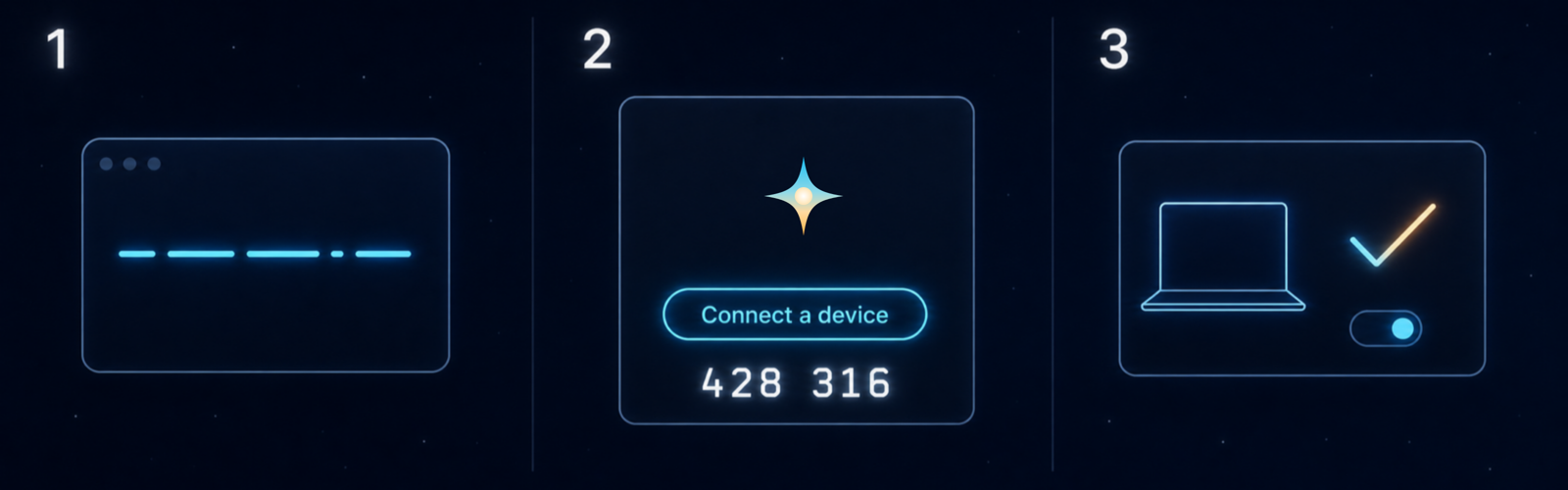
Sign-in and the code are one-time and expire in minutes. Each device gets its own connection you can revoke anytime from NOVA.
What it does · Is it safe? · Get started · Remote access · How it works
Actively developed. Core workflows are proven end-to-end on macOS, Linux, and Windows — and the product is young enough that your feedback still shapes it. Back up your configs before letting AI touch anything. Hit a problem? Open an issue.
💬 What You Can Do
Say what you want. HA NOVA figures out the rest.
| You say | What happens |
|---|---|
| "Check my automations for problems" | Audits against 40+ rules — catches conflicts, dead triggers, and mistakes you'd never spot manually |
| "Why didn't my motion light trigger last night?" | Replays the actual trace and tells you exactly where it failed and why |
| "Turn on the porch light at sunset and off at 11 PM" | Builds, previews, and reviews the automation before it touches your config |
| "What happened to my living room temperature overnight?" | Pulls history and summarizes the timeline in plain language |
| "Build a dashboard for the living room" | Builds whole dashboards and views with the custom cards you installed, lists every view and card that changes, saves a copy first — "undo that" restores it |
| "Move all kitchen devices to the Kitchen area" | Reassigns entities and devices — shows what will change first |
| "Turn off the kitchen light" | Turns it off right away and checks that it really is off — whole rooms, scenes, and riskier actions show a preview first |
| "Unlock the front door" | Shows exactly what will happen, then waits for you: Confirm in a window on your computer, a tap on your linked phone, or a one-time code |
| "What do I have, and where is this sensor used?" | Counts rooms, devices, automations, and integrations itself and lists the automations, scripts, scenes, groups, helpers, and dashboard cards that use a sensor, and says what it couldn't check — exact numbers, never a guess |
| "My door sensor died, I paired a new one" | Moves automations, scripts, scenes, dashboards, helpers, and energy sources to the new device in one reviewed plan |
| "Turn this Node-RED flow into an automation" | Lists what the rule does, maps each device to a real entity, builds a native automation, and keeps the old rule disabled, not deleted |
| "Check my ESPHome config for the garage sensor" | Explains the device file in plain words and flags removed keys, pins that can't do what the file asks, and passwords written into it |
| "Remind me in 20 minutes to check the oven" | Creates a one-time reminder that disables itself after it fires |
| "Show me all temperature sensors" | Finds entities by name, room, area, or label |
Automations and scripts get the full workflow today: preview, review, and a 40+ rule audit. Helpers get preview-and-verify; dashboards get a preview of every changed view and card, a copy before each save, and undo. Device control runs unambiguous everyday actions immediately and verifies them afterwards; everything else shows a preview first, and locks, gates, the alarm, and deletes need your confirmation. Deeper audits are rolling out with every release.
🛡️ Safe by Design
We built this because we didn't trust AI with our own config either.
What happens when AI wants to change something:
- Researches first. Finds your devices, checks your setup, resolves entity names. No guessing.
- Shows you the change. A clear before/after table of exactly what will change, before anything is written. The one exception: unambiguous everyday actions — "turn off the kitchen light" — run right away and are verified afterwards. The HA NOVA command decides which actions qualify, never the AI, and it sends nothing if anything changed since a preview.
- You approve it. Unlocking a door, opening a gate or garage door, disarming the alarm, restarting Home Assistant, and deletes need your explicit confirmation — not just "yes." Where your computer can show one, a confirmation window opens: click Confirm (OK on Windows) or Cancel, and your AI never sees a code. Without a desktop (for example a headless Linux machine), the one phone you linked asks (Home Assistant Companion app; not with a standalone relay that runs on your own token). You answer on the phone or its Apple Watch without unlocking it, so whoever holds your phone can answer while a request is open (up to 90 seconds), and only for that one action; linking, moving, or turning off phone confirmation needs the unlocked phone. Once a phone is linked, an action it can't reach is refused, never moved to chat. With neither, you get a four-digit one-time code (in chat, or in your AI app's own form where it shows one); the AI can see it too, so it only counts when you type it yourself. Automation, script, and dashboard deletes use the same window or phone; other deletes (helpers, scenes, areas, and the like) take a four-digit code in chat. Each automation or script delete is confirmed on its own; other reviewed batch deletes take one confirmation bound to the exact list of items. Anything you allow to control your screen (computer use, or apps you granted Accessibility; on Windows and some Linux desktops, other programs) can click that window too — turn it off with
ha-nova setup confirm-window off. - Captures a recovery point first. Before a covered delete or full-configuration replacement, HA NOVA snapshots the item it is about to change — so "gone" has a way back.
- Writes and verifies. Reads the config back to confirm the change stuck.
- Audits itself. Checks for mistakes, conflicts, and reliability issues.
- Offers a safe test. After saving a new or changed automation or script, you get a test plan matched to the risk — from a zero-impact logic check to a real run that names exactly which devices will switch before you say go.
- Offers a way back — three clearly separated layers. Reply
revertto undo the latest verified update. Restore a deleted automation, script, scene, dashboard, or storage helper from its config snapshot through the same preview-and-confirm flow — "undo that" right after a delete, or "restore the kitchen automation you deleted yesterday", works. For everything beyond that, a Home Assistant Backup.revertand config snapshots cover changes made through HA NOVA only — edits made directly in the Home Assistant UI, by other tools, or by hand in YAML are not captured, and a config snapshot restores the item itself, not every reference to it. Home Assistant Backups remain system-wide.
The ground rules — always:
- 🔒 Relay credentials stay out of the AI. The App's Home Assistant credential stays inside the Relay. Optional Cloud access uses a separate Home Assistant OAuth authorization in this computer's native credential store; neither credential is exposed to the AI.
- 🔑 Every device is paired on its own. Home Assistant sign-in and the six-digit code are one-time and short-lived; what they create is a per-device credential over an encrypted, pinned connection (OPAQUE, RFC 9807 + SPKI-pinned TLS 1.3 under the hood). (On App installs; the standalone container uses one shared token instead.)
- 🗑️ Revoke with one click on App installs. Lost a laptop? Retired a machine? Cut off that paired device from the NOVA page — everything else keeps working.
- 📖 Every rule the AI follows is a markdown file you can read.
- 🏠 No HA NOVA-operated cloud relay, usage analytics, or installation counting. Local mode stays between your machine and Home Assistant. Optional Cloud mode uses your Nabu Casa service; HA NOVA receives none of that traffic.
🚀 Get Started
One installer. One wizard. One sign-in. It even finds your Home Assistant automatically.
You need: Home Assistant — any install type. HA OS and Supervised get the NOVA Relay App, and the wizard below walks you through it. Container and Core run the same relay as a standalone container — same skills, same safety guarantees, with a token-based setup: skip the steps below and follow that guide end to end instead.
macOS / Linux:
curl -fsSL https://raw.githubusercontent.com/markusleben/ha-nova/main/install.sh | bash
Windows (PowerShell):
irm https://raw.githubusercontent.com/markusleben/ha-nova/main/install.ps1 | iex
The installer selects the latest stable release. Run the command for your OS; the wizard discovers your Home Assistant and configures your AI clients. On HA OS and Supervised it offers to install the NOVA Relay App for you: choose "Sign in and install NOVA", sign in as the owner in the browser, and it installs and starts the App and connects this computer with that one sign-in (an outdated App is updated the same way; nothing to do when an up-to-date App already runs). Rather do it yourself, or no browser sign-in here (for example over SSH)? The wizard takes you to the App page instead, with the repository added on the way: click "Add", then Install and Start. After a manual install, or when the App already runs, it opens your Home Assistant login to pair: sign in as the owner, and this computer connects by itself. As another Home Assistant user, over SSH on Linux, or when sign-in doesn't work out, it asks for the code instead — the owner opens NOVA in the sidebar (or "Open Web UI" on the app page) and clicks "Connect a device", and you type the six-digit code. On Windows and macOS, run setup in a terminal on the computer's own desktop, not over SSH. After pairing, setup offers to link your phone for confirmations (signed in to the Home Assistant app as an administrator), and it ends with a first look at your home.
Want to look first? The demo house is a simulated Home Assistant with no real devices, to look around before you connect your own. Everyone shares one login and it resets every hour, so never enter real names, passwords, or tokens there.
Optional remote access with Home Assistant Link (Beta)
The wizard keeps Local only as the recommended default. If you have a paid Home Assistant Link subscription (formerly Home Assistant Cloud) from Nabu Casa with remote access enabled, choose Local + Home Assistant Link for automatic remote fallback or Home Assistant Link only for remote-first setup. In Home Assistant the service is under Settings > Home Assistant Cloud until the rename reaches your Home Assistant. The wizard validates your Cloud URL, opens Home Assistant OAuth, and stores the authorization in the native macOS, Windows, or Linux desktop credential store. HA NOVA runs no additional public tunnel or hosted broker.
Cloud Remote requires Home Assistant OS/Supervised and a supported desktop session for authorization; an interrupted, already-verified setup can finish over SSH with ha-nova cloud add --remote-resume. Headless, WSL, service, gateway, Container, and Core setups stay local-only. Remote-first pairing uses a separate private Owner session to create the one-time NOVA device code; the OAuth user can remain a standard Home Assistant user.
Already installed locally? Run ha-nova cloud add, or rerun ha-nova setup for the same guided choice.
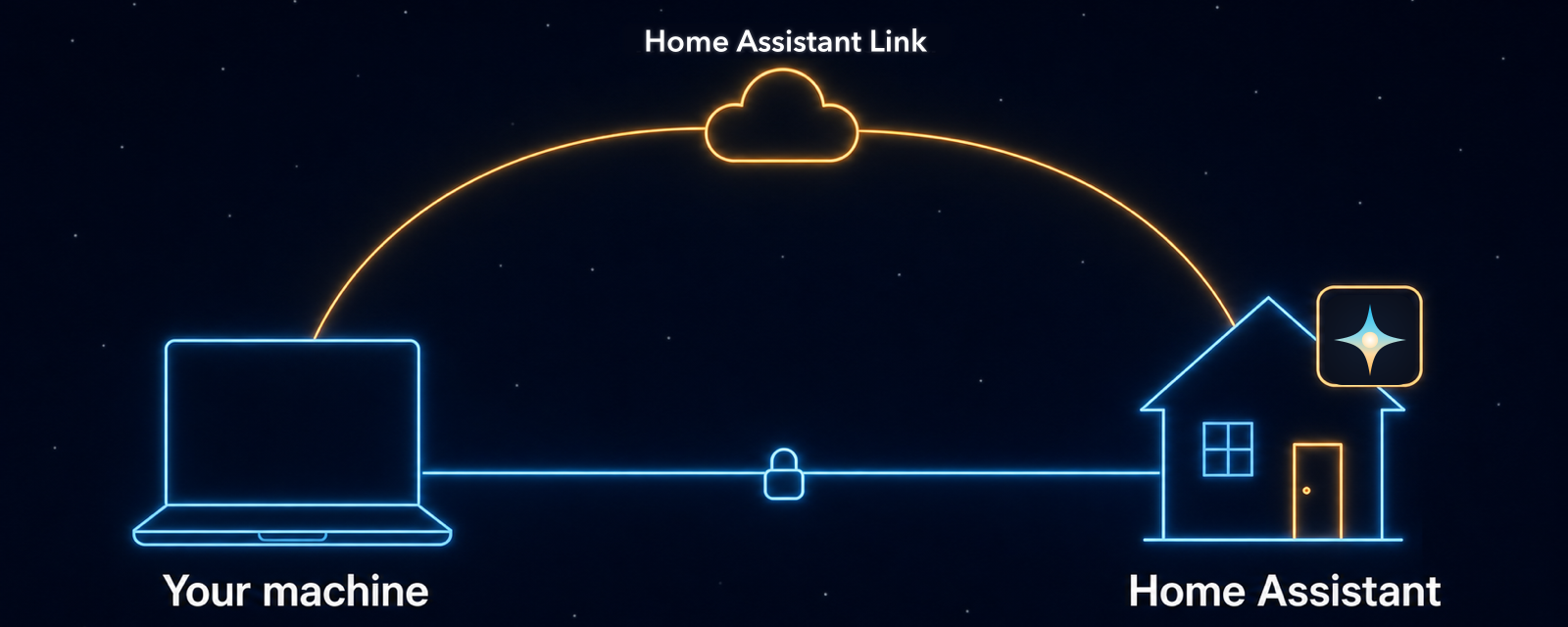
Local stays first: the CLI prefers the direct connection and uses your Home Assistant Link remote access only as an automatic fallback — no manual URL switching.
Once it finishes, try: "Show me all my automations."
More than one Home Assistant? Add each further instance with
ha-nova pair --server <name> --relay-url http://<ha-host>:8791— every server gets its own profile and its own isolated credential. Select one with the--server <name>flag on relay calls or theHA_NOVA_SERVERenvironment variable, and manage profiles withha-nova server list|default|rename|remove.
Platform notesUpgrading from an earlier HA NOVA? Everything keeps working through the update. To move to per-device pairing, re-pair each computer once (one code each), then revoke the old shared access from the NOVA page whenever you're ready.
macOS — proven end-to-end on real hardware.
Linux — proven end-to-end, including headless setups (servers, containers, LXC, SSH): with no desktop keyring around, the device credential falls back to a private file automatically. A standalone relay (relay token, no device pairing) on such a machine uses ha-nova setup --service <client> (Codex CLI, OpenCode, Hermes Agent).
Windows — proven end-to-end on a live Windows 11 system. Ships x64 builds only; on Windows 11 on ARM, install from the x64 PowerShell (the installer lists the steps).
- Claude Code is the most tested client on Windows today
- Google Antigravity has basic validation
- Codex and OpenCode are still early
- Native prerequisites: Claude Code needs Git for Windows / Git Bash; Google Antigravity Desktop or CLI must be installed
- See .claude/INSTALL.md and .antigravity/INSTALL.md
CLI commands & legacy uninstallDo not download the
ha-nova-installer-bundle-*.tar.gz/.zipassets manually. Those archives are used by the installer behind the scenes. Always use the one-liner orha-nova update.
| Command | What it does |
|---|---|
ha-nova check-update |
Check for newer versions |
ha-nova update |
Update to the latest release |
ha-nova setup |
Re-run the setup wizard |
ha-nova pair |
Pair this computer again with a fresh six-digit code |
ha-nova doctor |
Diagnose connection and config problems |
ha-nova setup confirm-window off |
Turn the confirmation window off (you confirm that in the window); on turns it back on |
ha-nova setup confirm-phone |
Link one phone for confirmations (pick it, then tap "Link" on it); off unlinks it, confirmed on that phone |
ha-nova uninstall |
Remove HA NOVA (keeps settings for easy reinstall; guides removing the NOVA Relay App only when you say this is the last computer using it) |
ha-nova uninstall --purge |
Remove runtime, settings, and credentials; retain small opaque local markers that block stale processes from restoring the install |
Coming from a pre-Go install?
- macOS / Linux:
curl -fsSL https://raw.githubusercontent.com/markusleben/ha-nova/main/scripts/legacy-uninstall.sh | bash - Windows:
irm https://raw.githubusercontent.com/markusleben/ha-nova/main/scripts/legacy-uninstall.ps1 | iex
Not a terminal person? Setup is one copy-pasted command; after that, Claude Desktop and Google Antigravity Desktop give you the same skills in an app window — and pairing another computer is just one more sign-in (or one six-digit code).
⚙️ How It Works
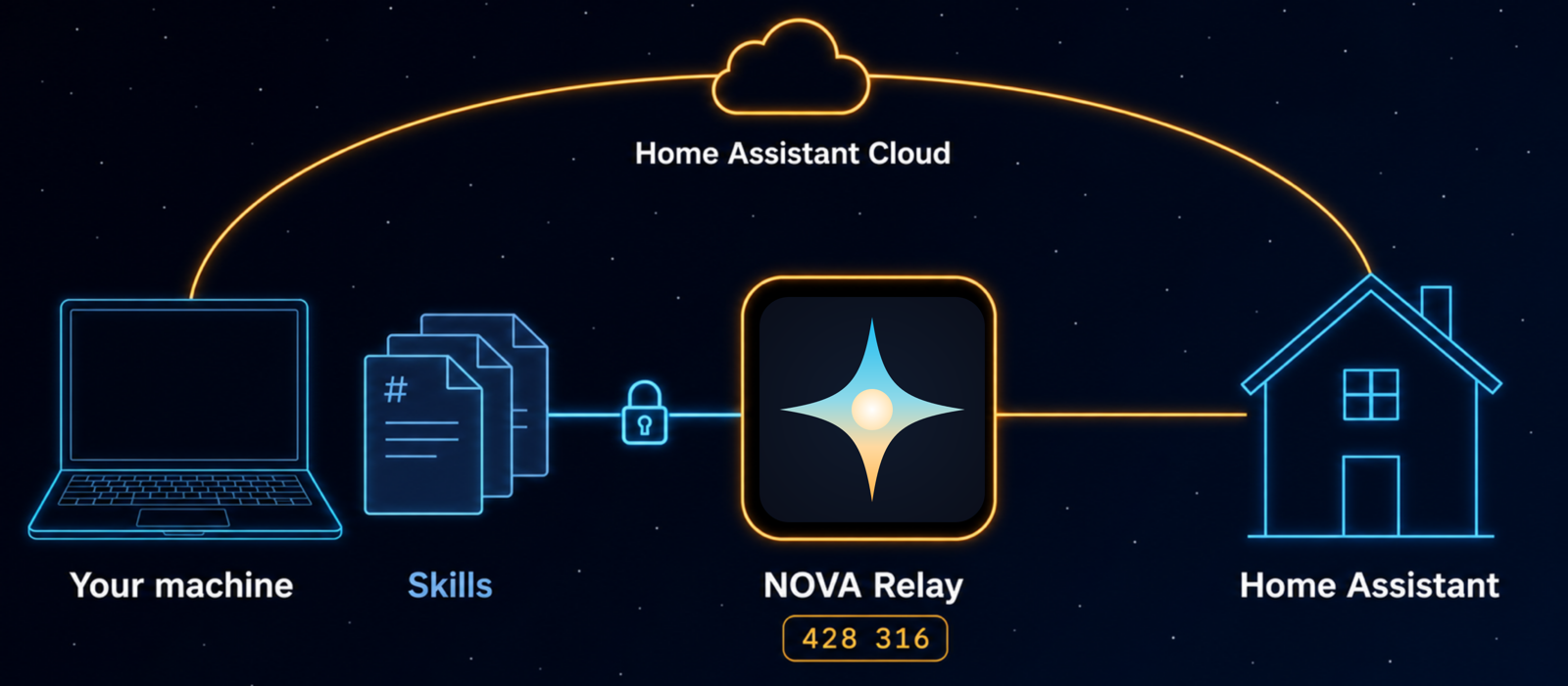
Skills live on your machine as plain markdown. They're the AI's playbook — what to check, what to show you first, what to verify after a change. You can open them, read them, even edit them.
The Relay lives on your Home Assistant server. On the local path it is the only part that talks to Home Assistant directly, and its upstream credential stays inside it. Optional Cloud mode lets the CLI establish the Nabu Casa connection with OAuth authorization from native desktop secure storage; neither credential enters a prompt. Each paired device still reaches the Relay with its own encrypted credential, and the NOVA page is where you connect or revoke devices.
Most new HA NOVA workflows are text-file skill updates on your machine. The Relay only changes when a workflow needs something genuinely new from Home Assistant — and even then it stays the dumb pipe: all the know-how stays in the skills.
And because the Relay sits right next to Home Assistant, it can do things a remote client can't — like snapshotting an automation before it updates it, so you can revert the latest verified update with a single word. Deletes of snapshot-covered config items — automations, scripts, scenes, dashboards, and most helpers — capture a config snapshot first, so they can be restored through the same preview-and-confirm flow; paths without a snapshot fall back to a suitable Home Assistant Backup.
Every safety guarantee above is backed by a file and a test — the safety page maps each claim to what enforces and verifies it.
⚖️ Why skills first, not a tool server?
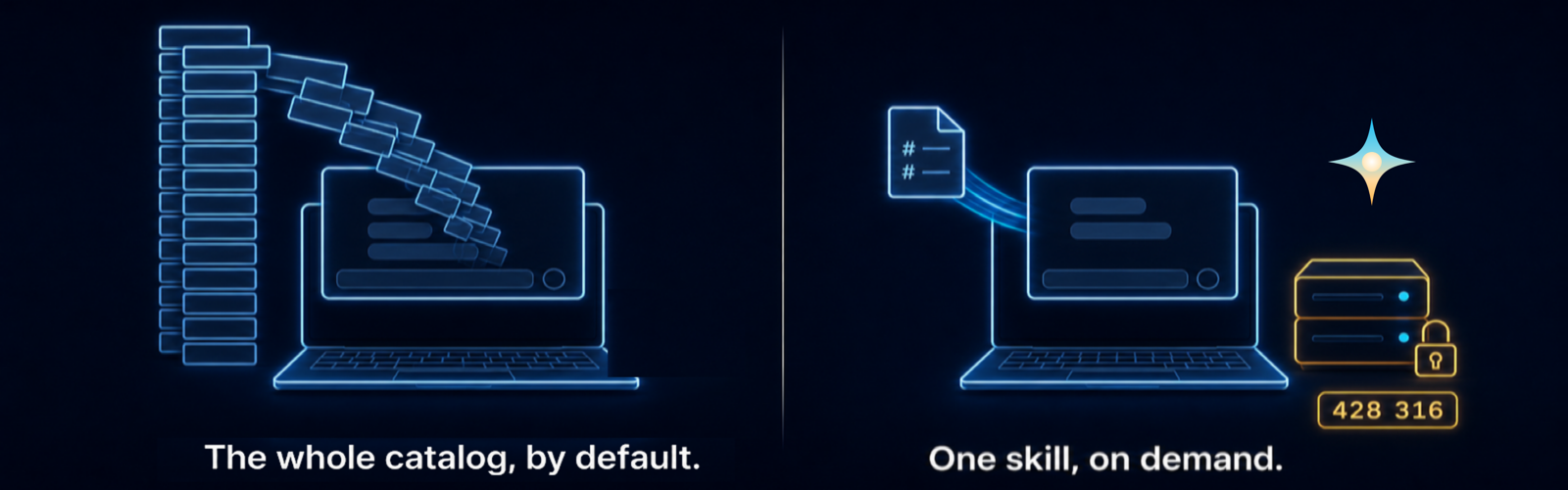
Fair question — we built a tool-based MCP server first. 88,000 lines of it, never shipped. What it taught us is exactly what HA NOVA does differently:
| Tool-based MCP server | ✦ HA NOVA | |
|---|---|---|
| 📖 Where the know-how lives | In server code — changing the behavior means changing the server | In markdown files you can open, read, and edit yourself |
| 🛡️ Safety model | Configurable: read-only modes, per-tool toggles, approval policies you set up | Enforced for every change: preview first (only unambiguous everyday actions run right away), locks, gates, the alarm, and deletes wait for a Confirm in a window or on your phone, or a one-time code; every write is verified — each guarantee backed by a test |
| 🏠 Where it runs | The leading project's recommended setup runs inside Home Assistant's own process | A deliberately dumb relay in its own process — a crash can't touch Home Assistant, and it holds no HA business logic |
| 🔑 Connecting a device | A shared secret (URL or token) — or OAuth where configured | Home Assistant sign-in or a one-time six-digit code per device, each individually revocable from the NOVA page (App installs; the standalone container keeps a server-side token) |
The honest bit: the MCP side is ahead on breadth today — more tools (App management, dashboard screenshots, ZHA inspection), more contributors, more stars. It's the older project. But the asymmetry matters: our gaps close one markdown file at a time — turning a tool server's Python into plain text you can read would be a rewrite.
🧩 Skills
34 task skills plus the HA NOVA context skill — each one a markdown file you can read and edit.
- ✏️ Build & change — automations & scripts, helpers, scenes, dashboards, areas & labels, device control, device replacement, rule migration, YAML-only config, ESPHome configs
- 🔍 Understand & debug — config reading, a map of your whole home, 40+ rule audits, root-cause tracing, history & stats, entity discovery, system health
- 🧰 Run & maintain — backups, updates, HACS packages, recorder & statistics repair, energy, MQTT, InfluxDB history, integration setup
- 🏠 Everyday — media & speakers, notifications, cameras, voice assistants, to-dos, calendars
- 🛟 Admin & safety net — persons, zones & users (owner-guarded), blueprint fallback, onboarding & troubleshooting
| Skill | What it does |
|---|---|
| ✏️ write | Build and change automations with full preview and safety checks |
| 📖 read | Inspect your automation and script configs as they really are |
| 🔍 review | Audit your setup for mistakes, conflicts, and reliability gaps |
| 🧱 dashboard | Build and change dashboards, views, and cards (installed custom cards included), find broken cards, manage Lovelace resources — with a copy before each save |
| 🎬 scene | Create and manage scenes, including "save this room as a scene" |
| 🗂️ organize | Manage areas, floors, labels, and entity metadata |
| 🕒 history | Query history, logbook timelines, and long-term stats |
| 🏠 health | Summarize Home Assistant status, repairs, integrations, system health, and noisy entities |
| 📅 calendar | Read calendars and bounded event windows |
| ✅ todo | Manage to-do and shopping-list items, create Local To-do lists |
| 💾 backup | Check backup status, create backups — also as a safety net before risky changes |
| ⬆️ updates | See pending updates, read release notes, and install them with safety gates |
| 📦 hacs | Browse, install, pin, update, and remove HACS packages — with previews and a mandatory backup before destructive migrations |
| ⚡ energy | Analyze consumption, solar, battery, and per-device costs; manage Energy dashboard sources |
| 🧹 maintenance | Repair statistics, purge recorder history, and clean up dead entities — with strict safety gates |
| 🎛️ service-call | Control lights, climate, covers, switches, and media players |
| 🔎 entity-discovery | Find entities by name, room, area, or label |
| 🗺️ home-map | Your whole home with exact numbers: rooms, devices, automations, integrations, where an entity is used, and the first look after pairing |
| 🔁 device | Replace a dead device or a new phone and move everything that used it in one reviewed plan; onboard or retire a device |
| 🚚 migrate | Turn Node-RED, Homey, SmartThings, Hubitat, or openHAB rules and old automation YAML into native automations |
| 📟 esphome | Explain, check, and edit ESPHome device configs; check the device's entities after an install |
| 🧩 helper | Create and manage helpers: counters, timers, template sensors, and more |
| 🩺 diagnose | Root-cause a concrete failure: "why didn't my automation run?" |
| 🎵 media | Control media players, browse libraries, group speakers, send TTS announcements |
| 📣 notify | Send notifications to your phone, manage persistent notifications |
| 📷 camera | Look at the current camera frame, get stream URLs, record |
| 📡 mqtt | Listen to MQTT topics, inspect discovery, publish with guards |
| 🗣️ assist | Test what your voice assistant understands, manage pipelines and voice exposure |
| 👥 admin | Manage persons, zones, tags, and user accounts — with hard owner guards |
| 🔌 integration-setup | Add new integrations and finish reauthentication flows |
| 📝 yaml-config | Edit YAML-only configuration (template/REST/command-line sensors, packages, themes) via opt-in file access |
| 📊 external-sources | Query InfluxDB directly for history the recorder purged long ago |
| 🛡️ fallback | Safety net for blueprints and advanced ops |
| 🚀 onboarding | Diagnose setup issues and troubleshoot connections |
Want to add a new capability? → CONTRIBUTING.md
The skills declare the NOVA Relay version they need (see version.json) and warn at runtime when the installed relay app is older — update it in Home Assistant under Settings > Apps > NOVA Relay.
🖥️ Supported Clients
| Client | Type |
|---|---|
| Claude Code | Terminal |
| Claude Desktop (Code tab) | Desktop app |
| Codex CLI | Terminal |
| OpenCode | Terminal |
| Google Antigravity | Desktop app / Terminal |
| Hermes Agent (preview) | Terminal |
Google Antigravity is the current Google client path.
ha-nova setup geminiremains a legacy alias for existing Gemini-era installs.
Hermes is in preview. The Linux desktop route (GNOME Keyring) is maintainer-validated; macOS and Windows-via-WSL2 are experimental, and native Windows isn't supported. Details: .hermes/INSTALL.md.
🔮 What's Next
HA NOVA is young — and that's the point. Here's where it's going:
- Deeper reviews everywhere — the full 40+ rule audit, expanding beyond automations
- Community skills — write a new workflow as a markdown file, share it with everyone
- A guided Docker path in the wizard — Container and Core setup without the manual steps
If you've ever wanted to shape how AI works with Home Assistant, this is the stage where your input actually changes the product.
🤝 Contributing
This is the best time to get involved.
- Write a skill — add a new workflow in markdown, no server code needed
- Test on your setup — edge cases from real installs make everything better
- Improve docs — make HA NOVA clearer for the next person
- Tackle an open issue — especially if you want a workflow to become first-class
📖 The Story
I spent over a year building an 88K-line MCP server for Home Assistant. Kept adding features, never releasing. Others shipped theirs while mine sat on my machine.
Then I realized the architecture was the problem. Instead of burying HA knowledge in a huge server, I could keep the server lean and write the workflows as plain text — readable, editable, and much easier to grow with other people.
HA NOVA is what came out of that. Here's an early demo from the MCP era.
📄 License
🙏 Acknowledgments
Safety-rule ideas inspired by HALMark by Nathan Curtis. Automation patterns, helper guidance, and device-control patterns adapted from homeassistant-ai/skills by Sergey Kadentsev (@sergeykad) and Julien Lapointe (@julienld).
Reviews (0)
Sign in to leave a review.
Leave a reviewNo results found